16. Wildcard Week
assignment Design and produce something with a digital process (incorporating computer-aided design and manufacturing) not covered in another assignment, documenting the requirements that your assignment meets, and including everything necessary to reproduce it. Possibilities include (but are not limited to):
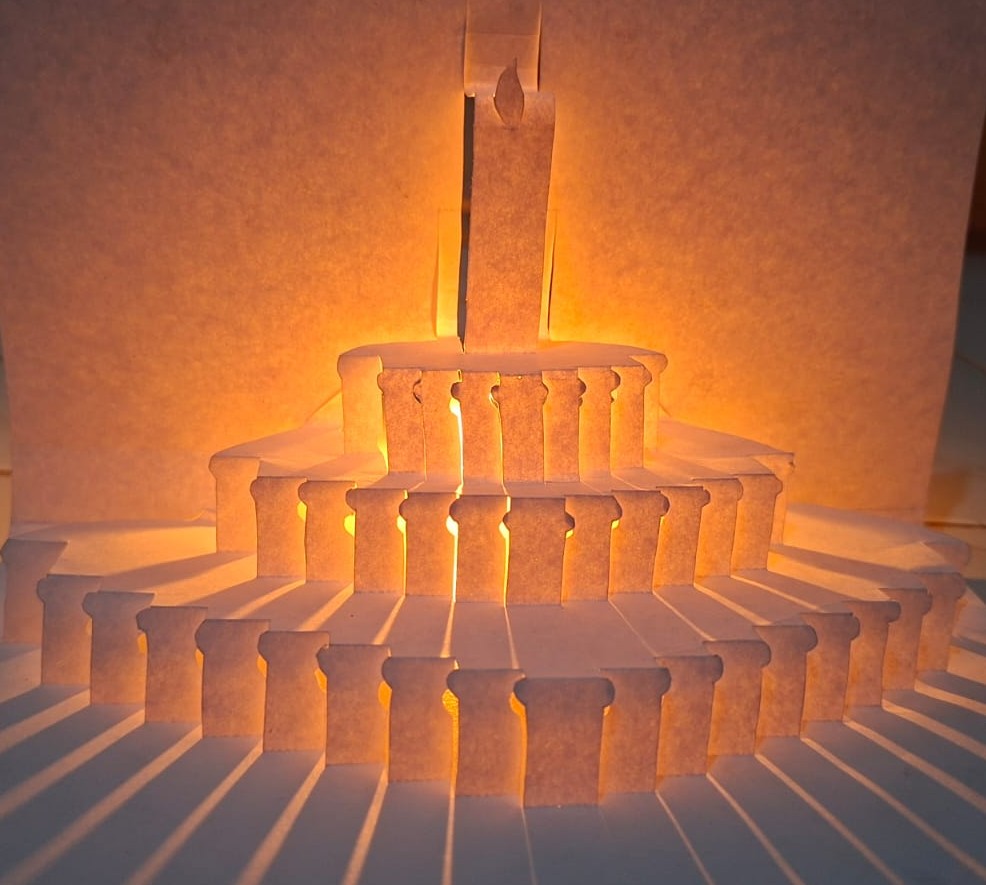
# - 3D Birthday Cake Pop-Up Card for my Daugheter
Idea
For Wildcard Week, I wanted to make something different from my previous projects. Since my daughter’s birthday is coming up, I decided to create a 3D pop-up birthday card.
Initial Sketches and Testing
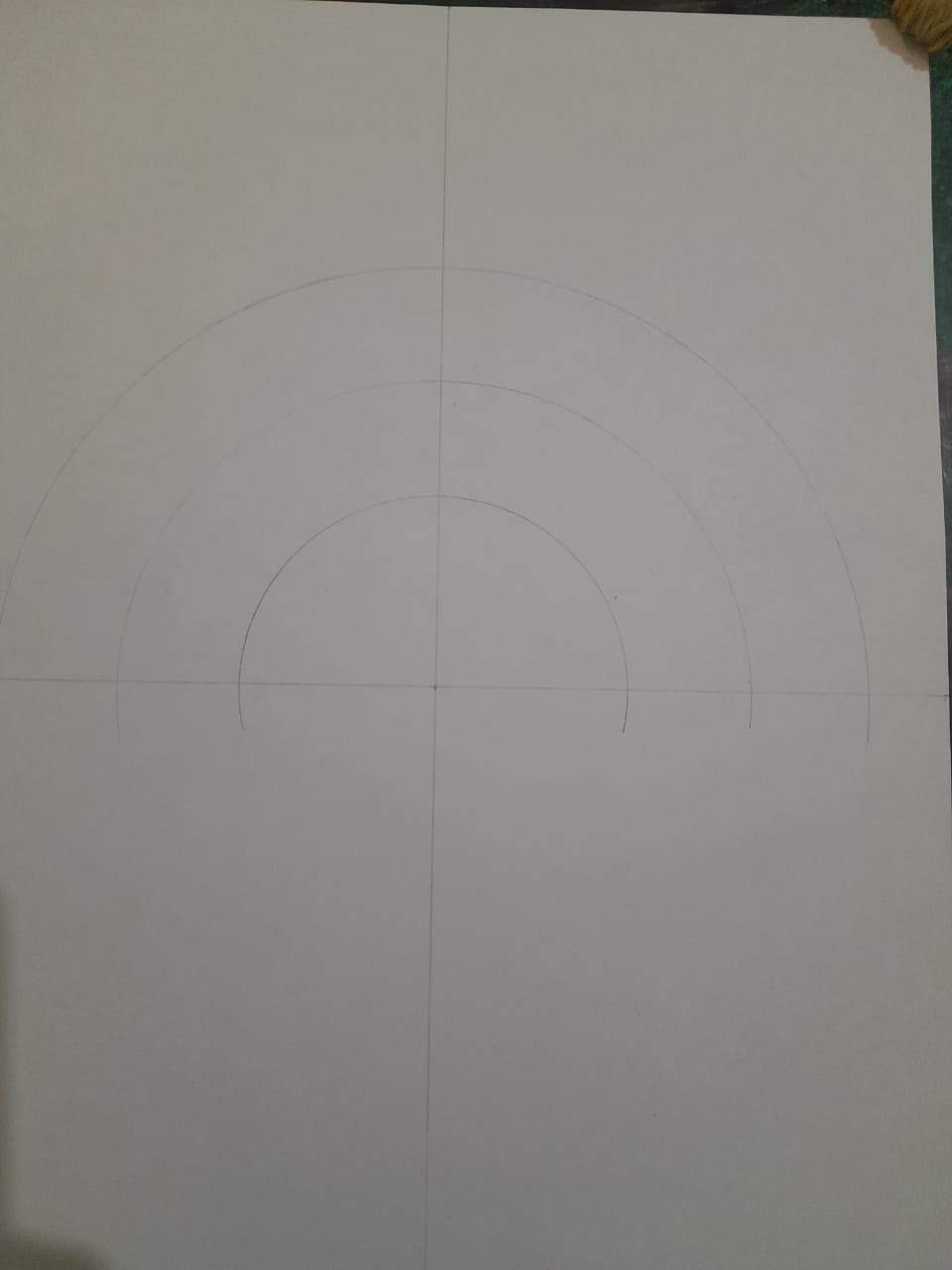
Before opening any design software, I started with a sheet of A4 paper and a pencil. I drew a center line and began sketching different curved layers that could form the shape of a cake.
My first goal was simply to understand how the folds would behave when the paper was opened and closed.
After a few trials, I settled on a design made of three curved layers that would represent the different levels of the cake.
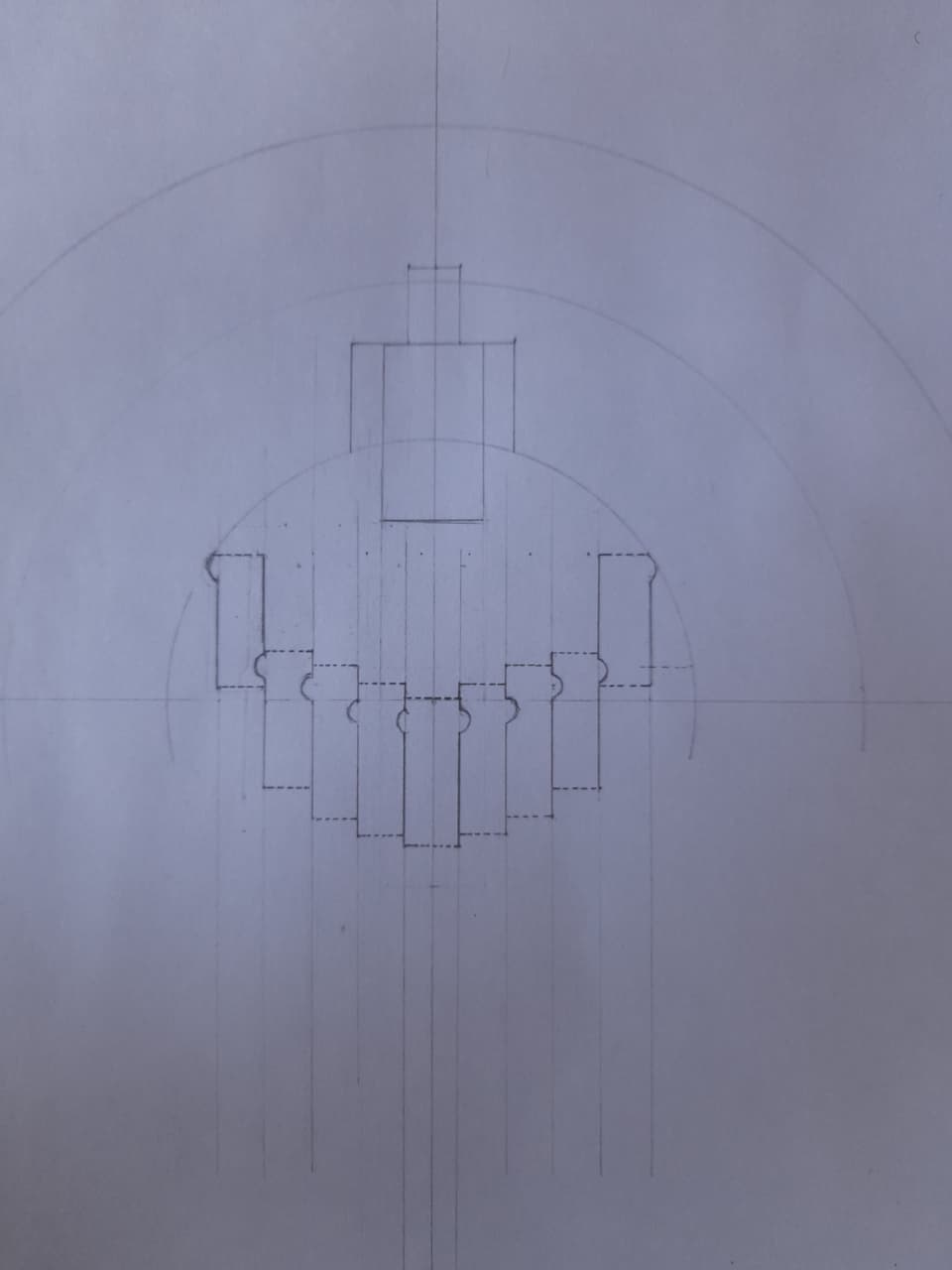
The inner layer had a radius of 40 mm, the middle layer 65 mm, and the outer layer 90 mm. I also added a candle in the center measuring 15 mm wide and 40 mm high.
Understanding the Mechanism
The structure works using a combination of cuts and folds.
The vertical cuts create tabs that are folded inward. When the card is folded in half and then opened, these tabs move forward and create the three-dimensional effect.
At first, I found it difficult to predict how the paper would move.
Design and Fabrication Process
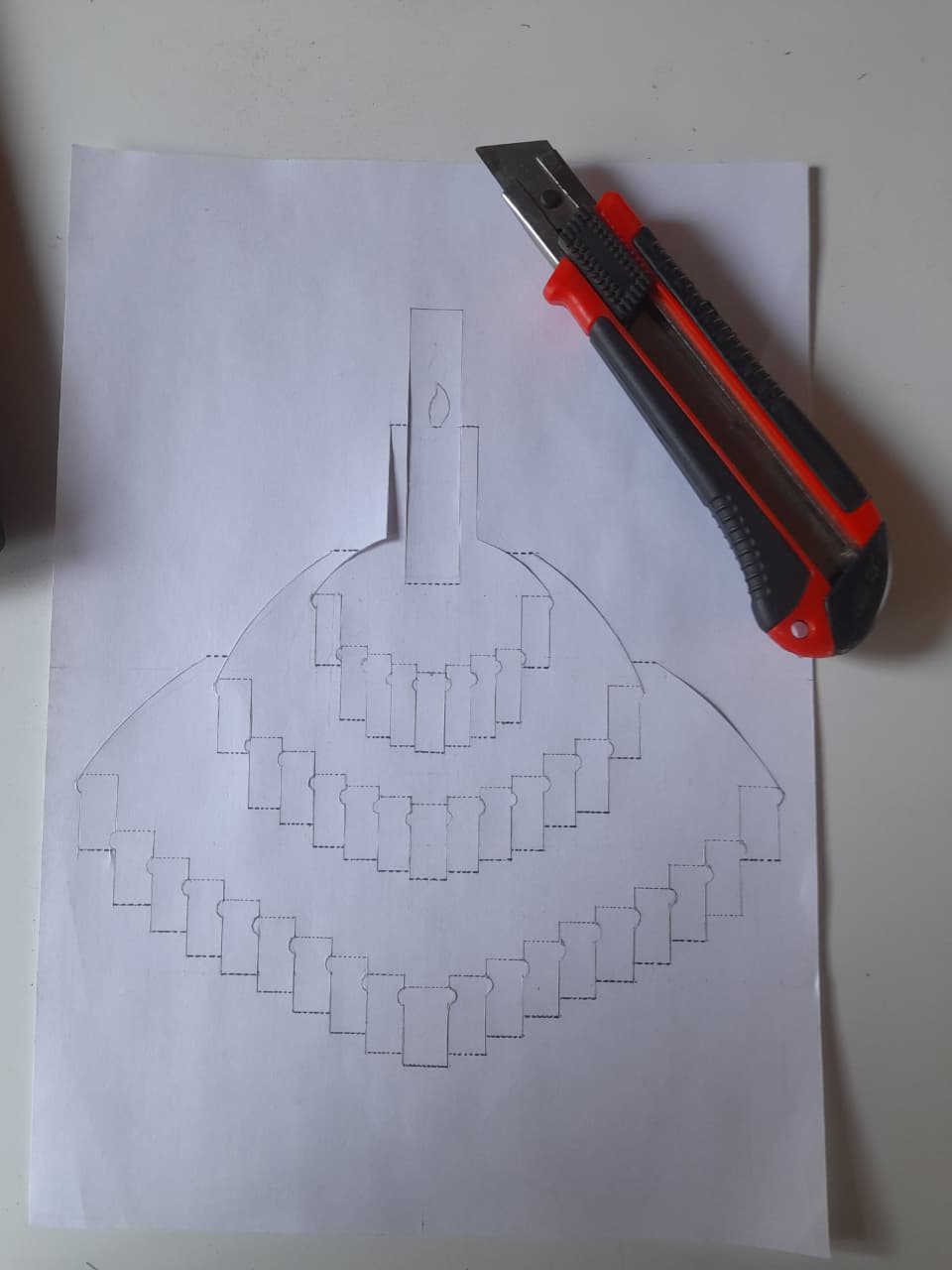
I began by sketching several ideas on paper to understand how the pop-up mechanism would work when the card was opened and closed. After testing different layouts, I selected a three-layer birthday cake design consisting of inner, middle, and outer curved sections, with a candle positioned at the center. 
The design was then recreated in Fusion 360, where I drew the arcs, created the pop-up slots, and arranged all components on an A4 sheet for fabrication. The final design was exported as a DXF file and prepared for laser cutting.
A challenge arose because Fusion 360 exported dotted fold lines as continuous lines, causing the laser cutter to cut through the paper completely. To solve this, I replaced the dotted lines with small rectangular perforations, creating foldable sections while maintaining the strength of the card.
The final card was laser cut from A4 paper, folded along the perforated lines, and assembled to create a three-dimensional birthday cake that pops up when the card is opened. The project successfully combined computer-aided design, laser cutting, prototyping, and paper engineering to produce a personalized birthday card for my daughter.
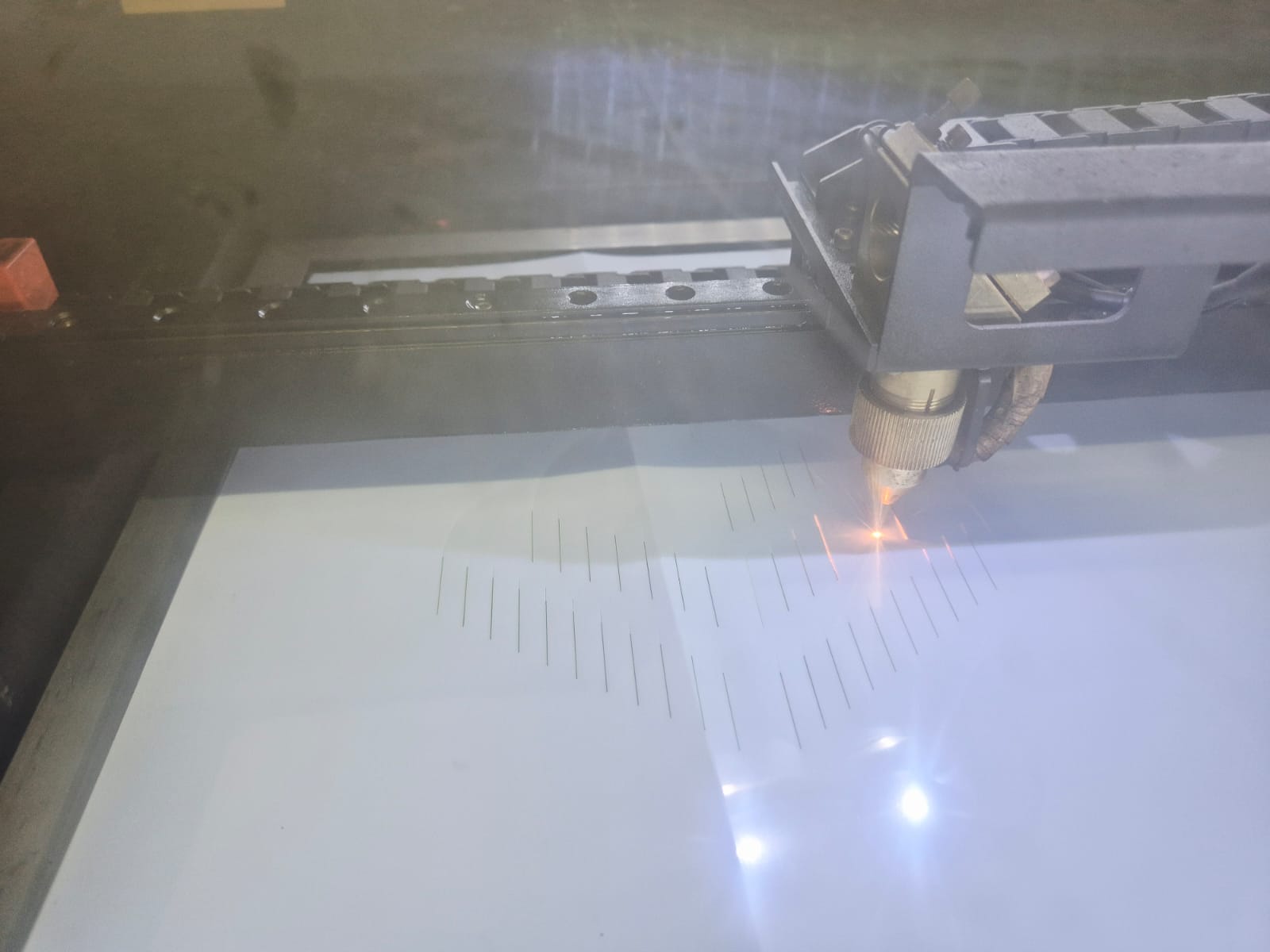
I cut my desing using A4 paper.
using fusion 360 I designed the arc then procceded with the slots.
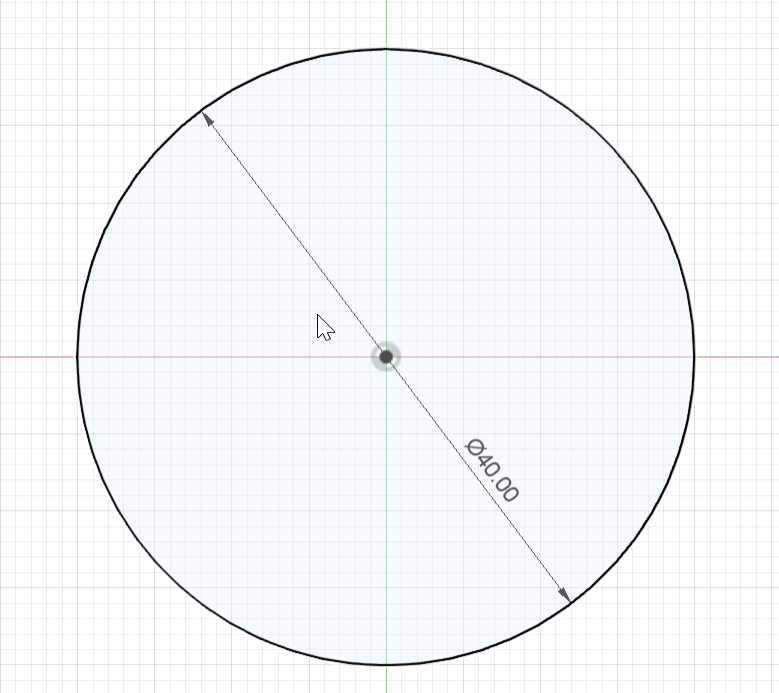
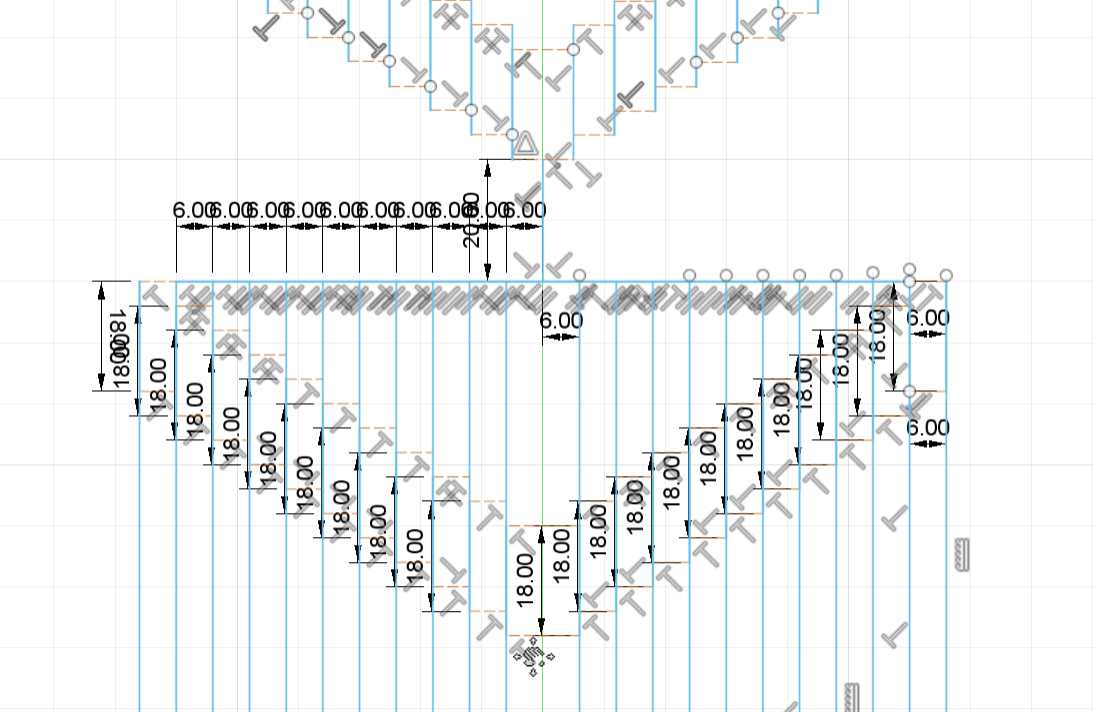
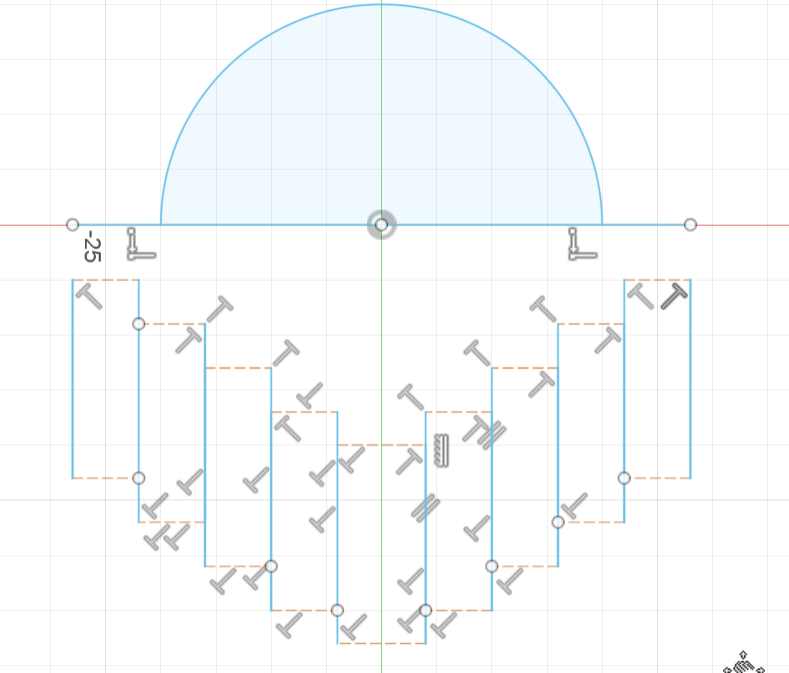
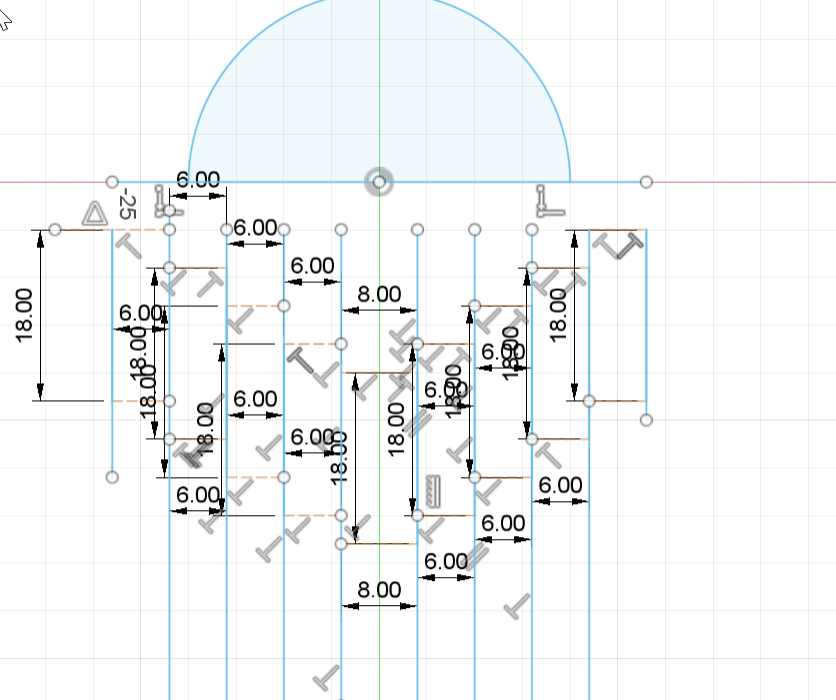
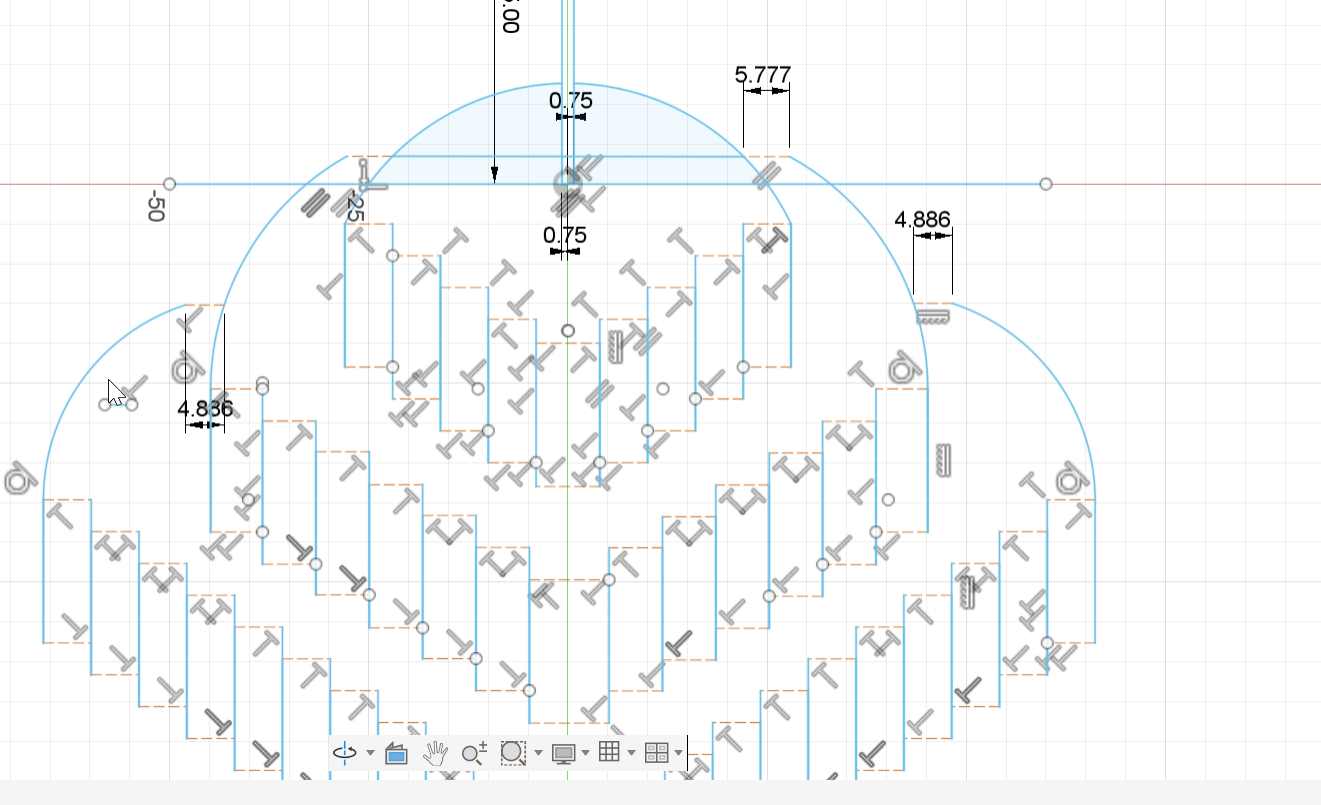
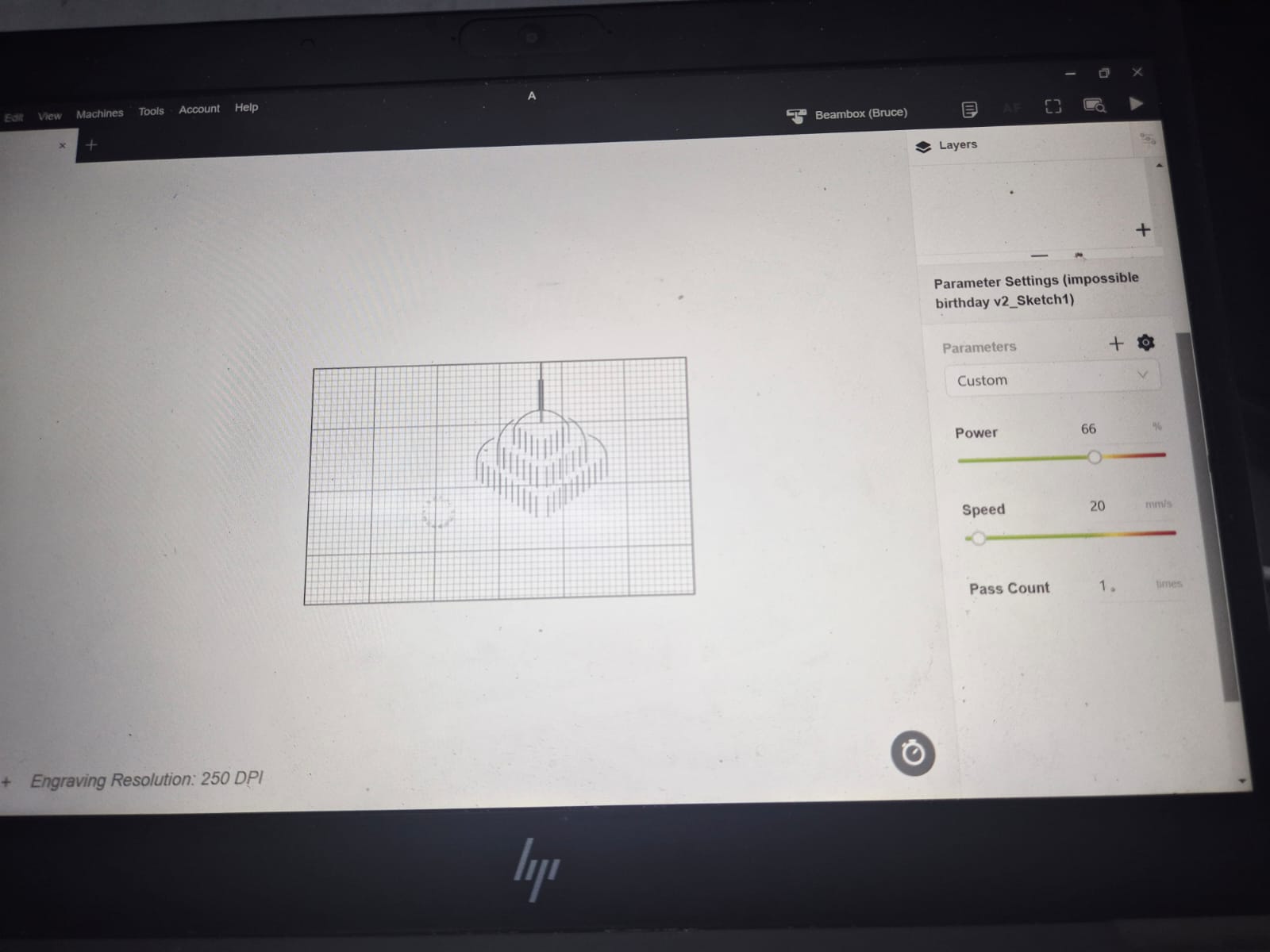
Challenges Fusion 360 exported dotten line as continuos lines, if i tried to cut on laser, it was cuting continous line, I solved this by changing the dotted line using rectangles instead of using lines.
Embroidery
1. Introduction
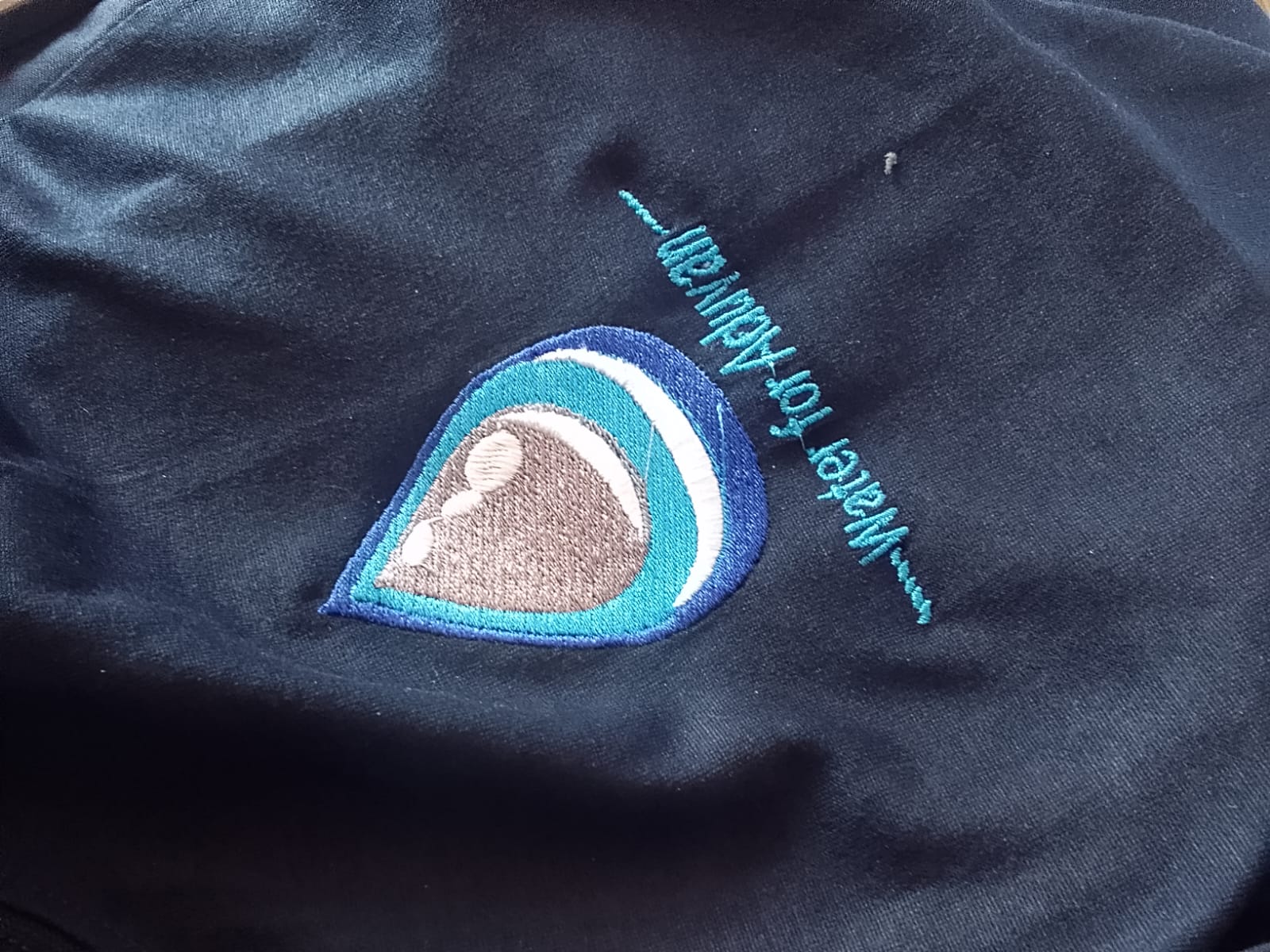
I changed my approach for this assignment because I had already used a laser cutter in an earlier assignment. I decided to use an embroidery machine to print my Water for Aduvan logo on a T-shirt.
This allowed me to explore a different digital fabrication process and learn how to prepare a design, configure stitches, and use an industrial embroidery machine.

2. Machine Used
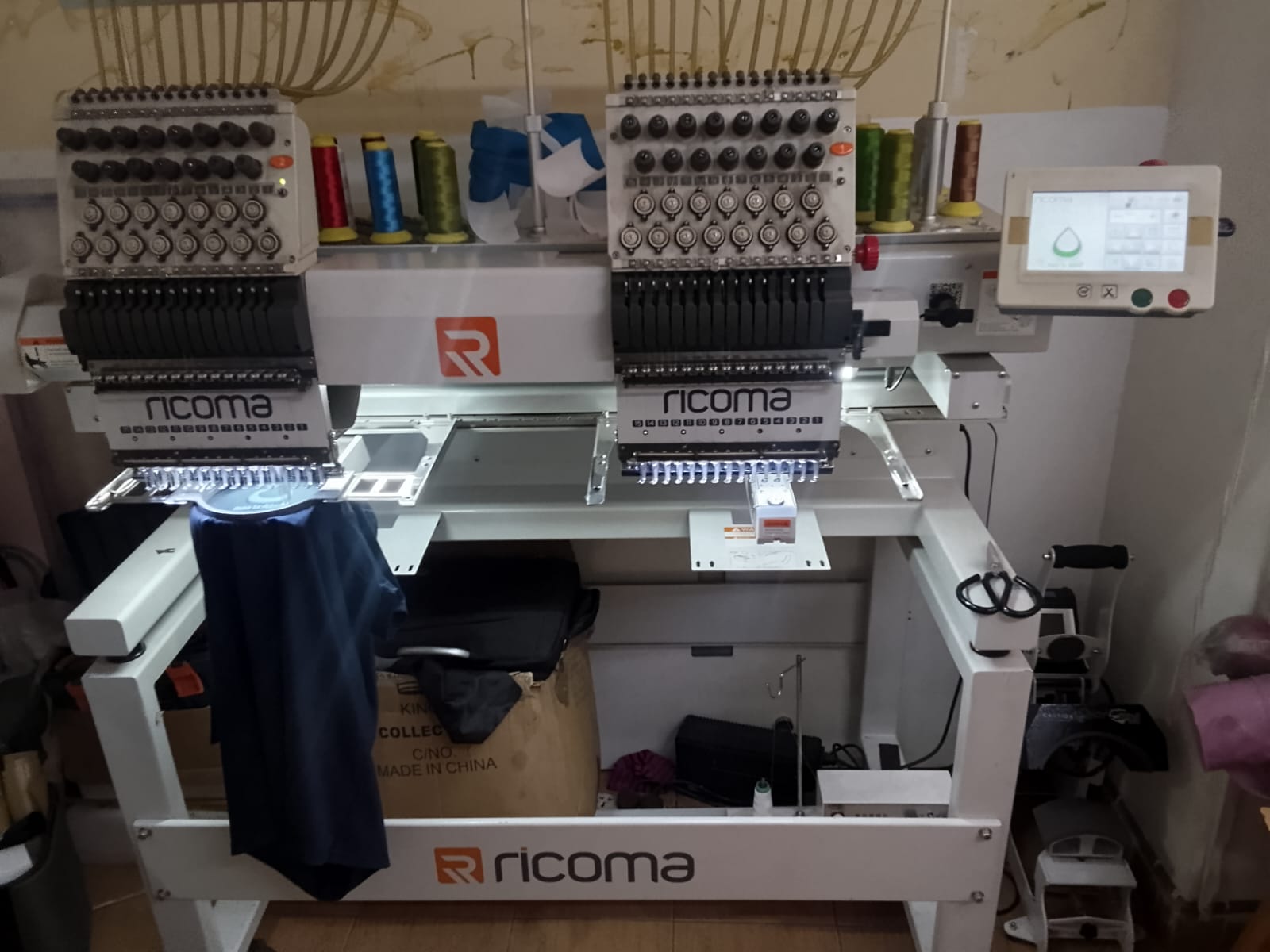
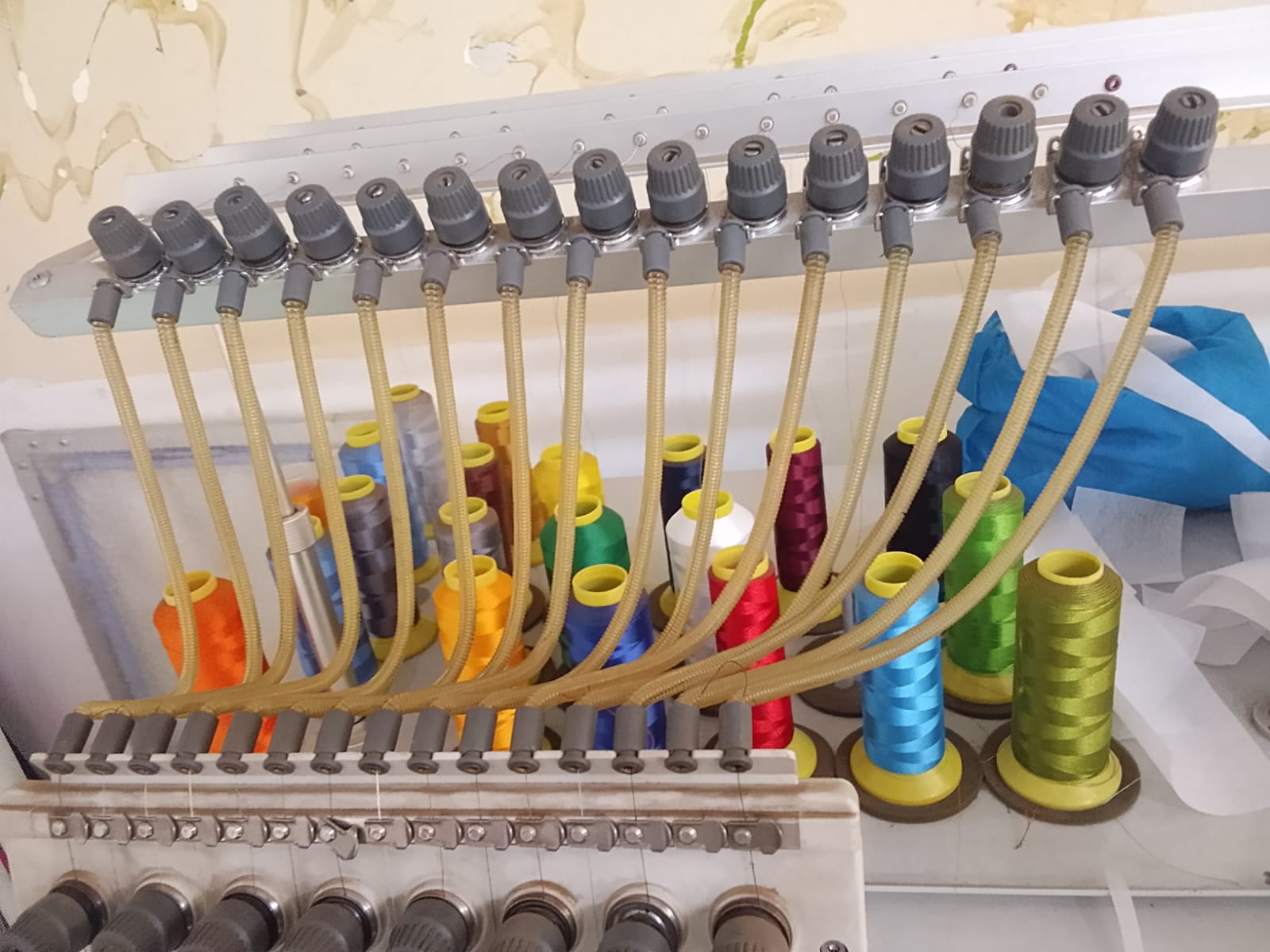
I used the Ricoma MT-1502 industrial embroidery machine for this assignment. It is a two-head, 15-needle embroidery machine. Each head has 15 needles, allowing different thread colours to be prepared for a design.
The machine is computer-controlled. I loaded the embroidery design into the machine and selected the required settings using its touchscreen.
Main features
- Two embroidery heads.
- 15 needles per head.
- Computer-controlled operation.
- Automatic thread colour changes.
- Thread break detection.
- Touchscreen control.
- Suitable for embroidering clothes, bags, caps, and other fabric items.
3. Preparing the Design Using Inkscape and Ink/Stitch
I used Inkscape to prepare my Water for Aduvan logo and Ink/Stitch to convert the artwork into embroidery instructions.
3.1 Installing Inkscape
- I visited the official Inkscape website.
- I downloaded the Windows installer.
- I ran the installer and followed the installation instructions.
- I opened Inkscape to confirm that it was working.
3.2 Installing Ink/Stitch
- I visited the Ink/Stitch installation guide.
- I downloaded and installed Ink/Stitch for Windows.
- I reopened Inkscape.
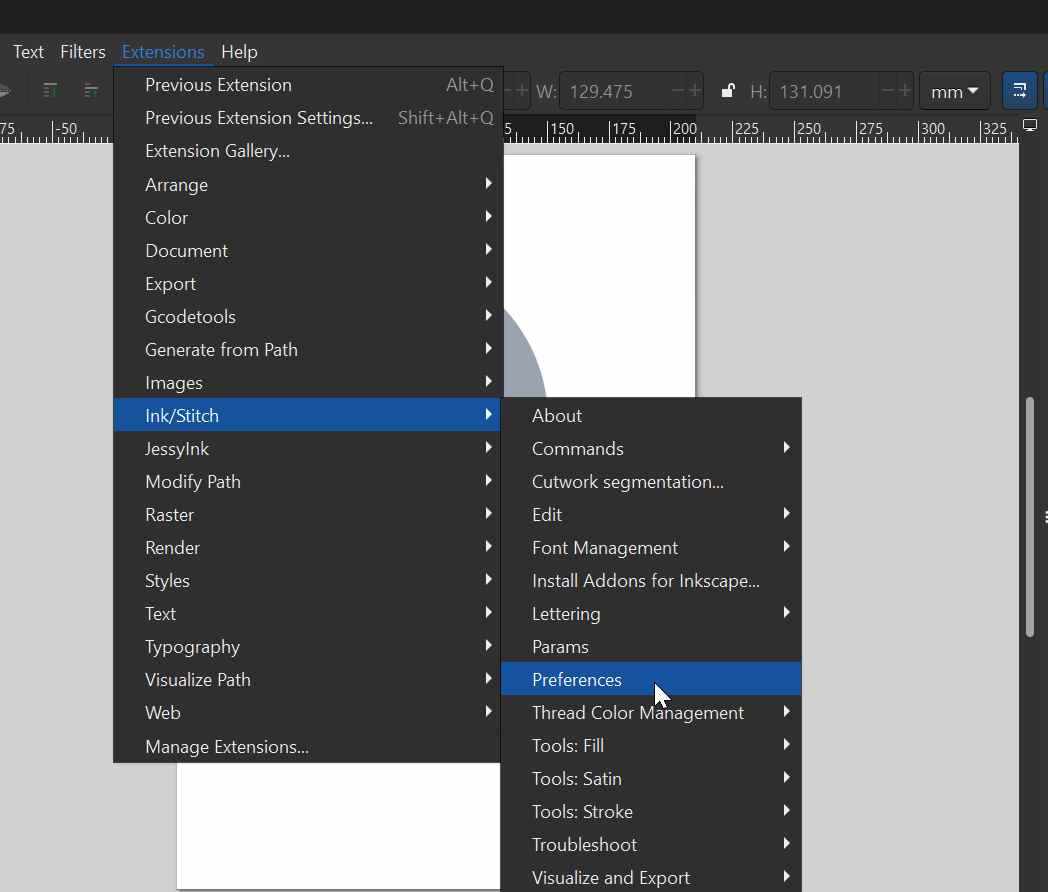
- I checked that Ink/Stitch appeared under the Extensions menu.
3.3 Importing and Preparing the Logo
- I created a new document in Inkscape.
- I imported my Water for Aduvan logo.
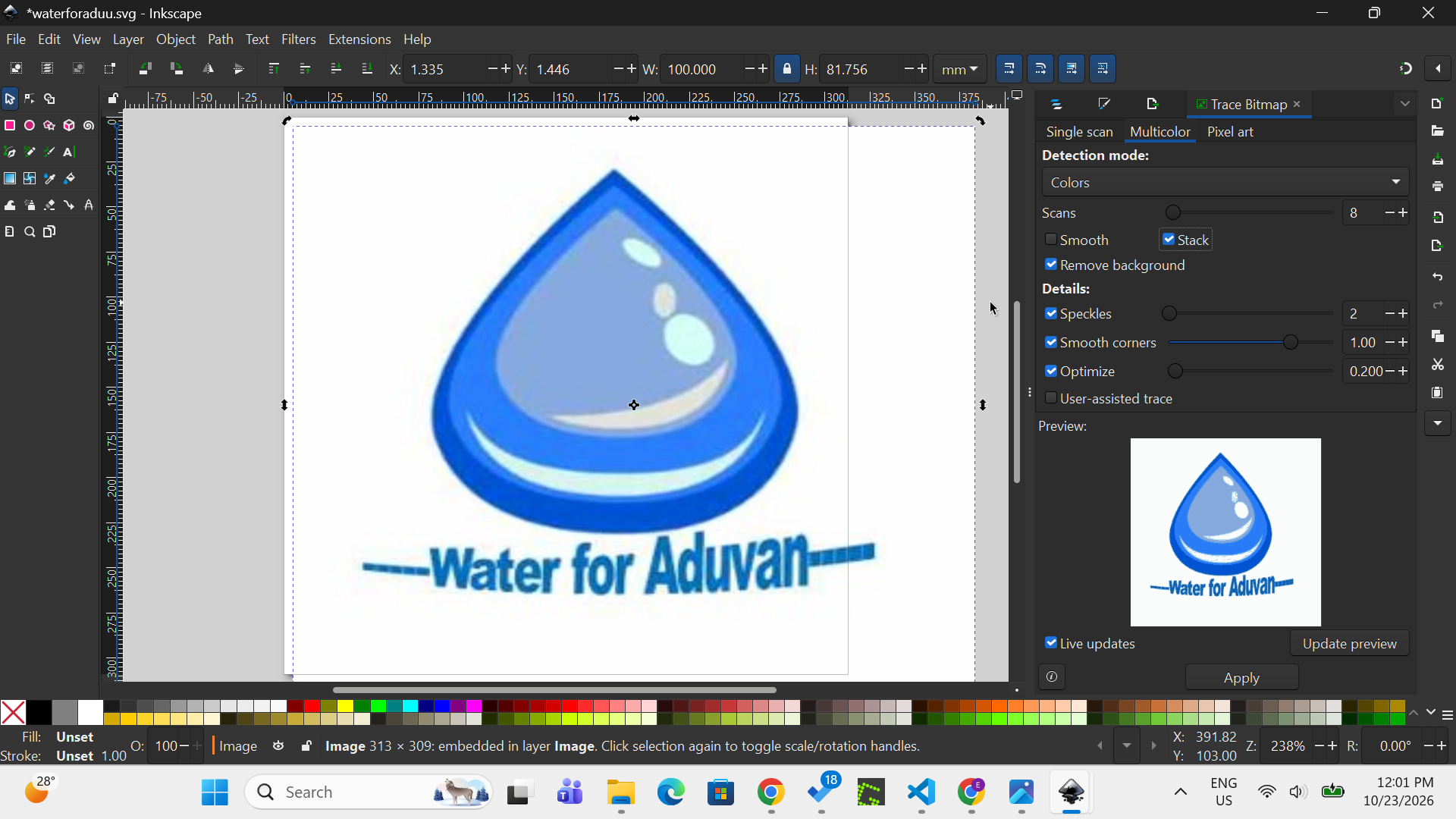
- Since the logo contained multiple colours, I used the Trace Bitmap tool and selected the multicolour option to trace the artwork.
- I checked the resulting shapes and prepared them for embroidery.
- Where necessary, I selected the objects and used Path → Object to Path.
- I saved the editable design as an SVG file.
3.4 Choosing Thread Colours
I selected the logo objects and assigned colours using the colour palette at the bottom of the Inkscape window. These colours helped me organise the design according to the thread colours I wanted to use.
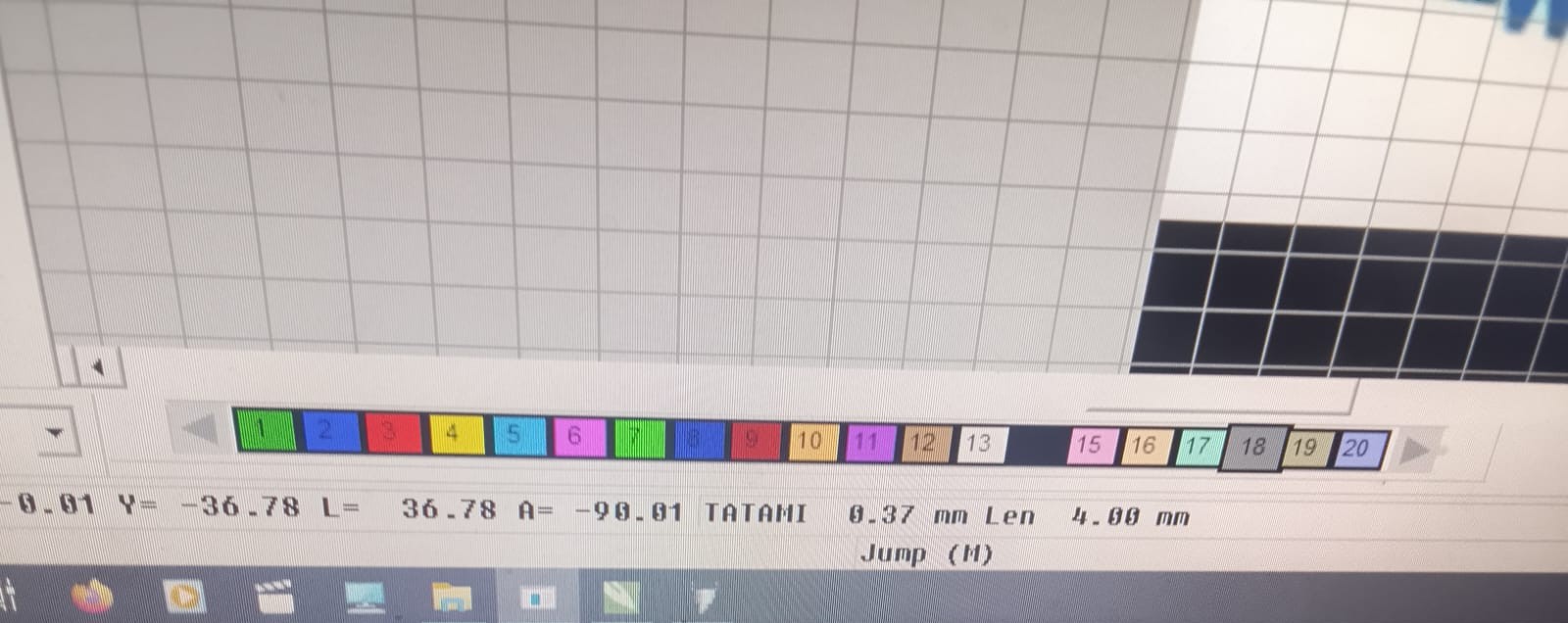
The colours displayed in the software represent the intended thread colours. I matched them to the physical thread spools before starting the embroidery.
3.5 Selecting the Thread Material
I checked the available thread and selected a suitable thread for the fabric and machine.
Polyester is commonly used for embroidery because of its durability and colour retention. Nylon is another synthetic thread material, but its suitability depends on the application and the machine manufacturer’s recommendations.
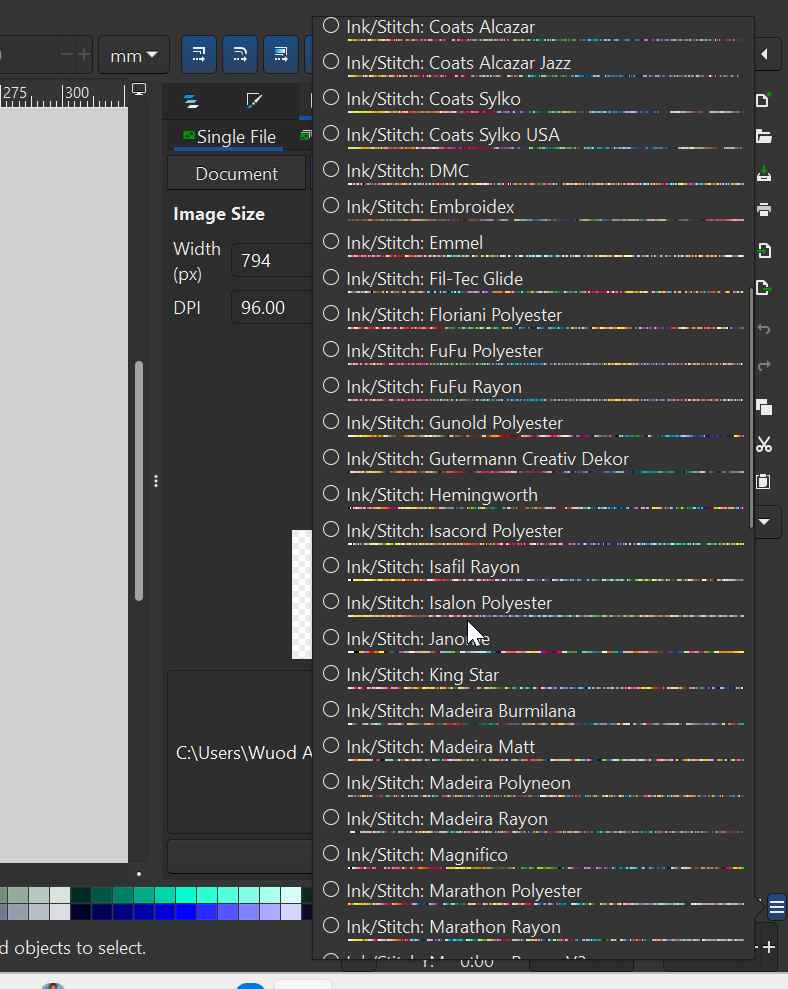
The thread material is selected physically at the machine. Ink/Stitch controls the embroidery instructions; it does not change the material of the thread.
3.6 Configuring Stitch Types
I opened the Params window by selecting an object and navigating to Extensions → Ink/Stitch → Params.
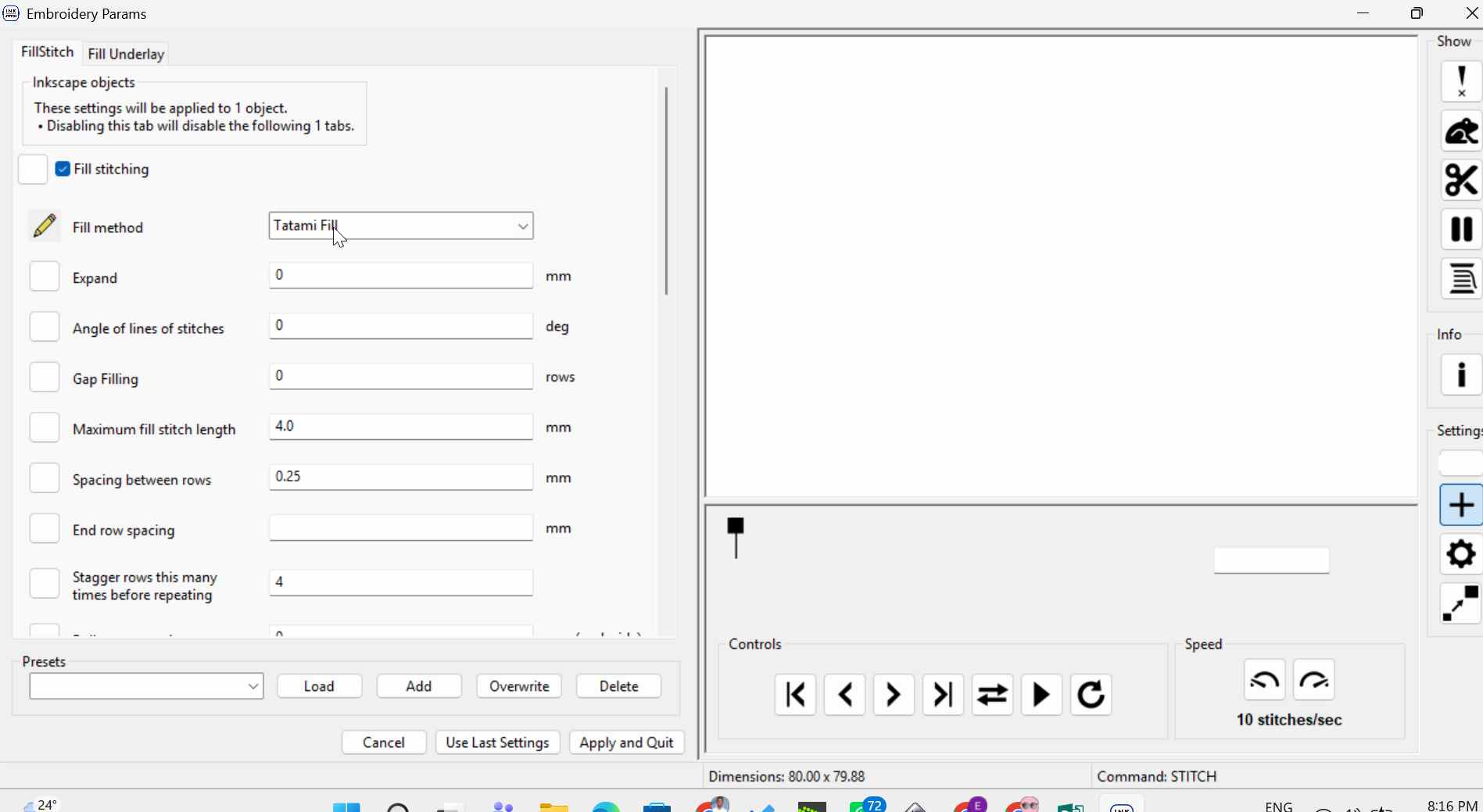
I reviewed the available stitch types and their settings. The main stitch types are:
- Running stitch: Used for outlines, fine lines, and small details.
- Satin stitch: Used for narrow shapes, borders, and suitable lettering.
- Fill stitch: Used to cover larger shapes with rows of stitches.
I reviewed the settings available for the selected stitch type, including stitch length, row spacing or density, underlay, and other relevant parameters. I applied the settings and checked the result.
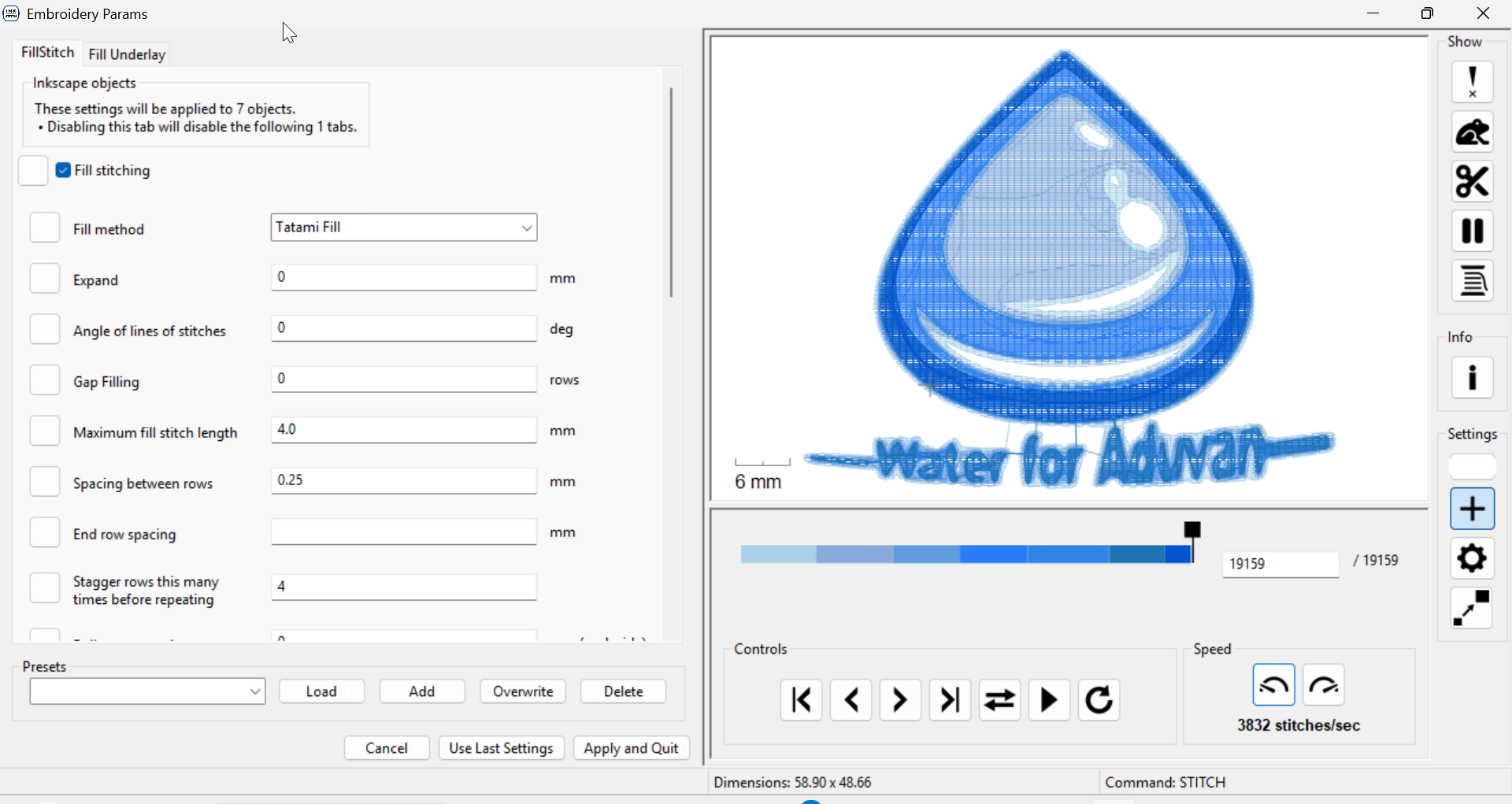
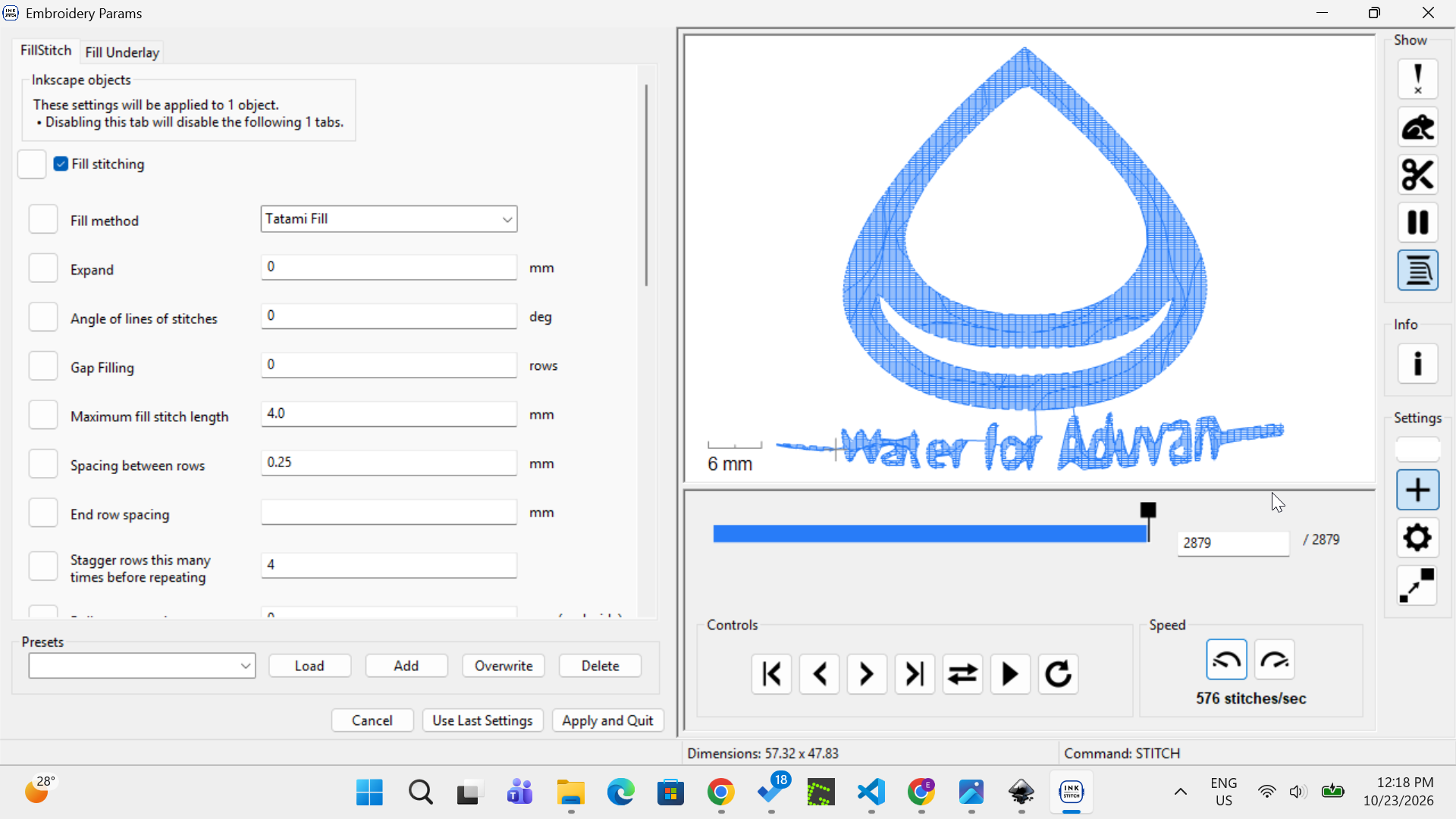
3.7 Previewing the Design
After configuring the stitches, I opened the Ink/Stitch simulator to preview the embroidery sequence.
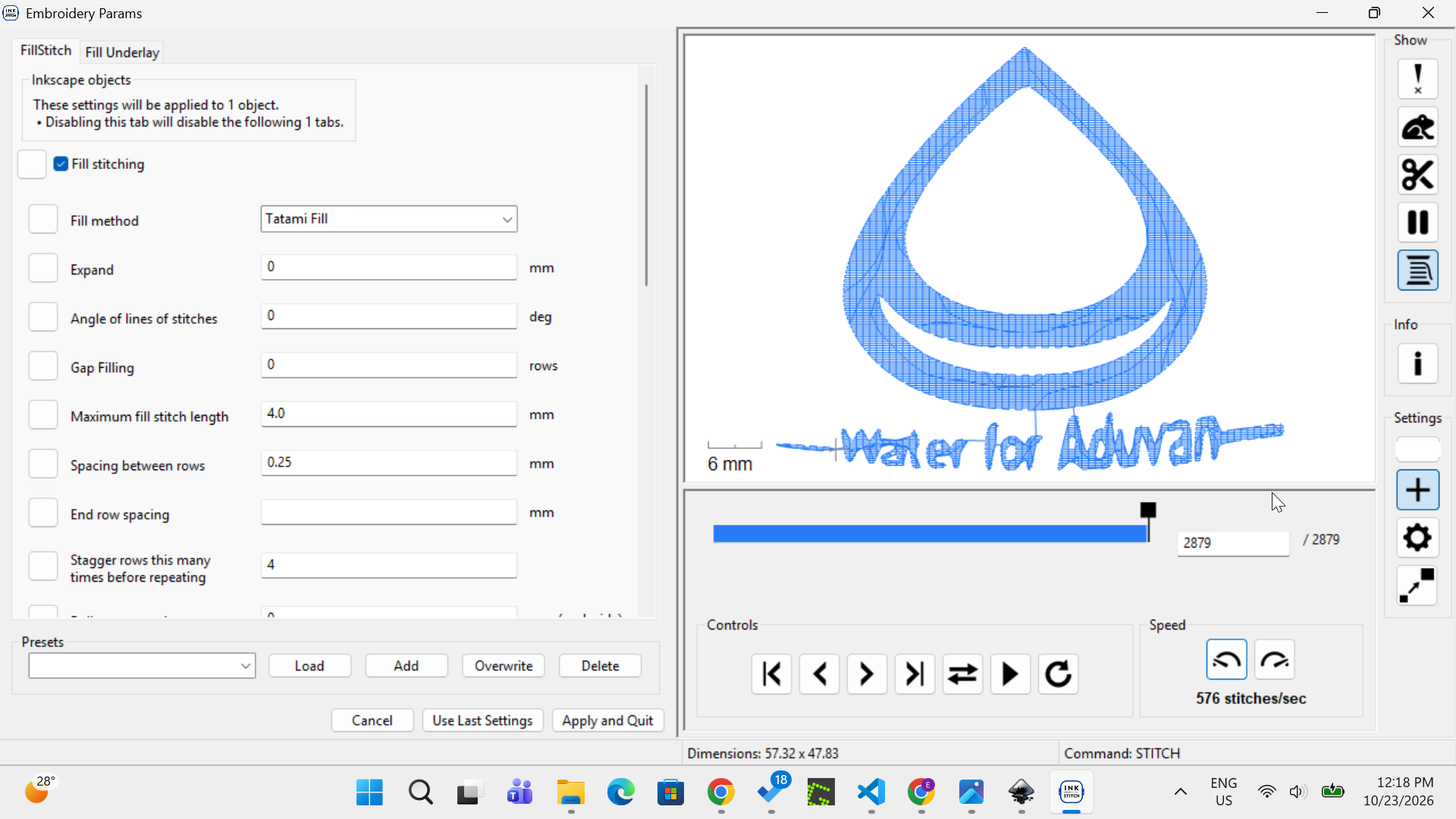
I checked the stitch order, colour changes, gaps, jumps, and coverage. This helped me identify possible problems before transferring the design to the machine.
3.8 Exporting the Embroidery File
I saved the original design as an SVG file and exported embroidery files in formats supported by the machine.
I prepared the following files:
These files contain embroidery instructions that can be loaded into a compatible embroidery machine.
4. Setting Up the T-Shirt and Machine
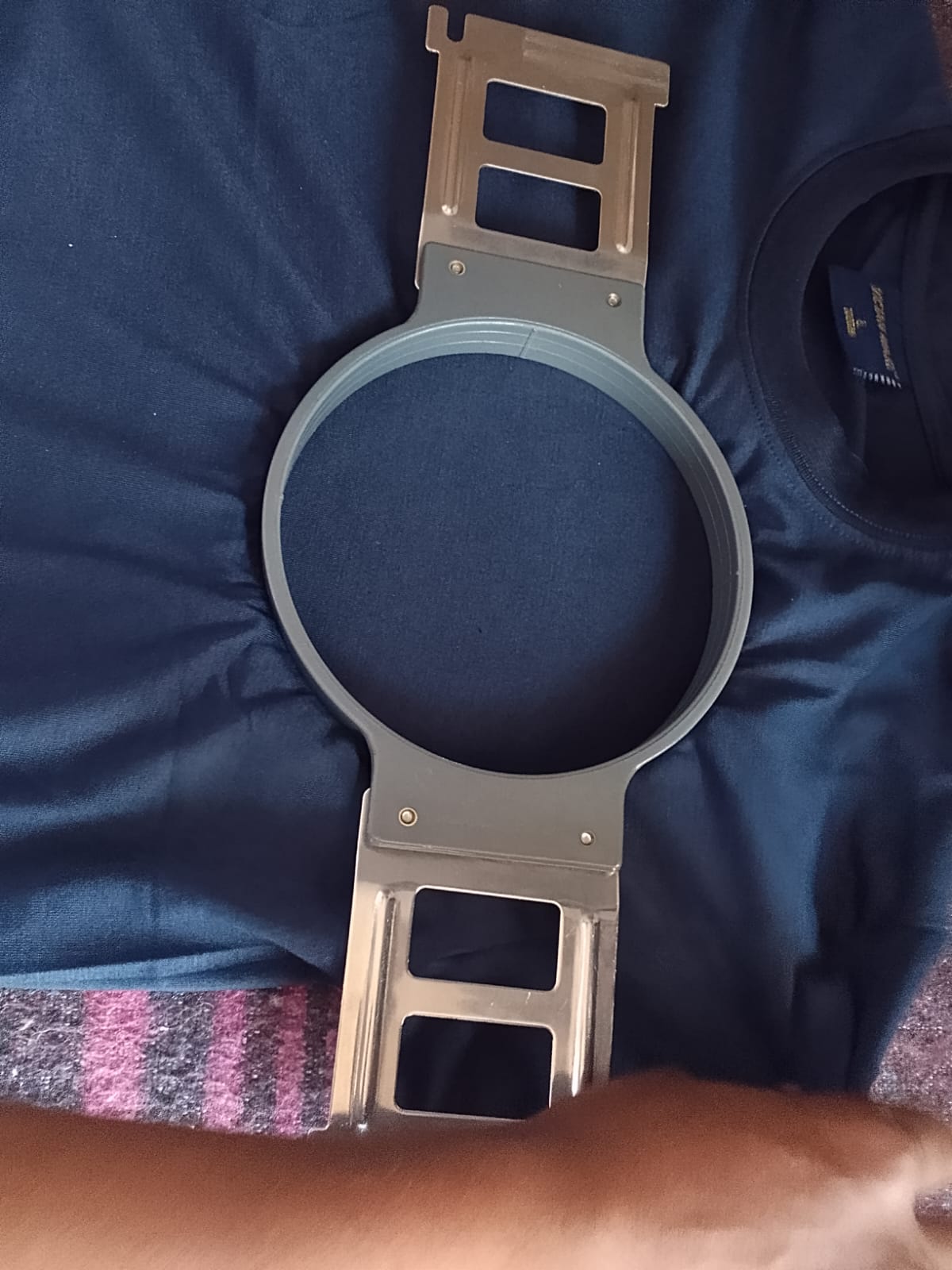
4.1 Securing the T-Shirt
I positioned the T-shirt in the embroidery frame and secured it using the machine’s clamping system. This helped keep the fabric in position and reduced movement during embroidery.
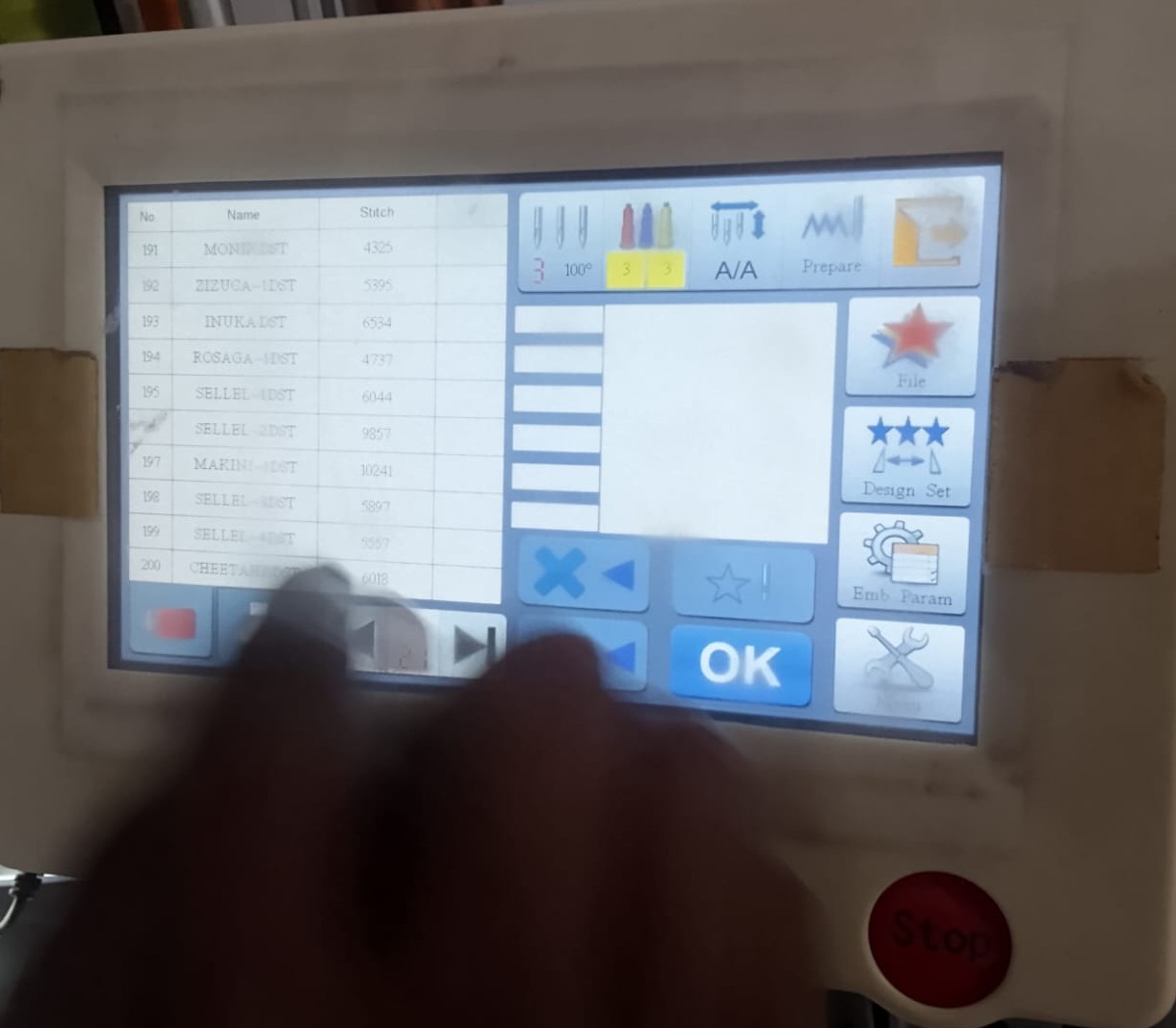
4.2 Selecting the Thread Colours
I used the machine’s touchscreen to select the required colours and assigned them to the appropriate needle positions.
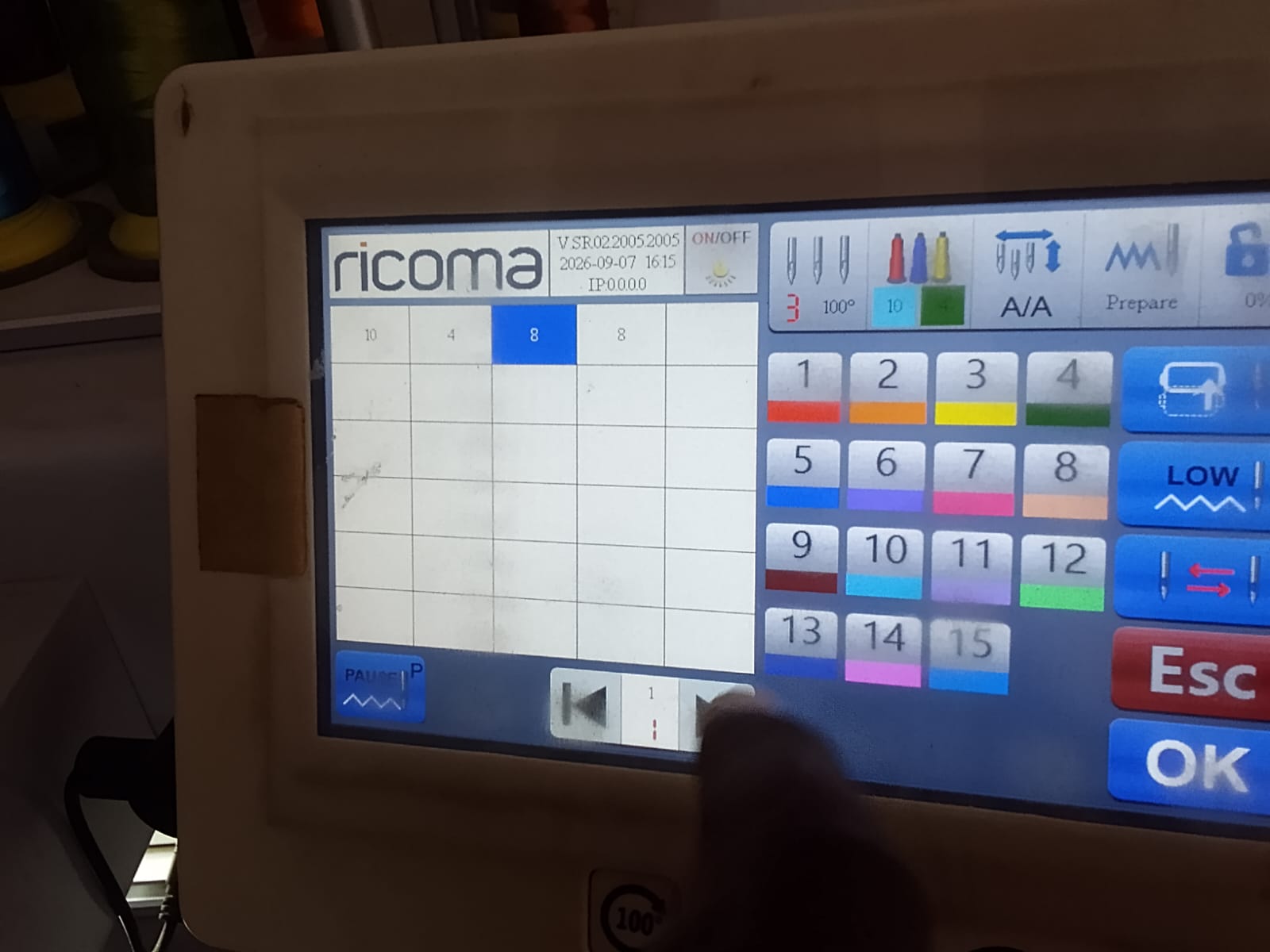
4.3 Arranging the Threads
I arranged the thread spools according to the colours required by my design and checked that the threads were correctly positioned before starting the machine.
5. Embroidering the Logo
Once the T-shirt was secured, the threads were arranged, and the design was loaded, I started the machine.
The machine followed the programmed stitch sequence to embroider the Water for Aduvan logo onto the T-shirt.
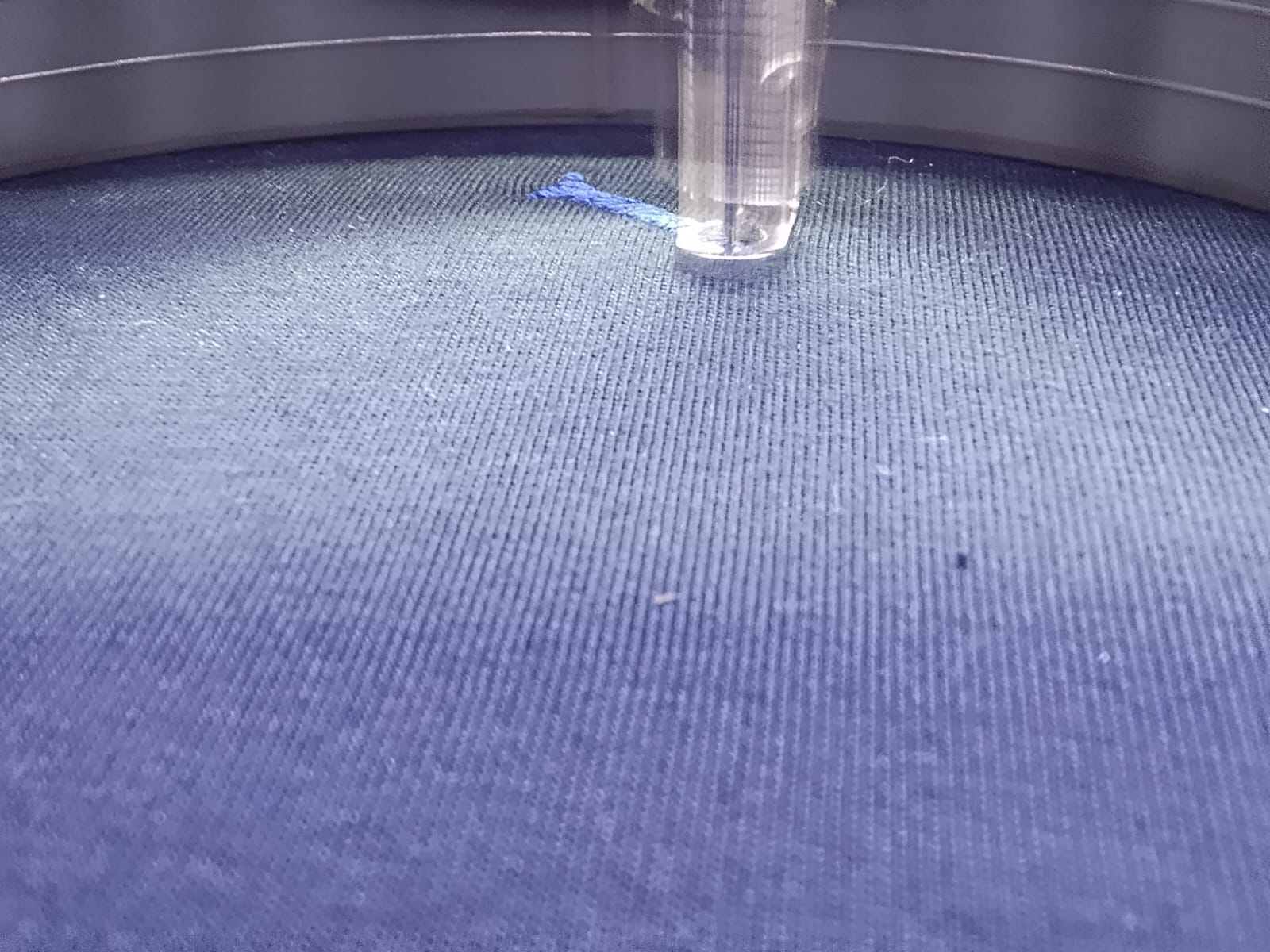
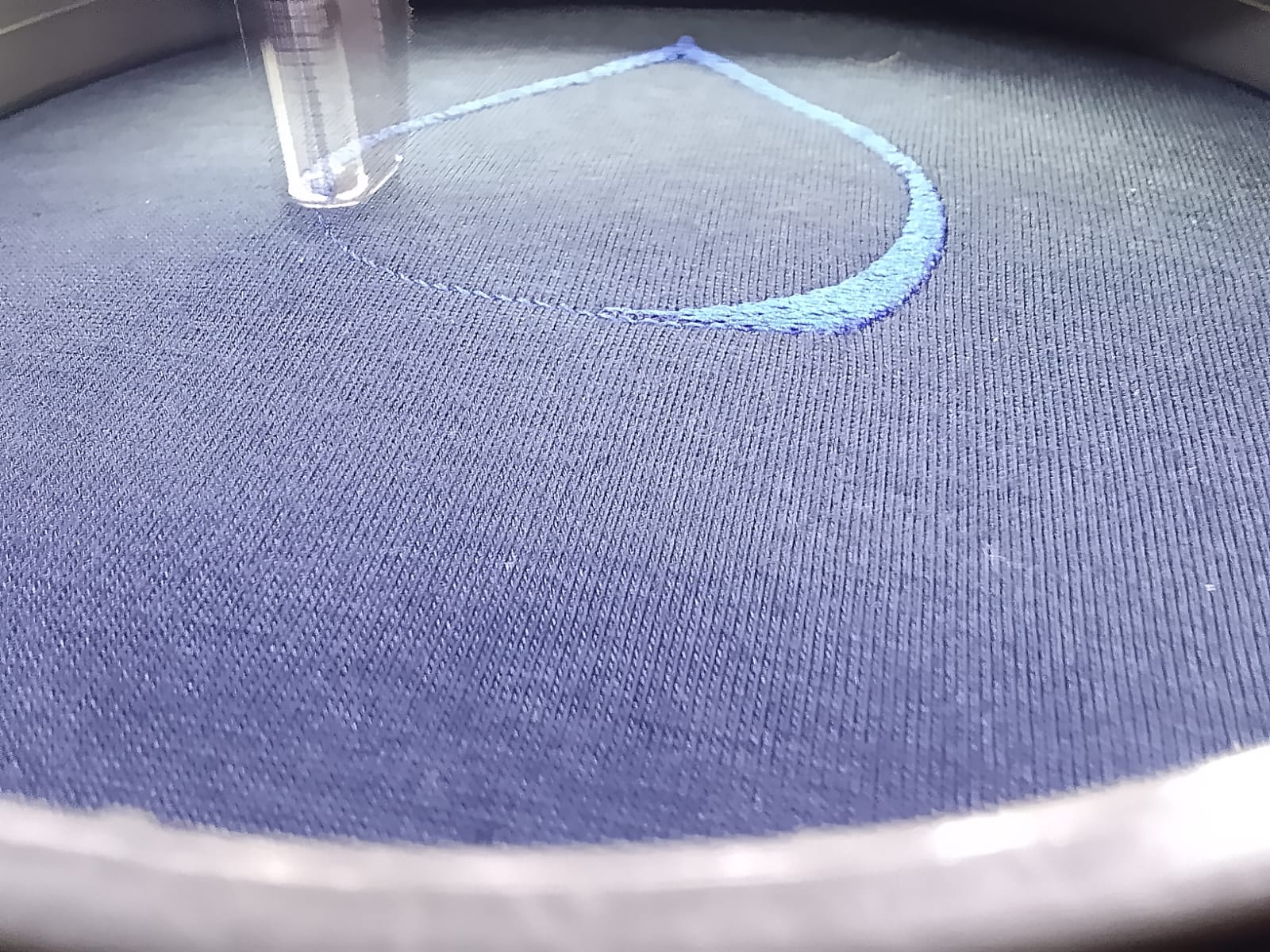
After the embroidery process, I checked the result to see whether the logo was clearly stitched onto the fabric.
6. Safety Precautions
- Keep fingers away from the needles and moving parts while the machine is operating.
- Keep loose clothing, jewellery, and long hair away from moving components.
- Follow the manufacturer’s instructions when threading the machine or changing needles.
- Stop the machine before making adjustments or correcting thread problems.
- Secure the fabric properly before starting.
- Keep the work area clean and free from obstructions.
7. Conclusion
This assignment helped me learn how to use an embroidery machine as a digital fabrication tool. I prepared my Water for Aduvan logo in Inkscape, used Ink/Stitch to configure the embroidery instructions, previewed the stitch sequence, and exported the design for the machine.
I also learned how to secure fabric in the embroidery frame, arrange thread colours, and operate the machine to produce the logo on a T-shirt. This gave me experience with a fabrication method different from laser cutting and helped me understand the steps involved in turning digital artwork into a physical product.