7. Computer controlled machining
Group assignment:
-
Complete your lab's safety training
-
Test runout, alignment, fixturing, speeds, feeds, materials and toolpaths for your machine
-
Document your work to the group work page and reflect on your individual page what you learned
To see our group assignment click here
Individual assignment:
- Make (design+mill+assemble) something big
My individual reflection:
During this group session, we completed the mandatory safety training before operating the ShopBot Alpha CNC router, which familiarized us with the required personal protective equipment (safety glasses, hearing protection, dust mask, no loose clothing or jewelry).
We then identified the different cutting tools available in the lab (2-flute carbide end mill, Polaris compression bit, V-bit drill, 8-facet drill bit) and understood how tool choice affects surface finish and tool life.
Personally, this exercise made me understand that chip load is the central parameter to master: too low a chip load generates unnecessary friction and heat, while too high a chip load risks breaking the tool — a trade-off I directly applied when cutting my corner furniture piece on the ShopBot Alpha 96.
Introduction to the project
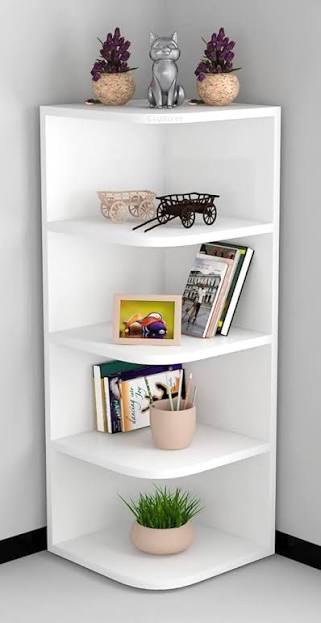
As part of this session on computer-controlled machining, we undertook the design and construction of an optimized corner storage unit, as shown in the file
Project Specifications
Based on the visual model, we have defined the following dimensional parameters:
-
Overall Dimensions: Our cabinet has a total height of 1000 mm and a width of 370 mm.
-
Structure and Levels: The design incorporates 5 storage levels, thereby making optimal use of vertical space.
-
Spacing: A consistent 200 mm gap is maintained between each shelf to ensure visual harmony and uniform functionality.
-
Shelf Geometry:
-
Each shelf consists of a square panel measuring 370 mm x 370 mm.
-
For aesthetic and safety reasons, the outer corner of each shelf features a pronounced rounded edge with a radius of 175 mm.
-
3D Modeling (CAD)
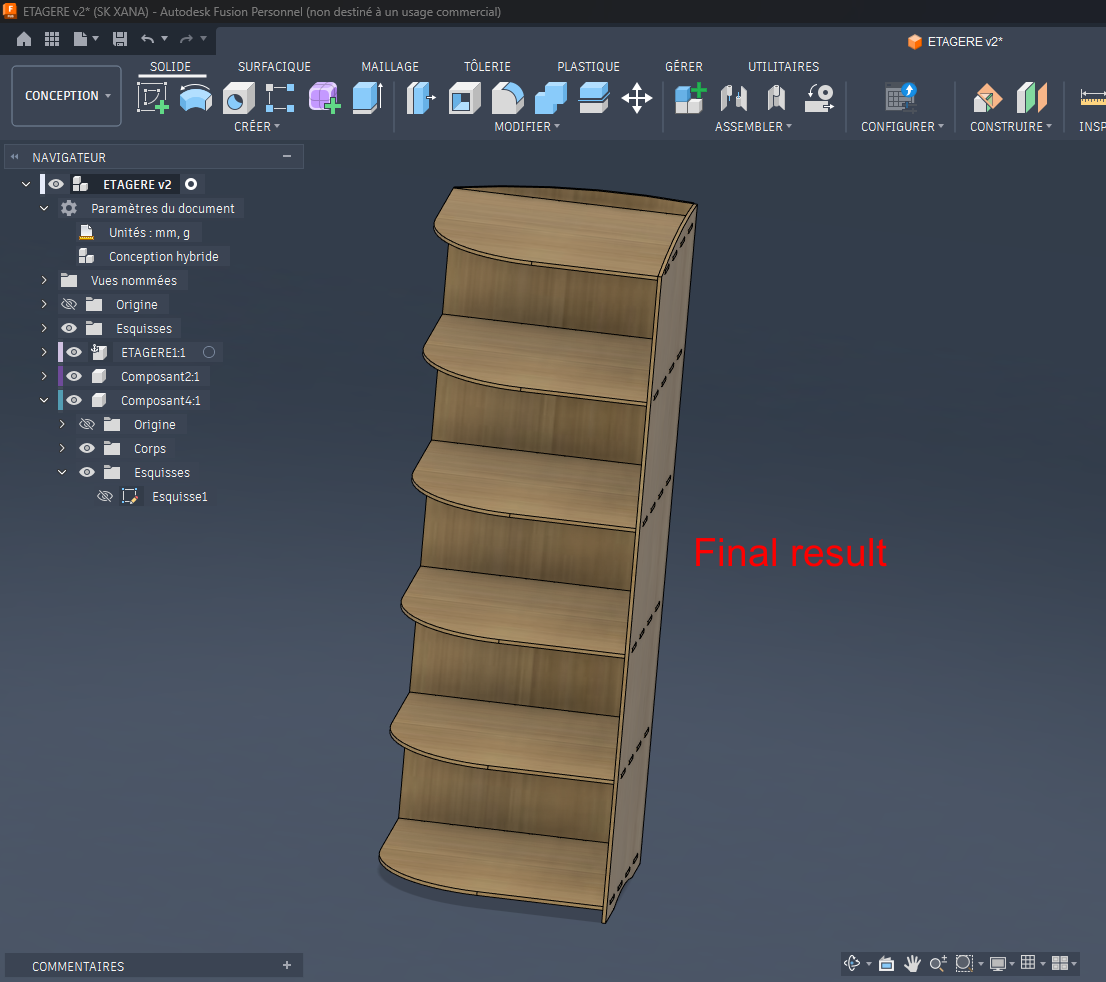
For the design of this piece of furniture, we used Autodesk Fusion 360.
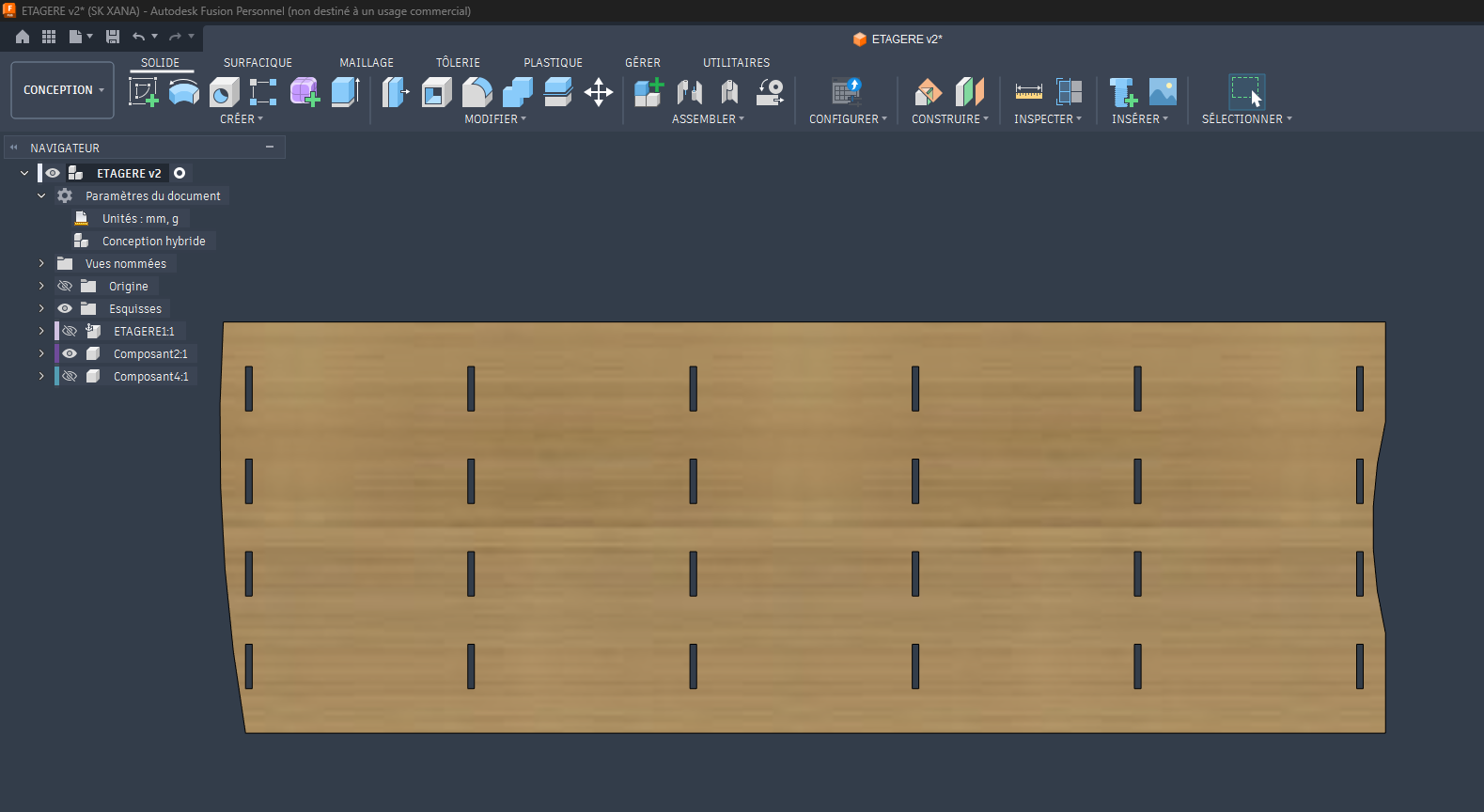
1. Part A: The Vertical Support
This part serves as the backbone of the furniture. It includes the slots (or mortises) designed to hold the shelves.
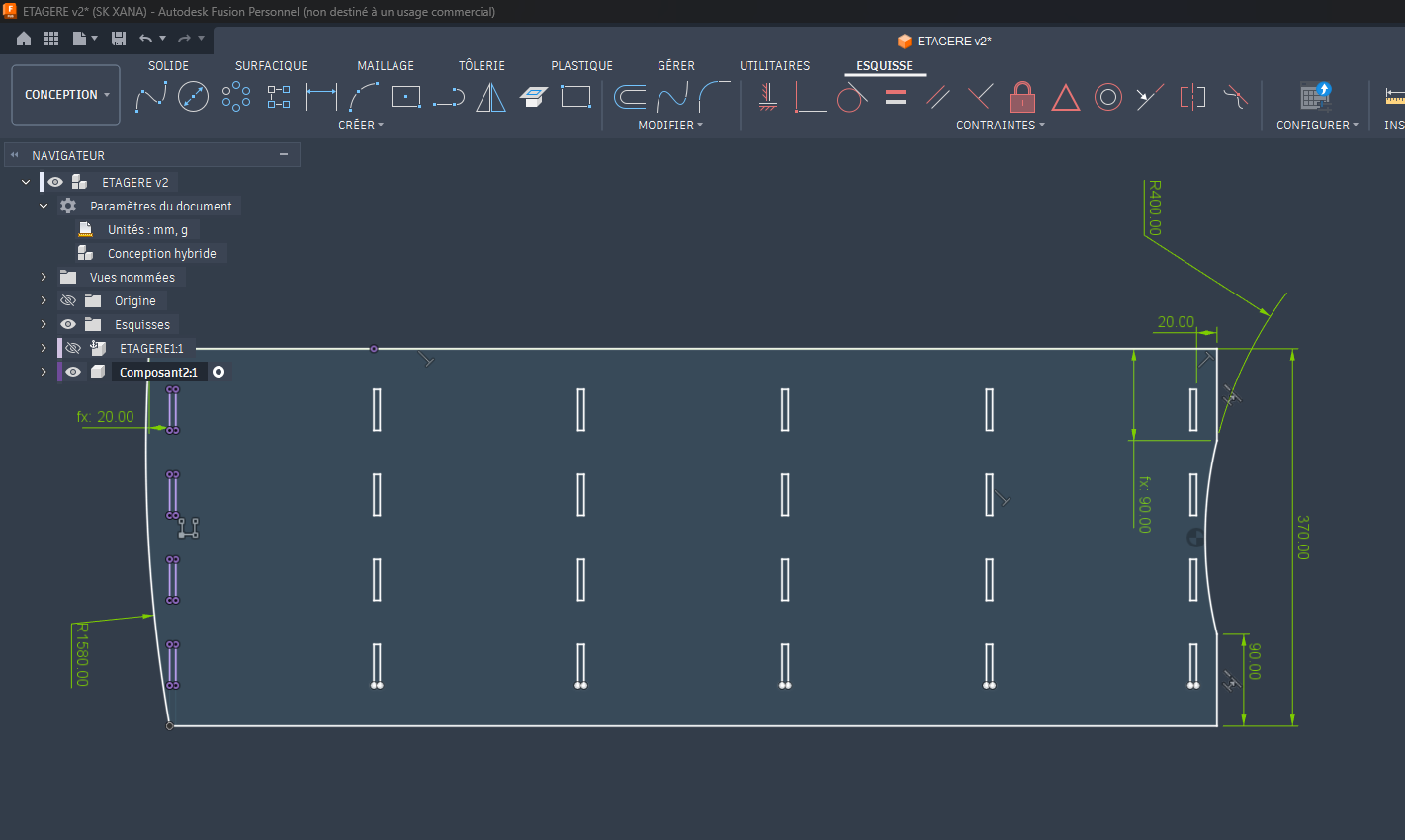
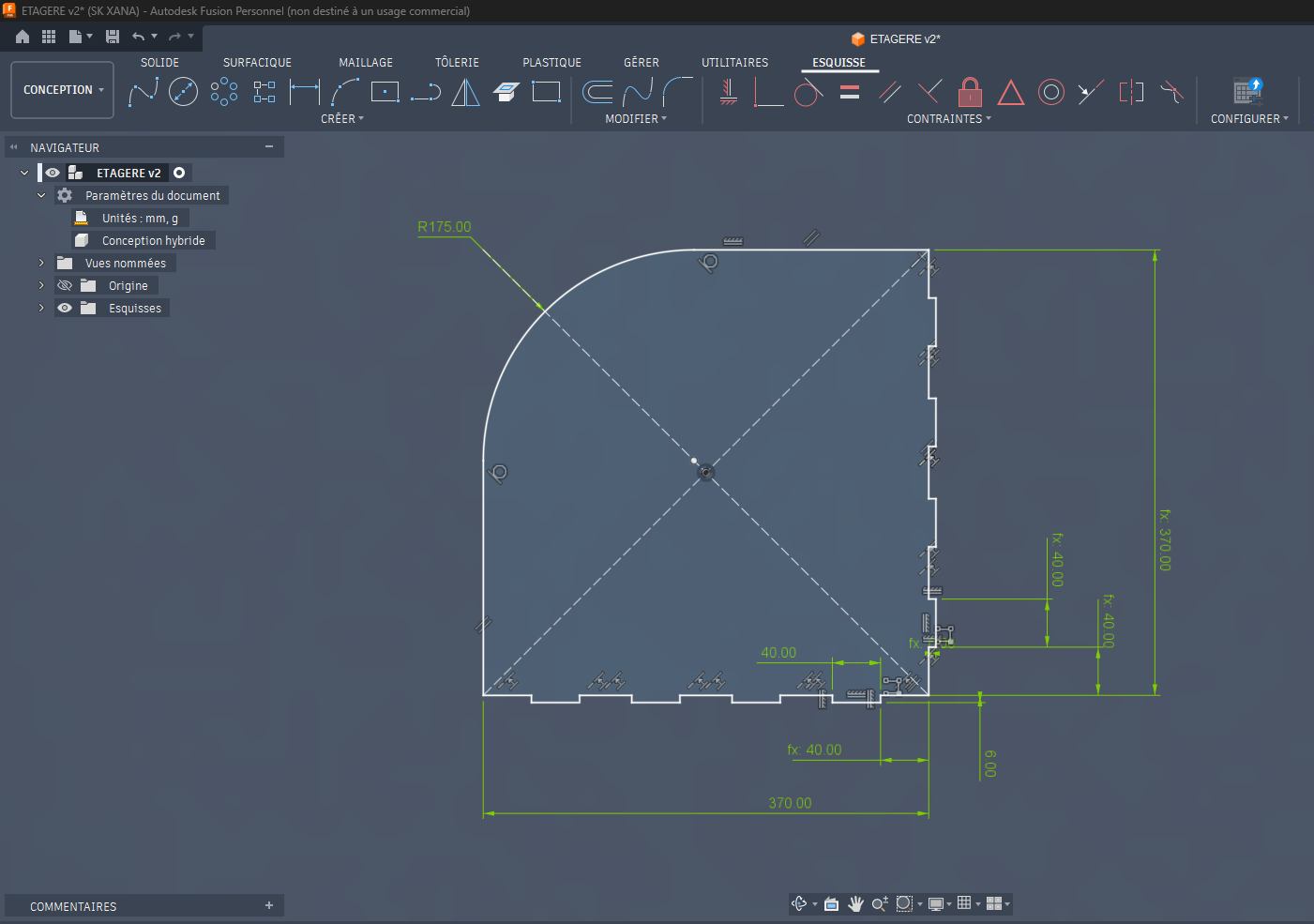
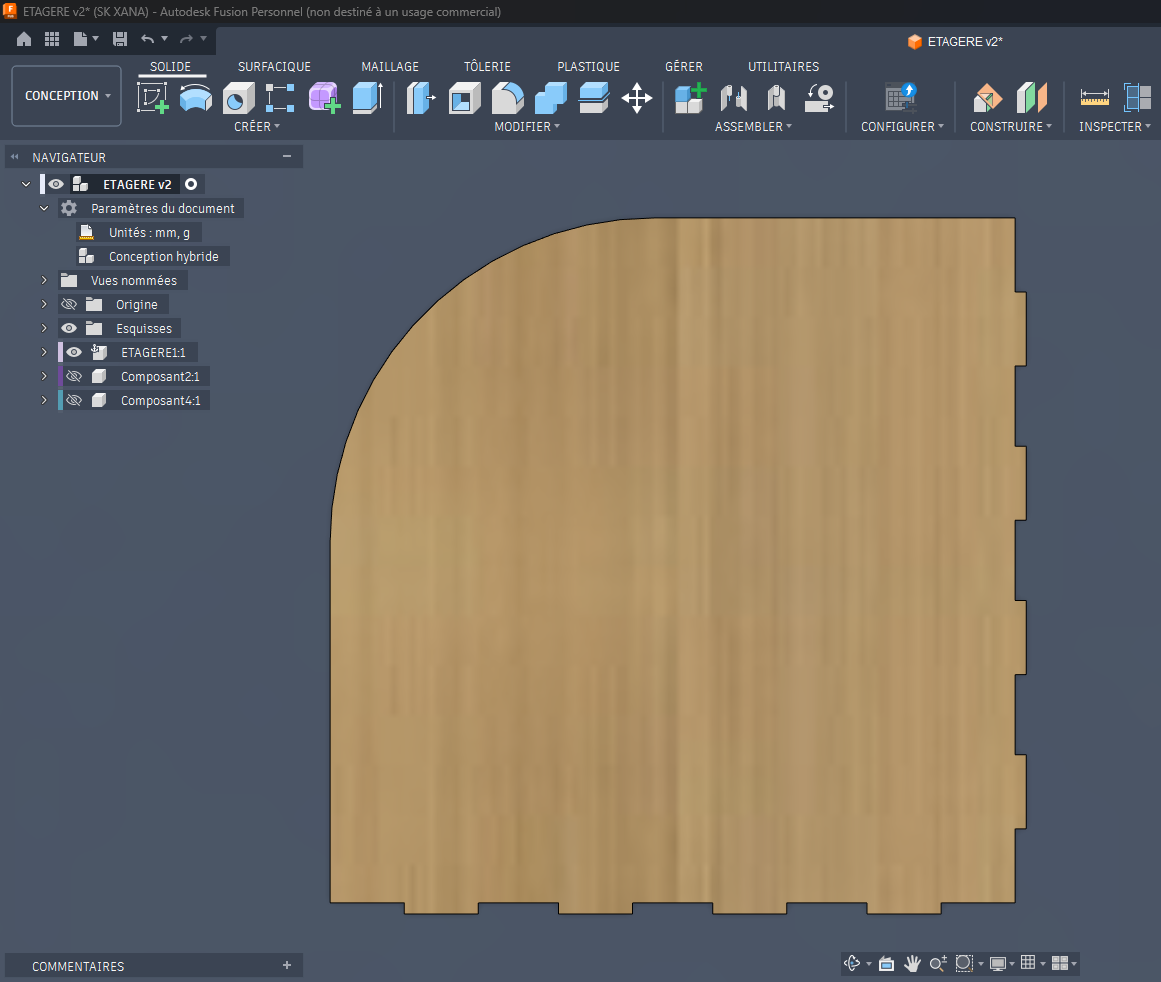
2. Part B: The Corner Shelf
This part is repeated five times. It follows dimensions of 370 × 370 mm with a characteristic rounded edge of 175 mm radius.
Virtual Assembly
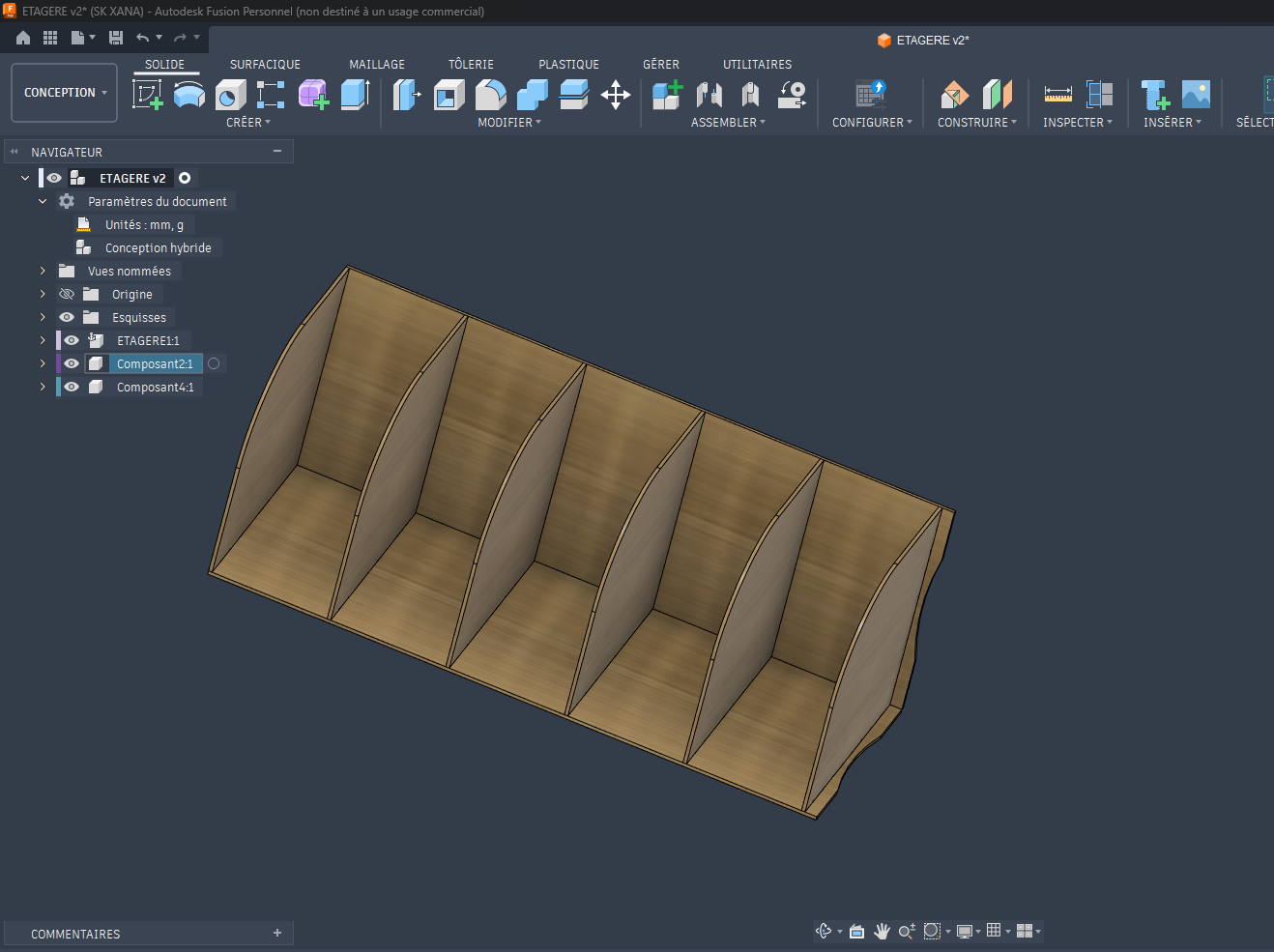
Once the two main components were modeled, we proceeded with the assembly in the "Design" workspace of Fusion 360. This step is crucial, as it allows us to verify fitting tolerances and ensure that the 200 mm spacing between each level is perfectly maintained.
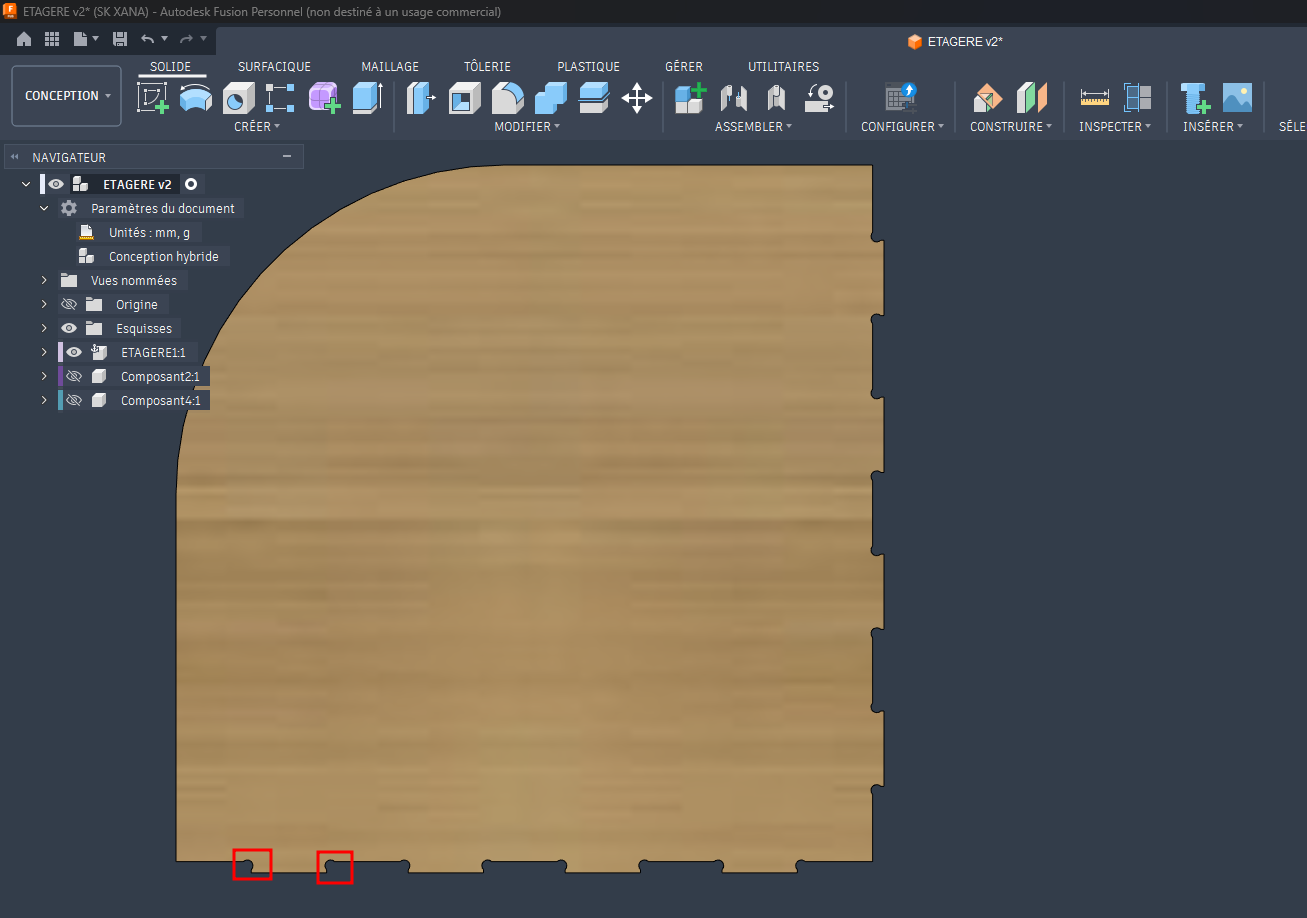
Export to .DXF Format (CAM Preparation)
Once the modeling and assembly were validated, it was necessary to “unfold” or project our parts into 2D so that the machine can follow the cutting paths. The .DXF (Drawing Exchange Format) is the universal standard for this operation.
Procedure in Fusion 360
-
Profile Preparation:
In the "Design" workspace, I created a new sketch on a clean construction plane. -
Projecting Contours:
Using the "Project" (P) tool, I selected the flat faces of each component (the vertical support and the shelves). This copies the edges of the 3D model onto the 2D sketch plane, including slots and fixing holes. -
Sketch Cleanup:
After projection, I checked that all lines were continuous and removed any unnecessary geometry that could interfere with toolpath generation. -
Exporting the File:
In the browser panel (left side), I right-clicked on the created sketch and selected "Save as DXF".
This file is then imported into CAM software (such as VCarve or Aspire, commonly used with the ShopBot) to generate machining strategies.
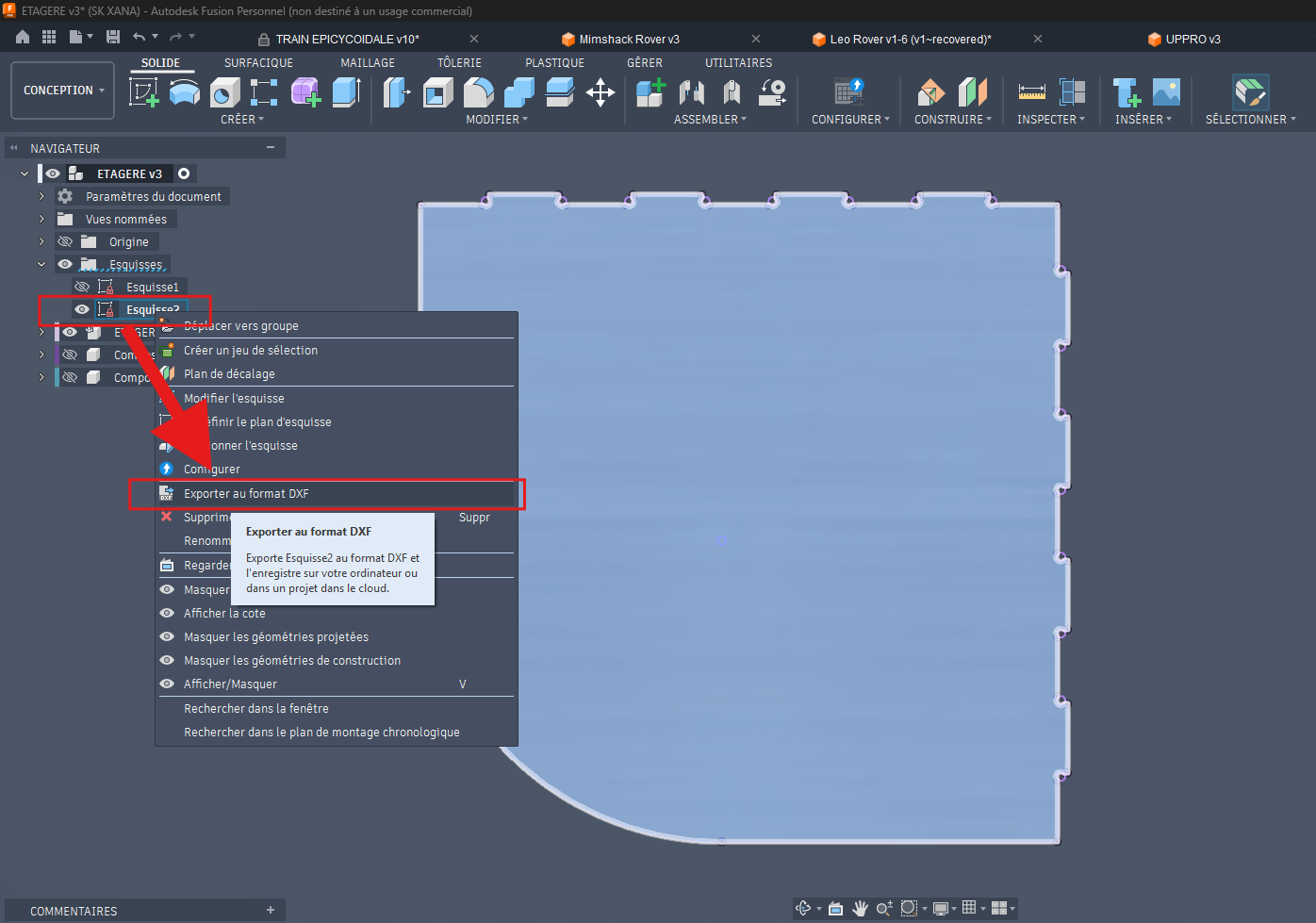
Toolpath Generation with VCarve
For the generation of toolpaths, we followed these steps:
-
Import the DXF File:
Open the exported .DXF file in VCarve. -
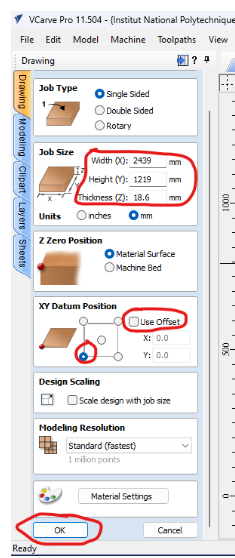
Machine Setup:
Enter the working dimensions of the ShopBot CNC machine.
Make sure to configure the job size according to your material dimensions. -
Offset Configuration:
Disable the offset option as shown below to ensure correct alignment between the design and the machining paths.
Once the files were exported, we proceeded to the nesting step. This phase consists of intelligently arranging the different parts on the virtual workspace representing our wooden panel.
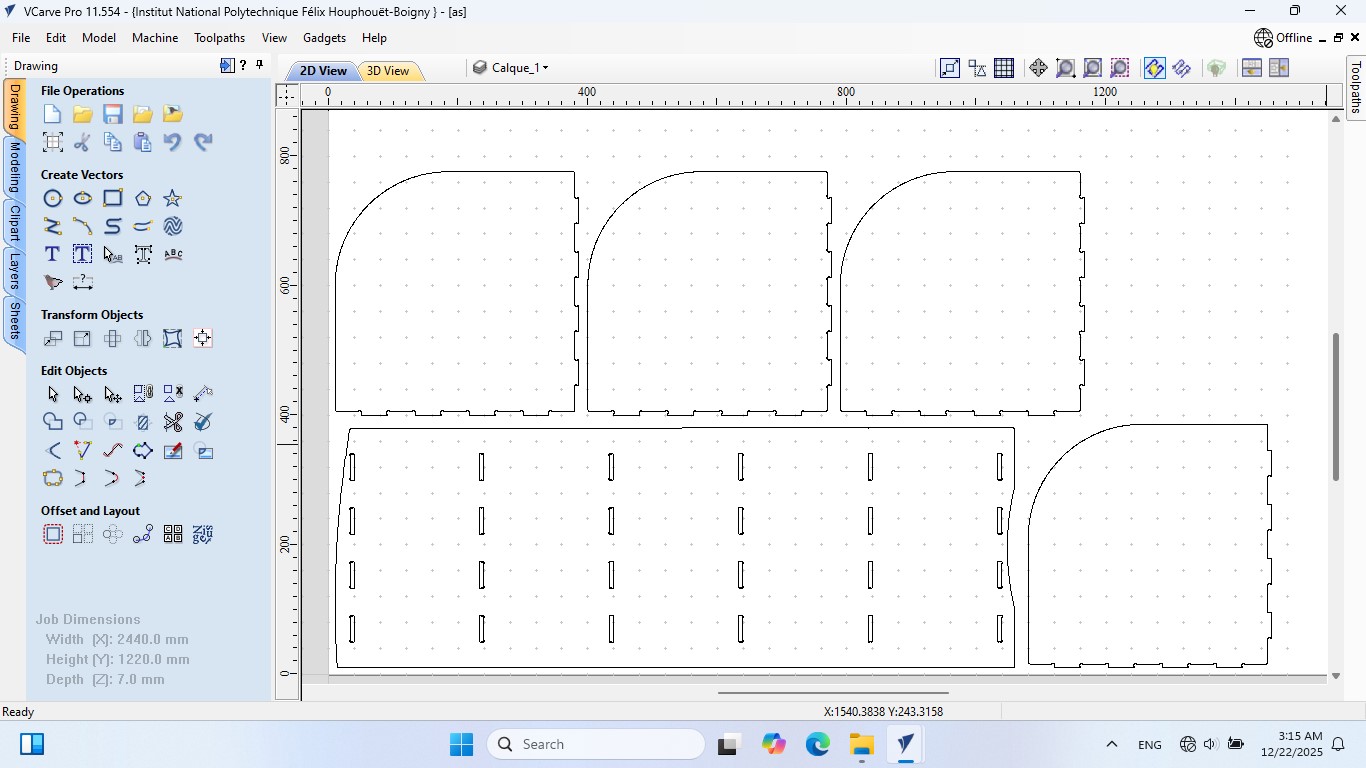
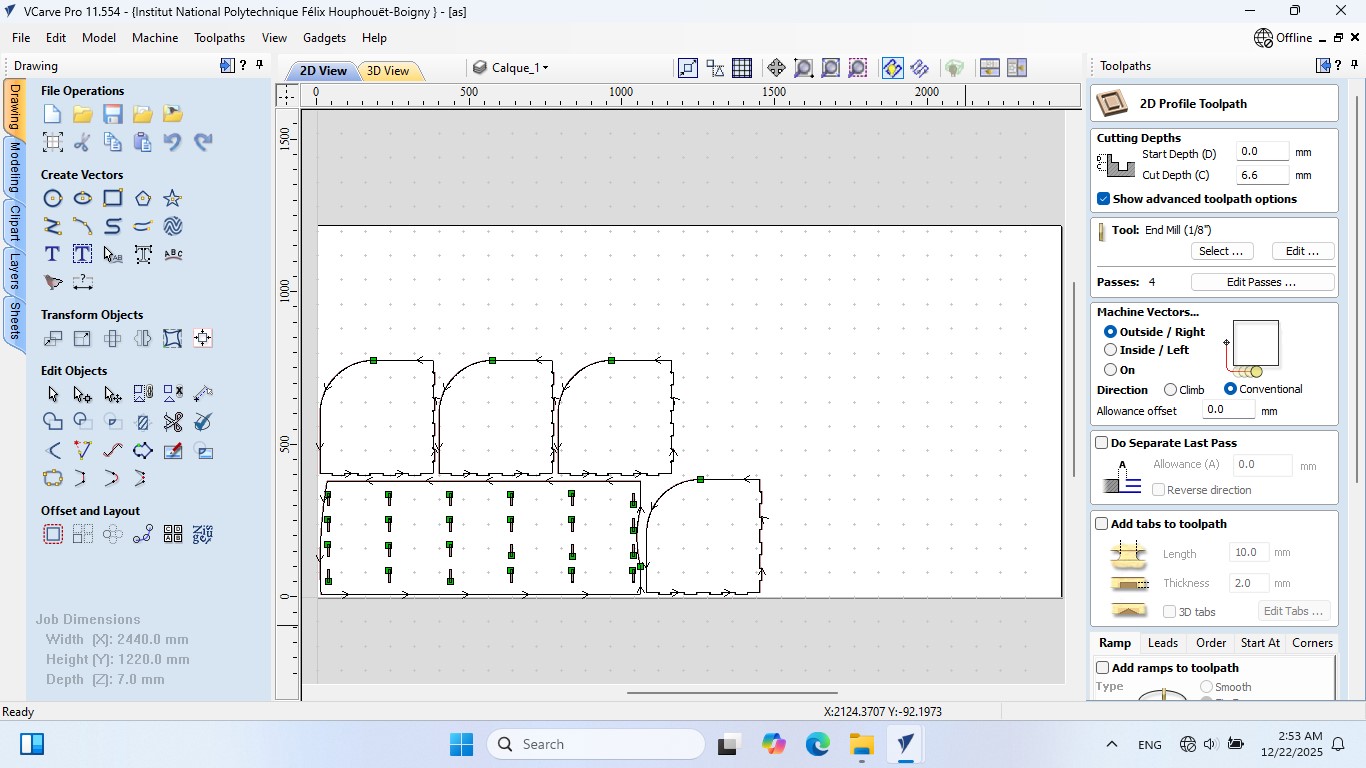
Cutting Toolpath Setup (2D Profile Toolpath)
Procedure
-
Select All Contours:
Select all the outlines of your parts. -
Create the Toolpath:
Go to Toolpath > 2D Profile Toolpath, then choose Outside / Right to obtain an external cut. -
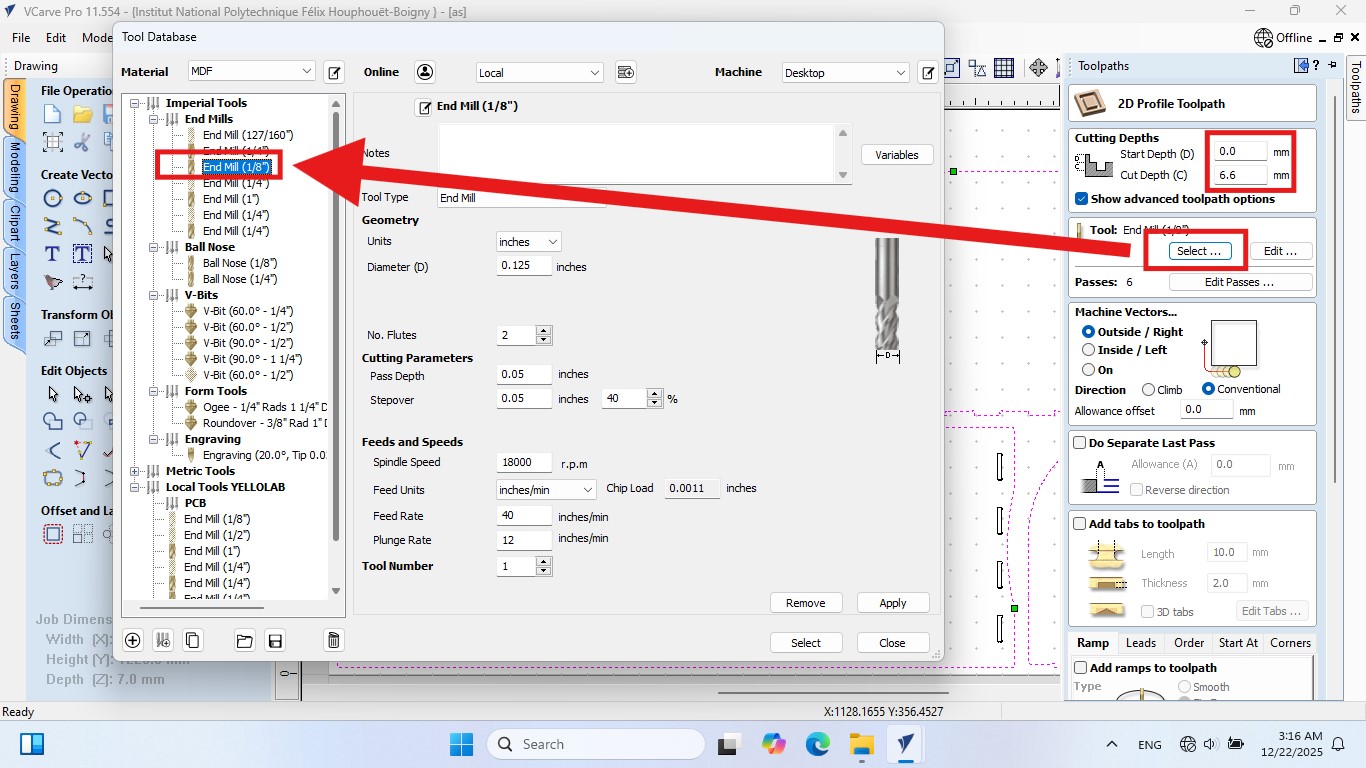
Start Depth: 0.0 mm (starting at the surface of the panel)
-
Cut Depth: 6.6 mm
This value was chosen to cut through almost the entire 6.0 mm panel (as defined in the Job Dimensions), ensuring a clean cut.
- Tool Selection:
We used an End Mill (⅛"), corresponding to a diameter of 3.175 mm.
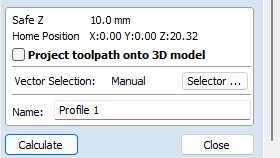
- Calculate the Toolpath:
Click on Calculate to generate the toolpath.
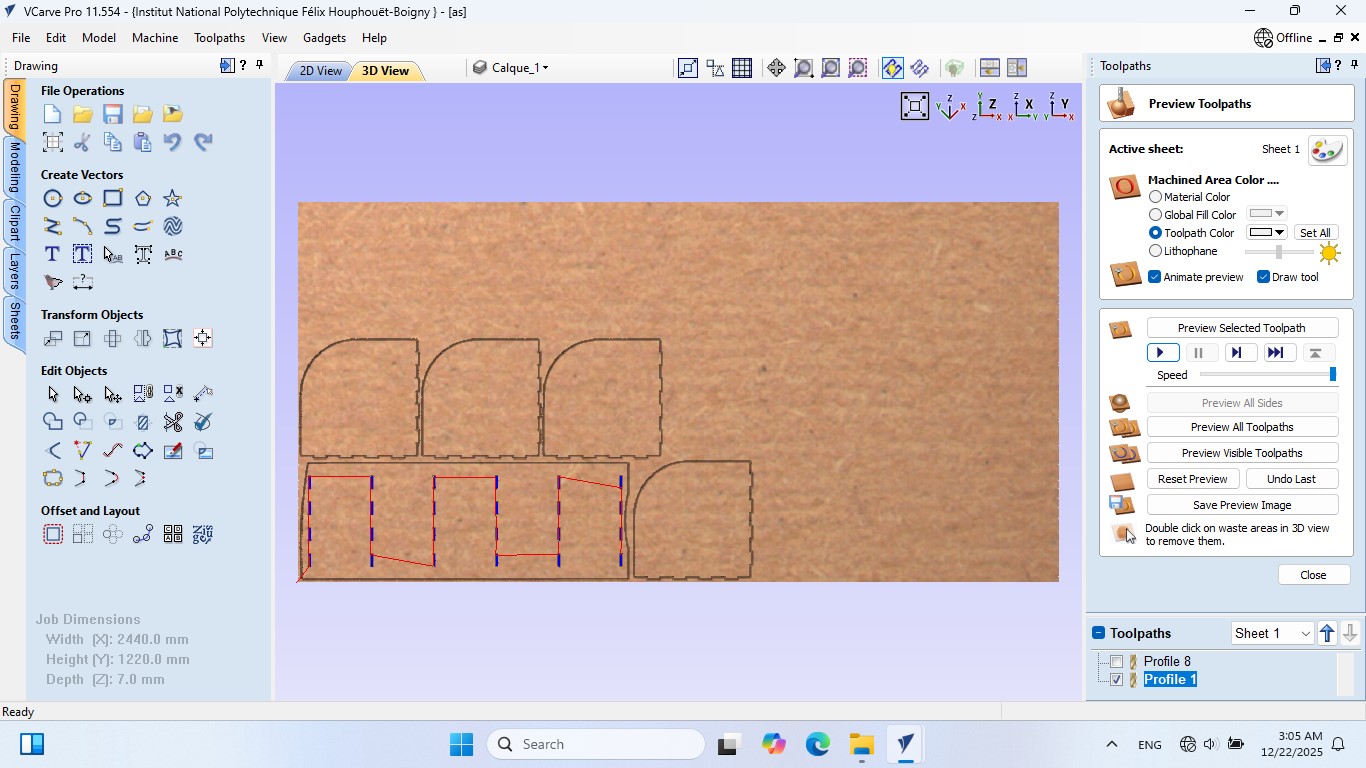
After this step, the following page will appear, displaying the generated toolpath preview.
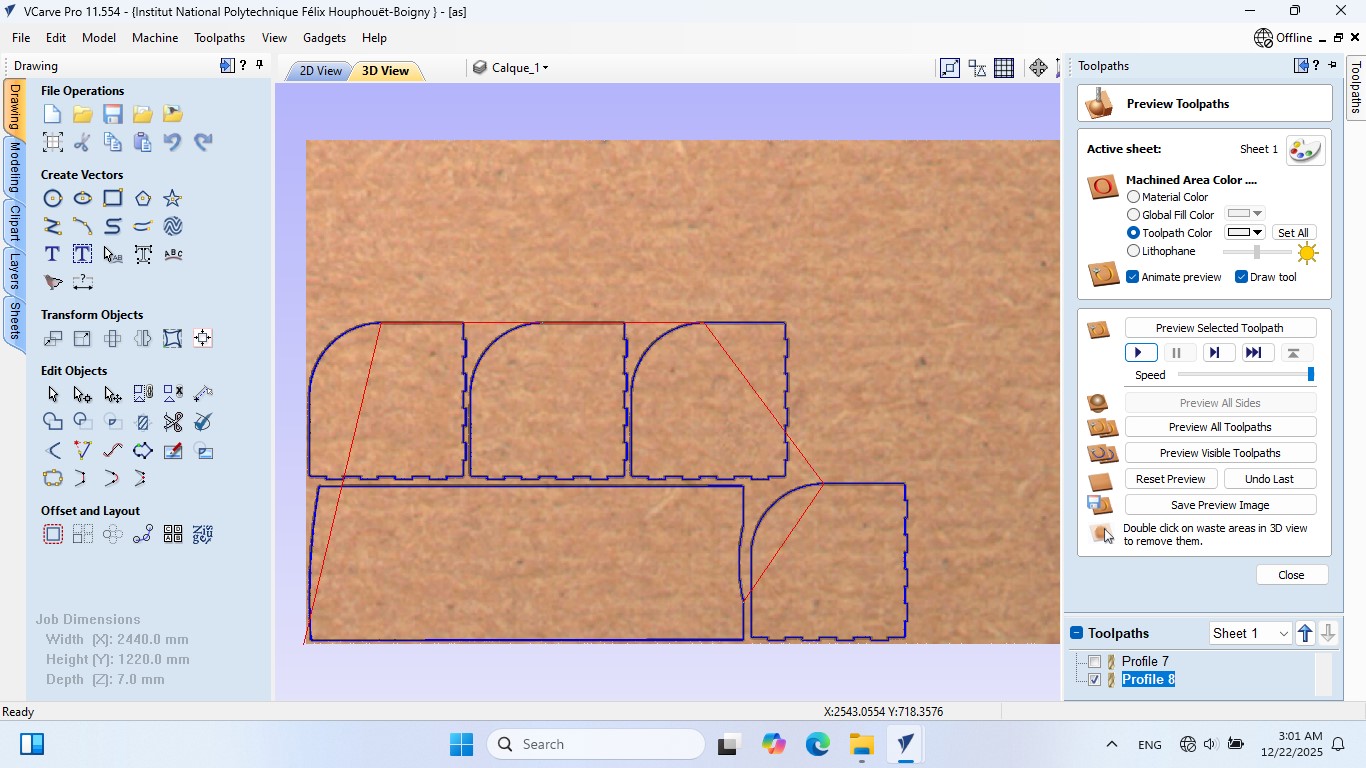
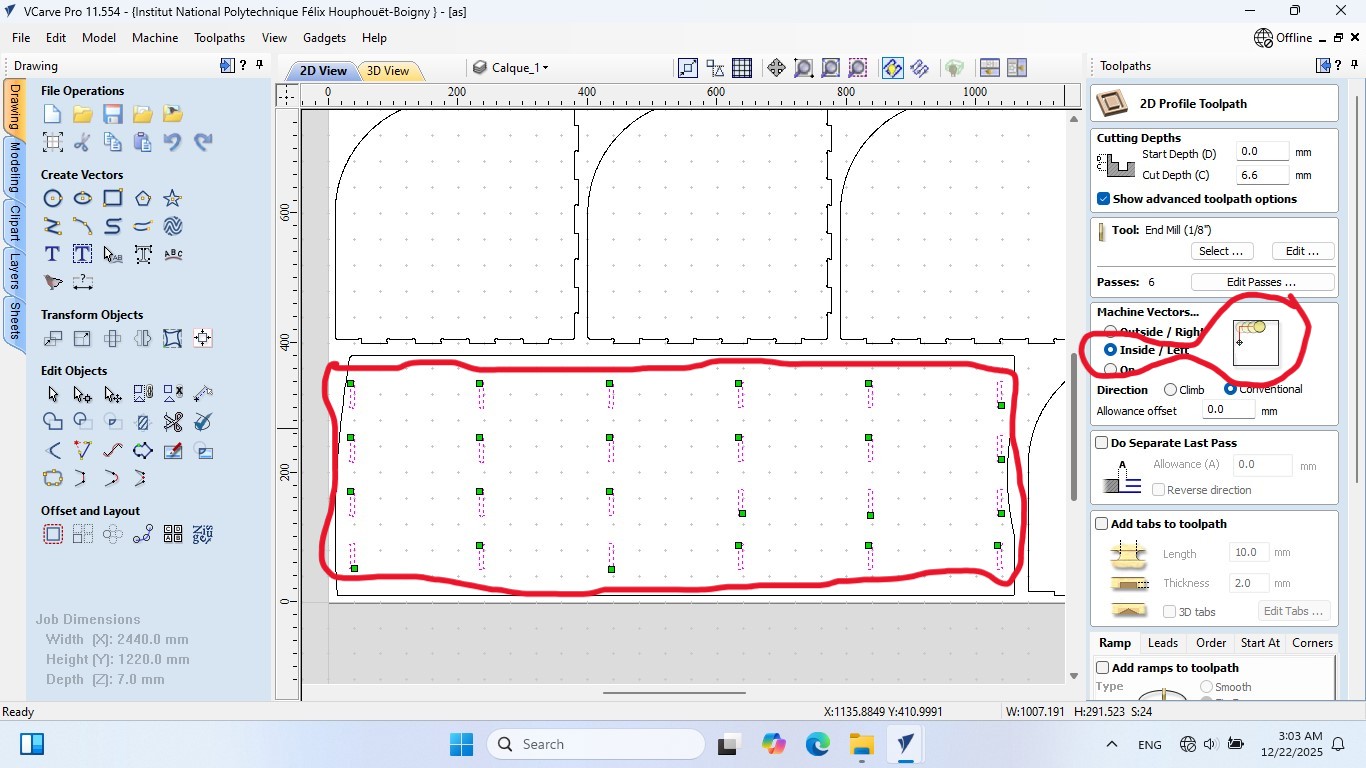
Go to Toolpath > 2D Profile Toolpath, then choose Inside / Right to obtain an external cut.
Important:
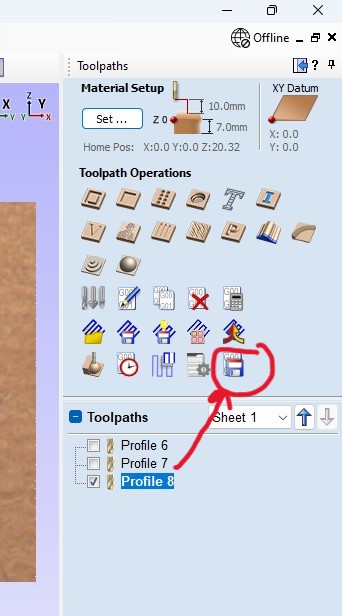
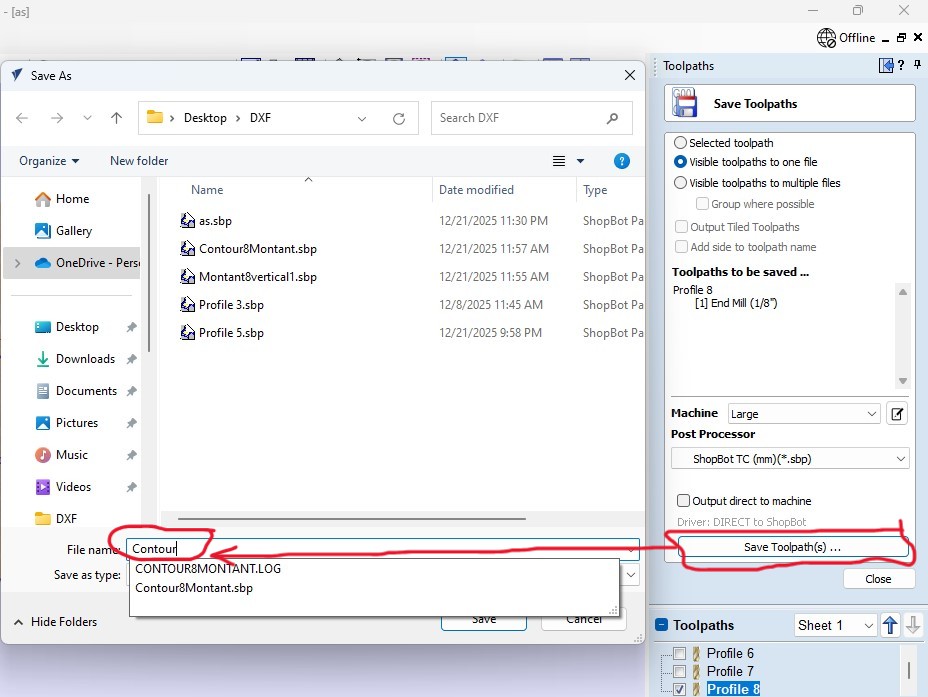
Do not forget to save your toolpath file, as shown in the previous steps.
Machining Setup on the ShopBot Alpha 96
Once the programming is completed in VCarve Pro, we move on to the practical phase using the ShopBot Alpha 96. The first critical step is preparing the workspace.
To ensure precise and safe machining, we followed these steps:
-
Panel Installation:
We positioned our board (in this case MDF, although the project can also be adapted to plywood) on the sacrificial bed of the ShopBot. -
Mechanical Fixation:
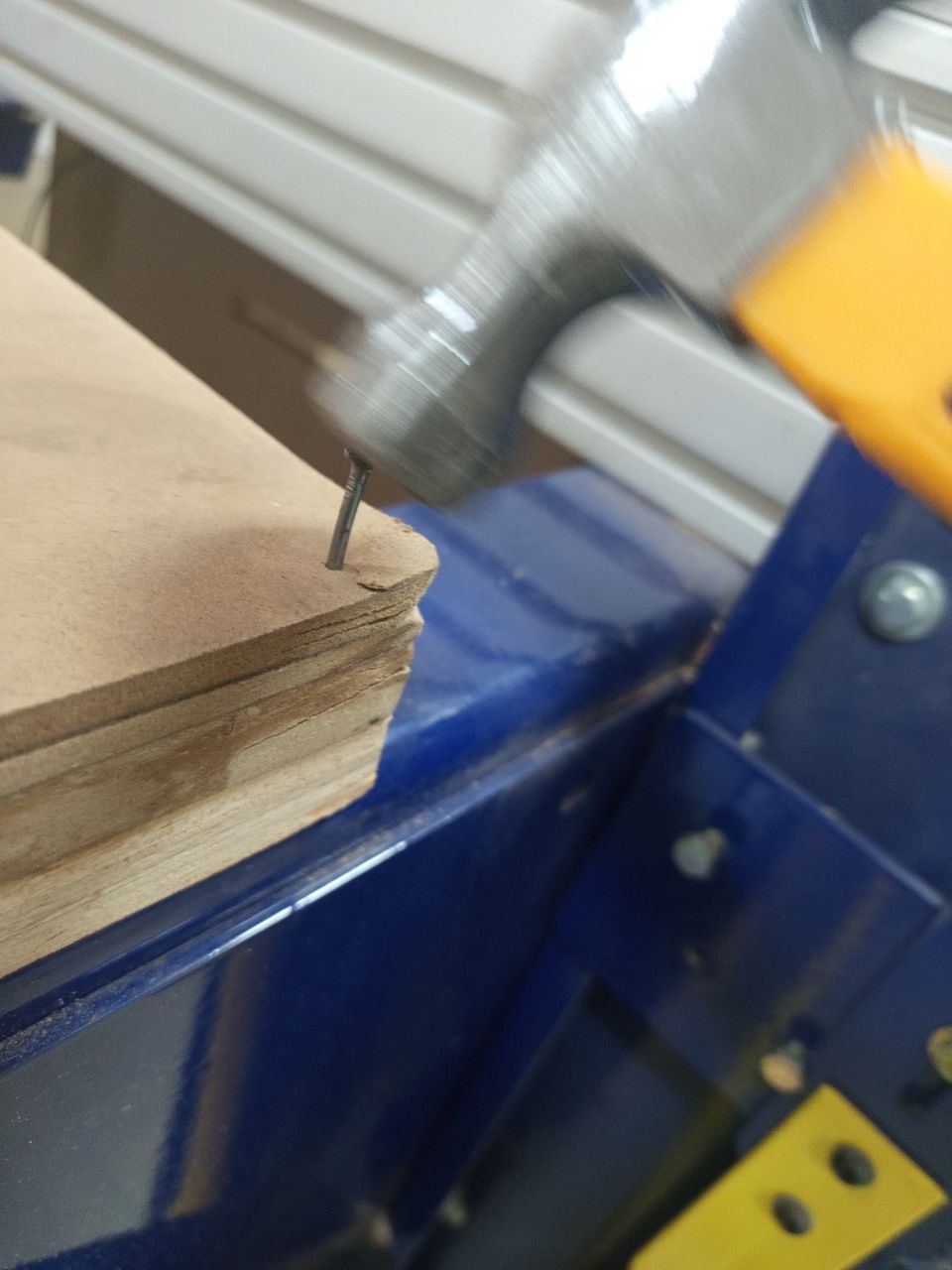
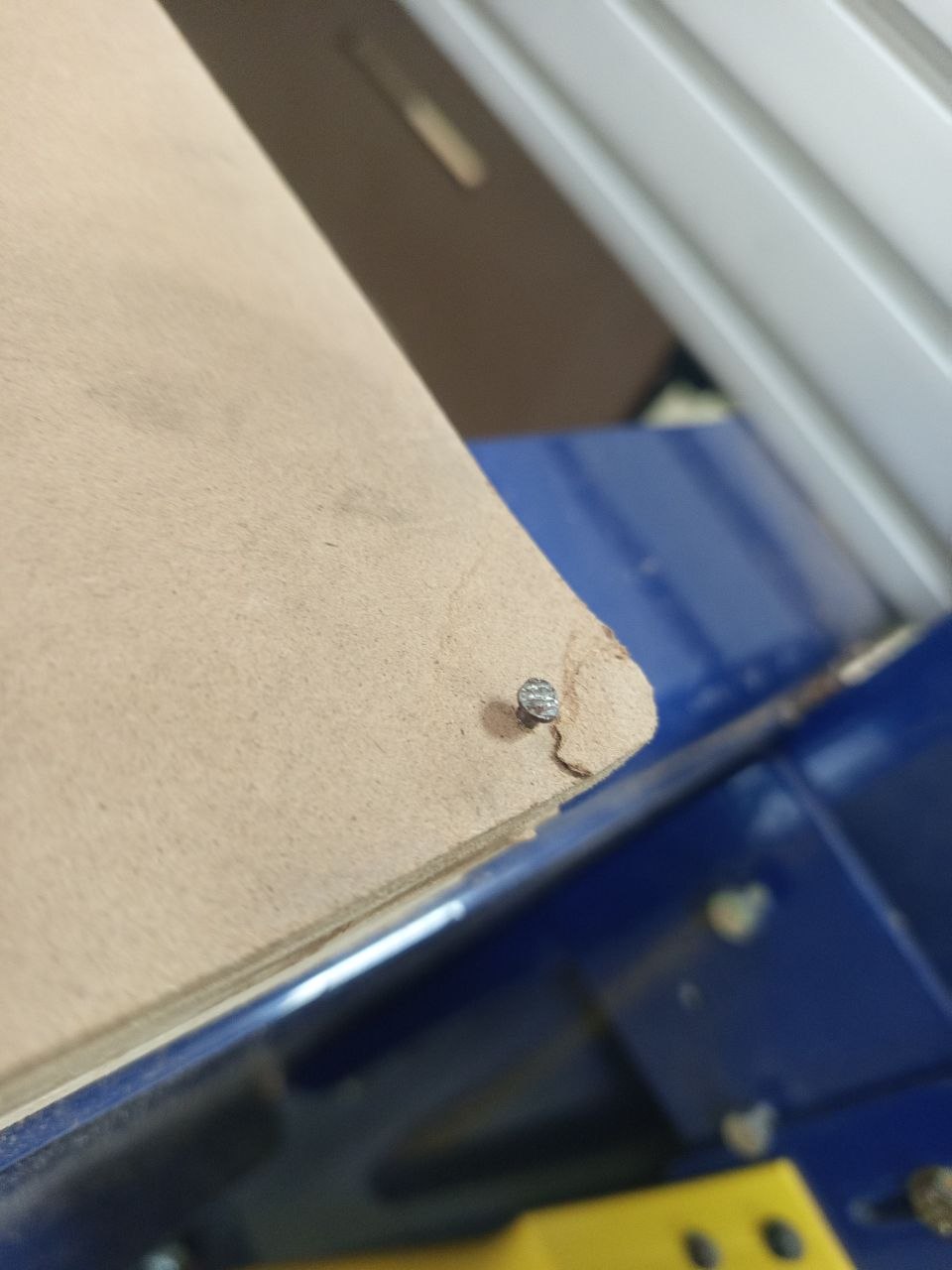
Unlike other methods such as vacuum holding, we chose mechanical fastening using nails. -
Procedure:
Using a hammer, we secured the edges of the board onto the sacrificial bed. -
Major Precaution:
It is essential to ensure that the nails are placed outside the toolpath areas defined during the nesting step in VCarve, in order to avoid tool breakage or machine damage. -
Flatness Check:
We made sure that the board was perfectly flat against the sacrificial bed to prevent vibrations and inconsistencies in cutting depth.
For instructions on how to configure the Shopbot software, I will direct you to the website at DROH Koffi Sylvain
Machining and Final Assembly
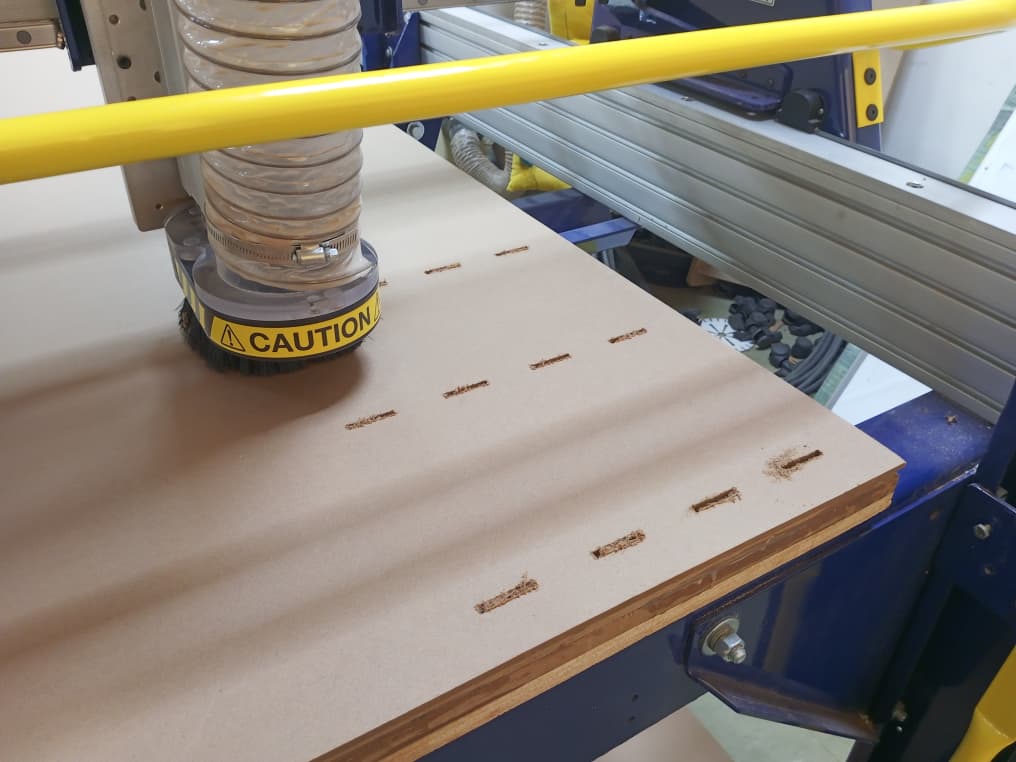
After setting the origins (X, Y, and Z), we started the machining process on the ShopBot Alpha 96. The machine first cleared the mortises and then proceeded to cut the profiles at a depth of 6.6 mm.
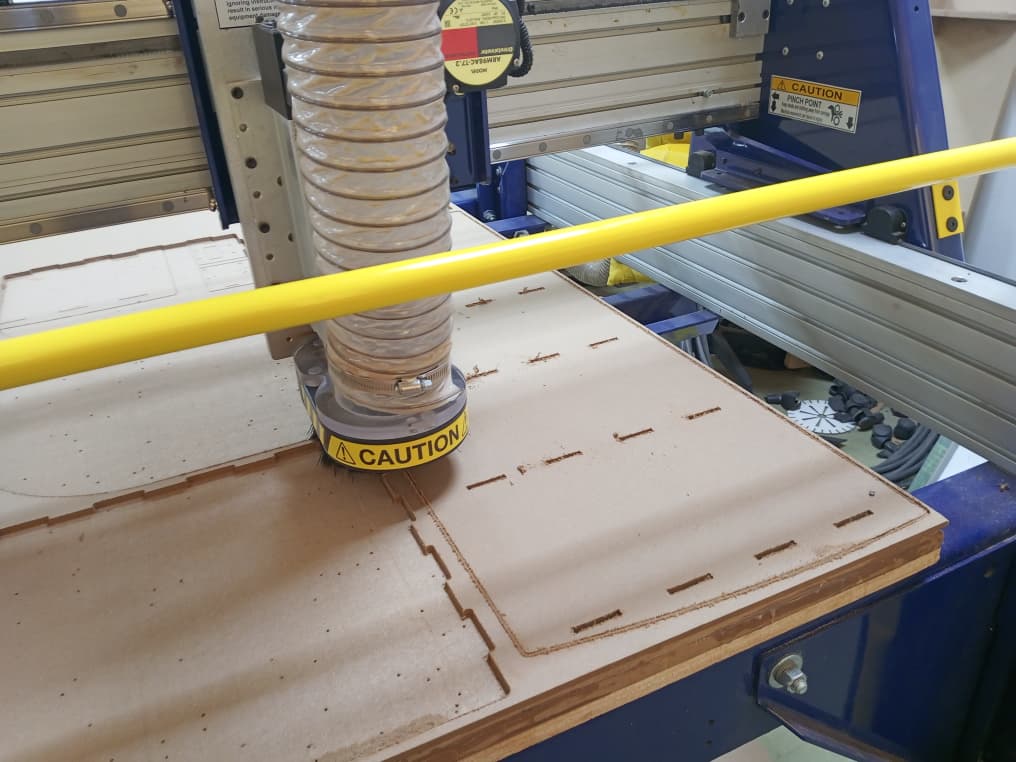
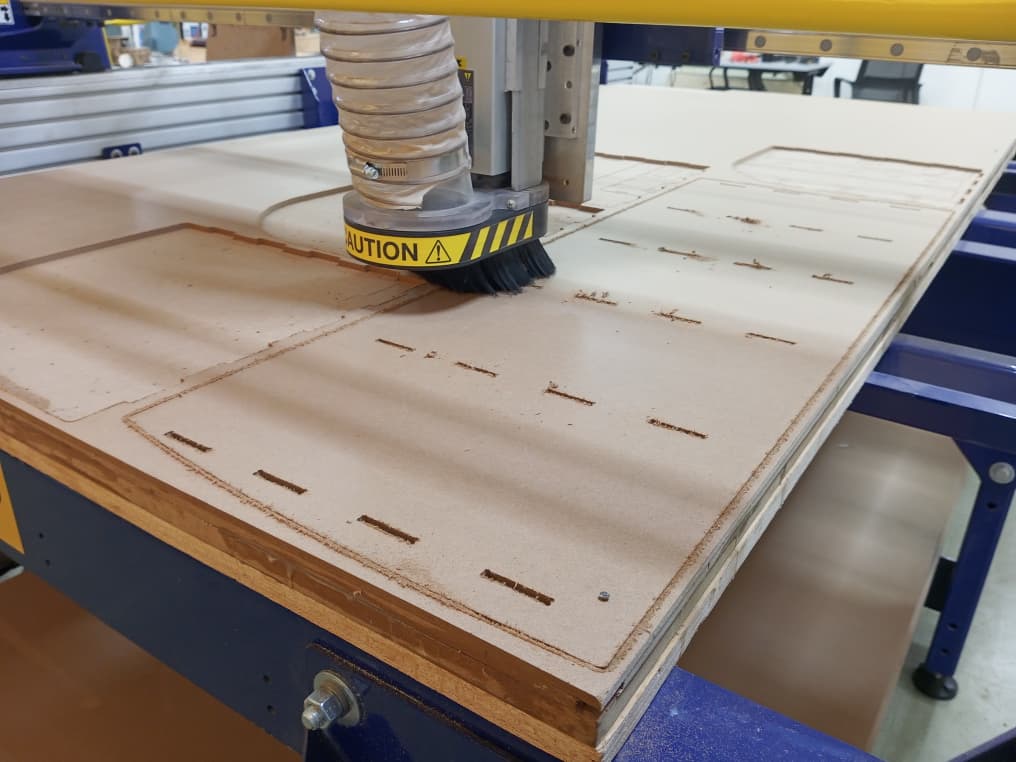
Once the cutting was complete, we removed the parts by cutting the tabs and lightly sanded the edges to ensure a smooth finish.
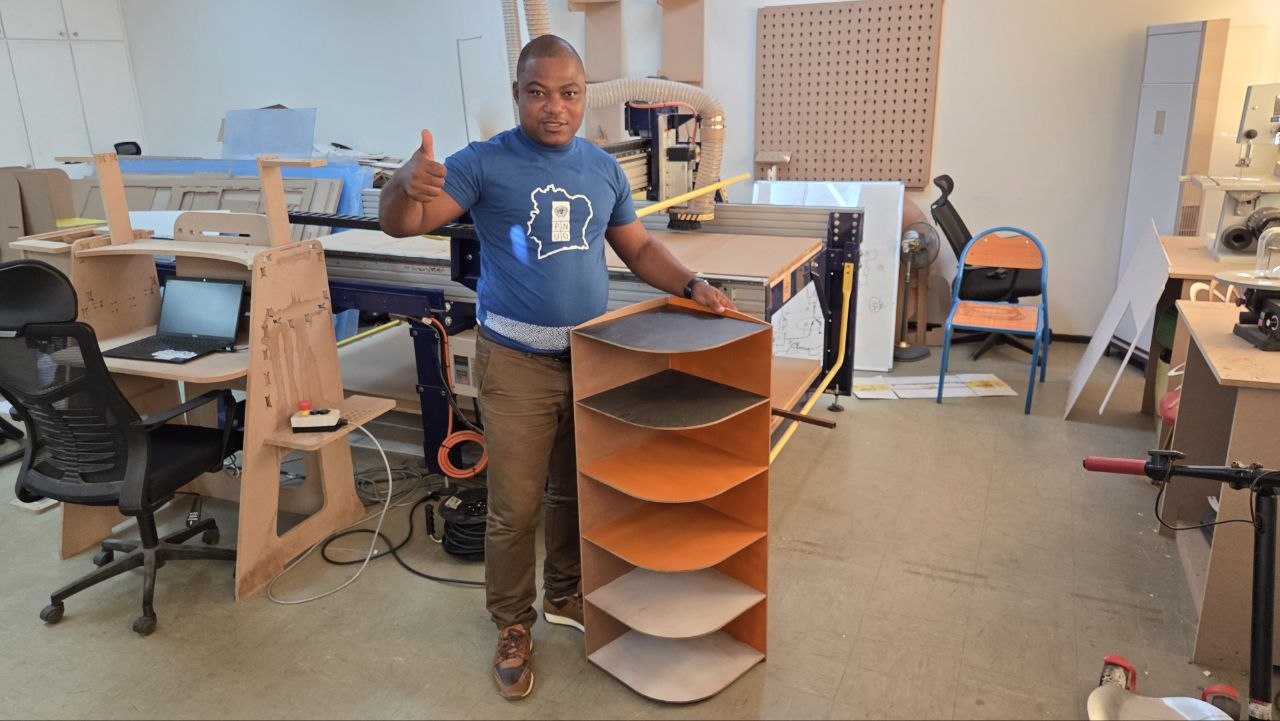
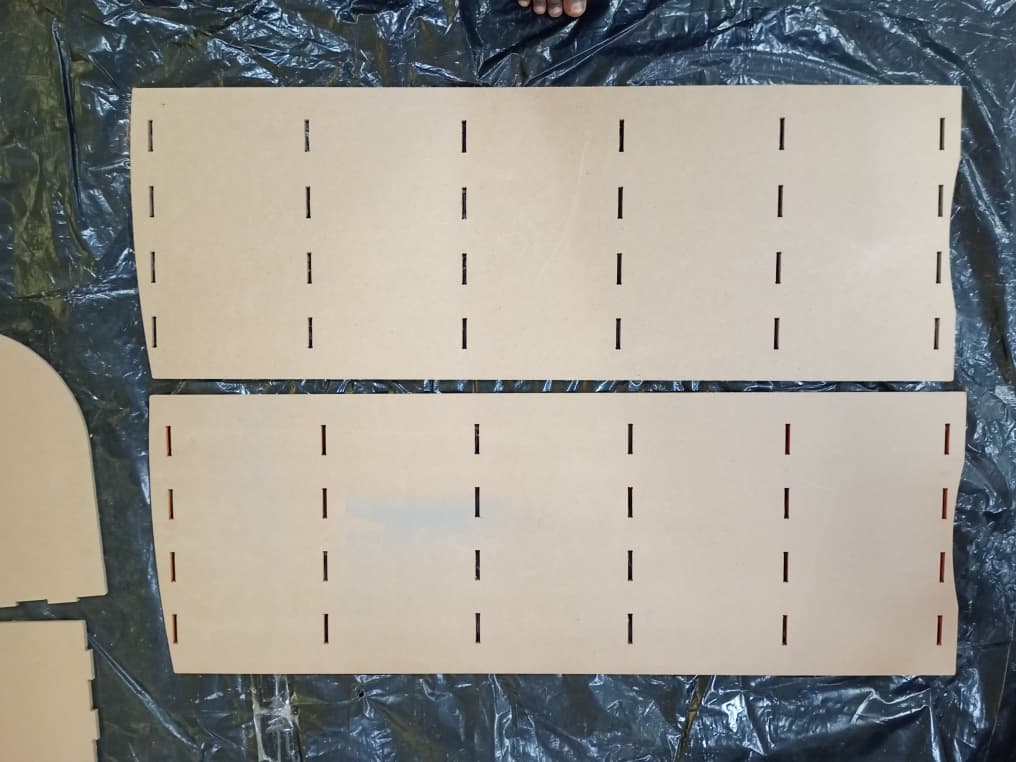
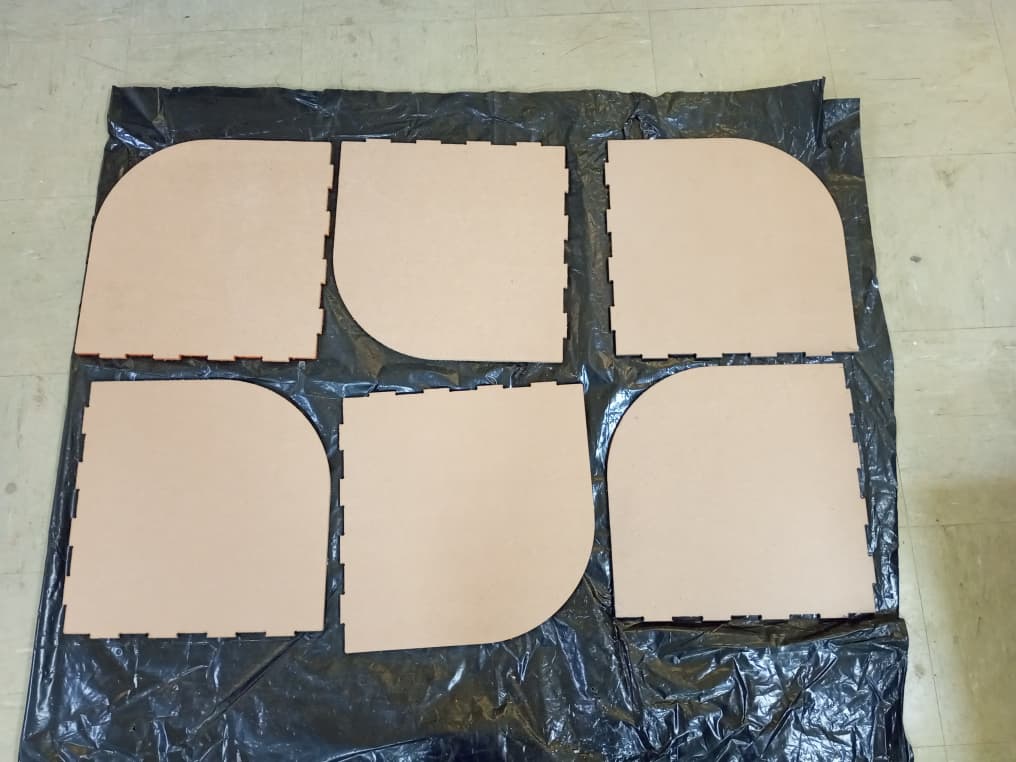
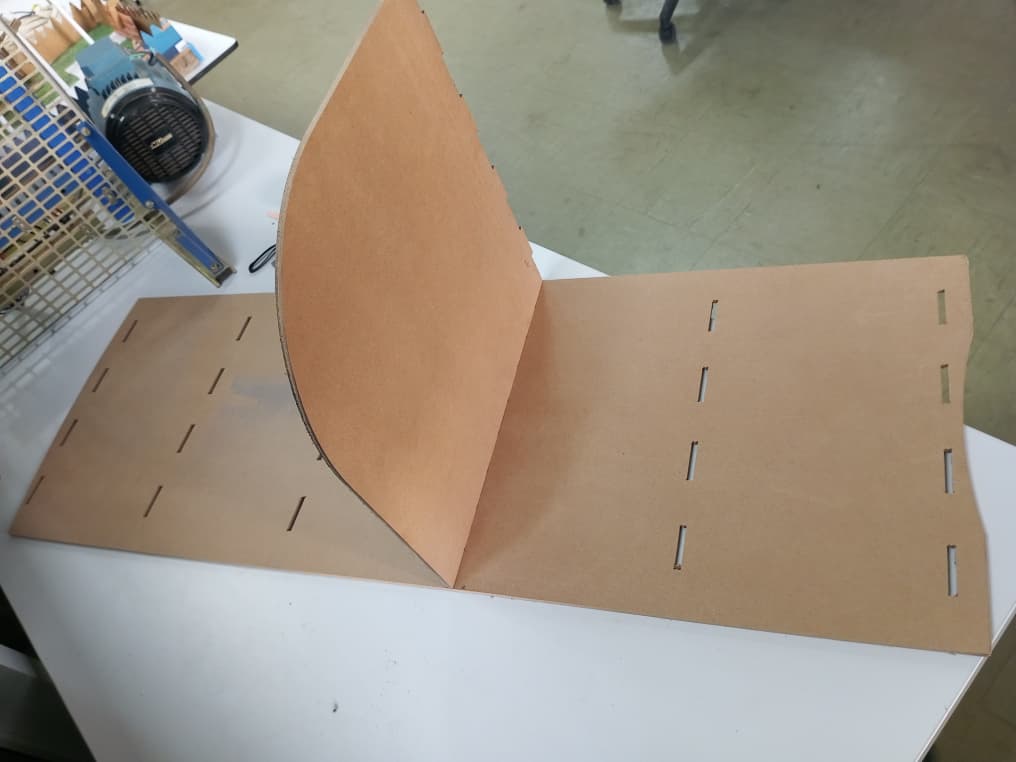
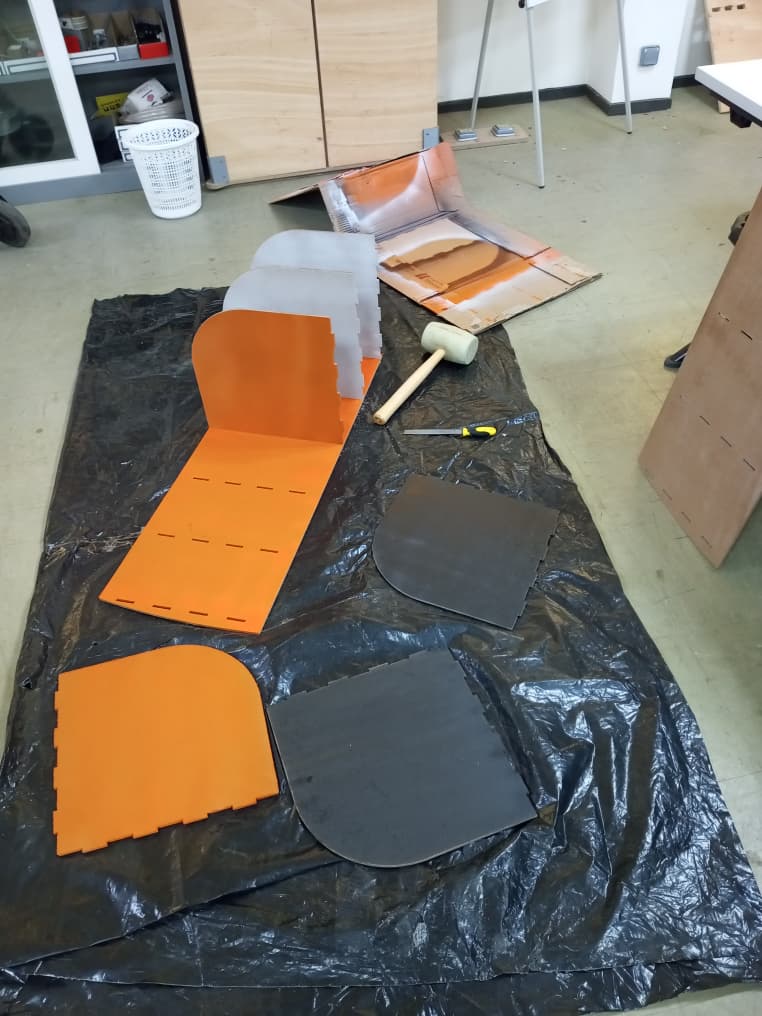
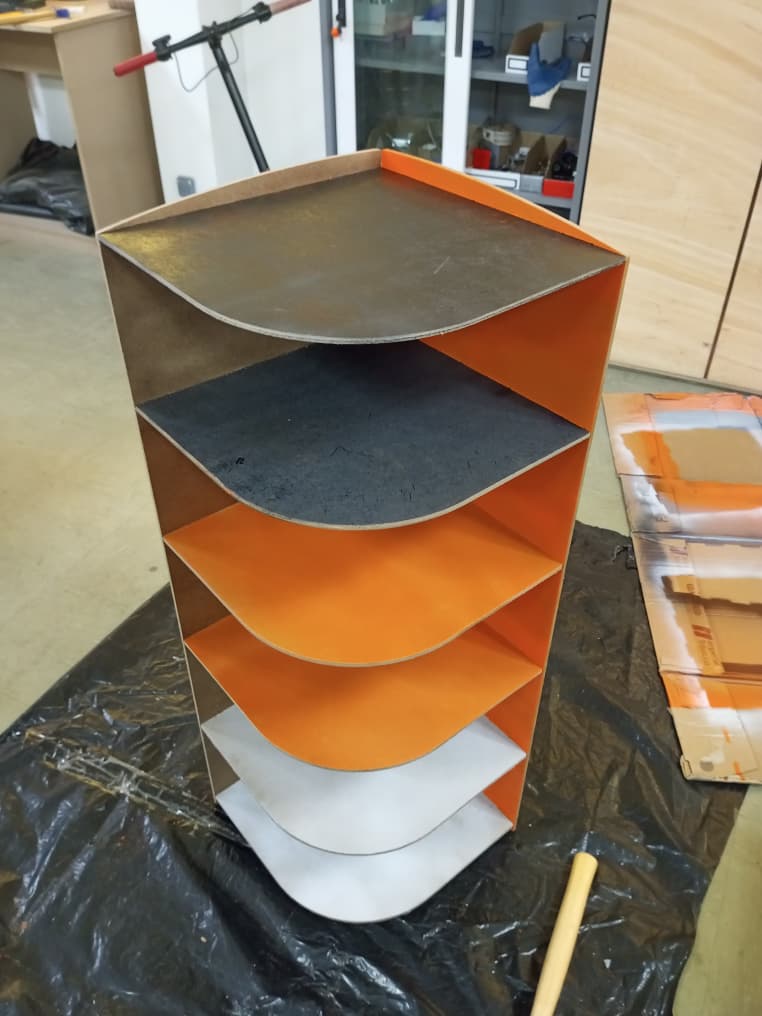
The assembly was done by interlocking the pieces. Thanks to the use of the NiftyDogboneFusion script during the design phase, the supports and the 5 rounded shelves (370 x 370 mm) fit together perfectly without any interference in the corners. The final result strictly adheres to the planned 1000 mm height.
Important:
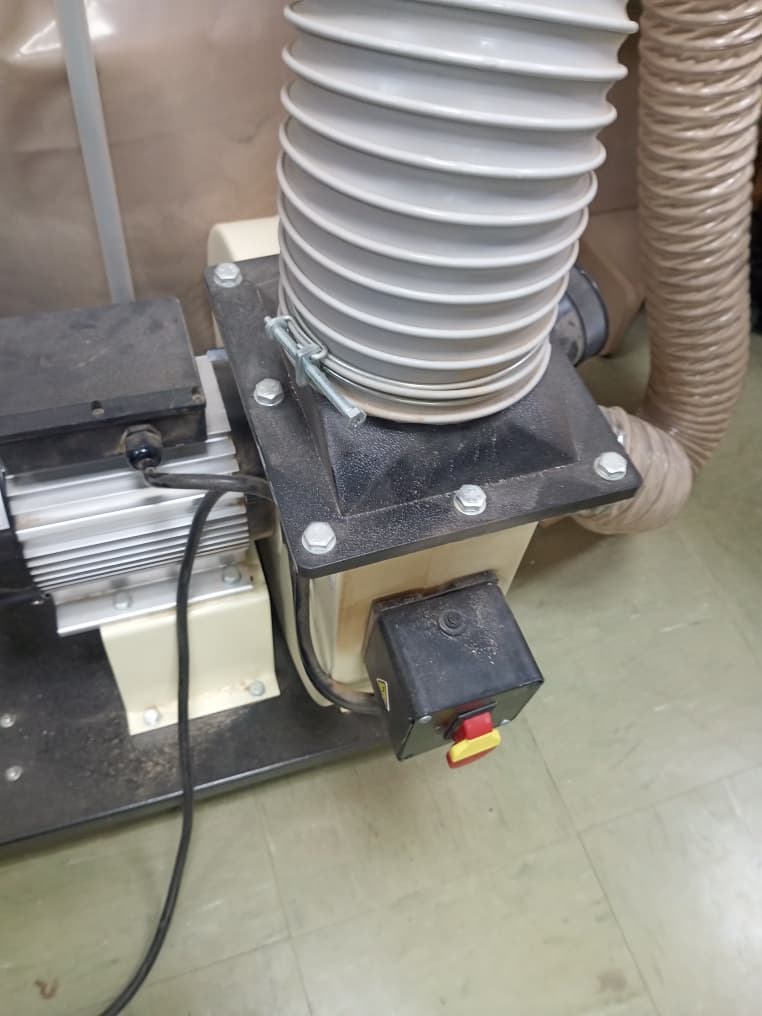
Do not forget to turn on the dust collector by lifting the lever, as shown in the image, to ensure proper chip evacuation and maintain a clean and safe working environment.
HERO SHOTS 😊😊😊