9. Input devices
Group assignment:
-
Probe an input device(s)'s analog and digital signals
-
Document your work on the group work page and reflect on your individual page what you learned
To see our group assignment click here
Individual assignment:
- measure something : add a sensor to a microcontroller board that you have designed and read it.
Individual Reflection
On the potentiometer, I observed a continuous analog voltage that rose or fell smoothly and proportionally as the shaft was rotated.
On the HC-SR04 ultrasonic sensor, the behavior was completely different: instead of a smooth level, the oscilloscope showed a digital HIGH pulse of variable width on the Echo pin. I noticed that this Echo pulse duration changed directly with the distance of the object in front of the sensor — the closer the object, the shorter the pulse. This made it clear that the HC-SR04 doesn't send an analog value at all; it encodes the measured distance as time, and it's up to the microcontroller's code to convert that pulse width back into a distance in centimeters.
Comparing both traces side by side helped me understand the practical difference between an analog signal (continuous voltage, read with analogRead()) and a digital pulse-encoded signal (discrete HIGH/LOW levels, read with pulseIn() or interrupt timing).
Introduction to the project
Pour cette semaine axée sur les dispositifs d'entrée, j'ai décidé de construire une station de surveillance compacte à l'aide de ma carte ESP32 personnalisée contruit à la semaine 5 cliquez ici pour plus de details. Le projet consiste à acquérir des données environnementales (température et humidité) via le capteur DHT11.
Presentation of the DHT11 Sensor
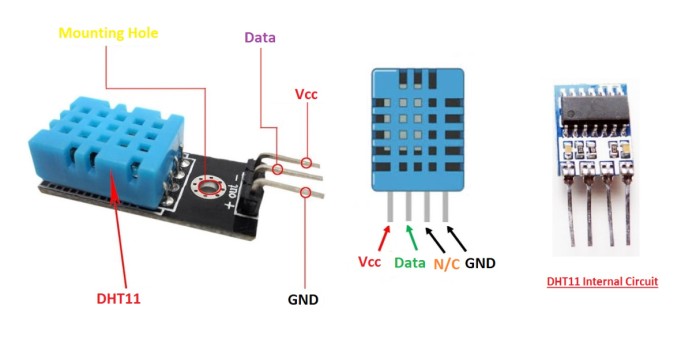
The DHT11 is a low-cost digital sensor used to measure temperature and humidity. It is widely used in electronics projects, especially with platforms such as Arduino, ESP32, and Raspberry Pi, due to its simplicity and ease of integration.
DHT11 Sensor Specifications
| Parameter | Value |
|---|---|
| Temperature Range | 0°C to 50°C |
| Temperature Accuracy | ±2°C |
| Humidity Range | 20% to 80% |
| Humidity Accuracy | ±5% |
| Output Signal | Digital |
| Operating Voltage | 3.3V to 5V |
| Sampling Rate | 1 Hz (1 reading per second) |
| Power Consumption | Low |
| Communication Protocol | Single-wire digital |
| Response Time | Slow |
| Cost | Low |
DHT11 Working Principle
The DHT11 is a composite digital sensor capable of measuring both temperature and ambient humidity. Unlike simple analog sensors, it integrates its own signal processing system.
Internal Components
The blue casing of the DHT11 contains three main elements:
-
Resistive humidity sensor: It consists of two electrodes with a moisture-retaining substrate (usually a polymer) between them.
-
NTC thermistor: A resistor whose value varies predictably with temperature.
-
8-bit microcontroller: It measures the variations from both sensors, performs analog-to-digital conversion, and transmits the data.
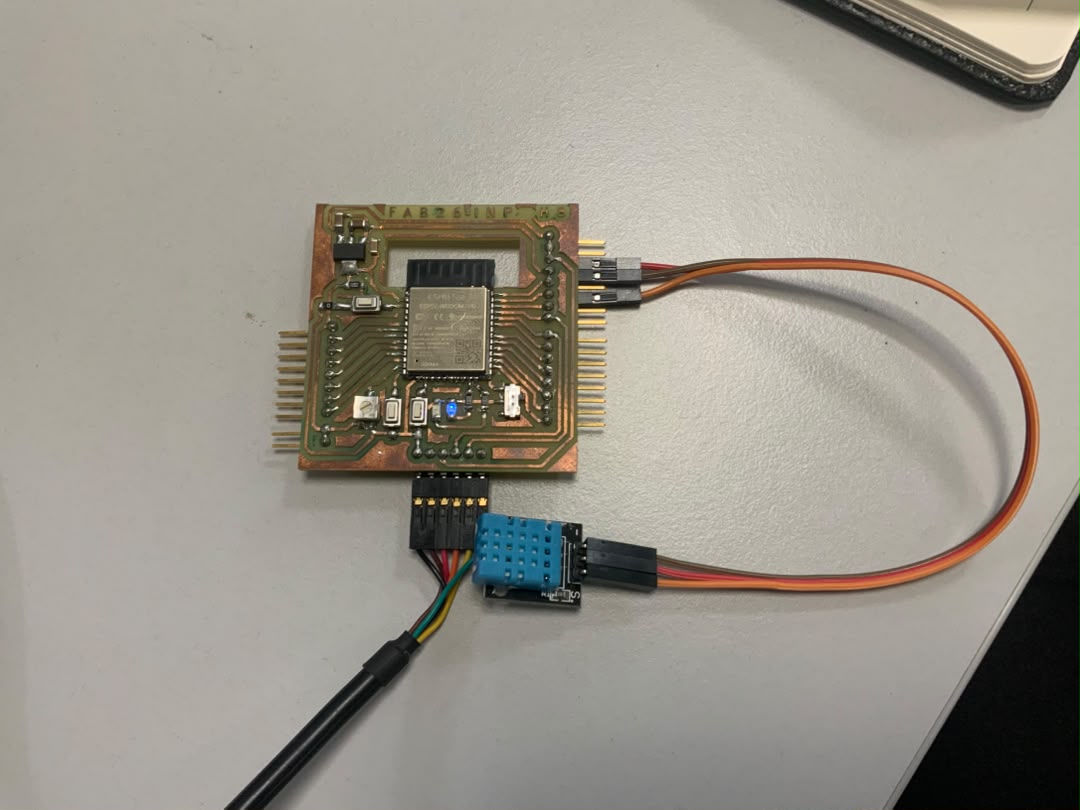
Wiring diagram
| Component | Component pin | ESP32 pin |
|---|---|---|
| DHT11 | VCC | 5V |
| DHT11 | GND | GND |
| DHT11 | DATA | GPIO 23 |
Project code
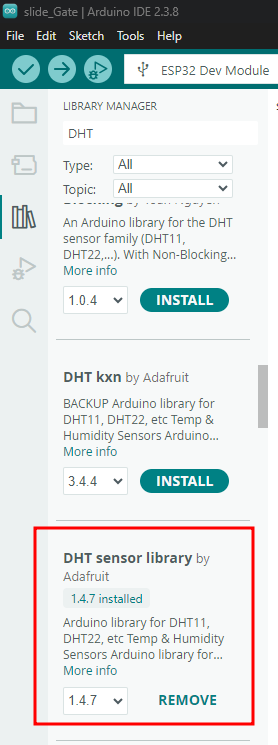
To use the DHT11 easily with Arduino, you need to install the "DHT sensor library".
To add a library in the Arduino IDE:
- Go to the menu Tools → Manage Libraries
- Search for "DHT sensor library"
- Click Install
Program
#include <DHT.h>
#define DHTPIN 23
#define DHTTYPE DHT11

DHT dht(DHTPIN, DHTTYPE);

void setup() {
  Serial.begin(115200);
  Serial.println("--- DHT11 Monitoring Ready ---");
  dht.begin();
}

void loop() {
  float hum = dht.readHumidity();
  float temp = dht.readTemperature(); // Celsius par défaut

  if (!isnan(hum) && !isnan(temp)) {
    Serial.print("Temperature: ");
    Serial.print(temp);
    Serial.print(" °C | Humidite: ");
    Serial.print(hum);
    Serial.println(" %");

    Serial.print("Temperature:");
    Serial.print(temp);
    Serial.print(",Humidite:");
    Serial.println(hum);
  } else {
    Serial.println("Erreur: lecture du capteur DHT11 impossible.");
  }
  delay(2000);
}
Result After Uploading the Code
The following result was obtained after uploading the program to the ESP32 board.