PRINCIPLES AND PRACTICES AND PROJECT MANAGEMENT
Introduction
The first week of the FabAcademy program focused on introducing students to the course structure, expectations, and tools. We covered the basics of project documentation, version control with Git, and website development for showcasing our work. The main goal was to set up a strong foundation for managing our projects and sharing our progress effectively throughout the course.
Objectives
For Week 1, I was required to complete the following tasks:
- plan and sketch a potential final project
- Download, read, and sign the student agreement, then commit the file to my repository
- Complete a Git tutorial to understand version control basics
- Build a personal website in the class archive
- Include personal information and a description of my final project on the website
Tools and Software Used
During this week, the following tools were used:
- Git
- GitHub / GitLab
- Visual Studio Code
- Web browser
- Command Line / Terminal
- HTML and CSS
Final Project Ideas
This week I worked on defining my final project idea and started to getting used to the documentation process.
1. Pill-Shaped Pill Dispenser
A pill dispenser designed to look like a large capsule. The container opens in the middle and has internal sections to separate doses by day or time. The goal is to make medication storage feel less medical and more friendly.
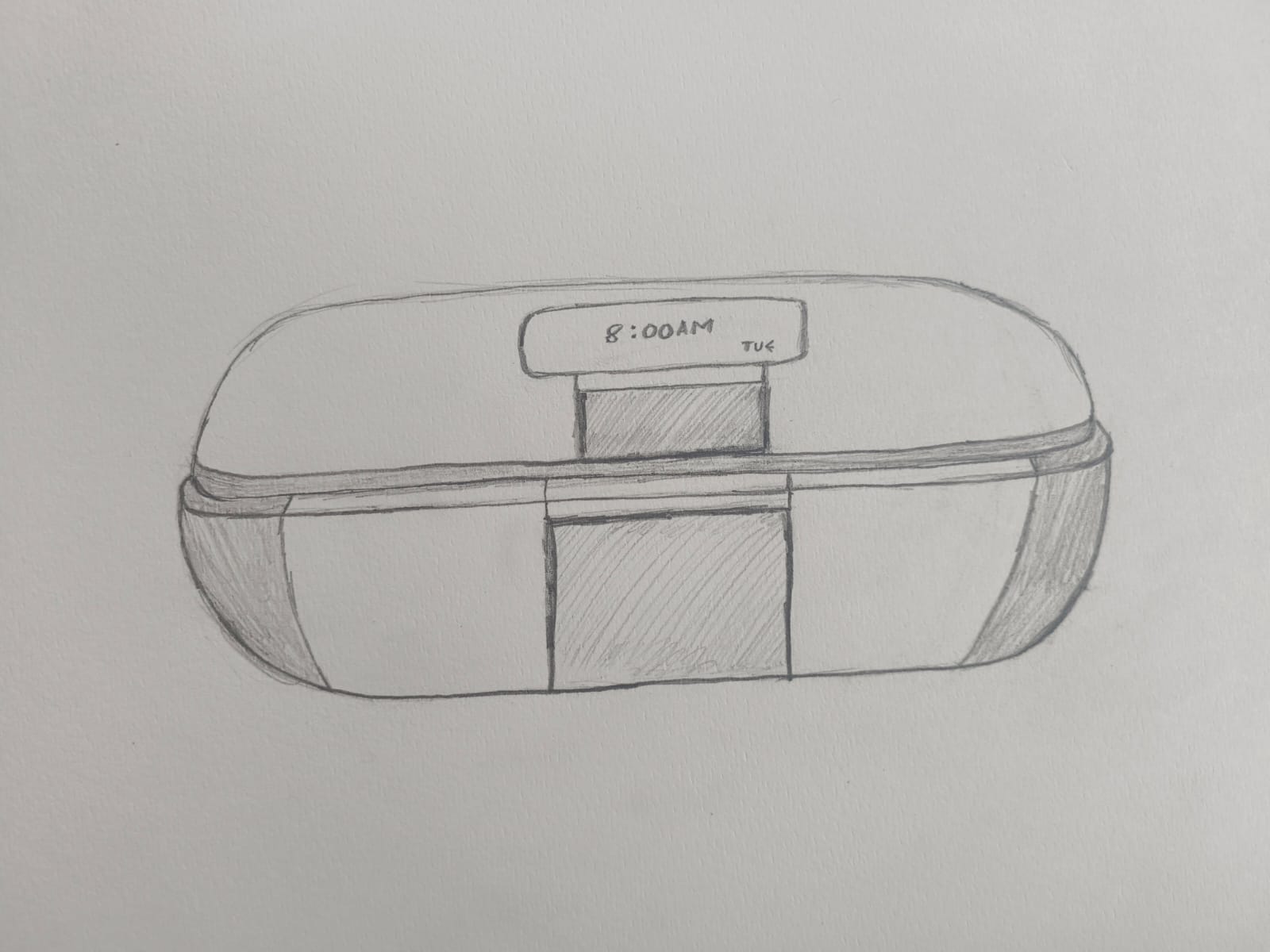
This design treats a pillbox like an everyday object rather than medical equipment — a smooth, pill-shaped container that opens in the bottomand holds separate compartments for days or times. The rounded form, soft colours and simple labels are intended to make medication feel less intimidating and easier to manage, especially for people who find clinical devices off-putting.
2. Convertible Patient Care Bed
A specialized medical bed that mechanically transforms into a seated chair, allowing bedridden patients to change posture safely without leaving the unit. This design reduces the physical strain on caregivers and minimizes the risk of injury during patient transfers.
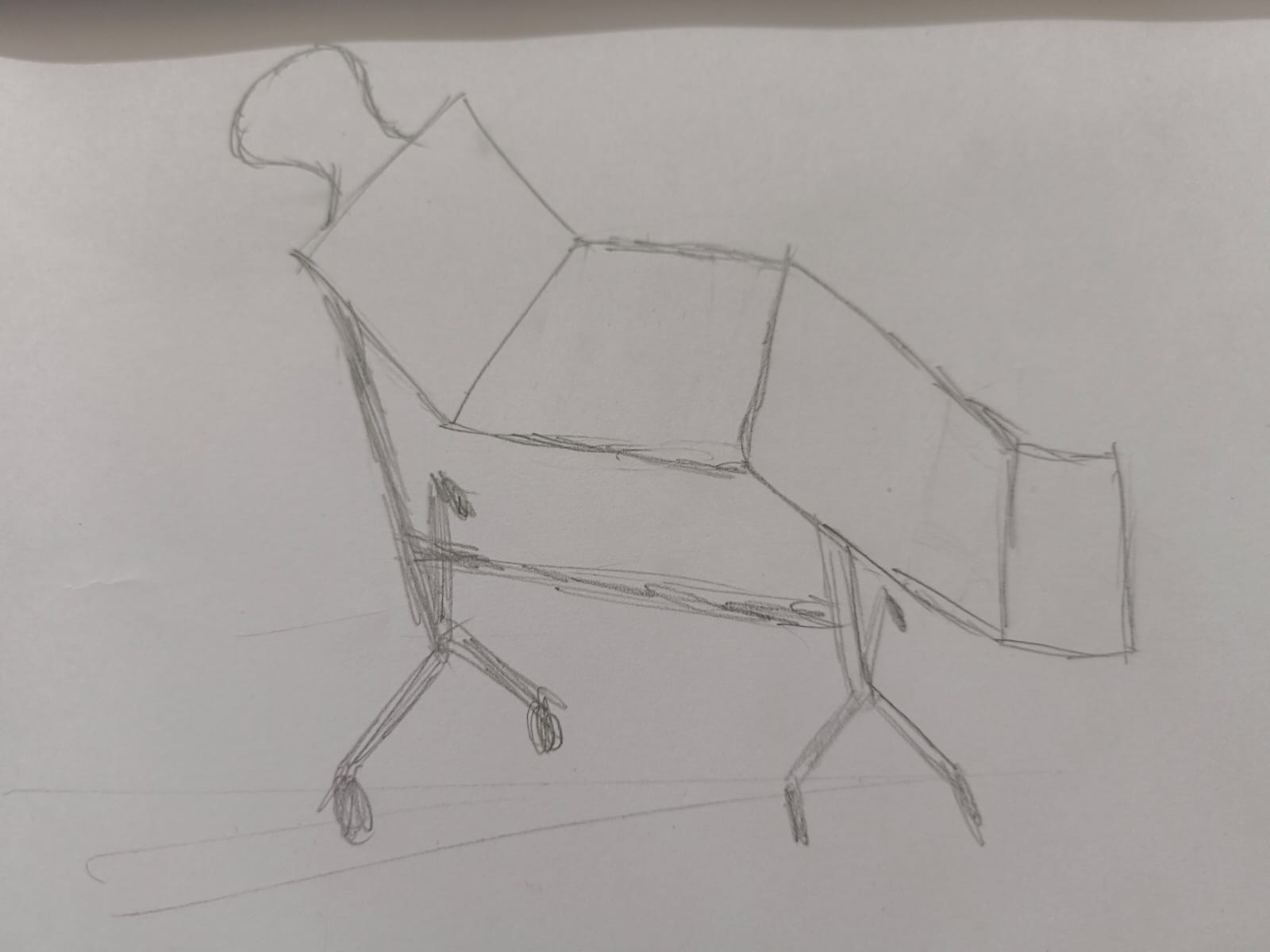
The bed quietly shifts from flat to seated using linked pivots and smooth linear actuators, so repositioning feels gentle and controlled. Built-in sensors and soft-edge guards help protect skin and reduce sliding, while a simple control panel lets caregivers or patients pause and lock the bed at comfortable angles.
In daily use this design can cut down on heavy lifting, lower the chance of transfer injuries, and give patients more independence. Early prototypes should focus on reliable strength and fail-safe locks, easy-to-clean materials, and an interface that is clear and forgiving for both carers and users.
3. Smart Reminder Display
A physical desktop device featuring an LED screen and navigation buttons that functions as a synchronized to-do list for a bedroom or workspace. It allows users to input tasks and receive visual reminders at specific dates and times, bridging the gap between a digital webpage and a tangible office accessory.
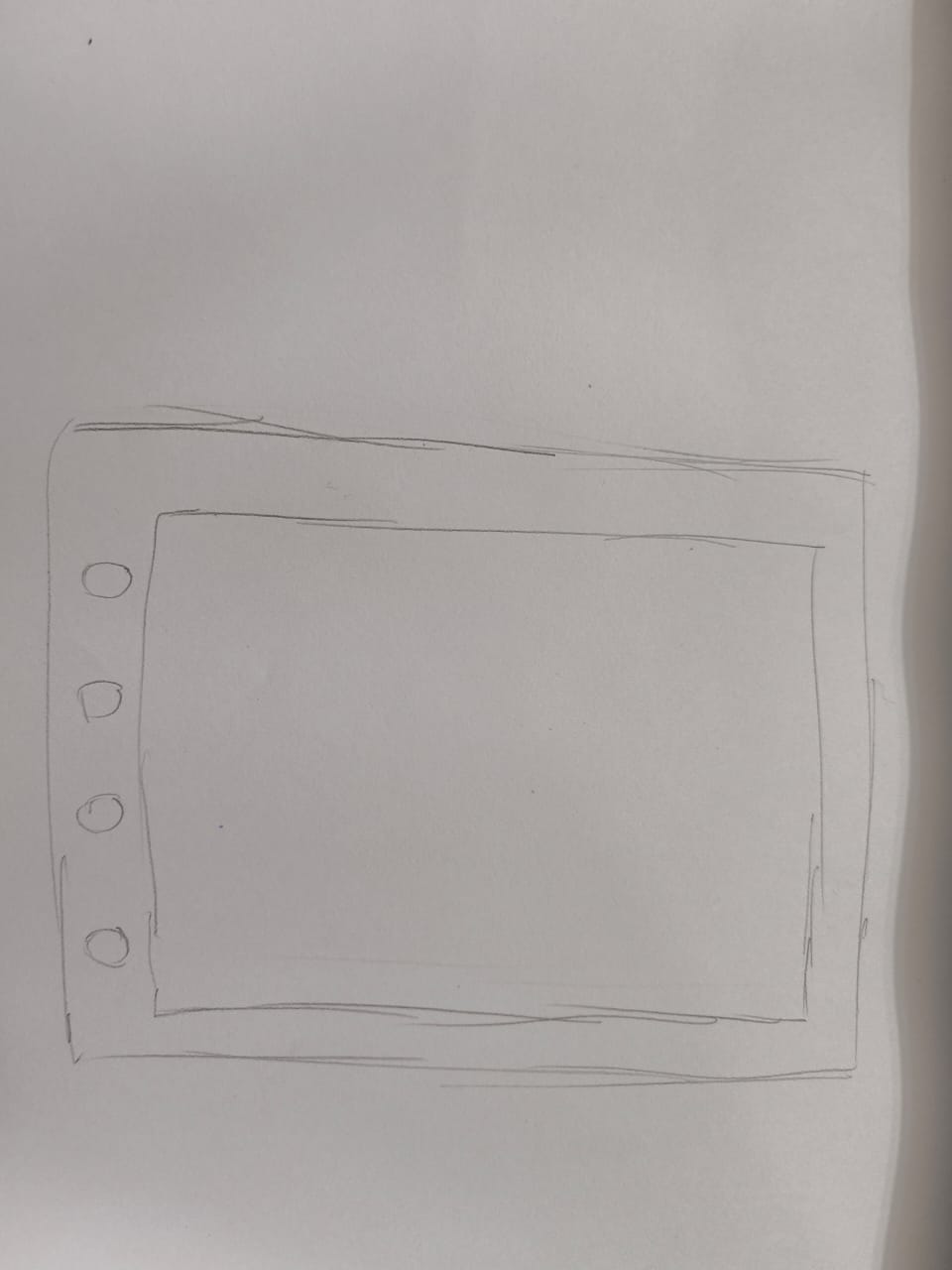
This little device pairs a clear LED panel with simple buttons so reminders feel friendly and easy to glance at. It can sync with a phone or calendar, show upcoming tasks with icons and colours, and uses gentle animations or light changes to get your attention without being disruptive.
In everyday use the display turns fleeting phone notifications into a calm, physical reminder on your desk or bedside — something you can glance at without feeling nagged. For early prototypes, focus on a simple setup, clear readable text, long battery life, and gentle notifications; a soft chime or warm backlight feels better than a loud alarm.
4. Mobile Tabletop Cleaning Robot
A compact robotic arm mounted on a wheeled platform designed to autonomously navigate and clear debris from desks and tabletops. The device uses sensors to detect obstacles and can be programmed to operate on a schedule, ensuring that workspaces remain tidy with minimal human intervention.
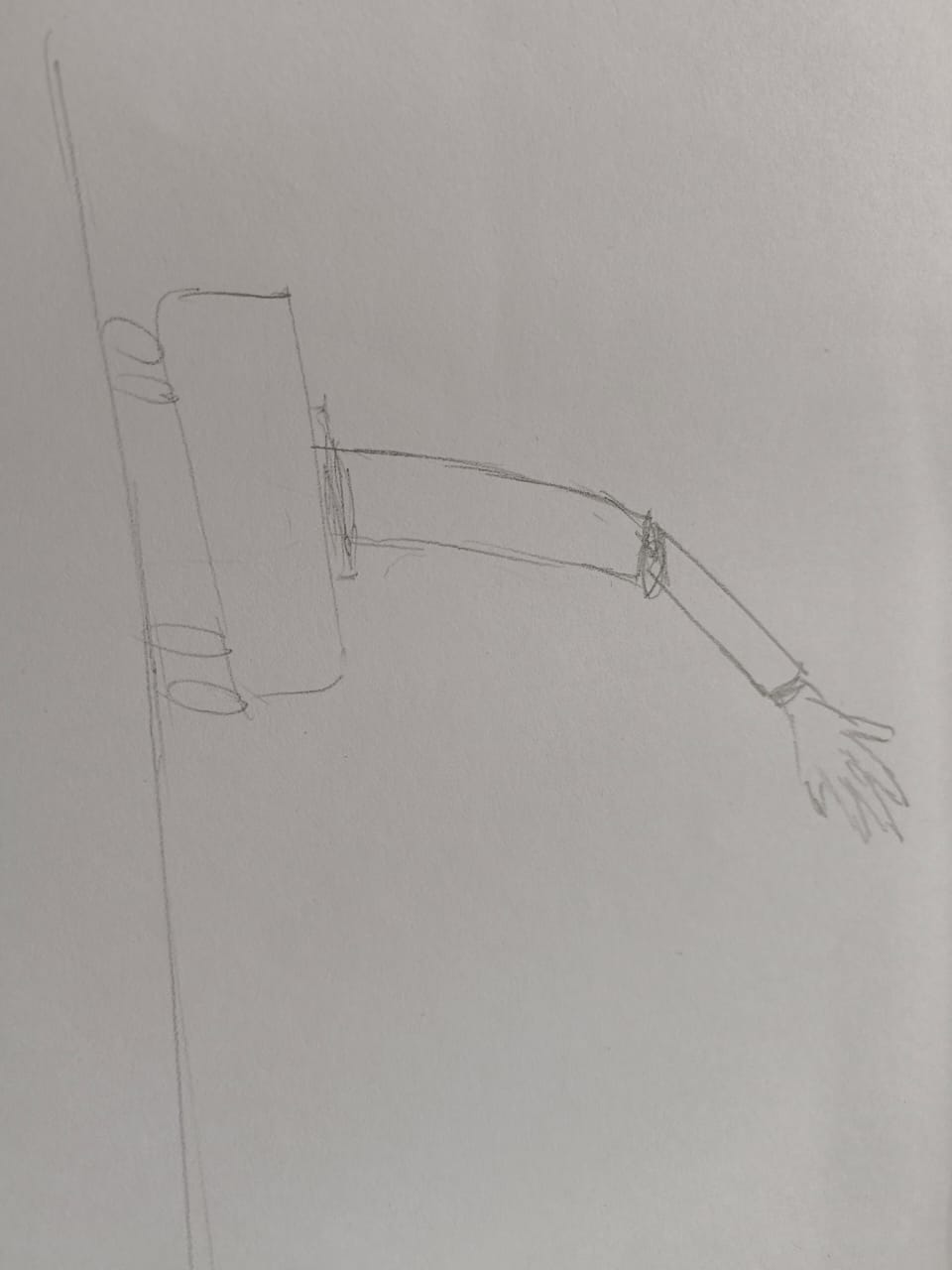
This compact cleaner pairs a nimble arm with a small wheeled base to sweep crumbs and little clutter from desks and tabletops. It quietly steers around cups, pens and cables using proximity sensors and a simple mapping routine, collecting debris into an easy-to-empty bin.
The goal is to make tidying effortless. Run it between work sessions or schedule nightly clean-ups. Early prototypes should focus on safe collision handling, a removable dust bin, and a gentle, predictable motion so users trust it around fragile items.
5. Mechanical Tilt Lounge Chair
A leisure-focused reclining chair inspired by rack-and-pinion gear systems, allowing for seamless transition between upright and reclined positions. Using a manual lever or motorized gear, the user can rotate the seating arc to find their perfect relaxation angle for reading, napping, or watching TV.
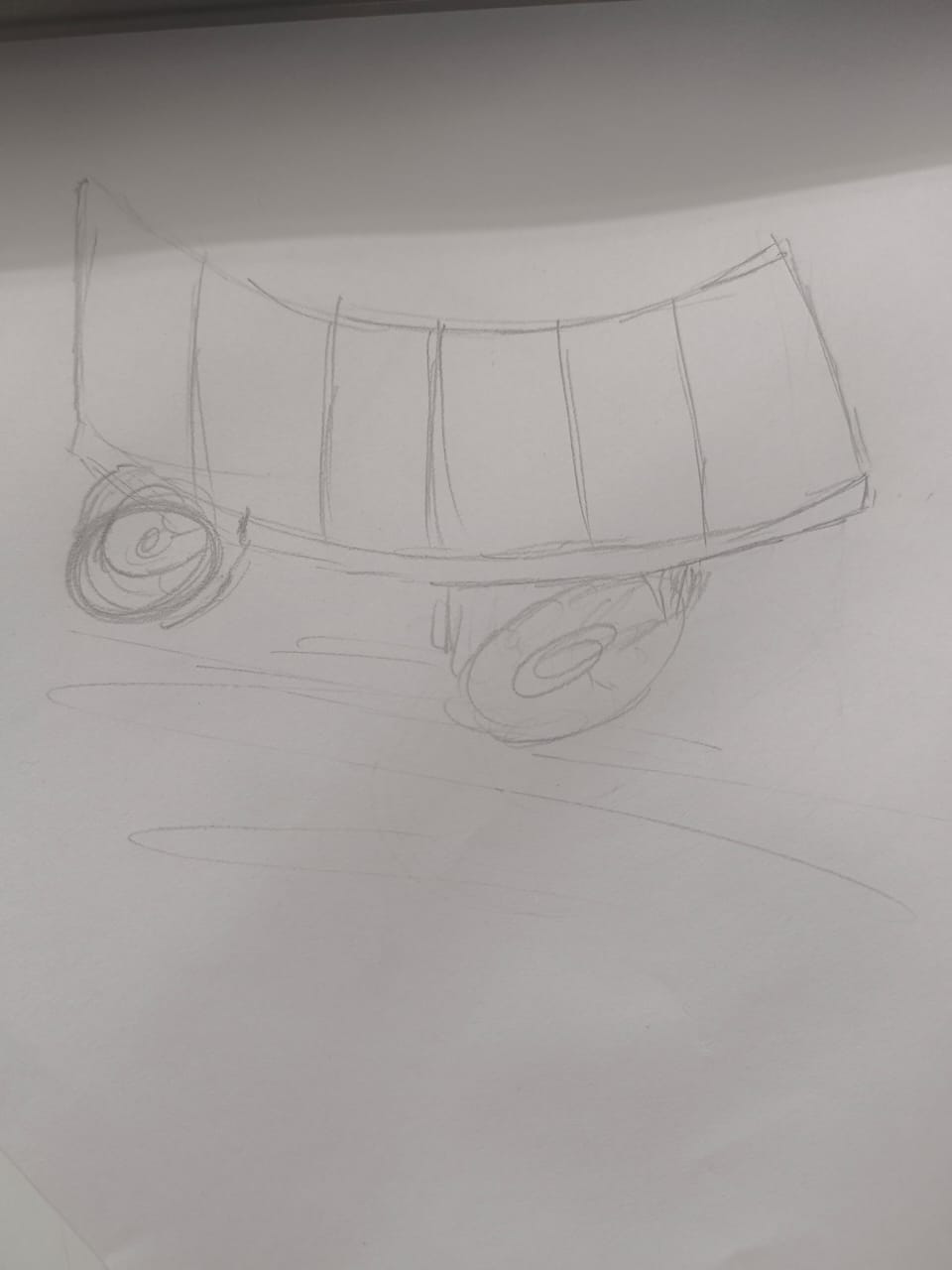
The chair uses a smooth tilt mechanism inspired by rack-and-pinion motion to shift between upright and reclined positions in a single, satisfying movement. A manual lever or compact motor drives the arc while built-in stops and locks keep the user secure.
Designed for relaxed, everyday use, prototypes should prioritise comfortable cushioning, dependable locking, and accessible maintenance. Testing different seat angles and user feedback will help find the right balance between support and lounging comfort.
Final Project Selection
After discussing potential ideas with my instructor, I selected the Pill Dispenser as my final project. I chose this project because it addresses a real-world problem — helping users take medication on time in an organized and reliable manner.
The project combines mechanical design, electronics, embedded programming, and user interaction, making it a comprehensive and technically challenging system aligned with the goals of Fab Academy.
I have updated the selected project in my Final Project page and will continue refining the concept as I progress through the weekly assignments.
Proposed Features – Pill Dispenser
- Automated dispensing mechanism for scheduled medication release
- Real-time clock (RTC) module to maintain accurate timing
- OLED/LCD display to show time, dosage, and alerts
- Buzzer or audio alert system for medication reminders
- Button interface for setting time and dosage schedule
- Secure compartment design to prevent accidental access
- Compact and user-friendly enclosure design
- Optional battery backup for power interruption safety
Rough Draft Development Plan
- Research existing pill dispenser designs and identify improvements
- Create initial concept sketches and mechanical layout
- Design 3D model of casing and internal compartments
- Select and test electronic components (microcontroller, RTC, display, buzzer)
- Develop basic firmware for time tracking and alert system
- Integrate motor/servo mechanism for pill dispensing
- Fabricate enclosure using digital fabrication tools
- Assemble and test full system functionality
- Refine design based on testing and feedback
Git and VS Code Setup
Git
Git is a version control system used to track changes in files and manage projects, especially in software development.
In simple terms, Git helps you:
- Keep a history of your work
- Save different versions of files
- Collaborate with others without overwriting each other’s work
- Go back to earlier versions if something breaks
Here is your link to download Git.
if you want to know more about Git, click here to read the detailed tutorial I created.
Visual Studio Code (VS Code)
Visual Studio Code (VS Code) is a lightweight yet powerful source code editor developed by Microsoft. It provides a user-friendly interface for writing, editing, and managing code efficiently. VS Code supports multiple programming languages and offers features such as syntax highlighting, IntelliSense (auto-completion), debugging tools, and integrated terminal access.
I used VS Code to develop and manage my Fab Academy website. It allows me to edit HTML, CSS, and other files in an organized way. The built-in file explorer helps manage project folders easily, and the live preview extensions make it simple to check how the website looks while editing.
One of the major advantages of VS Code is its built-in Git support. It detects changes automatically, shows modified files, and allows staging, committing, and pushing changes directly from the editor. This makes version control more efficient without switching between multiple applications.
You can download Visual Studio Code from this link.
Key Features I Used
- Integrated Terminal to run Git commands
- Source Control panel to stage and commit changes
- Extensions for improved HTML and CSS development
- File explorer for structured project organization
Essential Git Commands
Git status: Shows the current state of files in the working directory.
git statusDisplays the current branch and shows which files are staged, unstaged, or untracked.
git status -sShows a short, compact summary of file changes.
git status -bIncludes branch information and upstream tracking details.
git status --porcelainOutputs the status in a stable, machine-readable format.
Git clone: Copies a remote repository to your local machine.
git clone repository-urlThis command downloads the entire repository, including all files, branches, and commit history, from a remote source (such as GitHub or GitLab) to your local system. It also automatically sets up a connection to the remote repository named origin, allowing you to push and pull changes easily.
git clone --depth 1 repository-urlCreates a shallow clone with only the latest commit.
git clone -b branch-name repository-urlClones the repository and checks out the specified branch.
Git add: Stages file changes for the next commit.
git add file-nameStages changes from a specific file.
git add .Stages all new and modified files in the current directory.
git add -AStages all changes, including deleted files.
git add *.htmlStages all files matching the specified pattern.
Git commit: Saves staged changes to the local repository.
git commit -m "message"Creates a commit with a short descriptive message.
git commitOpens the text editor to write a detailed commit message.
git commit -am "message"Stages and commits tracked files in one step.
git commit --amendEdits the most recent commit.
Git push: Uploads local commits to the remote repository.
git push origin mainPushes commits to the main branch of the remote repository.
git pushPushes commits to the default upstream branch.
git push -u origin mainSets the upstream branch for future pushes.
git push --forceForces the push and overwrites remote history (use with caution).
Git pull: Downloads and merges changes from the remote repository.
git pull origin mainDownloads and merges changes from the remote repository.
git pull origin mainFetches and merges changes from the remote main branch.
git pullPulls changes from the default upstream branch.
git pull --rebaseReapplies local commits on top of fetched changes.
git fetchDownloads changes without merging them.
I used this website to learn more about git.
Step 1: Installing Git

I downloaded and installed Git on my system using the Windows installer. After the setup finished, Git Bash and Git tools were available on my computer, which are needed to connect to the class repository and upload assignments.
You can install Git by downloading it from the official website: https://git-scm.com/downloads.
Step 2: Generating SSH Key
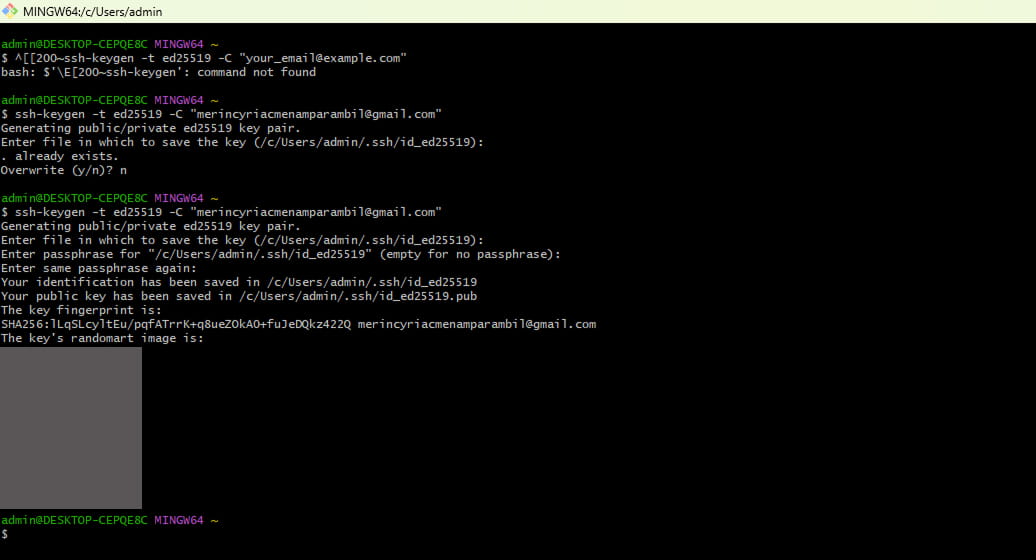
To connect securely to the Git server, I generated an SSH key using Git Bash with the command: ssh-keygen -t ed25519 -C "your_email@example.com". This created a public and private key inside the .ssh folder for secure authentication.
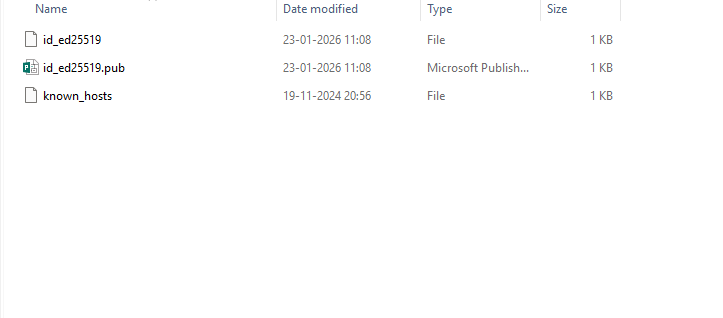
During the key generation process, I was prompted to enter a file name and passphrase. I accepted the default file name and chose to set an optional passphrase for added security. The generated keys were saved in the .ssh directory of my user profile.
Step 3: Copying SSH Public Key
I displayed the SSH public key in Git Bash using the terminal command cat ~/.ssh/id_ed25519.pub | clip so that I could copy the entire output to my clipboard to register it with the Git server. This step allows my computer to be recognized without asking for a password each time.
Step 4: Registering the SSH Key on the Git Server
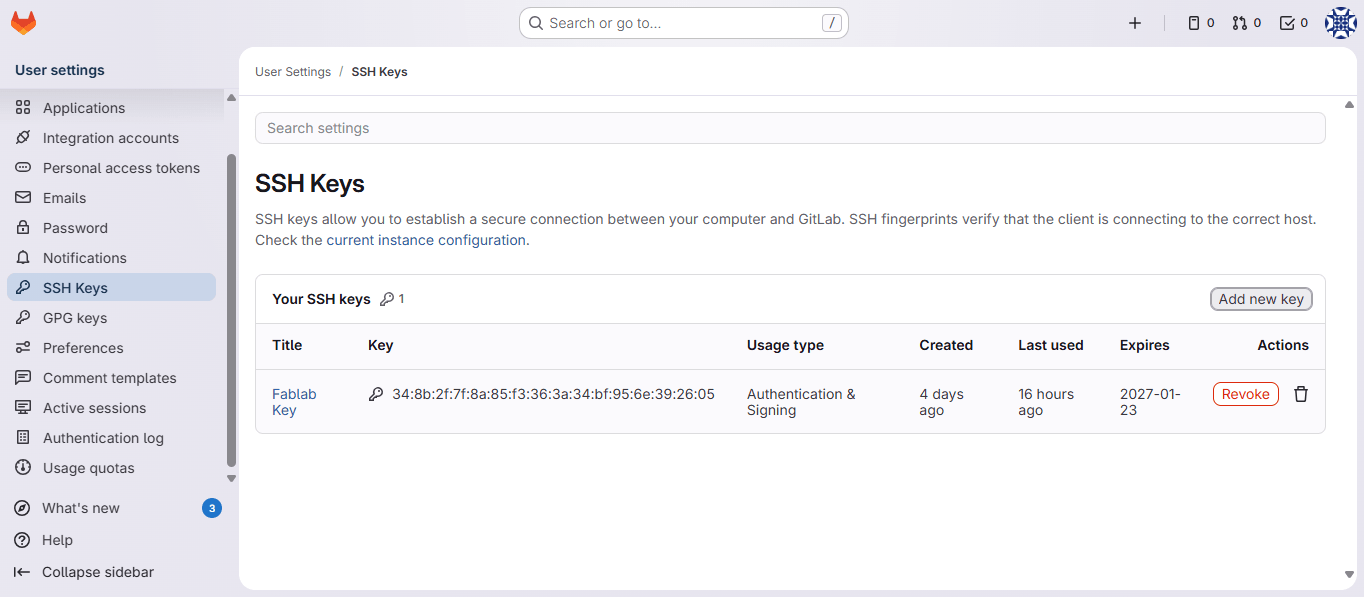
After copying the public key, I logged into my Gitlab.Fabclouds.org account and navigated to the SSH Keys section under Preferences in my profile. I pasted the copied key into the 'Key' field, gave it a descriptive title (e.g., 'Fablab Key'), and saved it. This finalizes the handshake between my local machine and the server.
Step 5: Cloning the Class Repository
After setting up authentication, I cloned the class repository from the FabLab Git server to my local computer using the git clone command.
git clone url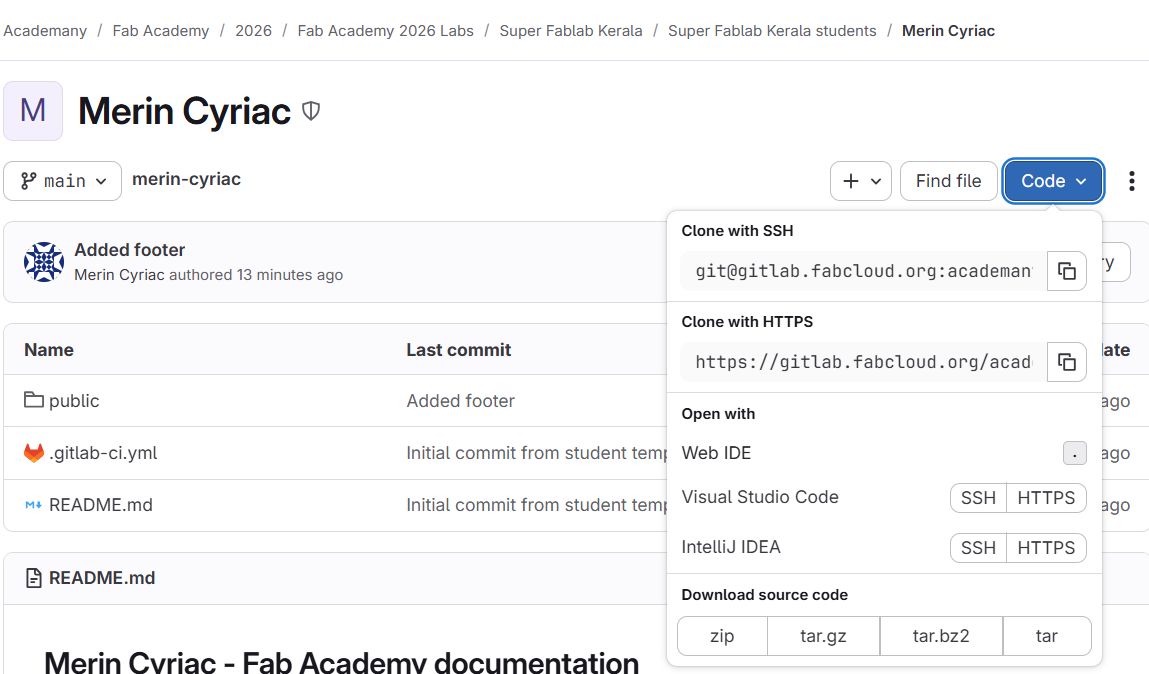
The repository URL was copied directly from the Clone option in my Git repository interface. This command created a local project folder where I could edit, add, and manage my assignments.
I chose the SSH URL for cloning.
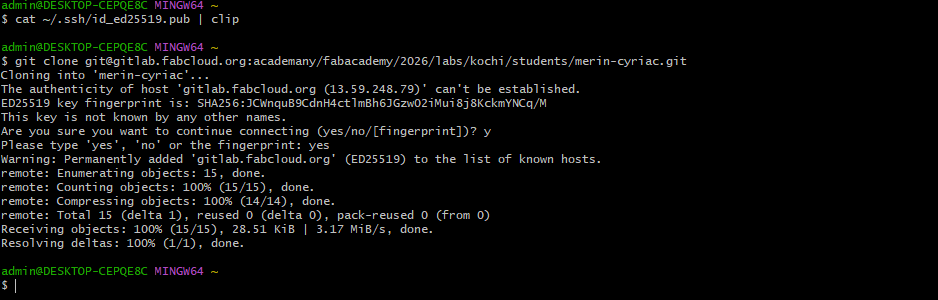
Step 6: Configuring Git Username and Email
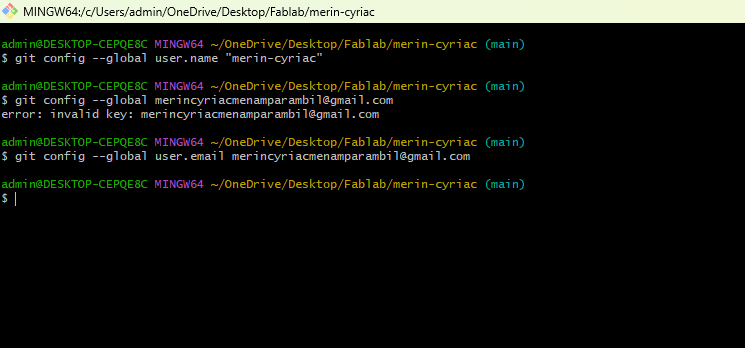
I configured my Git username and email address so that my commits would be properly labeled with my identity. This information appears in the commit history when files are uploaded.
I used the following codes:
            git config --global user.name "Your Name" |
            git config --global user.email "your@email.com
Student Agreement
I then downloaded, read, and signed the Student Agreement, and committed the file to my Gitlab repository.
Step 7: Adding, Committing, and Pushing Files
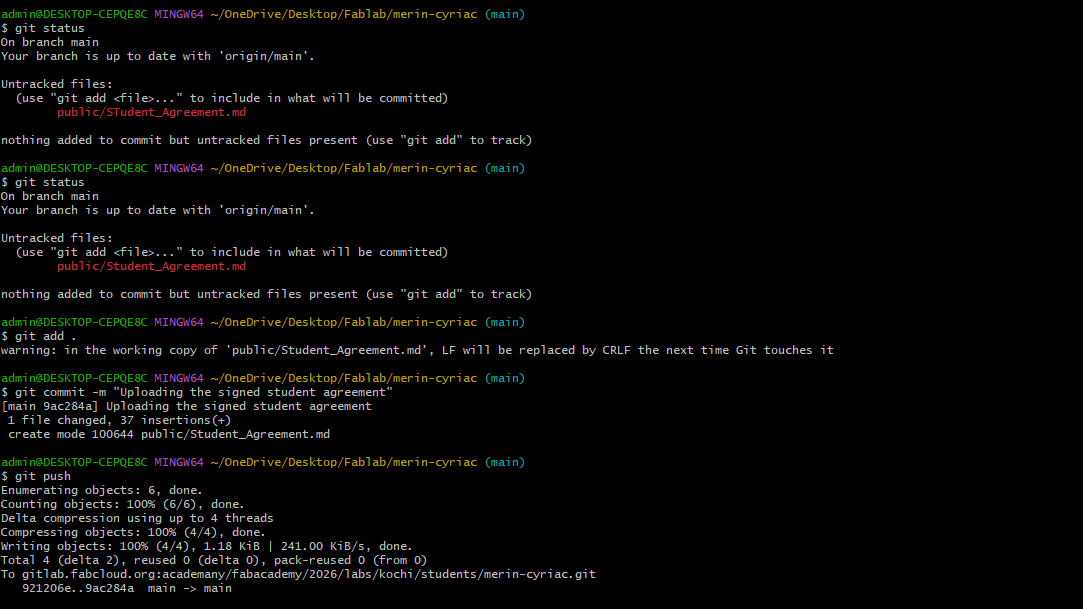
I checked the status of the repository to see untracked files, added the signed student agreement file, committed it with a message, and pushed the changes to the remote repository. This confirmed that my setup was working and that I could submit assignments.
I used the following codes respectively:
            git status
            git add .
            git commit -m "message"
            git push
Step 8: Installing Visual Studio Code
I downloaded and installed Visual Studio Code on my computer. After installation, I used it as my main editor for writing and updating my HTML and CSS files.
You can download the application here.
Step 9: Connecting Project to Git
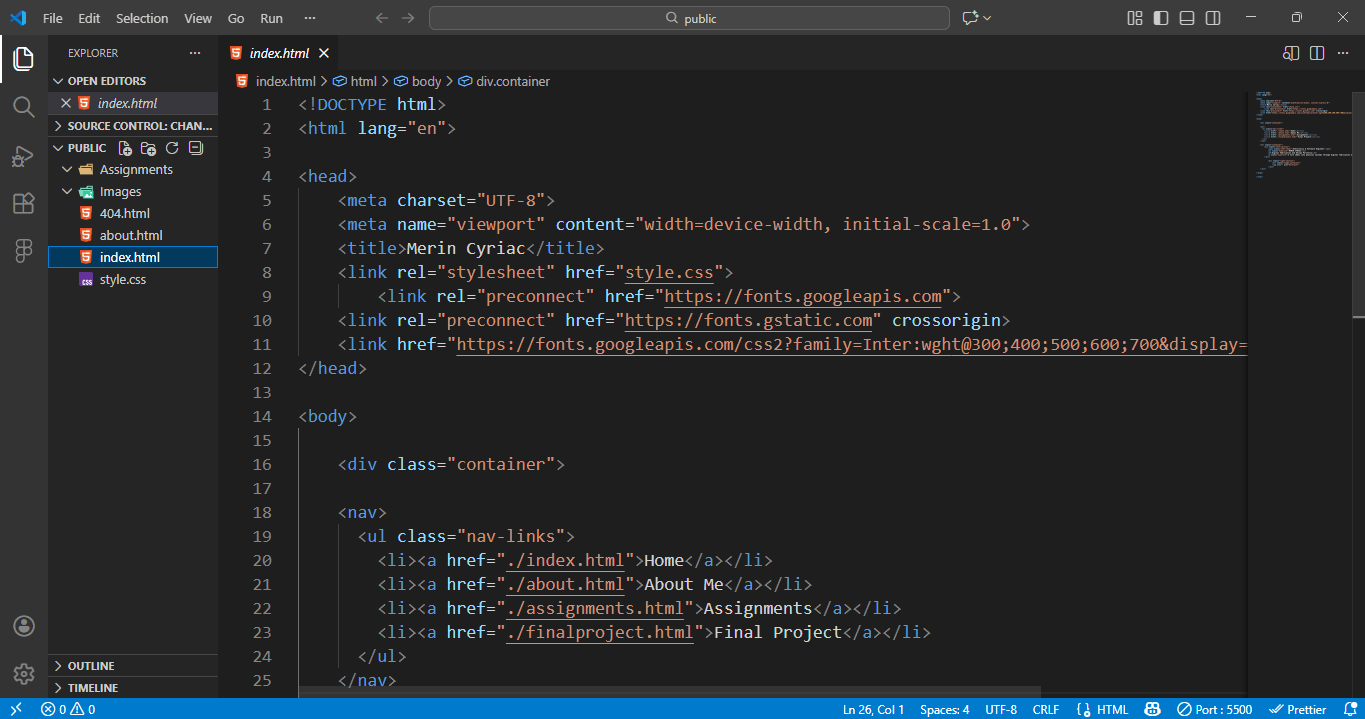
I opened my website folder in VS Code and connected it to my Git repository. I checked file changes using Git tools to make sure my edits were being tracked.
Step 10: Committing and Pushing to Remote Repository
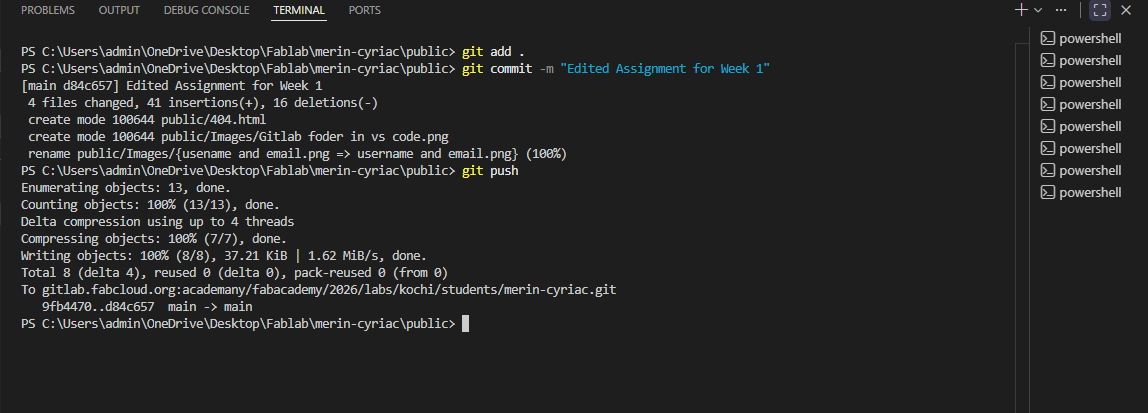
After making changes to my website, I committed the files with a message and pushed them to the remote repository. This updated my online site and confirmed that my setup was working correctly.
I edited my home page picture using NoteGPT. I provided the ai with an image of mine and instructed it to edit. The propmt I used is given below:
                Edit this portrait to match a clean, minimal, futuristic editorial website style.

                Keep the face realistic and natural.
                Remove the outdoor background and replace it with a soft light-gray or white studio background with subtle gradient lighting.
                Lighting should be even, soft, and diffused, with gentle highlights and no harsh shadows.
                Clothing should be simple and modern in neutral tones (white, light gray, or soft beige), no patterns, no bold colors.
                Overall color palette should be cool and muted to match a minimal tech interface.
                Add very subtle depth-of-field blur in the background only.
                No dramatic effects, no sci-fi costume, no neon, no busy textures.
                Final result should look like a professional portrait placed inside a modern UI card on a premium tech portfolio website.
Important Git Commands (Quick Reference)
                git clone repository-url |
                git status |
                git add file-name |
                git add . |
                git commit -m "message" |
                git pull origin main |
                git push origin main |
                git config --global user.name "Your Name" |
                git config --global user.email "your@email.com"
VS Code Extensions Used
To improve my workflow during Fab Academy documentation and embedded programming tasks, I used several Visual Studio Code extensions that enhanced productivity and development efficiency.
- Live Server – Provides real-time browser preview of my website whenever changes are saved.
- Live Preview – Allows previewing HTML files directly inside VS Code without switching to an external browser.
- PlatformIO IDE – Used for embedded systems development and microcontroller programming. It simplifies firmware development, library management, and board configuration.
- Save Typing / Auto Save – Automatically saves files while typing, reducing the risk of losing progress and improving workflow speed.
- Prettier – Code Formatter – Automatically formats HTML and CSS code to maintain clean and consistent structure.
- HTML CSS Support – Provides auto-completion and suggestions for HTML classes and CSS styles.
- GitLens – Enhances Git capabilities inside VS Code by showing detailed commit history and file changes.
These extensions helped streamline both my website development and embedded programming tasks, making my workflow more efficient.
Website Development Process
For my FabAcademy documentation website, I used an AI-assisted design tool, Bolt to generate the initial home page layout and visual style. I selected this approach to quickly explore layout and typography ideas and to establish a strong design direction early in the process.
Prompt for the design:
            Design a futuristic personal portfolio website inspired by high-end minimal editorial layouts.

            Style:

            Clean, white or very light background with strong black/gray typography

            Futuristic but elegant, with thin lines, soft shadows, and subtle glass or chrome accents

            Large hero typography and a large portrait or abstract futuristic visual on the right side

            Overall feeling: tech + design student portfolio, premium and modern

            Layout (Home Page):

            The home page must be exactly one screen height (100vh) with NO vertical scrolling

            Everything must fit within the visible screen

            Left side: big bold greeting text like “Hello” or “Welcome”, with a short subtitle line

            Right side: large portrait-style image or futuristic visual element

            Small stats or labels near the top or side (optional), styled minimally

            Navigation:

            Top horizontal navigation bar, always visible

            Links: Home, About Me, Assignments, Final Project

            A call-to-action style link on the right like “View Work” or “Start” (optional)
After generating the base design, I manually edited the HTML and CSS and used the home page structure as a template for developing the remaining pages of the website.
Technology Stack
- HTML5 for semantic structure
- CSS3 for layout, typography, and responsiveness
- Google Fonts (Inter) for typography
- Static hosting on FabCloud
No front-end frameworks or CMS platforms were used. All pages are built as static HTML files with shared styling.
Design Workflow
- I first used Bolt to prototype the home page layout, focusing on:
- Two-column hero composition
- Large editorial typography
- Minimal color palette and soft UI elements
- I then exported the generated code and:
- Cleaned up unused styles
- Simplified the structure for easier editing
- Adjusted spacing, fonts, and alignment manually
- Once the home page layout was finalized, I reused the same navigation and layout structure to design:
- About Me page
- Assignments listing page
- Final Project page
This ensured visual consistency while allowing each page to present different types of content.
Layout Implementation
Modern CSS techniques were used to implement the layout:
- Flexbox and Grid for responsive two-column and section layouts
- Fixed top navigation for consistent access to all pages
- height: 100vh on the home page to keep it within one screen without scrolling
- Media queries to adjust layout for smaller screen sizes
Resources & References
Official References
These are the authoritative sources for learning the tools and concepts covered this week:
- Git Official Documentation - Complete guide to version control
- GitHub - Collaborative development platform
- HTML Tutorial - Learn web markup
- CSS Tutorial - Learn web styling
What Is a Website?
At its core, a website is just a bunch of files. That’s not an oversimplification—that’s literally what it is. Text files, mostly. Some contain words. Others define how those words should look. Some tell the browser where to find images or how to respond to clicks. But in the end, it all boils down to files.
Your browser (whether it’s Chrome, Firefox, Safari, or something else) takes those files and shows them to you in a way that makes sense. That’s all a website is: files, shown by a browser.
Think of it like this:
- HTML = the structure (what’s on the page)
- CSS = the style (how it looks)
- JavaScript = the behavior (how it responds)
This book is about HTML. We’re going to focus on that first because nothing else makes sense without it. You’ll add styling and behavior later, but first, you need to understand the bones.
What does “HTML” actually mean?
HTML stands for HyperText Markup Language. Each of those words points to something meaningful. So let’s break it down, one word at a time—slowly.
HyperText
This just means clickable text.
Let’s see what wiki has to say about it:
                “Hypertext is text displayed on a computer display or other electronic devices
                with references (hyperlinks) to other text that the reader can immediately access.
                Hypertext documents are interconnected by hyperlinks, which are typically activated
                by a mouse click, keypress set, or screen touch. Apart from text, the term "hypertext"
                is also sometimes used to describe tables, images, and other presentational materials
                with integrated hyperlinks." (Wikipedia contributors, n.d.)
Hypertext is text that you can click on to jump to other information or pages.
Have you ever clicked on a word or sentence that took you to another page? Like this:
The Earth is getting warmer because of something called greenhouse gases.
The words "greenhouse gases" are underlined and blue. If you click them, you go to another page that explains what they are.
If “greenhouse gases” is blue and underlined, and you can click it to learn more—that’s hypertext.
It connects one piece of text to another. Simple as that.
It doesn't nccessarily have to be blue and underlined. it can be of any style. The main thing is that it is a link that takes you to another page.
That’s it. Hypertext lets you jump from one idea to another without having to search for it yourself. It’s like reading a book where certain words take you instantly to other chapters or even other books.
Markup Language
Markup is just a way to add meaning to text.
A markup language is a way to tell a computer how to show text and organize it.
Think of it like giving instructions while writing. Imagine you're writing a school paper and you want:
- The title to be big and bold
- Some words to be italic
- A list of items to be shown with bullets
In real life, you might underline, circle, or write notes in the margins. That’s what editors used to do with red or blue pens on paper.
A markup language does the same thing—but in computer text.
It's a way of writing text with special tags that tell the computer how to show it.
Basic HTML and CSS Concepts
A website is built using HTML to structure the content and CSS to style and design the appearance. While developing my website, I learned and applied the following fundamental concepts.
Understanding HTML (Structure of a Webpage)
HTML (HyperText Markup Language) is used to create the structure of a webpage. It defines headings, paragraphs, links, images, and sections.
-
<!DOCTYPE html>
This declaration tells the browser that the document is written in HTML5. -
<html>
The root element that contains the entire webpage. -
<head>
Contains metadata, the page title, and links to external CSS files. -
<body>
Contains all visible content displayed in the browser. -
<h1> to <h6>
Used for headings.<h1>is the main title, and the numbers decrease in size and importance. -
<p>
Used to define a paragraph of text. -
<br>
Inserts a line break within text. -
<a> (Anchor Tag)
Used to create hyperlinks. It connects one page to another using thehrefattribute. -
<img>
Used to display images. It requires a source (src) and alternative text (alt). -
<ul>, <ol>, <li>
Used to create lists.<ul>creates bullet lists,<ol>creates numbered lists, and<li>defines each item. -
<div>
A container element used to group content for styling or layout. -
<section>
A semantic tag used to define logical sections of a webpage.
Understanding CSS (Styling a Webpage)
CSS (Cascading Style Sheets) is used to control the appearance of a webpage, including colors, spacing, layout, and typography.
-
Selectors
Used to target HTML elements.
Example:p { color: blue; } -
Class Selector
Targets elements using a class name.
Example:.container { margin: 20px; } -
ID Selector
Targets a unique element using an ID.
Example:#header { background-color: black; } -
Common Properties
color– Changes text color
background-color– Changes background color
font-size– Adjusts text size
margin– Adds outer spacing
padding– Adds inner spacing
border– Adds borders around elements -
Flexbox
Used for layout alignment.
Example:display: flex;
justify-content: center;
align-items: center;