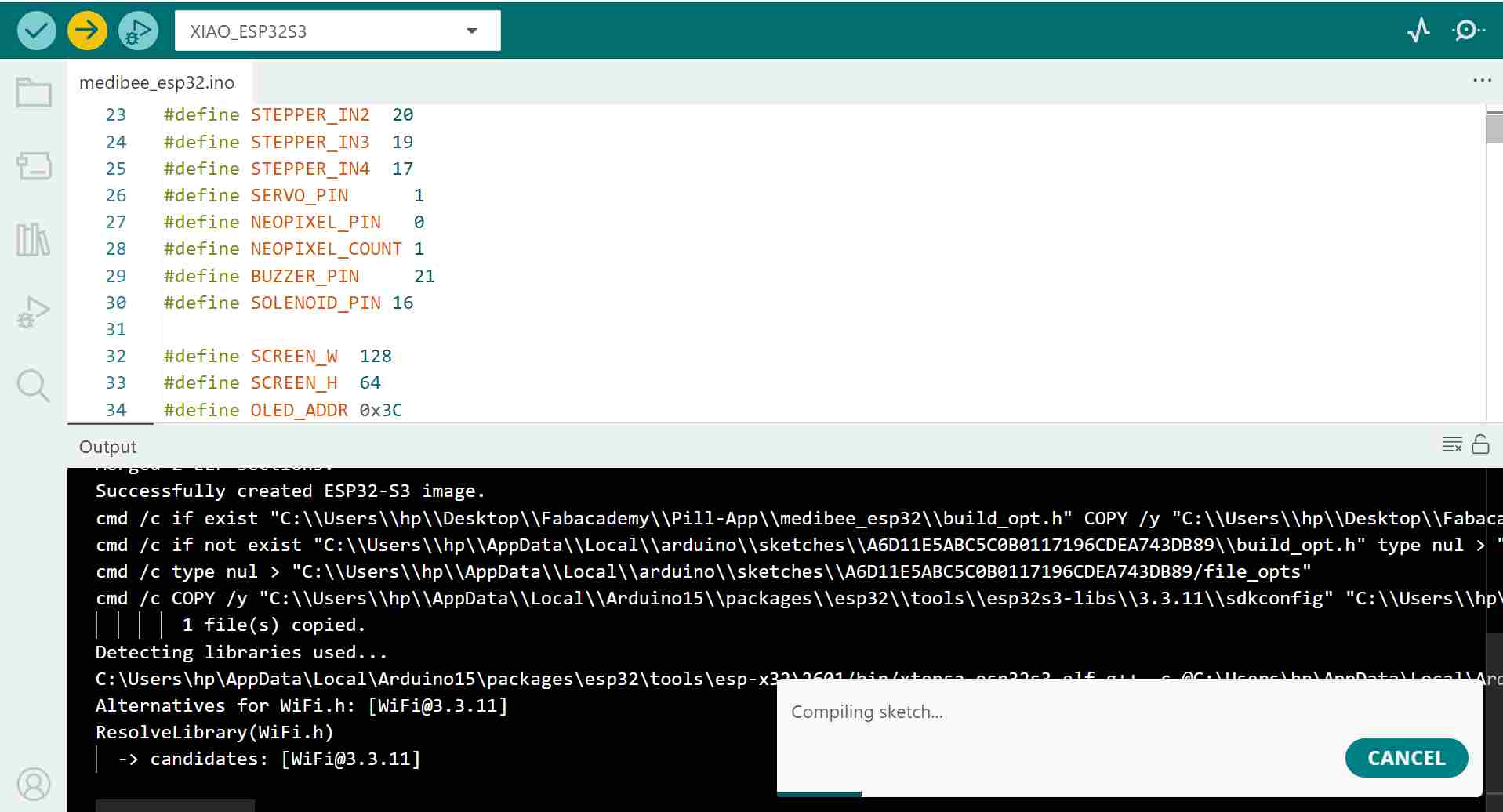
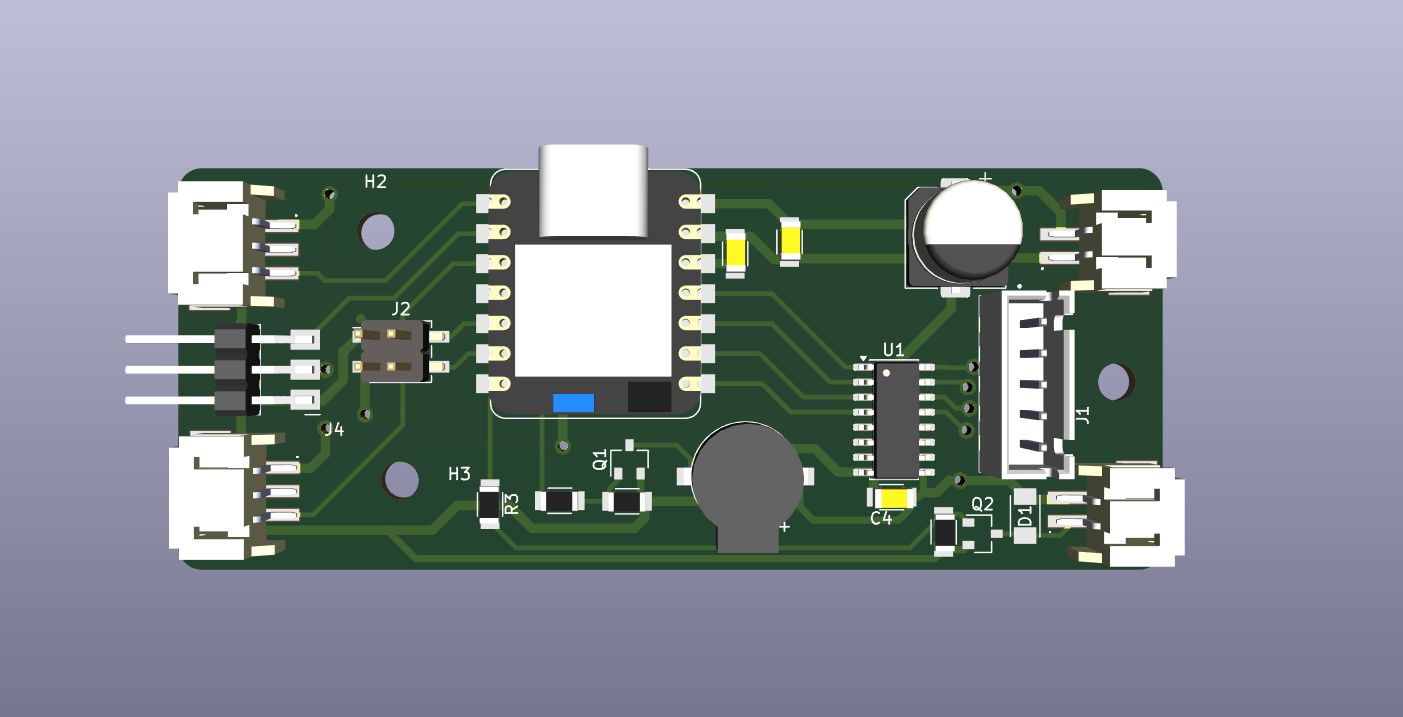
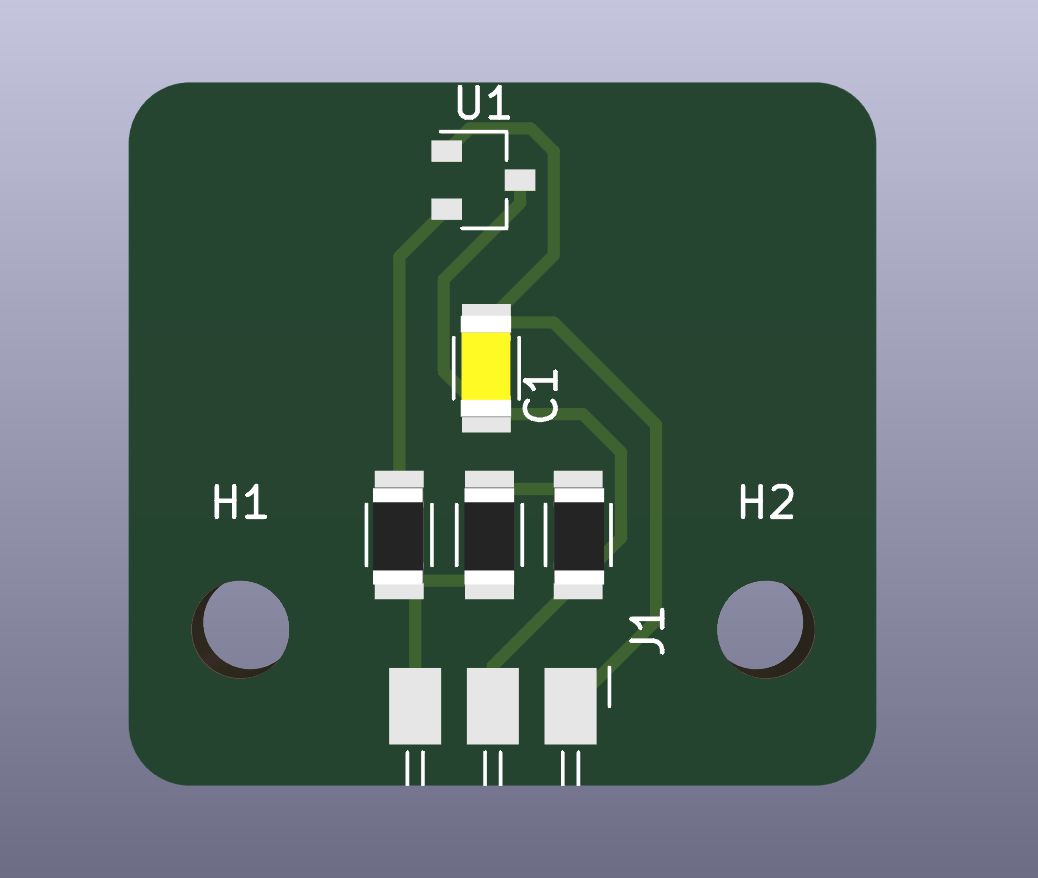
#include <Arduino.h>
#include <WiFi.h>
#include <WebServer.h>
#include <ArduinoJson.h>
#include <Preferences.h>
#include <NTPClient.h>
#include <WiFiUdp.h>
#include <Stepper.h>
#include <ESP32Servo.h>
#include <Wire.h>
#include <Adafruit_GFX.h>
#include <Adafruit_SSD1306.h>
#include <Adafruit_NeoPixel.h>
#include <ESPmDNS.h>

const char* WIFI_SSID     = "YOUR_WIFI_SSID";
const char* WIFI_PASSWORD = "YOUR_WIFI_PASSWORD";

String runtimeSSID = WIFI_SSID;
String runtimePass = WIFI_PASSWORD;

#define STEPPER_IN1  18
#define STEPPER_IN2  20
#define STEPPER_IN3  19
#define STEPPER_IN4  17
#define SERVO_PIN      1
#define NEOPIXEL_PIN   0
#define NEOPIXEL_COUNT 1
#define BUZZER_PIN     21
#define SOLENOID_PIN 16

#define SCREEN_W  128
#define SCREEN_H  64
#define OLED_ADDR 0x3C
Adafruit_SSD1306 display(SCREEN_W, SCREEN_H, &Wire, -1);

#define STEPS_PER_REV      2048
#define STEPS_PER_SLOT     256
#define IST_OFFSET_SEC     19800
#define HISTORY_MAX        30
#define NVS_NAMESPACE      "medibee"
#define GATE_OPEN_DEG      180
#define GATE_CLOSE_DEG     0
#define GATE_WAIT_MS       5000
#define SOLENOID_UNLOCK    HIGH
#define SOLENOID_LOCK      LOW
#define LID_DETECT_TIMEOUT 30000
#define MAX_SLOTS          8

WebServer        server(80);
Preferences      prefs;
WiFiUDP          ntpUDP;
Adafruit_NeoPixel pixel(NEOPIXEL_COUNT, NEOPIXEL_PIN, NEO_GRB + NEO_KHZ800);
NTPClient   ntp(ntpUDP, "time.google.com", IST_OFFSET_SEC, 60000);
Stepper     stepper(STEPS_PER_REV, STEPPER_IN1, STEPPER_IN3, STEPPER_IN2, STEPPER_IN4);
Servo       gateServo;

String getISTDate() {
  unsigned long epoch = ntp.getEpochTime();
  int d = (epoch / 86400L);
  int y = 1970, m, day;
  while (true) {
    int days = ((y % 4 == 0 && y % 100 != 0) || y % 400 == 0) ? 366 : 365;
    if (d < days) break;
    d -= days; y++;
  }
  int months[] = {31,28,31,30,31,30,31,31,30,31,30,31};
  if ((y % 4 == 0 && y % 100 != 0) || y % 400 == 0) months[1] = 29;
  for (m = 0; m < 12; m++) { if (d < months[m]) break; d -= months[m]; }
  day = d + 1;
  char buf[11];
  snprintf(buf, sizeof(buf), "%04d-%02d-%02d", y, m + 1, day);
  return String(buf);
}

String getShortDate() {
  unsigned long epoch = ntp.getEpochTime();
  long d = epoch / 86400L;
  int wday = (int)((d + 4) % 7);
  const char* dayNames[] = {"Sun","Mon","Tue","Wed","Thu","Fri","Sat"};
  const char* monNames[] = {"Jan","Feb","Mar","Apr","May","Jun",
                             "Jul","Aug","Sep","Oct","Nov","Dec"};
  int y = 1970, mo, day;
  while (true) {
    int dy = ((y%4==0&&y%100!=0)||y%400==0) ? 366 : 365;
    if (d < dy) break;
    d -= dy; y++;
  }
  int months[] = {31,28,31,30,31,30,31,31,30,31,30,31};
  if ((y%4==0&&y%100!=0)||y%400==0) months[1] = 29;
  for (mo = 0; mo < 12; mo++) { if (d < months[mo]) break; d -= months[mo]; }
  day = (int)d + 1;
  char buf[13];
  snprintf(buf, sizeof(buf), "%s, %02d %s", dayNames[wday], day, monNames[mo]);
  return String(buf);
}

struct Slot { String time; bool enabled; };
Slot   slots[MAX_SLOTS];
bool   dispensed[MAX_SLOTS];
int    numSlots      = 3;
bool   buzzerEnabled = true;
int    currentSlot   = 0;
String historyLog    = "[]";
String lastDate      = "";


void initDefaultSlots() {
  numSlots = 3;
  slots[0] = {"08:00", true};
  slots[1] = {"12:00", true};
  slots[2] = {"20:00", true};
  memset(dispensed, 0, sizeof(dispensed));
}

void loadPrefs() {
  prefs.begin(NVS_NAMESPACE, true);
  buzzerEnabled = prefs.getBool("buzzer", true);
  historyLog    = prefs.getString("history", "[]");

  String slotsJson = prefs.getString("slots_json", "");
  if (slotsJson.length() > 0) {
    StaticJsonDocument<1024> doc;
    DeserializationError err = deserializeJson(doc, slotsJson);
    if (!err && doc.is<JsonArray>()) {
      JsonArray arr = doc.as<JsonArray>();
      numSlots = min((int)arr.size(), MAX_SLOTS);
      memset(dispensed, 0, sizeof(dispensed));
      for (int i = 0; i < numSlots; i++) {
        slots[i].time    = arr[i]["time"].as<String>();
        slots[i].enabled = arr[i]["enabled"].as<bool>();
      }
      Serial.printf("Loaded %d slots from NVS\n", numSlots);
    } else {
      initDefaultSlots();
    }
  } else {
    // First boot or migrating from old format — try legacy keys
    String legacy = prefs.getString("slot0_t", "");
    if (legacy.length() > 0) {
      numSlots = 3;
      memset(dispensed, 0, sizeof(dispensed));
      for (int i = 0; i < 3; i++) {
        String key = "slot" + String(i);
        slots[i].time    = prefs.getString((key + "_t").c_str(), i == 0 ? "08:00" : i == 1 ? "12:00" : "20:00");
        slots[i].enabled = prefs.getBool((key + "_e").c_str(), true);
      }
      Serial.println("Migrated 3 slots from legacy NVS keys");
    } else {
      initDefaultSlots();
    }
  }

  String s = prefs.getString("ssid", "");
  String p = prefs.getString("pass", "");
  if (s.length() > 0) runtimeSSID = s;
  if (p.length() > 0) runtimePass = p;
  prefs.end();
}

void saveSlots() {
  StaticJsonDocument<1024> doc;
  JsonArray arr = doc.to<JsonArray>();
  for (int i = 0; i < numSlots; i++) {
    JsonObject s = arr.createNestedObject();
    s["time"]    = slots[i].time;
    s["enabled"] = slots[i].enabled;
  }
  String json;
  serializeJson(doc, json);
  prefs.begin(NVS_NAMESPACE, false);
  prefs.putString("slots_json", json.c_str());
  prefs.end();
}

void saveHistory() {
  prefs.begin(NVS_NAMESPACE, false);
  prefs.putString("history", historyLog.c_str());
  prefs.end();
}

void saveBuzzer() {
  prefs.begin(NVS_NAMESPACE, false);
  prefs.putBool("buzzer", buzzerEnabled);
  prefs.end();
}

void appendHistory(int idx, bool taken) {
  StaticJsonDocument<4096> doc;
  deserializeJson(doc, historyLog);
  JsonArray arr = doc.as<JsonArray>();
  while ((int)arr.size() >= HISTORY_MAX) arr.remove(0);
  JsonObject entry   = arr.createNestedObject();
  entry["slot"]      = idx + 1;
  entry["time"]      = slots[idx].time;
  entry["timestamp"] = getISTDate() + "T" + ntp.getFormattedTime();
  entry["taken"]     = taken;
  historyLog = "";
  serializeJson(doc, historyLog);
  saveHistory();
}

void stepperOff() {
  digitalWrite(STEPPER_IN1, LOW); digitalWrite(STEPPER_IN2, LOW);
  digitalWrite(STEPPER_IN3, LOW); digitalWrite(STEPPER_IN4, LOW);
}

void rotateOneSlot() {
  stepper.step(STEPS_PER_SLOT);
  stepperOff();
  currentSlot = (currentSlot + 1) % 8;
}

void openGate()       { gateServo.write(GATE_OPEN_DEG);  }
void closeGate()      { gateServo.write(GATE_CLOSE_DEG); }
void solenoidUnlock() { digitalWrite(SOLENOID_PIN, SOLENOID_UNLOCK); }
void solenoidLock()   { digitalWrite(SOLENOID_PIN, SOLENOID_LOCK);   }

void buzz(int ms) {
  if (!buzzerEnabled) return;
#if ESP_ARDUINO_VERSION_MAJOR >= 3
  ledcAttach(BUZZER_PIN, 2000, 8);
  ledcWrite(BUZZER_PIN, 128);
  delay(ms);
  ledcWrite(BUZZER_PIN, 0);
  ledcDetach(BUZZER_PIN);
#else
  ledcSetup(0, 2000, 8);
  ledcAttachPin(BUZZER_PIN, 0);
  ledcWrite(0, 128);
  delay(ms);
  ledcWrite(0, 0);
  ledcDetachPin(BUZZER_PIN);
#endif
}


// Forward declarations for OLED functions used inside dispenseSlot
void oledMain();
void oledStatus(String line1, String line2 = "", String line3 = "");

// Stepper fires only for the 08:00 slot; other slots use gate/solenoid
void dispenseSlot(int idx) {
  char label[20];
  snprintf(label, sizeof(label), "Dose %d  %s", idx + 1, slots[idx].time.c_str());
  Serial.printf("Dispensing slot %d (%s)\n", idx + 1, slots[idx].time.c_str());

  if (slots[idx].time == "08:00") {
    oledStatus(label, "Rotating disc...");
    rotateOneSlot();
  } else if (idx == 1) {
    oledStatus(label, "Dispensing...");
    openGate();
    delay(GATE_WAIT_MS);
    closeGate();
  } else {
    oledStatus(label, "Unlocking...");
    solenoidUnlock();
    delay(500);
    openGate();
    delay(GATE_WAIT_MS);
    closeGate();
    delay(300);
    openGate();
    delay(500);
    solenoidLock();
    delay(300);
    closeGate();
  }

  buzz(500);
  appendHistory(idx, true);
  dispensed[idx] = true;
  delay(2000);
  oledMain();
}

void oledConnecting(int dots) {
  display.clearDisplay();
  display.setTextColor(SSD1306_WHITE);
  display.setTextSize(1);
  display.setCursor(0, 0);  display.print("Connecting to WiFi");
  String d = ""; for (int i = 0; i < dots; i++) d += ".";
  display.setCursor(0, 12); display.print(d);
  display.setCursor(0, 26); display.print("SSID:");
  display.setCursor(0, 36); display.print(runtimeSSID.substring(0, 21));
  display.setCursor(0, 48); display.print("Pass:");
  display.setCursor(0, 57); display.print(runtimePass.substring(0, 21));
  display.display();
}

void oledConnected() {
  display.clearDisplay();
  display.setTextColor(SSD1306_WHITE);
  display.setTextSize(1);
  display.setCursor(4, 2);  display.print("WiFi connected!");
  display.setCursor(4, 18); display.print("IP:");
  display.setCursor(4, 28); display.print(WiFi.localIP().toString());
  display.setCursor(4, 44); display.print("Syncing time...");
  display.display();
  delay(2000);
}

void oledNoWifi() {
  display.clearDisplay();
  display.setTextColor(SSD1306_WHITE);
  display.setTextSize(1);
  display.setCursor(0, 0);  display.print("WiFi FAILED");
  display.setCursor(0, 12); display.print("Tried:");
  display.setCursor(0, 22); display.print(runtimeSSID.substring(0, 21));
  display.setCursor(0, 34); display.print(runtimePass.substring(0, 21));
  display.setCursor(0, 48); display.print("Fix sketch or push");
  display.setCursor(0, 57); display.print("creds from app.");
  display.display();
}

// Returns 24h time string of the next upcoming undispensed slot, or "--:--"
String nextSlotTime() {
  String raw = ntp.getFormattedTime();
  int nowMin = raw.substring(0, 2).toInt() * 60 + raw.substring(3, 5).toInt();
  String best = "--:--";
  int bestMin = 1441;
  for (int i = 0; i < numSlots; i++) {
    if (!slots[i].enabled || dispensed[i]) continue;
    int sm = slots[i].time.substring(0, 2).toInt() * 60 + slots[i].time.substring(3, 5).toInt();
    if (sm >= nowMin && sm < bestMin) { bestMin = sm; best = slots[i].time; }
  }
  return best;
}

void oledMain() {
  display.clearDisplay();
  display.setTextColor(SSD1306_WHITE);
  String raw = ntp.getFormattedTime();
  int h24 = raw.substring(0, 2).toInt();
  int mn  = raw.substring(3, 5).toInt();
  bool pm = h24 >= 12;
  int h12 = h24 % 12; if (h12 == 0) h12 = 12;
  char timeBuf[6];
  snprintf(timeBuf, sizeof(timeBuf), "%02d:%02d", h12, mn);
  display.setTextSize(2);
  display.setCursor((128 - 60) / 2, 2);
  display.print(timeBuf);
  display.setTextSize(1);
  display.setCursor(104, 4);
  display.print(pm ? "PM" : "AM");
  display.drawLine(0, 22, 128, 22, SSD1306_WHITE);

  // Next upcoming slot (future time only)
  String nt = nextSlotTime();
  String nextDisp = "None";
  if (nt != "--:--") {
    int nh = nt.substring(0, 2).toInt();
    int nm = nt.substring(3, 5).toInt();
    bool npm = nh >= 12;
    int nh12 = nh % 12; if (nh12 == 0) nh12 = 12;
    char nb[9]; snprintf(nb, sizeof(nb), "%02d:%02d %s", nh12, nm, npm ? "PM" : "AM");
    nextDisp = String(nb);
  }
  display.setTextSize(1);
  display.setCursor(0, 27);
  display.print("Next: "); display.print(nextDisp);
  display.drawLine(0, 38, 128, 38, SSD1306_WHITE);
  display.setCursor(0, 42);
  display.print(getShortDate());

  int rssi = WiFi.RSSI();
  int bars = rssi > -55 ? 4 : rssi > -65 ? 3 : rssi > -75 ? 2 : 1;
  for (int b = 0; b < 4; b++) {
    int bh = (b + 1) * 3, bx = 104 + b * 6, by = 52 - bh;
    if (b < bars) display.fillRect(bx, by, 4, bh, SSD1306_WHITE);
    else          display.drawRect(bx, by, 4, bh, SSD1306_WHITE);
  }
  display.setCursor(0, 55);
  display.print(WiFi.localIP().toString());
  display.display();
}

void oledStatus(String line1, String line2, String line3) {
  display.clearDisplay();
  display.setTextColor(SSD1306_WHITE);
  display.setTextSize(1);
  display.setCursor(4, 10); display.print(line1);
  if (line2 != "") { display.setCursor(4, 26); display.print(line2); }
  if (line3 != "") { display.setCursor(4, 42); display.print(line3); }
  display.display();
}

void addCORS() {
  server.sendHeader("Access-Control-Allow-Origin", "*");
  server.sendHeader("Access-Control-Allow-Methods", "GET,POST,OPTIONS");
  server.sendHeader("Access-Control-Allow-Headers", "Content-Type");
}

void handleStatus() {
  addCORS();
  ntp.update();
  String nextTime = nextSlotTime();
  StaticJsonDocument<256> doc;
  doc["ok"] = true; doc["time_ist"] = ntp.getFormattedTime();
  doc["current_slot"] = currentSlot + 1; doc["next_time"] = nextTime;
  doc["buzzer"] = buzzerEnabled; doc["wifi_rssi"] = WiFi.RSSI();
  doc["uptime_s"] = millis() / 1000;
  String out; serializeJson(doc, out);
  server.send(200, "application/json", out);
}

void handleGetSchedule() {
  addCORS();
  StaticJsonDocument<1024> doc;
  JsonArray arr = doc.createNestedArray("slots");
  for (int i = 0; i < numSlots; i++) {
    JsonObject s = arr.createNestedObject();
    s["id"] = i + 1; s["time"] = slots[i].time; s["enabled"] = slots[i].enabled;
  }
  doc["ok"] = true;
  String out; serializeJson(doc, out);
  server.send(200, "application/json", out);
}

void handlePostSchedule() {
  addCORS();
  if (!server.hasArg("plain")) { server.send(400, "application/json", "{\"ok\":false,\"error\":\"no body\"}"); return; }
  StaticJsonDocument<1024> doc;
  if (deserializeJson(doc, server.arg("plain"))) { server.send(400, "application/json", "{\"ok\":false,\"error\":\"bad json\"}"); return; }
  JsonArray arr = doc["slots"].as<JsonArray>();
  int newCount = min((int)arr.size(), MAX_SLOTS);
  numSlots = newCount;
  int i = 0;
  for (JsonObject s : arr) {
    if (i >= MAX_SLOTS) break;
    slots[i].time    = s["time"].as<String>();
    slots[i].enabled = s["enabled"].as<bool>();
    i++;
  }
  saveSlots();
  memset(dispensed, 0, sizeof(dispensed));
  StaticJsonDocument<64> resp; resp["ok"] = true; resp["saved"] = numSlots;
  String out; serializeJson(resp, out);
  server.send(200, "application/json", out);
  oledMain();
}

void handleDispense() {
  addCORS();
  if (!server.hasArg("plain")) { server.send(400, "application/json", "{\"ok\":false,\"error\":\"no body\"}"); return; }
  StaticJsonDocument<64> doc; deserializeJson(doc, server.arg("plain"));
  int idx = (int)doc["slot"] - 1;
  if (idx < 0 || idx >= numSlots) { server.send(400, "application/json", "{\"ok\":false,\"error\":\"bad slot\"}"); return; }
  server.send(200, "application/json", "{\"ok\":true}");
  dispenseSlot(idx);
}

void handleHistory() {
  addCORS();
  server.send(200, "application/json", "{\"ok\":true,\"history\":" + historyLog + "}");
}

void handleSettings() {
  addCORS();
  if (!server.hasArg("plain")) { server.send(400, "application/json", "{\"ok\":false,\"error\":\"no body\"}"); return; }
  StaticJsonDocument<256> doc; deserializeJson(doc, server.arg("plain"));
  if (doc.containsKey("buzzer")) { buzzerEnabled = doc["buzzer"].as<bool>(); saveBuzzer(); }
  if (doc.containsKey("ssid") && doc.containsKey("password")) {
    prefs.begin(NVS_NAMESPACE, false);
    prefs.putString("ssid", doc["ssid"].as<String>().c_str());
    prefs.putString("pass", doc["password"].as<String>().c_str());
    prefs.end();
  }
  server.send(200, "application/json", "{\"ok\":true}");
}

void handleReset() {
  addCORS();
  server.send(200, "application/json", "{\"ok\":true,\"msg\":\"rebooting\"}");
  delay(500); ESP.restart();
}

void setup() {
  Serial.begin(115200);

  pinMode(BUZZER_PIN,   OUTPUT);
  pinMode(SOLENOID_PIN, OUTPUT);

  pixel.begin();
  pixel.setPixelColor(0, pixel.Color(255, 192, 0));
  pixel.show();

  solenoidLock();
  gateServo.attach(SERVO_PIN, 544, 2400);
  closeGate();
  stepper.setSpeed(10);

  Wire.begin(22, 23);

  Serial.println("Scanning I2C...");
  for (byte a = 1; a < 127; a++) {
    Wire.beginTransmission(a);
    if (Wire.endTransmission() == 0) {
      Serial.print("Found device at 0x");
      Serial.println(a, HEX);
    }
  }

  if (!display.begin(SSD1306_SWITCHCAPVCC, 0x3C) &&
      !display.begin(SSD1306_SWITCHCAPVCC, 0x3D)) {
    Serial.println("SSD1306 not found — check wiring. Continuing without display.");
  } else {
    display.clearDisplay();
    display.display();
  }

  loadPrefs();

  Serial.print("SSID: "); Serial.println(runtimeSSID);
  Serial.print("Pass: "); Serial.println(runtimePass);
  WiFi.begin(runtimeSSID.c_str(), runtimePass.c_str());
  Serial.print("Connecting to WiFi");
  int attempts = 0;
  while (WiFi.status() != WL_CONNECTED && attempts < 30) {
    oledConnecting((attempts % 4) + 1);
    delay(500); Serial.print("."); attempts++;
  }
  Serial.println();

  if (WiFi.status() == WL_CONNECTED) {
    Serial.println("IP: " + WiFi.localIP().toString());
    if (MDNS.begin("medibee")) {
      MDNS.addService("http", "tcp", 80);
      Serial.println("mDNS: medibee.local");
    }
    ntp.begin();
    ntp.update();
    oledConnected();  // 2 s delay gives NTP time to respond
    for (int i = 0; i < 50 && ntp.getEpochTime() < 1000000000UL; i++) {
      delay(200); ntp.update();
    }
    lastDate = getISTDate();
  } else {
    oledNoWifi();
    Serial.println("WiFi failed!");
  }

  server.on("/status",   HTTP_GET,  handleStatus);
  server.on("/schedule", HTTP_GET,  handleGetSchedule);
  server.on("/schedule", HTTP_POST, handlePostSchedule);
  server.on("/dispense", HTTP_POST, handleDispense);
  server.on("/history",  HTTP_GET,  handleHistory);
  server.on("/settings", HTTP_POST, handleSettings);
  server.on("/reset",    HTTP_POST, handleReset);
  server.onNotFound([]() {
    addCORS();
    if (server.method() == HTTP_OPTIONS) { server.send(204); return; }
    server.send(404, "application/json", "{\"ok\":false,\"error\":\"not found\"}");
  });
  server.begin();
  Serial.println("HTTP server started");

  buzz(100); delay(100); buzz(100);
  oledMain();
}

void loop() {
  server.handleClient();

  static unsigned long lastOled = 0;
  if (millis() - lastOled >= 1000) {
    lastOled = millis();
    oledMain();
  }

  static unsigned long lastCheck = 0;
  if (millis() - lastCheck < 10000) return;
  lastCheck = millis();

  if (WiFi.status() != WL_CONNECTED) {
    WiFi.reconnect();
    return;
  }
  ntp.update();

  String today = getISTDate();
  if (today != lastDate) {
    memset(dispensed, 0, sizeof(dispensed));
    lastDate = today;
  }

  String hhmm = ntp.getFormattedTime().substring(0, 5);
  for (int i = 0; i < numSlots; i++) {
    if (slots[i].enabled && !dispensed[i] && hhmm == slots[i].time) {
      dispenseSlot(i);
    }
  }
}