Week 10 - Output Devices
This week I added output devices to my RP2350 board and programmed them to react to the sensor readings.
Assignments
Group Assignment
- Measure the power consumption of an output device.
Individual Assignment
- Add an output device to a microcontroller board I designed and program it to do something.
Group Assignment - Measuring the Power Consumption of an Output Device
For the group assignment, we measured and looked at the power consumption of an output device. In my project, the main output device was the small DC motor that I used like a cooling fan. The LEDs and OLED screen are outputs too, but the motor is the one that pulls the most power because it has to physically spin.
We tested the motor while it was running at different speeds. The speed was controlled by the potentiometer input, and then the RP2350 sent a PWM signal through the L293DNE motor driver. When the PWM value was low, the motor ran slower. When the PWM value was higher, the motor sped up and used more power.
This helped show why a motor cannot just be hooked straight to a microcontroller pin. The RP2350 can control the signal, but it is not meant to supply all the current a motor needs. That is why I used the L293DNE motor driver. The microcontroller tells the driver what to do, and the driver handles the motor power.
We also compared the motor to the other output devices on my board. The red LED and green LED only use a small amount of power, and the OLED display uses less power than the motor too. The motor was clearly the biggest output device power-wise.
The big thing I learned from the group assignment is that different output devices need different amounts of power. A little LED is easy, but a motor needs a driver and more careful wiring. That was the whole point of measuring it instead of just guessing.
Individual Assignment - My Output Device System
For my individual assignment, I added output devices to a microcontroller board that I designed and programmed them to do something. My outputs were a DC motor, a red LED, a green LED, and a 0.96 inch OLED display.
This project started out with just a motor and LEDs. Then I added more pieces as the weeks went on. For Week 9, I added the input side with the TMP36 temperature sensor and the potentiometer speed knob. For Week 10, I focused on the output side, which is how the board reacts after it reads those inputs.
The TMP36 reads the temperature. If the temperature is under the limit, the green LED turns on, the red LED stays off, and the motor stays off. If the temperature goes above the hot limit, the red LED turns on, the green LED turns off, and the motor starts spinning like a cooling fan.
The potentiometer works like the speed knob. When the motor turns on, the potentiometer controls the PWM value going to the L293DNE motor driver. That makes the motor speed up or slow down. The OLED display shows the temperature, limit, and motor status so I can see what the board is doing.
What I Used
- Seeed XIAO RP2350 microcontroller
- L293DNE motor driver
- Small DC motor used as the fan output
- Red LED for hot warning
- Green LED for normal/okay status
- 0.96 inch OLED display
- TMP36 temperature sensor
- Potentiometer speed knob
- KiCad for schematic and PCB layout
- Arduino IDE for programming
- Makera Carvera CNC for PCB milling
- ChatGPT / Astra and Codex to help troubleshoot, code, and clean up documentation
Designing the Output Board in KiCad
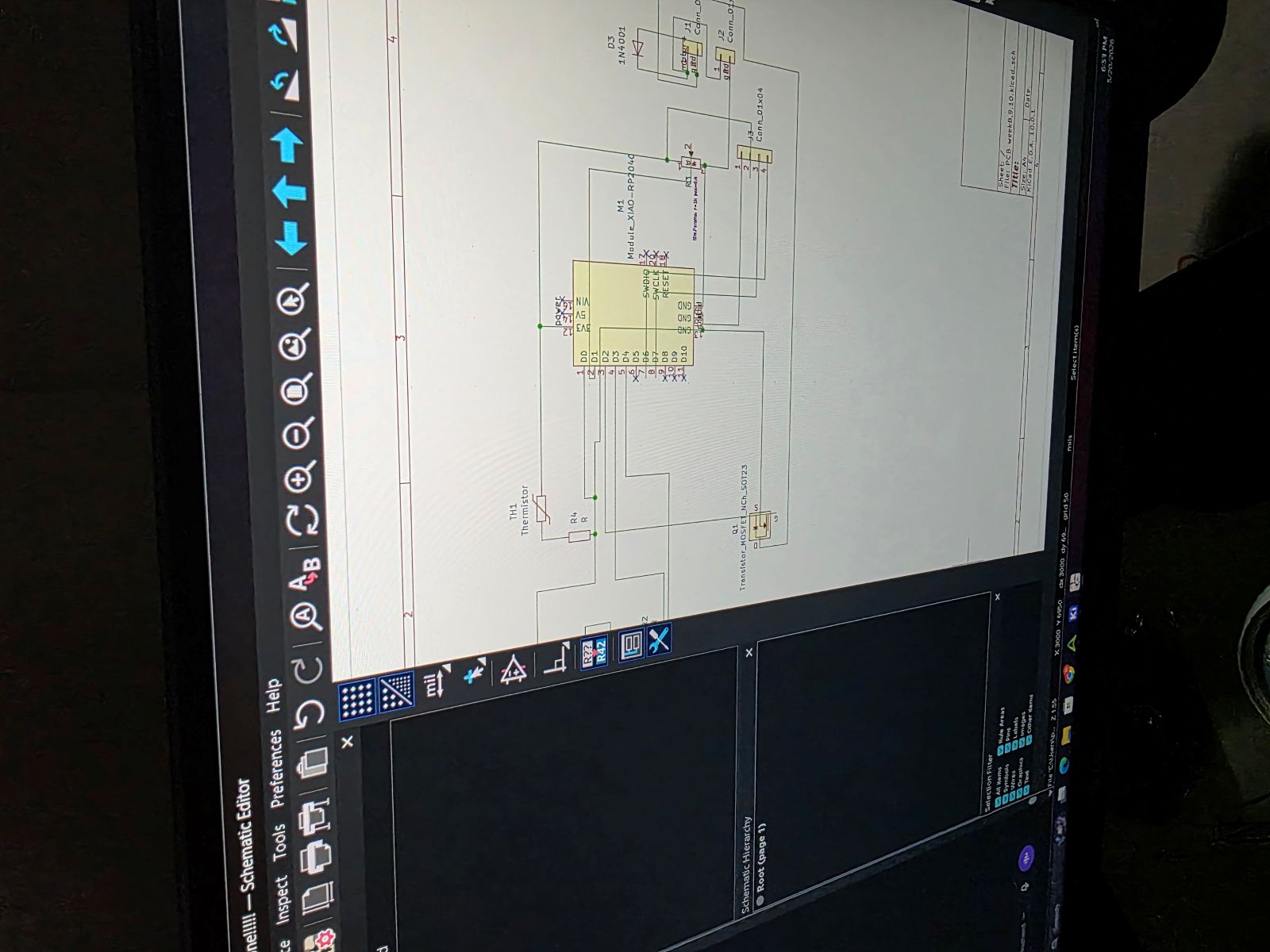
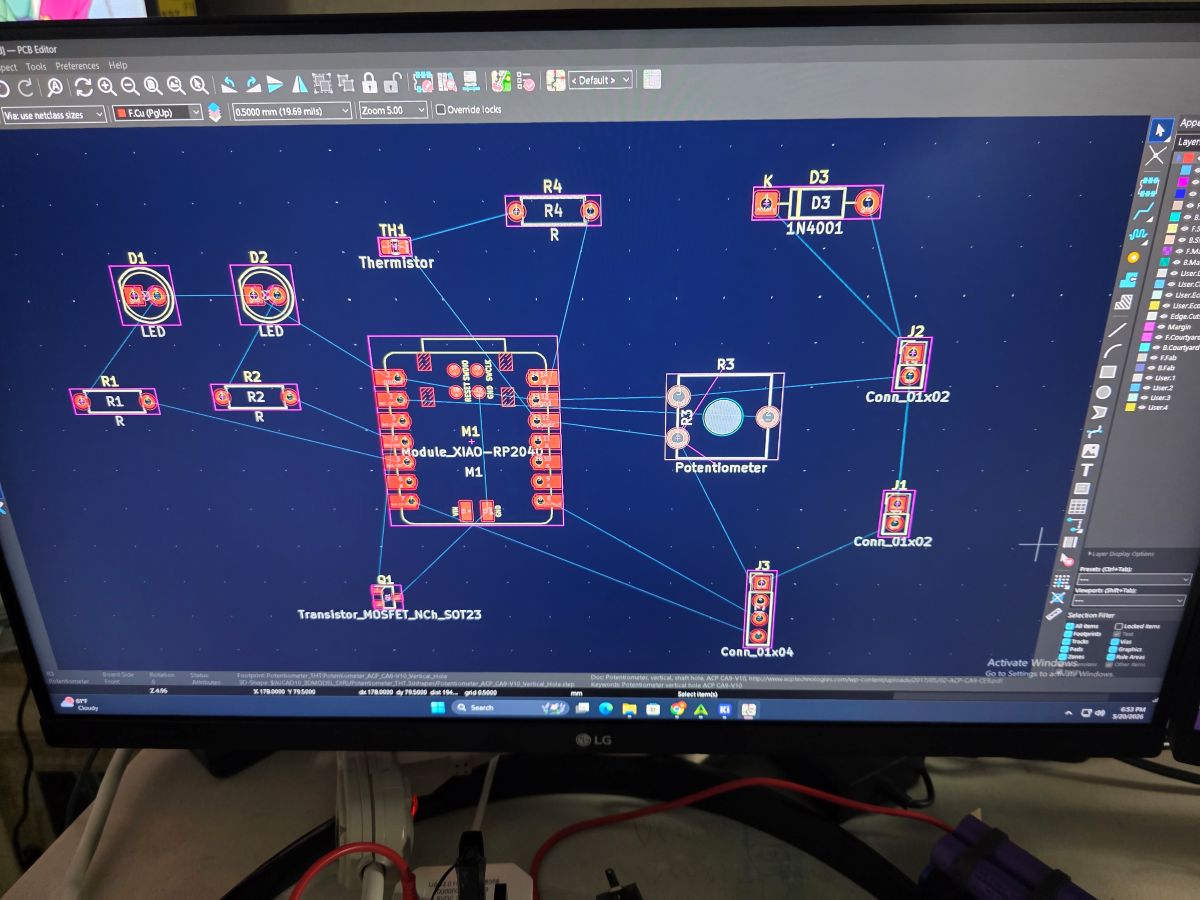
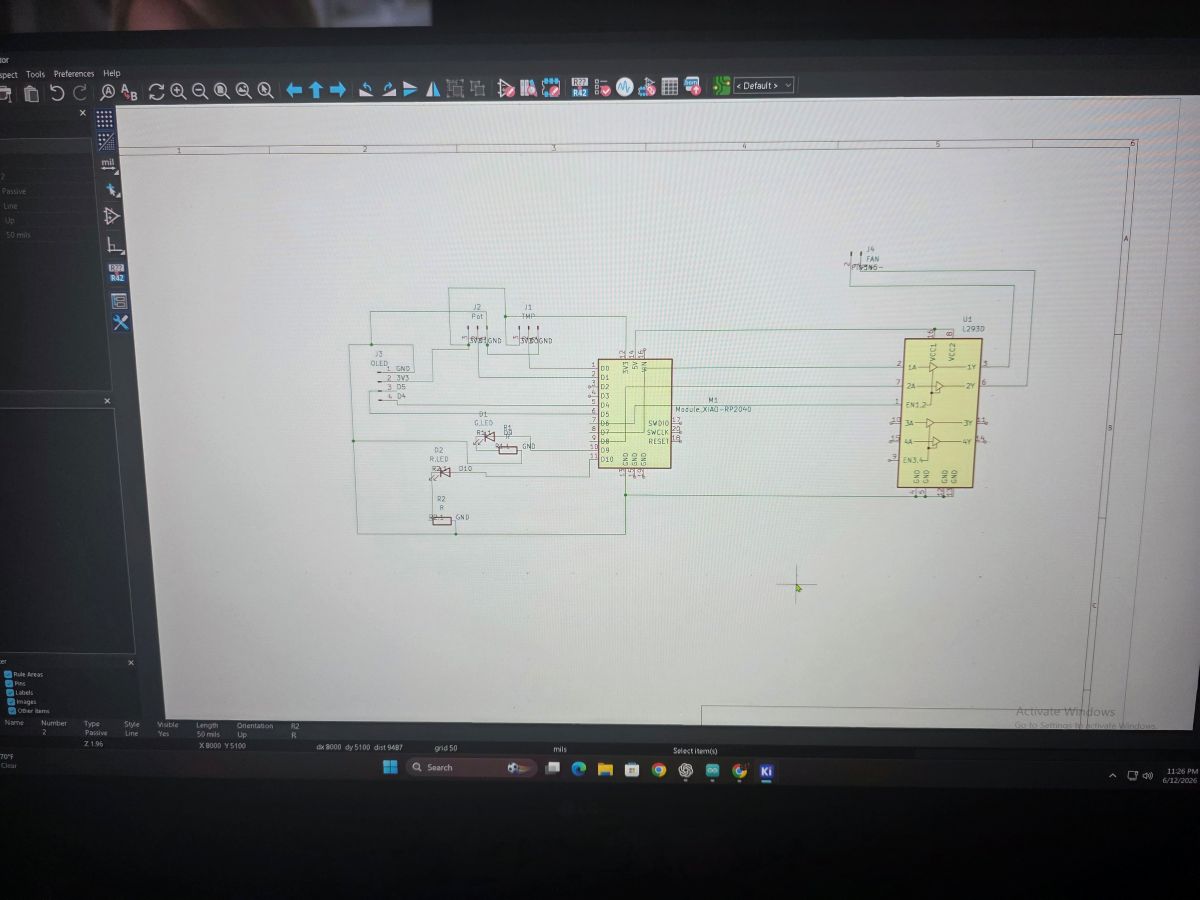
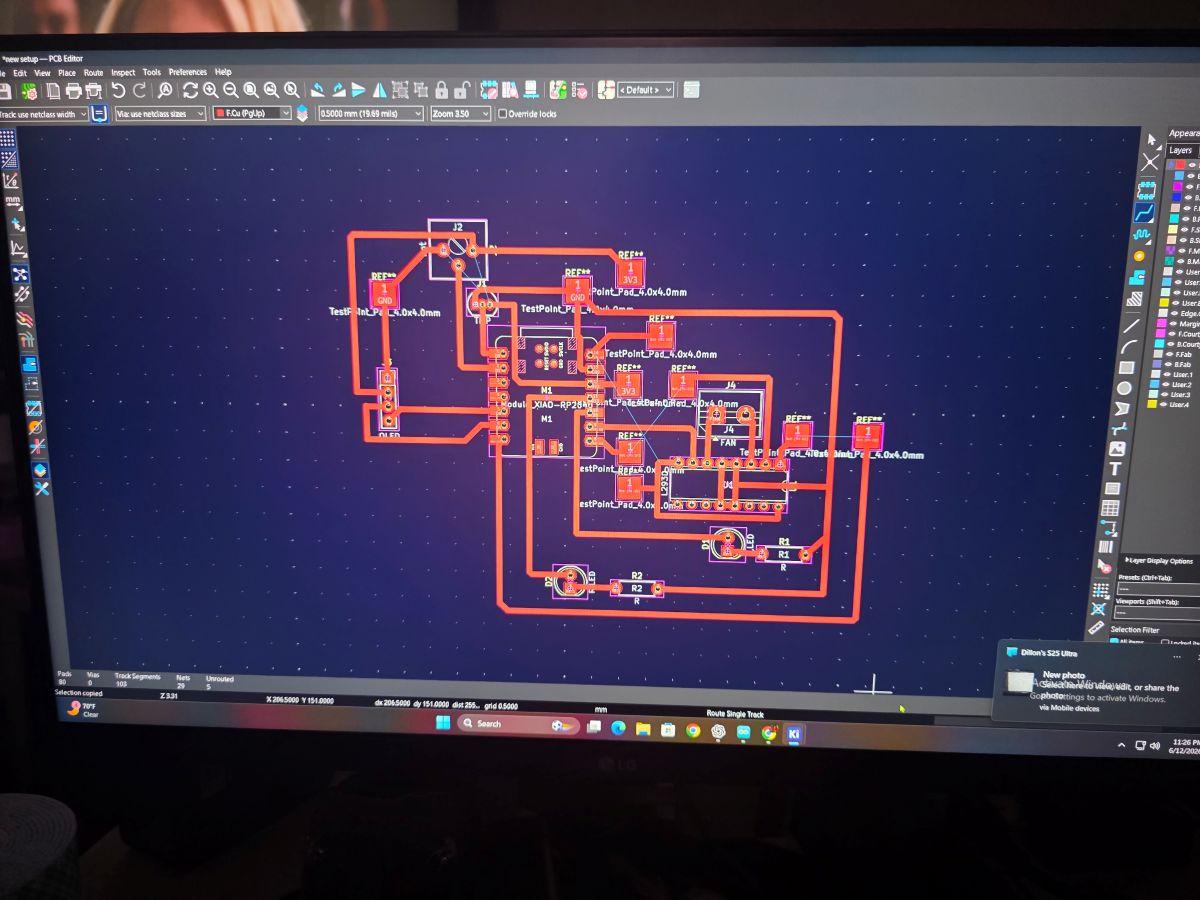
I designed the board in KiCad so the RP2350 could control all of the output devices. The motor needed the L293DNE motor driver because the RP2350 pin by itself cannot power a motor safely. The RP2350 controls the driver with the enable and direction pins, and then the driver controls the motor.
I also added the red LED and green LED as simple output indicators. These LEDs show the state of the system. Green means the temperature is okay, and red means the temperature is hot and the motor should turn on.
The OLED is also an output device because it displays live information from the board. Instead of just guessing what the code is doing, I can see the temperature, the hot limit, and whether the motor is off or running.
Breadboard Testing the Outputs
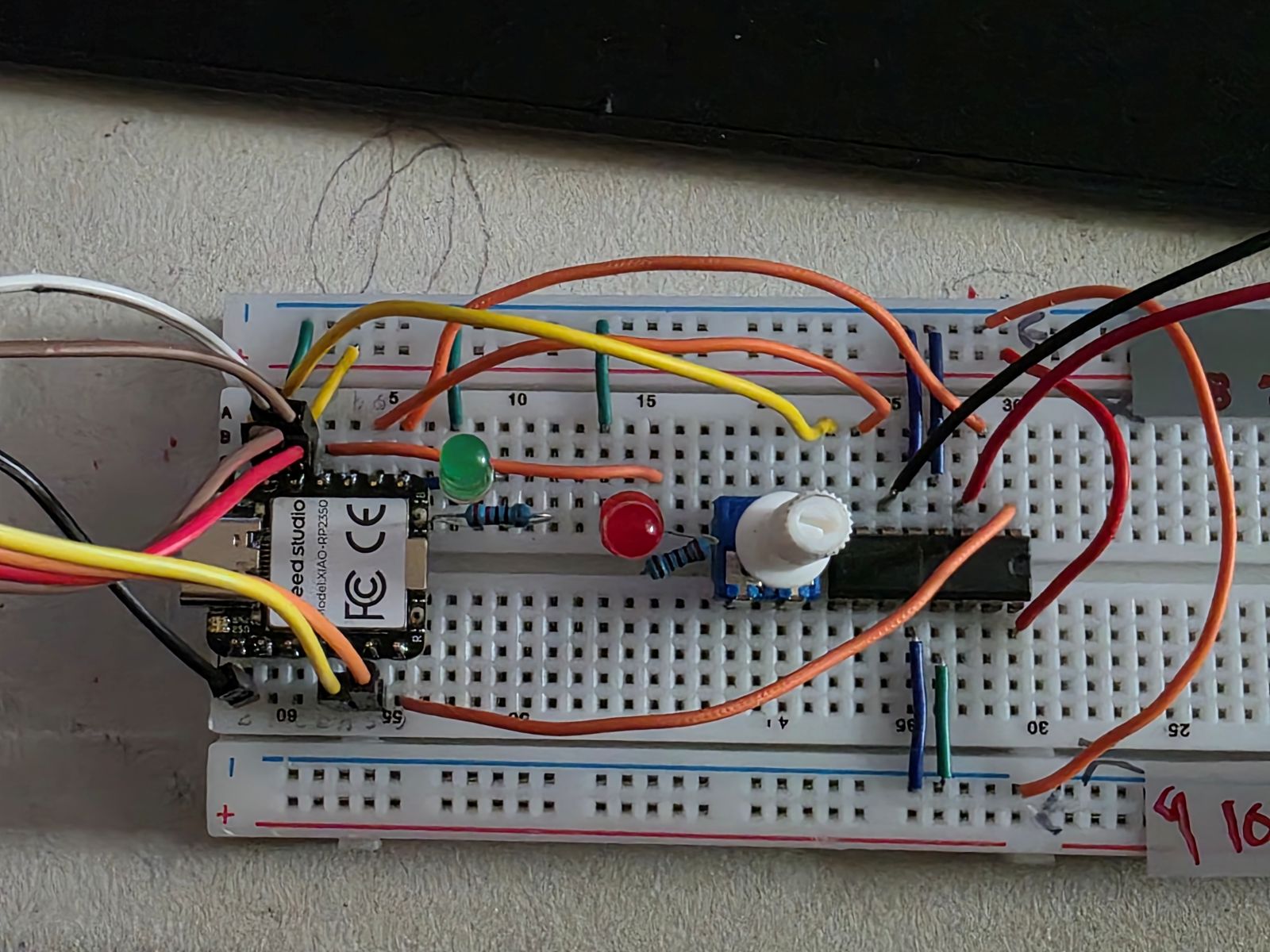
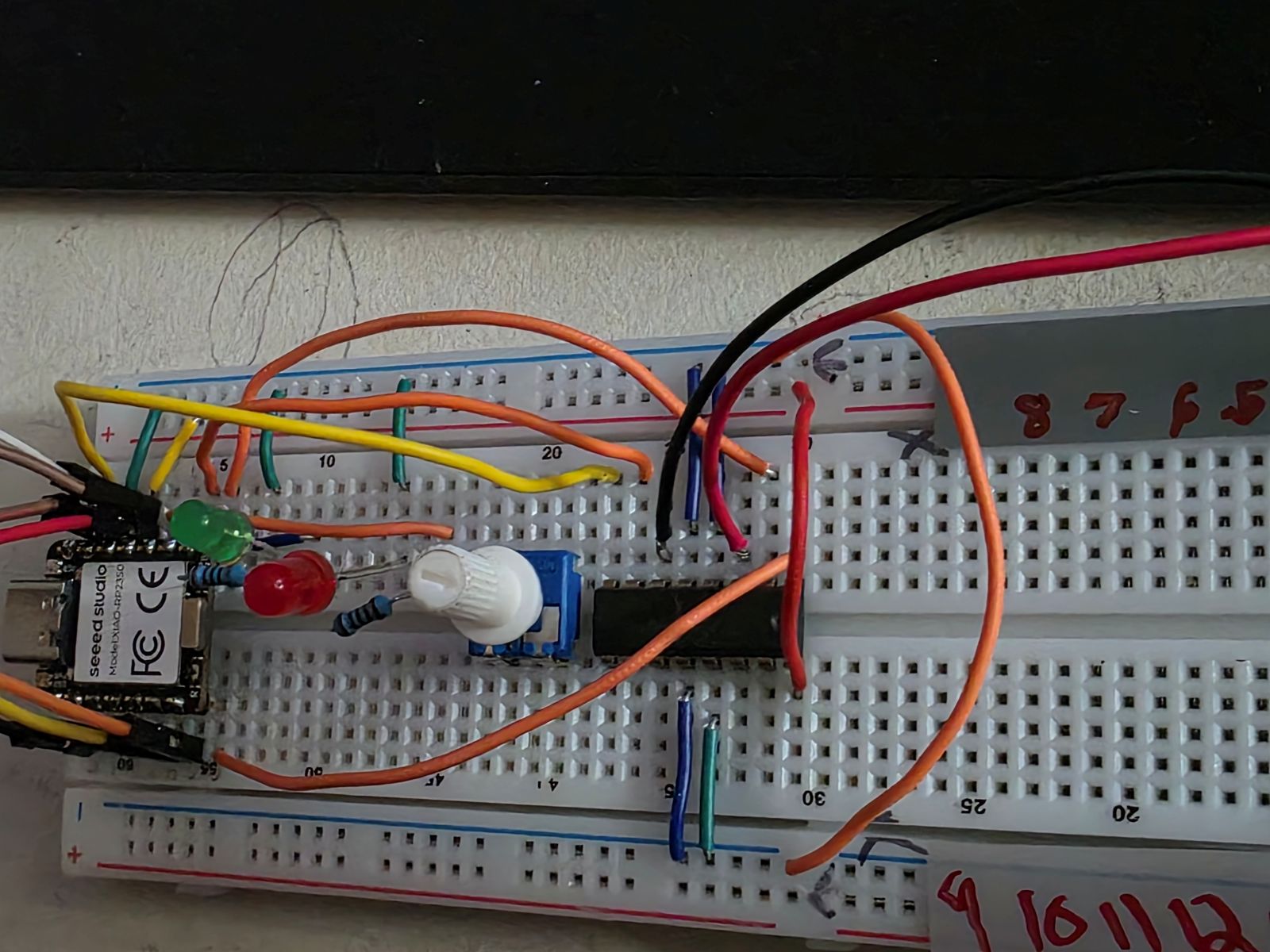
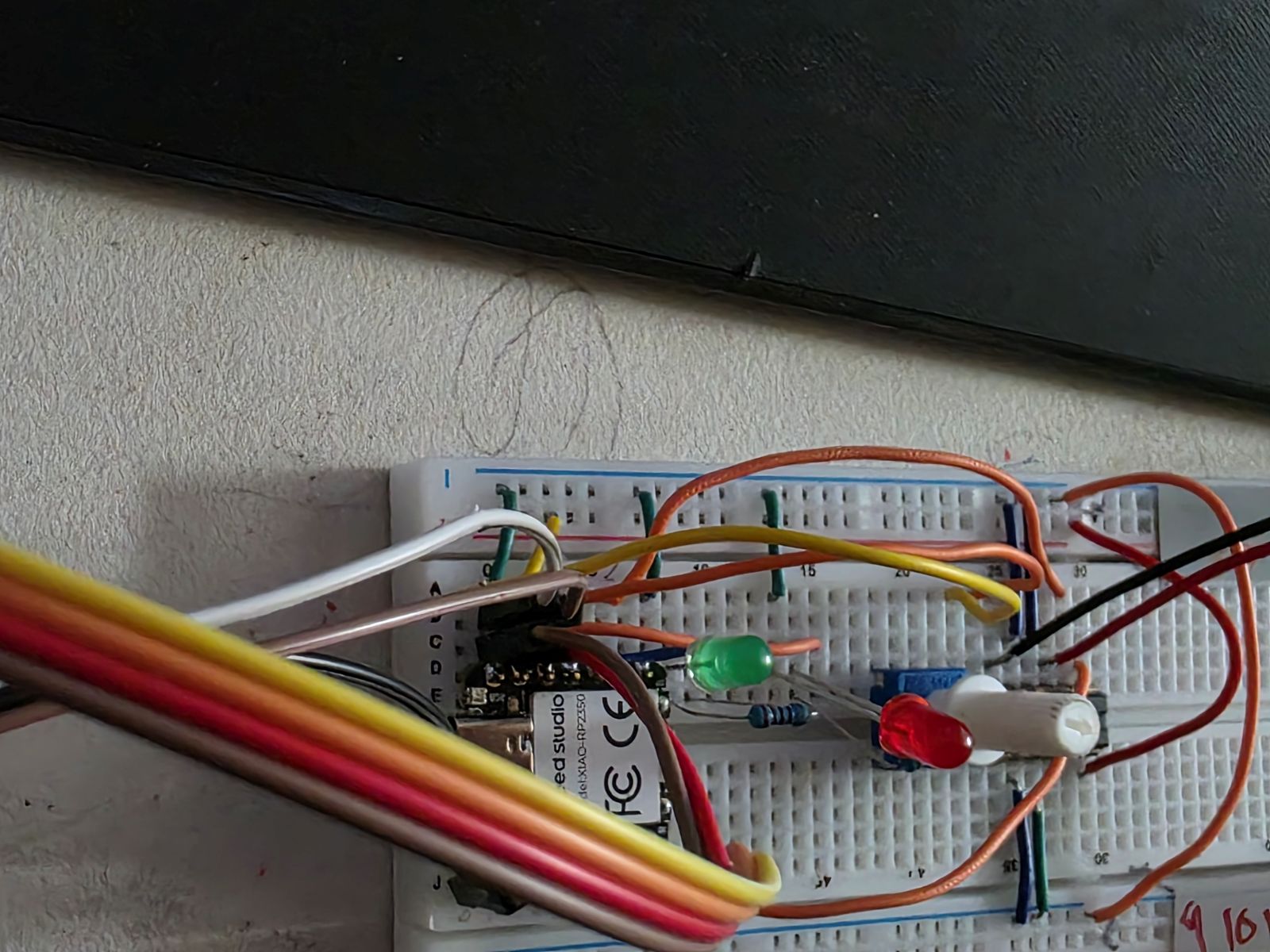
Before milling the PCB, I tested everything on a breadboard. This let me make sure the RP2350, motor driver, LEDs, OLED, TMP36, and potentiometer were all working together before soldering everything down.
This was important because if the outputs did not work on the breadboard, they were not going to magically work on the PCB. Testing first helped me find wiring problems, pin problems, and code problems before the final board.
On the breadboard, I could see the outputs working. The OLED displayed the temperature, the LEDs switched between green and red, and the motor turned on when the sensor got hot enough. When the motor was on, the potentiometer changed the motor speed.
Working Demo Video
This video shows the project working. It shows Weeks 8, 9, and 10 together: the PCB work, the input devices, and the output devices all working as one system.
Watch my Week 8, 9, and 10 working demo video
Arduino IDE Code
This is the code I used in Arduino IDE. For Week 10, the important output parts are the red LED, green LED, motor driver, and OLED display. The code turns the outputs on and off based on the temperature reading.
#include <Wire.h>
#include <Adafruit_GFX.h>
#include <Adafruit_SSD1306.h>

// OLED on Seeed XIAO RP2350
#define OLED_ADDR 0x3C

// TMP36
#define TMP36_PIN A0   // D0

// Potentiometer
#define POT_PIN A1     // D1

// LEDs
#define GREEN_LED D9
#define RED_LED D10

// L293DNE motor driver
#define MOTOR_EN D6
#define MOTOR_IN1 D7
#define MOTOR_IN2 D8

// Red LED and motor turn on at this temp
#define HOT_TEMP_F 83.0

Adafruit_SSD1306 display(128, 64, &Wire1, -1);

float readTempF() {
  long total = 0;

  for (int i = 0; i < 100; i++) {
    total += analogRead(TMP36_PIN);
    delay(2);
  }

  float raw = total / 100.0;
  float voltage = raw * (3.3 / 1023.0);
  float tempC = (voltage - 0.5) * 100.0;
  float tempF = (tempC * 1.8) + 32.0;

  return tempF;
}

void motorOff() {
  analogWrite(MOTOR_EN, 0);
  digitalWrite(MOTOR_IN1, LOW);
  digitalWrite(MOTOR_IN2, LOW);
}

void motorOn(int speedPWM) {
  digitalWrite(MOTOR_IN1, HIGH);
  digitalWrite(MOTOR_IN2, LOW);
  analogWrite(MOTOR_EN, speedPWM);
}

void setup() {
  Serial.begin(115200);
  delay(500);

  analogReadResolution(10);

  pinMode(GREEN_LED, OUTPUT);
  pinMode(RED_LED, OUTPUT);

  pinMode(MOTOR_EN, OUTPUT);
  pinMode(MOTOR_IN1, OUTPUT);
  pinMode(MOTOR_IN2, OUTPUT);

  motorOff();

  Wire1.begin();

  if (!display.begin(SSD1306_SWITCHCAPVCC, OLED_ADDR)) {
    Serial.println("OLED not found");
    while (true) {
      delay(500);
    }
  }

  display.clearDisplay();
  display.setTextColor(SSD1306_WHITE);
  display.setTextSize(1);
  display.setCursor(0, 0);
  display.println("System ready");
  display.display();

  delay(1000);
}

void loop() {
  float tempF = readTempF();

  int potRaw = analogRead(POT_PIN);
  int speedPWM = map(potRaw, 0, 1023, 0, 255);
  int speedPercent = map(speedPWM, 0, 255, 0, 100);

  bool hot = tempF >= HOT_TEMP_F;

  if (hot) {
    digitalWrite(RED_LED, HIGH);
    digitalWrite(GREEN_LED, LOW);
    motorOn(speedPWM);
  } else {
    digitalWrite(RED_LED, LOW);
    digitalWrite(GREEN_LED, HIGH);
    motorOff();
  }

  display.clearDisplay();

  display.setTextSize(1);
  display.setCursor(0, 0);
  display.println("RP2350 TEMP MOTOR");

  display.setTextSize(2);
  display.setCursor(0, 14);
  display.print(tempF, 1);
  display.println("F");

  display.setTextSize(1);
  display.setCursor(0, 38);
  display.print("Limit: ");
  display.print(HOT_TEMP_F, 0);
  display.print("F ");

  if (hot) {
    display.println("HOT");
  } else {
    display.println("OK");
  }

  display.setCursor(0, 52);
  display.print("Motor: ");

  if (hot) {
    display.print(speedPercent);
    display.println("%");
  } else {
    display.println("OFF");
  }

  display.display();

  Serial.print("Temp F: ");
  Serial.print(tempF, 1);
  Serial.print("  Pot: ");
  Serial.print(potRaw);
  Serial.print("  PWM: ");
  Serial.print(speedPWM);
  Serial.print("  Motor: ");
  Serial.println(hot ? "ON" : "OFF");

  delay(500);
}
CAM Setup and Toolpaths
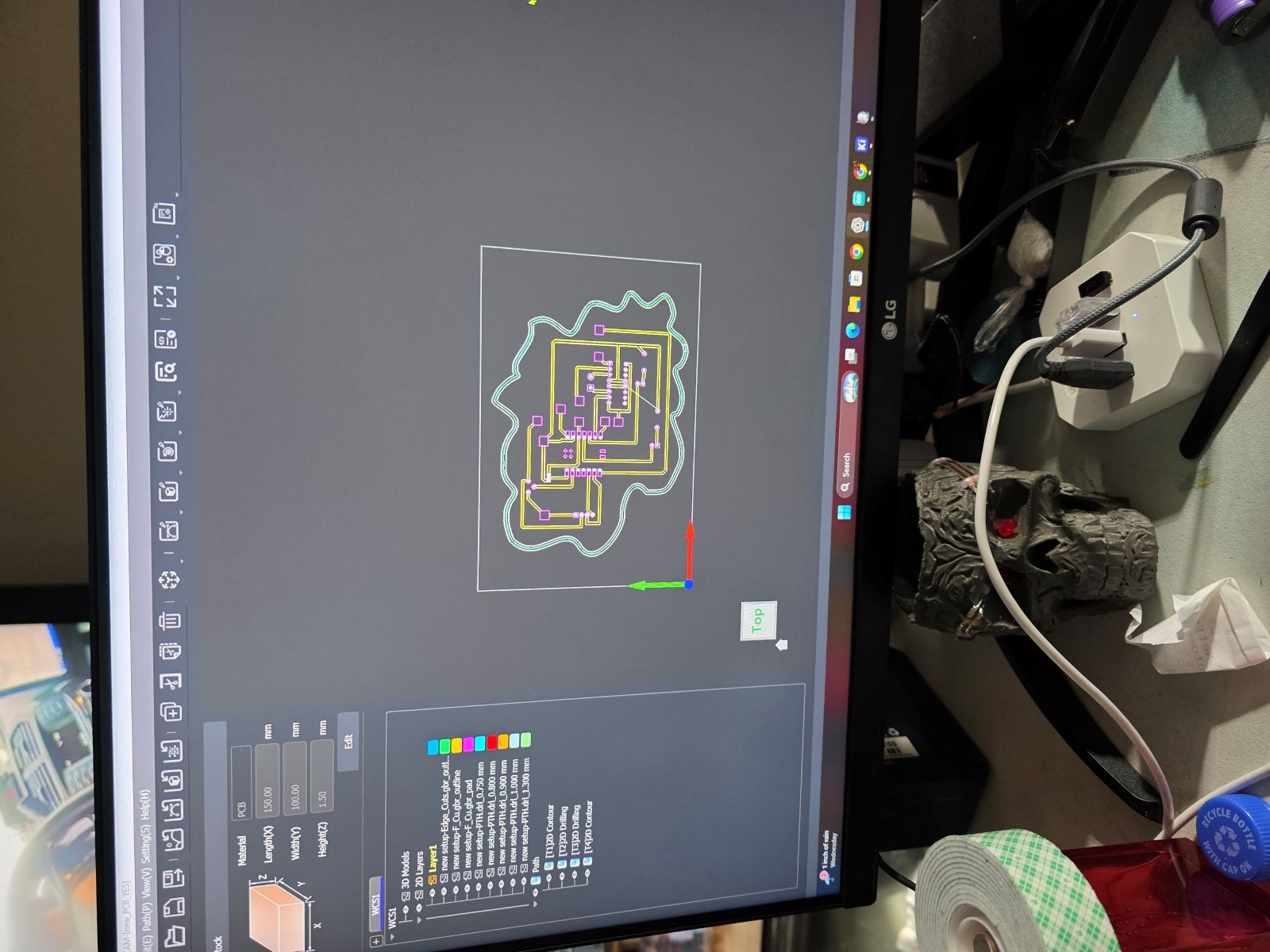
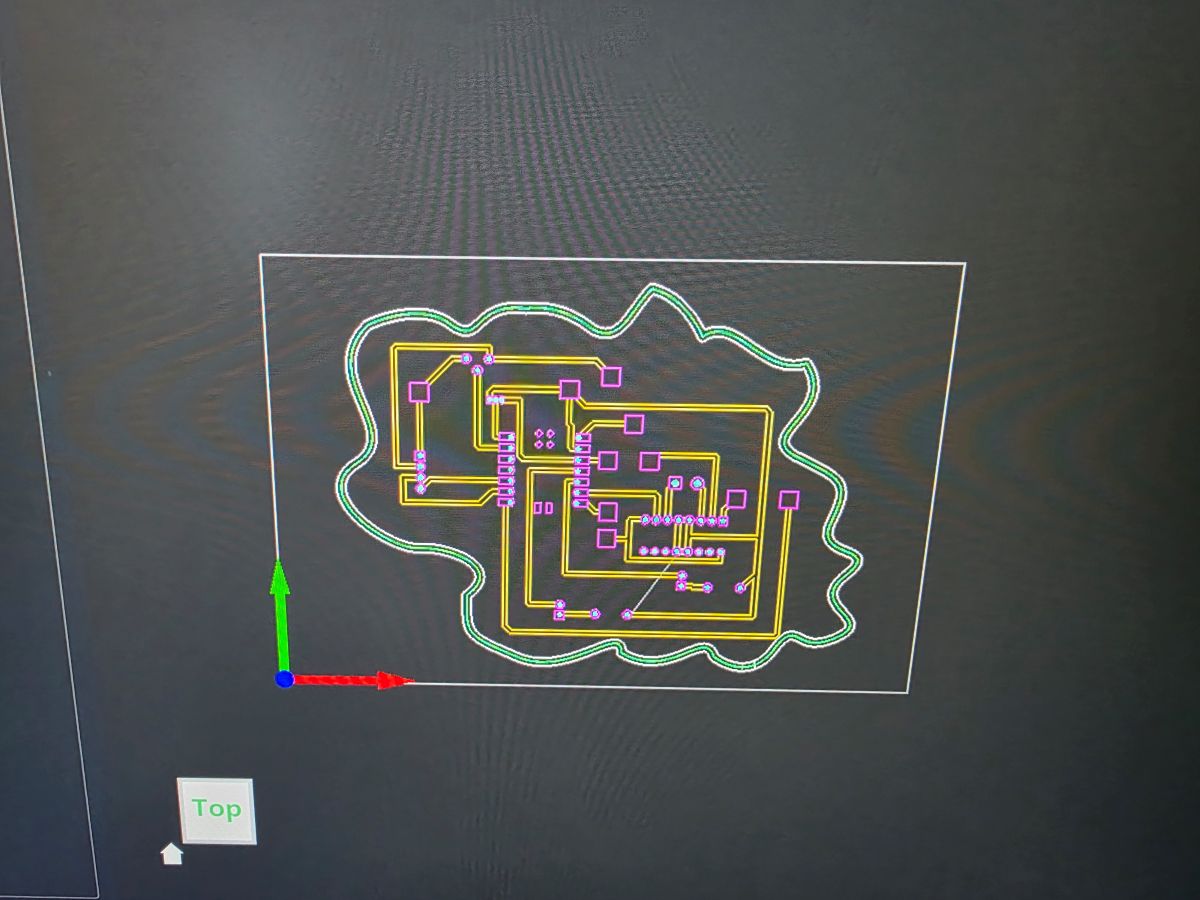
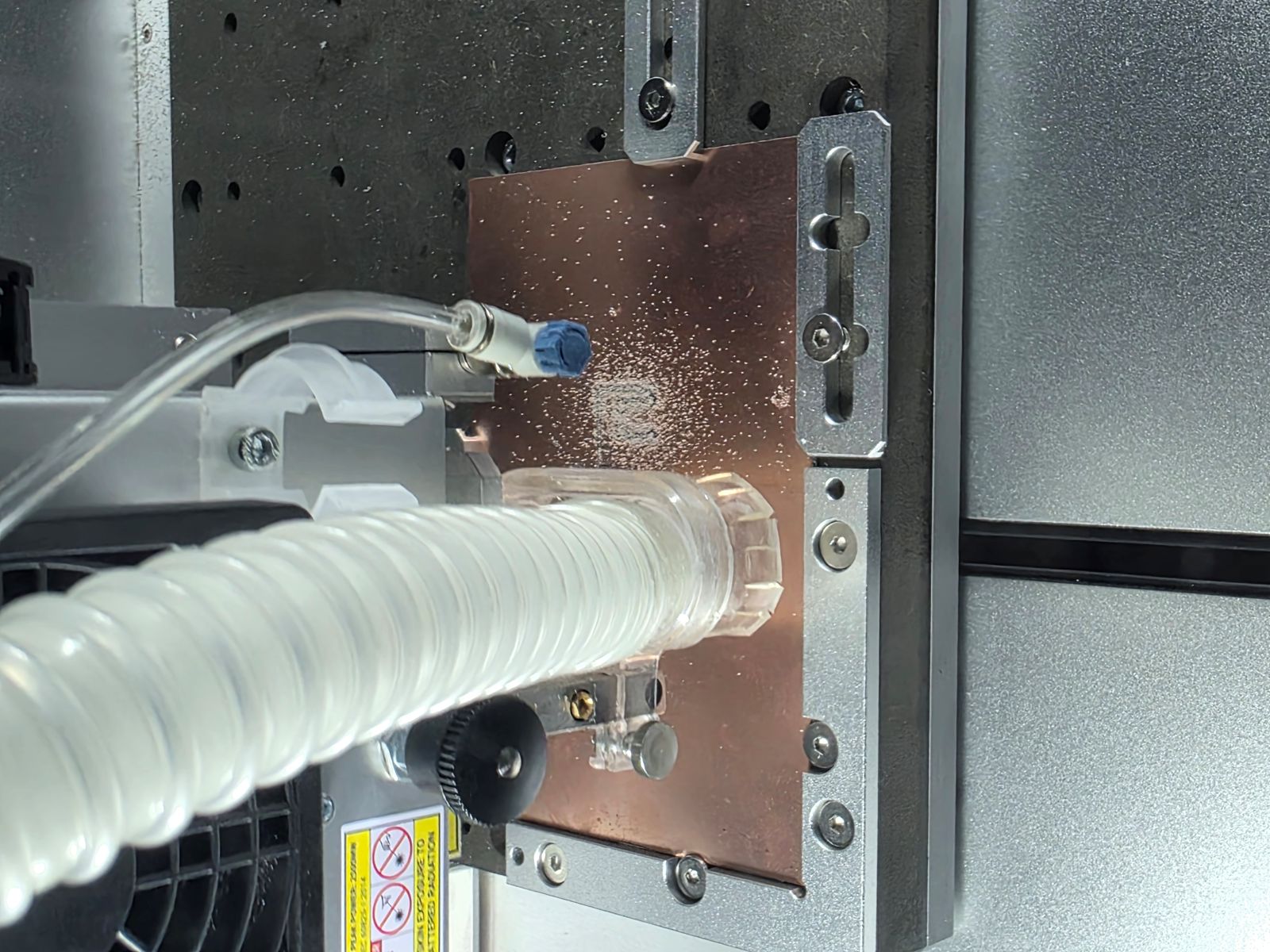
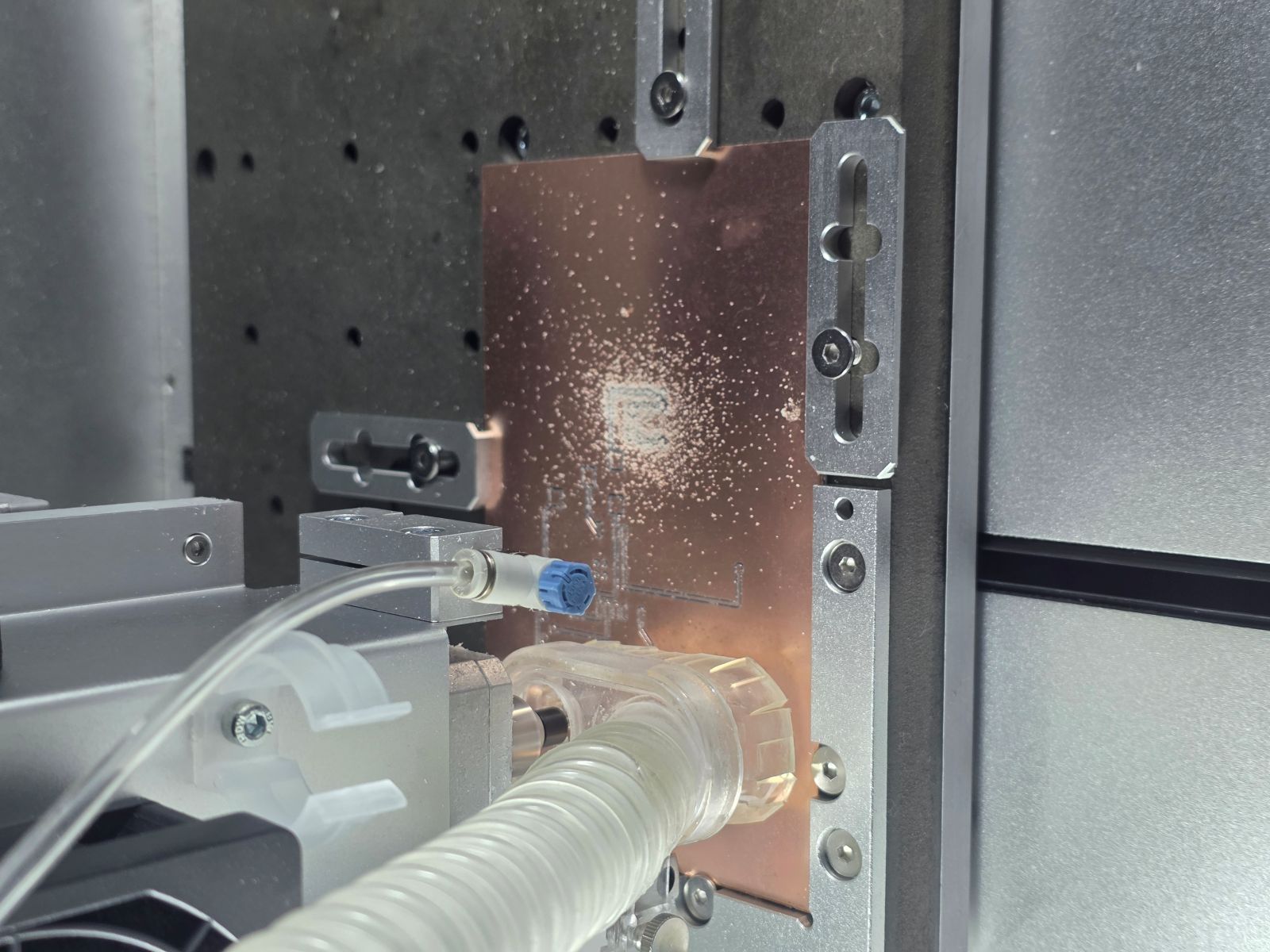
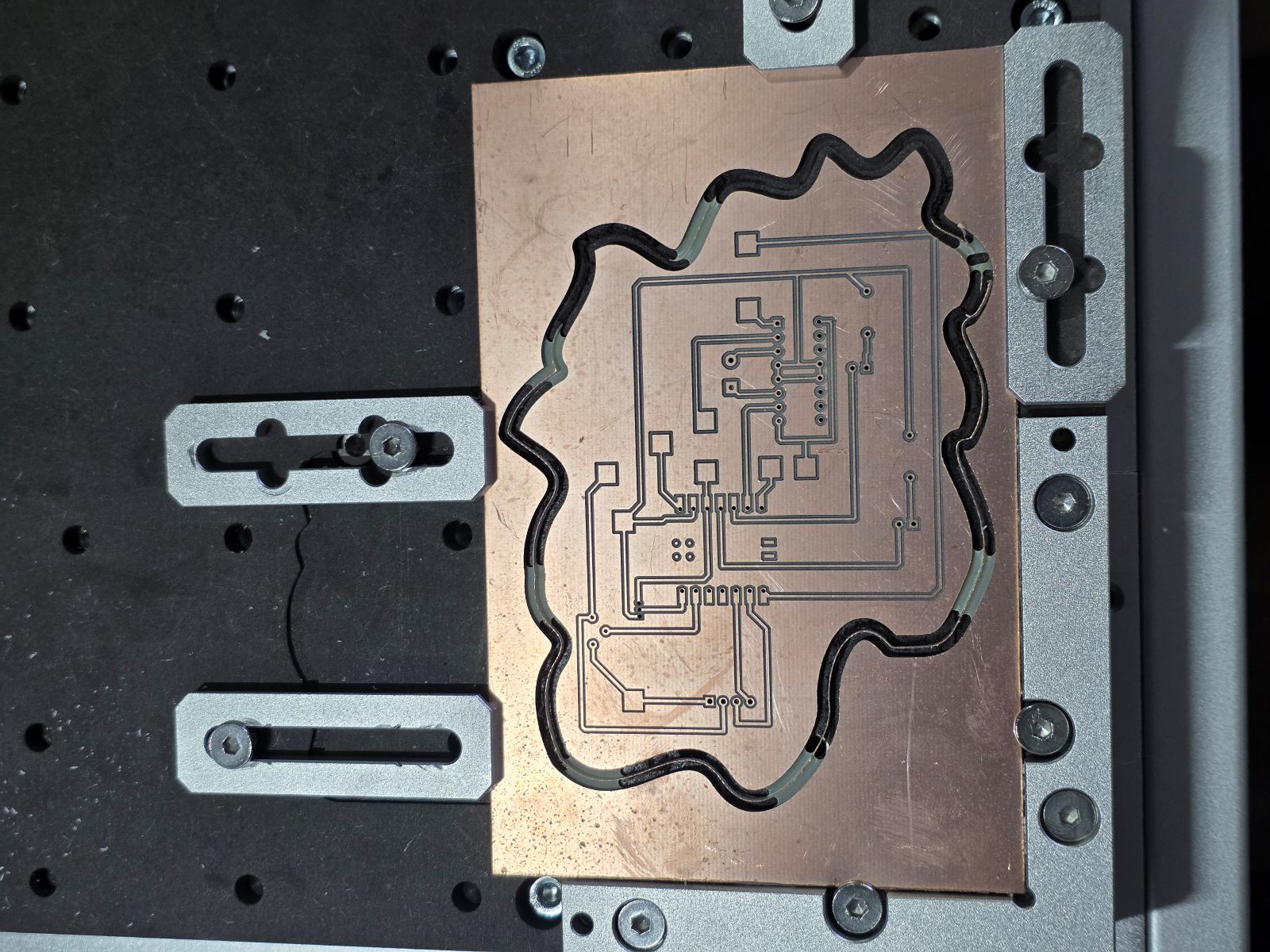
After the board was designed, I moved it into the Makera Carvera workflow. I used the CAM and controller software to set up the toolpaths for the PCB. The toolpaths included the copper isolation cuts, drilling, and board cutting.
This mattered for Week 10 because the output devices needed clean traces and solid connections. If the motor driver traces, LED traces, or OLED traces were bad, the outputs would not work right.
Milling the Output Board
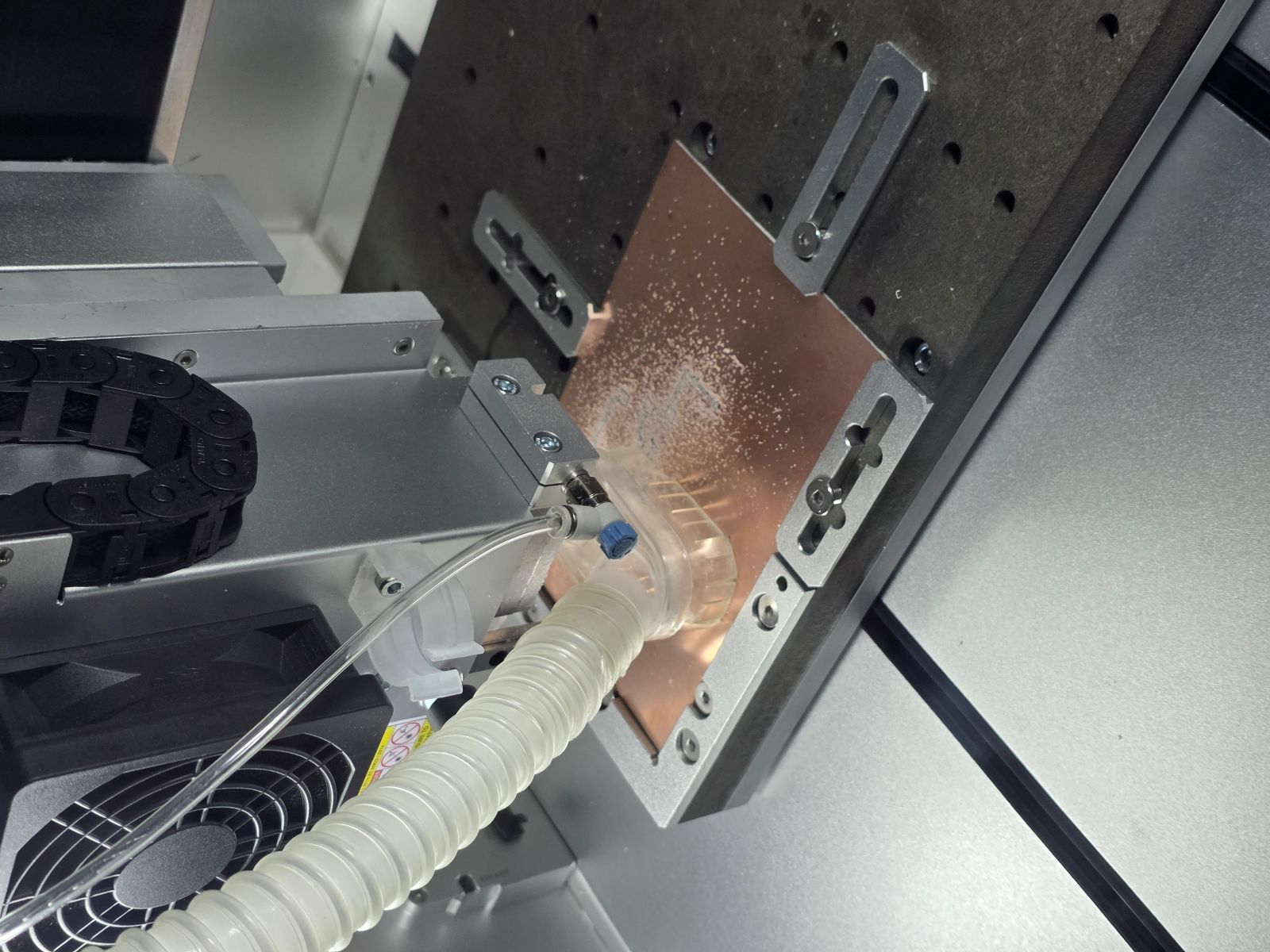
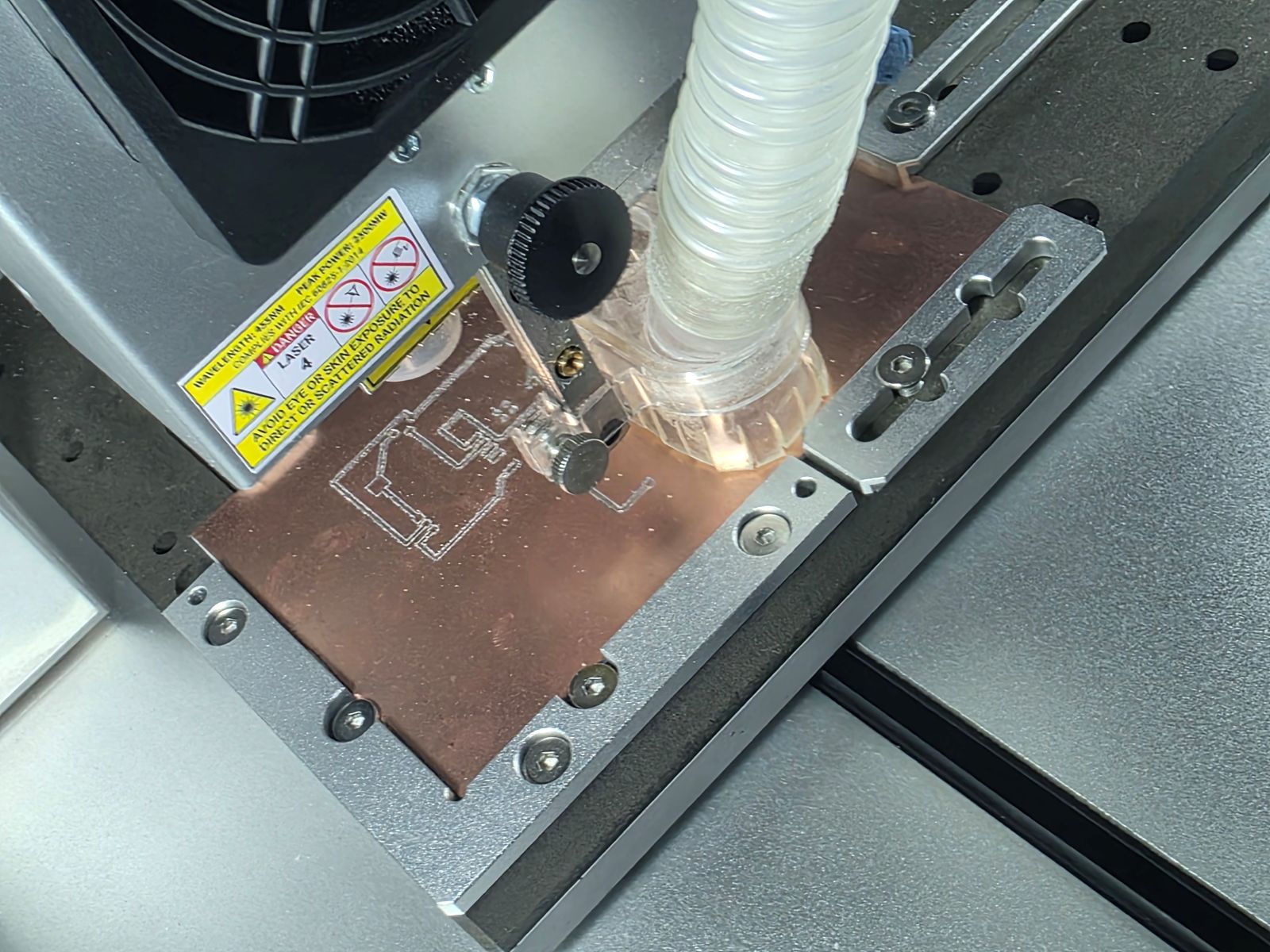
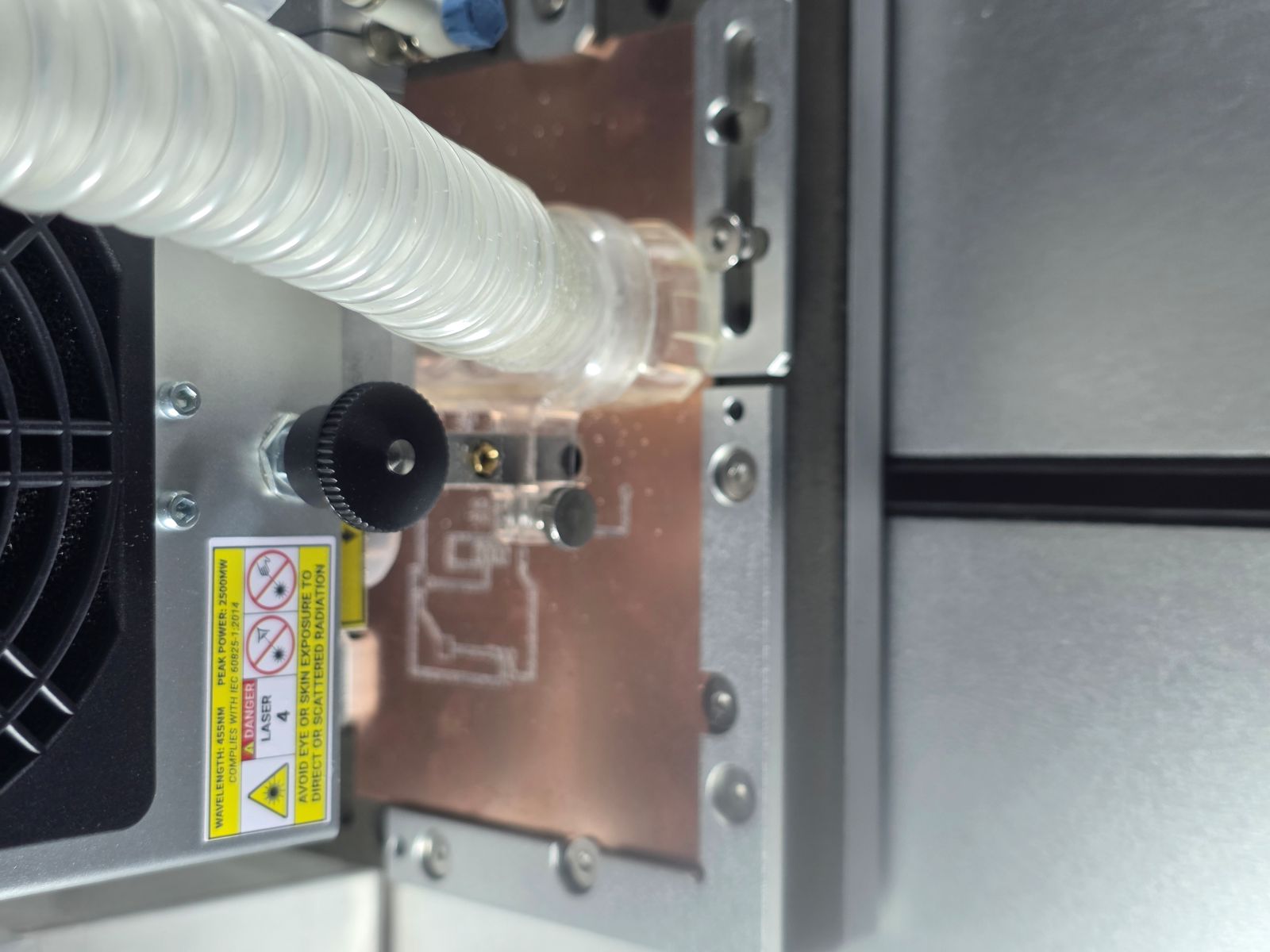
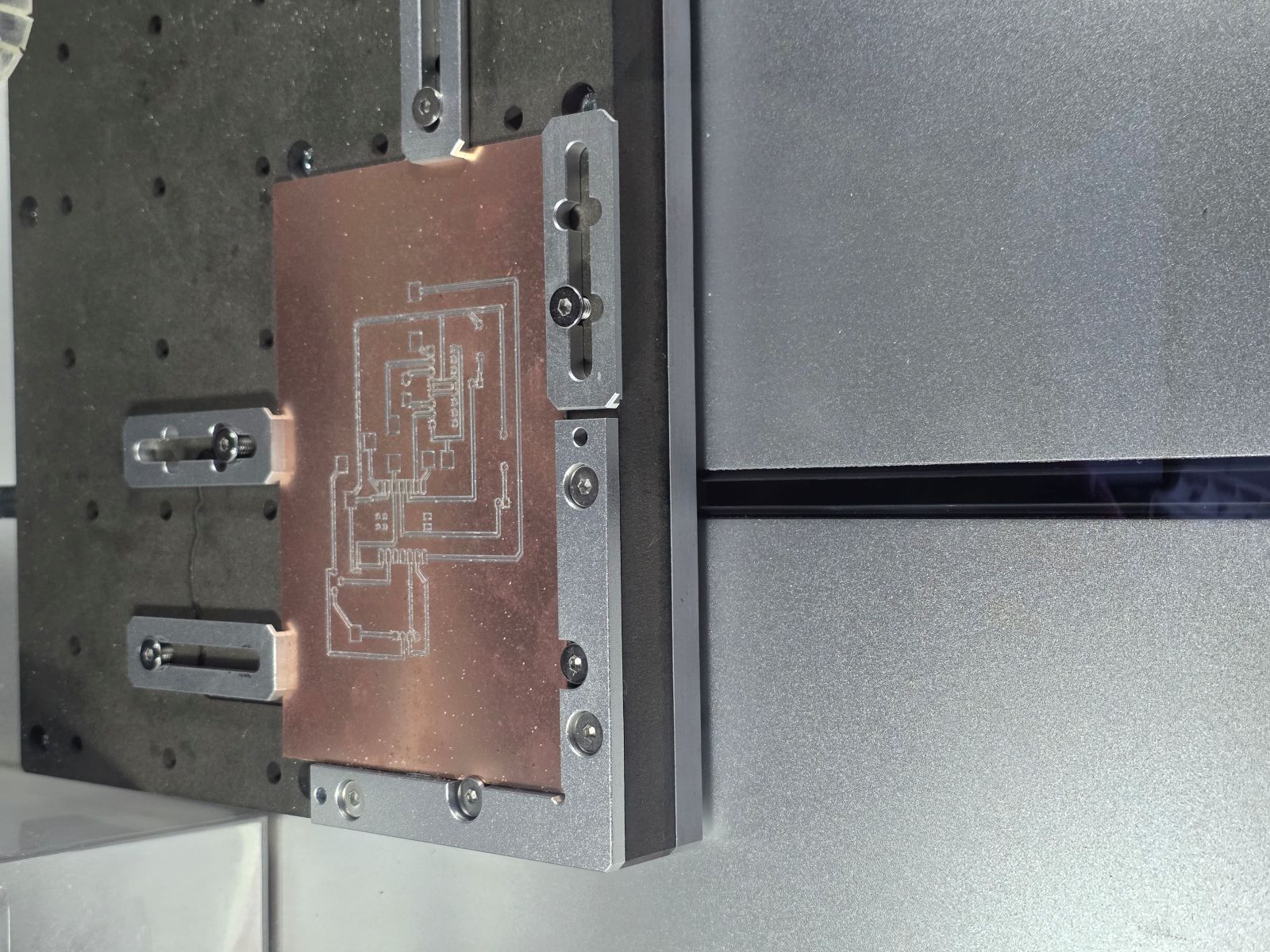
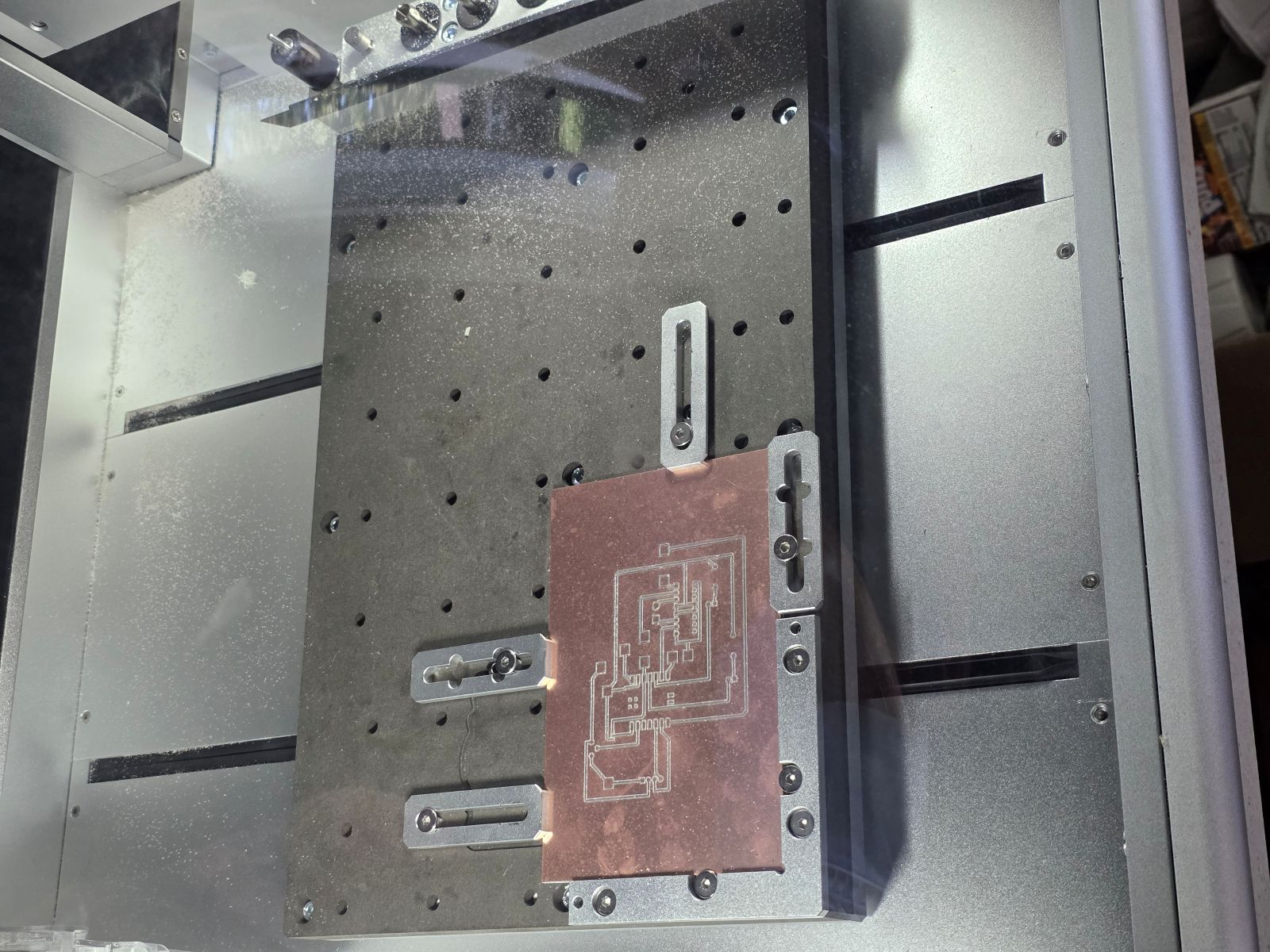
Then I milled the board on the Makera Carvera. The machine cut the copper traces, drilled the holes, and made the board ready for soldering.
I watched the milling process closely because small PCB problems can mess up the whole board. A bad trace going to the motor driver, LED, or OLED could stop the output side from working.


Finished Board Working
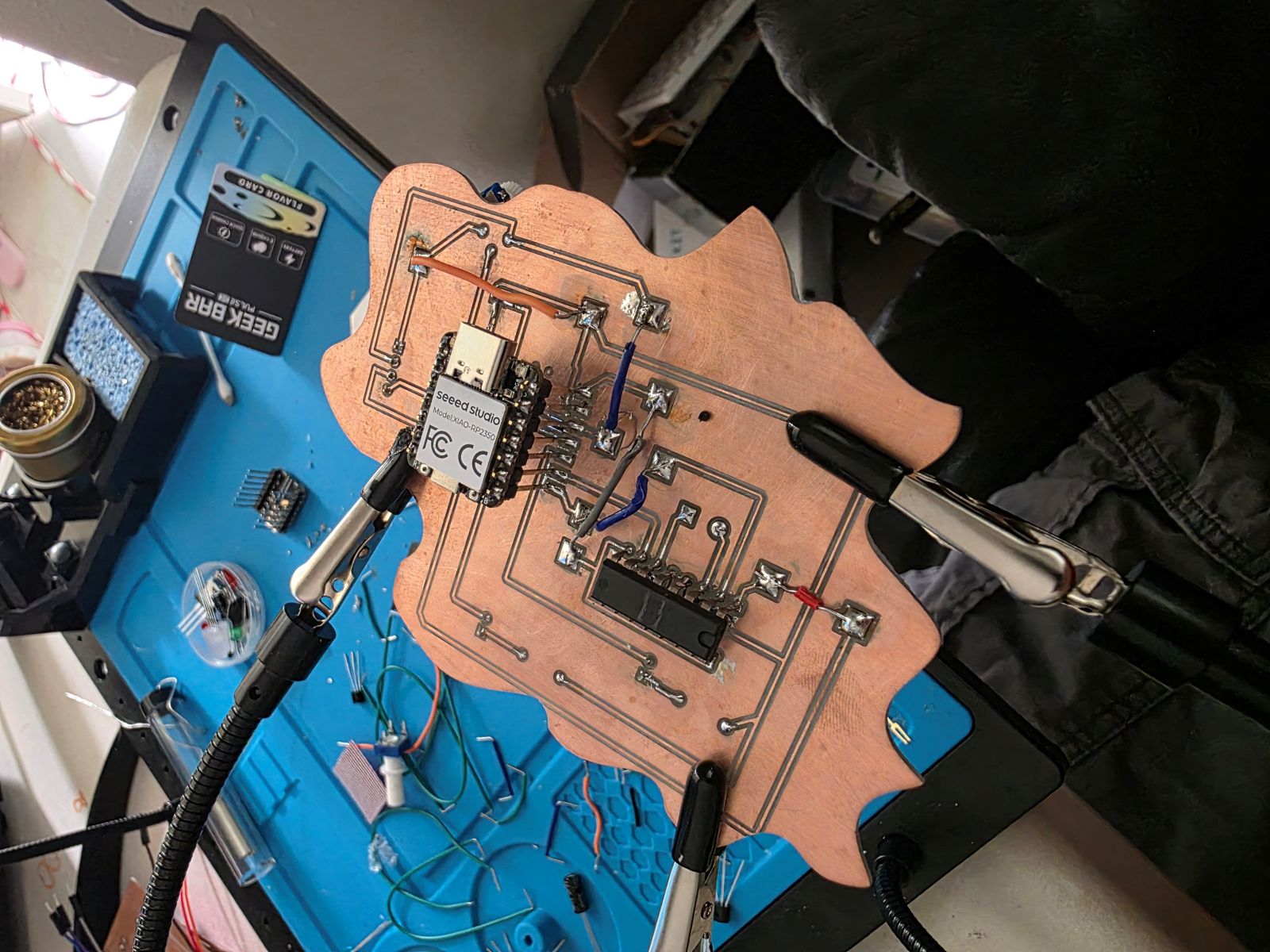
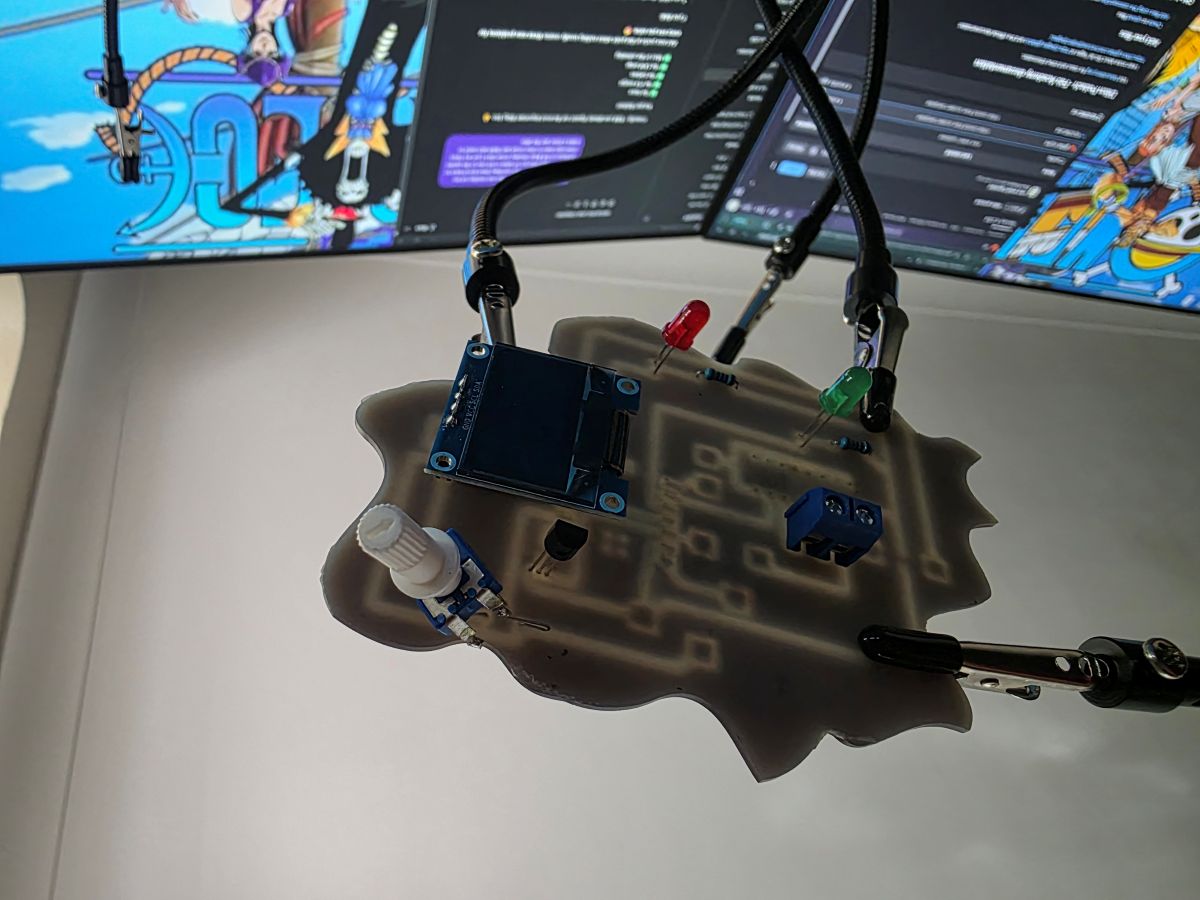
After the board was milled, I soldered and tested it. The finished board controlled the motor, red LED, green LED, and OLED display. When the system was cool, the green LED came on and the motor stayed off. When it got hot, the red LED came on and the motor turned on.
The OLED showed the temperature and motor status, so I could see what was happening live. That made the project feel way more complete because the board had physical outputs and a display output.
What I Learned
This week helped me understand output devices way better. LEDs are simple outputs, but motors need more power and need a driver. The L293DNE motor driver was important because it let the RP2350 control the motor safely.
I also learned that outputs are how the project shows what it is doing. The TMP36 and potentiometer give the RP2350 information, and then the RP2350 uses the motor, LEDs, and OLED to respond.
The biggest thing I learned is that a good embedded system needs inputs and outputs working together. The board reads the temperature and speed knob, then reacts with the fan, warning LEDs, and OLED display.
Project Files and Documentation
To support this assignment, I created a shared repository containing my design files, source code, PCB layouts, manufacturing files, and supporting documentation used throughout this project.
This documentation includes the files used to design, build, test, and program the output devices demonstrated during Week 10. These resources include PCB files, source code, project documentation, and supporting materials used throughout the assignment.
📁 View Week 10 Design Files and Documentation
Documentation prepared by Dillon Podach and Astra.