Week 1: Project management
Week 1 Assignment:
- Download, read, and sign the student agreement
- Commit the file to your repo
- Work through a git tutorial
- Build a personal site in the class archive describing you and your final project
Creating GIT REPOSITORY
GitLab
Info: GitLab
GitLab -> GitLab is a web platform where you store code and manage software projects. It hosts Git repositories, allows teams to collaborate on code, includes tools to build, test, and deploy apps.
For the project management, Fab Academy use GitLab as a student repository to store documentation files. Firstly, I need to login to gitlab.fabcloud.org and choose sign in with “Fablabs”.
Email Address
The email address must be the same as your Fab Academy account.
Password Problem
While logging in to fablabs.io, I had trouble with my password, so I had to reset it. After resetting the password, I was able to access my GitLab dashboard.
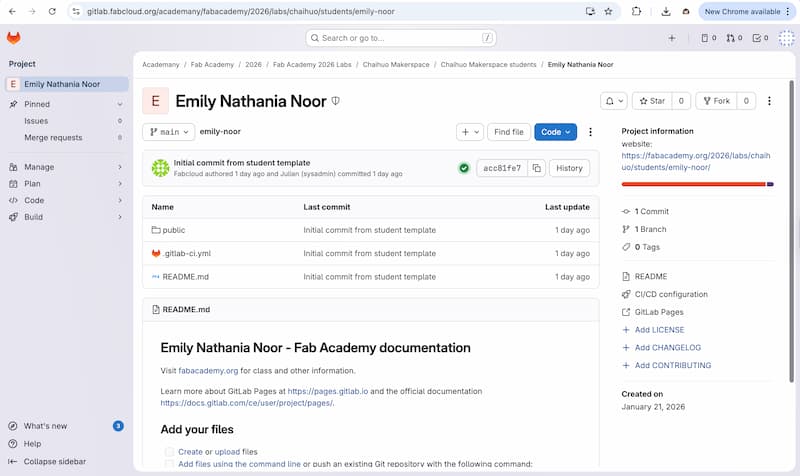
Here’s my GitLab dashboard:
Git
Info: Git
Git (the tool) -> Git is a version control system. Git helps to track changes to files over time, allows you to go back to previous versions, and helps multiple work on the same project without problems. - Example: Edit file name -> save & commit -> Git remembers exactly what changed
Next, I need to download Git on my computer using Homebrew (MacOs). Without Git installed, I cannot track file changes, cannot connect Gitlab from my laptop, and cannot use commands like: ‘git clone’, etc.
Install Homebrew:
Install Git:
SSH Keys
Info: SSH Keys
SSH keys -> a secure digital identity. It works automatically after setup, no need to re-enter passwords.
Next, I’m using SSH keys for the Git authentication. Here’s how I created a new key by writing this code in the terminal:
and then I copied the SSH keys to my Gitlab. In GitLab, go to the top navigation bar,
-
click your
Profile image>Preferences>SSH Keys -
click “Add SSH Key”. Set a title, pasted the copied key, click “Add key”.
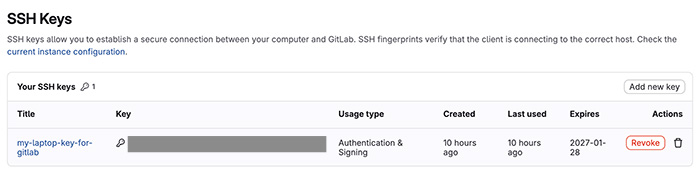
Next, I verify that I can connect to Gitlab using SSH keys. I wrote in the terminal:
and then I received a message:
MkDocs
Info: Markdown & MkDocs
-
Markdown -> Markdown is a lightweight text formatting language. It lets you write formatted text using plain text symbols:
# Title,## Subtitle,- Bullet points,**bold**,*italic* -
MkDocs -> MkDocs is a tool that turns Markdown files into a nice-looking documentation website. How it works:
- Write docs in Markdown
- MkDocs converts them into a website
- You can host it (for example on GitLab)
Afterwards, I utilize Mkdocs which written in Markdown language, to build the website. Mkdocs is simple and has a lot of customisations. Firstly, I downloaded the student template Mkdocs, then I replaced all my files with the new template (inside the “student-template-mkdocs-master” folder).
Tips
Initially, I didn’t replace all the files. Instead, I copied the “student-template-mkdocs-master” folder to my repository (“emily-noor” folder), but it didn’t work properly. I can preview my website with mkdocs serve but the actual website was not updating.
Then I deleted all the files from “emily-noor” folder and replaced all my files with the new template inside the “student-template-mkdocs-master” folder: mkdocs.yml, requirements.txt, docs/, .gitlab-ci.yml. And finally it works!
Problem
However, I still have this issue until now: I can preview my website with mkdocs serve, but saving the updated file doesn’t instantly update my browser.
Visual Studio Code
Info: VS Code
Visual Studio Code -> a free code editor made by Microsoft. Basically a workplace where you write and edit code. It can work with many languages (Python, JavaScript, C++, etc), has built-in Git support and clean interface.
I use Visual Studio Code / VS Code to write and edit code for my website. VS Code is a very convenient tool because I can work on local files offline.
How to download VS Code:
-
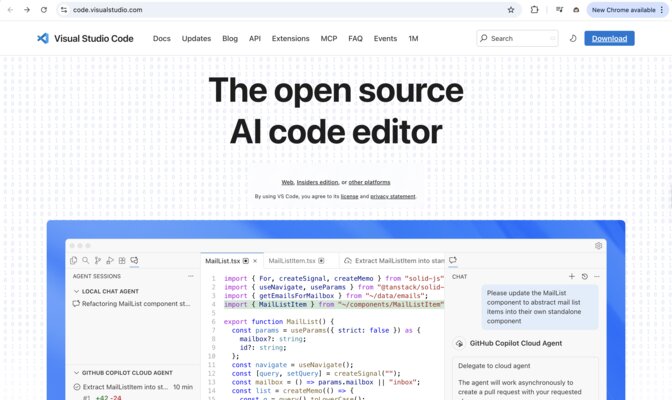
Open Visual Studio Code Website and click “Download”
-
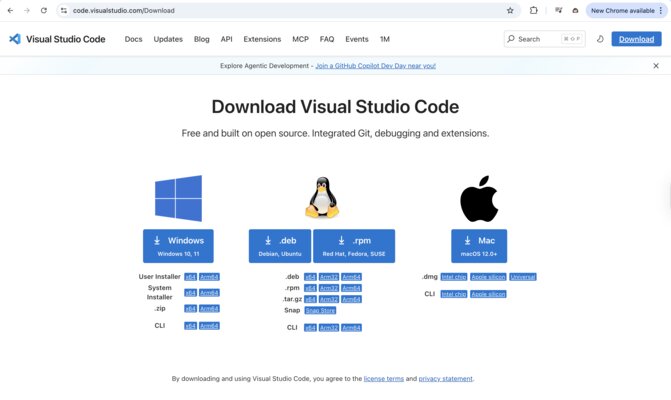
Download according to your system (Windows/Mac/Linux):
-
Since I am using Mac, I downloaded for the Mac. Then I installed to my laptop:
- Open the .zip file
- Drag Visual Studio Code into Applications
- Launch the app
Workflow:
I wrote code in Visual Studio Code -> Git tracks my changes locally -> SSH key securely connects to GitLab -> push my code online