Electronics Design
Week 6 Assignment
Assignment Overview
Week 6: Electronics Design. Personal work is the board design. The group task is to watch a microcontroller board on the bench supply, the multimeter, and the oscilloscope.
1. Individual Work
My First PCB Board — designed in Fusion 360 Electronics.
1.1 Function
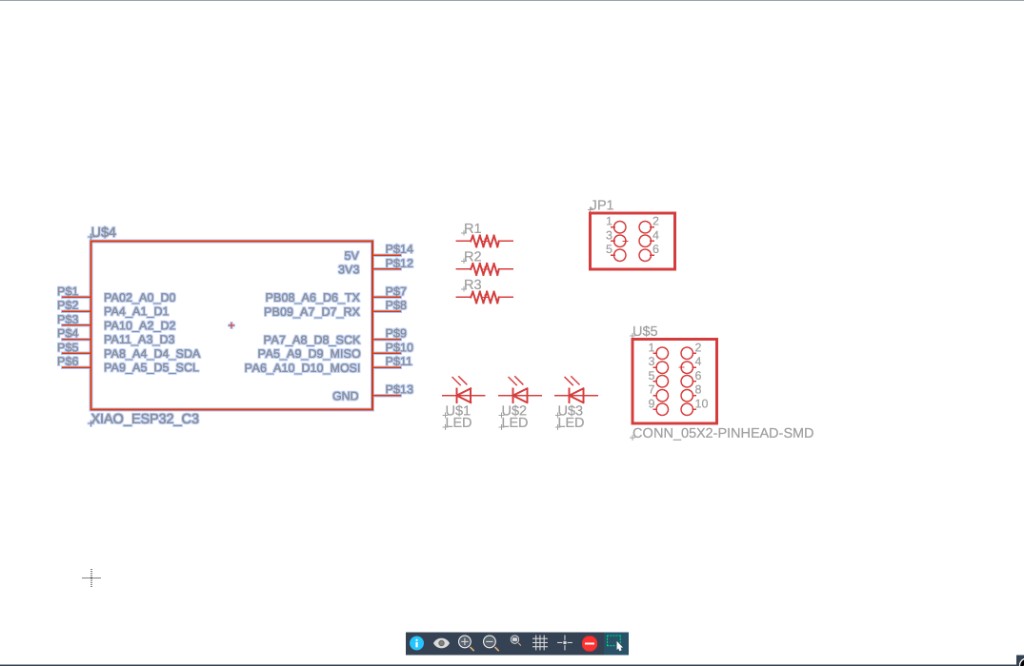
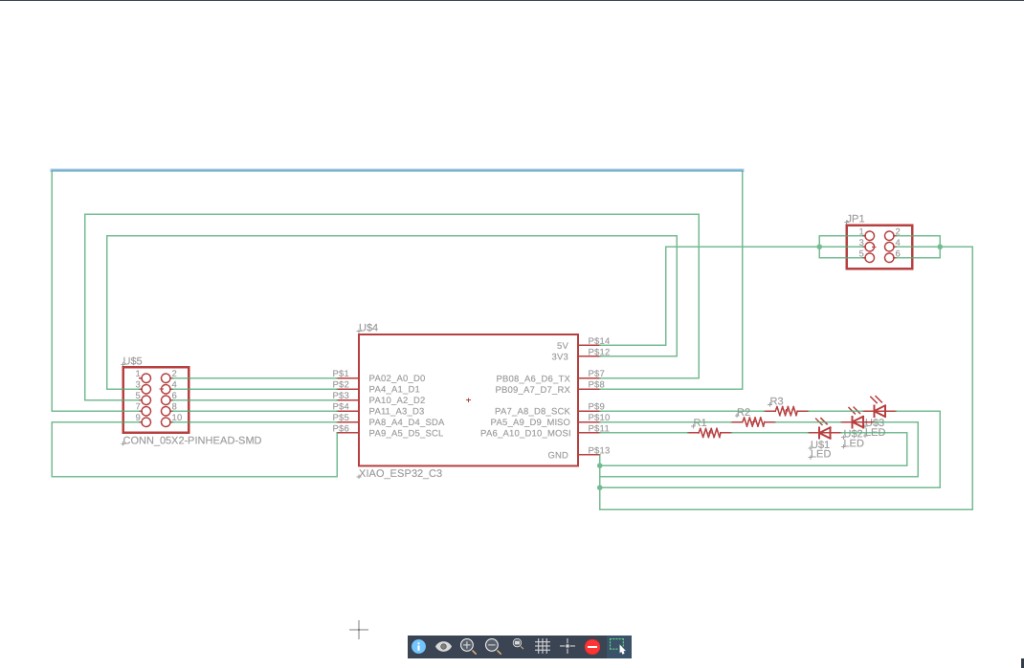
The board is a small carrier for a Seeed XIAO ESP32-C3. Three LEDs, each with a series resistor, are local indicators. A 2×5 header breaks out I/O pins. A 2×3 header brings out power and the serial pins so the module can connect to other hardware.
1.2 Components
| Name | Quantity |
|---|---|
| XIAO ESP32-C3 | 1 |
| Resistor | 3 |
| LED | 3 |
| Pin header, 2×3 | 1 |
| Pin header, 2×5 SMD (CONN_05X2-PINHEAD-SMD) | 1 |
1.3 Commands
The whole job in Fusion Electronics is one sequence:
- Create a new Electronics Design.
- Place the components on the schematic.
- Wire the nets.
- Switch to the 2D board and set Design Rules.
- Place the parts, route, and check for open nets.
- Draw the board outline and add text.
Design Preparation
Operating System: Mac
Design Software: Fusion 360
Download: https://www.autodesk.com/products/fusion-360/overview
Schematic
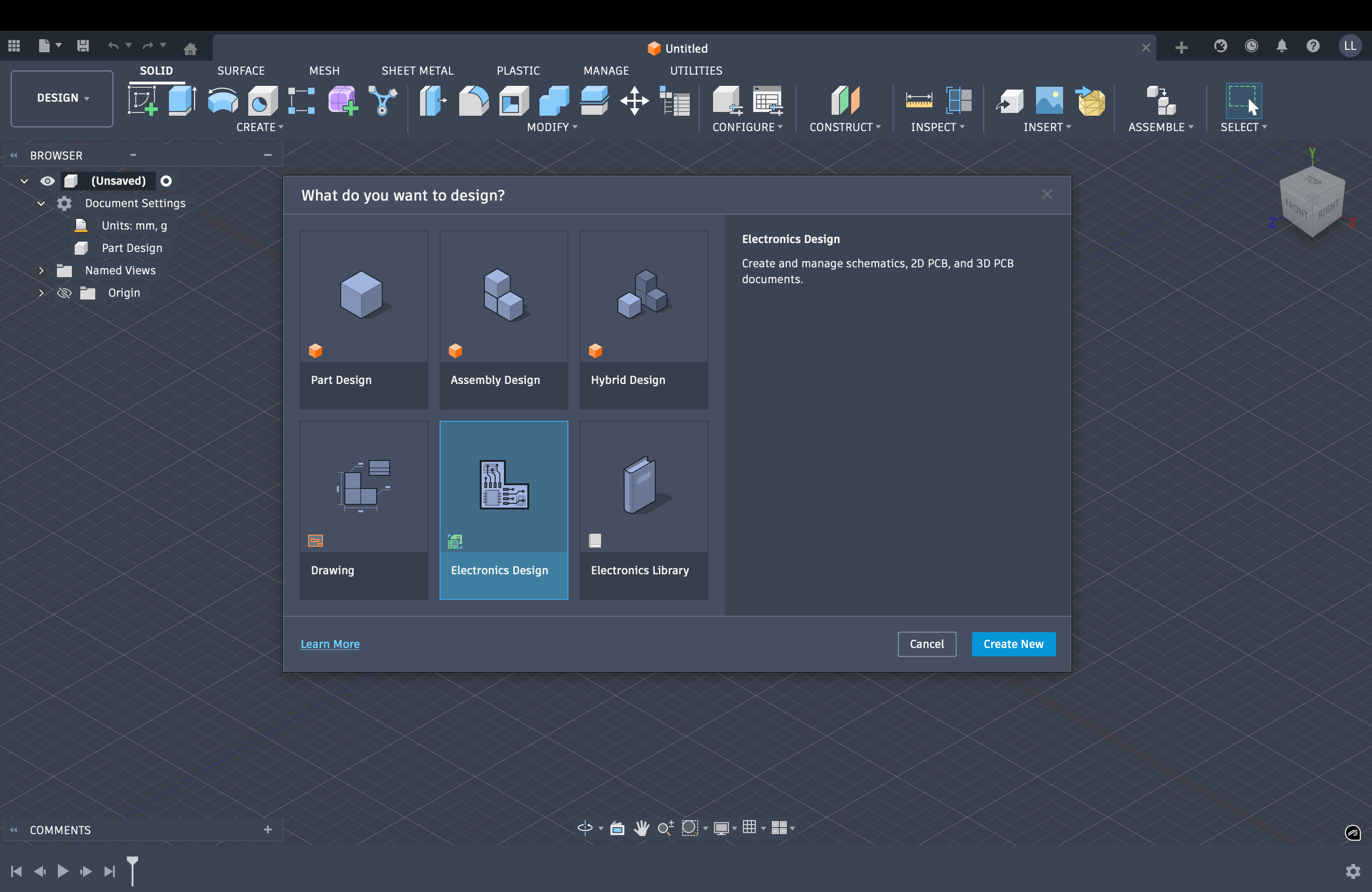
Create a New Electronics Design
Open Fusion 360 and select Create new Electronics design to start a new PCB project.
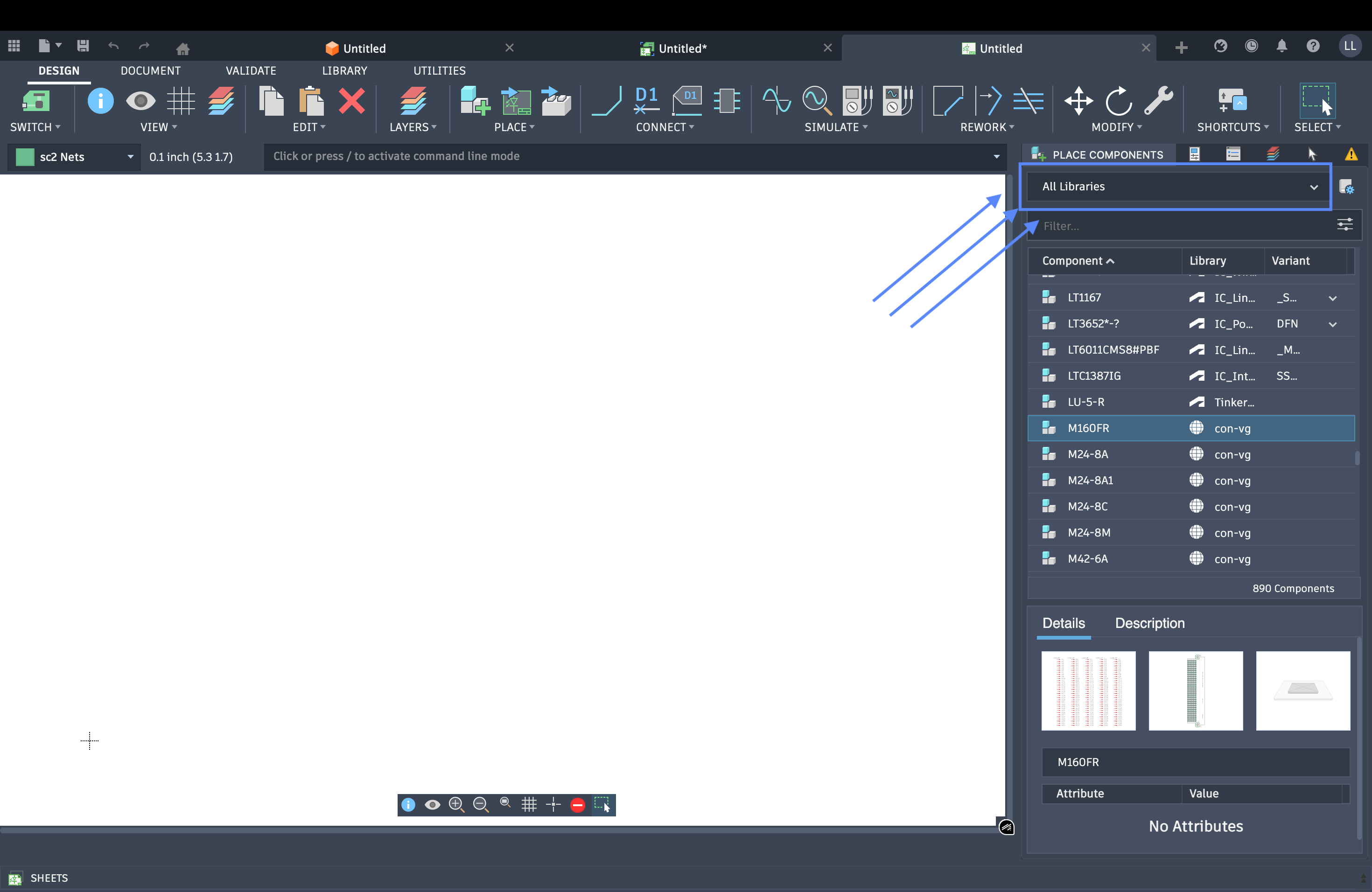
Add Components
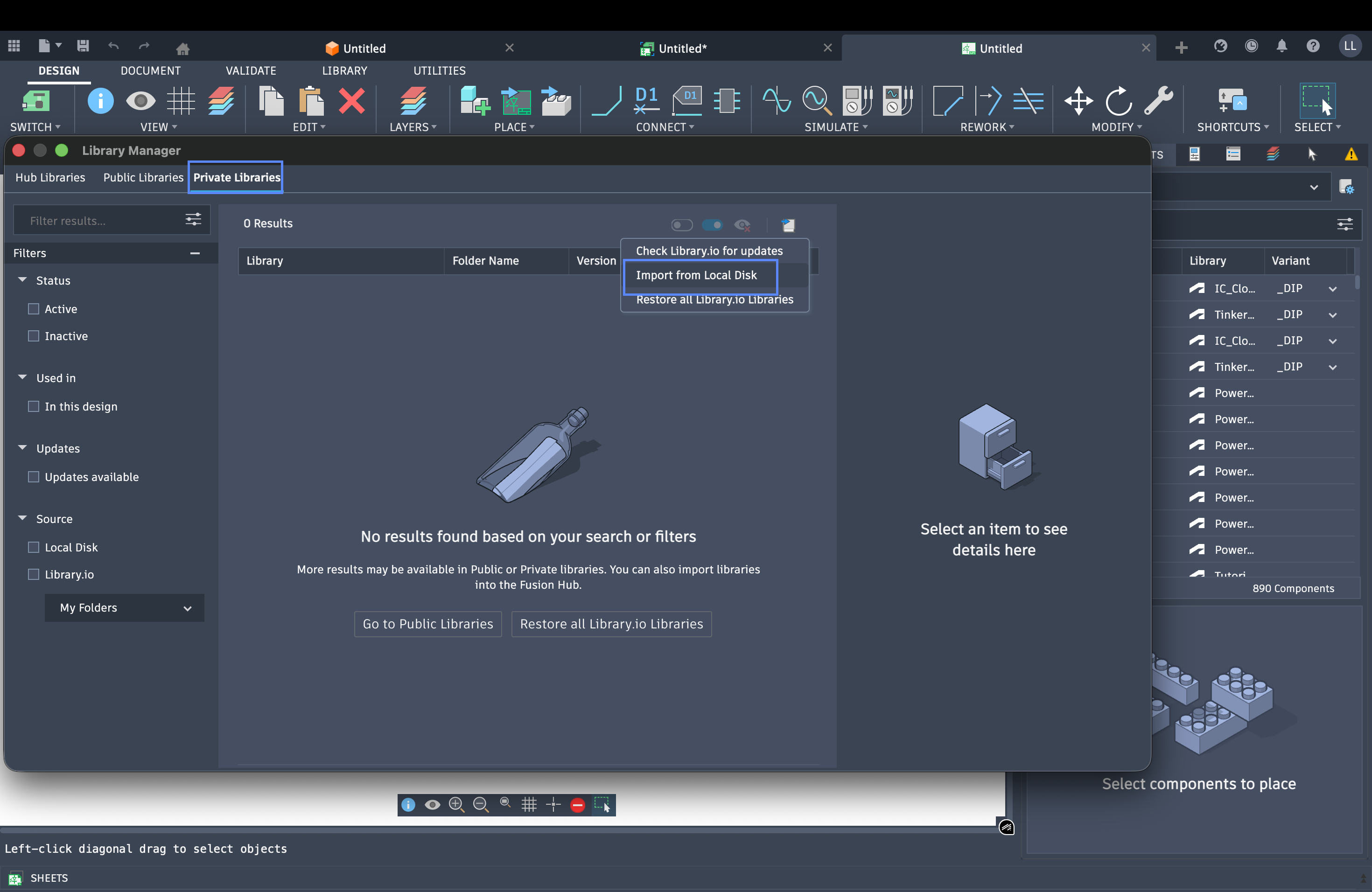
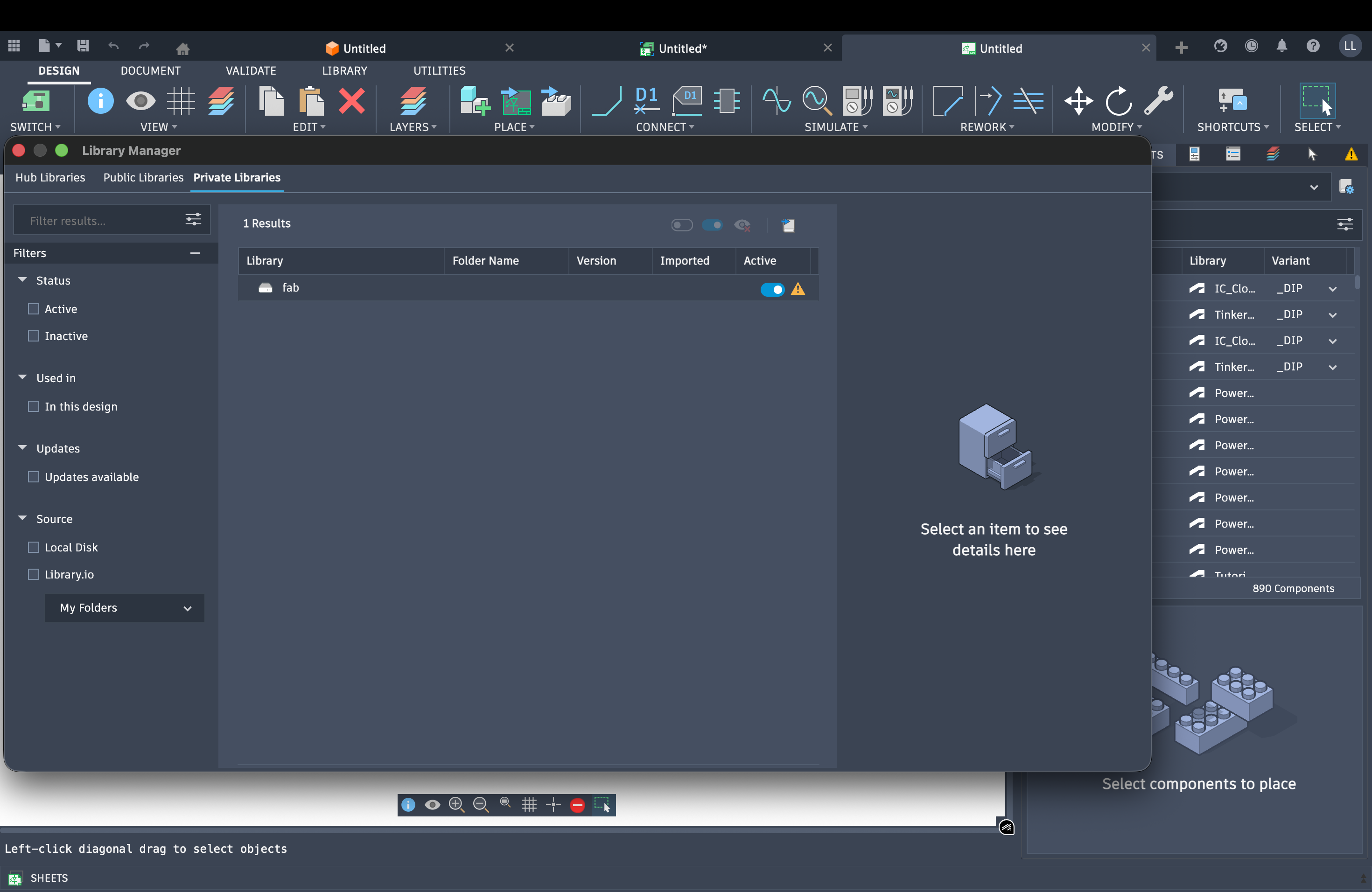
Import and place the required components on the schematic. The images below show the process of adding components to the design. Click any image to view full size.
Add and Connect Wires
After placing the components, add wires and connect the circuit traces between them to complete the schematic.
Board layout
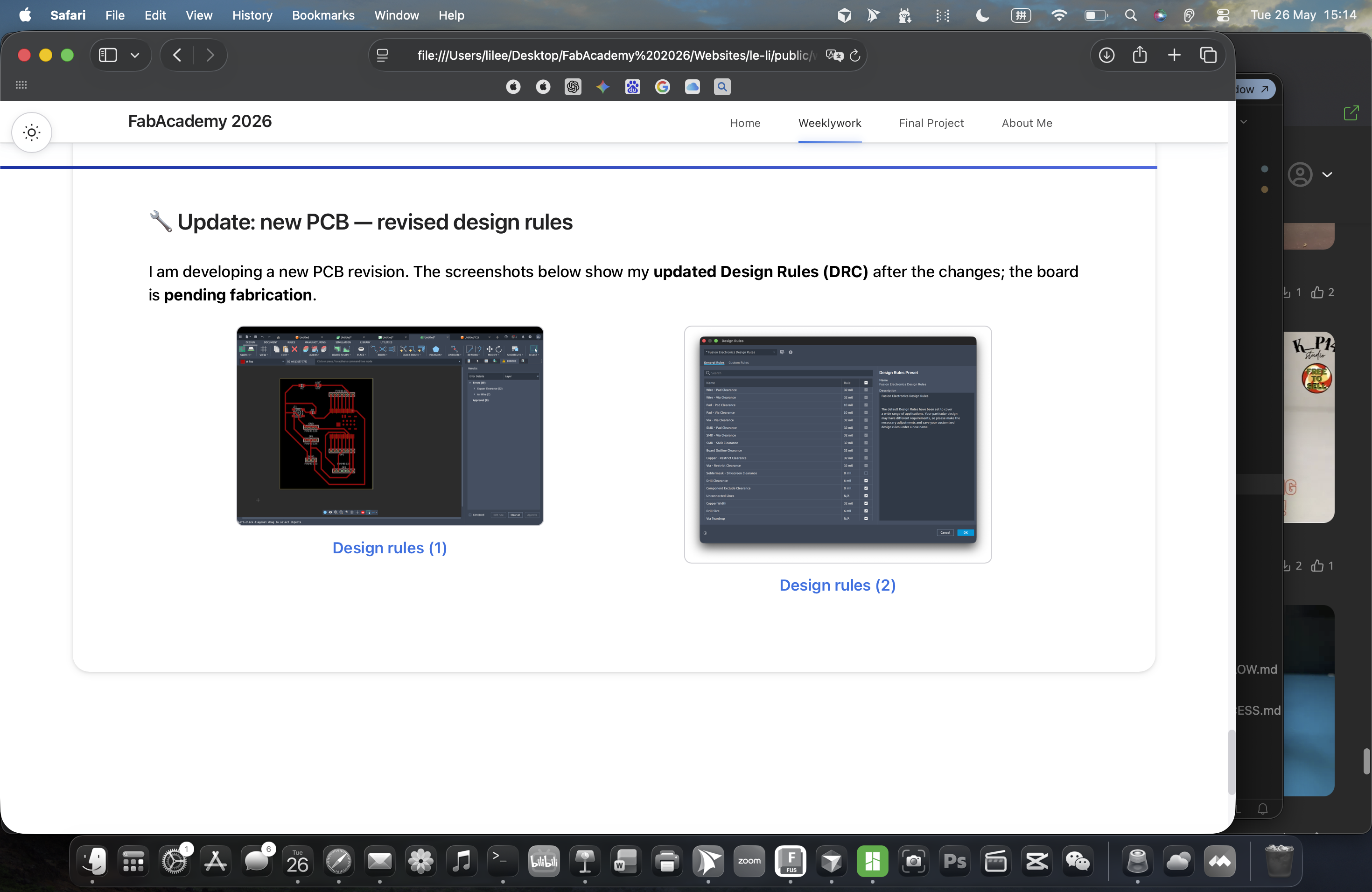
After the schematic draft is finished, click Switch to enter 2D circuit editing. Then click Rules and select Design Rules to set the routing rules.
Those two buttons are the handoff from the schematic to the board. Switch opens the 2D layout. Rules → Design Rules opens the constraint table the autorouter and the design-rule check both use.
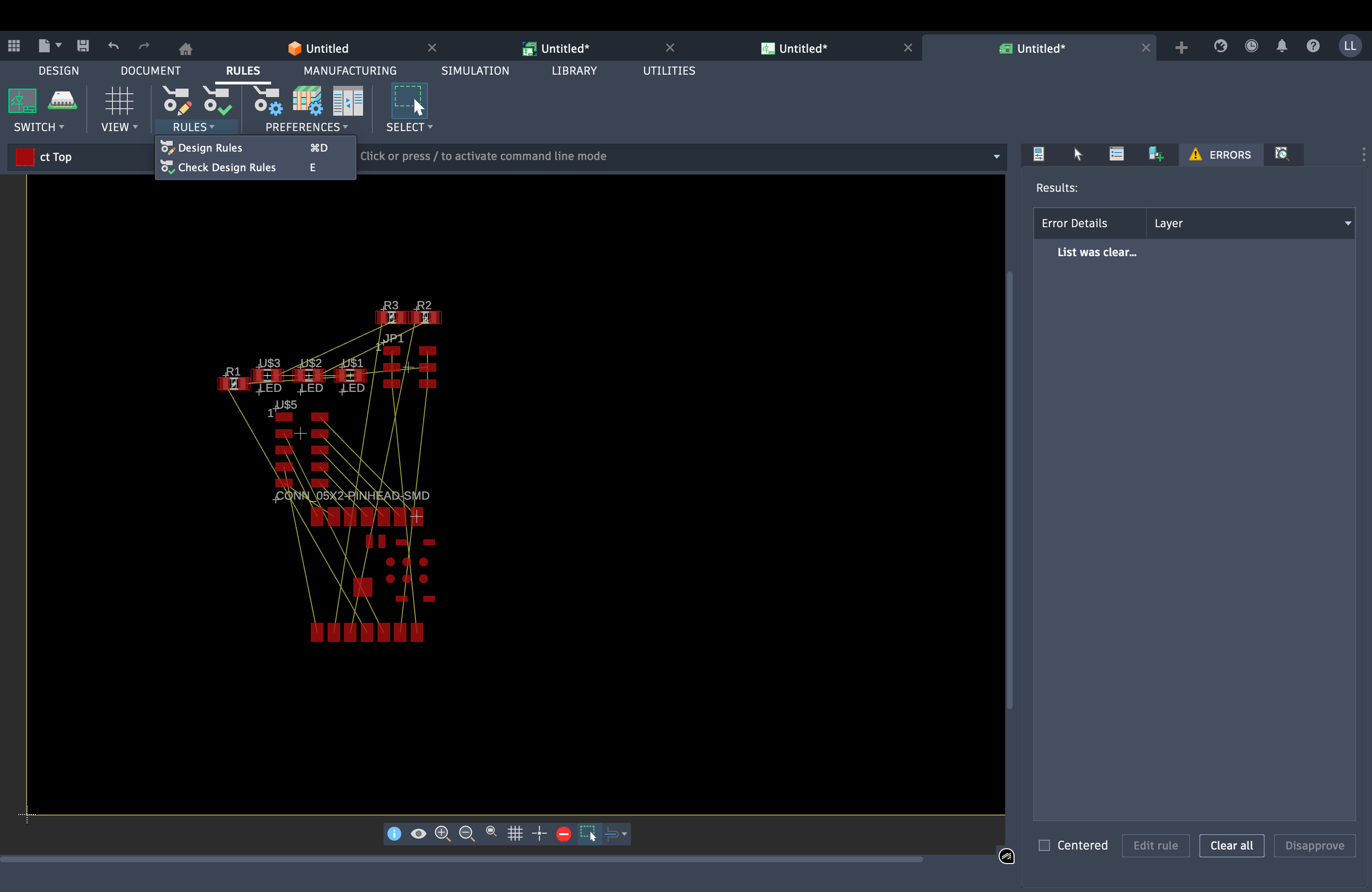
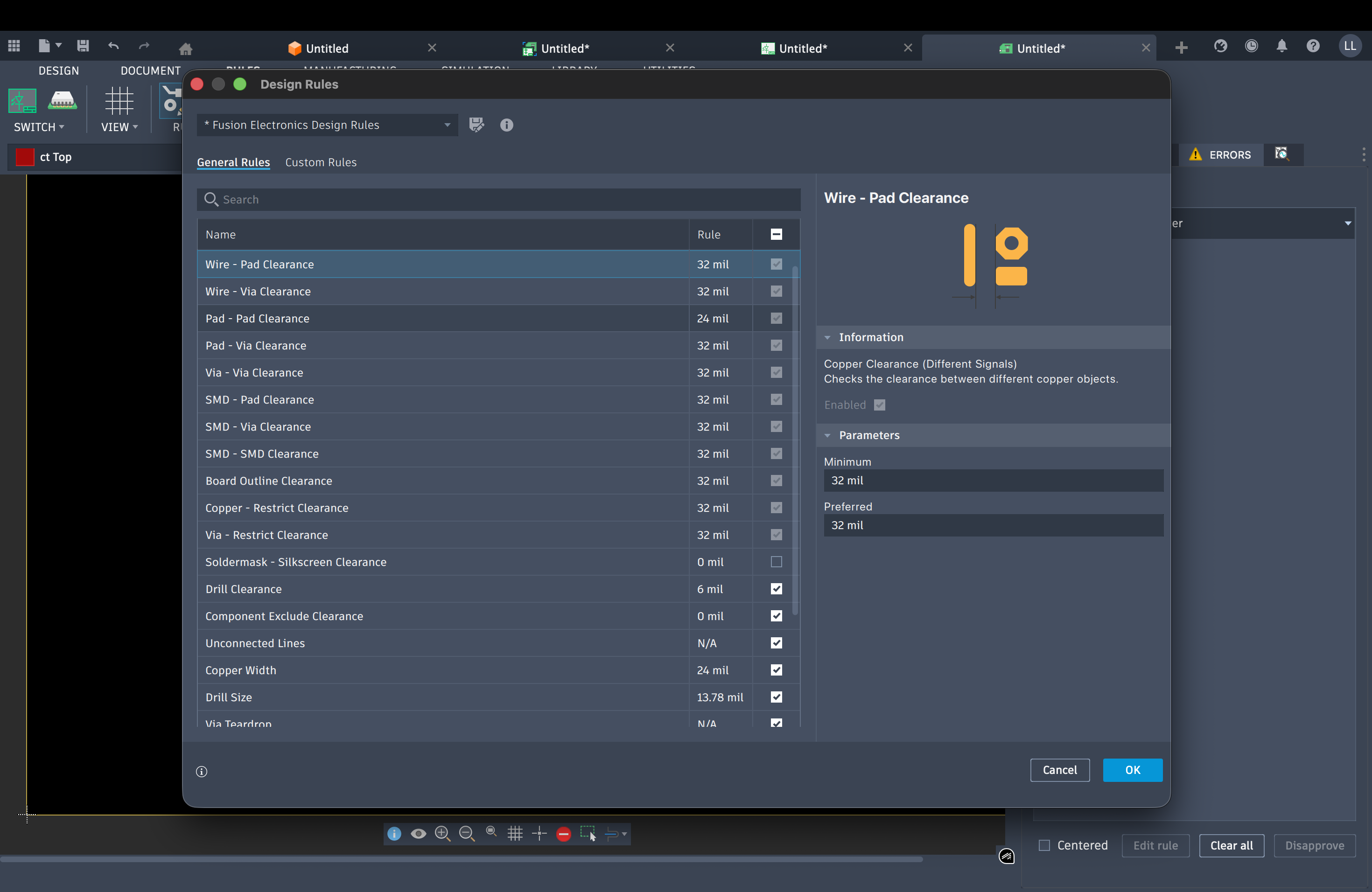
The values I changed for a milled board are the copper gaps and the trace width. A default electronics rule is only a few mil. That is too tight for the lab mill, so those rows are the ones I optimized:
| Rule | Value | Note |
|---|---|---|
| Wire–pad, wire–via, pad–via, via–via, SMD clearances, board outline, copper restrict, via restrict | 32 mil | Optimized clearance. Copper stays far enough apart for the milling bit. |
| Pad–pad clearance | 24 mil | Slightly tighter than the 32 mil copper gaps, still wider than the default. |
| Copper width | 24 mil | Optimized minimum trace width so routes are not milled away. |
| Drill size | 13.78 mil | Minimum hole size in the same dialog. |
| Drill clearance | 6 mil | Left smaller than the copper gaps. |
| Soldermask–silkscreen / component exclude | 0 mil | Not used for this milled board. |
| Unconnected lines / via teardrop | N/A | Not set. |
Wire–pad clearance is the row open in the screenshot. Minimum and preferred are both 32 mil. Copper width at 24 mil is the other optimized number: traces have to be wide enough to survive milling, and everything else has to stay 32 mil away from them.
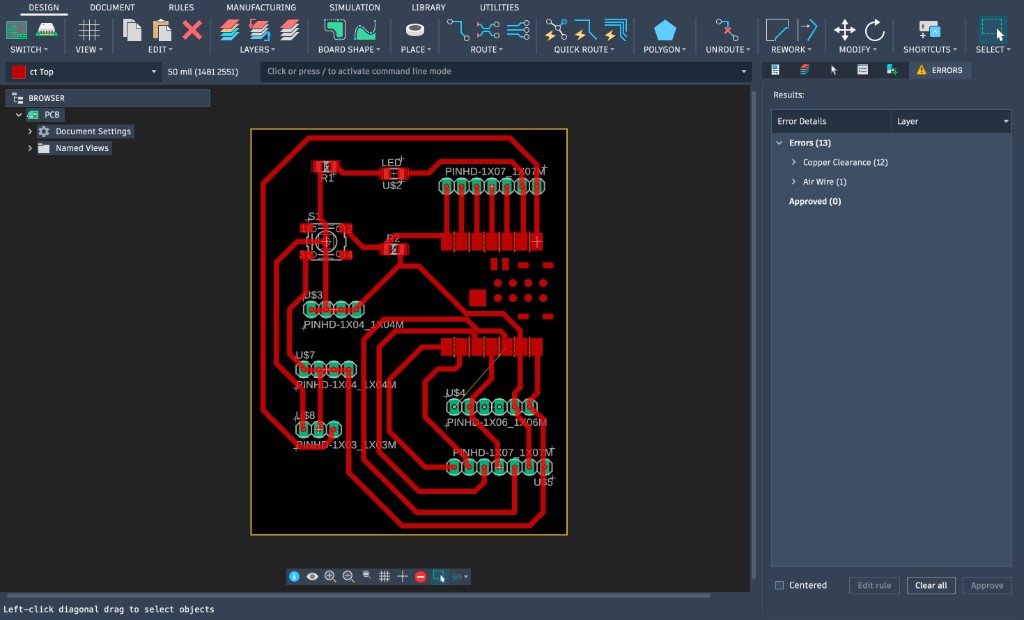
Arrange the traces, then click Quick Route → Automatic Route for automatic routing. Next, click Route → Check Design Route to verify there are no unconnected traces.
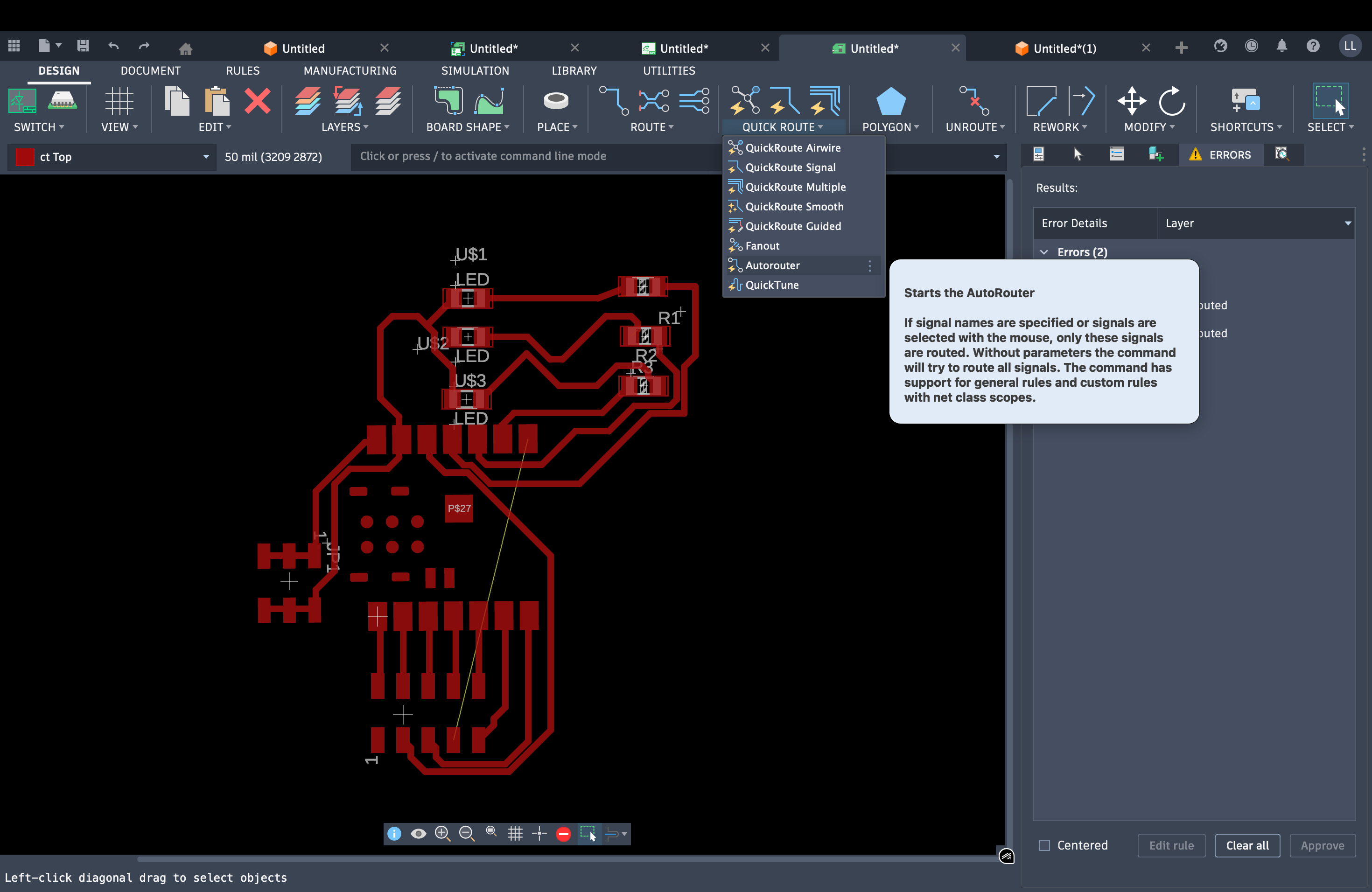
As shown in the image above, there may be some unconnected traces. Return to the schematic draft page and re-adjust the connections until there are no unconnected traces in the single-layer board. Finally, use BoardShape to draw the PCB board outline.
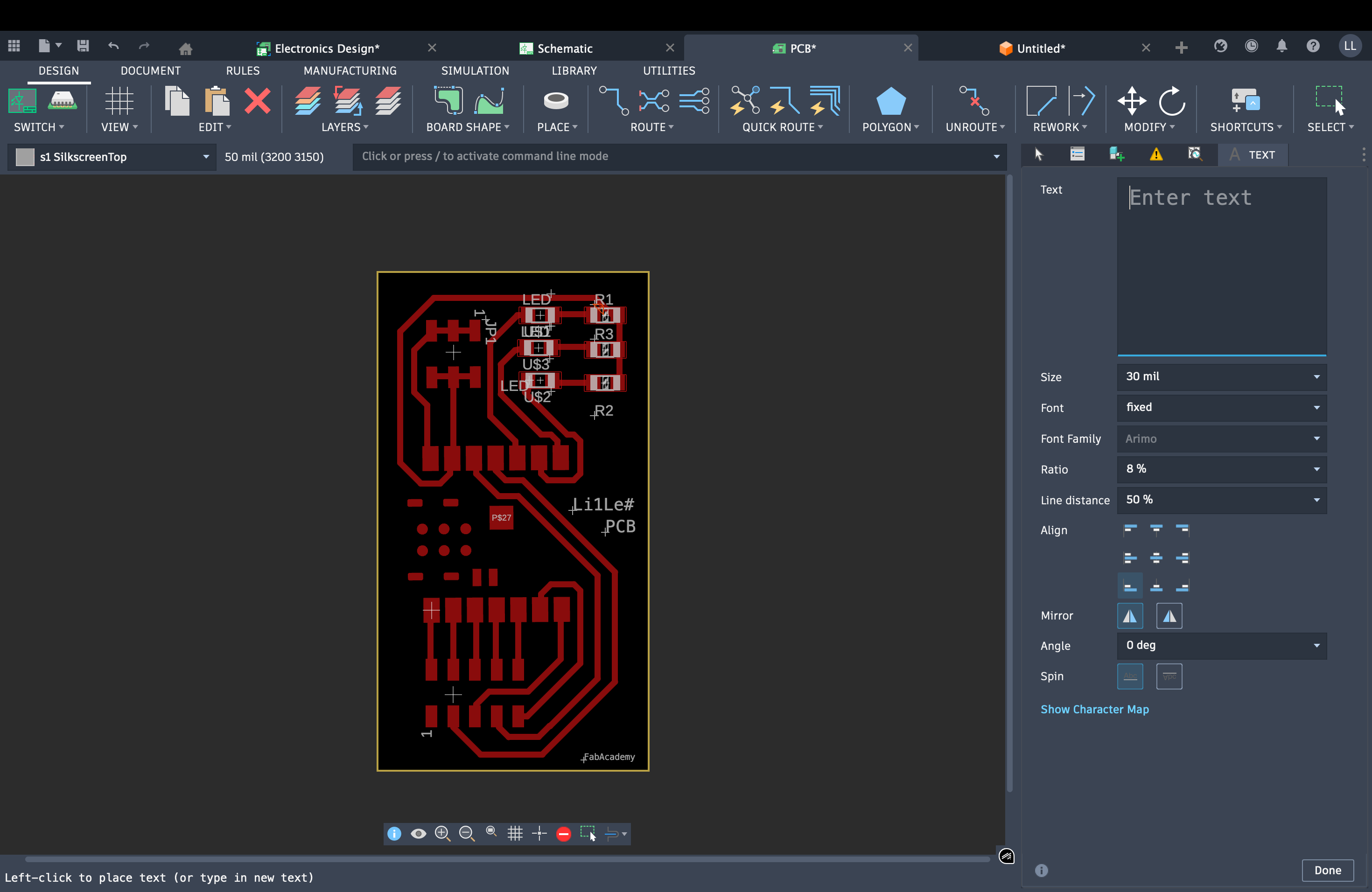
Finally press T to add a text box and place it on the PCB board.
CNC machining the PCB
Milling and production are documented in Week 8: Electronics Production.
Final PCB design (revision V3)
After the first milled prototype failed (see Week 8), the electronics design was revised: connector pins in the sketch were changed to pin header footprints for reliable soldering and assembly. Below is the final design used for the updated board.
1.4 What I learned
The schematic is only the net list. The board becomes something the lab can mill after Switch and Design Rules. A default clearance of a few mil is too tight for our mill, so the numbers that mattered were 32 mil copper clearance and 24 mil trace width.
One copper layer cannot carry every net. Open airwires meant going back to the schematic and moving connections, instead of crossing traces on a second layer.
The first milled board failed at the pads (see Week 8). Changing the connectors to pin-header footprints in revision V3 is what made the board solderable.
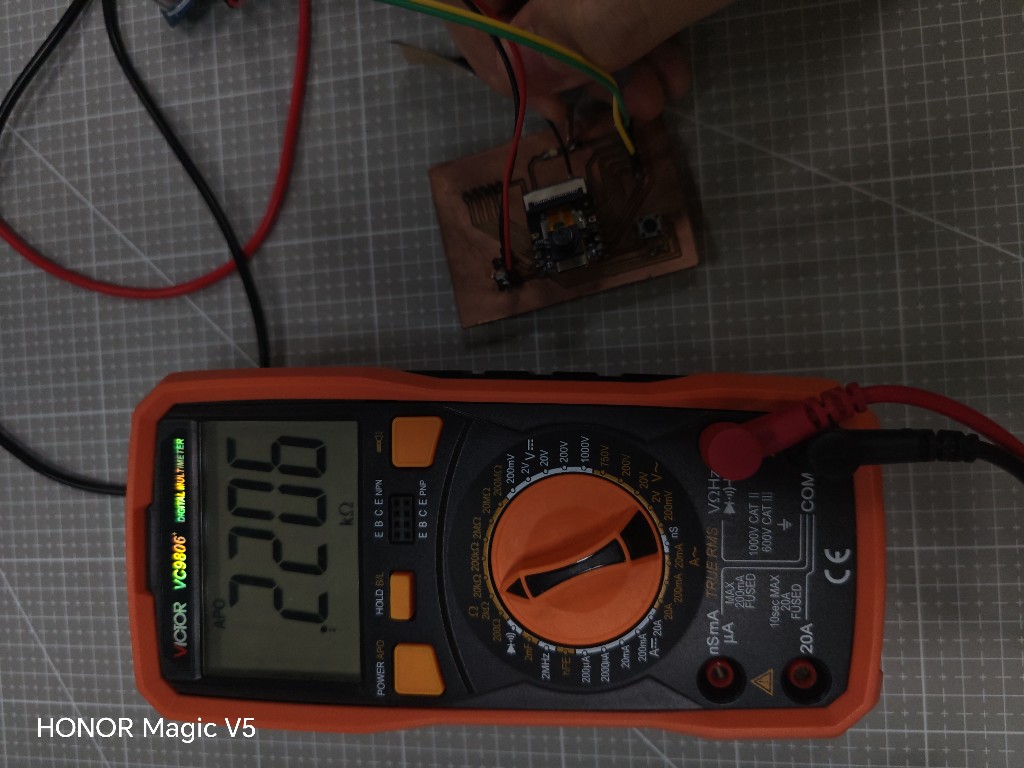
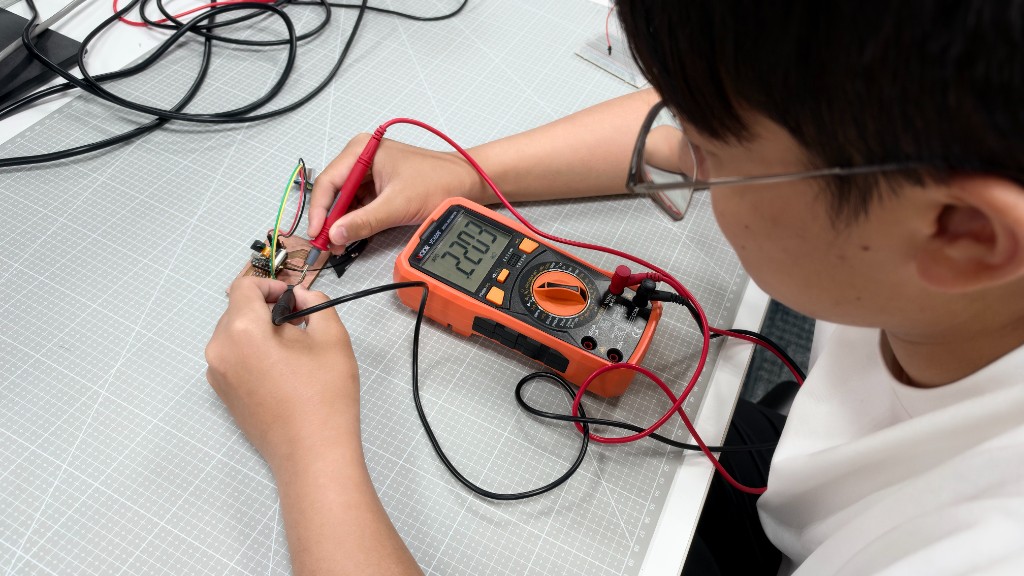
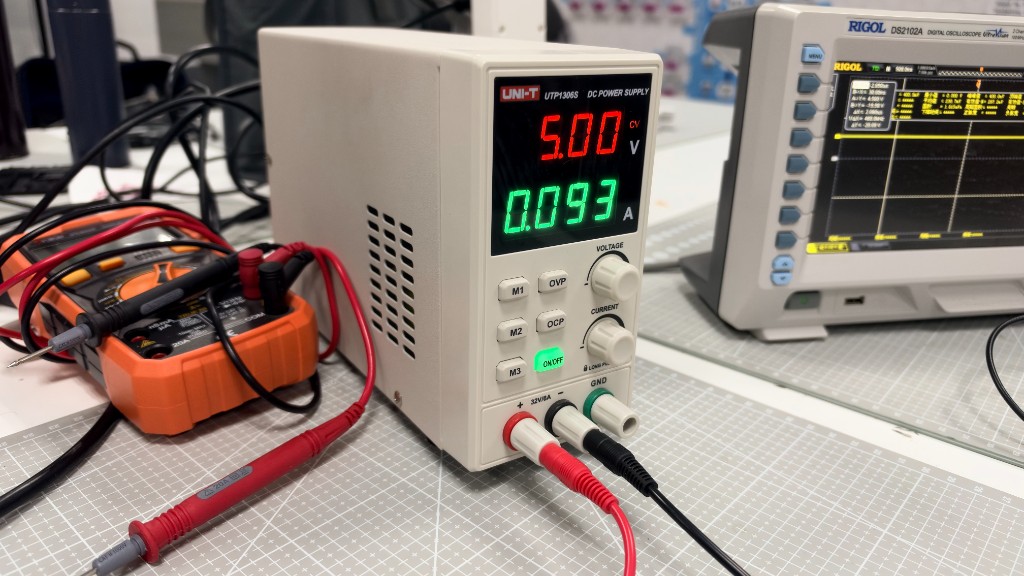
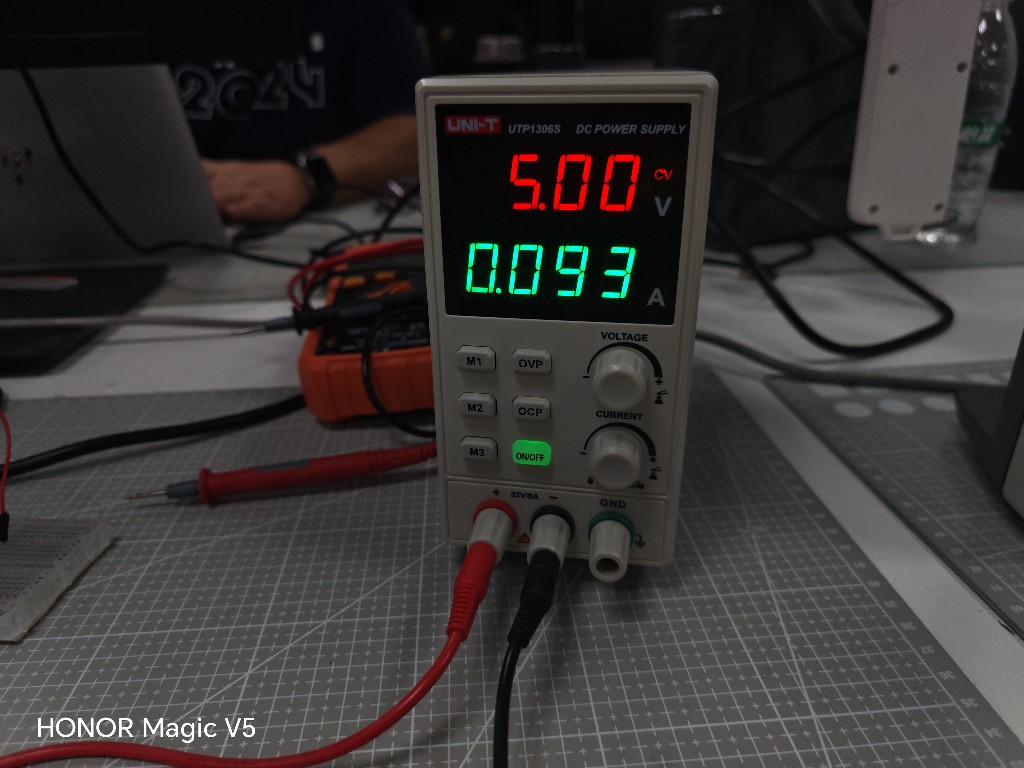
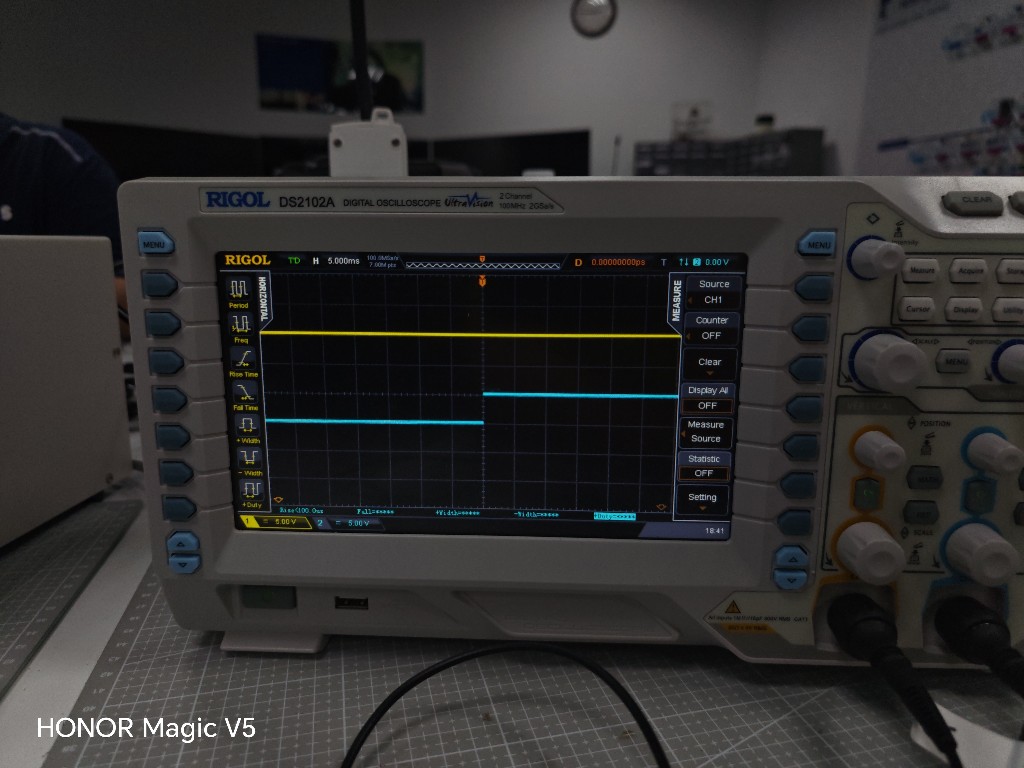
The group measurements are the check the drawing cannot do. The bench supply held the board at 5.00 V while it drew 0.093 A. On the oscilloscope, one channel stayed high and the other stepped from low to high. The multimeter, in resistance mode, read 22.06 kΩ on one board and 2.203 kΩ on the other.
2. Group Work
The lab task is to use the test equipment to watch a microcontroller board run. We used a bench supply, a VICTOR VC9806+ multimeter, and a RIGOL DS2102A oscilloscope.
2.1 Power supply
The board is powered from a UNI-T UTP1306S. Output is on, constant-voltage mode, set to 5.00 V. The board draws 0.093 A.
2.2 Oscilloscope
The RIGOL DS2102A shows voltage against time. Both channels are 5.00 V/div. The timebase is 5.000 ms/div. Trigger is a rising edge at 0.00 V.
Channel 1 (yellow) stays high. Channel 2 (blue) starts low and steps high at the center of the screen. The high level of channel 2 lines up with channel 1.
2.3 Multimeter
The VICTOR VC9806+ is in resistance mode. The red lead is in the VΩHz jack and the black lead is in COM. Probes go on the milled board.