Computer-Controlled Cutting
Week 3 Assignment
Assignment Overview
Week 3: Computer-Controlled Cutting. Individual work is documented first, then group work — matching how this page is organized below.
Group assignment
- Do your lab’s safety training
- Characterize your laser cutter’s focus, power, speed, rate, kerf, joint clearance and types
Individual assignment
- Cut something on the vinyl cutter
- Design, laser-cut, and document a parametric construction kit, accounting for the laser-cutter kerf
Extra credit: design it to be assembled in multiple ways · include elements that aren’t flat · engrave as well as cut
1. Individual Work
Parametric modelling, laser-cut construction kit, and vinyl logo — documented from UNNC FabLab.
1.1 Lab and software
Fab lab: UNNC FabLab (laser cutter, vinyl cutter)
CAD / parametric design: Autodesk Fusion 360
1.2 Parametric modelling
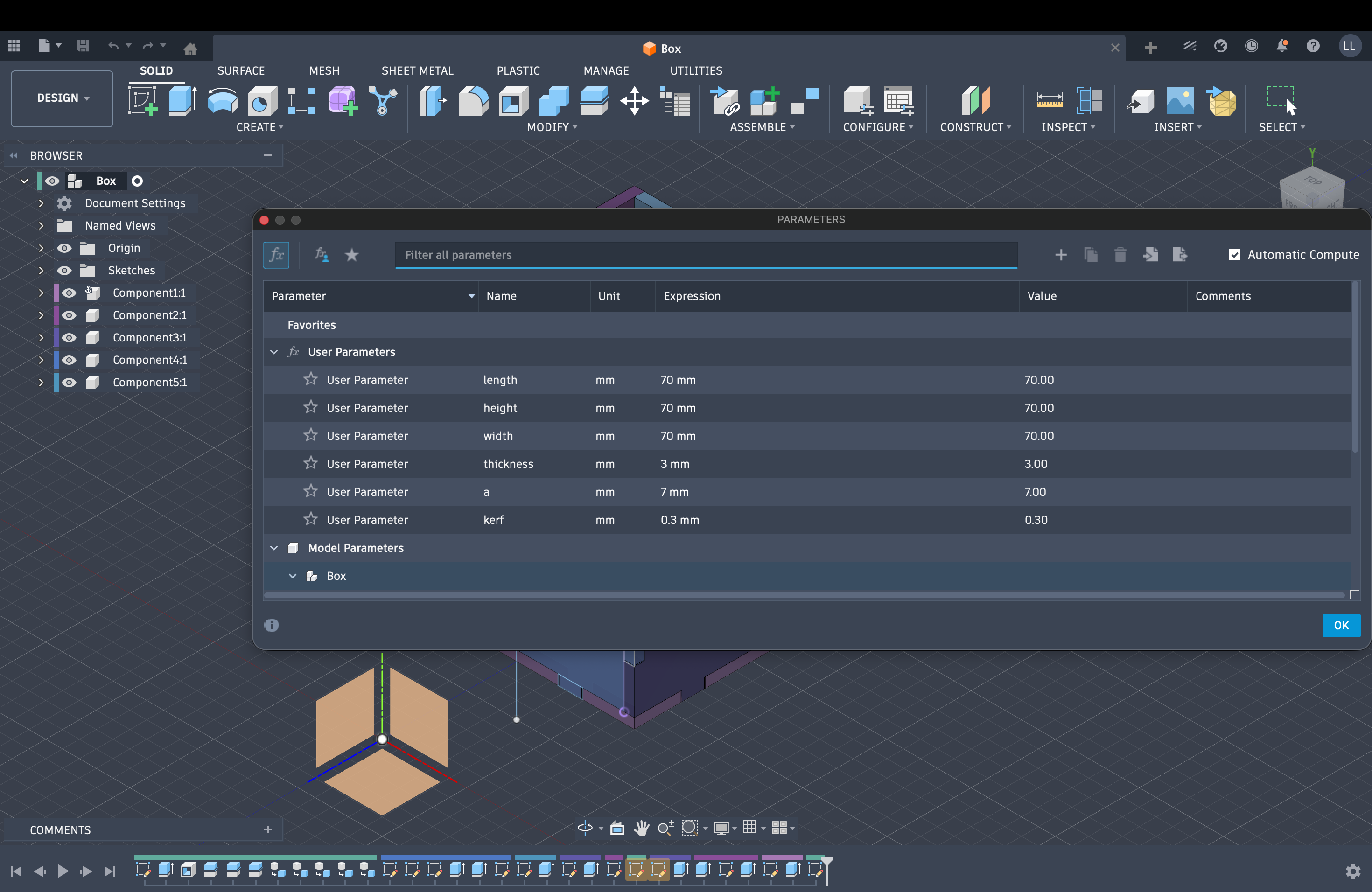
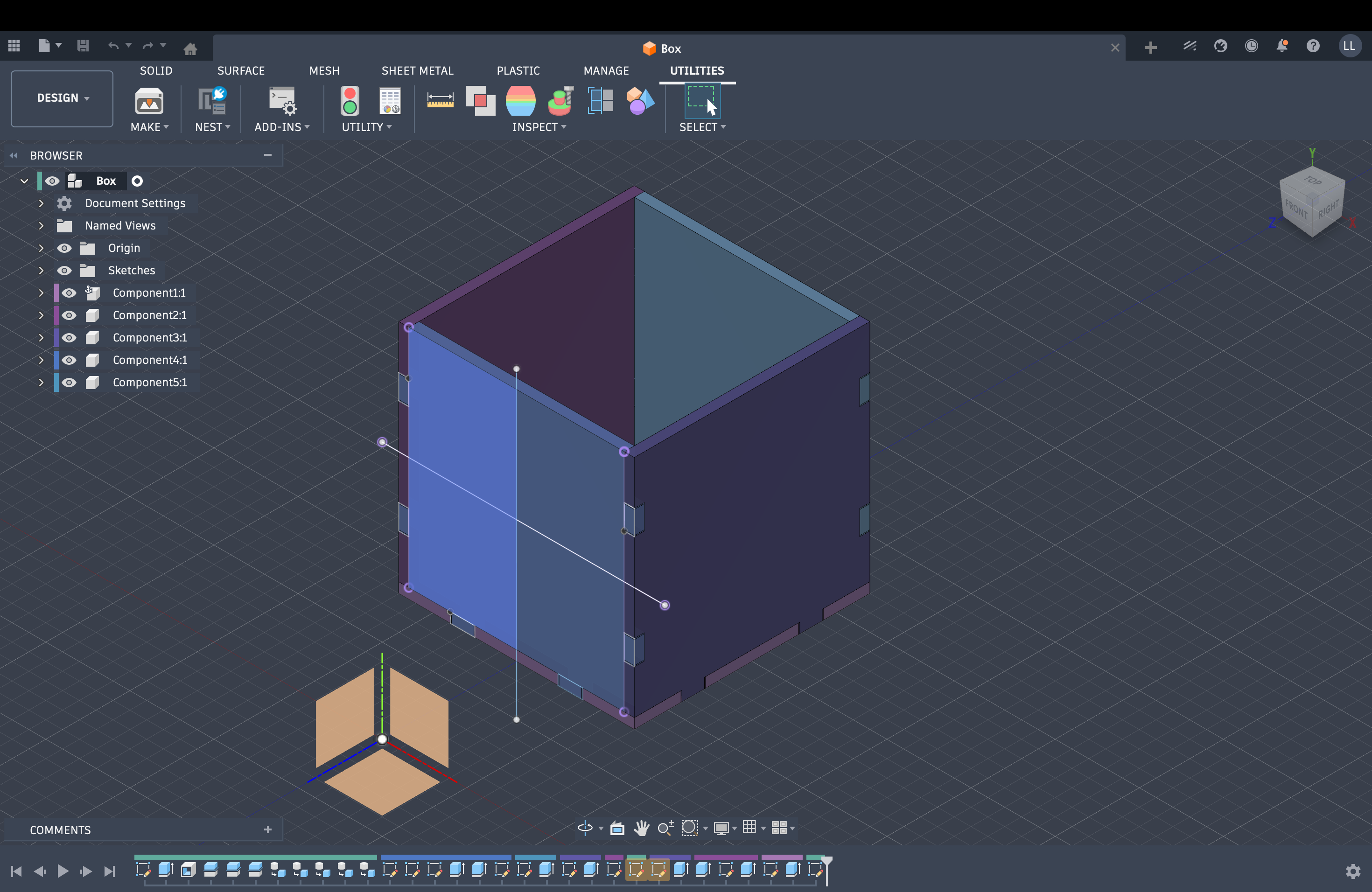
I used Autodesk Fusion 360 for parametric modeling of the construction kit (sketches, constraints, and export for laser cutting). Screenshots of the CAD model:
1.3 Laser-cut construction kit
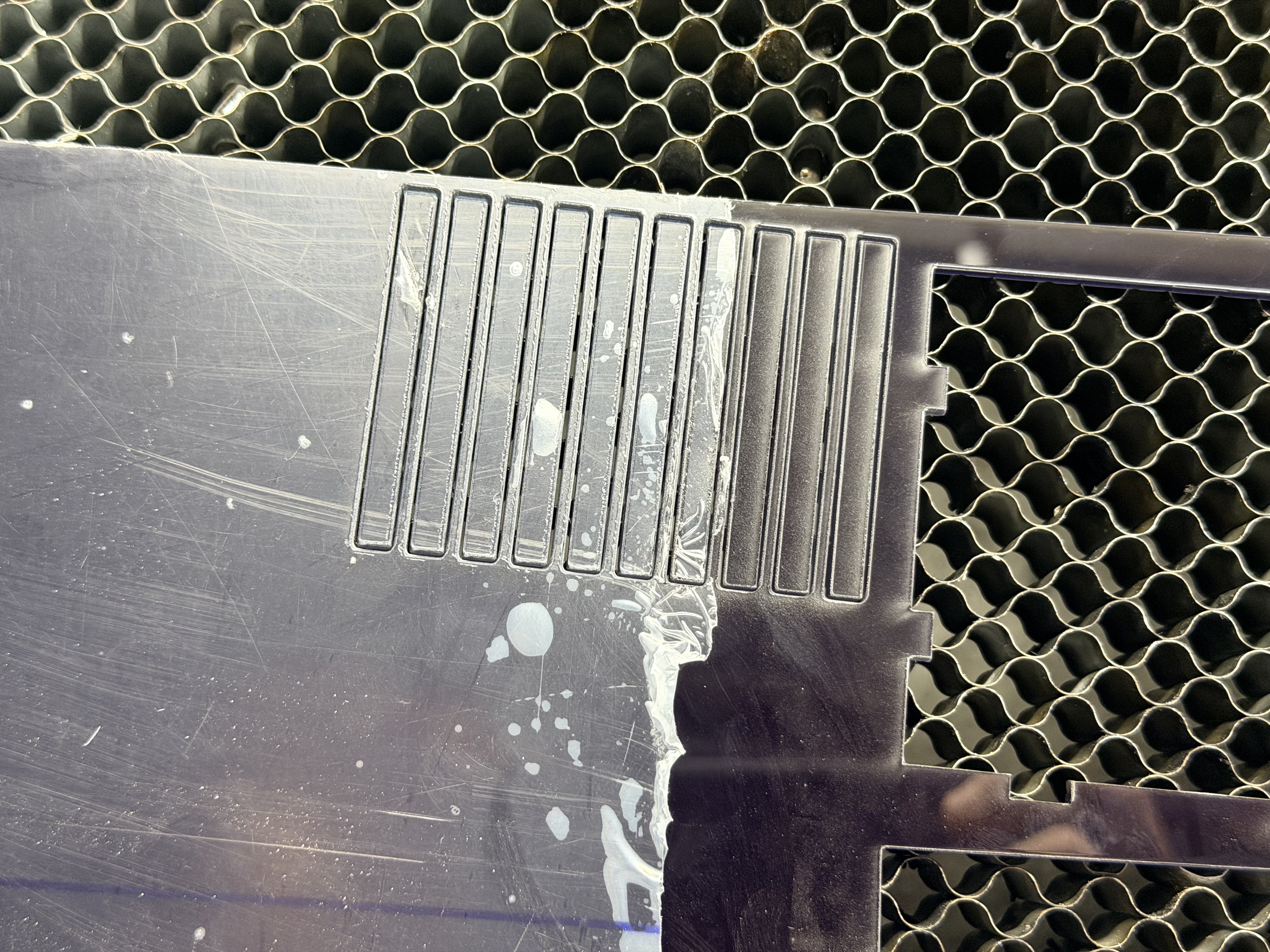
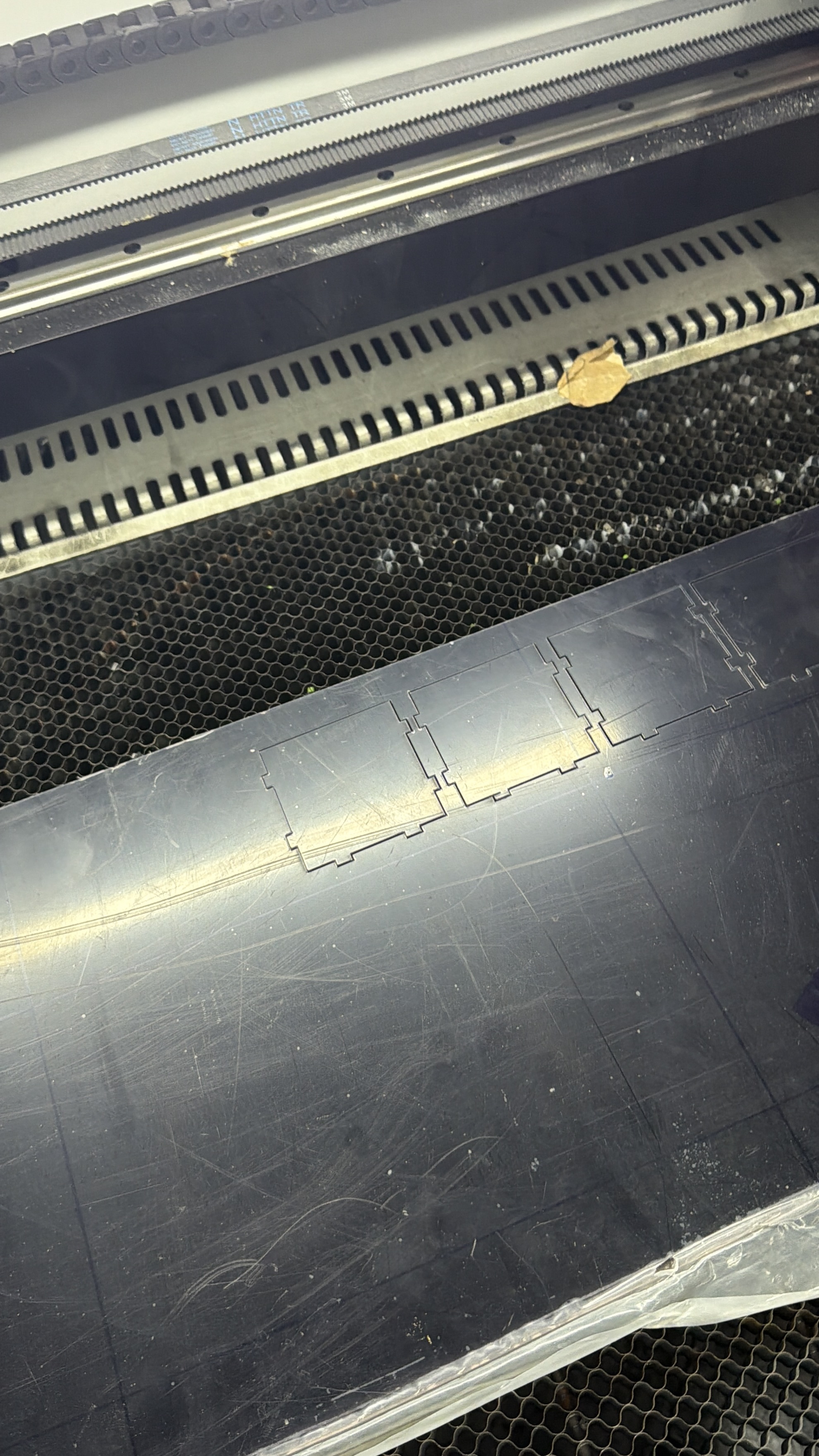
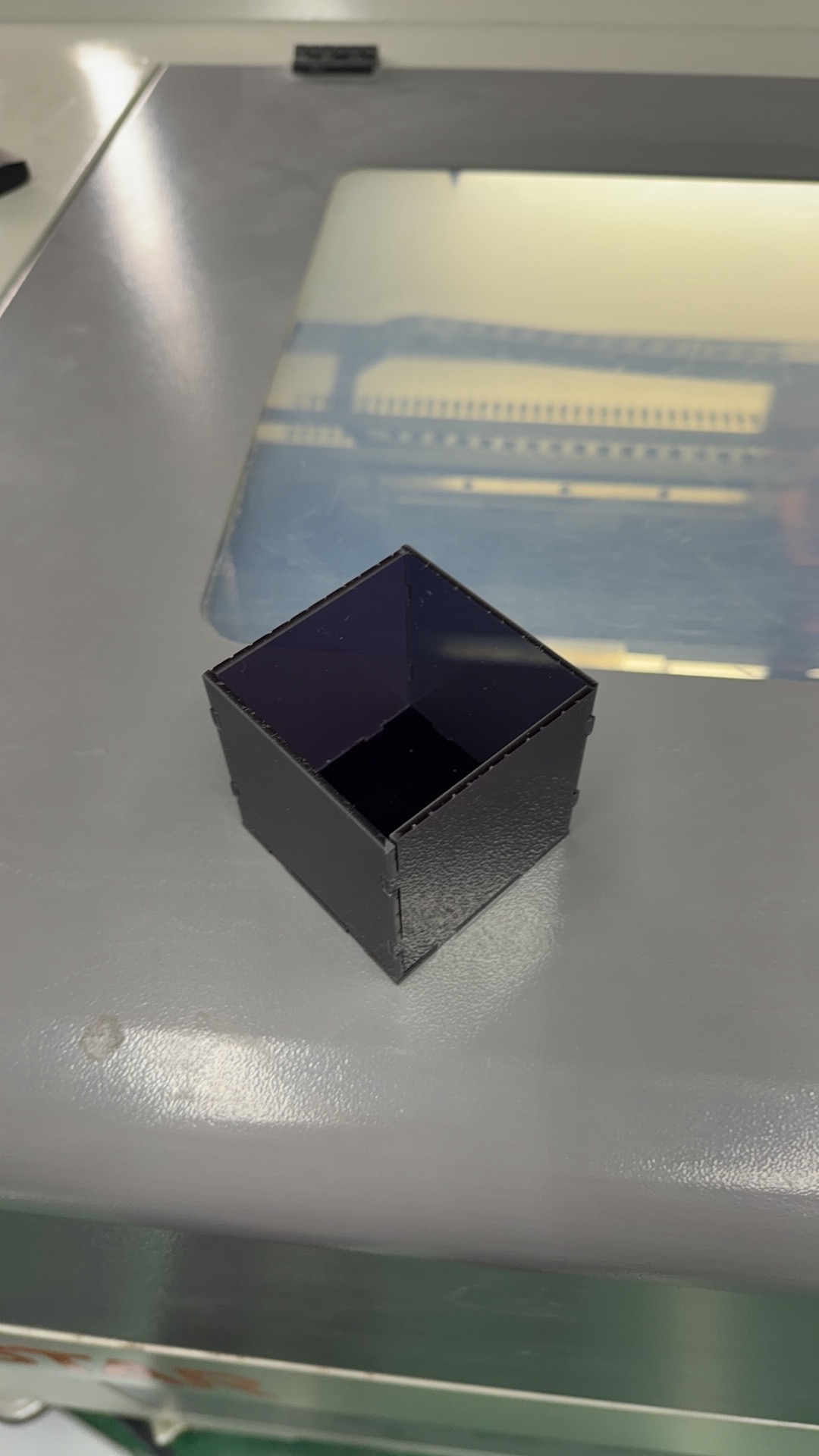
After finishing the model in Fusion, I cut the kit on the laser cutter at UNNC FabLab, accounting for kerf in the design. Below: video of the cut, then photos of the parts.
Fusion source for the box:
Download Box.f3d1.4 Vinyl cutter
Machine: Roland DG GS2-24 · Software: Procreate → Roland CutStudio
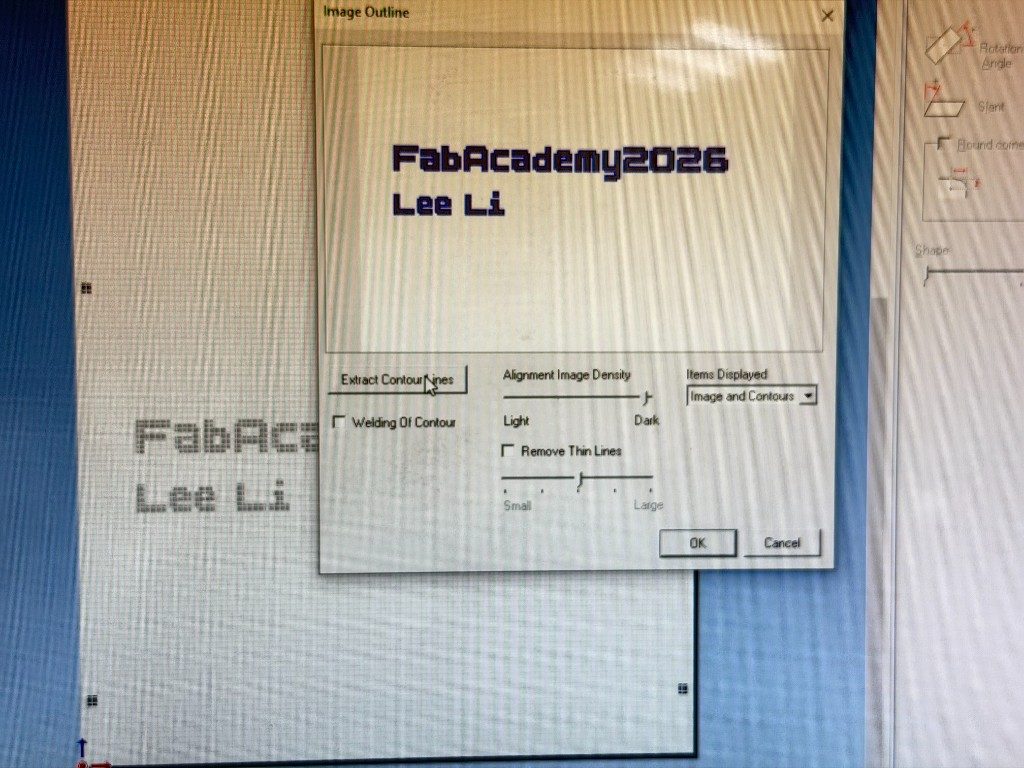
I designed pixel-style text in Procreate, then prepared cut paths in Roland CutStudio for the Roland DG GS2-24 vinyl cutter at UNNC FabLab. Workflow structure follows the same lab machine setup documented by classmates (e.g. Image Outline → Extract Contour Lines).
Design: FabAcademy2026 / Lee Li — font BoldPixels in Procreate, exported as PNG (IMG_0567).
1. Design in Procreate
Create high-contrast black text on white with the BoldPixels font. Pixel edges are intentional; CutStudio will trace them into contour paths.
- Top line
FabAcademy2026— 146 pt - Bottom line
Lee Li— 123 pt

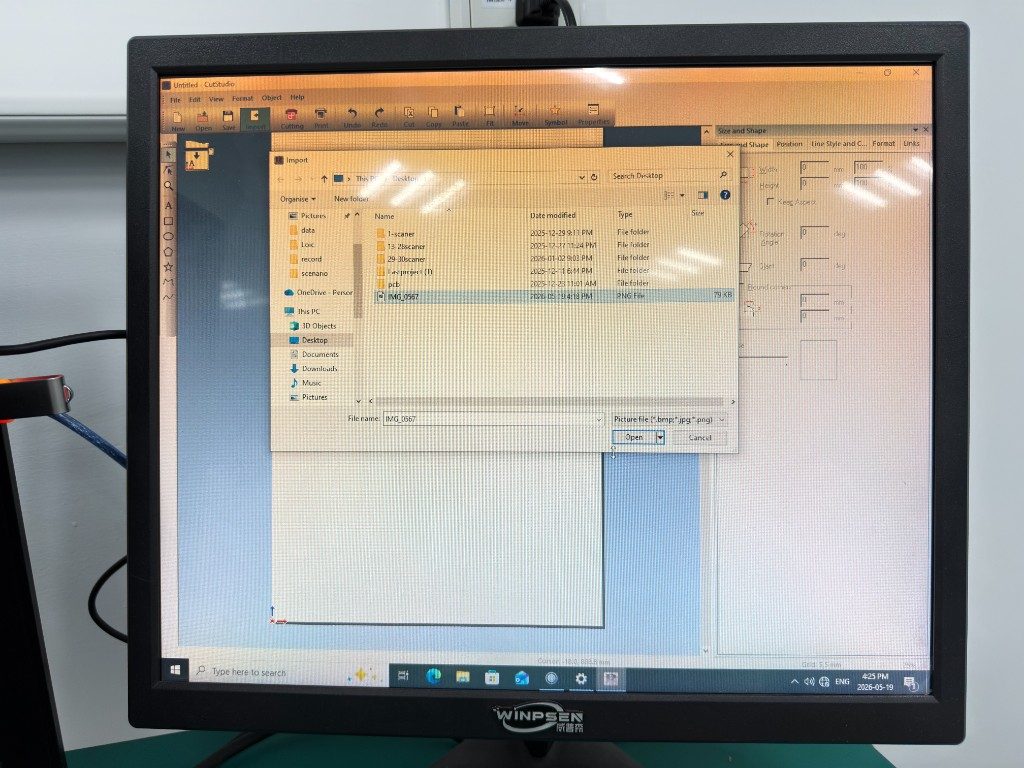
2. Import into CutStudio
- Open Roland CutStudio on the vinyl-cutter PC
- File → Import (or the green Import icon)
- Select the Procreate PNG (
IMG_0567.png) → Open
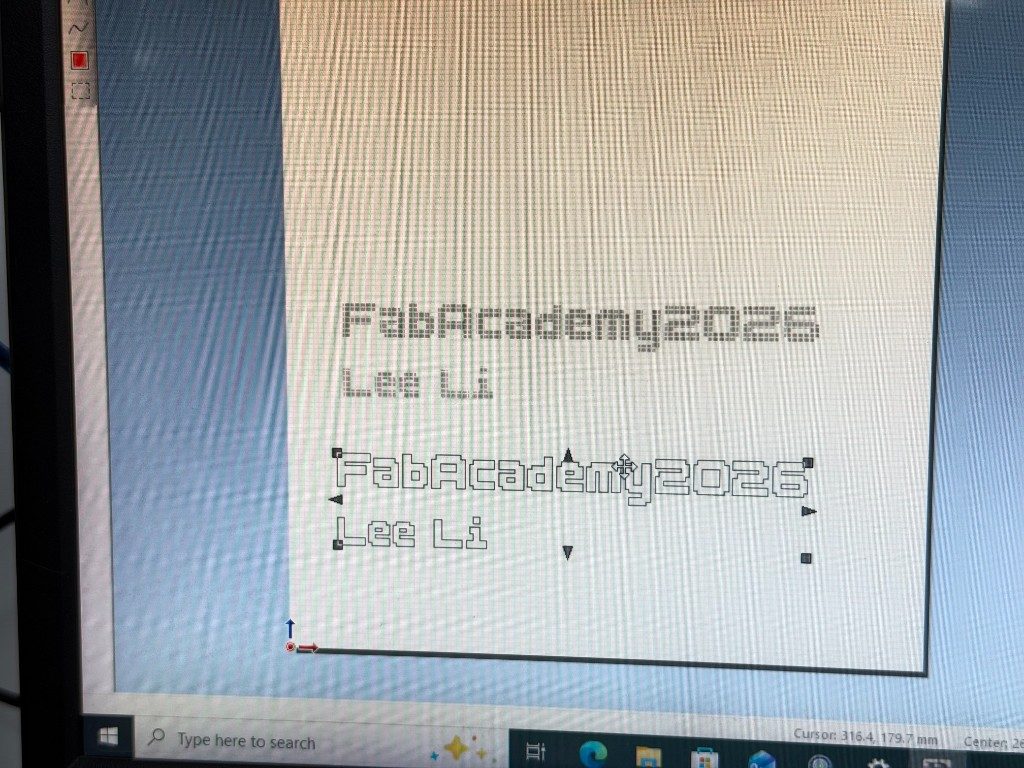
3. Image Outline → Extract Contour Lines
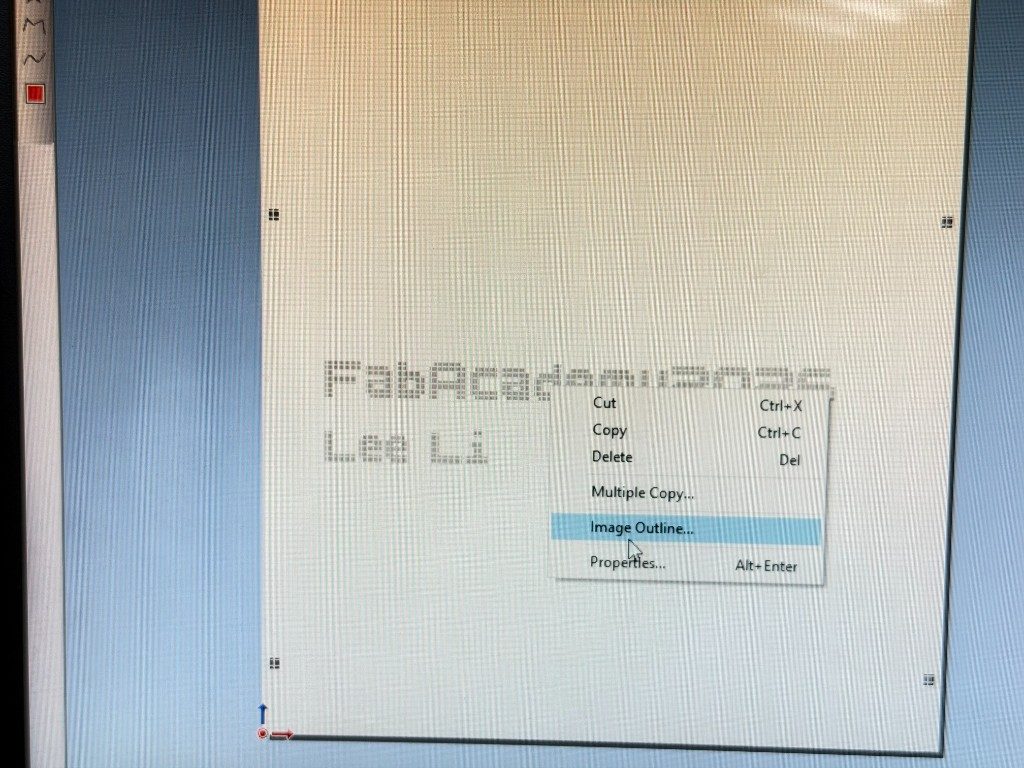
A PNG cannot be cut directly. Convert the bitmap to vector cut paths:
- Select the imported image on the canvas
- Right-click → Image Outline…
- In the Image Outline dialog, set Alignment Image Density toward Dark (black text on white)
- Click Extract Contour Lines
- Confirm the sharp contour on the canvas; scale with Size and Shape if needed (keep aspect ratio)
4. Cutting on GS2-24
- Load the vinyl roll into the Roland DG GS2-24 and set the origin
- Set PEN FORCE on the control panel so the blade cuts the vinyl film but not the backing paper (test cut if unsure)
- In CutStudio click Cutting; confirm the machine list shows Roland DG GS2-24 – Ready (USB)
- Check the cut preview position on the sheet, then confirm with OK to send the job
- Stay with the machine while it cuts; unload when finished
5. Weeding and application
- Cut the job area away from the roll
- Weed — peel away unused vinyl so only
FabAcademy2026/Lee Liremain on the backing - Apply transfer tape, burnish, then transfer the sticker onto the target surface
Weeding and finished-sticker photos will be added here when available.
6. What I learned
- Procreate gives a fast way to design lettering, but CutStudio needs Image Outline → Extract Contour Lines before the GS2-24 can cut a PNG.
- Alignment Image Density toward Dark helps the software find black text on white.
- Pixel / blocky fonts create many short contour segments — keep the design large enough that weeding stays practical.
- Pen force must cut vinyl only; cutting through the backing ruins the sticker for weeding (same lesson as other GS2-24 users in the lab).
7. Files
Original design bitmap used for CutStudio import (Procreate export):
Download design PNG
2. Group Work
Laser safety and machine characterization at UNNC FabLab.
2.1 Safety training
The lab rule for the laser cutter is to stay with the machine for the whole job. Before a cut I use the same setup every time:
- Lay the sheet flat on the honeycomb bed.
- Set the focus on the material surface.
- Move the head to the start corner and set the origin.
- Press Frame and check that the outline fits on the sheet.
- Close the lid and check that the extraction is running, then start the job.
- Stay next to the machine until the cut finishes. Do not leave it running alone.
2.2 Cutting preset and speed vs energy
Below is our group video for this week: it shows the laser cutting preset we used (cut settings as documented for the group assignment).
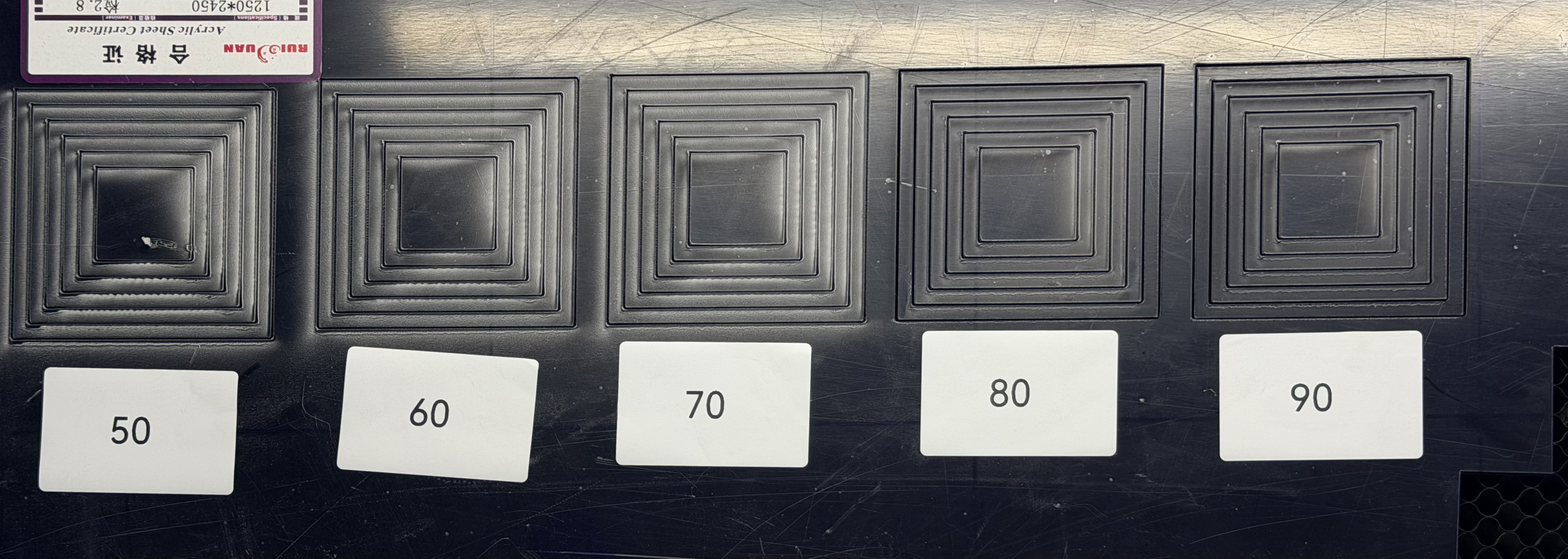
Group result: the photo below documents one of our characterization outputs; we used it to relate cutting speed to laser energy (how power and feed rate combine in practice).
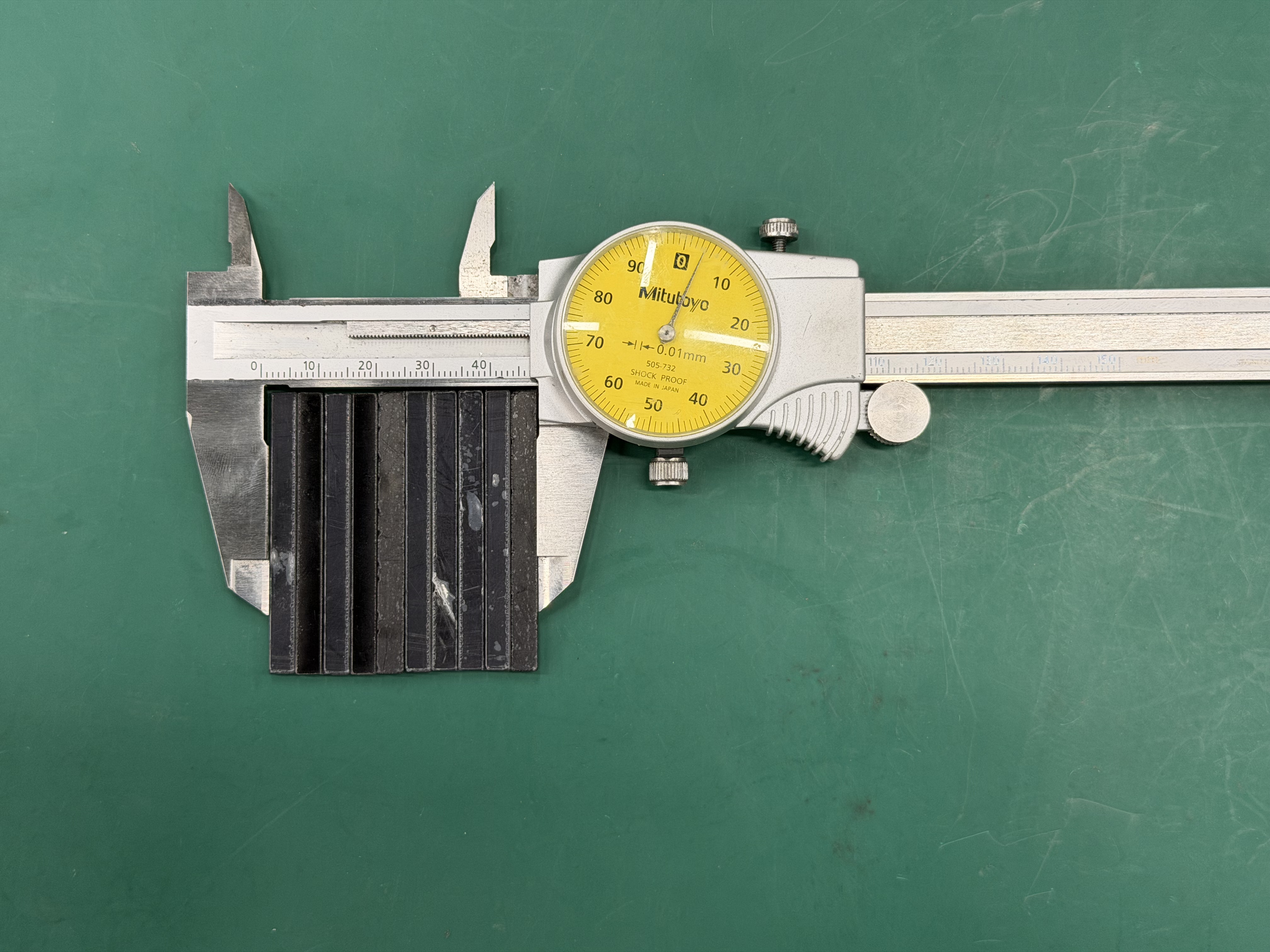
2.3 Kerf measurement
As the second group task we measured the laser kerf (the width of material removed by the beam). From the measurements below we estimate our kerf at approximately 0.3 mm.