4. Embeded Programming
For embeded programming we were introduced to multiple microcontrollers and from them I chose to programm the RP2040.
Group work
In the group assignment, we demonstrate and compare the toolchains and development workflows for available embedded architectures.
Individual assignment
What is a microcontroller
Taken from Medium:
A microcontroller, also known as an MCU, is a small computer on a single integrated circuit (IC) chip that is designed to control a specific task or set of tasks. It is a self-contained system that includes a microprocessor, memory, and input/output (I/O) peripherals such as timers, counters, and analog-to-digital converters (ADCs).

Unlike general-purpose computers, which are designed to run a wide variety of software applications, microcontrollers are optimized for a specific task or set of tasks. They are typically programmed in a low-level language such as assembly language or C, and they execute code directly from memory, without the need for an operating system.
What is a RP2040
As per the official website of the RP2040:
High performance. Low cost. Small package.
Flexible I/O connects RP2040 to the physical world by allowing it to speak to almost any external device. High performance breezes through integer workloads. Low cost helps ease the barrier to entry.

This isn’t just a powerful chip: it’s designed to help you bring every last drop of that power to bear. With six independent banks of RAM, and a fully connected switch at the heart of its bus fabric, you can easily arrange for the cores and DMA engines to run in parallel without contention.

RP2040 builds Raspberry Pi’s commitment to inexpensive, efficient computing into a small and powerful 7 mm × 7 mm package, with just two square millimetres of 40 nm silicon.
Taken from the raspberrypi.com website
I am going to use the coding enviroment Arduino.
What is Arduino
As the official Arduino website says:
"Arduino is an open-source electronics platform based on easy-to-use hardware and software. It's intended for anyone making interactive projects."
Datasheet and reaserch
The layout of the 2040 https://wiki.seeedstudio.com/XIAO-RP2040/
So as we can see it has 11 digital pins and 4 of them can also act as analog. Gnd is the ground and the 5v and 3v3 are voltage outputs/inputs. It has a type-c connector 3 colored leds. A rgb led a reset and a boot button. And the chip itself in the middle.
Programming
Among the softwares shown to us I used Arduino IDE
Download the arduino IDE from the official website.
The start.
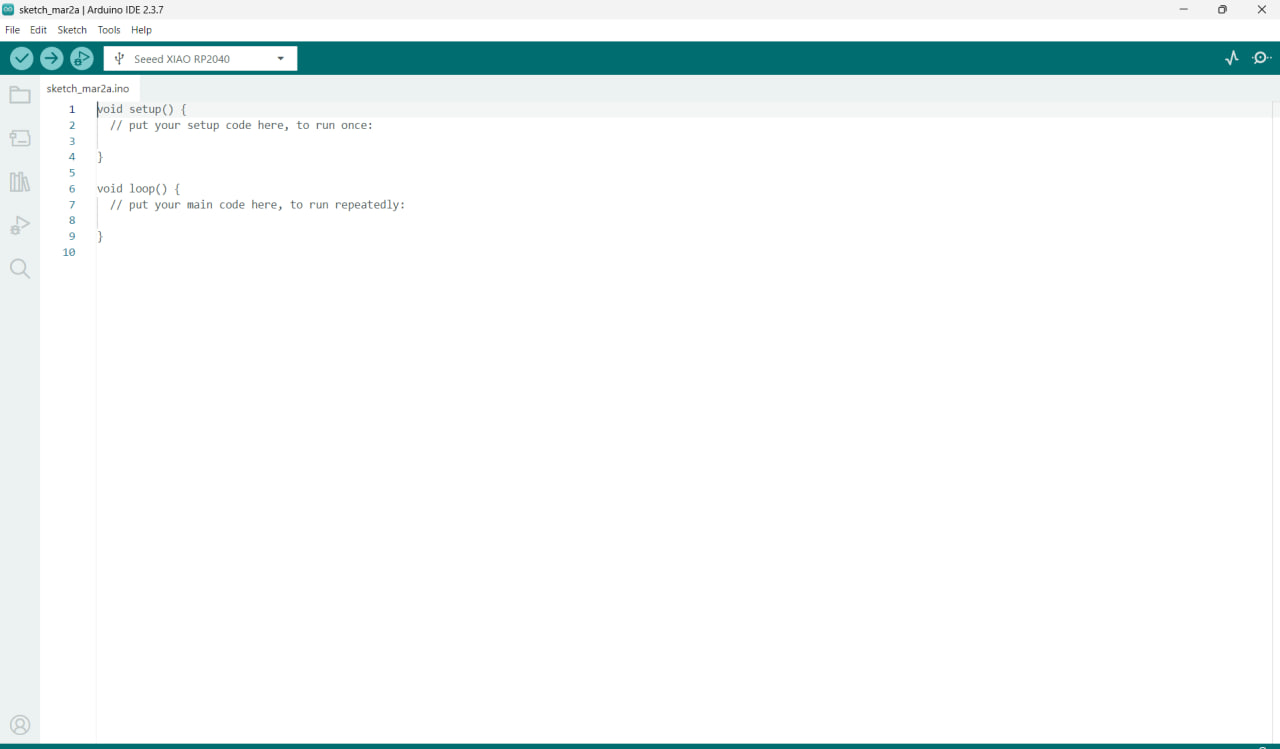
So i used our teachers template for the qpad.
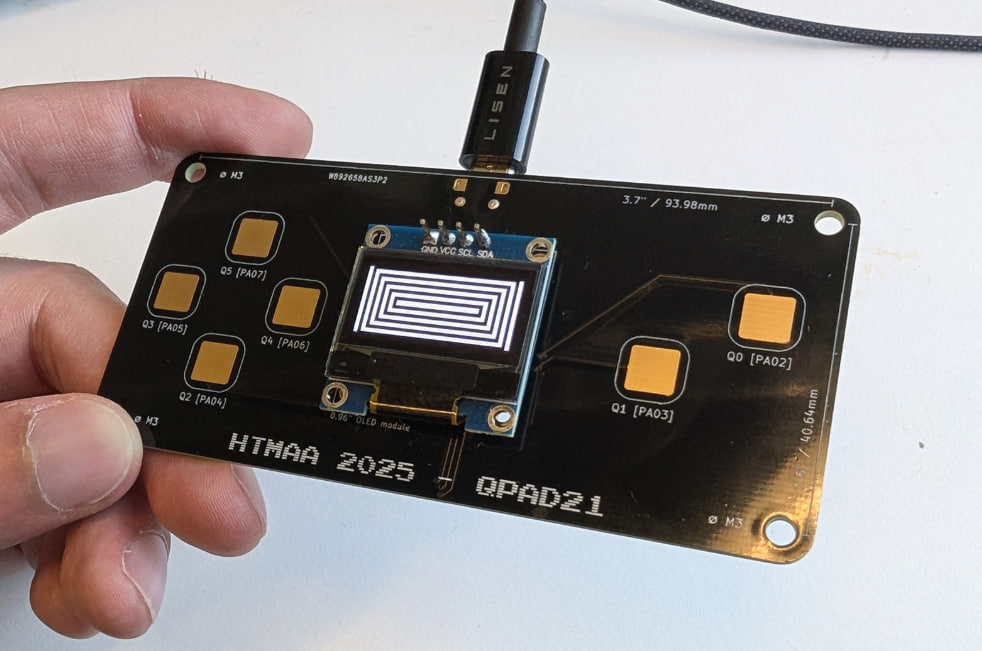
So what i did is i took the template and used it to build a tick tack toe game. How? Well im quite verced in programming but I have not yet programmed int the arduino IDE + first time programming embeded. But if i learnt anything from years of programming its taking code and making it work.
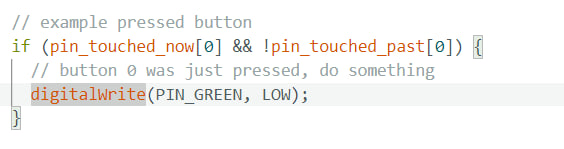 Brain neuron activates when I see a global variable; in this case, it’s the activated[] thingy, so what updates it? Well, in the loop we see an update_touch() function, which, if we look, works by updating what you are touching right now and what you touched previously. It puts that information in the global arrays, which we use. Also, to learn how to use the display, there was this code as an example.
#include <Wire.h>
#include <Adafruit_GFX.h>
#include <Adafruit_SSD1306.h>

#define SCREEN_WIDTH 128 // OLED display width, in pixels
#define SCREEN_HEIGHT 64 // OLED display height, in pixels

#define SCREEN_ADDRESS 0x3C // 0x3D or 0x3C depending on brand

Adafruit_SSD1306 display(SCREEN_WIDTH, SCREEN_HEIGHT, &Wire, -1, 1700000UL, 1700000UL);


void setup() {
  // initialize Serial port
  Serial.begin(115200);

  // give the screen some time to power up
  delay(50);

  // initialize display
  display.begin(SSD1306_SWITCHCAPVCC, SCREEN_ADDRESS);
  display.clearDisplay();
  display.display();

  // text settings
  display.setTextSize(1);
  display.setTextColor(SSD1306_WHITE);
}


void loop() {

  update_touch();   // Update current and previous touch states
  everySecond();    // Likely used for blinking timing

  // Detect press start on button 1 (visual feedback)
  if (pin_touched_now[1] && !pin_touched_past[1]) {
    digitalWrite(PIN_GREEN, LOW);
  }

  // Check all touch inputs
  for (int i = 0; i<6;i++)
  {
    if (pin_touched_past[i] == true){

      // Map each input to a function
      switch(i)
      {
        case 1:
          button1();  // Confirm move
          break;
        case 2:
          down();
          break;
        case 3:
          left();
          break;
        case 4:
          right();
          break;
        case 5:
          up();
          break;
        default:
          break;
      }
    }
  }
}
So taking these two templates I combine them into the quite simple to make tic-tac-toe.
Some of the stuff i added
char values[] = {' ', ' ',' ', ' ', ' ',' ', ' ', ' ', ' '}; - keeps the values of the X or Y.

bool player1 = true; Which turn if true player 1 if false player 2.

bool timeishalf = true; IF there has been a update since the last 500 ms, its kinda a magic variable but im not changing the naming right now.

int selected = 4; which square is selected.

static unsigned long lastmove = 0; the time of the last move.
Display generation
So the text bellow will show how I generated the dissplay basically its 2 loops one for x and one for y which put the X the Y in the correct locations while also drawing the map. Also looks at the player who is playing right now to see and write the turn down.
// Draws the tic-tac-toe grid and current game state on the OLED
void generatedisplay()
{
  display.setCursor(0, 15);     // Set starting position for drawing
  display.clearDisplay();       // Clear previous frame

  // Loop through rows
  for (int r = 0 ; r < 3; r++) {
    // Loop through columns
    for (int c = 0 ; c < 3; c++){

      // If this cell has a value AND is currently selected AND blinking is OFF
      // -> print blank to create blinking effect
      if ((values[r*3 + c] == 'X' || values[r*3 + c] == 'Y') &&
           selected == (r*3 + c) && timeishalf == false)
      {
        display.print(' ');
      }

      // If selected but empty, preview current player's move (X or Y)
      else if (selected == (r*3 + c) && timeishalf == false)
      {
        if (player1){
          display.print("X");
        }
        else{
          display.print("Y");
        }
      }

      // Otherwise print stored value
      else
      {
        display.print(values[r*3 + c]);
      }

      // Draw vertical separators
      if (c<2){
        display.print(" | ");
      }
    }

    // After each row
    if (r<2){
      if (r==1){
        display.print("   ");

        // Show whose turn it is in the middle row
        if (player1){
          display.print("player1");
        }
        else{
          display.print("player2");
        }
      }
      display.println();
      display.println("---------");  // Horizontal separator
    }
  }

  display.display(); // Push buffer to screen
}
Victory check
If values match declare winner
// Checks all possible winning combinations
// If any match is found, calls win()

// Top row
if(values[0] == values[1] && values[1] == values[2] && values[2] != ' '){
  win();
}
// Middle row
else if(values[3] == values[4] && values[4] == values[5] && values[5] != ' '){
  win();
}
// Bottom row
else if(values[6] == values[7] && values[7] == values[8] && values[8] != ' '){
  win();
}
// Left column
else if(values[0] == values[3] && values[3] == values[6] && values[6] != ' '){
  win();
}
// Middle column
else if(values[1] == values[4] && values[4] == values[7] && values[7] != ' '){
  win();
}
// Right column
else if(values[2] == values[5] && values[5] == values[8] && values[8] != ' '){
  win();
}
// Diagonal \
else if(values[0] == values[4] && values[4] == values[8] && values[8] != ' '){
  win();
}
// Diagonal /
else if(values[2] == values[4] && values[4] == values[6] && values[6] != ' '){
  win();
}
Victory screen win();
SHows the victor depending on the player whos move it was.
// Displays winner and waits for user input to restart game
void win(){

  display.setCursor(0, 15);
  display.clearDisplay();

  display.setTextSize(3); // Large font for winner message

  // Show winner based on current player
  if(player1){
    display.print("P1 WINS");
  }
  else{
    display.print("P2 WINS");
  }

  display.display();

  // Reset board
  for(int i = 0 ; i < 9; i++)
  {
    values[i] = ' ';
  }

  selected = 4;              // Reset selection to center
  lastmove = millis();      // Reset timing

  // Wait loop until user presses button to continue
  while(true)
  {
    if (millis() - lastmove >= 1000) {

      pin_touched_past[1] = false;
      update_touch();

      // Detect button release event
      if (!pin_touched_now[1] && pin_touched_past[1]) {

        digitalWrite(PIN_GREEN, HIGH); // LED feedback

        pin_touched_past[1] = false;

        display.setTextSize(1); // Reset font size
        generatedisplay();      // Redraw board

        break; // Exit loop → resume game
      }
    }
  }
}
The updates
Basically updates the checked touching and touched previously values and sees what the player is pressing right now.
void loop() {


  update_touch();
  everySecond();
  if (pin_touched_now[1] && !pin_touched_past[1]) {
    digitalWrite(PIN_GREEN, LOW);
  }
  for (int i = 0; i<6;i++)
  {
    if (pin_touched_past[i] == true){
      switch(i)
      {
        case 1:
          button1();
          break;
        case 2:
          down();
          break;
        case 3:
          left();
          break;
        case 4:
          right();
          break;
        case 5:
          up();
          break;
        default:
          break;
      }
    }

  }


}
The QPAD buttons
Just a button that depending on the player would assign either x or y to the array var. Also i faced a problem where the button was pressed too many times so thats why i have a delay here between pressing buttons so that it would wait a second between the next press.
// Handles placing X or Y on selected cell
void button1()
{
  // Debounce: only allow input every 1000 ms
  if (millis() - lastmove >= 1000) {

    // Detect button release (avoids repeated triggers)
    if (!pin_touched_now[1] && pin_touched_past[1]) {

      digitalWrite(PIN_GREEN, HIGH); // LED feedback

      // Assign value based on current player
      if (player1){
        values[selected] = 'X';
      }
      else{
        values[selected] = 'Y';
      }

      lastmove = millis();   // Update last move time
      generatedisplay();     // Refresh display

      pin_touched_past[1] = false; // Reset touch state

      player1 = !player1;    // Switch turn
    }
  }
}