Week 16 | Wildcard week
Overview
This week’s assignment was to explore a new digital fabrication process not covered in previous assignments. I chose UV printing to print logos on the lid of my final project enclosure.
A UV printer uses UV-curable ink and UV LED light. The printer places the ink directly on the surface, and the UV light cures it immediately. This process makes it possible to print detailed and colorful graphics on materials such as plastic.
I used this process to add detailed logos and text to the lid of my final project enclosure.
Assignment Requirements
- Design and produce something using a digital process (CAD + CAM) not covered in other weeks.
- Document the workflow so others can reproduce it.
- Include characterization, settings, challenges, and results.
3. Design Process
Software used: Fusion 360 and Inkscape for 3D and 2D design.
I explained here how I designed the enclosure and its lid during the earlier weeks. For this wildcard week, I reused the 3D model of the lid that I had created in Fusion 360 and modified it for UV printing.
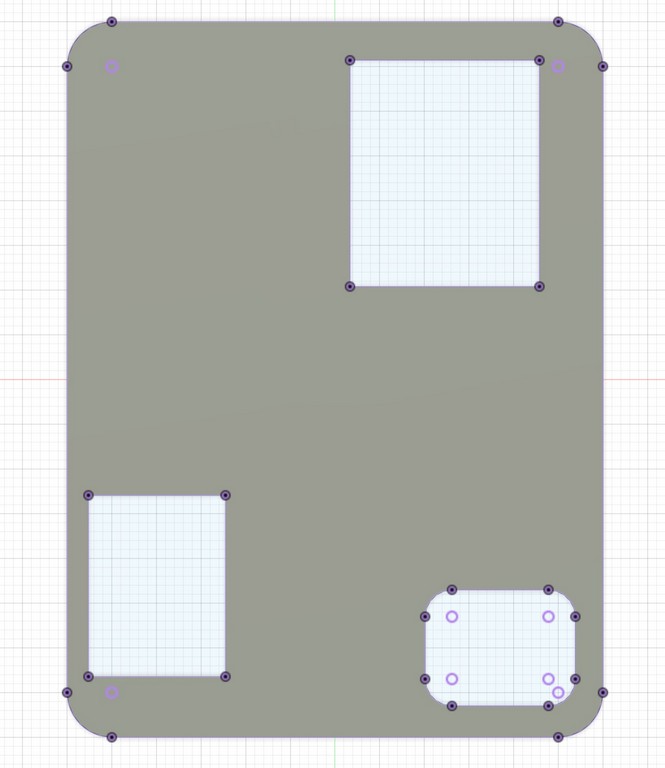
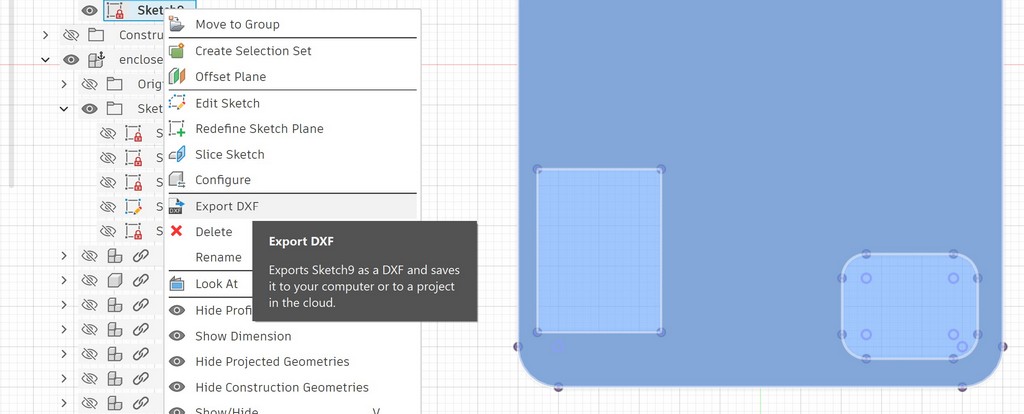
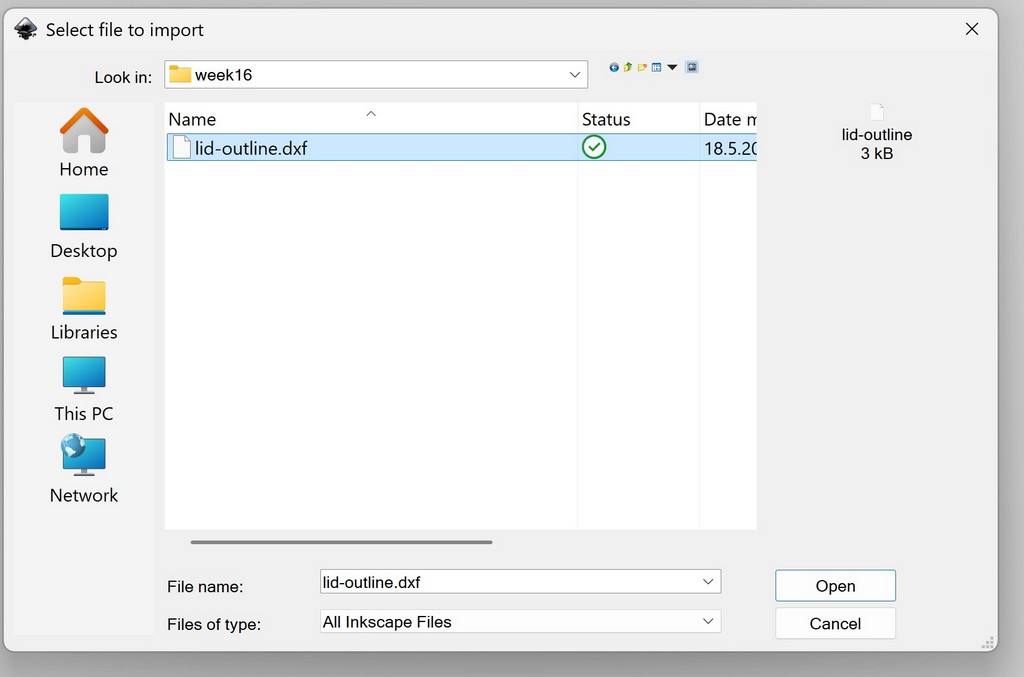
The main modifications were made in Inkscape. I exported the top face of the lid as a DXF file from Fusion 360 and imported it into Inkscape.
I exported the DXF file from Fusion 360.
I then imported the DXF file into Inkscape:
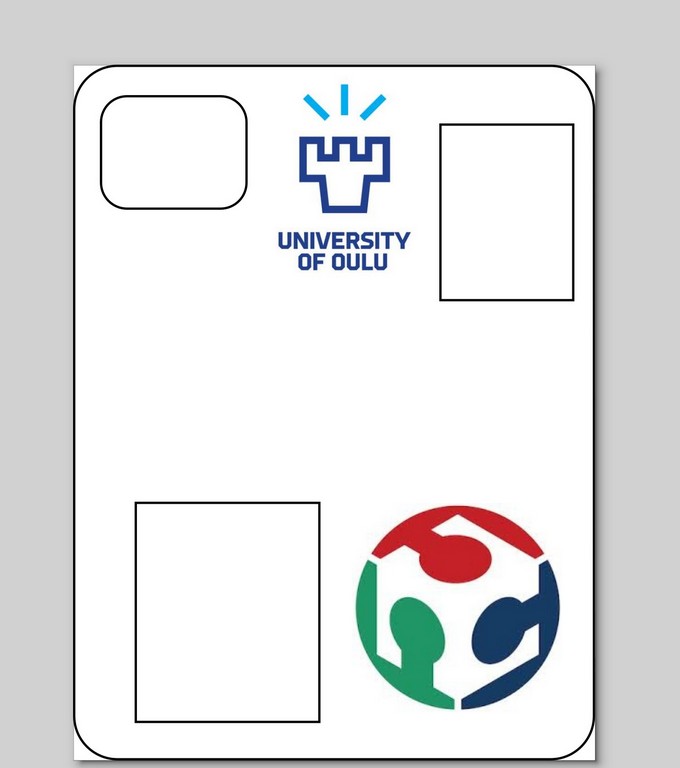
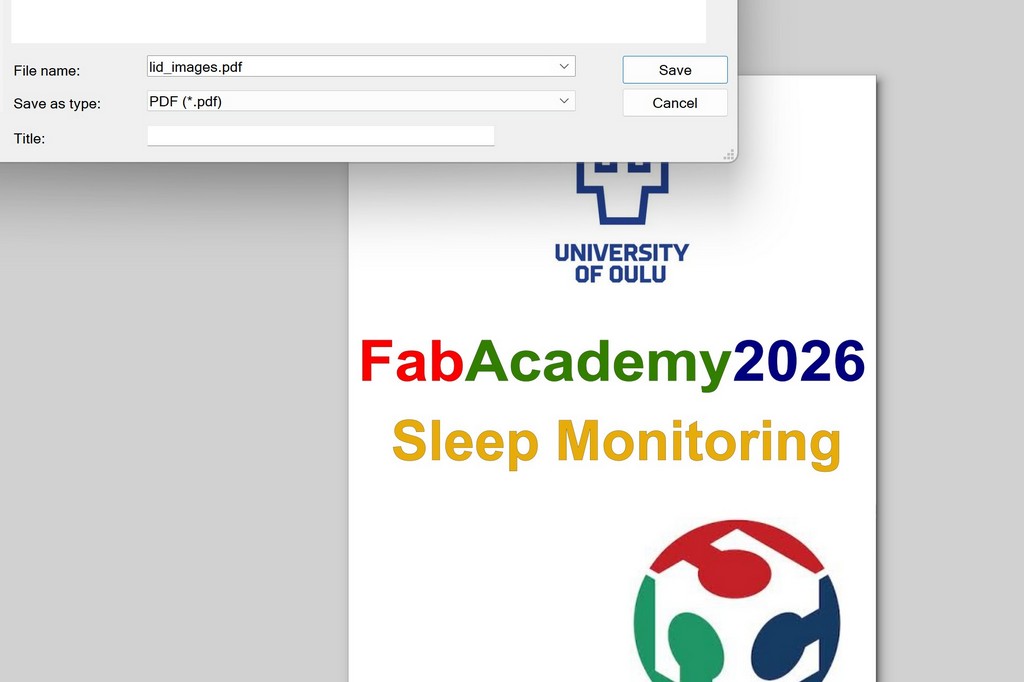
To personalize the lid and match the Fab Academy documentation style, I imported the official FabAcademy and Oulu University logos. I carefully scaled and positioned them to achieve a clean and balanced layout.
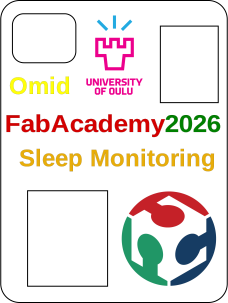
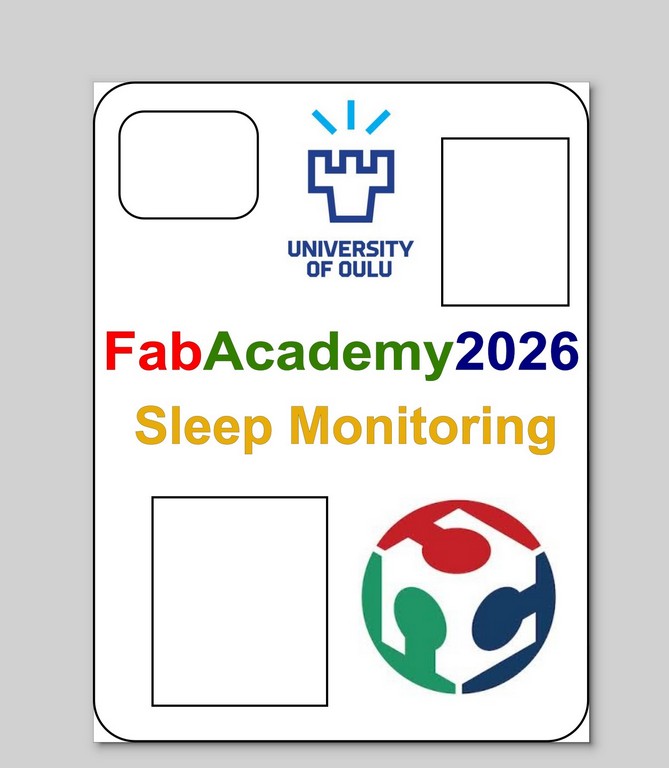
I also added descriptive text to the model, including the project title. All text was converted to paths to avoid font compatibility issues during UV printing.
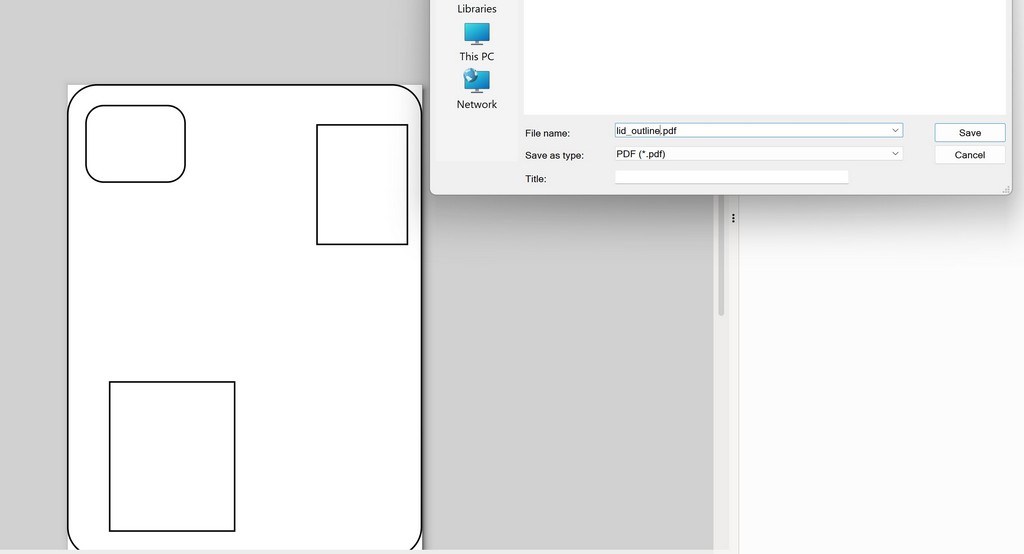
For efficient fabrication, I exported the design into two separate files:
-
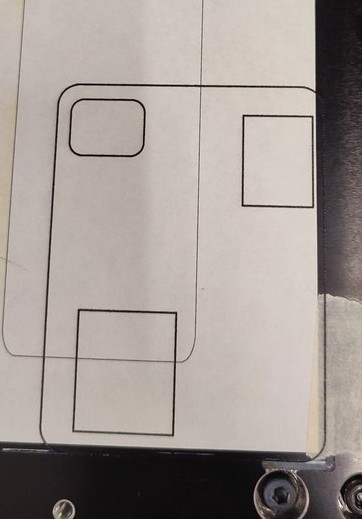
One file contained only the outline/profile, which was used as a positioning guide. I printed the outline first and then placed the lid carefully inside it for accurate alignment.
-
The second file contained the graphics, logos, and text to be printed on the lid.
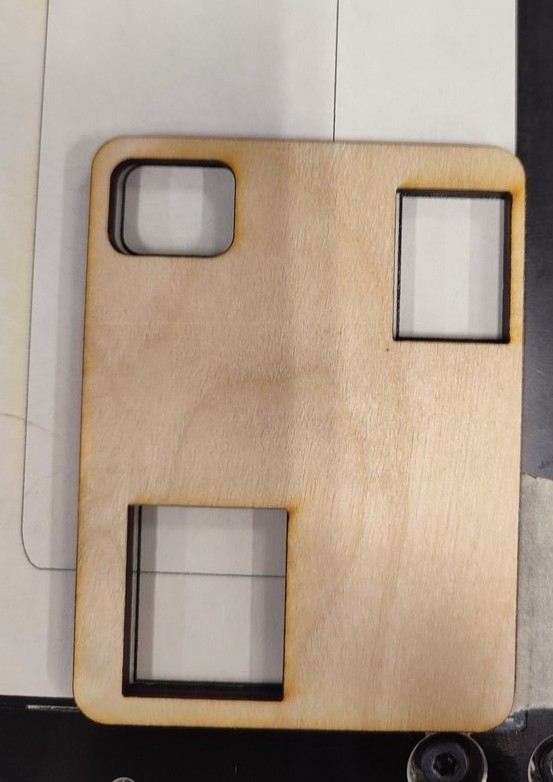
This two-file workflow allowed me to print the outline first and use it as a positioning guide. I then placed the lid inside the printed outline and printed the logos and text directly on its surface.
4. Printing Process
The machine used at Oulu Super Fab Lab was the Mimaki UJF-3042MkII e. It is a flatbed UV inkjet printer that applies UV-curable ink directly to the surface of an object. UV LEDs cure the ink immediately, allowing detailed and colorful printing. The machine supports workpieces up to A3 size and 153 mm in height.
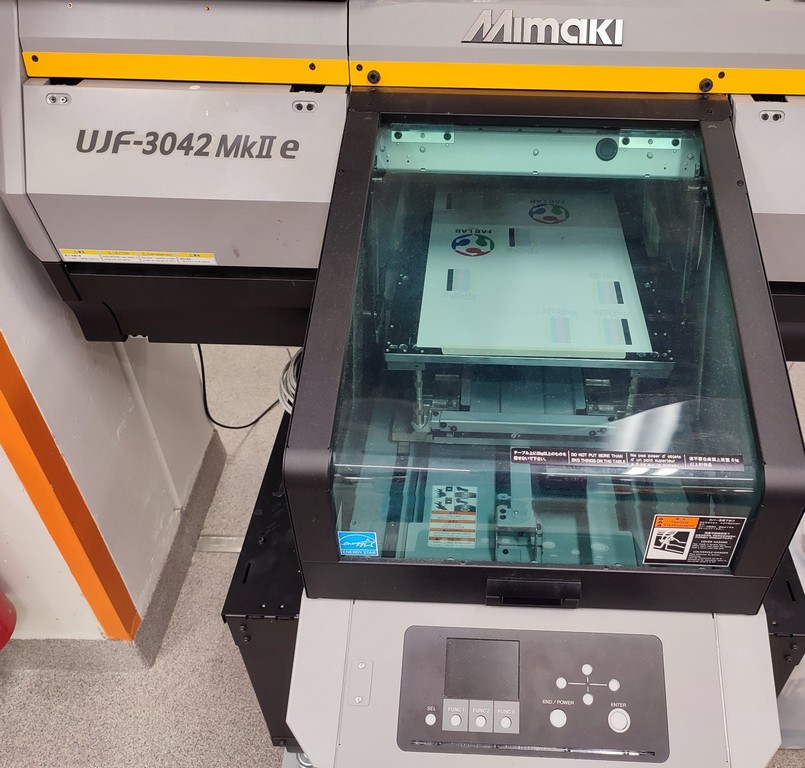
The key specifications of the machine can be found here.
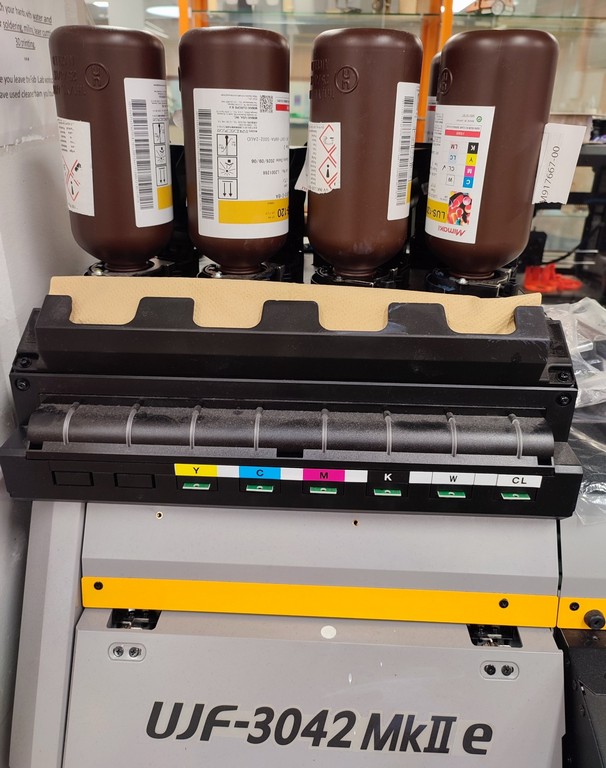
The ink bottles are located at the left front of the machine for easy access and monitoring of ink levels.
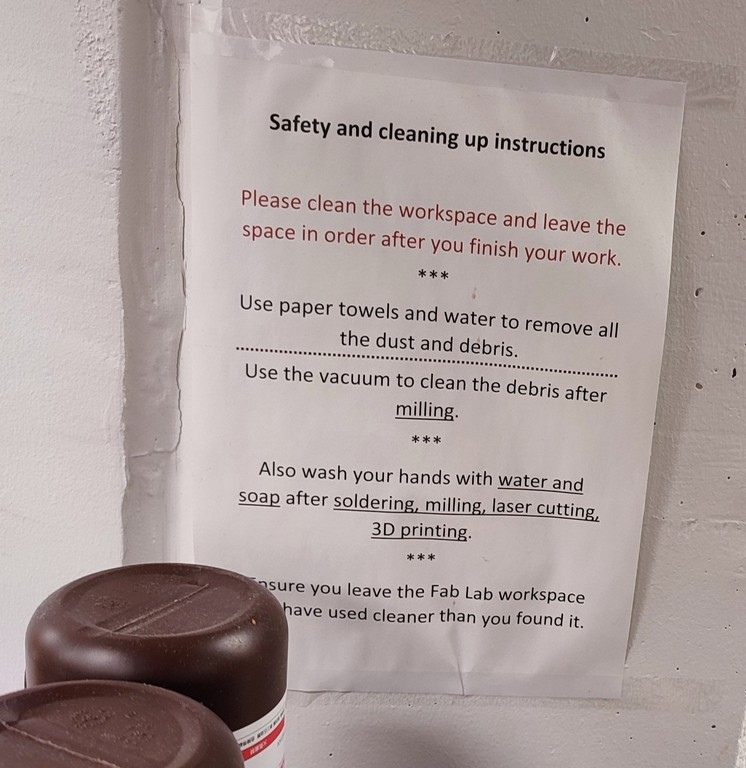
The machine has safety features such as ventilation and emergency-stop controls. As I learned during Fab Academy, I reviewed the safety instructions before operating the machine.
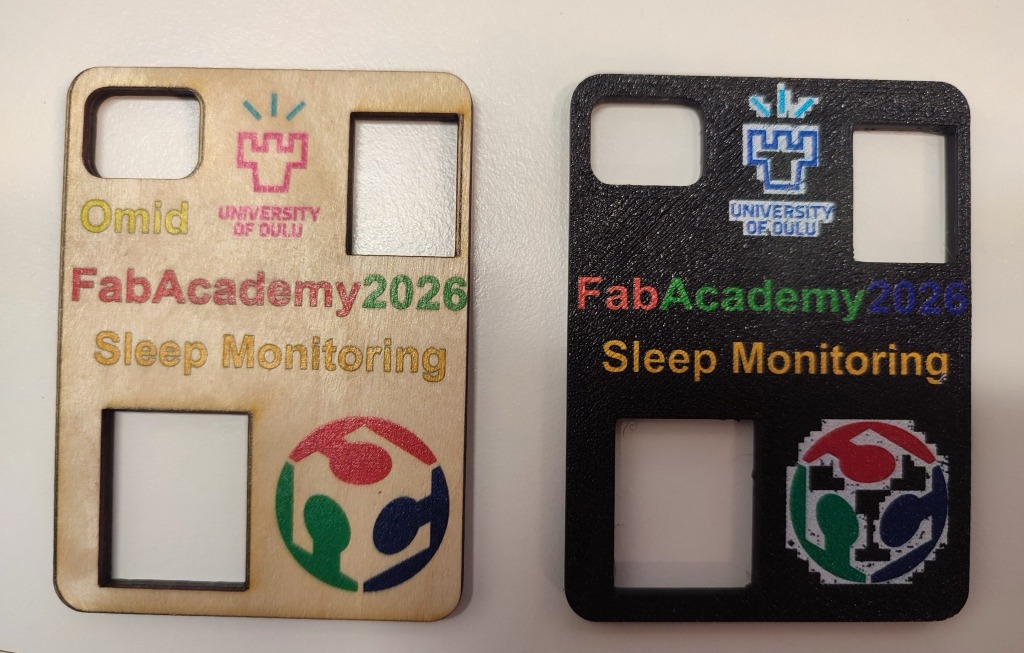
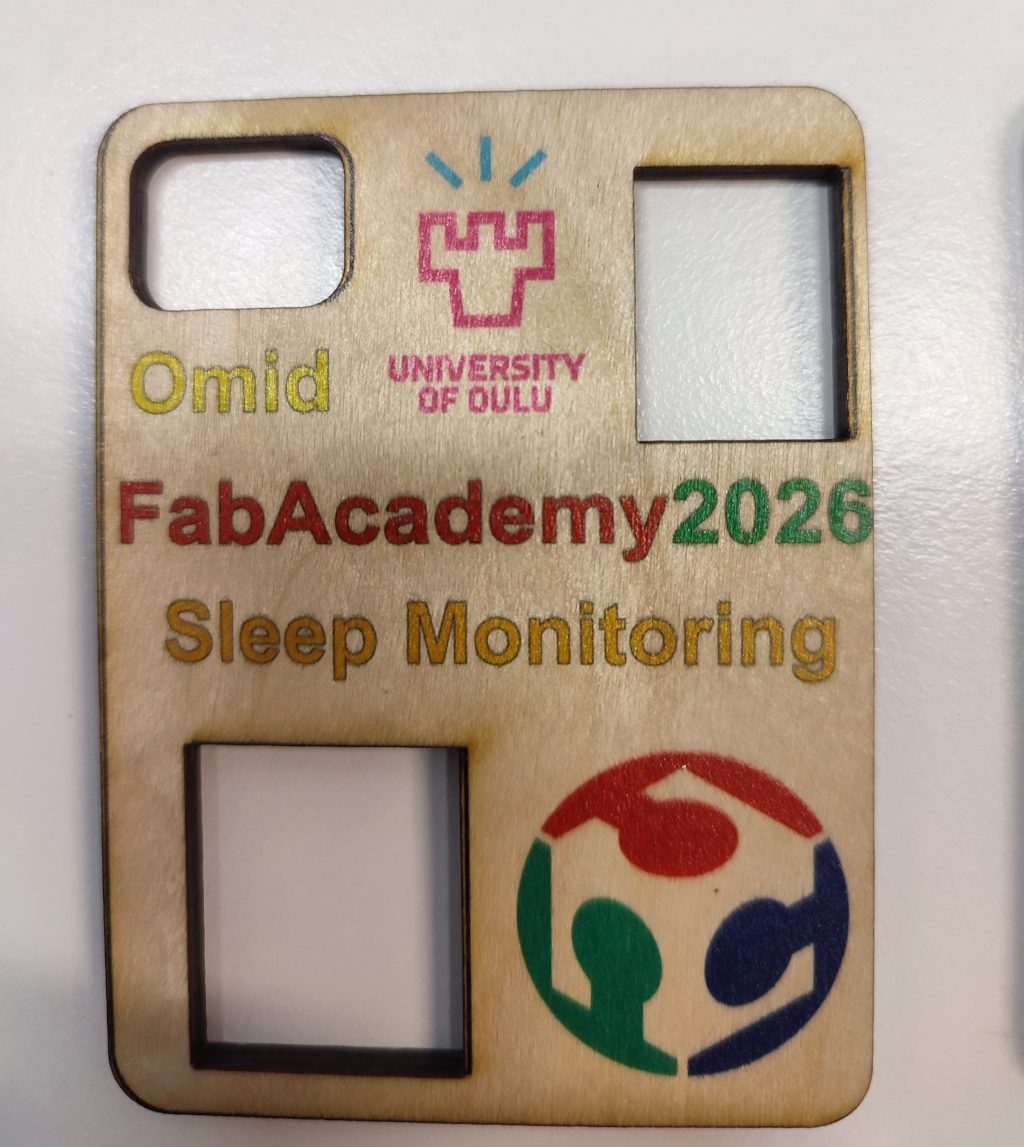
During my first attempt, Antti helped me operate the printer. The printing process worked, but the Fab Academy and University of Oulu logos did not have sufficient image quality. The source files contained unwanted backgrounds and were not suitable for high-quality printing.
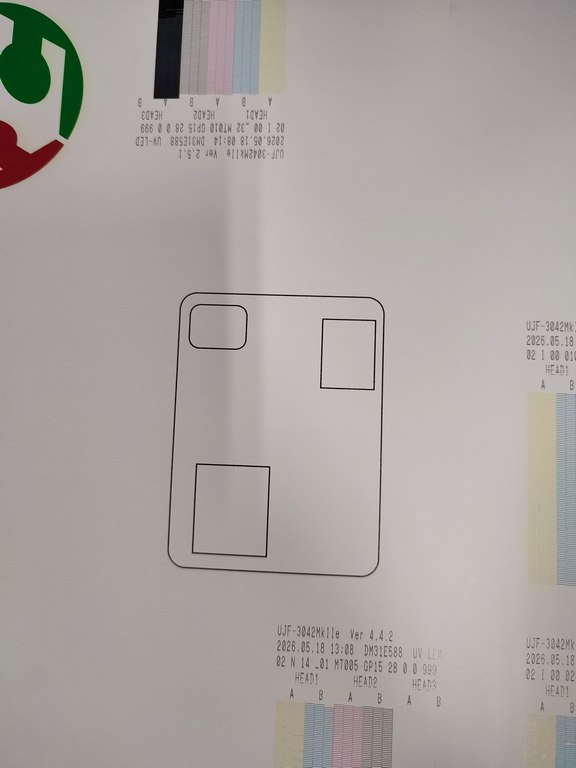
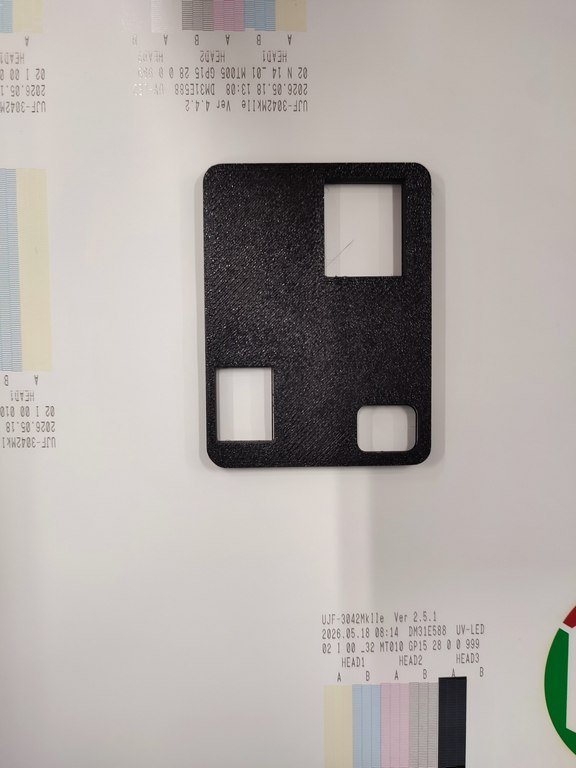
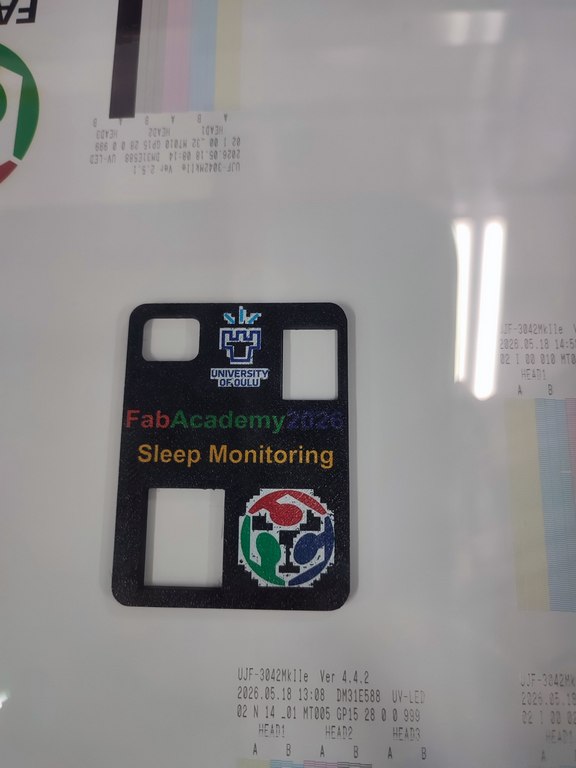
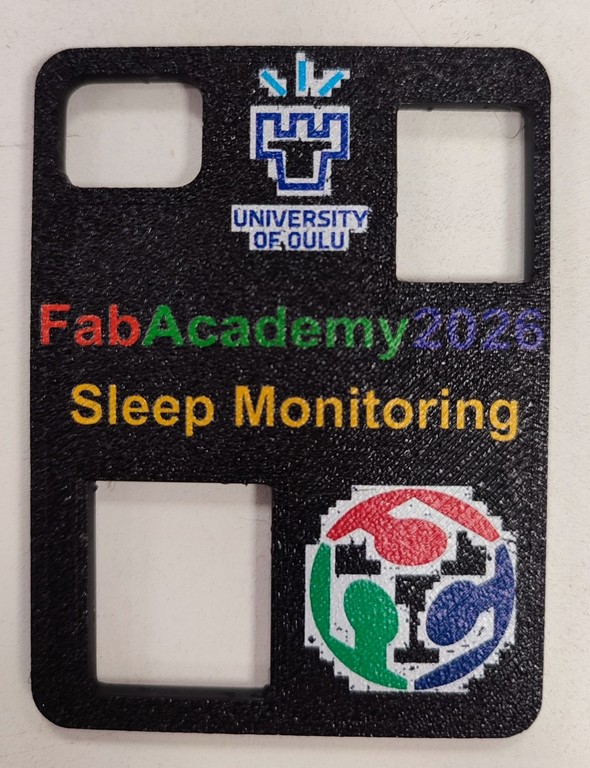
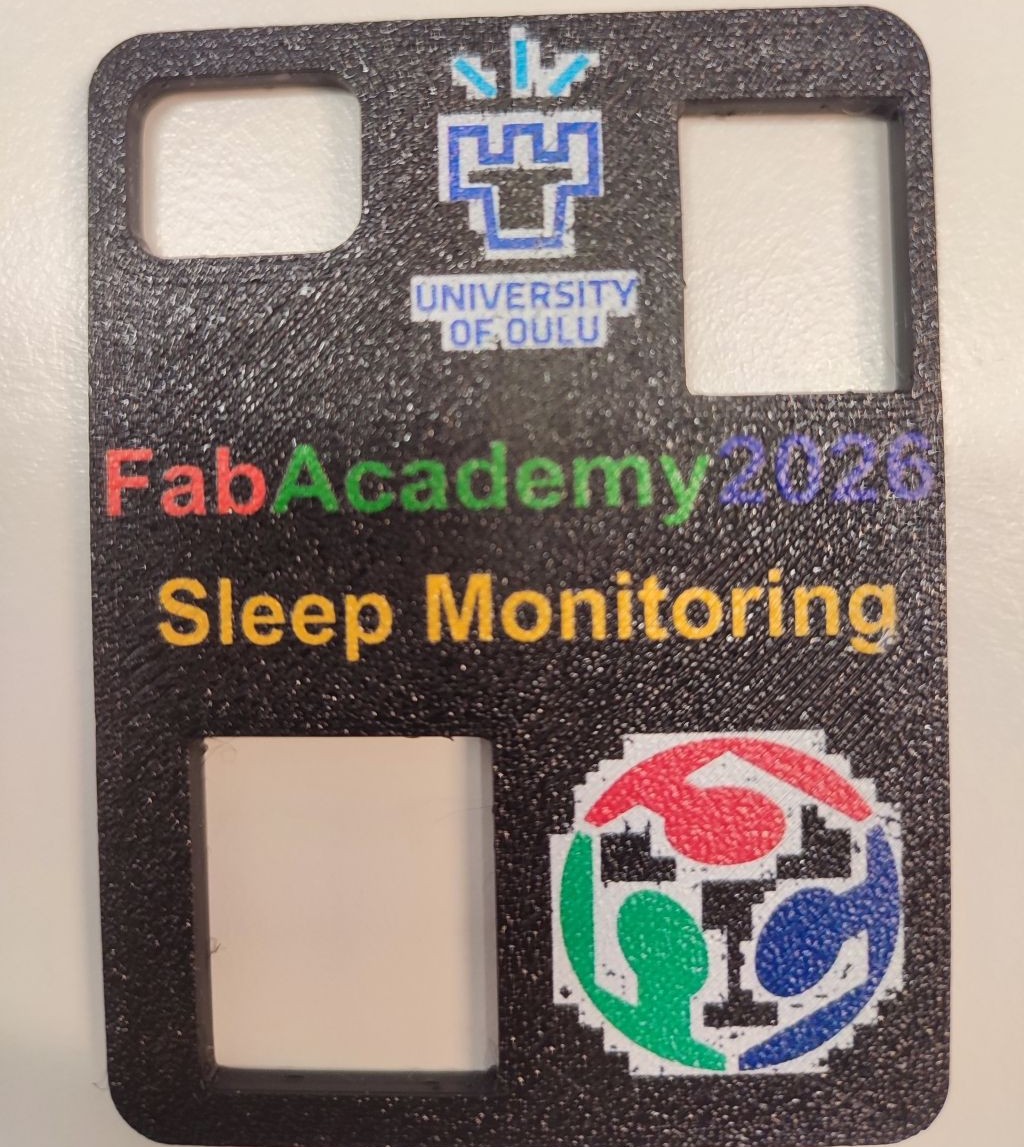
To solve this problem, I downloaded the official Fab Academy logo as an SVG file. I also downloaded the original University of Oulu logo from its Material Bank. I imported the new logo files into my design and removed the unwanted backgrounds. The final printed logos were much clearer and had better detail.
The following section documents the printing procedure so that I and other users can repeat the process later.
Printing with the UV printer
The software used to operate the UV printer was Mimaki RasterLink7.
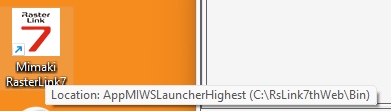
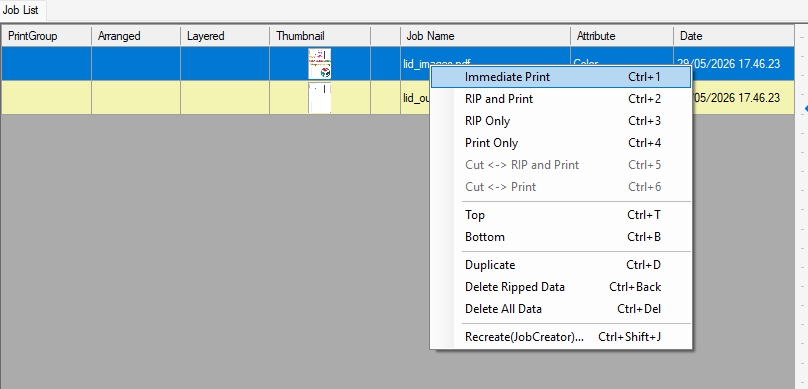
I imported two files into the software: an outline for positioning the lid and a graphics file containing the logos and text to be printed.
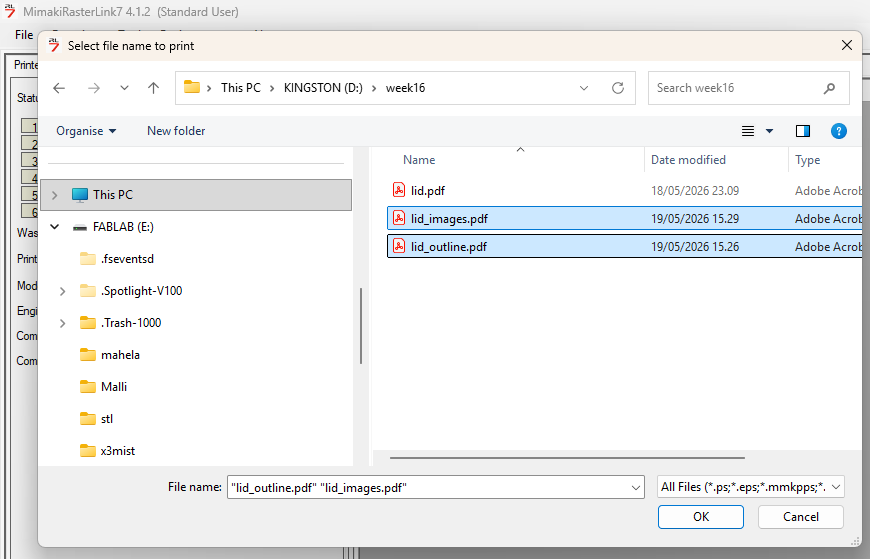
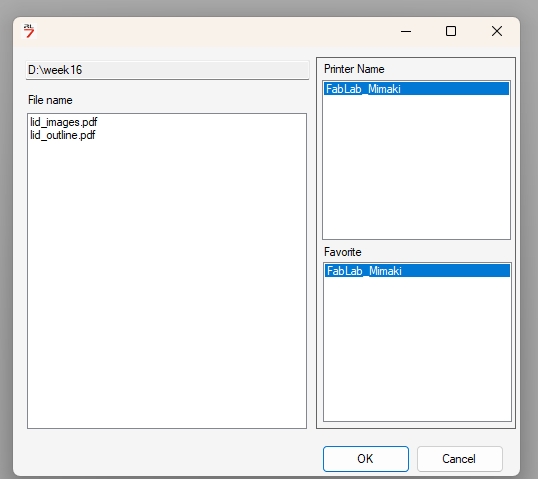
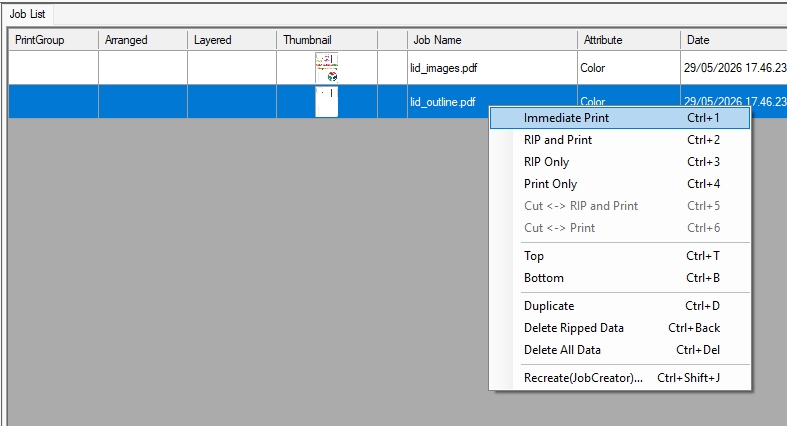
First, I selected the outline file, right-clicked it, and chose Immediate Print.
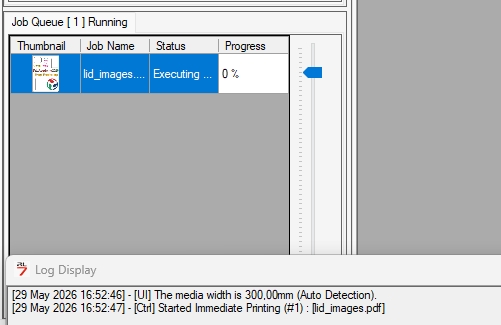
The Job Queue Running section in the left sidebar showed the file upload progress. I waited until the Job Queue Running progress reached 100%:
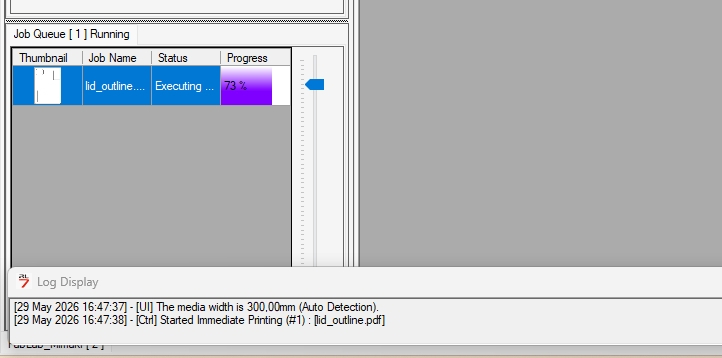
There were a few step to be done on the printer panel. On the panel after saw the DATA REMAIN message:
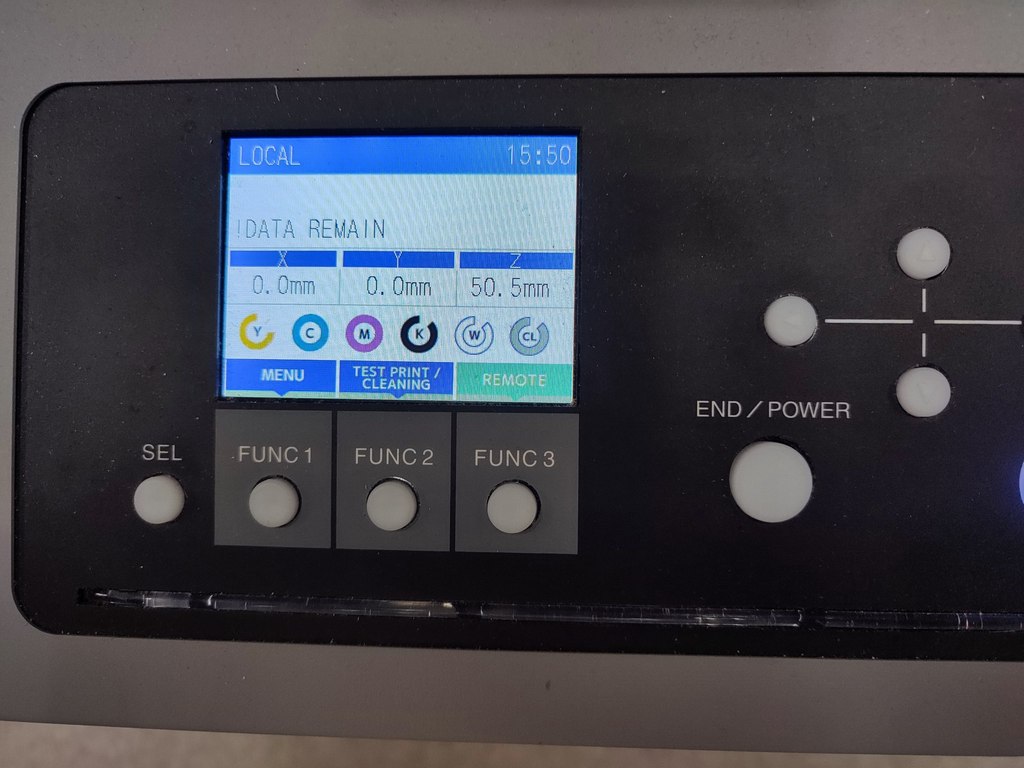
Pressed the ENter and then press REMOTE:
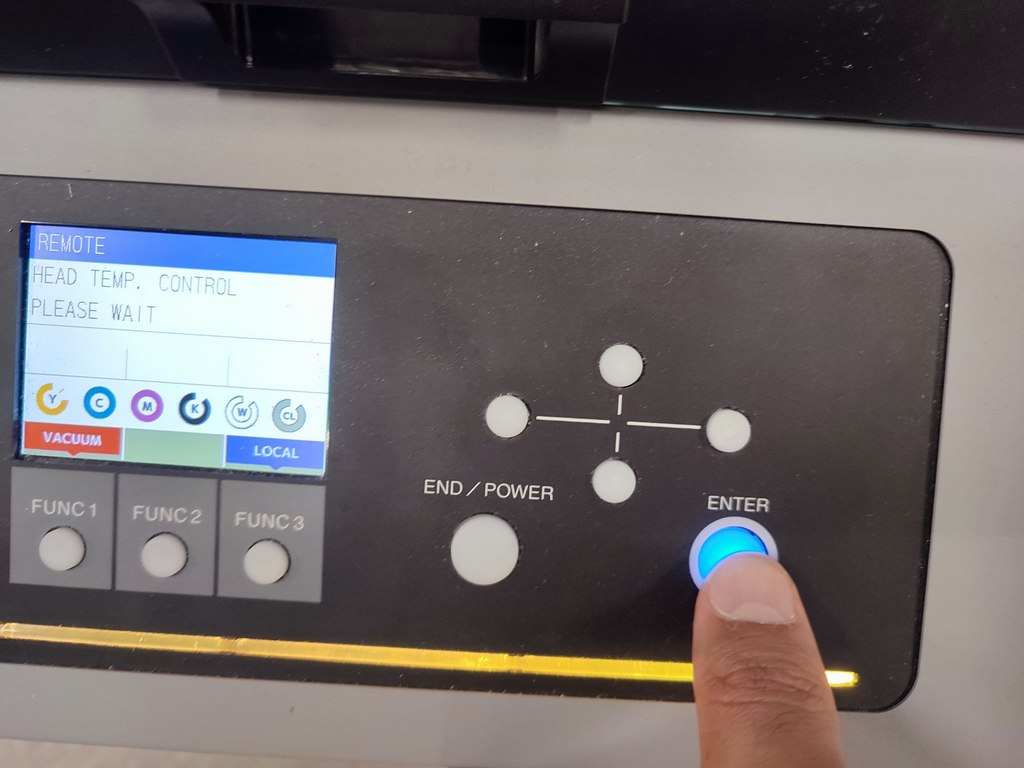
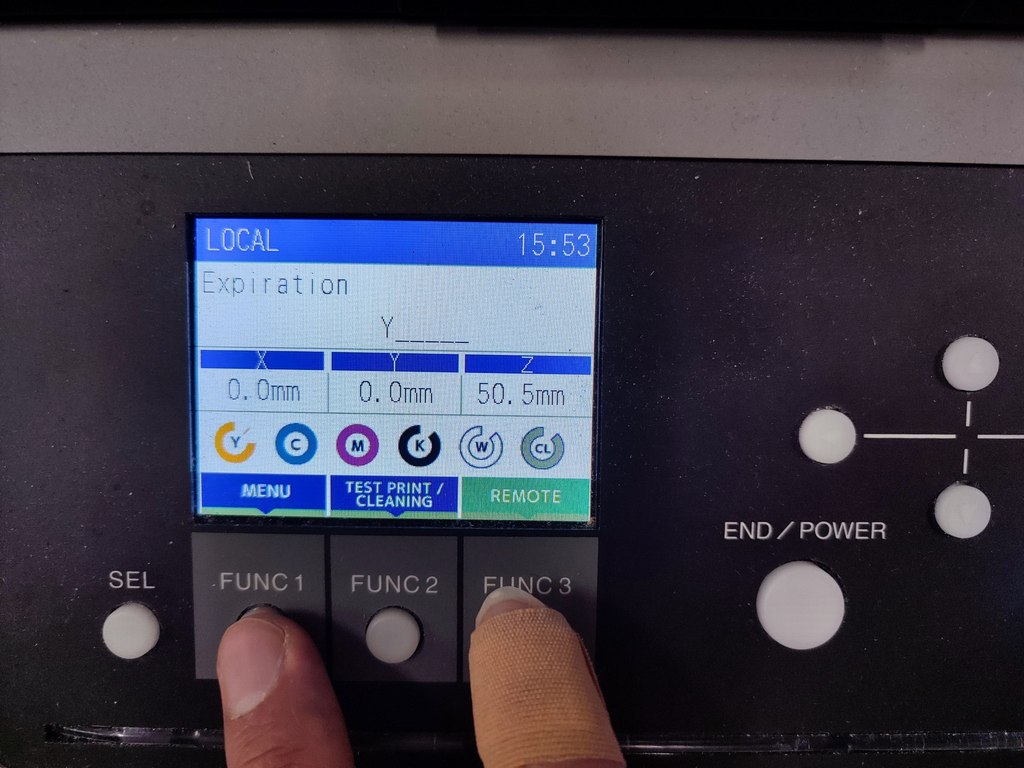
The outline printed:
I placed the lid carefully inside the printed outline and checked its alignment.
I then sent the graphics file to the printer. I right-clicked the file and selected Immediate Print.
I waited again for Job Queue Running to be 100 percent:
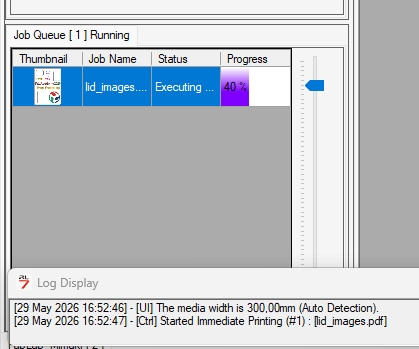
For this step, in the panel a few step needs to be ste. in the menu:
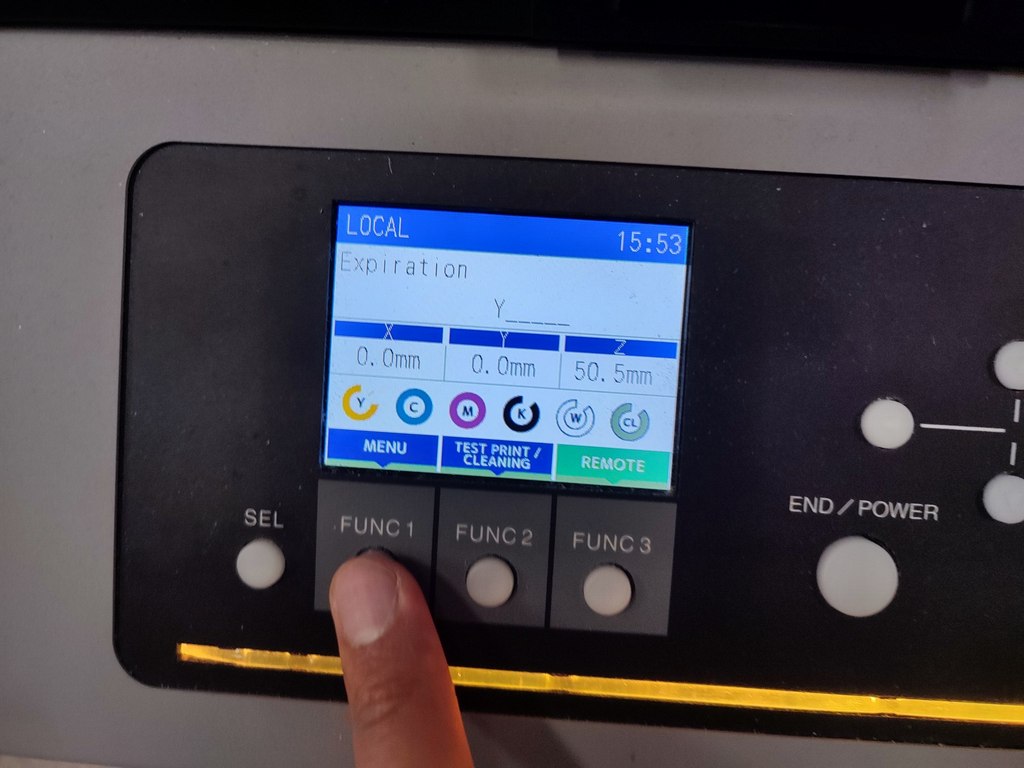
Before printing, I adjusted the settings on the printer panel. I selected HEAD HEIGHT and used the right arrow key to move to the next menu.
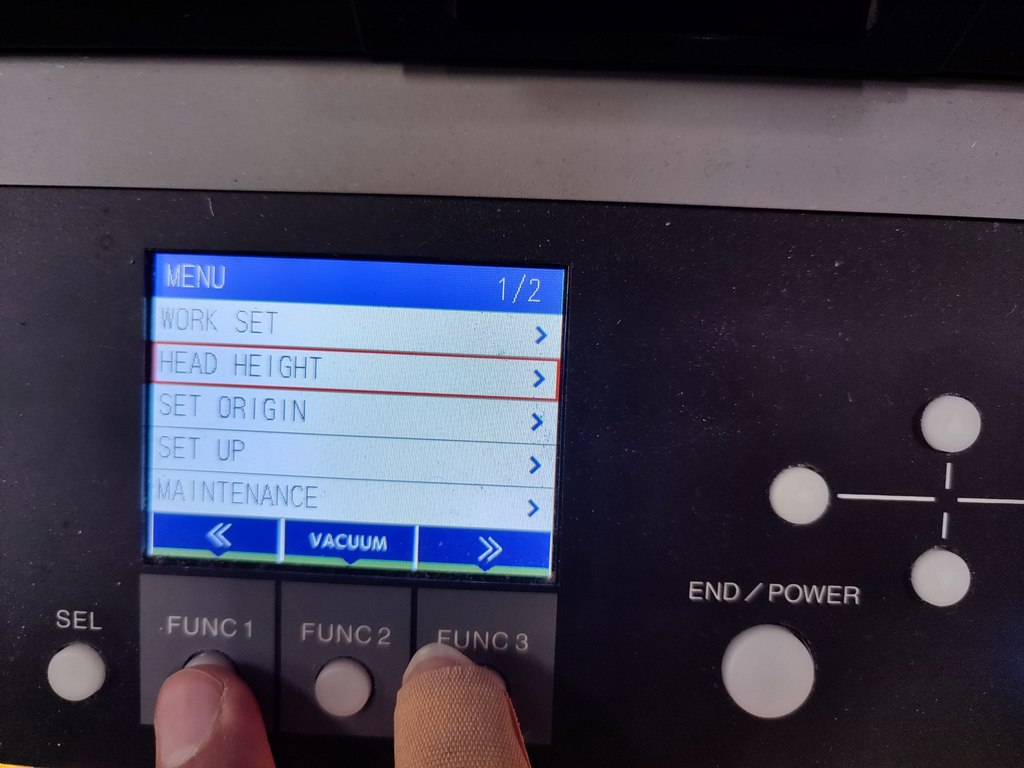
Went to next menu with right key:
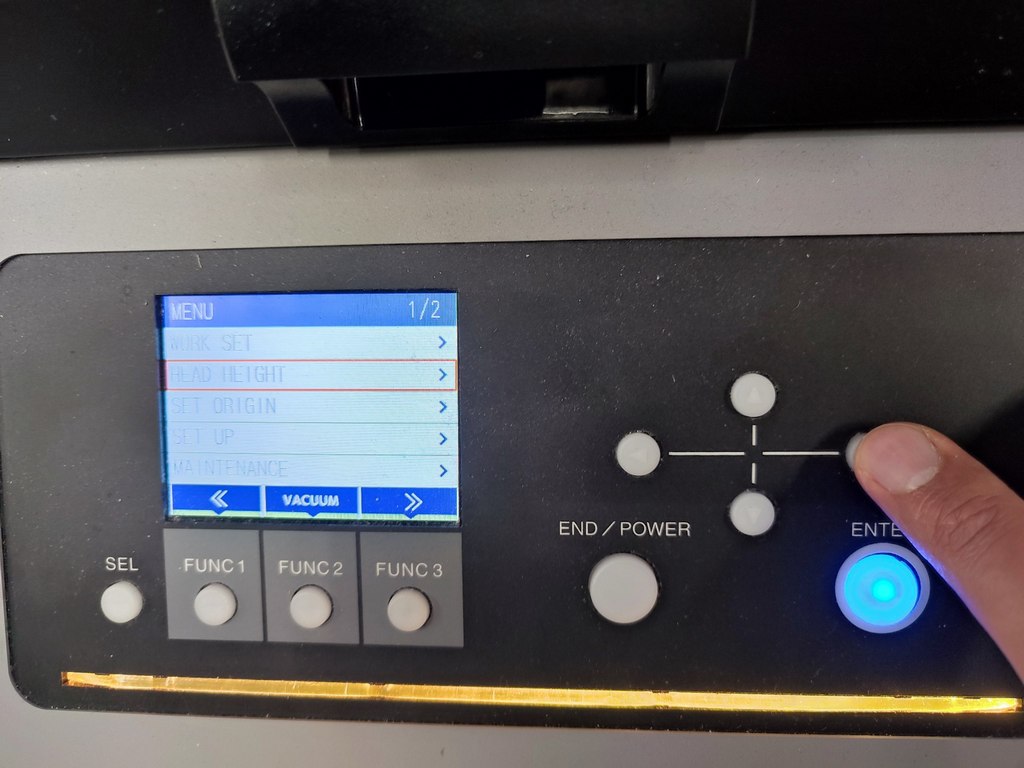
The lid was 4 mm high. I set the MEDIA THICKNESS to 5 mm to provide 1 mm of additional clearance.
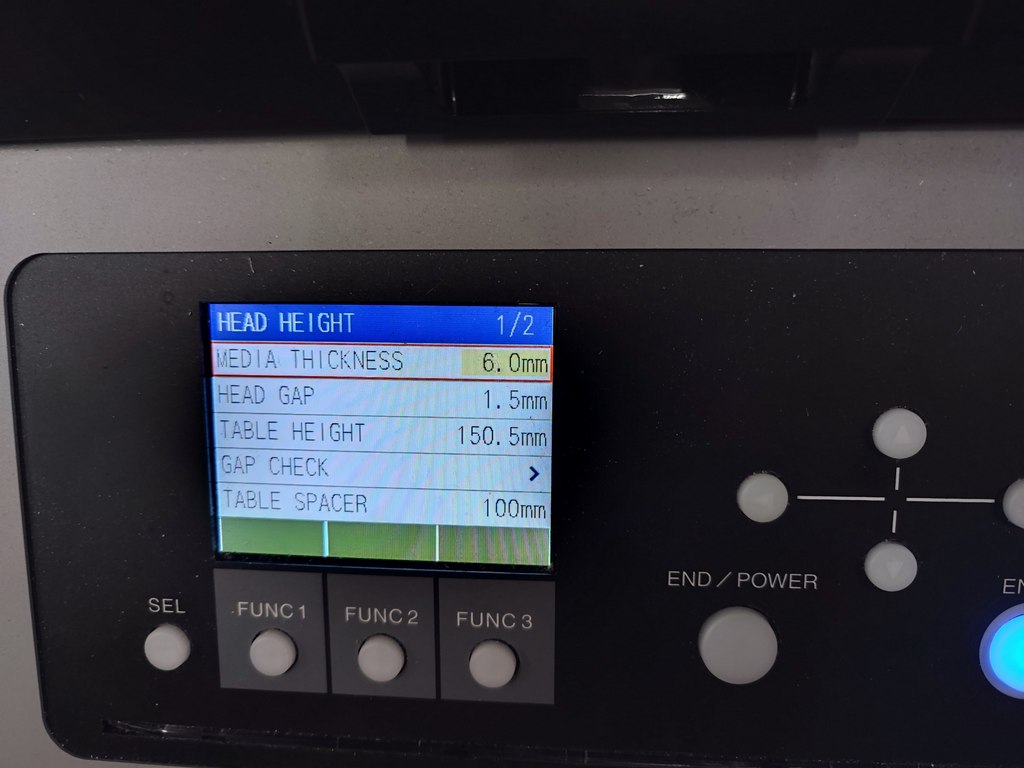
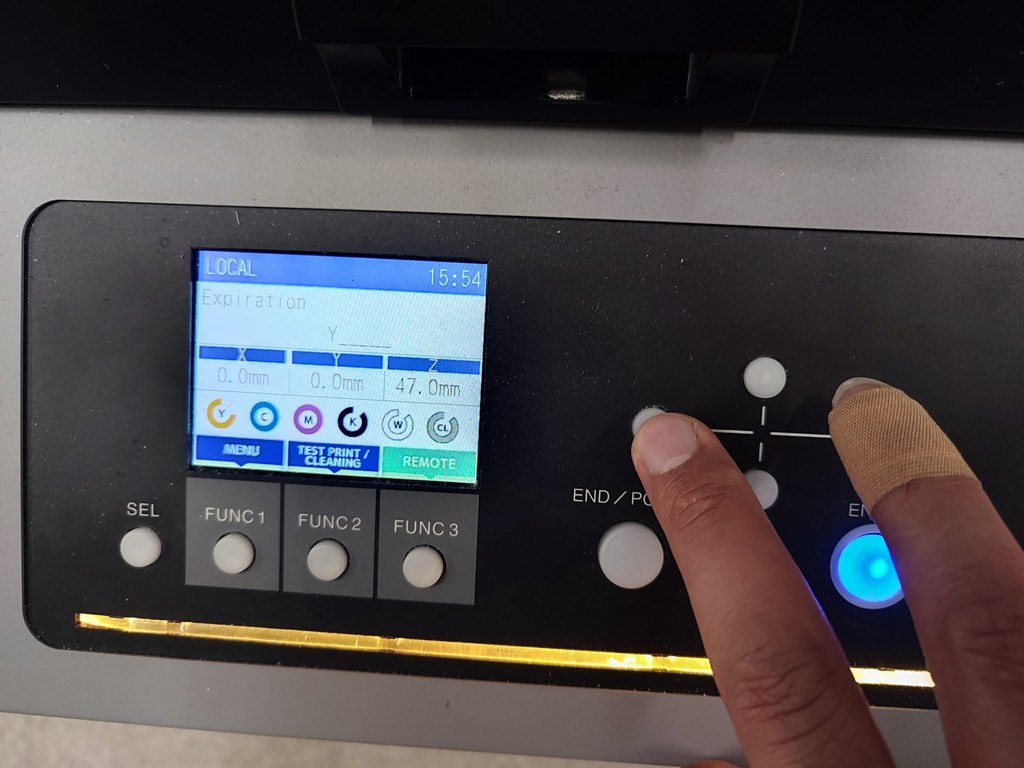
I pressed the left arrow key twice to return to the main menu and then pressed REMOTE to start printing.
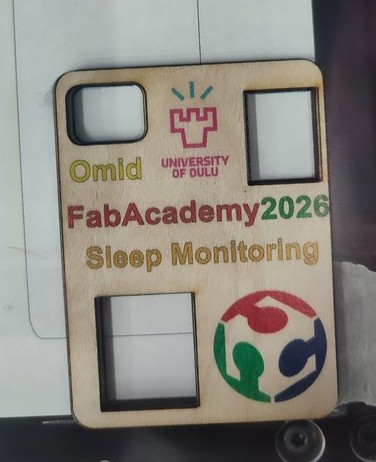
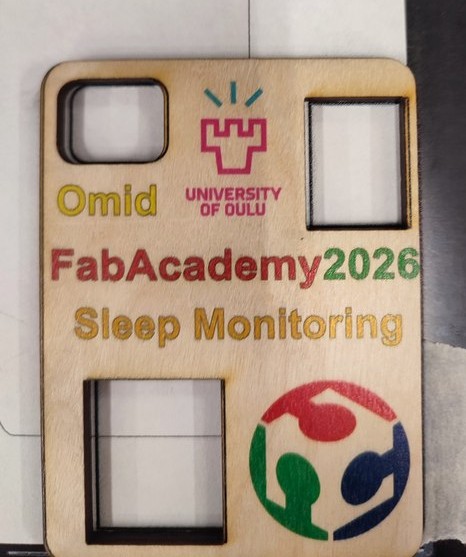
The difference between the first and final printing attempts can be seen clearly in the following images. Using the correct logo files without unwanted backgrounds greatly improved the print quality and detail.
Reflection
This week, I learned how to prepare and print graphics directly onto a 3D-printed object using a UV flatbed printer. The most important part was the alignment. Printing the outline first helped me place the lid in the correct position before printing the logos and text.
My first attempt did not have good quality because the logo files contained unwanted backgrounds and were not suitable for detailed printing. I solved this problem by using the original logo files and preparing them again in Inkscape. The second result was much clearer.
I also learned that the media thickness and head height must be set carefully before printing. Overall, UV printing worked well for adding detailed graphics to the enclosure lid, and I am satisfied with the final result.