Week 14: Interface and Application Programming
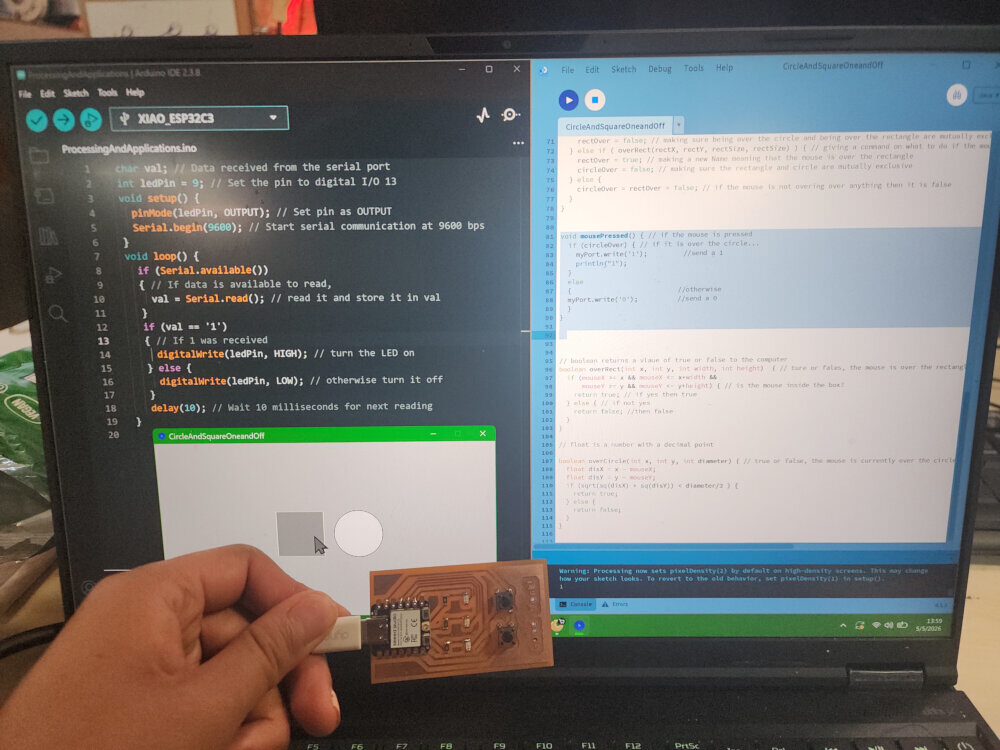
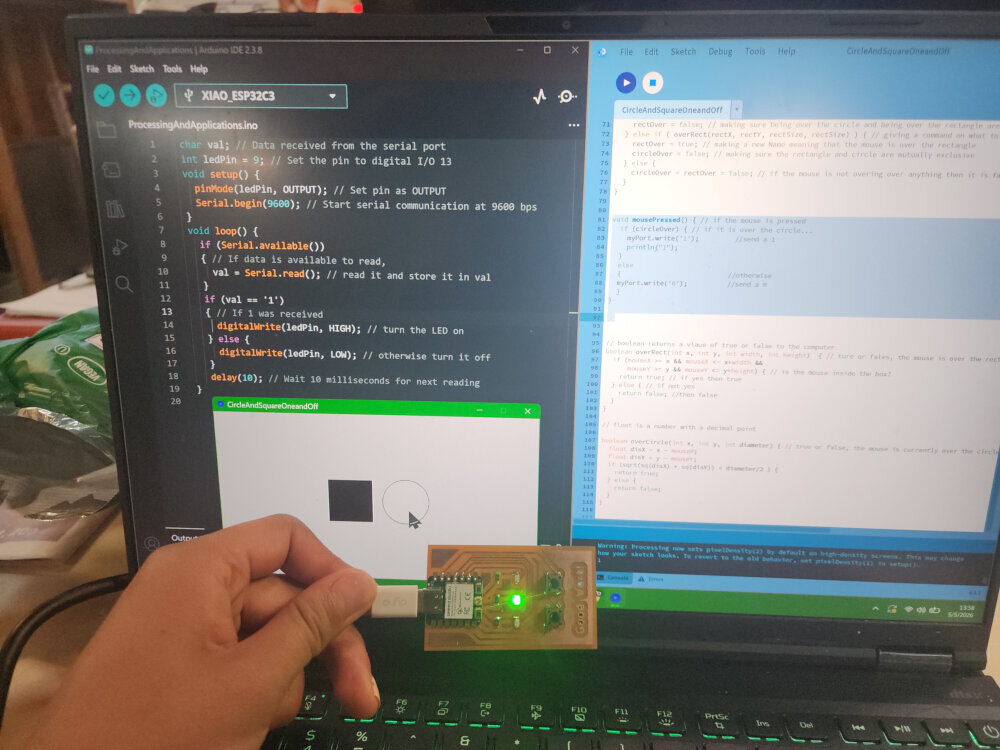
My goal this week was to be able to control the LED from my “Good Work” board using a digital interface!
How I did it
I followed the tutorial“Connecting Arduino to Processing” Make sure to download both Arduino and Processing. First I connected my board with a USB to my computer.
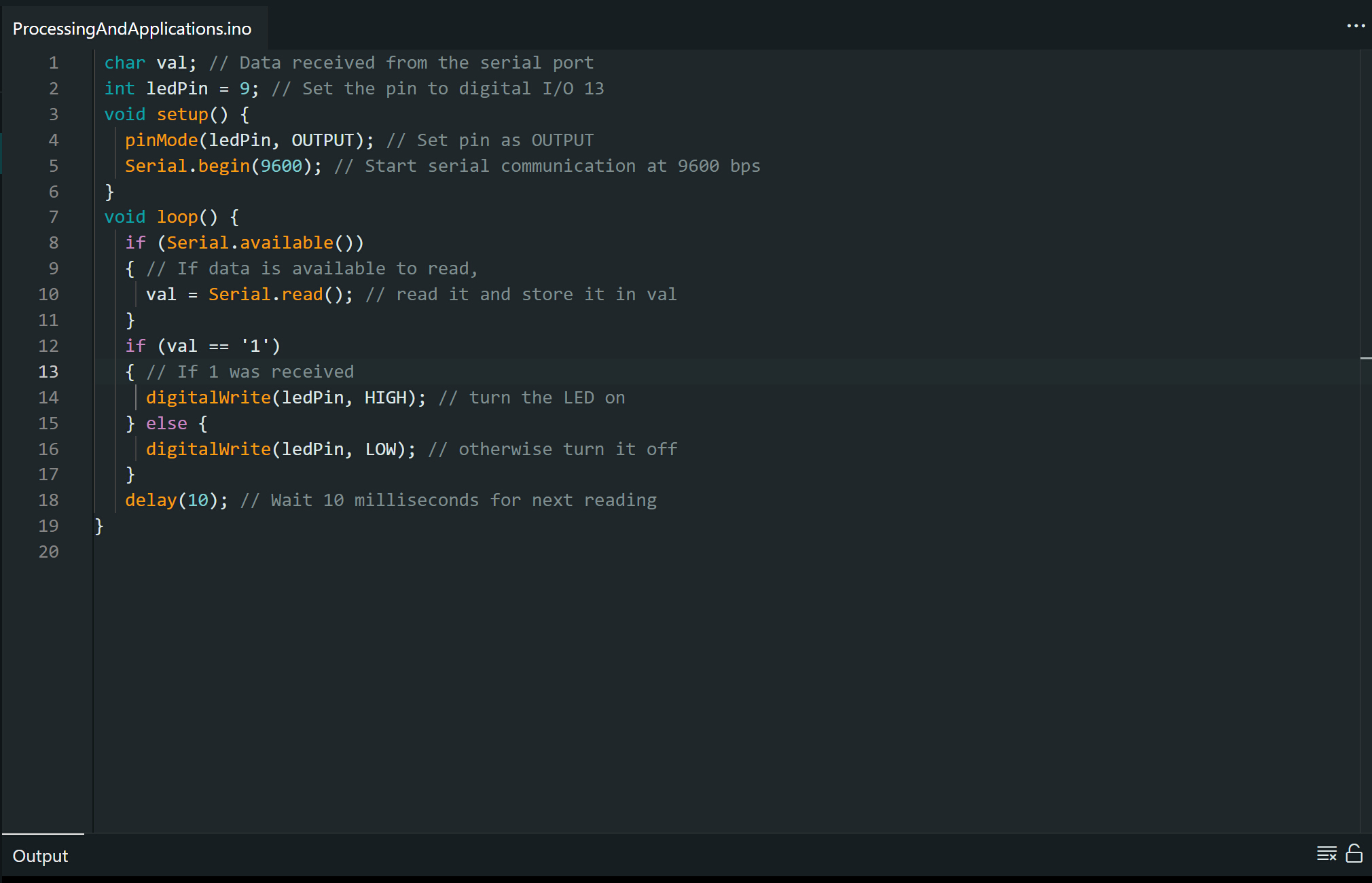
Next I input this code into Arduino. I make sure to write it so that it has the correct pin associated with the LED. This makes it so that when the devboard recieves a “1”, it turns on the LED.
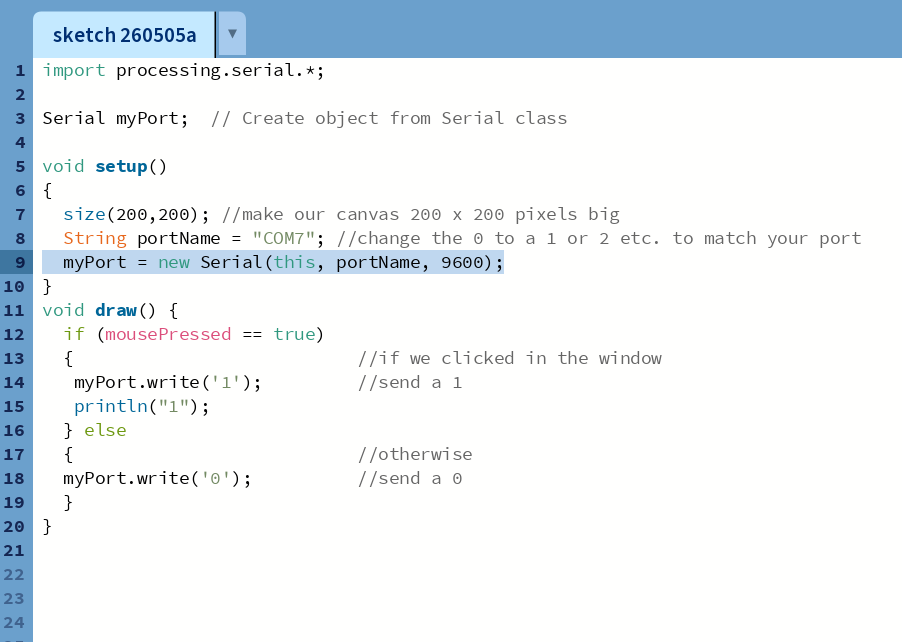
Next I input this code into processing. When I move my mouse into the window and click, it sends a 1 to my USB port, “COM7”. When arduino gets the 1, it turns on the LED!
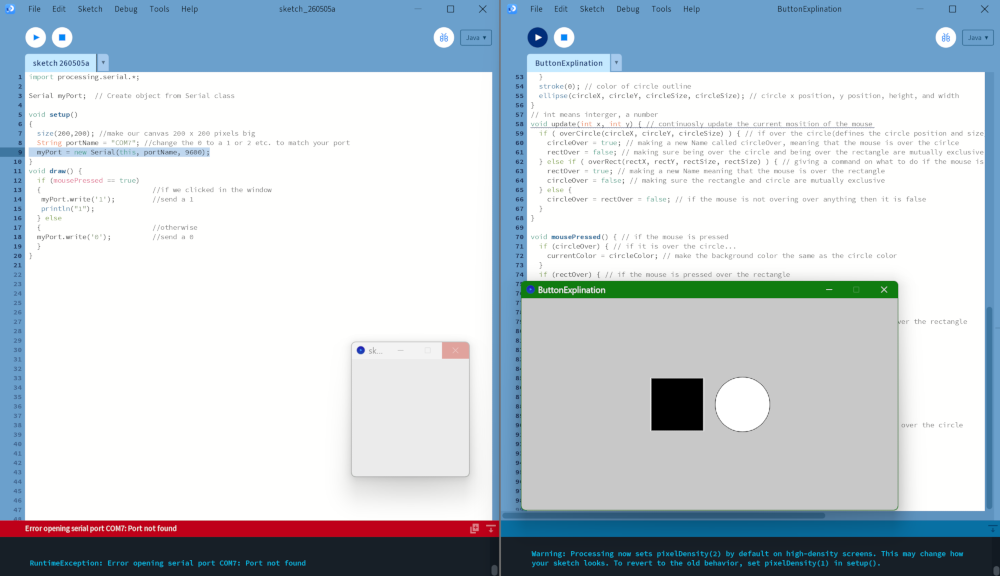
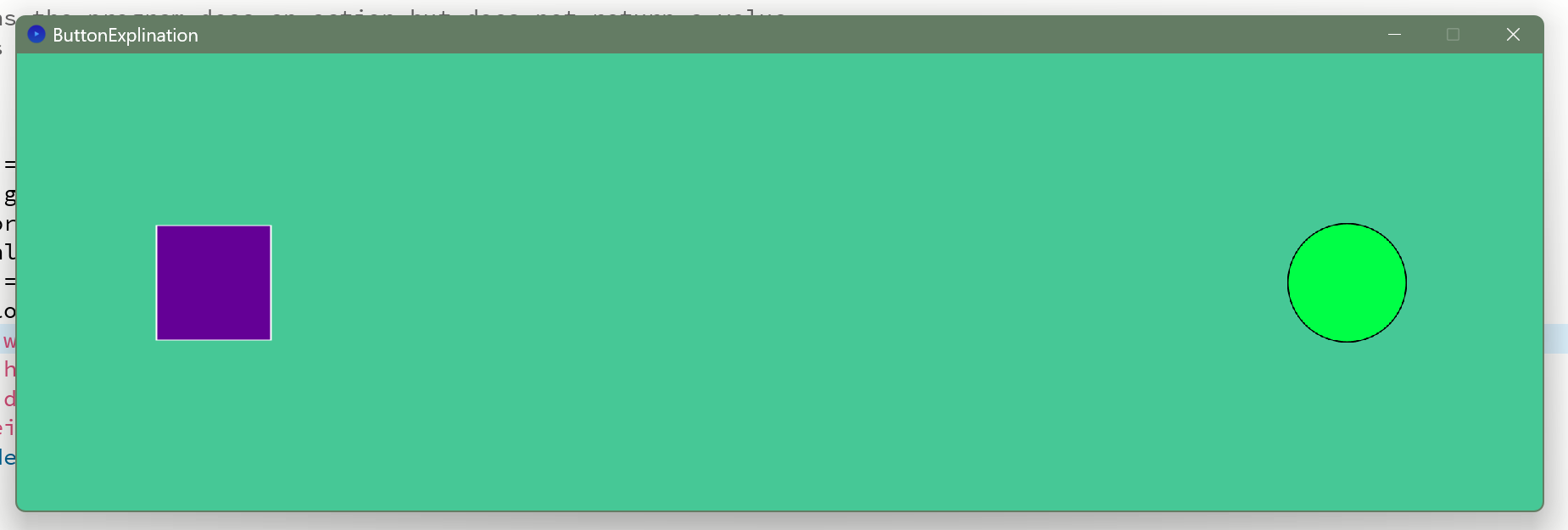
I used this code next by looking up buttons on arduino. The window on the left is the code and UI for turning the LED on. The window on the right is a code for buttons!
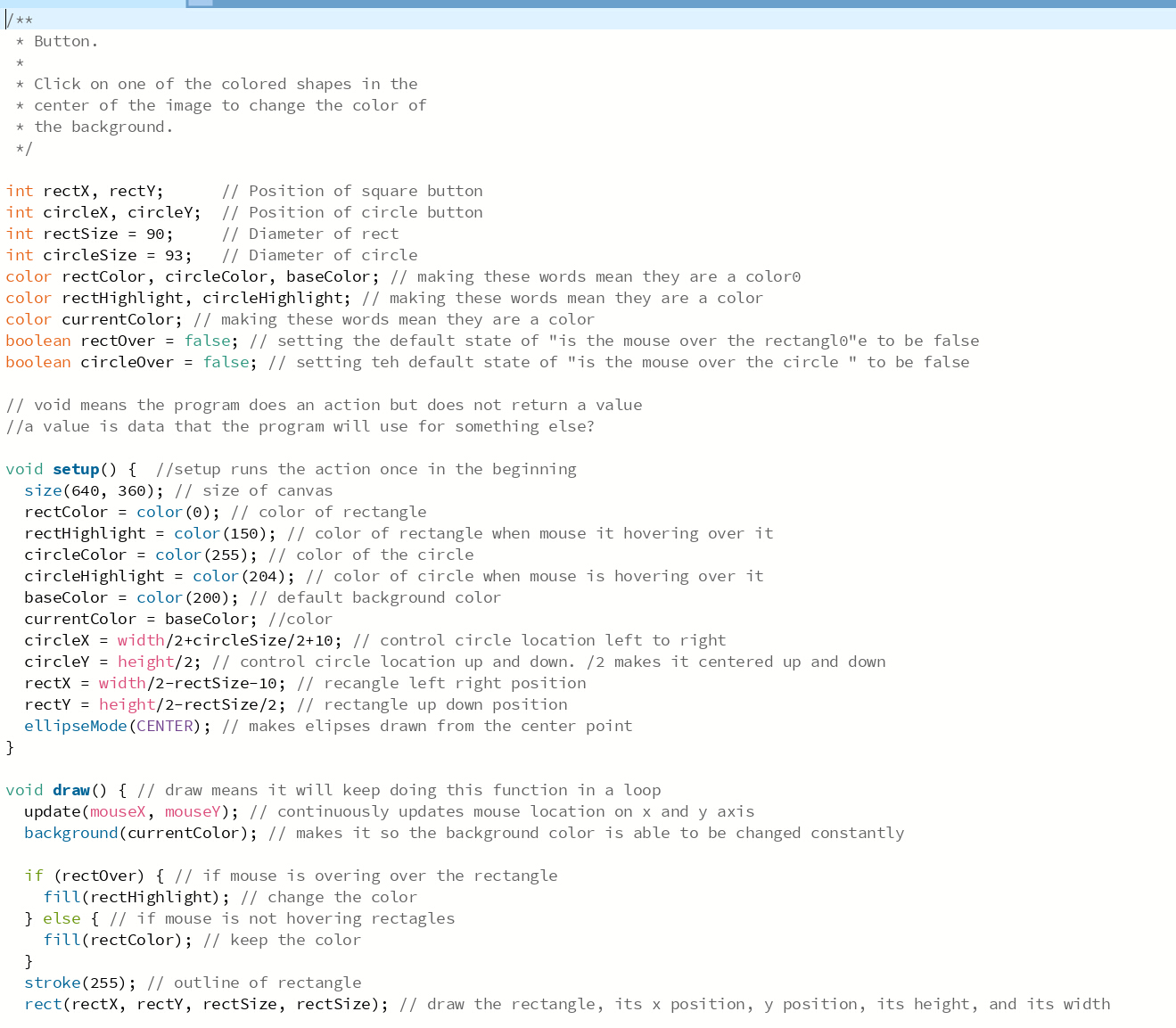
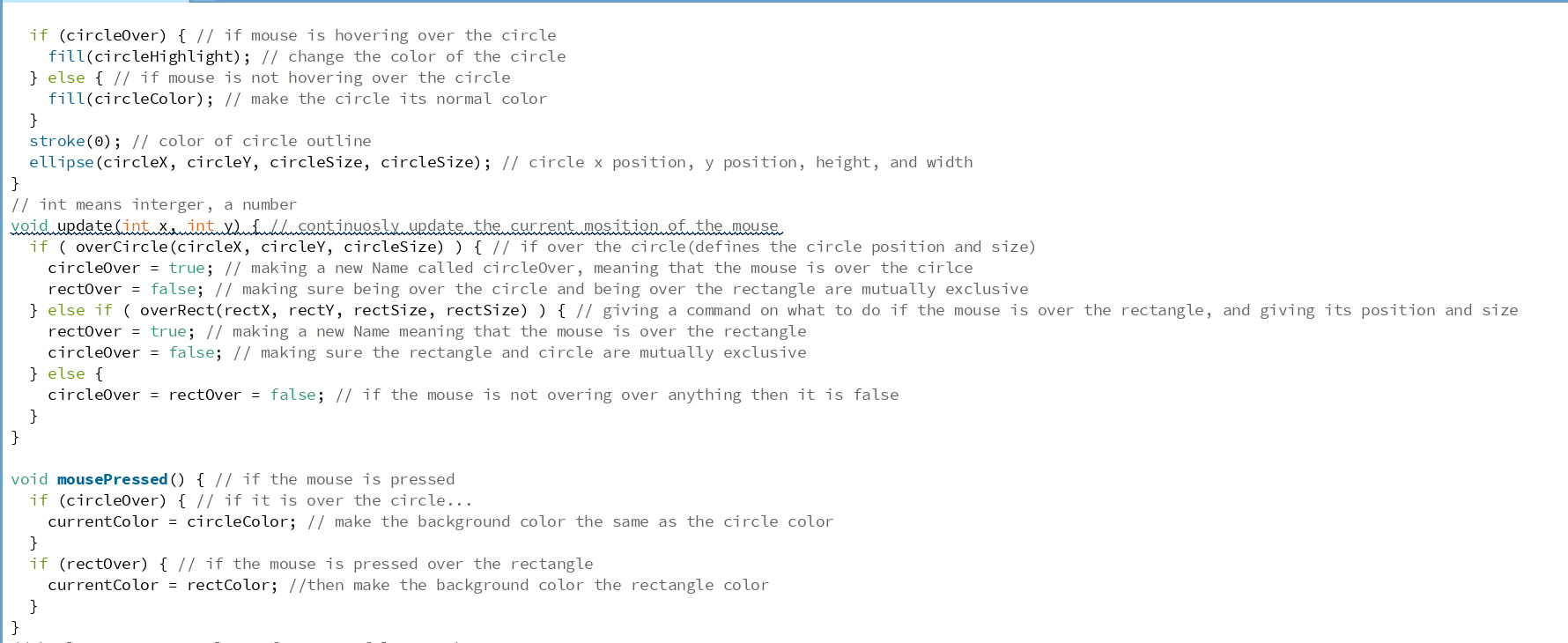
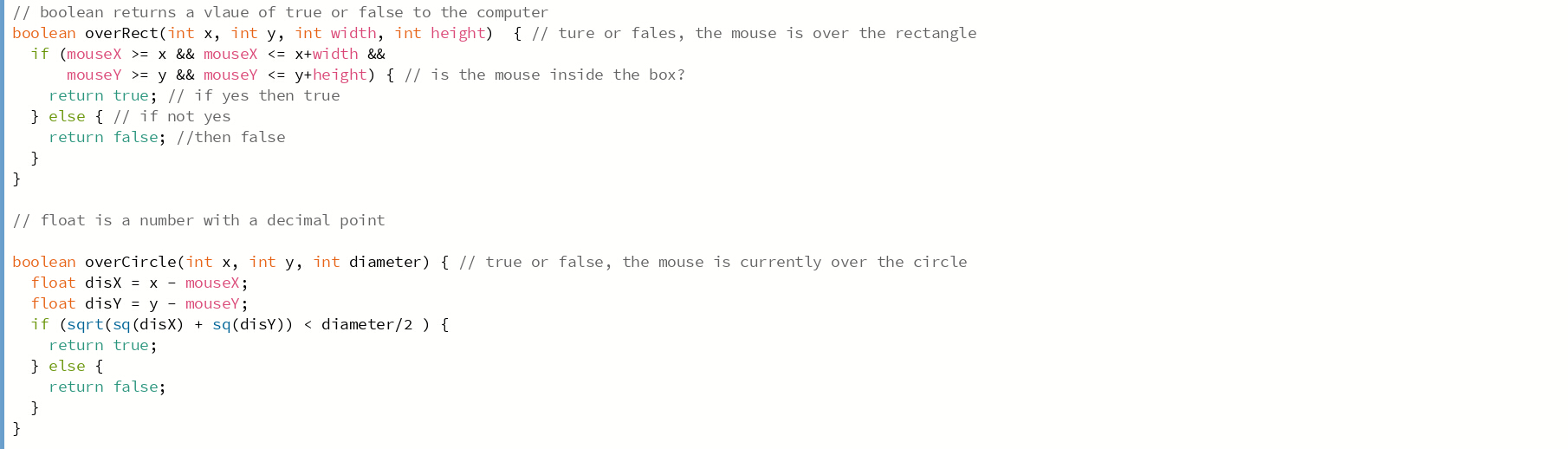
By changing and running it line by line and googling definitions, I was able to learn what each line did
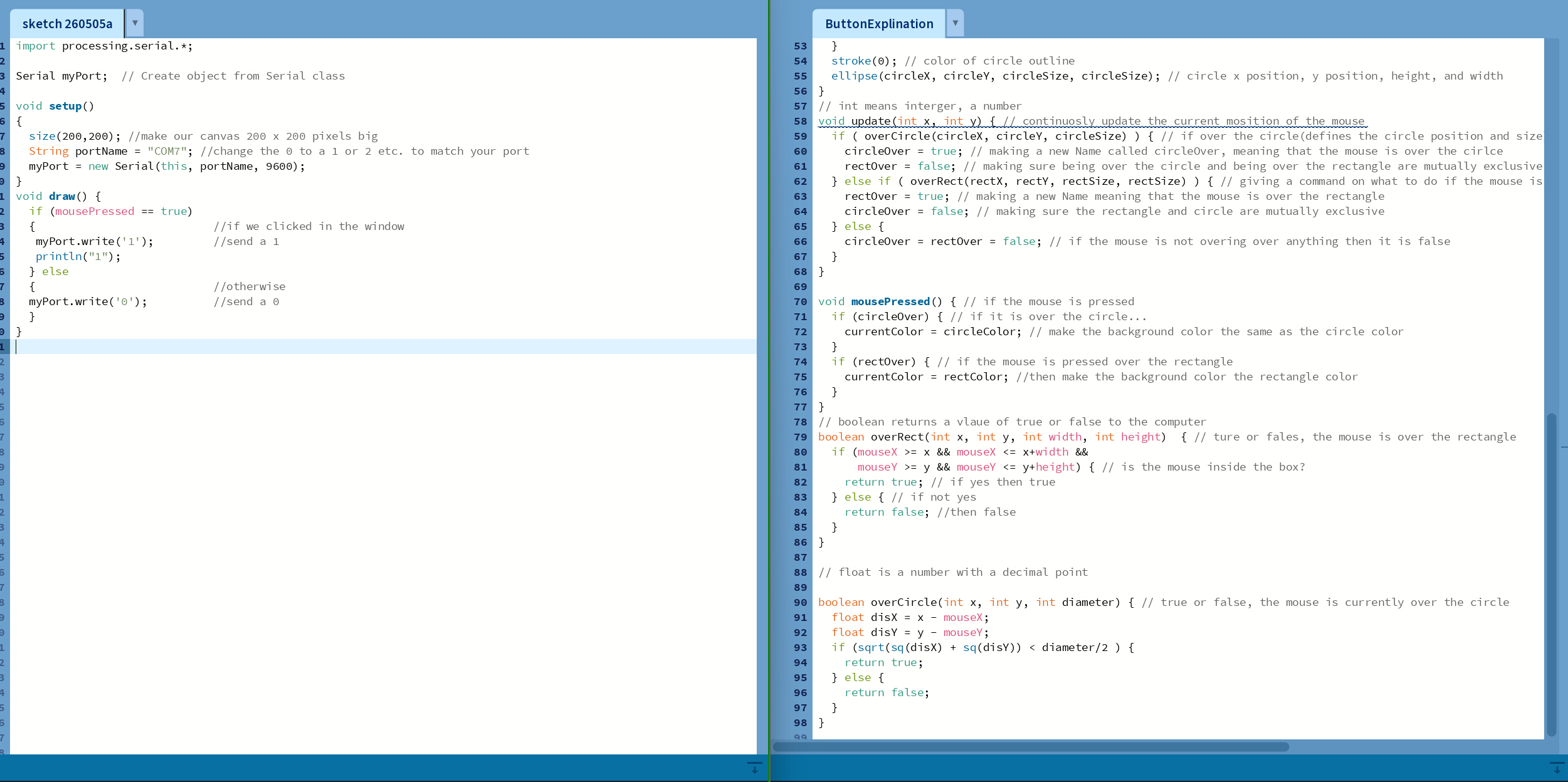
Now I just have to combine these two… Much of the code seems to be just saying what colors things are and where the shapes are, as well as tracking where the mouse is and defining the bounds.
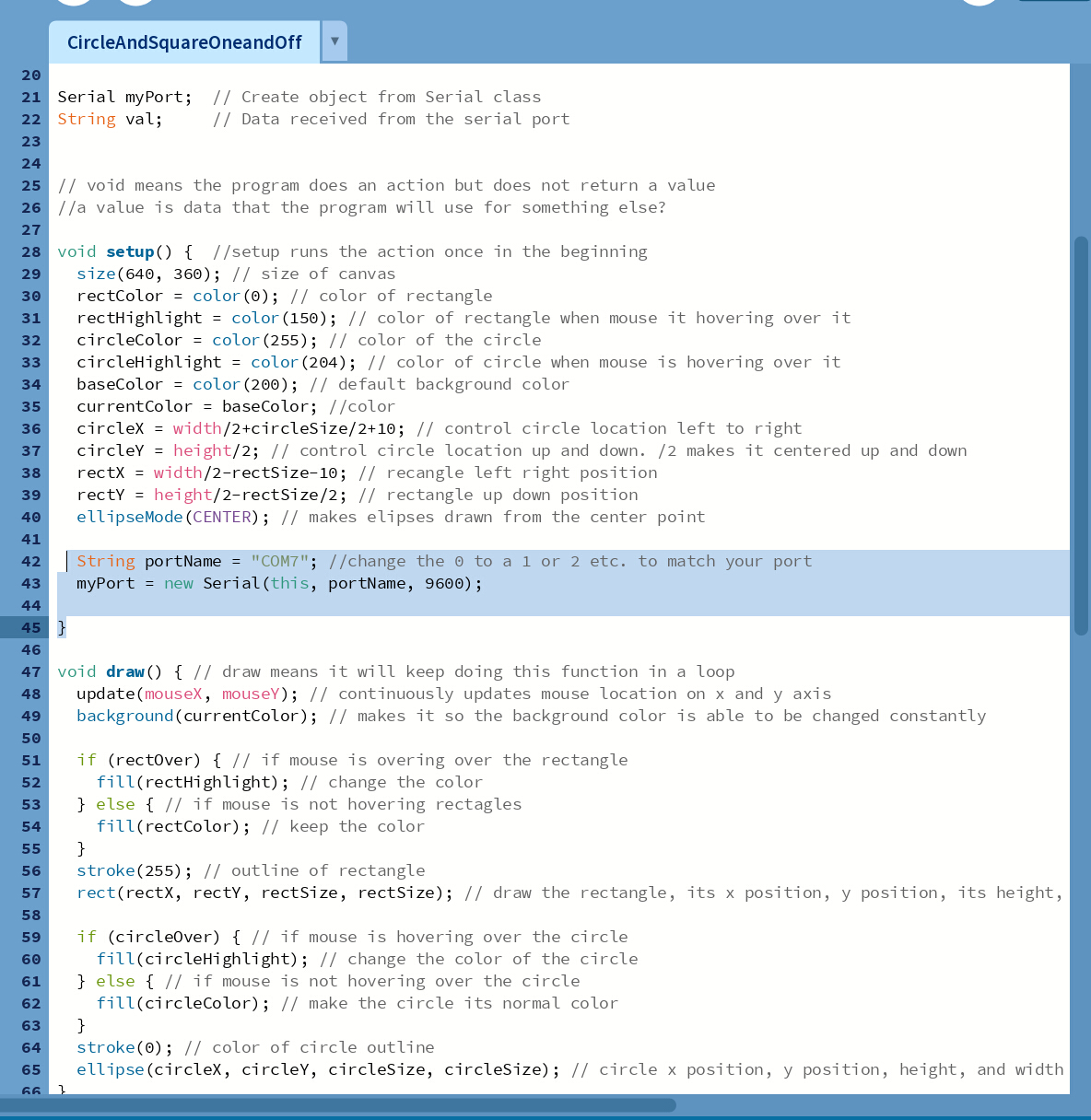
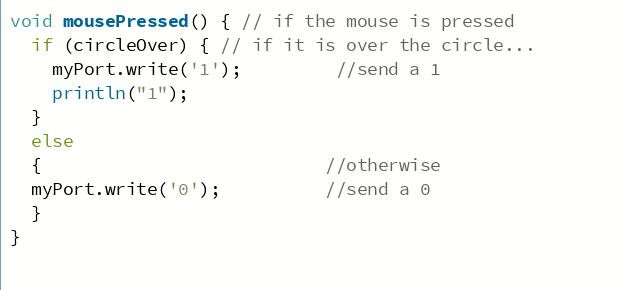
In the end, I just had to make 2 small changes. editing where it said the words mouse pressed, and importing the library and serial port so it knew who to communicate with.
With these 2 small changes, I was able to get the board to work! I made an interface by combining code!
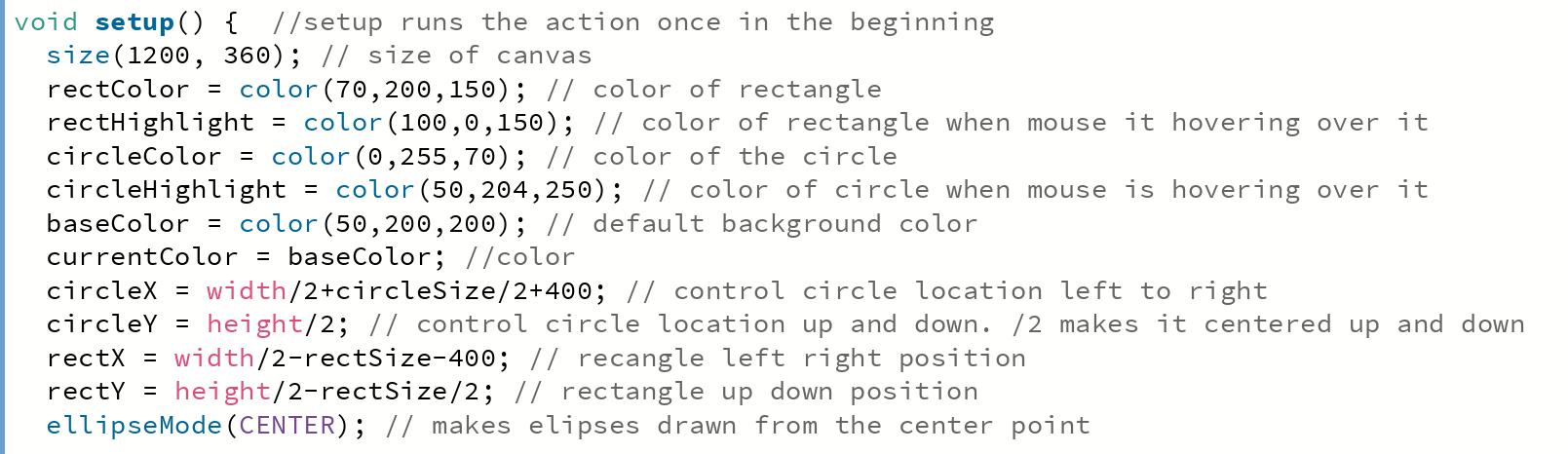
Lastly, I changed the color of the buttons and played around with the background and window size to truly make the code my own. It is very ugly! But I love it. The big changes are an easy way to see that the code is working.
Arduino Cloud
I did attempt to also use Arduino Cloud but I could not get the website to detect my board. Here’s the troubleshooting I did:
- download and run it in chrome
- restart my computer
- restart the cloud agent
- make sure I was using a data transfer cable
- boot, reboot, restart my esp32c3
- tried to manually enable permissions on my browser
Troubleshooting
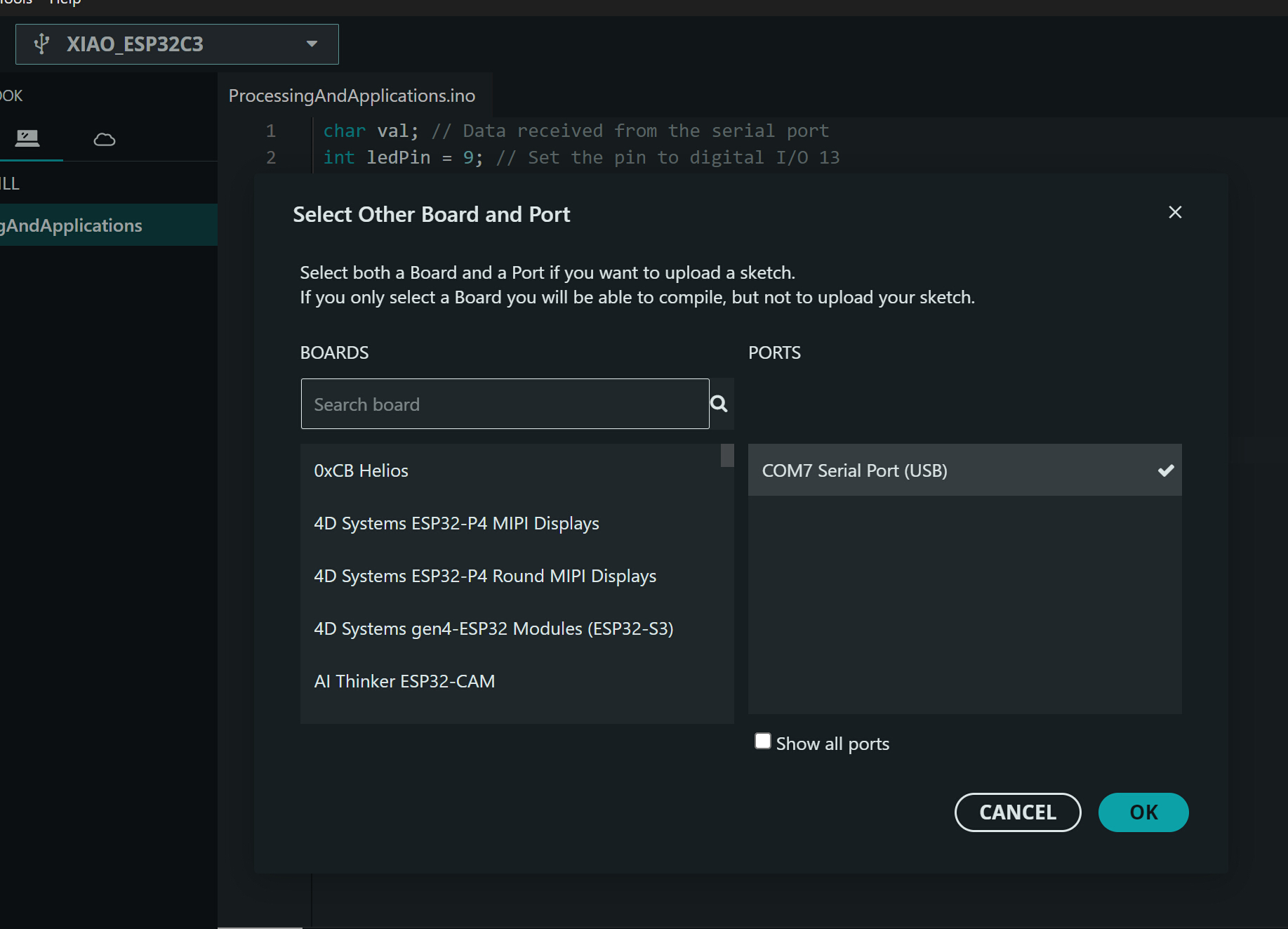
Q: How do I know what my USB ports name?
A: it you click in arduino the port you are using is named. make sure to type it between parathesis if you are using windows. “COM7”
Q: Why is my arduino code not loading now?
A: only one program at a time can “use” the port. Stop the code in Process, Then Stop and start it in arduino, then run the process code.
Reflection
I feel like every week I am back to basics, learning a new way to turn on an LED, and press a button. Honestly? This one felt extra magical because I had no coding help from my instructor. Going line by line and googling what the different code means was an amazing way to learn. Time consuming, yes, but valuable.
Cats
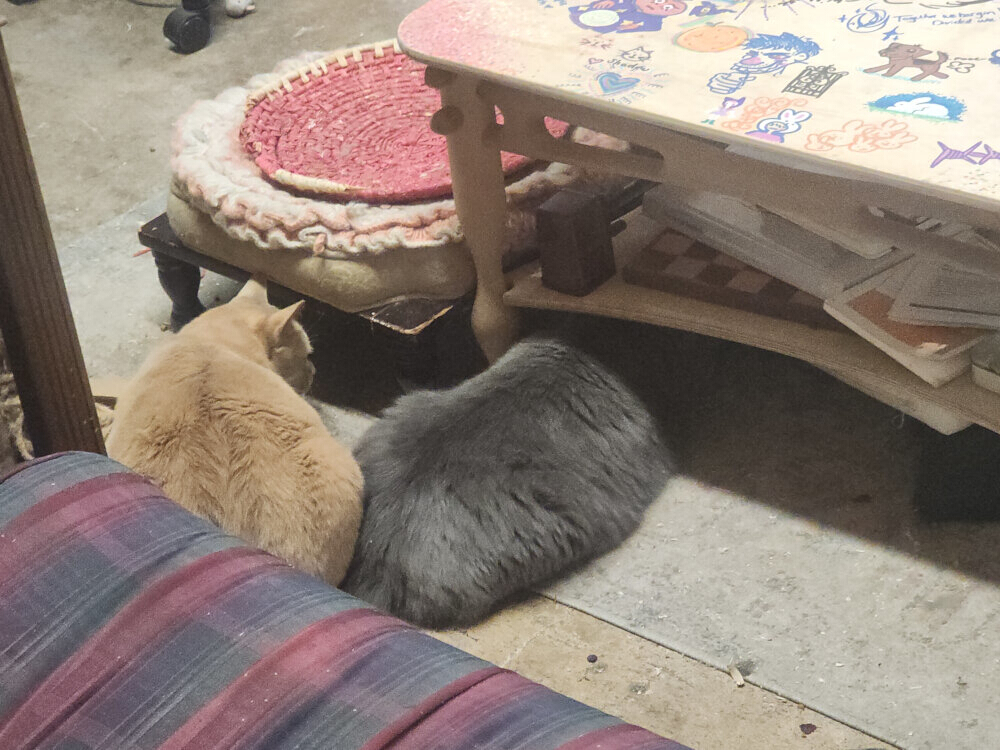
This week I came into the studio and saw the cats hunting!
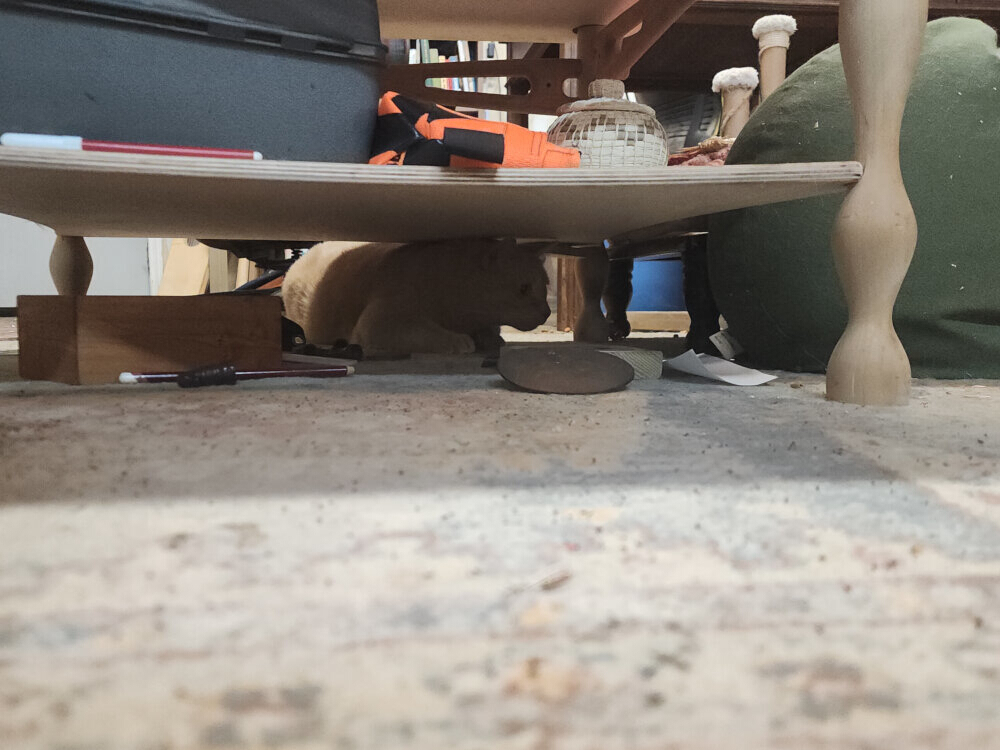
It scrambled under the table so I removed the pillow for a better view.
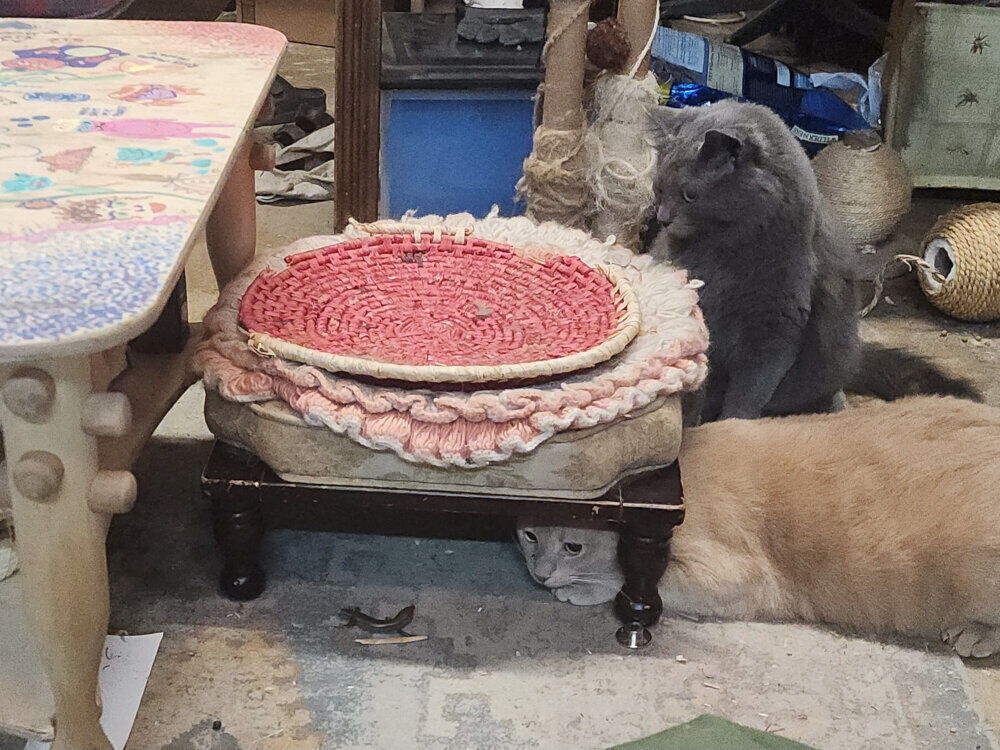
They were not hunting. They just wanted to watch.
Files
Copyright 2026
Source code hosted at gitlab.fabcloud.org