Prior knowledge
|
I already did multiple projects so I have a bit of experience in project management. I never used GitLab or something similar for myself, more for research. |
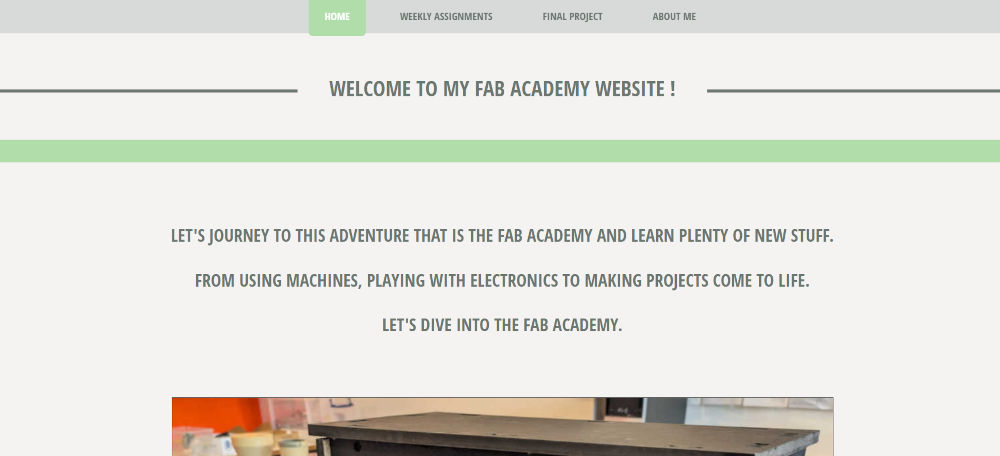
Hero shot
Git
Git is a free and open-source version control system that allows for storage and management of different files as well as the creation of different branches to a project and check the history from previous commits.
Here are a few basic commands I found interesting while looking up in each p Git tutorials (With the help of the following websites : git cheat sheet, dangitgit and ChatGPT) :
| Command | What it does |
| git init | Creates a new repository |
| git clone <url> | Clones an existing repository |
| git add <file> | Adds a specific file |
| git commit | Saves your work |
| git mv <old> <new> | Moves a file from an old location to a new location |
| git log | Shows the history of a branch or commits of a file |
| git status | Shows the current state of your repo |
While discovering Git commands, I realize I dislike these command line-based tools. I prefer to have a clear interface that helps me understand what I do.
The very first thing I do is to download, modify (with Windows Notepad) and save the Student agreement in the repository via the website without using commands.
Web development
Since I don't want to use Git commands, I search for a way to add and modify files easily.
For this, I started out by trying MkDocs (recommended by my Fab Academy supervisor) but since it's a command line based tool, I decide to use Visual Studio Code (shortened to VSCode).
Before doing anything, I need to link Gitlab and VSCode. First, I install Git on my computer, then I need to install an extension on VSCode called "GitLab Workflow", like the description of the extension explains it : "The GitLab Workflow extension integrates GitLab into Visual Studio Code.".
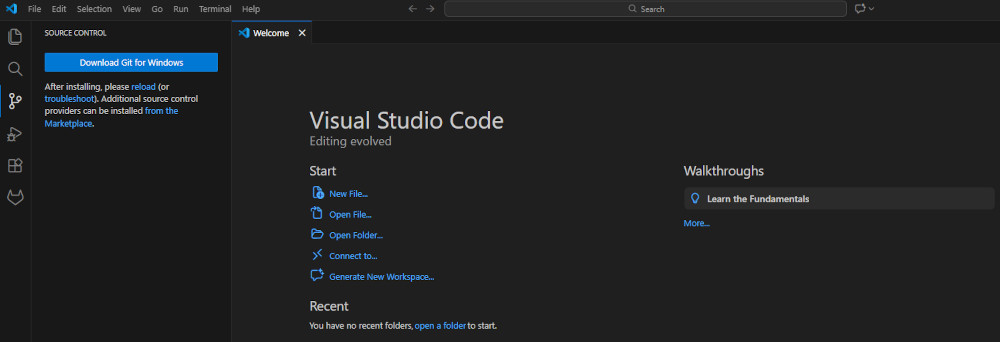
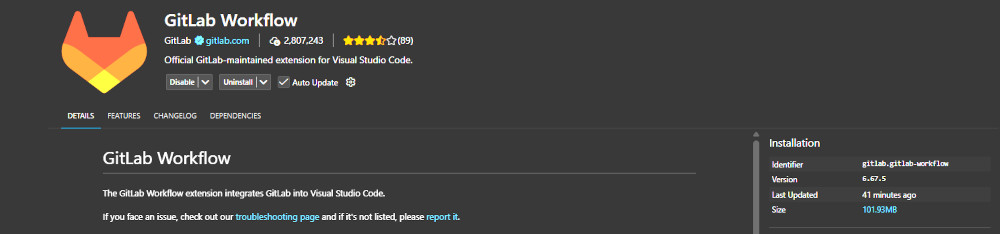
Then, with the terminal of VSCode, I type these commands to help for authentication and commits :
| For the email | git config --global user.email “git-email” |
| For the username | git config --global user.name “git-username” |
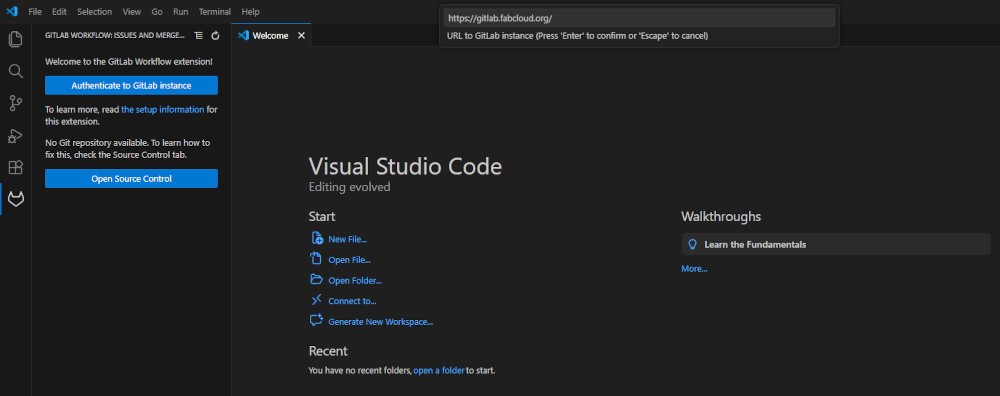
With Gitlab Workflow, I can now authenticate to a GitLab instance with a specific URLand I type "https://gitlab.fabcloud.org/".
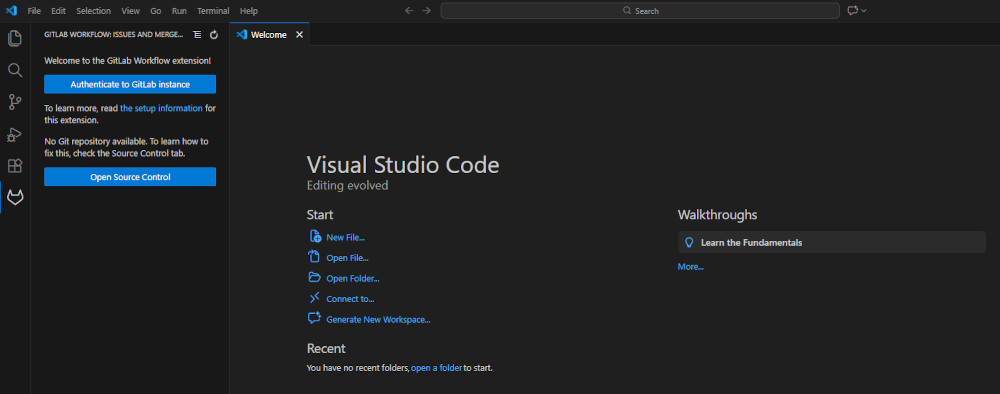
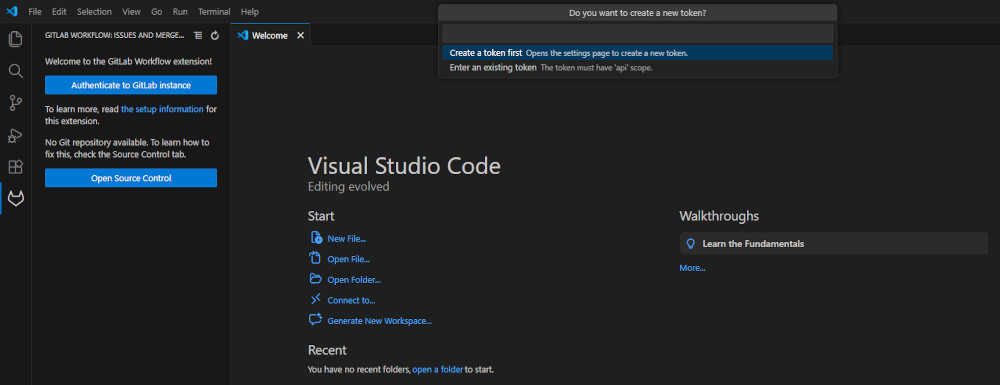
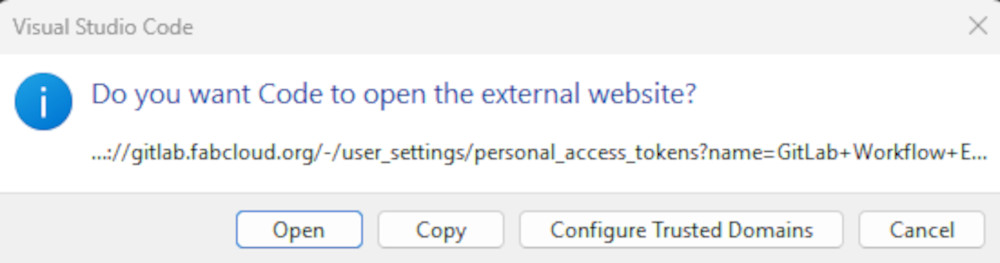
The extension asks me to create or enter a token, since I don't have one, I choose to create a new one. The program opens a new window to create said token in my GitLab account's settings.
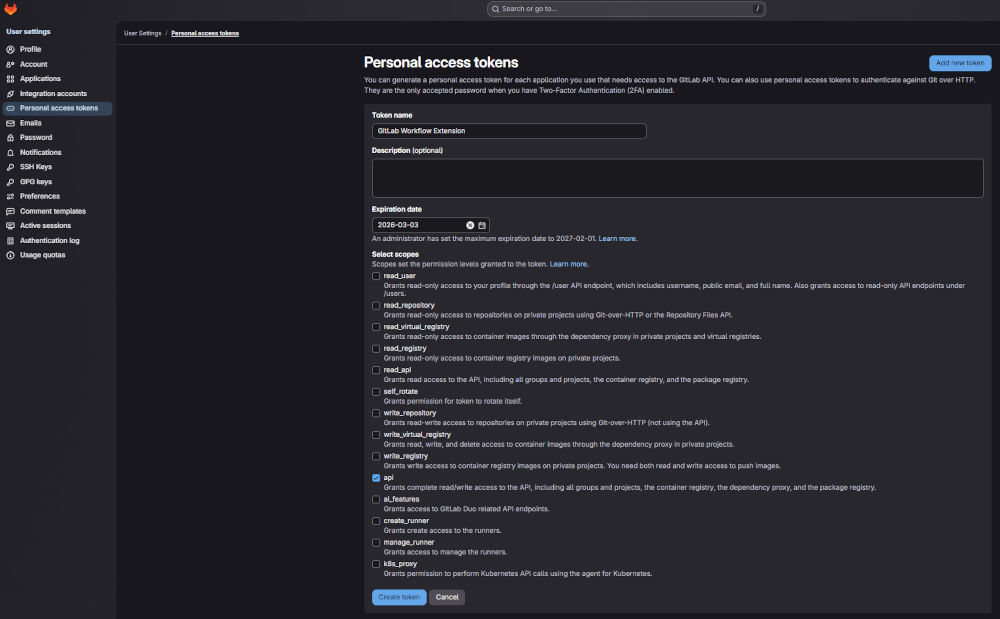
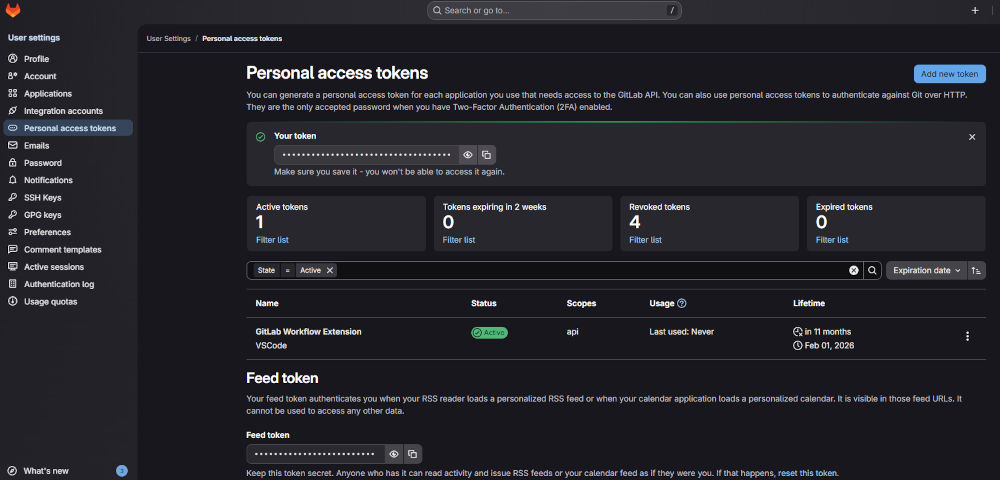
Finally, redo the step to authenticate with the extension, but this time, choose to enter a token and paste the token you just created.
Once it is done, the extension now gives you the possibility to open or clone a repo, I simply clone and then choose my source which is from GitLab.
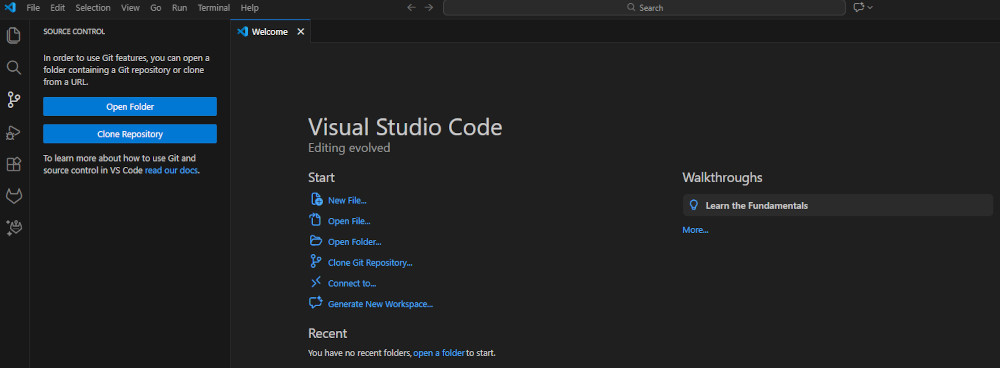
Once they are both linked, I can finally modify, delete or add files to GitLab via VSCode.
I personally prefer to use the HTML language to start since I already had a basic knowledge. I do a little modification to the HTML file index.html to check everything is working fine. Whenever I change anything, I have to commit & push every time I save to update the GitLab and thus my website.
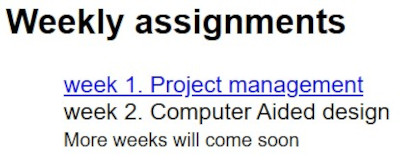
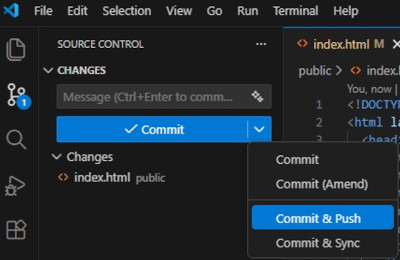
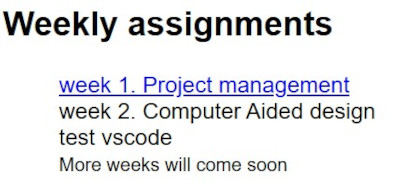
When everything seems to work well, I decide to save every HTML file from the Fab Academy on my computer just in case and delete everything in the repository to have a fresh start.
I decide to start with the template from the Fab Academy and modify it's style and content. I also use the following websites to learn the HTML language and some commands : w3schools, w3schools editor as well as asking ChaGPT for specific questions or problems.
I create and add content to the following files : style.css, index.html, final-project.html, about-me and week01.
At this point, I realize I made a few spelling mistakes easy to miss, so I check for a extension to detect and propose corrections and install this one : "Code Spell Checker".
Student agreement
I downloaded and added the student agreement to my website with its own page (I simply used an online tool to convert from MarkDown to HTML : MK to HTML), accessible here : Student agreement or via the footer in each page by clicking the graduated student's icon.
Problem(s) met
-
Linking GitLab and VSCode
When using an URL to authenticate to GitLab via VSCode, I first used the following link : "https://gitlab.fabcloud.org/academany/fabacademy/2026/labs/ulb/students/fabio-coelho" which wouldn't work to establish a link but after searching, I actually had to use this link : "https://gitlab.fabcloud.org/".
-
Deleting all the files of a repository
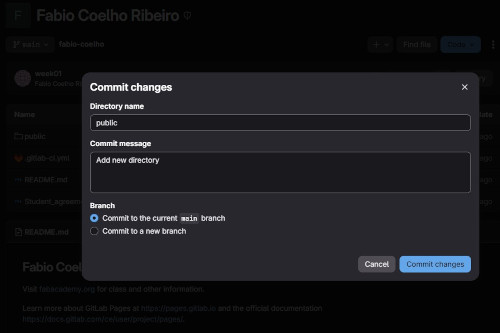
When I deleted all the files of the public folder to have a fresh start, everything including as the folder got deleted, so I had to create a new one with the same name "public" as well as the previous folders "images" and "assignments".
-
Hyperlinks
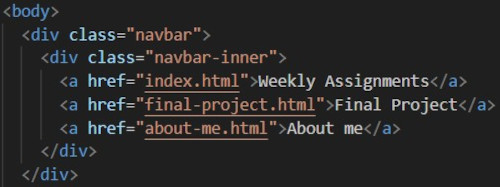
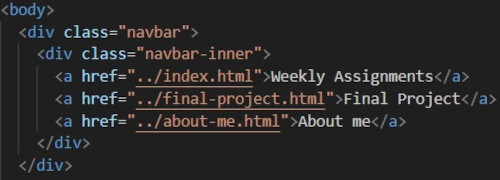
While editing the week01 file, I realize the hyperlinks didn't work. What I had done is simply copy and paste the same lines from the previous file but after checking with the original files, I understood I had to change the path because this specific file was in another folder.
Assignments checklist
- ✅Sketched your final project idea(s).
- ✅Described briefly what it will do and who will use it.
- ✅Made a website and described how you did it.
- ✅Created a section about yourself on that website.
- ✅Added a page with your sketch and description of your final project idea(s).
- ✅Documented steps for setting up your Git repository and adding files to it.
- ✅Pushed to your class GitLab repository.
- ✅Signed and uploaded the Student Agreement.