17. Applications and Implications, Project Development
Plan a final project masterpiece that integrates the range of units covered.
Your project should incorporate:
2D and 3D design Additive and subtractive fabrication processes Electronics design and production Embedded microcontroller interfacing and programming System integration and packaging. Where possible, you should make rather than buy the parts of your project. Projects can be separate or joint, but need to show individual mastery of the skills, and be independently operable.
See Final Project Requirements for a complete list of requirements you must fulfil.
My Final Project Requirements under NDA
Project Development Prepare drafts of your final project summary slide (presentation.png, 1920x1080) and video clip (presentation.mp4, 1080p HTML5, < ~minute, < ~25 MB), put them in your root directory, and check that they are linked in the final presentation schedule
How to set Slide dimension with Power Point and Paint
Preparing Slide Images at 1920 × 1080 Pixels
Export as PNG and Resize in Paint
Work in Power Point
1. Open the presentation in PowerPoint.
2. Select File → Save As.
3. Select PNG as the file type.
4. Export either the current slide or all slides.
Work in Paint
5. Open the exported PNG in Paint.
6. Select Resize, then choose Pixels.
7. Keep the aspect ratio locked and set the width to 1920 pixels.
If the original image has a 16:9 aspect ratio, the height should become 1080 pixels.
8. Save the resized image as a new PNG file.
How to make so so quality but very small video size with Davinch Resolve and Hand Brake
By asking Chat GPT about the way to make video size small with so so quality for action content, I came up to two steps method with following setting.
Work in DaVinci Resolve
At the “Render Setting” window, set each value as following yellow arrow part.
Video setting
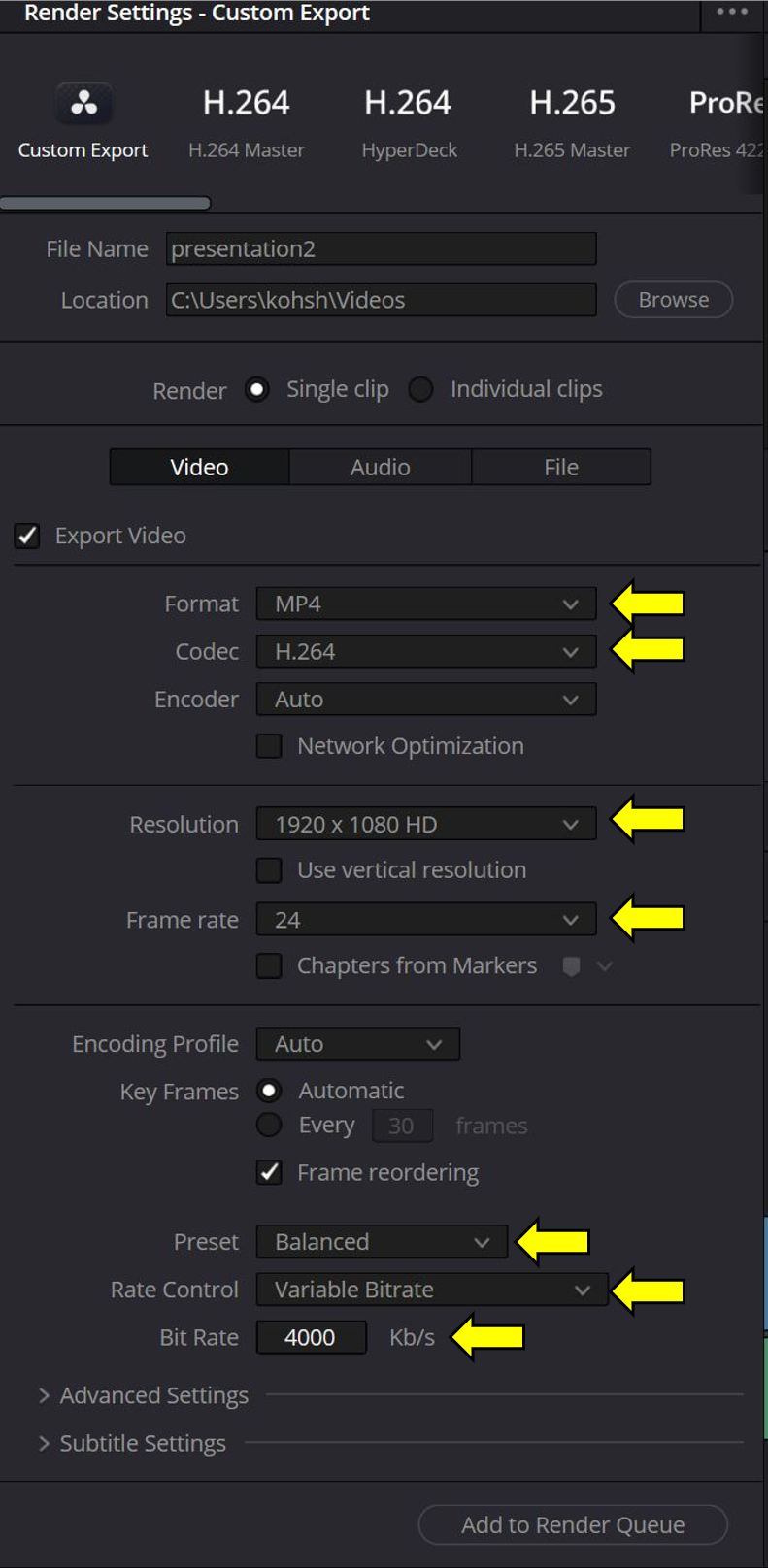
For Bit Rate, “4000” seems the limit value for action video for Davinci Resolve output file.
Audio setting
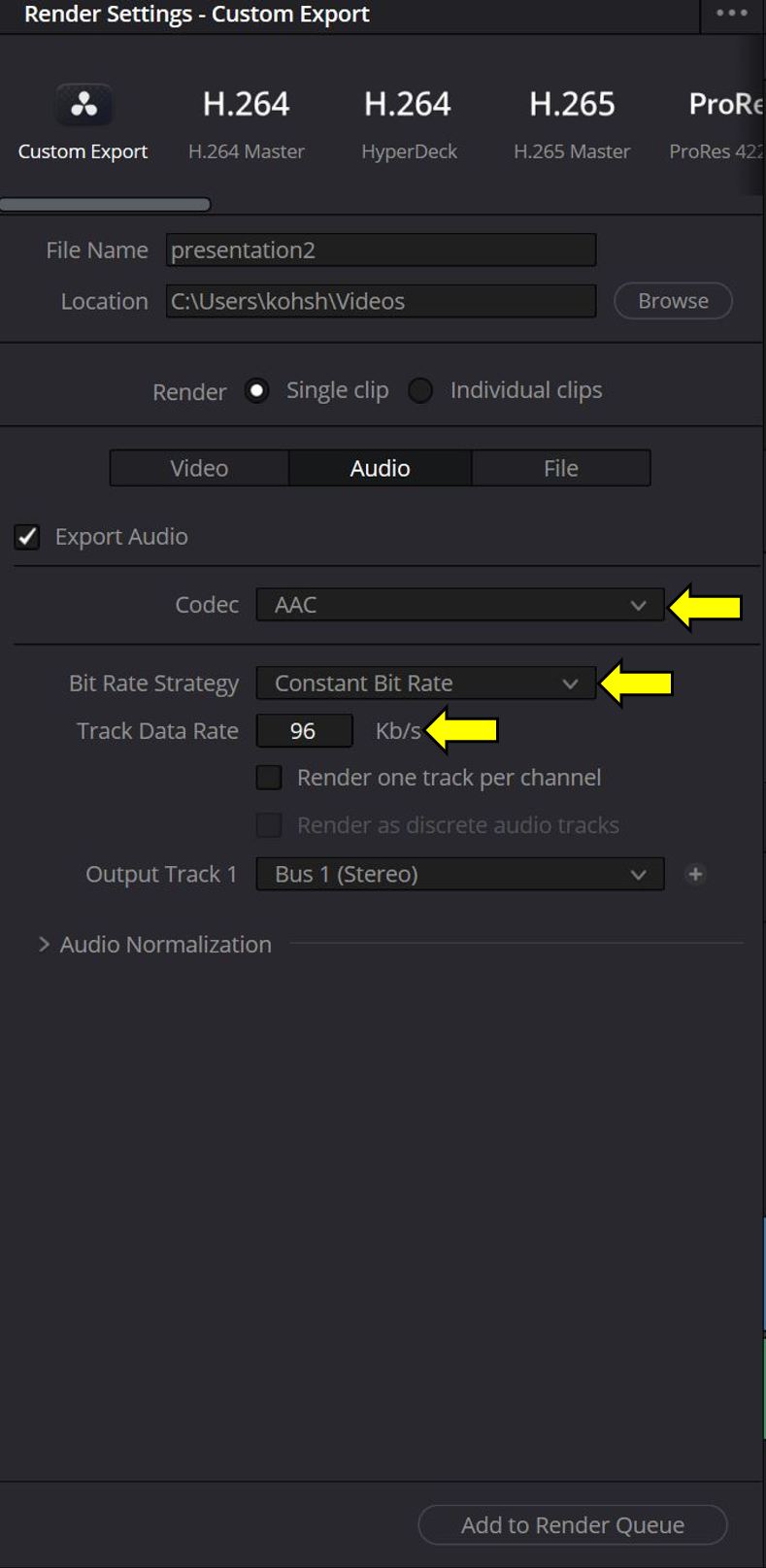
For Track Data Rate, “96” is enough.
1920 × 1080 Pixels size of 37sec length video was made as 19.6MB file size by DaVinci Resolve.
Work in HandBrake
At the “Dimensions” setting window, set each value as following yellow arrow part.
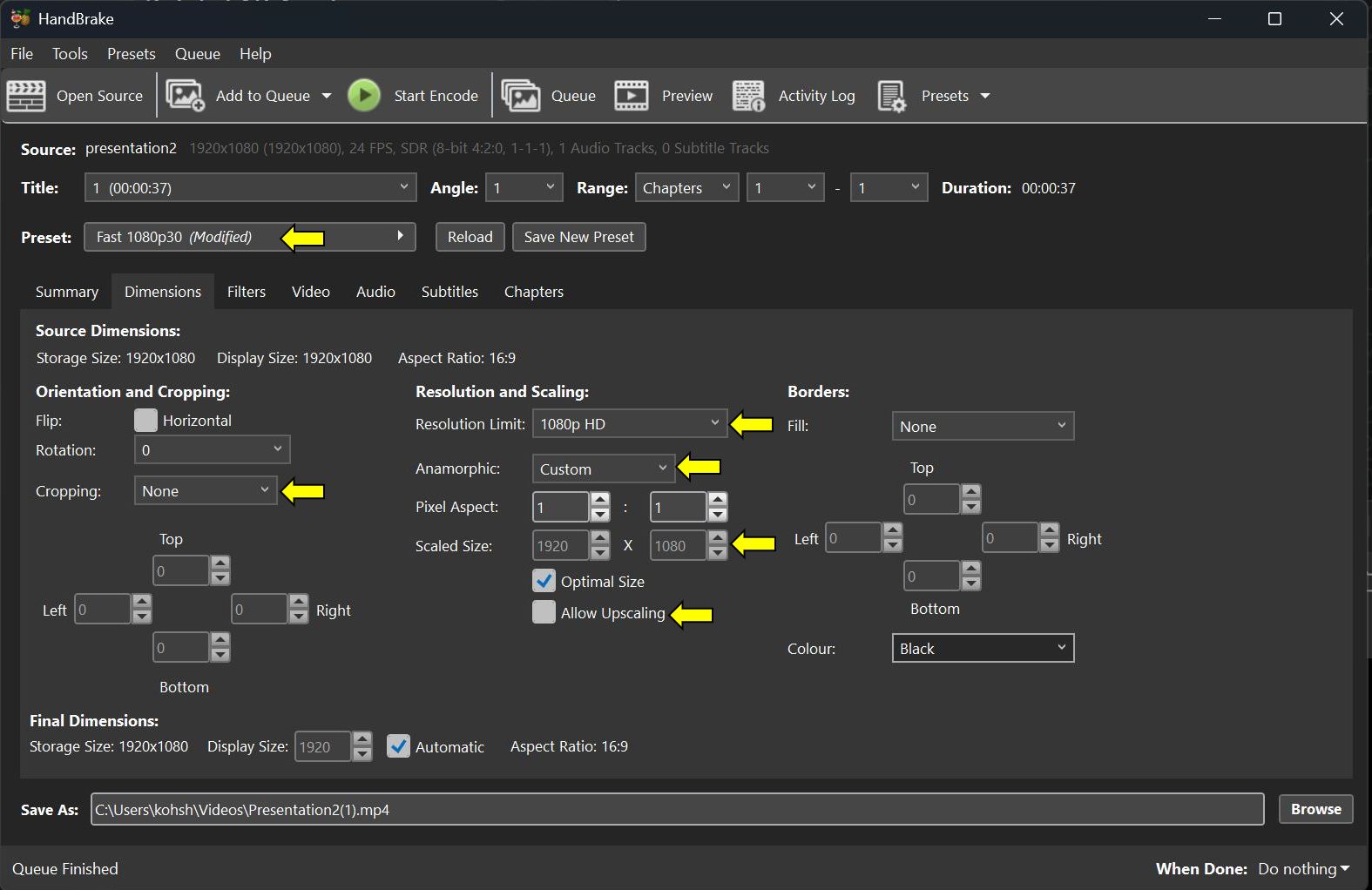
“Video” setting window
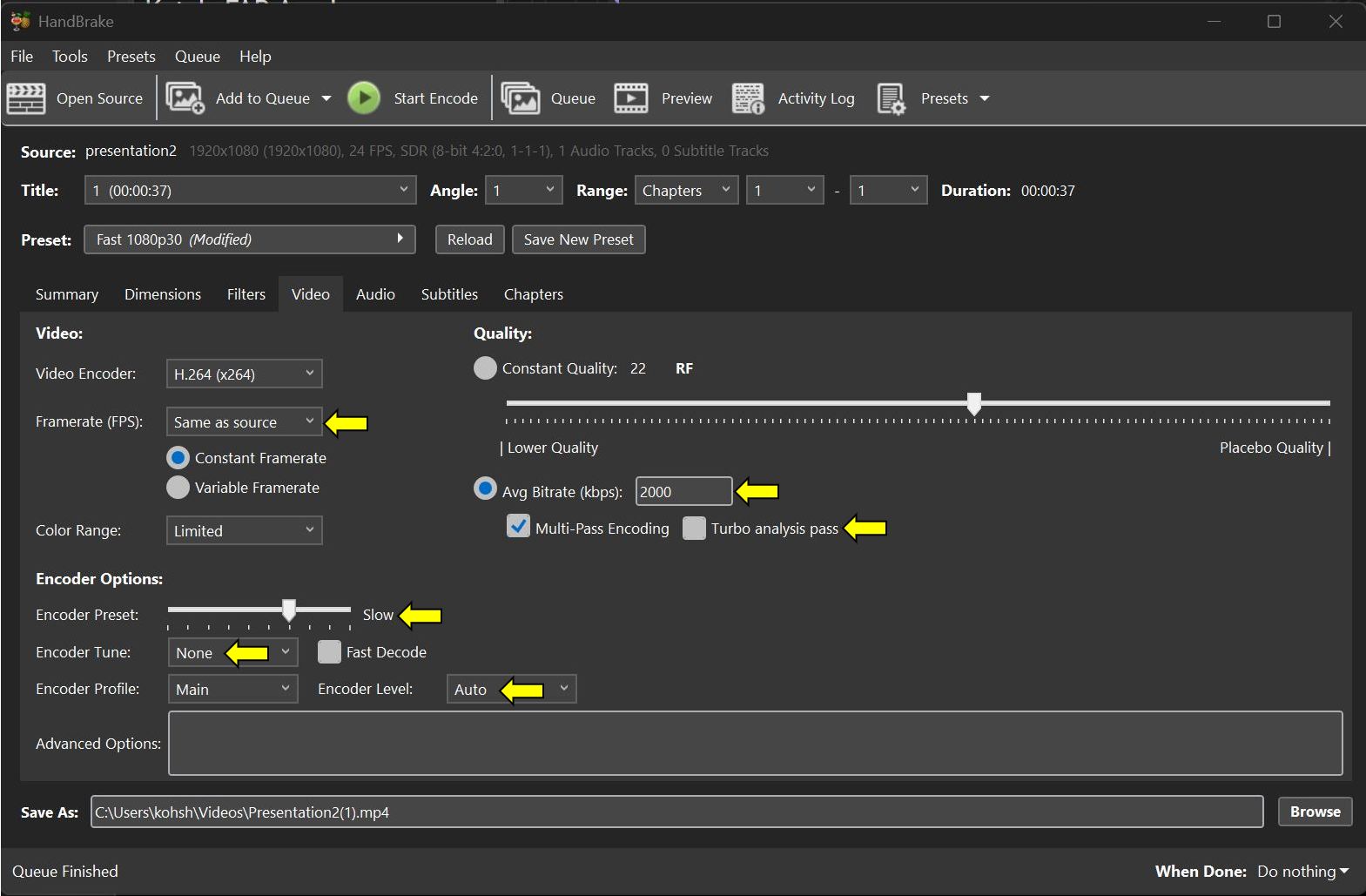
For Avg Bitrate, “2000” is recommended for action video based on my study.
This setting is
“Audio” setting window
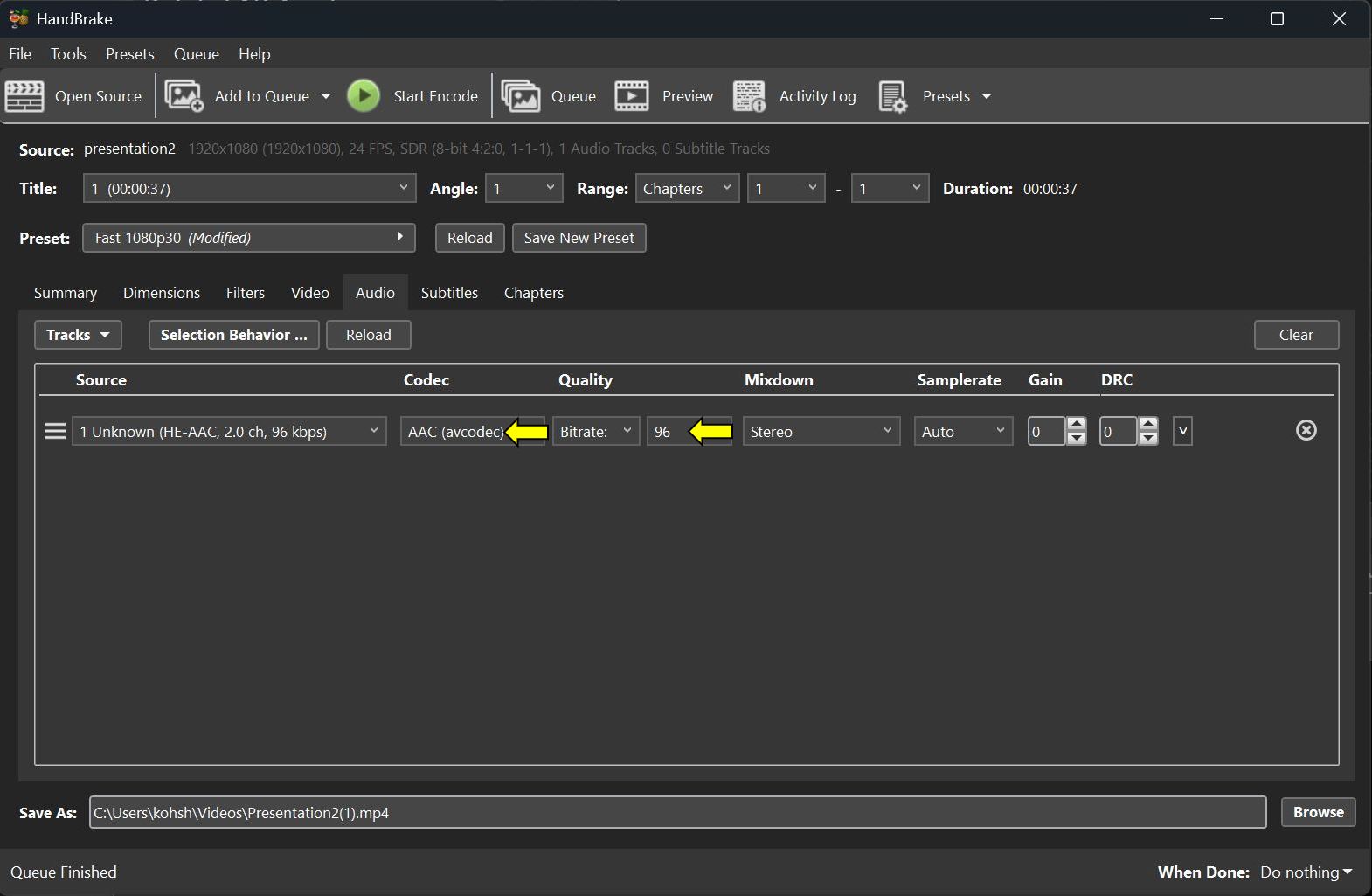
1920 × 1080 Pixels size of 37sec length video with size 19.6MB file was compressed as 9.32MB file size by HandBrake keeping so so good quality.