Week 02: Image Editing
How to Take a Screenshot
command + shift + 3takes a screenshot of your entire screencommand + shift + 4takes a screenshot of your selection
How to Crop
- Open image in Preview
- Go to Tools -> Crop
- Crop out unneeded space
Resizing Images
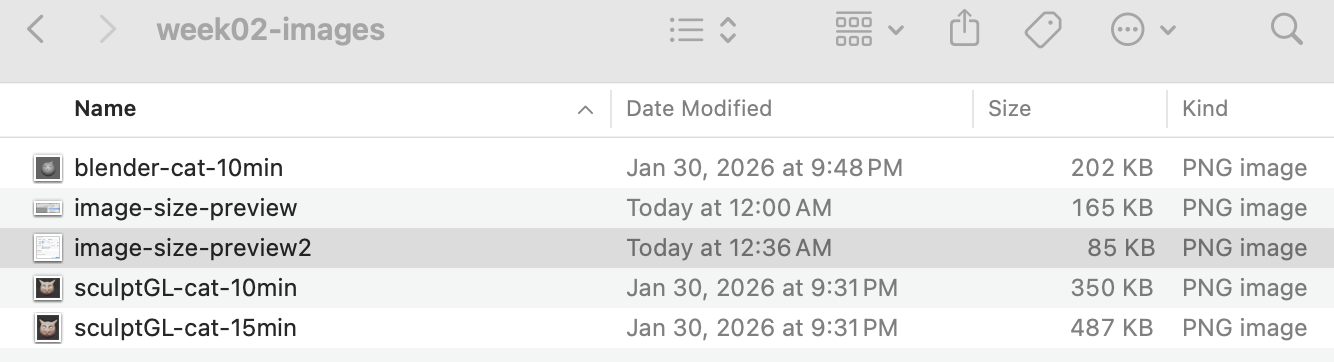
- Open folder with image inside
- the size is listed as well as the type of file
- Open image in Preview
- go to Tools -> Adjust Size
Niel suggested setting width to 800 pixels would typically decrease the size of the file enough
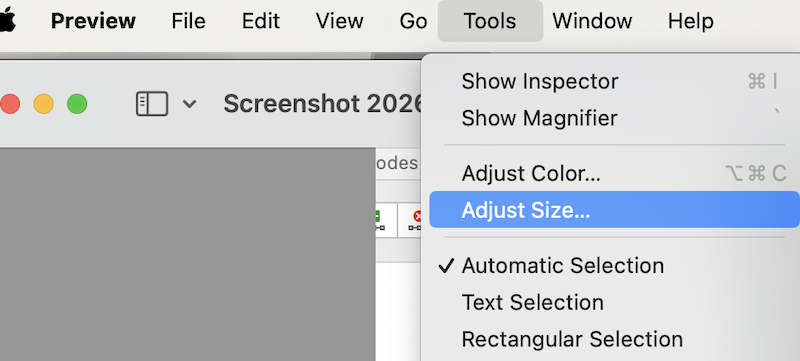
- go to Tools -> Adjust Size
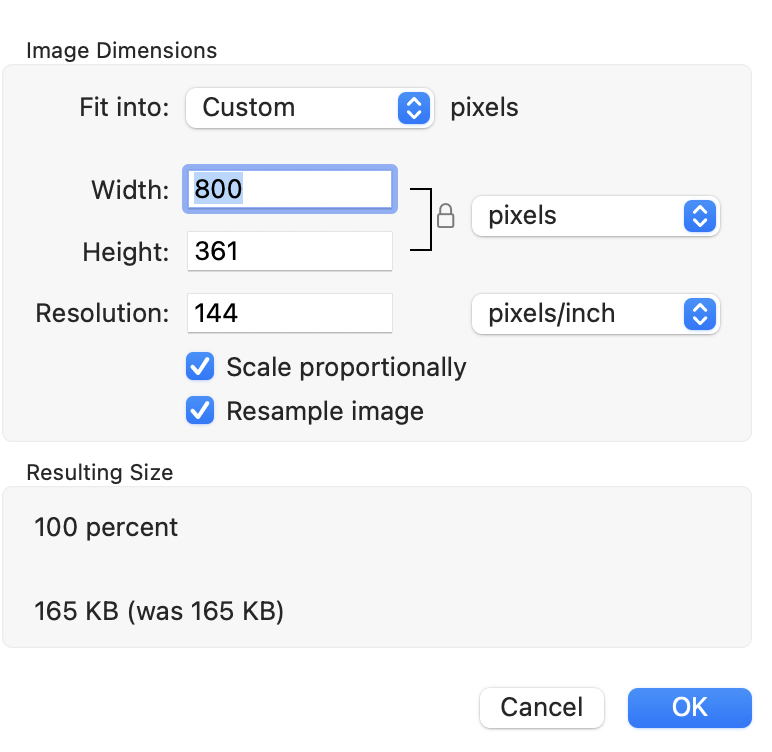
Image Editing Software
I looked at the tutorials for GIMP. I was surprised to see how similar the commands are to Preview on my computer. For simple pictures I will continue to use Preview instead of installing another program.
Link to GIMP Quickies Tutorial
File Formats for Images
Click [here fo "Too Many Formats: JPG vs. PNG vs. GIF vs. HEIC vs. WEBP"] to go to raindog308's page expaining different file formats https://lowendbox.com/blog/too-many-formats-jpg-vs-png-vs-gif-vs-heic-vs-webp/
In short: .jpg (.jpeg) for small files, but blurry edges when enlarged .png for clear images when resized, and transparent images .gif for very small with short animation