Documentation
While HTML is the natural language for the browser, and that’s what websites serve, including FabAcademy, it is not the nicest format to write by hand. And while HTML editors do exist, they feel somewhat cumbersome to use, or just plain overkill.
I already know the basics of HTML and have no desire to write them by hand 😅
For a few years now, I have started writing my own documentation in markdown format, which is more human readable and easily editable with any text editor.
While any text editor will do, I find it convenient to use a markdown editor, because it instantly renders the page structure as you edit.
I use Obsidian as an editor as it operates locally without the cloud, renders the markdown in realtime, and has a ton of nice community plugins, including one for emojis 😉
The strategy
So, the idea is to write the documentation in markdown and have a static site generator (SSG) that converts the markdown into HTML, and adds a few extra benefits.
One such SSG is MkDocs
As I didn’t have experience with such tools, I picked this one as it was one of the suggested tools in the course.
I used the templates that FabAcademy provided, and tweaked to my own content.
The MkDocs basics
MkDocs will pick the content of a docs folder, convert everything into HTML, add some styling and more importantly, some navigation.
The gist of how this works is that you have a index.md at the root of your docs folder which is the entry point.
Each folder under docs, will become a top level navigation item.
Each file under a folder will become a navigation item on the left.
Finally, any markdown section in the md file will automatically become a navigation item on the right of the page.
Here’s what it looks like in my Obsidan file structure:
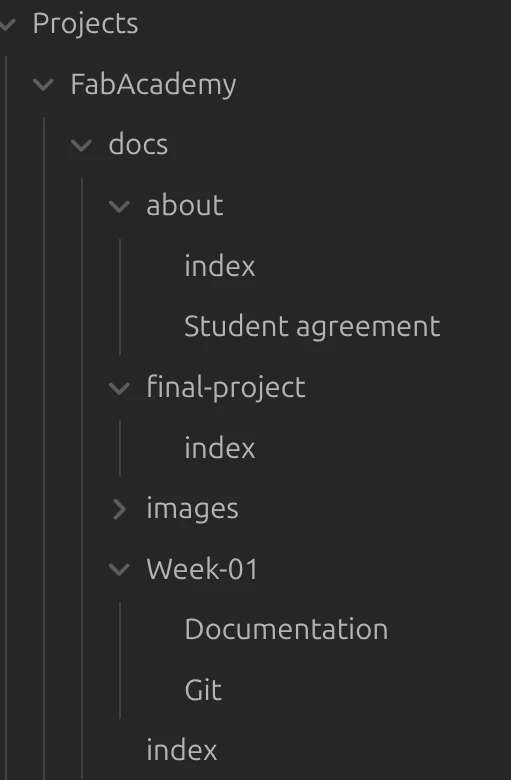
One slightly annoying thing is that there doesn’t seem to be a standard way for markdown to specify image size. While Obsidian handles it one way, mkdocs expects in another way. Luckily both support direct HTML instructions, so I resorted to include images, not using markdown, but with a HTML img tag, where I can also specify the size, like this:
<img src="../images/myimage.webp" width="400">
However, I only use this when I need to specify size, otherwise the markdown links suffice.
The templates are using the material plugin for styling, which I used and found no need to tweak anything so far.
Mkdocs uses a config YML file which I tweaked for my own site. Here’s a snippet:
site_name: Carlos Anjos - Fab Academy
site_description: Fab Academy documentation site for Carlos Anjos
site_author: Carlos Anjos
copyright: Copyright 2026 Carlos Anjos - Creative Commons Attribution Non Commercial

# replace with your website url, ie https://fabacademy.org/2026/labs/abcde/students/wyz
site_url: https://fabacademy.org/2026/labs/benfica/students/carlos-anjos/


extra:
  # Set your own social media below (or remove)
  social:
    # For other social icons at https://squidfunk.github.io/mkdocs-material/setup/adding-social-links/
    - icon: fontawesome/brands/linkedin
      link: "https://www.linkedin.com/in/anjosc/"
Testing locally
In order to test the deployment locally before pushing to the server, one has to install the python package and its dependencies.
Because I hate dependency hell and python slop polluting my local machine, I used the new way to isolate python apps and its dependencies which is uv
I create standard requirements.txt file with:
# Documentation static site generator
mkdocs ~= 1.6

# Add your custom theme if not inside a theme_dir
# (https://github.com/mkdocs/mkdocs/wiki/MkDocs-Themes)
mkdocs-material ~= 9.7

# Plugins
mkdocs-git-revision-date-localized-plugin ~= 1.5.0
mkdocs-callouts ~= 1.16.0
I only needed to execute the following
uv tool install --with-requirements requirements.txt mkdocs

uv tool update-shell
And now mkdocs behaves like a local app, and you can just call
mkdocs serve
and the local content will served and be locally inspectable with a web browser, which in my case is http://127.0.0.1:8000/2026/labs/benfica/students/carlos-anjos/
Deploying to the remote server
While mkdocs serve will launch a local web server and translate the pages on the fly, it’s not the one used by FabAcademy, hence, a process is needed to to actually perform the conversion the files in markdown to a fully fledged site.
Luckily, the templates already include a .gitlab-ci.yml which has already configured all the necessary steps.
Whenever there is a git push to the server, an action is triggered in GitLab’s Continuous Integration (CI) system and within a minute or so, the changes are live in the student’s site.