Week 01 - Principles and Practices, Project Management
Assignment
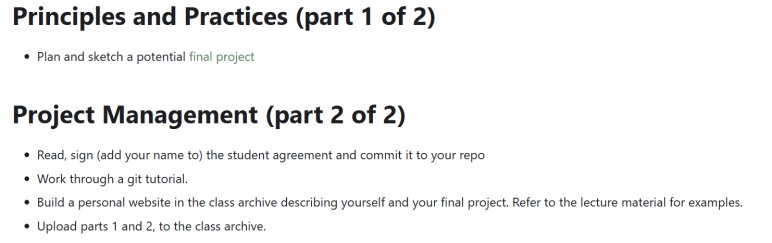
Project managment
My operating system

My Windows 10 desktop — the operating system I use for all development and documentation work during Fab Academy. I use Windows 10 because it offers strong hardware compatibility, stable system performance, and broad support for engineering, programming, and CAD software. It provides reliable driver integration, efficient multitasking, and compatibility with development environments such as Arduino IDE, Python, and embedded systems tools.
GitLab + VS Code
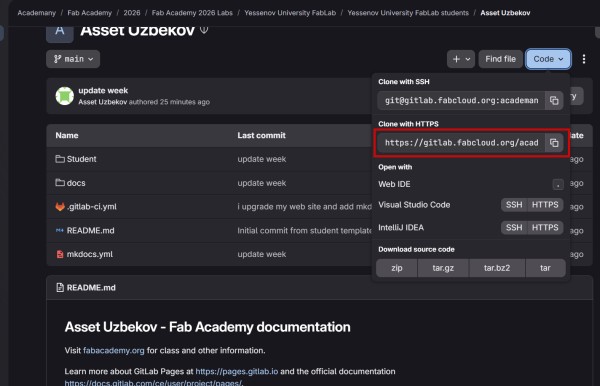
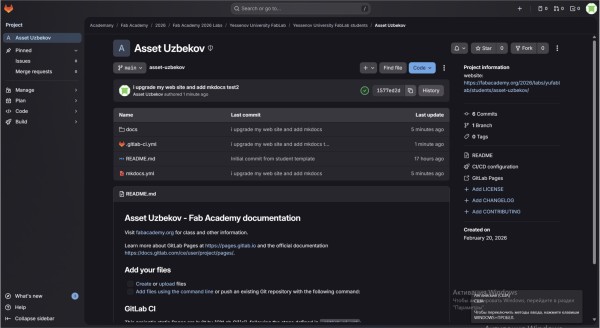
My GitLab repository page — this is where the remote project is hosted and from where I cloned it to my local machine. After creating my remote repository on GitLab, I cloned it to my local machine to start working on the website locally. Version control with Git is essential because it tracks every change made to the project files. If something breaks, I can always go back to a previous working version. It also allows me to work locally and then synchronize my changes with the remote repository on GitLab, keeping everything backed up and organized.
I used the following command:
PS C:\Users\Asus> git clone git@gitlab.fabcloud.org:academany/fabacademy/2026/labs/yufablab/students/asset-uzbekov.git
Then I entered the project directory:
cd asset-uzbekov
After cloning, I verified the repository structure using:
ls
This allowed me to confirm that the repository contained the initial files such as README.md, mkdocs.yml, and the docs/ directory.
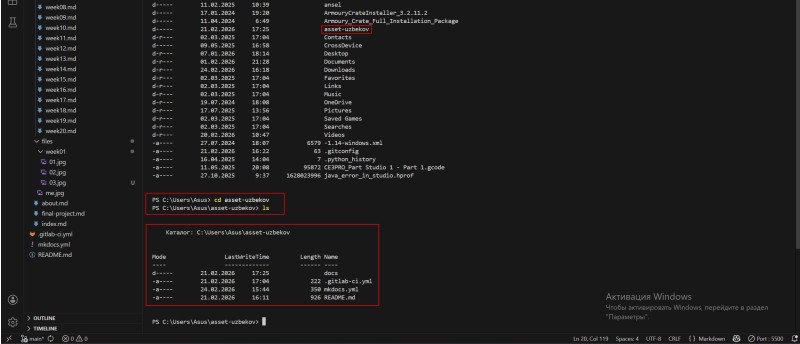
Terminal output after cloning — confirming the repository files were downloaded successfully to my local machine.
First commit
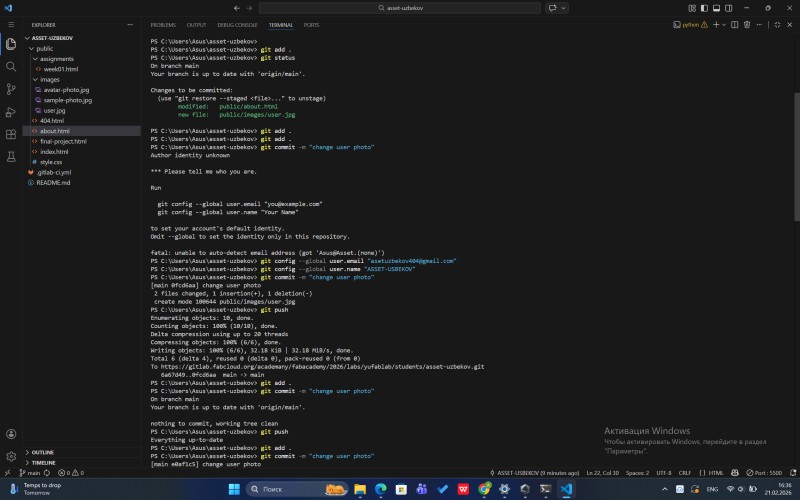
VS Code terminal showing the first commit being pushed to the remote GitLab repository.
Since the repository was already cloned from GitLab, there was no need to run ''git init'' or configure a remote — all of that was already set up during the clone process. My real workflow for the first update was:
-
I edited and added the MkDocs structure files (mkdocs.yml, docs/ folder, Markdown pages)
-
I staged all changes using "git add" .
-
I checked the status with "git status" to confirm which files were ready
-
I made a commit with a clear message
-
I pushed the changes to GitLab using "git push"
git add .
git status
git commit -m "Initial commit - Fab Academy website setup"
git push
This was not creating a new repository from scratch — it was the first meaningful update to the existing GitLab project with my MkDocs documentation structure. After pushing, GitLab CI automatically built and deployed the website, which confirmed that my setup was correct.
Mkdocs setup
I set up my project website using MkDocs to organize my Fab Academy documentation in a clear and structured way. The project uses a static documentation format, where the content is divided into logical sections such as About, Assignments, and Final Project.
-
I modified the "mkdocs.yml" configuration file to customize the website structure. Specifically, I made the following changes:
-
Theme: I set "theme: name: material" to use the Material for MkDocs theme, which gives the site a clean and professional look with built-in dark/light mode and responsive design.
-
Navigation: I defined a custom "nav:" structure to organize pages into logical sections: Home, About, and weekly Assignments. This makes it easy to navigate between different parts of the portfolio.
-
Plugins: I enabled the "search" plugin so that visitors can search the documentation content directly on the site.
These changes were necessary to make the website both functional and visually organized from the very beginning
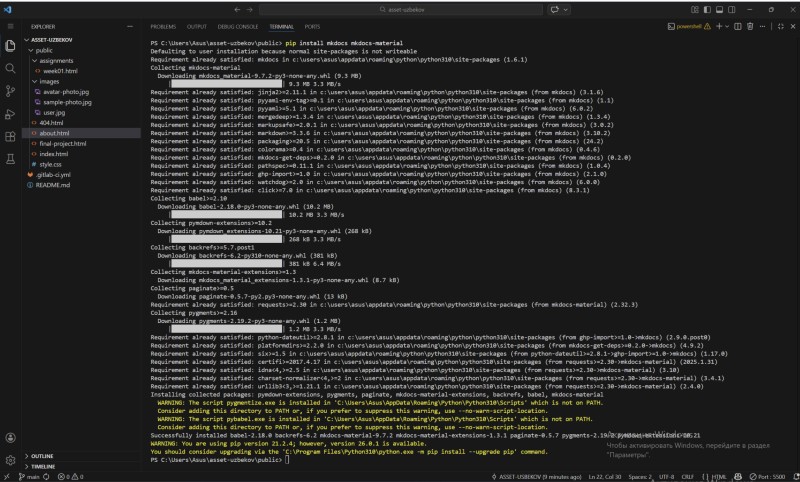
Installing MkDocs and the Material theme via pip in the VS Code terminal.
I installed MkDocs in a Python 3.10 environment to build and manage my documentation site:
pip install --upgrade pip
pip install mkdocs
pip install mkdocs-material
Markdown
is a simple markup language used for text formatting. It allows you to easily create headings, lists, links, images, and tables without writing complex HTML code. Markdown is widely used in documentation, README files, and on platforms like GitHub.
Updating mkdocs.yml for Markdown
After switching from HTML to Markdown I had to update the mkdocs.yml file. The most important change was adding the nav block — without it MkDocs would not know which Markdown files to use and in what order to show them in the menu. I added the following navigation structure:
nav:
  - Home: index.md
  - About: about.md
  - Student Agreement: students.md
  - Assignments:
      - Project Management: assignments/week01.md
      - Computer Aided Design: assignments/week02.md
      - Week 03: assignments/week03.md
      - Week 04: assignments/week04.md
      - Week 05: assignments/week05.md
      - Electronics Design: assignments/week06.md
      - Computer Controlled Machining: assignments/week07.md
      - Electronics Production: assignments/week08.md
      - Input Devices: assignments/week09.md
      - Output Devices: assignments/week10.md
      - Networking and Communications: assignments/week11.md
  - Final Project: final-project.md
Each line connects a menu label on the left to a Markdown file on the right. The Assignments section is nested so all weekly pages are grouped together under one dropdown in the navigation menu
This is what the structure of my website looks like.
Markdown examples
I use Markdown for links, Add images,headings
# the first heading
## the second heading

 And i can change size of text with #

This syntex for insert the images into documentation
[Mkdocs](https://www.mkdocs.org//)
I used this type of link for websites
<video
  src = "../../files/week10/7.mp4"
  controls
  playsinline
  muted
  width="800"
  style="border-radius:12px;">
</video>
Markdown helped me for make documentation easyfull and simple, readable
And this syntex for video
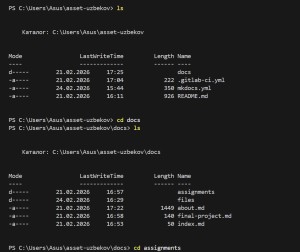
The folder structure of my MkDocs project in VS Code — docs/ contains all Markdown files, and mkdocs.yml is the main configuration file.
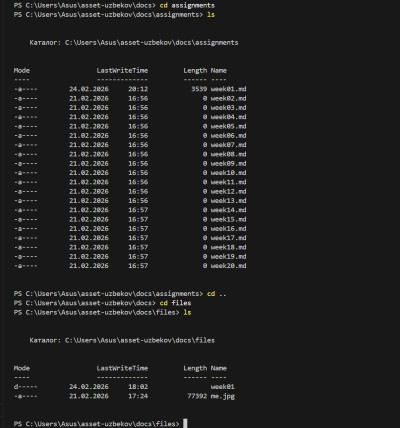
Preview of the website structure as rendered by MkDocs — showing the navigation menu and page layout after configuration.
Problem and Solution
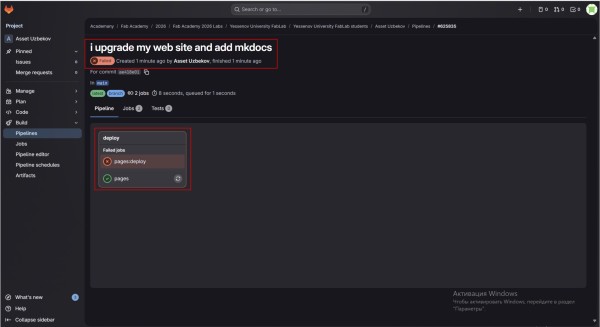
At first I thought the problem was in the mkdocs.yml file, but after checking with my instructor we found the real cause — the Python version on my machine was 3.8, but mkdocs-material requires Python 3.10 or higher
step 1- checking python version
python --version
step 2 - install python 3.10
step 3- reinstalled python with correct version
pip install --upgrade pip

pip install mkdocs

pip install mkdocs-material
step 4 -pushing
git add .
git commit -m "python "
git push
Problem — Wrong Python version:
After fixes I pushed the corrected files to GitLab and the pipeline passed successfully.
When i during the setup process i did not encounter any big problems. the Mkdocs installation Gitlab configuration completed sucesfully on the first try the site was build without any big problems
Conclusion
In this week i learned to set up a complete documentation workflow from scratch.i cloned the repository using HTTP configured Mkdocs with material theme and successfully deployed my site. Also i learn how Mkdocs.yml file controls the entire structure and apperance of the site navigation theme link photo video and Markdown extension