Grace Schwan Silva
  • Home (current)
  • Student Agreement
  • About me
  • Final Project
  • Assignments
    Week1:Principles and Practices, Project Management Week2:Computer-Aided Design Week3:Computer Controlled cutting Week4:Embedded programming Week5:3D Scanning and Printing Week6:Electronics Design Week7:Computer Controlled Machining Week8:Electronics Production Week9:Input Devices Week10:Output Devices Week11:Networking and Communications Week12:Mechanical Design, Machine Design Week13:Molding and Casting Week14:Interfaces and Applications Programming Week15:Interface and Application Programming Week16:System Sntegration Week17:Wildcard Week Week18:Applications and Implications, Project Development Week19: invention, intellectual property, and income final project presentations

WEEK 6

ELECTRONICS DESIGN

Group assignment:

- Use the test equipment in your lab to observe the operation of a microcontroller circuit board (as a minimum, you should demonstrate the use of a logic analyzer)

- Document your work on the group work page and reflect what you learned on your individual page

Individual assignment:

- Use an EDA tool to design a development board that uses parts from the inventory to interact and communicate with an embedded microcontroller

- 3D scan an object (and optionally print it)

ASSIGNMENT OF THE WEEK:

Group Assignment:

Goal

The goal of this group assignment was to observe and analyze the electrical behavior of a microcontroller board using laboratory measurement tools. We focused on verifying stable power delivery and confirming that the board can generate a reliable digital signal.

To learn more, click here: Group Assignment

Equipment Used

GW Instek GDS-1152A Oscilloscope
Oscilloscope: GW Instek GDS-1152A (150 MHz)
PR-75 Digital Multimeter
Multimeter: PR-75 Digital Multimeter
Tool Model How we used it
Digital oscilloscope GW Instek GDS-1152A (Digital Storage Oscilloscope, 150 MHz, 2 channels) Visualize waveforms over time (square wave), verify voltage levels, and check frequency stability.
Digital multimeter PR-75 Check power rails (VCC/GND), confirm 3.3V logic level, and rule out shorts (continuity test).
Microcontroller board Custom PCB with Seeed Studio XIAO RP2040 Generate a digital GPIO signal to measure with the oscilloscope.
Power USB Power and program the board.

Procedure

Multimeter Pre-check

Before connecting the oscilloscope, we used the multimeter to:

  • Verify the board was receiving correct power.
  • Measure voltage between GND and VCC.
  • Confirm the 3.3V logic level was stable.
  • Check continuity to rule out shorts before probing signals.
This step is important to ensure the board is safe and to avoid measuring a circuit with an accidental short.

Oscilloscope Setup

We connected the oscilloscope as follows:

  • Ground clip (black) → board GND
  • Probe tip → output GPIO pin

Settings used:

  • Channel: CH1
  • Voltage scale: 1V/div
  • Time scale: 1ms/div
  • Trigger: Edge mode (CH1)
  • Auto Set for initial calibration

Signal Observation

After programming the RP2040 to generate a square wave, we observed:

  • A clear digital square wave
  • Voltage levels from 0V to approximately 3.3V
  • Stable frequency according to the programmed timing

This confirmed:

  • ✔ Correct microcontroller execution
  • ✔ Proper GPIO output behavior
  • ✔ Stable voltage regulation

Code Used (Arduino IDE – XIAO RP2040) (click to expand)

This code generates a square wave on a GPIO pin. Update PIN_OUT to match the pin you used (D0, D1, etc.).

// Fab Academy - Week 6 (Group)
// Square wave test for oscilloscope / logic analyzer
// Board: Seeed Studio XIAO RP2040

const int PIN_OUT = D0;   // <-- CHANGE THIS PIN (D0, D1, etc.)
const int T_US    = 500;  // HIGH/LOW microseconds (500us+500us ≈ 1kHz)

void setup() {
  pinMode(PIN_OUT, OUTPUT);
  digitalWrite(PIN_OUT, LOW);
}

void loop() {
  digitalWrite(PIN_OUT, HIGH);
  delayMicroseconds(T_US);
  digitalWrite(PIN_OUT, LOW);
  delayMicroseconds(T_US);
}
Tip: If you want a slower signal to view more easily, increase T_US (or use delay()).

Results

The oscilloscope displayed a clean square wave signal, confirming that:

  • The microcontroller clock and firmware execution are working properly.
  • The digital GPIO switches correctly between LOW and HIGH.
  • The board power supply is stable during operation.

What We Learned

  • How to connect an oscilloscope properly to an electronic board.
  • Why a solid GND reference is required for stable measurements.
  • The difference between measuring voltage with a multimeter and visualizing signals with an oscilloscope.
  • How real digital signals look in hardware.

Photo Evidence

Replace these image paths with your real photos:

Measurement Tools Details

Digital Multimeter (PR-75)

We used the PR-75 as a basic lab multimeter to verify the board before signal measurement.

Main functions:

  • Measure DC voltage (e.g., 3.3V / 5V)
  • Measure AC voltage
  • Measure resistance (Ω)
  • Continuity test (beep for connection/short)
  • Diode test
  • Measure current (mA / 10A — use carefully)

In this assignment, we used it mainly to confirm power rails and check continuity to rule out shorts.

Digital Oscilloscope (GW Instek GDS-1152A)

The GW Instek GDS-1152A is a 2-channel digital oscilloscope used to view signals over time.

Main features:

  • Model: GDS-1152A
  • 2 channels (CH1 / CH2)
  • AUTOSET function for quick setup
  • VOLTS/DIV and TIME/DIV controls
  • TRIGGER system to stabilize the waveform
  • Can measure waveform properties like voltage and frequency

We connected the probe to the microcontroller GPIO output and confirmed the square wave signal.

Difficulties We Faced (Finding the Signal on the Oscilloscope)

At first, it was not easy to get a clean and stable waveform on the oscilloscope. These were the main issues we ran into and how we solved them:

  • Ground (GND) not properly connected: the signal looked noisy or unstable when the probe ground clip was loose or connected to the wrong reference. Once we attached the ground clip firmly to the board GND, the waveform became stable.
  • Probing the wrong pin / wrong test point: at first we measured a pin that was not the GPIO configured in the code. We double-checked PIN_OUT and the board pin labels, then moved the probe to the correct GPIO output.
  • TIME/DIV and VOLTS/DIV were not set correctly: with an incorrect time base, the square wave did not “fit” on the screen. After adjusting to around 1 ms/div (and fine-tuning), the square wave became visible. Setting the vertical scale near 1 V/div helped to clearly see the 0–3.3V levels.
  • Trigger settings: without a proper trigger, the waveform kept moving. After setting Edge trigger on CH1 and adjusting the trigger level, the waveform locked and became easy to read.
  • Probe attenuation mismatch (x1 / x10): we noticed the voltage readings did not match what we expected. We checked the probe switch (x1/x10) and matched it with the oscilloscope channel setting.
  • Autoset helped, but we still needed manual tuning: AUTOSET gave us a starting point, but we still had to adjust TIME/DIV, VOLTS/DIV, and trigger to get a clean and repeatable view.
After fixing GND connection, confirming the correct GPIO pin, and setting trigger + scales properly, we finally observed a clean square wave around 0–3.3V with stable frequency.

Tips & Recommendations (Oscilloscope + Multimeter)

Multimeter (before using the oscilloscope)

  • Check VCC and GND: measure the voltage between VCC and GND to confirm the board is powered correctly (e.g., ~3.3V).
  • Continuity test: use continuity mode to quickly rule out shorts between VCC and GND before probing signals.
  • Confirm ground reference: make sure the board GND is accessible and clearly identified for correct measurements.

Oscilloscope (to find and stabilize the signal)

  • Always connect GND first: attach the probe ground clip to the board GND before touching the probe tip to the GPIO.
  • Start with safe scales: begin around 1 V/div and 1 ms/div, then adjust until the waveform fits the screen.
  • Use Edge Trigger on CH1: set trigger source to CH1 (Edge) so the waveform stays stable and does not “run” across the screen.
  • Check probe setting (x1 / x10): match the probe switch with the oscilloscope channel probe setting to avoid wrong voltage readings.
  • Use AUTOSET as a starting point: AUTOSET helps find the signal faster, but manual tuning (TIME/DIV, VOLTS/DIV, Trigger Level) is often needed.

Key lesson: Multimeter first (power + no shorts), then oscilloscope (GND + correct scales + trigger) to quickly get a clean square wave.

Individual Assignment (Week 6)

Software used: EasyEDA Pro (EDA Tool)

For this week, I used EasyEDA Pro as my EDA (Electronic Design Automation) software to design the schematic and PCB. This tool was new for me, so I found it interesting because it is easy to start with, has a large component library, and lets you move from schematic to PCB in the same workflow. I also used it to design my board for my final project (“Color Voice Glove”).

Installation (Windows)

  1. Open the EasyEDA download page.
  2. Select EasyEDA Pro for Windows x64 and download the installer (.exe).
  3. Run the installer and follow the setup steps (Next → Install).
  4. Wait until the installation finishes and then open EasyEDA Pro.
  5. Sign in with your EasyEDA account to access your projects and cloud workspace.

Installation – Screenshots (step by step)

EasyEDA download page
Figure 1. I searched “EasyEDA” to quickly find the official download and documentation pages.

Google search EasyEDA
Figure 2. EasyEDA “Client Download” page. Here I selected EasyEDA Pro for Windows (x64) and downloaded the installer.

EasyEDA Desktop Client Version
Figure 3. EasyEDA documentation page showing the Desktop Client Version and the available installers for different operating systems.

EasyEDA Pro installing
Figure 4. Installation progress window. The setup extracts files and installs EasyEDA Pro on the computer.

Why EasyEDA Pro?

  • Beginner-friendly: easy to start designing quickly.
  • All-in-one workflow: schematic + PCB layout in one tool.
  • Library support: many footprints/symbols available for common modules and connectors.
  • Useful for my final project: I used it to create my “Color Voice Glove” PCB.

Electronics Design – Hand Sketch (Initial Plan)

This week I started the electronics design of my board by drawing the circuit by hand. This sketch helped me define the main modules and the connections before moving to the EDA software. My design is based on a Seeed Studio XIAO RP2040 connected to a TCS3200 color sensor and a DFPlayer Mini module with a speaker output.

Hand sketch of my PCB connections
Figure. Hand sketch of my board: XIAO RP2040 + TCS3200 color sensor + DFPlayer Mini + speaker. I used this drawing as the first step to organize the wiring and plan the schematic.

Electronics Design in EasyEDA (Complete Workflow)

After defining my idea with a hand sketch, I moved to EasyEDA to build the real electronic design. This was my first time using this EDA tool, and I liked it because it allows a clear workflow: create a project → draw the schematic → convert to PCB → route tracks → define the board outline → generate Gerbers → final 3D visualization.

Step-by-step: from project to PCB

1) Create a new project

First, I created a new project to keep all files together (schematic, PCB layout, and fabrication outputs).
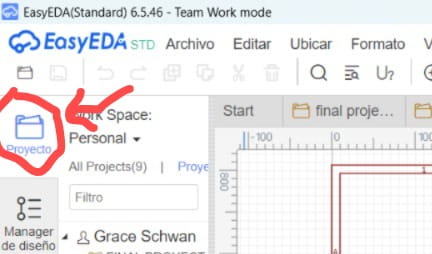
EasyEDA project icon
Figure 1. Starting point in EasyEDA: create/open a project from the left panel (Project icon).

2) Place components (from the library) and build the schematic

In the schematic editor, I added the main parts of my board by selecting components from the library panel (left side). I searched and placed symbols such as connectors/headers, the XIAO RP2040 module symbol (or equivalent pin headers), and the module connections for my project (TCS3200 and DFPlayer Mini).

After placing the components, I wired the signals using the routing tools and organized the circuit with clear net labels (e.g., VCC, GND, TX/RX, and sensor control pins). This schematic became the reference to generate the PCB connections.
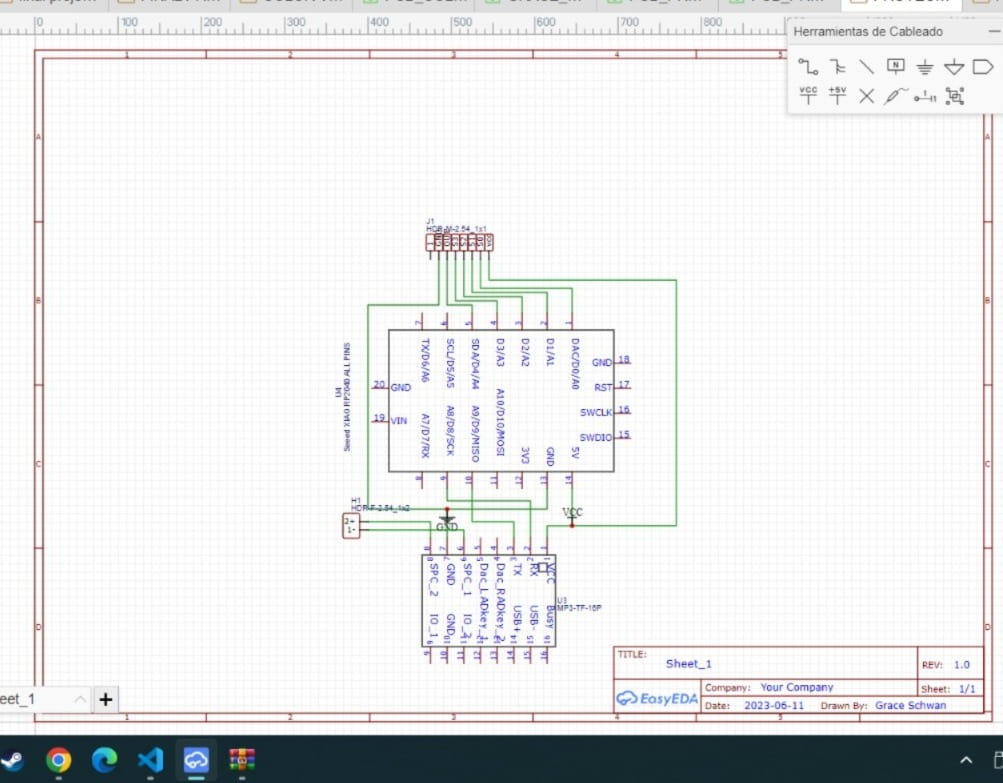
EasyEDA schematic
Figure 2. Schematic created in EasyEDA: XIAO RP2040 + connectors/modules wiring for my final project board.


3) Convert to PCB and place footprints

Once the schematic was ready, I switched to the PCB editor. EasyEDA brings the net connections (ratsnest) so I could place the footprints and keep related parts close together. I arranged the connectors to make the board easier to wire and test.
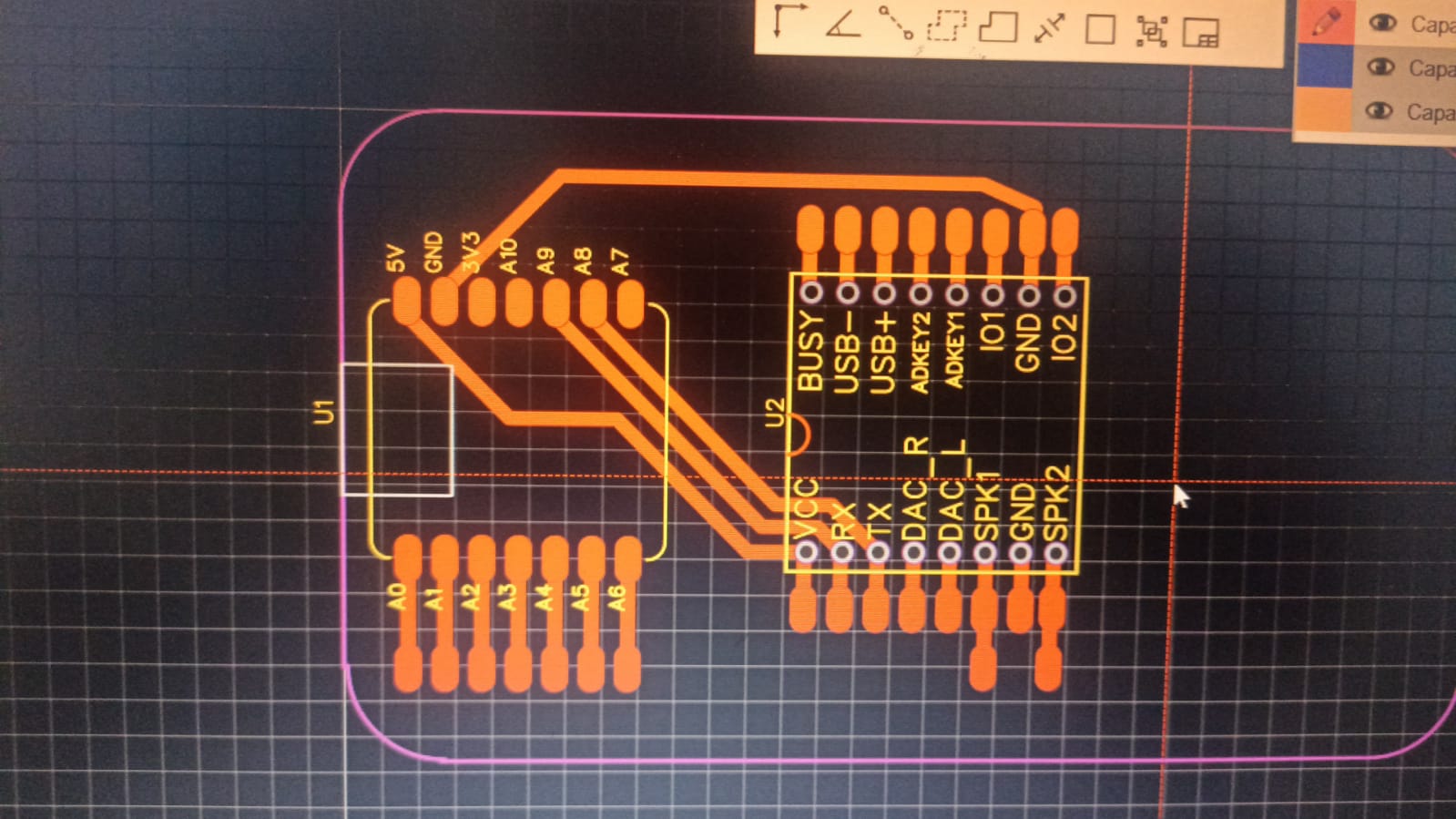
EasyEDA PCB layout
Figure 3. PCB editor: footprint placement and the first routing steps.


4) Route the tracks (copper traces)

After placing components, I routed the copper traces. I followed the ratsnest connections and kept enough spacing between tracks and pads. I also added silkscreen labels (text) to identify the board and connectors.
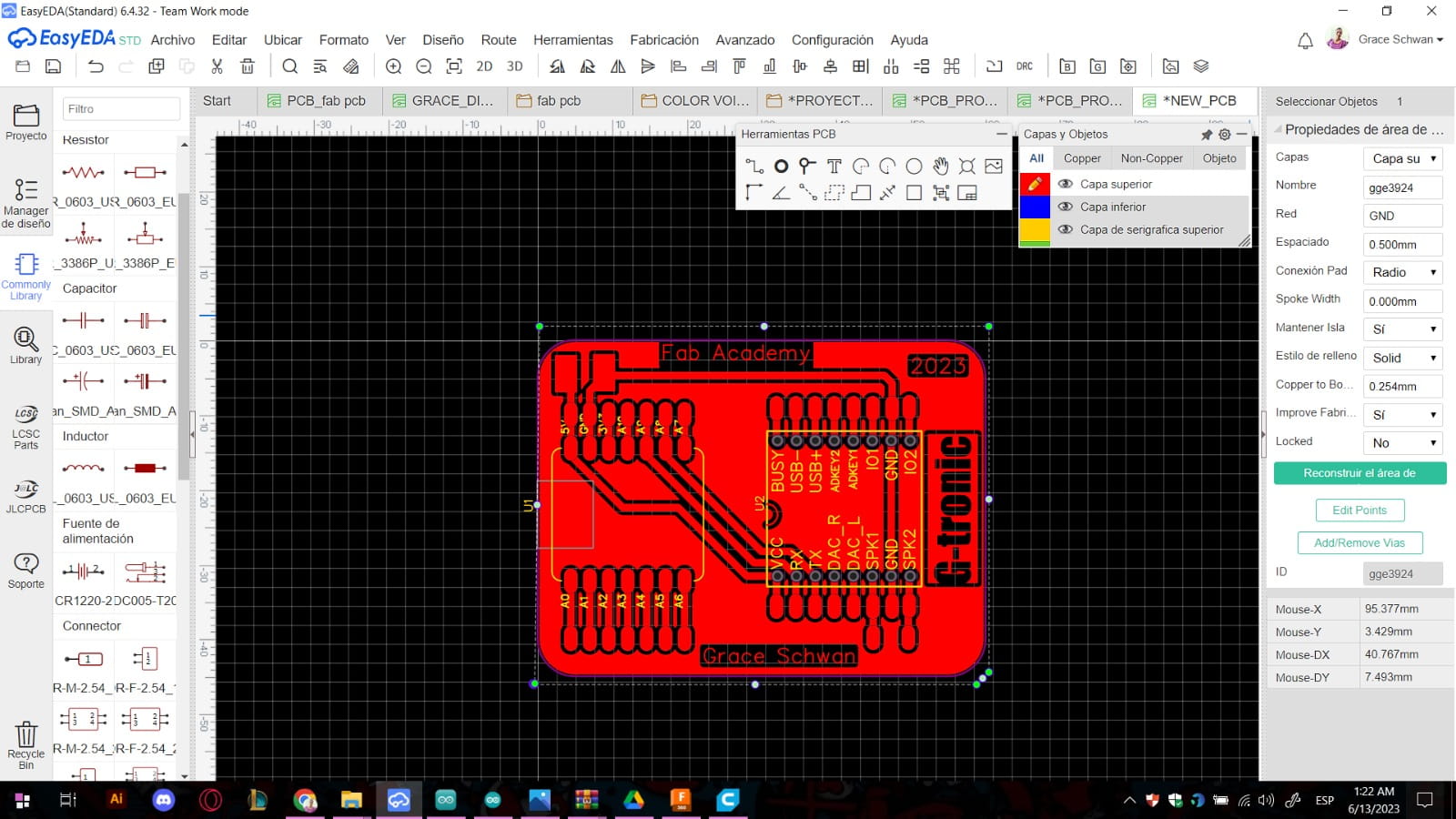
Routed tracks in EasyEDA
Figure 4. Routed copper traces (tracks) on the PCB.


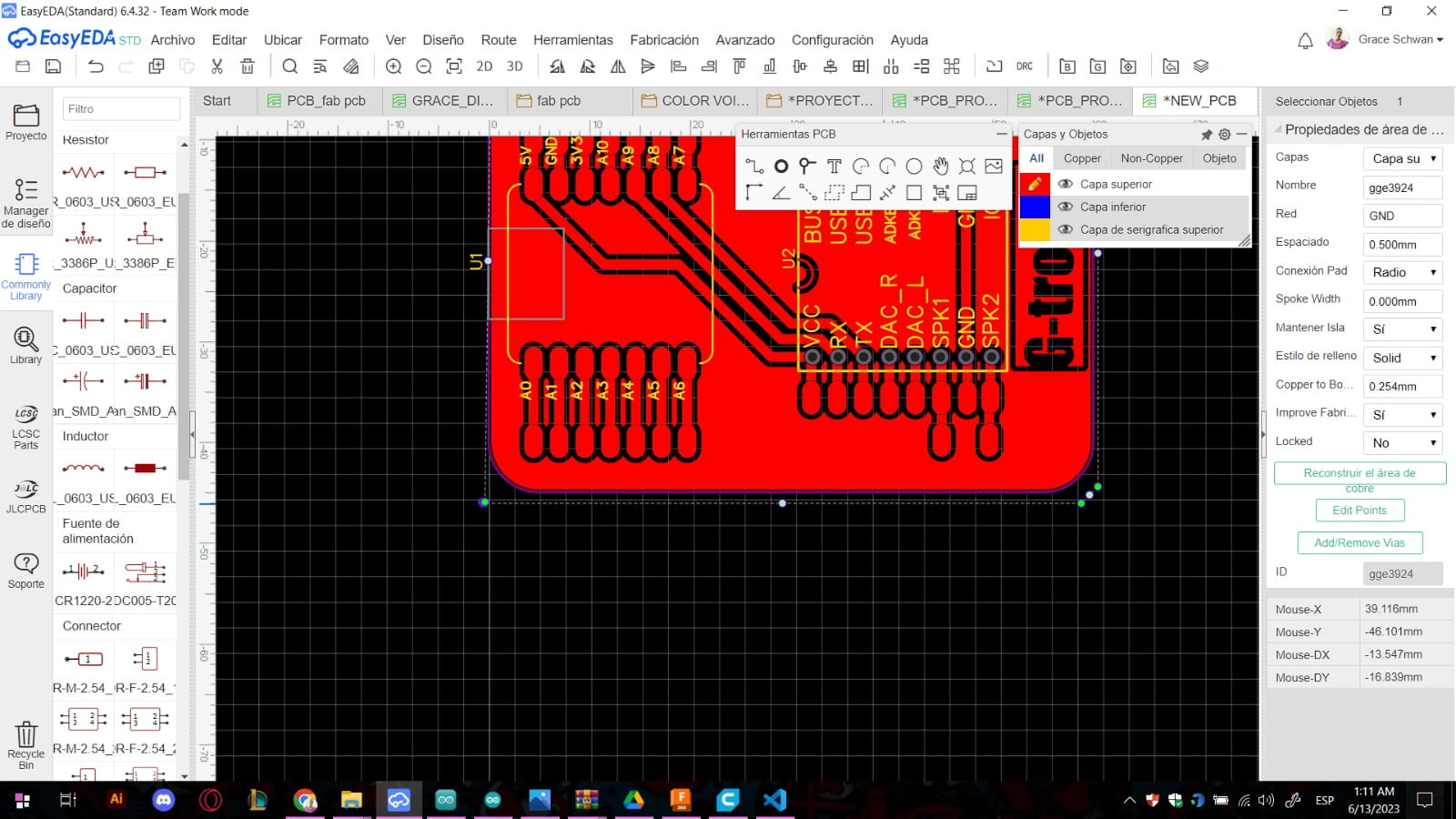
5) Define the board outline (shape)

Next, I defined the board outline (the final shape that will be cut during fabrication). I used a rounded rectangle to keep the board compact and safe to handle.
Board outline in EasyEDA
Figure 5. Board outline defined in the PCB editor (final cut shape).


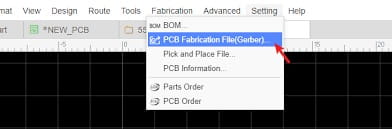
6) Generate Gerbers and review fabrication information

When the routing and outline were finished, I generated the Gerber fabrication files directly from EasyEDA. The tool also provides a preview including the number of layers, dimensions, and an estimated manufacturing cost, which is useful for planning fabrication.
Gerber generation and cost preview
Figure 6. Gerber generation and manufacturing preview (layers, dimensions, and cost estimate).


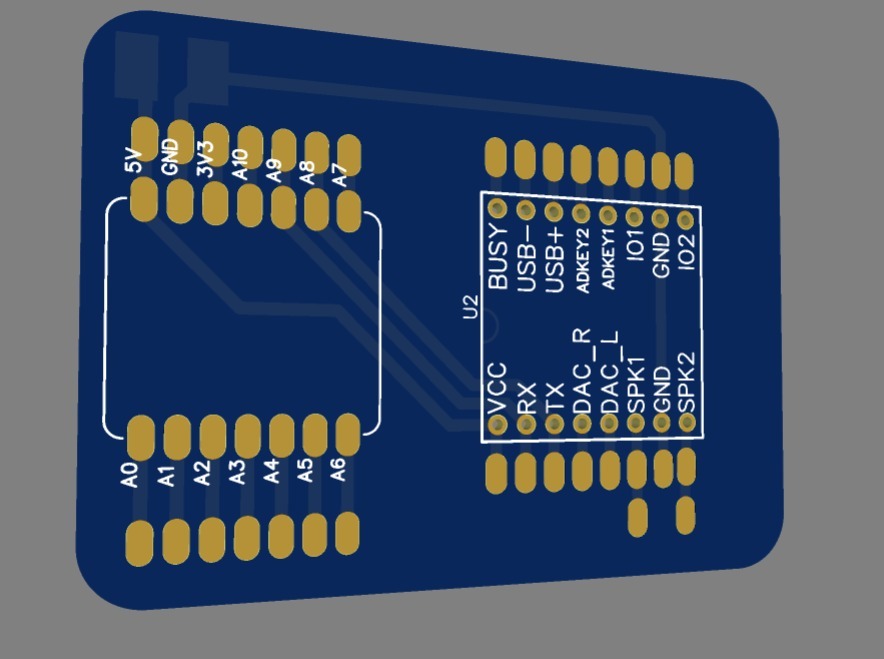
7) Final step: 3D visualization

Finally, I used the 3D View to visually inspect the board before fabrication. This helped me confirm component placement, pad alignment, spacing, and the overall appearance of the PCB.
EasyEDA 3D view of the PCB
Figure 7. EasyEDA 3D visualization of my PCB (final inspection).

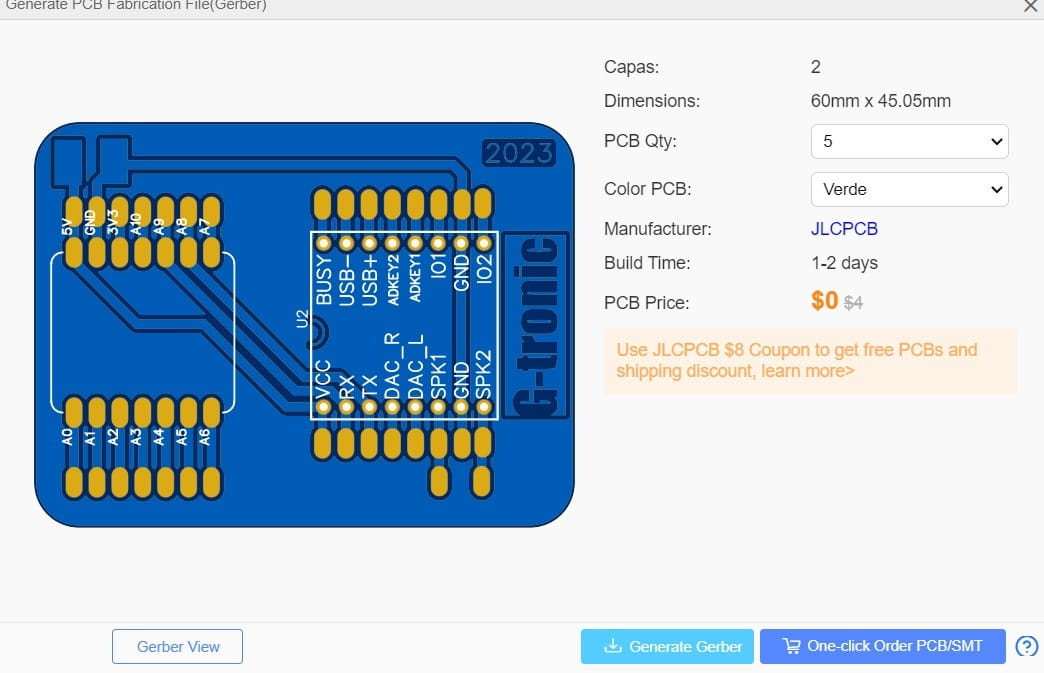
8) Cost estimate inside EasyEDA (manufacturing preview)

One feature I found really useful (and honestly amazing) is that EasyEDA can also show a manufacturing preview with an estimated PCB cost. After generating the Gerbers, the platform displays key information such as the number of layers, board dimensions, quantity, PCB color options, and an approximate price. This helped me understand the real size of my design and quickly evaluate fabrication options before producing the board.
EasyEDA manufacturing preview and cost estimate
Figure 8. EasyEDA Gerber generation and manufacturing preview showing layers, dimensions, quantity, and the estimated PCB cost.

PCB Toolpaths in FlatCAM (Isolation Routing)

After finishing my PCB design, I moved to FlatCAM to generate the milling toolpaths for the copper traces. In this section I focus only on the FlatCAM workflow: importing the Gerber copper layer, generating the isolation geometry (green paths), and exporting the CNC code (G-code) for milling.

Step-by-step in FlatCAM

1) Import the Gerber copper layer

I opened FlatCAM and imported the copper Gerber file (.GTL / top copper). Once loaded, the board traces appeared as a Gerber Object in the project panel.

  • Open Gerber: File → Open Gerber → load Gerber_TopLayer.GTL.
  • Gerber Object name: Gerber_TopLayer.GTL appears in the project list.
  • Isolation Routing settings (from my screenshot):
    • Tool dia: 0.1000
    • # Passes: 1
    • Pass overlap: 10.0000%
    • Scope: All

    FlatCAM Gerber Object
    Figure 1. FlatCAM showing the Gerber Object after importing the top copper Gerber.


    2) Configure Isolation Routing

    With the Gerber Object selected, I used the Isolation Routing tool to create the milling paths around the traces. Here I set the main parameters such as tool diameter (end mill size) and the number of passes. Then I clicked Generate Isolation Geometry.

    1. After generating, FlatCAM creates a new geometry object named like: Gerber_TopLayer.GTL_iso.
    2. Tool used (from my screenshot): Dia = 0.1000 (Tool 1).
    3. Main milling parameters shown:
      • Cut Z: -2.4000
      • Travel Z: 2.0000
      • Feedrate X-Y: 120.0000
      • Feedrate Z: 60.0000
      • PostProcessor: default

      FlatCAM Isolation Routing settings
      Figure 2. Isolation Routing settings and the button Generate Isolation Geometry.


      3) Generate and visualize the isolation geometry (green toolpaths)

      After generating, FlatCAM created a new Geometry Object (usually named with _iso). This is where the isolation toolpaths appear in green, showing exactly how the milling machine will remove copper around the traces.

      Isolation toolpaths in green
      Figure 3. Geometry Object with the green isolation toolpaths around the traces.

      4) Create the CNC Job (G-code for traces)

      Next, I created a CNC Job from the isolation geometry. In this step I defined the milling parameters: Cut Z (depth), Travel Z (safe height), and feed rates. Finally, I generated the CNC job and saved the CNC code (G-code).

      CNC Job Object for traces
      Figure 4. CNC Job Object for trace milling. From here I exported the CNC code.


      5) Create the board cutout (outline) CNC file

      After generating the trace toolpaths, I also prepared the board cutout using the Cutout Tool. This generates a separate geometry and CNC job to cut the PCB outline (final shape).

      FlatCAM Cutout Tool
      Figure 5. Cutout Tool settings used to generate the PCB outline toolpath.

      6) Board outline (Cutout line) – create the contour path in FlatCAM

      After generating the isolation toolpaths for the traces, I created the contour/outline of the PCB using the Cutout Tool. This step generates the toolpath that follows the external border of the board, so the CNC can cut the PCB out of the raw material. In FlatCAM, I selected the board object and defined the cutout parameters (tool diameter, cut depth, multi-depth passes, and bridge gaps), then generated the cutout geometry and converted it into a CNC Job to export the final G-code.

      • Cutout Tool: select the board object to be cut.
      • Tool Diameter: choose the larger end mill used for cutting the outline.
      • Cut Z + Multi-depth: cut the outline in several passes until reaching the board thickness.
      • Bridge gaps: leave small tabs so the PCB does not move during the cut.
      • Generate Geometry → Generate CNC Job → Save CNC Code (export G-code for the outline).

      FlatCAM cutout outline line
      Figure 6. FlatCAM Cutout Tool: the contour (outline) toolpath that cuts the board shape.
  • Final output: I generated separate CNC files for trace isolation and board cutout.

    Difficulties (Individual)

    • Recovering files: I initially lost some project files because they were on another computer. I had to find the project again in EasyEDA and re-organize/export the documentation (schematic images, PCB screenshots, Gerbers).
    • Libraries and footprints: choosing the correct connectors/footprints took time, especially to match the real modules (XIAO RP2040, DFPlayer, sensor headers).
    • Routing decisions: arranging the components to avoid messy routing required several adjustments (placement + rerouting) until the traces looked clean.
    • Board outline and labeling: defining the final shape and adding readable silkscreen text without interfering with pads/traces needed extra checks.
    • FlatCAM learning curve: understanding the difference between Gerber Object, Geometry, and CNC Job was confusing at first.
    • Toolpath parameters: selecting tool diameter, passes, and cut depth required trial and error to understand how they affect the isolation paths and cutout.

    Difficulties (Group)

    • Finding the signal at first: we did not immediately see the square wave because the probe was not on the correct GPIO/test point.
    • Ground reference: when the probe ground clip was loose or connected incorrectly, the waveform looked noisy or unstable.
    • TIME/DIV and VOLTS/DIV: incorrect scaling made the signal look flat or “invisible” until we adjusted the time base and voltage scale.
    • Trigger settings: without proper Edge trigger on CH1, the waveform moved across the screen and was hard to read.
    • Probe x1/x10 mismatch: at one point the voltage did not match expectations until we confirmed the probe attenuation setting.

    After fixing GND connection, confirming the correct pin, and adjusting trigger + scales, we finally got a clean and stable square wave (~0–3.3V).

    What I Learned (Individual)

    • I understood the full workflow of electronics design: idea → hand sketch → schematic → PCB layout → Gerbers → CAM toolpaths.
    • I learned how to use EasyEDA to create a new project, place components from the library, wire a schematic, and convert it into a PCB layout.
    • I practiced routing traces, defining the board outline, adding labels on the silkscreen, and checking the layout visually in 3D view.
    • I learned that exporting Gerber files is essential to move from design to fabrication, and that the file names/layers (e.g., GTL/outline) matter.
    • I learned how FlatCAM converts Gerbers into milling paths, and how isolation routing generates the toolpaths around traces.
    • I understood the difference between trace milling (isolation) and board cutout (outline), and why they should be exported as separate CNC files.
    • I realized that small settings like tool diameter, number of passes, and cut depth directly affect whether the PCB mills cleanly.
    • I learned that EasyEDA can also provide a manufacturing preview (dimensions, layers, and cost estimate), which helps plan fabrication decisions.

    What We Learned (Group)

    • We learned how to verify a board safely before measuring signals: first check power and shorts with a multimeter, then use the oscilloscope.
    • We practiced correct oscilloscope connections: probe ground to board GND and the probe tip to the GPIO test pin.
    • We understood how oscilloscope settings affect visibility of the waveform (VOLTS/DIV, TIME/DIV, and trigger).
    • We experienced common debugging issues (wrong pin, unstable trigger, incorrect scaling) and learned how to fix them to get a stable square wave.
    • We clearly saw the difference between a multimeter reading (single voltage value) and an oscilloscope view (signal changes over time).

    ✅ Week 6 Checklist

    • Documented what I learned in electronics design: Included learnings from EasyEDA + FlatCAM workflow and lab testing.
    • Checked my board can be fabricated: Gerbers exported from EasyEDA and toolpaths generated in FlatCAM (isolation + cutout).
    • Explained problems and how I fixed them: Added difficulties + solutions (files recovery, routing, FlatCAM parameters, oscilloscope setup).
    • Included original design files (EasyEDA): Added project files and exports in the “Files” section below.
    • Included a ‘hero shot’: Added a final clear photo of the finished PCB (hero shot) at the end.

    Files (Downloads)

    Below are the original design files and fabrication outputs used for this week. I saved them inside my repository so they can be downloaded and reused.

    • EasyEDA project / source files: Download EasyEDA GERBER (replace with your real filename)
    • Schematic export (PDF/PNG): Download schematic (PDF)

    Creative Commons License
    This work is licensed under a Creative Commons Attribution-NonCommercial-ShareAlike 4.0 International License

    WE CONTINUE
    • © Untitled. All rights reserved

    • ← Week3:Computer Controlled cutting
    • Week4:Electronics Production
    • Week5:3D Scanning and Printing →