4 MicroBlocks
As I continue using MicroBlocks, I will share practical techniques and workflows to improve embedded programming efficiency. This includes rapid prototyping methods, debugging strategies, and optimization tips that leverage MicroBlocks' live programming capabilities to accelerate ESP32 development.
MicroBlocks is a high-performance, visual block-based programming language. Unlike other block editors that translate to C and then compile, MicroBlocks runs a small virtual machine on the board, enabling live, parallel execution.
Pros:
● Parallelism: Naturally supports running multiple scripts simultaneously (multi-threading), which is intuitive for managing multiple sensors.
● Live Coding: Changes to the blocks are reflected on the hardware instantly without a "compile-and-upload" cycle.
● Accessibility: Great for beginners or non-programmers to understand logic without syntax errors.
This table Compare Visual Programming Tools:
| Feature | MicroBlocks | Microsoft MakeCode | Mind+ (DFRobot) |
|---|---|---|---|
| Execution Model | Live Virtual Machine (VM) | Ahead-of-Time (AOT) Compiler | Transpiler (Code Generator) |
| Workflow | Instant: Blocks run immediately as they are snapped. | Cycle: Code -> Compile -> Download -> Run. | Cycle: Blocks to Code -> Compile -> Upload. |
| Programming Logic | Real-time interaction with hardware. | Web-based block & text editor. | Scratch-based offline/online IDE. |
| Code Switching | None (Purely Block-based). | Blocks / TypeScript / Python. | Blocks / C++ (Arduino) / Python. |
| Multitasking | Native Parallelism: Multiple scripts run concurrently. | Event-based or via specific extensions. | Standard Arduino Loop (Sequential). |
| Live Feedback | Very High: Real-time sensor values displayed on blocks. | Medium: Requires Simulator or WebUSB Serial. | Low: Requires Serial Monitor after uploading. |
| Offline Capability | Yes (Stored in board VM). | Yes (Via downloaded .hex/.bin). | Yes (Via compiled C++/Python firmware). |
| Primary Strength | Speed of debugging and "Live" coding. | Excellent Simulator & Educational UI. | Massive library support for hardware modules. |
Source: Gemini by Google, Mar 2026
4.1 Open Browse use MicroBlocks
I simply used Chrome to open the following links to access the MicroBlocks IDE. No installation is required.
● International version: https://microblocks.fun/run/microblocks.html
● Chinese mirror: https://microblocksfun.cn/run/microblocks.html
4.2 Flash ESP32 MicroBlocks
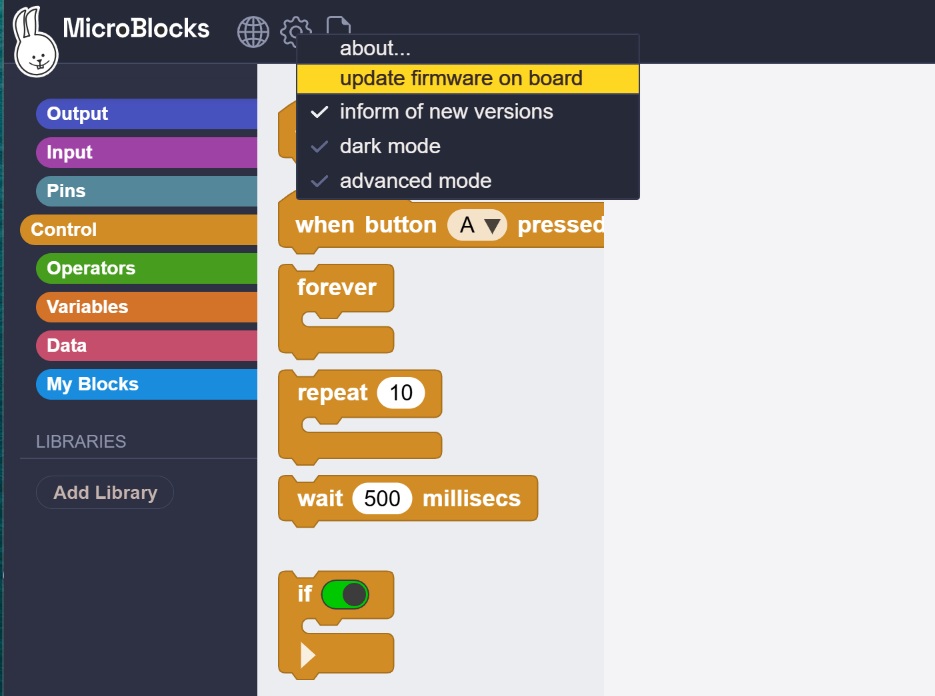
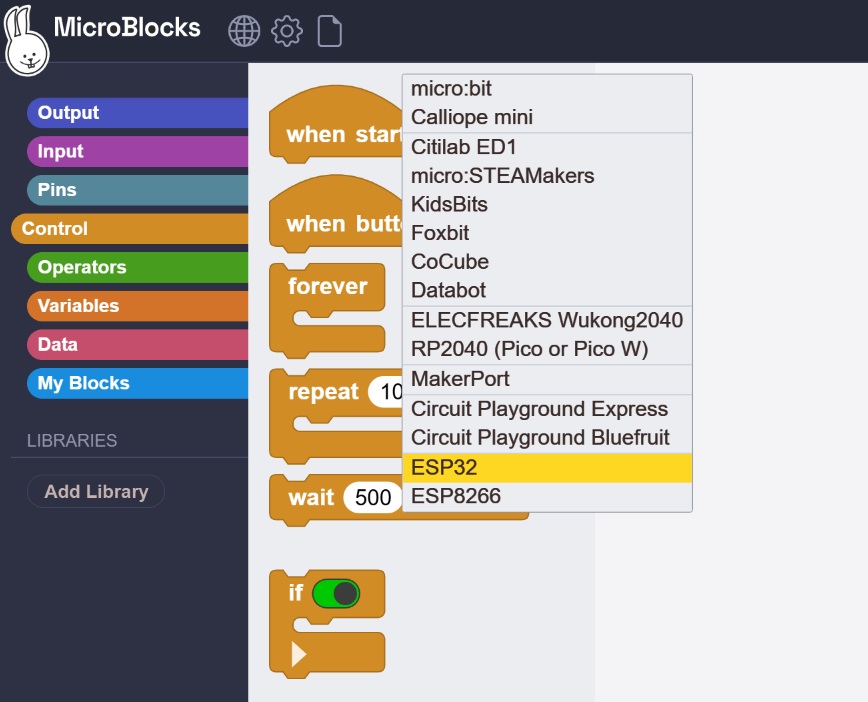
I followed these steps to flash the MicroBlocks firmware onto the ESP32:
● Connect the ESP32 to your computer via
● Select "Advance - update fireware on board" button in the MicroBlocks IDE
● Select "ESP32" For the board type
● Select ESP32 Serial Port(COM port) for flash
● Wating for the flash process to complete
| Step 1: Select | Step 2: Flash Firmware |
|---|---|
 |  |
4.3 Use MicroBlocks let LED on and off
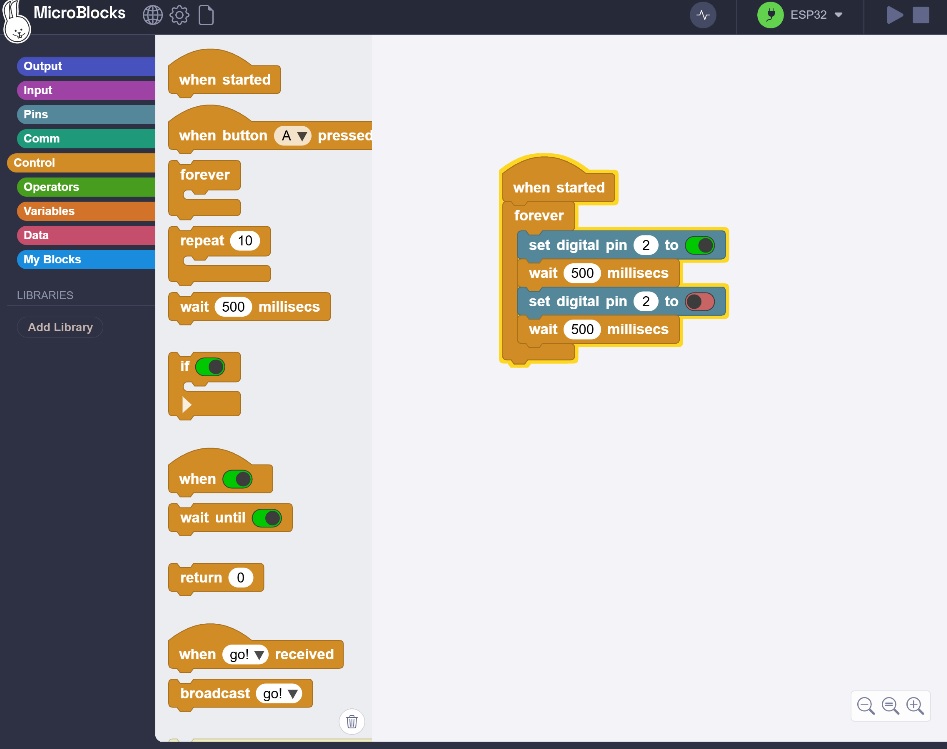
The following example demonstrates programming the ESP32 using the MicroBlocks IDE to make an LED fade in and out. The program outputs debug logs directly in the IDE, which can be viewed for troubleshooting and monitoring purposes.
4.4 Use MicroBlocks let servo motor rotate
The following is an example of the MicroBlocks IDE. I used it to program the ESP32 connected to a 180° servo motor. The program implements two control modes:
● Auto-demo mode: On boot, the servo automatically cycles 3 times through the positions: 0° → 90° → -90°
● Manual control mode: Button inputs drive the servo to specific angles—Button 1 to 0°, Button 2 to 90°, and Button 3 to -90°