Week 14: Interface and Application Programming

This week, the task was to write an application for my embedded board, made by myself. the interface must have an input and/or output device(s).

Group assignment

Week 14

Introduction

This week, I will be developing an application for my final project focused on measuring reaction time. The app will calculate the elapsed time between the moment an LED turns on and the instant a step response sensor detects a signal. This system will allow me to analyze reaction times accurately and in real time.

To achieve this, I will communicate using MQTT, just as I did inWeek 11. The sensor I plan to use is the same step response sensor I worked with in Week 9, which will allow me to continue improving and integrating previous developments into a more complete system. By combining sensors, LEDs, MQTT communication, and app development, this project will help me further strengthen my skills in embedded systems, electronics, and software integration.

The main idea is to define a range in my board's code, so that when the sensors are within that range, a message is sent to my MQTT broker, and from there I can communicate with my website and vice versa.


MQTT protocol

For communication, the MQTT protocol will be used, as it is lightweight, efficient, and ideal for systems with multiple devices connected to the same broker. One of its main advantages is the publish/subscribe model, which allows three or more devices to communicate without needing direct connections between them. This reduces complexity, improves scalability, and enables real-time bidirectional communication.
The broker used will be MQTTX, as it provides an online client that simplifies testing and debugging connections without requiring local installation. This makes it easier to visualize topics, messages, and device interactions in real time.

MQTT Configuration (MQTTX)


General Settings
Fab termi
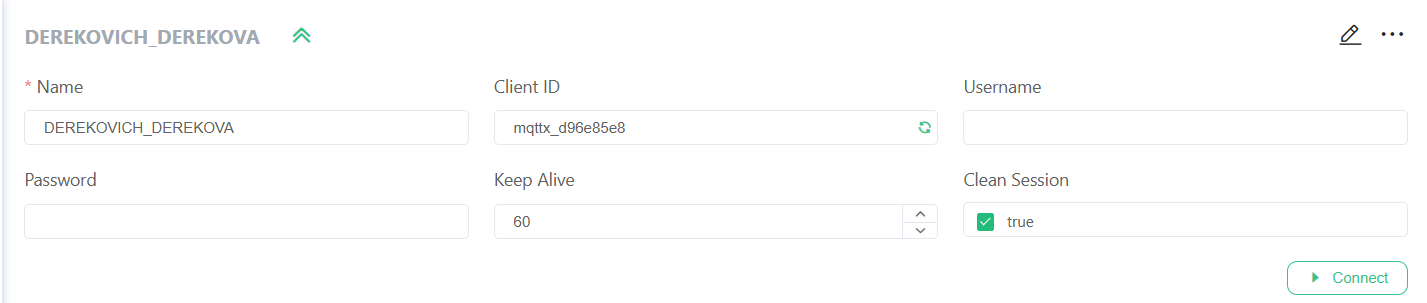
Name

Identifier of the device within the MQTT client. It helps distinguish between multiple connected devices.
In this case: DEREKOVICH_DEREKOVA

Host

Address of the MQTT broker. In this case, it uses a secure WebSocket connection (WSS) to communicate over the internet.
wss://broker.emqx.io

Port

Communication port used for secure WebSocket connections.
Port 8084 is commonly used for MQTT over WSS.

Client ID

Unique identifier for each device connecting to the broker. It must be different for every client to avoid conflicts.
In this case: mqttx_d96e85e8

Path

Endpoint used for WebSocket communication with the broker.
/mqtt

SSL/TLS

Enables encrypted communication, improving security when sending data over the internet.

MQTT Configuration (MQTTX)


Advanced Settings
Fab termi
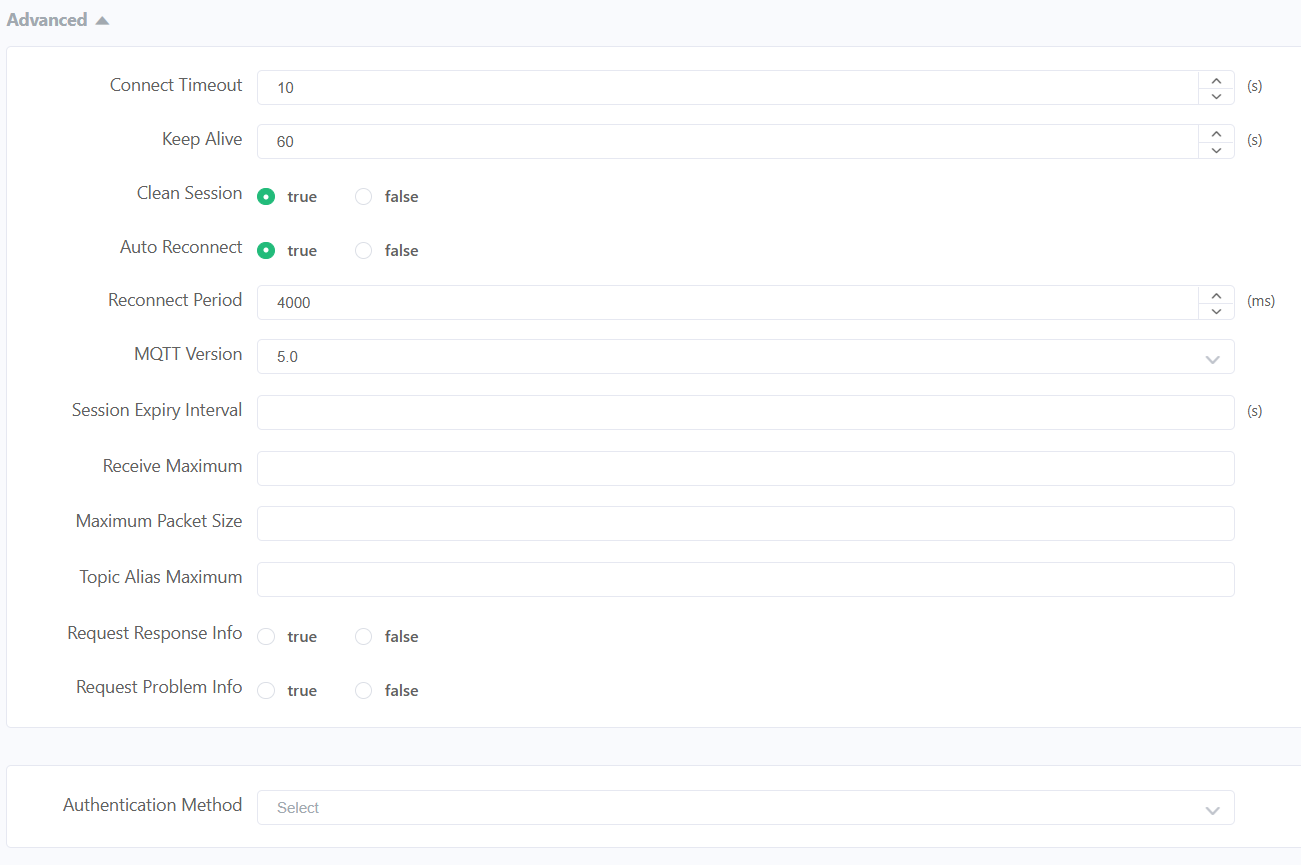
Connect Timeout

Maximum time the client waits to establish a connection before failing.
10 s

Keep Alive

Time interval in which the client sends a signal to maintain the connection active.
60 s

Clean Session

If enabled, the broker does not store previous session data when the client reconnects.

Auto Reconnect

Allows the client to automatically reconnect if the connection is lost.

Reconnect Period

Time between reconnection attempts.
4000 ms

MQTT Version

Protocol version used. Version 5.0 includes improved features like properties and better error handling.
5.0

MQTT Configuration (MQTTX)


Last Will and Testament
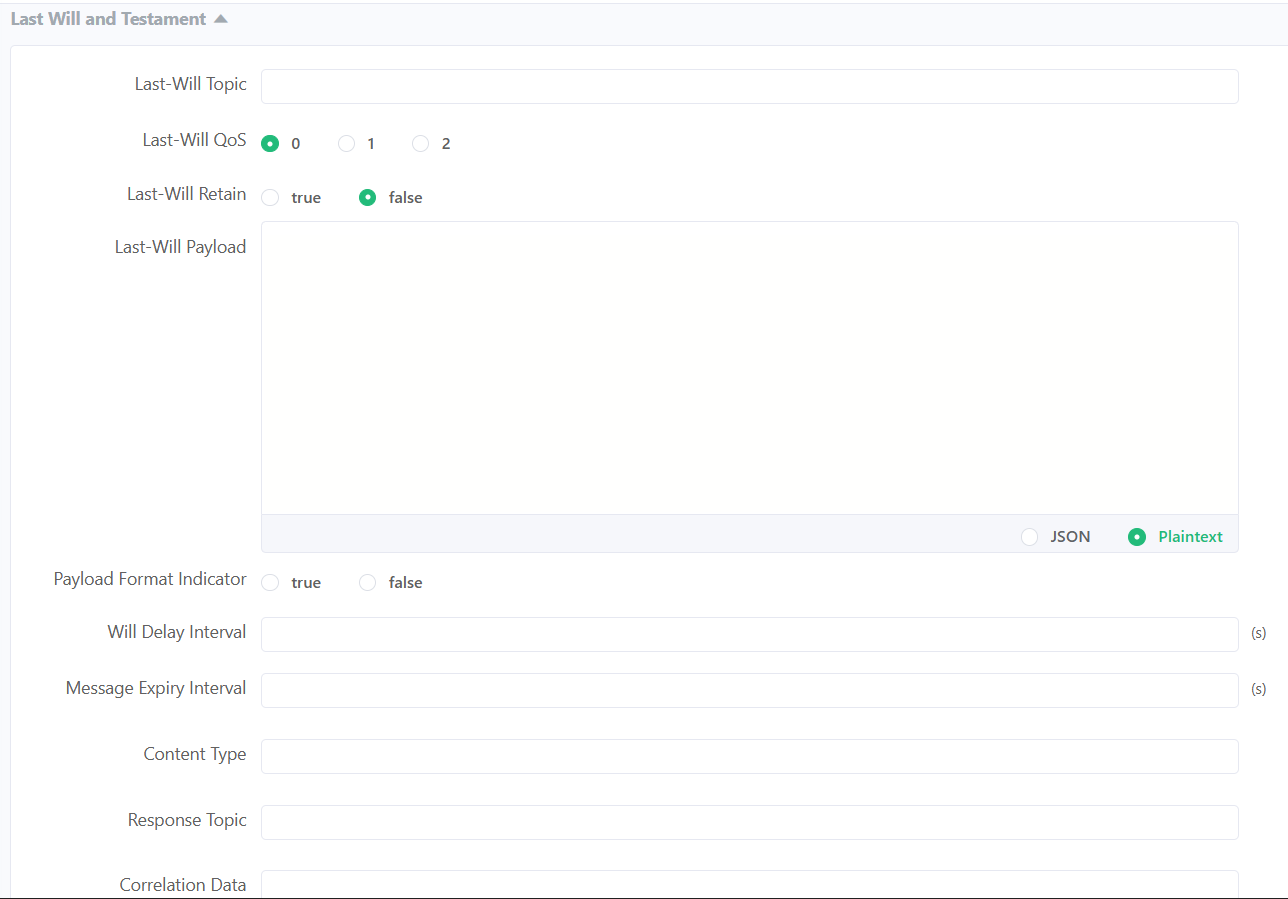
Fab termi
QoS (Quality of Service)

Defines the reliability level of message delivery between sender and receiver in MQTT. It determines how many times a message is sent and if confirmation is required.

  • QoS 0

    "At most once" delivery. The message is sent only one time with no confirmation. It is the fastest method but messages can be lost.

  • QoS 1

    "At least once" delivery. The message is guaranteed to arrive, but it may be received more than once due to retransmissions.

  • QoS 2

    "Exactly once" delivery. Ensures the message arrives only one time using a handshake process. It is the most reliable but also the slowest.

MQTTX Connection and Subscriptions


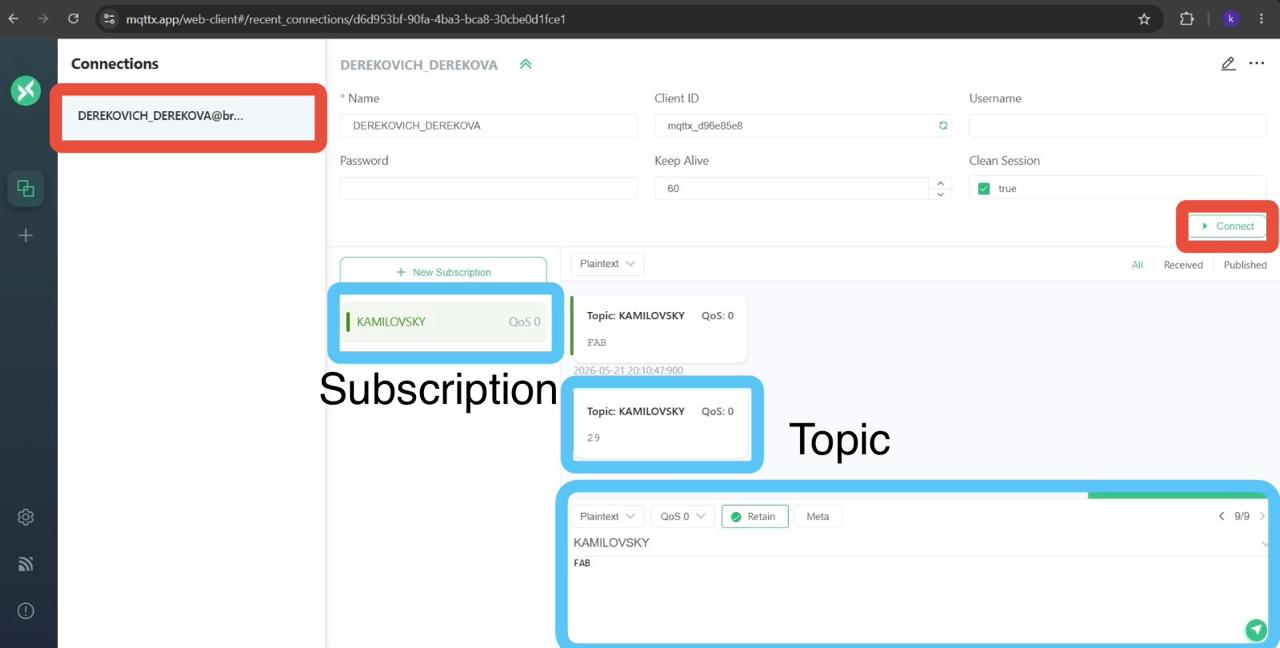
Once the client information is configured, you can click the “Connect” button to create the connection.
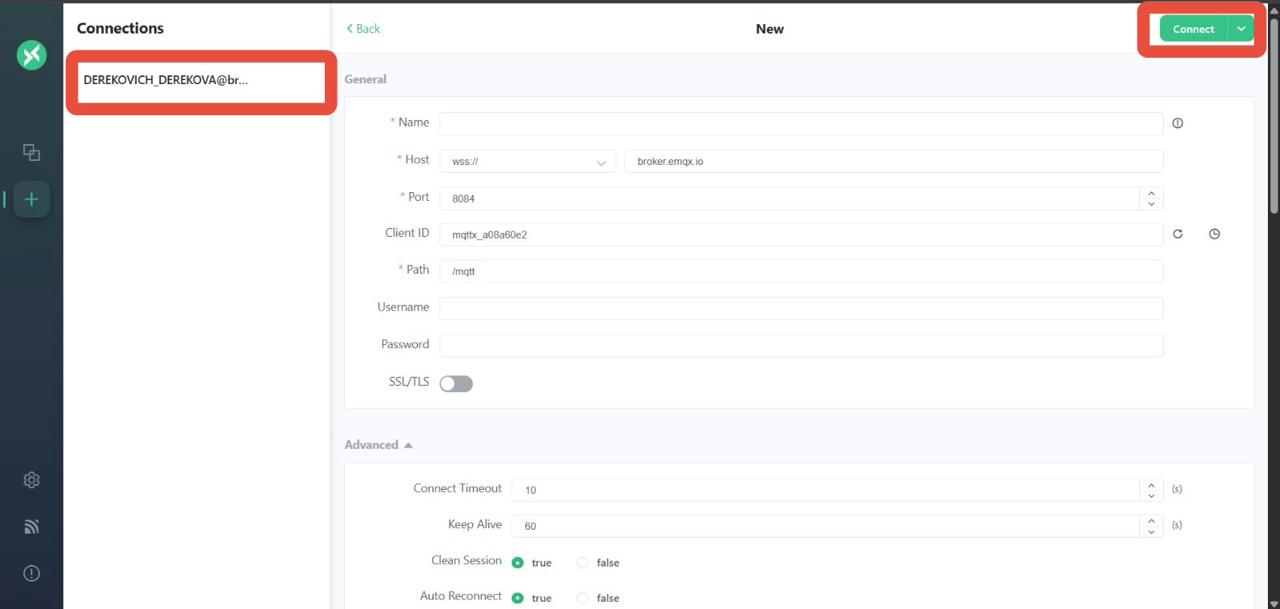
Fab termi
The first time you click it, the client will not connect immediately. Instead, a configuration window will appear to finalize the setup. After completing this step and clicking Connect again, the client will successfully connect to the broker and start receiving and reading topics.
Fab termi

Subscriptions

A subscription is the process by which a client tells the broker that it wants to receive messages from a specific topic.
In MQTT, communication works using a publish/subscribe model, meaning:
  • Devices do not talk directly to each other
  • They communicate through topics managed by the broker
To create a subscription in MQTTX:
  1. Make sure the client is connected to the broker
  2. Click on “New Subscription”
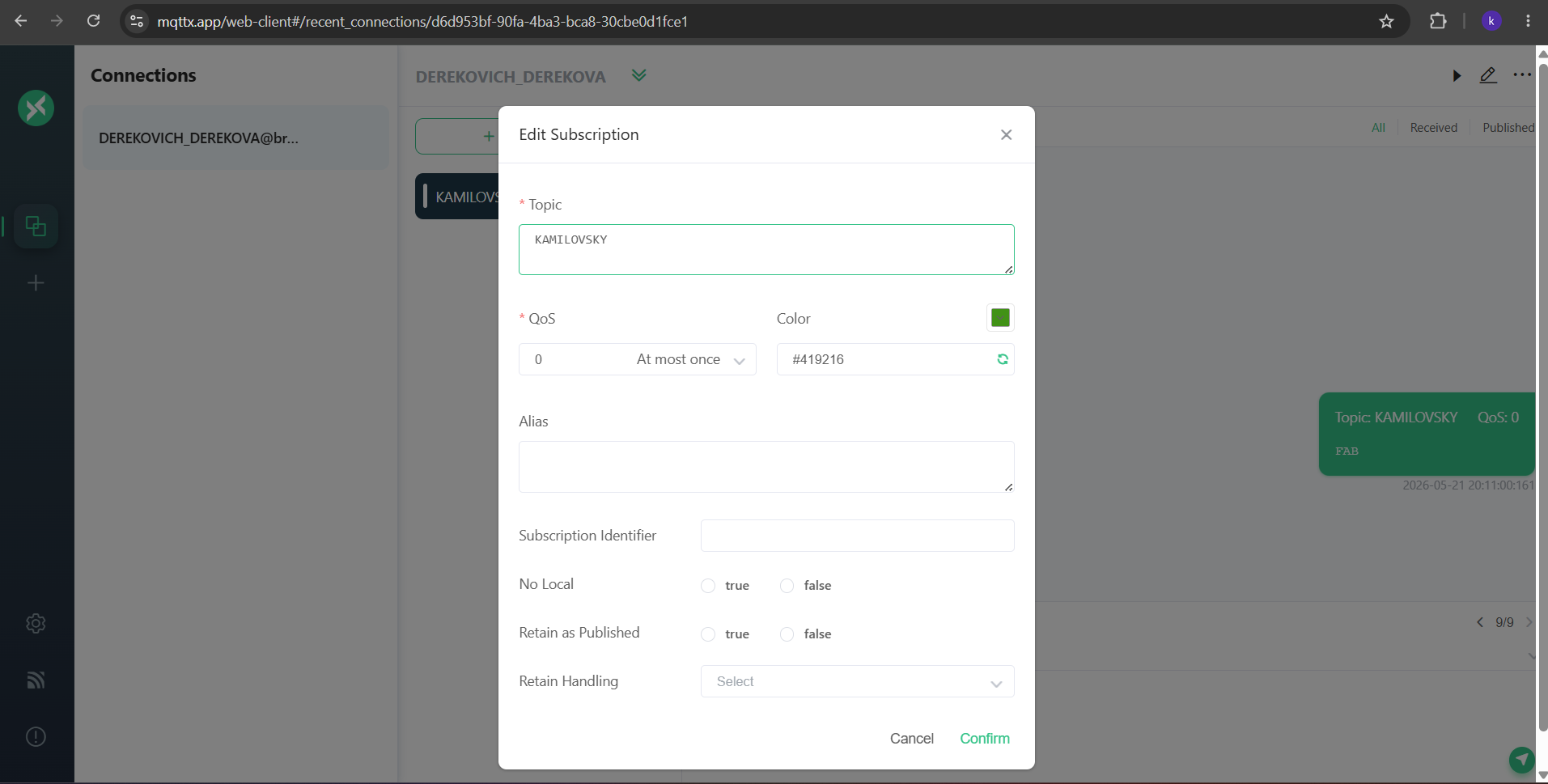
  3. Assign a topic and customize the preferences
  4. Click on confirm.
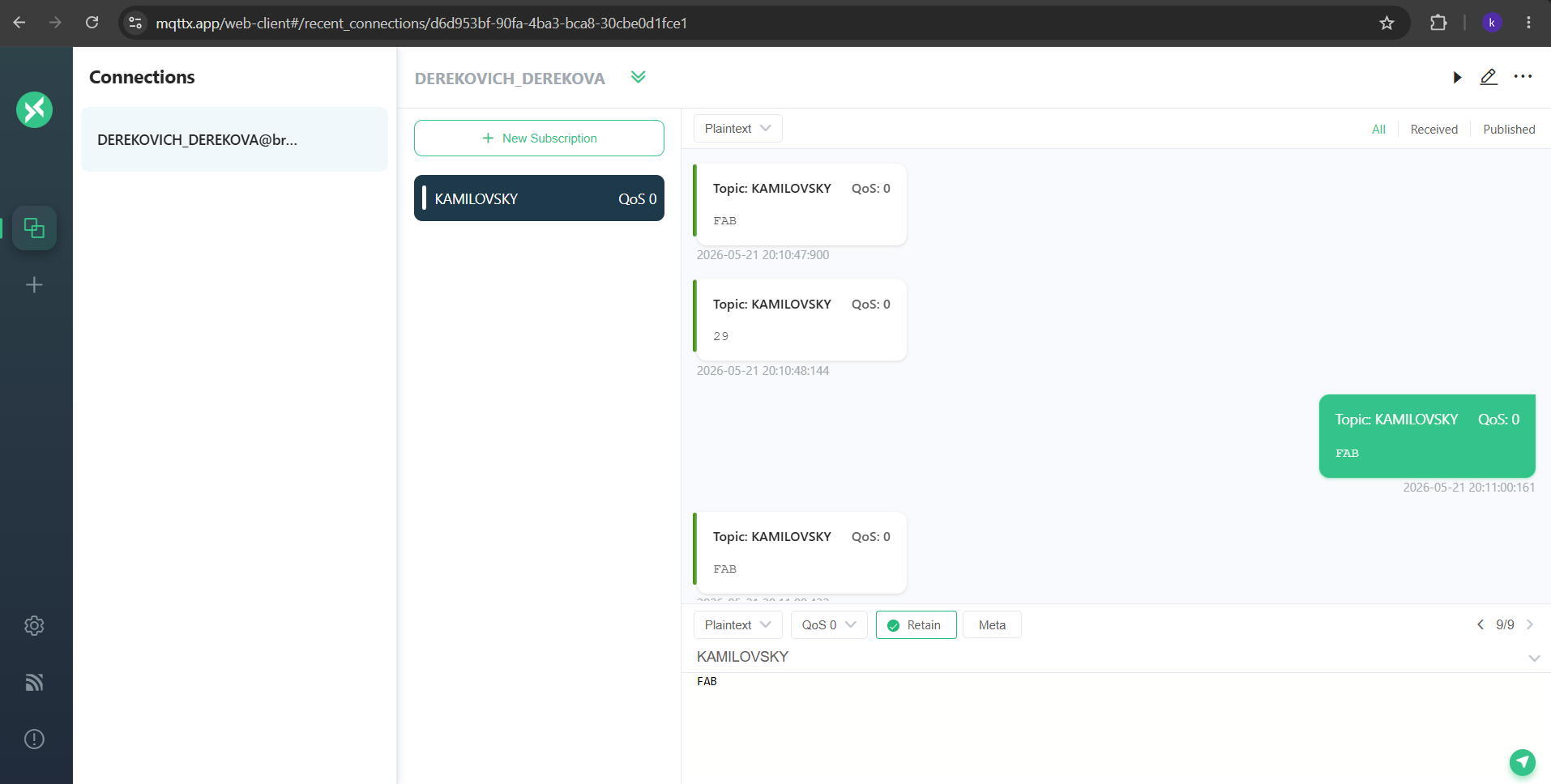
Once this is done, the configuration should appear as a list in the broker.
Fab termi Fab termi

ESP32 WROOM 32

Diagram of connections
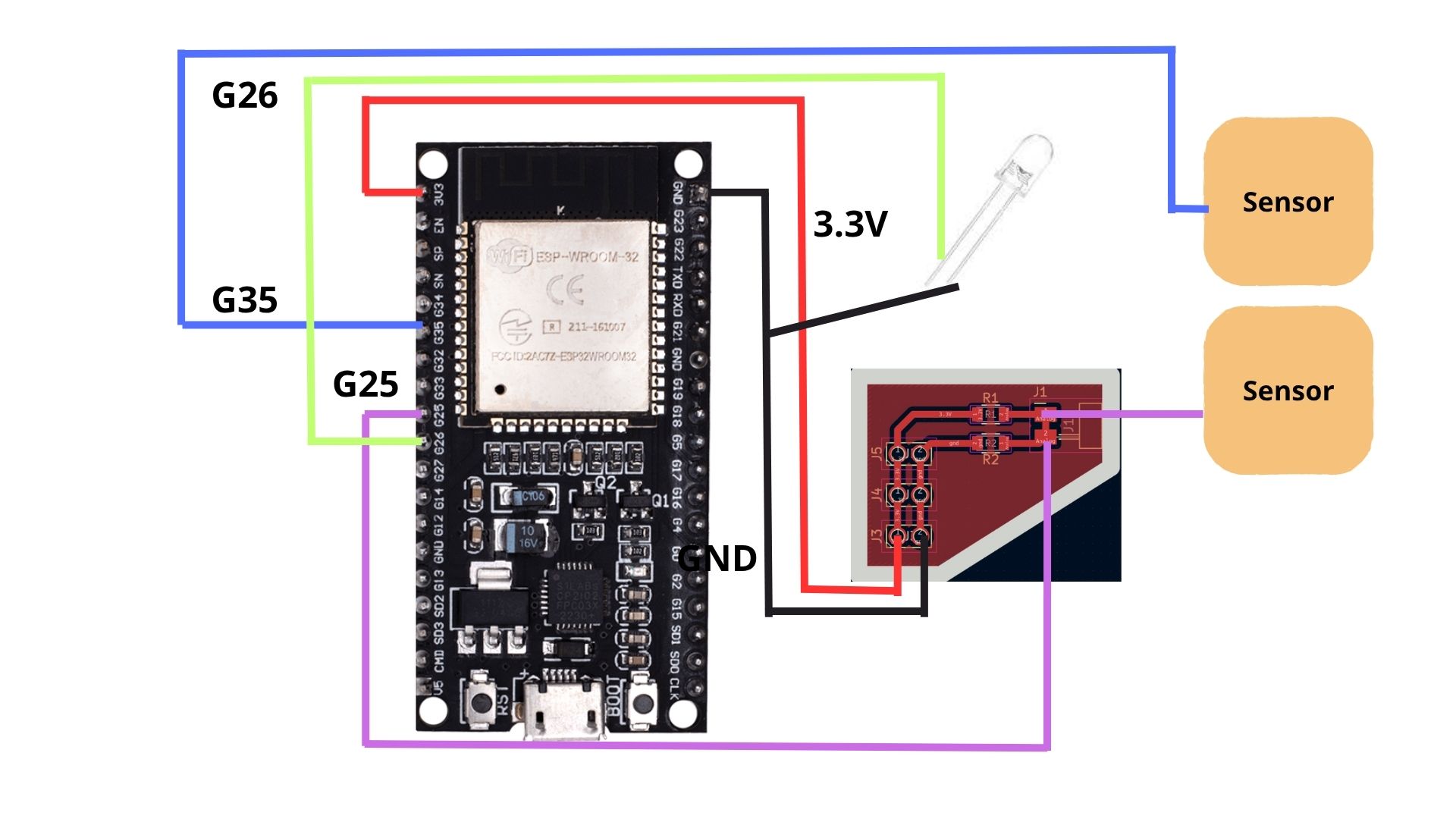
Fab

The diagram represents an ESP32 WROOM 32 connected to a step response sensor and an LED. The LED is connected between the GND supply and pin G26, allowing the ESP32 to control when the LED turns on or off. The step response sensor is connected using pin G25 as the analog pin and pin G35 as the digital input pin, while also sharing the ESP32's 3.3V and GND connections.

Programming

To code, I used ARDUINO IDE. ARDUINO IDE is a free, open-source application for Windows, macOS, and Linux, used to write, compile, and upload code to Arduino boards. It provides a text editor, toolbar, and serial monitor, supporting C/C++ to create ".ino" sketch files for controlling microcontrollers.
AIDE

ESP32

Fab

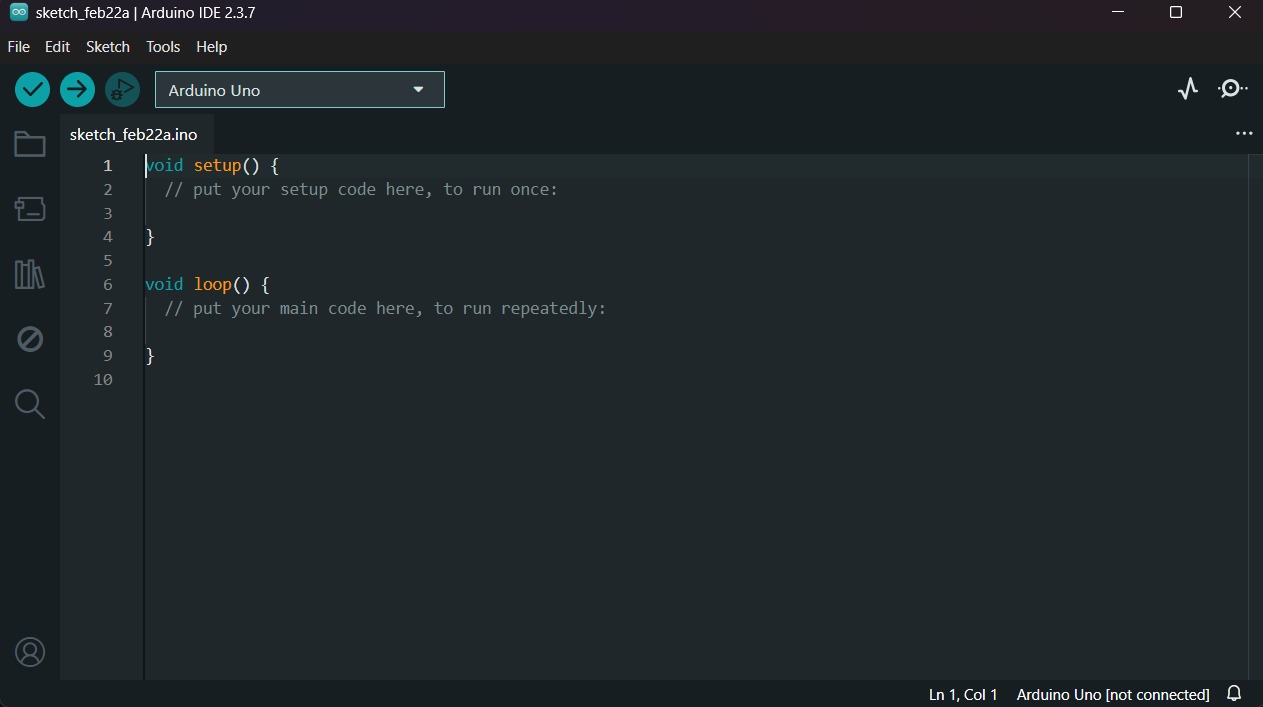
1. First, we have to create a sketch in Arduino IDE.

ESP32
Fab

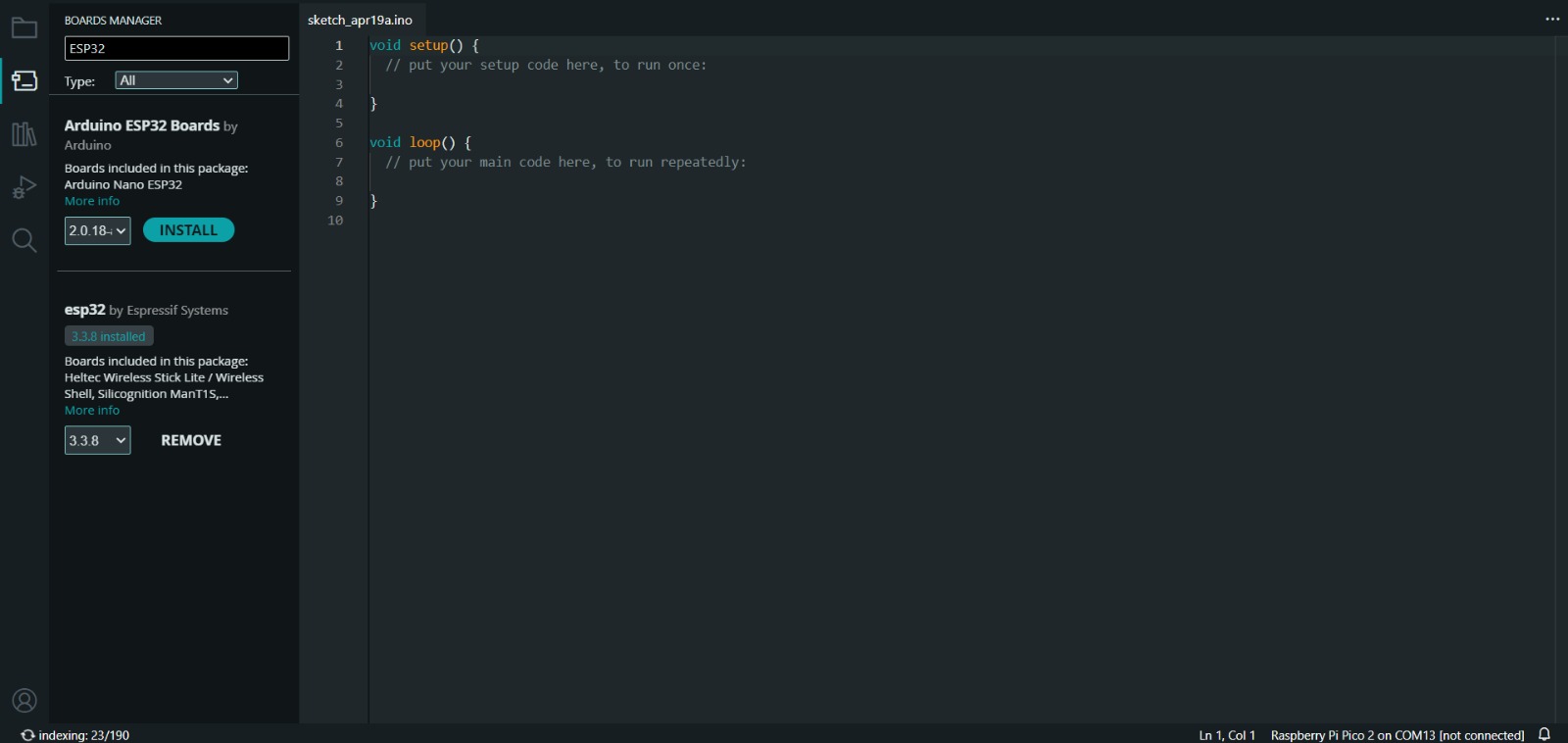
2. Then, we have go to the board manager and write ESP32. After doing that, a library will appear, its name is esp32 by Espressif Systems, we must install it.

Uploading
Fab

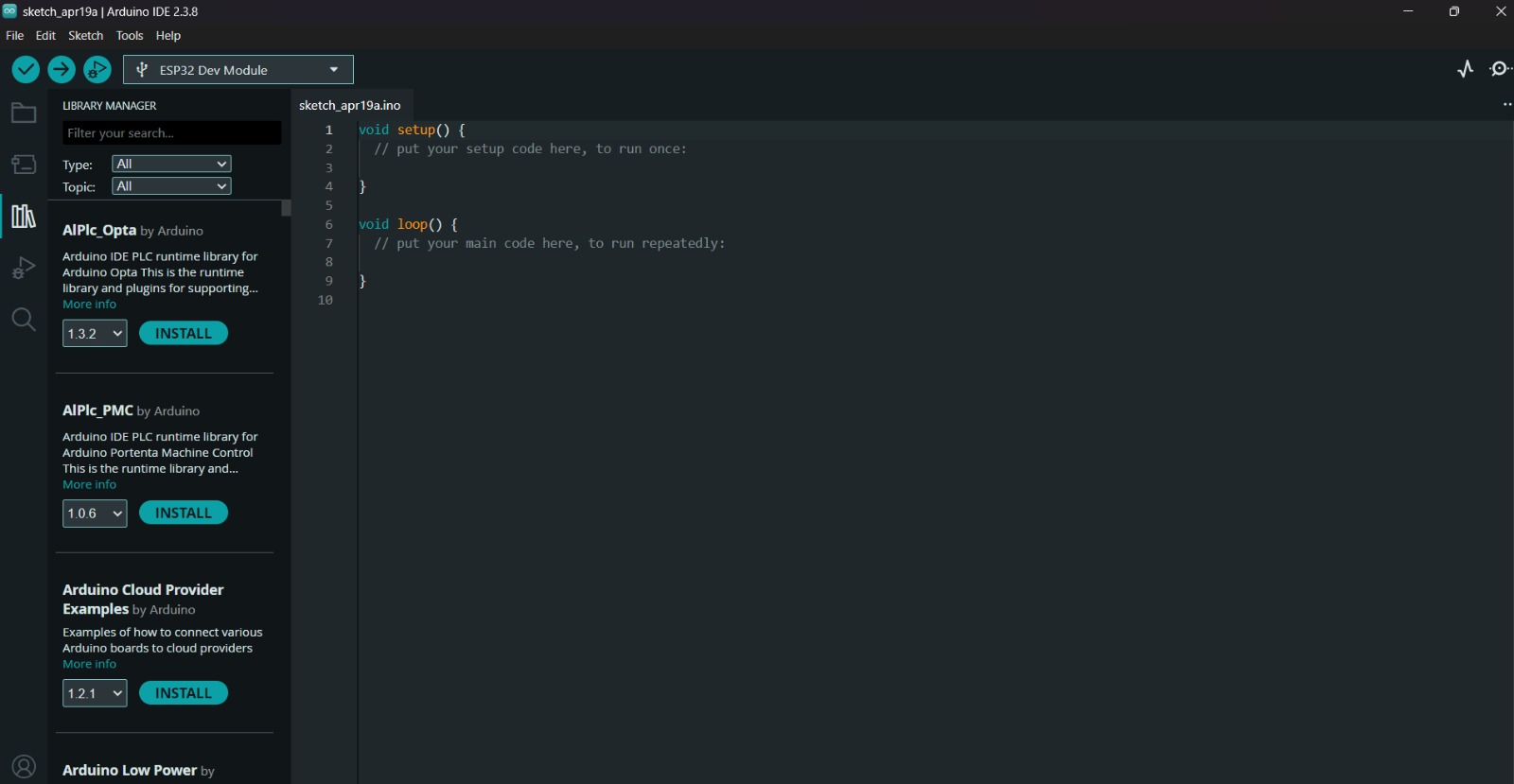
3. After installing the ESP32 Board, we must click on the tab that says select board and write ESP32 Dev Module, then select the PORT where our microcontroller is connected and upload the information.

4. Before uploading our code to the microcontroller we should use the verify tool, that compiles the code before uploading it in order to detect mistakes or problems. The verify tool is the one in the top with the check.

5. Finally, to upload our code we must click the upload tool, that is the one with the arrow pointing to the right. If our code is right, it shall compile. To get the , we must click on Tools in the top menu and select Serial Monitor.

ESP32 - MQTT Reaction Timer & Impact Detection System

~ Network: EMQX Broker (broker.emqx.io) via WiFi.
~ Sensing: Step response impact detector (TX: Pin 25, RX: Pin 35).
~ Timing: Hardware timer interrupt (1 ms resolution) for precision telemetry.


            #include <WiFi.h>
            #include <PubSubClient.h>
            #include <Wire.h>

            // -------- WIFI CONFIG --------
            const char* ssid = "WIFI_CONNECTION";
            const char* password = "PASSWORD";

            // -------- MQTT CONFIG --------
            const char* mqttServer = "broker.emqx.io";
            const int mqttPort = 1883;
            const char* connection = "DEREKOVICH_DEREKOVA";
            const char* subscribeTopic = "KAMILOVSKY";
            const char* publishTopic = "KAMILOVSKY";

            // -------- HARDWARE PINS --------
            int analog_pin = 35;
            int tx_pin = 25;
            const int led_pin = 26;

            long result = 0;

            // -------- CONTROL VARIABLES --------
            hw_timer_t *timer = NULL;
            volatile unsigned long tiempo = 0; 
            bool waiting = false; 
            String modo = "";

            WiFiClient esp32Client;
            PubSubClient mqttClient(esp32Client);

            void IRAM_ATTR onTimer() {
            tiempo++; 
            }

            void wifiInit() {
            Serial.print("Conectándose a ");
            Serial.println(ssid);
            WiFi.begin(ssid, password);
            while (WiFi.status() != WL_CONNECTED) {
                Serial.print(".");
                delay(500);
            }
            Serial.println("\nWiFi conectado");
            Serial.print("IP: ");
            Serial.println(WiFi.localIP());
            }

            void iniciarPrueba() {
            tiempo = 0;
            digitalWrite(led_pin, HIGH);
            waiting = true;
            Serial.println("--- PRUEBA INICIADA ---");
            Serial.println("LED Encendido. Temporizador corriendo...");
            }

            void callback(char* topicCallback, byte* payload, unsigned int length) {
            Serial.print("Mensaje recibido en topic: ");
            Serial.println(topicCallback);
            modo = "";
            for (int i = 0; i < length; i++) {
                modo += (char)payload[i];
            }
            Serial.print("Contenido: ");
            Serial.println(modo);
            
            if (modo == "FAB") {
                Serial.println("Comando FAB recibido. Reactivando sistema...");
                iniciarPrueba();
            }
            }

            void reconnect() {
            while (!mqttClient.connected()) {
                Serial.print("Conectando a MQTT...");
                String clientId = String(connection) + "-" + String(random(0xffff), HEX);
                if (mqttClient.connect(clientId.c_str())) {
                Serial.println(" conectado");
                mqttClient.subscribe(subscribeTopic);
                Serial.print("Suscrito a: ");
                Serial.println(subscribeTopic);
                } else {
                Serial.print(" fallo, rc=");
                Serial.print(mqttClient.state());
                Serial.println(" reintentando en 3 segundos");
                delay(3000);
                }
            }
            }

            long tx_rx() {
            int read_high, read_low, diff;
            long sum = 0;
            int N_samples = 100;

            for (int i = 0; i < N_samples; i++) {
                digitalWrite(tx_pin, HIGH);
                read_high = analogRead(analog_pin);
                delayMicroseconds(100);
                digitalWrite(tx_pin, LOW);
                read_low = analogRead(analog_pin);
                diff = read_high - read_low;
                sum += diff;
            }
            return sum;
            }

            void leerSensor() {
            result = tx_rx();
            long mapped_result = map(result, 15000, 25000, 0, 1024);

            if (mapped_result >= 4500 && mapped_result <= 10000) {
                if (waiting) {
                digitalWrite(led_pin, LOW);
                waiting = false;

                Serial.println("\n>> ¡IMPACTO DETECTADO! <<");
                Serial.print("Tiempo de reacción: ");
                Serial.print(tiempo);
                Serial.println(" ms");

                String tiempoData = String(tiempo);
                bool estado = mqttClient.publish(publishTopic, tiempoData.c_str());

                if (estado) {
                    Serial.println("Tiempo enviado por MQTT exitosamente.");
                } else {
                    Serial.println("Error al publicar el tiempo.");
                }
                Serial.println("Esperando comando 'FAB' vía MQTT para repetir la prueba...");
                }
            }
            }

            void setup() {
            Serial.begin(115200);

            pinMode(tx_pin, OUTPUT);
            pinMode(led_pin, OUTPUT);
            digitalWrite(led_pin, LOW);

            wifiInit();

            mqttClient.setServer(mqttServer, mqttPort);
            mqttClient.setCallback(callback);

            timer = timerBegin(1000000);
            timerAttachInterrupt(timer, &onTimer);
            timerAlarm(timer, 1000, true, 0);
            timerStart(timer);

            iniciarPrueba(); 
            }

            void loop() {
            if (!mqttClient.connected()) {
                reconnect();
            }
            mqttClient.loop();

            leerSensor();
            delay(50);
            }

ESP32 - CODE EXPLANATION

~ 1. Header Imports and Network Configurations:
The program starts by importing three vital libraries: WiFi.h handles the ESP32 network connectivity, PubSubClient.h implements the MQTT protocol for cloud messaging, and Wire.h provides the I2C framework (reserved for potential expansions). Immediately following the imports, network constants are established. The variables ssid and password hold the local local area network authentication data.

~ 2. MQTT Server Identity and Topic Routines:
The second block of data manages the Internet of Things (IoT) properties. The constants mqttServer ("broker.emqx.io") and mqttPort (1883) define the routing path to a public messaging server. The string connection ("DEREKOVICH_DEREKOVA") serves as the core template for the client identification profile. To streamline transmission lanes, both subscribeTopic and publishTopic point to the identical channel string, "KAMILOVSKY", establishing a bidirectional communication path.

~ 3. Hardware Peripheral Mapping and Sensor Registers:
The next section maps the physical pins of the ESP32 microcontroller to software constants. The integer variables analog_pin (35) and tx_pin (25) dictate the interfaces for the transmitter and receiver lines of the touch sensor pad. The constant led_pin (26) configures the dedicated digital channel for the stimulus light. Beneath these pin declarations, the long result variable is instantiated at zero to host the incoming raw accumulation data from the sensor.

~ 4. High-Precision Timing Objects and Control Flags:
This structural segment configures the timekeeping parameters required for human speed testing. The hw_timer_t *timer object pointer initializes an internal ESP32 hardware stopwatch. The variable tiempo is specifically declared as a volatile unsigned long, ensuring that its values are modified safely by hardware interrupts directly in RAM. Alongside it, the boolean flag waiting tracks whether the system is currently looking for user interaction, while the String modo variable holds incoming network text data.

~ 5. Communication Core Object Instantiations:
Before defining functions, the code creates the software instances required to interact with the web. The object esp32Client is spawned from the WiFiClient class to handle the low-level TCP/IP network transport layers. This client instance is then nested directly inside the mqttClient constructor of the PubSubClient class, binding the network interface to the messaging broker engine so that text-based payloads can be parsed and dispatched safely.

~ 6. Hardware Timer Interrupt Routines:
The function void IRAM_ATTR onTimer() is the precise clock engine of the firmware. Because it is flagged with the IRAM_ATTR attribute, this macro runs straight out of the internal fast instruction RAM rather than flash storage, bypassing normal microprocessor execution delays. Every single time the hardware timer counts down its preset interval, this tiny routine triggers instantly and increments the tiempo variable by 1, running silently in the background.

~ 7. Wireless Access Authentication (wifiInit):
The initialization routine void wifiInit() executes the local network handshake. It prints progress trackers to the terminal using Serial.print and calls WiFi.begin(ssid, password) to begin authentication. A defensive while loop checks WiFi.status() and pauses execution with a 500ms delay() until a WL_CONNECTED state is confirmed. Once authenticated, it outputs a success message and displays the dynamic local IP address assigned by the router via WiFi.localIP().

~ 8. Stimulus Activation and Flag Resetting (iniciarPrueba):
The utility function void iniciarPrueba() acts as the official starting gun for a human speed test. It forces the tiempo tracking register back to a clean slate of zero and applies an electrical charge to the signaling hardware using digitalWrite(led_pin, HIGH) to wake the user up. Finally, it sets the waiting control flag to true, indicating that the device has officially entered an operational state where it is actively listening for an impact or user touch.

~ 9. Remote Packet Processing (callback):
The custom function void callback(char* topicCallback, byte* payload, unsigned int length) acts as an automated network mail carrier. Whenever a remote client pushes a message to the shared topic, the ESP32 catches the data packets here. A localized for loop reconstructs the raw byte array (payload) into a standard string inside the global modo variable. If that incoming payload matches the explicit string "FAB", it routes the script directly into iniciarPrueba(), allowing remote software to re-trigger a test over the web.

~ 10. Persistent Broker Integration (reconnect):
The recovery mechanism void reconnect() ensures the device remains online. It wraps its logic inside a while loop that stalls execution if mqttClient.connected() yields a false evaluation. It constructs a unique identity token, clientId, by blending the baseline connection string with a randomized hexadecimal suffix to prevent server conflicts. Once mqttClient.connect() validates successfully, it re-subscribes to the target topic channel (subscribeTopic); otherwise, it waits 3 seconds before trying again.

~ 11. Noise-Filtered Charge Accumulation (tx_rx):
The sub-function long tx_rx() is a custom differential signal driver. It leverages a closed for loop to capture 100 consecutive data entries (N_samples). During every iteration, it drives tx_pin high to register read_high via analogRead(), holds state for 100 micro-instants, flips the driver pin low, and logs read_low. Subtracting these two reads gives the net dynamic capacitance shift (diff), accumulating the changes into sum to cancel ambient background electromagnetic fields.

~ 12. Threshold Validation and Payload Transit (leerSensor):
The decision-making hub void leerSensor() calculates physical results. It assigns the output of tx_rx() to result and applies a mathematical scaling layout using the map() function to squeeze a 15,000–25,000 baseline into a standard 0–1024 data window called mapped_result. If this scaled matrix crosses an extreme threshold between 4500 and 10000 while the waiting flag is active, the machine kills the LED output, drops waiting to false, translates the raw tiempo integer into an ASCII string, and broadcasts it to the cloud via mqttClient.publish().

~ 13. System Pre-Flight Configurations (setup):
The function void setup() schedules the bootstrap tasks when power is applied. It initializes local debugging lines at 115200 baud, applies data directions with pinMode(), and calls wifiInit(). It then targets the MQTT parameters with setServer() and hooks the callback() routine. Finally, it formats the hardware timer base to run at 1 MHz using timerBegin(1000000), attaches the interrupt handler via timerAttachInterrupt(), registers an automatic reload alarm every 1000 ticks (1 ms) via timerAlarm(), boots the clock engine, and drops into the initial test.

~ 14. Cyclic Coordination Hub (loop):
The main void loop() acts as the continuous driver for the device. At the start of every pass, it validates server persistence via an if statement that redirects to reconnect() if the network connection drops. It calls mqttClient.loop() to process background maintenance tasks and ingest incoming data packets, then invokes leerSensor() to poll the touch pad. A light 50ms delay() wraps up the routine to give the underlying hardware breathing room and prevent CPU saturation.

APP - Interface

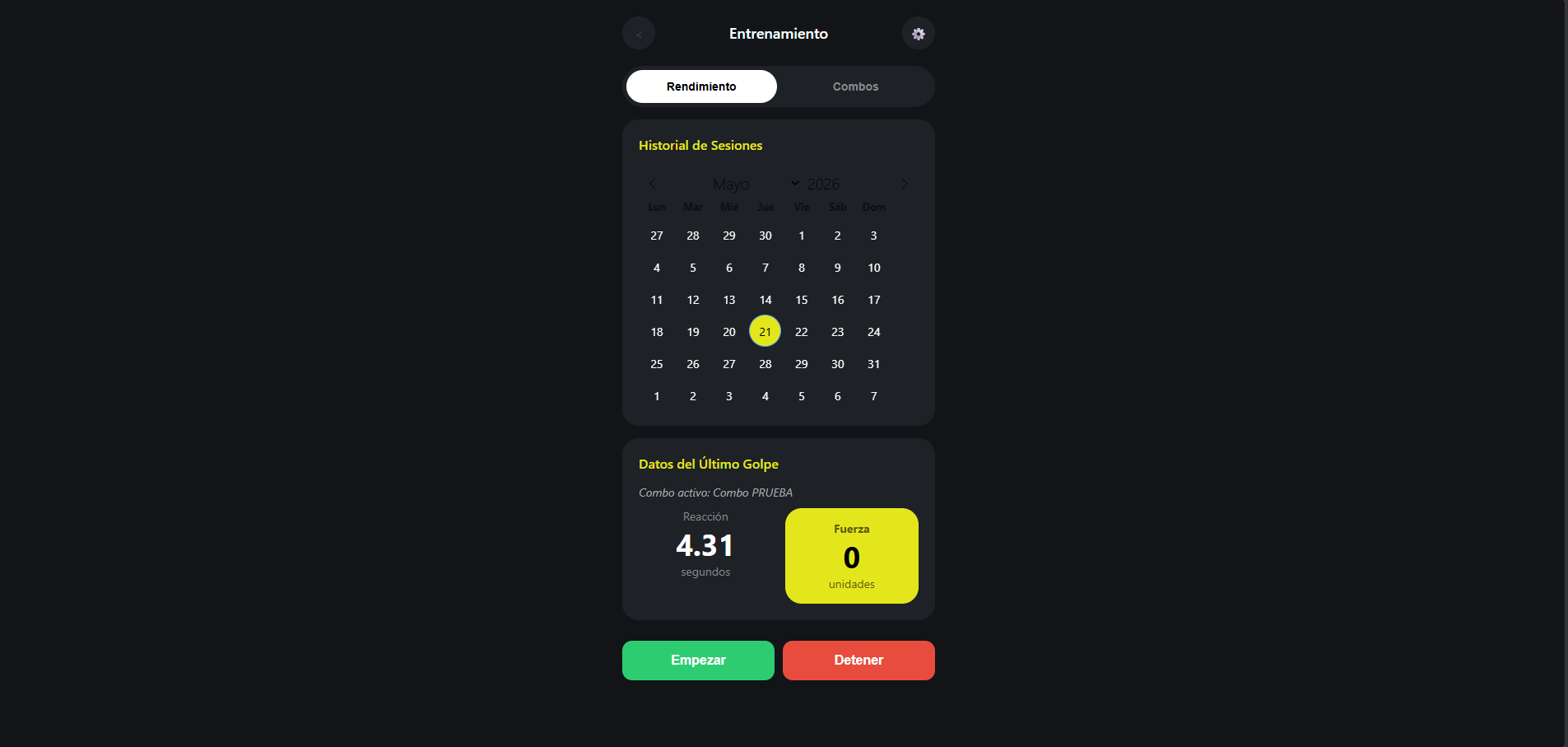
Smart Boxing UI - Web Interface Implementation

~ Framework: Responsive mobile UI with dark theme, Flatpickr integration, and Paho MQTT WebSockets.
~ Broker Gateway: WSS Secure Protocol on port 8084 (broker.emqx.io).
~ Telemetry Sync: Binds execution commands and raw milliseconds parsing to dashboard metrics.


    <!DOCTYPE html>
    <html lang="es">
    <head>
        <meta charset="UTF-8">
        <meta name="viewport" content="width=device-width, initial-scale=1.0">
        <title>Entrenamiento de Boxeo Inteligente</title>
                
    <!-- CDN IMPORTS -->
<script src="https://cdnjs.cloudflare.com/ajax/libs/paho-mqtt/1.0.1/mqttws31.min.js" type="text/javascript"></script>
    <link rel="stylesheet" href="https://cdn.jsdelivr.net/npm/flatpickr/dist/flatpickr.min.css">
    <script src="https://cdn.jsdelivr.net/npm/flatpickr"></script>
    <script src="https://npmcdn.com/flatpickr/dist/l10n/es.js"></script>
              
        <style>
            :root {
            --bg-color: #121418;
            --card-bg: #1e2126;
            --text-color: #ffffff;
            --accent-yellow: #e4e61c;
            --icon-grey: #3f454f;
            --border-radius: 20px;
                    }

            body {
                font-family: -apple-system, BlinkMacSystemFont, "Segoe UI", Roboto, sans-serif;
                background-color: var(--bg-color);
                color: var(--text-color);
                margin: 0;
                padding: 20px;
                display: flex;
                justify-content: center;
                    }

            .phone-container {
                width: 100%;
                max-width: 380px;
                display: flex;
                flex-direction: column;
                gap: 15px;
                    }

            header {
                display: flex;
                justify-content: space-between;
                align-items: center;
                padding: 5px 0;
                    }
            .header-icon {
                width: 40px;
                height: 40px;
                background-color: var(--card-bg);
                border-radius: 50%;
                display: flex;
                justify-content: center;
                align-items: center;
                color: var(--icon-grey);
                    }
            header h1 {
                font-size: 18px;
                margin: 0;
                font-weight: 500;
                    }

            .tabs-container {
                display: flex;
                background-color: var(--card-bg);
                border-radius: 30px;
                padding: 5px;
                gap: 5px;
                    }
            .tab-btn {
                flex: 1;
                background: none;
                border: none;
                color: #888;
                padding: 12px;
                font-size: 14px;
                font-weight: bold;
                border-radius: 25px;
                cursor: pointer;
                transition: all 0.3s ease;
                    }
            .tab-btn.active {
                background-color: #ffffff;
                color: #000000;
                    }

            .view-content {
                display: none;
                flex-direction: column;
                gap: 15px;
                    }
            .view-content.active {
                display: flex;
                    }

            .card {
                background-color: var(--card-bg);
                border-radius: var(--border-radius);
                padding: 20px;
                    }
            h2.section-title {
                font-size: 16px;
                font-weight: 600;
                margin-top: 0;
                margin-bottom: 15px;
                color: var(--accent-yellow);
                    }

            .combo-card {
                display: flex;
                align-items: center;
                background-color: var(--card-bg);
                border-radius: var(--border-radius);
                padding: 15px;
                gap: 15px;
                border: 2px solid transparent;
                transition: border 0.2s ease;
                cursor: pointer;
                    }
            .combo-card.selected {
                border: 2px solid var(--accent-yellow);
                    }
            .combo-img-placeholder {
                width: 65px;
                height: 65px;
                background-color: var(--icon-grey);
                border-radius: 12px;
                display: flex;
                justify-content: center;
                align-items: center;
                font-size: 24px;
                    }
        .combo-info { flex: 1; }
.combo-title { font-size: 16px; 
font-weight: bold; margin-bottom: 4px; }
.combo-sequence { font-size: 13px; color: var(--accent-yellow); 
font-weight: 500; }
        .combo-action-btn {
        width: 45px;
        height: 45px;
        background-color: #ffffff;
        border-radius: 50%;
        border: none;
        display: flex;
        justify-content: center;
        align-items: center;
        font-size: 18px;
        font-weight: bold;
        color: #000;
        cursor: pointer;
                    }

.flatpickr-calendar { background: transparent !important; 
box-shadow: none !important; border: none !important; color: white !important; width: 100% !important; }
.flatpickr-day.selected { background: var(--accent-yellow) !important; 
color: black !important; }
.flatpickr-day { color: white !important; }
                    
        .results-container { display: grid; grid-template-columns: 1fr 1fr; gap: 15px; }
        .result-item { text-align: center; }
        .result-value { font-size: 36px; font-weight: bold; }
        .result-unit { font-size: 14px; color: #888; }
                    
.max-force-card { background-color: var(--accent-yellow); color: black; border-radius: var(--border-radius); 
padding: 15px; display: flex; flex-direction: column; justify-content: center; }
        .max-force-card .result-value { color: black; }

        .controls { display: grid; grid-template-columns: 1fr 1fr; gap: 10px; margin-top: 10px; }
.btn { padding: 15px; border: none; border-radius: 12px; font-weight: bold; font-size: 16px; cursor: pointer; }
        .btn-start { background-color: #2ecc71; color: white; }
        .btn-stop { background-color: #e74c3c; color: white; }
        .selected-status { font-size: 14px; color: #aaa; margin-bottom: 10px; font-style: italic; }
        </style>
        </head>
        <body>
            
        <div class="phone-container">
            <header>
                <div class="header-icon">&lt;</div>
                <h1>Entrenamiento</h1>
                <div class="header-icon">⚙️</div>
            </header>

            <div class="tabs-container">
                <button class="tab-btn active" onclick="switchTab('rendimiento')">Rendimiento</button>
                <button class="tab-btn" onclick="switchTab('combos')">Combos</button>
            </div>

            <!-- VIEW: RENDIMIENTO -->
            <div id="view-rendimiento" class="view-content active">
                <div class="card">
                    <h2 class="section-title">Historial de Sesiones</h2>
                    <input type="text" id="calendarInline" style="display:none;">
                </div>

                <div class="card">
                    <h2 class="section-title">Datos del Último Golpe</h2>
                    <div class="selected-status" id="currentComboLabel">Combo seleccionado: Ninguno</div>
                        
                    <div class="results-container">
                        <div class="result-item">
                            <div class="result-unit">Reacción</div>
                            <div class="result-value" id="mqttTime">0.00</div>
                            <div class="result-unit">segundos</div>
                        </div>
                        <div class="max-force-card result-item">
                            <div class="result-unit" style="color: rgba(0,0,0,0.6); font-weight:bold;">Fuerza</div>
                            <div class="result-value" id="mqttForce">0</div>
                            <div class="result-unit" style="color: rgba(0,0,0,0.6);">unidades</div>
                        </div>
                    </div>
                    </div>

                <div class="controls">
                    <button class="btn btn-start" onclick="startSession()">Empezar</button>
                    <button class="btn btn-stop" onclick="stopSession()">Detener</button>
                    </div>
                </div>

            <!-- VIEW: COMBOS -->
            <div id="view-combos" class="view-content">
                <h2 class="section-title" style="margin-left: 5px;">Selecciona tu rutina</h2>
                    
                <div class="combo-card" id="card-combo1" onclick="selectCombo('XCS', 'Combo 1', 'card-combo1')">
                    <div class="combo-img-placeholder">🥊</div>
                    <div class="combo-info">
                        <div class="combo-title">Combo 1</div> 
                        <div class="combo-sequence">Secuencia: Izq - Cen - Der</div>
                    </div>
                    <button class="combo-action-btn">&gt;</button>
                </div>

                <div class="combo-card" id="card-combo2" onclick="selectCombo('CCX', 'Combo 2', 'card-combo2')">
                    <div class="combo-img-placeholder">⚡</div>
                    <div class="combo-info">
                        <div class="combo-title">Combo 2</div>
                        <div class="combo-sequence">Secuencia: Cen - Cen - Izq</div>
                    </div>
                    <button class="combo-action-btn">&gt;</button>
                </div>

                <div class="combo-card" id="card-combo3" onclick="selectCombo('FAB', 'Combo PRUEBA', 'card-combo3')">
                    <div class="combo-img-placeholder">💡</div>
                    <div class="combo-info">
                        <div class="combo-title">Combo PRUEBA</div>
                        <div class="combo-sequence">Activa el ESP32 (LED)</div>
                    </div>
                    <button class="combo-action-btn">&gt;</button>
                </div>
            </div>
        </div>

        <script>
            let selectedComboValue = ""; 
            let selectedComboName = "";

            function switchTab(tabName) {
                document.querySelectorAll('.tab-btn').forEach(btn => btn.classList.remove('active'));
                document.querySelectorAll('.view-content').forEach(view => view.classList.remove('active'));

                if(tabName === 'rendimiento') {
                    document.querySelectorAll('.tab-btn')[0].classList.add('active');
                    document.getElementById('view-rendimiento').classList.add('active');
                } else {
                    document.querySelectorAll('.tab-btn')[1].classList.add('active');
                    document.getElementById('view-combos').classList.add('active');
                }
            }

            function selectCombo(value, name, cardId) {
                selectedComboValue = value; 
                selectedComboName = name;
                    
                document.querySelectorAll('.combo-card').forEach(card => card.classList.remove('selected'));
                document.getElementById(cardId).classList.add('selected');
                    
                document.getElementById('currentComboLabel').innerText = `Combo activo: ${name}`;
                setTimeout(() => switchTab('rendimiento'), 250);
                }

            flatpickr("#calendarInline", { inline: true, locale: "es", defaultDate: "today" });

            const MQTT_HOST = "broker.emqx.io"; 
            const MQTT_PORT = 8084; 
            const MQTT_CLIENT_ID = "web_ui_" + parseInt(Math.random() * 1000, 10);
            const TOPIC_KAMILOVSKY = "KAMILOVSKY"; 

            let client = new Paho.MQTT.Client(MQTT_HOST, MQTT_PORT, MQTT_CLIENT_ID);
            client.onConnectionLost = onConnectionLost;
            client.onMessageArrived = onMessageArrived;

            client.connect({
                useSSL: true, 
                timeout: 5,
                onSuccess: onConnect,
                onFailure: (e) => console.error("Error MQTT:", e.errorMessage)
            });
                
            function onConnect() {
                console.log("Conectado a MQTT. Suscribiendo a " + TOPIC_KAMILOVSKY);
                client.subscribe(TOPIC_KAMILOVSKY);
            }

            function onConnectionLost(responseObject) {
                if (responseObject.errorCode !== 0) console.warn("Conexión perdida. Recarga la página.");
            }

            function onMessageArrived(message) {
                let payload = message.payloadString;
                console.log("Mensaje MQTT recibido: " + payload);
                    
                if (payload === "FAB" || payload === "XCS" || payload === "CCX" || payload === "STOP") return;

                let tiempoMilisegundos = parseInt(payload);

                if (!isNaN(tiempoMilisegundos)) {
                    let tiempoSegundos = tiempoMilisegundos / 1000;
                    document.getElementById('mqttTime').innerText = tiempoSegundos.toFixed(2);
                        
                    document.getElementById('mqttTime').style.color = "var(--accent-yellow)";
                    setTimeout(() => { document.getElementById('mqttTime').style.color = "white"; }, 500);
                }
            }

            function startSession() {
                if (!selectedComboValue) {
                    alert("Selecciona una rutina en la pestaña 'Combos'.");
                    return;
                }
                    
                let message = new Paho.MQTT.Message(selectedComboValue);
                message.destinationName = TOPIC_KAMILOVSKY;
                client.send(message);
                console.log(`Comando [${selectedComboValue}] enviado.`);
            }

            function stopSession() {
            let message = new Paho.MQTT.Message("STOP");
                message.destinationName = TOPIC_KAMILOVSKY;
                client.send(message);
                console.log("Comando STOP enviado.");
                }
            </script>
            </body>
            </html>

CODE EXPLANATION

~ 1. External CDNs and Modular UI Design:
The file starts with header metadata and includes external content delivery network (CDN) dependencies via script and style tags. It imports the Paho MQTT library (mqttws31.min.js) to handle web-socket based broker connectivity directly within the browser, along with the flatpickr calendar engine and its Spanish localization package (es.js). The style sheet creates a responsive layout styled like a mobile application shell using CSS variables like --bg-color (#121418) and --accent-yellow (#e4e61c) to maintain a dark-mode theme suitable for fitness hardware tracking.

~ 2. Document Object Architecture and Interactive DOM Elements:
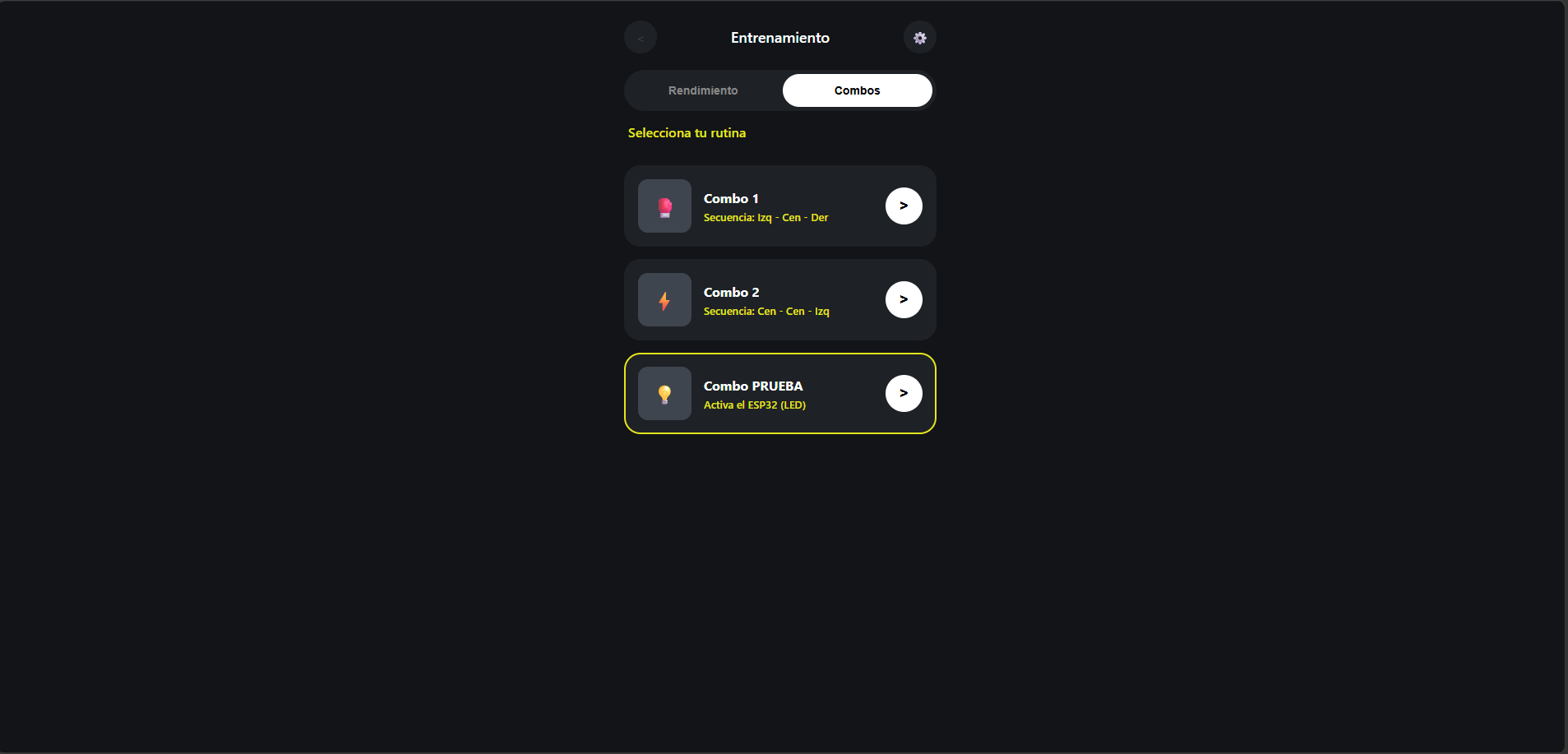
The HTML body maps out a single-page structure bounded by the phone-container class. It contains a static navigation layout with an operational tabs-container that houses the structural toggles "Rendimiento" (Performance) and "Combos" (Routines). The content is segmented into separate view blocks: view-rendimiento contains an inline calendar widget container alongside numeric readout blocks featuring the document identifiers mqttTime and mqttForce, while view-combos presents interactive combination cards loaded with embedded operational labels.

~ 3. Application State and Tab Switching Operations:
Inside the <script> tag, the engine establishes global states using variables like selectedComboValue and selectedComboName to record user choices. The navigation routine void switchTab(tabName) manages viewport rendering without reloading. It loops through all DOM elements possessing the .tab-btn and .view-content classes to strip away their default .active classification styles and then appends that visibility class strictly back to the target view selected by the user.

~ 4. Combo Selection and Layout Feedback Mechanics:
The script implements routine parsing using the void selectCombo(value, name, cardId) handler. When a card is pressed, this utility extracts the unique operational payload markers like "FAB", "XCS", or "CCX" into global runtime variables. It updates the DOM container currentComboLabel to show the active target and applies the visual .selected border class onto the target item. A 250ms setTimeout() window creates a smooth aesthetic delay before redirecting the navigation stack back to the performance dashboard automatically.

~ 5. Web-Socket MQTT Protocol Construction and Binding:
Network communications are established through custom operational constants including MQTT_HOST ("broker.emqx.io") and MQTT_PORT (8084, the specialized port for Secure WebSockets communication). It assigns a dynamic tracking instance called MQTT_CLIENT_ID by compiling a random string and initiates the Paho.MQTT.Client connection profile. It assigns listeners to the onConnectionLost and onMessageArrived slots before passing an argument token loaded with useSSL: true into the client.connect() engine to establish communications securely.

~ 6. Asynchronous Connection Lifecycle Listeners:
The lifecycle routines void onConnect() and void onConnectionLost(responseObject) manage internet connection dropouts. When a web channel handshake lands cleanly, onConnect() fires, writing tracking notes to the console window and subscribing the browser immediately to the topic identifier channel TOPIC_KAMILOVSKY ("KAMILOVSKY"). If network pathing drops out, onConnectionLost() triggers a warning alert requesting a window reload if internal status codes reveal anomalous network activity.

~ 7. Real-Time Message Parsing and Layout Adjustments:
The ingestion callback void onMessageArrived(message) handles incoming payloads sent back by the ESP32. It grabs the text using message.payloadString and drops out early via a preventive filter if the incoming data matches outbound macro identifiers like "STOP". It converts numerical text into millisecond intervals, dividing them by 1000 to construct a floating-point representation. It targets the mqttTime DOM element, overwriting its inner text to a formatted layout (toFixed(2)), and performs a brief yellow-to-white color flash transition to indicate a live data refresh.

~ 8. Outbound Protocol Dispatch Operations:
The script finishes by defining the session control hooks void startSession() and void stopSession(). Calling startSession() verifies if a structural pattern code is loaded; if empty, it displays a warning dialog and halts. Otherwise, it instantiates a new payload package via Paho.MQTT.Message(selectedComboValue), flags the destination channel, and dispatches the payload via client.send(), turning on the remote ESP32 testing loop. The stopSession() routine functions identically, but packages the string value "STOP" to cancel active routines.

Results

Fab
Fab

Results

Learning outcomes

This week, I learned a lot about user interface development and how web technologies can be integrated into embedded systems projects. I decided to work with an HTML and MQTT-based interface because I believe it is a very effective solution for my project. One of the main advantages is that it is fast, lightweight, and easy to access from different devices, especially from an iPhone, without needing to install a dedicated application.

During the process, I also learned more about how MQTT communication can be integrated into an HTML interface. At first, I did not know how to make the webpage communicate correctly with the MQTT broker, so I used AI as a learning tool to better understand the communication process. Through this, I learned how to establish connections, publish and receive messages, and obtain feedback about how the communication script works.

This experience helped me improve both my programming and problem-solving skills, since I had to combine web development concepts with wireless communication protocols. Overall, the project gave me a much clearer understanding of how interfaces and IoT communication systems can work together in real-time applications.

Files