◄ PAGE 15 PAGE 17 ►
WEEK 16

WILDCARD WEEK: AI & VISION

Bridging browser-based Artificial Intelligence with physical hardware.

00. MISSION BRIEFING

For Wildcard week, I wanted to explore Artificial Intelligence and Vision Tracking, tying it directly to my Final Project concept (The Smart Precision Goal). The objective was to build a Web Interface that uses the laptop's webcam to track my index finger (acting as the "football"). When my finger enters a virtual "Goal Zone" on the screen, the web browser sends a physical signal to my custom PCB (the XIAO RP2350) to light up an LED — simulating a scored goal. The full system was successfully integrated and tested.

01. HOW TO BUILD THIS: THE BEGINNER'S GUIDE

Building an AI interface sounds like science fiction, but it is a very logical 4-step process. If you are new to programming, here is exactly how the magic works under the hood.

STEP 1: THE STAGE (HTML & CSS)

First, we need a place to show the camera. In HTML, we create a <video> tag. Over that video, we place two transparent elements using CSS absolute positioning:

  • The Crosshair (Your Finger): A small CSS circle that moves around following the detected finger tip.
  • The Goal Zone (The Target): A dashed rectangle fixed in the center of the screen — the virtual goal line.

STEP 2: SUMMONING THE AI (ML5.js)

Teaching a computer what a hand looks like is complex math. Instead of doing it from scratch, we import a free library called ml5.js (which runs on Google's MediaPipe).

When we feed our webcam video into ml5.handpose(), the AI places exactly 21 tracking landmarks on the hand's joints. Landmark #8 is always the tip of the index finger. JavaScript reads its X and Y pixel coordinates every frame and moves the crosshair to exactly those coordinates.

// Get the raw coordinates of Landmark #8 (Index Finger Tip)
let x = results[0].landmarks[8][0];
let y = results[0].landmarks[8][1];

STEP 3: THE HITBOX MATH

Now that the crosshair follows the finger, how does the computer know it is inside the Goal Zone? We use basic geometry called Collision Detection.

The Mirror Trick: Webcams are mirrored by default. An X coordinate of 10 in real life might be 630 on screen. To fix this, we subtract the X coordinate from the video width: let invertedX = 640 - x;

Then we check all four boundaries. If the finger is within the left edge (195), right edge (445), top (150), and bottom (330) of the zone, it is inside.

let invertedX = 640 - x; // Fix the webcam mirror effect

let isInside = (invertedX > 195 && invertedX < 445 && y > 150 && y < 330);

if (isInside) {
    goalAlert.innerText = "GOAL SCORED!";
}

STEP 4: THE HARDWARE BRIDGE (Web Serial API)

Browsers run in a security sandbox that blocks hardware access. The Web Serial API bypasses this safely — when the user clicks "CONNECT", the browser asks for explicit permission to open a USB tunnel to the XIAO RP2350.

  • If isInside is true → send "1" through USB → LED turns ON.
  • If isInside is false → send "0" through USB → LED turns OFF.

The firmware on the XIAO is a perpetual listener. It waits for those two characters and reacts in milliseconds.

STEP 5: CONNECTING THE XIAO TO THE WEB INTERFACE

Before using the Web Serial connection, first upload the firmware to the XIAO RP2350 using Arduino IDE.

Once the code is uploaded successfully, make sure every Serial Monitor or Serial Plotter window is completely closed. If Arduino still has the serial port open, the browser will not be able to connect to the board.

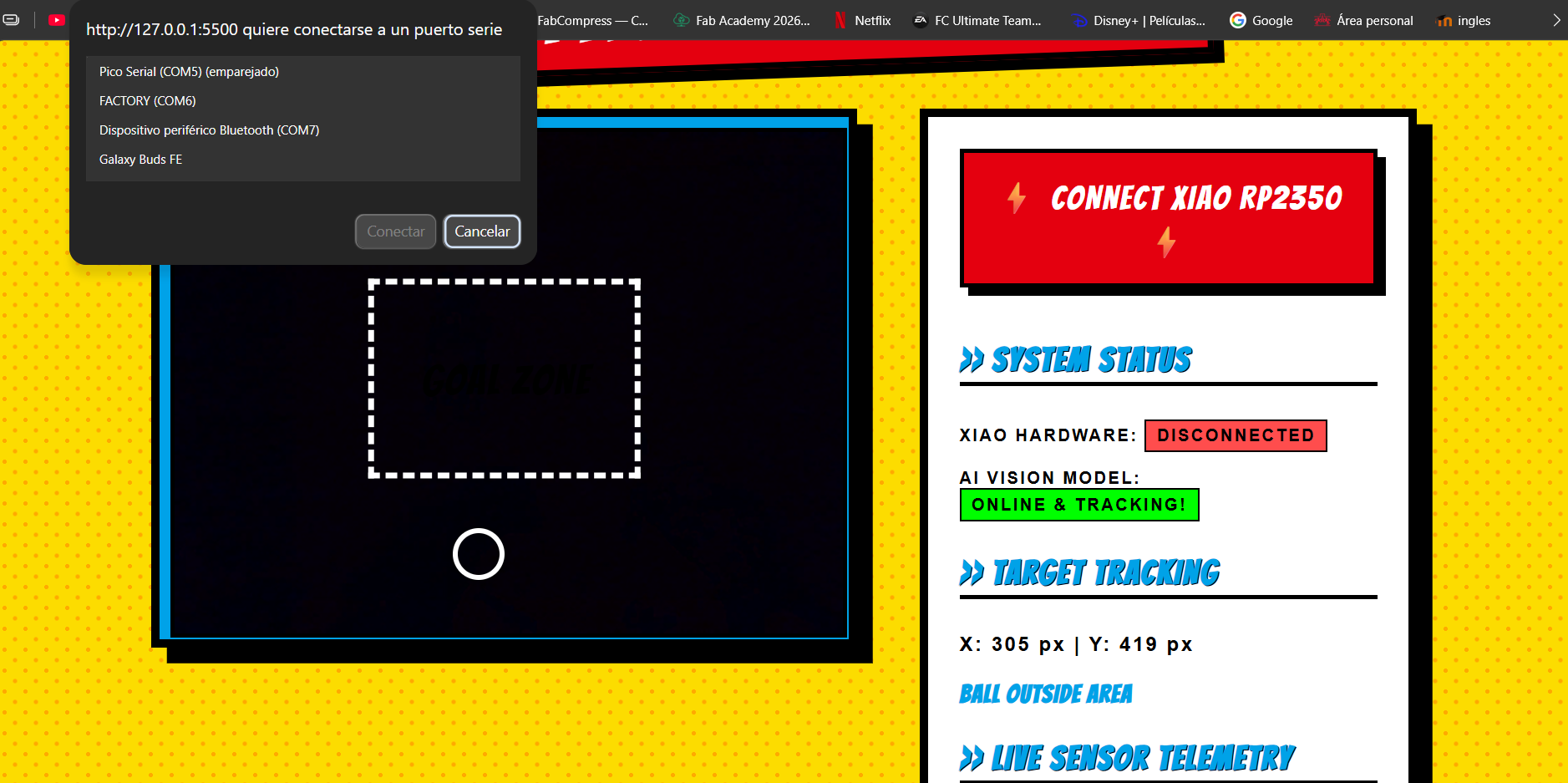
After closing Arduino serial tools, open the AI web interface and press the "CONNECT XIAO RP2350" button.

The browser will display a port selection window — choose the USB port where the XIAO is connected.

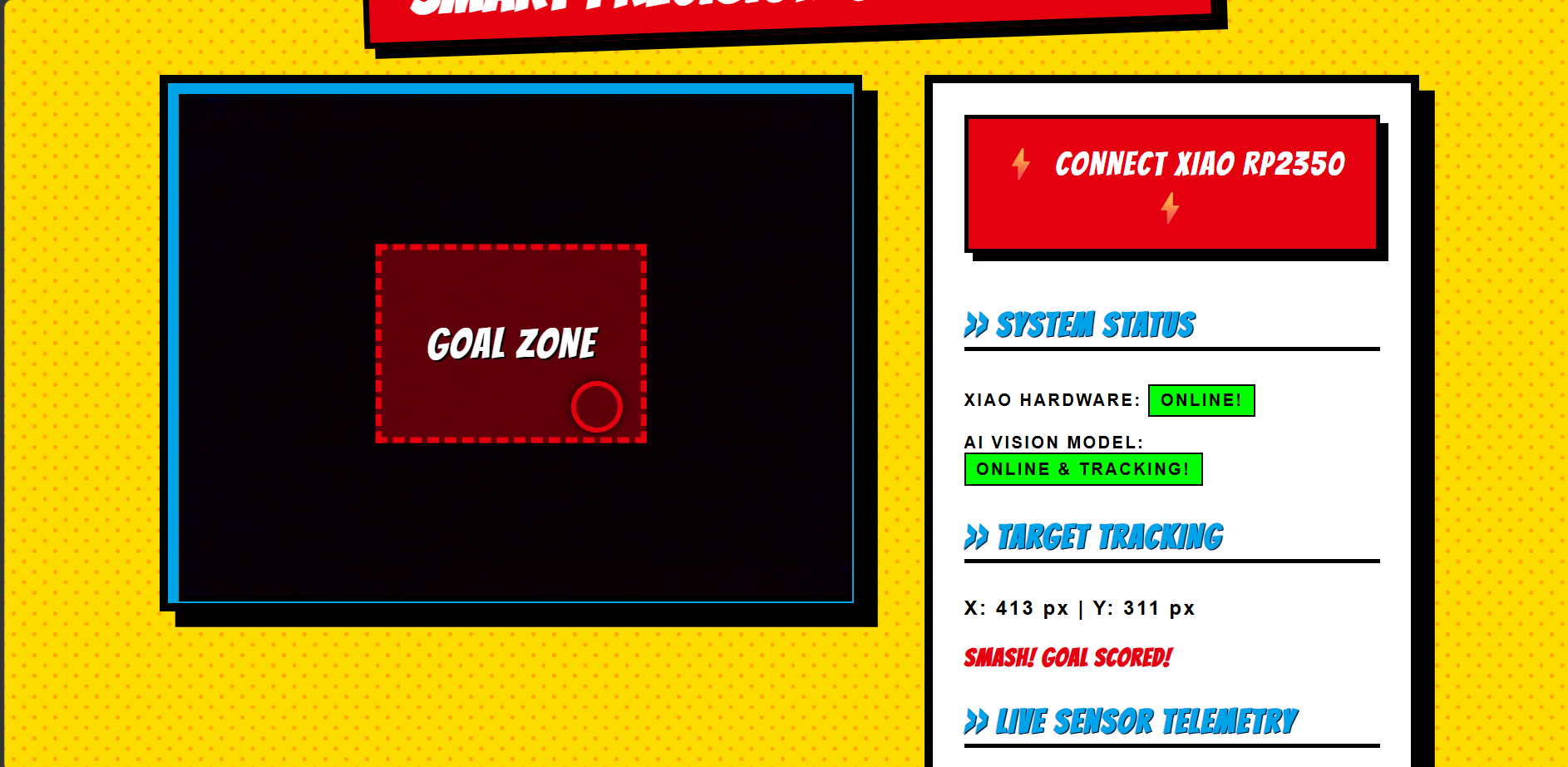
Once connected, the system status changes from DISCONNECTED to ONLINE.

Before connecting XIAO
Before pressing CONNECT XIAO RP2350
After connecting XIAO
After selecting the XIAO serial port

02. SYSTEM IN ACTION: THE AI HUB

The web interface tracks the index finger via ML5.js and monitors its X/Y coordinates in real time. When the finger crosses into the dashed Goal Zone, the zone turns red, the dashboard displays "GOAL SCORED!", and a serial signal fires to the XIAO RP2350 — turning on the physical LED instantly.

VIDEO 1 — AI Interface Demo

Browser AI tracking the index finger — Goal Zone detection active, X/Y telemetry updating live.

VIDEO 2 — Physical Hardware Response

XIAO RP2350 LED turning ON the moment the finger enters the Goal Zone via Web Serial signal.

03. FULL SOURCE CODES

For documentation and reproducibility, here are the complete files used to deploy this AI system.

File: index.html (Complete Web App Interface)
<!DOCTYPE html>
<html lang="en">
<head>
    <meta charset="UTF-8">
    <title>Smart Precision Goal - AI Vision System</title>
    <script src="https://unpkg.com/ml5@0.12.2/dist/ml5.min.js"></script>
    <link href="https://fonts.googleapis.com/css2?family=Bangers&display=swap" rel="stylesheet">
    <style>
        body { 
            background-color: #fcdc00; 
            background-image: radial-gradient(#ffaa00 15%, transparent 16%), radial-gradient(#ffaa00 15%, transparent 16%);
            background-size: 20px 20px;
            background-position: 0 0, 10px 10px;
            color: #000; font-family: 'Bangers', cursive; 
            text-align: center; padding: 40px; margin: 0; letter-spacing: 2px;
        }
        h1 { 
            background-color: #e4000f; color: #fff; display: inline-block; 
            padding: 15px 40px; font-size: 4rem; border: 6px solid #000; 
            box-shadow: 10px 10px 0px #000; transform: rotate(-2deg); margin-bottom: 40px;
        }
        .dashboard { display: flex; justify-content: center; gap: 60px; flex-wrap: wrap; }
        .video-wrapper { 
            position: relative; border: 8px solid #000; box-shadow: 15px 15px 0 #000; 
            background-color: #00a2e8; width: 640px; height: 480px; padding: 10px;
        }
        video { width: 100%; height: 100%; transform: scaleX(-1); object-fit: cover; border: 4px solid #000; }
        #crosshair { 
            position: absolute; width: 40px; height: 40px; border: 5px solid #fff; 
            border-radius: 50%; top: 50%; left: 50%; transform: translate(-50%, -50%); 
            pointer-events: none; display: none; transition: 0.1s; z-index: 10; box-shadow: 0 0 10px #000;
        }
        #goal-zone { 
            position: absolute; width: 250px; height: 180px; border: 6px dashed #fff; 
            top: 50%; left: 50%; transform: translate(-50%, -50%); pointer-events: none; 
            transition: 0.2s; display: flex; align-items: center; justify-content: center; 
            font-size: 2.5rem; color: transparent; text-shadow: 2px 2px 0 #000;
        }
        .data-panel { 
            border: 8px solid #000; padding: 30px; text-align: left; width: 400px; 
            background: #fff; box-shadow: 15px 15px 0 #000; font-family: sans-serif; font-weight: bold;
        }
        h3 { font-family: 'Bangers', cursive; font-size: 2rem; color: #00a2e8; text-transform: uppercase; border-bottom: 4px solid #000; padding-bottom: 5px; }
        button { 
            background: #e4000f; color: #fff; border: 4px solid #000; padding: 20px; font-size: 2rem; 
            font-family: 'Bangers', cursive; cursor: pointer; width: 100%; margin-bottom: 20px; 
            box-shadow: 8px 8px 0 #000; transition: all 0.1s; letter-spacing: 2px;
        }
        button:active { transform: translateY(8px) translateX(8px); box-shadow: 0px 0px 0 #000; }
        .highlight { color: #000; font-size: 1.2rem; background: #fcdc00; padding: 10px; border: 3px solid #000; display: inline-block; width: 90%; word-wrap: break-word; }
        .status-badge { padding: 5px 10px; border: 2px solid #000; background: #ccc; color: #000; display: inline-block; }
    </style>
</head>
<body>
    <h1>SMART PRECISION GOAL: AI HUB!</h1>
    <div class="dashboard">
        <div class="video-wrapper">
            <video id="webcam" autoplay playsinline></video>
            <div id="goal-zone">GOAL ZONE</div>
            <div id="crosshair"></div>
        </div>
        <div class="data-panel">
            <button id="connectBtn">⚡ CONNECT XIAO RP2350 ⚡</button>
            <h3>>> SYSTEM STATUS</h3>
            <p>XIAO HARDWARE: <span id="serial-status" class="status-badge" style="background:#ff4d4d;">DISCONNECTED</span></p>
            <p>AI VISION MODEL: <span id="ai-status" class="status-badge" style="background:#fcdc00;">LOADING...</span></p>
            <h3>>> TARGET TRACKING</h3>
            <p>X: <span id="valX">0</span> px | Y: <span id="valY">0</span> px</p>
            <p id="goal-alert" style="color:#00a2e8; font-size:1.5rem; font-family:'Bangers',cursive;">BALL OUTSIDE AREA</p>
            <h3>>> LIVE SENSOR TELEMETRY</h3>
            <div id="liveData" class="highlight">AWAITING SERIAL...</div>
        </div>
    </div>
    <script>
        const video = document.getElementById('webcam');
        const crosshair = document.getElementById('crosshair');
        const goalZone = document.getElementById('goal-zone');
        const goalAlert = document.getElementById('goal-alert');
        let serialWriter = null;
        let goalState = false;

        navigator.mediaDevices.getUserMedia({ video: { width: 640, height: 480 } })
            .then(stream => {
                video.srcObject = stream;
                const handpose = ml5.handpose(video, () => {
                    document.getElementById('ai-status').innerText = "ONLINE & TRACKING!";
                    document.getElementById('ai-status').style.background = "#00ff00";
                    crosshair.style.display = "block";
                });
                handpose.on('predict', results => {
                    if (results.length > 0) {
                        let x = results[0].landmarks[8][0];
                        let y = results[0].landmarks[8][1];
                        let invertedX = 640 - x;
                        crosshair.style.left = invertedX + "px";
                        crosshair.style.top = y + "px";
                        document.getElementById('valX').innerText = Math.round(invertedX);
                        document.getElementById('valY').innerText = Math.round(y);
                        let isInside = (invertedX > 195 && invertedX < 445 && y > 150 && y < 330);
                        if (isInside) {
                            goalZone.style.borderColor = "#e4000f";
                            goalZone.style.backgroundColor = "rgba(228,0,15,0.4)";
                            goalZone.style.color = "#fff";
                            crosshair.style.borderColor = "#e4000f";
                            goalAlert.innerText = "SMASH! GOAL SCORED!";
                            goalAlert.style.color = "#e4000f";
                            if (!goalState) { goalState = true; if (serialWriter) serialWriter.write("1"); }
                        } else {
                            goalZone.style.borderColor = "#fff";
                            goalZone.style.backgroundColor = "transparent";
                            goalZone.style.color = "transparent";
                            crosshair.style.borderColor = "#fff";
                            goalAlert.innerText = "BALL OUTSIDE AREA";
                            goalAlert.style.color = "#00a2e8";
                            if (goalState) { goalState = false; if (serialWriter) serialWriter.write("0"); }
                        }
                    }
                });
            });

        document.getElementById('connectBtn').addEventListener('click', async () => {
            try {
                const port = await navigator.serial.requestPort();
                await port.open({ baudRate: 115200 });
                document.getElementById('serial-status').innerText = "ONLINE!";
                document.getElementById('serial-status').style.background = "#00ff00";
                const textEncoder = new TextEncoderStream();
                textEncoder.readable.pipeTo(port.writable);
                serialWriter = textEncoder.writable.getWriter();
                const textDecoder = new TextDecoderStream();
                port.readable.pipeTo(textDecoder.writable);
                const reader = textDecoder.readable.getReader();
                while (true) {
                    const { value, done } = await reader.read();
                    if (done) break;
                    if (value.trim() !== "") document.getElementById('liveData').innerText = value;
                }
            } catch (error) { console.error("Serial error:", error); }
        });
    </script>
</body>
</html>
File: Firmware_XIAO_RP2350.ino
/**
 * Wildcard Week: Web Serial Listener
 * Hardware: XIAO RP2350
 * Listens for '1' (LED ON) and '0' (LED OFF) from the browser via USB Serial.
 */

const int ledPin = 25;

void setup() {
  Serial.begin(115200);
  pinMode(ledPin, OUTPUT);
  // Startup blink to confirm firmware is running
  digitalWrite(ledPin, HIGH); delay(500); digitalWrite(ledPin, LOW);
}

void loop() {
  if (Serial.available() > 0) {
    char command = Serial.read();
    if      (command == '1') digitalWrite(ledPin, HIGH); // GOAL — LED ON
    else if (command == '0') digitalWrite(ledPin, LOW);  // RESET — LED OFF
  }
}

AI SIDEKICK LOG

Full Disclosure: To bring this Wildcard mission to life, I enlisted the help of an AI assistant (Gemini) as a coding co-pilot.

I knew exactly what I wanted to achieve conceptually (tracking a finger to trigger a physical LED goal), but I needed a clear architectural path. I asked the AI for recommendations on how to connect a browser camera to a microcontroller without a complex backend server.

The AI pointed me to ml5.js (built on Google's MediaPipe) for the hand-tracking neural network, and suggested the Web Serial API to bridge the browser with the XIAO RP2350.

Together we iterated on the code. The AI helped structure the JavaScript layout, explained the Mirror Trick for webcam coordinates, and assisted in making the hit-box math understandable. All final decisions, testing, and hardware validation were done by me.

04. CONCLUSIONS & WHAT I LEARNED

This Wildcard week pushed me to connect three very different disciplines — machine learning, web development, and embedded firmware — into a single working system. Here are the key takeaways:

01
Browser AI is surprisingly accessible. ml5.js abstracts a neural network trained on millions of hands into three lines of JavaScript. You do not need a GPU or a Python server — it runs entirely in the browser at webcam frame rate. The barrier to entry for AI vision is much lower than I expected.
02
The Mirror Trick is a real production problem. The coordinate inversion caused by CSS scaleX(-1) was a subtle but critical bug. A crosshair that moved in the wrong direction would have made the entire system unusable. Always account for coordinate space when combining visual display with tracking logic.
03
Web Serial API is the cleanest hardware bridge I have used. No Python scripts, no Node.js server, no drivers to install — just the browser talking directly to the microcontroller over USB. This architecture is genuinely useful for rapid hardware prototyping and I plan to use it again in my final project.
04
Edge-triggered signals prevent signal flooding. Sending "1" on every single prediction frame (60 times per second) would have crashed the serial buffer. Implementing the goalState boolean — sending the signal only when the state changes — was a small fix with a big impact on system reliability.
05
This directly validates my Final Project architecture. The Smart Precision Goal needs exactly this pipeline: detect an event → process it → fire a hardware signal → report to a visual interface. This week proved that all four steps can work together reliably, and gave me a reusable code base to build on.
Next Steps The logical next evolution of this system is replacing the finger-as-ball simulation with the actual retroreflective sensors from the physical goal. The Web Serial communication layer built this week will remain exactly the same — only the input source changes from a webcam coordinate to a GPIO trigger on the ESP32-S3.