Week 10: Output Devices
Group assignment
Week 10Introduction
In the architecture of embedded systems, an output device functions as a transducer that converts electrical energy from a microcontroller into a measurable physical phenomenon. While the microcontroller serves as the central processing unit, these peripheral components act as the system's effectors, translating binary logic into mechanical motion, electromagnetic radiation, or acoustic waves.
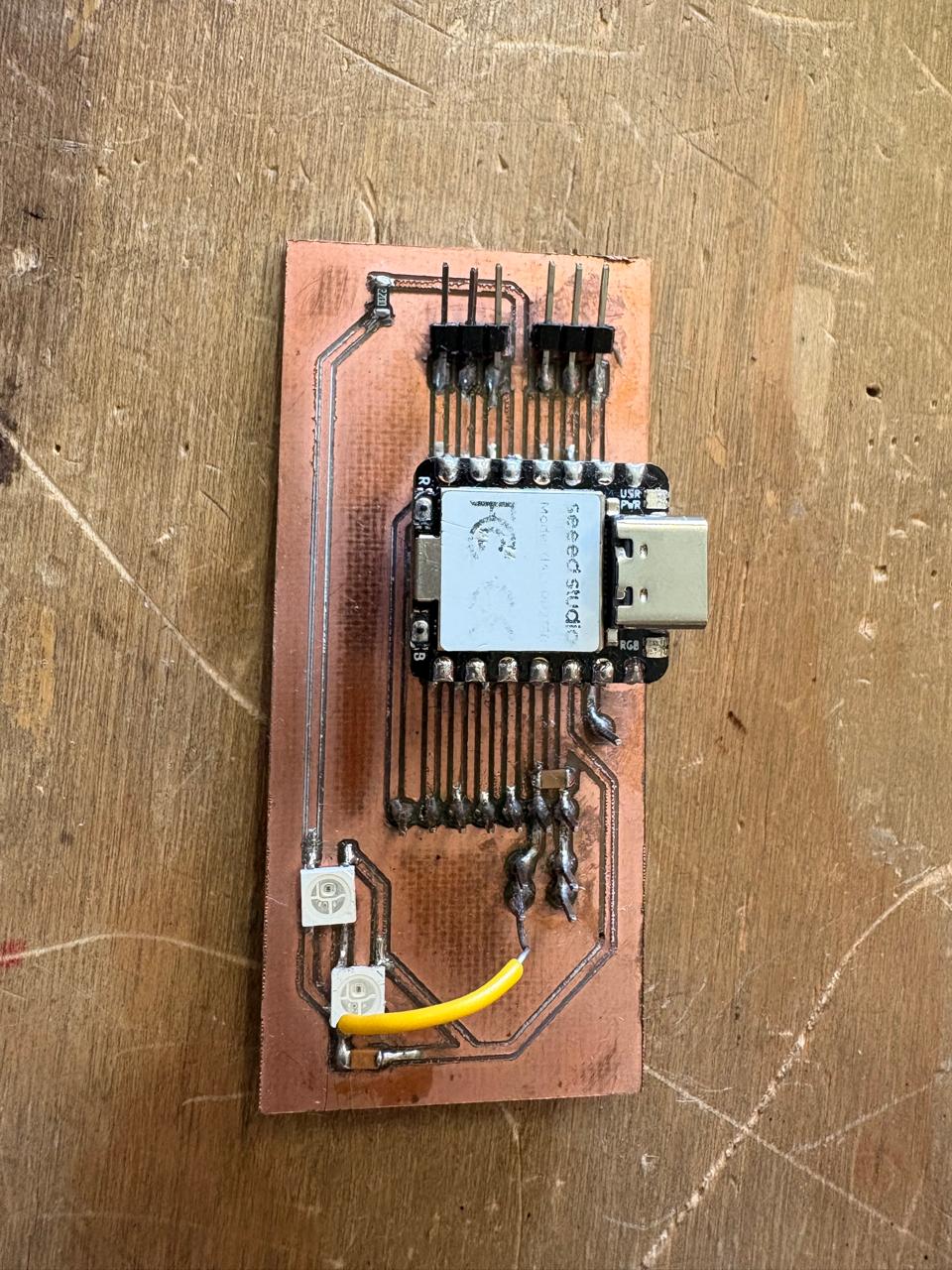
This week I’ll use the last week PCB with all the XIAO’s inputs and outputs, because I didn’t include them on the week 8 board. For the outputs, I will use two OLED displays of different sizes and Neopixels, because I want to see a visual response to my inputs from last week in order to observe how quickly the outputs respond.
Types of signals
Digital Signals: A digital signal is a type of signal that represents data as a sequence of discrete, distinct values—typically binary 0s and 1s—rather than a continuous waveform. These signals are implemented as fixed-width electrical or light pulses (0V or 5V), creating a square wave pattern that offers high noise immunity and better data integrity than analog signals.
Analog Signals: An analog signal is a continuous, time-varying electrical, mechanical, or physical signal that represents information by varying its amplitude, frequency, or phase. Unlike digital signals, which use discrete binary values (0s and 1s), analog signals can take on an infinite range of values, making them ideal for representing natural phenomena like sound, temperature, and light.
Type of communications
Communications
Potential Formulas
P = V × I
This equation calculates power consumption, where P is power (watts), V is voltage (volts), and I is current (amperes). It is essential for determining how much energy an output device will consume.
P = I² × R
This form is useful for calculating power dissipation in resistive elements, such as current limiting resistors, ensuring they can handle the thermal load safely.
I = V / R
Derived from Ohm’s Law, this formula is used to calculate the current flowing through a device such as an LED, allowing proper resistor selection to avoid damage.
PCB
Schematic
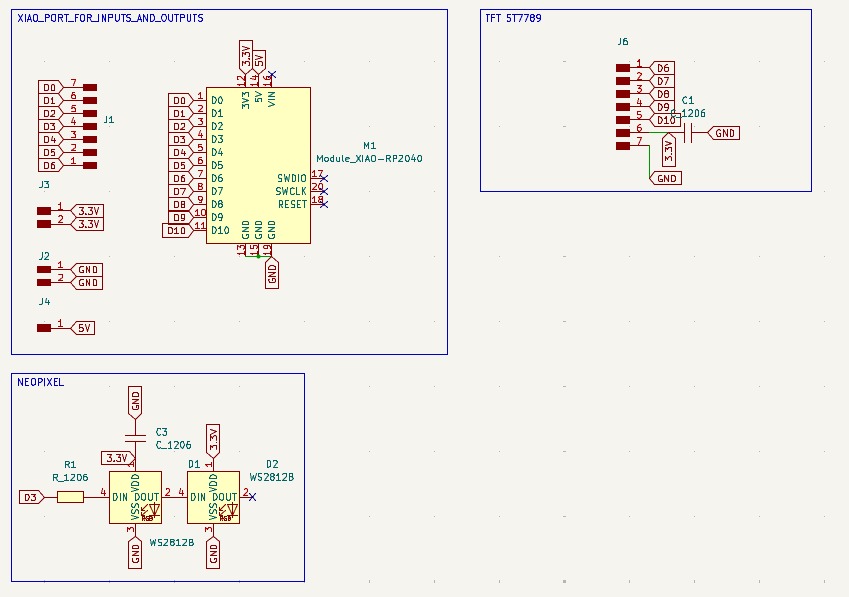
XIAO INPUTS AND OUTPUTS. For the Xiao, I'll just add pins for its inputs and outputs, and I'll also add pins for external power supply (3.3V, 5V, and GND).
NeoPixels. I connected them to D3 on my Xiao using a resistor and a label, then connected the LEDs in series and the first power pin to a capacitor of 100 nF for component safety. Finally, I left some holes so that more LEDs could be added if desired.
Display. For the display output I just added the corresponding pins to connect it later and a decoupling capacitor 10µF to 3.3V.
PCB design
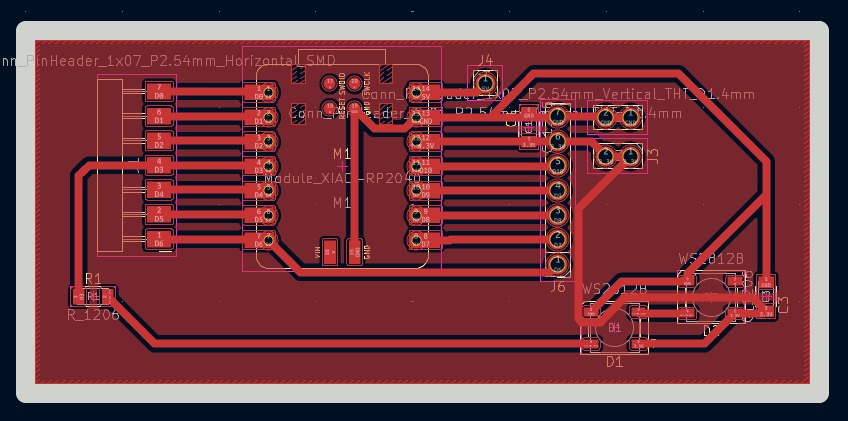
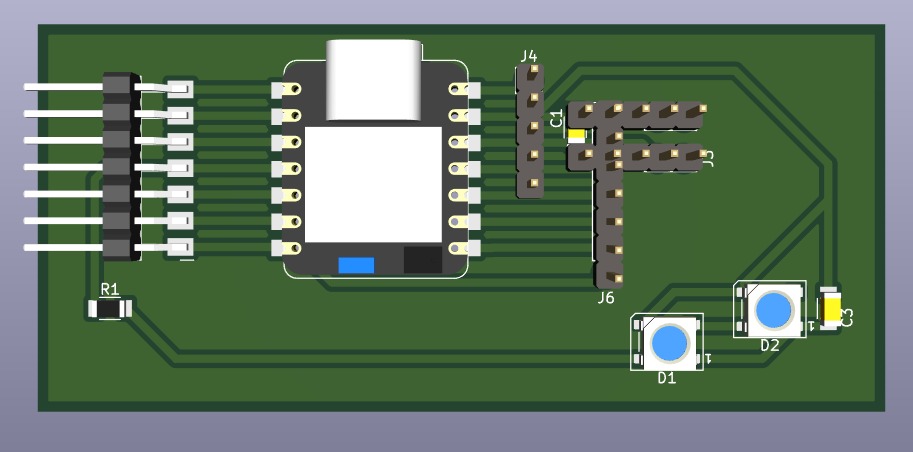
1. Then I went to the PCB editor and with the Route single track I connected every component.
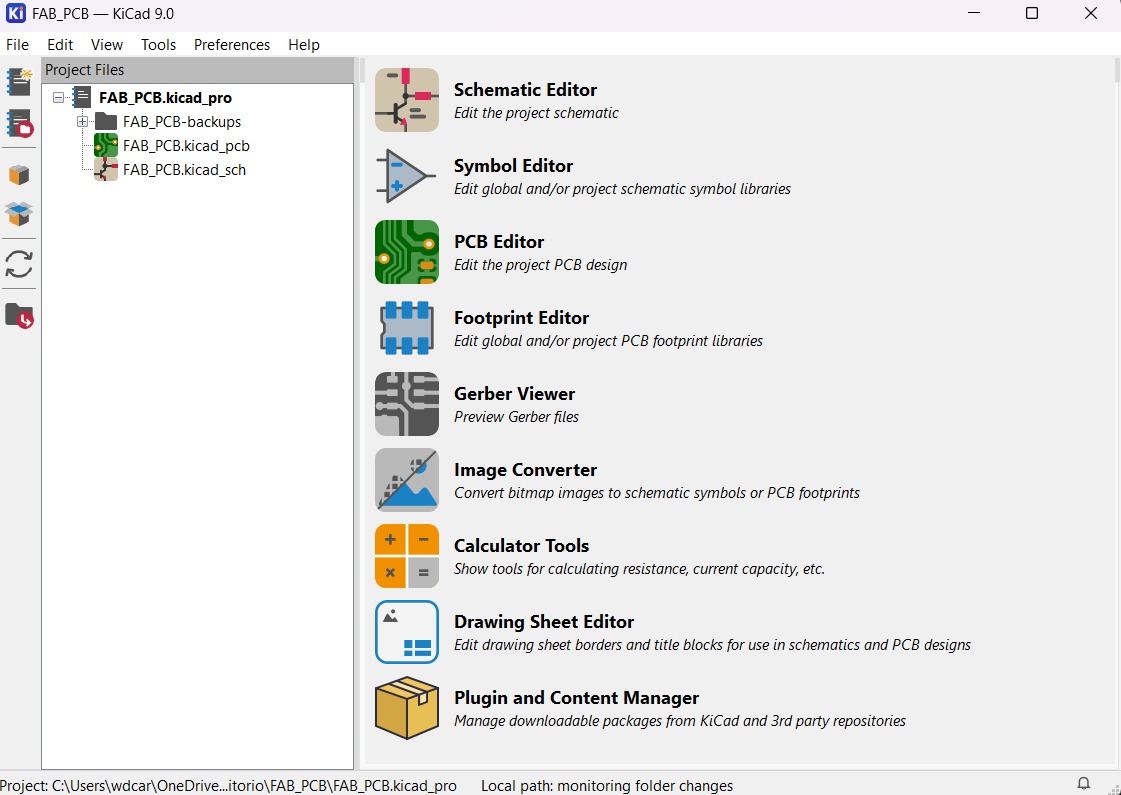
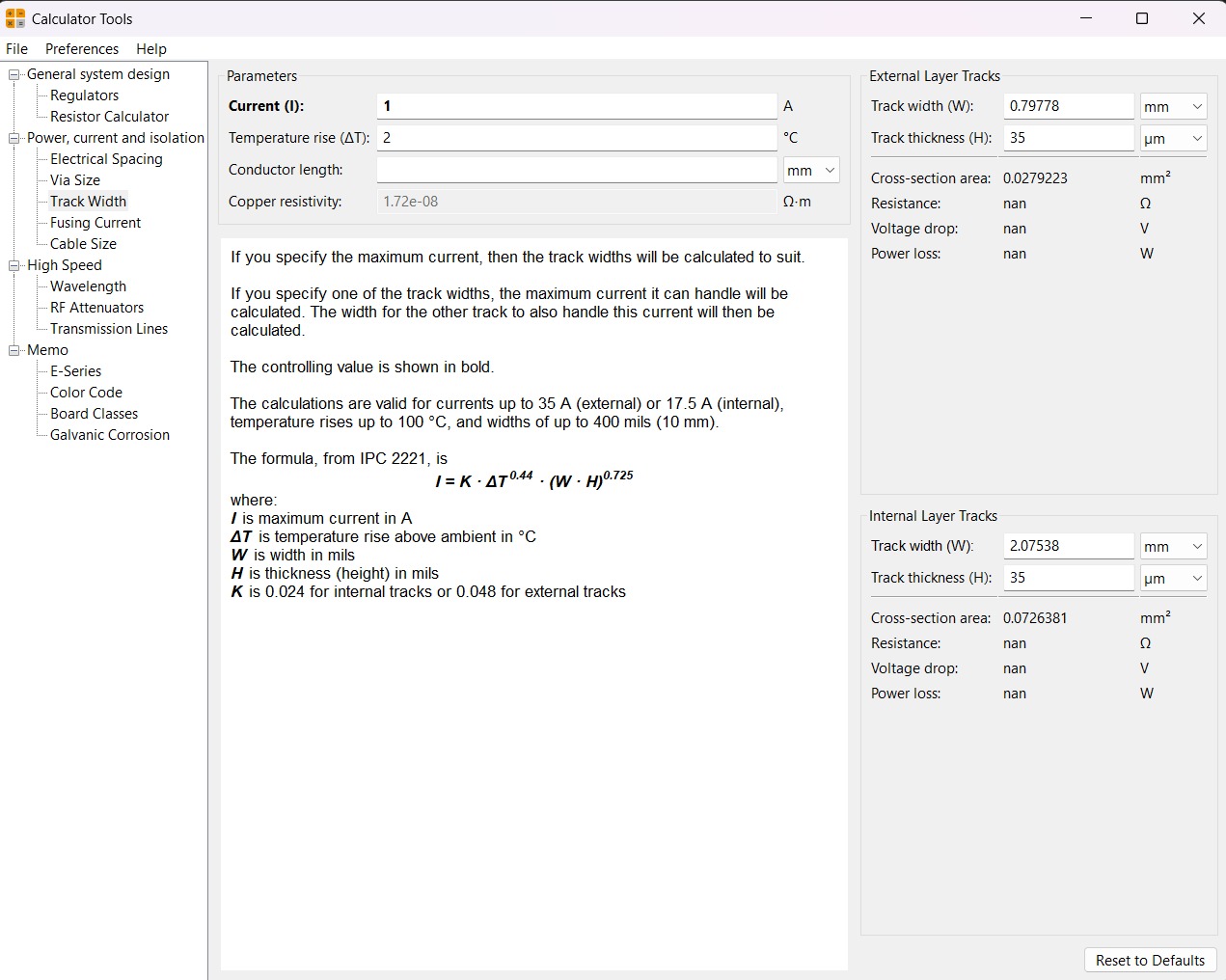
Calculator tool. Before defining the size, it is important to calculate it using the calculator tool given by KiCad. To do that we first have to go to the start menu and open the Calculator tool.
Then add the Current (I) and the Temperature rise we are expecting our PCB to have and look fo the result the calculator will give back to us in the right top side. The calculator works by using a formula explained at the bottom.
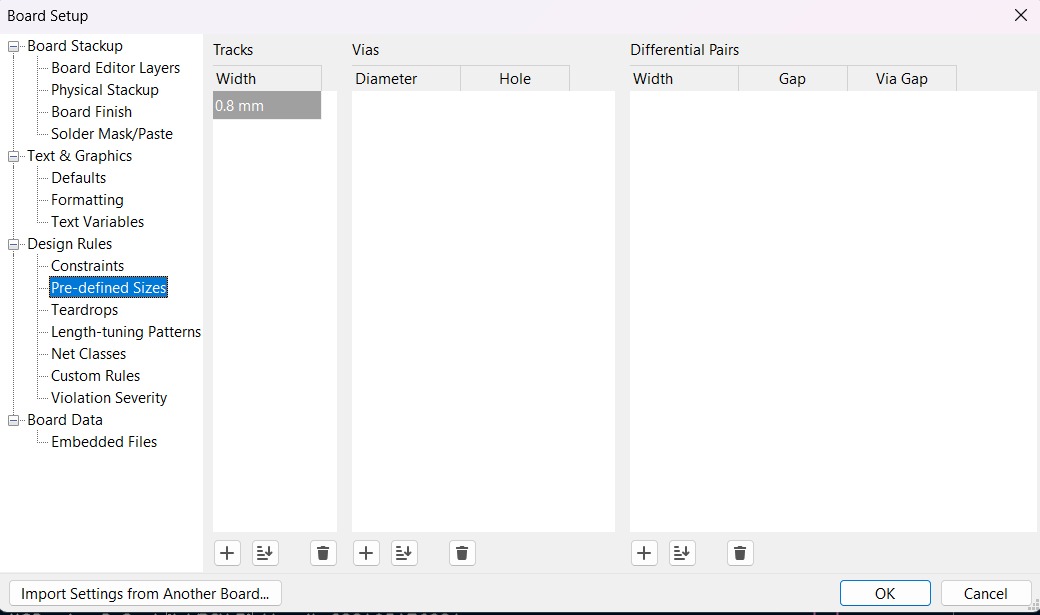
Track thickness. To change the track thickness we must go to the top tool section and click on Track use netclass width. Subsequently, select Edit Pre-defined Sizes.
Inside that section we can add tracks sizes by clicking the + symbol located at the bottom of the window, and in the width section we can change the width of the new track we added. Then we'll just have to click Ok.
MODS
This are the parameters for each process in Mods. If you want to learn more go to Week 8.
Parameters.
• The outline width is 2 mm and its layer is Edge.Cuts.
• The track’s width is 0.8 mm- 2 mm and its layer is F.Cu.
• The Holes layer is User.1.
Drilling - MODS.
• Tool width. 0.8 mm
• Speed. 0.5 mm/s
• Origin (x,y,z). (0,0,0)
• Offset number. 1
Cutting - MODS.
• Tool width. 0.39 mm
• Speed. 4 mm/s
• Origin (x,y,z). (0,0,0)
•Offset number. 3
Outline - MODS.
• Tool width. 2 mm
• Speed. 4 mm/s
• Origin (x,y,z). (0,0,0)
• Offset number. 1
Results
VPANEL
VPanel for the Roland DG Corporation SRM-20 is the dedicated, user-friendly computer software interface used to operate, control, and monitor the desktop milling machine. It acts as a virtual on-screen panel, enabling users to set the milling origin (XYZ base point), adjust feed rates and spindle speeds, and pause/resume jobs.
Before Cutting
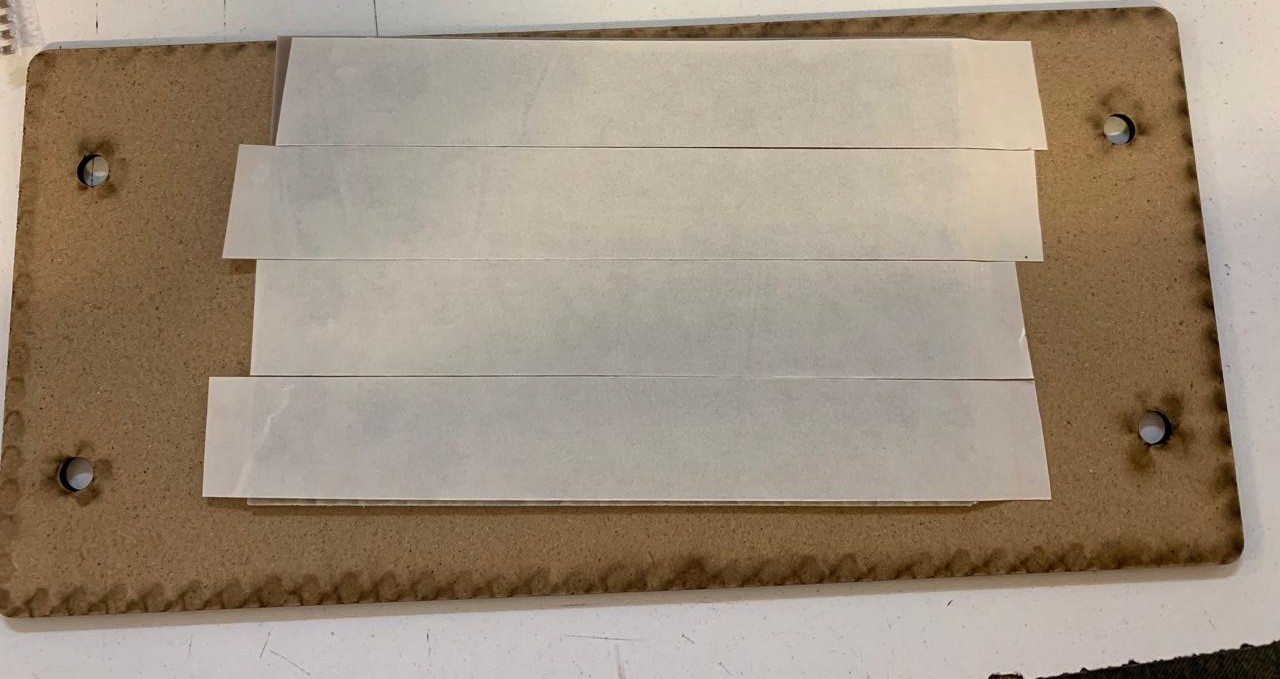
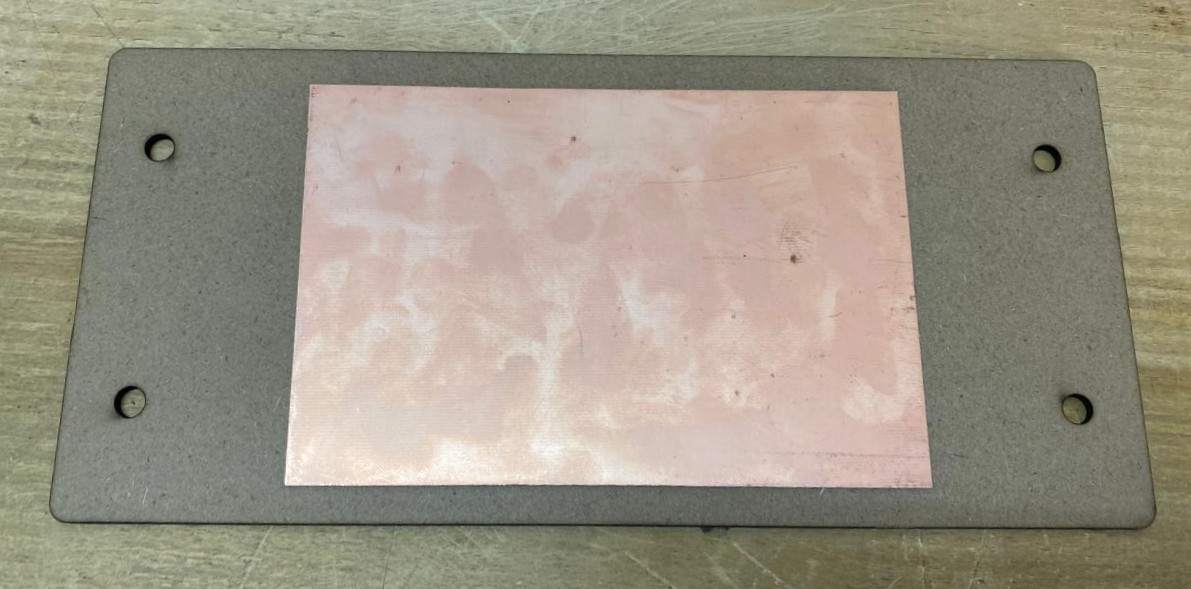
1. First, we have to paste the tape in the back of the copper board.
2. Then, we have to paste the copper board to the Sacrifice Bed.
Materials:
Copper Board.
double-sided tape.
Sacrifice Bed. Is an MDF board designed to prevent the SMR-20 from being damaged in the event that the tool drills too deep.
Before Cutting
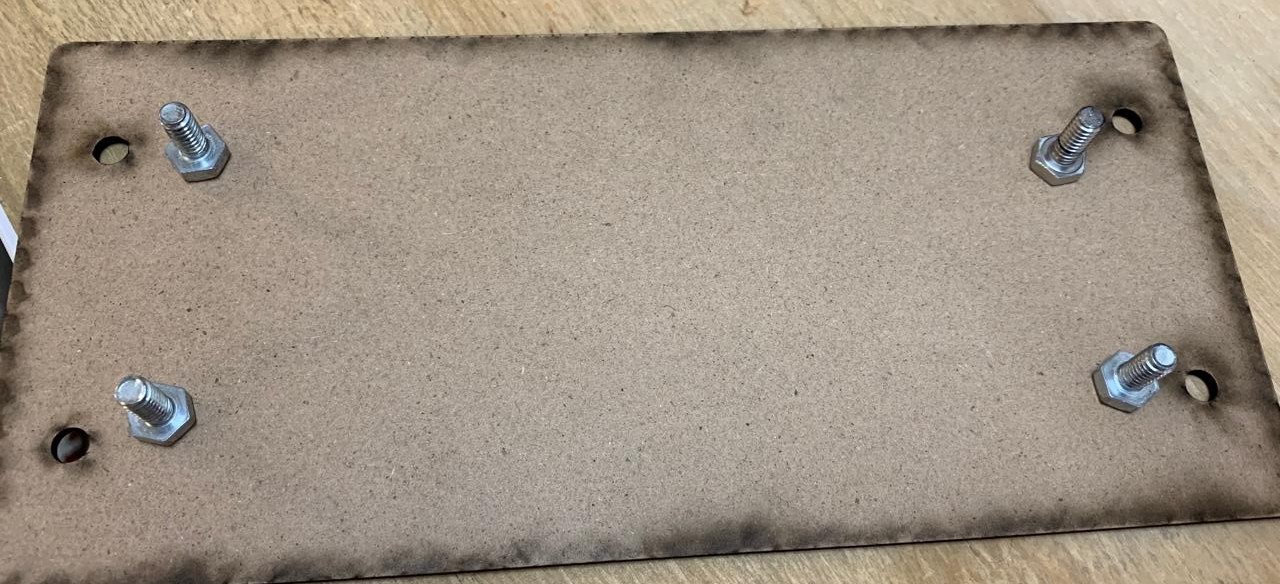
3. Subsequently, we have to place the bed inside the SMR-20. In my case, in my lab, our SMR-20 has a fitting to secure the sacrifice table with screws.
Before Cutting
4. Having secured the bed inside the SMR-20, we have to select the tool for each milling process (Holes, Tracks and Borders).
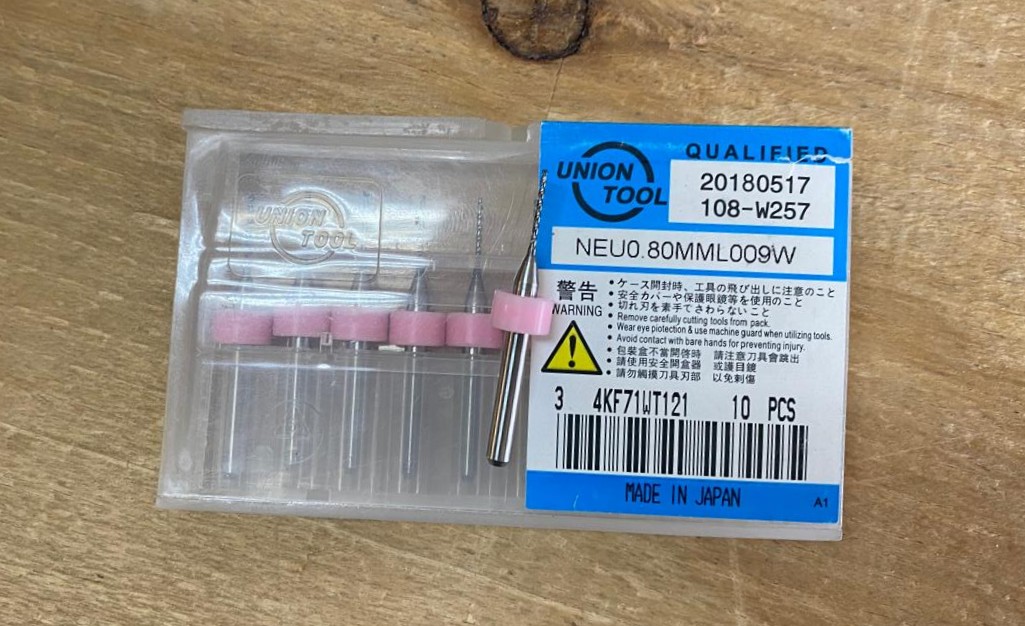
Drilling Tool. This tool is specifically for perforations because of its shape and width. To use it, we must set the speed between 0.1 and 0.5 in order to don't damage it.
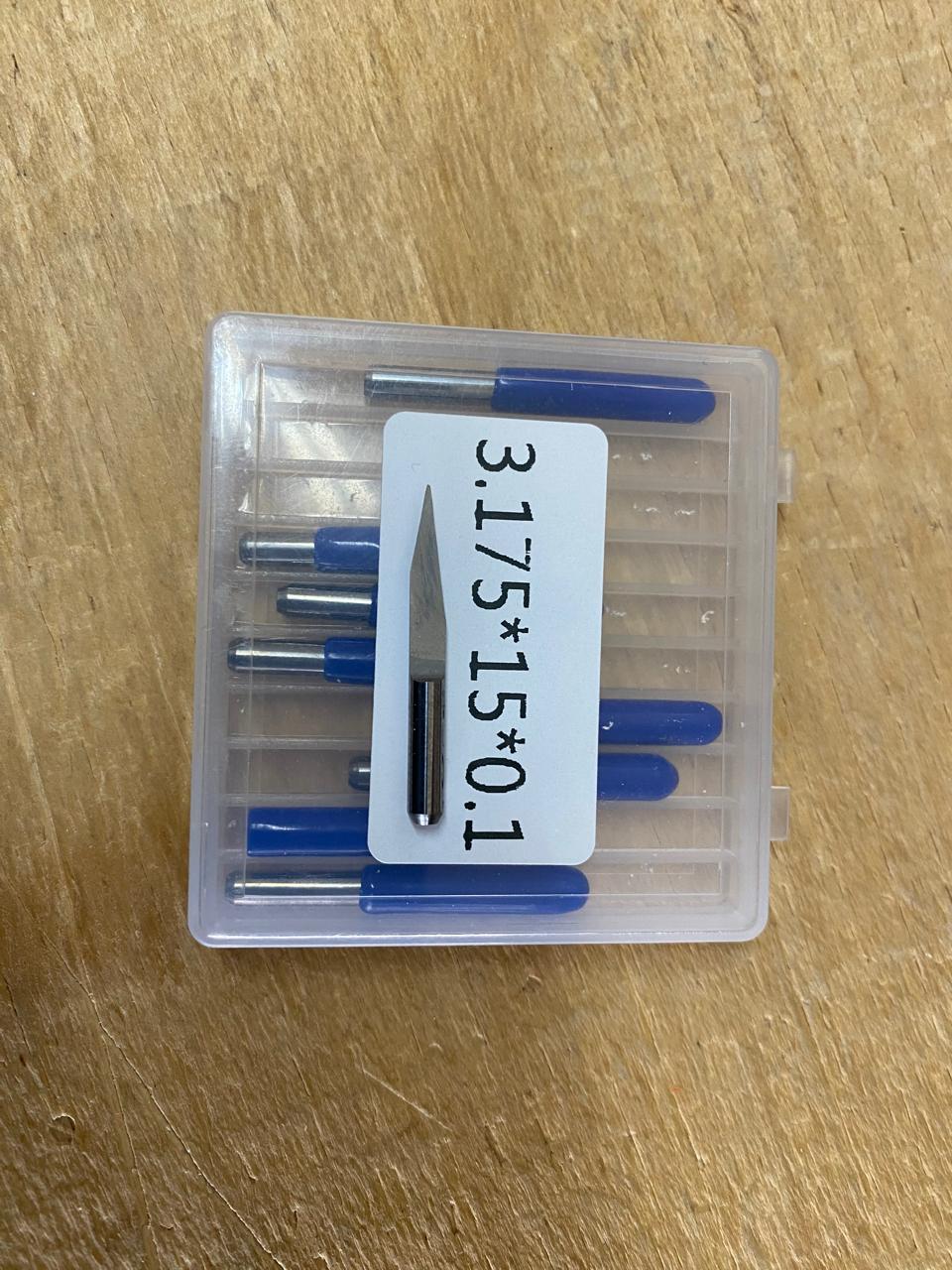
Cutting tool. This tool is specifically designed for traces, as its point is sharp and very thin. The Speed of use can be higher but we must be careful about its deep.
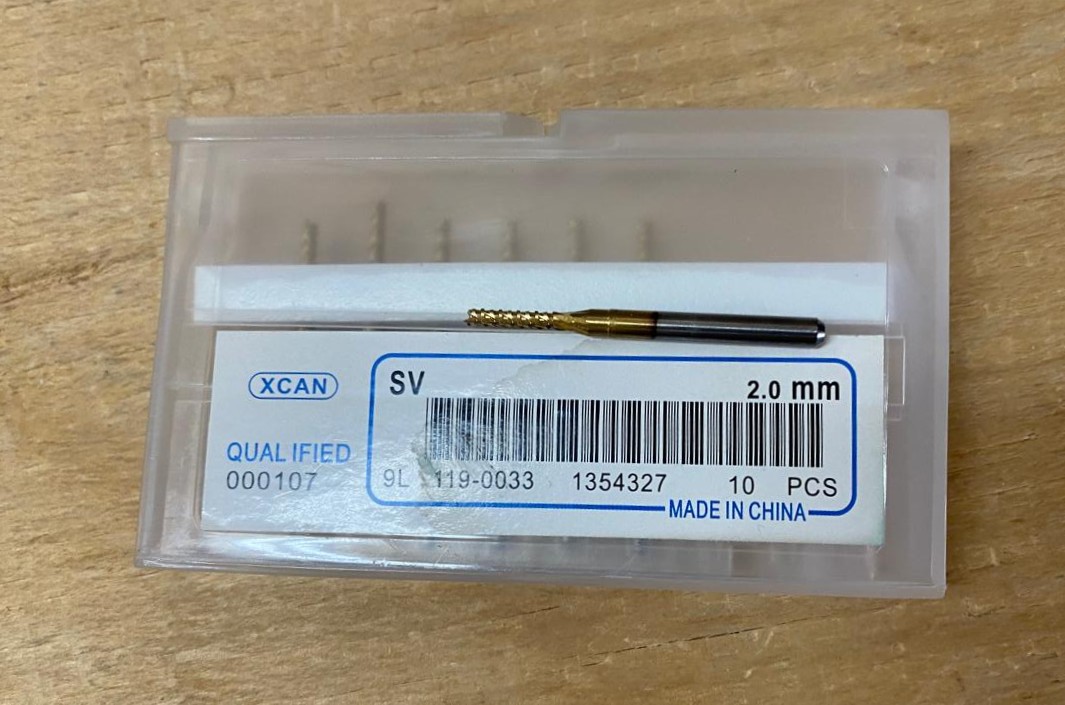
Border tool. This tool is can be used for the border cutting because of its width, it can also be used for perforation, but the diameter of them will be bigger.
Cutting
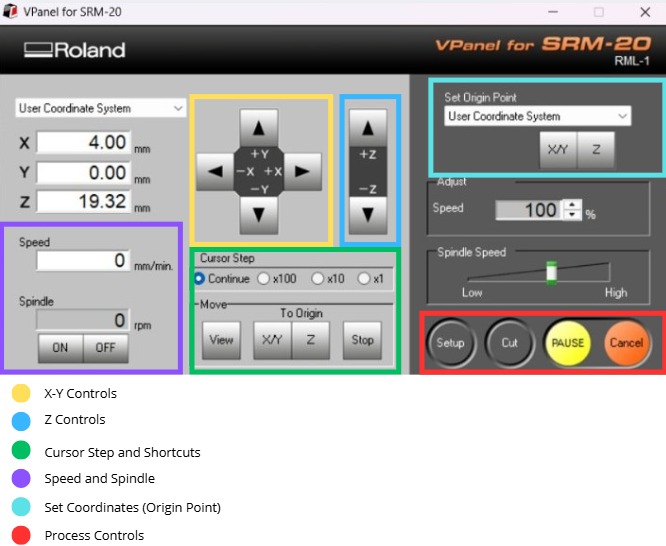
1. We have to connect our computer to the SMR-20 and open VPANEL.
VPANEL.
X-Y Controls. Move the tool in the X-Y axis.
Z Controls.Move the tool in the Z axis.
Cursor Step and Shortcuts. The Step Cursor determines the speed at which the tool moves along all axes; Continue is the smoothest and x1 is the slowest setting, since each click corresponds to a single motor movement. The Shortcuts are to automatically move to an already saved point (Origin Point).
Speed and Spindle. Is to set the speed and to turn on or turn off the the spin of the tool.
Set Coordinates (Origin Point). By clicking the XY or the Z button we can set the Origin Point.
Process Controls. Cut is for adding our code and start the process. Pause, this allows you to pause the process and resume it from where it left off. Stop, stops the process.
Cutting
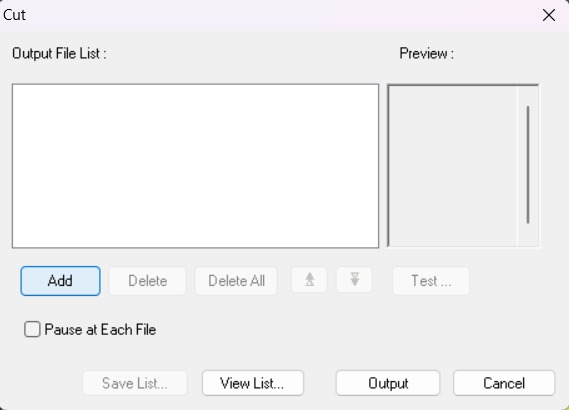
2. Then we have to click on Cut. A window will open, and we should click Add to add our milling code.
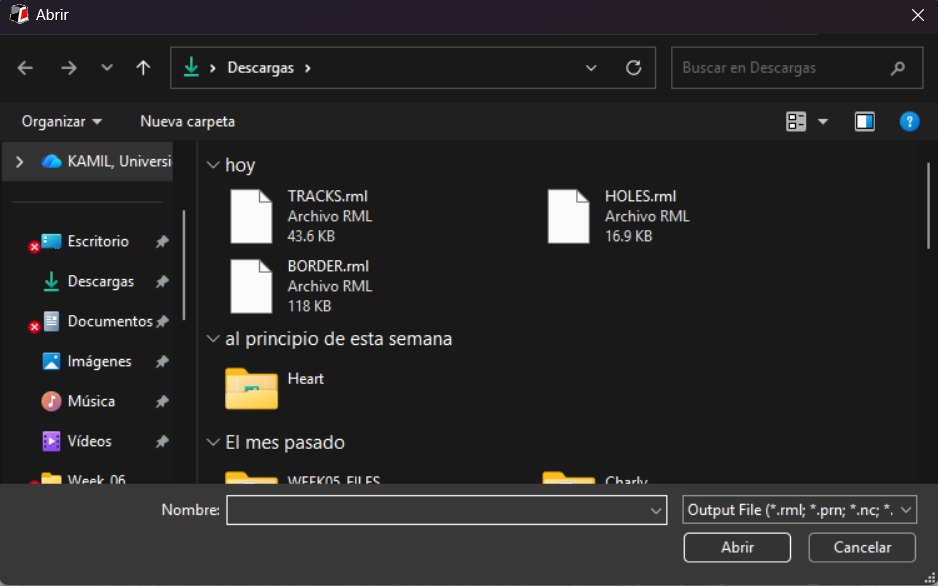
3. Finally we have to click Output and the machine will automatically start to cut.
Cutting
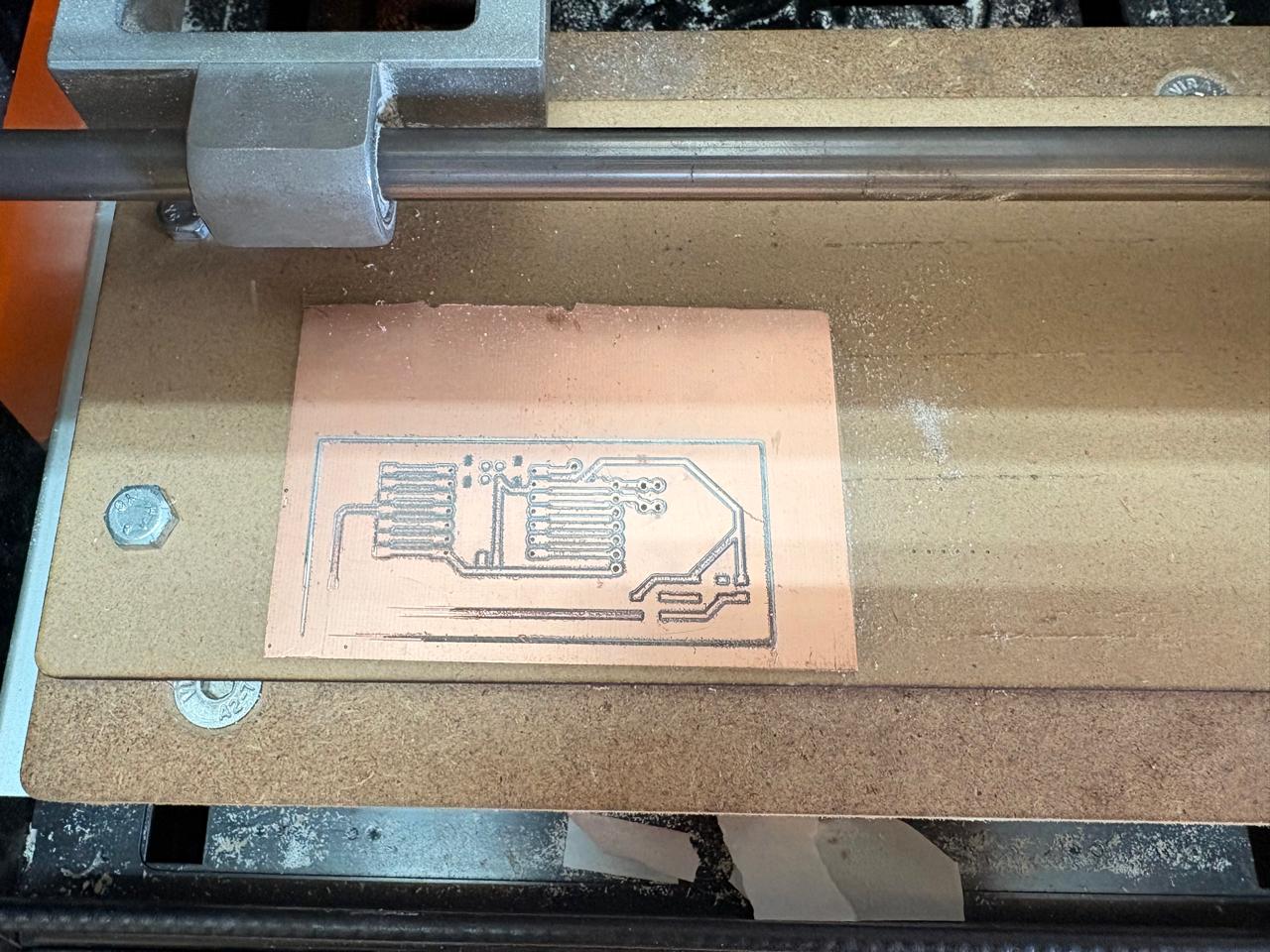
Soldering
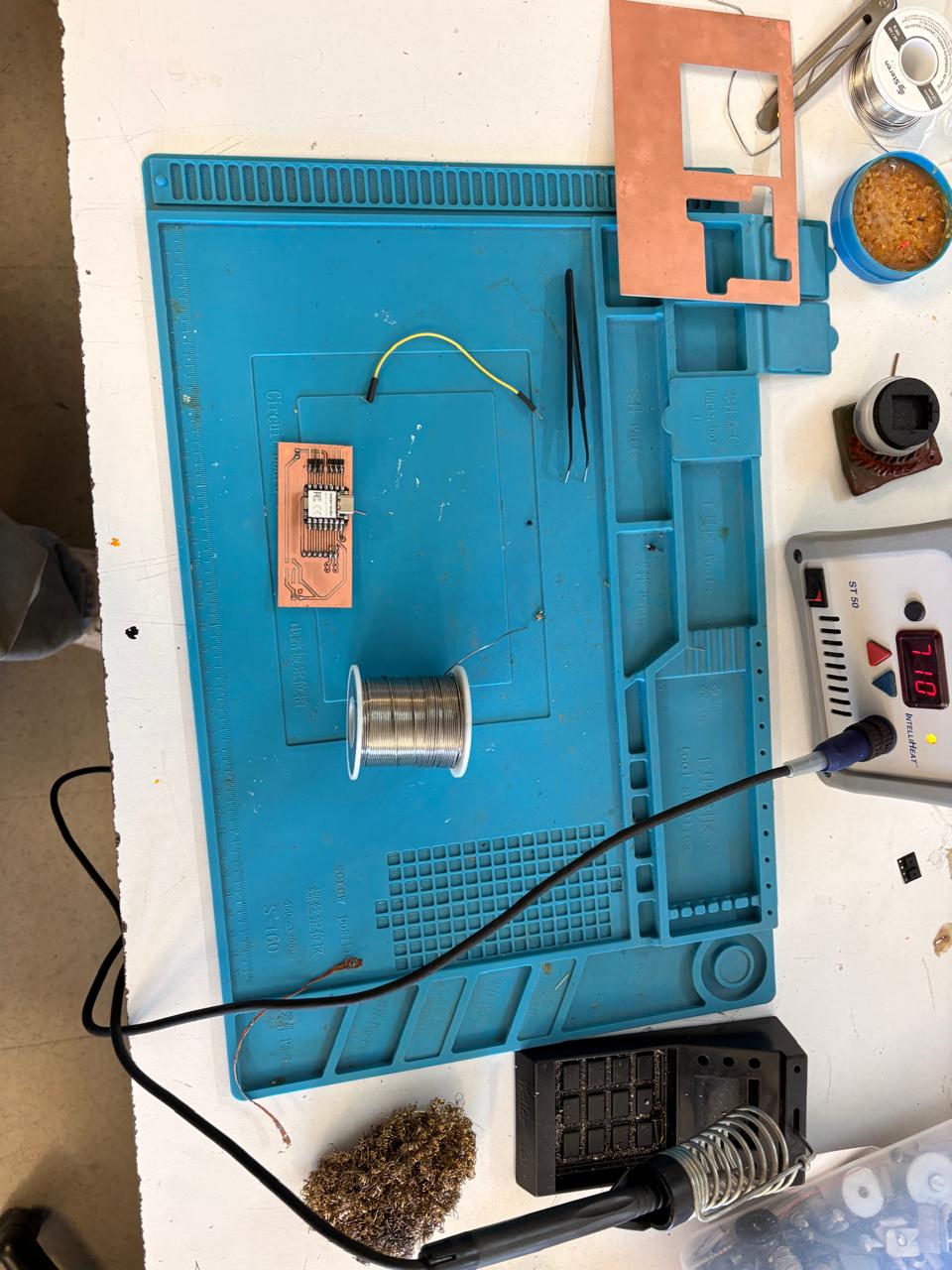
1. To solder, we first need to set up our workspace and gather the necessary tools.
Necessary tools
- Soldering station
- Flux
- Soldering Tin
- Desoldering mesh
- Silicone Tablecloth
Components
- Pinheaders
- 1 Jumper
- 2 smd WS2812B
Soldering
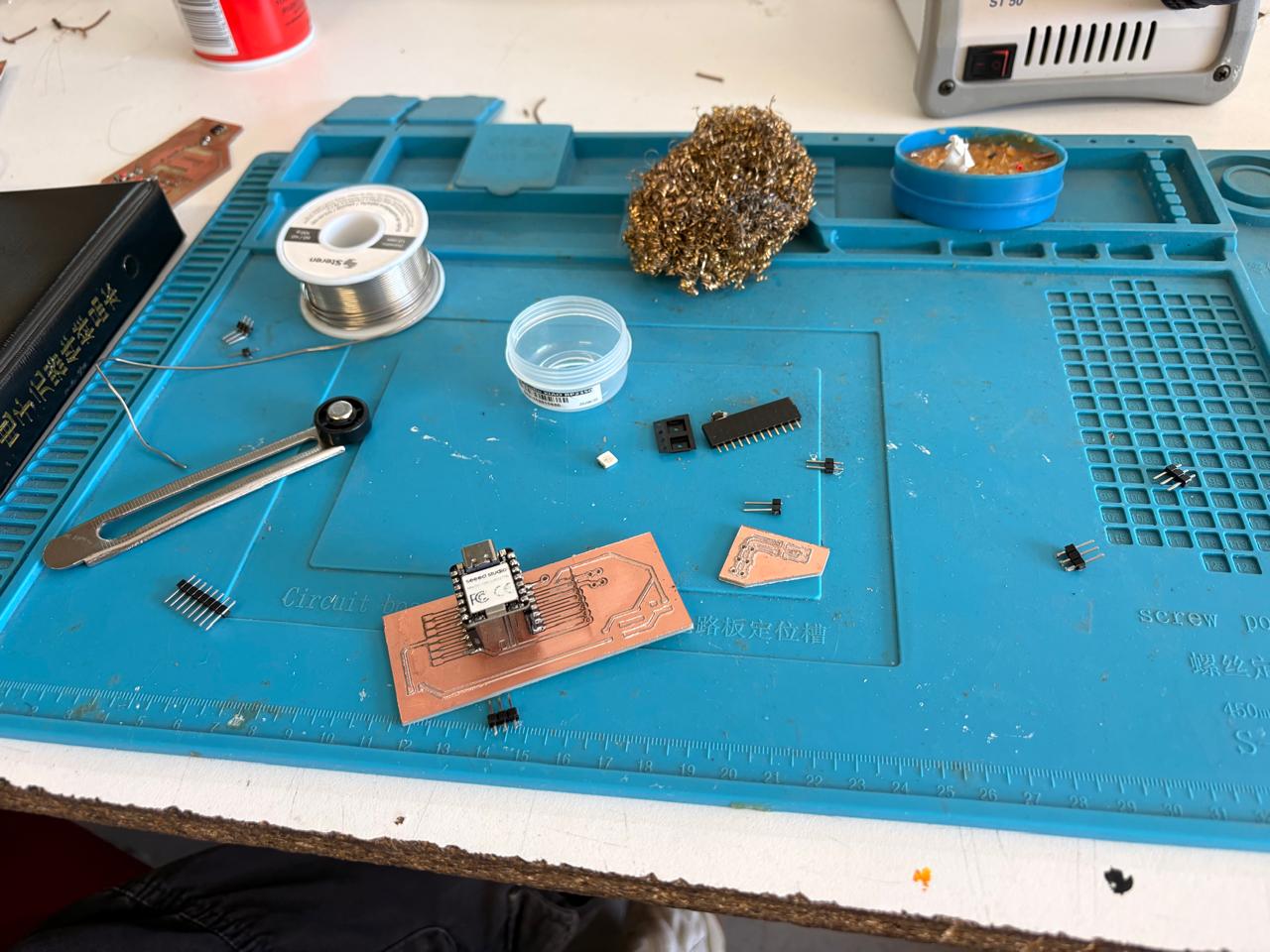
2. First, we need to apply flux to our PCB so that the solder adheres better. I placed the Xiao over the pins so it would stand upright.
Soldering
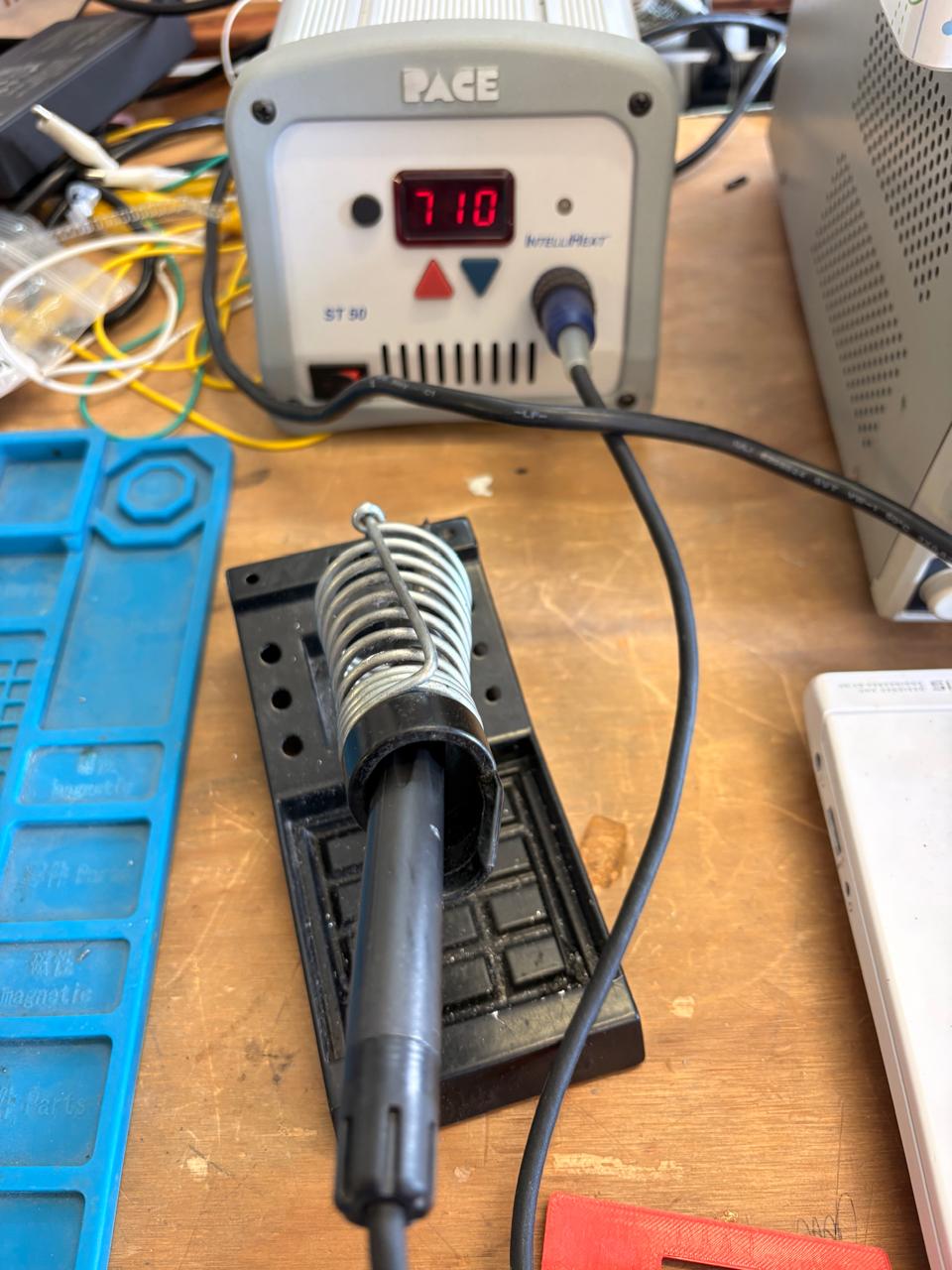
3.Then, we have to turn on the soldering station and set the temperature. To solder tin it is recomendable to place the temperature above 300 °C (572 °F). I will use 375 °C (710 °F) because that works good with my materials.
4.To solder, we have to place the soldering iron over the copper board and heat it up, then we have to place the Tin on the surface and wait until it melts. It is important to place the Tin on the copper surfance and not on the soldering iron because the melted Tin flows toward hot surfaces, if we place it on the soldering iron, it won't adhere easily to the copper surface because it will be cooler.
Results
OLED Display
OLED Display
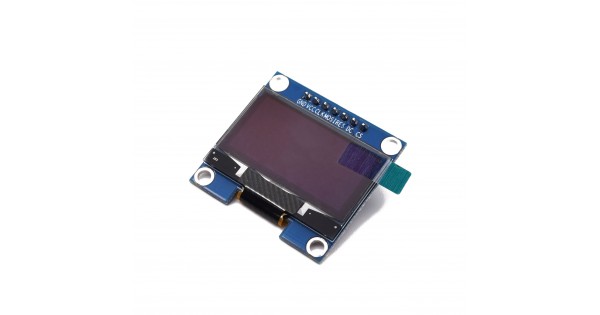
Is a compact, energy-efficient screen module (commonly 0.96 or 1.3 inches) that uses organic light-emitting diodes to display text, images, and graphics.
To operate the OLED display, a microcontroller is required . For this board, the driver is the SH1106, which comes with a library that allows to display text, bitmaps, pixels, rectangles, circles, and lines. In my case the microcontroller is the XIAO ESP32-C6 and I'll code in Arduino IDE.
Data Sheet: OLED 128×64 1.3 ” I2C SH1106
Specifications
Interface:I²C (I²C address: 0x3C).
Pins:4 (VDD, GND, SCK, and SDA).
Potential: 0.04W when all pixels are lit.
Voltage: 3V - 5.5V DC
Connection
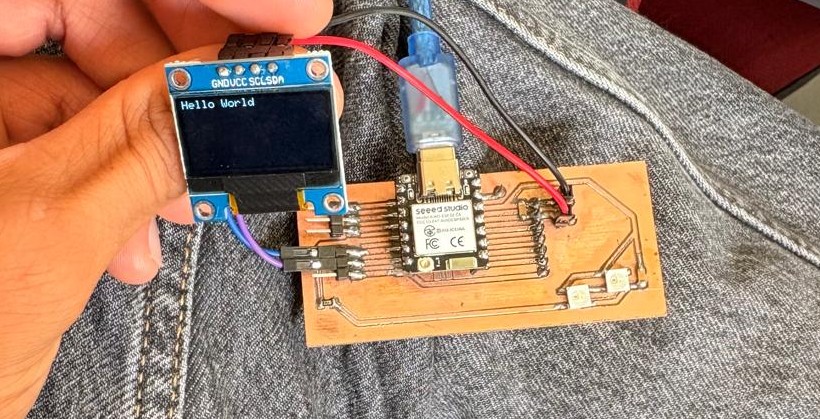
1. First we have to locate the 12C pins of the XIAO. Those are D4 and D5. D4 is Serial Data (SDA). SDA is a bidirectional line used to transfer data bits between devices. D5 is Serial Clock (SCL). SCL is the clock signal, usually generated by a master device, which synchronizes the data transfer. A data bit on the SDA line is read on each rising edge of the SCL clock.
2. The OLED display's two I2C pins should be connected to D4 and D5, and the other two pins should be connected to 3.3V and GND, respectively, on my board.
OLED Display
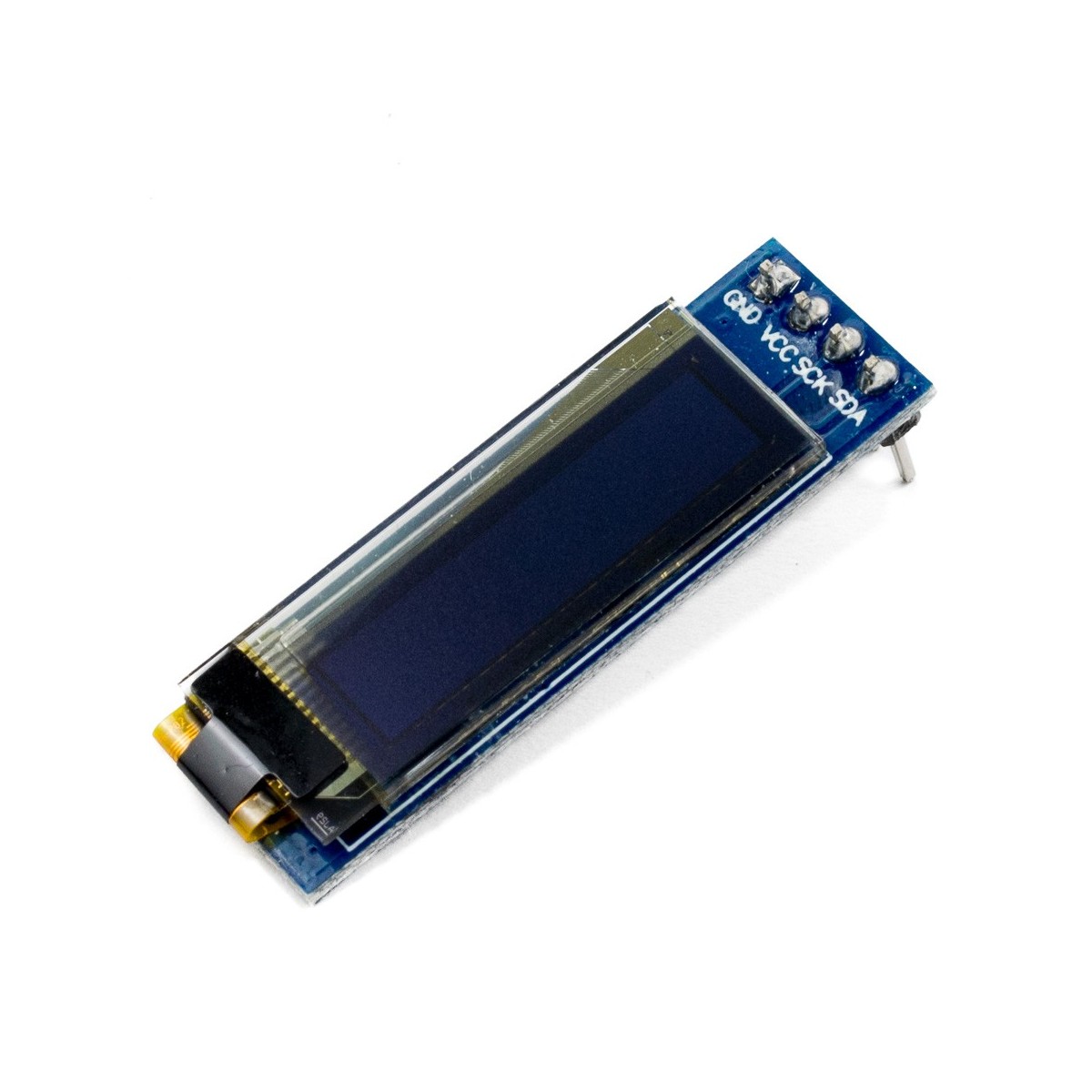
Is a compact, energy-efficient screen module (commonly 0.96 or 1.3 inches) that uses organic light-emitting diodes to display text, images, and graphics.
To operate the OLED display, a microcontroller is required . For this board, the driver is the SH1106, which comes with a library that allows to display text, bitmaps, pixels, rectangles, circles, and lines. In my case the microcontroller is the XIAO ESP32-C6 and I'll code in Arduino IDE.
Data Sheet: OLED 128×32 0.91 I2C SSD1306
Specifications
Interface:I²C (I²C address: 0x3C).
Pins:4 (VDD, GND, SCK, and SDA).
Potential: 0.04W when all pixels are lit.
Voltage: 3V - 5.5V DC
Connection
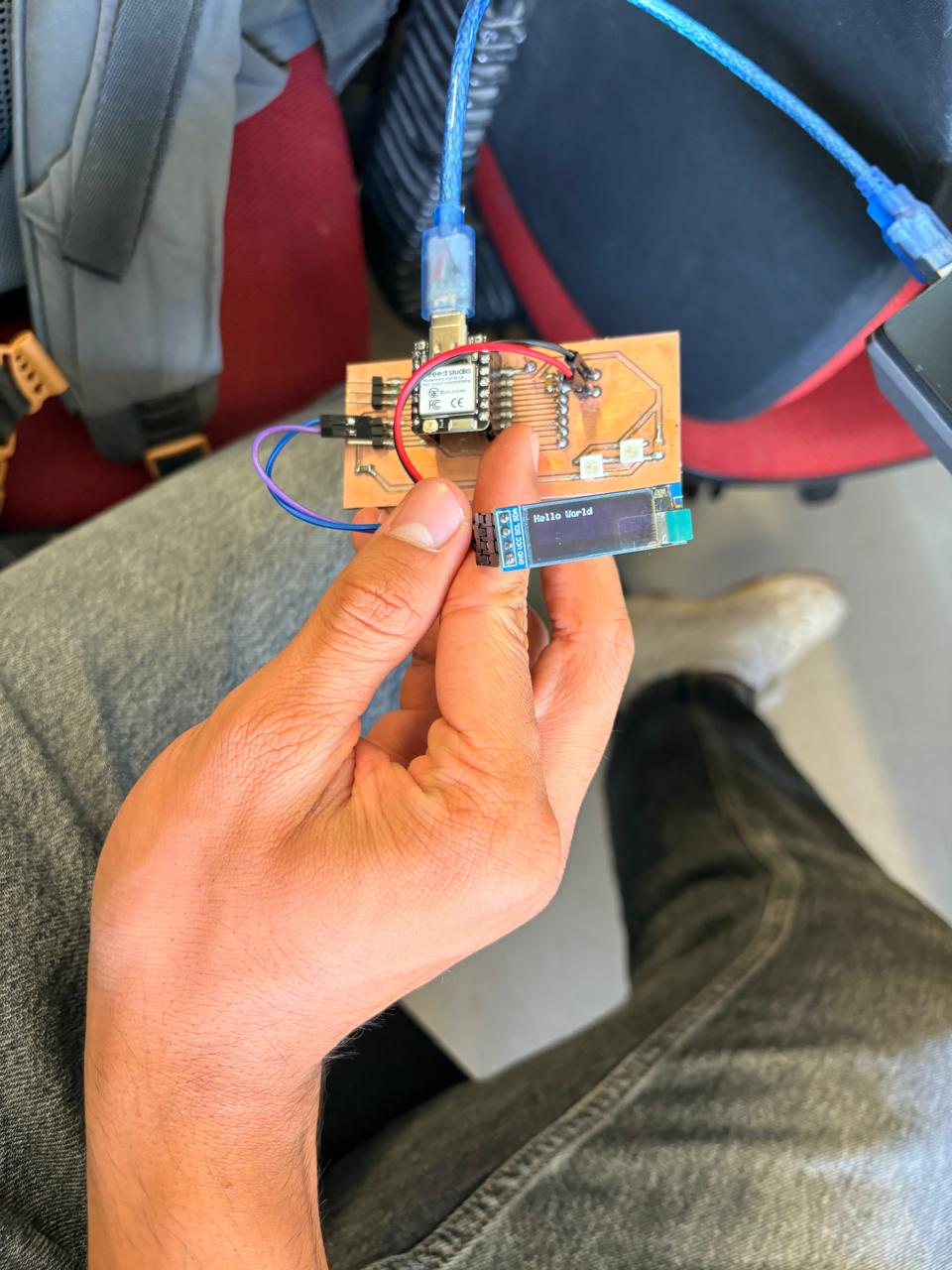
1. First we have to locate the 1²C pins of the XIAO. Those are D4 and D5. D4 is Serial Data (SDA). SDA is a bidirectional line used to transfer data bits between devices. D5 is Serial Clock (SCL). SCL is the clock signal, usually generated by a master device, which synchronizes the data transfer. A data bit on the SDA line is read on each rising edge of the SCL clock.
2. The OLED display's two I²C pins should be connected to D4 and D5, and the other two pins should be connected to 3.3V and GND, respectively, on my board.
Neopixels example
P = V × I
This equation calculates power consumption, where P is power (watts), V is voltage (volts), and I is current (amperes). It is essential for determining how much energy an output device will consume.
P = I² × R
This form is useful for calculating power dissipation in resistive elements, such as current limiting resistors, ensuring they can handle the thermal load safely.
I = V / R
Derived from Ohm’s Law, this formula is used to calculate the current flowing through a device such as an LED, allowing proper resistor selection to avoid damage.
Schematic
XIAO INPUTS AND OUTPUTS. For the Xiao, I'll just add pins for its inputs and outputs, and I'll also add pins for external power supply (3.3V, 5V, and GND).
NeoPixels. I connected them to D3 on my Xiao using a resistor and a label, then connected the LEDs in series and the first power pin to a capacitor of 100 nF for component safety. Finally, I left some holes so that more LEDs could be added if desired.
Display. For the display output I just added the corresponding pins to connect it later and a decoupling capacitor 10µF to 3.3V.
PCB design
1. Then I went to the PCB editor and with the Route single track I connected every component.
Calculator tool. Before defining the size, it is important to calculate it using the calculator tool given by KiCad. To do that we first have to go to the start menu and open the Calculator tool.Then add the Current (I) and the Temperature rise we are expecting our PCB to have and look fo the result the calculator will give back to us in the right top side. The calculator works by using a formula explained at the bottom.
Track thickness. To change the track thickness we must go to the top tool section and click on Track use netclass width. Subsequently, select Edit Pre-defined Sizes.
Inside that section we can add tracks sizes by clicking the + symbol located at the bottom of the window, and in the width section we can change the width of the new track we added. Then we'll just have to click Ok.
MODS
This are the parameters for each process in Mods. If you want to learn more go to Week 8.
Parameters.• The outline width is 2 mm and its layer is Edge.Cuts.• The track’s width is 0.8 mm- 2 mm and its layer is F.Cu.• The Holes layer is User.1.
Drilling - MODS.
• Tool width. 0.8 mm• Speed. 0.5 mm/s• Origin (x,y,z). (0,0,0)• Offset number. 1
Cutting - MODS.
• Tool width. 0.39 mm• Speed. 4 mm/s• Origin (x,y,z). (0,0,0)•Offset number. 3
Outline - MODS.
• Tool width. 2 mm• Speed. 4 mm/s• Origin (x,y,z). (0,0,0)• Offset number. 1
Results
VPANEL
VPanel for the Roland DG Corporation SRM-20 is the dedicated, user-friendly computer software interface used to operate, control, and monitor the desktop milling machine. It acts as a virtual on-screen panel, enabling users to set the milling origin (XYZ base point), adjust feed rates and spindle speeds, and pause/resume jobs.
Before Cutting
1. First, we have to paste the tape in the back of the copper board.
2. Then, we have to paste the copper board to the Sacrifice Bed.
Materials:
Copper Board.
double-sided tape.
Sacrifice Bed. Is an MDF board designed to prevent the SMR-20 from being damaged in the event that the tool drills too deep.
Before Cutting
3. Subsequently, we have to place the bed inside the SMR-20. In my case, in my lab, our SMR-20 has a fitting to secure the sacrifice table with screws.
Before Cutting
4. Having secured the bed inside the SMR-20, we have to select the tool for each milling process (Holes, Tracks and Borders).
Drilling Tool. This tool is specifically for perforations because of its shape and width. To use it, we must set the speed between 0.1 and 0.5 in order to don't damage it.
Cutting tool. This tool is specifically designed for traces, as its point is sharp and very thin. The Speed of use can be higher but we must be careful about its deep.
Border tool. This tool is can be used for the border cutting because of its width, it can also be used for perforation, but the diameter of them will be bigger.
Cutting
1. We have to connect our computer to the SMR-20 and open VPANEL.
VPANEL.
X-Y Controls. Move the tool in the X-Y axis.
Z Controls.Move the tool in the Z axis.
Cursor Step and Shortcuts. The Step Cursor determines the speed at which the tool moves along all axes; Continue is the smoothest and x1 is the slowest setting, since each click corresponds to a single motor movement. The Shortcuts are to automatically move to an already saved point (Origin Point).
Speed and Spindle. Is to set the speed and to turn on or turn off the the spin of the tool.
Set Coordinates (Origin Point). By clicking the XY or the Z button we can set the Origin Point.
Process Controls. Cut is for adding our code and start the process. Pause, this allows you to pause the process and resume it from where it left off. Stop, stops the process.
Cutting
2. Then we have to click on Cut. A window will open, and we should click Add to add our milling code.
3. Finally we have to click Output and the machine will automatically start to cut.
Cutting
Soldering
1. To solder, we first need to set up our workspace and gather the necessary tools.
Necessary tools
- Soldering station
- Flux
- Soldering Tin
- Desoldering mesh
- Silicone Tablecloth
Components
- Pinheaders
- 1 Jumper
- 2 smd WS2812B
Soldering
2. First, we need to apply flux to our PCB so that the solder adheres better. I placed the Xiao over the pins so it would stand upright.
Soldering
3.Then, we have to turn on the soldering station and set the temperature. To solder tin it is recomendable to place the temperature above 300 °C (572 °F). I will use 375 °C (710 °F) because that works good with my materials.
4.To solder, we have to place the soldering iron over the copper board and heat it up, then we have to place the Tin on the surface and wait until it melts. It is important to place the Tin on the copper surfance and not on the soldering iron because the melted Tin flows toward hot surfaces, if we place it on the soldering iron, it won't adhere easily to the copper surface because it will be cooler.
Results
OLED Display
Is a compact, energy-efficient screen module (commonly 0.96 or 1.3 inches) that uses organic light-emitting diodes to display text, images, and graphics.
To operate the OLED display, a microcontroller is required . For this board, the driver is the SH1106, which comes with a library that allows to display text, bitmaps, pixels, rectangles, circles, and lines. In my case the microcontroller is the XIAO ESP32-C6 and I'll code in Arduino IDE.
Data Sheet: OLED 128×64 1.3 ” I2C SH1106
SpecificationsInterface:I²C (I²C address: 0x3C).
Pins:4 (VDD, GND, SCK, and SDA).
Potential: 0.04W when all pixels are lit.
Voltage: 3V - 5.5V DC
Connection
1. First we have to locate the 12C pins of the XIAO. Those are D4 and D5. D4 is Serial Data (SDA). SDA is a bidirectional line used to transfer data bits between devices. D5 is Serial Clock (SCL). SCL is the clock signal, usually generated by a master device, which synchronizes the data transfer. A data bit on the SDA line is read on each rising edge of the SCL clock.
2. The OLED display's two I2C pins should be connected to D4 and D5, and the other two pins should be connected to 3.3V and GND, respectively, on my board.
OLED Display
Is a compact, energy-efficient screen module (commonly 0.96 or 1.3 inches) that uses organic light-emitting diodes to display text, images, and graphics.
To operate the OLED display, a microcontroller is required . For this board, the driver is the SH1106, which comes with a library that allows to display text, bitmaps, pixels, rectangles, circles, and lines. In my case the microcontroller is the XIAO ESP32-C6 and I'll code in Arduino IDE.
Data Sheet: OLED 128×32 0.91 I2C SSD1306
SpecificationsInterface:I²C (I²C address: 0x3C).
Pins:4 (VDD, GND, SCK, and SDA).
Potential: 0.04W when all pixels are lit.
Voltage: 3V - 5.5V DC
Connection
1. First we have to locate the 1²C pins of the XIAO. Those are D4 and D5. D4 is Serial Data (SDA). SDA is a bidirectional line used to transfer data bits between devices. D5 is Serial Clock (SCL). SCL is the clock signal, usually generated by a master device, which synchronizes the data transfer. A data bit on the SDA line is read on each rising edge of the SCL clock.
2. The OLED display's two I²C pins should be connected to D4 and D5, and the other two pins should be connected to 3.3V and GND, respectively, on my board.
For this part Í will use the neopixels code of my week 9.
Neopixels
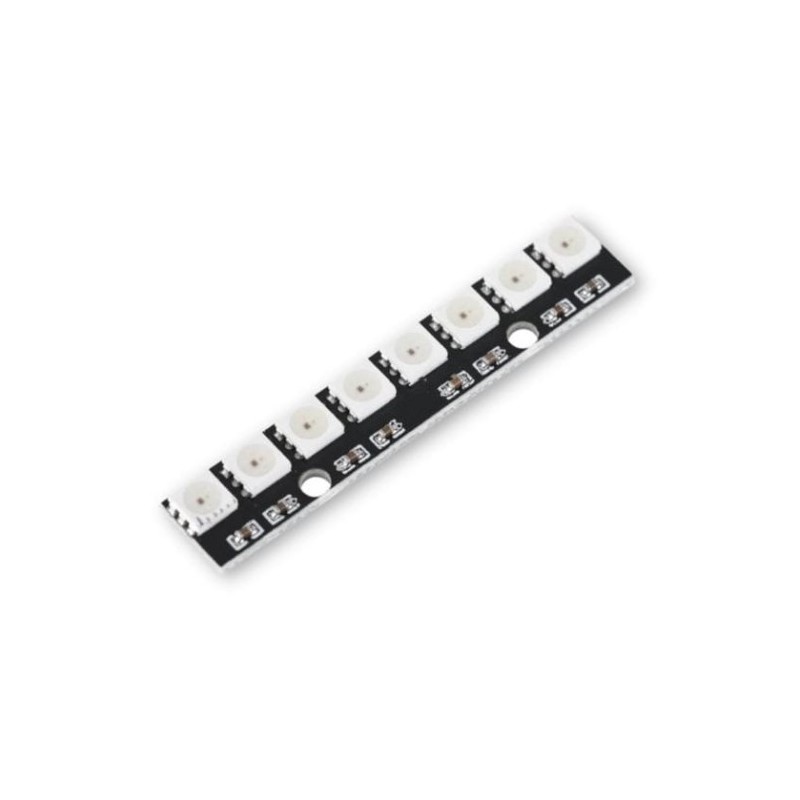
NeoPixels are individually addressable RGB LEDs developed by Adafruit that allow for independent control of color and brightness for each LED on a strip or array, using only a single microcontroller pin.
Datasheet: Neopixel
SpecificationsInterface:Serial.
Pins:4 (VDD, GND, DIN, DOUT).
Potential per component: 0.052W when tje light has medium untensity.
Voltage: 5V
How to connect. Neopixels have 4 pins (VDD, GND, DIN, DOUT). To make it work, you must connect the DIN pin through a 100nF resistor to a digital pin on the microcontroller. DIN is the data input. DOUT can be left disconnected or connected to another Neopixel; it is the data output that transmits the signal from DIN. VDD is connected to 5V and GND to its respective pin.
How does it work?
1. I made this sensor with the help of Adrian Torres' documentation and Neil Gershenfeld's examples.
2. Then, we have to paste the copper board to the Sacrifice Bed.
Materials:
Copper Board.
double-sided tape.
Sacrifice Bed. Is an MDF board designed to prevent the SMR-20 from being damaged in the event that the tool drills too deep.
Before Cutting
3. Subsequently, we have to place the bed inside the SMR-20. In my case, in my lab, our SMR-20 has a fitting to secure the sacrifice table with screws.
Before Cutting
4. Having secured the bed inside the SMR-20, we have to select the tool for each milling process (Holes, Tracks and Borders).
Drilling Tool. This tool is specifically for perforations because of its shape and width. To use it, we must set the speed between 0.1 and 0.5 in order to don't damage it.
Cutting tool. This tool is specifically designed for traces, as its point is sharp and very thin. The Speed of use can be higher but we must be careful about its deep.
Border tool. This tool is can be used for the border cutting because of its width, it can also be used for perforation, but the diameter of them will be bigger.
Cutting
1. We have to connect our computer to the SMR-20 and open VPANEL.
VPANEL.
X-Y Controls. Move the tool in the X-Y axis.
Z Controls.Move the tool in the Z axis.
Cursor Step and Shortcuts. The Step Cursor determines the speed at which the tool moves along all axes; Continue is the smoothest and x1 is the slowest setting, since each click corresponds to a single motor movement. The Shortcuts are to automatically move to an already saved point (Origin Point).
Speed and Spindle. Is to set the speed and to turn on or turn off the the spin of the tool.
Set Coordinates (Origin Point). By clicking the XY or the Z button we can set the Origin Point.
Process Controls. Cut is for adding our code and start the process. Pause, this allows you to pause the process and resume it from where it left off. Stop, stops the process.
Cutting
2. Then we have to click on Cut. A window will open, and we should click Add to add our milling code.
3. Finally we have to click Output and the machine will automatically start to cut.
Cutting
Learning outcomes
This week, I learned how to use and program an OLED display, which helped me better understand how displays communicate with microcontrollers. One of the most important aspects I discovered was configuring the display size correctly. In my opinion, this is a critical step because if the dimensions are not set properly, the text may appear distorted, incorrectly scaled, or the display may not show anything at all. Understanding this configuration process helped me troubleshoot display issues more effectively.
I also learned more about the response speed involved in signal transmission and how timing can affect communication between components. This gave me a better understanding of how electronic devices react to incoming signals and how important synchronization is in embedded systems.
Additionally, I expanded my knowledge about NeoPixels and how they can be programmed to create different lighting effects and visual feedback. Working with them helped me better understand concepts such as digital communication, timing control, and LED addressing. Overall, this week allowed me to strengthen both my programming and electronics skills through practical experimentation.