Equations
Equations
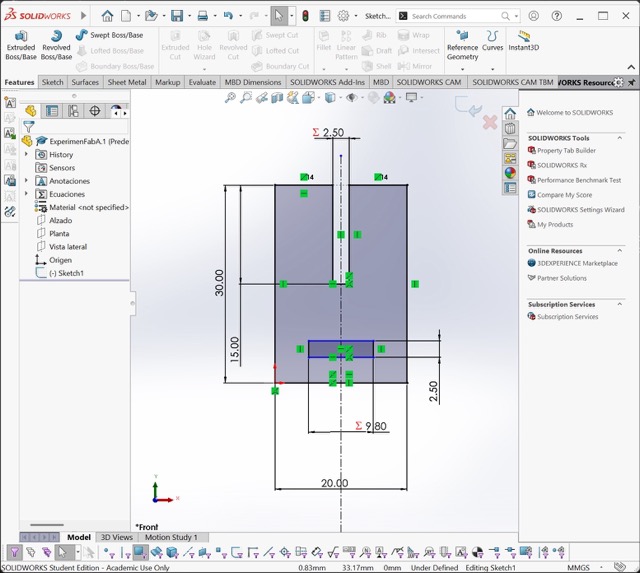
Equations help you control the size of your design. Instead of typing numbers every time, you can use simple variables.
How to create equations?
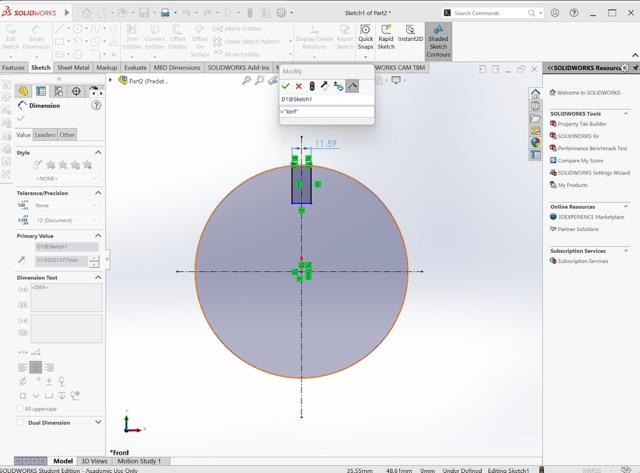
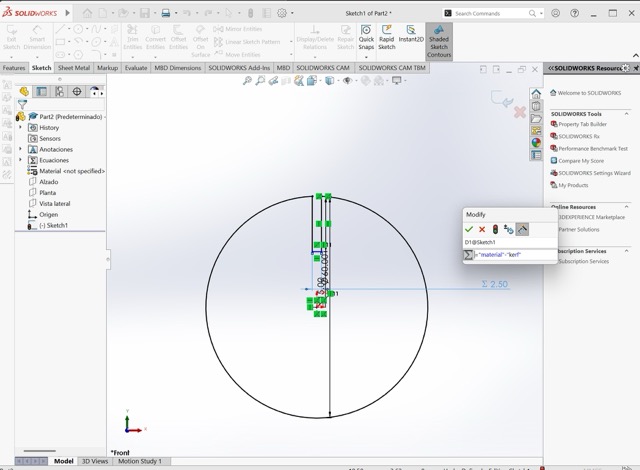
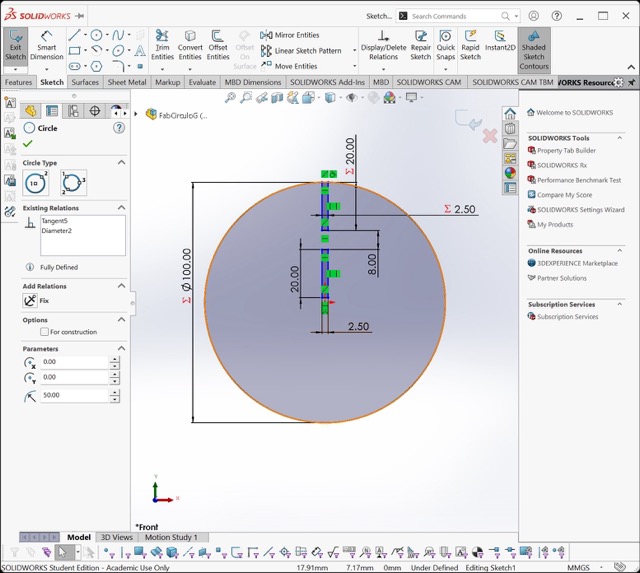
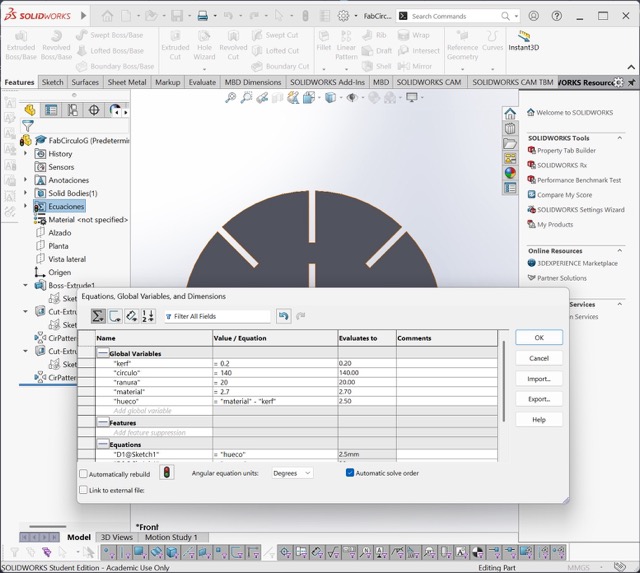
In SolidWorks, you can easily create global variables. You simply type ="Variable Name" while dimensioning a sketch.
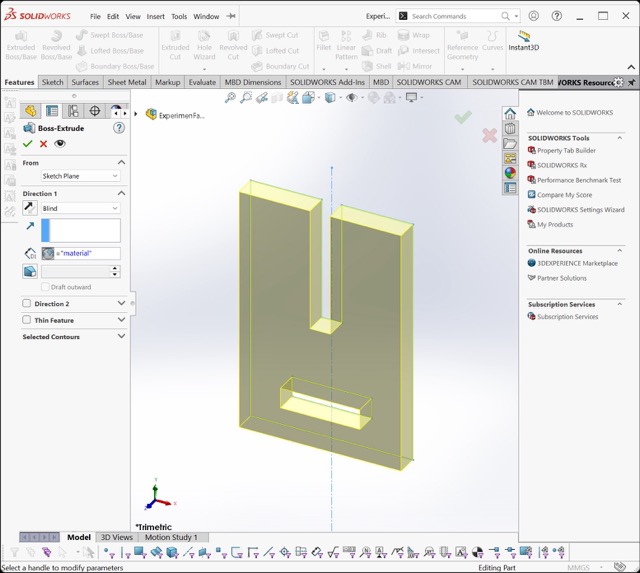
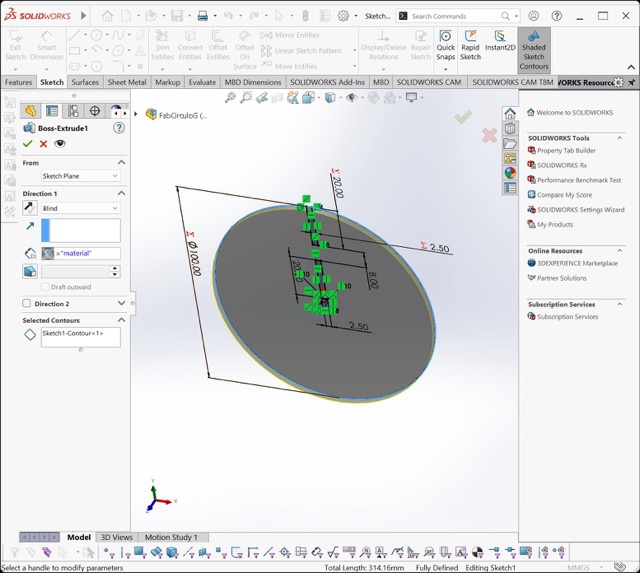
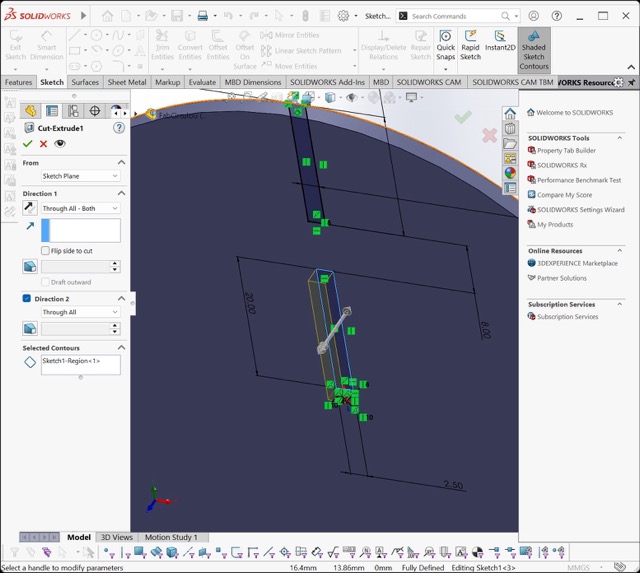
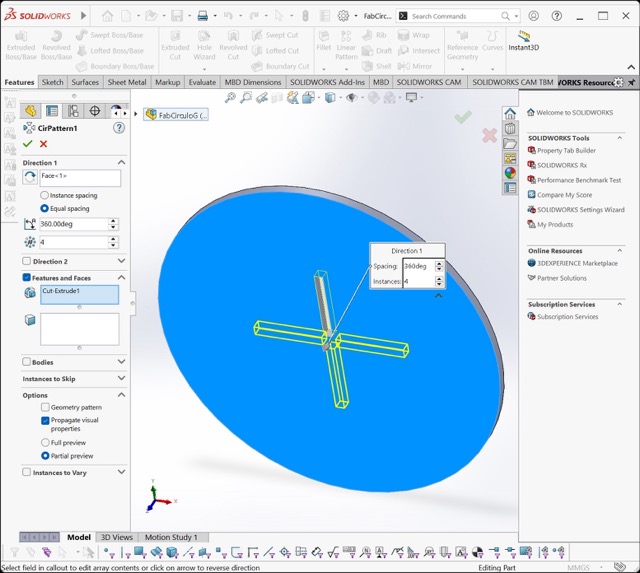
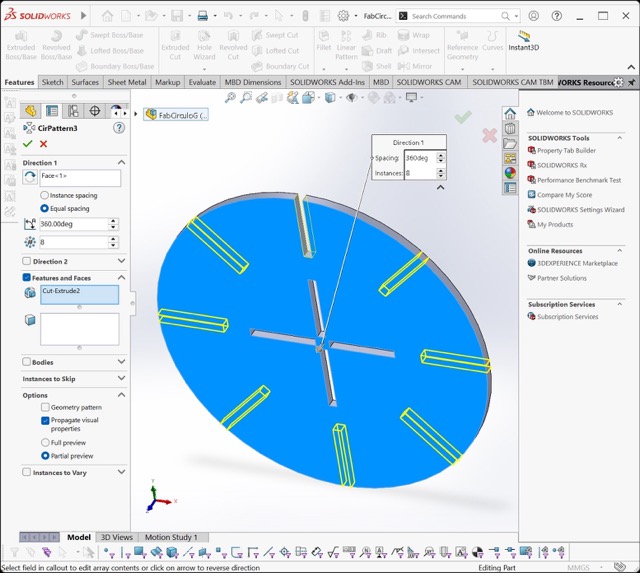
These variables can also be used when extruding or creating patterns. They are especially helpful for avoiding repetitive work and saving time.
Kerf Slots Variables
Use variables to adjust the size of slots (kerf). This makes sure the pieces fit together correctly after cutting.
Files for Cutting
Kerf
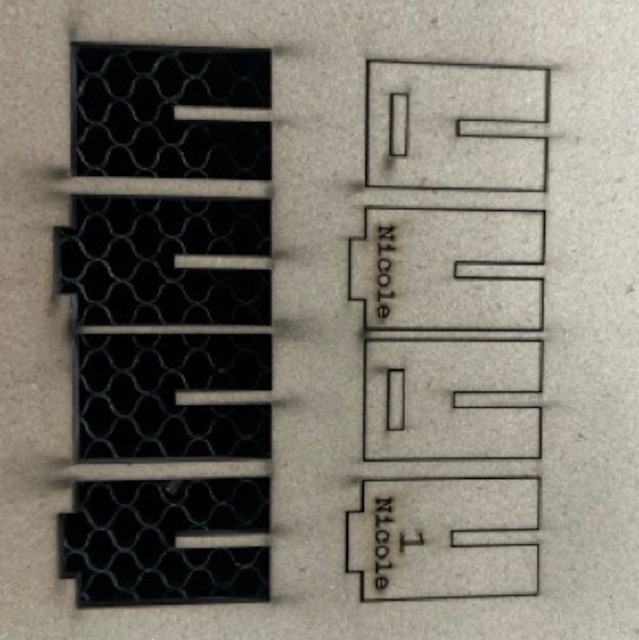
During class we got introduced to the term "kerf", which is the quantity of material that is removed during the cutting process.
Process
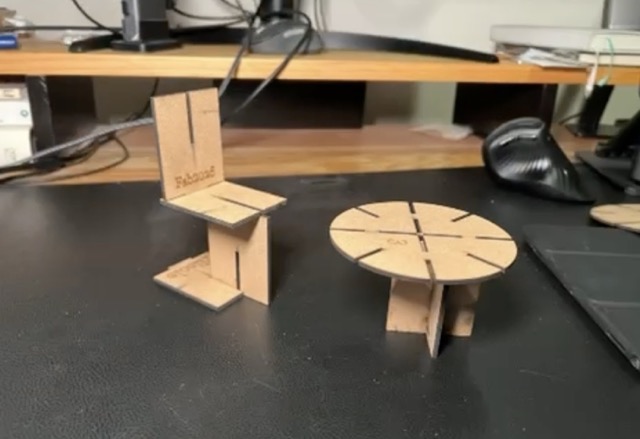
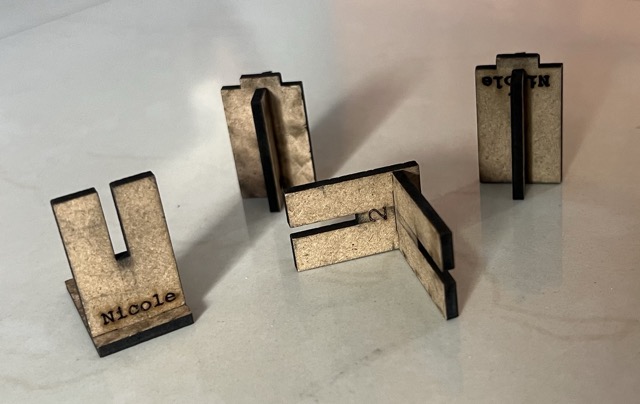
To understand the kerf better, I made small test pieces. I created two simple shapes to check how well they fit together using different joints.
After testing, I saw that the measured kerf was 0.14 mm. However, the pieces fit better when I used 0.2 mm in the software.
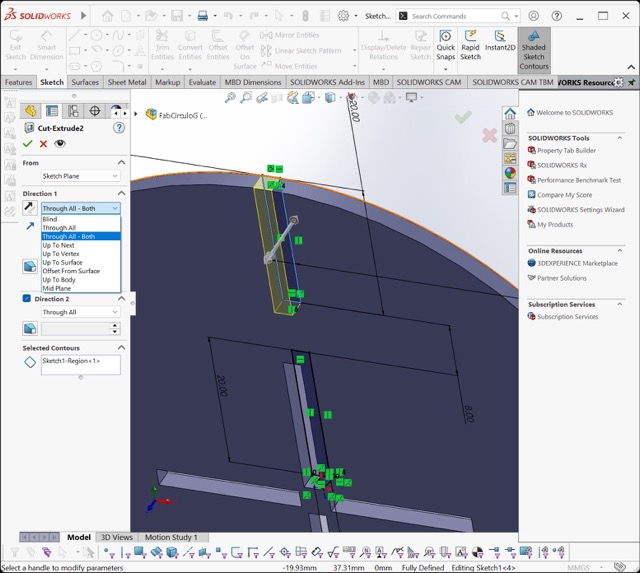
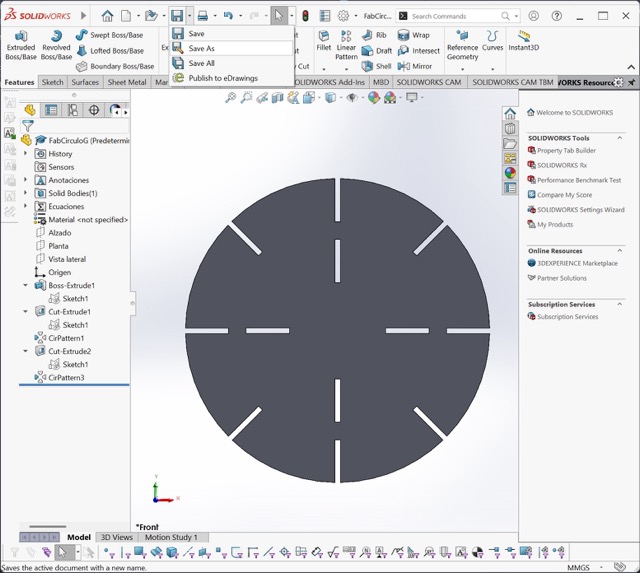
Then, I used equations to make bigger versions of the same pieces. I also added a circular piece to have more shapes to test in the kit.
Laser Cutting
What I Learned in the Safety Training
It is important to monitor the laser cutter while it is operating in order to prevent accidents. Additionally, it is not advisable to stare directly at the laser for extended periods, as it may damage your eyesight.
Laser Cutting Process
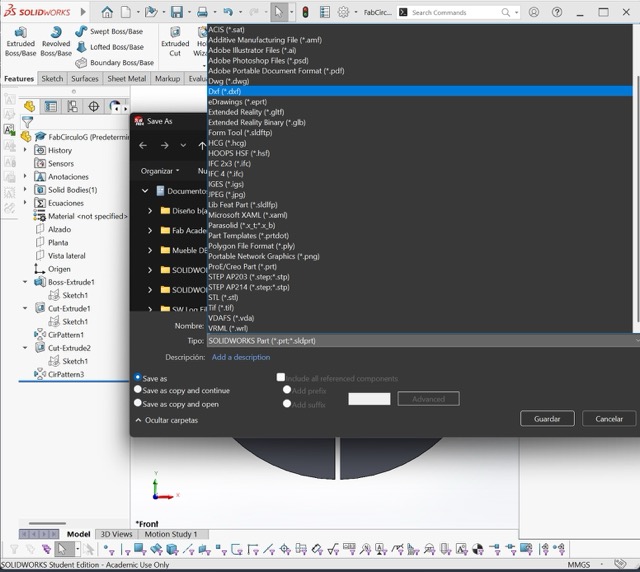
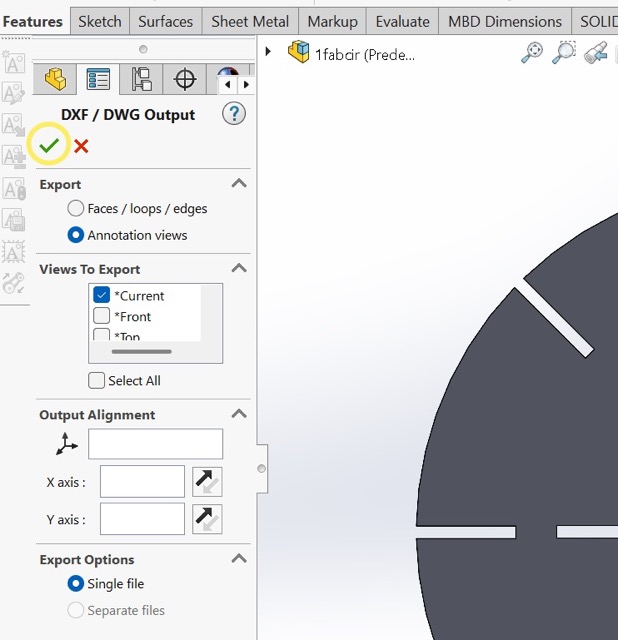
Our Fab Lab laser cutter works with DXF 2010 files. Initially, I exported the file as a DWG into AutoCAD and then converted it to DXF. Later, I tried exporting directly from SolidWorks, which also worked properly.
SmartCarve
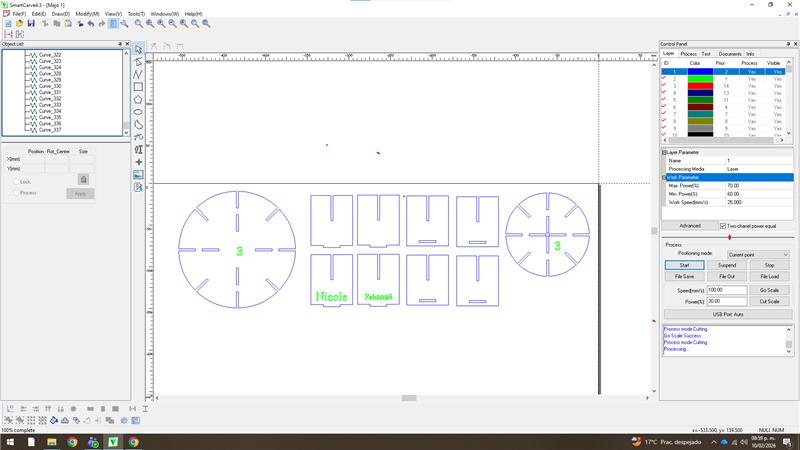
In the control panel I imported the files into SmartCarve. I used different colors for each operation and changed the order.
+ Engraving should always be done before cutting.
Laser Parameters
Since I had previously used the laser cutter, I already knew the appropriate parameters. In this case for cutting, I used a maximum power of 70, a minimum power of 60, and a work speed of 20. To engrave I used a maximum power of 25, a minimum power of 20, and a work speed of 200.
Laser Procedure
Before cutting, I used the "Go Scale" function to preview the laser path. After checking that everything was in the correct position, I adjusted the height of the laser head using two 3 mm MDF pieces. Then, I started the cutting process.
Parameters for the laser cutter
Engraving and fillings
| Power | Work speed |
|---|---|
| 20 (min) 25 (max) | 200 |
MDF 3mm
| Power | Work speed |
|---|---|
| 60 (min) 70 (max) | 20 |
MDF/ Acrylic 5.5mm
| Power | Work speed |
|---|---|
| 85 (min) 75 (max) | 16 |
Final result
My intention this week was to make an interactive kit to explore and try diferent shapes. Here are some of the configuarations that i was able to do with the kit:
Vynil cutting
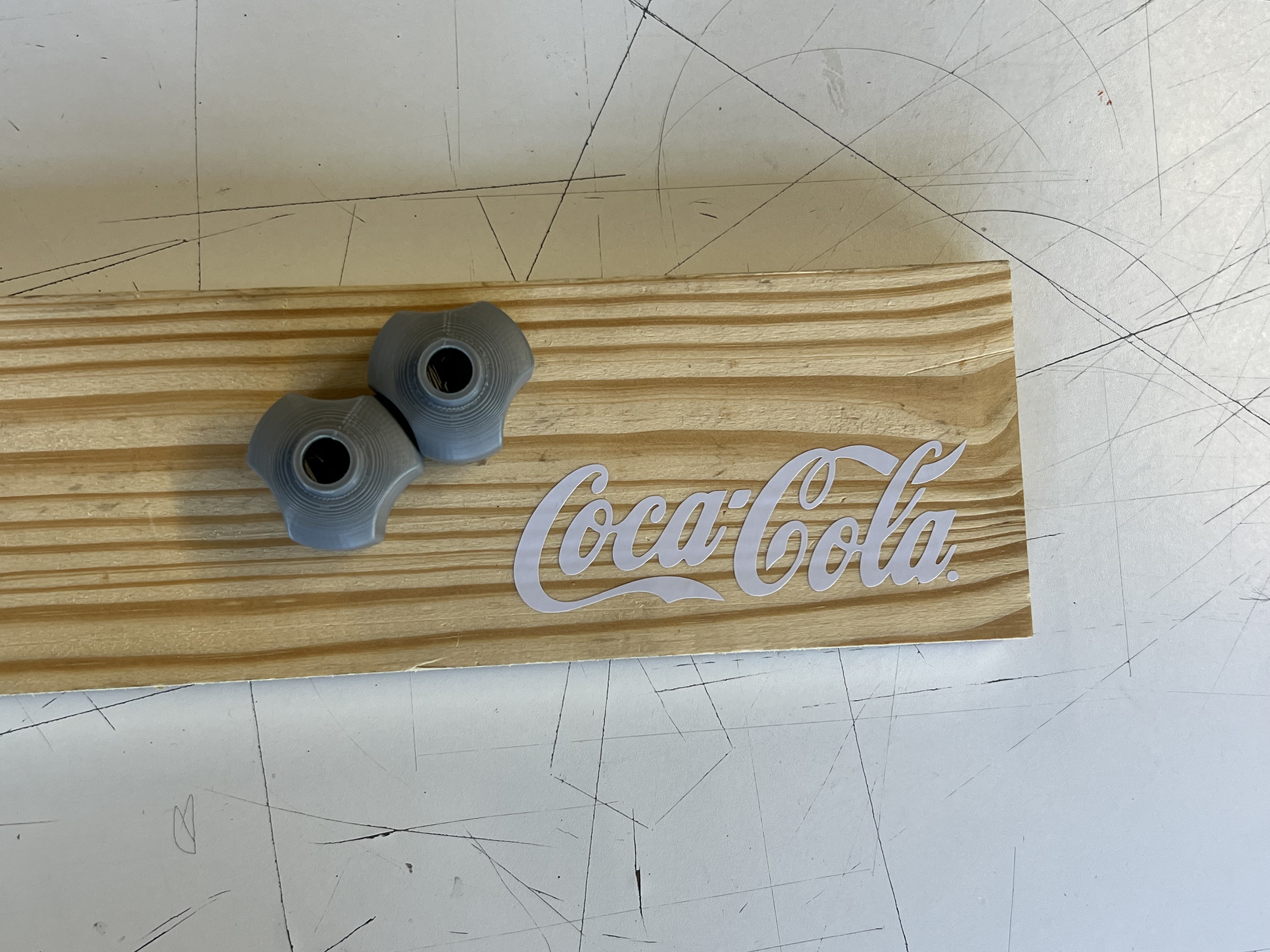
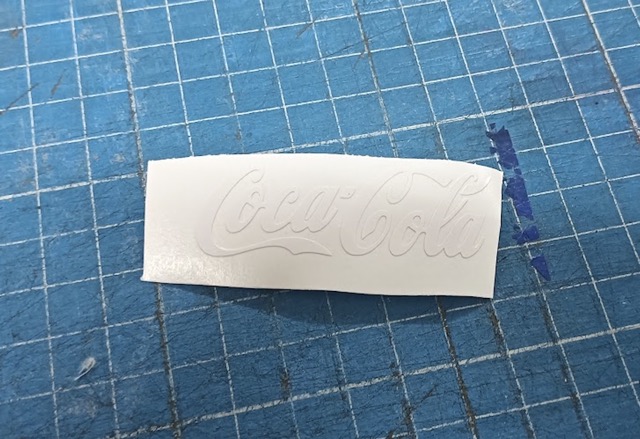
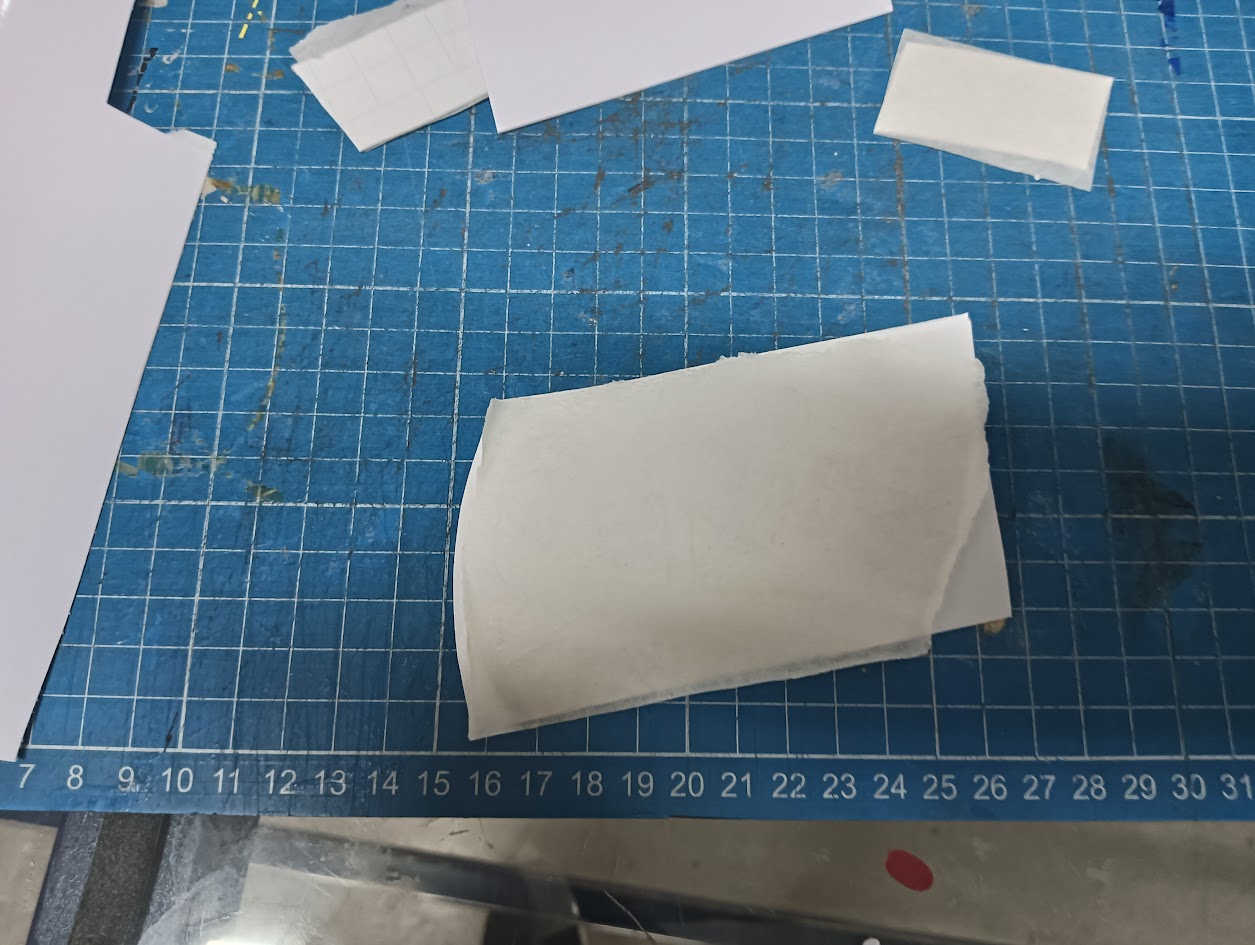
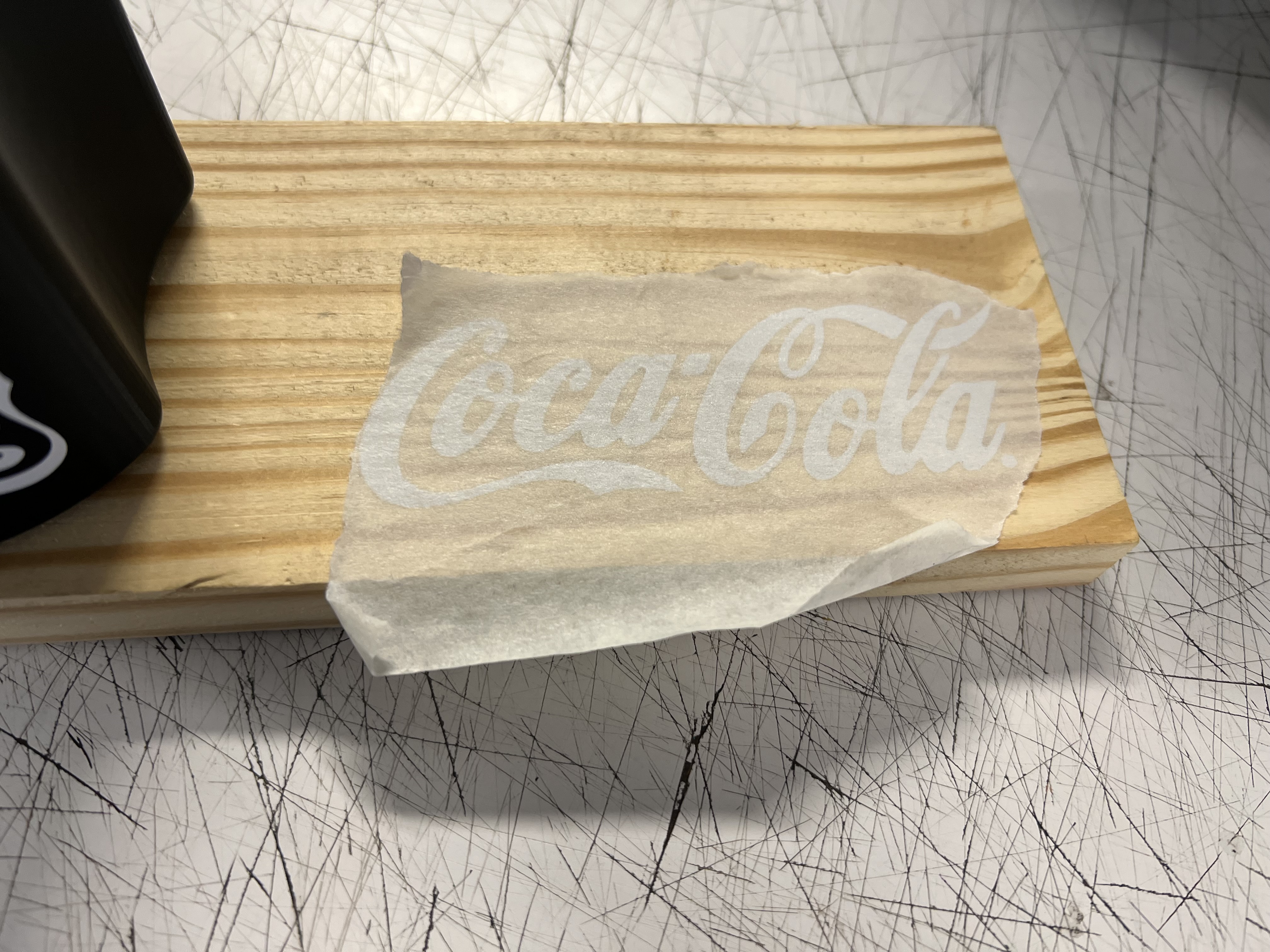
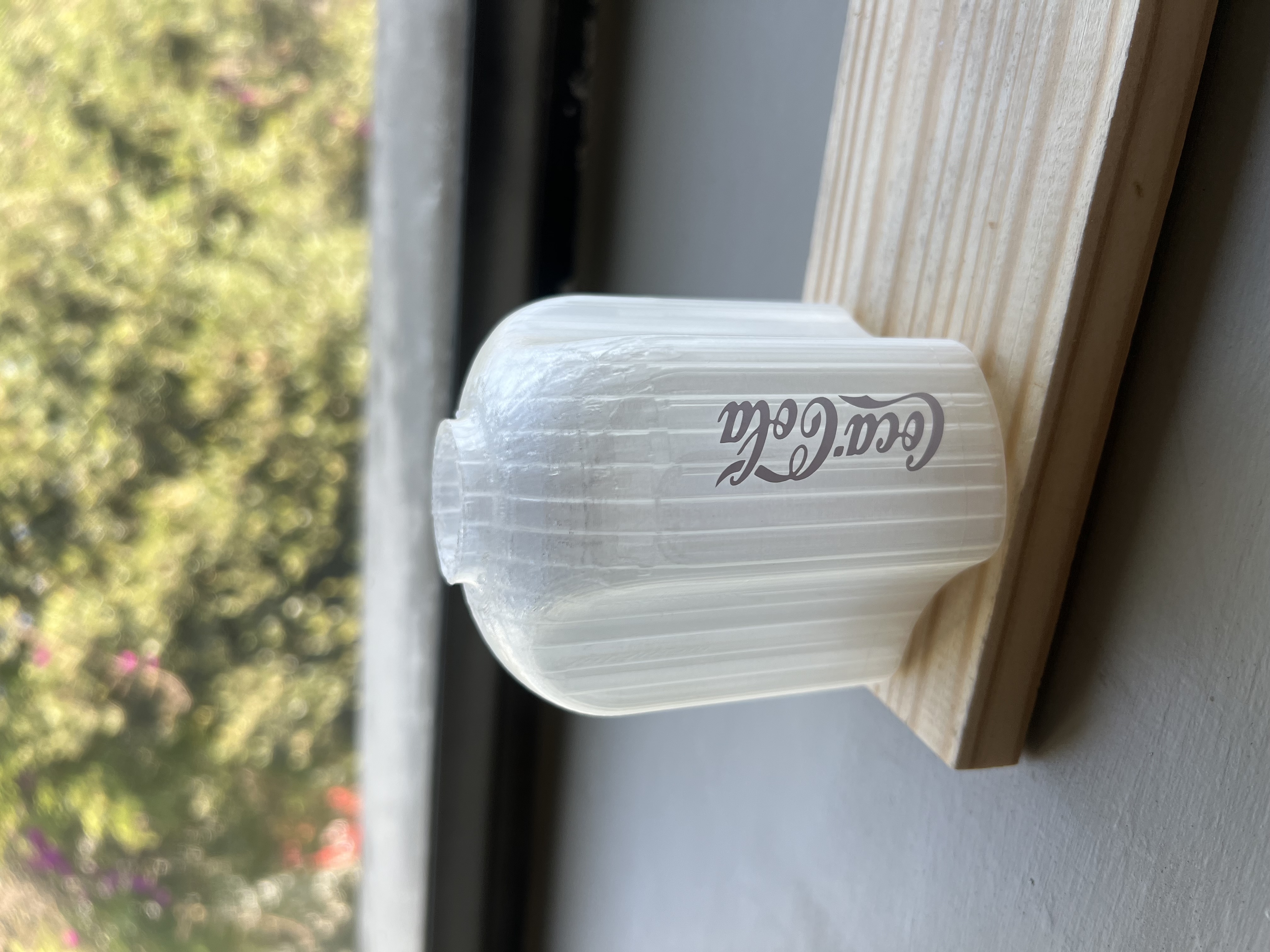
This week I cut out the Coca-Cola logo for a bottle prototype.
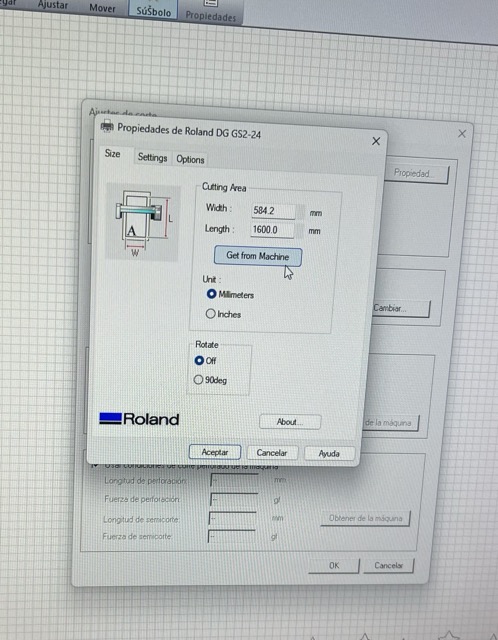
For the vinyl cutting I used a Cut Studio GS2-24 machine:
Machine Settings Note
During the process, I noticed that I couldn't change the pressure or the speed in the vinyl cutting software. This is because those specific parameters are predetermined by default in the system and cannot be manually adjusted in the interface.
Final result
My intention this week was to make an interactive kit to explore and try diferent shapes to exercise imagination skills. Here are some of the configuarations that i was able to do with the kit: