Week 2. Computer Aided Design (CAD)

3D Modeling Software

This second week, we began practicing Computer-Aided Design (CAD), where we had the opportunity to explore and compare different software tools for both 2D and 3D design. I’m particularly excited about this task, as it’s the moment when I can fully visualize the components of my final project proposal. For 3D modeling, I experimented with OnShape and Shapr3D. In these programs, I designed the base of my device, which will house the electronic components. I also modeled the outer shell that will hold the lighting system."

Onshape Logo

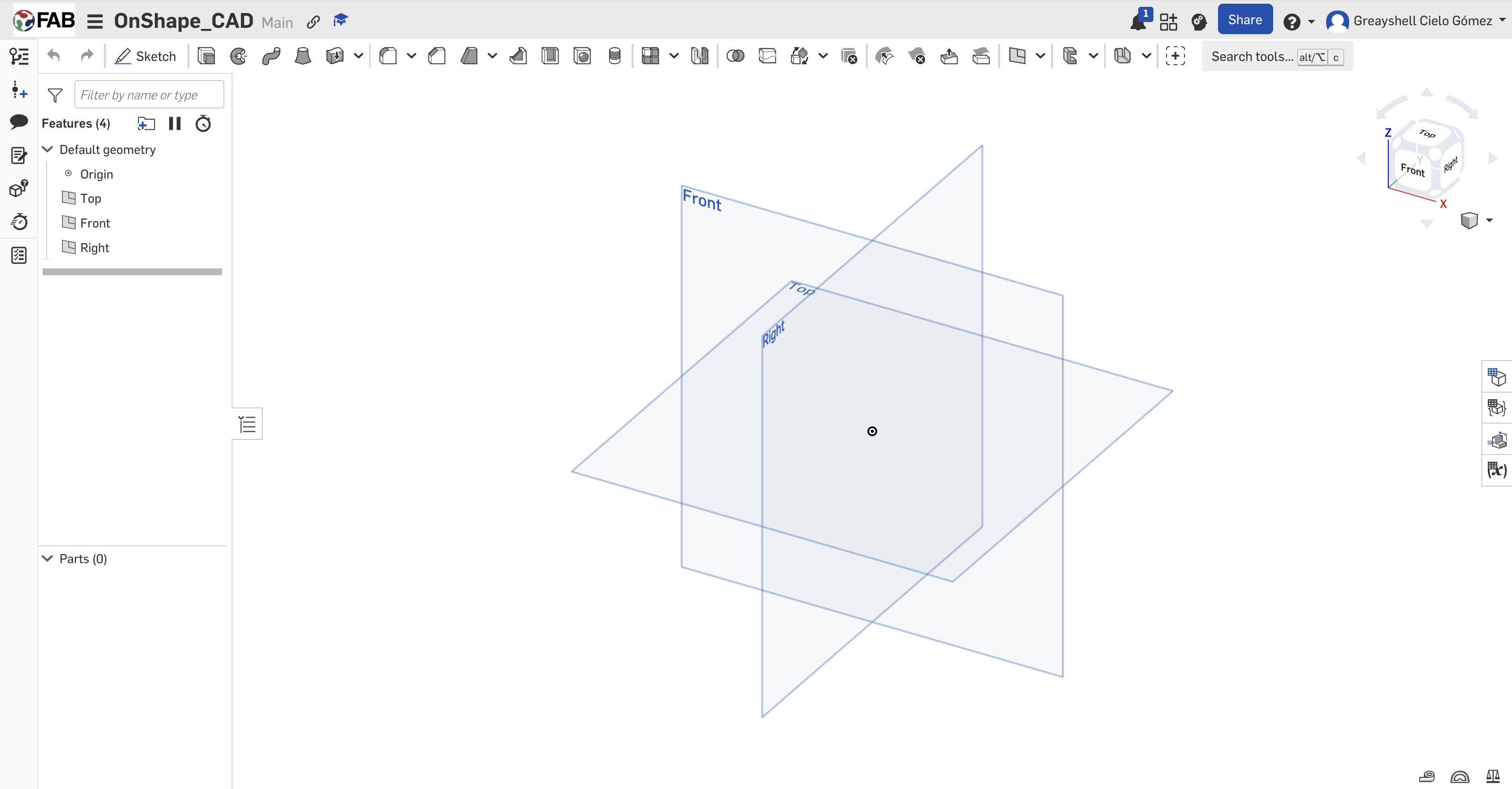
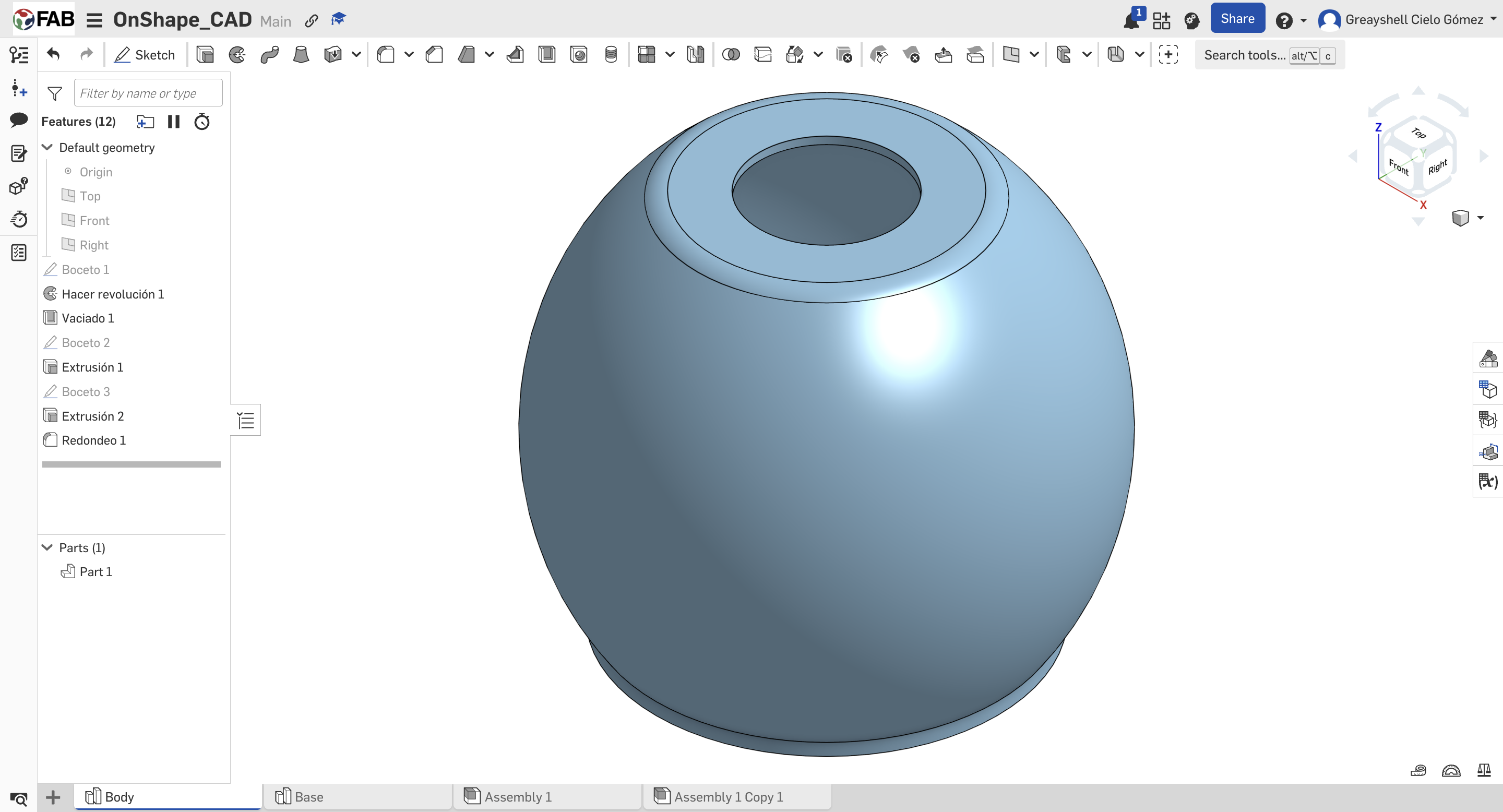
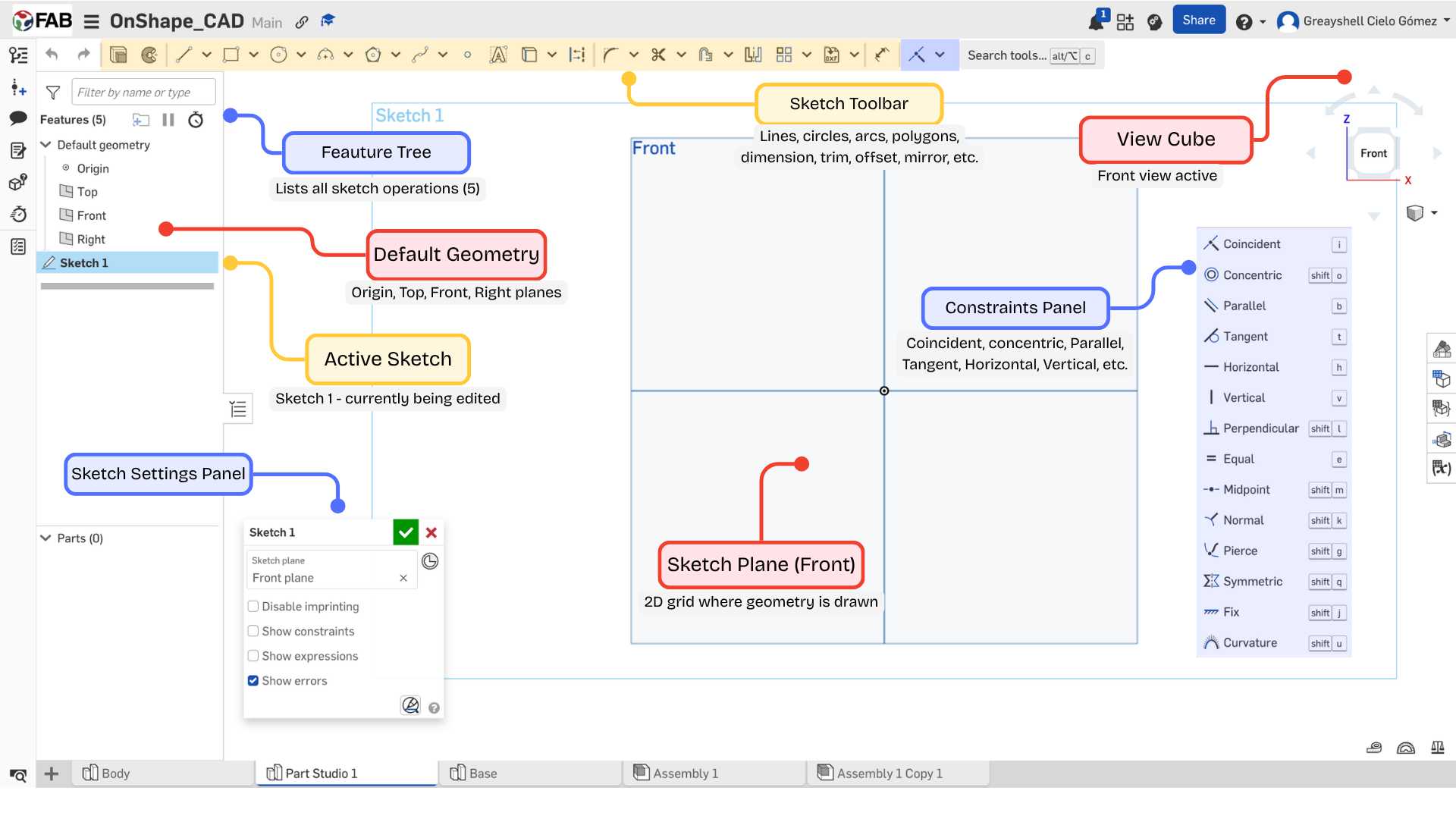
Onshape is a cloud-based 3D design (CAD) and product data management (PDM) platform. Its main functions include creating three-dimensional parts, assemblies, and technical drawings. It is a practical and intuitive program that allows multiple users to collaborate on the same design in real-time, and also maintains a detailed history of every change made.
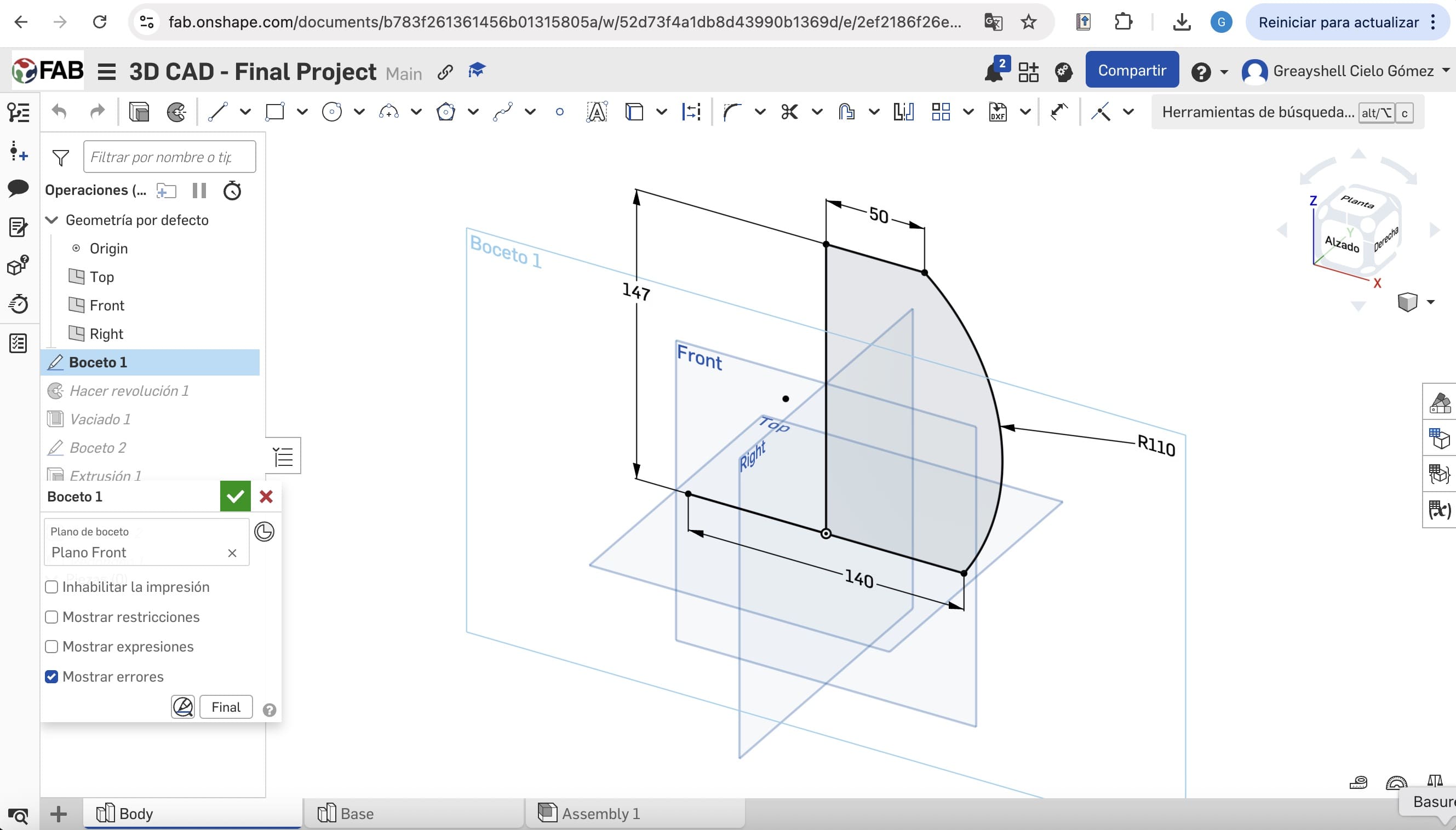
Sketching

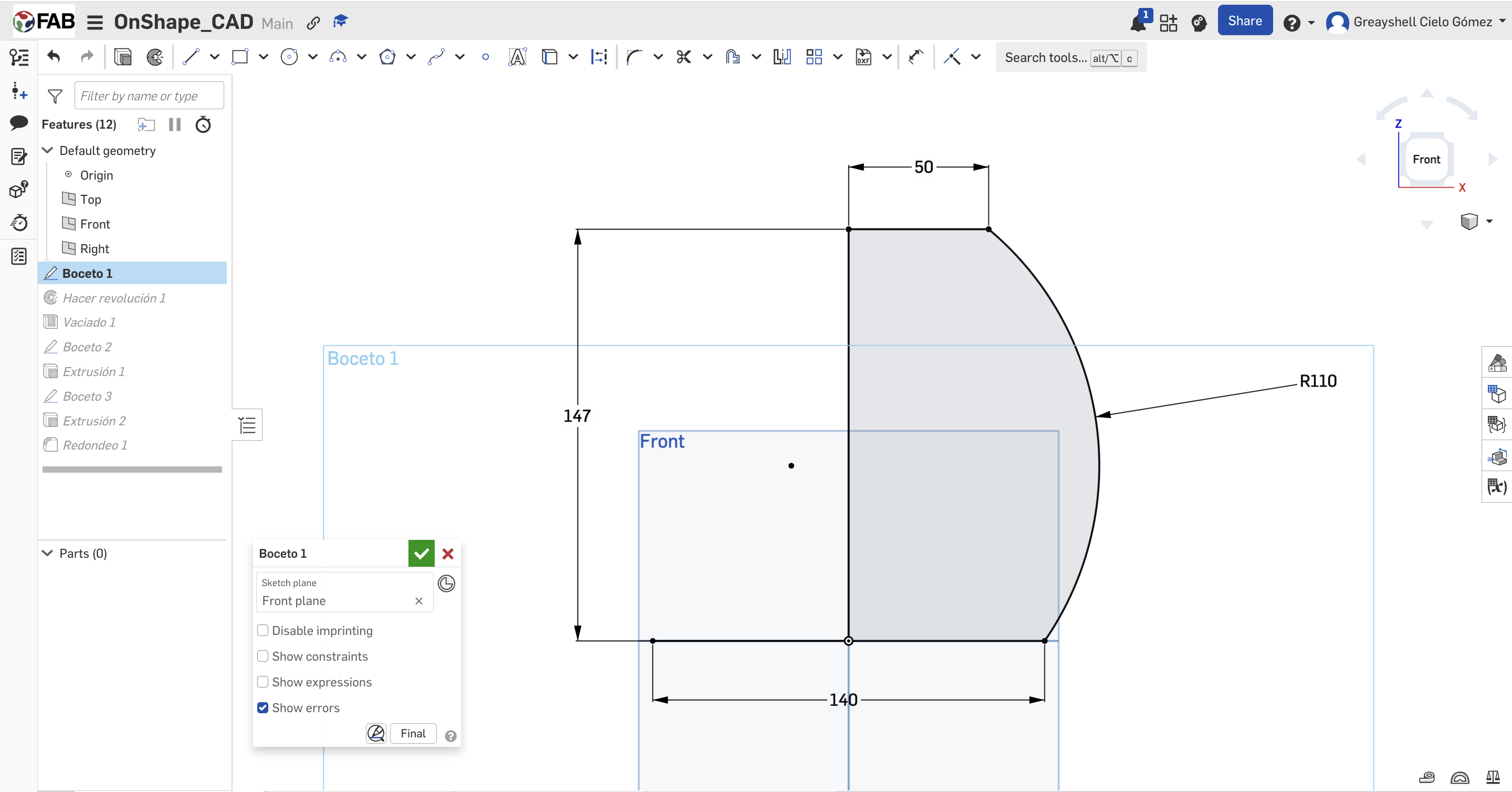
01. New Part Studio

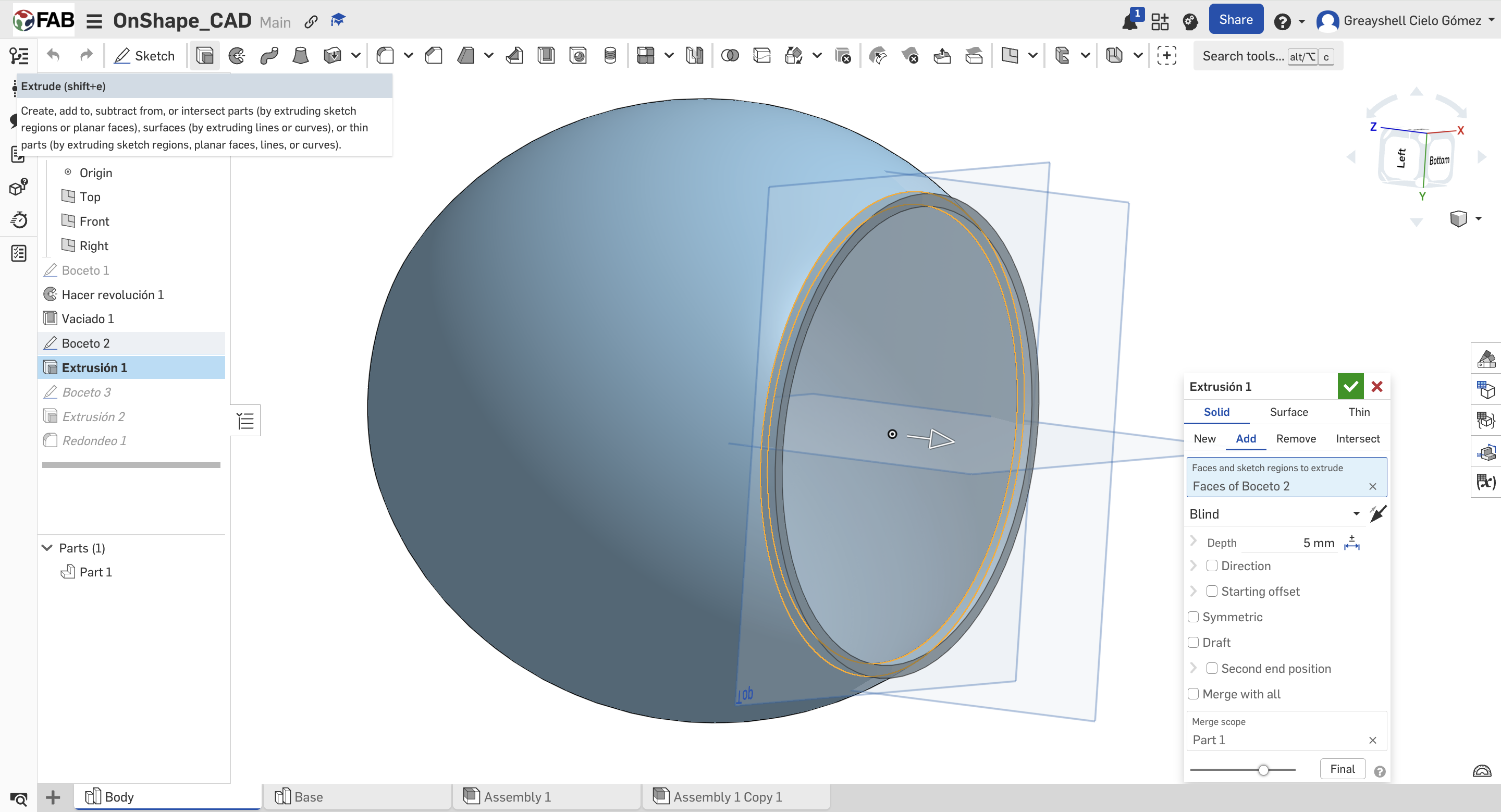
Defining initial constraints and 2D parametric geometry. Using tools such as: line, circle, arc position relationships.
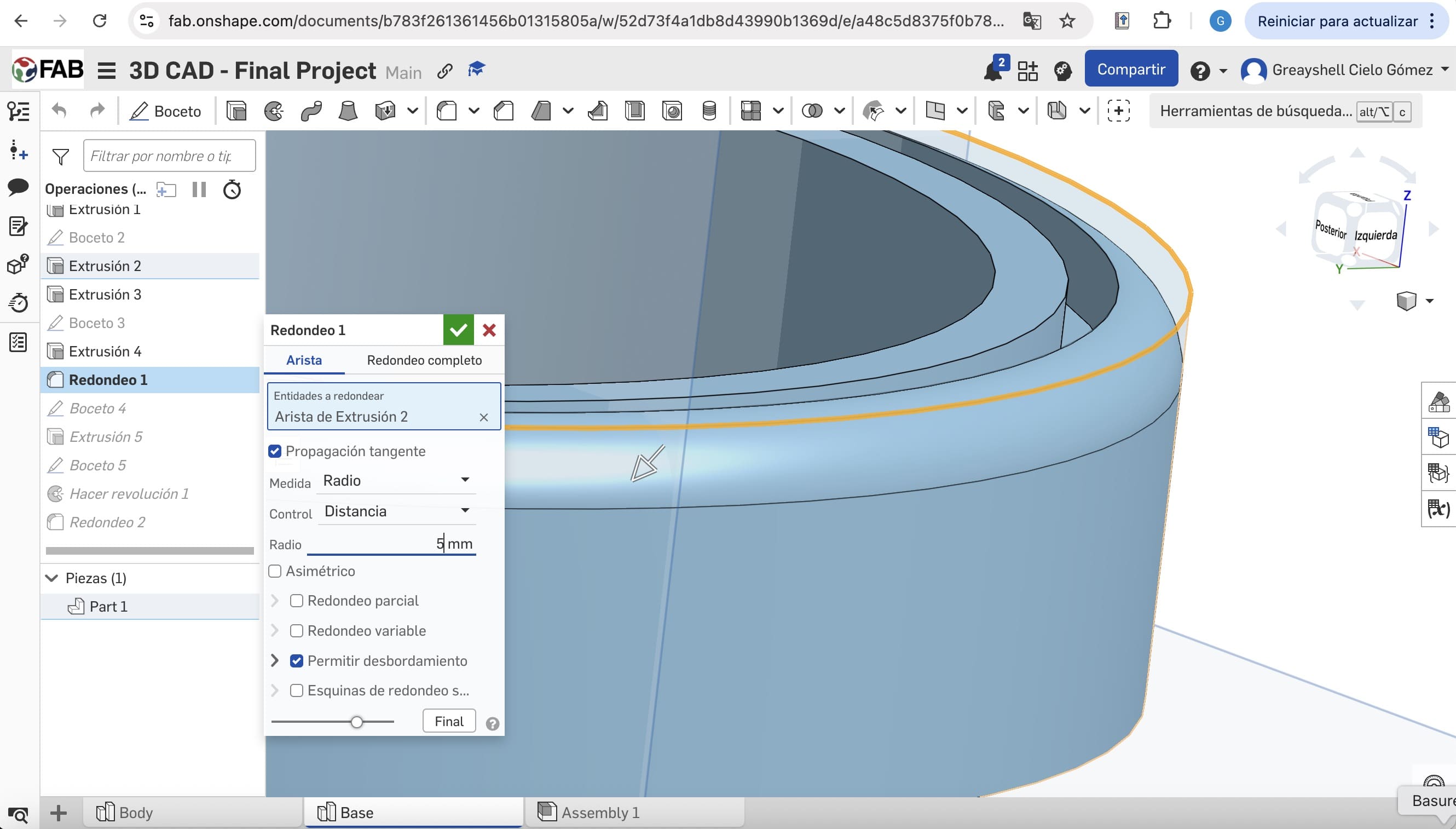
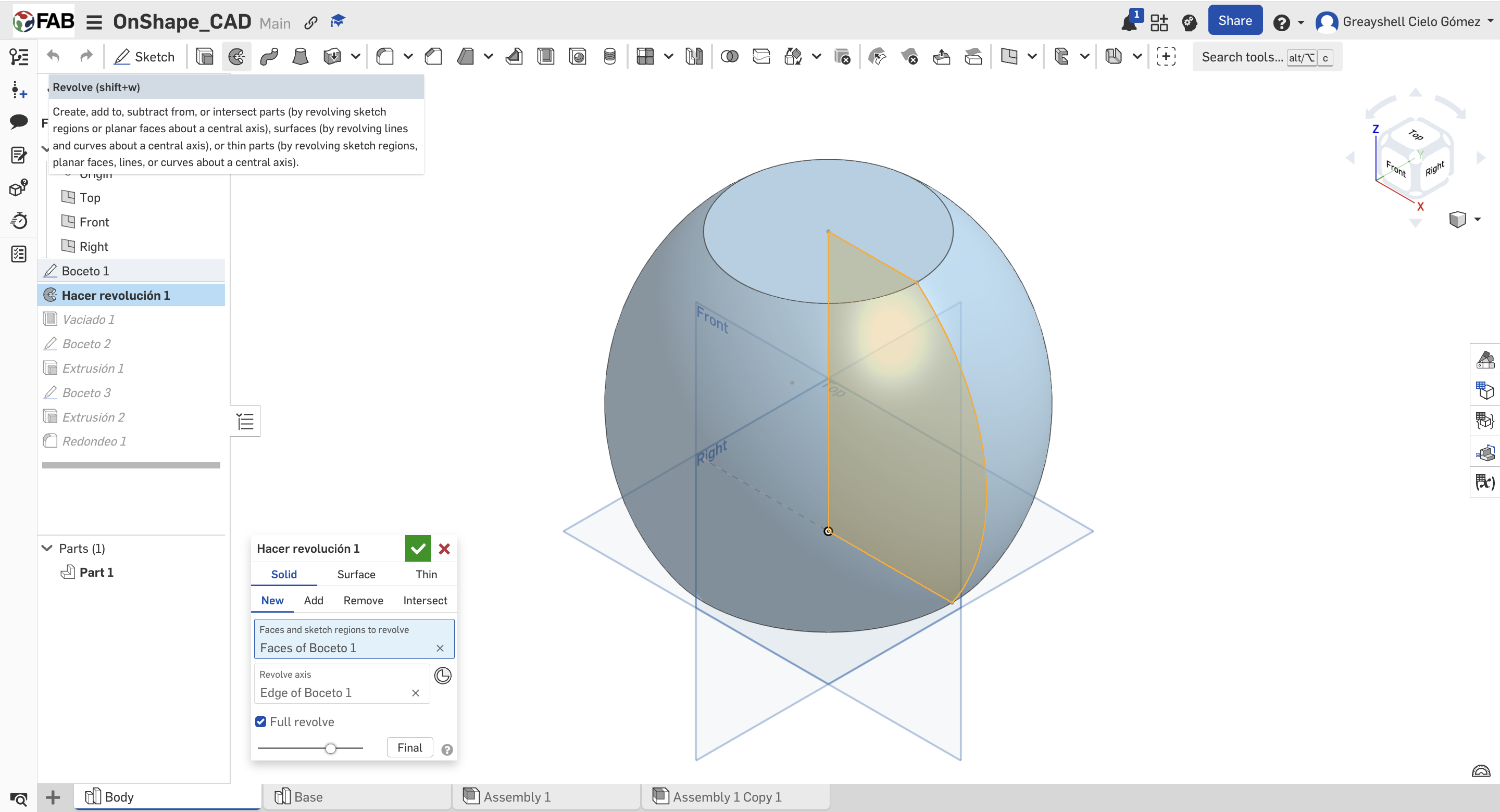
Extrusion

02. Main Operations

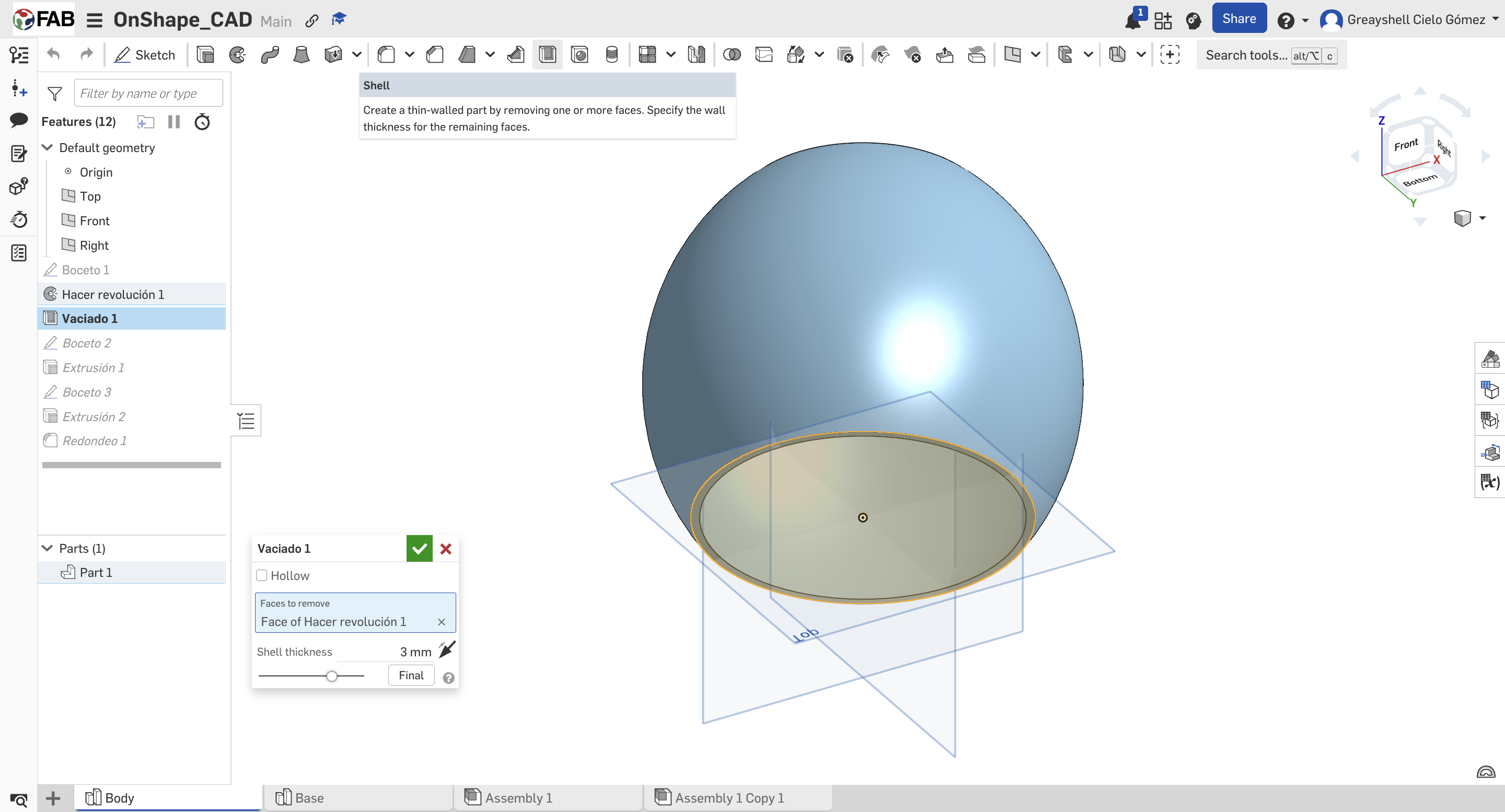
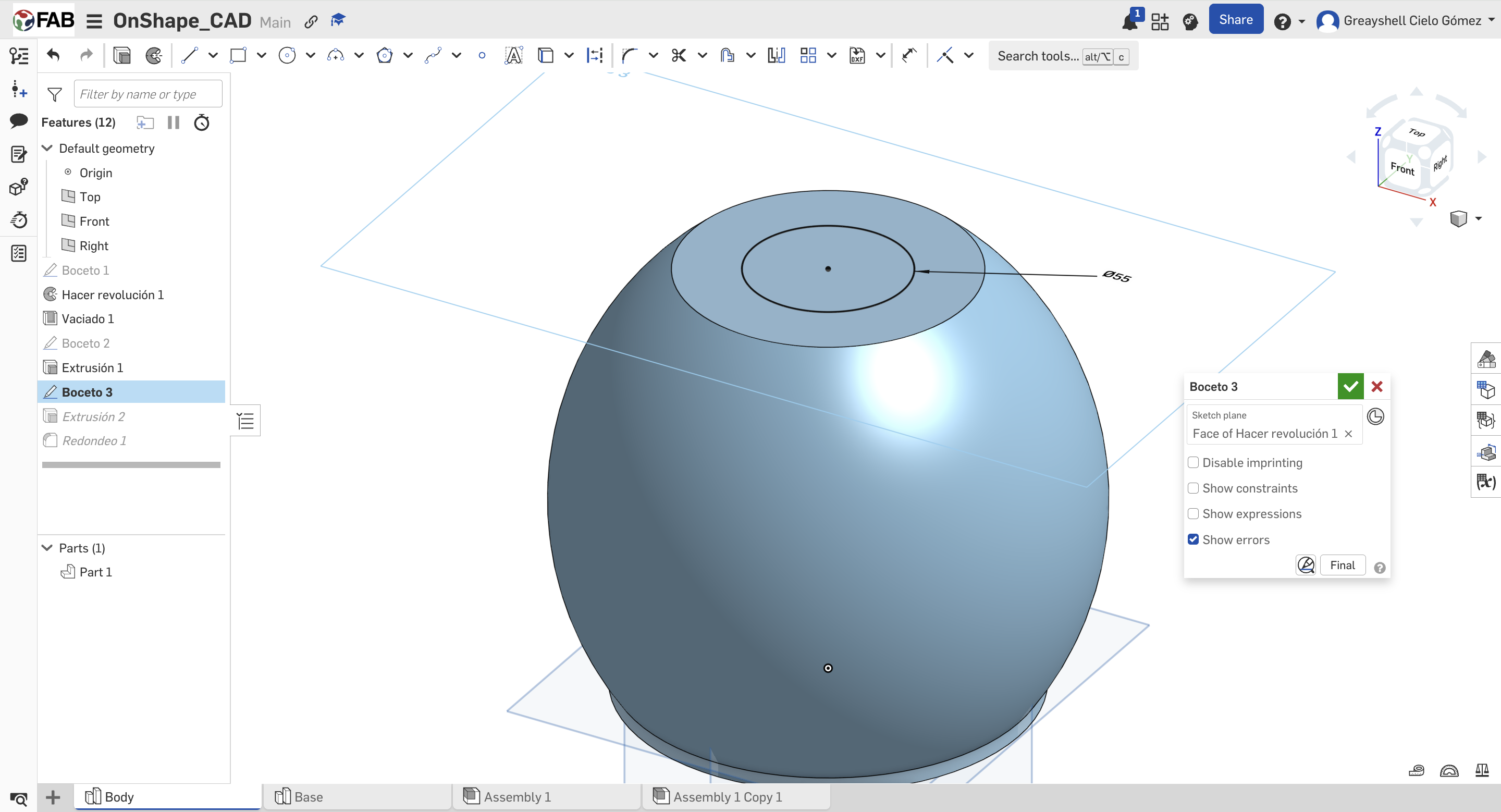
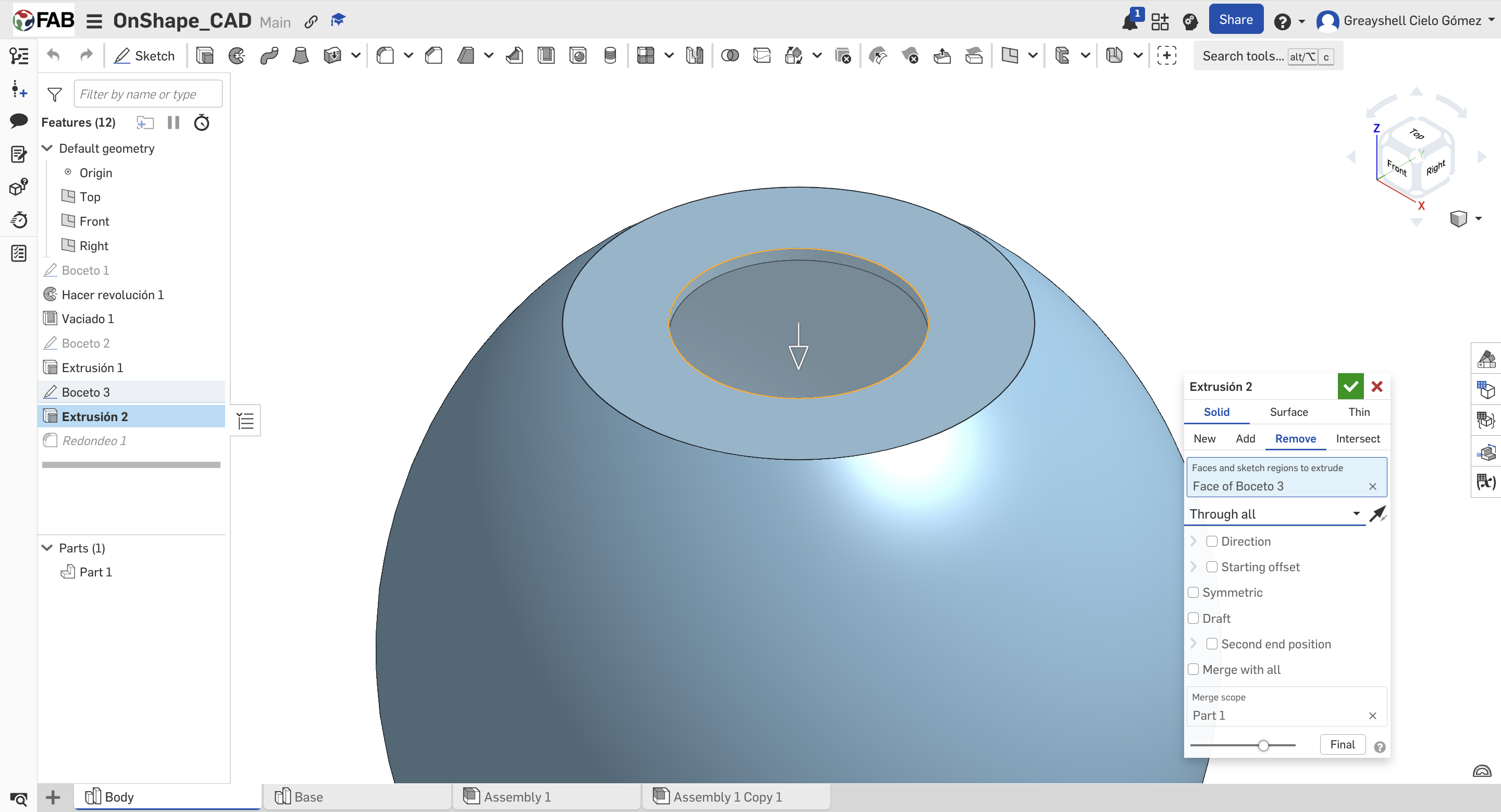
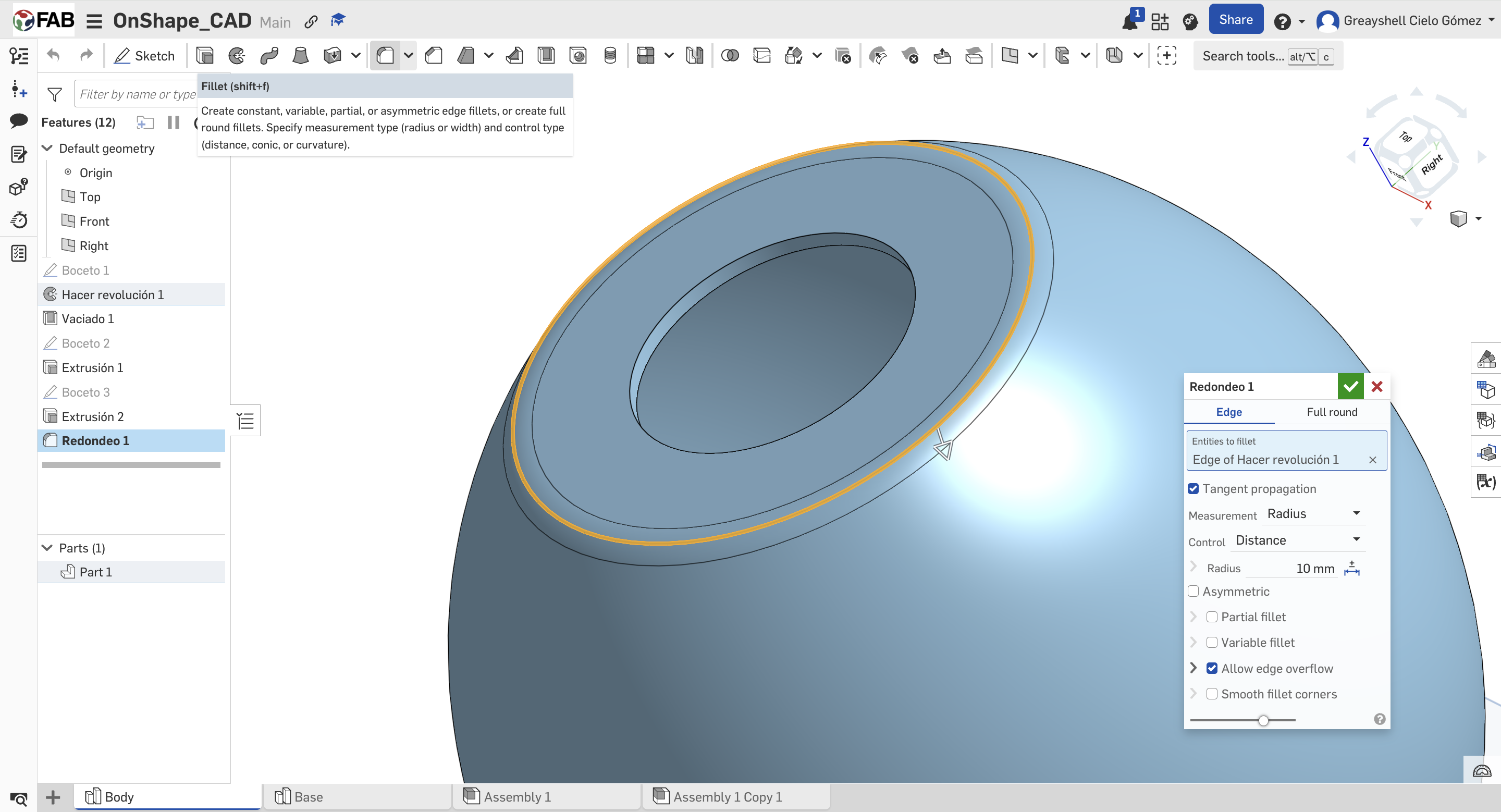
Applying extrusions and revolves to create solid parts. Applying Shell and Fillet operations to the base.
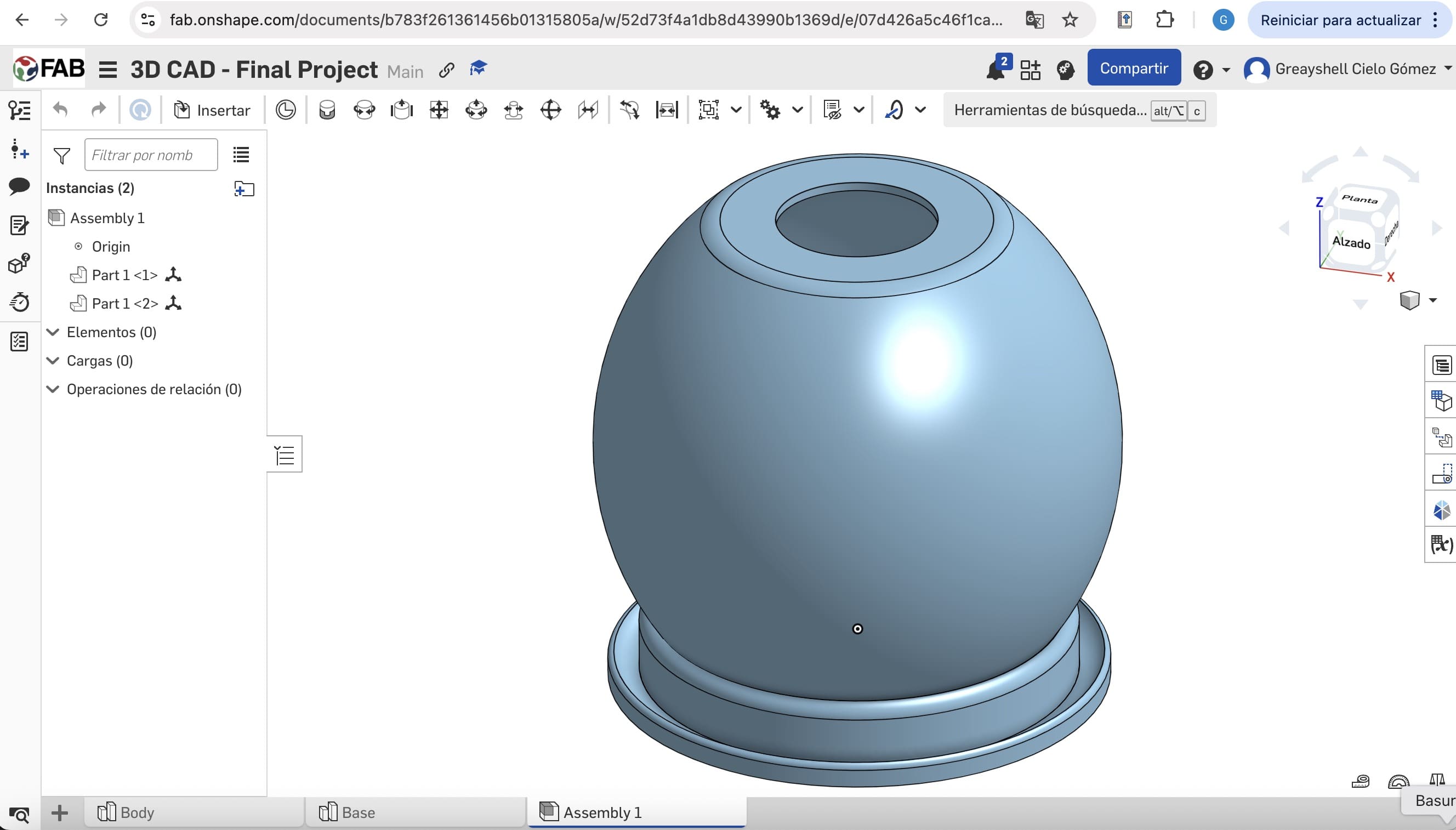
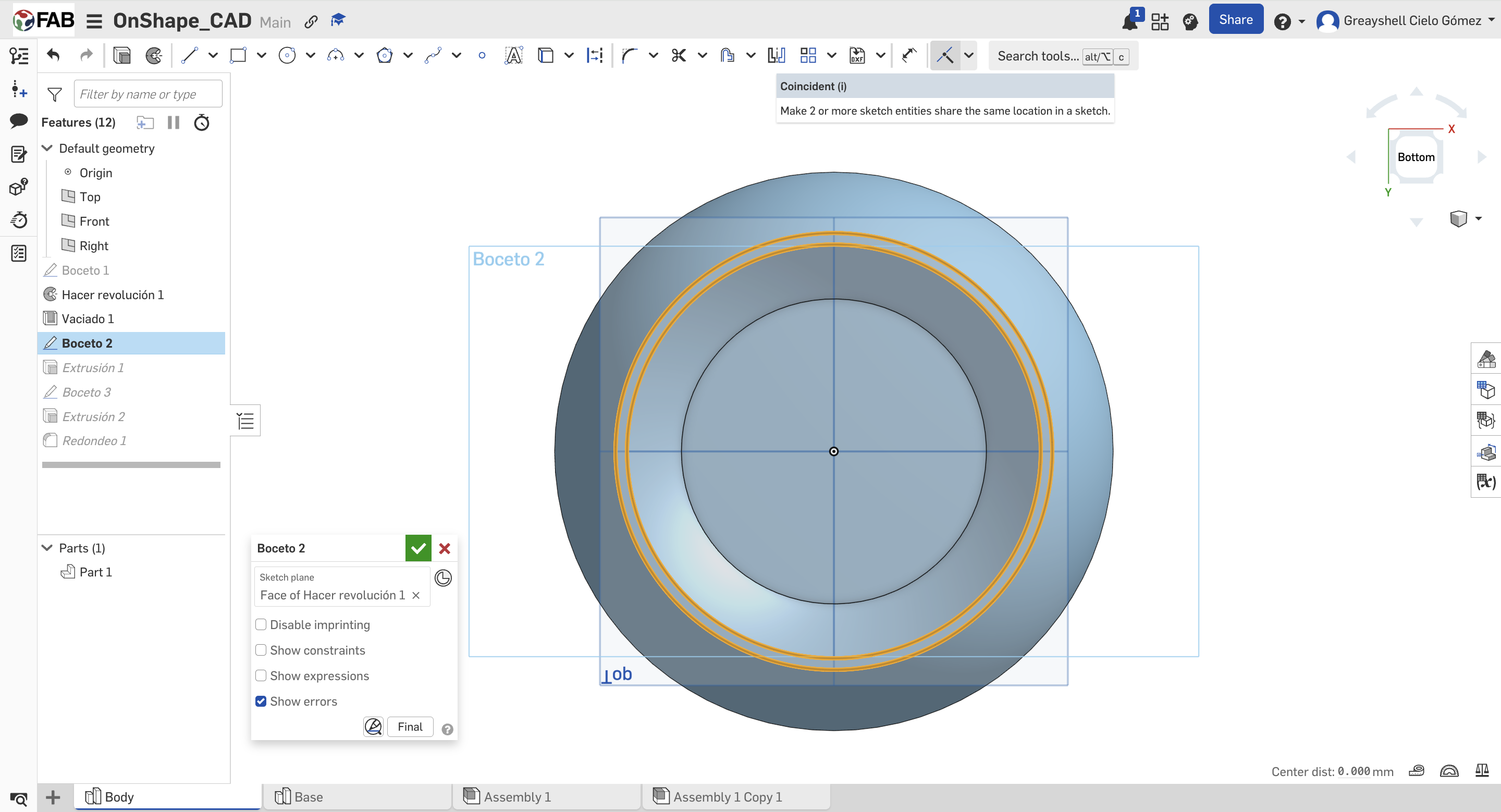
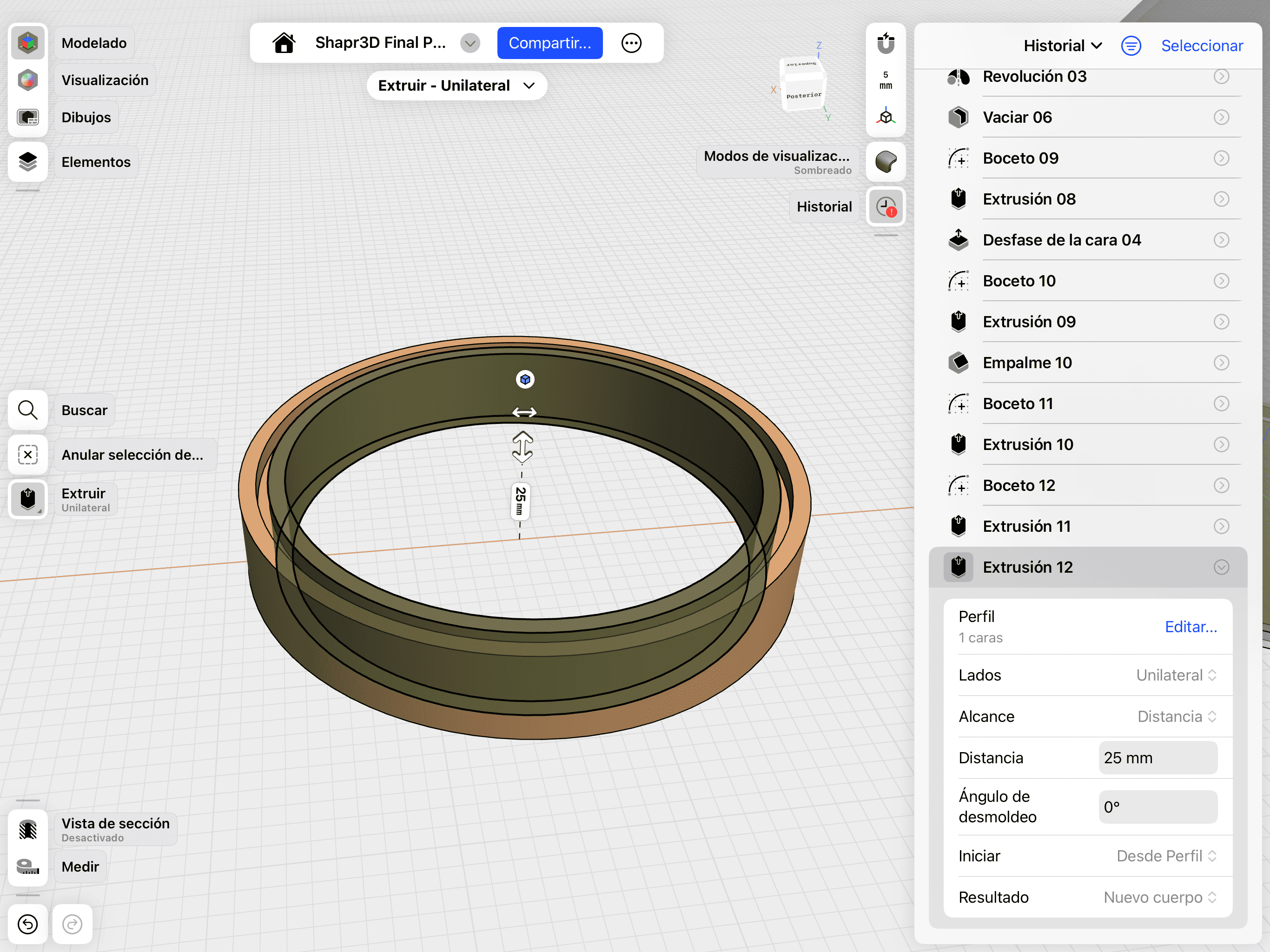
Assembly

03. Final Assembly

Finalizing the Assembly by mating the base components to verify the fit and tolerances of the device.

Shapr3D Logo

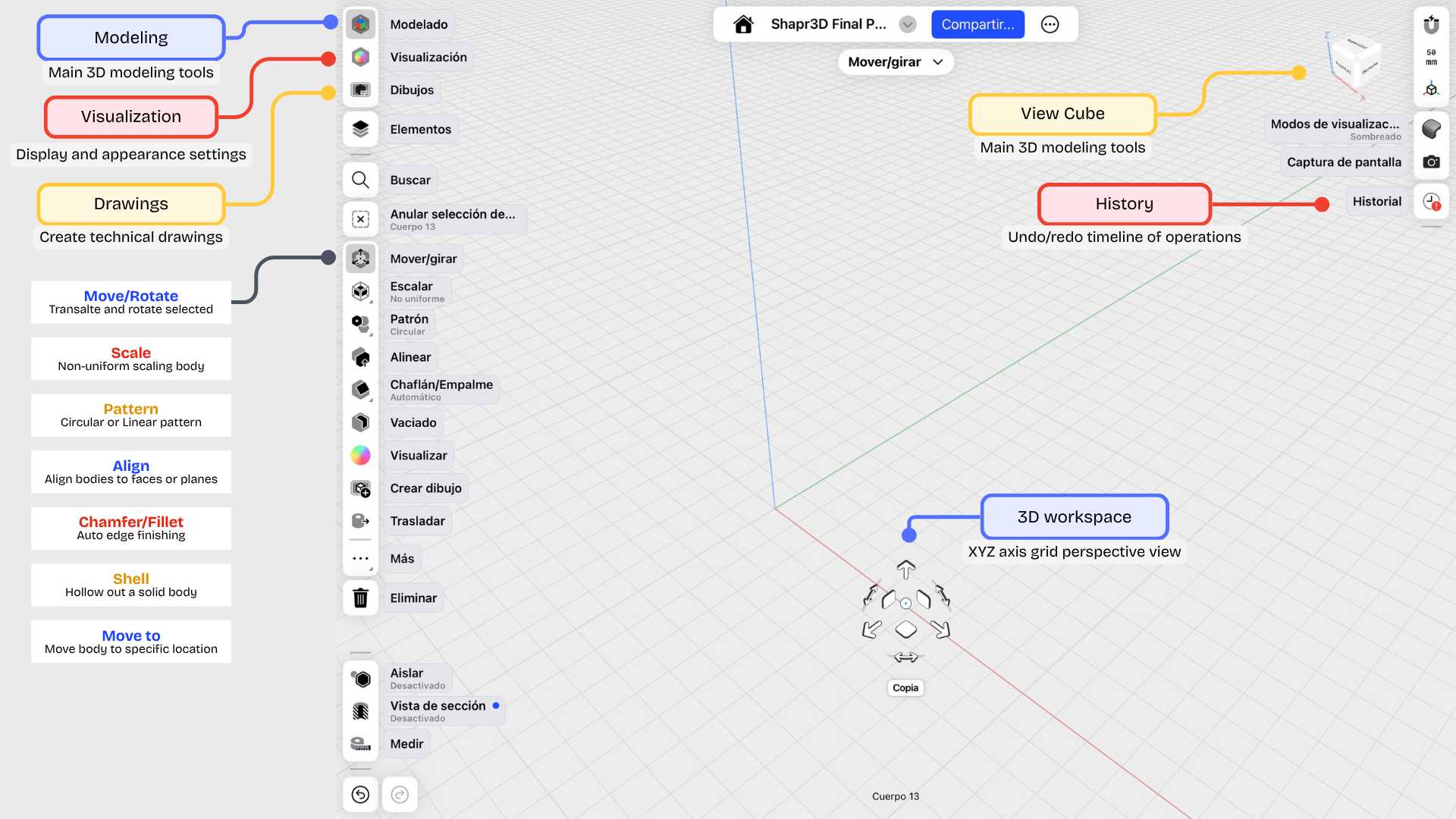
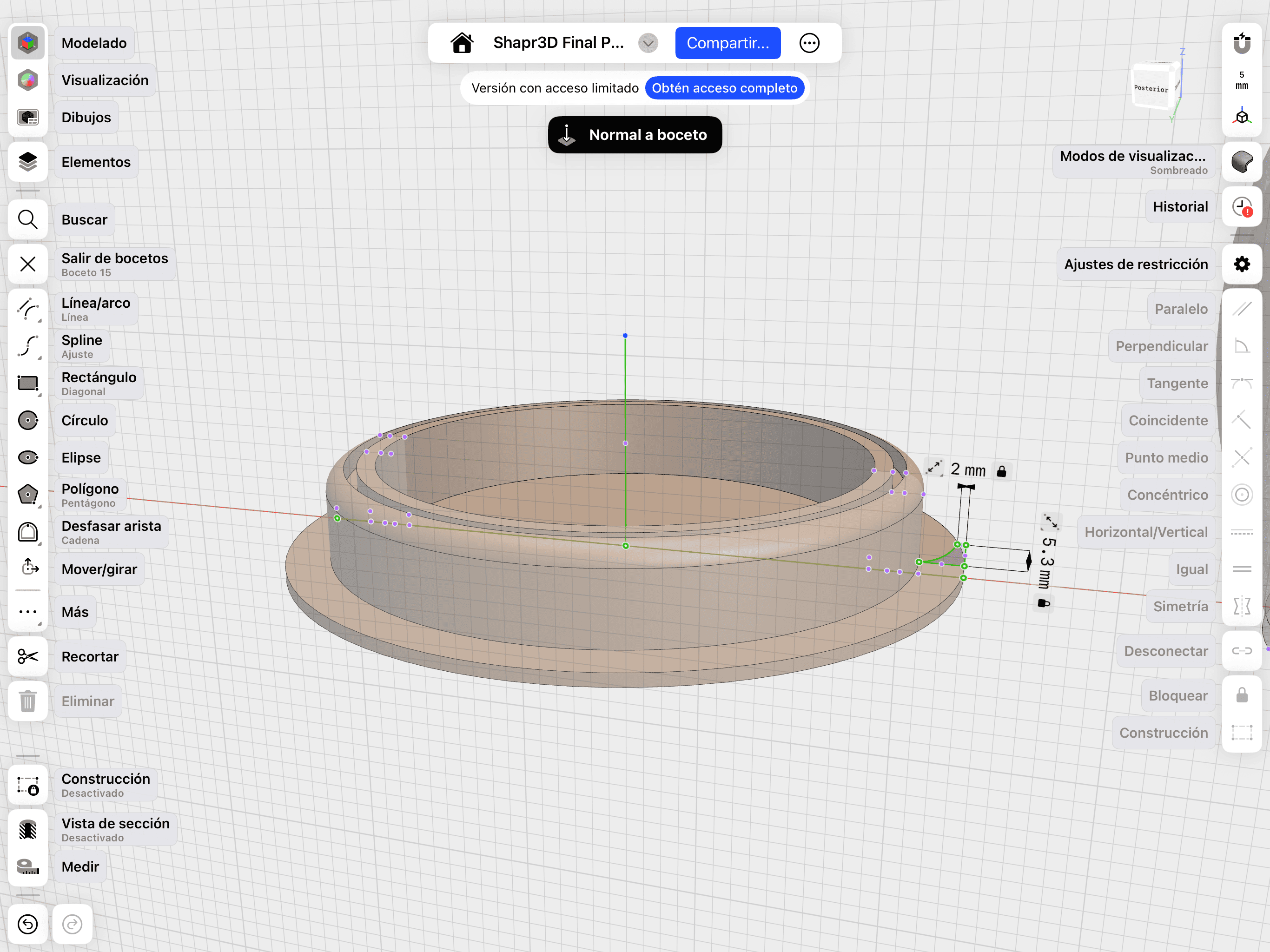
Shapr3D is a 3D modeling application designed for a fluid and mobile workflow. It’s primarily built for use on iPads and touch devices, allowing for a more direct and natural interaction with the design. It enables the creation of three-dimensional models and structural plans, as well as the visualization of materials and finishes on the final parts. It’s an excellent tool for rapid prototyping and bringing ideas to life quickly.
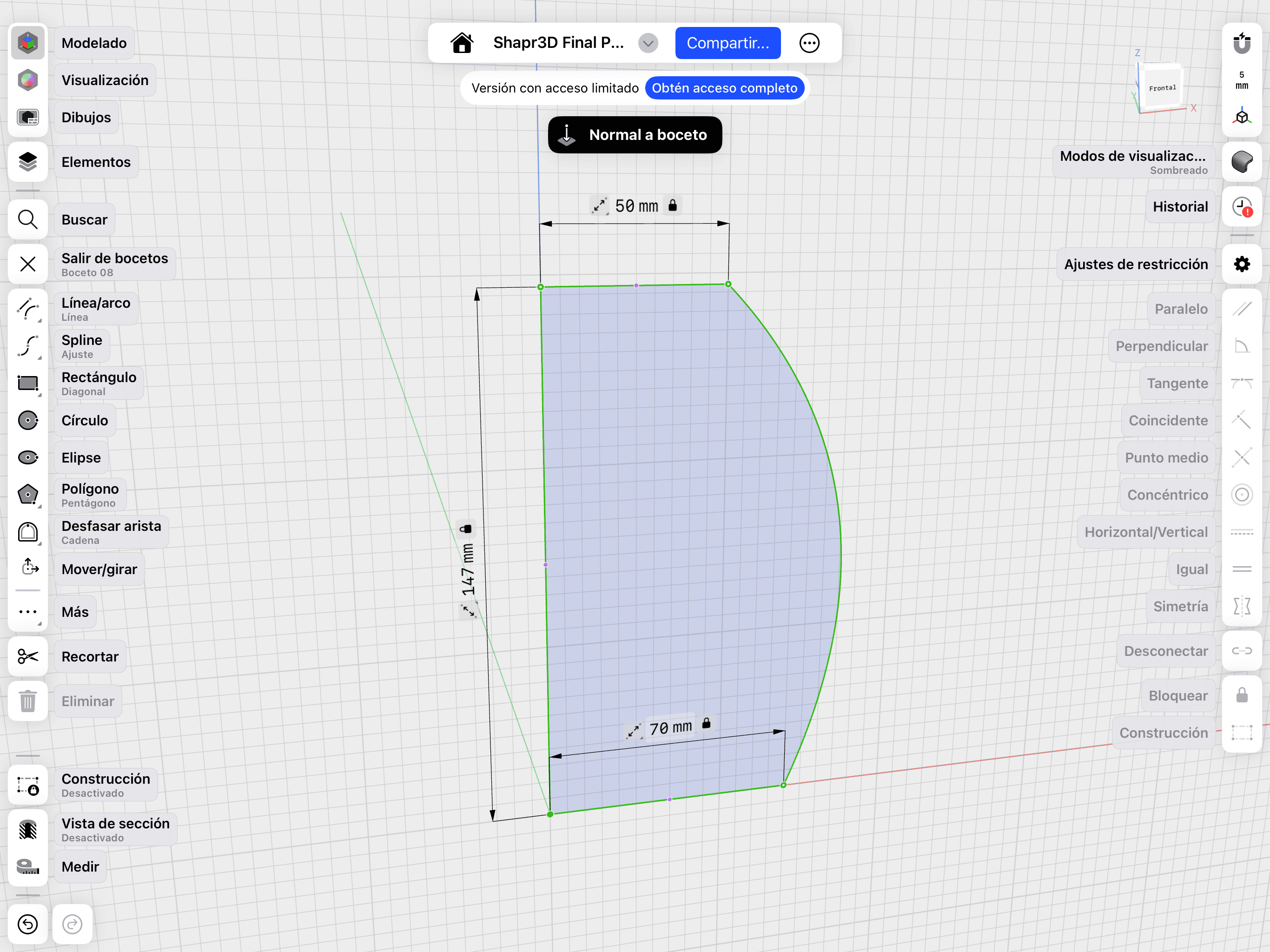
Interface

01. Mobile Sketching

Using touch interface for organic shapes and quick drafts.
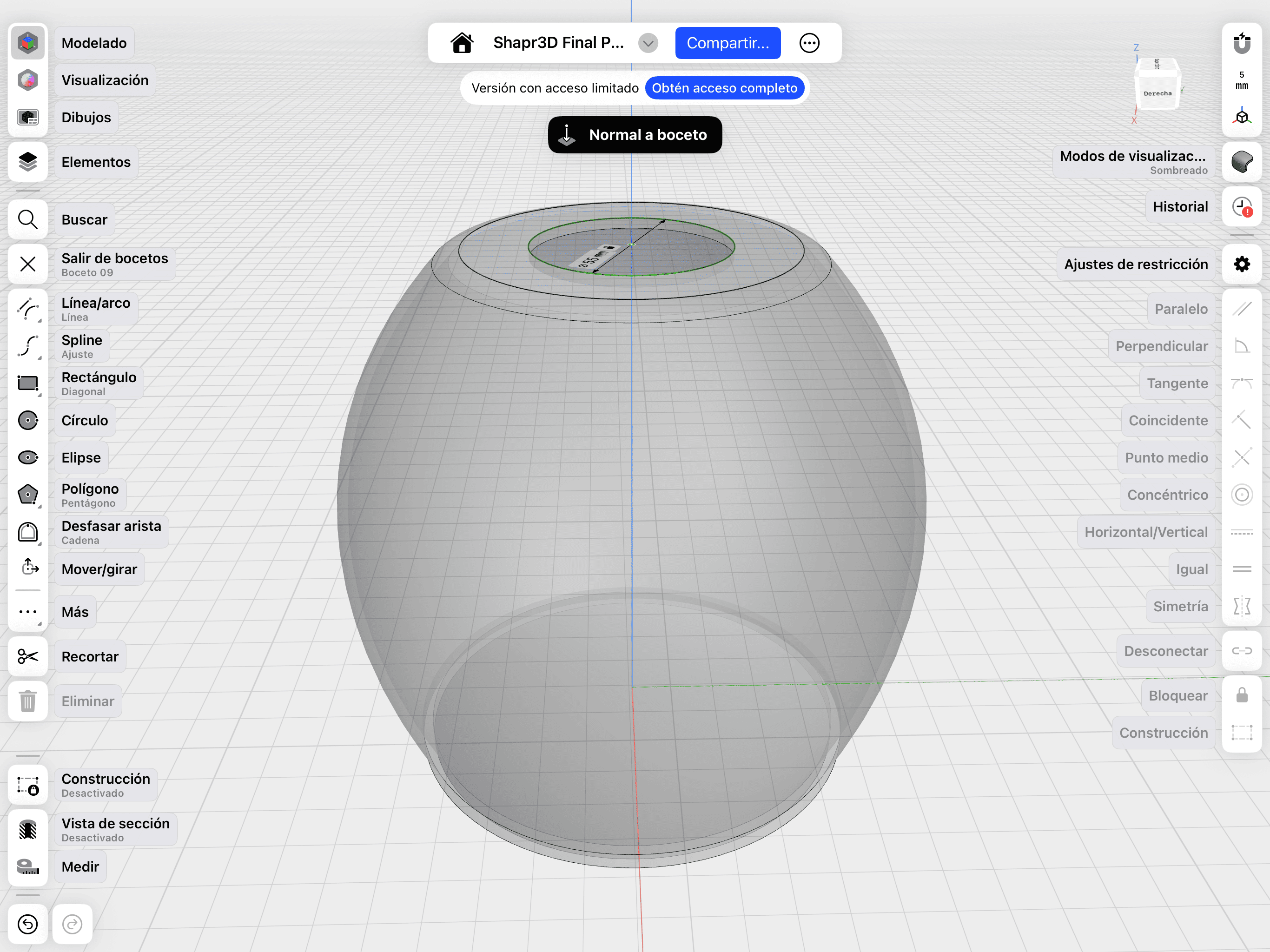
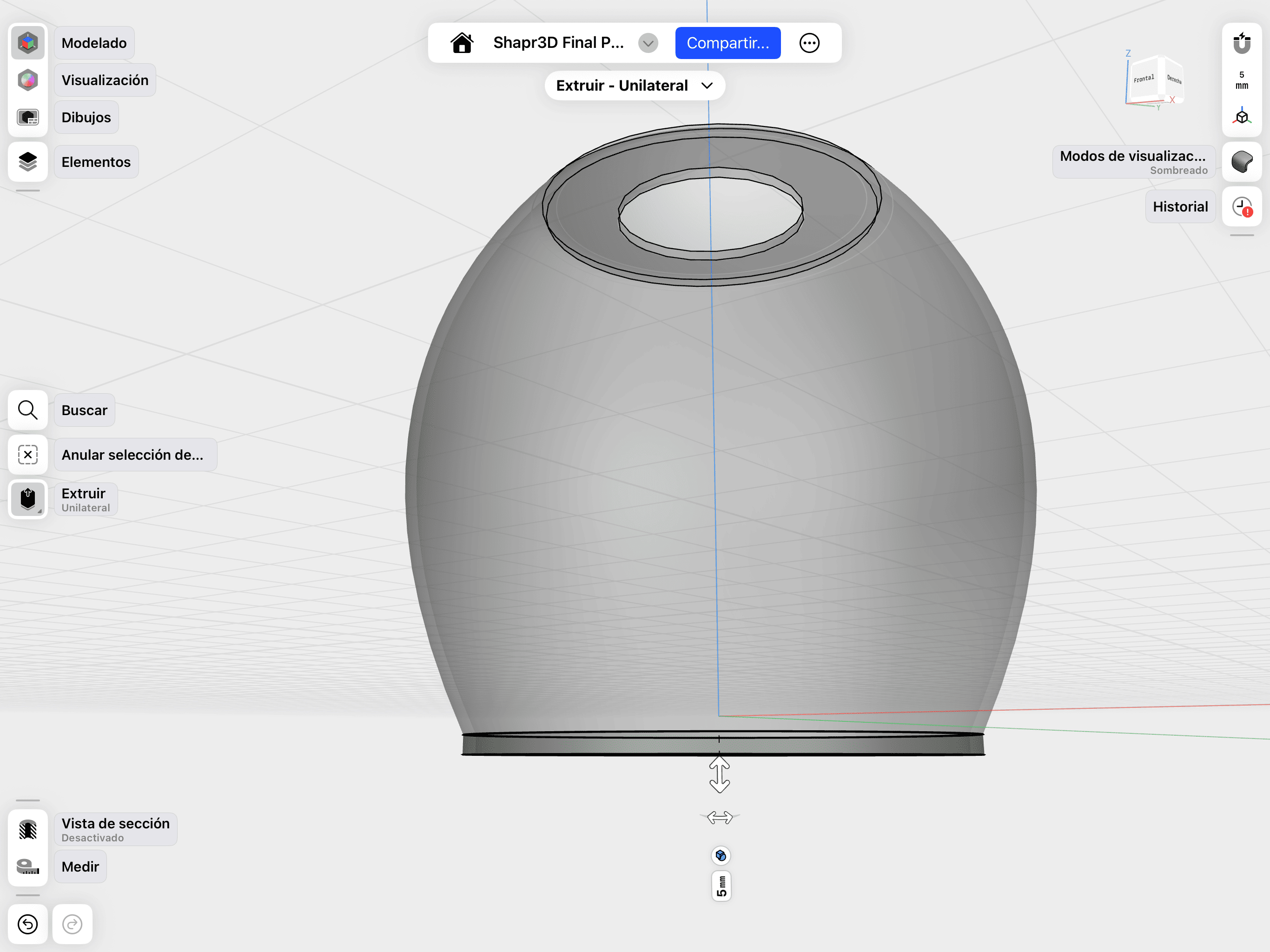
Refining

02. Revolve & Cut

Applying the Revolve tool to the profile sketch and executing a boolean cut for the top circular opening.
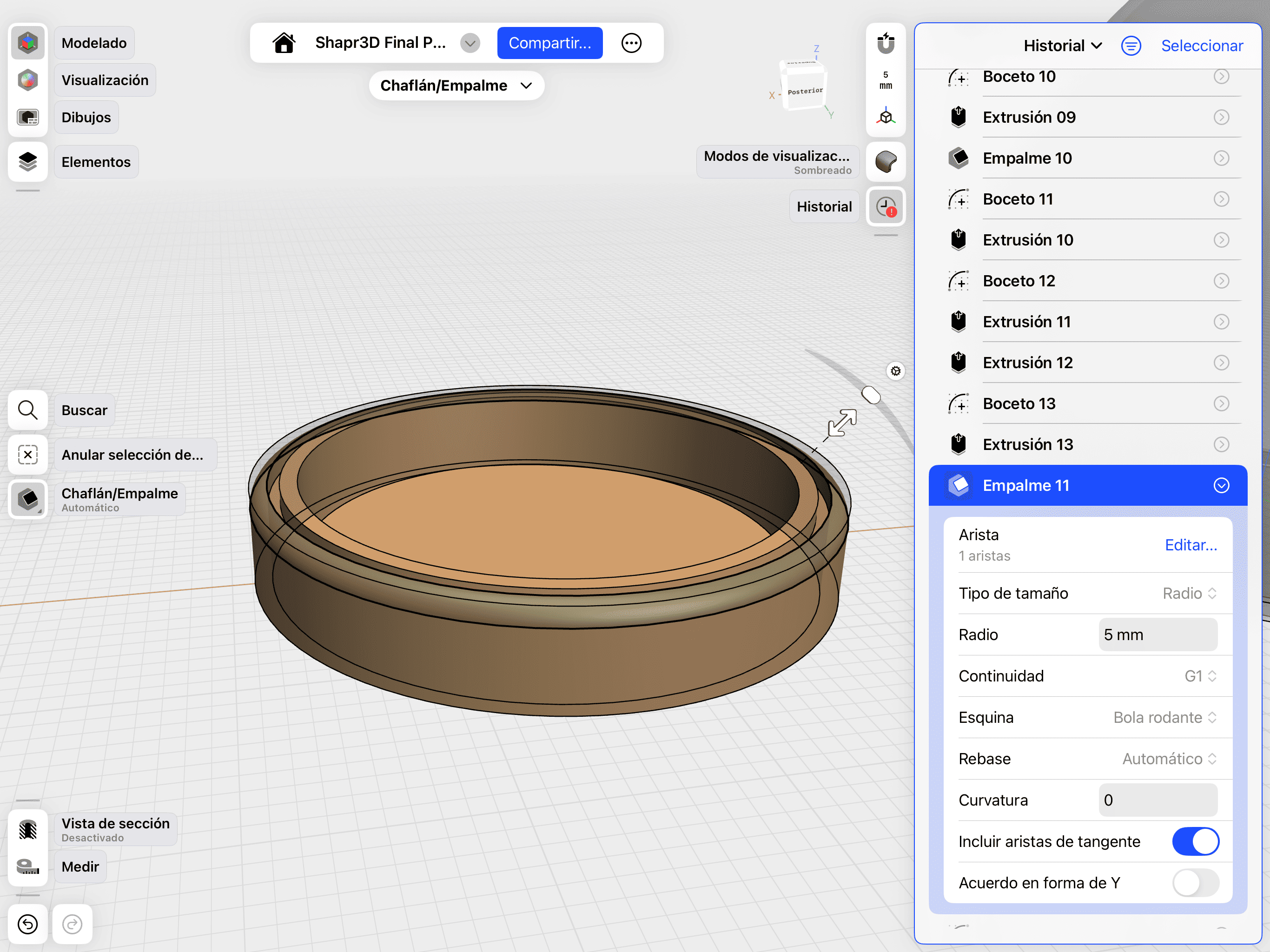
Final Model

03. Shell & Surface Extrusion

Using the Shell command to create hollow geometry and extruding specific surfaces.

Boolean Ops

04. Base Extrusion

Converting 2D concentric circles into 3D volumes to define the device's base.

Chamfers

05. Fillet & Ergonomics:

Adding Fillets for a more ergonomic, professional and aesthetic finish.

Export

06. Final Details

Refining the base profile and sketching final outlines.

Final Visualization

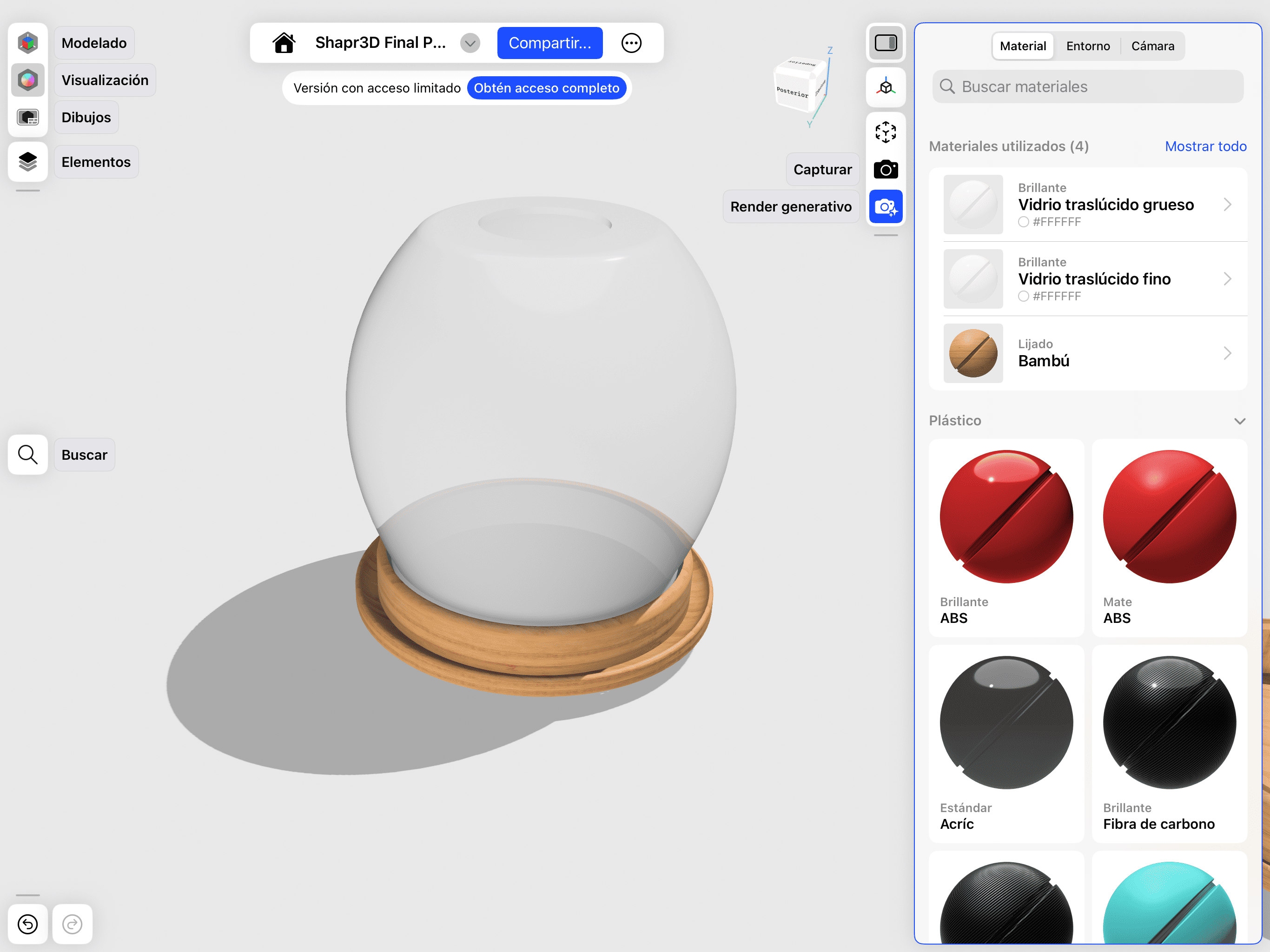
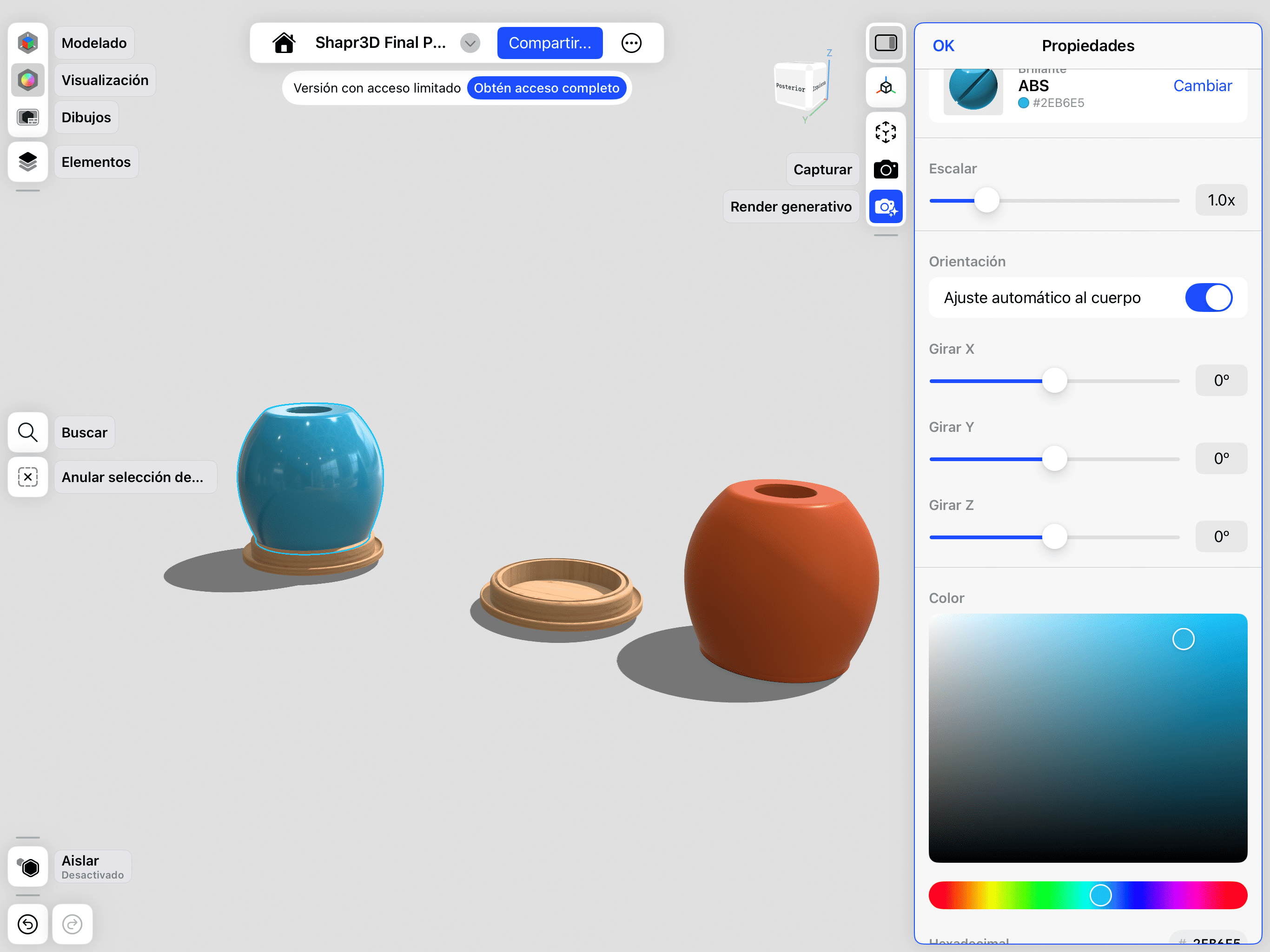
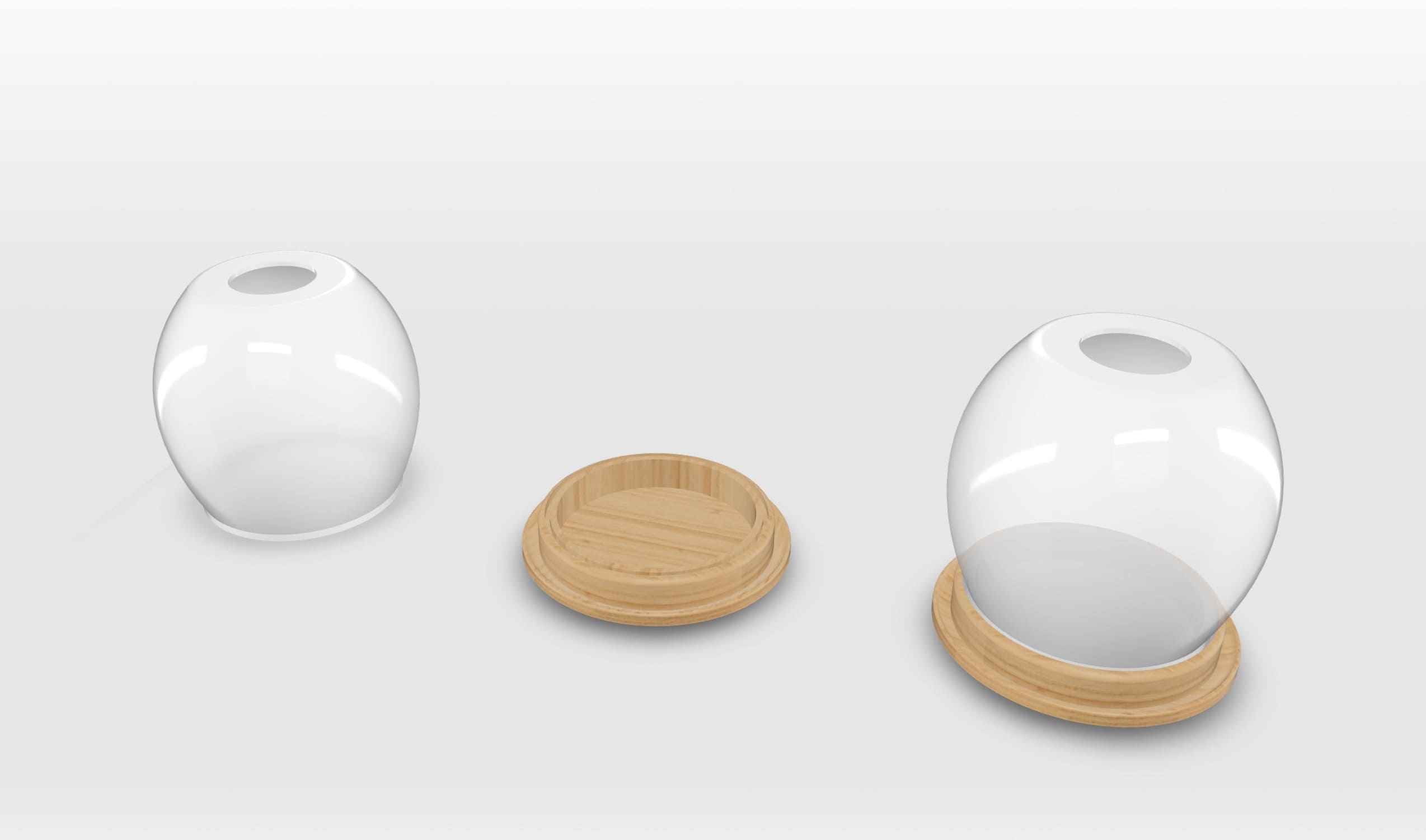
Documentation of the rendering process in Shapr3D to visualize materials, lighting, and final finishes of the device.

Material Study

01. Material Application

Testing textures and surface finishes for the casing.

Lighting

02. Setup

Configuring color, lighting, and angle.

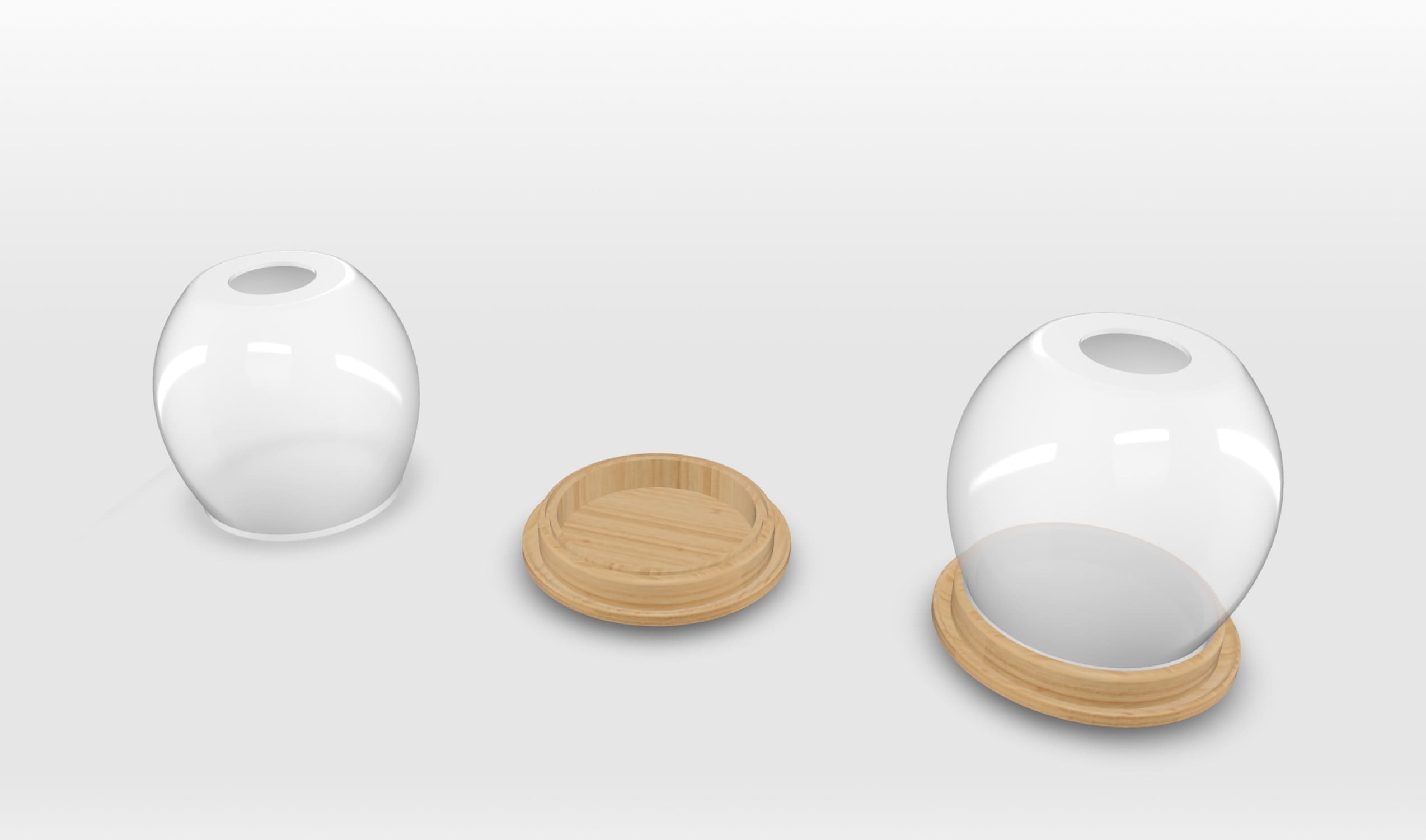
Final Render

03. High-Quality Render

The final visualization of the proposed project.

Design Files

In this section, you can find the downloadable source files for the 3D models developed during this week.

STL

OnShape Export

STEP/STL files for the main assembly and electronics base.

Download File
STL

02. Shapr3D Model

Native and high-fidelity 3D files for the outer casing.

Download File
JPG

03. Project Bundle

Complete documentation and optimized mesh files for fabrication.
Download File

OnShape vs. Shapr3D

Both platforms proved to be exceptionally powerful tools for 3D modeling. Having prior experience with Onshape, I found its parametric environment and assembly constraints very reliable for technical precision. However, Shapr3D's intuitive interface allowed for a much more direct and seamless manipulation of geometry. A standout feature of Shapr3D is its rendering tool, which allowed me to visualize materials and lighting on my models instantly. This is why in my future workflow, I plan to use both, Onshape for complex mechanical engineering and Shapr3D for prototyping and high-quality visual presentations.

2D Modeling Software

Onshape Logo

InkScape

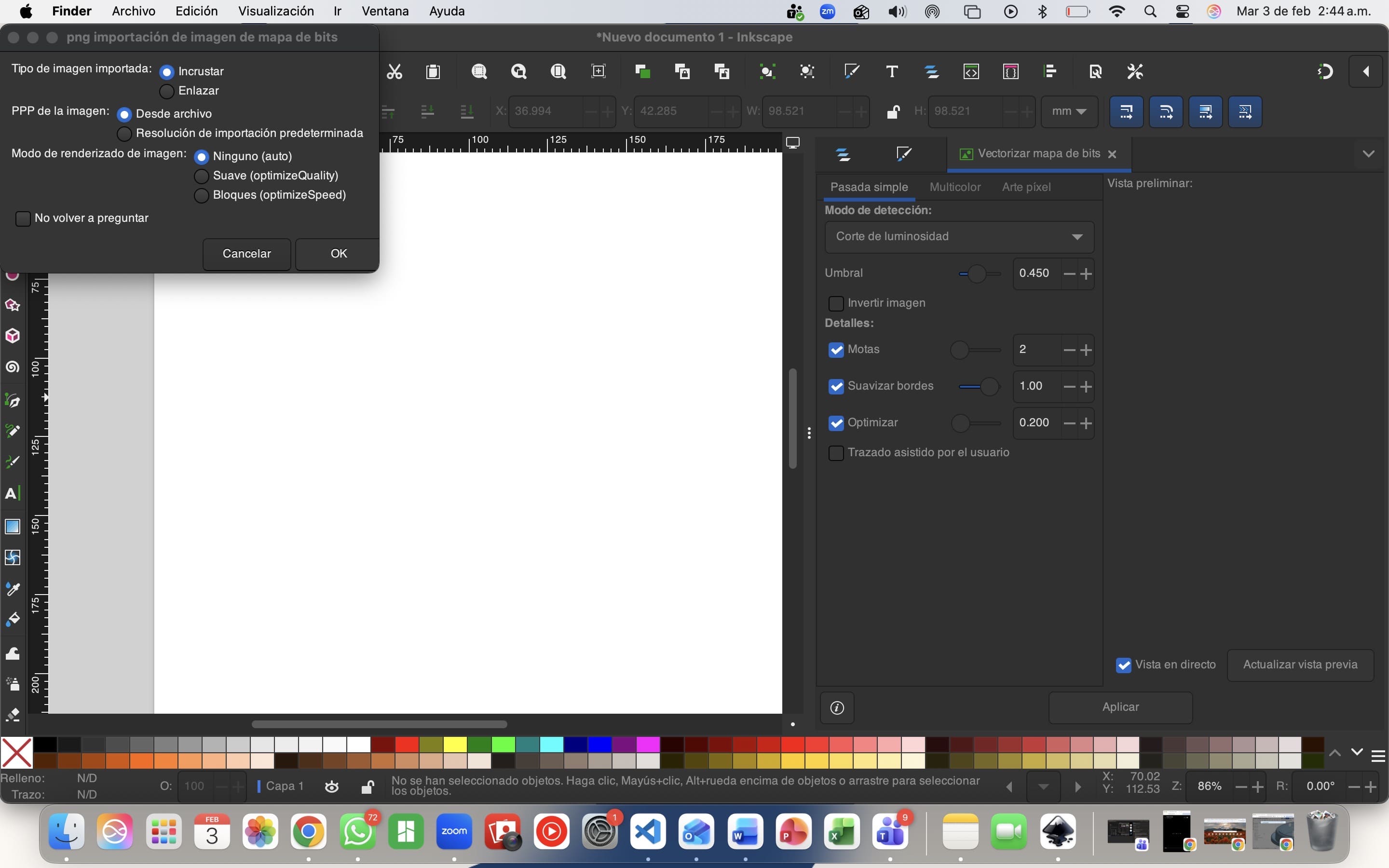
Inkscape is an open-source vector graphics software that utilizes the Scalable Vector Graphics (SVG) format. It offers a comprehensive set of tools for object creation and manipulation, including advanced node editing and boolean path operations. It is a key tool for preparing files for laser cutting and CNC machining.

Sketch

01. Image Import

Initial setup of the workspace and importing the raster source.

Layers

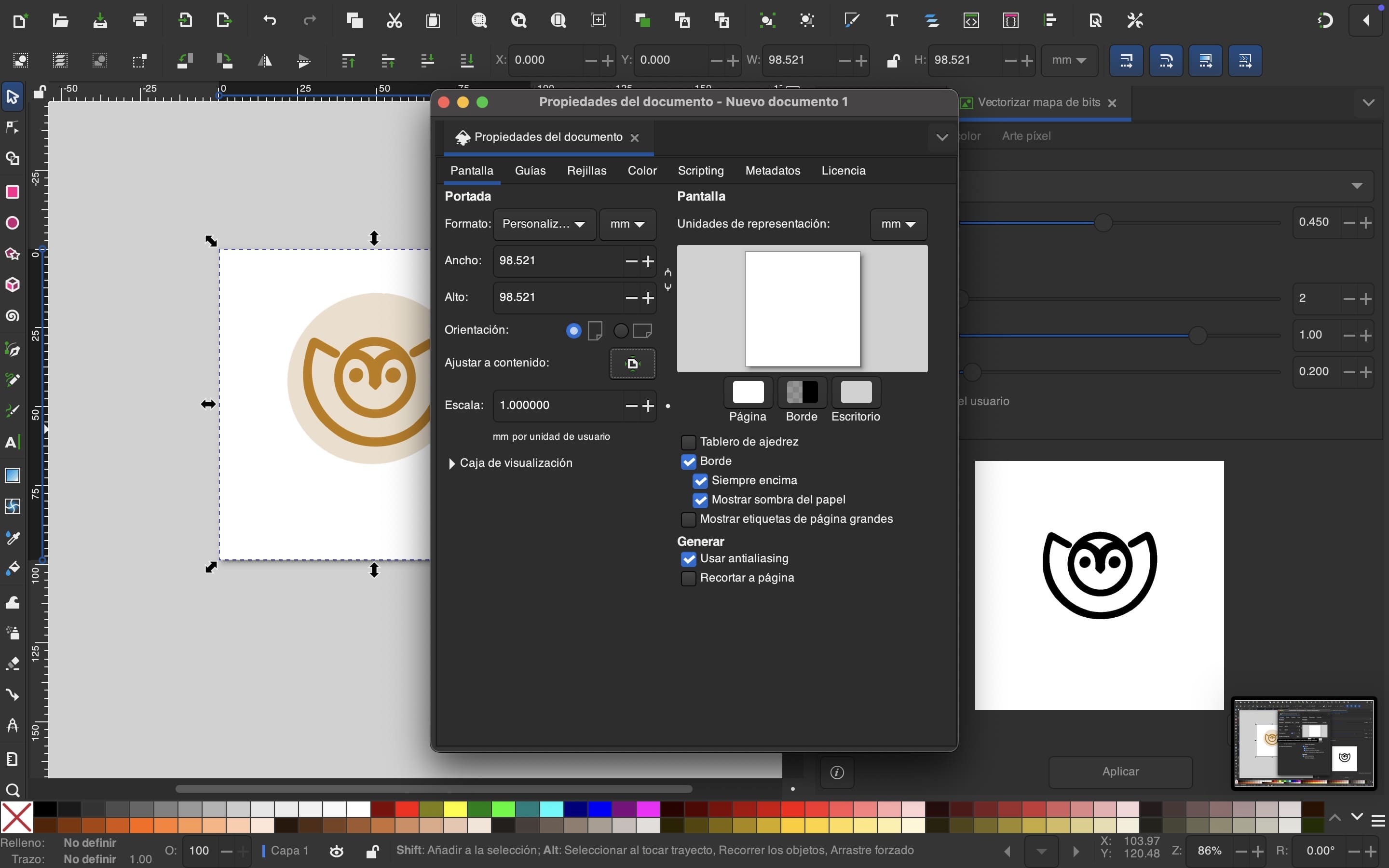
02. Canvas Adjustment

Using "Fit Page to Selection" in document properties for an organized workflow.

Final

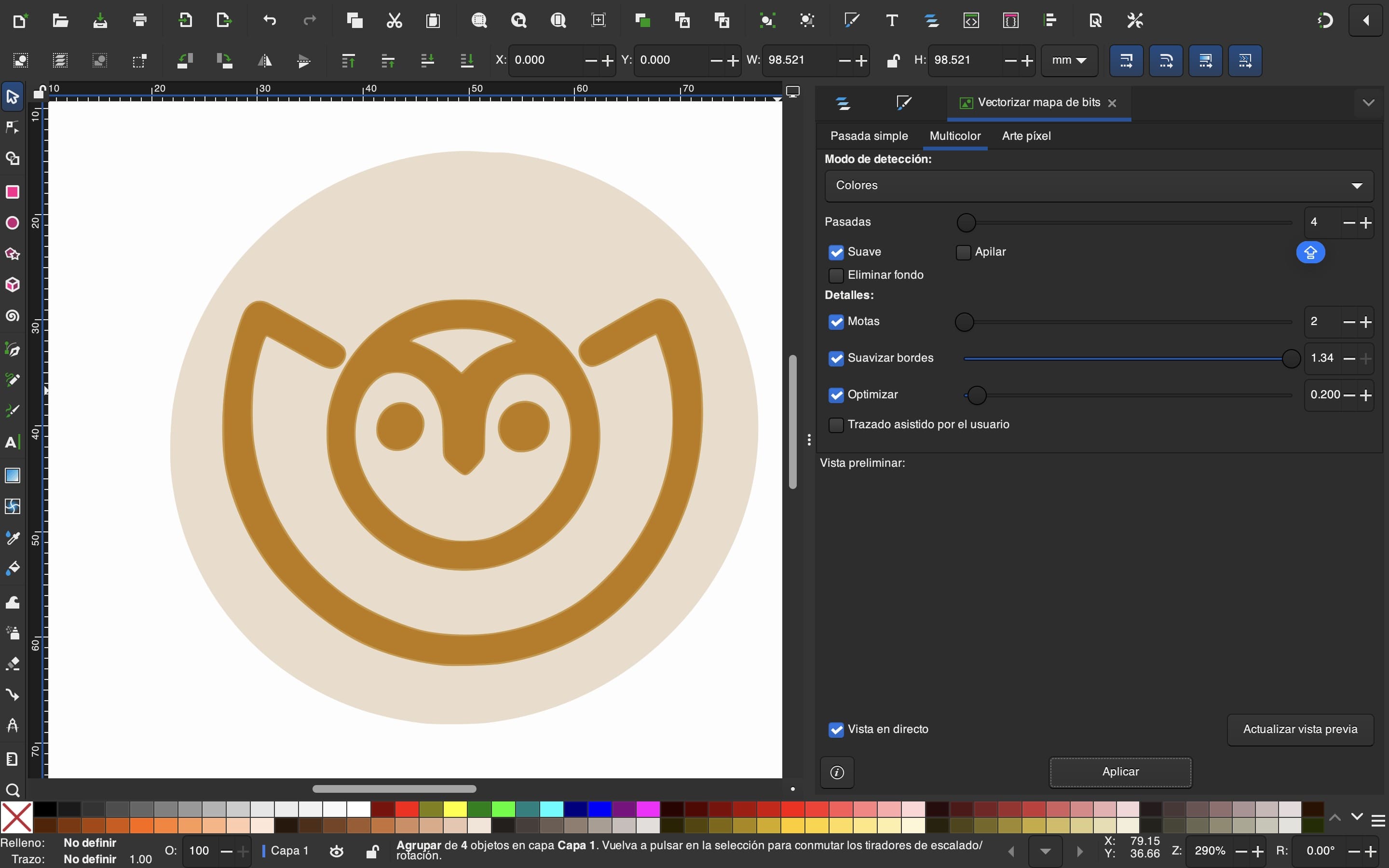
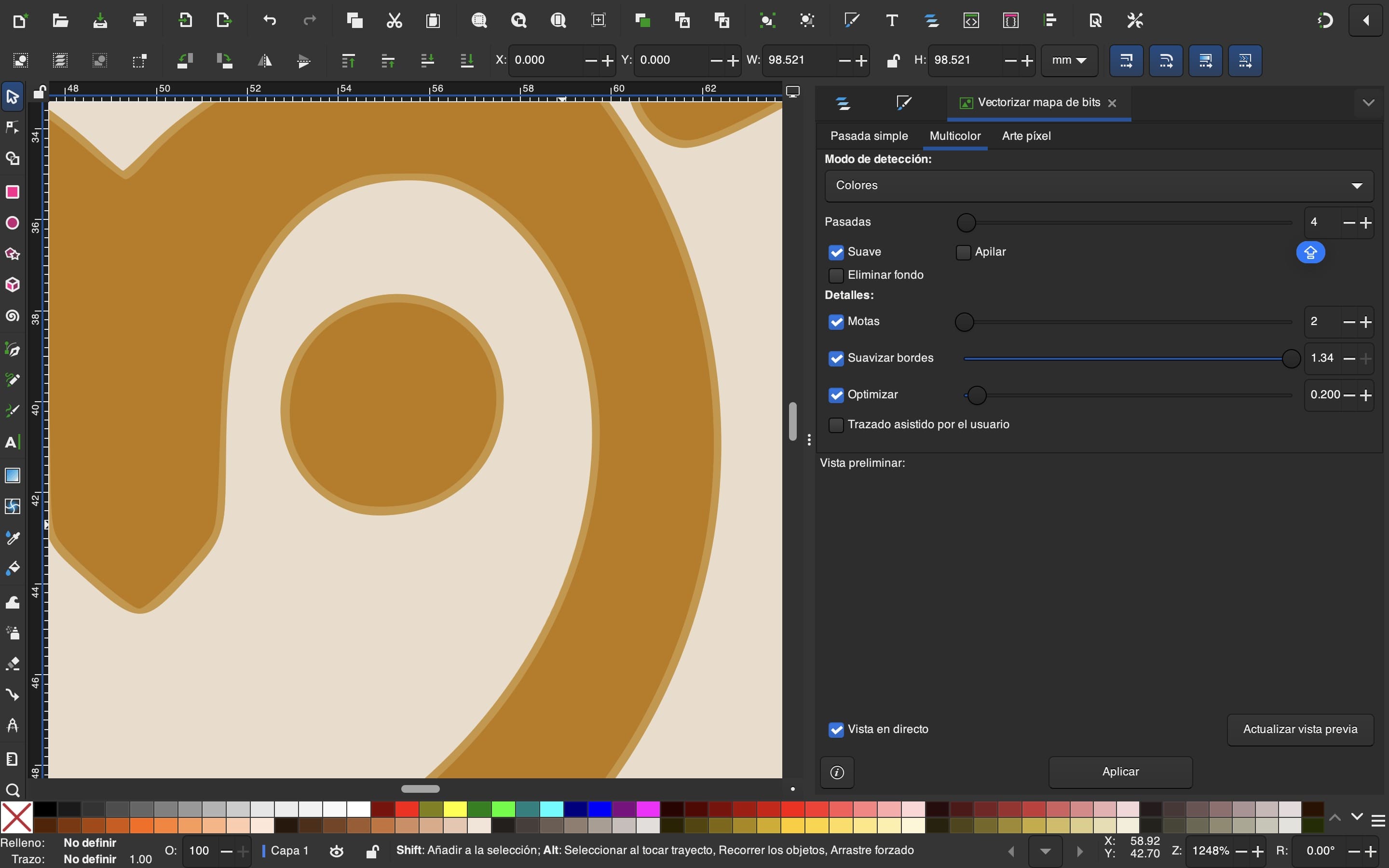
03. Bitmap Tracing:

Converting raster to vector using the "Trace Bitmap" feature with multicolor detection.

Refining

04. Path Optimization

Smoothing nodes for cleaner vector geometry.

Export

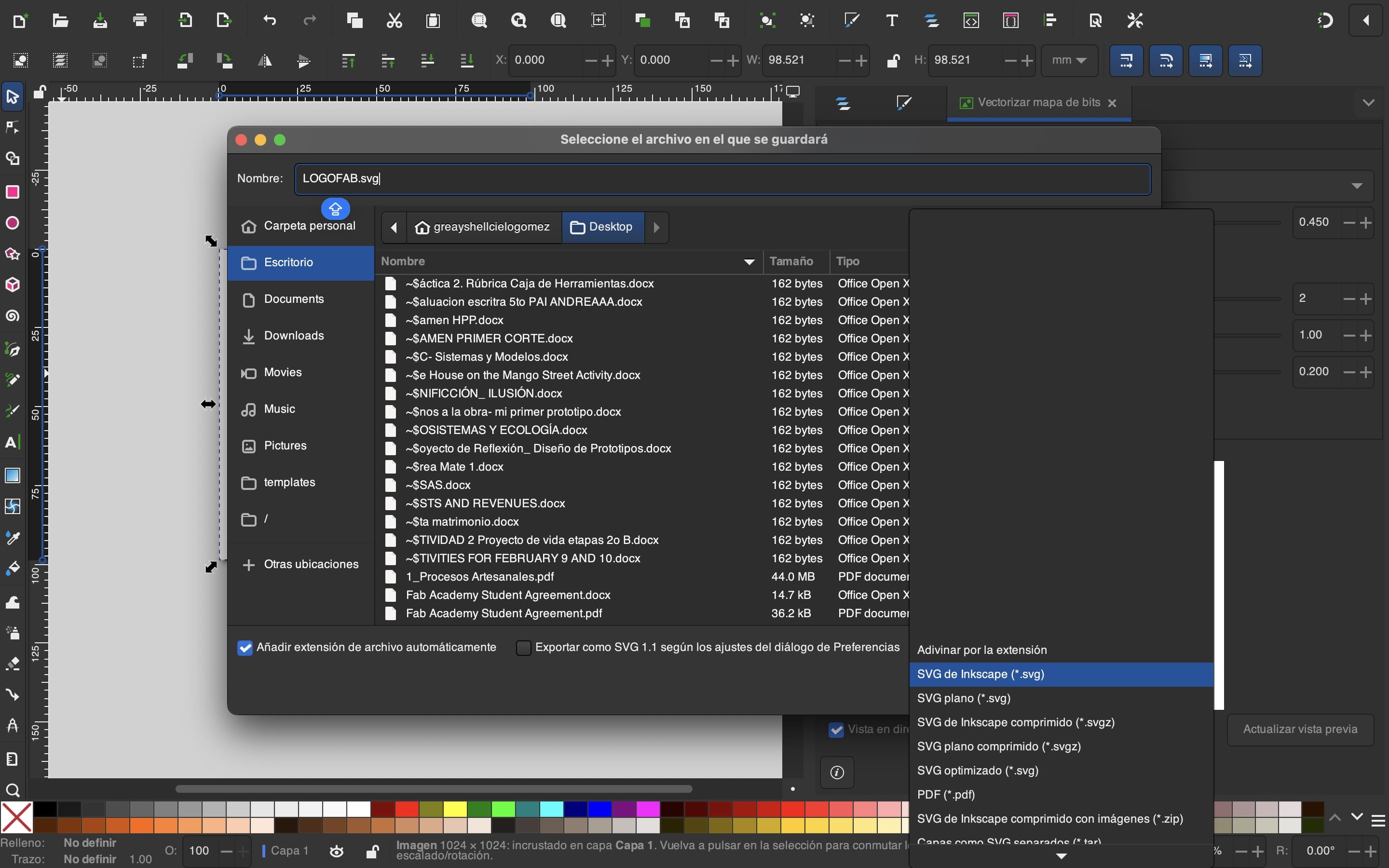
05. SVG Export

Saving the final design in Scalable Vector Graphics (*.svg) for machine compatibility.

Onshape

Affinity

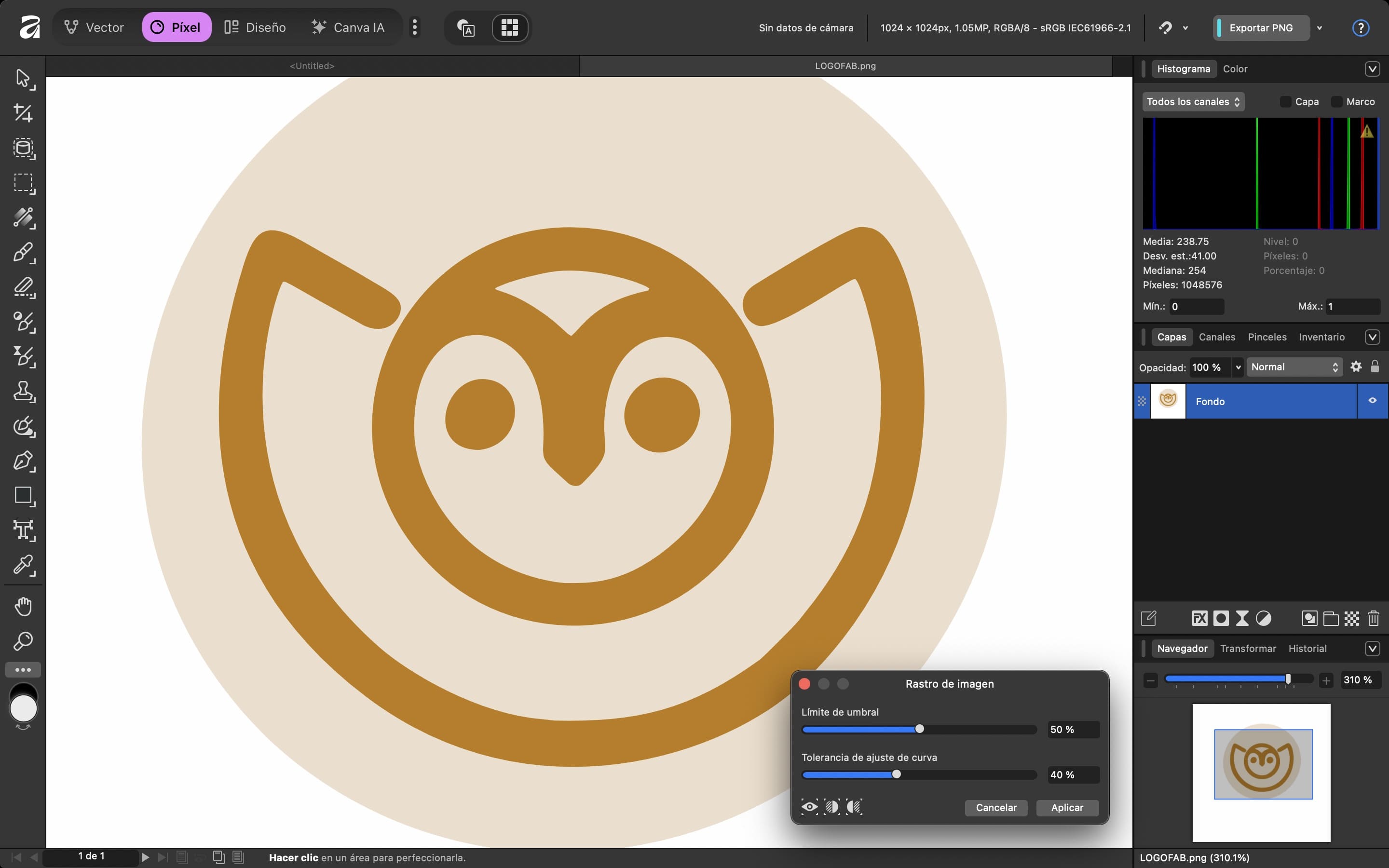
Affinity Designer is a professional vector graphics editor. It combines vector and raster design tools within a single interface. Its main functions include the creation of scalable graphics, complex layouts, and precise typography. It is an excellent tool for preparing vector files for digital fabrication.
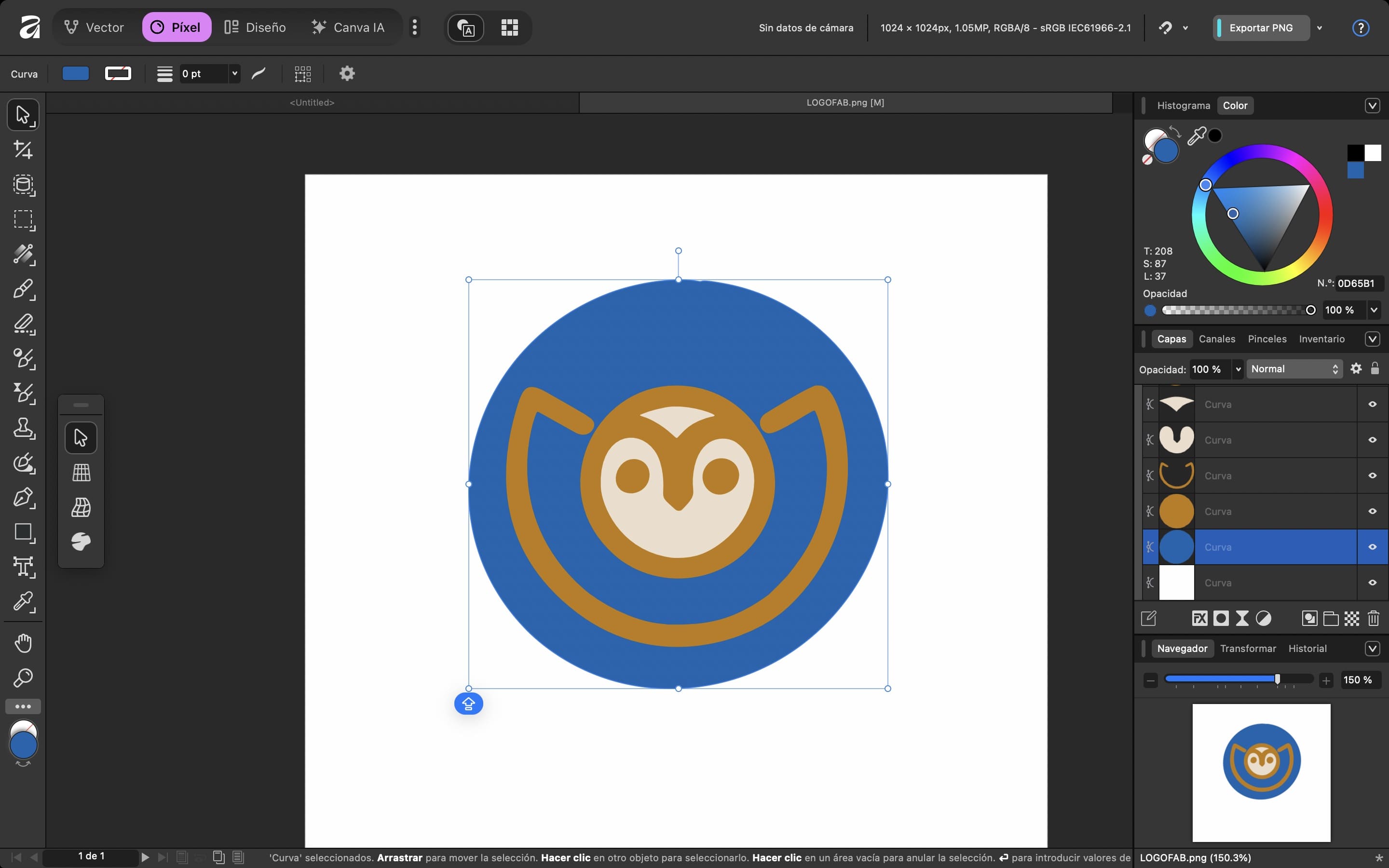
Tracing

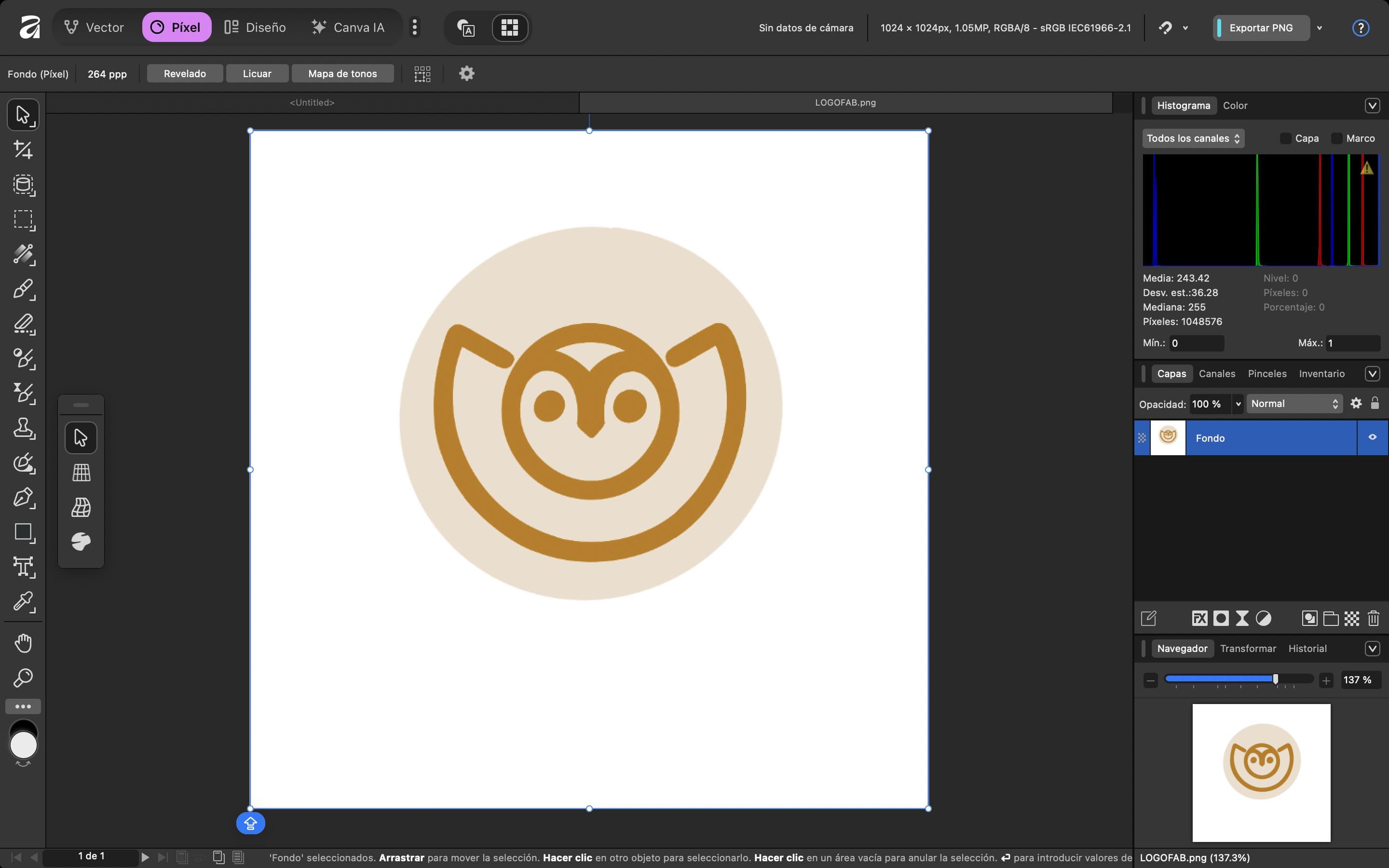
01. Project Setup

Initializing a new artboard and placing the reference image.

Nodes

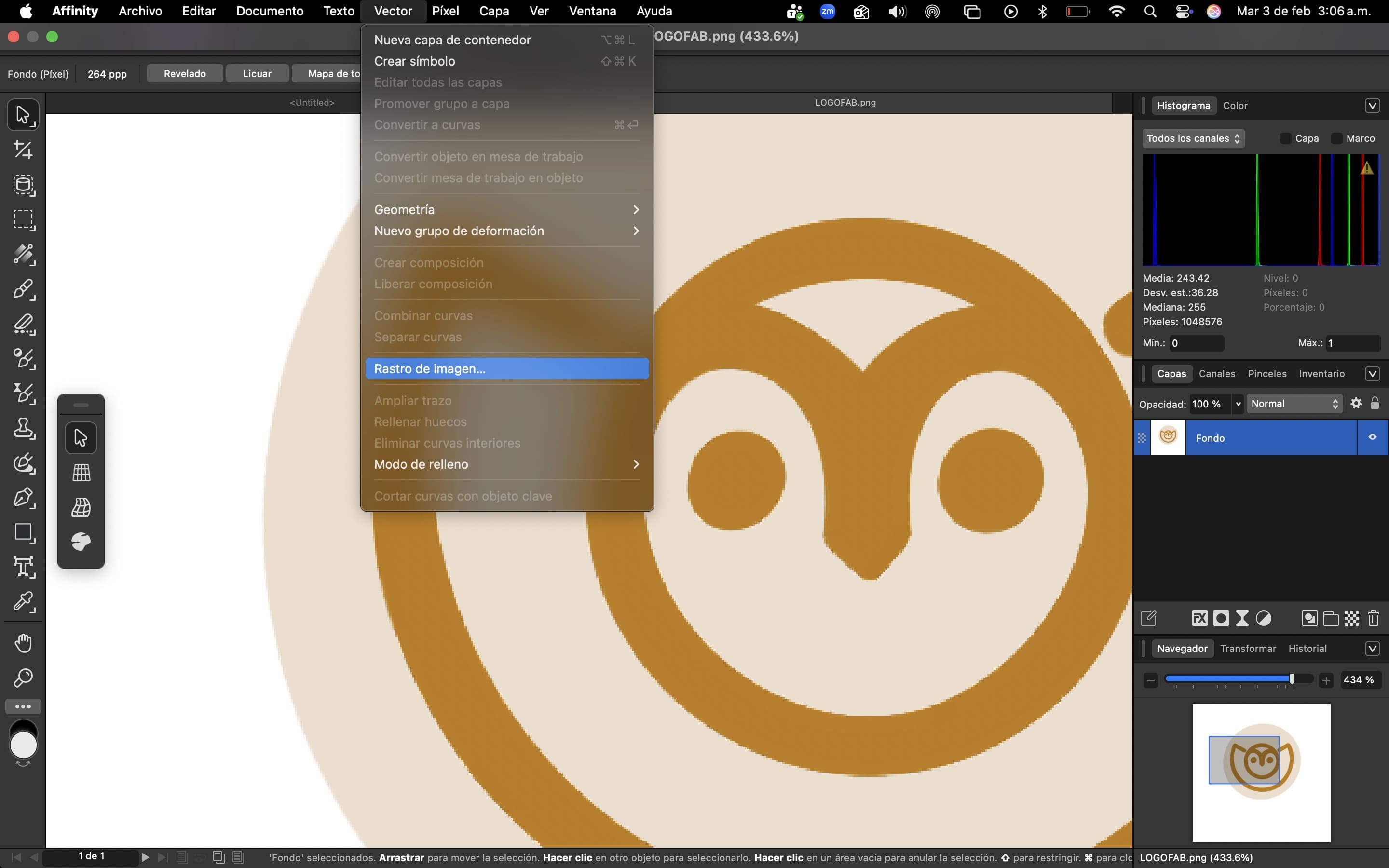
02. Image Tracing

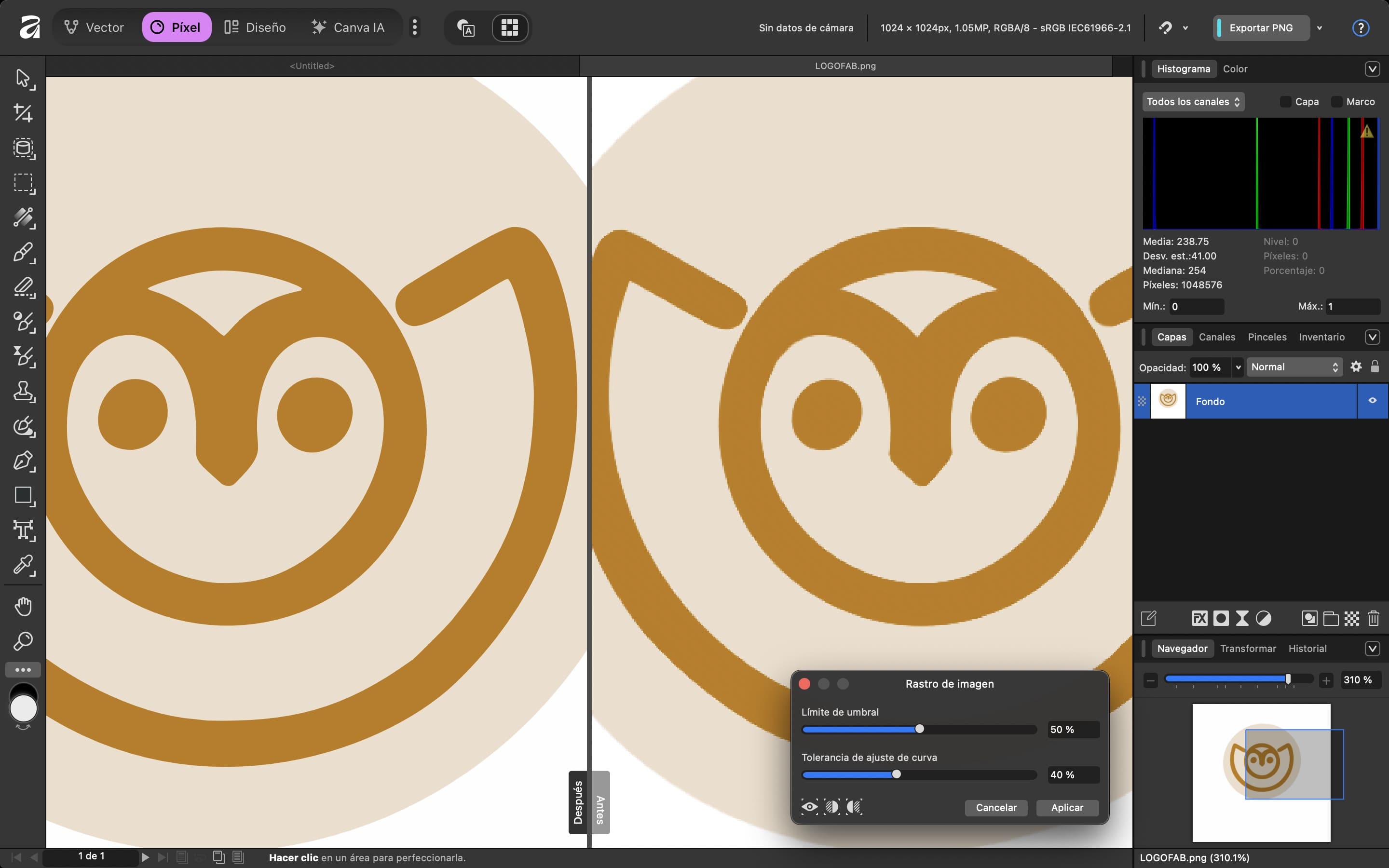
Using the "Image Trace" option to detect shapes and outlines.

Tracing

03. Vector Conversion

Converting the traced image into editable and scalable paths.

Alignment

04. Quality Comparison

Analyzing the fidelity between the original raster and the new vector output.

Stroke

05. Layer Management

Organizing the hierarchy of paths and groups for precise editing.

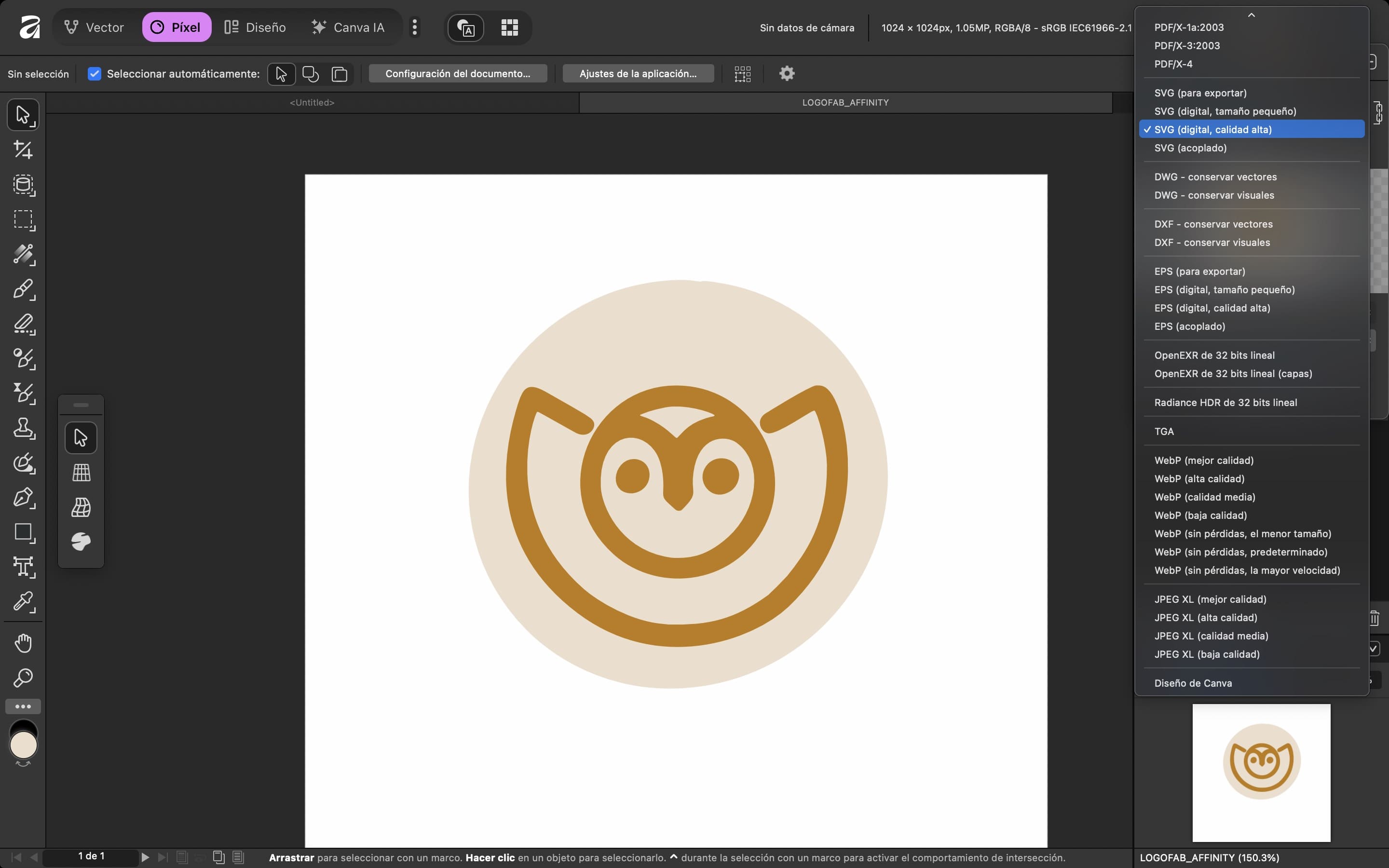
Export

06. SVG format

Exporting the final assets in standard SVG format for digital fabrication.
Downloadable Assets

Here you can find the source files for my 2D designs and vector experiments.

SVG

Inkscape Design

Vectorized logo and paths for laser cutting.

Download File
AF

Affinity Source

Original project with editable layers and curves.

Download File

Affinity vs. Inkscape

After testing both tools, I analyzed their strengths in 2D design. Inkscape stands out as a robust open-source option with highly precise node manipulation for technical files (SVG). However, my personal preference is Affinity Designer due to its ease of use and much more fluid and intuitive interface. This allowed me to optimize my workflow and achieve better results. While Inkscape is excellent for strictly technical tasks, Affinity is far more flexible for creating logos and complex illustrations.

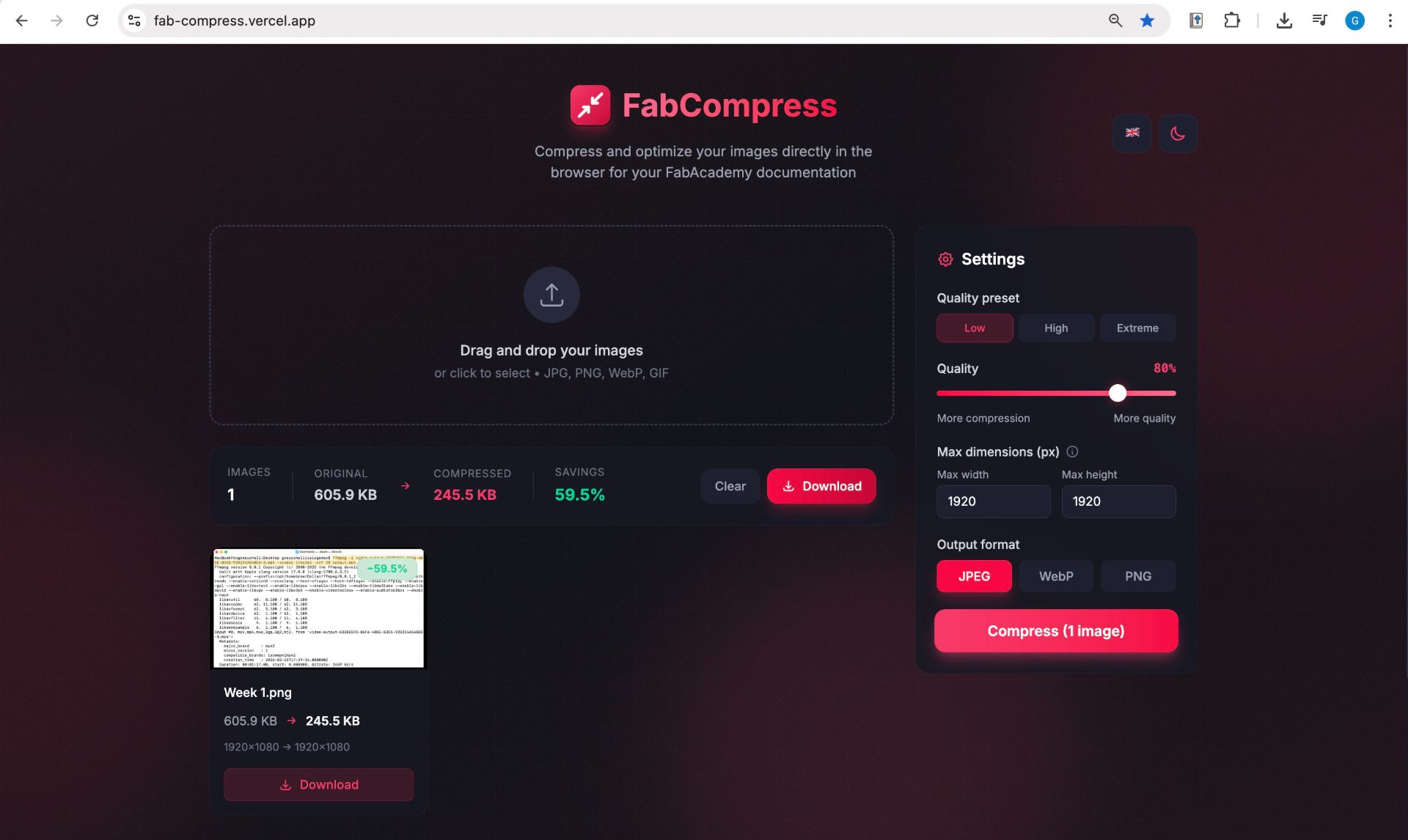
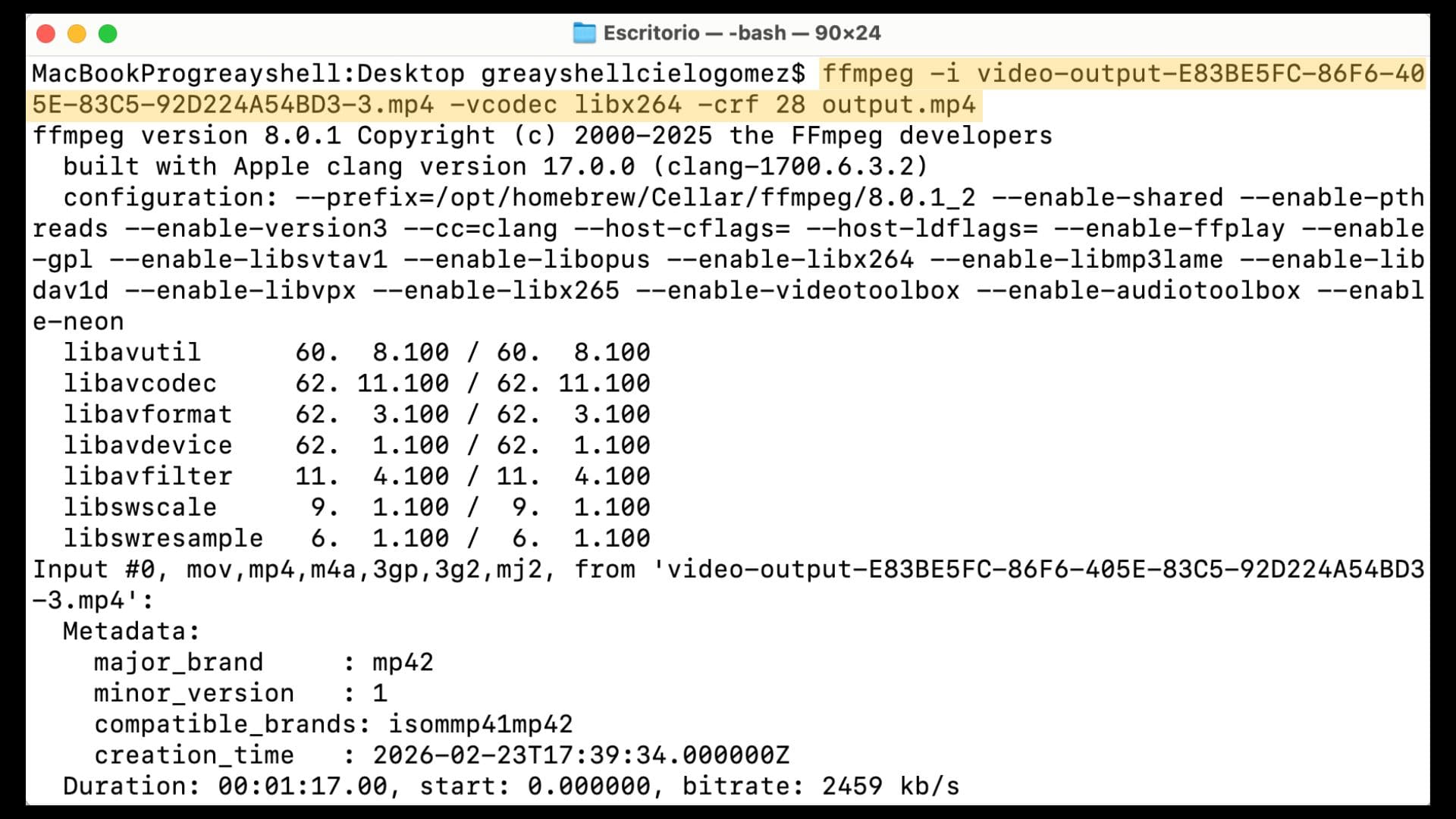
Video Compression

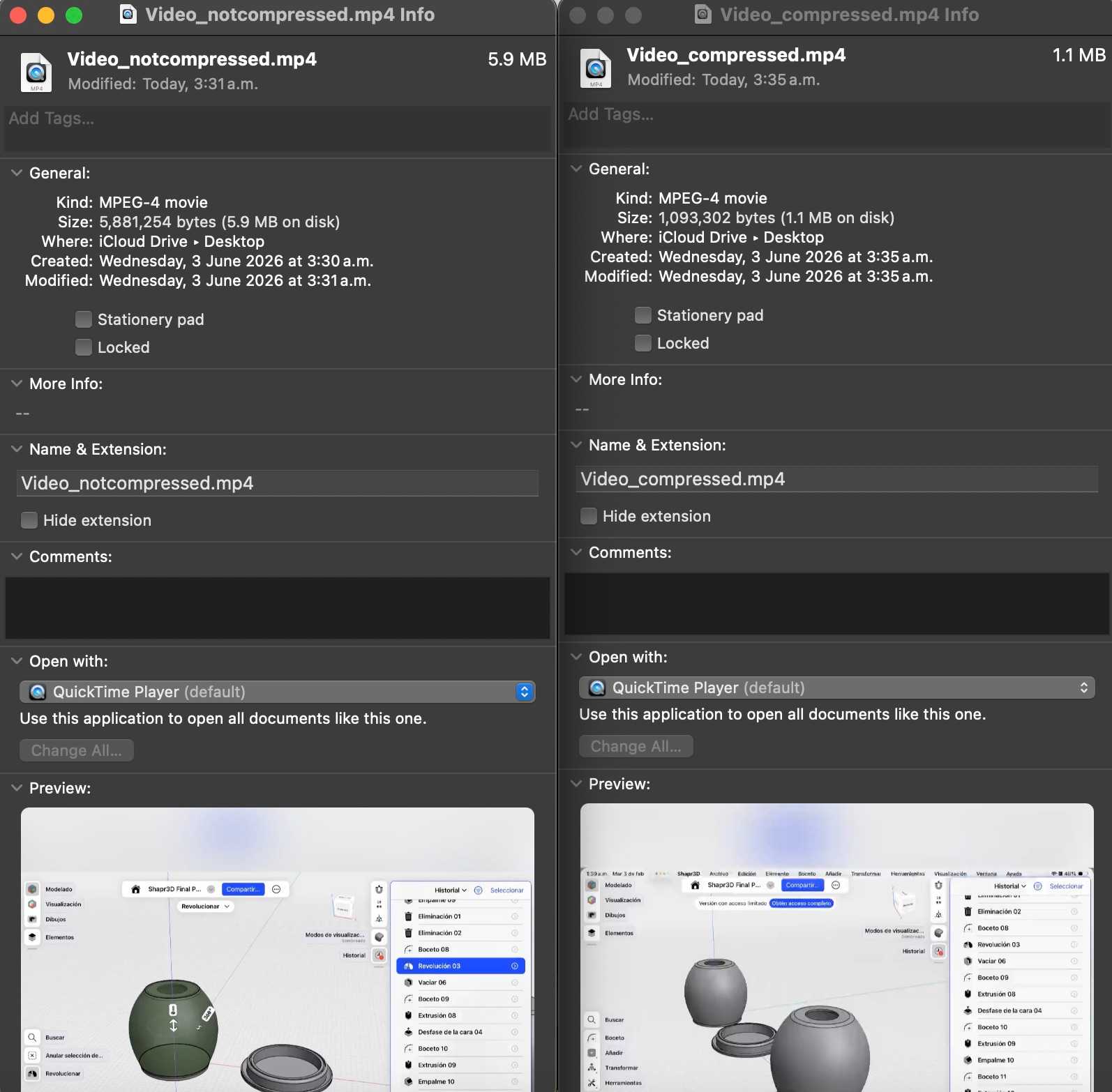
For this, I'll be using the Clideo platform, which facilitates the editing of videos, images, and GIFs. First, I'll open my file and then compress it.