For this week's assignment, I simulated a 555 timer in Altium and Multisim. I also created a PCB in Altium that includes a button, I2C communication input pins, programmable LEDs, battery pins, and output pins (one connected to an analog pin and the other to a digital pin).
The PCB I created in KiCad has three buttons, an LED, battery pins, a 9-to-5V voltage regulator, I2C communication input pins, and output pins (one connected to an analog pin and the other to a digital pin). Finally, I added output pins for connecting a NeoPixel ring. Both PCBs are designed to accommodate a XIAO.
To see how we used the test equipment in our lab to observe the operation of an embedded microcontroller, visit our GROUP PAGE.
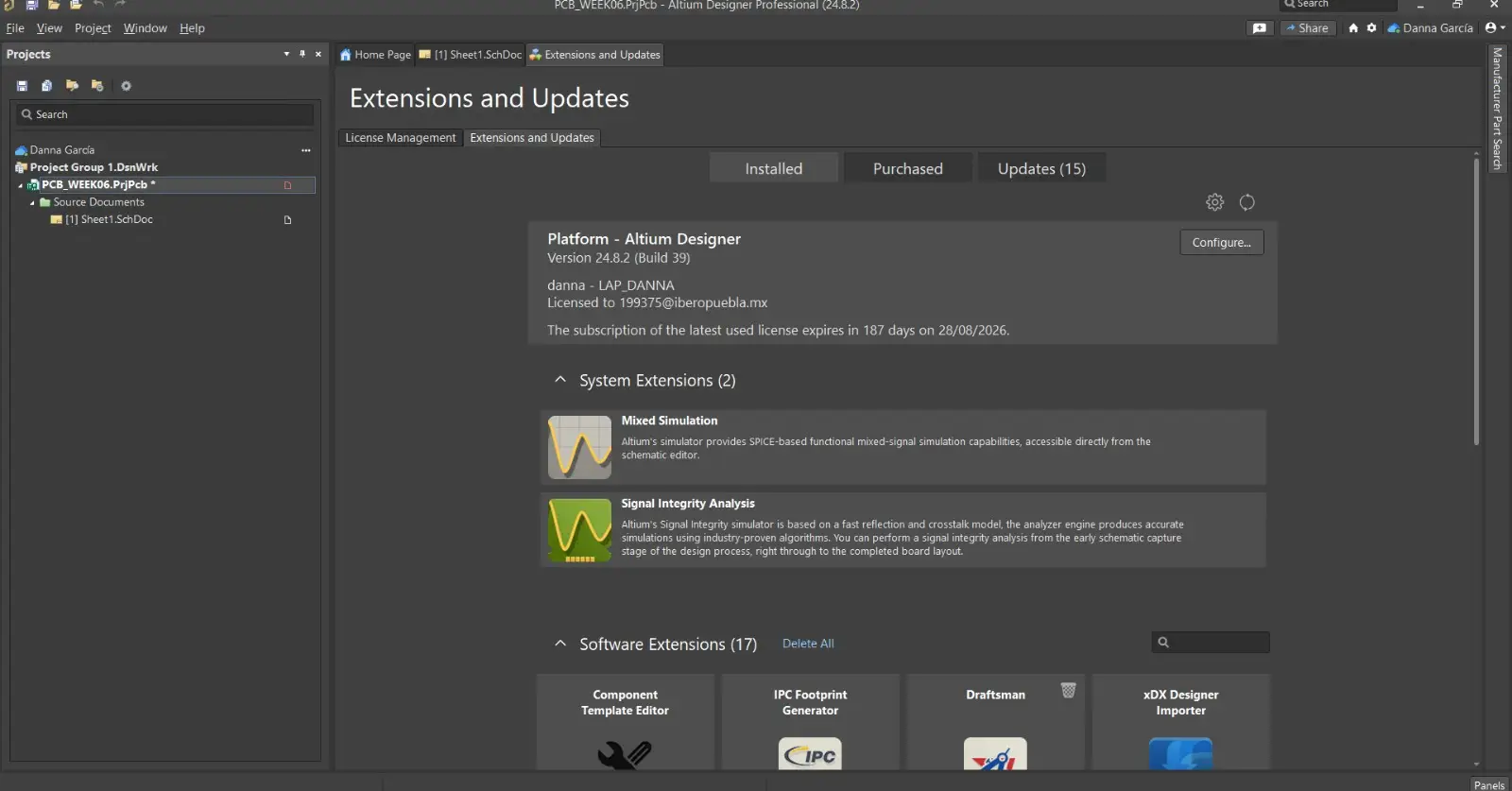
Altium is a software that helps us design PCBs, but it also allows us to run simulations. For this, we must have the Mixed Simulation extension installed.

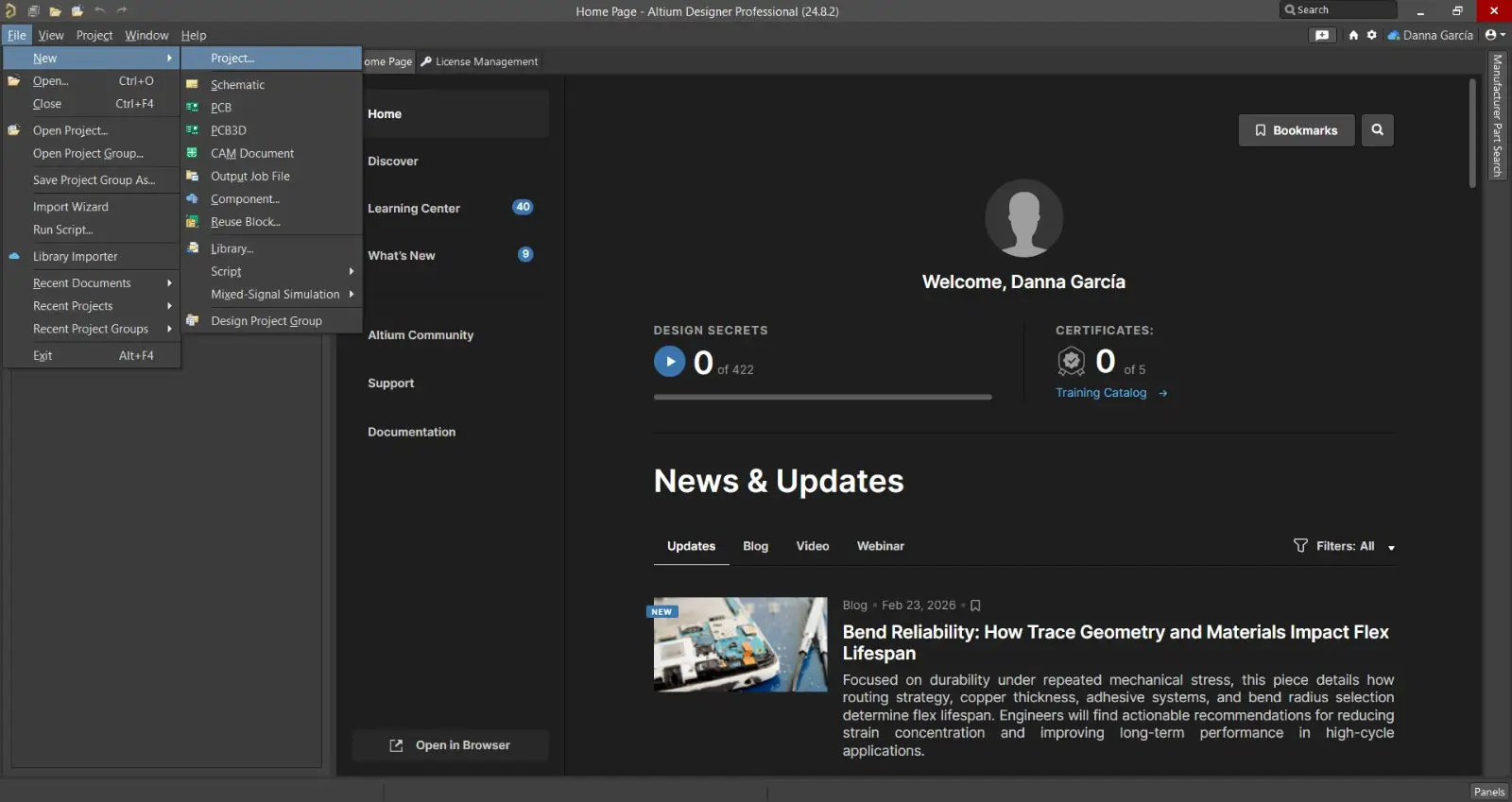
The main screen appears as follows. To start a new design, go to File > New > Project. It is essential to create a project so we can link the schematic to the PCB and later establish the connections in the .PcbDoc file.

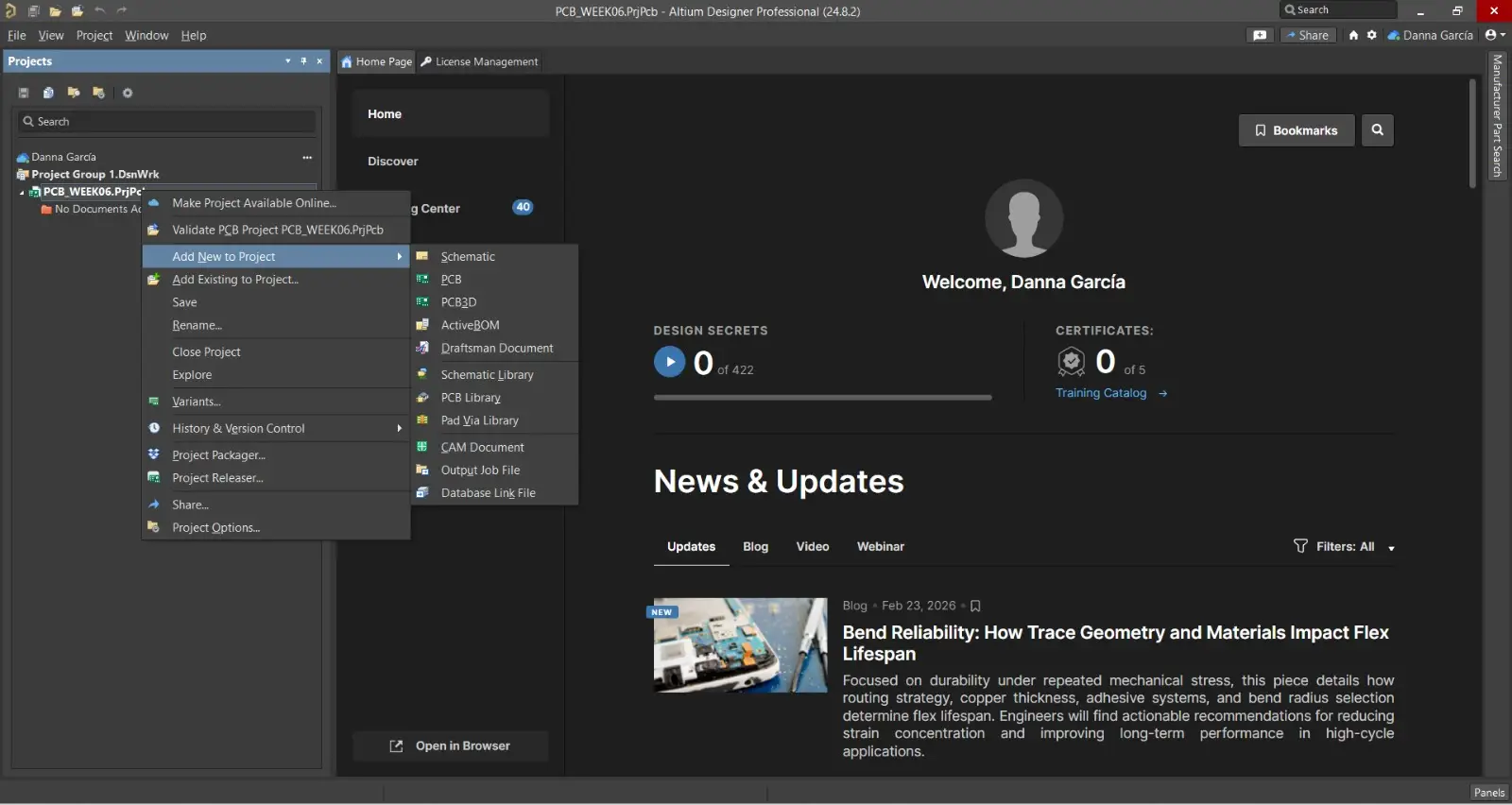
Once the project is created, right-click on it to add a Schematic file.

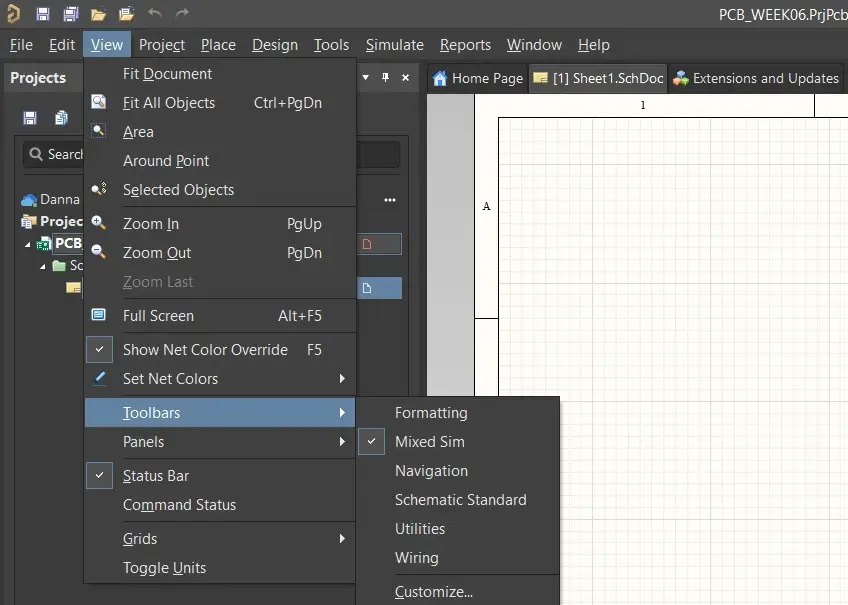
In the schematic editor, go to View > Toolbars > Mixed Sim to activate the simulation menu.

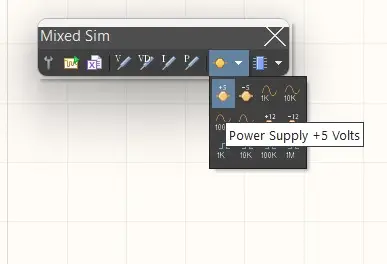
From the Mixed Sim menu, select the simulation source. I used a +5V DC source.

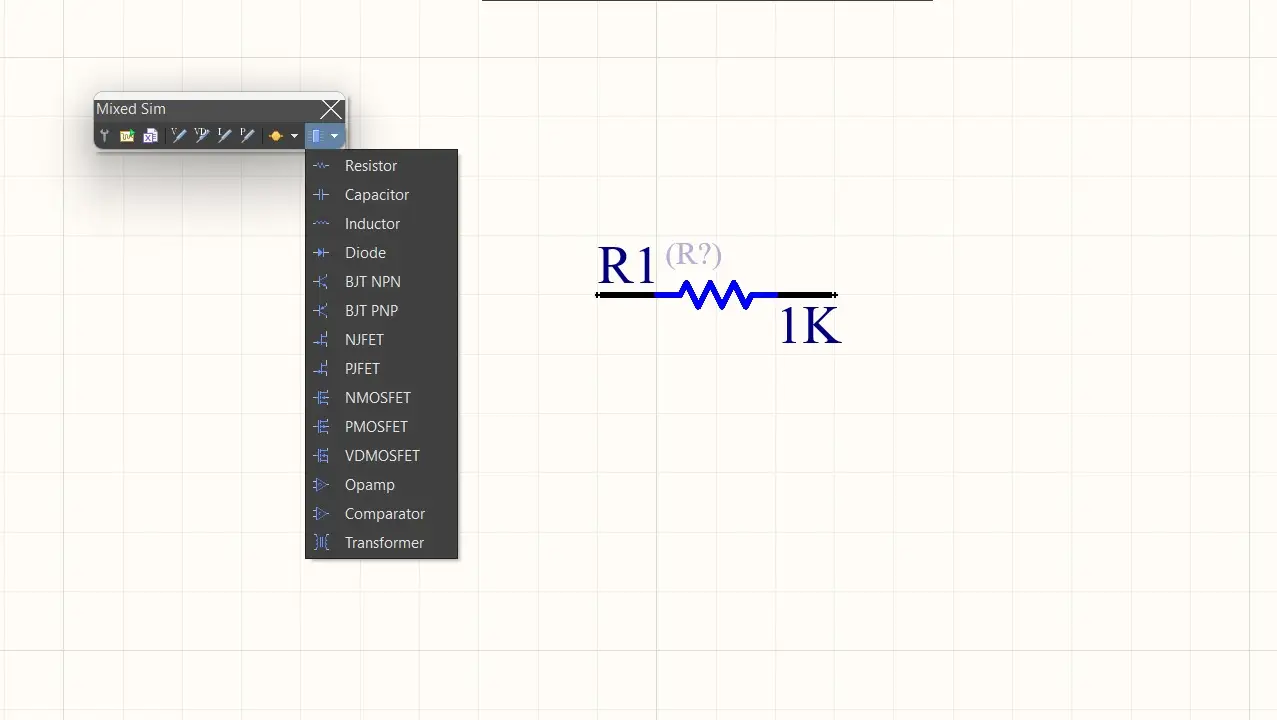
You can also select components from this menu. It is crucial to choose SPICE compatible components so the simulation runs correctly.

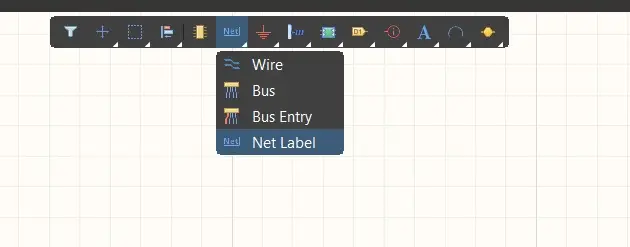
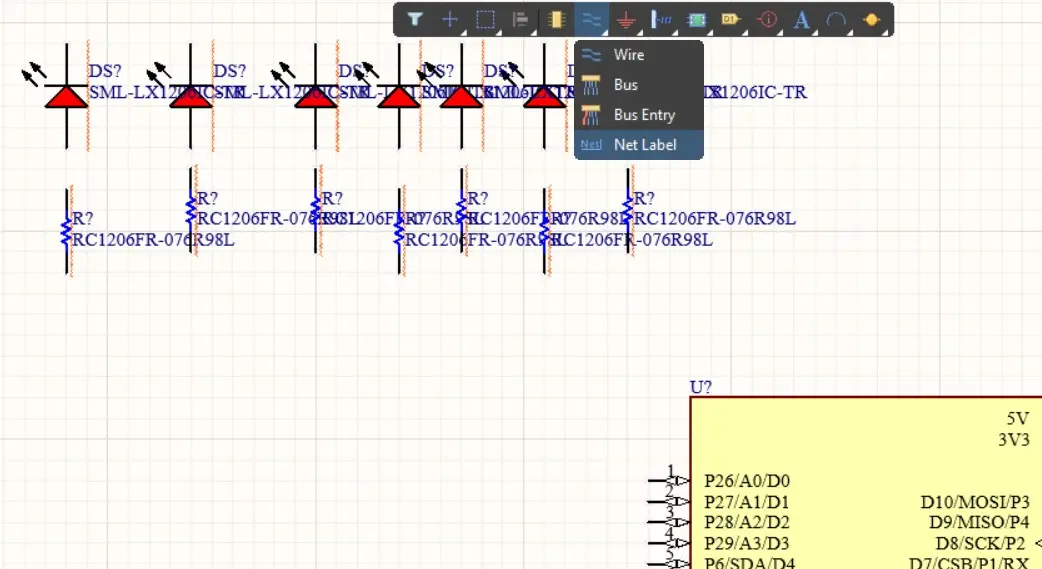
Using the tool at the top of the schematic allows us to use Net Labels instead of drawing physical wires, keeping the schematic much cleaner.

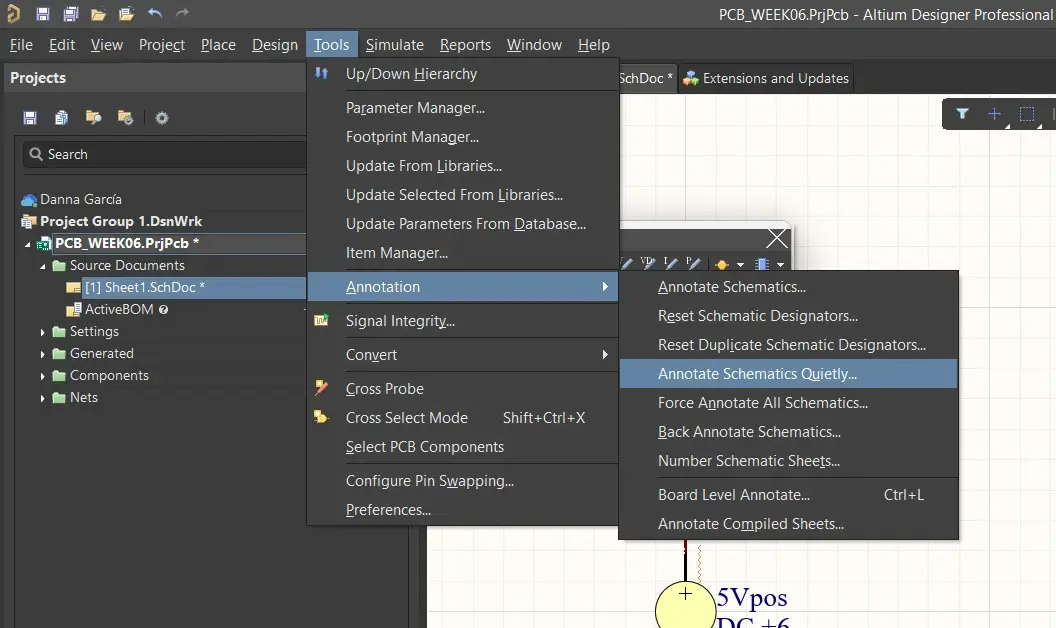
Once all components are placed, go to Tools > Annotation > Annotate Schematics Quietly to automatically assign unique designators to each component.

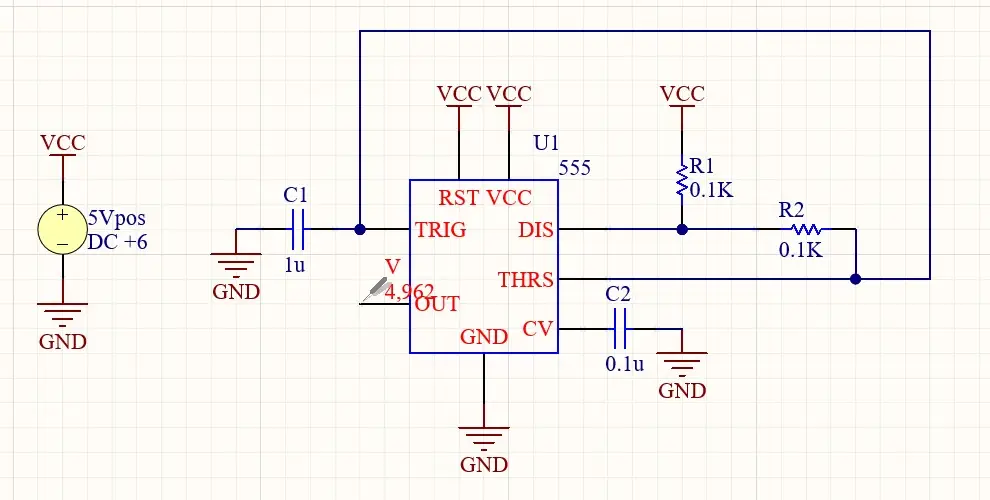
I designed a 555 timer circuit in an astable configuration with two 0.1 kΩ resistors and two capacitors (1 µF and 0.1 µF). With these values:

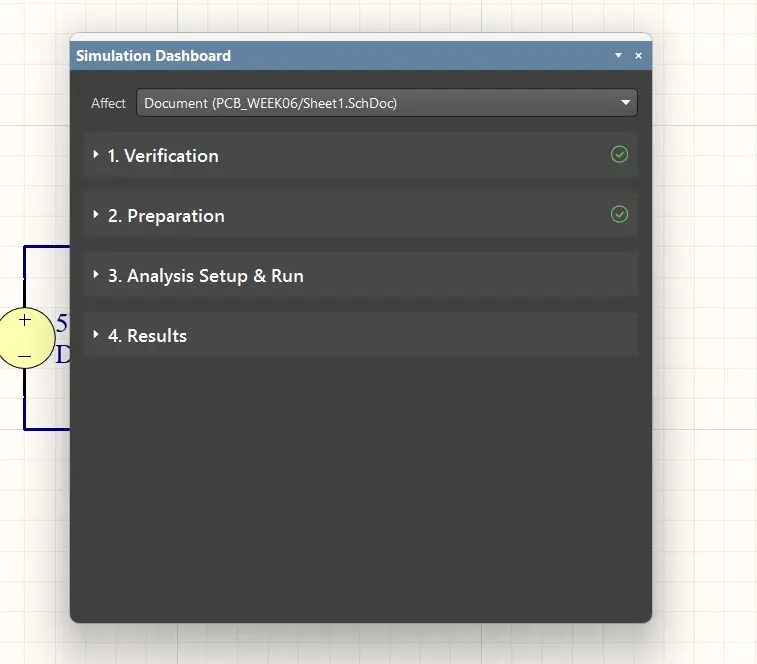
Click the wrench icon in the Mixed Sim menu to open the simulation settings.

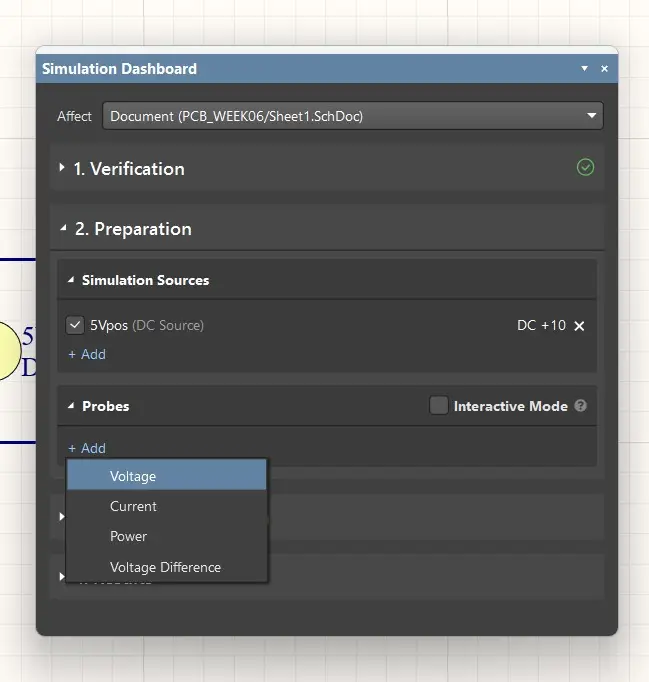
Select the probe type. I placed a Voltage Probe on the output pin of my 555.

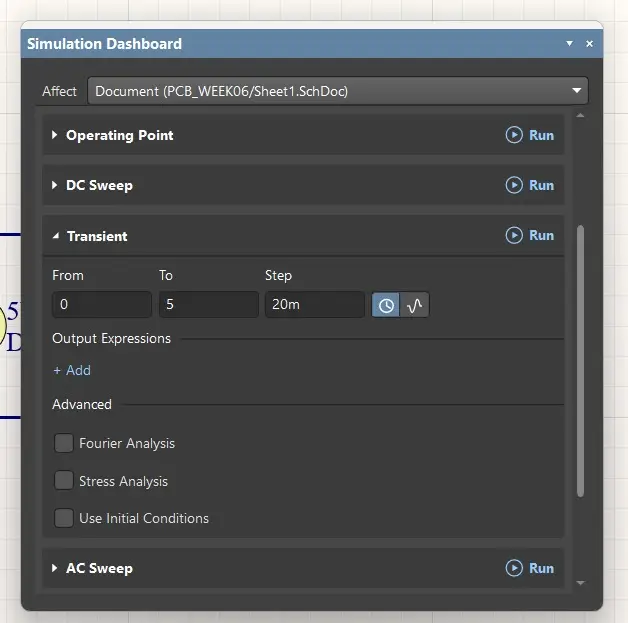
Select Transient analysis. I adjusted the time settings to better visualize the signal: From 0 To 1m, Step 100u. Then, click Run.

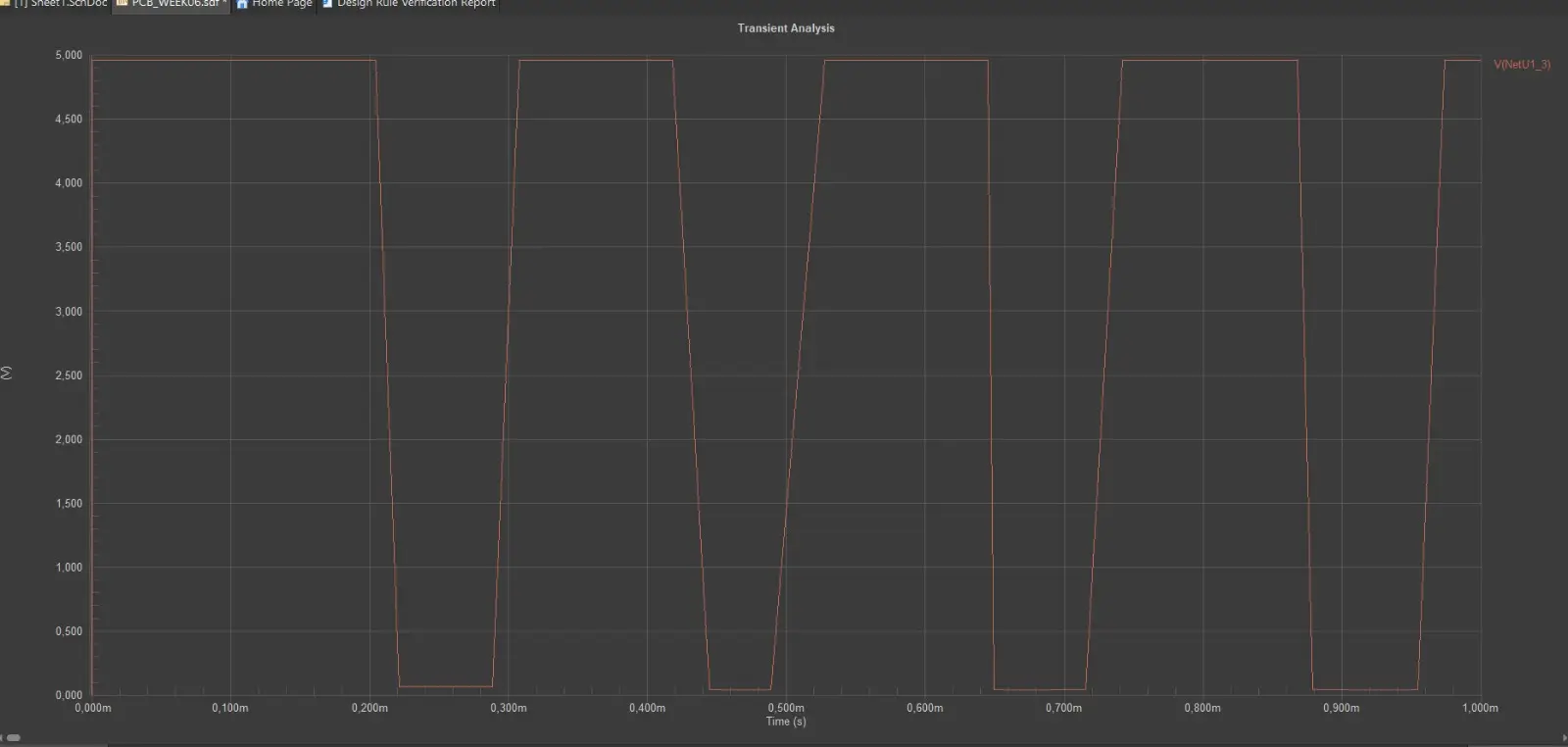
The simulation yielded the following graph. There are some unexpected shifts in the range when the signal is low; I am not 100% sure of the cause, but I suspect it could be SPICE model compatibility for the 555 or the capacitor behavior.

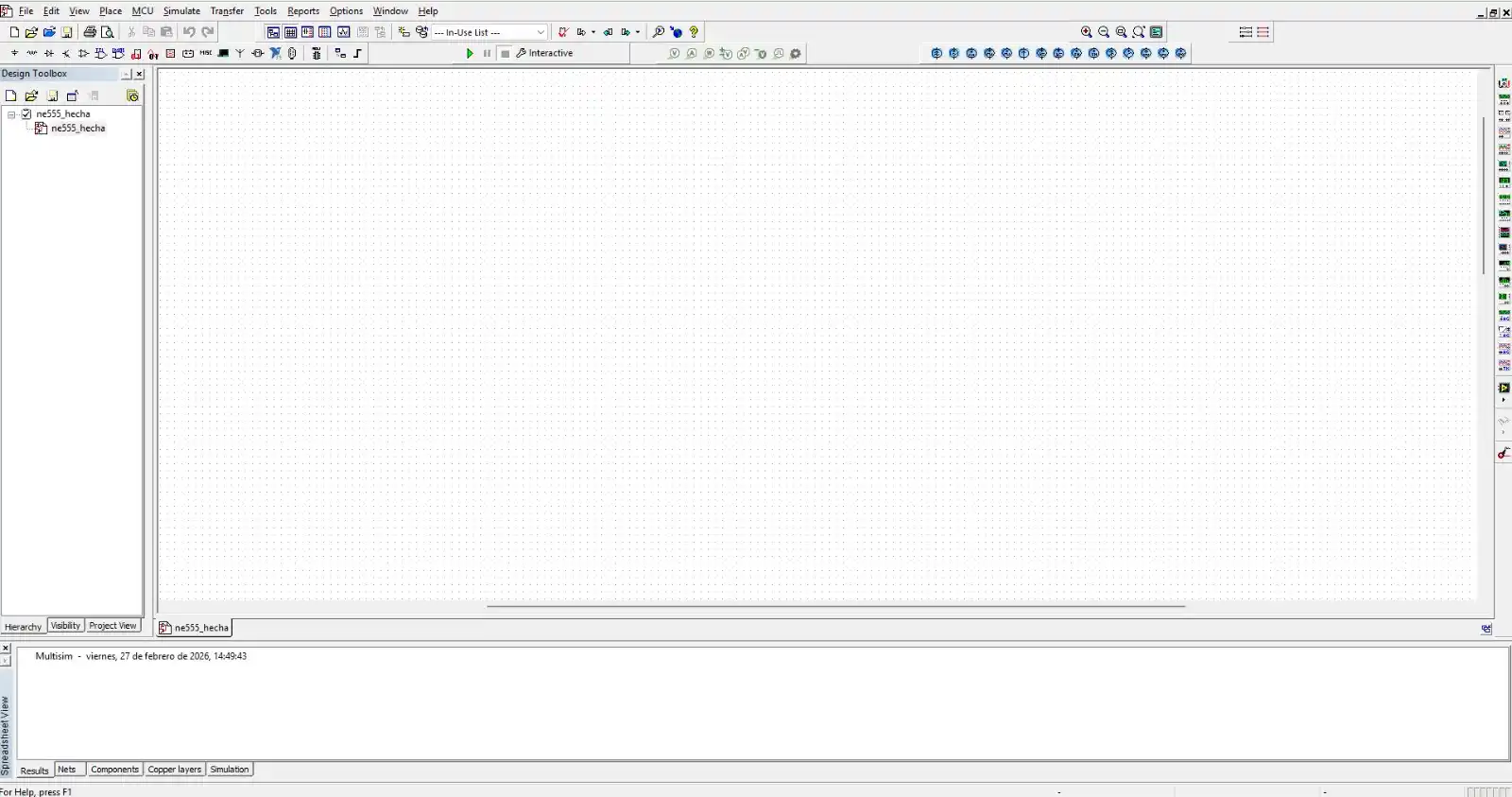
The main screen in Multisim is displayed as follows.

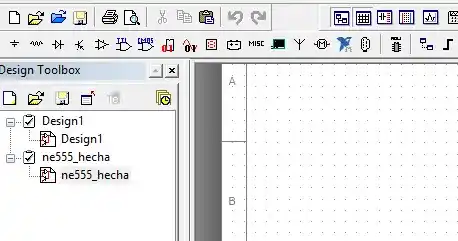
In the upper-left corner, you will find the menu where different components are located.

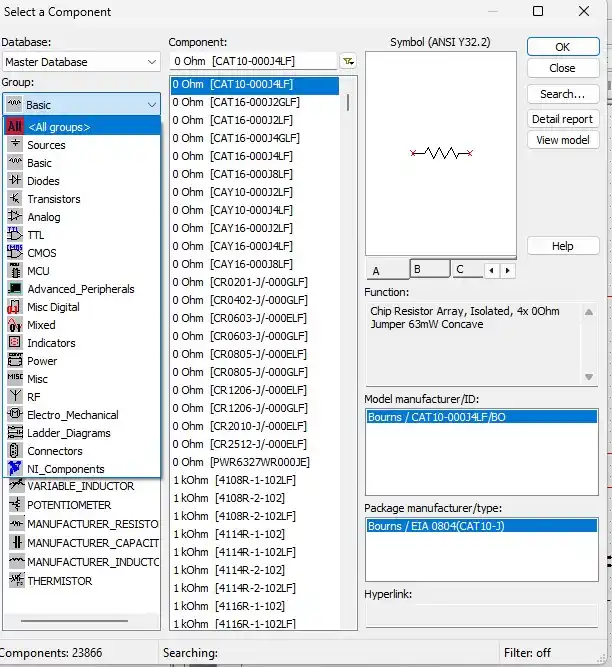
When you enter the components menu, you can choose between the Basic, Power Supplies, Diodes, or All groups.

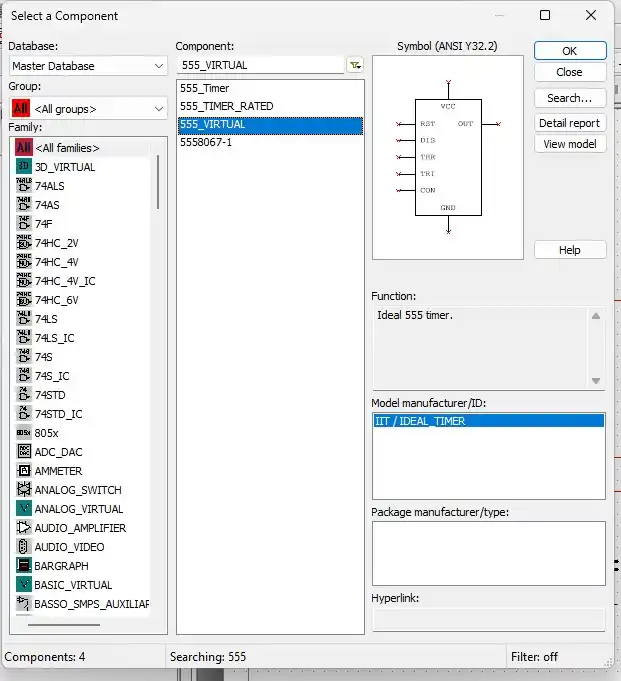
Select All groups to search for a 555 timer. Once the desired component is found, click OK, and it will appear on the main workspace.

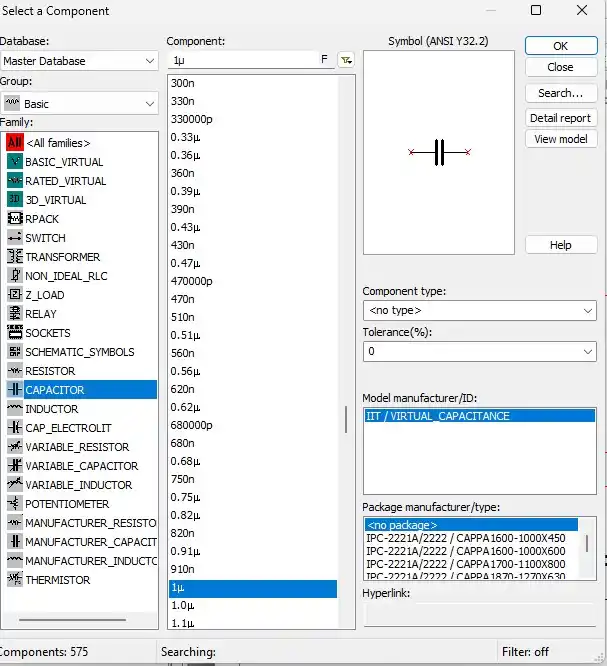
Next, go to the Basic > Capacitor menu and select the capacitors needed for the 555 circuit.

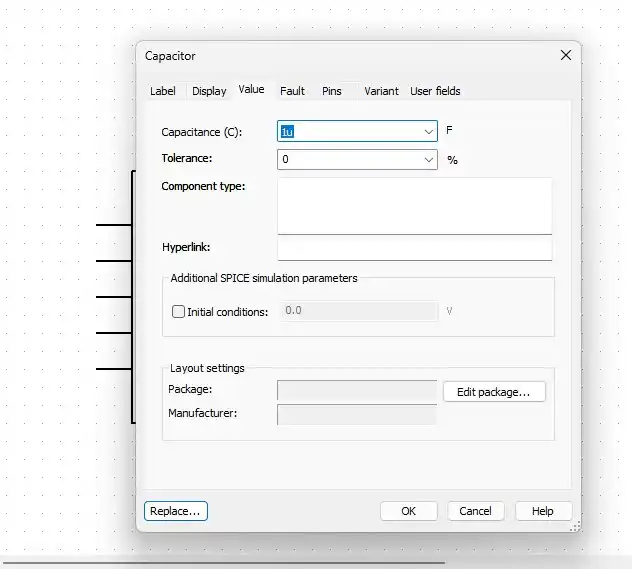
By double-clicking on any component, you can change its value.

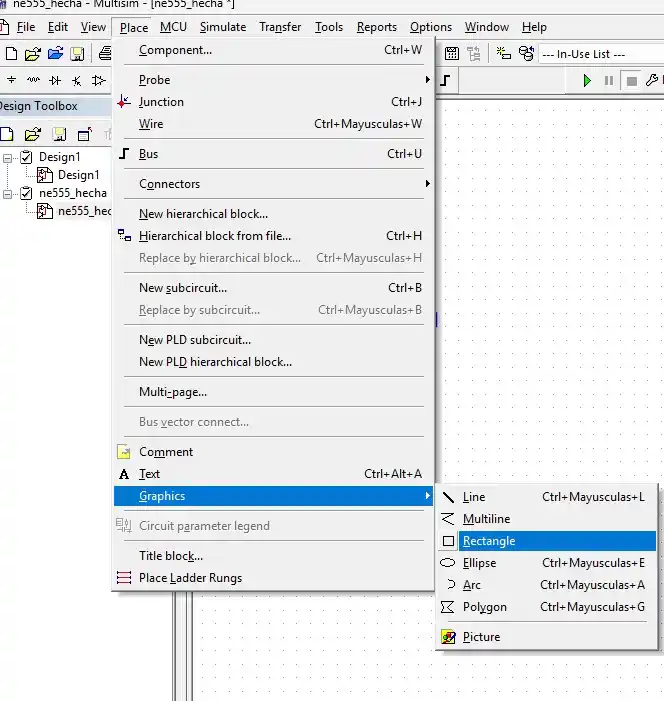
To keep the workspace more organized, go to Place > Graphics > Rectangle. This option allows you to frame or enclose the entire circuit.

You can also add labels or notes using Place > Graphics > Text.

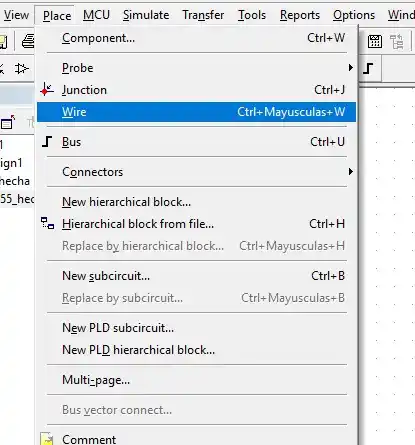
To link all the components, go to Place > Wire to begin the wiring process.

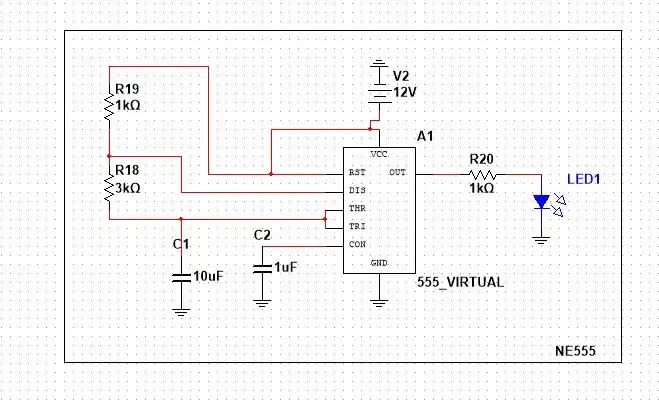
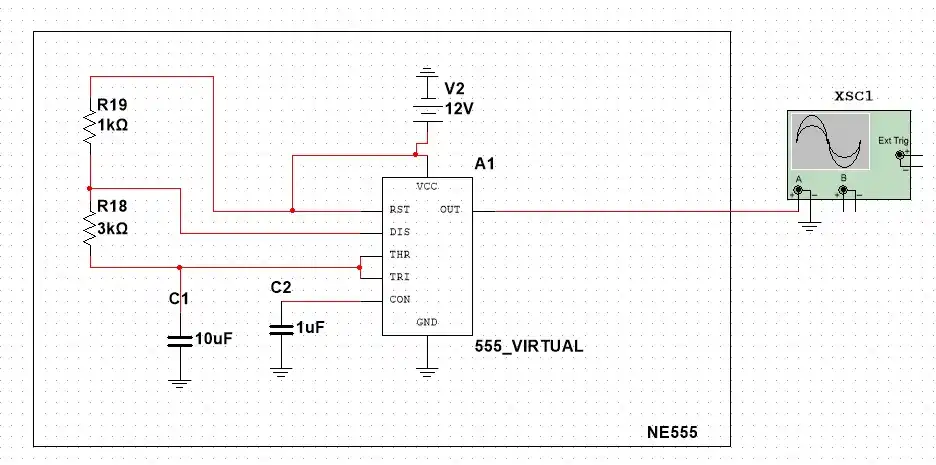
This is how the 555 timer connections look once completed.

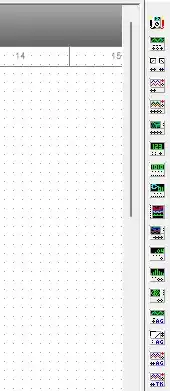
On the right side of the main screen, you will find a toolbar with various instruments to analyze the circuit's behavior, such as multimeters and oscilloscopes.

I selected the oscilloscope, connecting the positive terminal (+) to the 555 output and the negative terminal (-) to ground..

Afterward, click the Play symbol located at the top of the main screen to start the simulation. It is important to note that if you wish to make any changes to the connections, you must first stop the simulation.

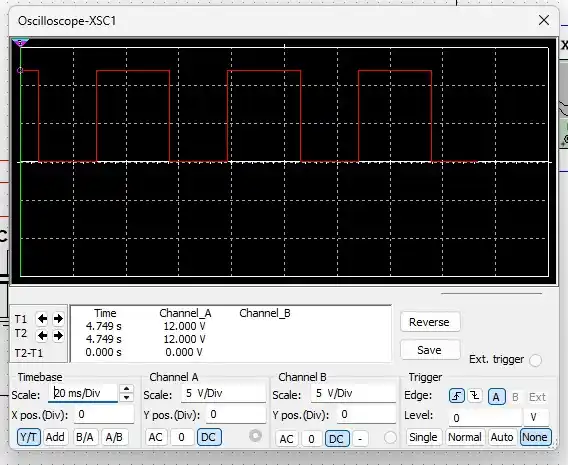
This is the result of my simulation. In the Timebase section, you can adjust the scale to better visualize the waveform.

| Key / Shortcut | Action |
|---|---|
| 2 | View 2D layout. |
| 3 | View 3D layout. |
| Ctrl + W | Start routing (Interactive Wiring). |
| Spacebar | Rotate component or footprint. |
| Q | Toggle units (mm / mils). |
| V + F | Fit board in screen. |
If a footprint isn't in Altium, download it from Snap Magic.
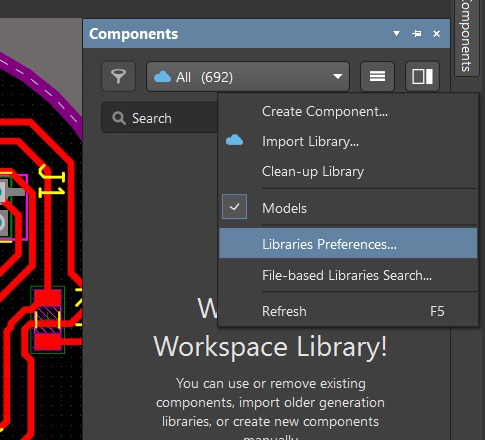
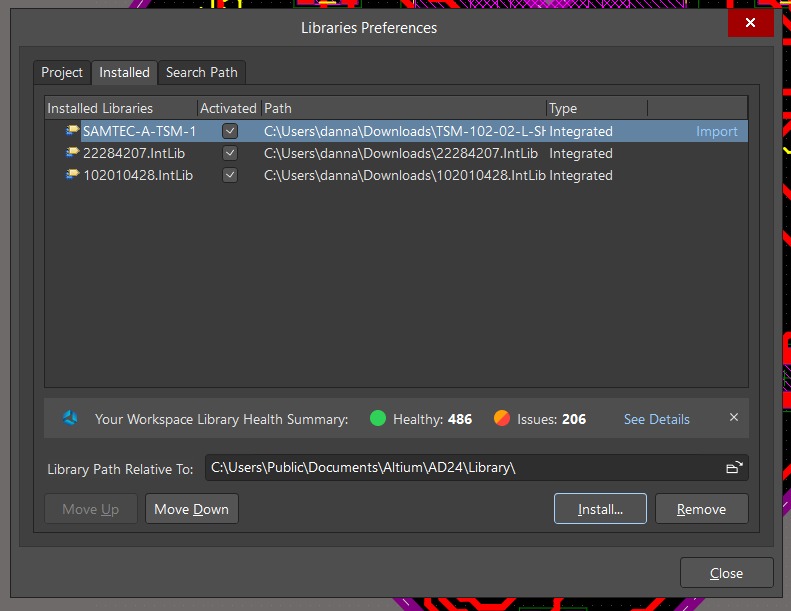
Go to the Components panel, click the burger menu (three lines), and select File-based Libraries Preferences.

Go to Installed > Install and select the file downloaded from Snap.

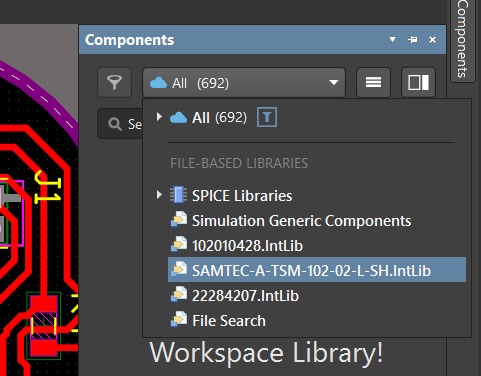
The library will now appear in the Components panel dropdown.

The main screen appears as follows. To start a new design, go to File > New > Project. It is essential to create a project so we can link the schematic to the PCB and later establish the connections in the .PcbDoc file.

Once the project is created, right-click on it to add a Schematic file.

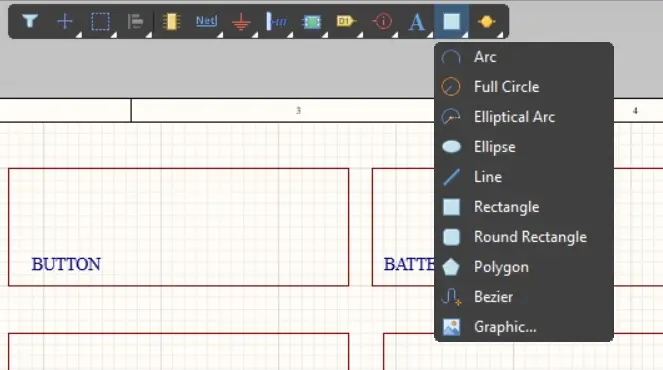
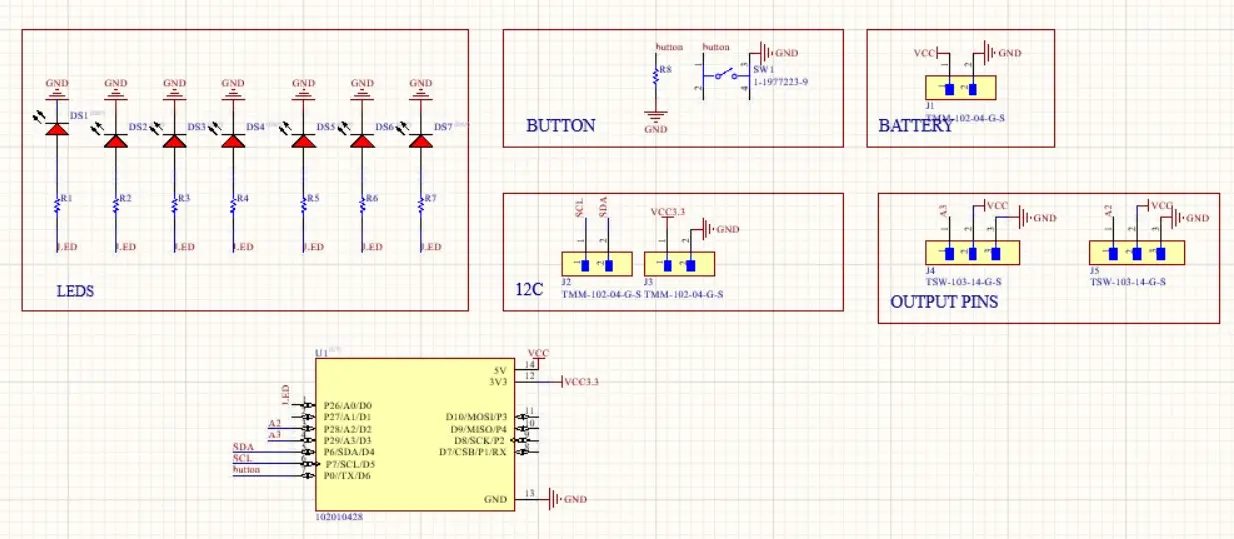
In the top menu of the schematic editor, there are several options to help keep the design organized: Rectangle Icon for areas and "A" Icon for text labels.

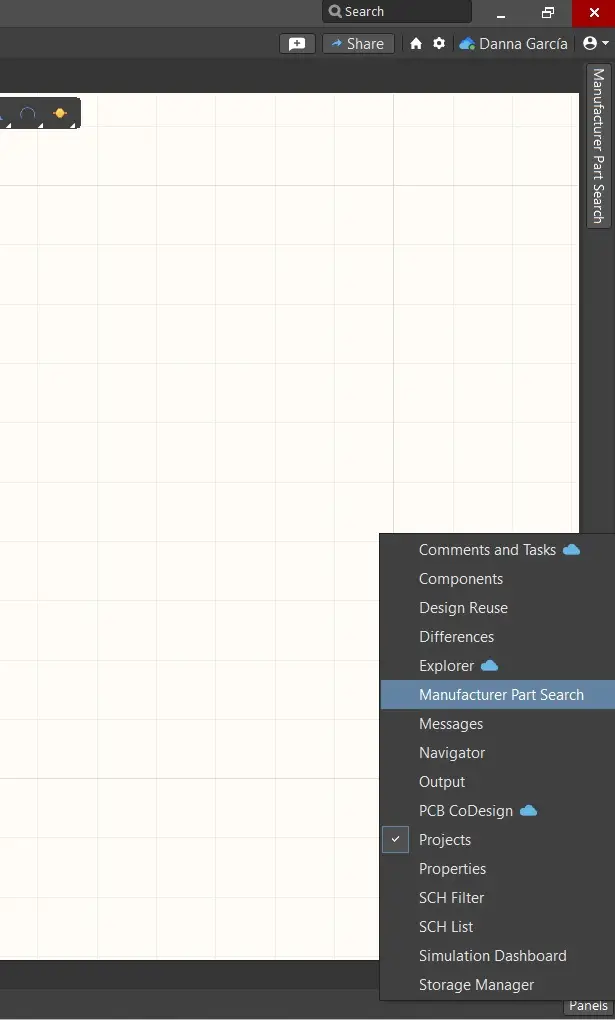
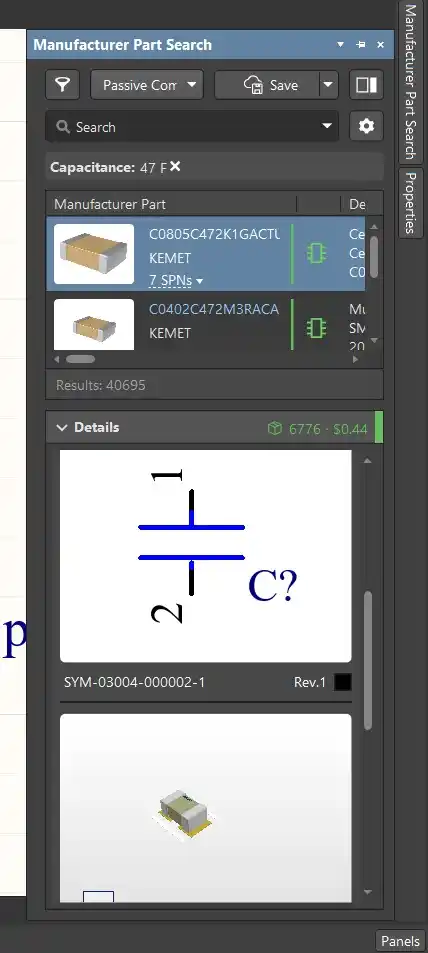
To find standard components, use the Manufacturer Part Search in the Panels menu (bottom right).

To add a footprint, search for it in the Manufacturer Part Search and drag it onto the schematic.

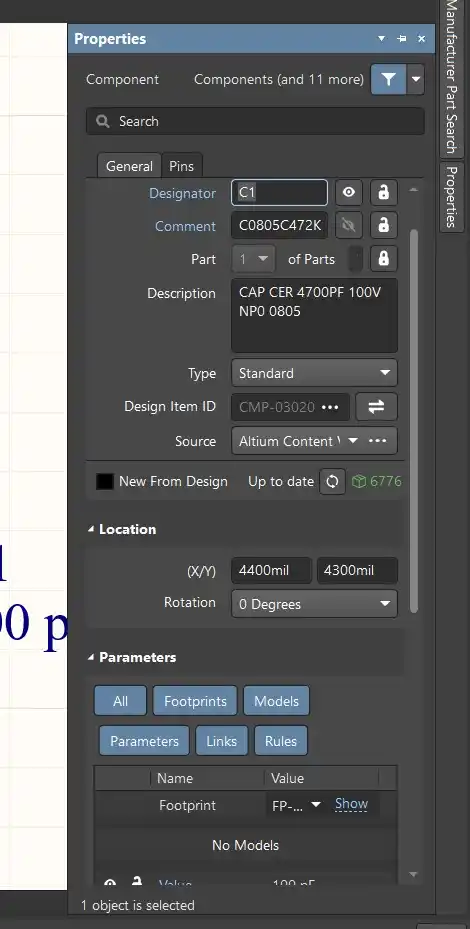
To change the name, comments, or value of a component, double-click it; the Properties menu will appear on the right side of the screen.

I connected 7 LEDs to the output pins of my XIAO using current-limiting resistors. The calculations were as follows:

Once the connection was finished, I ensured all components had footprints of a size I could easily solder using the stock available at the Fab Lab; I chose 1206 SMD components.

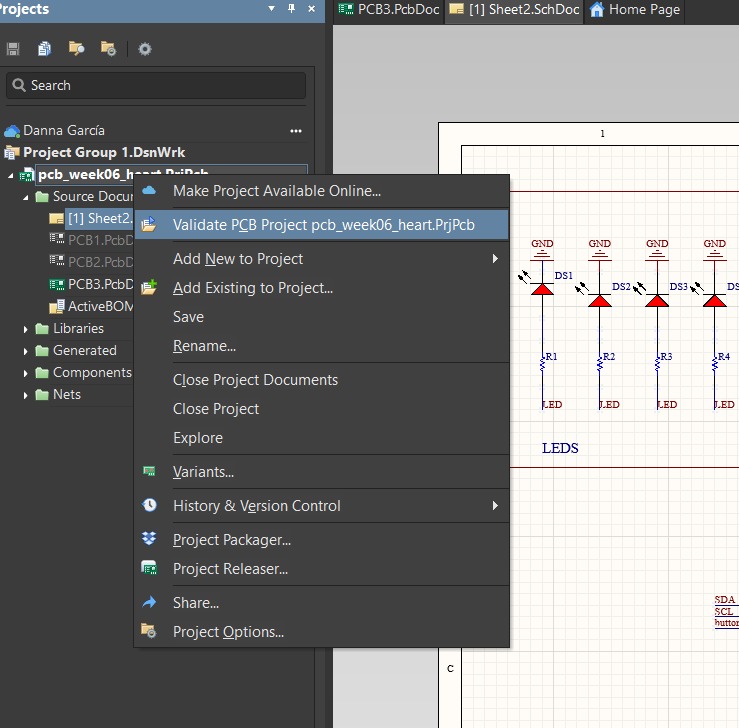
To perform the ERC test, which helps us check if our schematic is correctly connected, we must right-click on project > Validate PCB project.

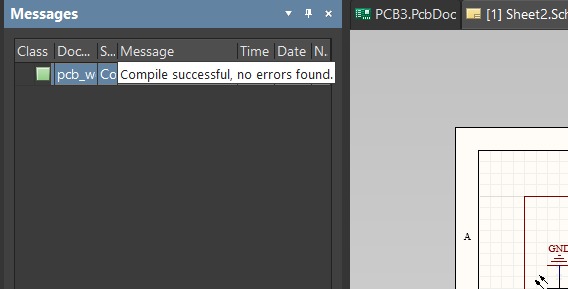
My ERC doesn't show any violations

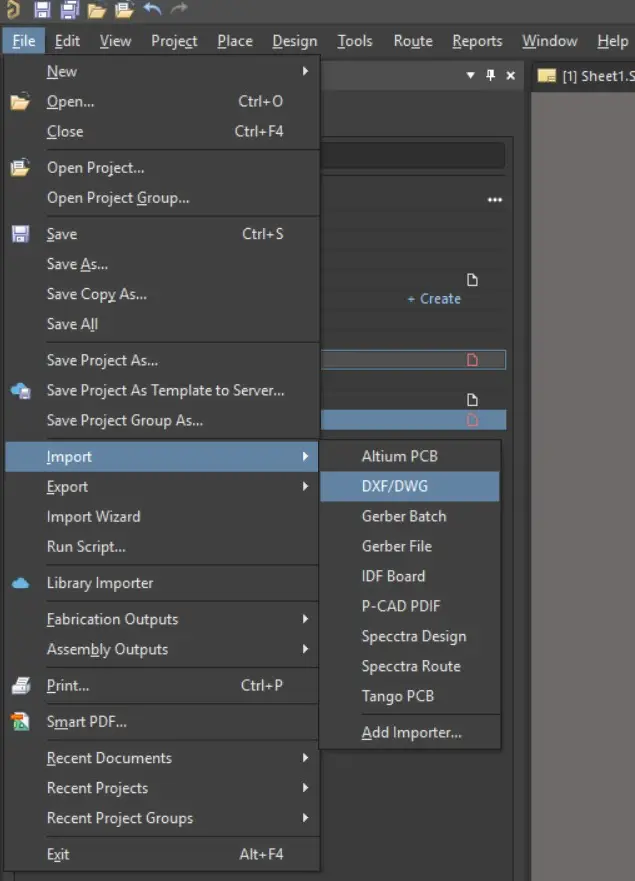
The next step was to create a .PcbDoc file. To create the board outline, I vectorized an image in Inkscape, saved it as a DXF, and imported it into Altium via File > Import > DXF.

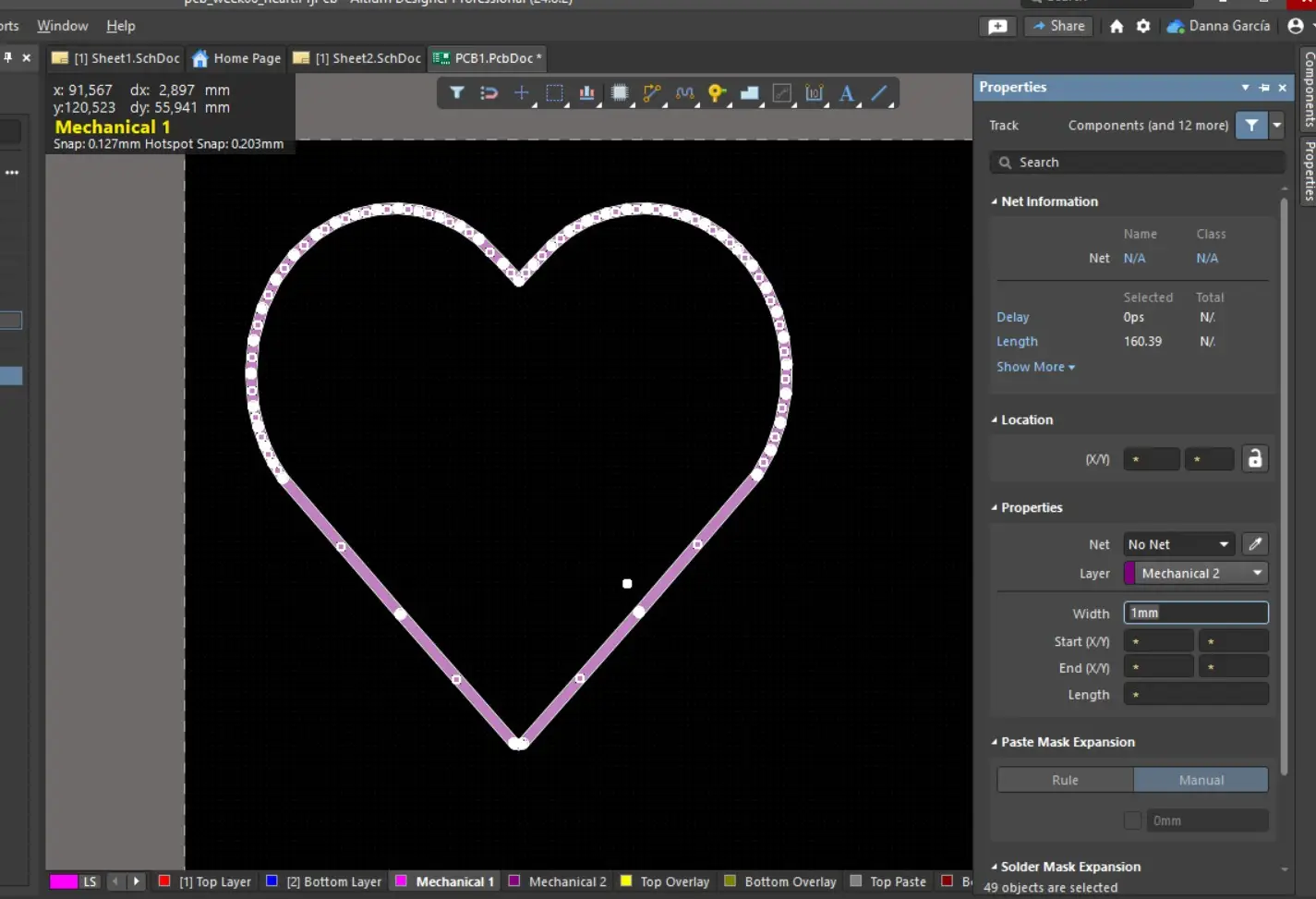
After importing, I double-clicked the lines to adjust the track width (1 mm).

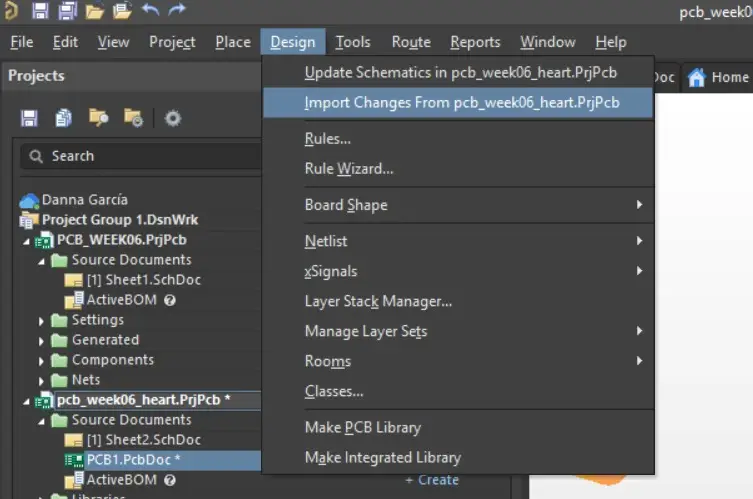
To bring the components into the PCB editor, I used Design > Import Changes From [Schematic Name]

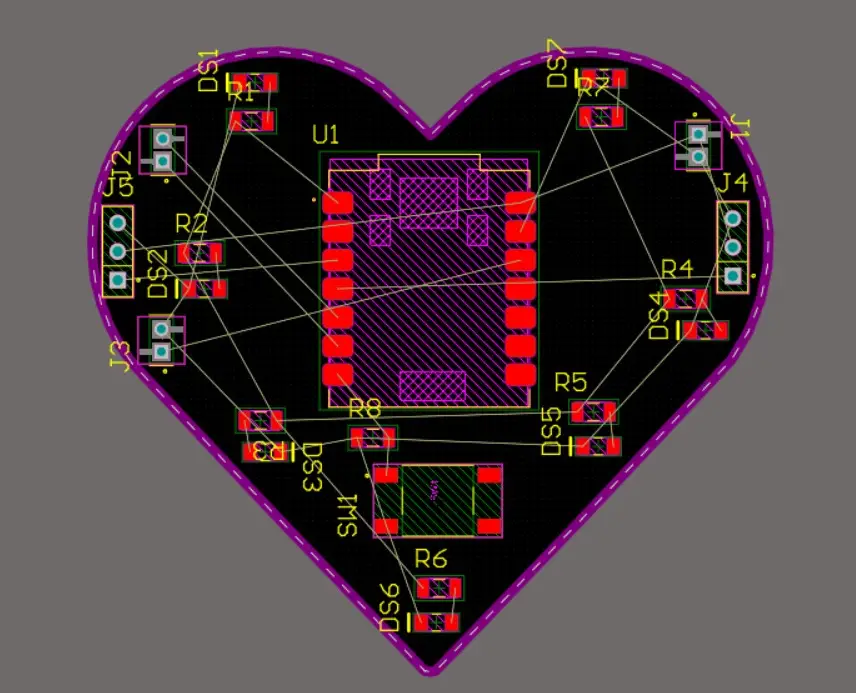
This is what my PCB layout looked like before I started connecting the components.

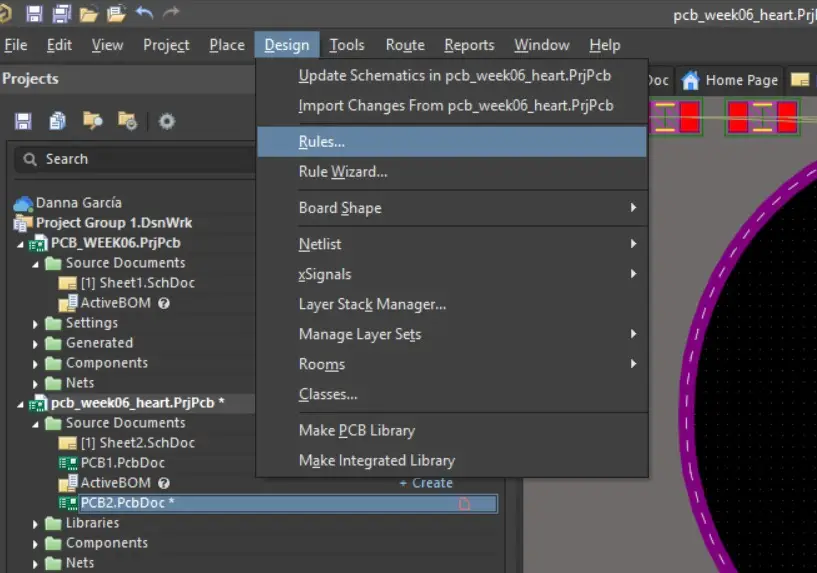
After arranging them, I set the Design Rules based on the manufacturing capabilities of the machines at Fab Puebla:

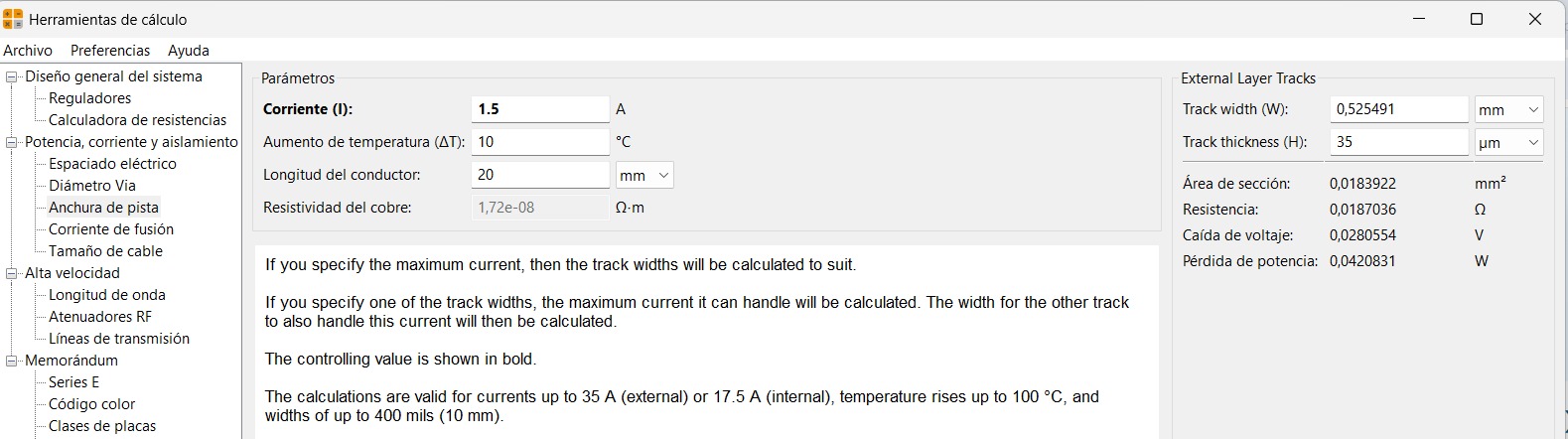
To determine the required width of my PCB, I used the KiCad tool. I entered the desired temperature difference and the amperage that would pass through my PCB.

My connections ended like this.

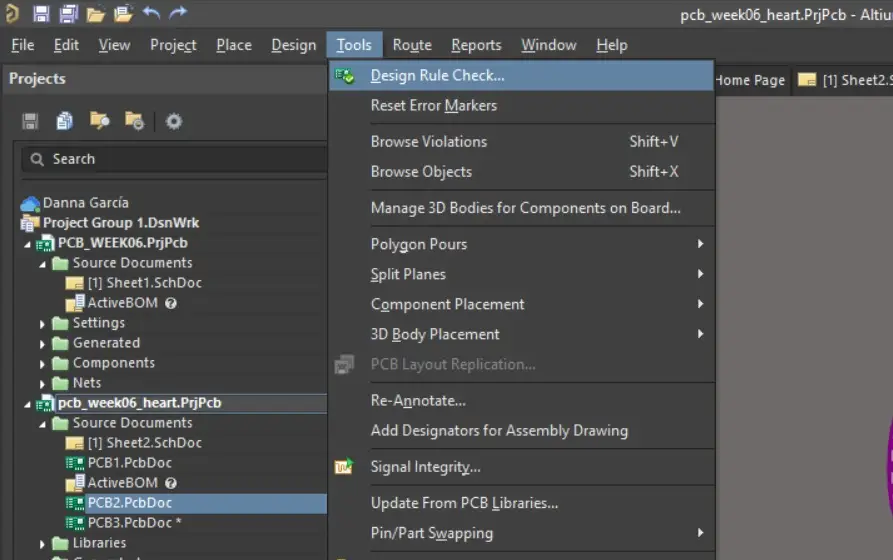
To verify the design, I ran Tools > Design Rule Check.

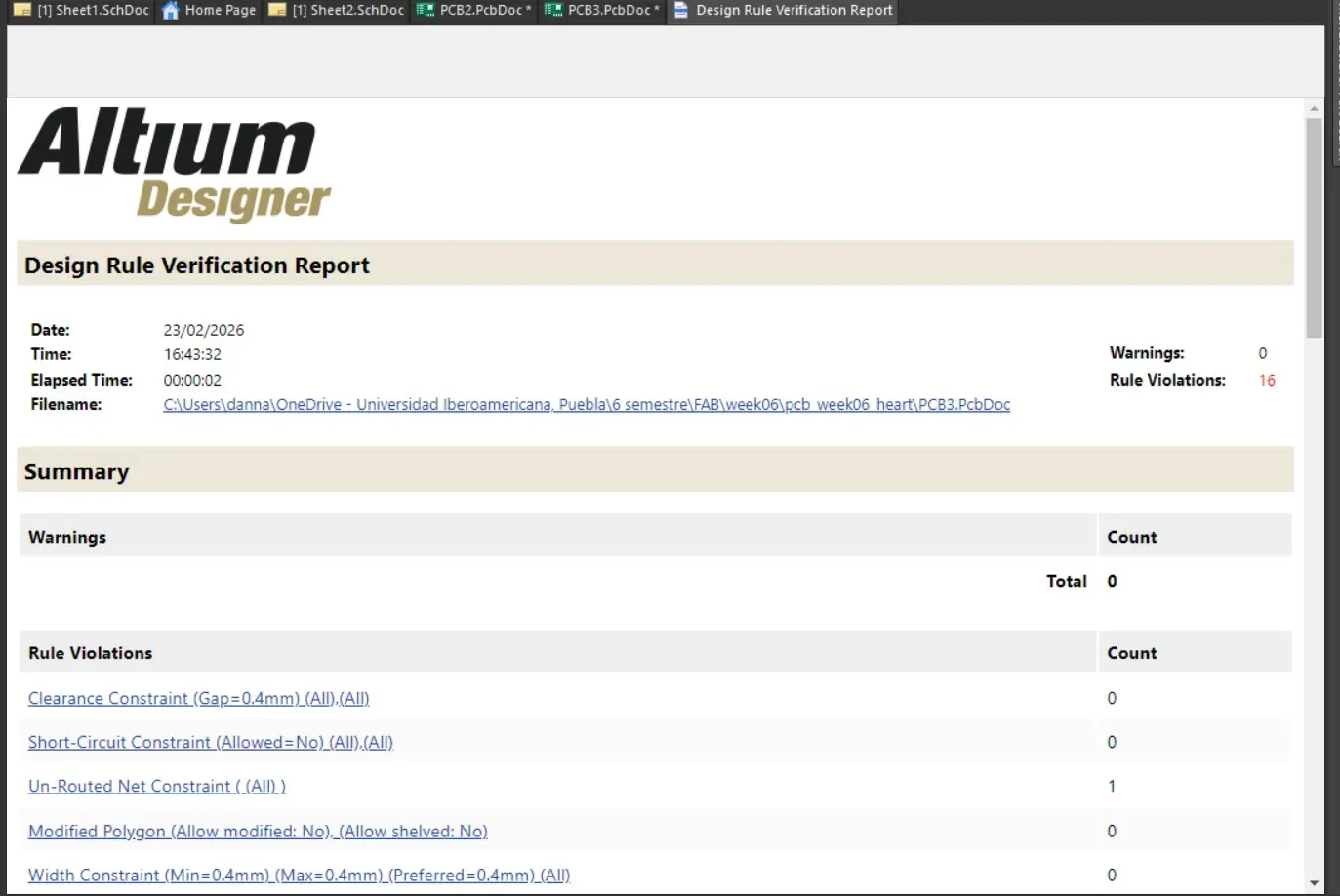
My report showed 15 violations, mainly because the component text was overlapping other text. Since I am manufacturing this at the Fab Lab, these labels won't affect the production process.
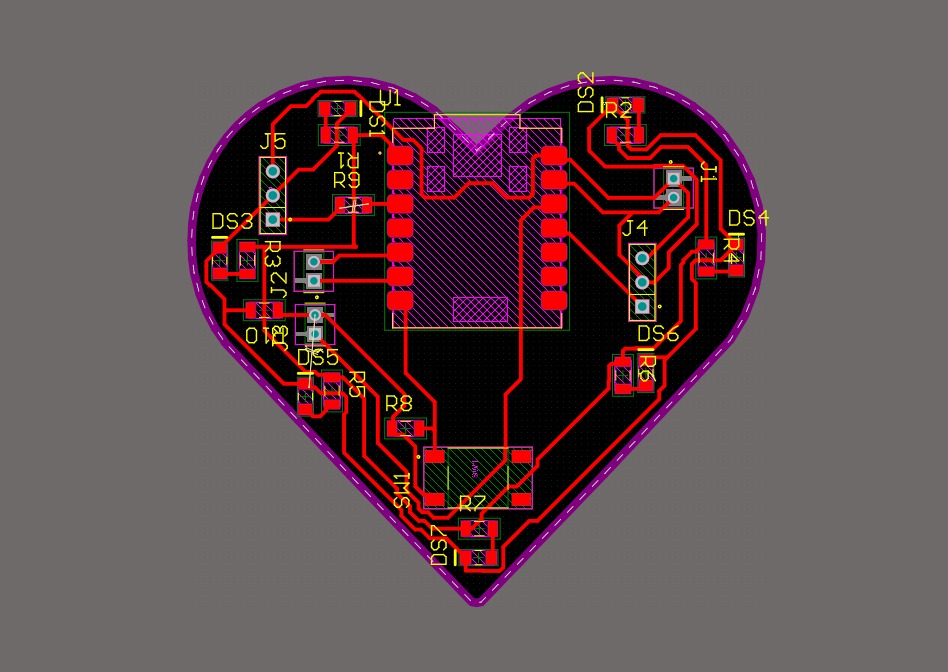
I also had an Un-Routed Net violation; this was intentional, as I used a 0-ohm resistor as a bridge because I couldn't find a path to route that specific trace. This is the final result of my PCB.

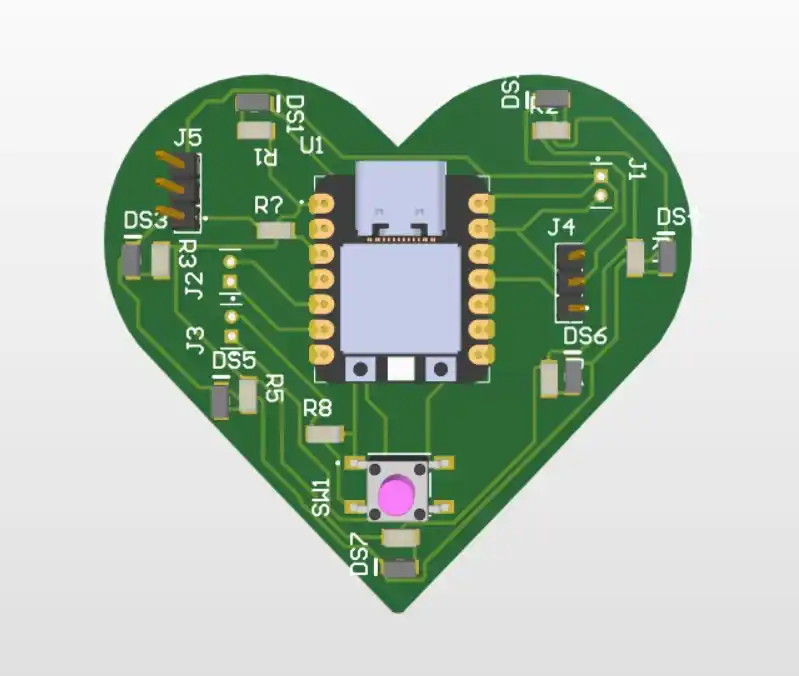
This was the final result of my PCB design.

| Key / Shortcut | Action |
|---|---|
| Alt + 3 | View 3D layout. |
| X | Route tracks (Interactive Routing). |
| R | Rotate component or footprint. |
| Ctrl + M | Toggle units (mm / mils / inches). |
| M | Move item (without breaking connections). |
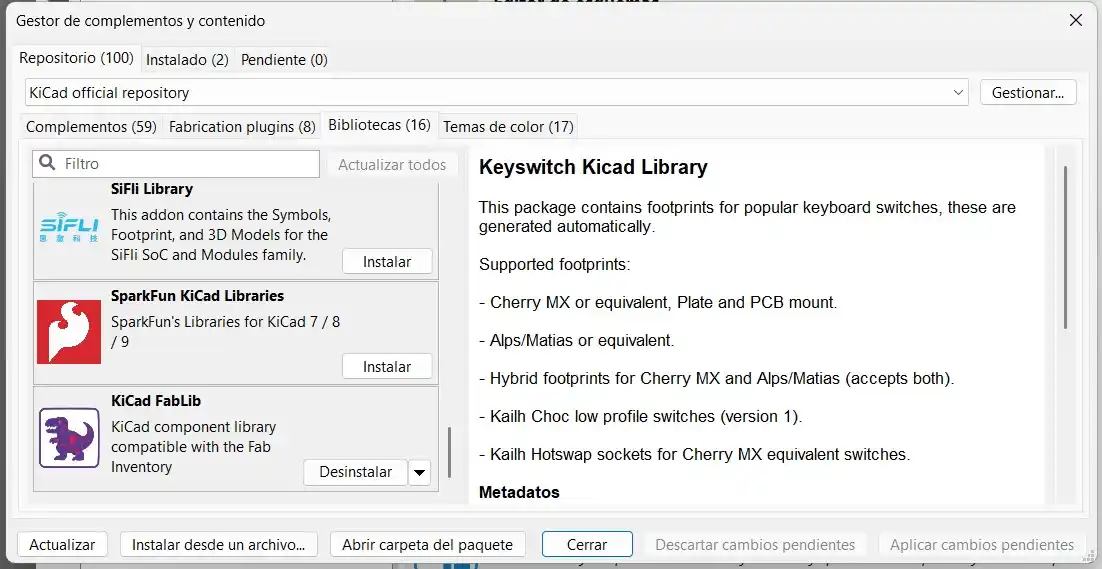
If a footprint isn't in Altium, download it from Snap Magic.
Go to the Components panel, click the burger menu (three lines), and select File-based Libraries Preferences.

The library will now appear in the Components panel dropdown.

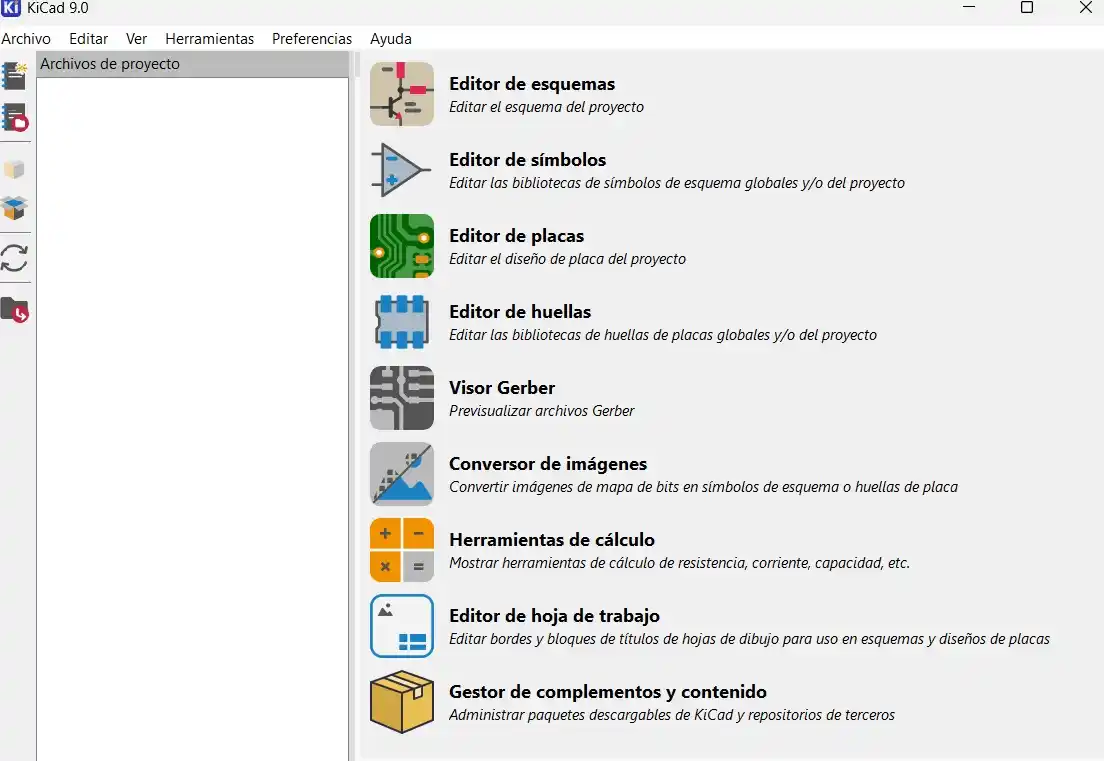
The main interface of KiCad looks like this.

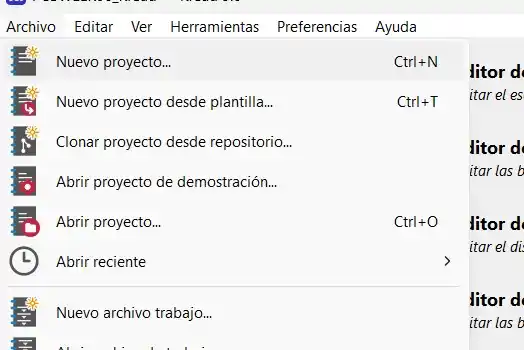
To start, go to File > New Project at the top. This will automatically create both the schematic file and the PCB layout file.

Open the schematic document. In the top toolbar, click the "Add Symbol" icon (the triangle with a +/-) to open the component menu.

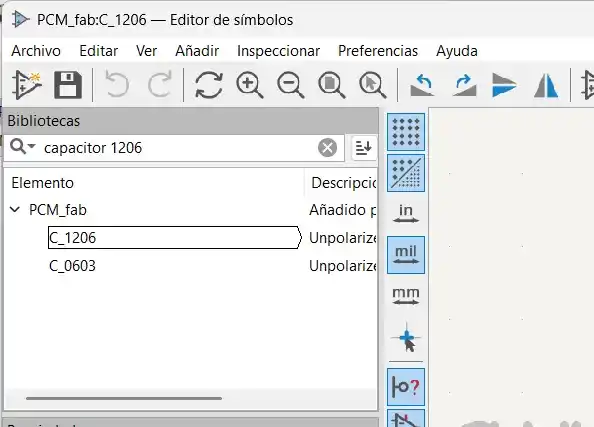
Search for the required component and select the footprint size; in my case, I chose 1206.

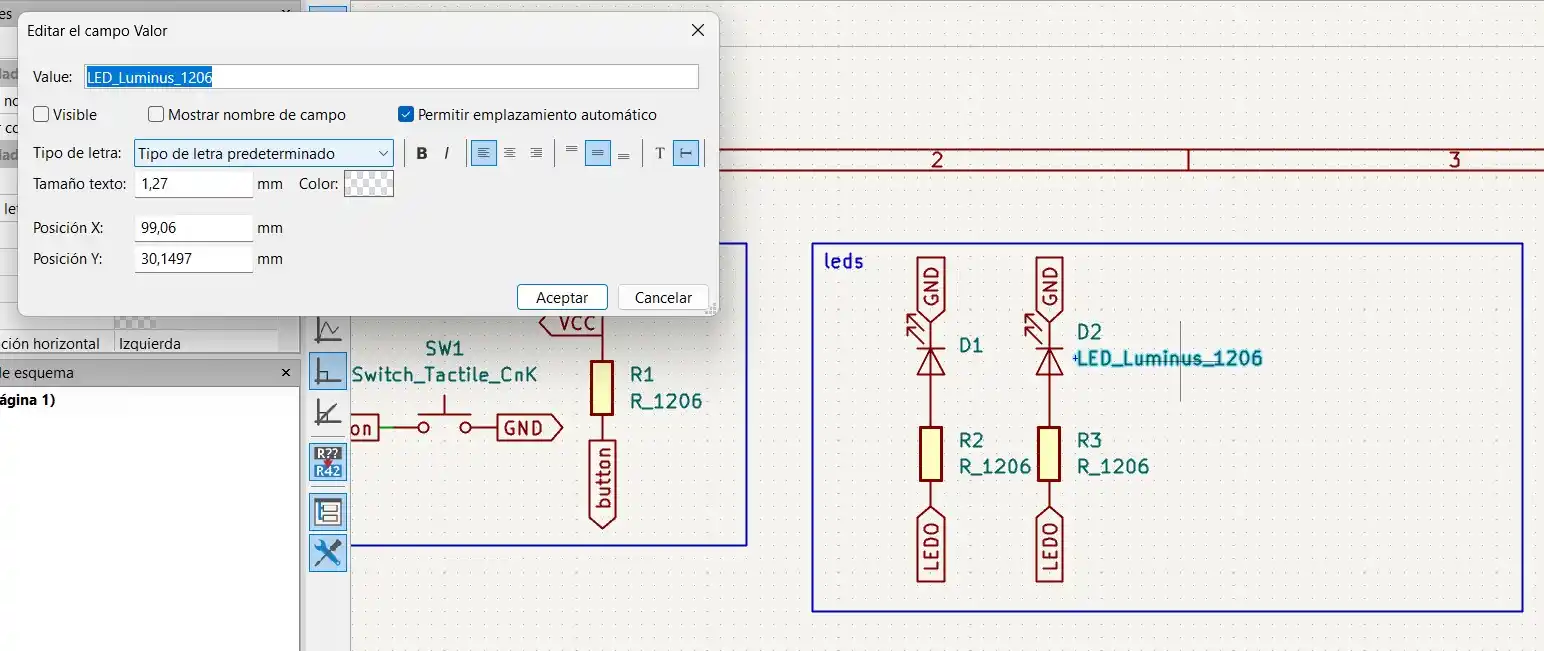
You can change the component's name or value by double-clicking it.

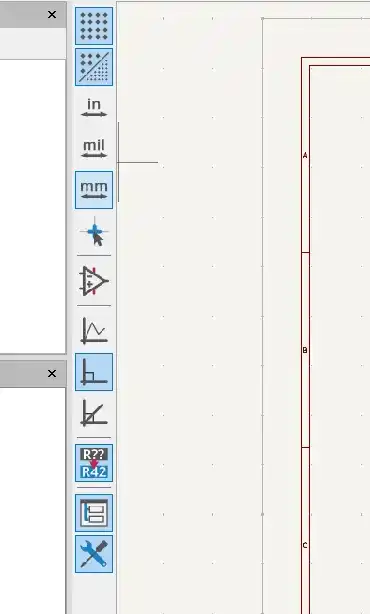
Contains options to toggle units (inches to millimeters) and selection tools.

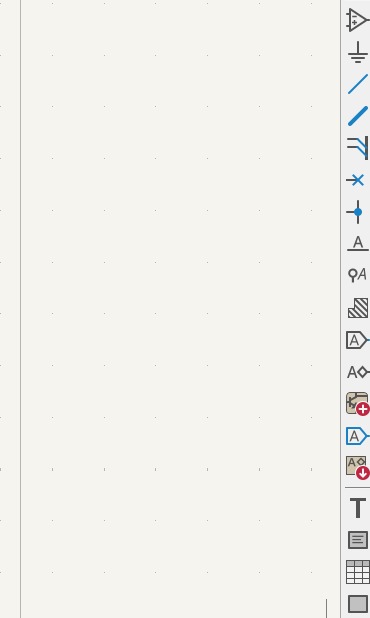
Provides tools for wiring, adding text, and drawing rectangles to keep the schematic organized. I also used Net Labels, which are essential for making connections without cluttering the workspace with long wires.

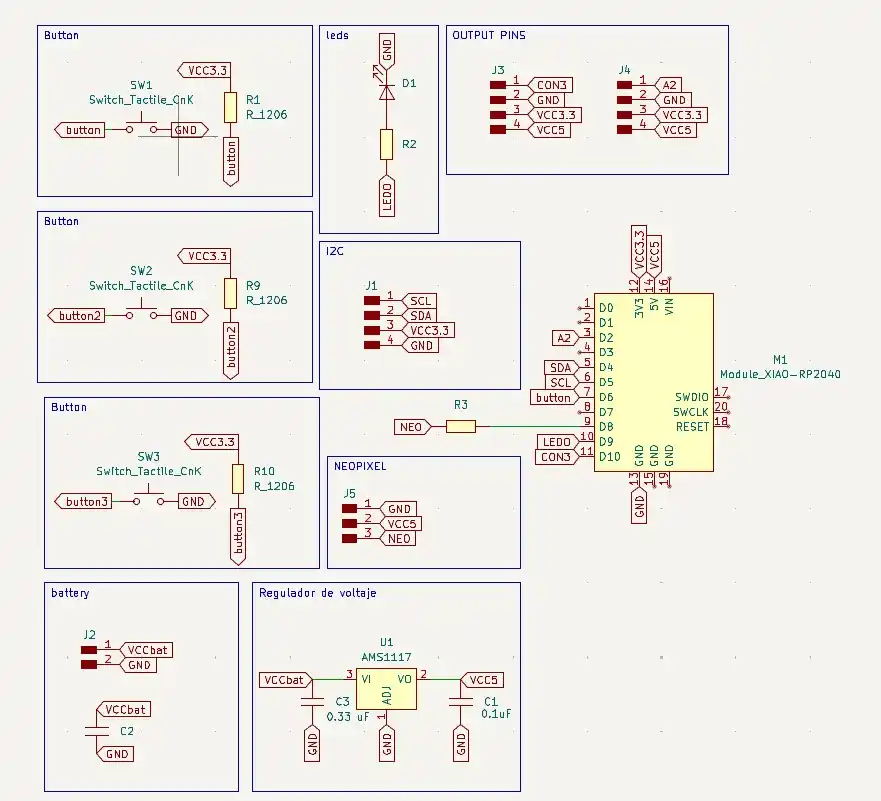
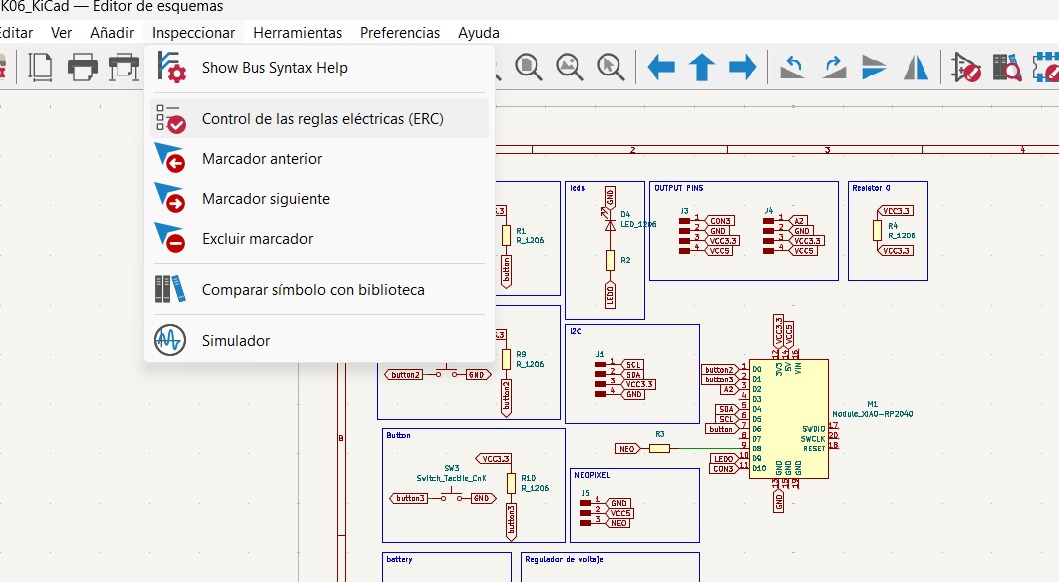
This is the final schematic for my PCB.

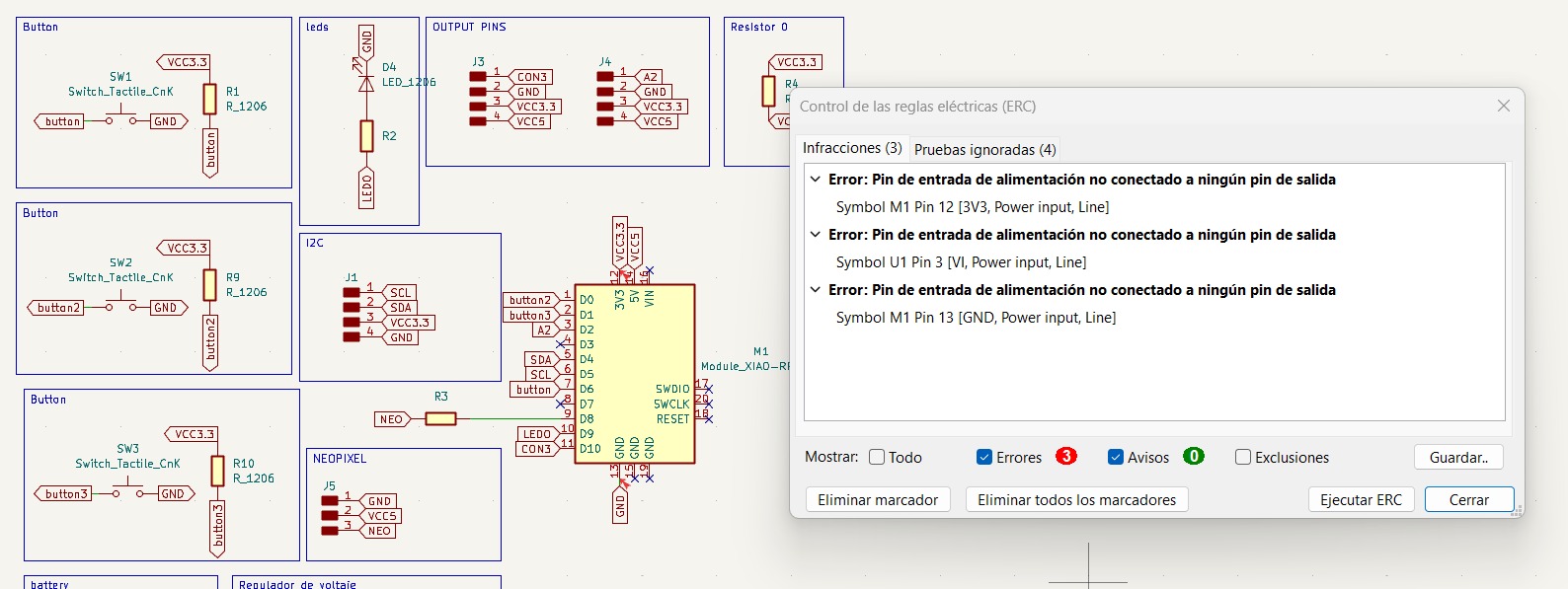
For checking the schematic, go to Inspection > ERC

My ERC showed 3 violations, but they are due to the labels I placed on my schematic, so I can ignore them.

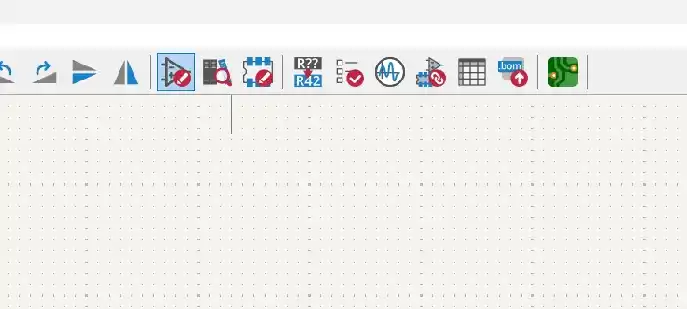
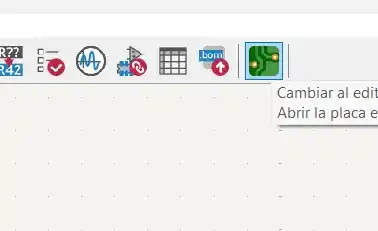
To transition to the board layout, select the green square icon (Open PCB backend) located in the top toolbar of the schematic editor.

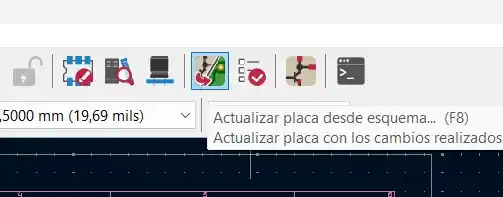
In the PCB editor, click the icon with the red arrow to import the changes from the schematic.

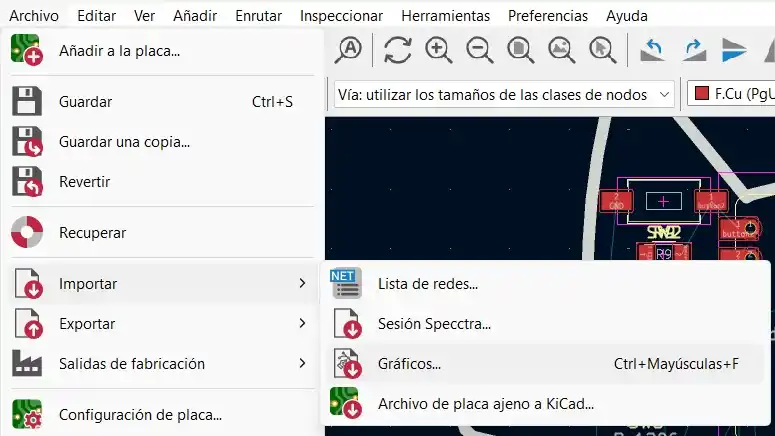
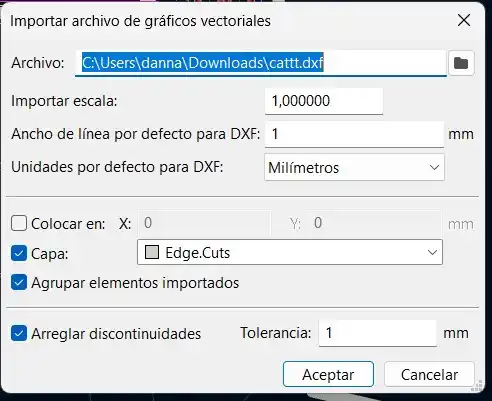
To use a specific shape for the board, I imported a DXF file as the outline: Go to File > Import > Graphics.

Next, we changed the size of the outline, which in my case I set to 1mm, and selected the Edge.Cuts layer by double-clicking it.

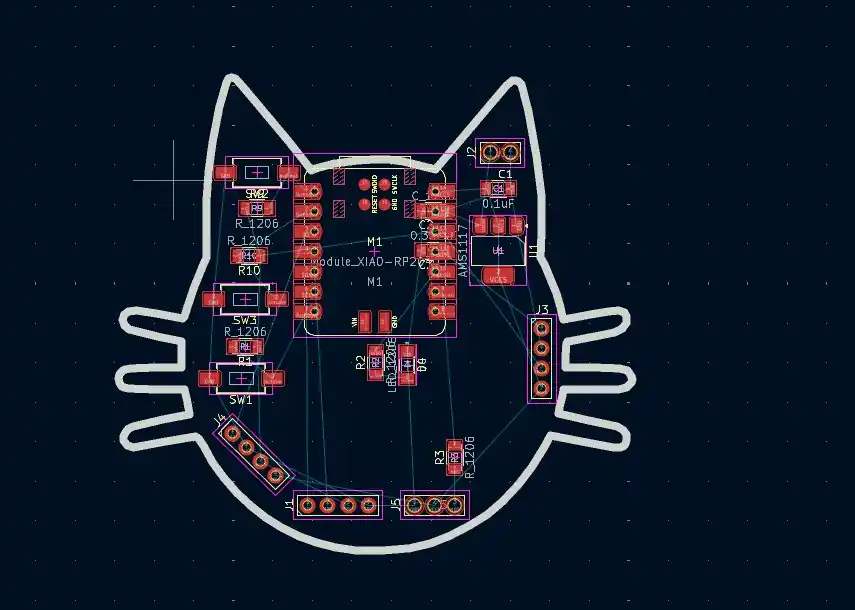
Before routing, I arranged the components within the outline. I had to adjust the layout slightly during the process to optimize the space.
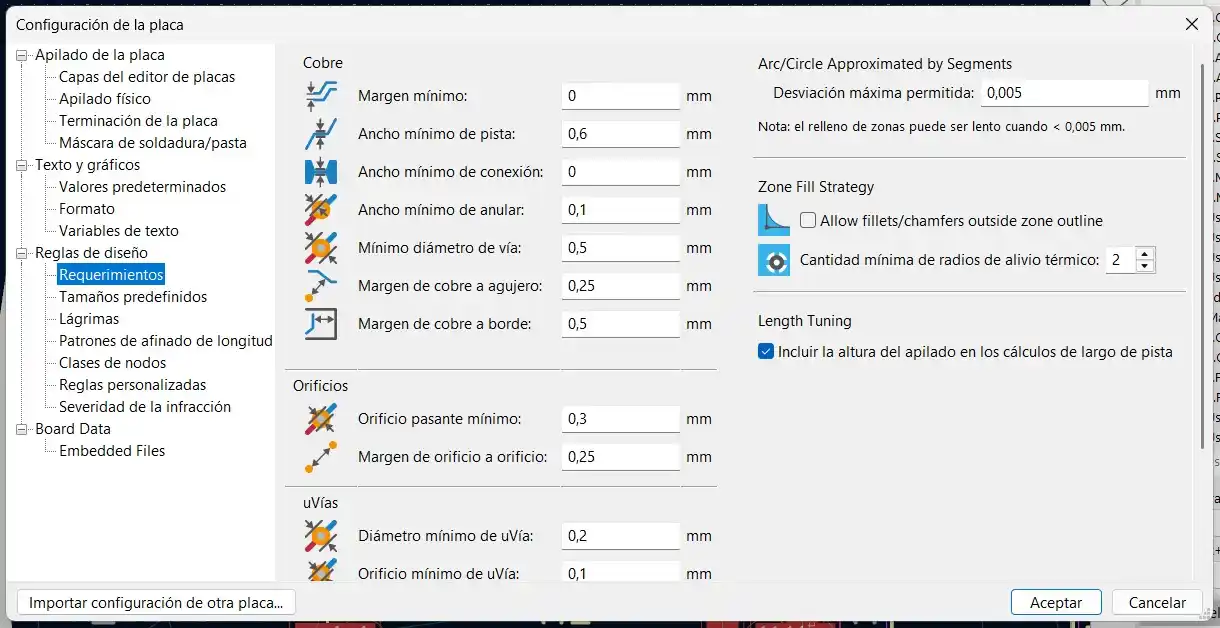
I adjusted the Board Setup based on the manufacturing capabilities of the machines at Fab Lab Puebla:

To determine the required width of my PCB, I used the KiCad tool. I entered the desired temperature difference and the amperage that would pass through my PCB.

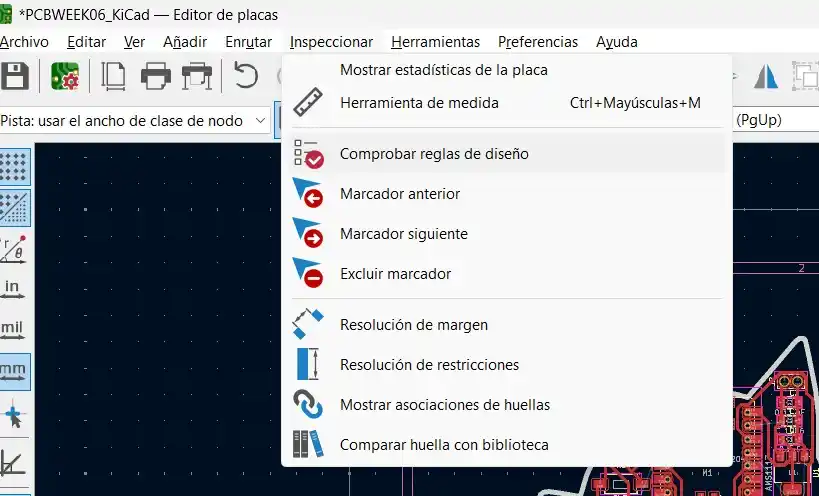
Once the routing was finished, I ran the Design Rules Check (DRC) by going to Inspect > Design Rules Checker.

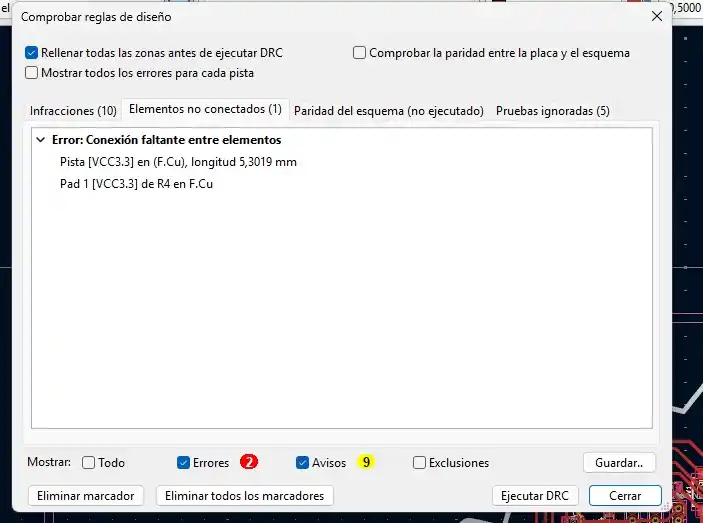
The DRC reported 10 warnings, but I chose to ignore them as they related to the silkscreen (legend) layers. Since I am fabricating this board at Fab Lab Puebla, these silk errors do not affect the functional milling of the traces. The single "unconnected item" warning was due to a 0-ohm resistor I used as a bridge.

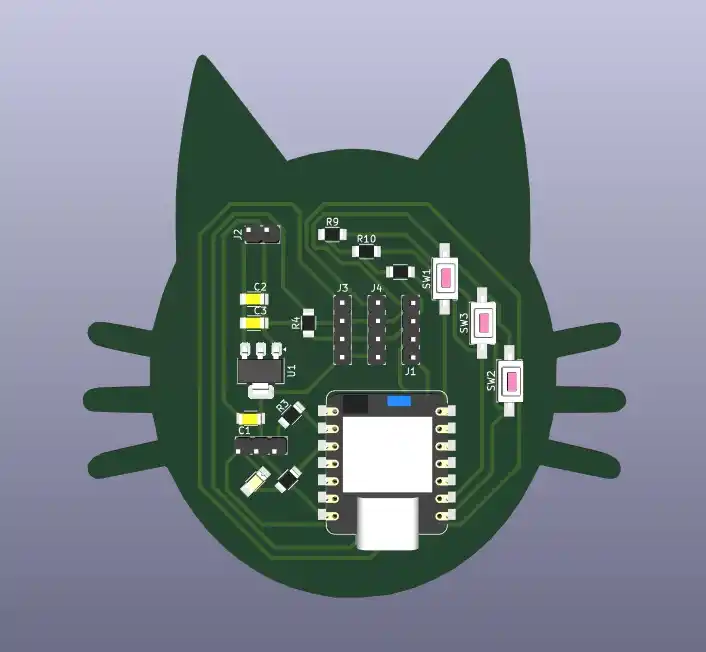
This was the final result of my PCB design.