

2. Computer Aided Design
This week actually got delayed for me but I really enjoyed 3D modelling my project. I also made a logo for my board game which could be used for the third week assignment
3D Model in Rhino 8
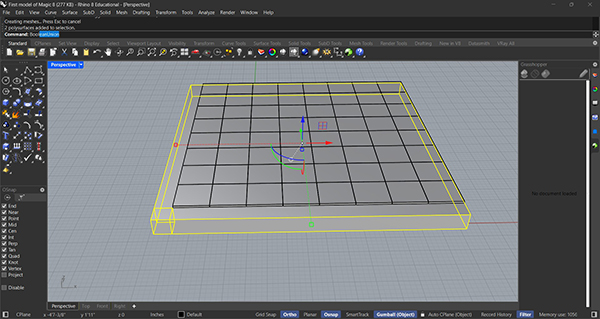
I started a 3D model using Rhino 8. I have been using this software for a few years and have learned new techniques and workflows with every new project. For my board game, I began designing the basic shape. It would be a square layout of 8x8 tiles. I used the BOX tool to create the shapes and moved them arround as needed.
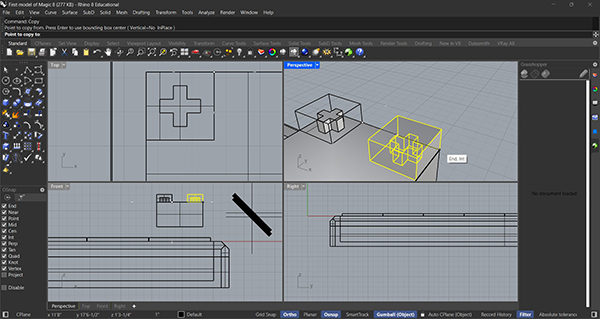
The next stage of my design was to test component details. I designed a place holder for a standard switch focussing in the connections between the switch and the tile. I used BOX tool and the boolean operations to create the final geometry.
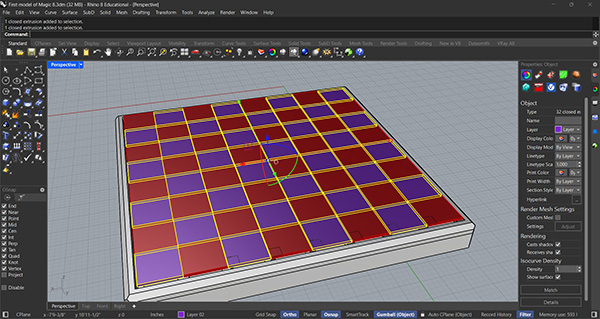
I jumped ahead and created a more detailed version of the board design. I continued using the BOX tool along with BOOLEAN DIFFERENCE to create hollow top and bottom shells. I also used the CHAMFER EDGE tool to make the design more comfortable to handle. By adding materials and colors to the tiles, I was able to prepare the model for rendering.
Rendering in Twinmotion
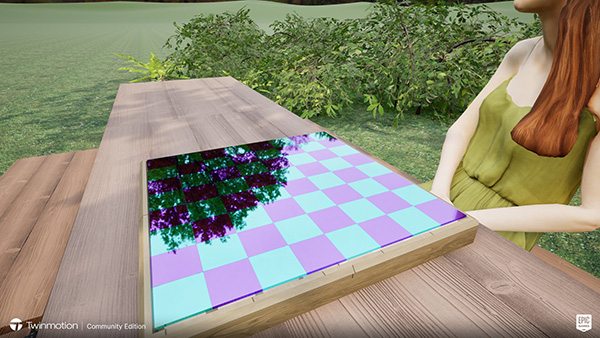
In Twinmotion, I was able to sync the 3D model and apply materials and lighting effects. I also added park scene using grass, bushes, park furniture and people. You can see the results of the project in the short video.
Logo Design in Adobe Illustrator
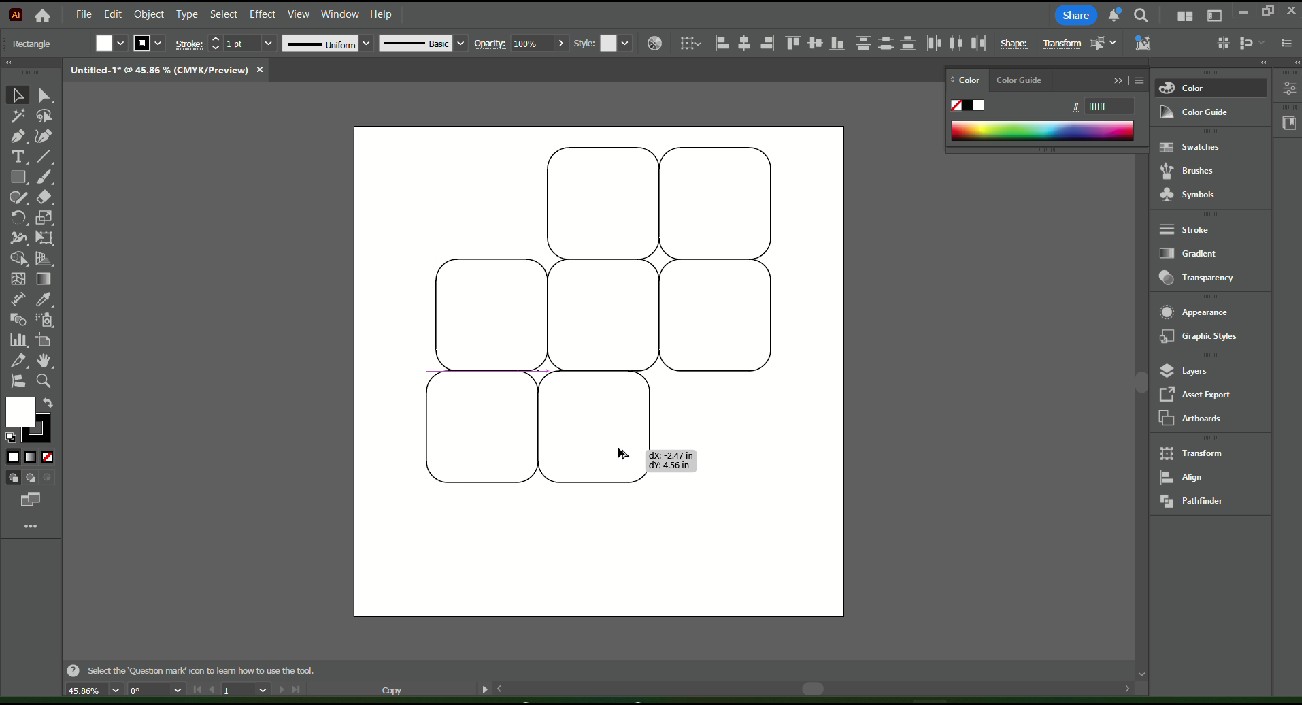
To make a logo design, I started with rounded squares in Adobe Illustrator. I have used Illustrator for several years in a variety of applications. Logo design is one area in which I have a lot of passion. The challenge for this project was to design a usable logo in as little time as possible. I arranged the square into 2 overlapping diamonds to form an '8' configuration.
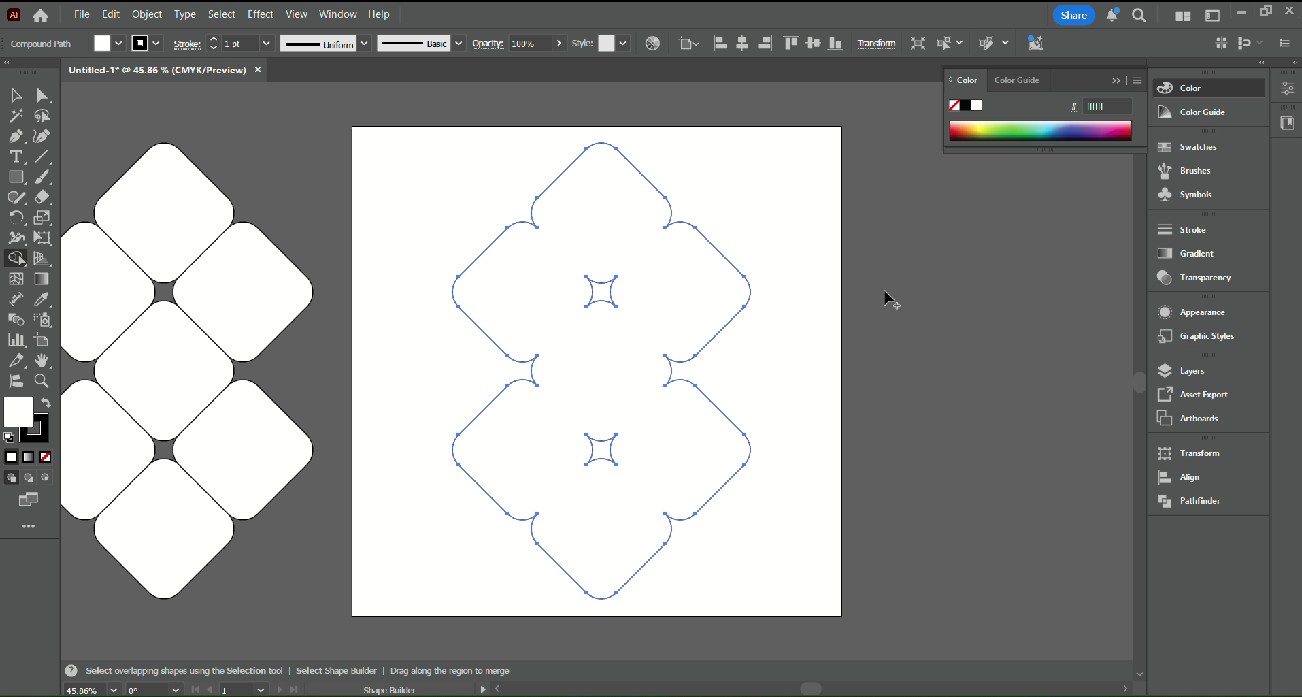
I rotated the shapes to the desired orientation and used the SHAPE BUILDER tool to unify the elements. I always like to copy my elements before combining them as to maintain a backup in my file.
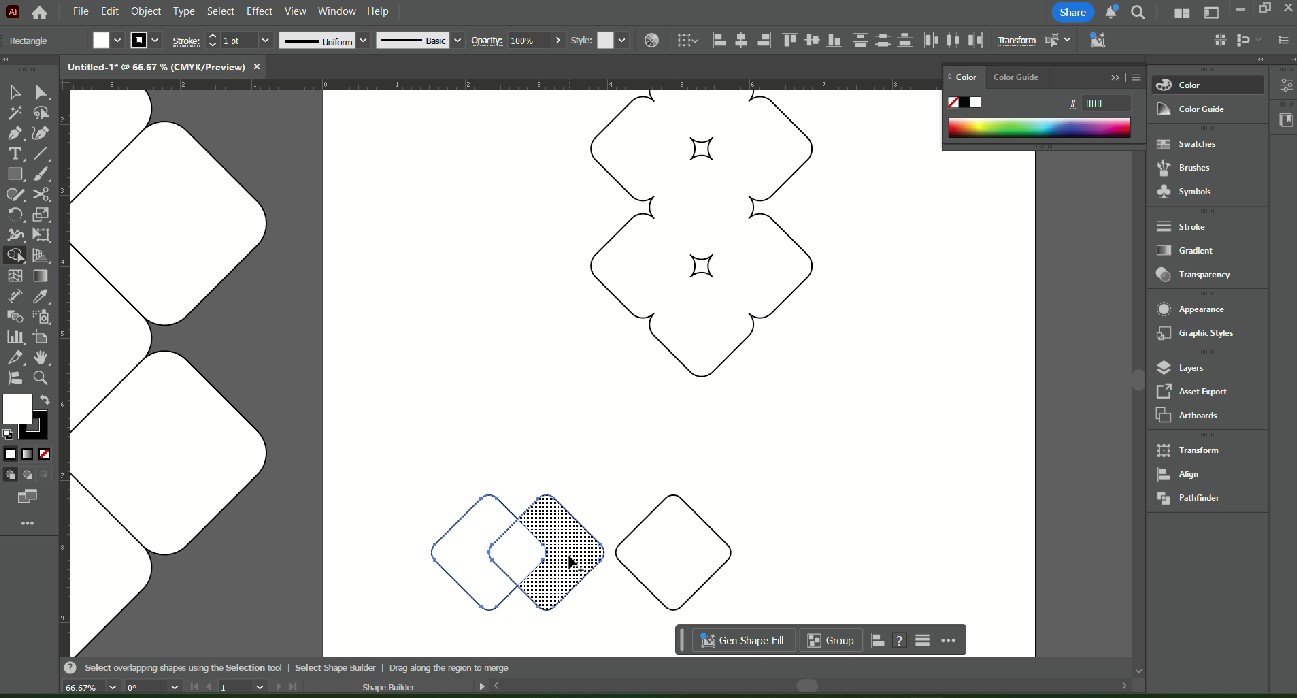
To create the font, I used the same shape as a base and arranged it to form the letters of the name of the game. I used the SHAPE BUILDER tool again to unify the elements and used the SCISSORS tool to remove the unwanted line segments.
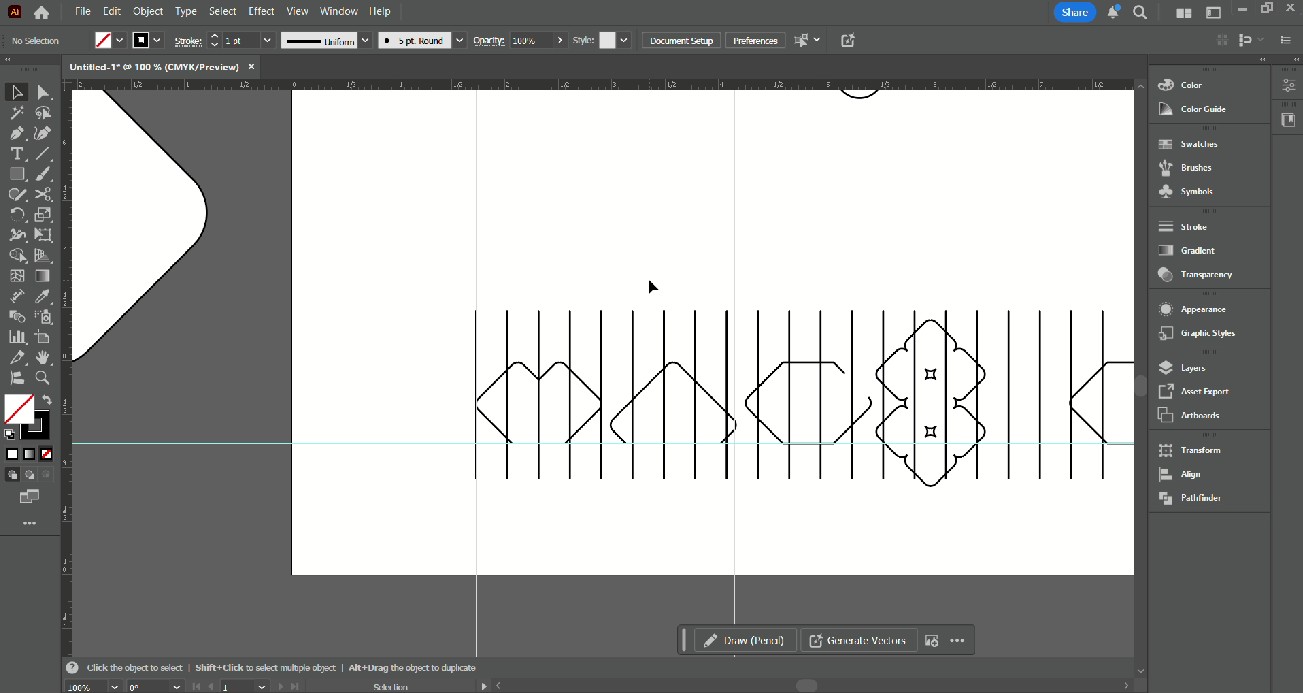
Nest I had to layout my elements. I tried adding the '8' in place of an 'I' for Magic. I then used evenly spaced vertical lines to maintain the proportions of the elements.
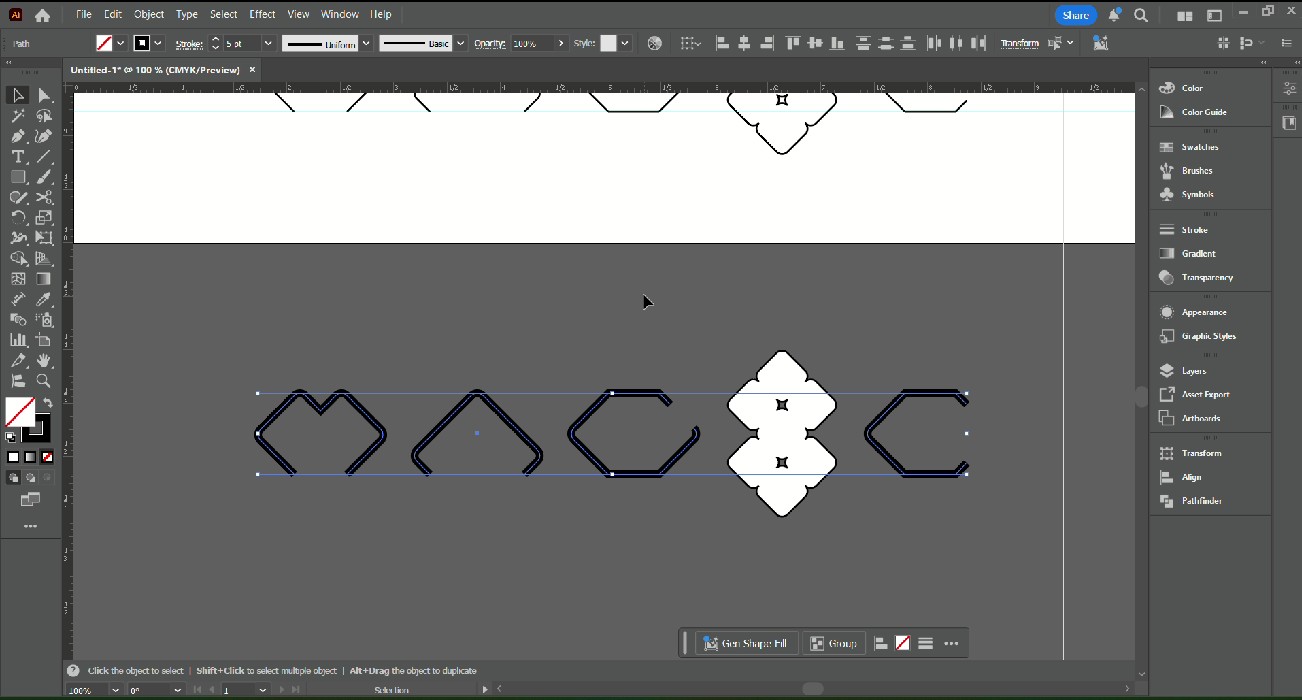
I copied the logo to test different variations. By changing the stroke thickness, I was able to make the text more bold and feel more prominent.
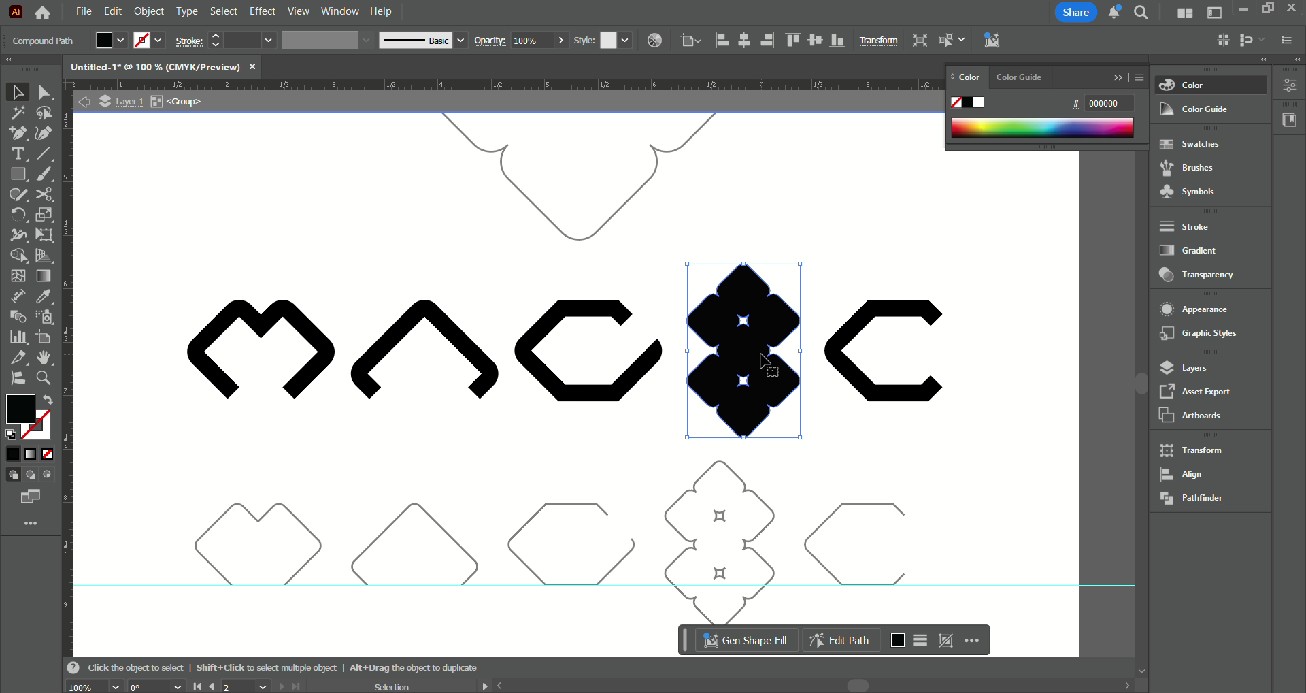
I also changed the '8' fill to black to increse the visual weight.
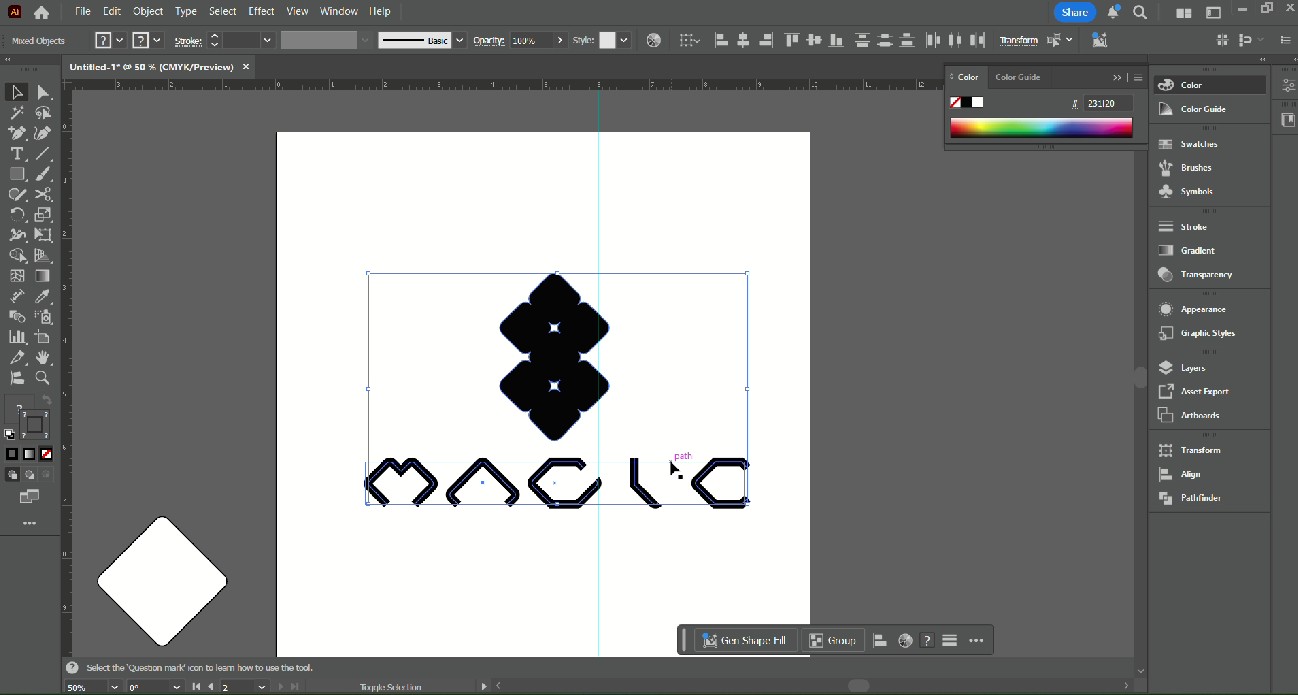
The final steps were to move the '8' to be centered above the text and create an 'I'. This became a variation of the original design, however, I think I prefer how it was before.
Compressing Images
To compress images for web use, I used Adobe Photoshop to reduce the file size while maintaining quality. I experimented with different compression settings to find the optimal balance between file size and image quality.
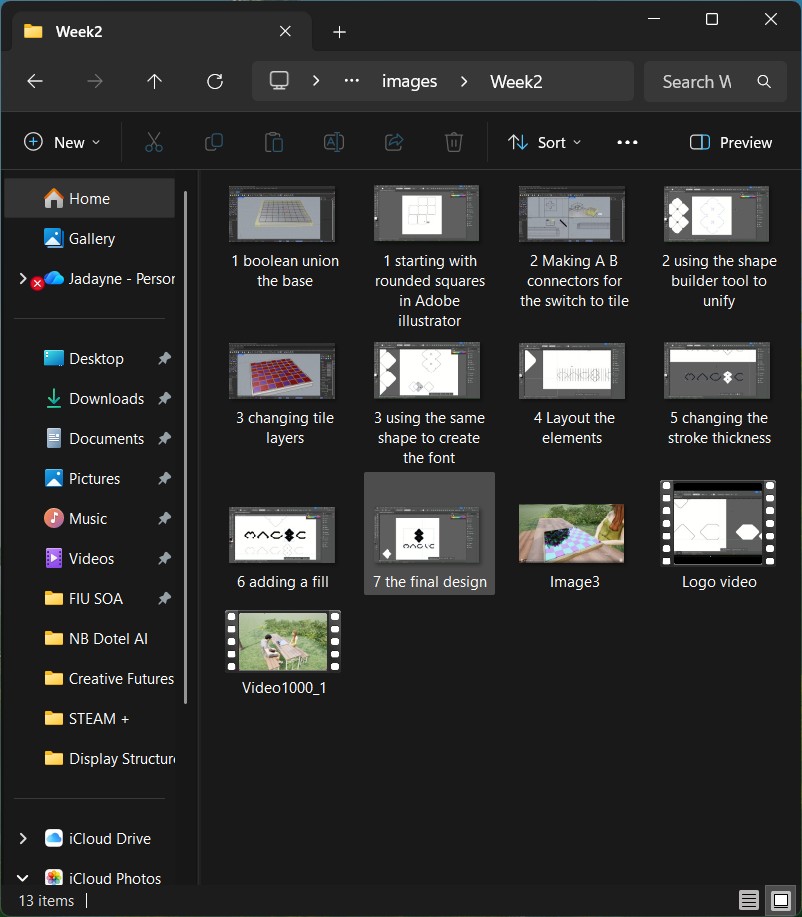
Step 1. Take a screenshot or copy a photo to a folder on my computer.
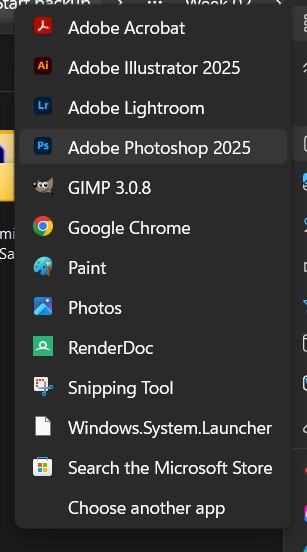
Step 2. Open the ima ge in Adobe Photoshop.
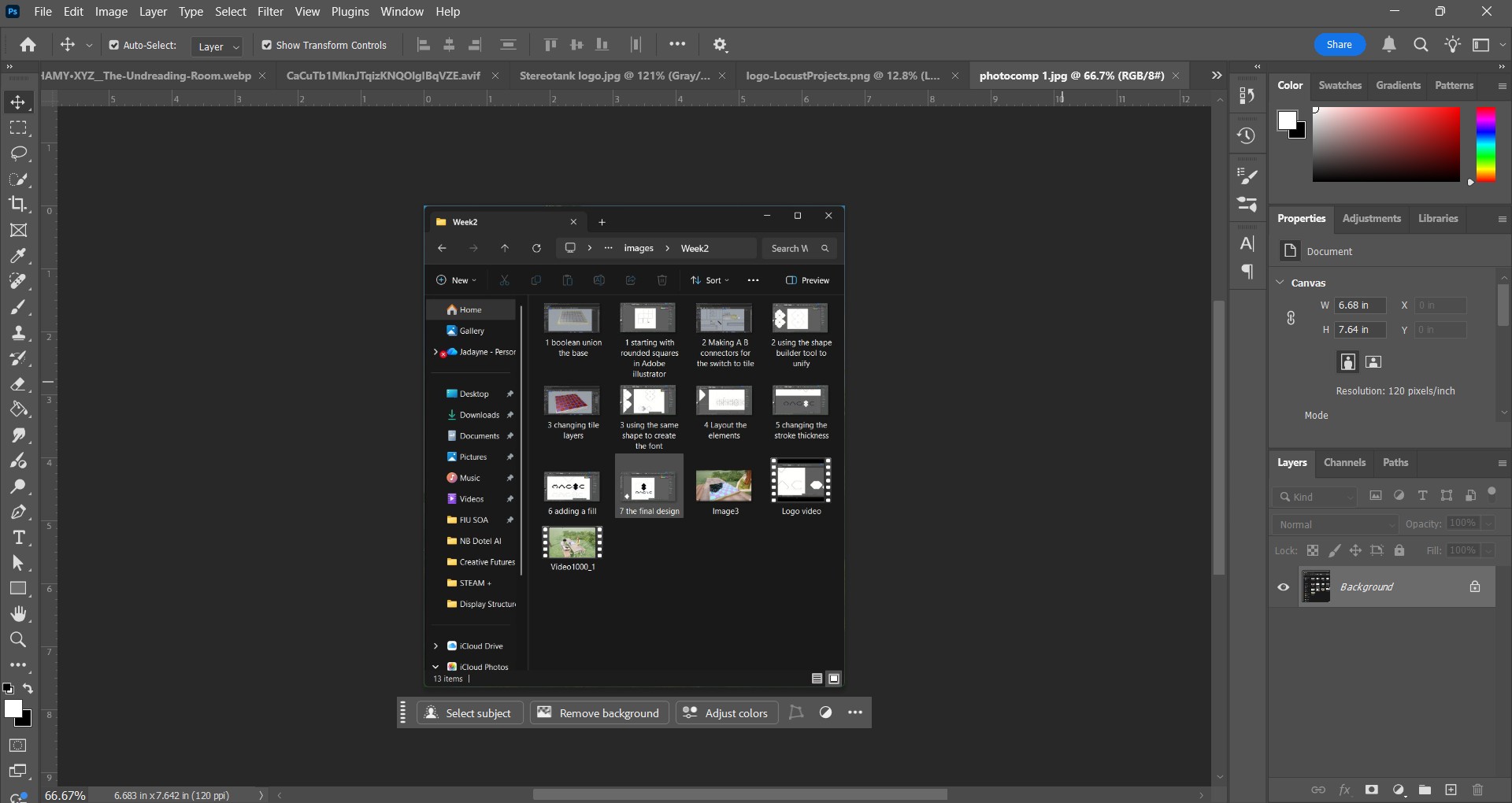
Step 3. Look at your image to determin if it needs any editing or adjustment. In this case I did not need to do anythin to the image.
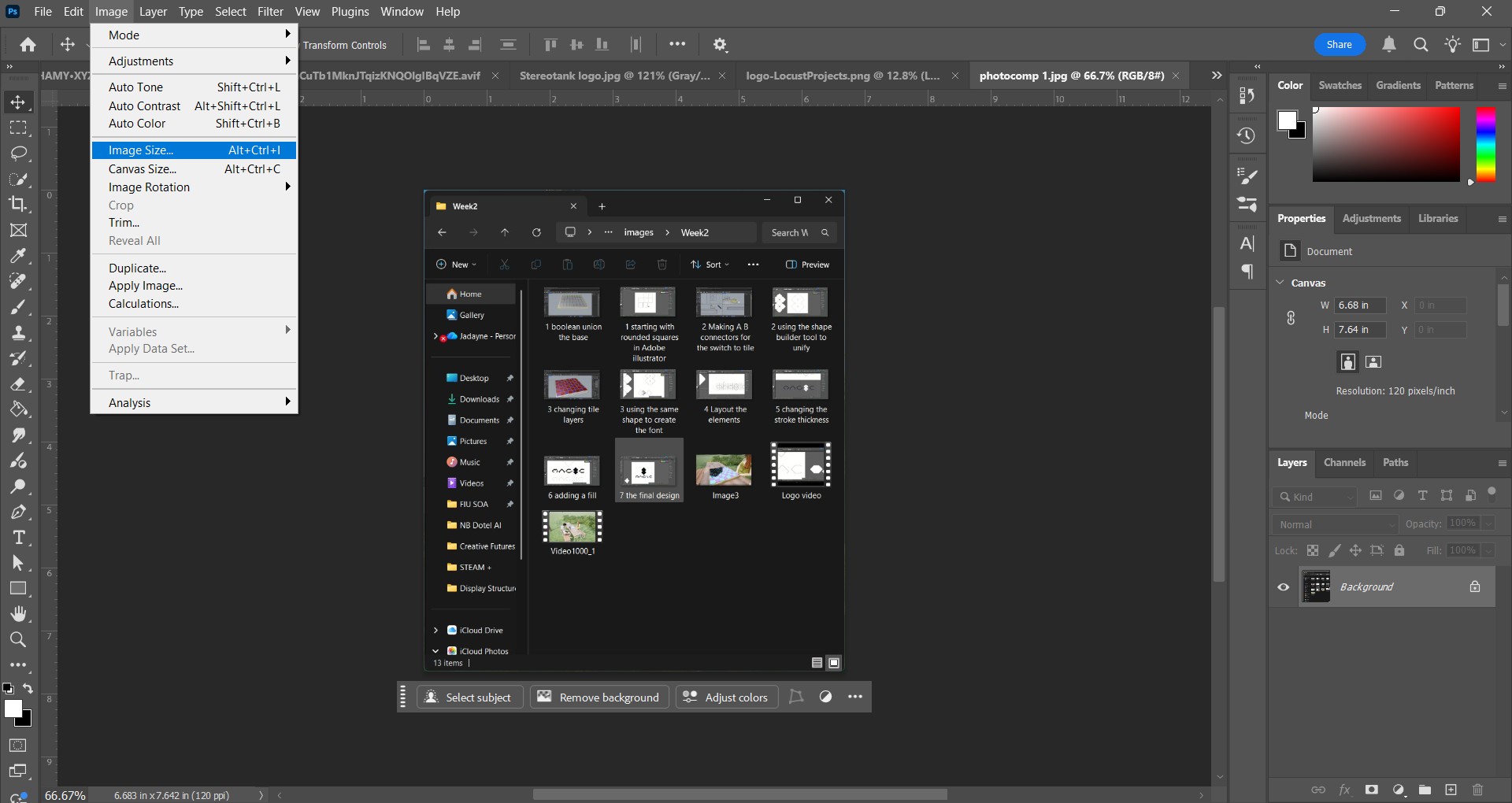
Step 4. Go to Image > Image Size
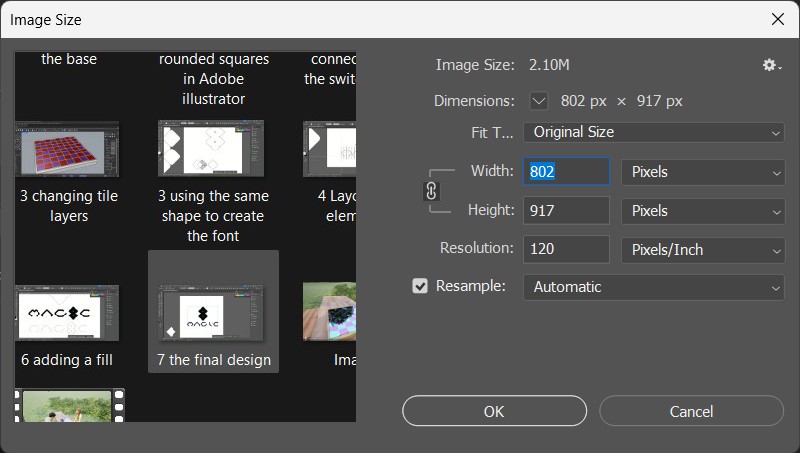
Step 5. In the Image Size menu, I changed the image dimensions to be an approriate size for web use.
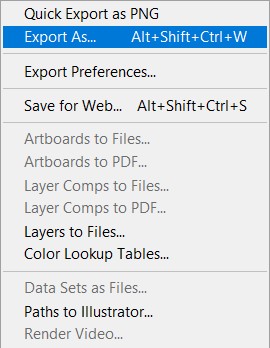
Step 6. I then went to File > Export as.
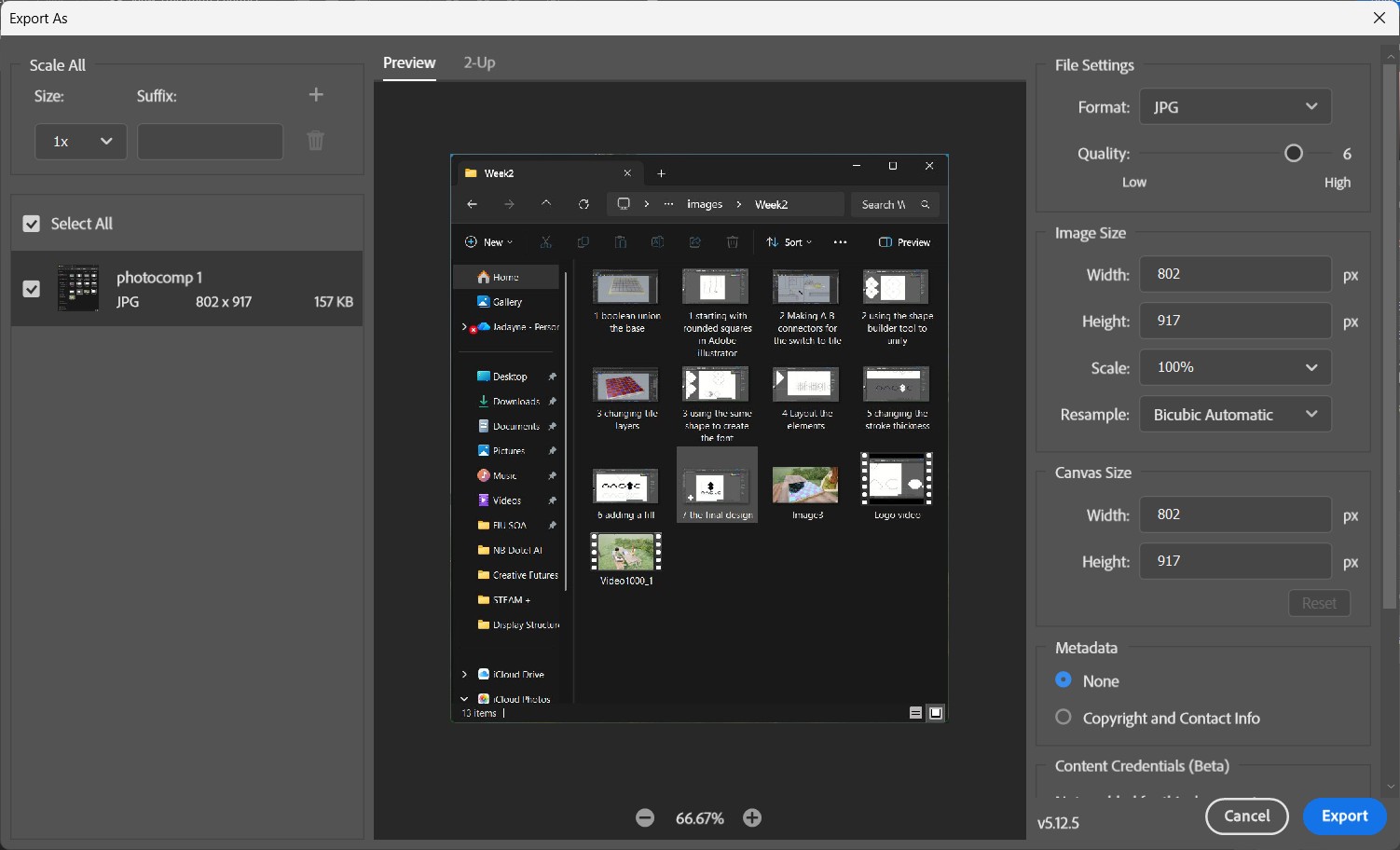
Step 7. In the Export menu, I adjusted the quality settings to further reduce the file size while maintaining an acceptable level of image quality. When the image is small enough with visible details, I export it.
Compressing Videos
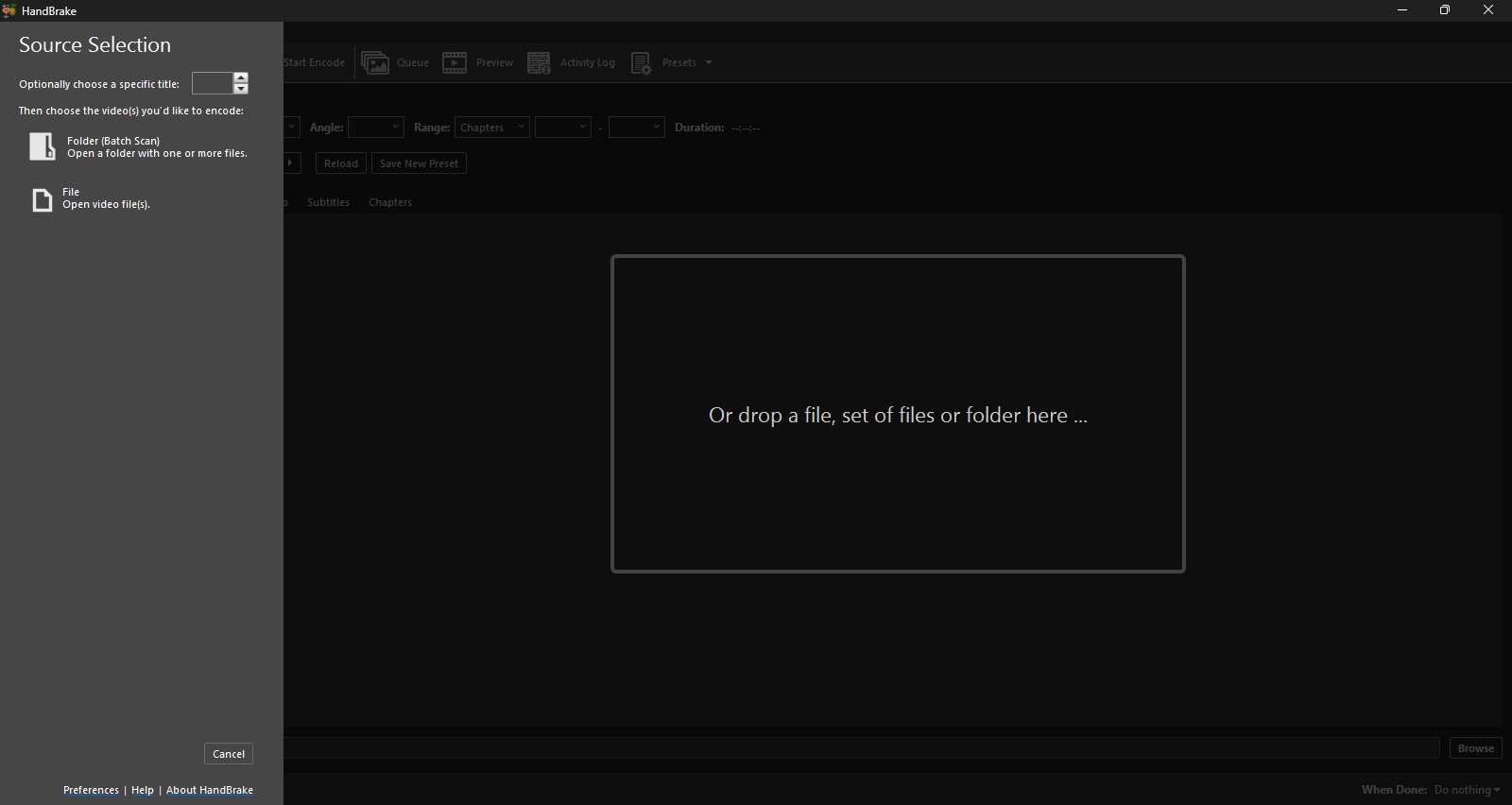
Step 1. Download, Install and launch Handbrake. This is an open source program that efficiently compresses videos.
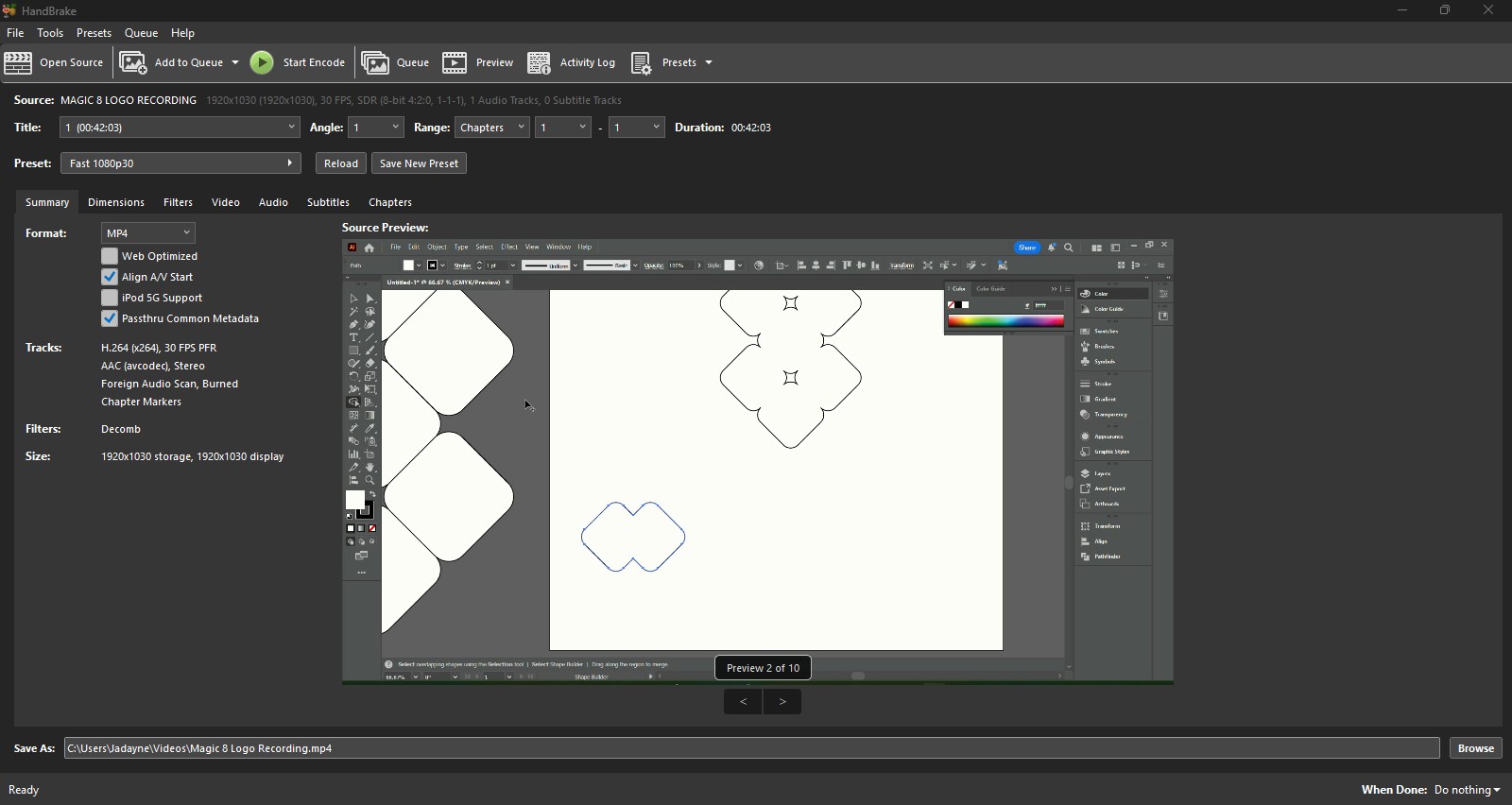
Step 2. Drag the original video into the program. This shows you the details of the video and adjust the presets. I have it as fast 1080p30 and I set it to web optimized.
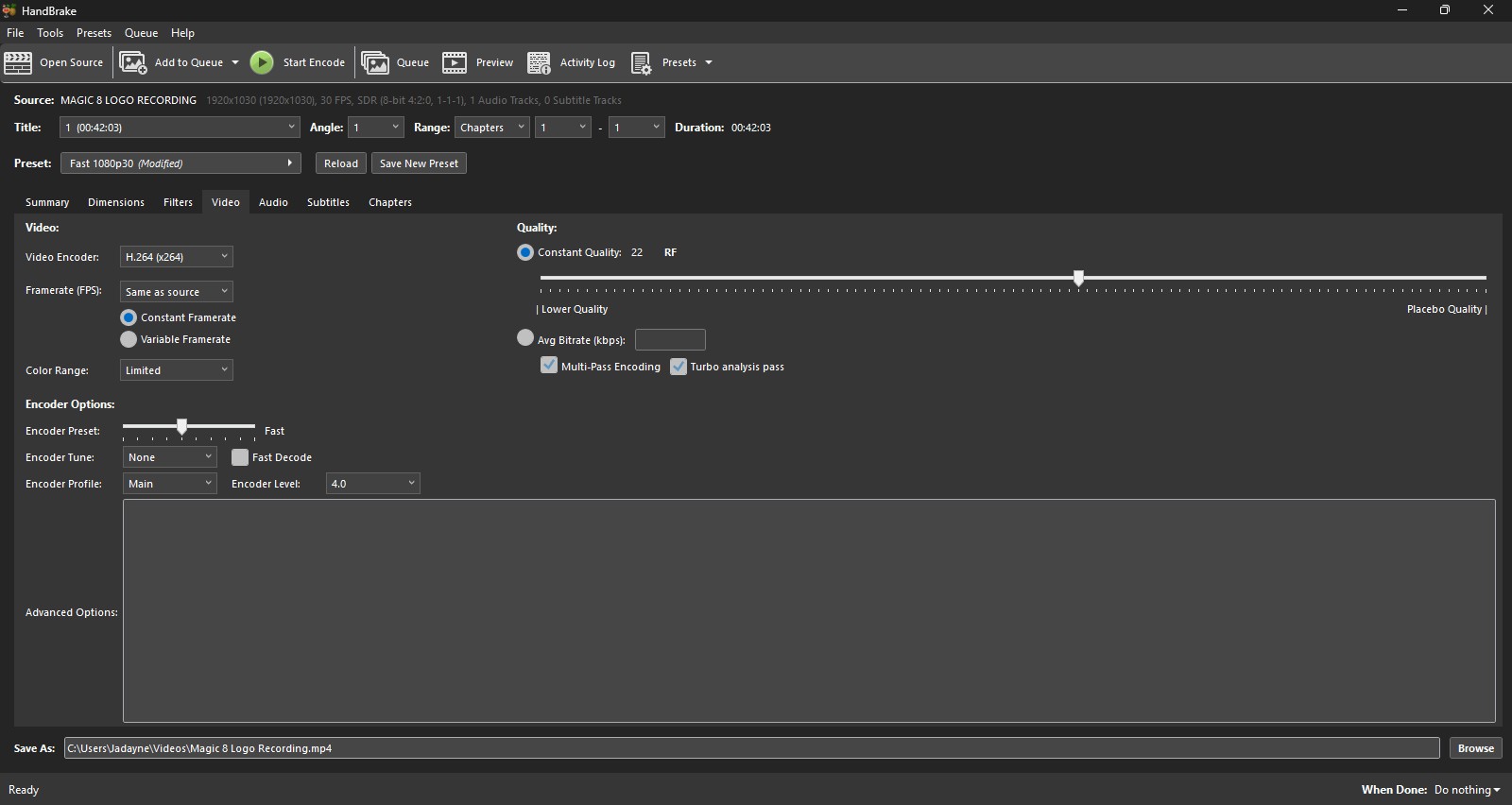
Step 3. Open the video tab. Change the framerate to 'Same as Source' and select 'Constant framerate'. Then click Browse.
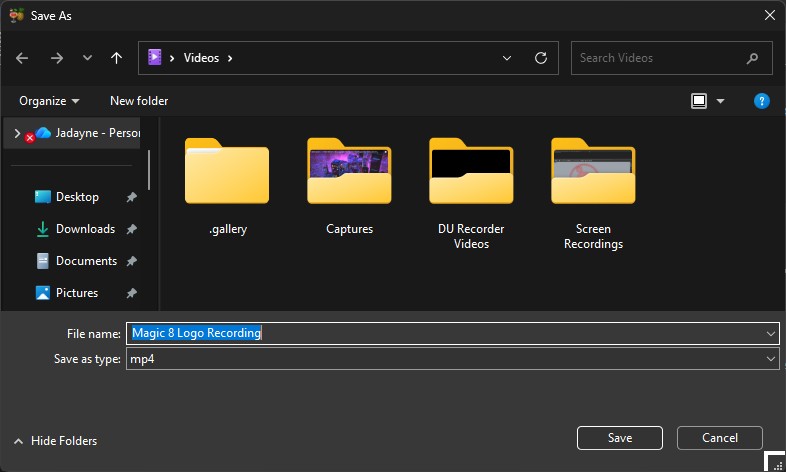
Step 4. Choose the Save as location and file name.
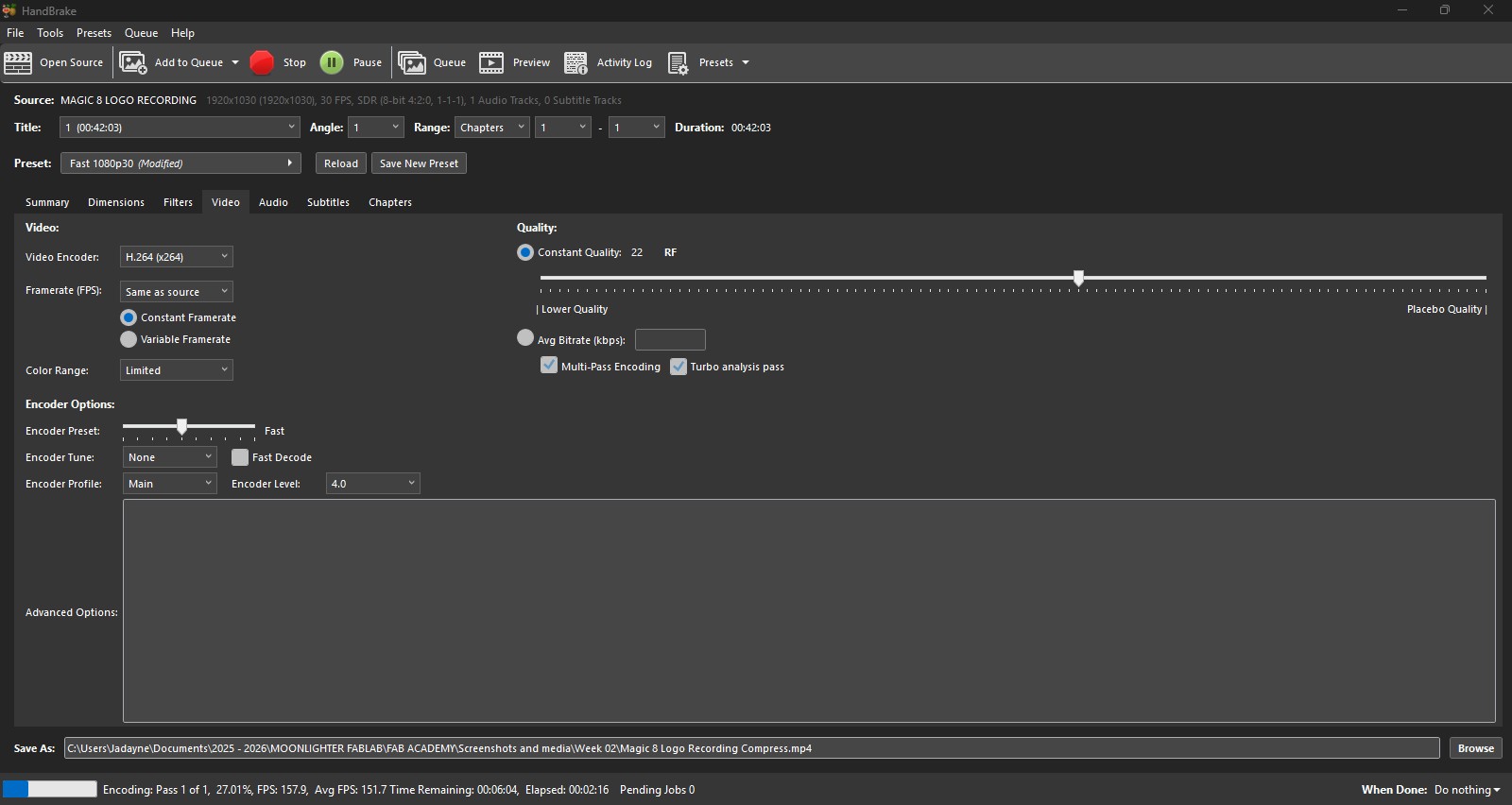
Step 5. Select 'Start Encode'.
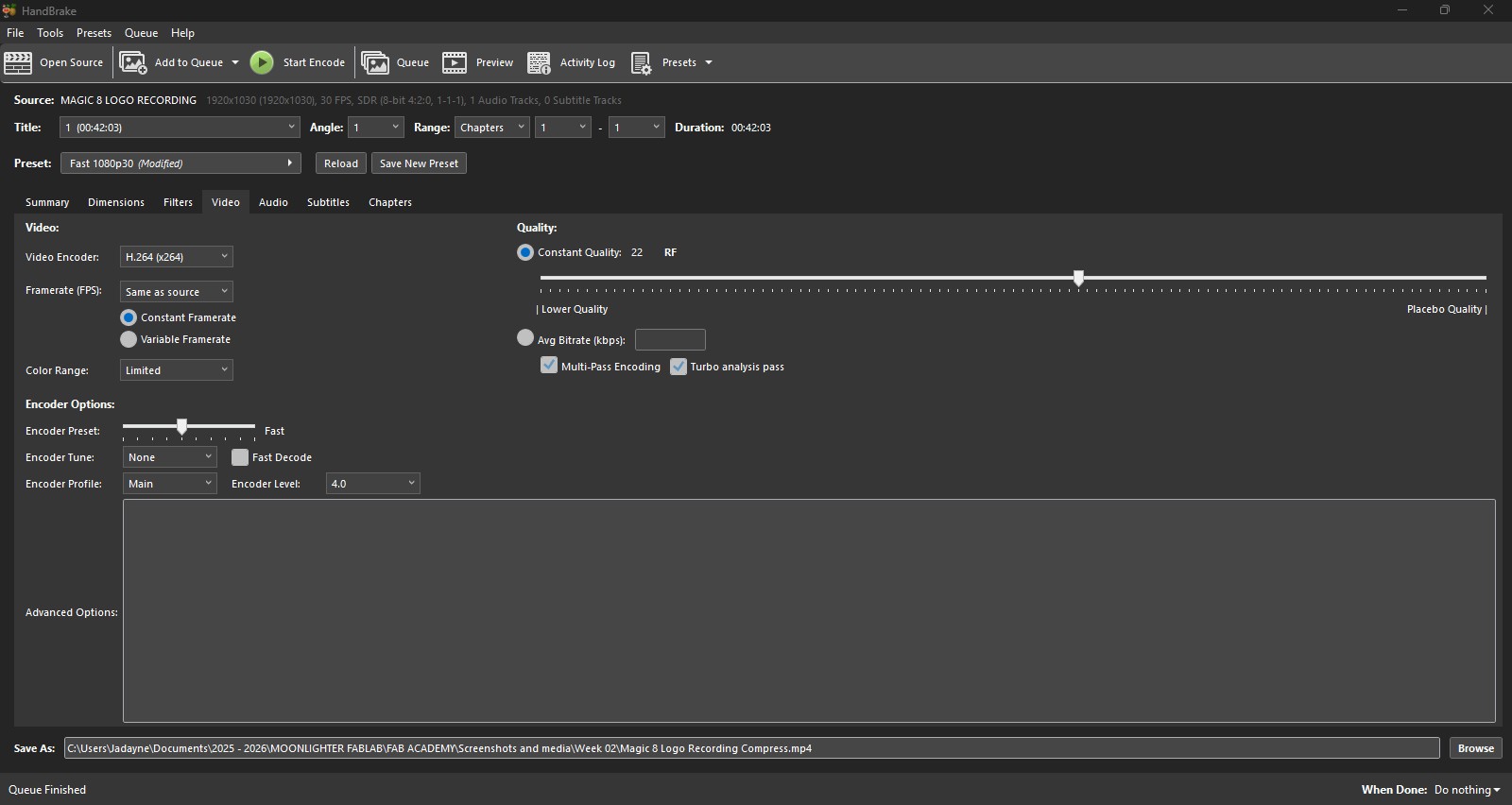
Step 6. Queue is finished and the video is compressed.