Interface and Application Programming
Task:-
Group assignment:
- Compare as many tool options as possible.
- Make and compare test casts with each of them
Individual assignment
- Write an application for the embedded board that you made. that interfaces a user with an input and/or output device(s)
Individual Assignment Overview
This week i focused on learning the basics of game development using Godot Engine- open source game engine and understanding how to interface a digital game with my input and output device. For that i used pcb which was made in electronic design and input device week,
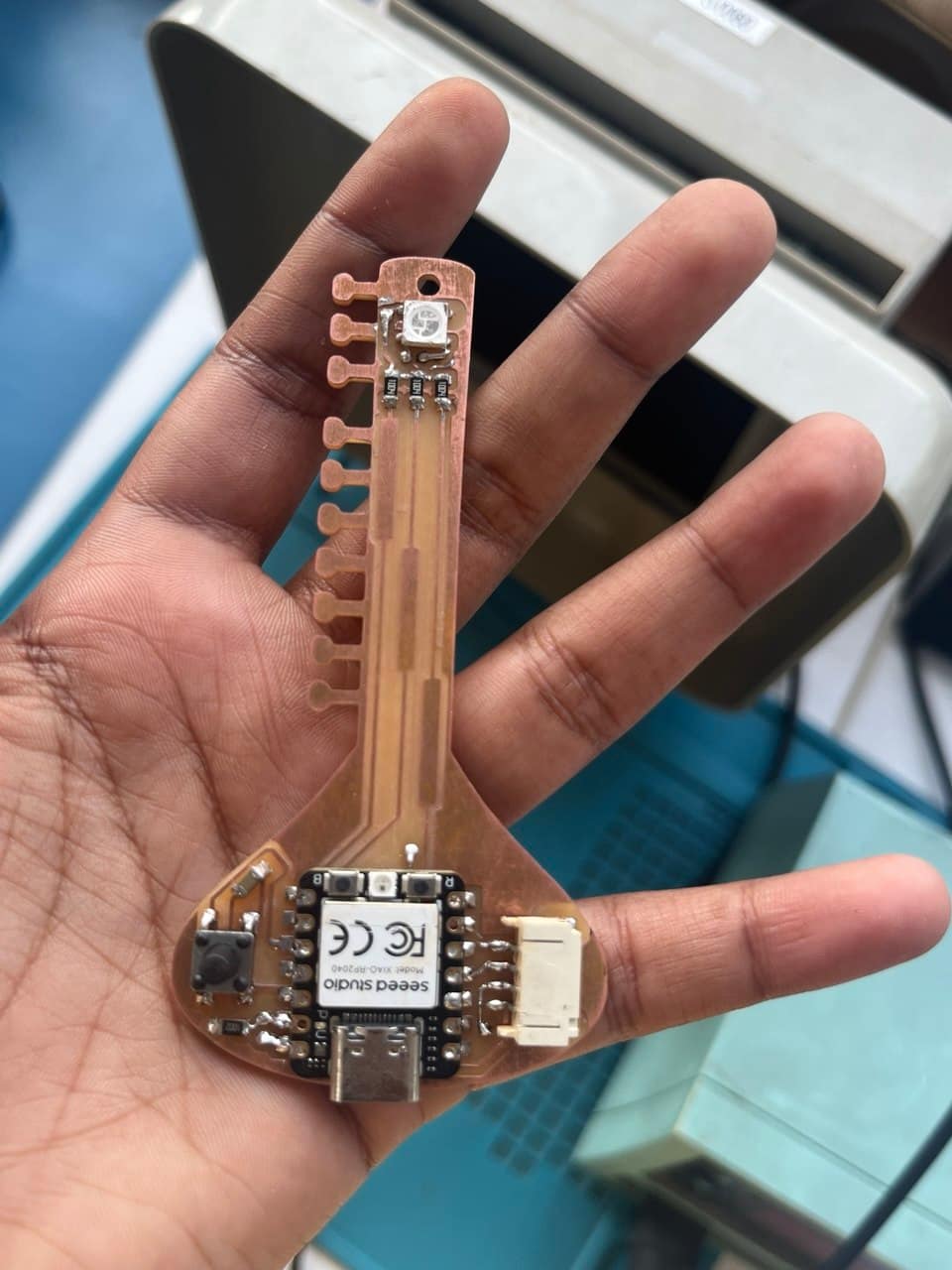
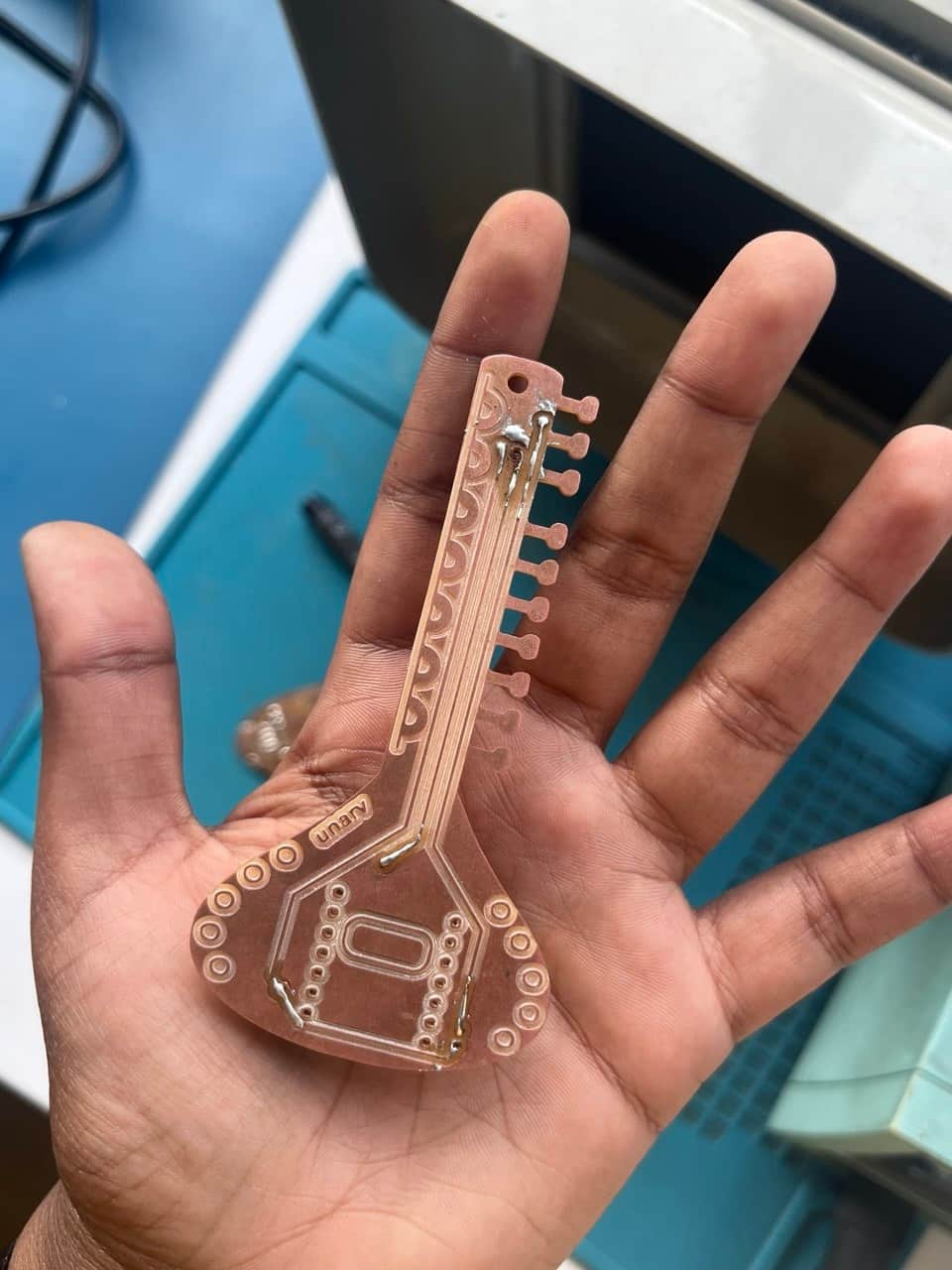
This project was also a continuation of an older attempt. Before joining Fab Academy, I had tried making a similar game in Unity but could not complete it successfully.
This week's assignment gave me a chance to rebuild and improve the idea.
A 2D pixel game developed on Godot engine using GDScript for gameplay programming and logic development.
To interface the game with custom hardware, the Seeed Studio XIAO RP2040 was programmed using
the Keyboard.h library, allowing the PCB to function as a USB Human Interface Device (HID).
The push button on the PCB acts like a keyboard key(space bar) input and controls the jump action inside the game.
Concept Ideation
The plan is a 2D pixel-art game connected with my sitar shaped pcb — Seeed Studio XIAO RP2040 using 3 touch pads, a push button, and NeoPixel feedback.
The initial idea was to create a 2D pixel-art game set in an apple orchard in Himachal Pradesh.
The concept idea for this game came from a personal memory. My father often says that one day he wants
to visit Himachal Pradesh's apple farm in northern India, walk through apple orchards, pluck apples directly from the farm, and eat them there.
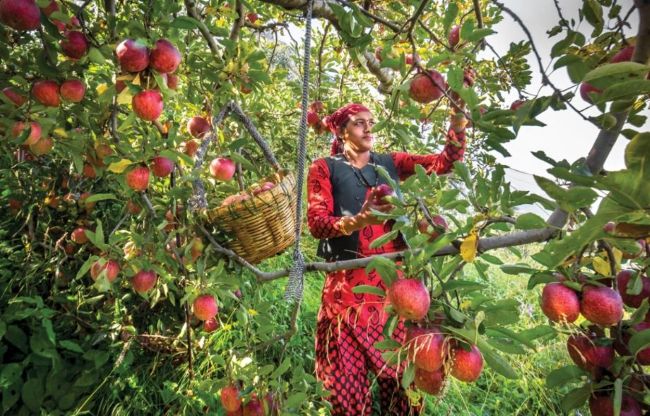
The final goal of the game is that after completing all the levels and meeting every family member, a final message appears saying: "We will go to Himachal soon."
The player “Achan”, who continuously runs through the orchard.
Apples and obstacles appear randomly while the background keeps moving.
Achan has three actions:
- Idle
- Run
- Jump
Touch Pad Interactions
The player interacts using three touch pads:
- Touch Pad 1: collecting red apples
- Touch Pad 2: collecting green apples
- Touch Pad 3: jumping obstacles
- The push button is used to start or restart the game.
There are three types of apples in the game:Red apple, Green apple, Rotten apple.
Only the red and green apples should be collected.
If the player presses Pad 1 or Pad 2 when a rotten apple appears, the player loses life.
- Achan first collects apples for Amma After reaching the required number of apples, he meets Amma
- Then he continues collecting apples for Ammu Later for Ashtami
The number of apples required for each character is randomized.
Example:
- 2 green apples and 3 red apples
- 1 green apple and 4 red apples
The game starts with three lives. Life Reduces When:
- hitting obstacles
- collecting rotten apples
The NeoPixel provides visual feedback during gameplay.
| Event | NeoPixel Color |
|---|---|
| Game running | Blue |
| Apple collected | Pink |
| Life increased | Green |
| Life decreased | Red |
| Game over | Red blinking |
Gemini_AI Prompt Used
            i want to make a 2d pixelated and connect it with xiao rp2040- it has 3touch pads, button and neopixel,
            there are 4 character- achan, amma, ammu, ashtami.
            The game is happening in apple orchard in himachal.
            So achan is the player, once the game is started, achan starts to run and collects apple,
             for collecting apple needs to press the touch pad, and while run there will be obstacle pops up at times,
             and apples also pop ups for collecting randomly. There is certain milestone - after collecting this certain apple, achan meets amma,
              then achan again start collecting the apple for ammu and he meets her, then for ashtami, once he meets ashtami, every character shows and won.


              The green apple and red apple, and rotten apple will spawns randomly, so only collect the green and red apple.
              For Each person achan has to collect a specific amount apple, maybe like 2 green apple and 3 red apple, randomize the number.
              For collecting red apple touch red apple and for touching the green apple touch pad2 and the pad3 to jump and button for start/restart the game,
              If the rotten apple spawns up and the player press either pad1 or pad2, game gets over.
              Achan has 3 actions - idle, run, jump. Other charcters has idle , hands rising when achan approaches.
              BG has to be in constantly moving like infinite scrolling, the obstacles spawns and fades once the charcater pass it .


              Also give feedbacks, when life adds on, he lost life, when he collects apple.
              Achan has 3 life, the life will reduces if he hits obstacles, or takes rotten apple, and once 3 lifes got over - the game gets over.
              Neopixel color red when came got ended, blue when game is on, green when life got added, red when life lost, pink when apple added.
              If he lost one or two life, it can restored by collecting the apple and give to next character, it increase one by one.
              I need you create a full description of everything that will be required for GODOT game mechanics to ensure to develop a best game experience for my personal use.
The project started with a simpler first spiral inspired by the Chrome Dino game and the focus was on creating the basic endless runner mechanic where the player jumps over obstacles. I breakdown the whole game and one by one section i asked gemini to how to make 2d game in godot engine and i have watched many tutorial videos from youtube on godot 2d engine. This way, i can manually debug things when something is not working or it gets error. Also i can give better prompt to ai.
Youtube Tutorials i have watched and referred to understand GODOT ENGINCE:
How to use Area2D in Godot Tutorial
How to Make a Google Chrome T-Rex Style Sidescroller In Godot | Beginner Tutorial
Every 2D Node Explained in 9 Minutes!
How To Start Making Games With Godot 4!
Godot 4 Sprite Sheet Animation Tutorial
Godot Beginner Guide 2026: What I Wish I Knew Before Starting
Godot 4 Crash Course #1 - The Basics
This week, I accomplished the first spiral of the game as a realistic and achievable development goal.
The project started with a simpler first spiral inspired by the Chrome Dino game and
the focus was on creating the basic endless runner mechanic where the player jumps over obstacles.
The prototype includes a parallax scrolling background, two types of obstacle spawning, player movement, and jump mechanics.
The player has to jump over the obstacles, and if the character collides with an obstacle, the game ends.
Assest
Chatgpt_AI Prompt Used
For creating the characters, I used ChatGPT to generate pixel-art references through prompts and multiple iterations.
For Achan's(father) character, I used prompts describing:
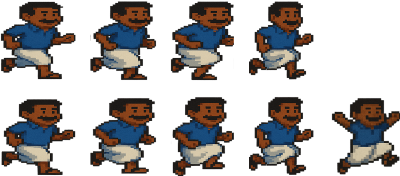
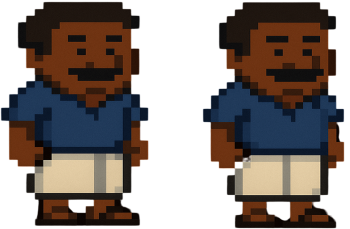
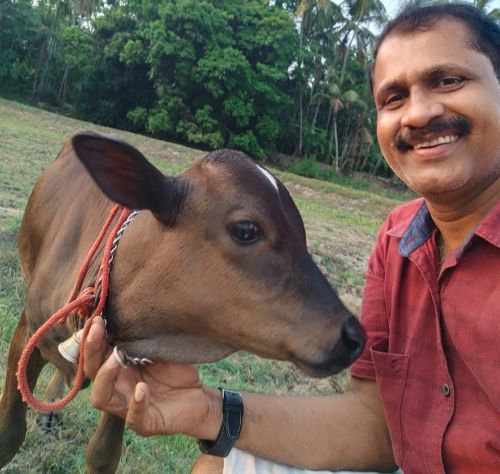
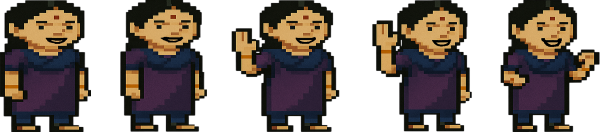
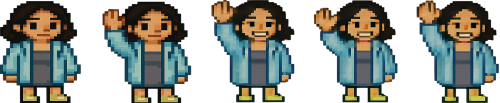
For the other family characters — Amma(mother), Ammu(sister), and Ashtami(me) — I used their photo as references
and generated pixelated character sprites with simple animations such as idle standing and hand-raising gestures.
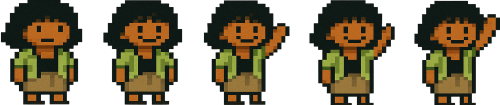
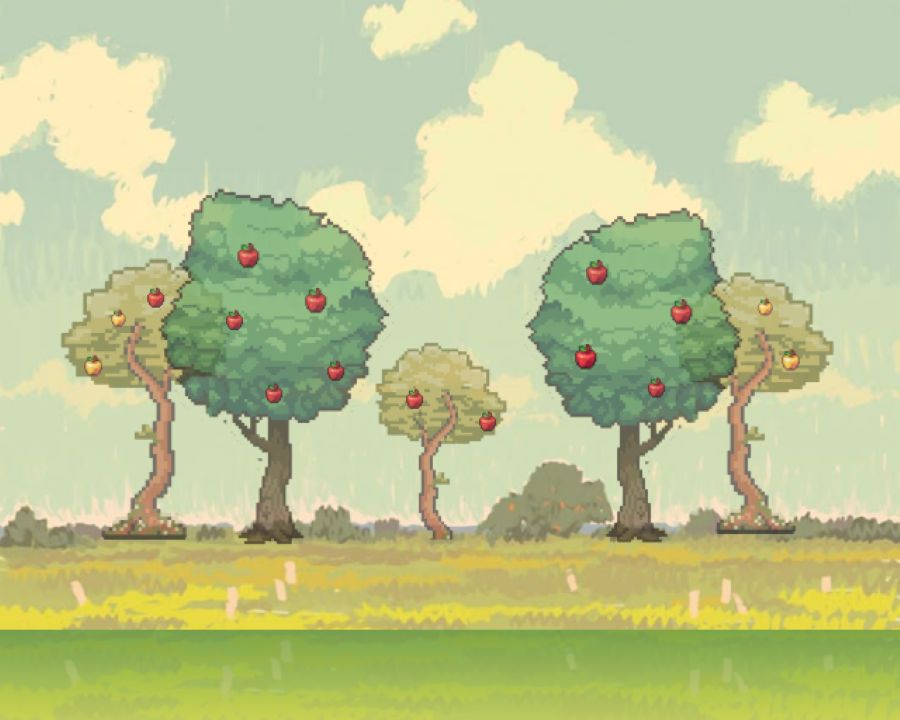
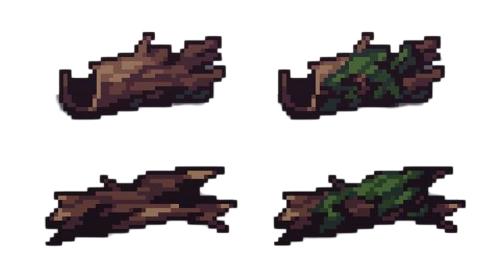
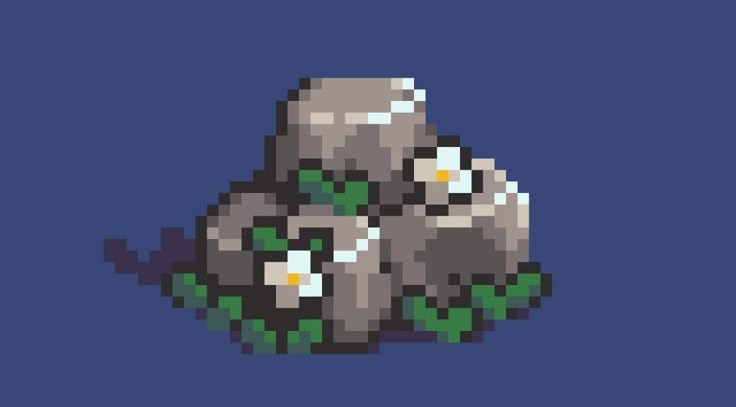
For the environment and assets:
- orchard and landscape elements were collected from Pinterest references
- apple graphics and layered background compositions were combined using Canva
- obstacles were sourced from pixel-art references found through online image searches
Game Development using GODOT

Godot Engine is a free, open-source, cross-platform game engine ideal for creating 2D, 3D, and XR (VR/AR/MR)
applications and games.
Godot supports a variety of programming languages, including its own scripting language - GDScript (which is Python-like), C++ and C#
Click here to download godot

Godot_v4.6.2-stable_win64.exe
- Normal Godot editor
- Used for making and running games
- Opens with graphical interface (GUI)
- Adds console window
- Shows debug logs and print statements
- Useful for programming/debugging
Godot Engine uses a scene + node system, as i'm making 2d game: Node2D is the backbone of everything in 2D.
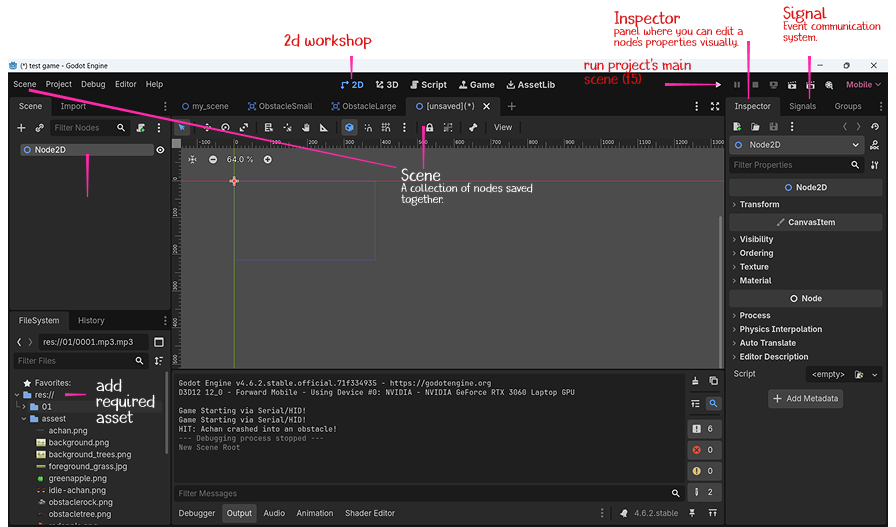
Node2D
Transform (Position + Rotation + Scale) + Parent-Child System
So any node that needs to exist in 2D space must inherit from Node2D.
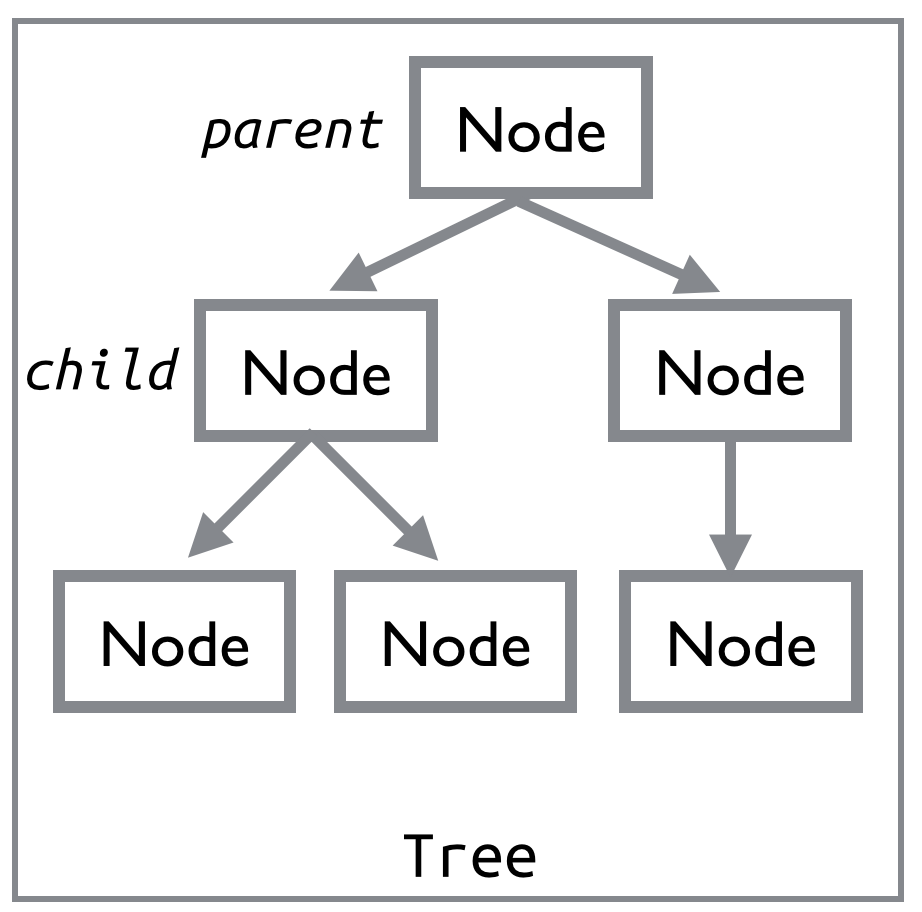
Source: Godot 101 - Part 1: Introduction to Godot godot docs to learn the basics
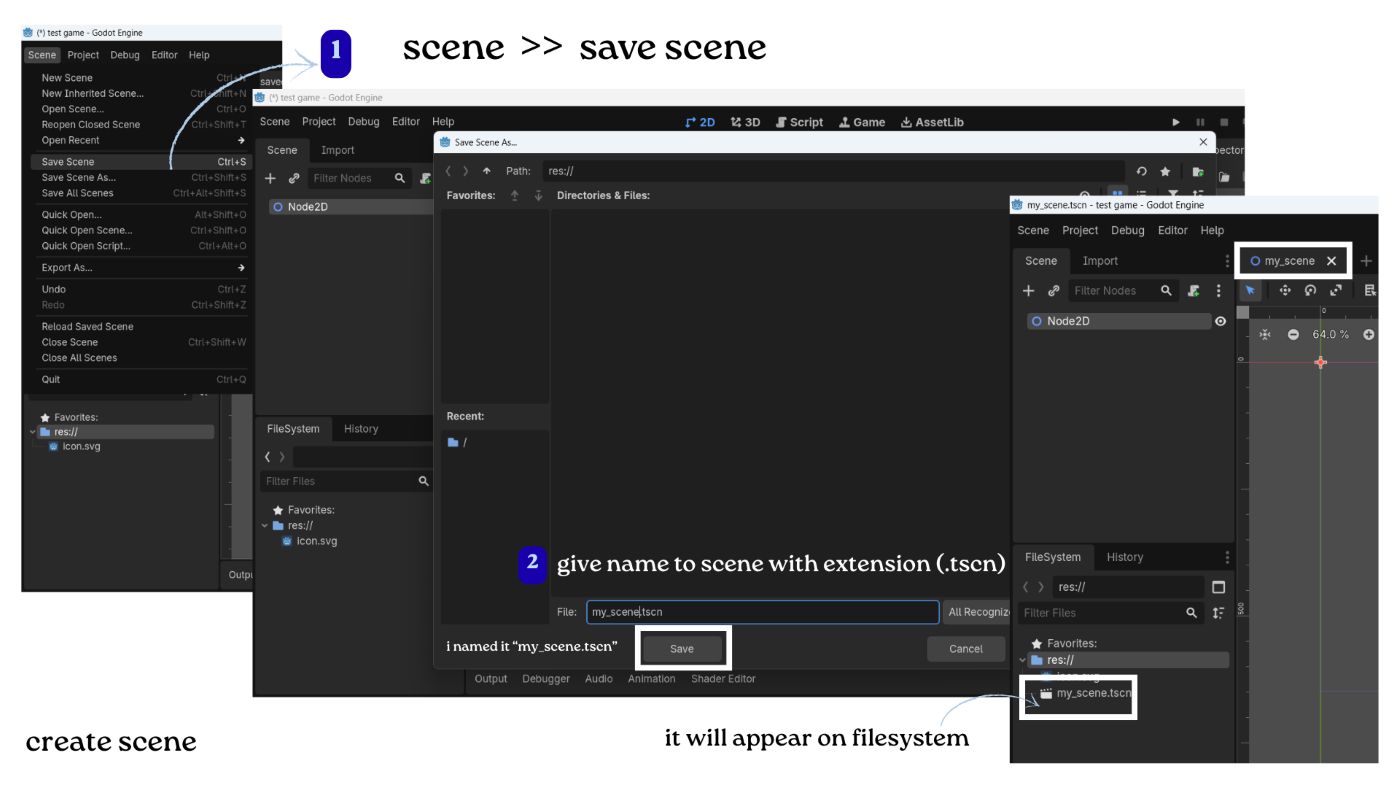
Creating a new project in Godot and setting up 2Dgame workspace
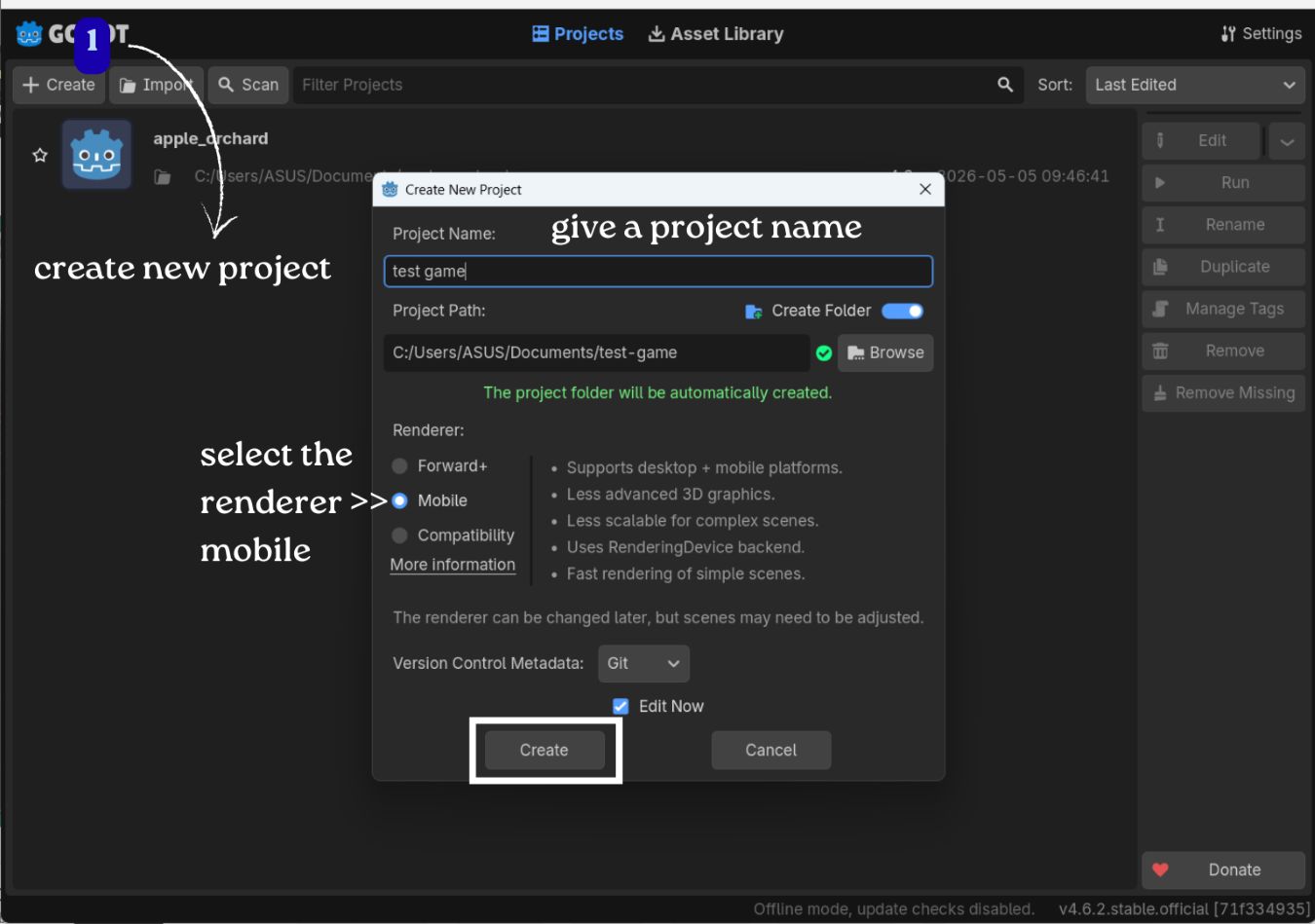
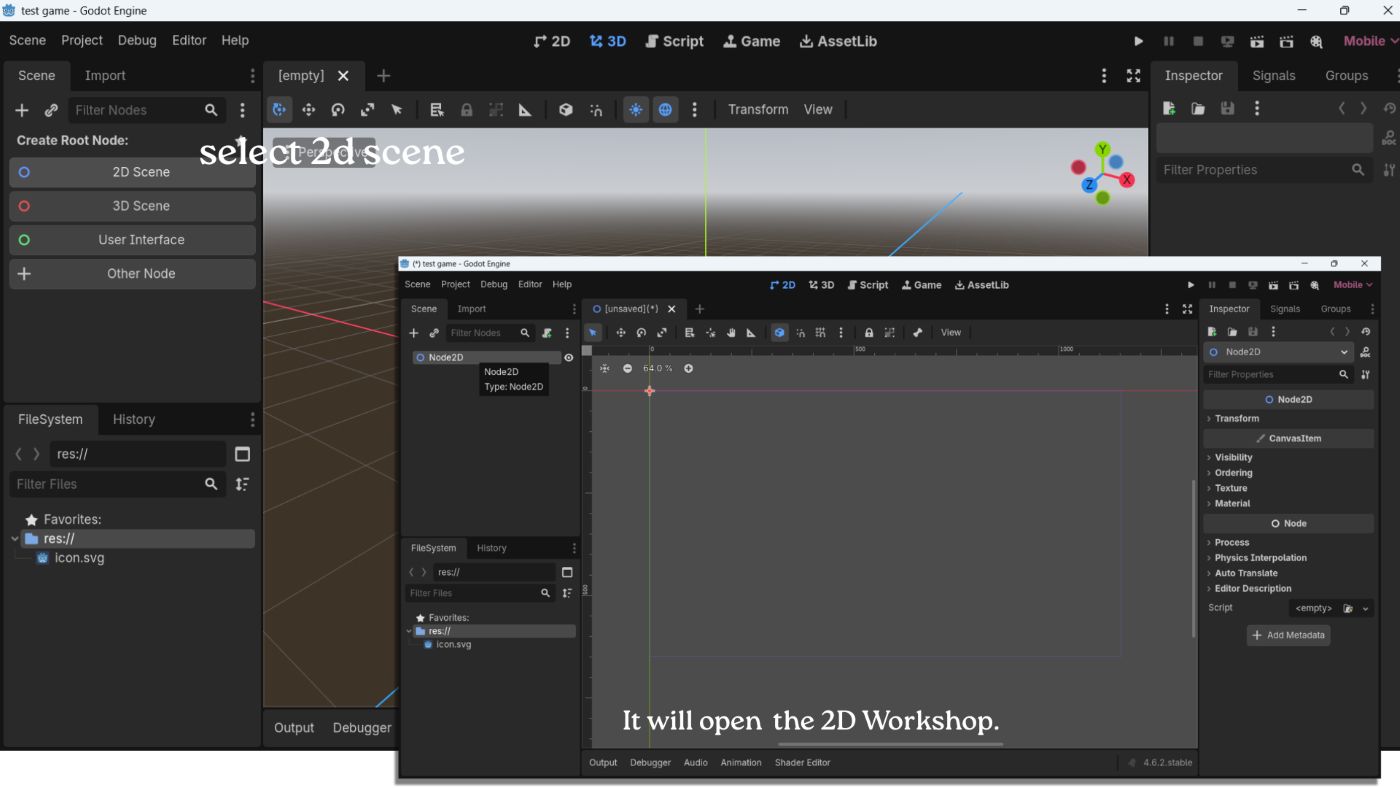
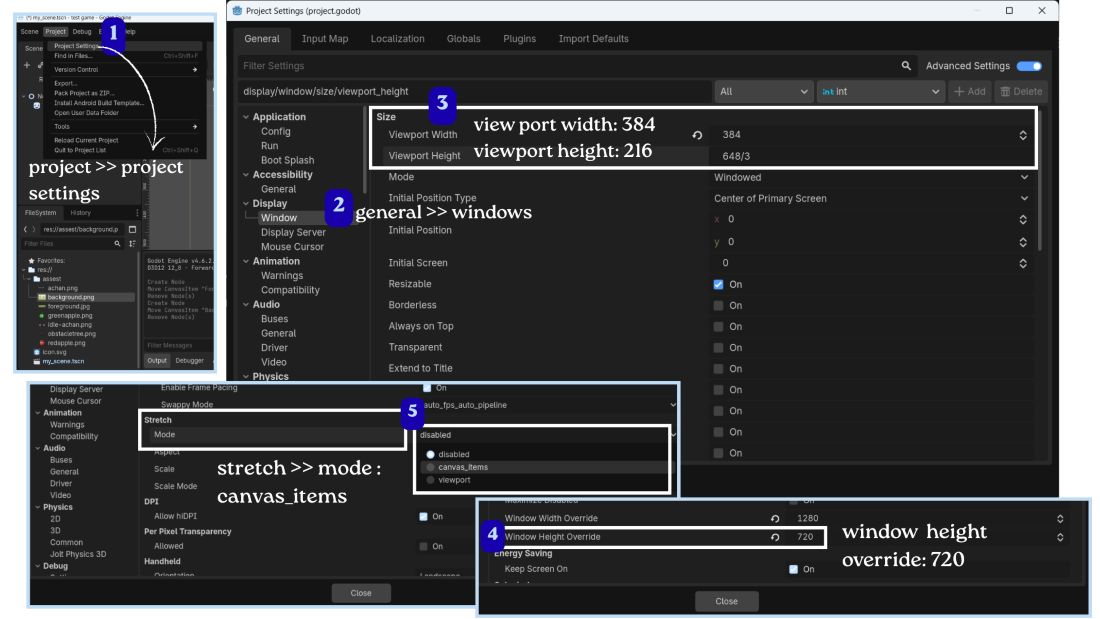
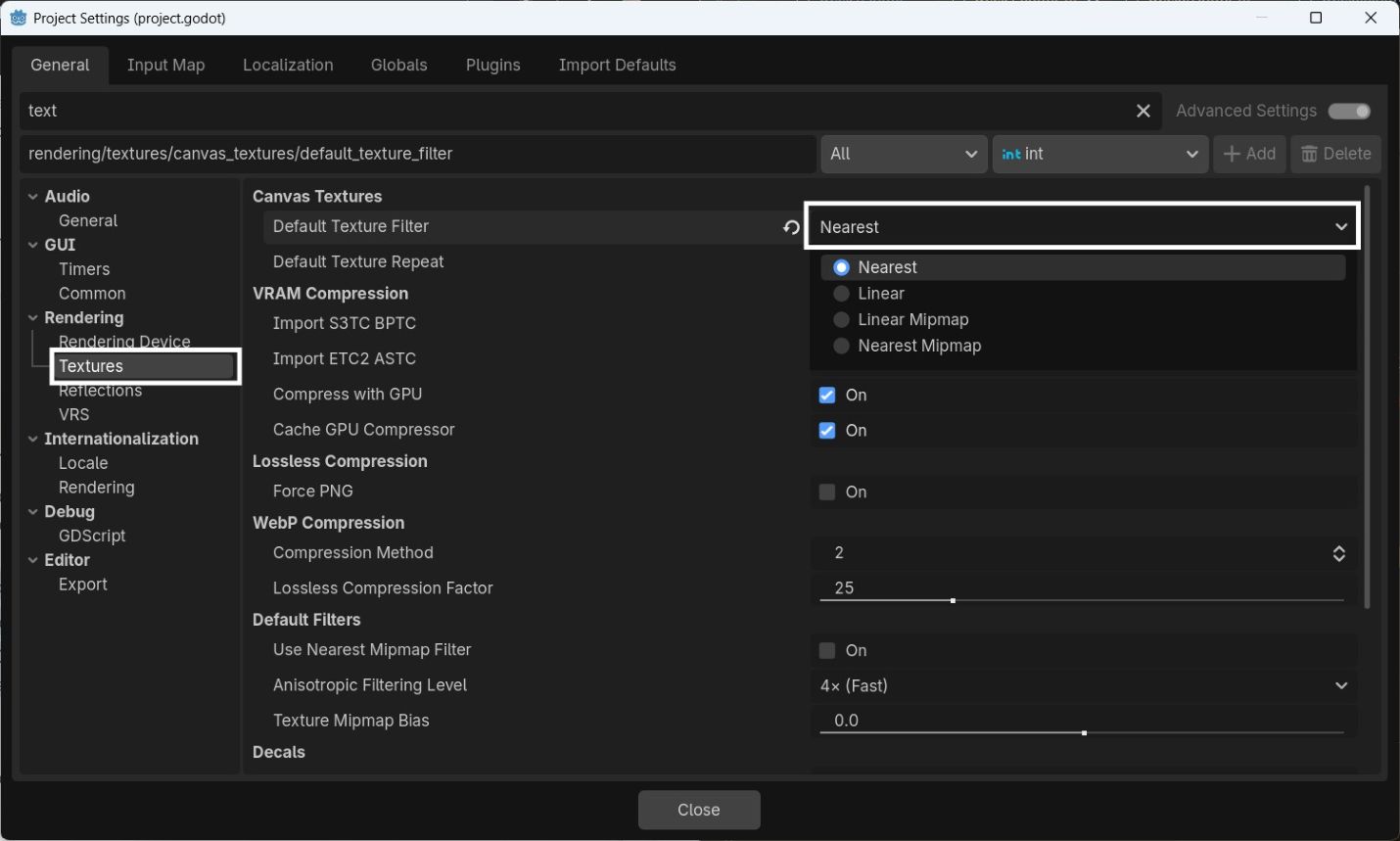
Project >> Project Settings; Search for Textures in the search bar. Set Default Texture Filter: Nearest. This will make the pixel images crips, clear and avoid the blurriness.
Infinite Scrolling background: Apple Orchard
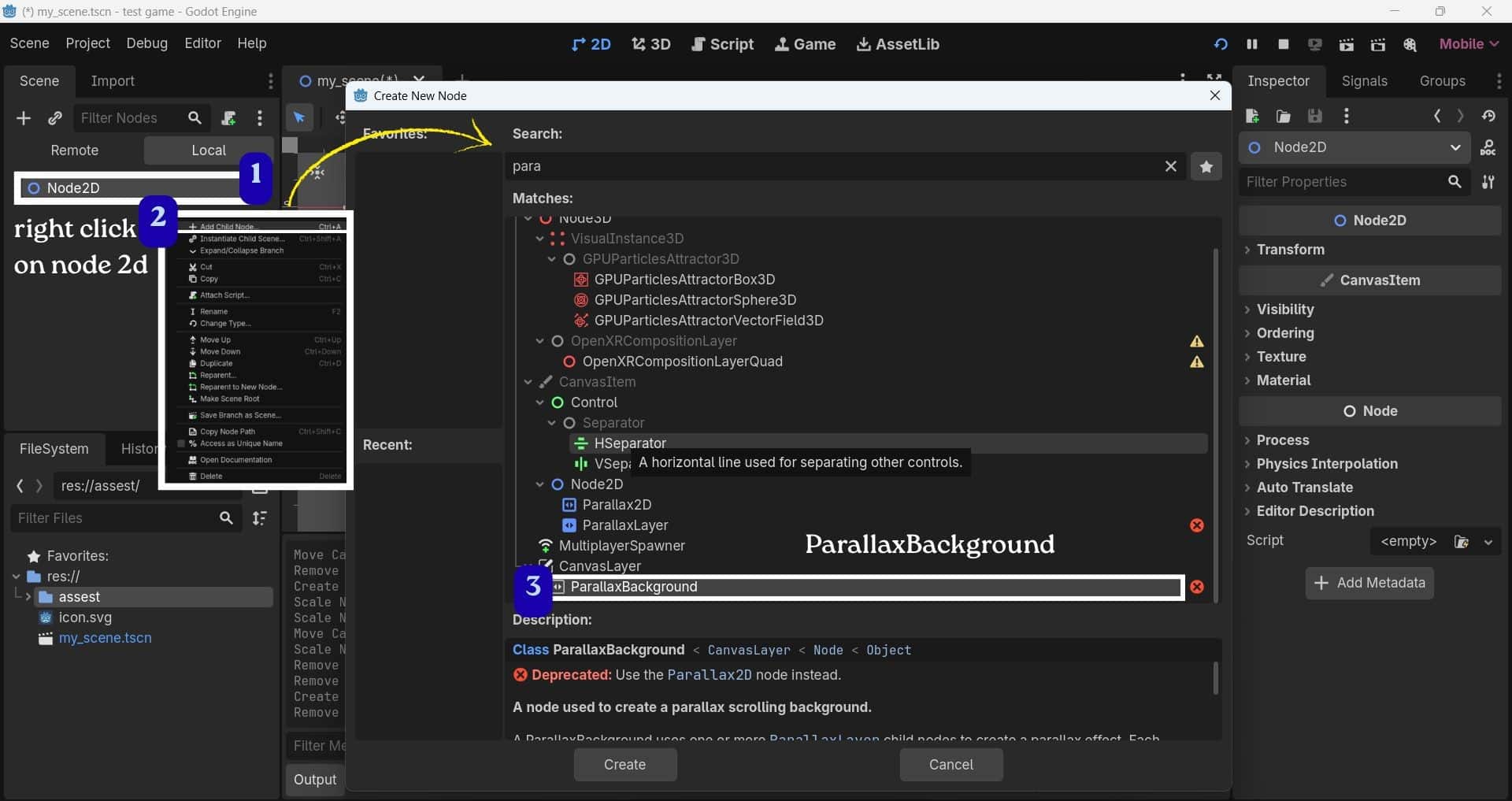
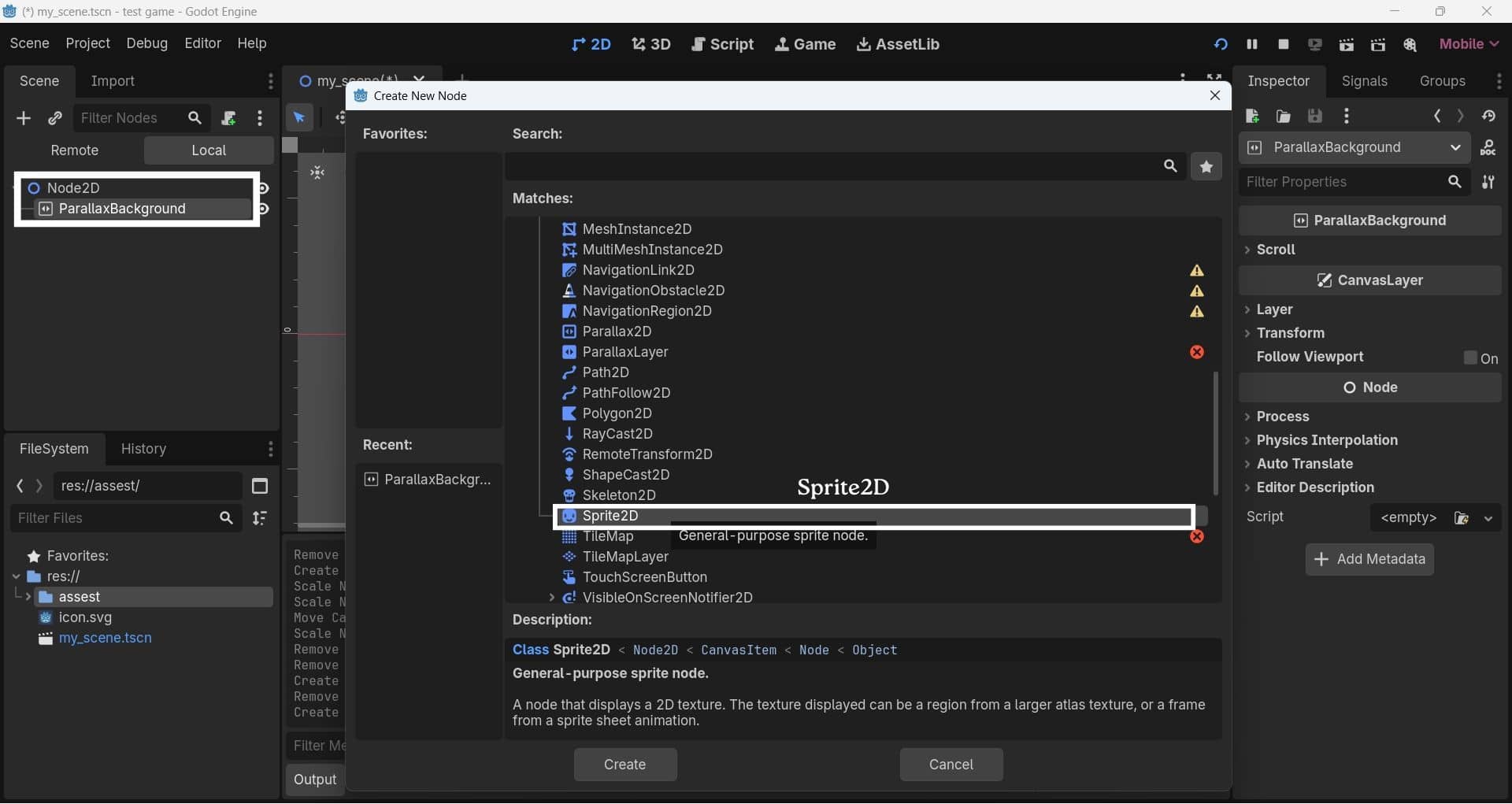
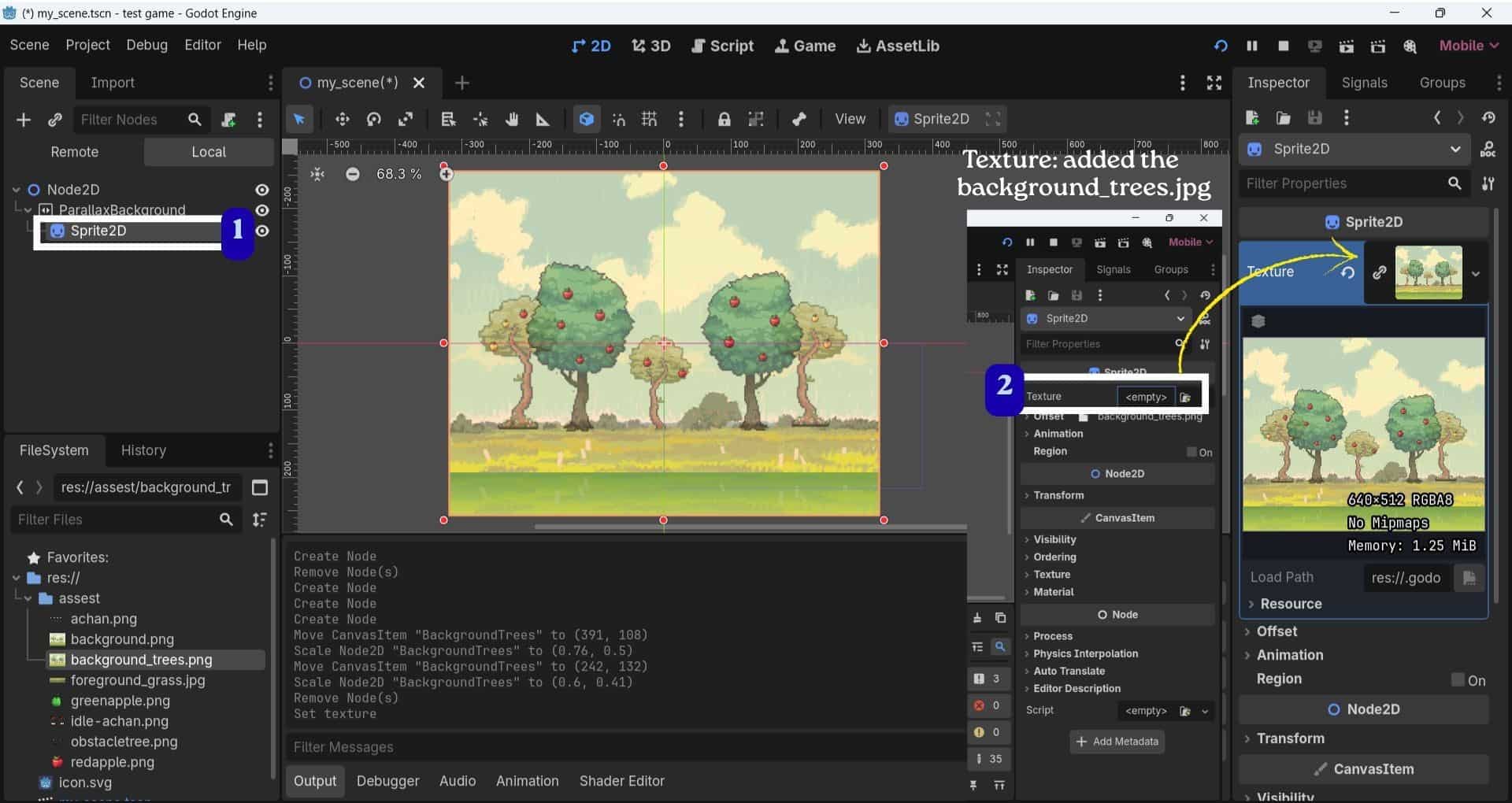
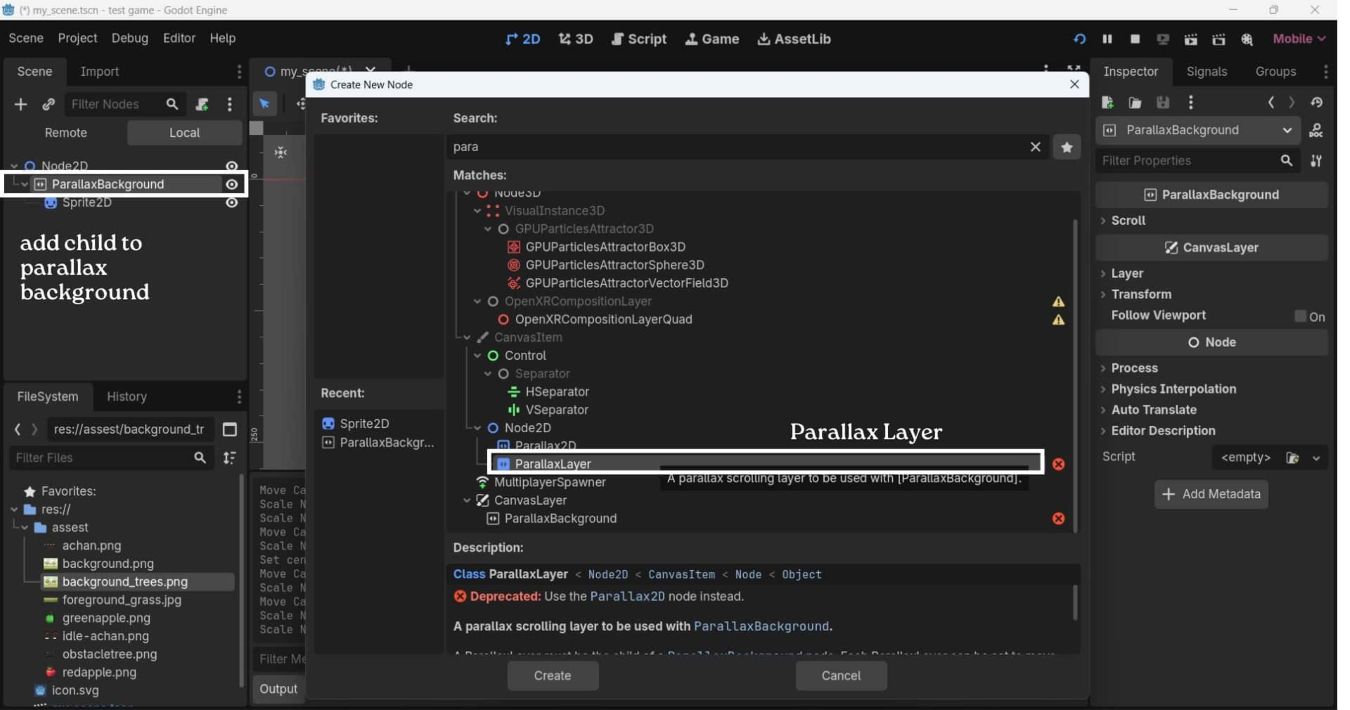
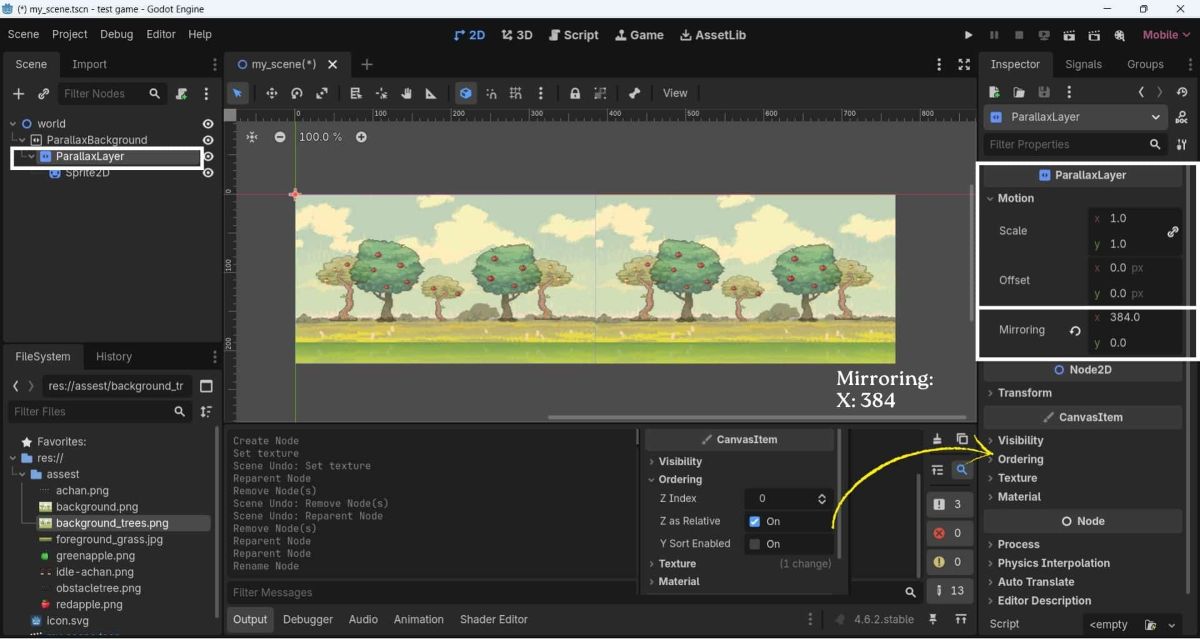
ParallaxBackground
Parent node that manages the parallax effect. It controls the movement of all background layers and is used to create depth, and in my case - infinite scrolling background.
ParallaxLayer
Child of ParallaxBackground. It controls how fast the background moves using Motion Scale and can use Motion Mirroring for seamless infinite scrolling.
Sprite2D
Displays the background image (texture). It is placed inside a ParallaxLayer and shows the artwork that scrolls across the screen.
Right click on the Node 2D to create the child Node
- Add a ParallaxBackground node.
- Add a Sprite2D to the scene and assign the background image. (After creating the ParallaxLayer, simply drag and drop the existing Sprite2D under it in the Scene panel to make it a child of the layer.)
In the Inspector (right side), drag Background apple orchard into the Texture slot. - Add a ParallaxLayer as a child of the background. In the inspector: Motion > Mirroring. Set the x value:384
StaticBody2D
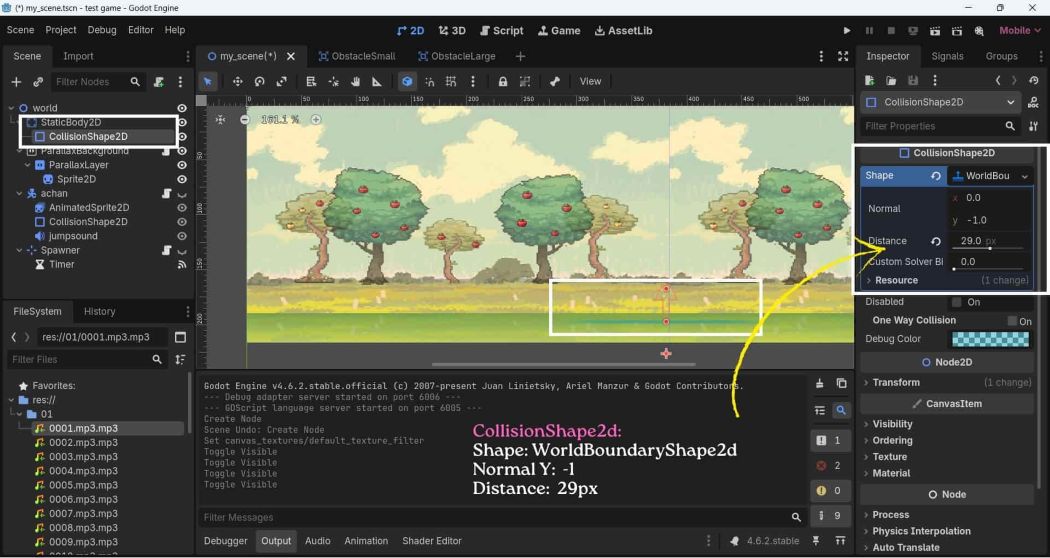
A node used to create objects that stay in one place like a Ground. The player can stand on or collide with these objects.
CollisionShape2D:
Defines the collision area of a physics object.
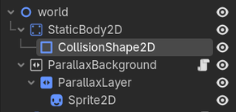
- Rename the Node2d to world, add the child to world: StaticBody2D
- Add CollisionShape2D as a child to StaticBody2D.
In inspector, Shape: WorldBoundaryShape2D
Normal Y: -1 and Distance: 29 px
WorldBoundary
Shape2D:
Creates an invisible collision line that acts as the ground. Since I did not add a visible foreground, I used this to give the character a surface to stand on and prevent it from falling.
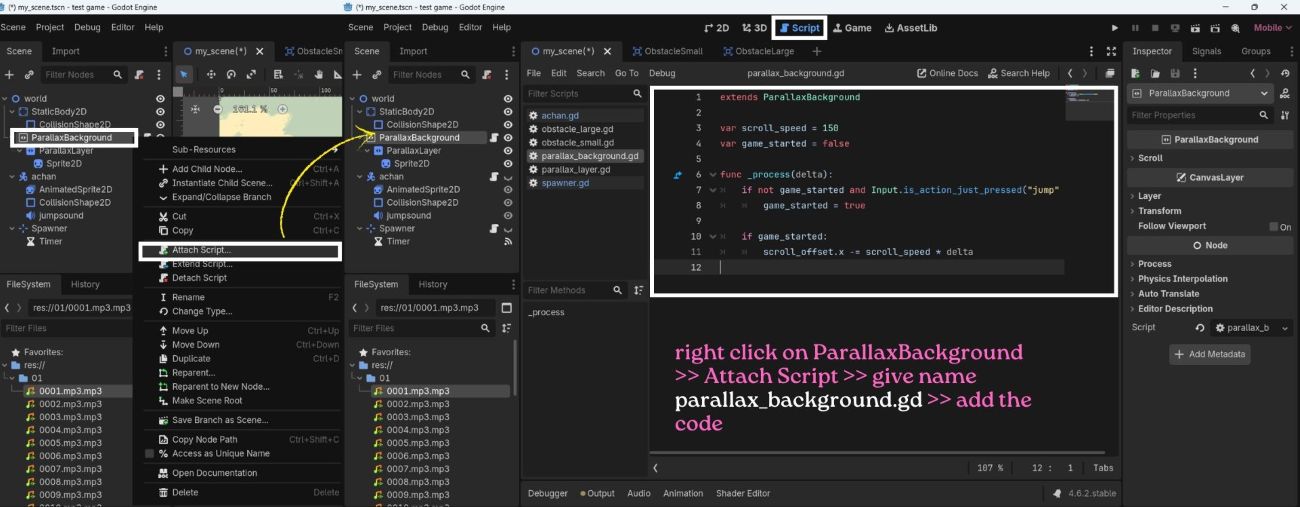
Script:
A file containing code that gives a game object its behavior and controls how it acts during the game.
Right click on ParallaxBackground and click attach Script >> add name to it >> paste code here.
ParallaxBackground
                extends ParallaxBackground
                # This script is attached to a ParallaxBackground node
                # It creates a moving scrolling background
                var scroll_speed = 150  # Speed of background movement
                var game_started = false # Checks whether the game has started
                # Initially false

                # _process() runs every frame
                # delta = time between frames
                func _process(delta):
                # Start the game when the jump button is pressed
                  if not game_started and Input.is_action_just_pressed("jump"):
                 # "jump" action is set in Input Map

                    game_started = true

                 # Move background only after game starts
                  if game_started:
                   # Move the background toward left side
                   scroll_offset.x -= scroll_speed * delta
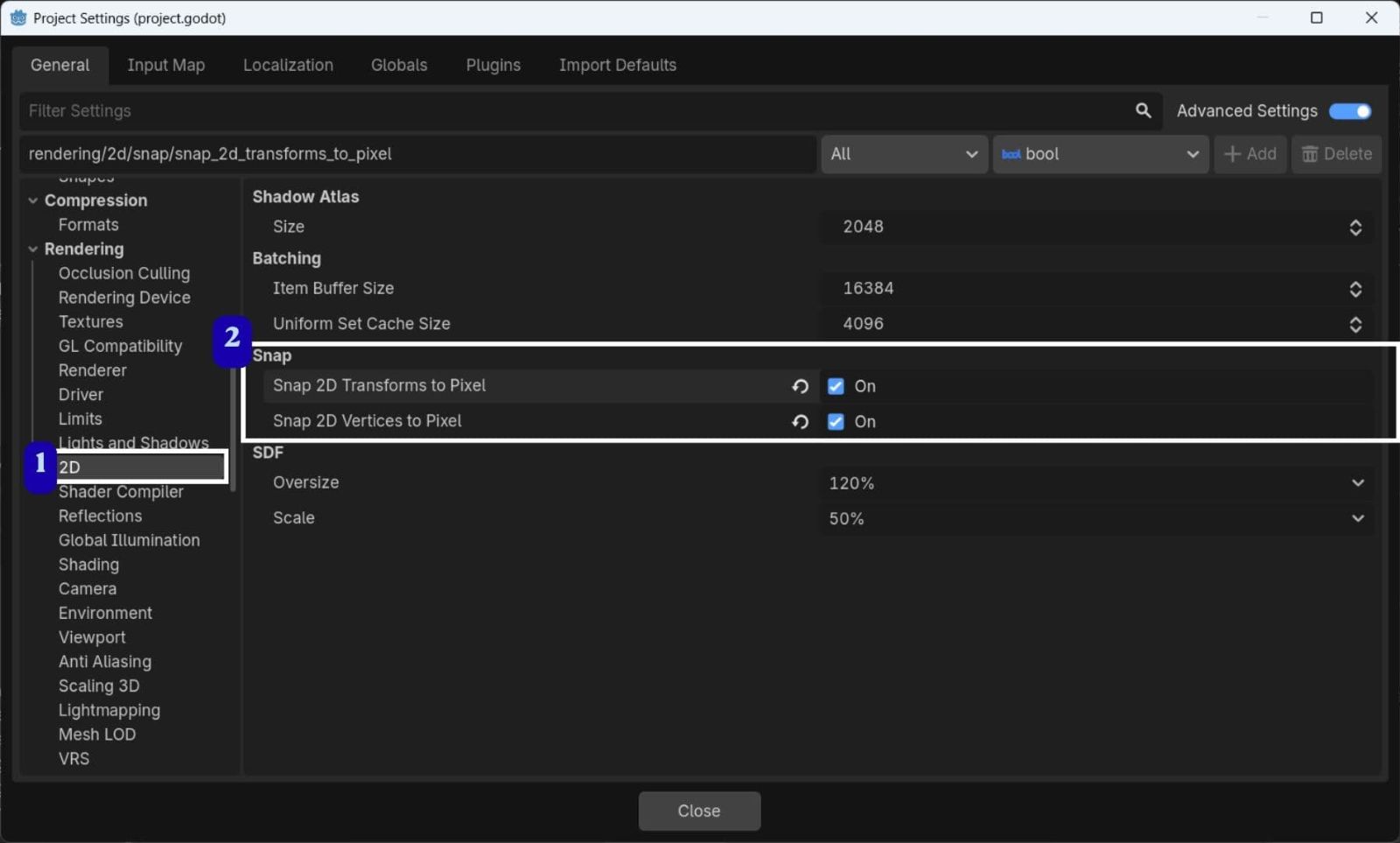
Project Settings >> 2D >> Turn on both Snap 2D Transforms to Pixel, Snap 2D Vertices to Pixel
Snap 2D Transforms to Pixel:
This makes sure sprites move one pixel at a time instead of stopping between pixels. This keeps the graphics from looking blurr while moving.
Snap 2D Vertices to Pixel:
Aligns the corners of sprites and shapes to the pixel grid, keeping their edges sharp and preventing distortion.
Adding Character and it's animation
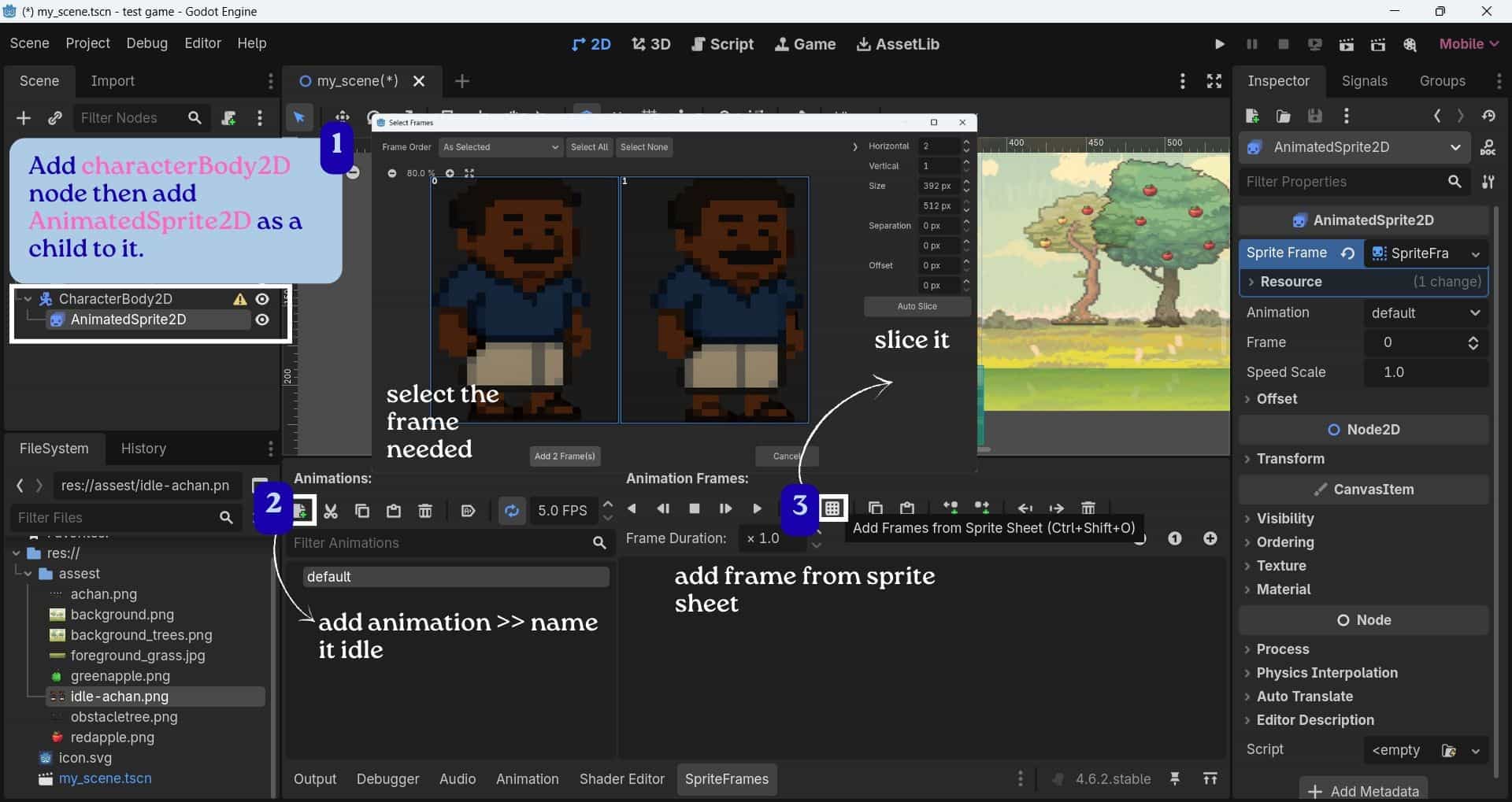
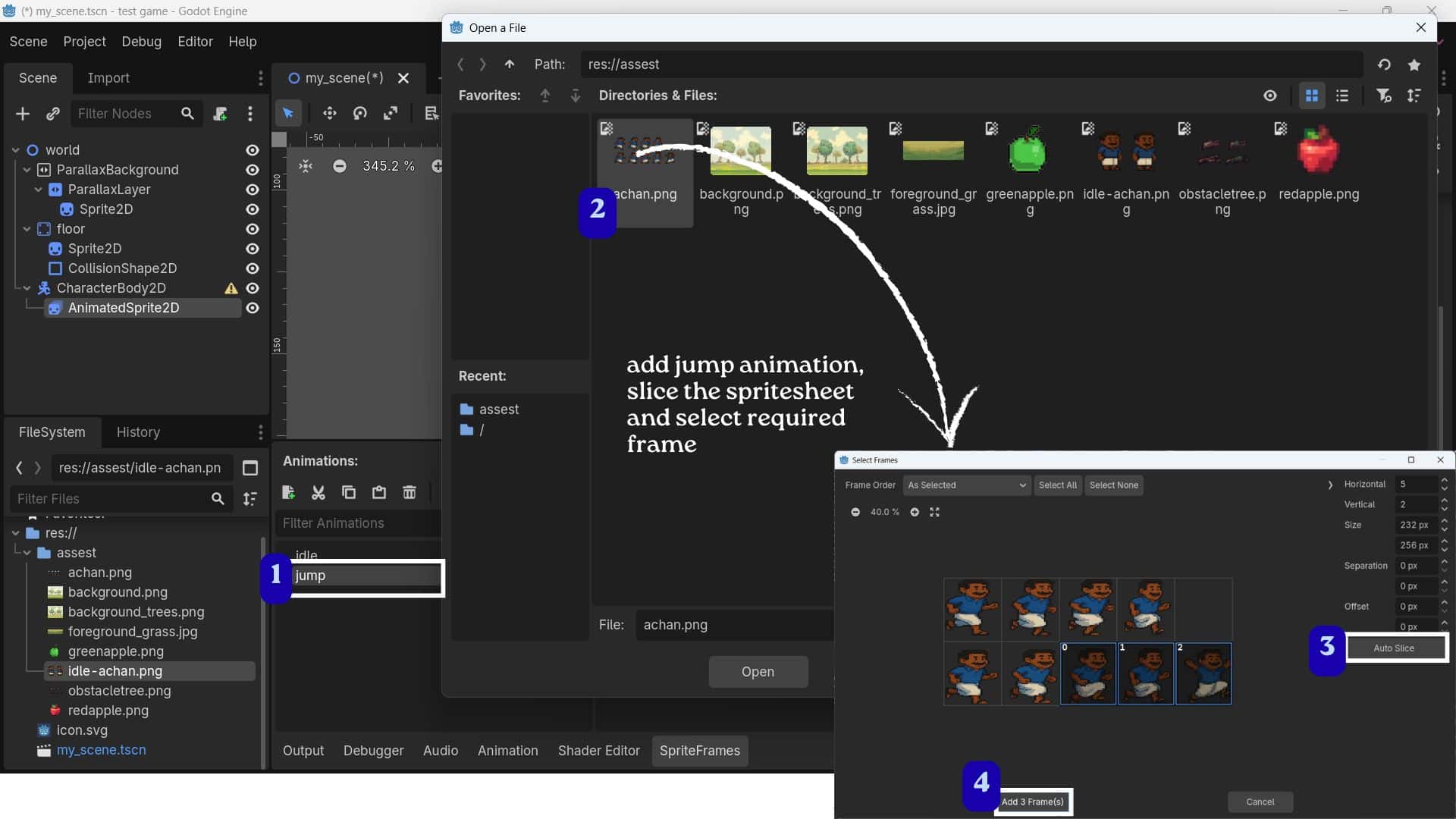
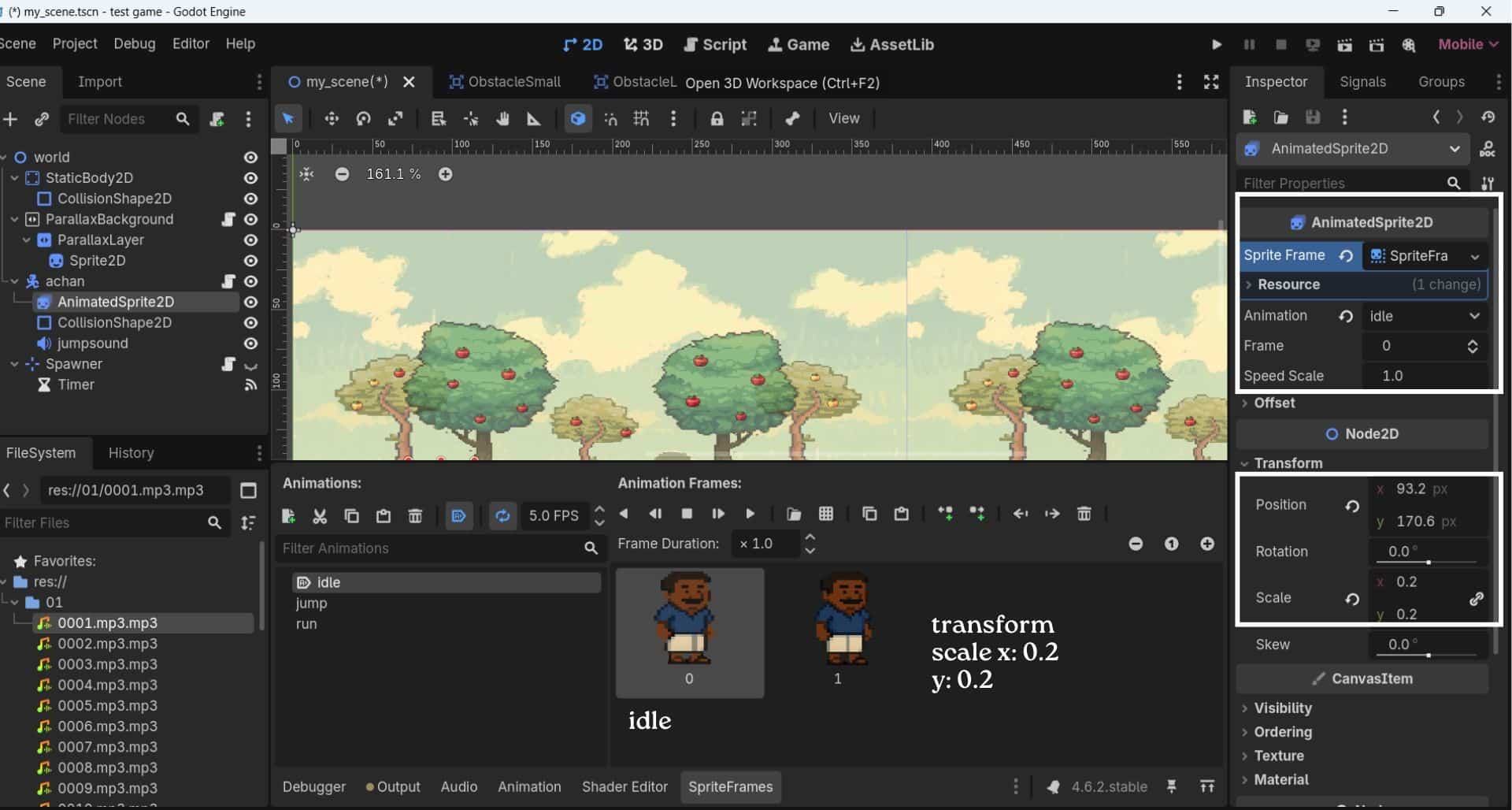
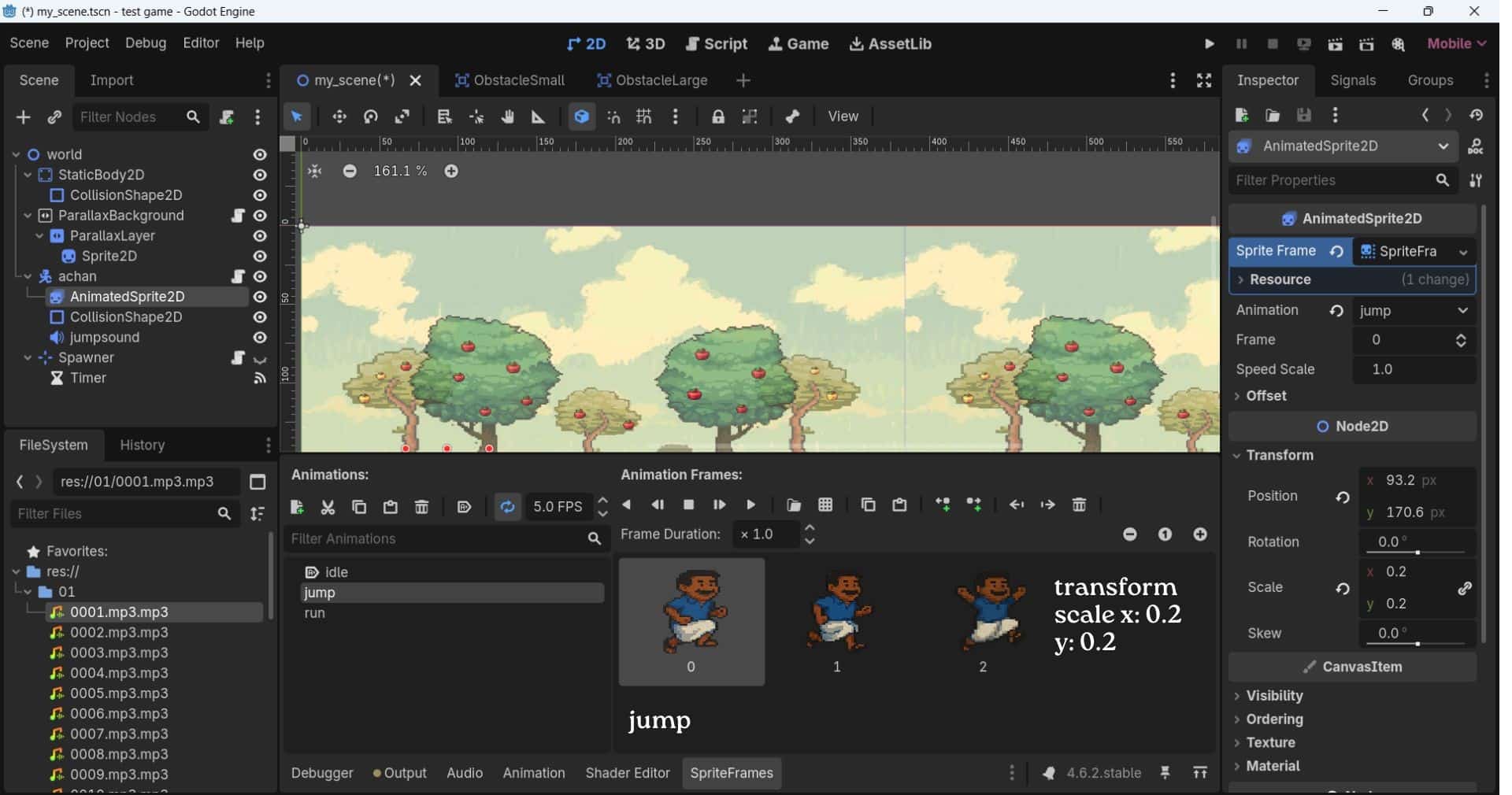
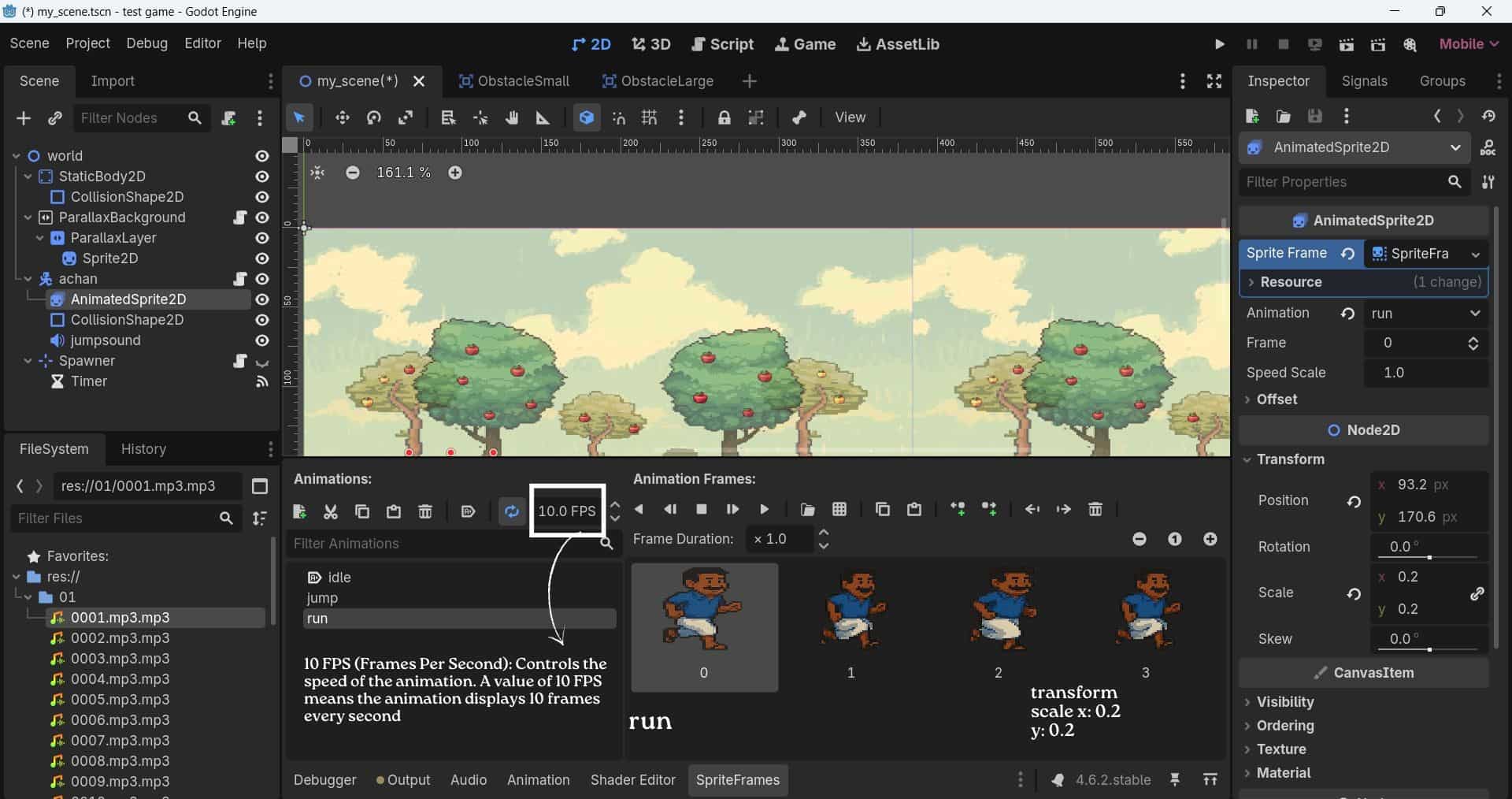
CharacterBody2D:
Used to create a player or character that can move and interact with the game.
AnimatedSprite2D:
Displays a sequence of images to create animations, such as idle, walking, or jumping.
Add a CharacterBody2D node and rename it has "Achan" then as the child: Add an AnimatedSprite2D.
Select AnimatedSprite2D, Animations >> add animation >> give it a name : idle >> Add frame, open the idle spritesheet >>
slice it >> add the required frame.
Do the same for jump, and run animation.
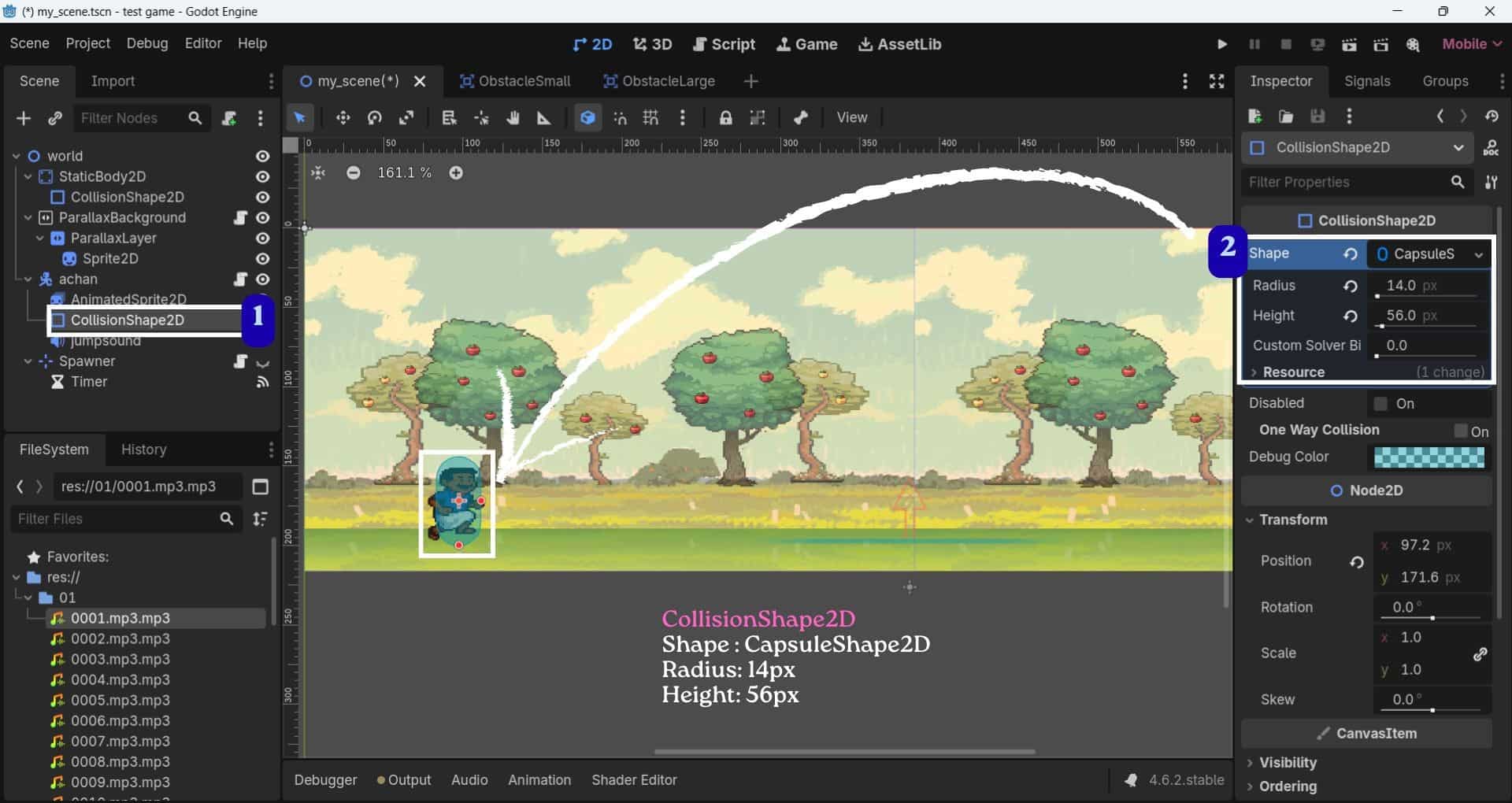
Add CollisionShape2D as a child to Achan.
In inspector CollisionShape2D, Shape : CapsuleShape2D, Radius: 14px, Height: 56px
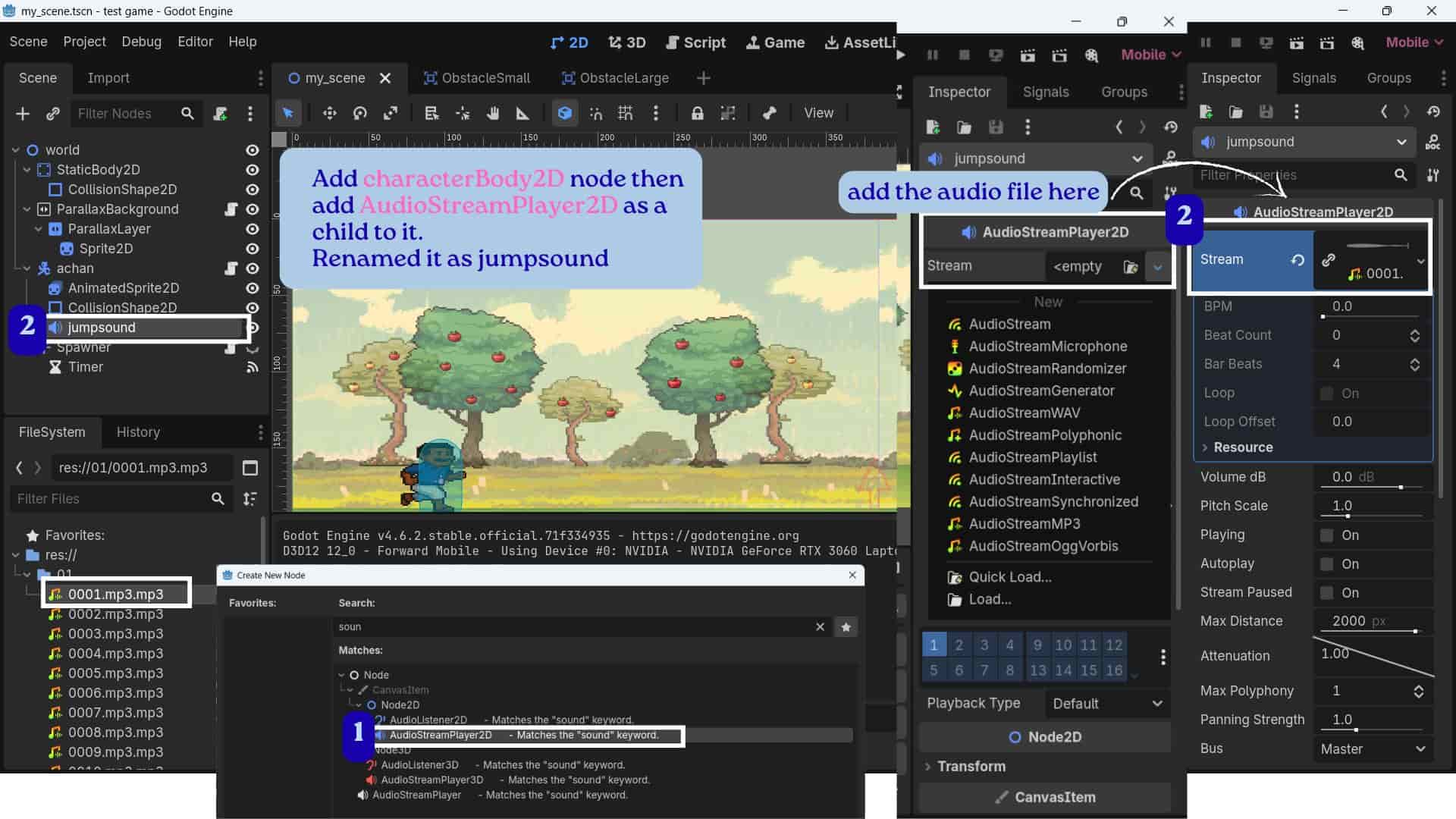
- Add an AudioStreamPlayer2D node as a child of the CharacterBody2D. Rename it to JumpSound.
- Add the audio: 0001.mp3 to the Stream property. This node is used to play the sound whenever the character jumps.
Attach script to achan and name it as"achan.gd"
Player_CharacterBody2D: Achan.gd
              # This script is attached to the Player CharacterBody2D node
              extends CharacterBody2D

              # Jump force value
              # Negative value moves the player upward
              const JUMP_VELOCITY = -550.0

              # Gravity value used to pull the player back down
              var gravity = 2100

              # Variable to check whether the game has started or not
              var game_started = false

             # Accessing the AnimatedSprite2D node from the scene
              @onready var sprite = $AnimatedSprite2D

             # Accessing the jump sound node
              @onready var jump_sound = $jumpsound

              # This function runs every physics frame
              func _physics_process(delta: float) -> void:

                # If the "jump" action is pressed
                # (mapped to Space Bar or HID button input)
                if Input.is_action_just_pressed("jump"):

                  # If the game has not started yet
                  if not game_started:
                   # Print message in debug console
                    print("Game Starting via Serial/HID!")
                    game_started = true  # Start the game

                  # Allow jump only if player is touching the ground
                  if is_on_floor():

                    velocity.y = JUMP_VELOCITY   # Apply jump force upward

                    if jump_sound:  # Play jump sound
                      jump_sound.play()

                # If the game has NOT started yet
                if not game_started:

                  velocity.y = 0  # Keep player fixed in place
                  sprite.play("idle")  # Play idle animation

                # If the game has started
                else:

                  if not is_on_floor():  # If player is in the air

                    velocity.y += gravity * delta  # Apply gravity continuously
                    sprite.play("jump")# Play jump animation

                  # If player is on the ground
                  else:
                    if velocity.y >= 0: # Prevent extra downward movement

                      velocity.y = 0 # Reset vertical movement
                      sprite.play("run")  # Play running animation

                # Built-in Godot function for movement and collision
                move_and_slide()
Adding Obstcales: ObstacleSmall and ObstacleLarge
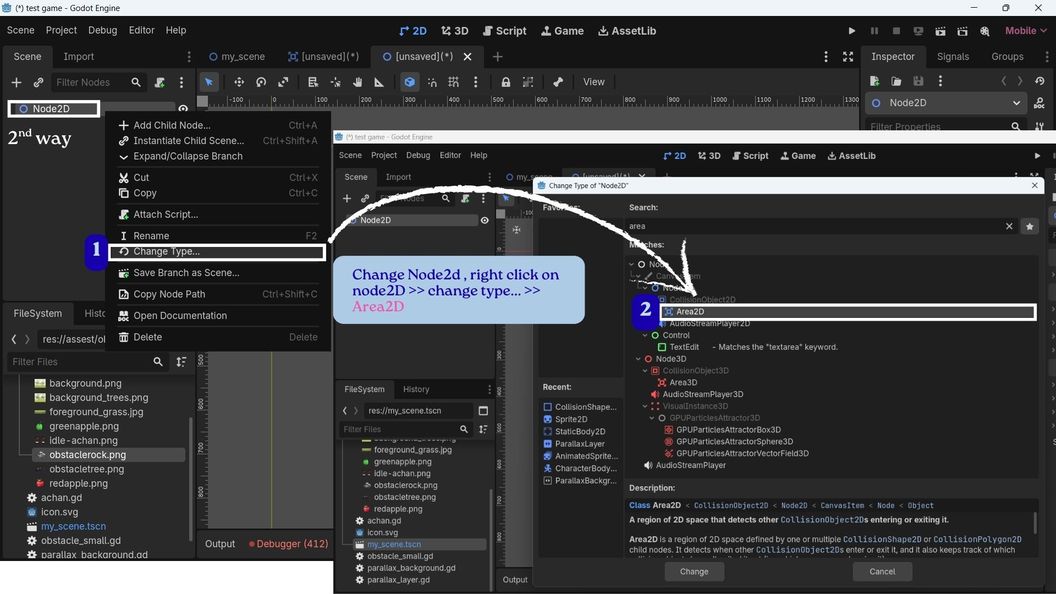
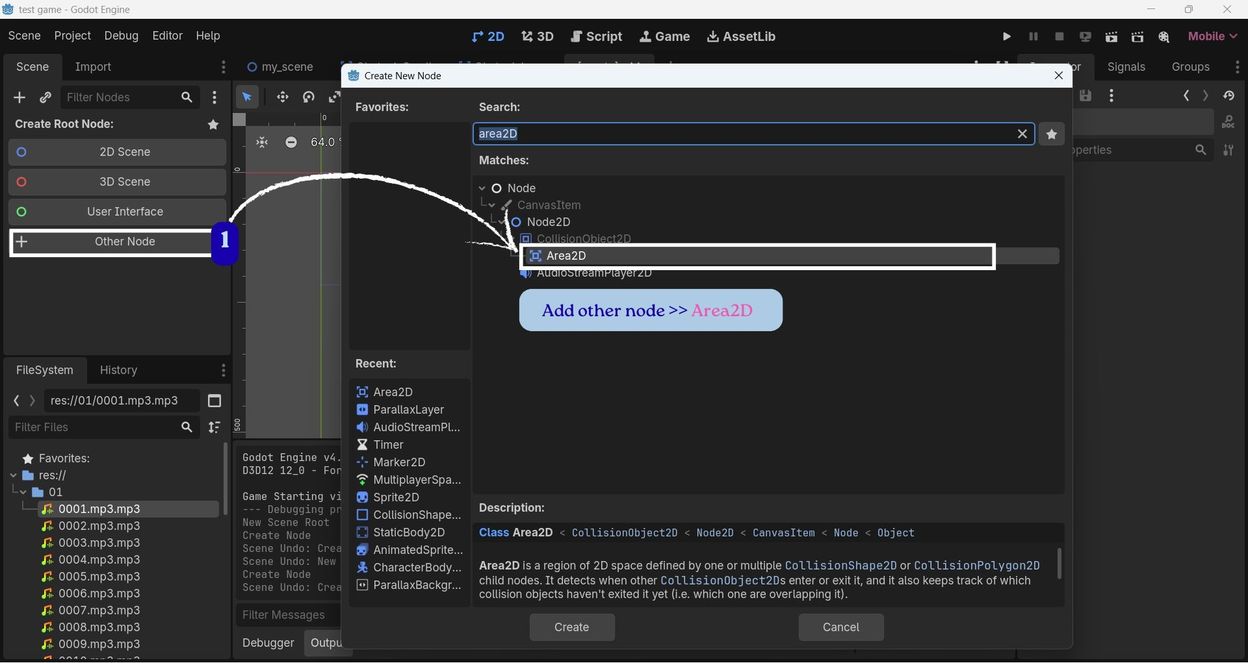
Area2D:
A node used to detect when another object enters or leaves a specific area, like a player enters its collision area. It is used to trigger events like collecting coins, detecting obstacles, manymore.
Two ways to add an Area2D node in Godot:
- Click "+ other nodes" >> search for Area2D, and add it directly to the scene.
- Create a Node2D, then right-click >> Change Type, search for Area2D, and change the node type.
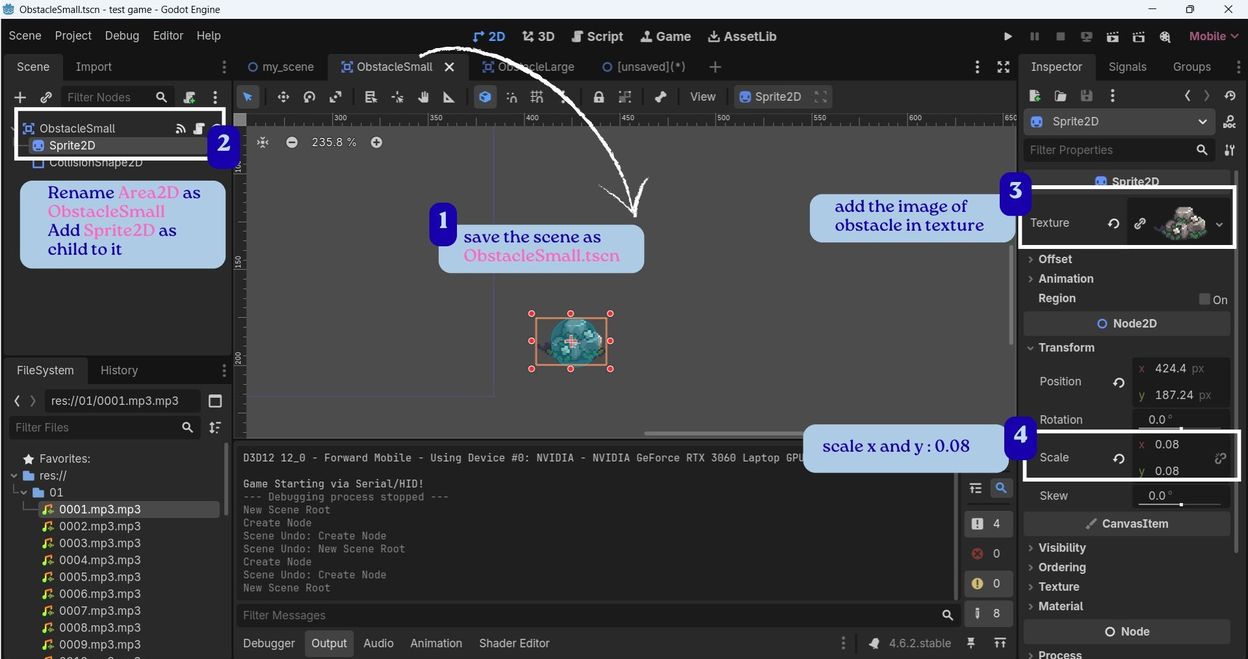
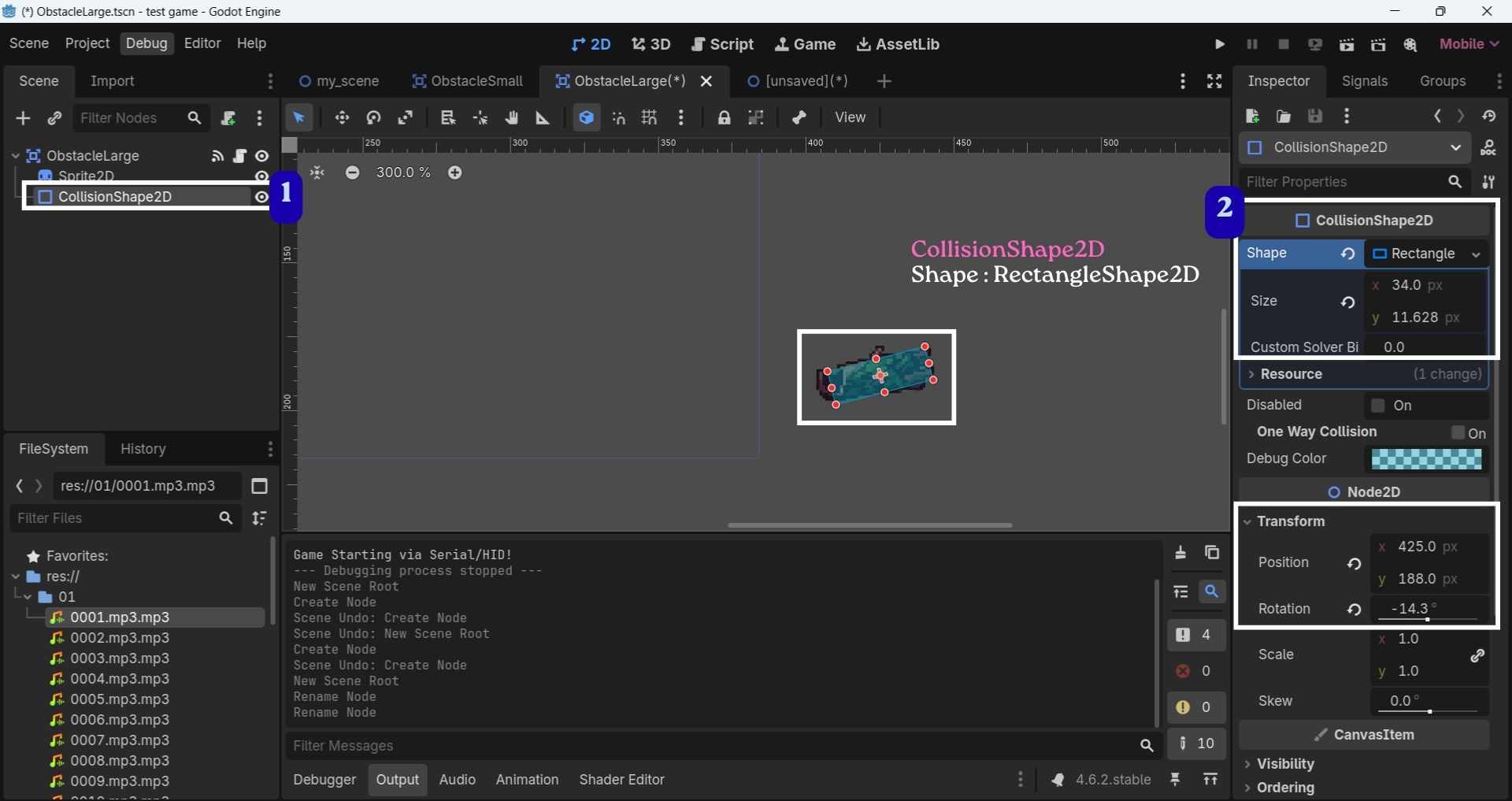
ObstacleSmall.tscn
   Save the scene as ObstacleSmall.tscn
  Rename Area2D as ObstacleSmall

  Add Sprite2D as child to it
  Add the image of obstacle in texture
  Scale x and y : 0.08

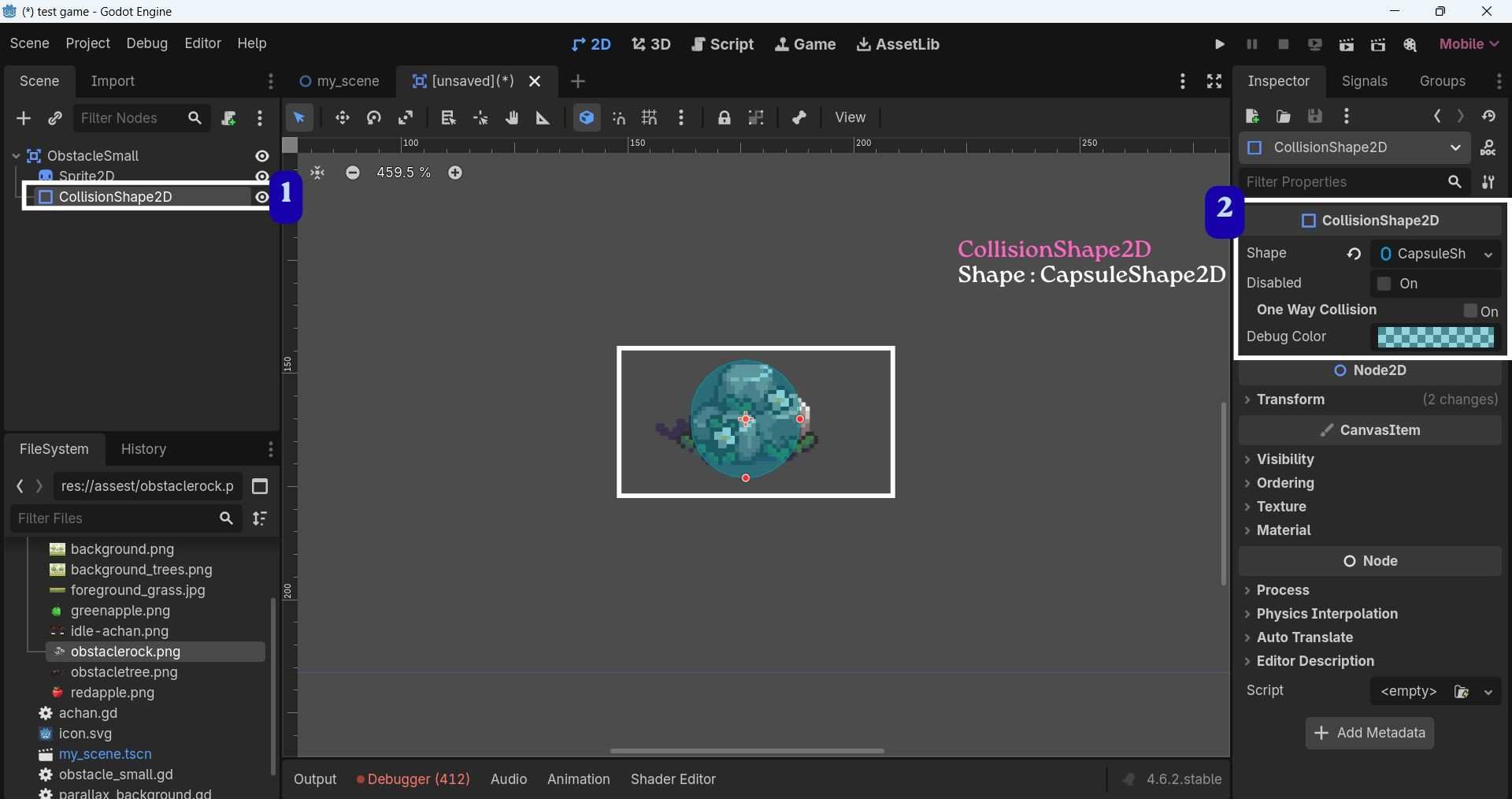
  Add CollisionShape2D as child
  Shape : CapsuleShape2D
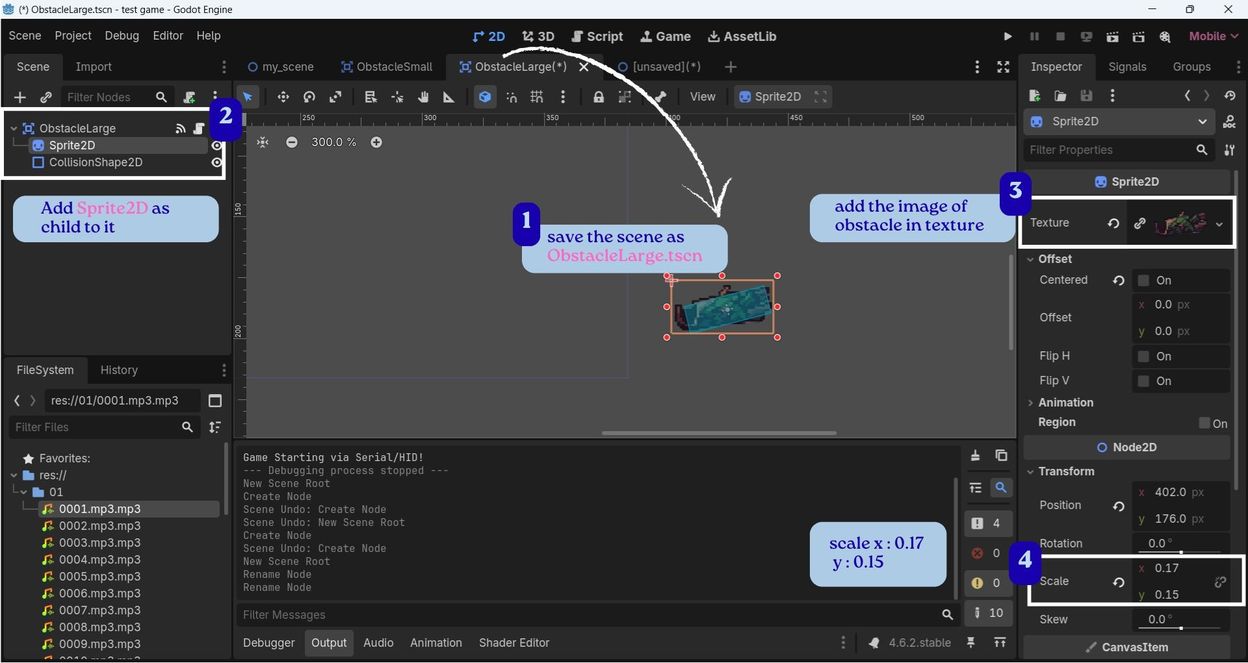
ObstacleLarge.tscn
  Save the scene as ObstacleLarge.tscn
 Rename Area2D as ObstacleLarge

 Add Sprite2D as child to it
 Add the image of obstacle in texture
 Scale x:0.17 and y : 0.15

 Add CollisionShape2D as child
 Shape : RectangleShape2D
Attach this script to both then upload them as ObsctacleSmall.gd and ObstacleLarge.gd
Attach this script to both ObstacleLarge and ObsctacleSmall
        # This script is attached to the obstacle object
        # The obstacle is an Area2D node

        extends Area2D
        # Speed at which the obstacle moves
        var speed = 150

        # This function runs every frame
        func _process(delta):

          # Reduce X position continuously
          # This creates the illusion that the player is running
          position.x -= speed * delta

          # If obstacle goes outside the screen
          if position.x < -550:

            # Remove obstacle from the scene
            # Helps save memory and performance
            queue_free()

        # This function runs when another body touches the obstacle
        func _on_body_entered(body: Node2D) -> void:

          # Check whether the colliding body is the player
          if body.name == "achan":

            # Print debug message in console
            print("HIT: Achan crashed into an obstacle!")

            # Reload the current scene safely
            # This restarts the game after collision
            get_tree().call_deferred("reload_current_scene")
This part in above script, add the player node exactly as in the Scene tree(name is case-sensitive).
          # Check whether the colliding body is the player
          if body.name == "achan":
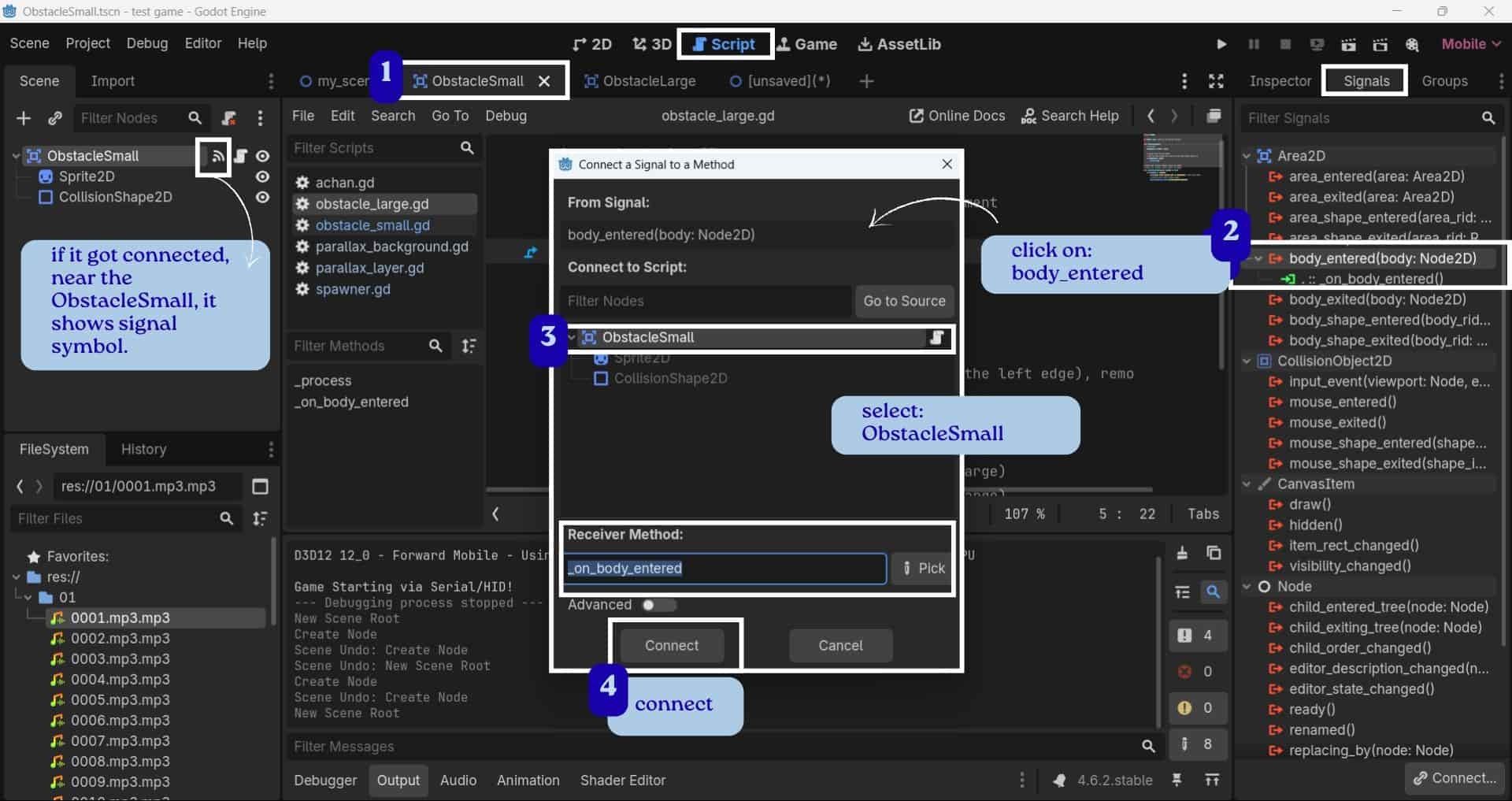
Open select ObsctacleSmall.tscn >> select ObsctacleSmall then in its signals >> click on body_entered >> then select ObsctacleSmall node >> connect.
Do the same with ObstacleLarge.
Signal:
A signal is a way for one node to notify another node when a specific event occurs.
Why connect the body_entered signal?
In my case, Area2D node sends the body_entered signal whenever a physics body, as the Achan player collides with the obstacle (enters to its collision area). By connecting this signal, Godot knows which function to execute when the collision occurs.
- Without connecting the signal: The player hits the obstacle, but nothing happens.
- After connecting the signal: When the player hits the obstacle, Godot automatically runs the
_on_body_entered() function, where you can decide what should happen, such as ending the game, playing a sound. (In my case, it ends the game.)
Setting Up Marker2D(spawner) and Timer
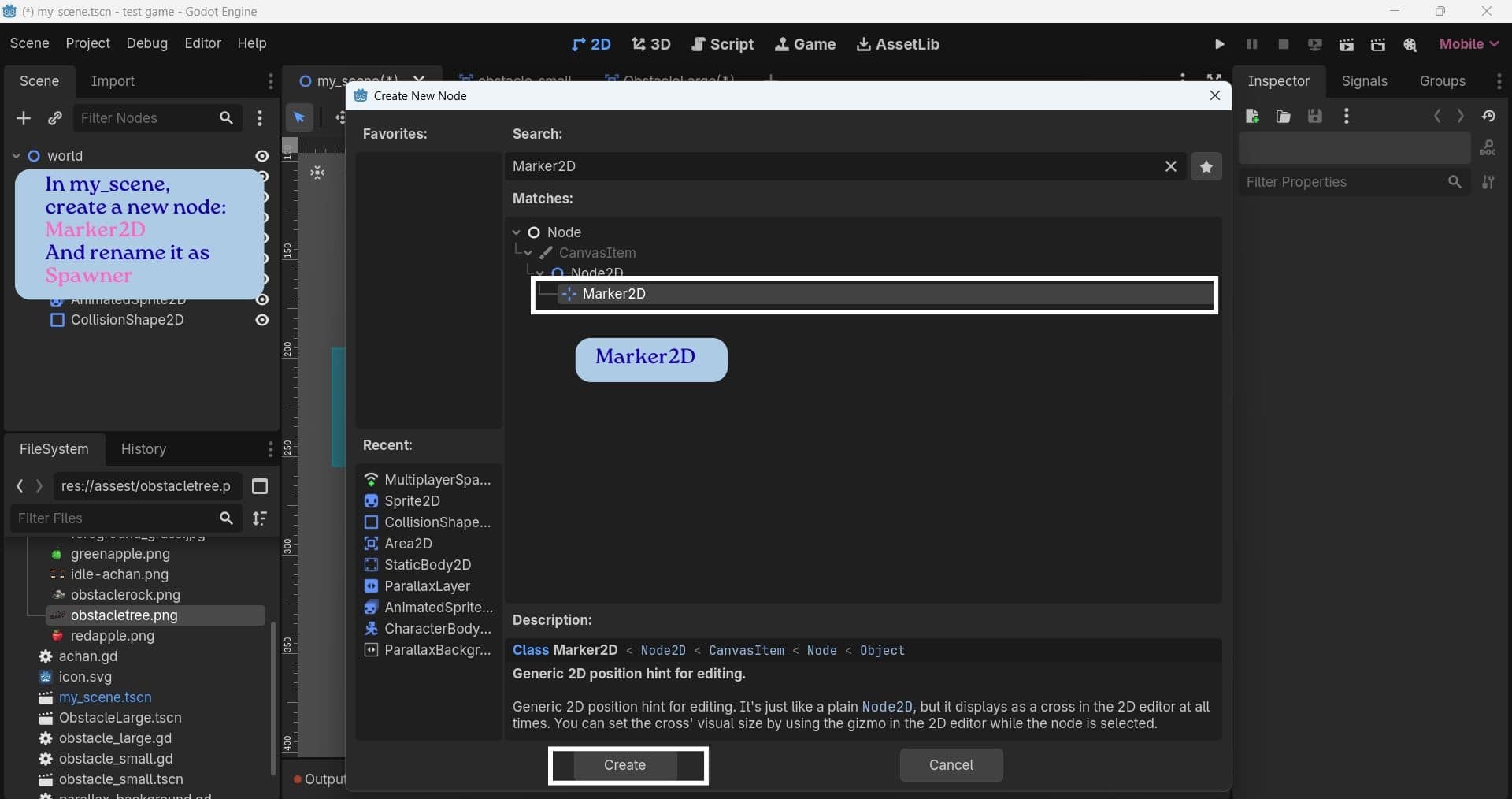
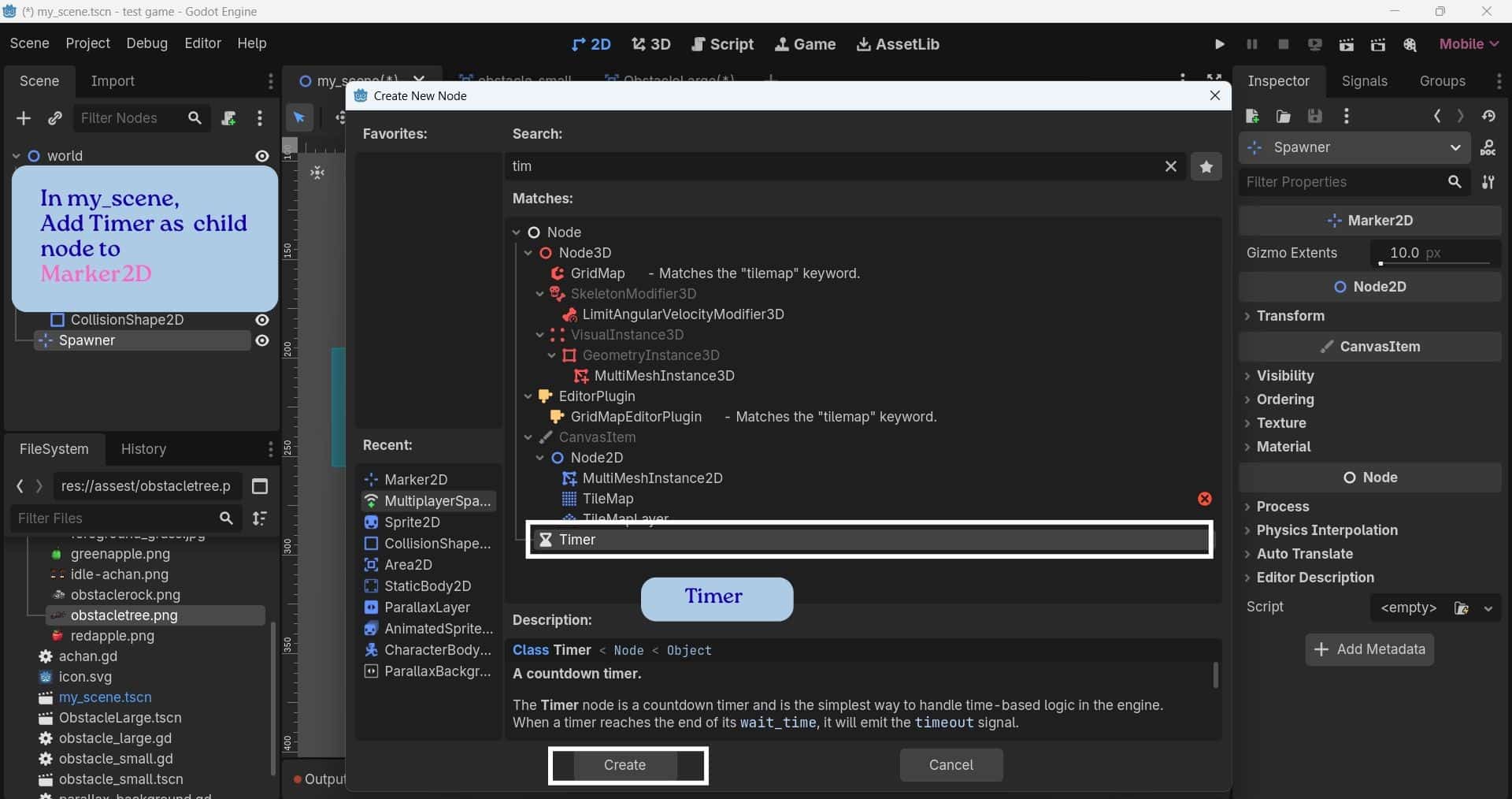
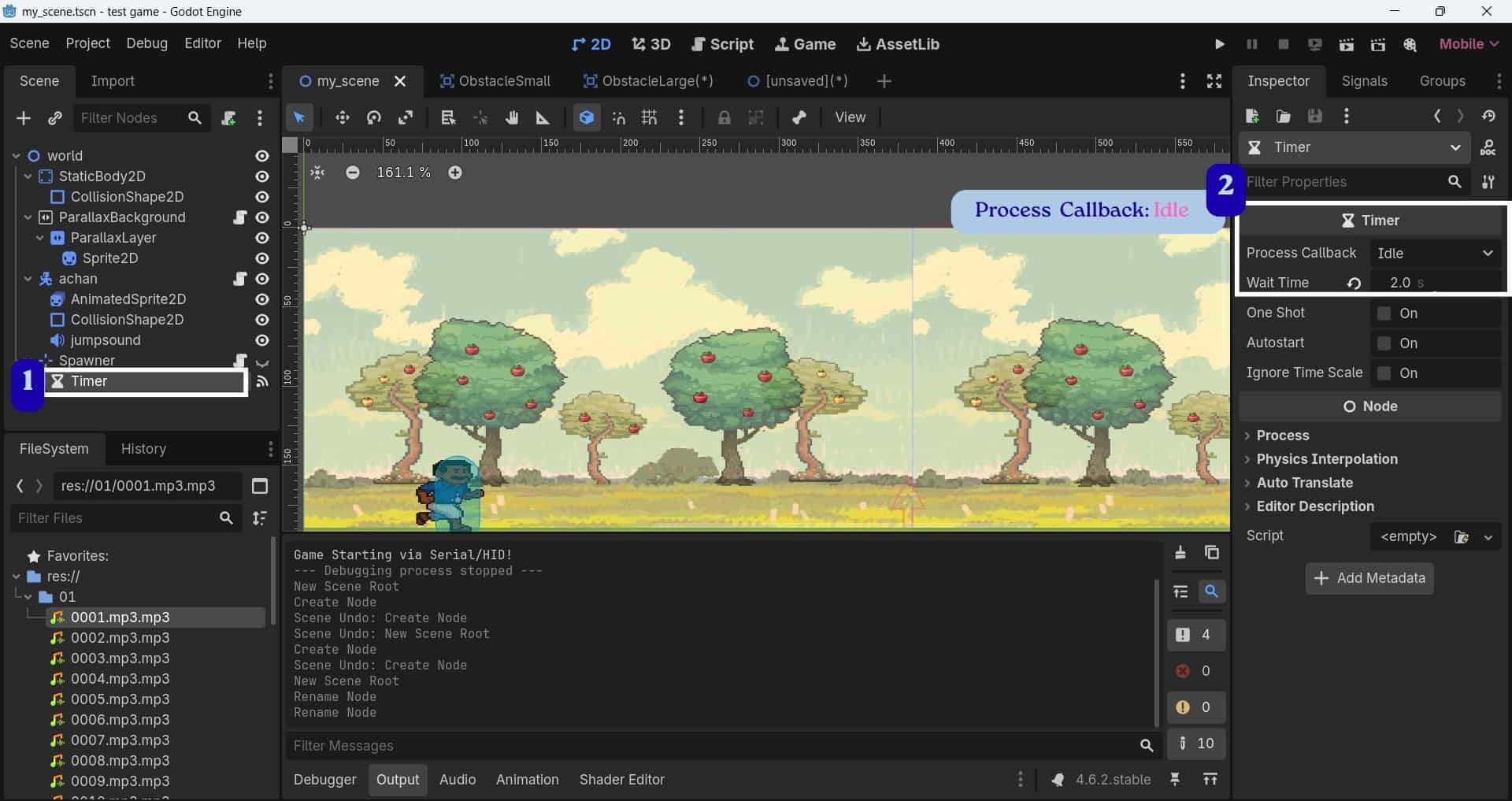
- In my_scene, add a Marker2D node and rename it to Spawner.
- Add a Timer node as a child of Spawner.
- Select the Timer node, open the Node dock, go to the Signals tab, and double-click the timeout() signal.
- Set Process Callback to Idle so the timer counts during gameplay and spawns obstacles at the correct time interval.
Marker2D:
A node used to mark a position in the scene.
It is invisible and acts as a reference point.
In this project, it marks the position where obstacles are spawned.
Timer:
A node that counts down for a set amount of time.
When the time reaches zero, it sends the timeout() signal, which runs the _on_timer_timeout() function to spawn new obstacles.
The Timer node controls when obstacles are spawned
example
          $Timer.start(0.1) # starts the timer with a 0.1-second delay,
          so the first obstacle appears soon after the player starts the game.

          $Timer.wait_time = randf_range(2.0, 4.0)  #sets a random time between
          2 and 4 seconds before the next obstacle appears.

          $Timer.start() #restarts the timer after each obstacle is spawned,
          allowing new obstacles to keep appearing throughout the game.
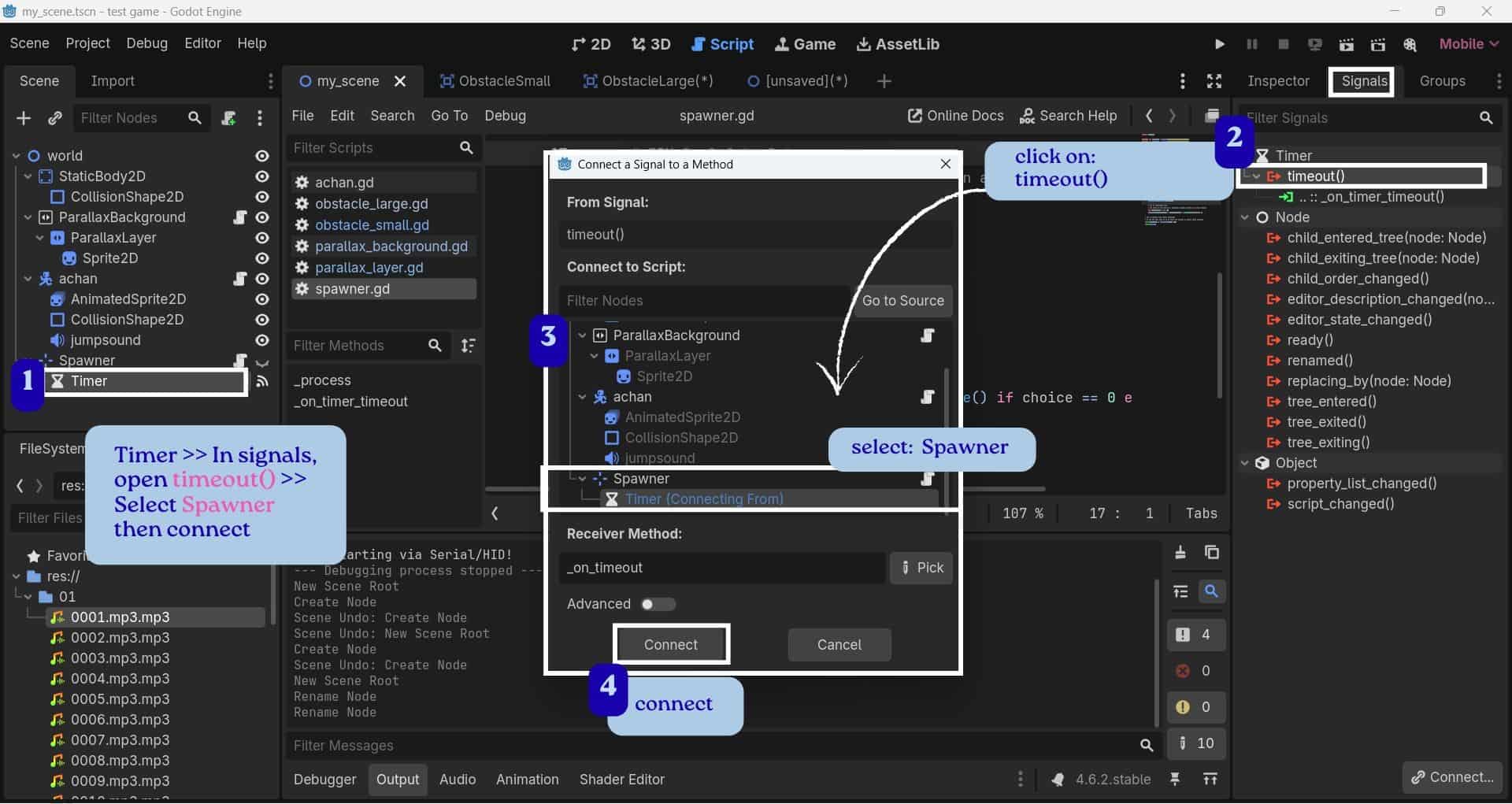
- In timer, Signal window, Select Spawner node then click Connect. This creates the _on_timer_timeout() function in the Spawner script.
Attach this script to spawner and save it as "spawner.gd" .
Attach this script to spawner
          # This script controls obstacle spawning in the game
          extends Marker2D  # Marker2D is used as the spawn position reference

          # Preload the small obstacle scene
          @onready var obs_small = preload("res://ObstacleSmall.tscn")

          # Preload the large obstacle scene
          @onready var obs_large = preload("res://ObstacleLarge.tscn")

          # Variable to check whether the game has started
          var game_started = false

          # Runs every frame
          func _process(_delta):

            # Wait until the player presses the jump button
            # (Space Bar or PCB button mapped as "jump")
            if not game_started and Input.is_action_just_pressed("jump"):

              # Start the game
              game_started = true

              # Start the timer immediately
              # Small delay added so obstacle does not appear instantly
              $Timer.start(0.1)

          # This function runs every time the timer finishes
          func _on_timer_timeout():

            # If game has not started,
            # stop the timer and prevent spawning
            if not game_started:
              $Timer.stop()
              return

            # Randomly choose how many obstacles spawn together
            # Can spawn between 1 and 3 obstacles
            var group_size = randi_range(1, 3)

            # Loop based on group size
            for i in range(group_size):

              # Randomly choose between small and large obstacle
              var choice = randi() % 2

              # If random choice is 0 -create small obstacle; Otherwise create large obstacle
              var obstacle = obs_small.instantiate() if choice == 0 else obs_large.instantiate()

              # Add obstacle into the main scene
              get_parent().add_child(obstacle)

              # Add spacing between spawned obstacles
              var internal_gap = i * 150

              # Set obstacle position
              obstacle.global_position = global_position + Vector2(internal_gap, 0)

            # Randomize next spawn timing
            # Prevents obstacles from spawning too close
            $Timer.wait_time = randf_range(2.0, 4.0)

            # Restart timer
            $Timer.start()
This part on the above script is for adding the file paths of ObstacleSmall.tscn and ObstacleLarge.tscn. This allows the spawner to know which obstacle scenes to load and spawn during the game.
           # Preload the small obstacle scene
          @onready var obs_small = preload("res://ObstacleSmall.tscn")

          # Preload the large obstacle scene
          @onready var obs_large = preload("res://ObstacleLarge.tscn")
Setting Up Input Map: Keyboard Controls
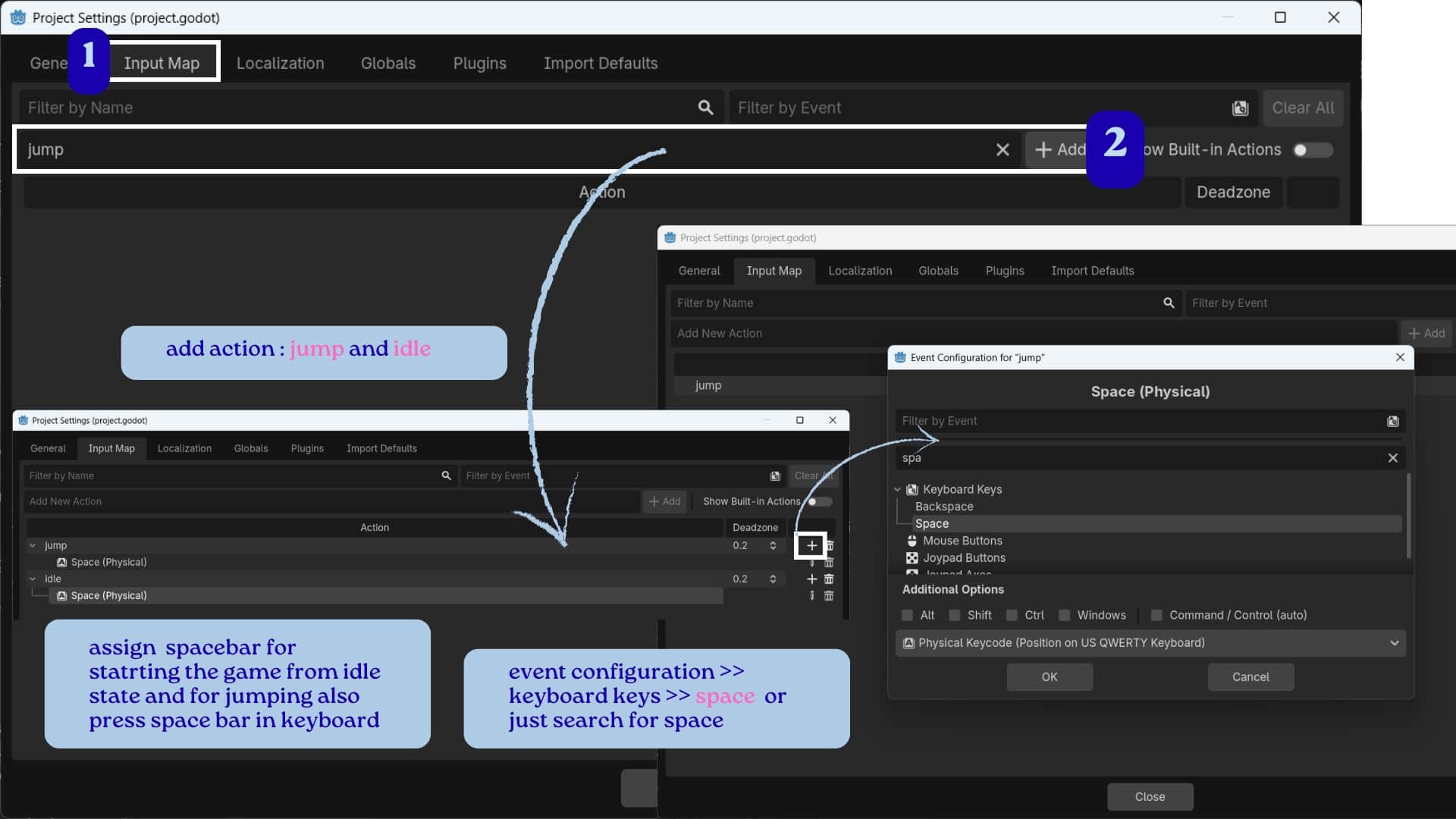
Input Map:
This is a feature in Godot that lets you assign keyboard keys, mouse buttons, or controller buttons to named actions.
- Open Project >> Project Settings >> Input Map.
- In the add Action: type "jump" and click Add.
- Select the jump action, click + Add Event, choose Keyboard Keys, and press the Space key (or search for Space) and assign it.
Do the similar step for idle action and assign space bar for that too.
The Space key is used to start the game from the idle state.
Once the game starts, the same Space key is used to make the character jump over obstacles.
Communication Between my Custom Board and the Game
The communication between my custom board and the game is established using the USB Human Interface Device (HID) protocol. The Seeed Studio XIAO RP2040 is programmed with the Keyboard.h library, used to make the microcontroller act as a USB keyboard.
Keyboard library
                #include "Keyboard.h"   // Include keyboard library
                Keyboard.begin();       // Make XIAO work as a USB keyboard
                Keyboard.press(' ');    // Send Spacebar key
                Keyboard.releaseAll();  // Release the key
When the push button on the custom PCB is pressed, the XIAO sends a Spacebar key press to the computer through the USB cable. The Godot game does not communicate directly with the microcontroller but detects this Space key as the jump action. The same button is used to start the game from the idle screen and to make the character jump during gameplay.
Chatgpt_AI Prompt Used
I want to connect my custom board which having xiao rp2040 board and push button: D9 as space bar for jump action, give ide code and plus print feedback in serial monitor.
Upload this code to XIAO RP2040 in my custom board(Arduino IDE: Workspace)
              // Include the Keyboard library
              // This allows the board to act like a USB keyboard
              #include "Keyboard.h"

              // Store the pin number where the button is connected
              const int buttonPin = D9;

              // Variable to remember the previous button state
              // INPUT_PULLUP is used:
                - Button NOT pressed = HIGH
                - Button pressed = LOW
              bool lastButtonState = HIGH;


              void setup() { // Runs only once when the board starts

                // Set button pin as INPUT
                pinMode(buttonPin, INPUT);

                // Set the onboard LED as OUTPUT
                pinMode(LED_BUILTIN, OUTPUT);

                // Start Serial Monitor communication
                // Used for debugging and seeing messages
                Serial.begin(115200);

                // Start keyboard functionality
                Keyboard.begin();

                // Wait 2 seconds
                // Gives the computer time to recognize the board as a keyboard
                delay(2000);

                // Turn OFF the onboard LED
                // LOW = OFF on most XIAO boards
                digitalWrite(LED_BUILTIN, LOW);

                // Print message in Serial Monitor
                Serial.println("Ready to Jump!");
              }
              void loop() {// Runs again and again forever

                // Read the current state of the button
                bool currentButtonState = digitalRead(buttonPin);

                /*
                  Detect button press:

                  currentButtonState == LOW
                  button is currently pressed

                  lastButtonState == HIGH
                  button was NOT pressed before

                  This means:
                  The button has JUST been pressed
                */
                if (currentButtonState == LOW && lastButtonState == HIGH) {

                  // Turn ON the onboard LED
                  digitalWrite(LED_BUILTIN, HIGH);

                  // Press SPACEBAR key
                  Keyboard.press(' ');

                  // Small delay so computer can detect key press properly
                  delay(20);

                  // Release all keyboard keys
                  Keyboard.releaseAll();

                  // Print message in Serial Monitor
                  Serial.println("JUMP!");

                  // Turn OFF the LED after key press
                  digitalWrite(LED_BUILTIN, LOW);

                  // Small delay to prevent accidental double press
                  delay(50);
                }

                // Save current state as last state
                // Needed for next loop comparison
                lastButtonState = currentButtonState;

                // Tiny delay for stable reading
                delay(5);
              }
Overview of Group Assignment
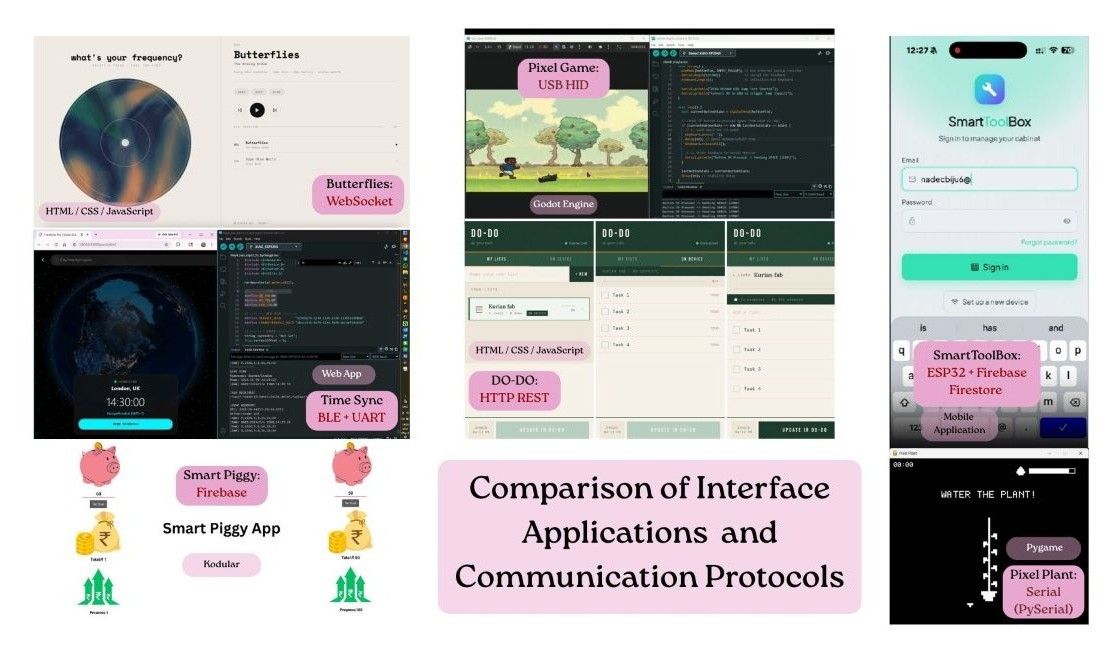
For detailed information, refer to: Interface and Application Programming Group Assignment