Week 9 : Input devices
Group assignment:
- probe an input device's analog levels and digital signals
Individual assignment:
- measure something: add a sensor to a microcontroller board that you have designed and read it
learning Outcomes:
- Interface and read data from different types of input sensors on a microcontroller board
- Understand the difference between analog and digital input signals
- Measure and interpret sensor data in real time
- Design and build a microcontroller board that incorporates multiple sensors
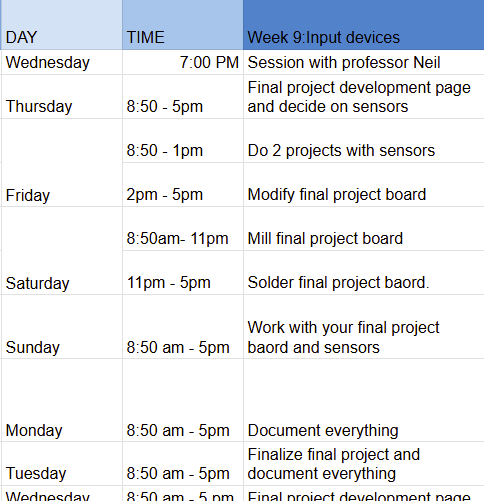
Here is my schedule for this week::
Group Assignment:
For this week's group task, our team chose to experiment with the Sen-14262 sound sensor 😄.
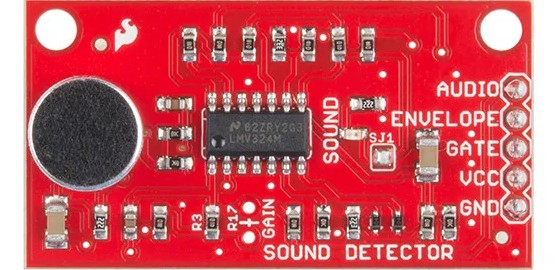
The SEN-14262 is a small sound sensor that detects noise around it. It works with 3.3–5V power and has five pins: VCC and GND for power, AUDIO for the raw sound signal, ENVELOPE for a smoother signal showing loudness, and GATE, which turns HIGH when the sound is loud enough. It uses a built-in microphone to pick up sound and convert it into electrical signals, so a microcontroller can detect both sound and its intensity. Because this sensor provides both digital output (through the gate pin) and analog output (through the envelope pin), we wrote a single program to capture both readings and view the signal pattern using an oscilloscope.
The GATE pin of the sound sensor was connected to the microcontroller’s digital pin (D2) with a jumper wire. To view the signal, the oscilloscope probe tip was placed on the same line as D2, and the ground clip was connected to the circuit’s GND.
This shows how the digital signal looked on the oscilloscope when we made sounds near the sensor.
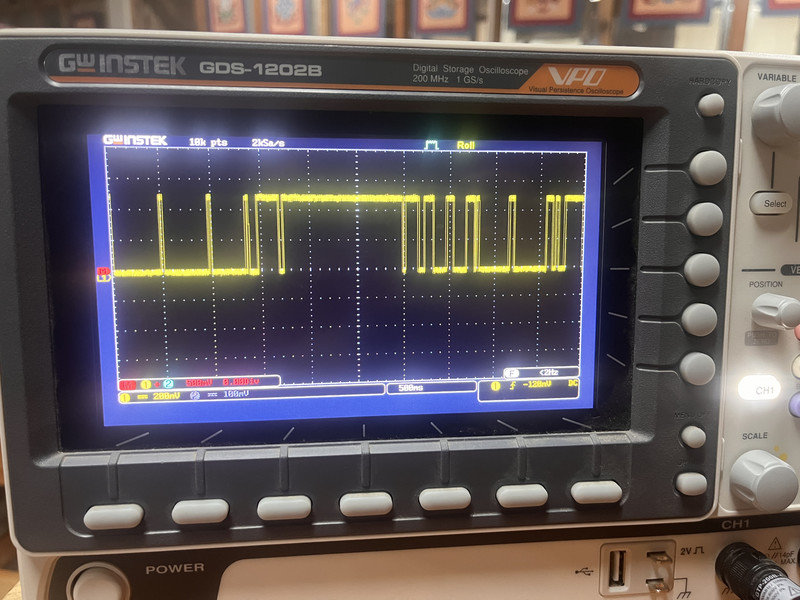
Unlike the analog signal, the GATE output only toggles between two fixed voltage levels,Low and High based on whether the sound goes above a set threshold. This switching makes the signal appear as a square wave on the oscilloscope, allowing us to easily identify when sound is detected, since the waveform jumps between on and off instead of varying gradually.
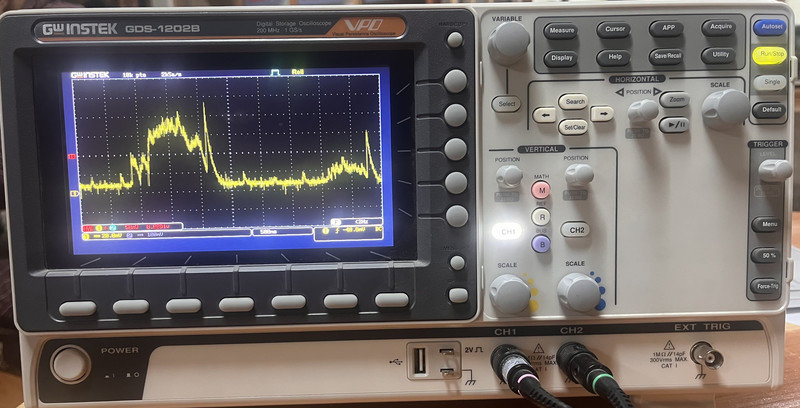
The AUDIO/ENVELOPE pin of the sound sensor was connected to the microcontroller's analog input (A0) using a jumper wire. The oscilloscope probe tip was attached to this same pin, while the ground clip was connected to the circuit's GND.
This let us see how the microphone's voltage changed over time and display the sound wave on the oscilloscope.
This was the analog signal observed on the oscilloscope:
You can access our group assignment here for more details.
Individual assignment
This week’s assignment was to connect a sensor to our microcontroller board and read its values. Since it was a bit lighter than last week, I spent some time trying out different types of sensors for fun while also working on my final project board.
Rotary Encoder
I started with a simple sensor that I’m also planning to use as the main input for my final project. It's the KY-040 rotary encoder module.
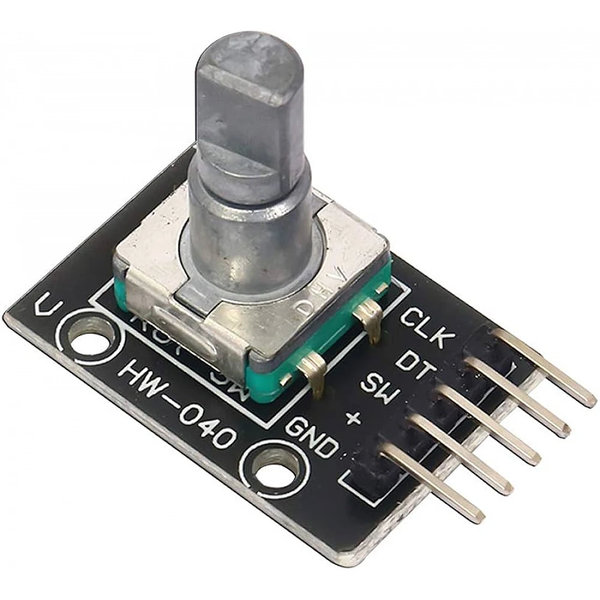 Image source
A rotary encoder is an input sensor that detects rotation. When you turn the knob, it outputs signals that tell the microcontroller which direction it is turning and by how much. Unlike a potentiometer, it can rotate continuously in either direction without a stopping point. It also has a built in push button that activates when you press the knob down. It is mostly used for menu navigation, volume control, and adjusting settings in electronic projects like the 3d printer we have in our lab.
This is the pinout of the KY-040 rotary encoder module:
_result.jpg) Image source
Image source
How does a Rotary Encoder work?
- A rotary encoder has two internal sensors called CLK and DT that detect rotation
- As you turn the knob, a small disc with notches inside the encoder spins and interrupts these two sensors alternately, producing a series of pulses
- By reading the order in which CLK and DT receive these pulses, the microcontroller can tell which direction the knob is being turned
- If CLK triggers before DT, the knob is turning clockwise
- If DT triggers before CLK, the knob is turning counter clockwise
- The number of pulses also tells the microcontroller how far the knob has been turned
- On top of that, the encoder has a built in push button connected to the SW pin that is triggered when you press the knob straight down, adding an extra input without needing a separate button
Testing the Sensor:
Connections:
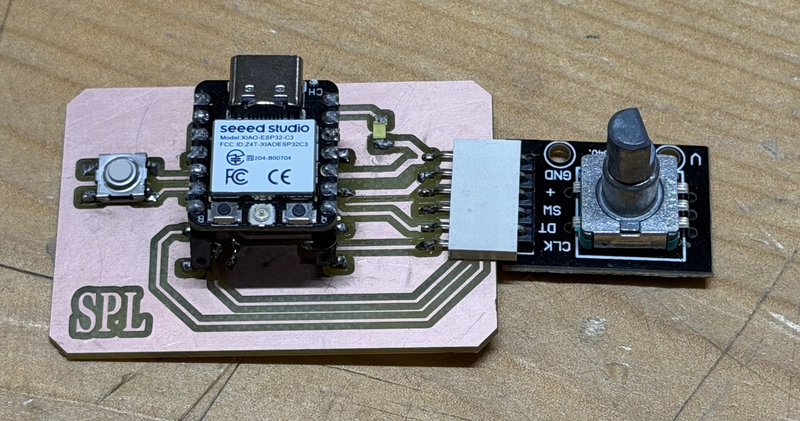
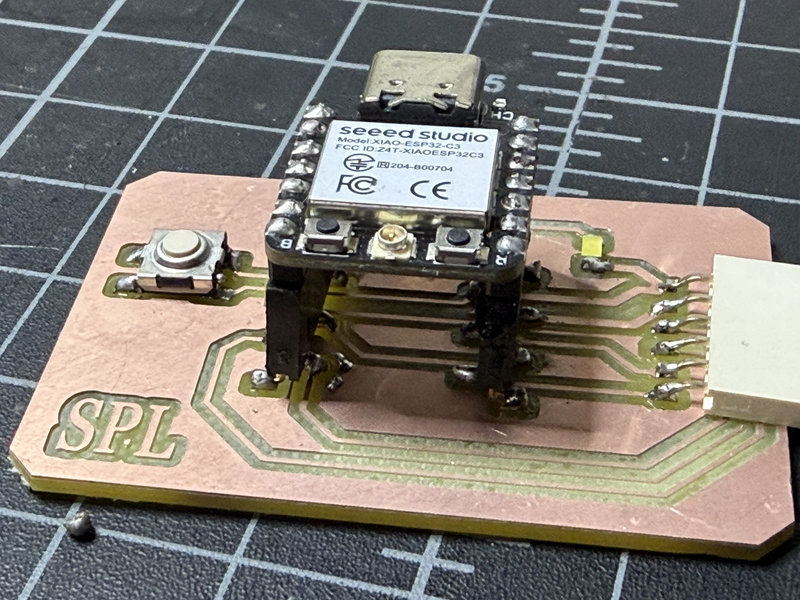
I used the board I designed last week for electronics production for this testing:
And the KY-040 rotary encoder module we have in our lab:
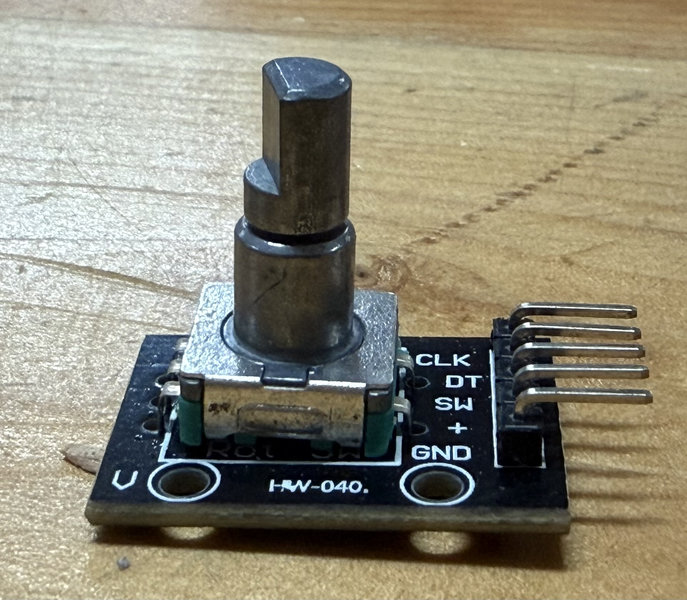
- The KY-040 rotary encoder module has 5 pins labeled GND, +, SW, DT, and CLK
- I connected the + pin on the encoder to the 3.3V pin on my XIAO ESP32-C3 using a jumper wire
- I connected the GND pin on the encoder to the GND pin on my board
- I then connected CLK to D2 of my board, DT to D5, and SW to D4 on my board using jumper wires.
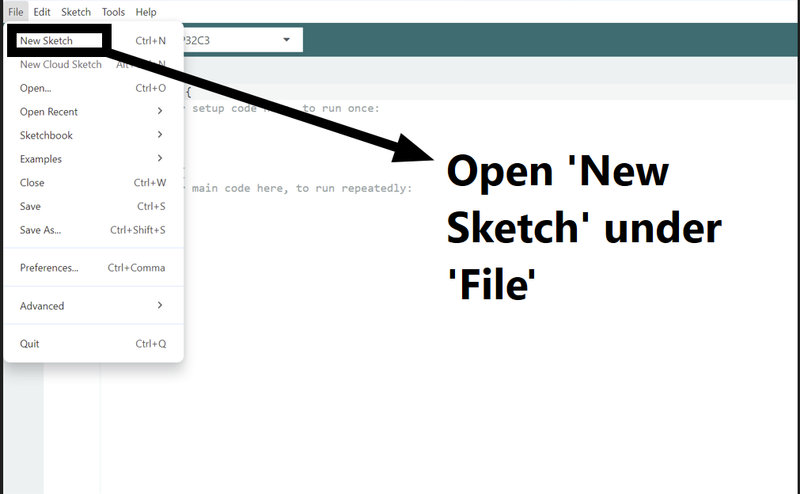
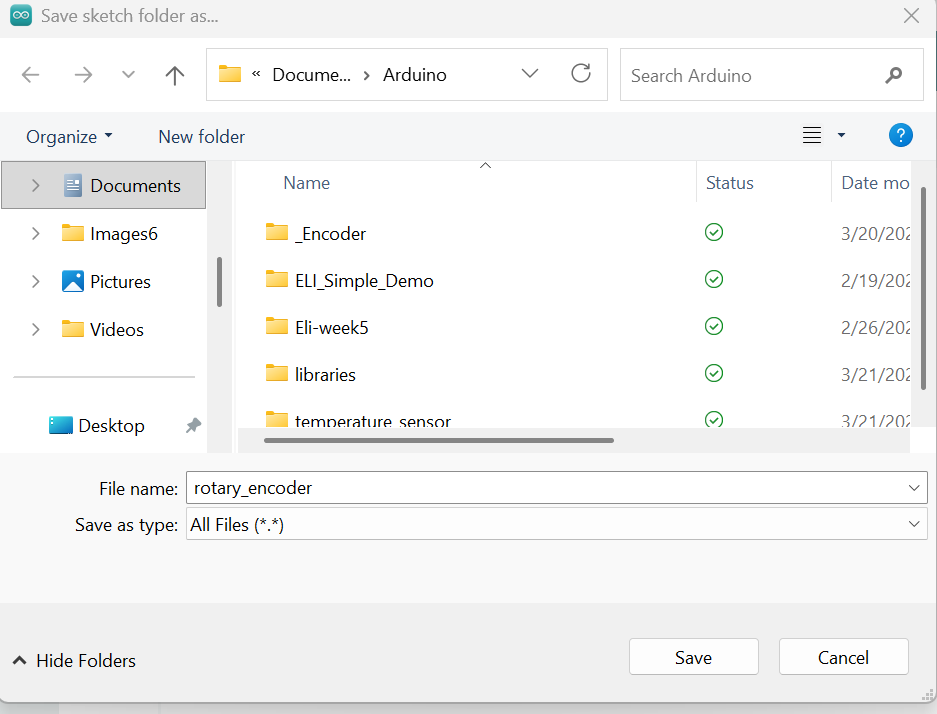
- I then opened Arduino IDE and created a new sketch and named it
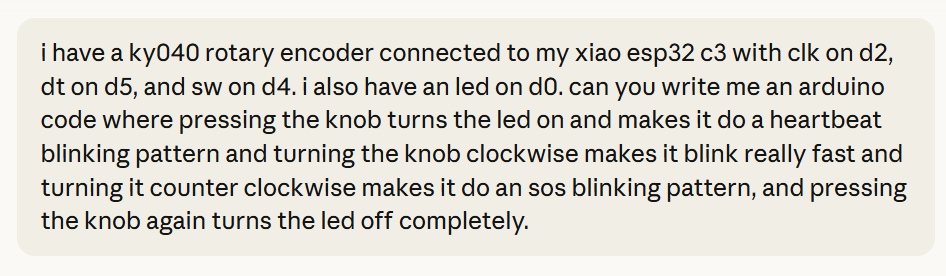
- I used Claude AI to help generate a code that makes the LED on D0 do different light patterns based on how I interact with the encoder
- The code was programmed so that pressing the knob turns the LED on in a heartbeat pattern, turning clockwise switches it to a rapid strobe mode, turning counter-clockwise switches it to an SOS pattern, and pressing the knob again turns the LED off completely
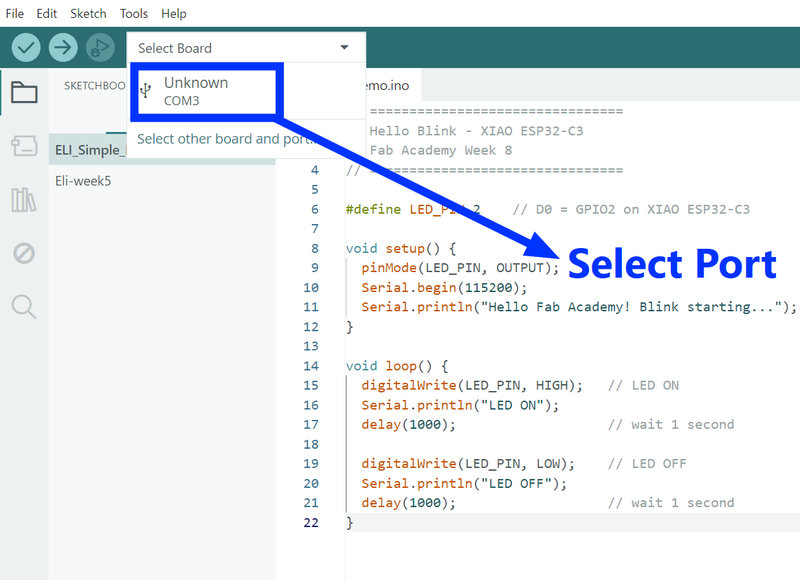
- I selected the board (XIAO ESP32 C3) and port under Tools > Board > and Port. You can also directly select your baord from 'select other baord and port' from the top panel.
- I clicked Upload and waited for the code to finish uploading
- I then tested it by turning the knob and pressing it down and confirmed that the LED was responding correctly to each action.
Programming the sensor:
This was the prompt:
You can download the ide file here
Explaination of the code:
Pin definitions:the first few lines simply tell the code which pins everything is connected to:
#define CLK D2
#define DT D5
#define SW D4
#define LED D0
Pattern functions: the code has three separate functions that handle each LED pattern:
void doHeartbeat() { ... } // blinks the LED in a heartbeat rhythm
void doStrobe() { ... } // flips the LED on and off every 40ms
void doSOS() { ... } // blinks the LED in morse code SOS pattern
Reading the button: checks if the knob is pressed and toggles the LED on or off. buttonState == LOW means the button is currently being pressed, and lastButtonState == HIGH means it was not pressed before. isOn = !isOn simply flips the state, if it was on it turns off, and if it was off it turns on:
bool buttonState = digitalRead(SW);
if (buttonState == LOW && lastButtonState == HIGH) {
isOn = !isOn;
}
Reading the rotation: compares the current CLK state to the last CLK state to detect movement. When they differ it means the knob is turning, and then it checks DT to figure out which direction. If DT and CLK are different, the knob is going clockwise. If DT and CLK are the same, it is going counter-clockwise:
if (currentStateCLK != lastStateCLK && currentStateCLK == HIGH && isOn) {
if (digitalRead(DT) != currentStateCLK) {
mode = 1; // clockwise - strobe
} else {
mode = 2; // counter-clockwise - SOS
}
}
Running the pattern — at the bottom of the loop, checks which mode is currently active and calls the matching pattern function. Mode 0 is heartbeat which is the default when you first press the knob, mode 1 is strobe, and mode 2 is SOS:
if (isOn) {
if (mode == 0) doHeartbeat();
else if (mode == 1) doStrobe();
else if (mode == 2) doSOS();
}

Sound Detector
I used a sparkfun sound detector with my board too.
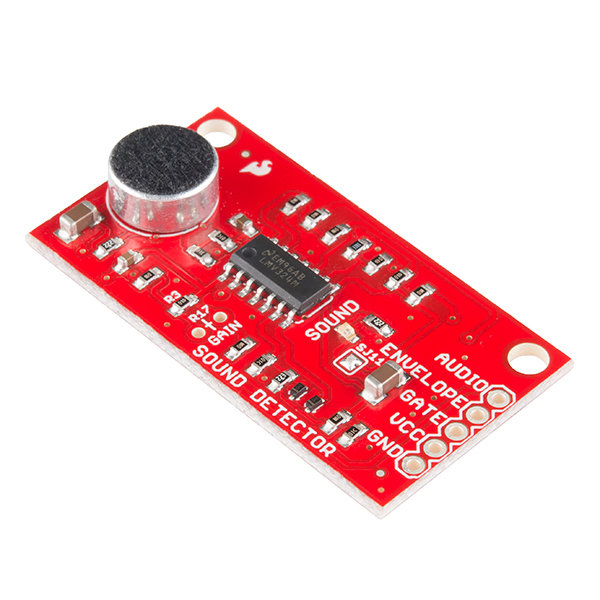 Image source
How does a Rotary Encoder work?
A sound detector is an input sensor that picks up sound from the surrounding environment and converts it into an electrical signal that a microcontroller can read. It works by using a small microphone that picks up sound waves and passes the signal through a circuit that processes it into a readable output.
The SparkFun Sound Detector is a small and easy to use sound detection module that has three output pins: AUDIO, ENVELOPE, and GATE. Each one gives a different kind of output:
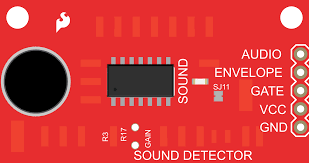 Image source
- AUDIO gives a raw analog signal of the sound it picks up
- ENVELOPE gives an analog signal that represents the volume or amplitude of the sound
- GATE gives a simple digital signal that goes HIGH when sound is detected above a certain threshold and LOW when it is quiet
Testing the Sensor:
Connections:
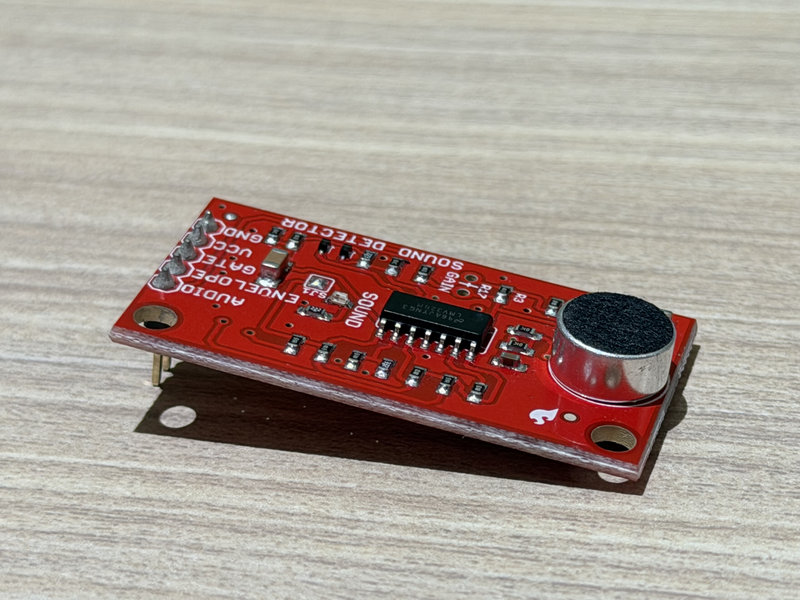
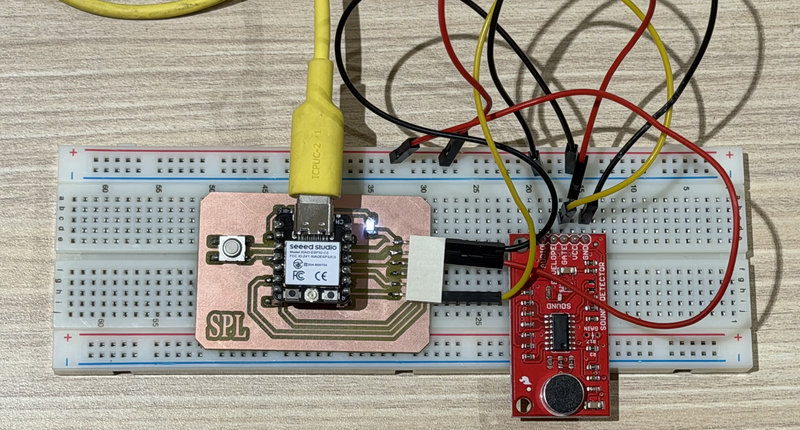
- I connected the VCC pin on the sound detector to the 3.3V pin on my XIAO ESP32-C3 using a jumper wire
- I connected the GND pin on the sound detector to the GND pin on my board
- Since we only needed the digital output, I connected the GATE pin to D3 on my board using a jumper wire
- The AUDIO and ENVELOPE pins were left unconnected as I did not have enough analog pins available to use them since my custom board did not have enough available ADC pins to connect the AUDIO and ENVELOPE outputs. When designing the board in Week 8, I prioritized the pins required for the week's requirement alone and did not anticipate needing multiple analog inputs for sensor testing later on when reusing the board. In the future, I would allocate additional ADC capable pins and plan the pinout more carefully so that both analog and digital outputs from sensors can be tested simultaneously with my PCB board.
Programming the sensor:
I created a new sketch in the Arduino IDE to program the sensor, and then used code generated by Claude AI with the prompt "I have a sparkfun sound detector connected to my xiao esp32 c3 with vcc to 3.3v, gnd to gnd, and the gate pin connected to d3. the audio and envelope pins are left unconnected. i also have an led on d0. can you write me a simple arduino code that turns the led on when sound is detected and off when there is no sound"
This was the code it generated:
#define GATE D2 // sound detector gate pin
#define LED D0 // led pin
void setup() {
pinMode(GATE, INPUT);
pinMode(LED, OUTPUT);
Serial.begin(9600);
}
void loop() {
int sound = digitalRead(GATE);
if (sound == HIGH) {
digitalWrite(LED, HIGH); // turn on LED when sound detected
Serial.println("Sound detected!");
delay(200); // keep LED on briefly so you can see it
digitalWrite(LED, LOW); // turn off LED
}
}
Explaination of the code:
#define GATE D3: Sets D3 as the pin connected to the GATE output of the sound detector.
#define LED D0: Sets D0 as the pin connected to the LED.
pinMode(GATE, INPUT): Sets the GATE pin as an input so the board can read the signal coming from the sound detector.
pinMode(LED, OUTPUT): Sets the LED pin as an output so the board can turn it on and off.
int sound = digitalRead(GATE): Reads the current state of the GATE pin and stores it as either HIGH or LOW.
if (sound == LOW): Checks if the GATE pin is LOW, which means the sound detector has picked up a sound. This sensor is active low, meaning it outputs LOW when triggered.
digitalWrite(LED, LOW): Turns the LED on. On the XIAO ESP32-C3 the LED is active low, meaning LOW turns it on and HIGH turns it off.
Serial.println("Sound detected!"): Prints a message to the Serial Monitor every time a sound is detected so you can verify it is working.
delay(200): Keeps the LED on for 200 milliseconds so the blink is visible before turning off again.
I tested the sensor by clapping, and each time the Serial Monitor displayed an output that sound was detected and the led blinked each time.
Touch Sensor
Next, I tried out a touch sensor, which is a sensor that detects when you touch it with your finger. Unlike a regular push button that needs to be physically pressed down, a touch sensor works by detecting the small electrical charge from your skin when you make contact with the metal pad on the sensor. It outputs a simple digital signal, HIGH when touched and LOW when not touched, making it very straightforward to work with.
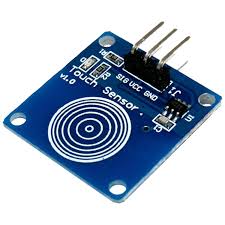 Image source
It only has 3 pins:VCC, GND, and SIG, making it very easy to connect and use.
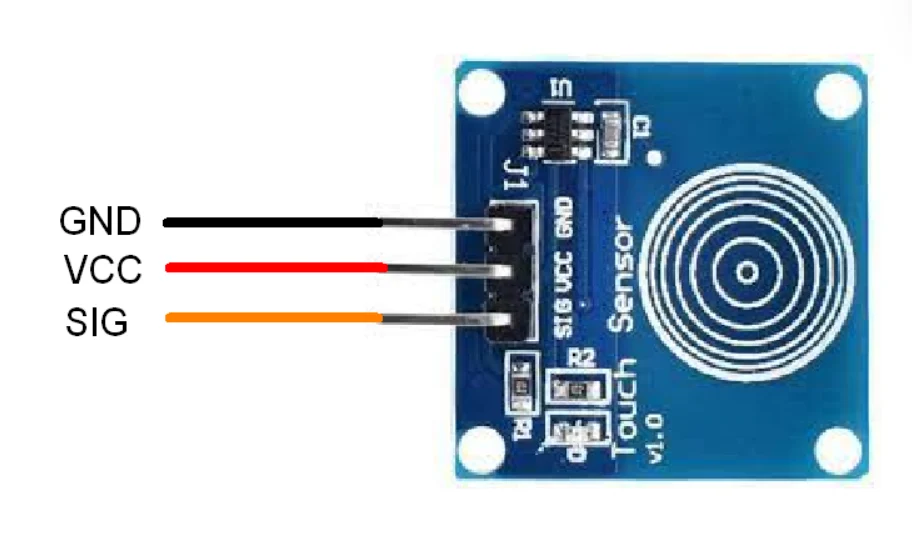 Image source
How does a Touch Sensor work?
A touch sensor works by using capacitance. I asked ChatGPT to explain what capacitence is, and from what I understood, it is basically the ability of something to store a small amount of electrical charge.Every human body naturally carries a small electrical charge and can conduct electricity. When you bring your finger close to the sensor's metal pad, your finger acts as one conductive plate, and the metal pad acts as the other. Together, they form a capacitor, with the air (and any insulating layer on the sensor) serving as the non conductive material between them. The TTP223 chip continuously monitors the capacitance of the pad. When your finger approaches, the capacitance increases, and the chip detects this change and triggers the output. This is why the sensor does not need to be physically pressed like a button as getting your finger close enough to the pad is enough to set it off.
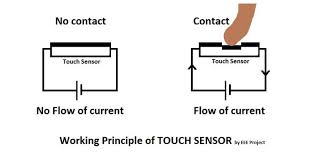 Image source
Testing the Sensor:
Connections:
- I connected the VCC pin on the touch sensor to the 3.3V pin on my XIAO ESP32 C3 using a jumper wire
- I connected the GND pin on the touch sensor to the GND pin on my board
- I then connected the SIG pin to D4 on my board using a jumper wire
Programming the sensor:
In a new sketch in arduino ide, I asked Claude ai to generate a simple to code to test the touch sensor with the prompt "can you write me a simple arduino code where the led turns on when I touch the sensor and turns off when I touch it again"
This was the code it generated:
#define TOUCH D4
#define LED D0
bool ledState = false;
bool lastTouchState = LOW;
void setup() {
pinMode(TOUCH, INPUT);
pinMode(LED, OUTPUT);
digitalWrite(LED, HIGH); // LED off by default
Serial.begin(115200);
}
void loop() {
int touch = digitalRead(TOUCH);
if (touch == HIGH && lastTouchState == LOW) {
ledState = !ledState; // toggle LED state
if (ledState) {
digitalWrite(LED, LOW); // LED ON
Serial.println("LED ON");
} else {
digitalWrite(LED, HIGH); // LED OFF
Serial.println("LED OFF");
}
delay(50); // debounce
}
lastTouchState = touch;
}
Explaination of the code:
#define TOUCH D4: Sets D4 as the pin connected to the SIG pin of the touch sensor.
#define LED D0: Sets D0 as the pin connected to the LED.
bool ledState = false: A variable that keeps track of whether the LED is currently on or off. false means off by default.
bool lastTouchState = LOW: Stores the previous state of the touch sensor so the code can detect the exact moment it goes from not touched to touched.
digitalWrite(LED, HIGH): Keeps the LED off by default when the board first starts up since the LED on the XIAO ESP32-C3 is active low.
int touch = digitalRead(TOUCH): Reads the current state of the touch sensor and stores it as either HIGH or LOW.
if (touch == HIGH && lastTouchState == LOW): This is the most important part — it checks if the sensor is currently being touched (HIGH) AND was not touched before (LOW). This combination makes sure the LED only toggles once per touch and not continuously while you keep your finger on the pad.
ledState = !ledState: Flips the LED state — if it was on it turns off, and if it was off it turns on.
delay(50): A short debounce delay that prevents the sensor from triggering multiple times from a single touch.
lastTouchState = touch: Updates the last touch state at the end of every loop so the code always has an accurate reference for the next comparison.
This is the video of me testing the touch sensor, to make the led turn on and off each time I touch it.
Temperature and Humidity sensor
I tried out the temperature and humidity sensor as well.A temperature and humidity sensor is an input sensor that measures the surrounding environment's temperature and moisture level in the air. It is commonly used in weather stations, smart home systems, and environmental monitoring projects.
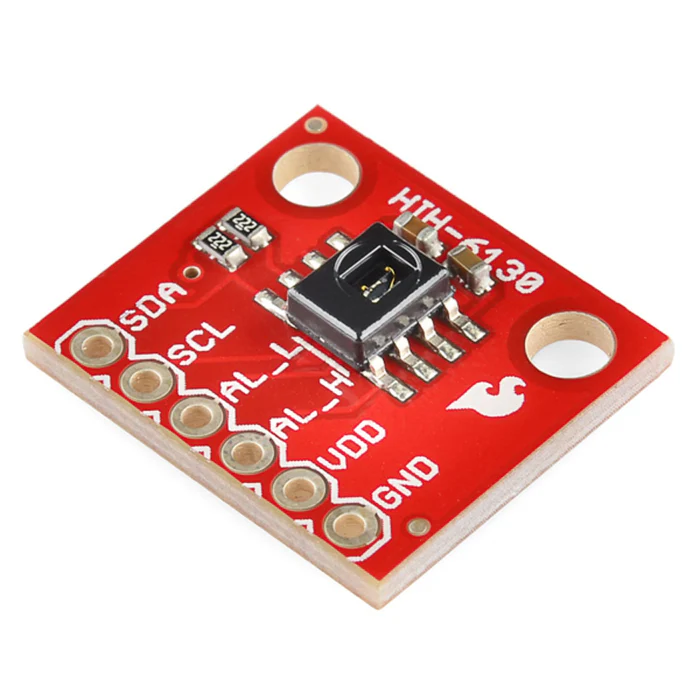 Image source
The sensor I used was the SparkFun HIH-6130, which is a high accuracy temperature and humidity sensor that communicates over I2C, meaning it only needs two signal wires (SDA and SCL) to send data to the microcontroller.
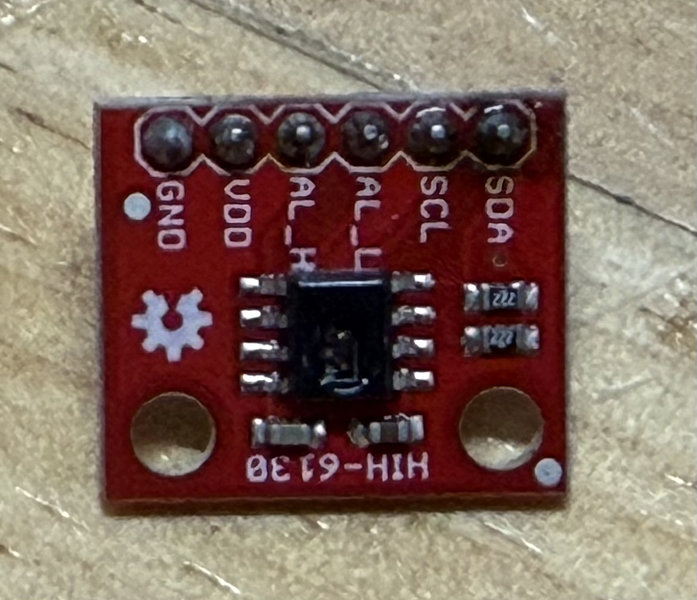
It has 6 pins:GND, VDD, AL_H, AL_L, SCL, and SDA. The AL_H and AL_L pins are alarm pins that trigger when the temperature or humidity goes above or below a set threshold, but for our testing we left them unconnected since I only needed the basic temperature and humidity readings.
Testing the Sensor:
Connections:
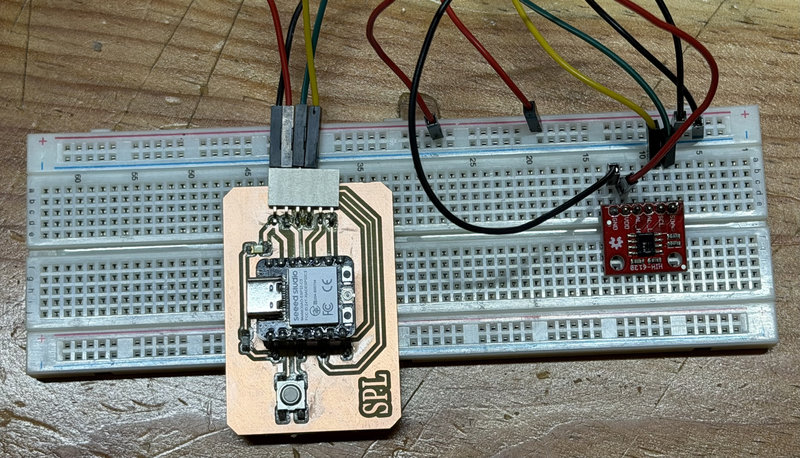
- I placed the sensor onto the breadboard to make wiring easier for the test.
- I connected the 3.3V pin on my XIAO ESP32 C3 to the positive rail of the breadboard and the GND pin to the negative rail using jumper wires
- I then connected the VDD pin on the sensor to the positive rail of the breadboard and the GND pin on the sensor to the negative rail using jumper wires
- I then connected SCL to the I2C_SCL pin and SDA to the I2C_SDA pin on my board using jumper wires
- The AL_H and AL_L pins were left unconnected since we only needed the basic temperature and humidity readings
Programming the sensor:
I then opened a new skecth and asked ai with the prompt " can you write me a simple arduino code that reads the temperature and humidity and prints the values to the serial monitor every second" to generate a simple code to test the temperature and humidity sensor.
This was the code it generated:
#include <Wire.h>
#define HIH6130_ADDR 0x27
void setup() {
Serial.begin(115200);
Wire.begin();
Serial.println("HIH6130 Temperature and Humidity Sensor Test");
}
void loop() {
// Request measurement
Wire.beginTransmission(HIH6130_ADDR);
Wire.endTransmission();
delay(100); // wait for measurement to complete
// Read 4 bytes from sensor
Wire.requestFrom(HIH6130_ADDR, 4);
if (Wire.available() == 4) {
uint8_t b0 = Wire.read();
uint8_t b1 = Wire.read();
uint8_t b2 = Wire.read();
uint8_t b3 = Wire.read();
// Calculate humidity
uint16_t rawHumidity = ((b0 & 0x3F) << 8) | b1;
float humidity = (rawHumidity / 16383.0) * 100.0;
// Calculate temperature
uint16_t rawTemp = ((b2 << 8) | (b3 & 0xFC)) >> 2;
float temperature = (rawTemp / 16383.0) * 165.0 - 40.0;
Serial.print("Temperature: ");
Serial.print(temperature);
Serial.println(" °C");
Serial.print("Humidity: ");
Serial.print(humidity);
Serial.println(" %");
Serial.println("-------------------");
} else {
Serial.println("Sensor not found, check wiring!");
}
delay(1000);
}
Explaination of the code:
#define HIH6130_ADDR 0x27: Sets the I2C address of the HIH6130 sensor so the board knows which device to communicate with on the I2C bus.Wire.begin(): Initializes the I2C communication between the XIAO ESP32-C3 and the sensor.
Wire.beginTransmission(HIH6130_ADDR) and Wire.endTransmission() — Sends a request to the sensor to start taking a measurement.
delay(100):Waits 100 milliseconds for the sensor to finish taking the measurement before we try to read it.
Wire.requestFrom(HIH6130_ADDR, 4) : Requests 4 bytes of data from the sensor, which contains the raw humidity and temperature values.
Wire.read(): Reads each byte of data sent back from the sensor one at a time.
rawHumidity and rawTemp: These are the raw values read from the sensor that still need to be converted into actual readable numbers.
float humidity = (rawHumidity / 16383.0) * 100.0: Converts the raw humidity value into a percentage.
float temperature = (rawTemp / 16383.0) * 165.0 - 40.0: Converts the raw temperature value into degrees Celsius.
Serial.println("Sensor not found, check wiring!"): If the sensor does not respond with 4 bytes of data, this message is printed to let you know something is wrong with the connection.
delay(1000): Pauses for 1 second before taking the next reading.
Readings:
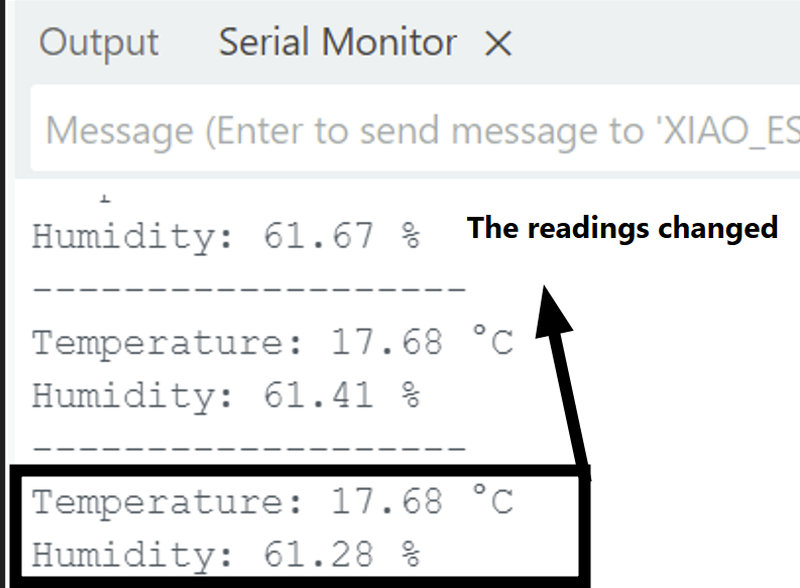
After uploading the code, I breathed near the touch sensor and the ouput displayed in the serial monitor showed the temperature and the humidity increasing.
The reading before :
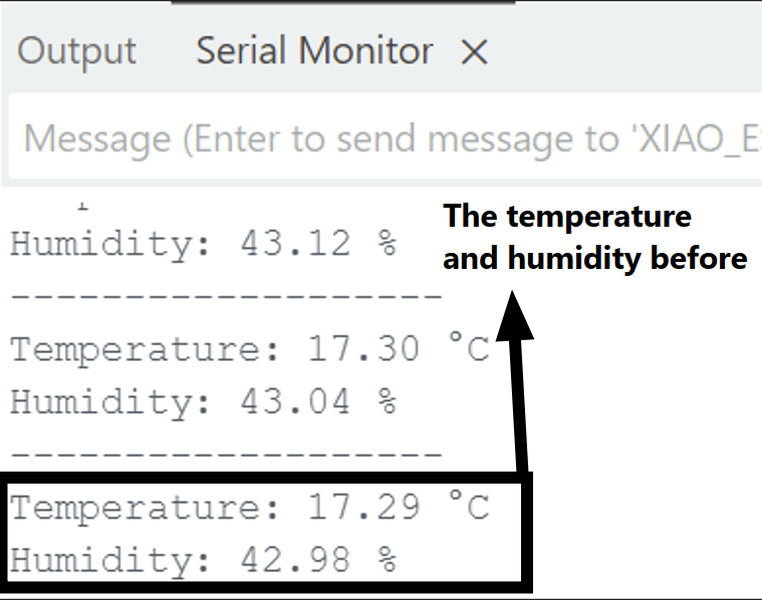
The reading after:
IR sensor:
Next, I tried using an IR sensor.An IR (Infrared) sensor is an input sensor that detects objects in front of it by emitting an invisible infrared light beam and checking if that beam bounces back. When an object comes close enough to the sensor, the infrared light reflects off it and is picked up by the receiver on the sensor, which then triggers the output. When there is nothing in front of it, the beam does not bounce back and the output stays in its default state.
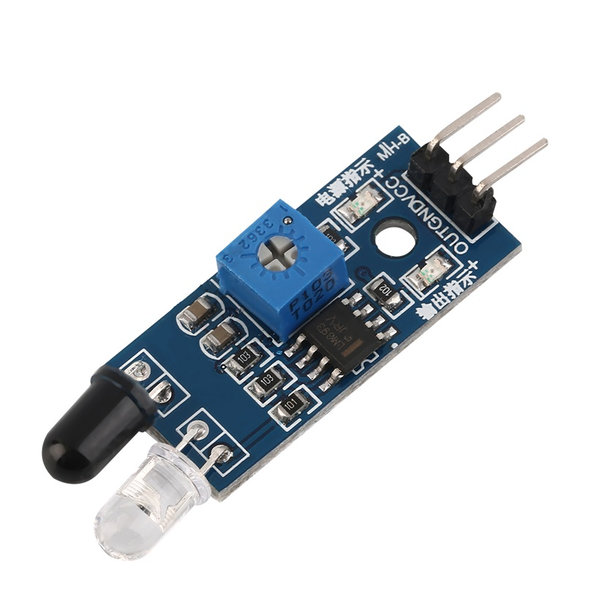 Image source
How does a Touch Sensor work?
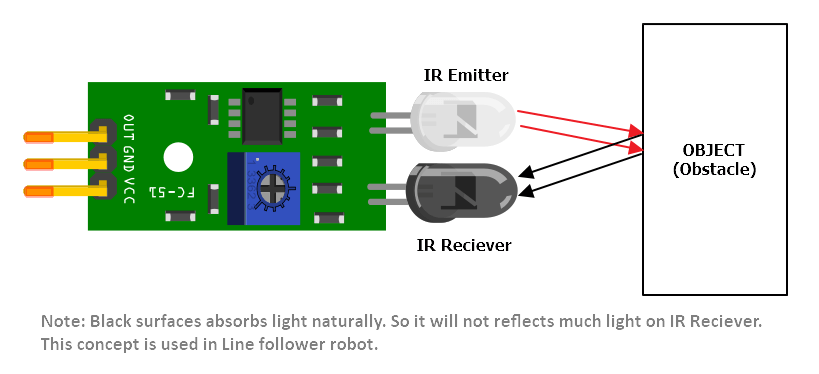 Image source
An IR sensor works by using two components, an IR emitter and an IR receiver that work together:
- The IR emitter constantly sends out an invisible beam of infrared light in front of the sensor
- When there is no object in front of it, the light beam goes out into the open and nothing comes back, so the receiver stays inactive
- When an object comes close, the infrared light hits the object and bounces back towards the sensor
- The IR receiver picks up the reflected light and the sensor's internal circuit detects it and triggers the output
Testing the Sensor:
Connections:
- I connected the VCC pin on the sensor to the 3.3V pin on my XIAO ESP32-C3 using a jumper wire
- I connected the GND pin on the sensor to the GND pin on my board using a jumper wire
- I then connected the OUT pin to D4 on my board using a jumper wire
Programming the sensor:
I asked Claude ai, to generate simple code to test the IR sensor with the prompt "can you write me a simple arduino code where the led turns off when an obstacle is detected and turns on when there is no obstacle"
This was the code it generated:
#define IR D4
#define LED D0
void setup() {
pinMode(IR, INPUT);
pinMode(LED, OUTPUT);
digitalWrite(LED, HIGH); // LED off by default
Serial.begin(115200);
}
void loop() {
int obstacle = digitalRead(IR);
if (obstacle == LOW) { // LOW means obstacle detected (active low)
digitalWrite(LED, LOW); // LED ON
Serial.println("Obstacle detected!");
} else {
digitalWrite(LED, HIGH); // LED OFF
Serial.println("No obstacle...");
}
delay(100);
}
Explaination of the code:
#define IR D4: Sets D4 as the pin connected to the OUT pin of the IR sensor.
#define LED D0: Sets D0 as the pin connected to the LED.
pinMode(IR, INPUT): Sets the IR pin as an input so the board can read the signal coming from the sensor.
pinMode(LED, OUTPUT): Sets the LED pin as an output so the board can turn it on and off.
digitalWrite(LED, HIGH): Keeps the LED off by default when the board first starts up since the LED on the XIAO ESP32-C3 is active low.
int obstacle = digitalRead(IR): Reads the current state of the IR sensor and stores it as either HIGH or LOW.
if (obstacle == LOW): Checks if the sensor is outputting LOW, which means an obstacle has been detected in front of it. Since this sensor is active low, LOW means something is there and HIGH means nothing is there.
digitalWrite(LED, LOW): Turns the LED on when an obstacle is detected.
digitalWrite(LED, HIGH): Turns the LED off when there is no obstacle.
Serial.println("Obstacle detected!") and Serial.println("No obstacle..."): Prints a message to the Serial Monitor in real time so we can see whether the sensor is detecting something or not.
delay(100): Adds a small 100 millisecond pause between each reading to keep the output stable and readable.
Reflection
I had a lot of fun this week because I got to try out different kinds of sensor which I most likely wouldn't have heard about without this week.And I learned a lot about new sensors and it's just so interesting how there's all kinds of sesnors for everything and it's even more interesting to learn about how they work.