
Project Development
Week 1
This week, I focused more on the “how” part of my project. I worked on the basic circuit, identified key components, and made a rough sketch of the final design.
Reference Circuit
We made a basic circuit for practice in Canva using the key components we listed:
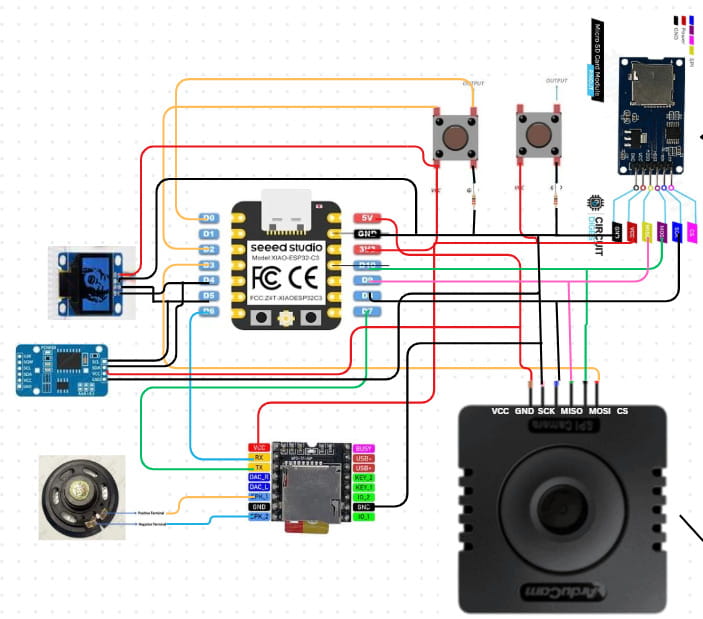
These are some of the things I learned that time:
- Choose the components: First, identify the specific components you need for your circuit.
- Check compatibility: Make sure each component can work with your board. A good way to do this is by searching the component name along with the board (e.g., “DS3231 RTC Arduino”) to see if it has been done before. This helps avoid last-minute issues with incompatible parts. Save the connection reference that is the clearest to you.
- Find the pinouts: Look up the pinout for each component (for example, “Arduino pinout” and “DS3231 RTC pinout”). The pinout tells us the specific connection for each pin. Each pin has a specific function, so it’s important to check the pinout of both components when connecting them. Some pins are meant to receive input from a specific output pin, while others send output. Each pin handles a particular type of signal, like power, ground, or data, and connecting the wrong pins can cause the circuit to fail or even damage components. There are many references, like images, showing the pinouts of components. Save the one that is the clearest and most detailed for your use.
- Connect the pins: Using the connection reference and the pinout information, connect the required pins carefully, making sure each pin goes to the correct spot.
- One more thing to keep in mind: all the GND (ground) pins in a circuit should be connected together. This creates a common reference point and provides a path for electricity to safely flow back to the source, completing the circuit.
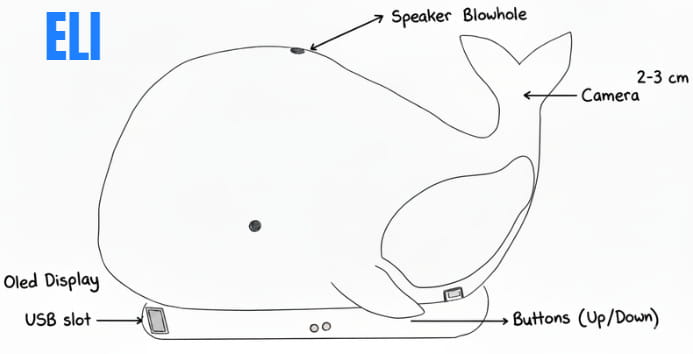
I was also able to make a draft sketch for my final project. Although it isn't very detailed, it represents what I have in mind for now, even though it will likely change a lot as the project develops. I then refined the image using Gemini AI, so credit goes to Gemini AI.
That's all for this week.
Week 2
This week, we went to the lab to do cardboard prototyping. We created detailed cardboard versions of our final projects to better understand how all the components would work together, visualize the final design, and identify gaps that needed improvement.
This was my prototype of my final project which is a desk bot that trains your focus. For more details about my project, you can visit the Project Proposal page on my website.
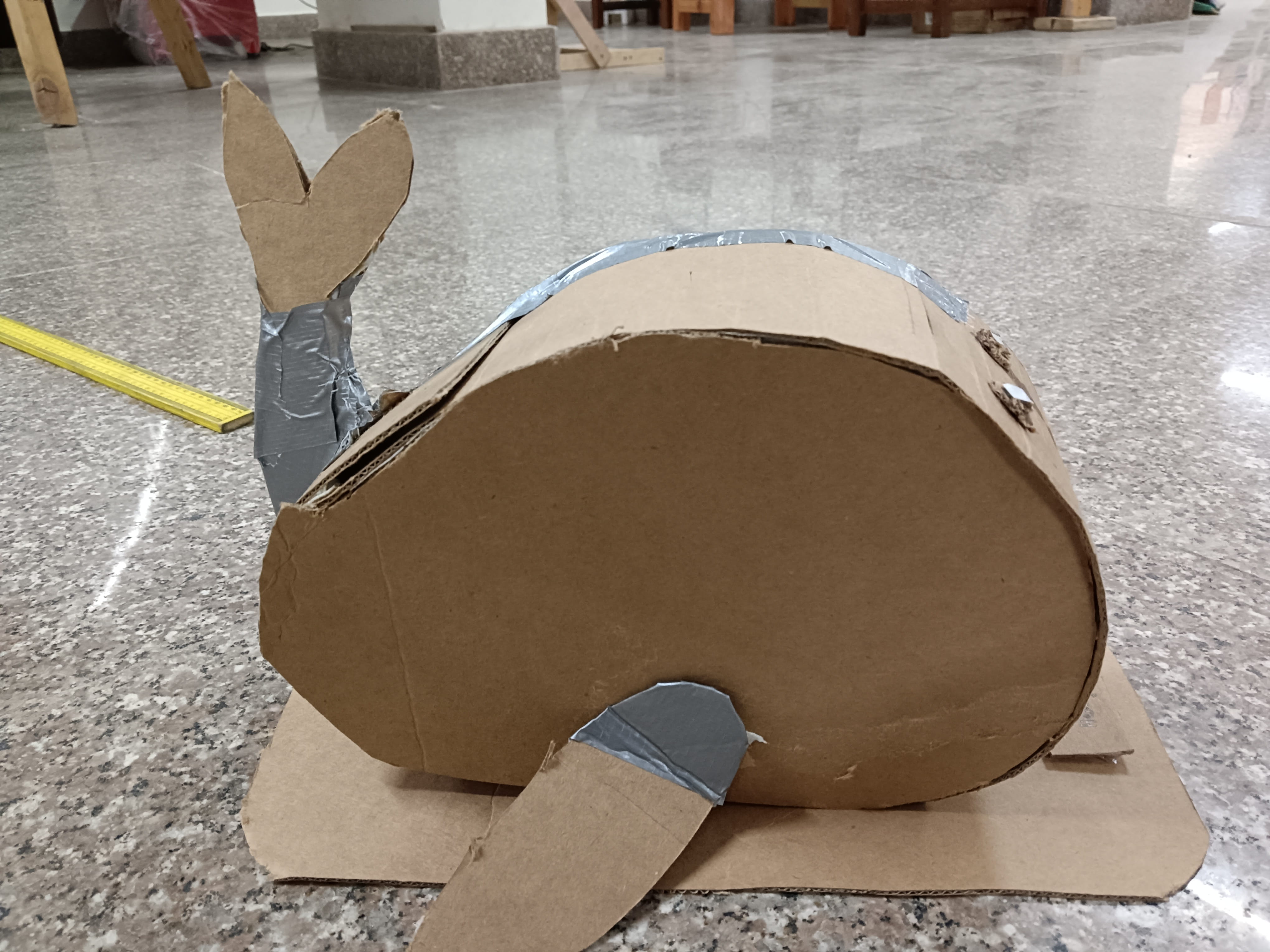
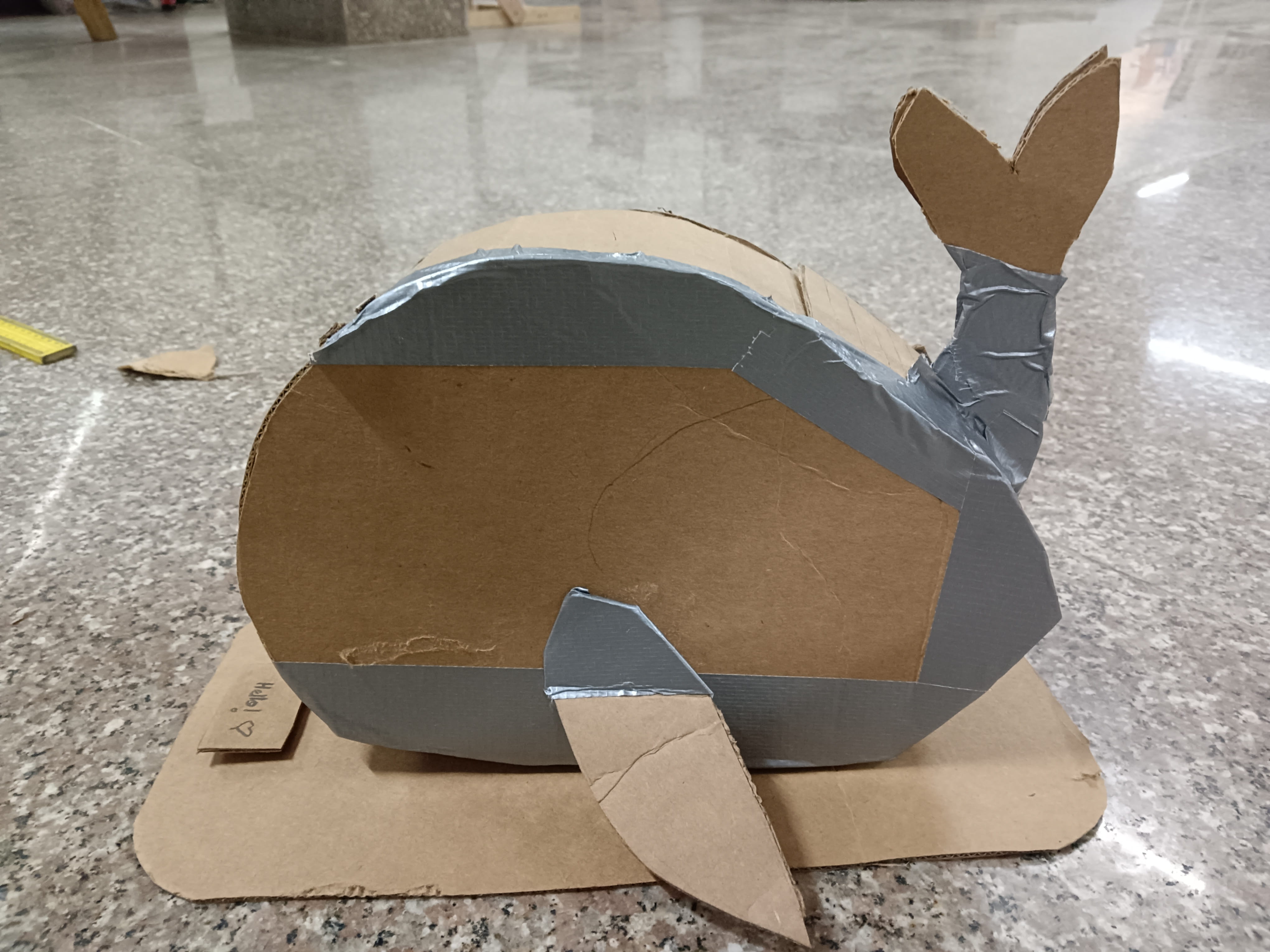
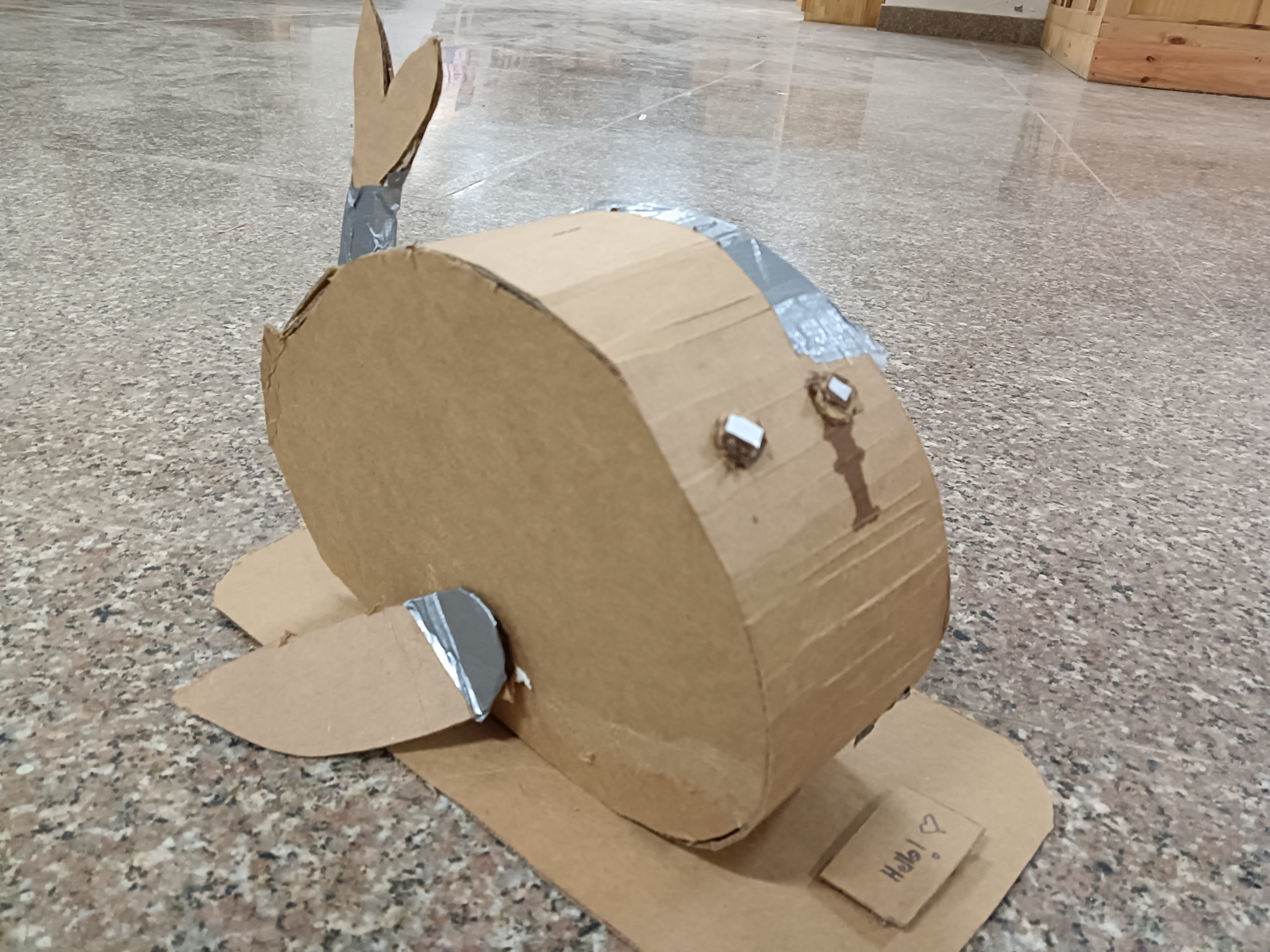
Through this experience, I was able to identify several gaps in my project idea and realized that I needed to work out many details instead of keeping everything abstract in my head.
Gaps identified:
- Camera orientation: Where will the camera/cameras be placed? On the tail or on the front of the body?
- Input method: How should users input data? (Fins, buttons, sensors, etc.)
- Casing: How can I open the bot easily to check internal components?
- Data Logging: How can data be logged efficiently without making the process too complicated?
- Menu Structure: What should the home menu look like and how should navigation work?
- Measurements: What are the exact measurements for internal and external fits?
- Internal Layout: How should connections be arranged for correct component placement?
Reviewing these gaps, I can categorize them into two important challenges for myself:
- 1. User Interaction and Interface (UI): Input method and menu structure.
- 2. Mechanical Design: Camera placement, casing, and internal layout.
For next week, I will try to focus on resolving the UI and mechanical design gaps as much as I can at first, since those decisions will directly affect data logging and internal connections.
Note to self: Make a detailed sketch of the final project from all views (top, side, back, front) and label as many components as possible once the camera placement and input button decisions are finalized.
Week 3: User Interface and Menu Structure Design
This week focused on developing the menu architecture and overall interface layout. My initial approach was intentionally minimal, without defining detailed interaction logic. However, I recognized that neglecting interface design could weaken the usability of the final project.
To improve the design, I shifted my perspective from creator to end user, prioritizing clarity, simplicity, and intuitive navigation.
Initial Concept (First Draft)
Hello!
→ Start Focus Timer
→ Show Blueprint
→ Set Custom Timer
While this idea works, this structure does not have enough important interaction details, such as :
- How users would configure timers
- How input values would be entered
- How navigation between options would occur
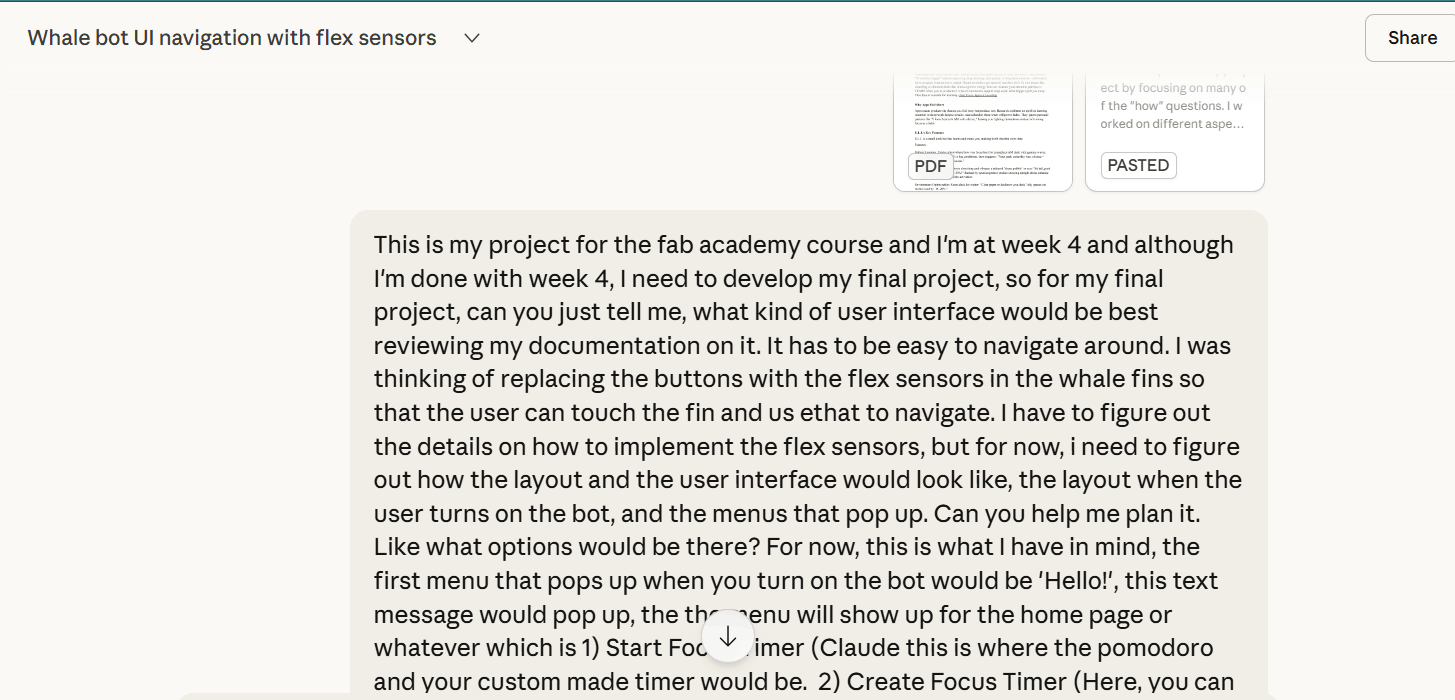
To improve the structure, I asked Claude AI for feedback on the menu organization. Based on the suggestions, I redesigned the interface by dividing features into different screens and organizing them more clearly. This was the prompt I used and I even pasted my project proposal and initial documentation on the project to help the AI get a clearer understanding on my project.
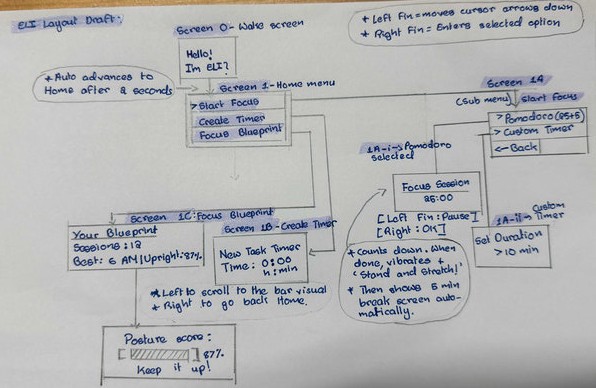
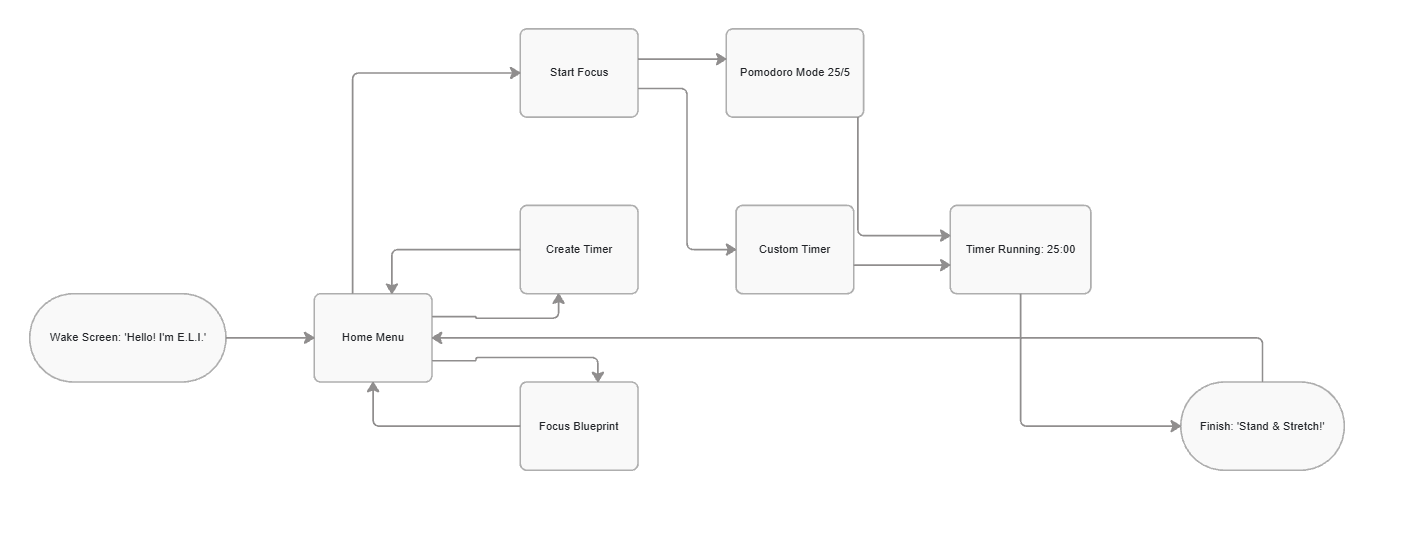
Menu Structure (Draft)
Screen 1 – Home
A → Start Focus
B → Create Timer
C → Focus Blueprint
Screen 1-A – Start Focus
I → Pomodoro Mode
II → Custom Timer
I made a draft on paper to help me get a clearer idea:
I made a flowchart to make it easier to understand as well.
Considerations for Week 4
Input Methods
I am currently exploring flex sensors as the main input method.
This is a rough sketch I created of my bot from different views. I tried to include as many details as possible, but at this stage, this is the level of detail I was able to include. The sketch helped me visualize the overall form and layout of the design. However, I still need to work further on the interior build and internal component placement.
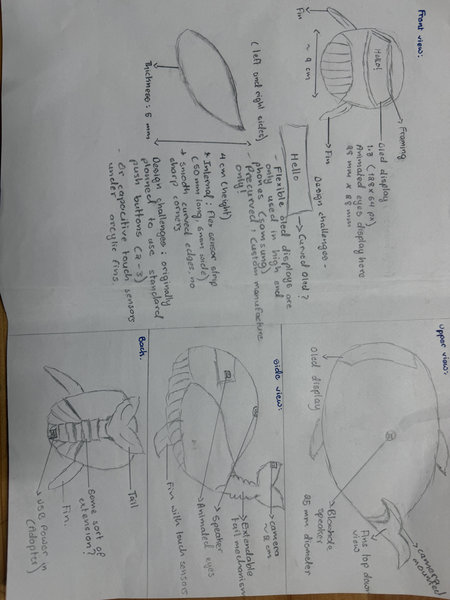
Questions I'm still figuring out:
- How well can flex sensors handle menu navigation?
- Using only two fins for navigation is inconvinient
Single press / bend = Scroll
Double press / bend = Select
Long press / sustained bend = Return Home
Week 4: Making a simple simulation for the menu structure
For this week's project development, since we learned about embedded systems, I wanted to work on my final project simultaneously as well. Instead of starting something completely new, I decided to make a simple demonstration of the menu structure I had designed earlier.
I began by creating a basic simulation in Wokwi, using the draft menu layout I made last week.
In Wokwi, I added the components needed for the simulation: an ESP32-C3 microcontroller, LEDs, resistors, a breadboard, and an OLED display. The simulation itself is very simple, it just cycles through the different menu screens to give a rough idea of how the interface might look. At this stage, the goal was mainly to visualize the flow rather than build a fully interactive system. I plan to improve this later by adding proper inputs and navigation logic.
This is the first simulation I made, which only had a few components:
This is the second video, which has more components, and I updated the code to cycle through different menu structure for the demonstration:
You can access my Wokwi simulation here.
After testing the simulation, I tried building the same circuit using real hardware. I first used a Seeed Studio XIAO ESP32-C3 (bare module), since there wasn't enough time to design and fabricate a custom board. I placed it on a breadboard and wired the connections similar to the simulation. However, the setup didn't work as expected. To keep the demonstration moving, I switched to an Arduino Metro board instead. The hardest part was to program the OLED display, instead of working like the simulation, it got stuck at 'Hello'. After a lot of time spent on trying to get the OLED to cycle through different screens, it turns out the code was too long for the OLED to work so I used Claude AI to shorten the code. And it finally worked.
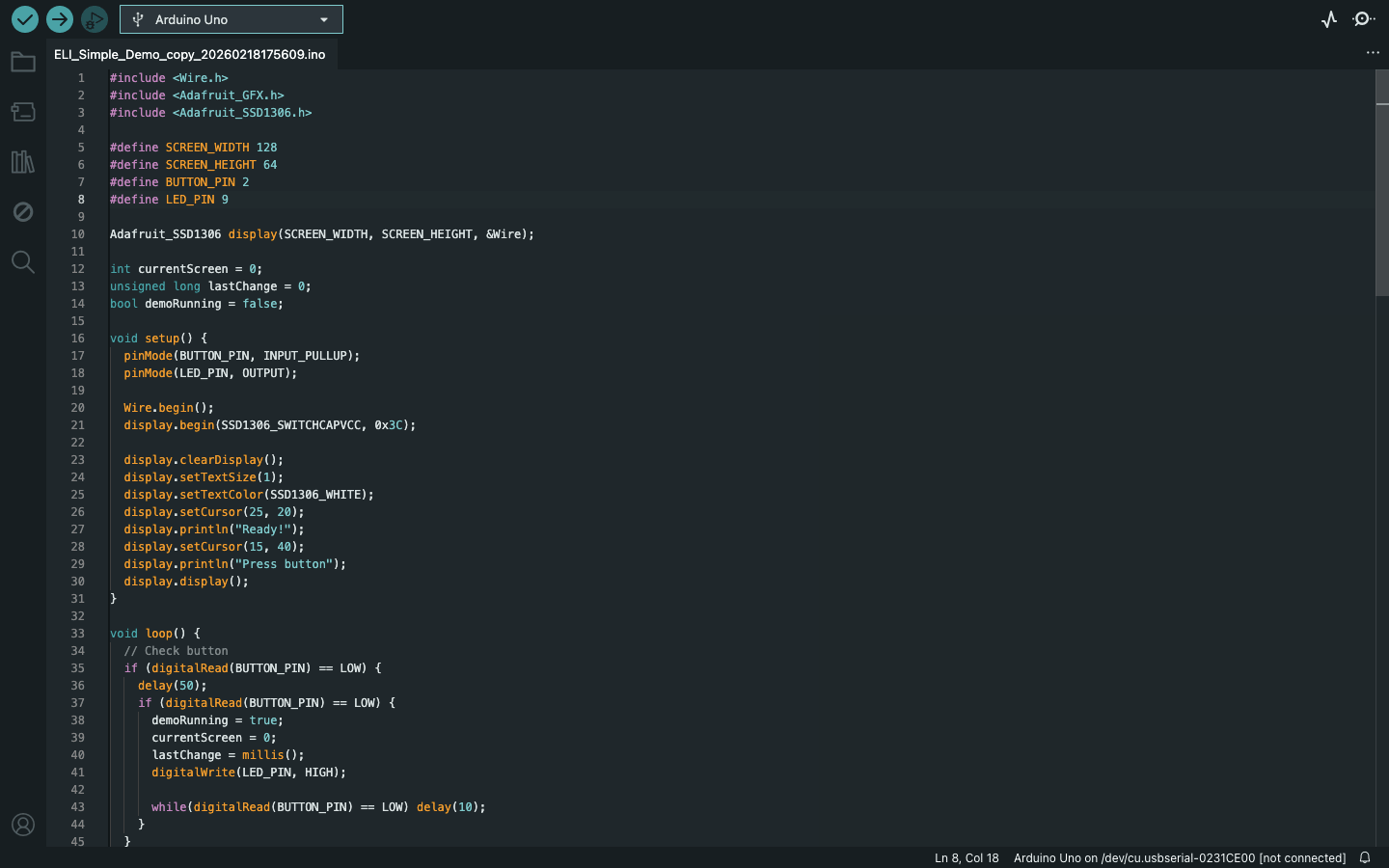
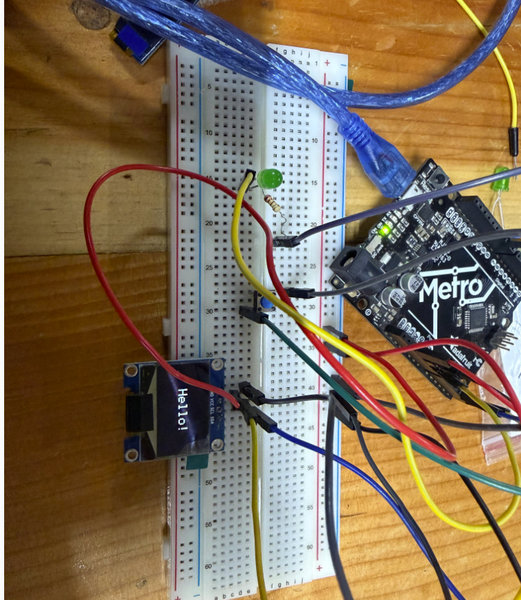
Here is the video:
This week, since I had to browse through a datasheet for a microcontroller, I browsed through the datasheet for the microcontroller I'll be using for my final project as well, which is the Xiao ESP32 C3 microcontroller.
The image below shows the ESP32 microcontroller's functional block diagram:
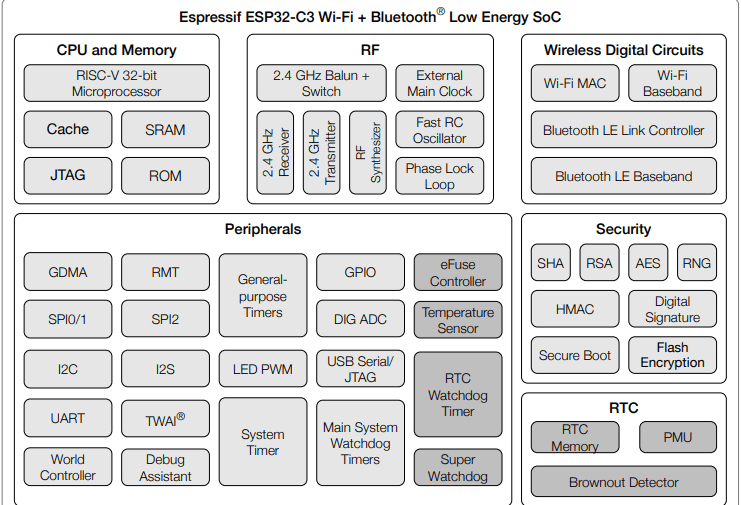
The chip is divided into 6 main sections:
- The processor is a 32 bit RISC V core, which is a modern, energy efficient type of processor. When you upload code from Arduino IDE or similar, it ends up here. The SRAM is like short term memory (used while the program runs), the ROM has built in bootloader code from Espressif that you can't change, and the Cache speeds things up by keeping frequently used data close to the processor. JTAG is a debugging interface used during development.
- RF (Radio Frequency): This handles all wireless communication. It has a 2.4 GHz receiver and transmitter, a balun/switch to toggle between Wi-Fi and Bluetooth, and clock/oscillator circuits to keep timing precise. You don't interact with this directly — the firmware handles it.
- Wireless Digital Circuits: This is the software-side of wireless — the Wi-Fi MAC, Wi-Fi Baseband, and Bluetooth LE controller and baseband. These work with the RF section to give you actual Wi-Fi and BLE functionality out of the box.
- Peripherals: The most relevant section for your project. This is everything you can physically connect to:
- SPI, I2C, I2S, UART: standard communication protocols for sensors, displays, etc.
- GPIO: general input/output pins
- ADC: reads analog signals (sensors, potentiometers)
- LED PWM: controls LEDs or motors with PWM signals
- USB Serial/JTAG: used for programming and serial monitor
- The ESP32-C3 has dedicated security circuits built directly into the chip as actual hardware rather than software, making them faster and harder to bypass. These circuits handle data encryption, generate secure random numbers for encryption keys, verify that data and firmware haven't been tampered with, ensure only trusted code runs on the chip, and protect stored code from being physically read off the chip.
- RTC (Real-Time Clock): Has its own memory (RTC Memory) and a PMU (power management unit) for deep sleep modes, plus a Brownout Detector that resets the chip if power drops too low, useful for battery projects.
Week 5: Testing flex sensors for my user interface
This week, I built upon my existing circuit to test the menu navigation using a flex sensor instead of physical buttons since I will be using flex sensors as my main input method. The interface now responds to different levels of bend:
- A light press scrolls through the menu options.
- A longer, deeper press confirms a selection.
I also used both visual and audio feedback: the LED blinks and the buzzer beeps to confirm each scroll and selection. Although the timer functions aren't fully programmed yet, the menu structure responds reliably to the flex sensor, which was the main goal for now.
You can download my Arduino code here.
Week 6: Designing the PCB for my final project using KiCad
This week, after learning how to create schematics and design a PCB, I tried making a PCB for my final project. The board includes a Xiao ESP32-C3 module and connector pin headers for my components. It took a long time to get everything right since I'm still a beginner, but the PCB design turned out well. Although it will likely need many modifications as my final project idea becomes clearer, this design serves as the first draft and the foundation for all future PCB designs for my project.
This is the schematics:
.jpg)
And this was the PCB I designed for my final project:
.jpg)
I also generated an RML file for the PCB design, so it's ready to be milled next time.
.jpg)
.jpg)
I got to think about the components in detail for my final project too:
You can access the component list here.
Week 7: Final project components
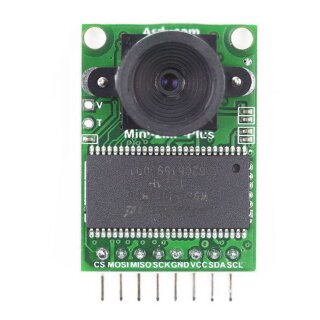
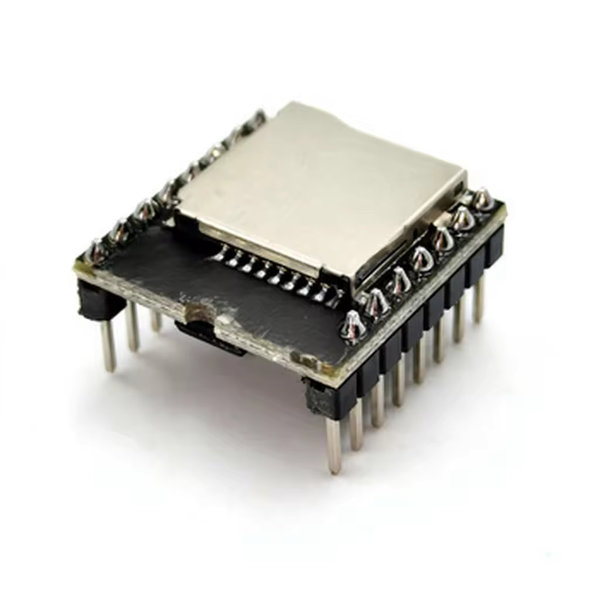
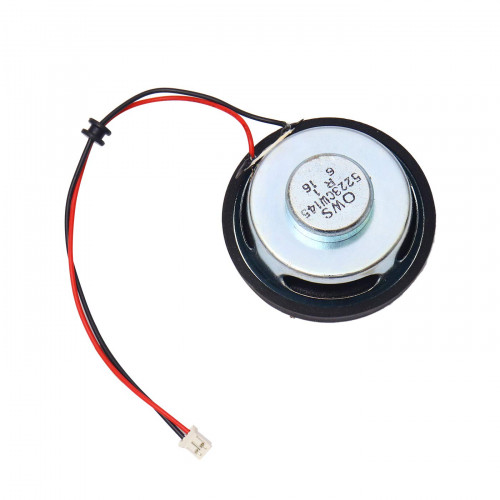
This week, I was able to identify more suitable components for my final project and replace some of the earlier choices due to practical issues, such as the camera being too large and the flex sensor not being a convenient input method. I also did some research on alternatives, and these are the components I have considered so far for my final project:
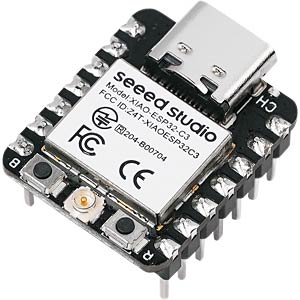
- Xiao Esp32 C3
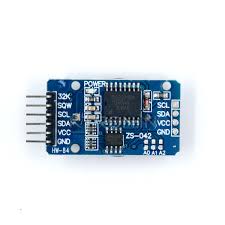
- DS3231 RTC Module
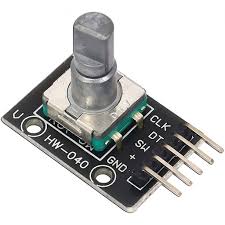
- KY-040 Rotary Encoder Module
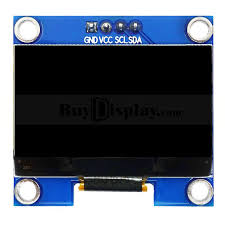
- 1.3 inch OLED display module
- arducam mini 2MP plus (B0067)
- DFPlayer Mini MP3 Module
- 8Ω 3W Mini Speaker
Week 8: Modifying PCB
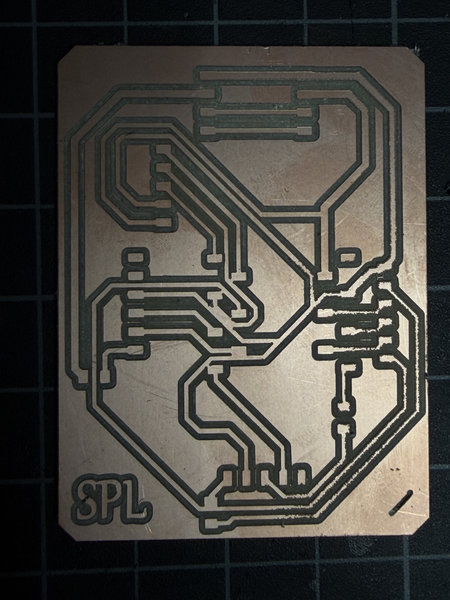
This week, I modified the PCB I made for week 6 with updates on the new components. I changed the flex sensor with the rotatory encoder. But the PCB still needs work because it had a couple short circuits when I milled it out.
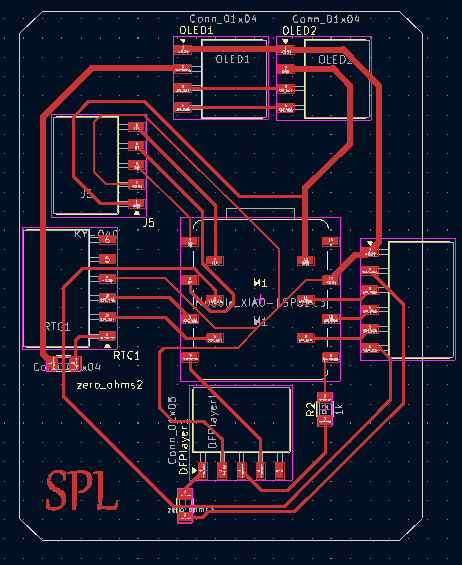
This was the board I milled out:
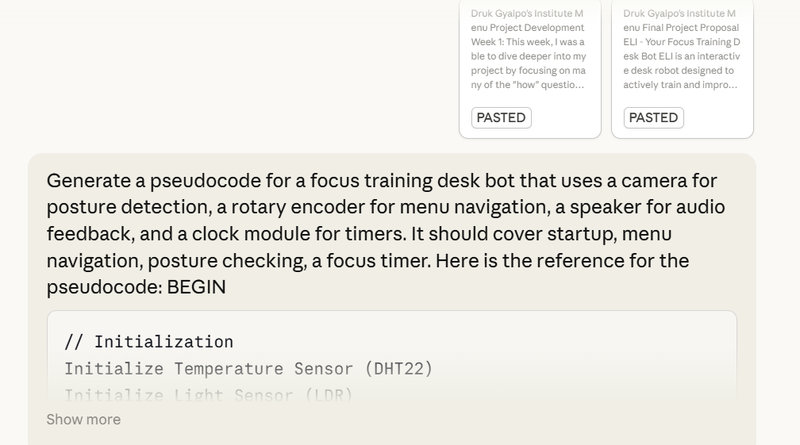
And to understand my project better, I also created a pseudocode with the help of AI.
This was the prompt I used to generate the pseudocode and I also pasted a lot of stuffs about my final project from my page to give claude ai context.
1. Start up
BEGIN

  // Turn on and prepare all parts
  Setup XIAO ESP32-C3 microcontroller
  Setup OLED display
  Setup KY-040 Rotary Encoder
  Setup Arducam Mega SPI camera
  Setup DS3231 RTC (clock module)
  Setup DFPlayer Mini + 8Ω 3W Speaker

  // Show welcome message and play a sound
  Show on screen: "Hello! I'm E.L.I."
  Play sound: "startup sound"

END STARTUP
2. Main Loop
WHILE ELI is on DO

  // Check what the user is doing
  encoder_action ← read rotary encoder()   // did user rotate or press?
  current_time   ← read clock()
  camera_image   ← take photo()

  handleInput(encoder_action)       // handle menu navigation
  checkPosture(camera_image)        // check if user is sitting well
  updateTimer(current_time)         // count down active timer
  checkIdle(current_time)           // go to sleep if no activity
  updateScreen()                    // refresh the OLED display

  Wait 100ms

ENDWHILE
3. Rotary Encoder Input
FUNCTION handleInput(action):

  IF action == TURNED RIGHT THEN
    Move menu cursor down by 1

  IF action == TURNED LEFT THEN
    Move menu cursor up by 1

  IF action == BUTTON PRESSED THEN
    Select the current menu option
    Play sound: "confirm beep"

END FUNCTION
4. Posture Check
FUNCTION checkPosture(image):

  result = analyzeImage(image)

  IF result == SLOUCHING THEN
    Show on screen: "Sit tall!"
    Play sound: "posture alert"

  IF result == NO PERSON DETECTED THEN
    Pause the timer            // don't count focus time if away

END FUNCTION
5. Focus Timer
FUNCTION updateTimer(current_time):

  IF timer is running THEN

    remaining ← timer_end_time - current_time
    Show on screen: remaining time

    IF 90 minutes have passed THEN
      Show on screen: "Stand and stretch!"
      Play sound: "stretch reminder"
      Reset stretch reminder counter

    IF remaining time == 0 THEN
      Show on screen: "Session done! Take a break."
      Play sound: "timer complete"
      Stop timer
      Go back to Home Menu

END FUNCTION
6. Focus Blueprint
FUNCTION showBlueprint():

  // Display summary of past focus sessions
  // Data is stored in ESP32 internal memory (no SD card)

  Show on screen: total number of sessions completed
  Show on screen: best focus time of day
  // e.g. "Sessions: 12 | Best: 6 AM"

END FUNCTION
That's all for this week!
Week 10: Testing the menu with the encoder:
I tested the menu structure this time using the rotary encoder instead of the flex sensors to identify possible issues with using that as the main input method. I used the arduino code of menu structure from last time except modified it with the rotary encoder and removed the flex sensors and buzzer.
Here is a video of the demonstration:
When I rotate the encoder clockwise, it scrolls down, and when I turn it anti-clockwise, it scrolls up. Pressing the encoder selects an option. Overall, navigating the menu felt decent using the rotary encoder,it was much better and more convenient compared to the flex sensors.
The menu structure is just a rough draft to show the available options, and some parts still need improvement. The “go back” option especially needs to be made better too.