





Industrial FABLAB UCuenca

Week 2 – Software Exploration

2D, 3D, AI and Multimedia Tools

Introduction

The objective of this week in Fab Academy is to explore and document a wide range of digital tools rather than mastering a single one. These tools were used to model experimental objects, document the design process, compress image and video files, and preserve original design files as part of a transparent and reproducible workflow.

Software Classification

Category Type Software
2DRasterGIMP
2DRasterMyPaint
2DVectorInkscape
2DVectorCorelDRAW
3DProgramTinkercad
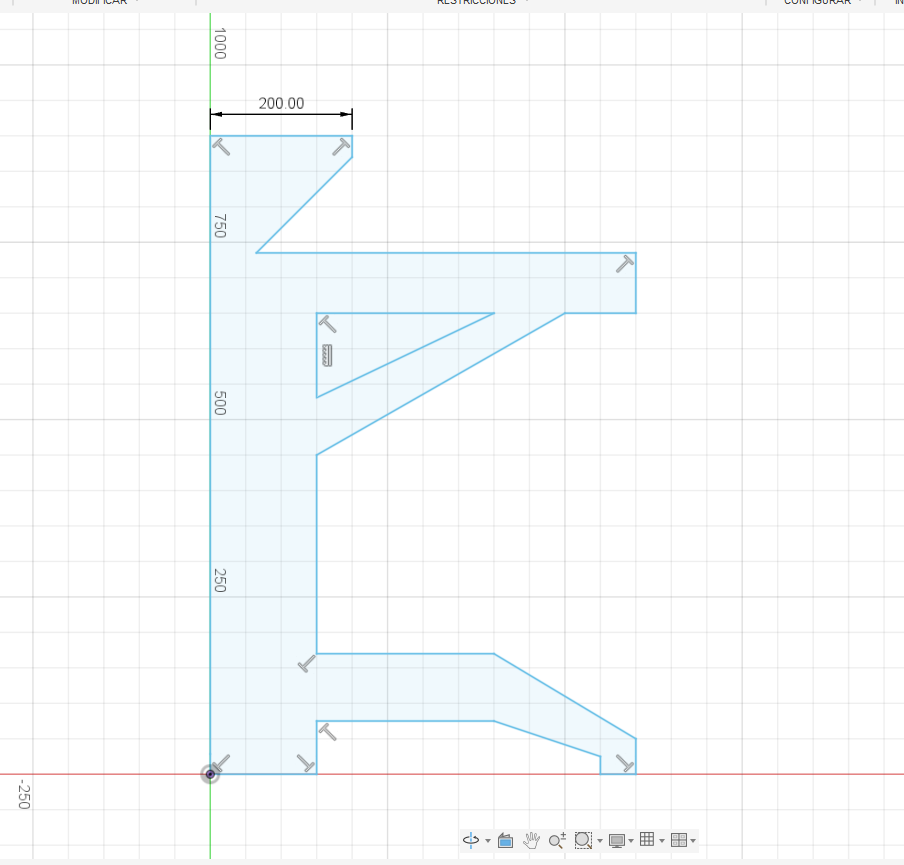
3DProgramFusion 360
3DProgramBlender
3DProgramOnshape
3DAI SoftwareText to CAD
3DAI SoftwareDALL·E
Audio/VideoVideoAfter Effects

GIMP – 2D Raster

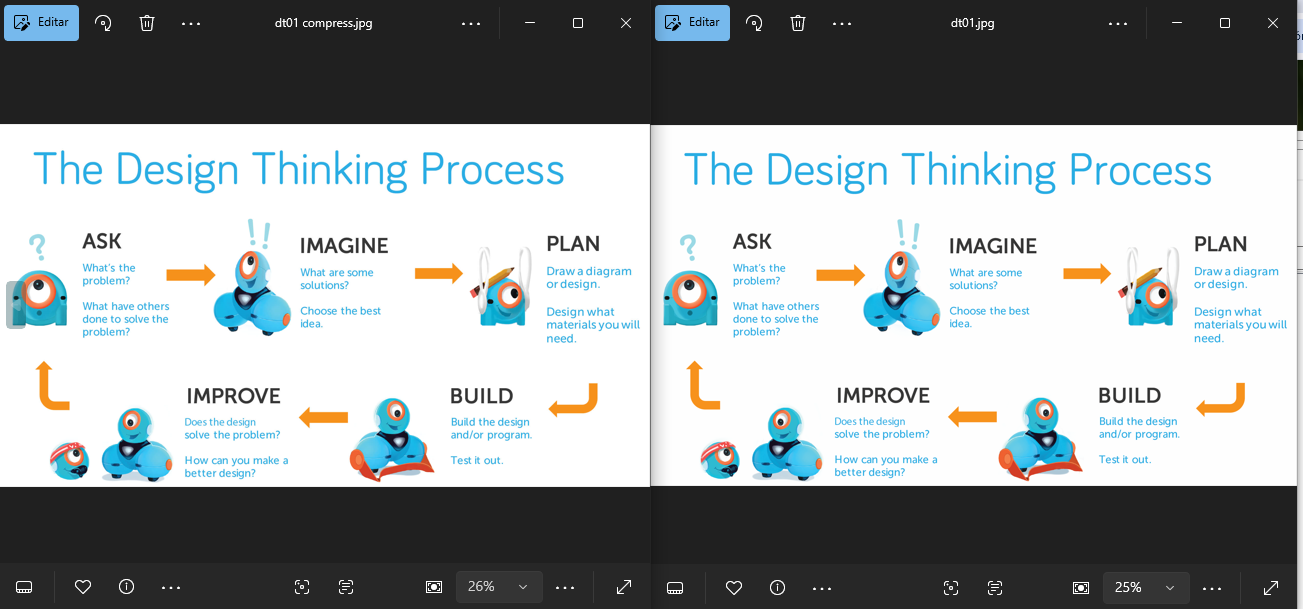
GIMP was used to edit screenshots, photographs, and documentation images. Image compression was performed to reduce file size while maintaining visual clarity for web publication.

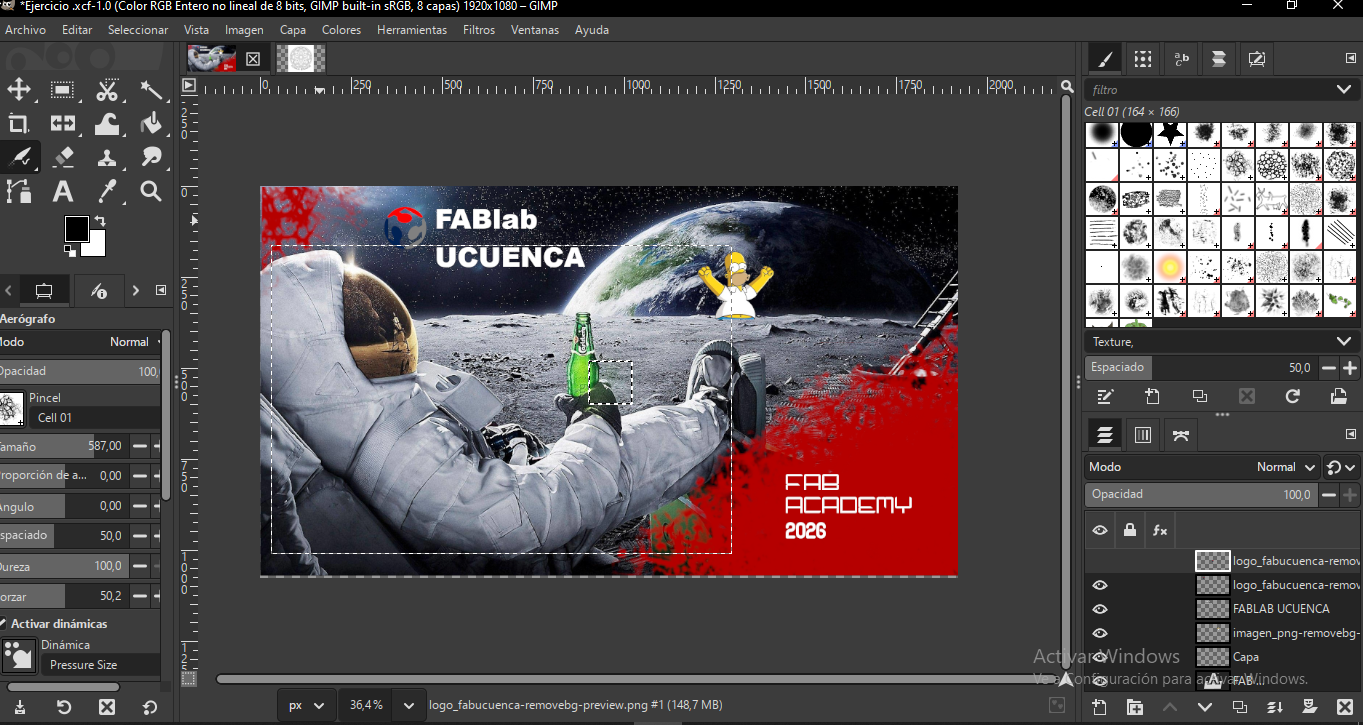
GIMP Workflow – Step by Step

  1. Capture screenshots or photographs of the design, modeling, or fabrication process.
  2. Open GIMP and import the image using File → Open.
  3. Crop the image to remove unnecessary areas and focus on relevant details.
  4. Adjust brightness, contrast, and levels to improve visibility and clarity.
  5. Resize the image to a web-optimized width (typically between 1200 and 1600 pixels).
  6. Add text annotations, arrows, or highlights when needed to explain specific steps or features.
  7. Export the image using File → Export As.
  8. Select an appropriate format (JPG for photographs, PNG for screenshots and diagrams).
  9. Set the compression quality between 70% and 85% to balance quality and file size.
  10. Save the optimized image in the images/ directory and verify its appearance on the web page.
GIMP documentation GIMP documentation

MyPaint – 2D Raster

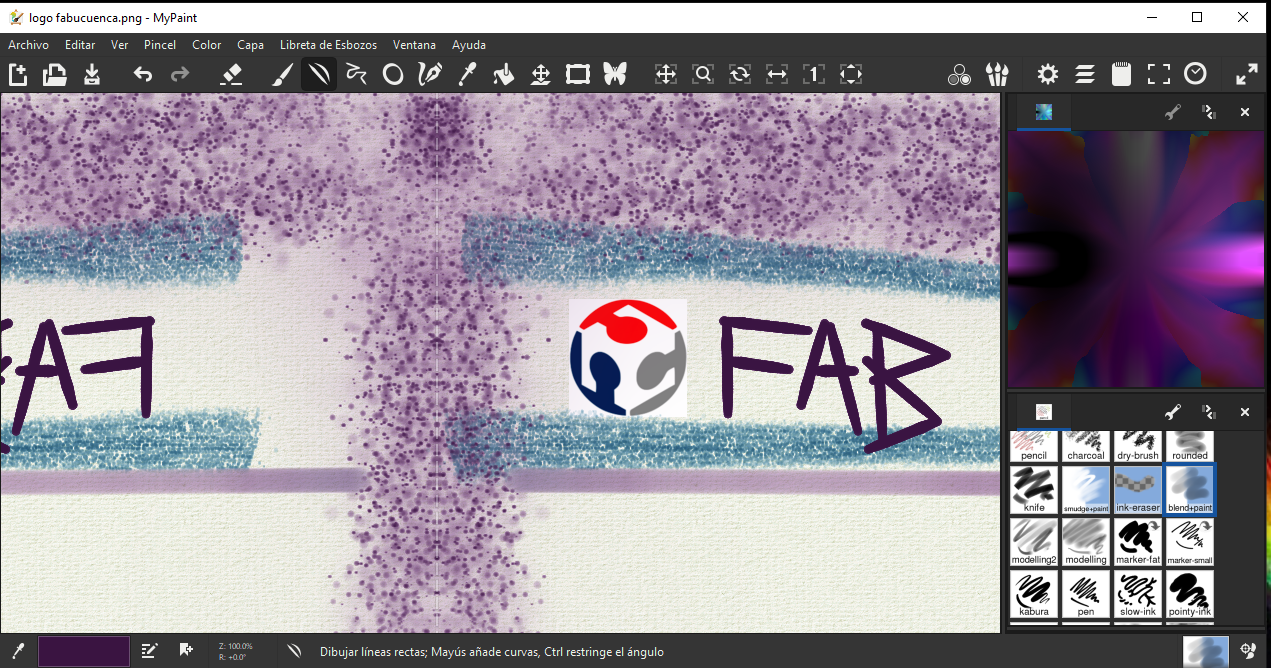
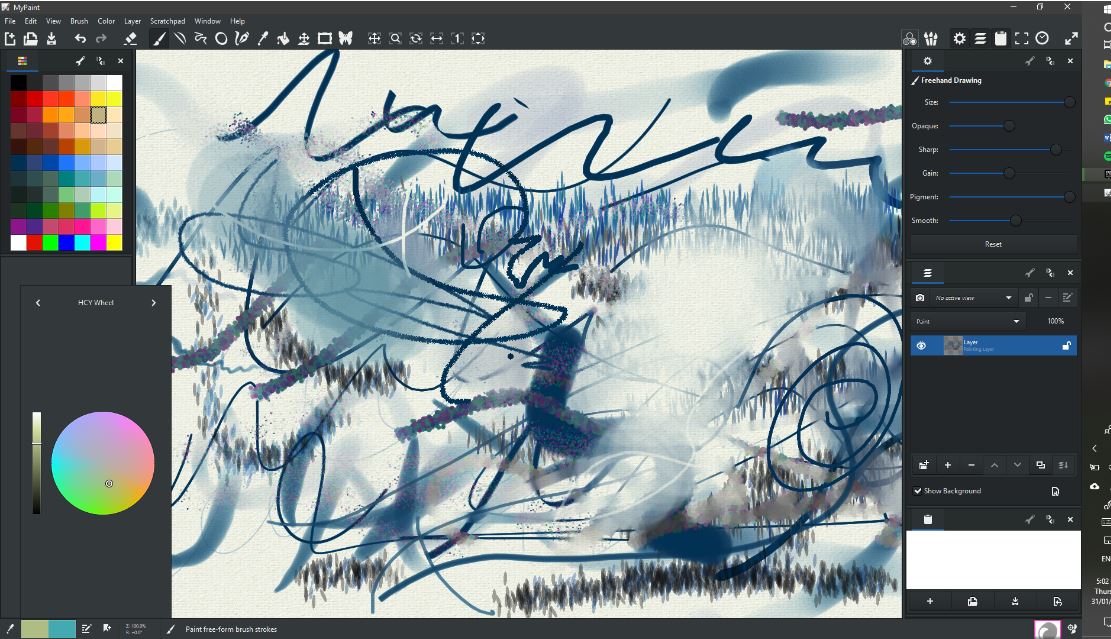
MyPaint supported early-stage ideation through freehand digital sketches, enabling rapid visualization of project concepts.
MyPaint – Workflow

  1. Open MyPaint and create a new canvas with a suitable size for digital sketching.
  2. Select a brush preset and adjust opacity, size, and pressure sensitivity according to the drawing tablet or input device.
  3. Sketch initial ideas and concepts using freehand strokes, focusing on form, proportion, and general structure.
  4. Refine the sketch by adding details, layers, and line weight variations to clarify the design intent.
  5. Use layers to separate rough sketches, refined lines, and annotations for better organization.
  6. Save the original working file in MyPaint format to preserve editable layers and strokes.
  7. Export the final sketch as PNG or JPG for documentation and web publication.
  8. If required, open the exported image in GIMP to resize and compress it for optimized web loading.
  9. Store the optimized image in the images/ directory and archive the original source file in the archive/ directory.
MyPaint sketches MyPaint sketches

Inkscape – 2D Vector

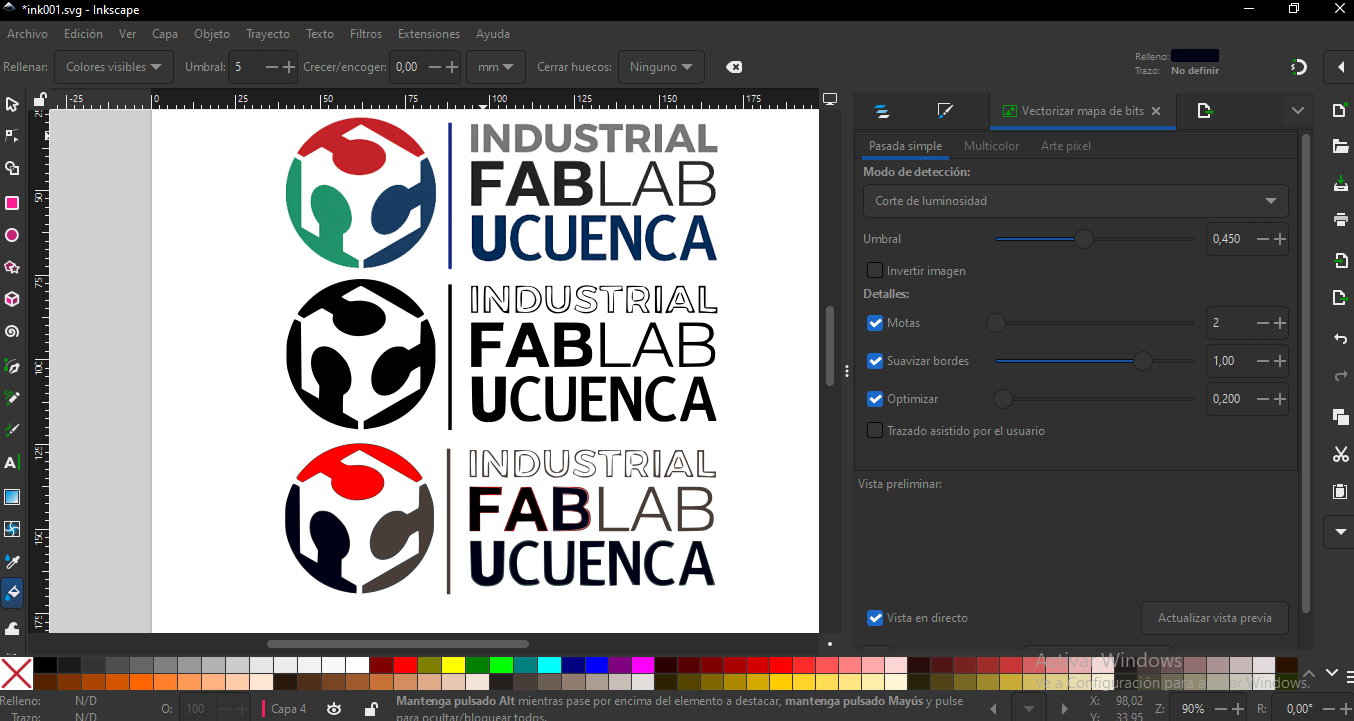
Inkscape was used to create vector files for laser cutting and technical diagrams, ensuring scalable and machine-readable designs.

Inkscape – Workflow

  1. Open Inkscape and create a new document, setting the correct units (millimeters or inches) according to the fabrication process.
  2. Define the document size to match the working area of the target machine (laser cutter, vinyl cutter, or CNC).
  3. Import reference images or sketches if needed and lock them on a separate layer.
  4. Use vector tools such as the Bezier Pen, Rectangle, and Circle tools to draw clean and precise geometry.
  5. Organize elements using layers to separate different operations or parts of the design.
  6. Convert strokes to paths and ensure all shapes are closed and properly aligned.
  7. Set stroke width and color according to machine requirements (for example, hairline strokes for laser cutting).
  8. Check for duplicate lines and remove unnecessary overlapping paths.
  9. Save the original file in SVG format to preserve editability.
  10. Export or save a copy in the required format (SVG, PDF, or DXF) for fabrication and documentation.
  11. Store the editable source file in the archive/ directory and use the exported file for machine processing.
Inkscape vectors Inkscape vectors

CorelDRAW – 2D Vector

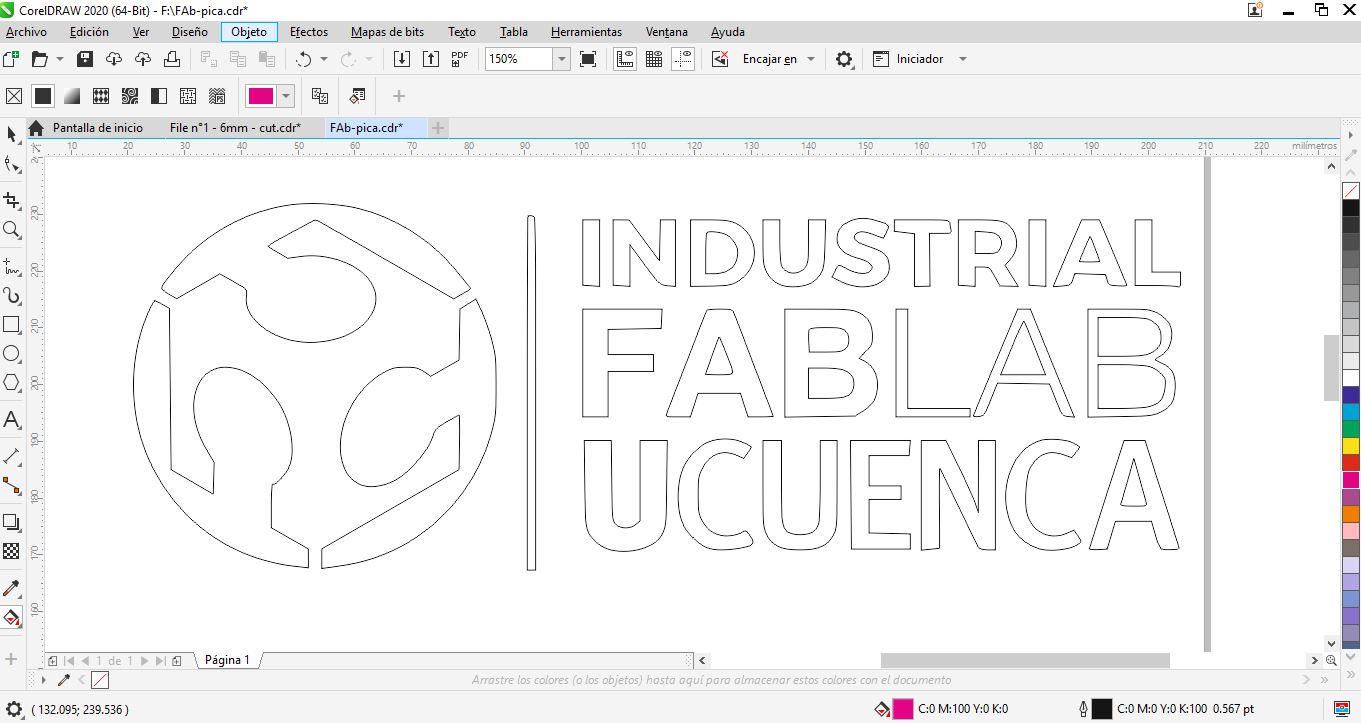
CorelDRAW was explored as an alternative vector platform, particularly useful for complex laser cutting layouts.
CorelDRAW – Workflow

  1. Open CorelDRAW and create a new document, selecting the appropriate measurement units (millimeters or inches) according to the fabrication process.
  2. Set the page size to match the working area of the target machine, such as a laser cutter or vinyl cutter.
  3. Import reference sketches or technical drawings if required and place them on a separate layer.
  4. Use vector drawing tools such as Rectangle, Ellipse, and Pen to create precise and clean geometry.
  5. Organize the design using layers to separate parts, operations, or material thicknesses.
  6. Convert all text and strokes to curves to avoid font or stroke interpretation issues during fabrication.
  7. Assign stroke colors and line widths according to machine settings (for example, different colors for cut, score, or engrave operations).
  8. Verify that all shapes are closed and that there are no duplicate or overlapping vectors.
  9. Perform a final visual and dimensional check to ensure accuracy and alignment.
  10. Save the original editable file in CDR format for future modifications.
  11. Export the final file in the required format (DXF, PDF, or SVG) for digital fabrication and documentation.
  12. Store source files in the archive/ directory and use exported files for machine operation.

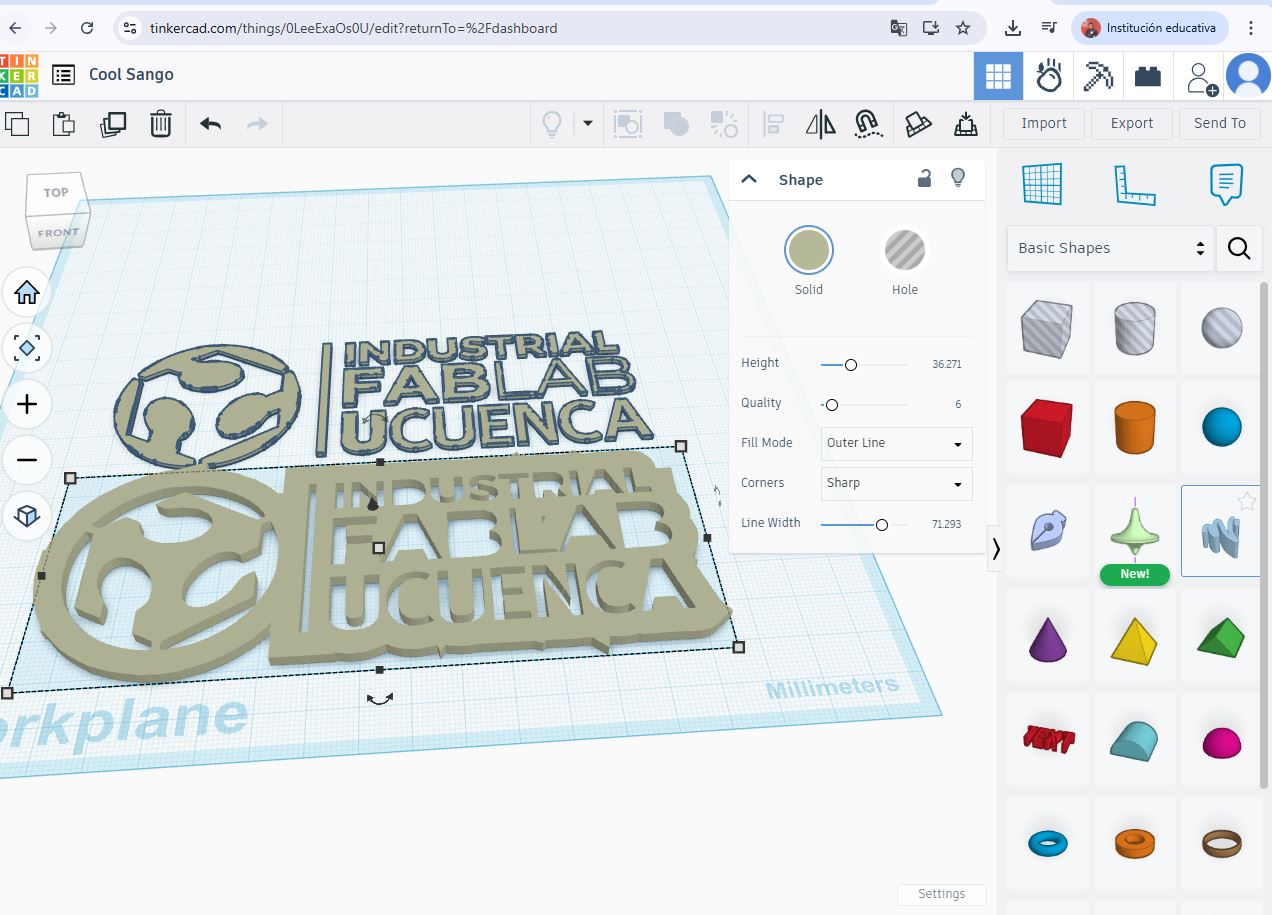
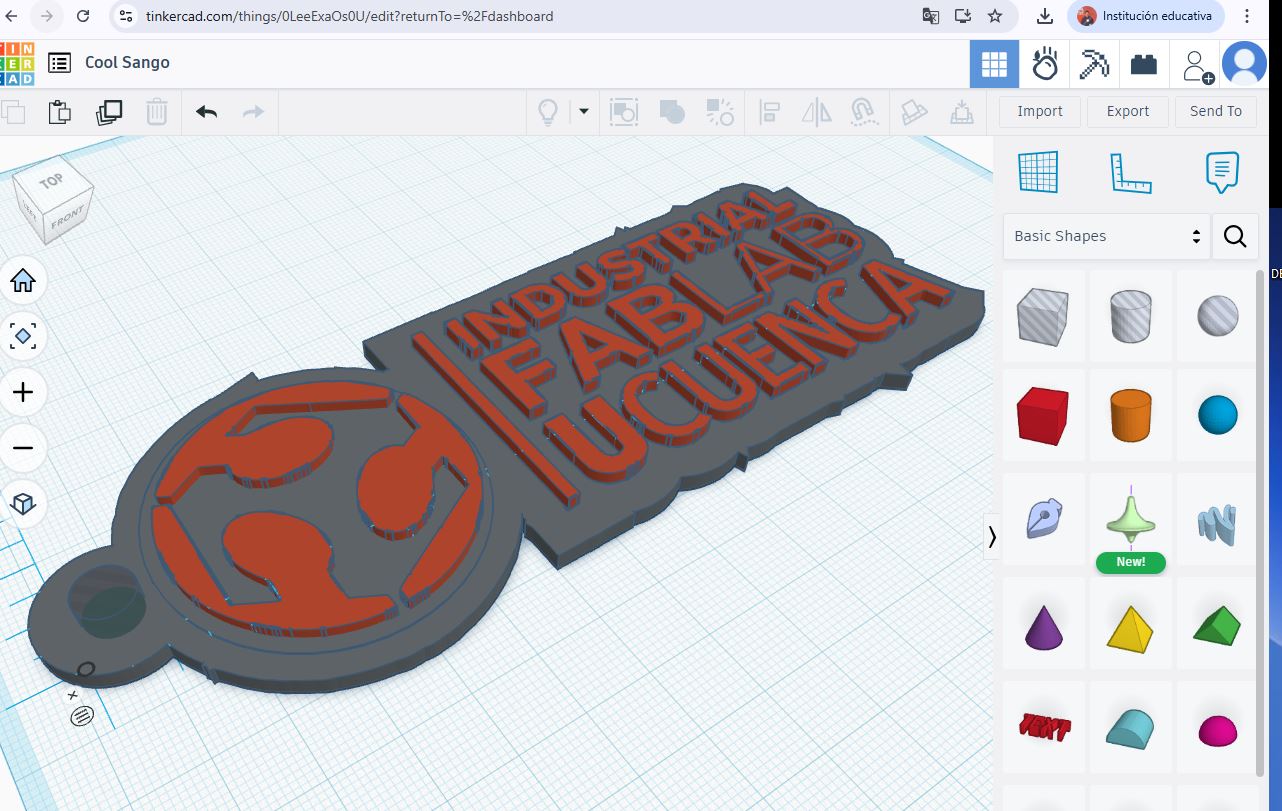
Tinkercad – 3D Program

Tinkercad enabled rapid modeling of simple experimental objects and early components of a possible final project.
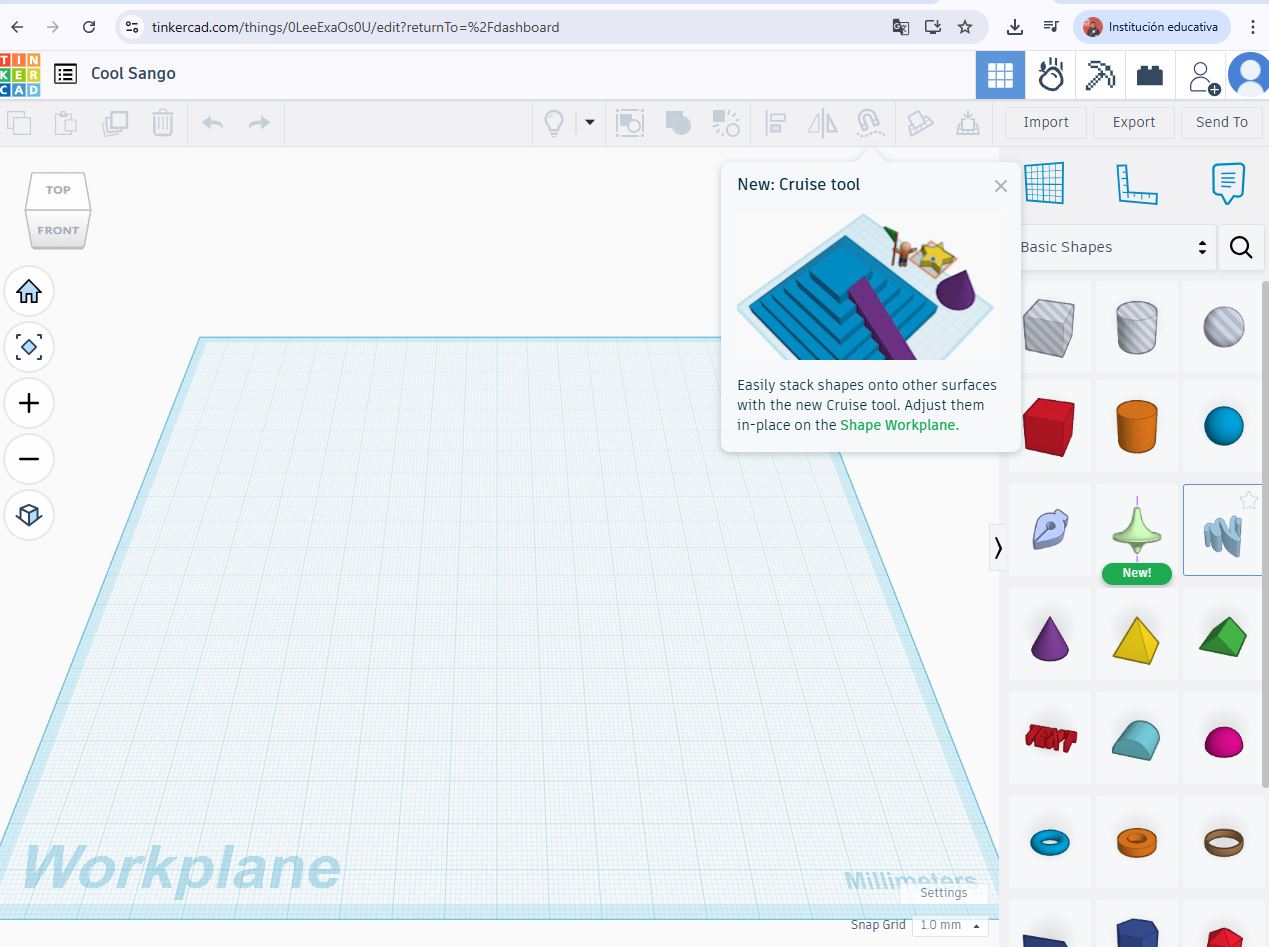
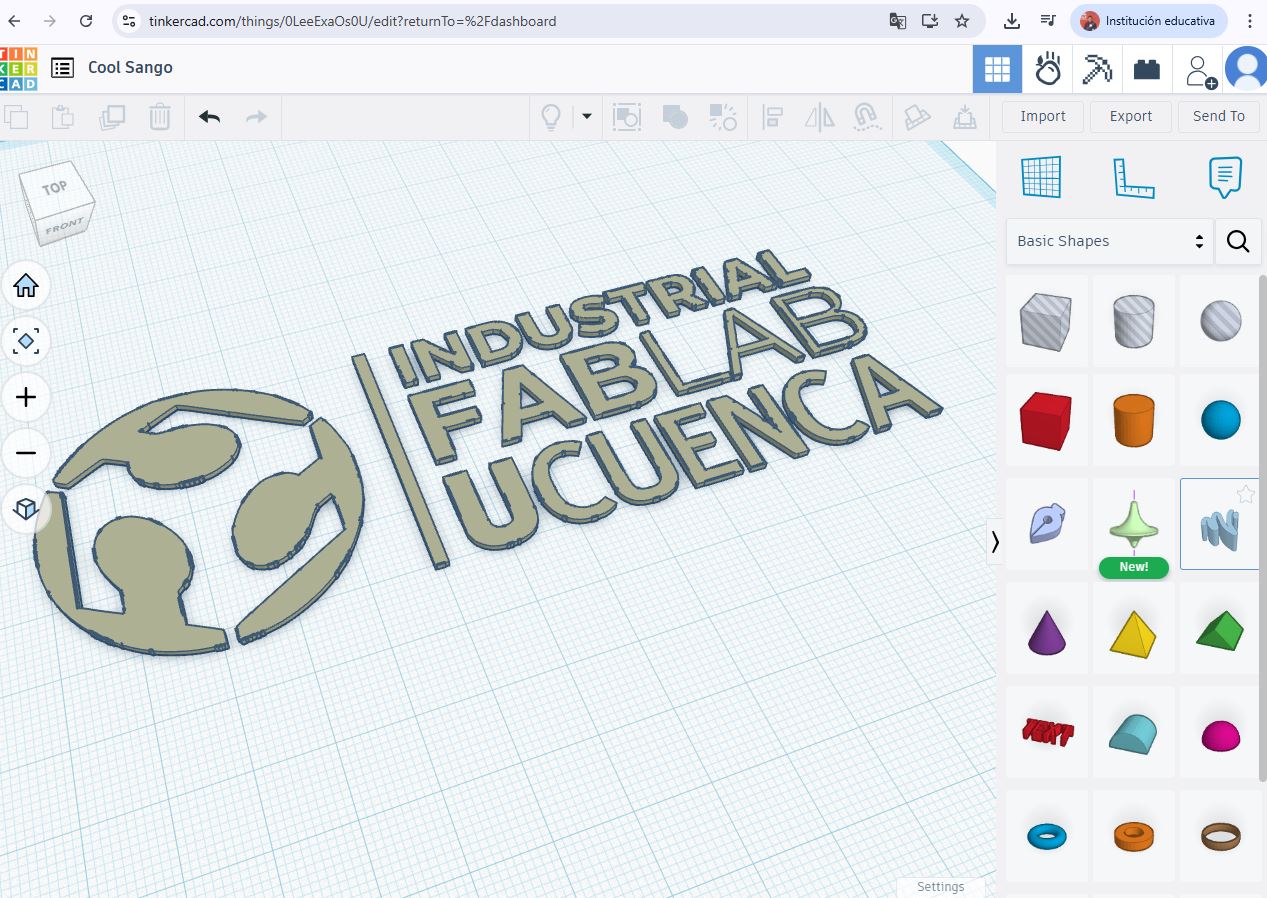
Tinkercad – Workflow

  1. Access Tinkercad through a web browser and log in with a personal or institutional account.
  2. Create a new 3D design and define the working units (millimeters) to ensure compatibility with digital fabrication processes.
  3. Familiarize yourself with the workspace, including the grid, shape library, and navigation tools.
  4. Drag basic geometric shapes from the library onto the workplane.
  5. Modify object dimensions using the scale handles or numeric input for precise control.
  6. Combine shapes using solid and hole operations to create complex forms.
  7. Use alignment and grouping tools to ensure proper positioning and structural coherence.
  8. Apply color coding to differentiate parts or functional elements for documentation purposes.
  9. Continuously verify dimensions and tolerances according to fabrication constraints such as 3D printing or laser cutting.
  10. Duplicate and modify components to explore design variations quickly.
  11. Save the project online to maintain version history and accessibility.
  12. Export the final model in STL or OBJ format for fabrication and documentation.
  13. Store exported files in the archive/ directory and use screenshots or renders in the images/ directory.
Tinkercad model Tinkercad model Tinkercad model Tinkercad model

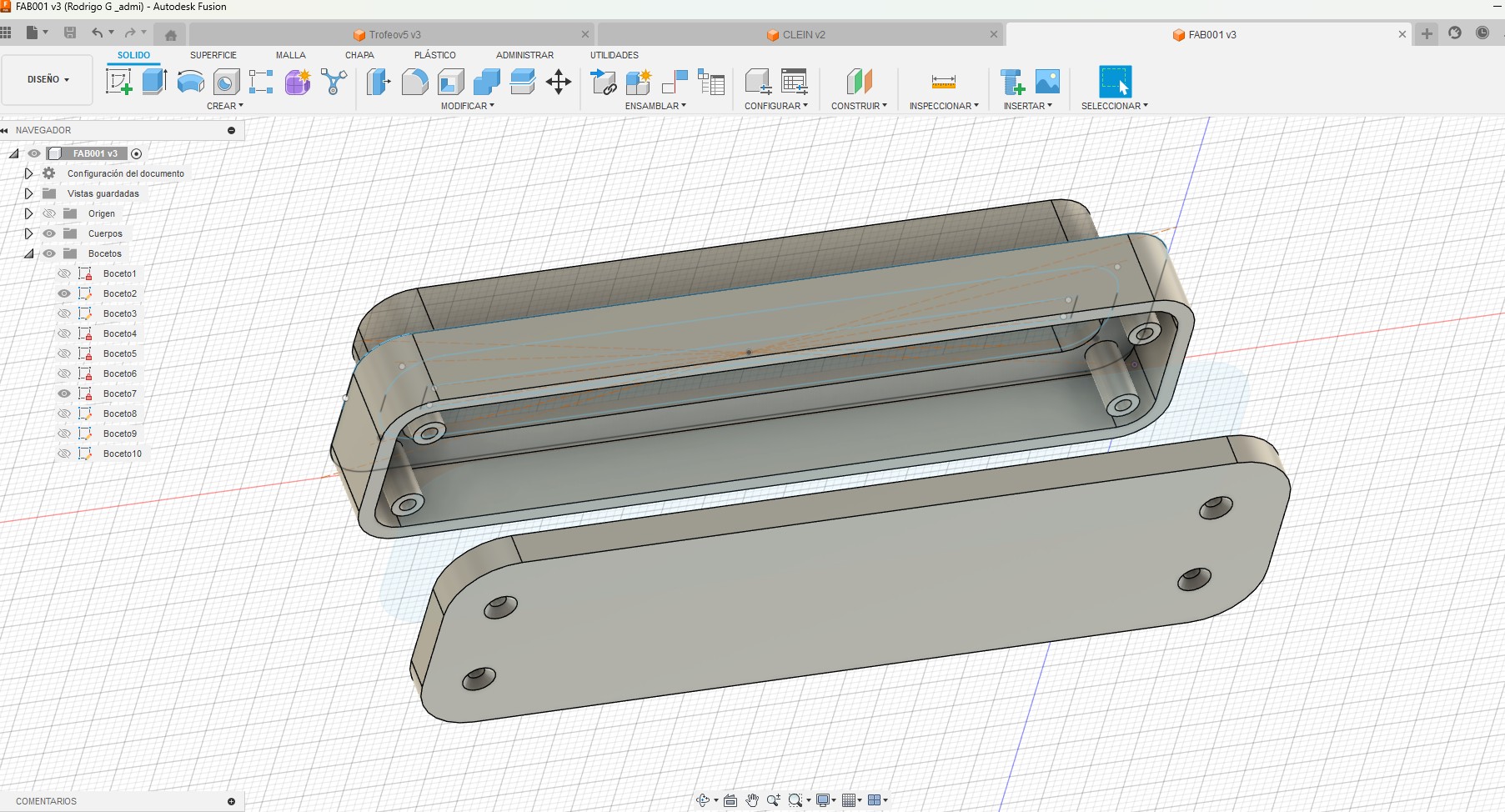
Fusion 360 – 3D Program

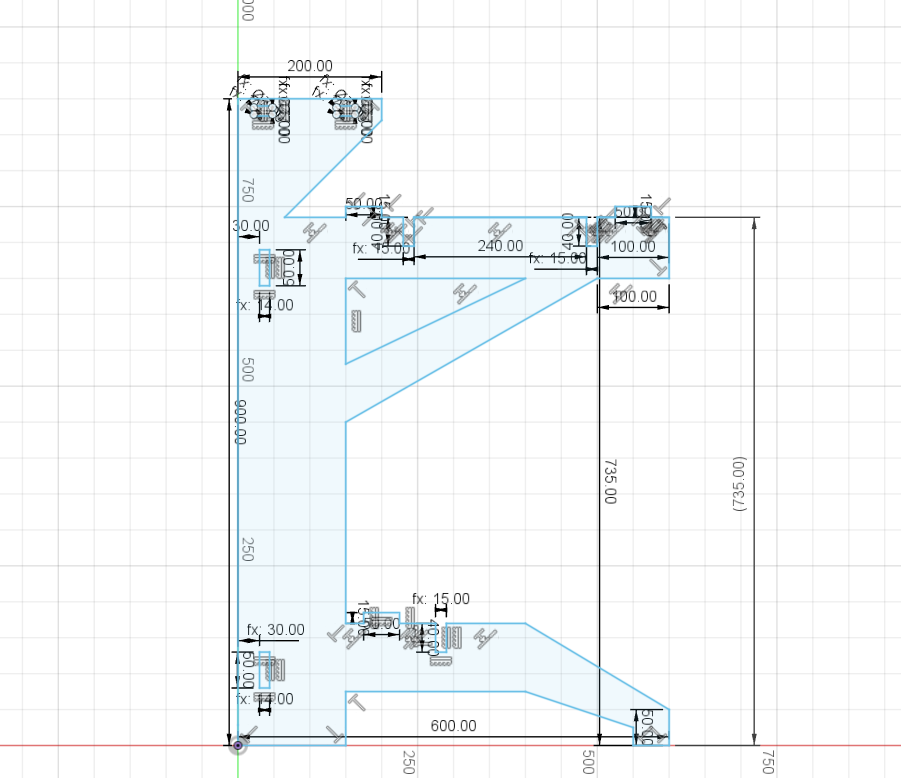
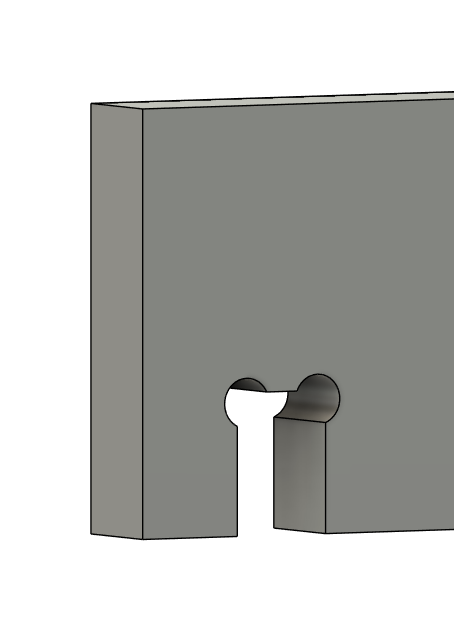
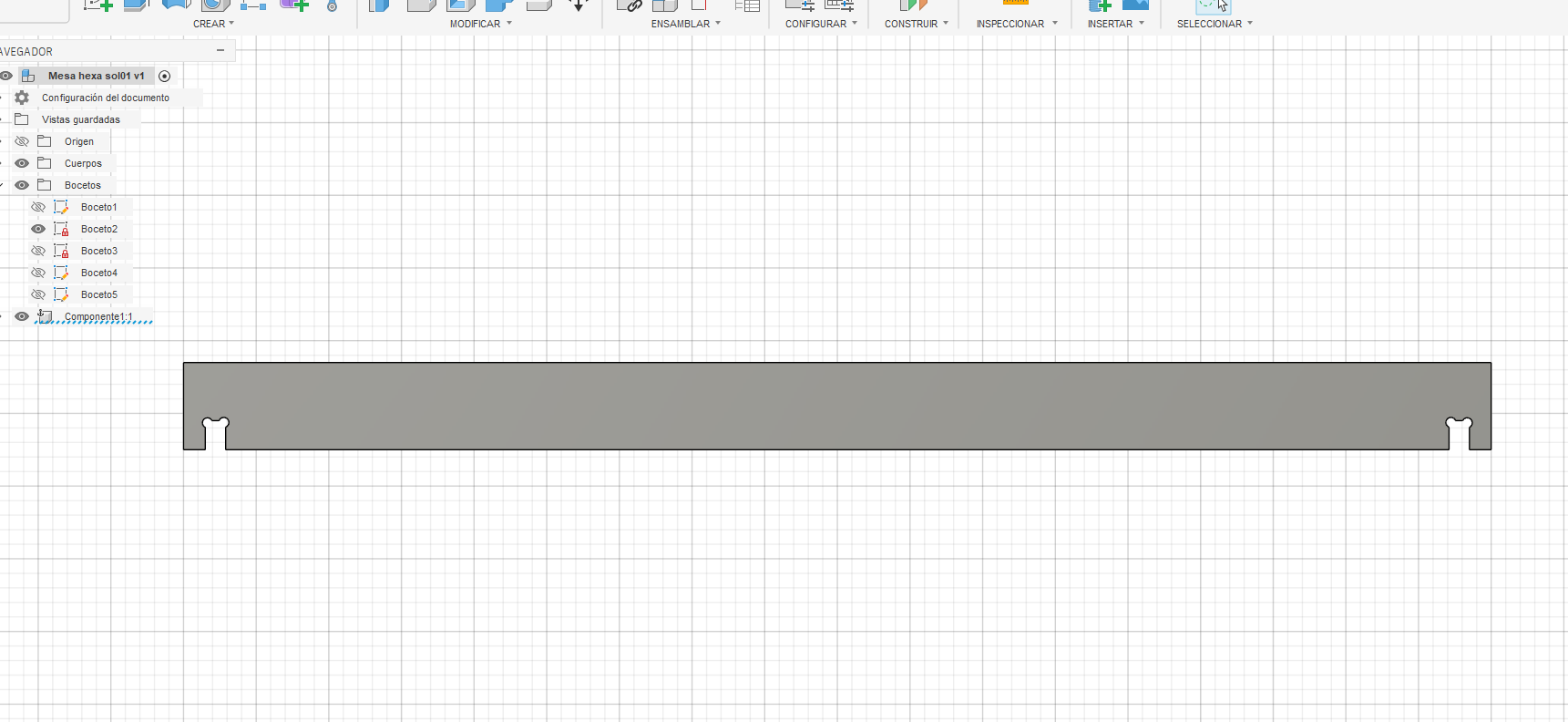
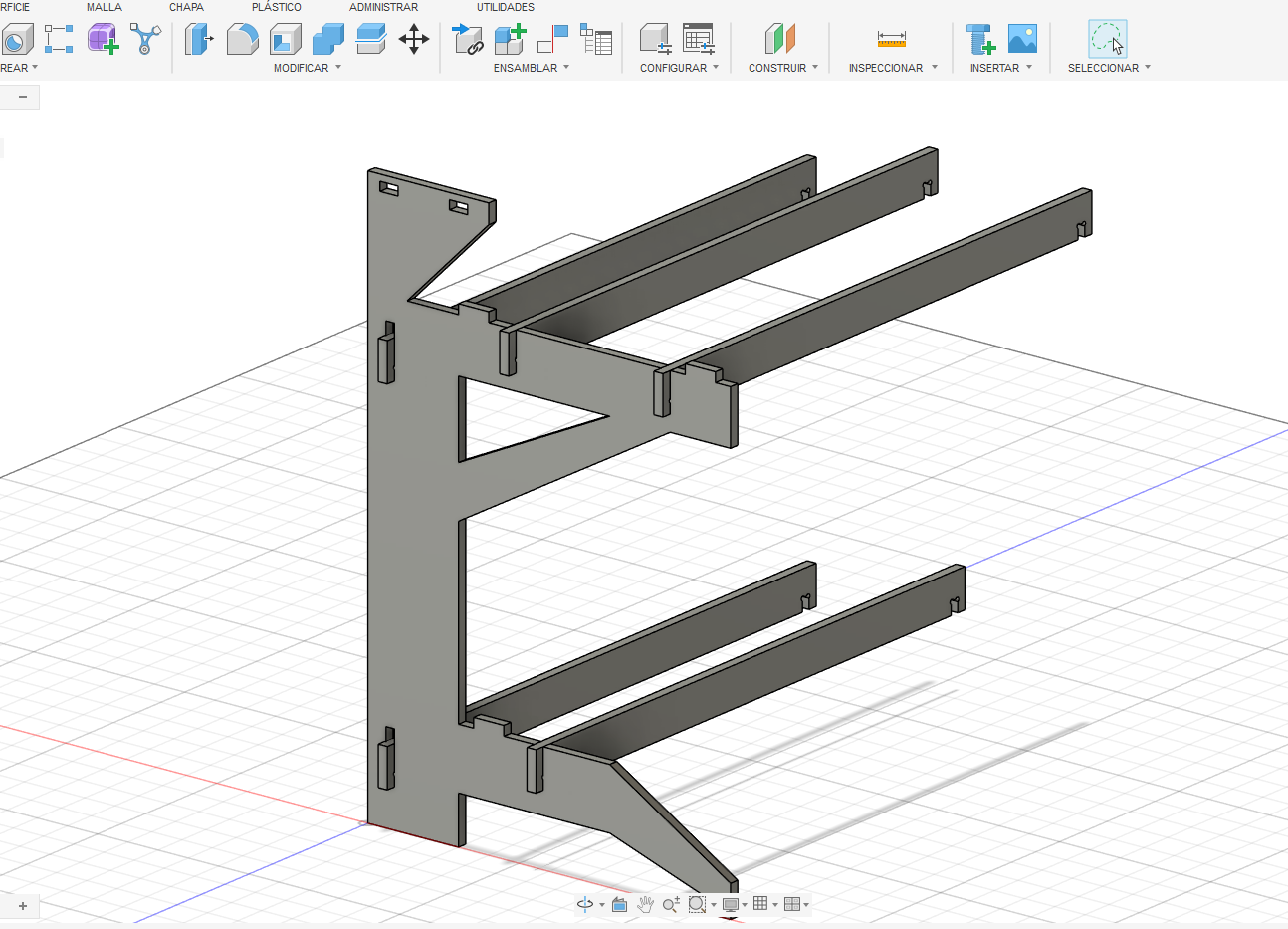
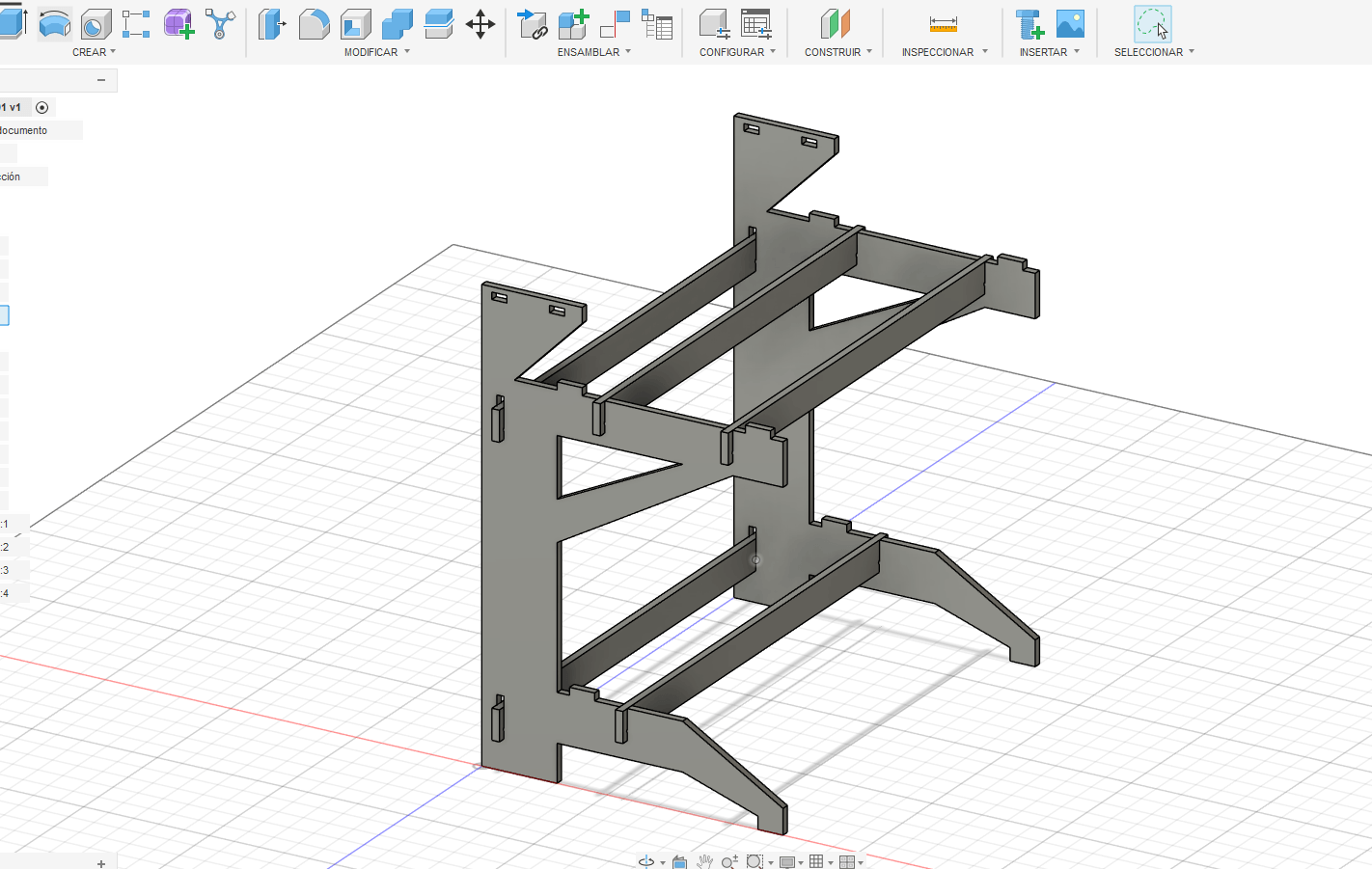
Fusion 360 was used for parametric and fabrication-oriented modeling, supporting precise dimensions and iterative design.
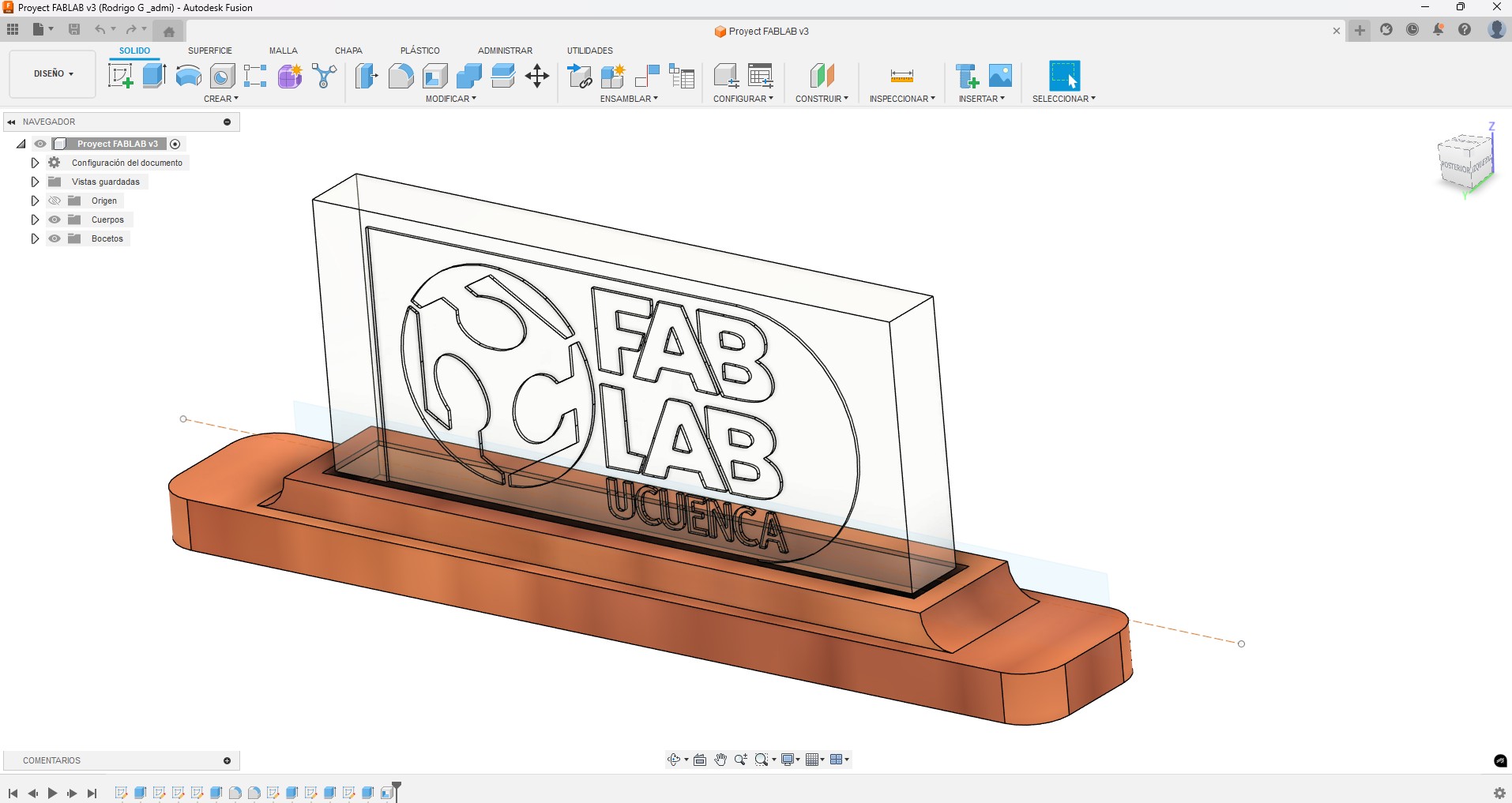
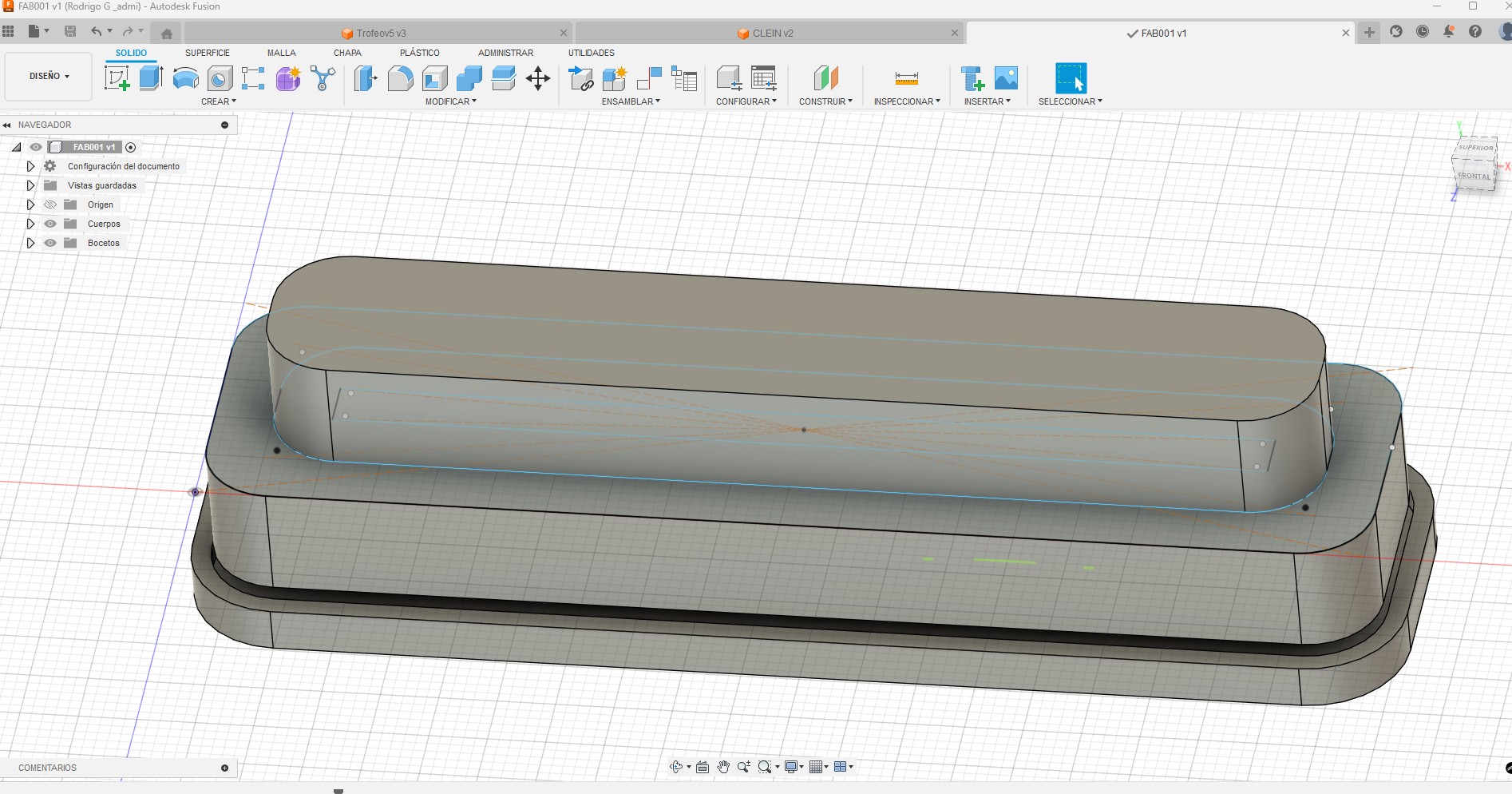
Fusion 360 – Workflow

  1. Launch Fusion 360 and sign in using an educational or personal account.
  2. Create a new design and set the document units (millimeters) according to fabrication requirements.
  3. Start a new sketch on a reference plane and define the base geometry using constraints and dimensions.
  4. Fully constrain the sketch to ensure parametric stability.
  5. Generate 3D geometry using features such as extrude, revolve, loft, or sweep.
  6. Apply parametric dimensions and user parameters to control key design variables.
  7. Organize components and bodies using a clear component structure for assemblies.
  8. Use construction planes and reference geometry to support complex features.
  9. Continuously validate dimensions and tolerances based on fabrication processes such as CNC machining or 3D printing.
  10. Perform design iterations by modifying parameters rather than rebuilding geometry.
  11. Generate technical drawings if required for documentation or fabrication.
  12. Export the final model in STL, STEP, or DXF format depending on the fabrication workflow.
  13. Save the original Fusion 360 file to preserve the parametric history.
  14. Store exported fabrication files in the archive/ directory and documentation images in the images/ directory.
Fusion 360 model Fusion 360 model Fusion 360 model

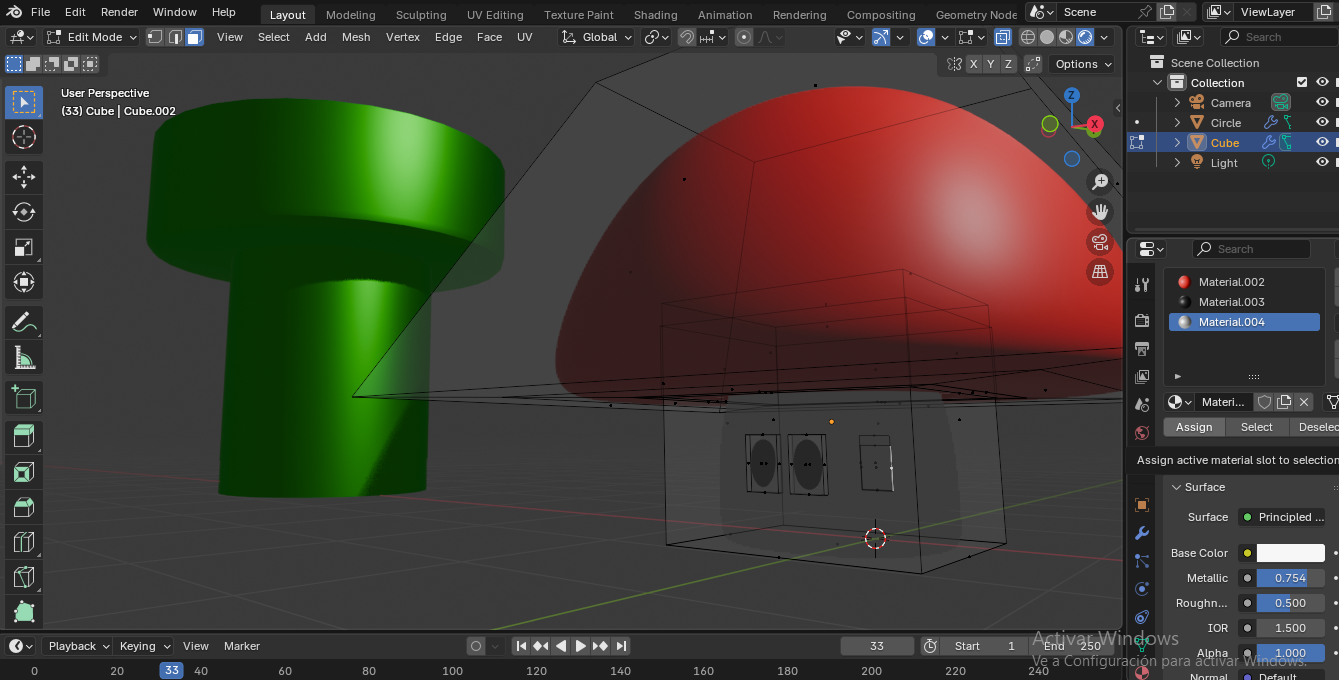
Blender – 3D Program

Blender was explored for mesh-based and organic modeling, expanding creative possibilities beyond parametric CAD tools.
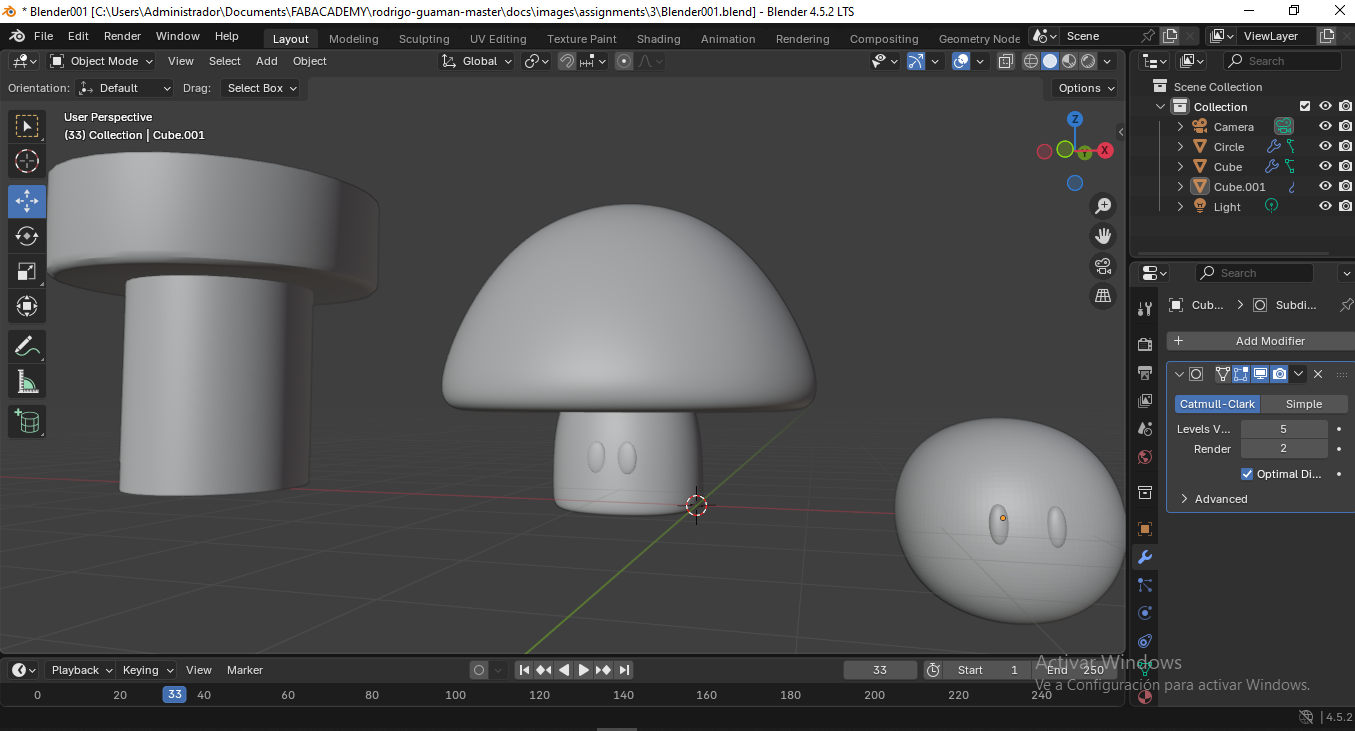
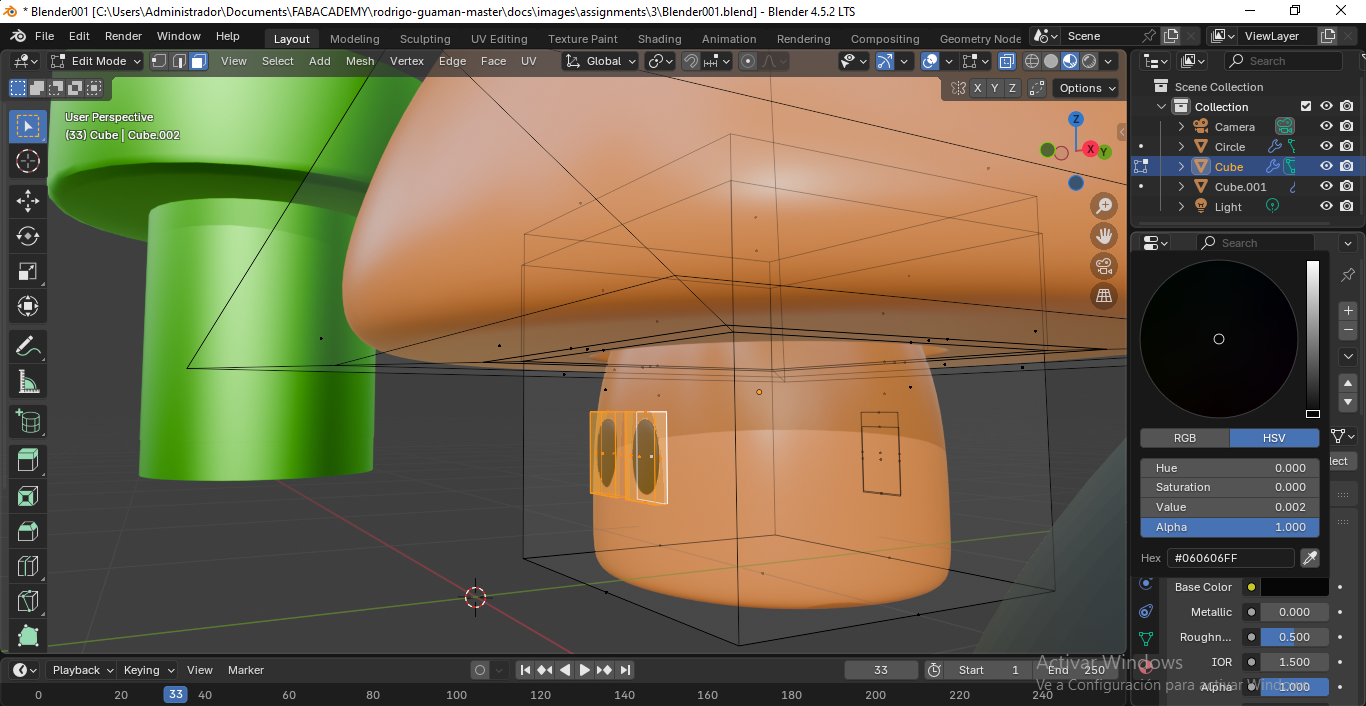
Blender – Workflow

  1. Open Blender and create a new project using the default 3D workspace.
  2. Set the scene units to metric and adjust the scale to ensure compatibility with digital fabrication workflows.
  3. Navigate the viewport using orbit, pan, and zoom controls to understand the 3D space.
  4. Add primitive meshes such as cubes, cylinders, or spheres as a starting point for modeling.
  5. Enter Edit Mode to modify geometry by manipulating vertices, edges, and faces.
  6. Use modeling tools such as extrude, inset, loop cut, and bevel to refine the shape.
  7. Apply modifiers (e.g., Mirror, Subdivision Surface, Boolean) to create complex and symmetrical geometries efficiently.
  8. Check mesh integrity by removing non-manifold geometry and overlapping faces.
  9. Adjust object scale and apply transformations to ensure correct export dimensions.
  10. Organize the project using collections and object naming conventions.
  11. Switch to Object Mode to review the overall model and proportions.
  12. Export the final mesh in STL or OBJ format for 3D printing or further fabrication processes.
  13. Save the original Blender file to preserve the complete modeling history.
  14. Store exported files in the archive/ directory and documentation renders or screenshots in the images/ directory.
Blender model Blender model Blender model

Onshape – 3D Program

Onshape was tested as a cloud-based CAD platform with built-in collaboration and version control.
Onshape – Workflow

  1. Open Onshape in a web browser and sign in using a personal or educational account.
  2. Create a new document and define the workspace units (millimeters) for digital fabrication compatibility.
  3. Start a new Part Studio and create a sketch on a reference plane.
  4. Define sketch geometry using constraints and dimensions to ensure parametric stability.
  5. Generate 3D features such as extrude, revolve, loft, or sweep from the fully constrained sketches.
  6. Organize parts using feature naming and version control within the document.
  7. Create assemblies if required by inserting parts from the Part Studio.
  8. Apply mates to define relationships and motion between components.
  9. Collaborate in real time by sharing the document with team members and managing permissions.
  10. Use versioning and branching tools to track design changes and explore alternatives without data loss.
  11. Validate dimensions, tolerances, and interferences according to the intended fabrication process.
  12. Export parts or assemblies in STL, STEP, or DXF format for fabrication or documentation.
  13. Preserve the cloud-based original model as the main source file.
  14. Store exported fabrication files in the archive/ directory and use screenshots for documentation in the images/ directory.
Onshape model

Text to CAD – AI Software

Text-to-CAD tools were used to explore AI-assisted 3D generation from textual descriptions, mainly for conceptual reference.
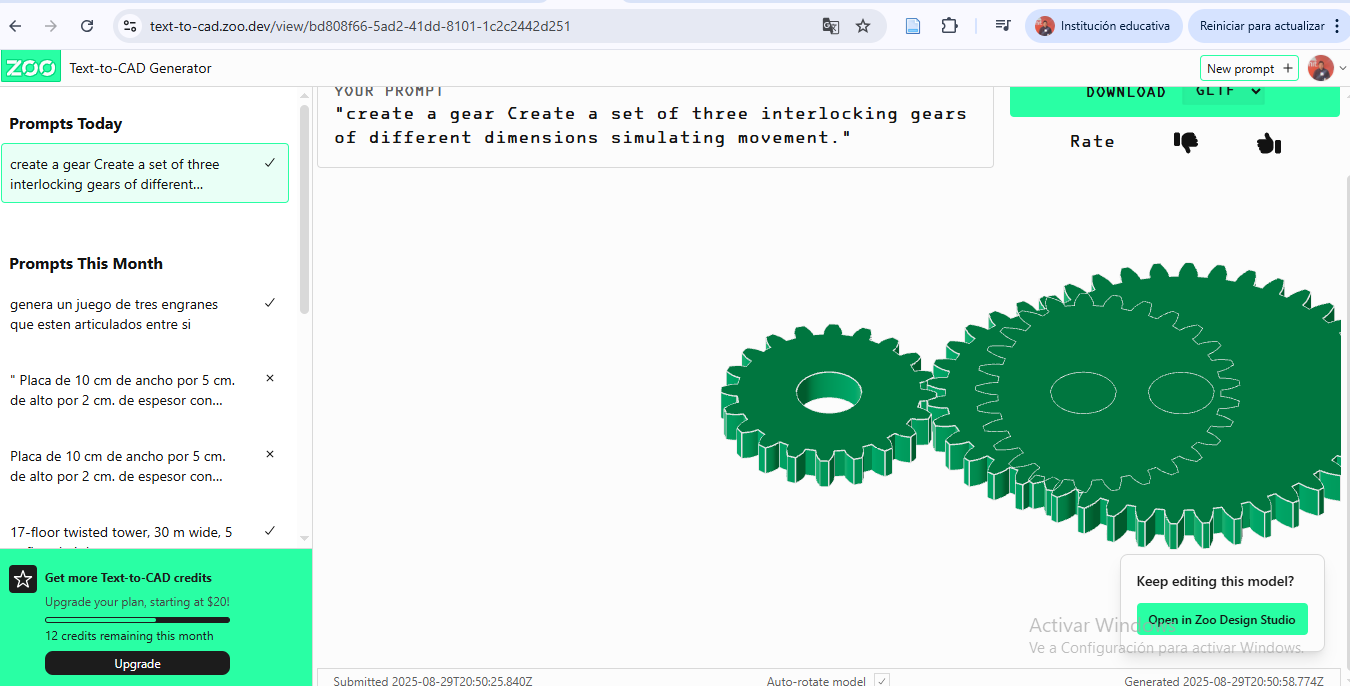
Text to CAD – Workflow

  1. Access a Text-to-CAD platform or AI-based CAD generation tool through a web interface or compatible software.
  2. Define a clear and concise textual description of the object to be generated, including shape, dimensions, proportions, and functional requirements.
  3. Specify units, scale, and symmetry directly in the text prompt when supported by the platform.
  4. Submit the text prompt to generate an initial 3D model automatically.
  5. Review the generated geometry and evaluate its relevance and accuracy compared to the design intent.
  6. Regenerate or refine the text prompt to improve geometry quality and functional details.
  7. Export the generated model in STL or OBJ format for further editing or fabrication.
  8. Import the exported model into a CAD or mesh-editing tool (e.g., Fusion 360 or Blender) for validation and refinement.
  9. Adjust dimensions, clean geometry, and ensure manufacturability.
  10. Validate scale and tolerances before fabrication.
  11. Save the refined CAD or mesh file as the main design source.
  12. Store original AI-generated files and refined models in the archive/ directory.
  13. Use screenshots or renders of each iteration in the images/ directory for documentation.
Text to CAD

DALL·E – AI Software

DALL·E supported ideation by generating visual references that helped explore form and aesthetics.
DALL·E – AI Visual Ideation Workflow

  1. Access the DALL·E interface through a web-based AI image generation platform.
  2. Define the design objective clearly, focusing on form, style, functionality, and context relevant to the project.
  3. Write a detailed text prompt describing the desired object, environment, materials, proportions, and visual perspective.
  4. Include constraints such as scale, usage scenario, or fabrication intent when applicable.
  5. Generate multiple image variations to explore different design directions.
  6. Evaluate the generated images critically, selecting those that best support the conceptual phase of the project.
  7. Refine the prompt iteratively to improve clarity, realism, or specific design features.
  8. Use selected images as visual references rather than final designs.
  9. Translate visual concepts into sketches, CAD models, or parametric designs using traditional design software.
  10. Export and save the selected reference images in optimized formats for documentation purposes.
  11. Store original AI-generated images in the archive/ directory to preserve design references.
  12. Include compressed reference images in the images/ directory for web publication.
  13. Document prompt iterations and design decisions to ensure transparency and reproducibility.
DALL·E concepts

Audacity– Audio

Audacity is an open-source audio editing software widely used for recording, editing, and compressing sound files. In the context of Fab Academy, Audacity is especially useful for documenting projects through voice explanations, narration of design processes, and audio integration in video documentation.
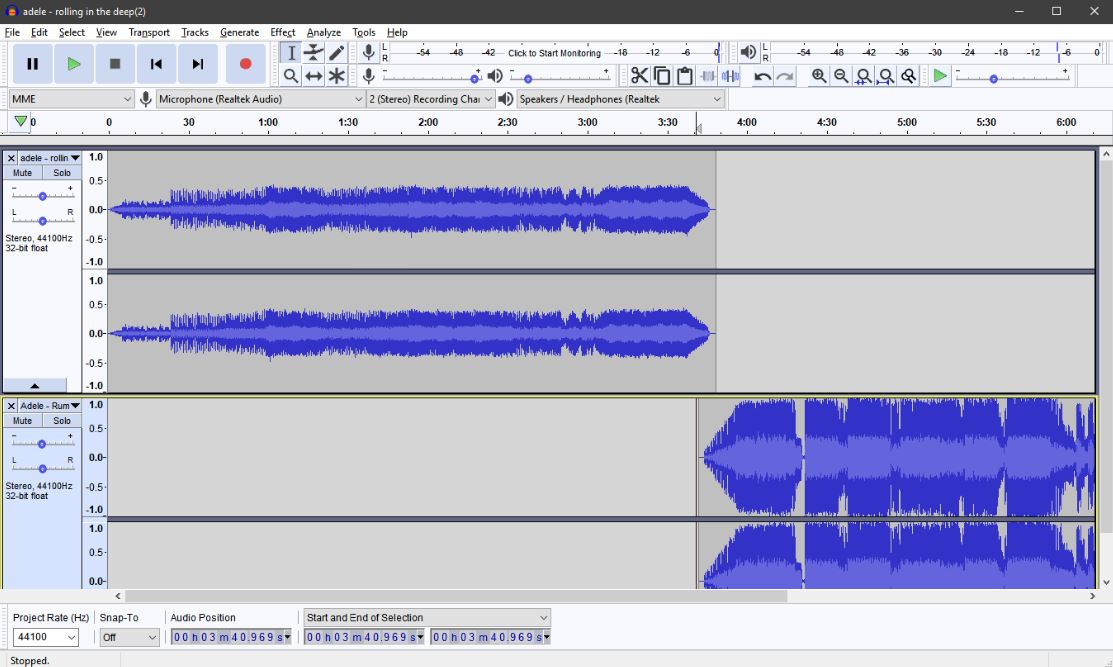
Audacity – Audio Recording and Editing Workflow

  1. Install and launch Audacity, ensuring the correct audio input and output devices are selected in the preferences menu.
  2. Create a new audio project and set the appropriate sample rate (typically 44.1 kHz or 48 kHz) for documentation purposes.
  3. Record narration, explanations, or ambient sound using a microphone, keeping a consistent distance to avoid distortion.
  4. Monitor audio levels during recording to prevent clipping and ensure clear signal quality.
  5. Trim unwanted sections such as silence, mistakes, or background noise using the selection and cut tools.
  6. Apply noise reduction by first capturing a noise profile and then processing the selected audio track.
  7. Adjust volume levels using amplification or normalization to maintain consistent loudness.
  8. Use basic effects such as equalization and compression to improve speech clarity when needed.
  9. Review the edited audio by listening through headphones to identify remaining issues.
  10. Export the final audio file in a compressed format such as MP3 or OGG for web documentation.
  11. Save the Audacity project file to preserve original editing data and maintain reproducibility.
  12. Store exported audio files in the images/ or media directory for web use, and keep project files in the archive/ directory.
  13. Document recording settings, applied effects, and export parameters to ensure transparency in the Fab Academy workflow.
Audacity

Rhinoceros + Grasshopper – 3D Parametric Design

Rhinoceros (Rhino) is a NURBS-based 3D modeling software widely used in architecture, industrial design, and digital fabrication due to its precision, flexibility, and compatibility with fabrication workflows. Unlike purely parametric CAD tools, Rhino allows the designer to freely combine intuitive geometric modeling with exact dimensional control, making it especially suitable for experimental and fabrication-oriented projects.

In this exploration, Rhino was used as the primary modeling environment for the development of a parametric chair. The base geometry of the chair—such as the seat surface, structural ribs, and overall proportions—was first defined using curves, surfaces, and reference planes. This approach allowed quick iteration over form and ergonomics while maintaining precise control over dimensions relevant to digital fabrication processes such as CNC milling or laser cutting.

Grasshopper was used as a complementary visual programming tool to introduce parametric logic into the chair design. Through Grasshopper, key parameters such as seat height, curvature radius, material thickness, spacing between structural elements, and overall width were defined as variables. By modifying these inputs, multiple design variations of the chair could be generated automatically without rebuilding the model from scratch.

This parametric workflow is particularly valuable in Fab Academy because it encourages design exploration, optimization, and adaptability. The same chair model can be adjusted to different users, materials, or fabrication constraints by simply changing numerical values in Grasshopper. The final geometry generated in Rhino can then be exported as DXF, STL, or other fabrication-ready formats, ensuring a seamless transition from design to manufacturing.

Part 1: Modeling a Chair in Rhino

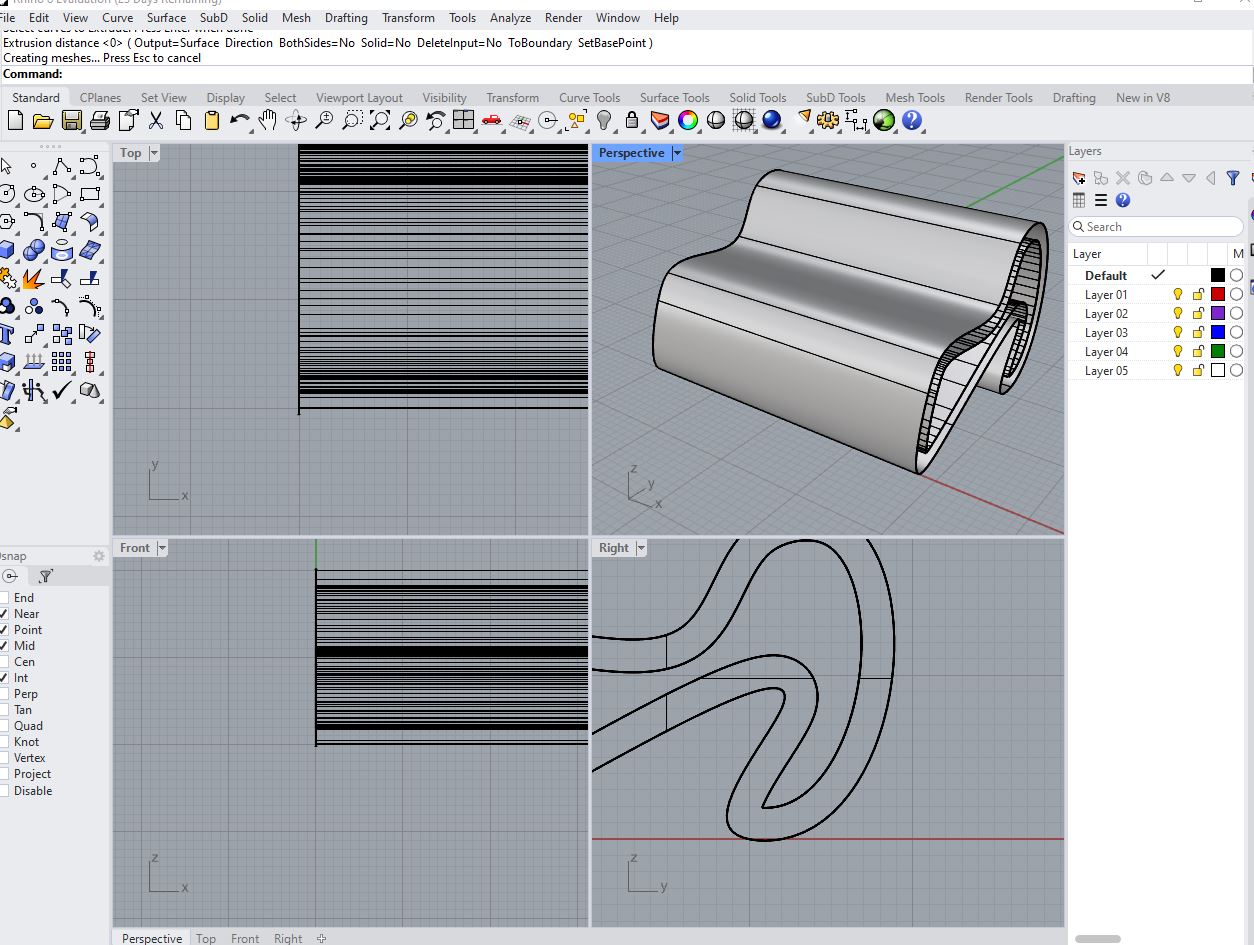
Step 1: Define Base Geometry

Start by opening Rhino and setting the correct units (millimeters recommended for fabrication). Begin with simple reference geometry such as rectangles and lines to define the seat, backrest, and leg proportions. Use the Top and Front views to establish the main dimensions and ergonomic scale.
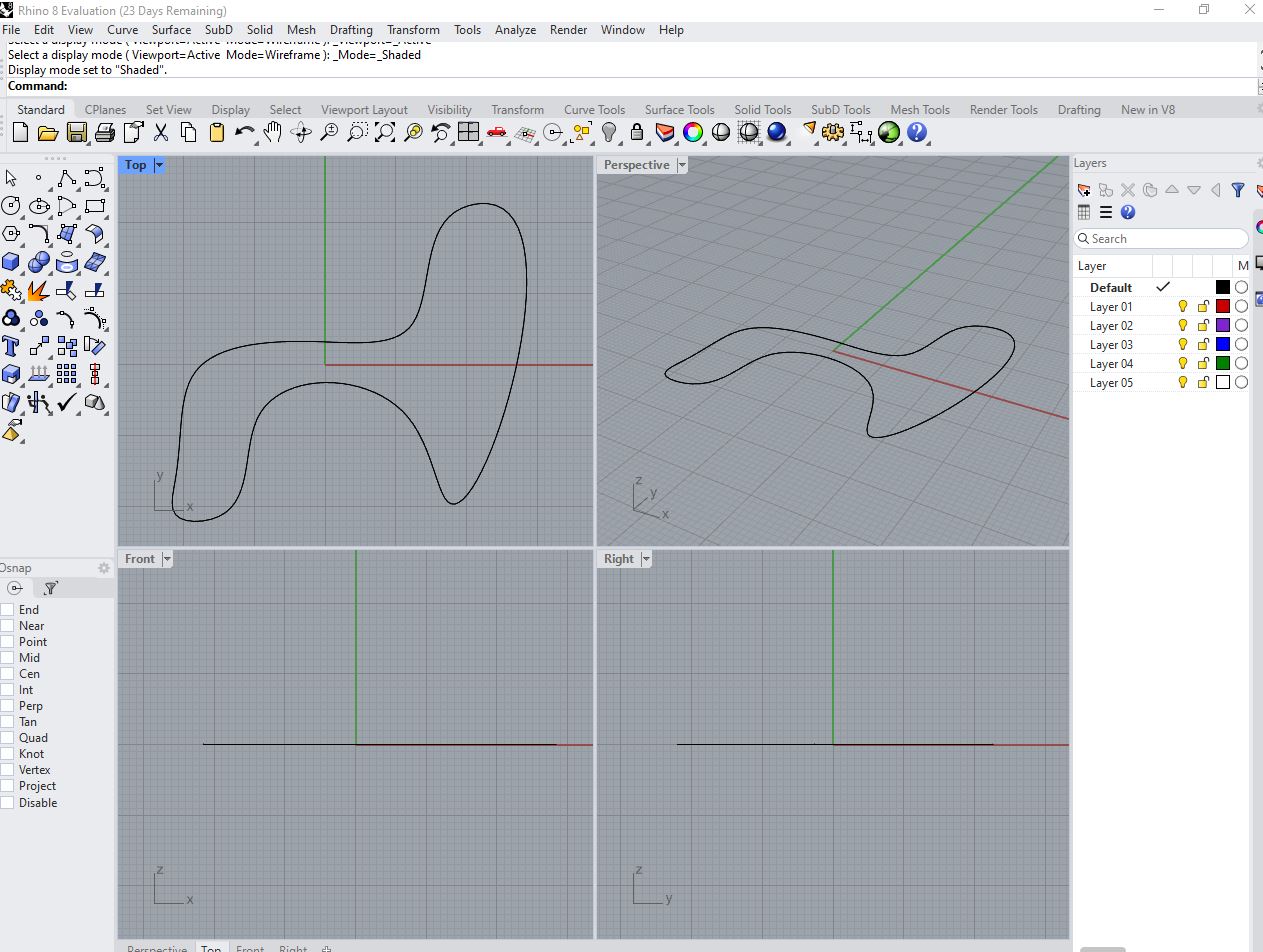
Rhino chair base geometry

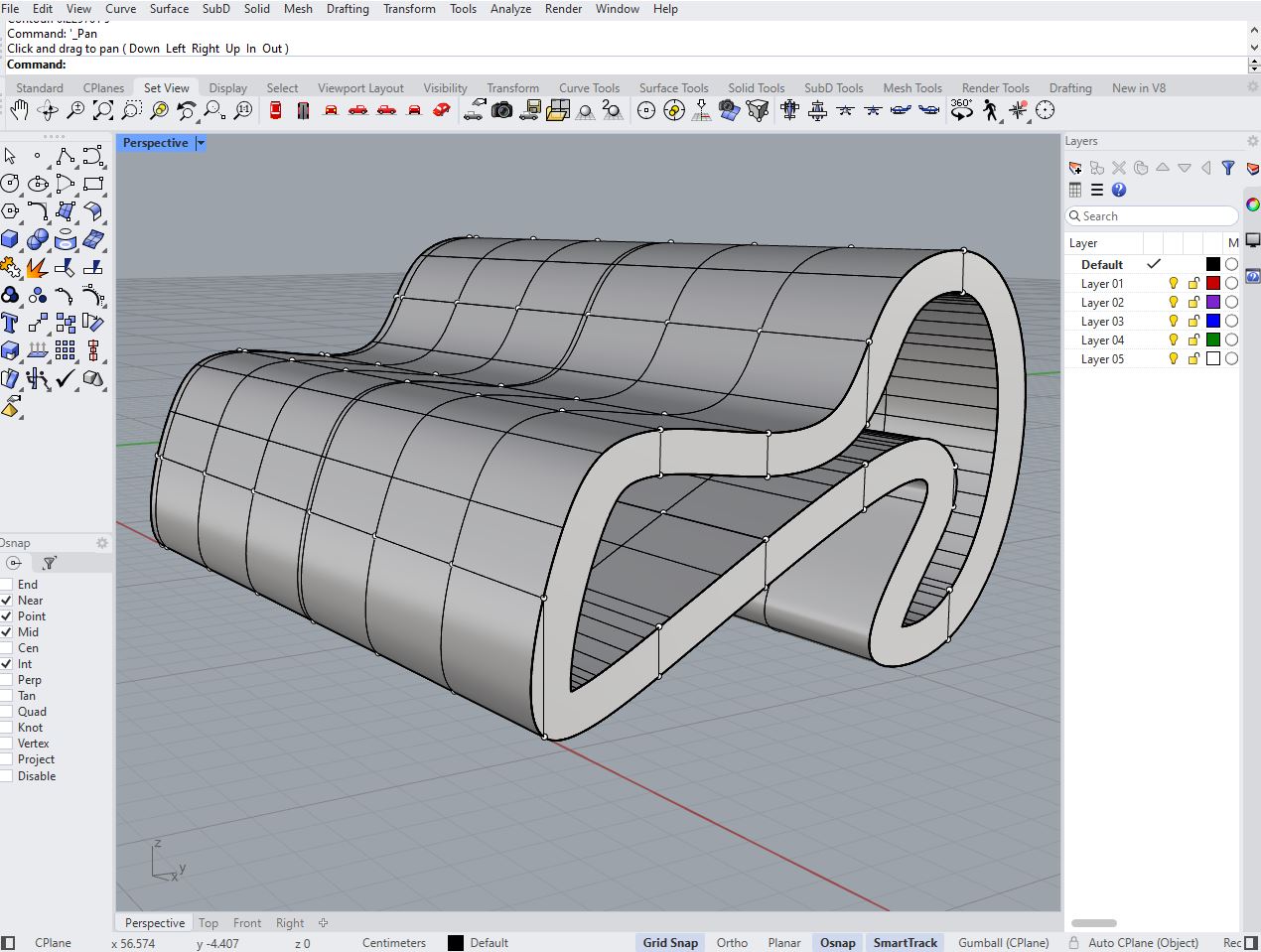
Step 2: Create Surface Modeling

Use commands such as ExtrudeCrv, Loft, or Sweep to generate surfaces from the base curves. Define the seat and backrest curvature carefully, ensuring smooth transitions and proper alignment between structural elements.
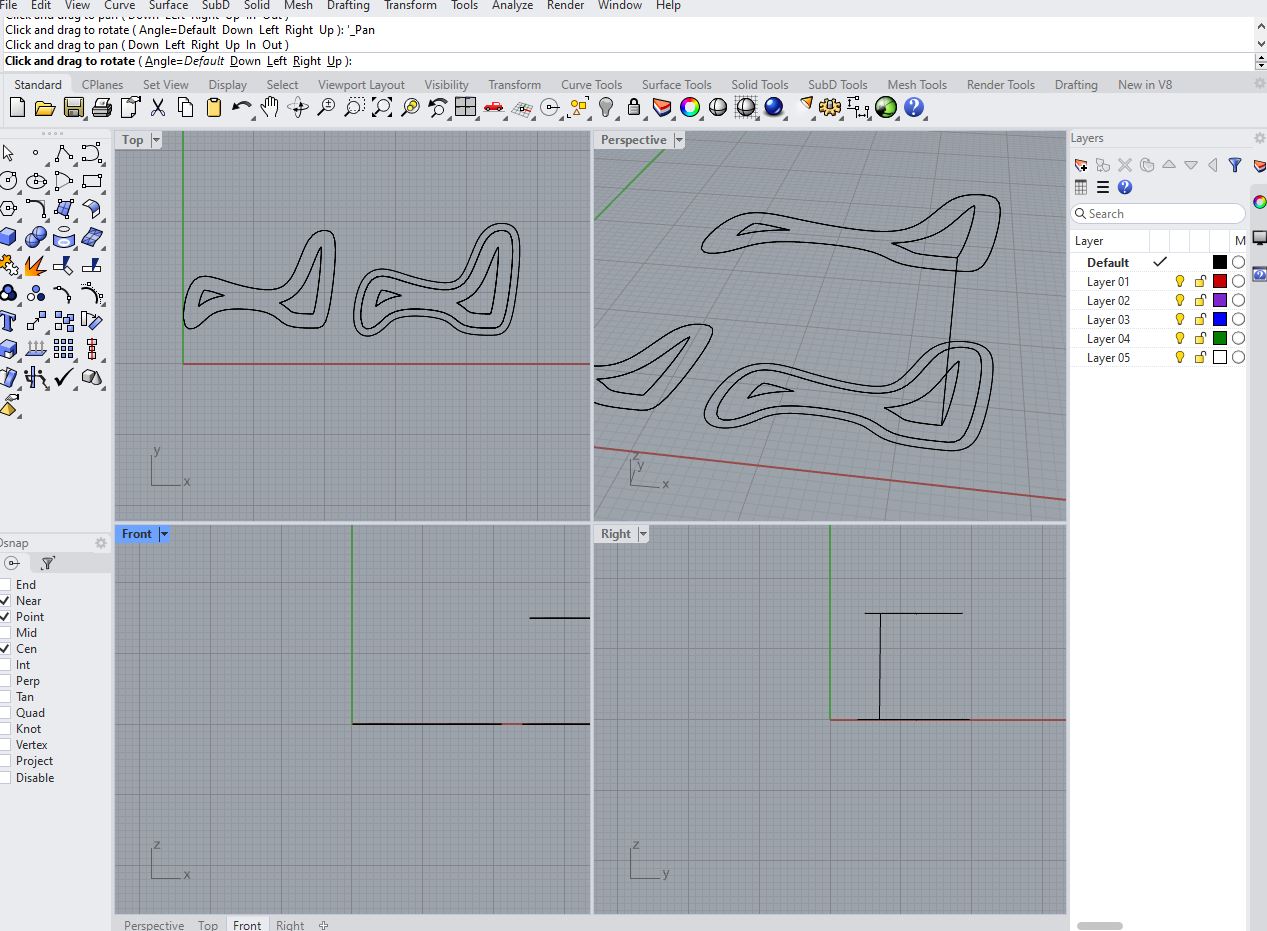
Rhino surface modeling

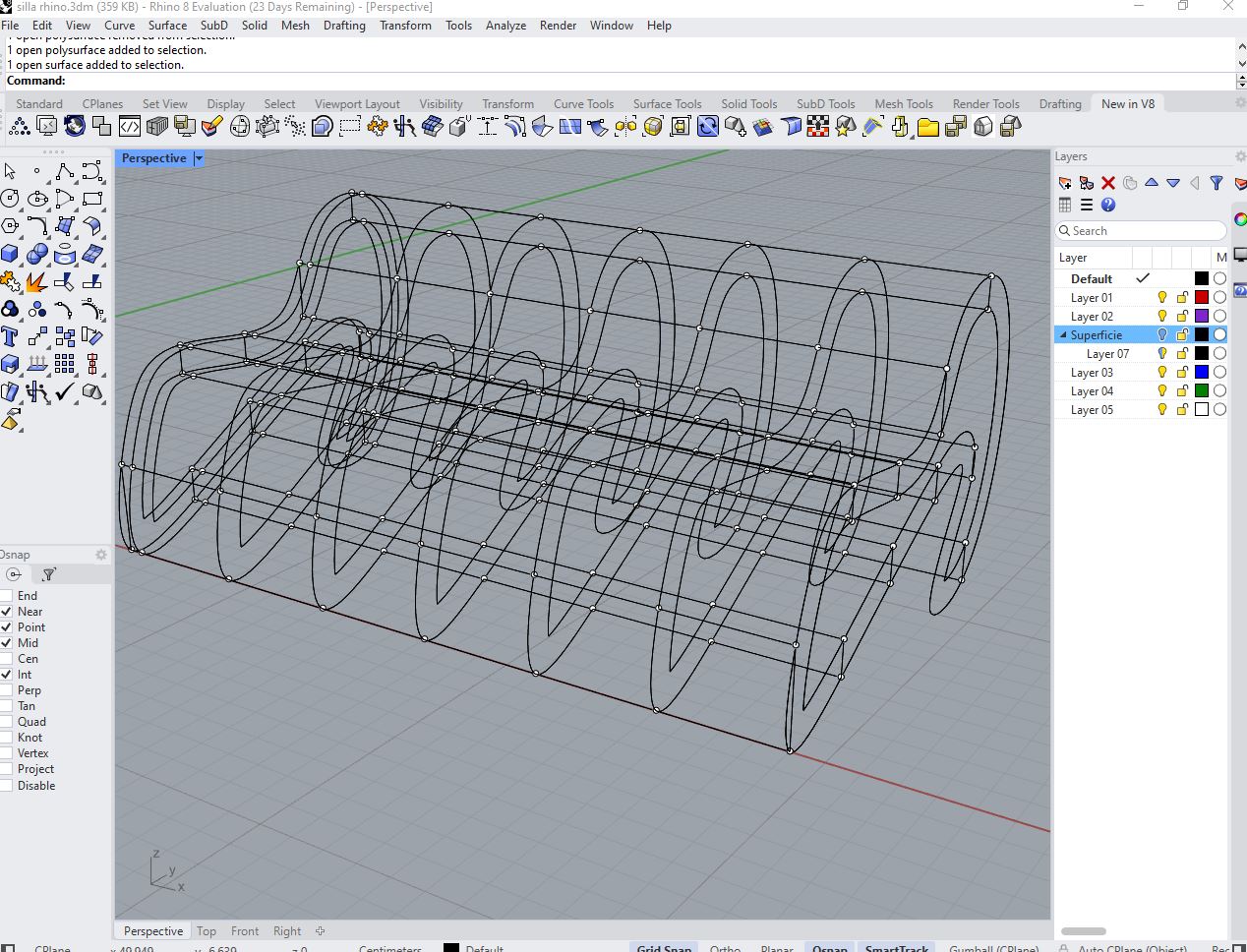
Step 3: Adjust Chair Proportions

Refine the model by modifying control points and scaling elements proportionally. Verify ergonomic relationships such as seat height, backrest angle, and structural stability. Use Gumball and Control Points tools for precise adjustments.
Chair proportions in Rhino

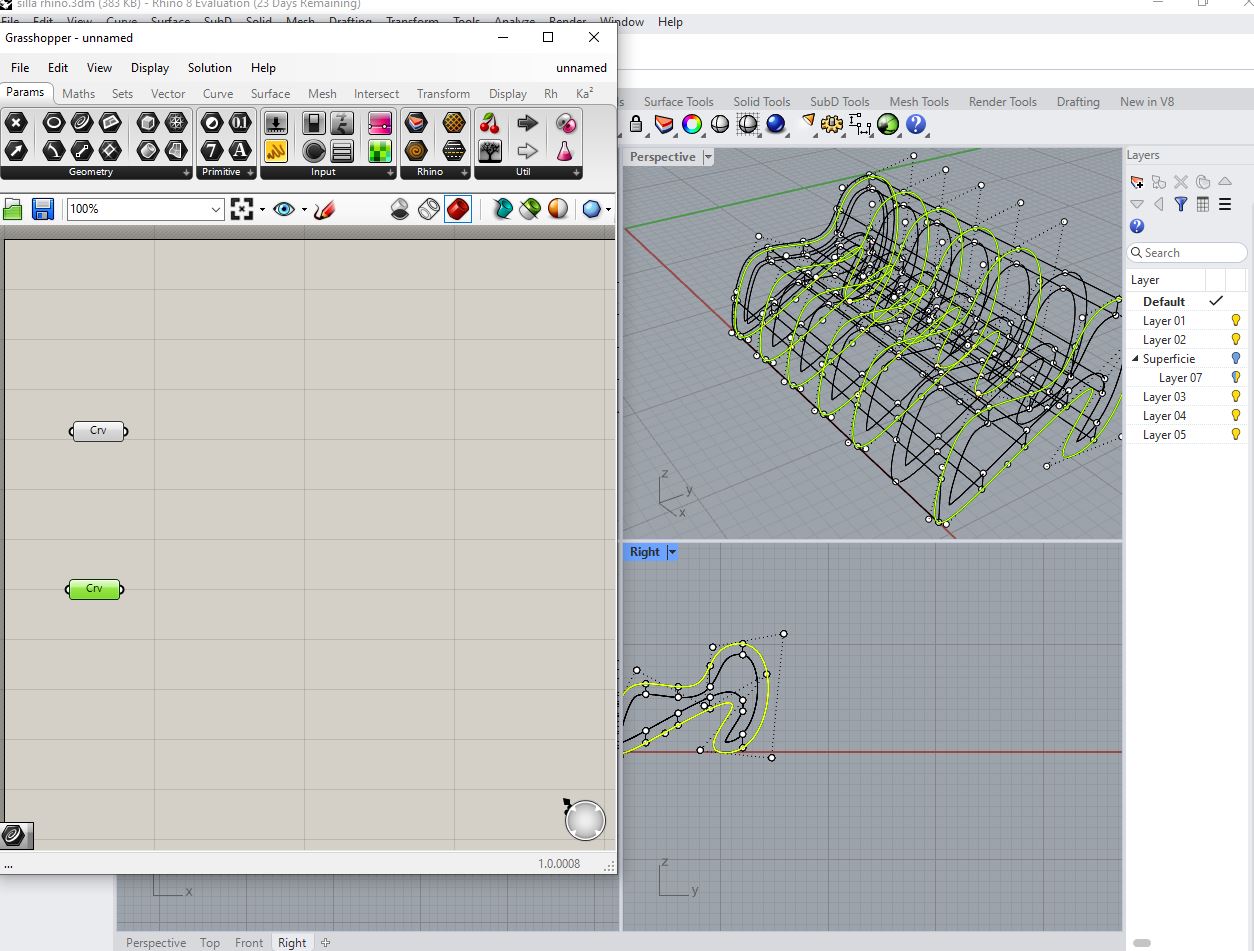
Step 4: Prepare Geometry for Parametric Logic

Organize layers and name critical curves and surfaces clearly. Ensure that the geometry is clean and free of duplicate lines. This preparation allows a smooth transition into Grasshopper for parametric control.
Grasshopper definition overview

Part 2: Parametrizing the Chair with Grasshopper

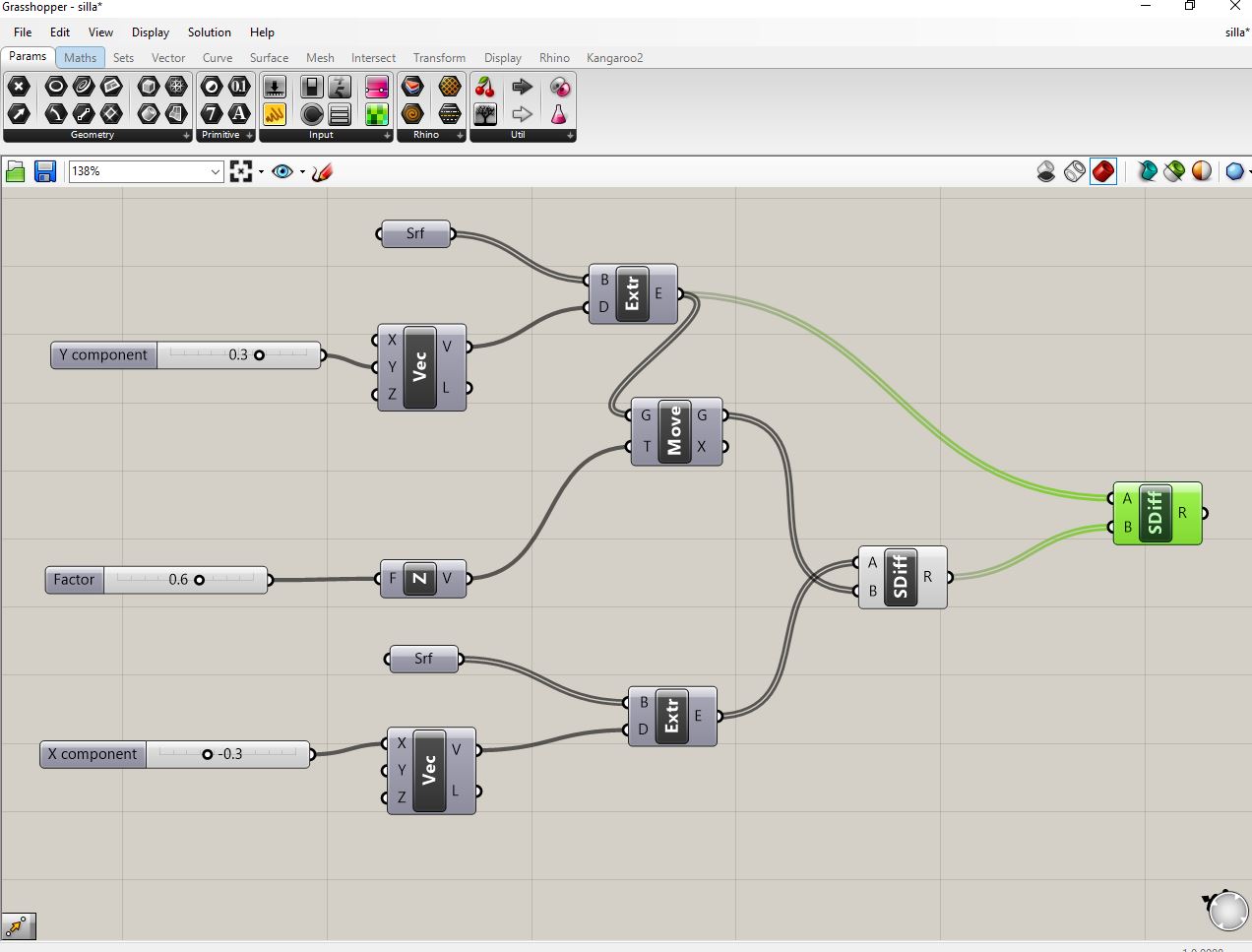
Step 5: Create Parametric Sliders

Open Grasshopper and reference the base curves from Rhino. Create numeric sliders to control parameters such as seat height, width, backrest angle, and leg spacing. Connect sliders to transformation components like Move, Scale, and Rotate.
Parametric sliders

Step 6: Define Structural Logic

Build relationships between components using mathematical expressions and geometric constraints. Ensure that when one parameter changes, the entire chair adapts proportionally while maintaining structural integrity.
Structural logic

Step 7: Control Seat Curvature

Use control points and graph mappers to adjust the curvature of the seat. This enables ergonomic optimization and aesthetic refinement. Test different curvature intensities dynamically through sliders.
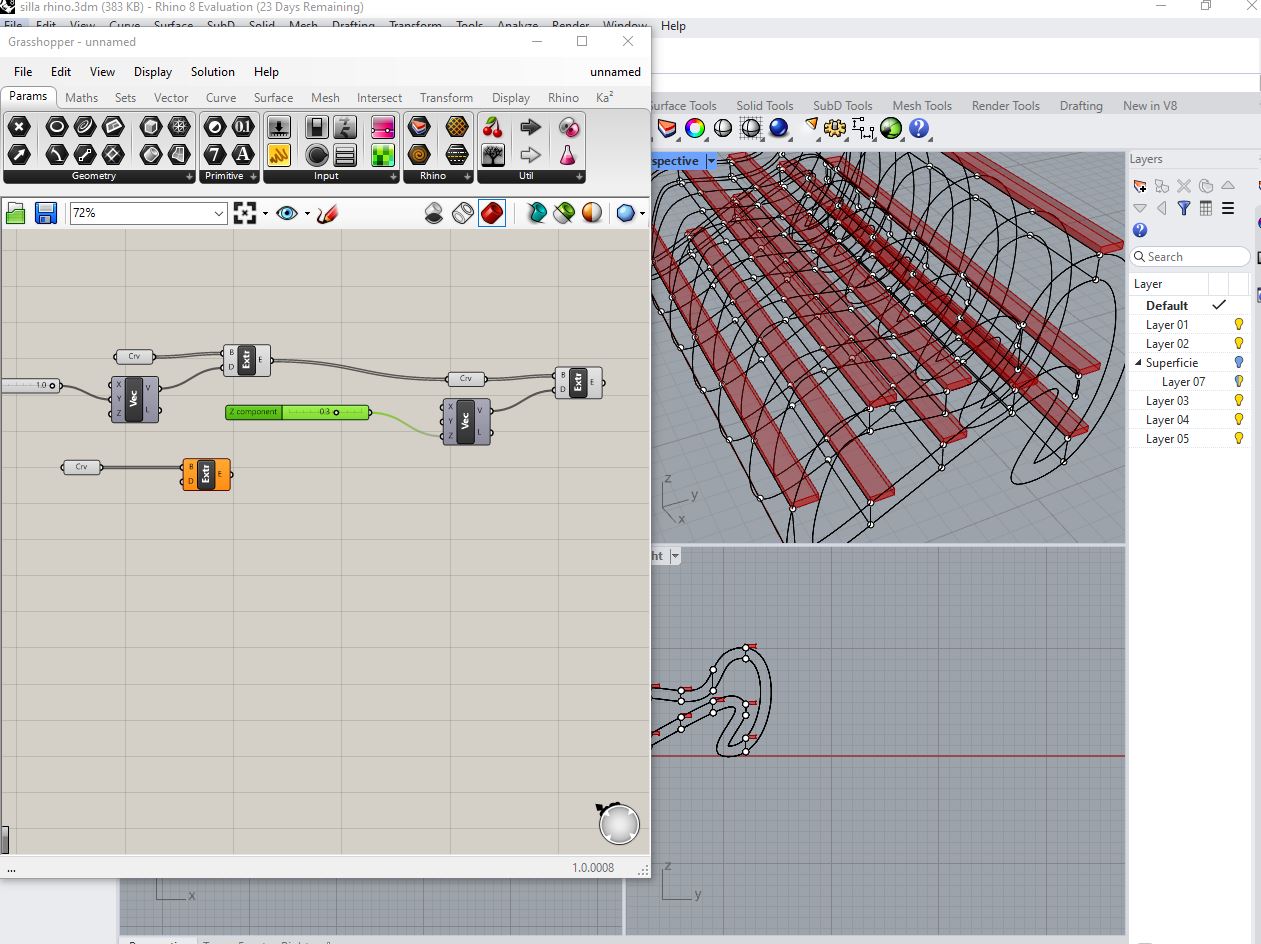
Seat curvature control

Step 8: Define Material Thickness Parameter

Introduce a thickness parameter to simulate real fabrication constraints. Use Offset Surface or Extrude components to adapt the design according to plywood, MDF, or metal sheet thickness.
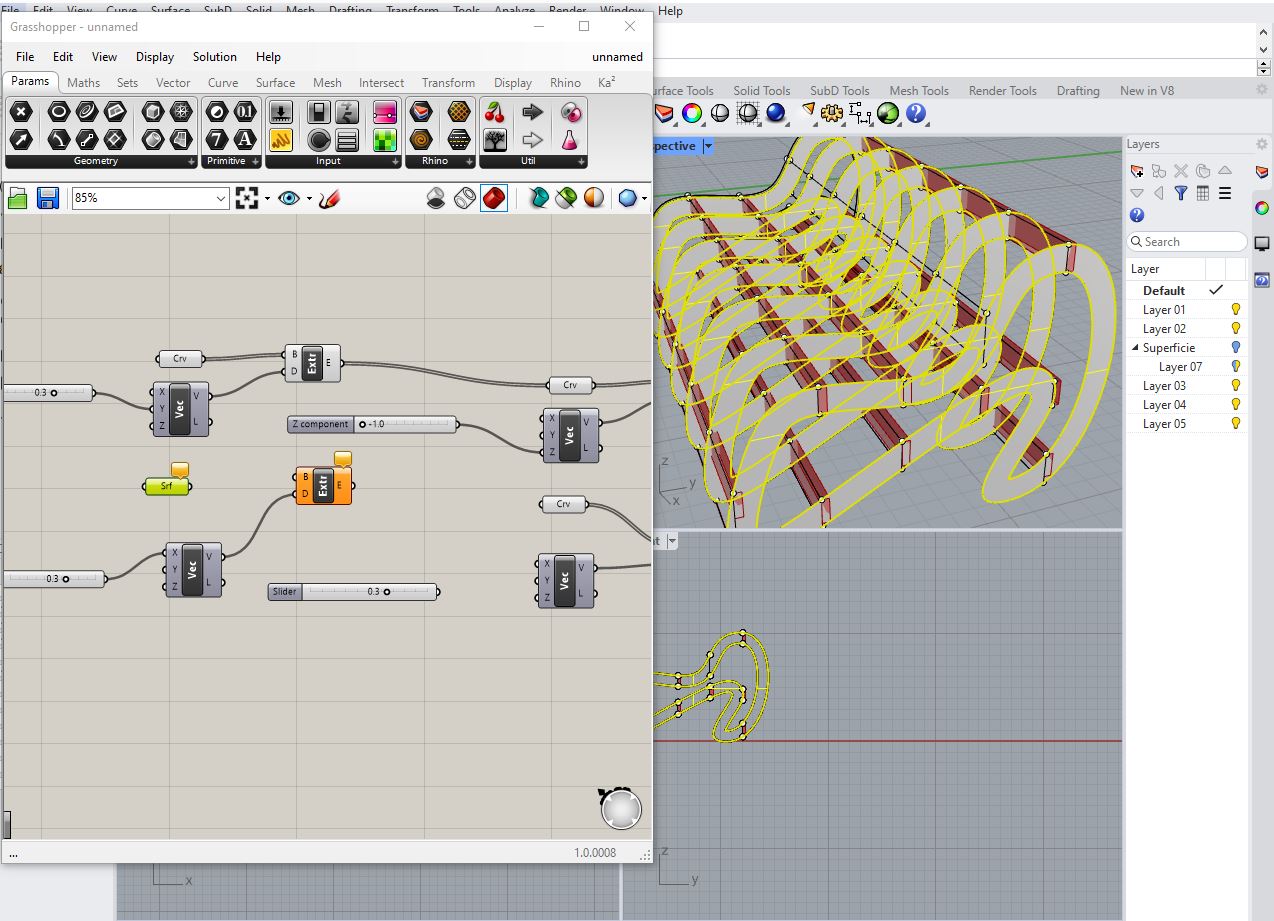
Material thickness parameter

Step 9: Generate Parametric Variations

Adjust sliders to generate multiple chair configurations. Evaluate proportions, stability, and visual balance. Capture variations to compare ergonomic and structural performance.
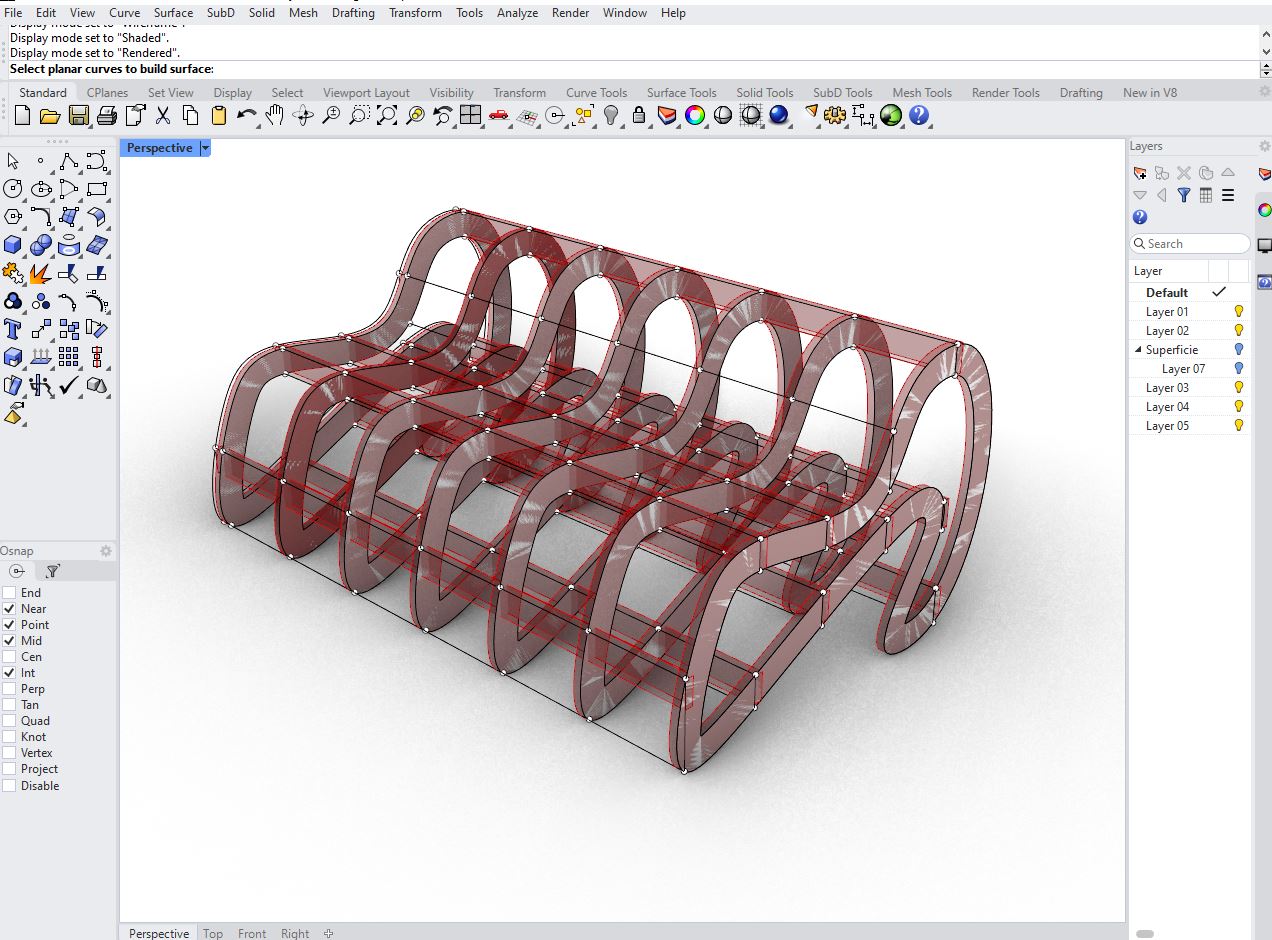
Parametric chair variation 1

Step 10: Explore Additional Variations

Continue experimenting with parameter combinations to explore alternative aesthetics and functional improvements. This stage highlights the flexibility of parametric modeling.
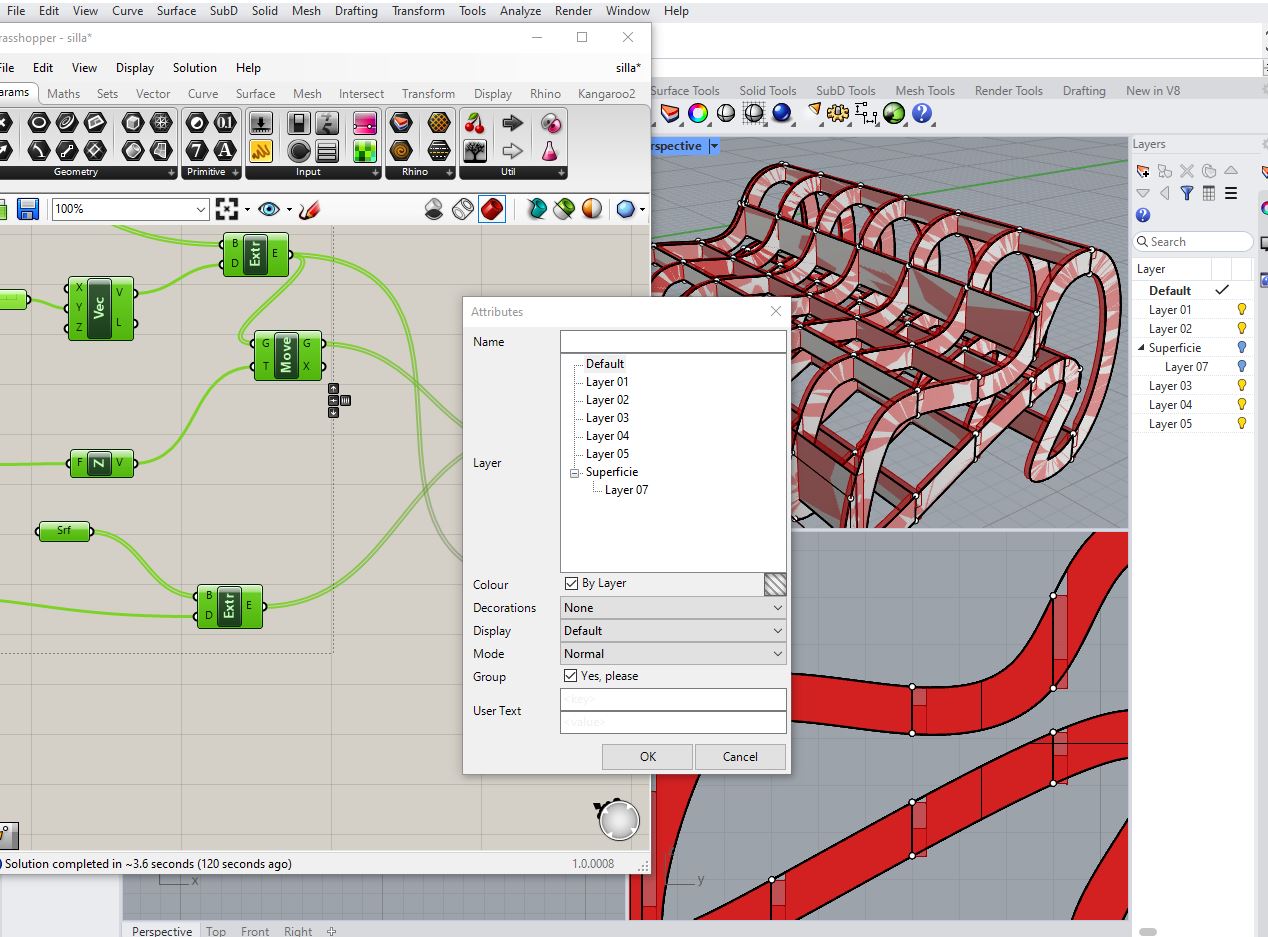
Parametric chair variation 2

Step 11: Finalize Model for Fabrication

Once the optimal configuration is selected, bake the geometry into Rhino. Check for closed polysurfaces and export the file in formats suitable for CNC cutting, laser cutting, or other digital fabrication methods.
Final chair model ready for fabrication

Step 12: Prepare Technical Layout

Flatten parts if needed, add tolerances for press-fit joints, and organize components efficiently within material sheets. Verify alignment and toolpath considerations before fabrication.
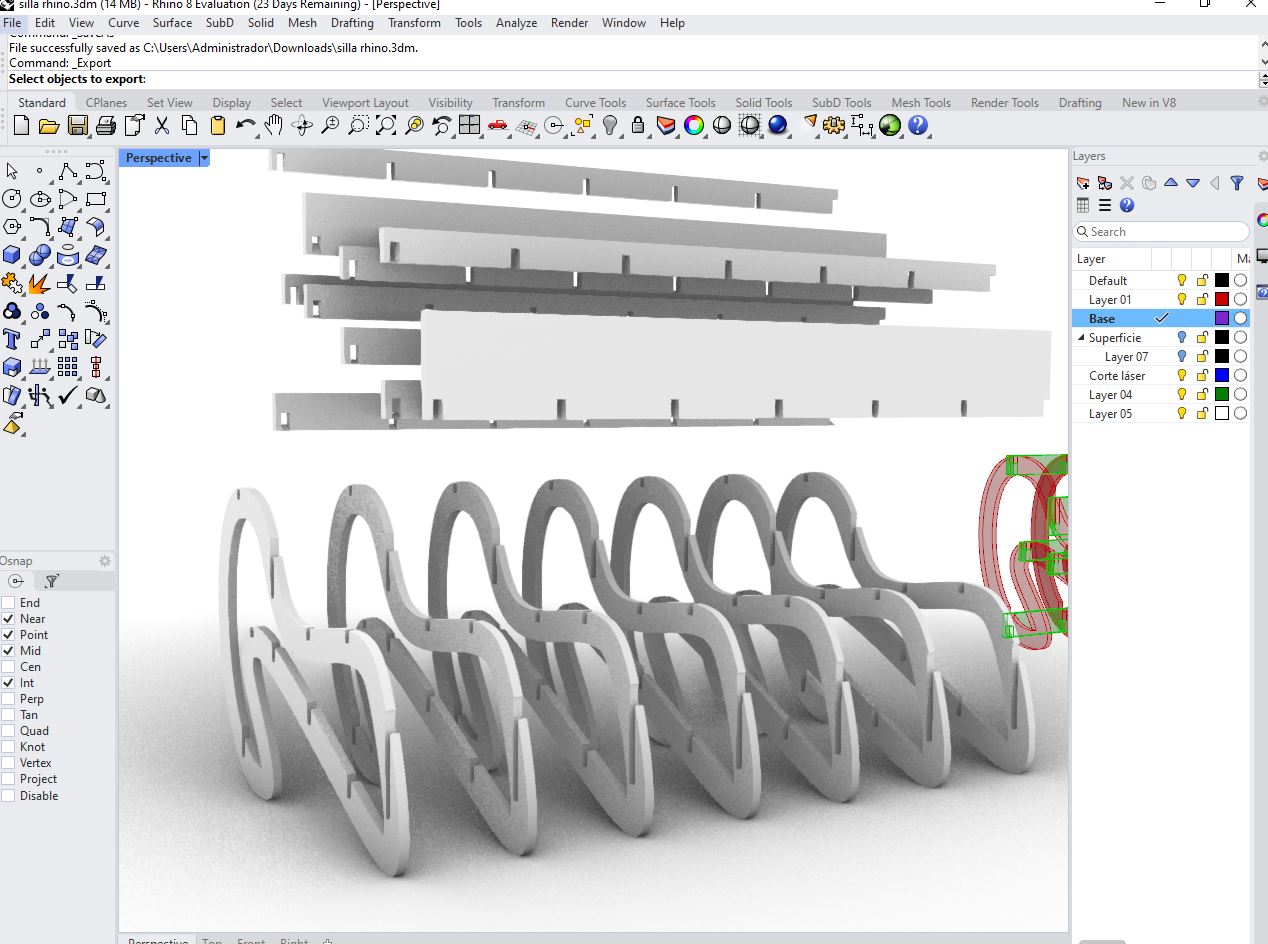
Final chair model ready for fabrication

Step 13: Export and Documentation

Export the final parametric chair model and generate documentation including dimensions, material specifications, and assembly diagrams. The design is now ready for production and iterative improvement.
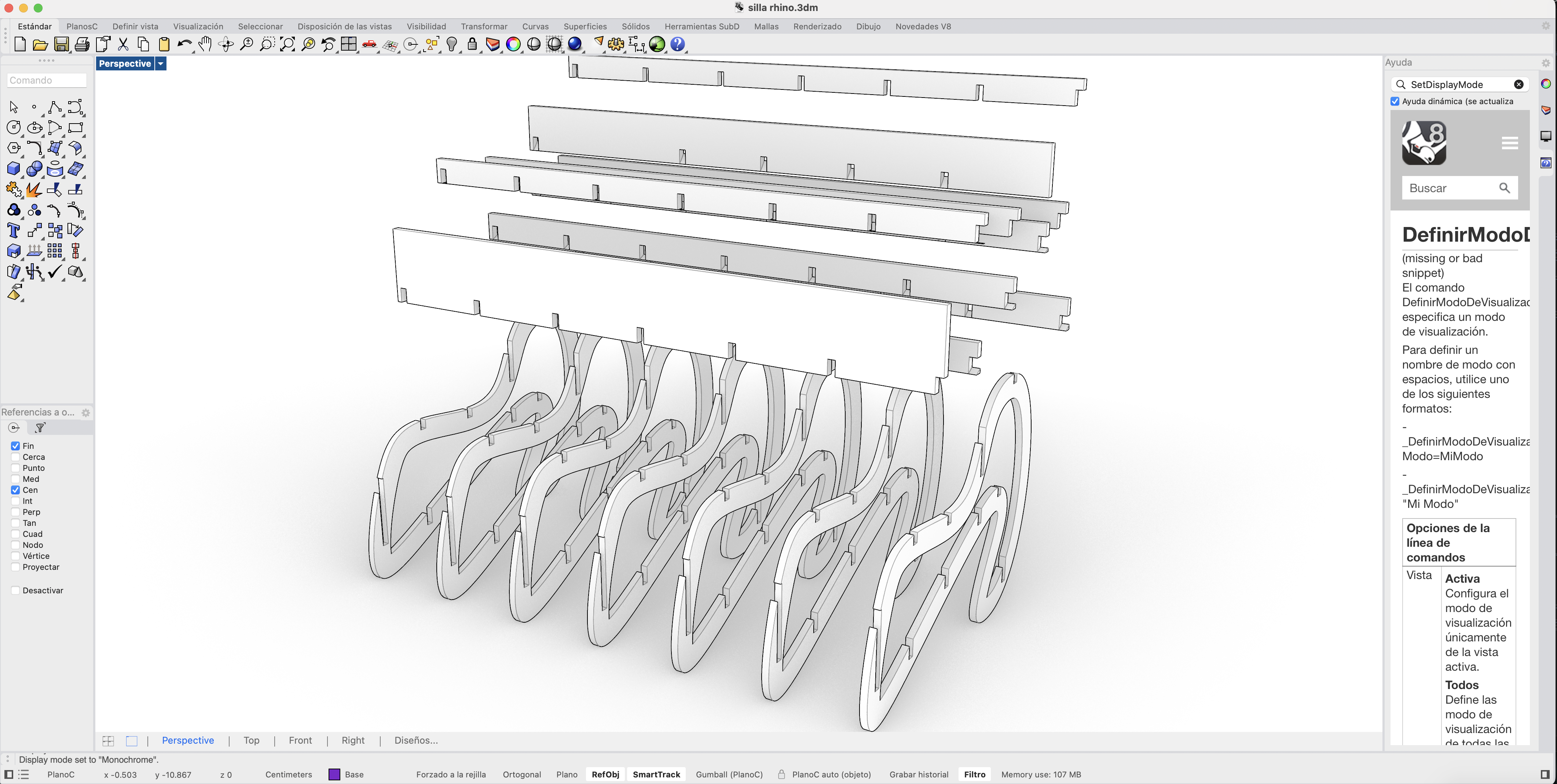
Final chair model ready for fabrication

Comparative Analysis of Software Tools

Software Ease of Use Accessibility Cost Compatibility Collaborative Work
GIMPMediumHighHighHighLow
MyPaintHighHighHighMediumLow
InkscapeMediumHighHighHighLow
CorelDRAWMediumMediumLowHighLow
TinkercadHighHighHighMediumMedium
Fusion 360MediumMediumMediumHighMedium
BlenderLowHighHighMediumLow
OnshapeMediumHighMediumHighHigh
Text to CADHighMediumMediumLowLow
DALL·EHighHighMediumLowLow
After EffectsLowMediumLowHighLow

Image Compression Procedure for Web Documentation

Efficient image compression is essential in Fab Academy documentation to ensure fast-loading web pages while preserving technical clarity. The selected workflow prioritizes accessibility, reproducibility, and minimal quality loss.

Selected Software

GIMP was identified as the most viable software for image compression due to its open-source nature, precise export controls, and wide compatibility across operating systems.

Compression Procedure

  1. Open the original image or screenshot in GIMP.
  2. Crop the image to remove unnecessary areas.
  3. Resize the image to a web-optimized width (typically 1200–1600 px).
  4. Adjust brightness and contrast to maintain readability.
  5. Export the image using File → Export As.
  6. Select JPG or PNG format depending on content type.
  7. Set compression quality between 70% and 85%.
  8. Verify final file size and visual quality.

This procedure ensures that documentation images remain lightweight, readable, and fully compliant with Fab Academy standards.

Fab Academy Checklist

✔ Modelled experimental objects and parts of a possible final project in 2D and 3D software

✔ Documented the process using text, images, and screenshots

✔ Compressed image and video files for web documentation

✔ Included original design line and source files