Group Assignment
oled_test.ino
                  #include <Wire.h>
                  #include <Adafruit_GFX.h>
                  #include <Adafruit_SSD1306.h>


                  #define SCREEN_WIDTH 128
                  #define SCREEN_HEIGHT 64
                  #define OLED_RESET    -1
                  #define SCREEN_ADDRESS 0x3C // If it doesn't work, try 0x3D

                  // Initialize the display using the "Wire" I2C bus
                  Adafruit_SSD1306 display(SCREEN_WIDTH, SCREEN_HEIGHT, &Wire, OLED_RESET);

                  void setup() {
                    // 1. Setup Status LEDs (Active LOW on RP2040)
                    pinMode(17, OUTPUT); // Red
                    pinMode(16, OUTPUT); // Green
                    digitalWrite(17, HIGH); // Off
                    digitalWrite(16, HIGH); // Off

                    // 2. Define I2C Pins for XIAO RP2040 (D4 = SDA, D5 = SCL)
                    Wire.setSDA(6);
                    Wire.setSCL(7);
                    Wire.begin();
                    Wire.setClock(100000); // Set to 100kHz for stability

                    // 3. Try to initialize the OLED
                    if(!display.begin(SSD1306_SWITCHCAPVCC, SCREEN_ADDRESS)) {
                      digitalWrite(17, LOW); // Turn on RED if failed
                      while(true); // Stop here
                    }

                    // 4. Success! Turn on Green LED
                    digitalWrite(16, LOW);

                    // 5. Show something on the screen
                    display.clearDisplay();
                    display.setTextSize(2);
                    display.setTextColor(SSD1306_WHITE);
                    display.setCursor(10, 20);
                    display.println(F("RP2040 OK"));
                    display.display();
                  }

                  void loop() {
                    // Just stay alive
                  }
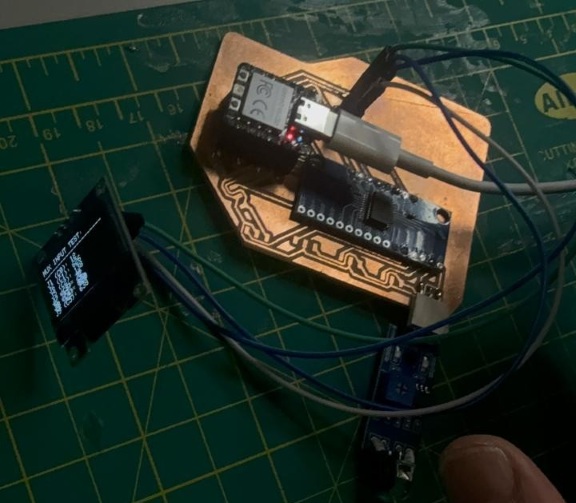
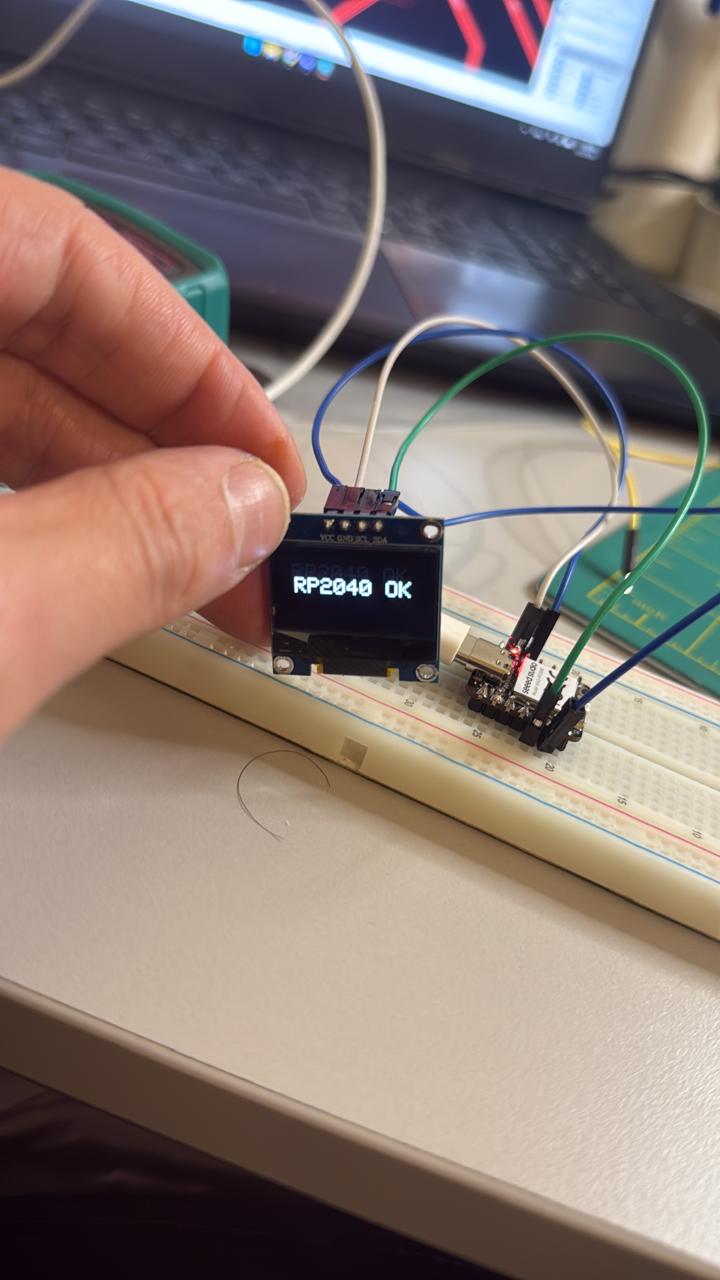
No input detected test, then a flybird inspired test run !
game-test.ino
                  #include <Wire.h>
                  #include <Adafruit_GFX.h>
                  #include <Adafruit_SSD1306.h>

                  #define SCREEN_WIDTH 128
                  #define SCREEN_HEIGHT 64
                  #define SCREEN_ADDRESS 0x3C

                  // --- MUX & PINS ---
                  const int S0 = 0; const int S1 = 1; const int S2 = 2; const int S3 = 3;
                  const int SIG_PIN = 26;

                  Adafruit_SSD1306 display(SCREEN_WIDTH, SCREEN_HEIGHT, &Wire, -1);

                  // --- GAME VARIABLES ---
                  float playerY = 32;
                  float smoothedInput = 512;
                  float alpha = 0.2; // Mario-smoothness factor
                  int wallX = 128;
                  int gapY = 32;
                  int score = 0;
                  bool gameOver = false;

                  void setup() {
                    Wire.setSDA(6); Wire.setSCL(7); Wire.begin();
                    pinMode(S0, OUTPUT); pinMode(S1, OUTPUT);
                    pinMode(S2, OUTPUT); pinMode(S3, OUTPUT);

                    if(!display.begin(SSD1306_SWITCHCAPVCC, SCREEN_ADDRESS)) for(;;);
                    display.clearDisplay();
                  }

                  void resetGame() {
                    wallX = 128;
                    score = 0;
                    gameOver = false;
                    gapY = random(10, 50);
                  }

                  void loop() {
                    if (gameOver) {
                      display.clearDisplay();
                      display.setTextSize(2);
                      display.setCursor(10, 20);
                      display.println("GAME OVER");
                      display.setTextSize(1);
                      display.setCursor(30, 45);
                      display.print("Score: "); display.println(score);
                      display.display();

                      // To restart: Turn the pot all the way down and back up
                      int r = analogRead(SIG_PIN);
                      if (r < 50) resetGame();
                      return;
                    }

                    // 1. SELECT J1 & READ
                    digitalWrite(S0, LOW); digitalWrite(S1, LOW);
                    digitalWrite(S2, LOW); digitalWrite(S3, LOW);
                    int raw = analogRead(SIG_PIN);

                    // 2. SMOOTH MOVEMENT (Mario Physics)
                    smoothedInput = (alpha * raw) + ((1.0 - alpha) * smoothedInput);
                    playerY = map((int)smoothedInput, 0, 1023, SCREEN_HEIGHT - 5, 5);

                    // 3. MOVE WALLS
                    wallX -= 3; // Game speed
                    if (wallX < -10) {
                      wallX = 128;
                      gapY = random(10, 45); // Randomize the next gap
                      score++;
                    }

                    // 4. COLLISION DETECTION
                    // Check if player (X=20) hits the wall (wallX) outside the gap (gapY)
                    if (wallX > 15 && wallX < 25) {
                      if (playerY < gapY - 8 || playerY > gapY + 8) {
                        gameOver = true;
                      }
                    }

                    // 5. DRAWING
                    display.clearDisplay();

                    // Draw Player (Mario/Square)
                    display.fillRect(20, (int)playerY - 2, 5, 5, SSD1306_WHITE);

                    // Draw Walls (with a gap)
                    display.drawFastVLine(wallX, 0, gapY - 10, SSD1306_WHITE); // Top wall
                    display.drawFastVLine(wallX, gapY + 10, SCREEN_HEIGHT, SSD1306_WHITE); // Bottom wall

                    // Score
                    display.setTextSize(1);
                    display.setCursor(0,0);
                    display.print("Score: "); display.print(score);

                    display.display();
                    delay(20);
                  }
Resources & Assets
Source Files