## Group assignment:
- Compare as many tool options as possible.
- Document your work on the group work page and reflect on your individual page what you learned.
Full details on our **[Lab Group Page](https://fabacademy.org/2026/labs/techworks/week15/week15 .html)**.
## Individual Assignment
### Creating an Interface for [Week 11](week-eleven.html) IR obstacle sensor.
For this week, I decided to focus on testing out hosting an interface, so that the captured results and data from my IR sensor (which are communicated to the laptop via UART) can be accessible online and represented visually.
The initial setup is to first create an HTML/JS webpage which will serve as the **Visual Dashboard**. Below is how I expect the flow to function:
1. Microcontroller collects the data from the IR sensor.
2. The Python script pushes this data first into my local directory.
3. After the files are pushed to the local directory, the Python script will use my internet connection to upload a copy to a cloud host.
4. The HTML dashboard **renders** that data.
### Project Sources and Tools
Before proceeding, I summarized the list of tools and resources I will need relative to the Interface workflow:
| Category | Link | Purpose |
| :--- | :--- | :--- |
| **Cloud Host** | [jsonbin.io](https://jsonbin.io/) | Hosts live JSON data file in the cloud for global access. |
| **Local Environment** | [python.org/downloads](https://www.python.org/downloads/) | Runs local background script execution environment. |
| **Python Dependency** | `pip install pyserial` (via Terminal) | Connects Python to physical hardware over the USB COM port. |
| **Python Dependency** | `pip install requests` (via Terminal) | Enables Python to upload data packages to the cloud host. |
| **Web Server** | [gitlab.fabcloud.org](https://gitlab.fabcloud.org/) | The remote repository platform that hosts and publishes live dashboard. |
| **Web Technology** | Built into all modern web browsers | JavaScript Fetch handles cloud data polling; HTML5 Canvas renders the 2D vector geometry. |
## Setting up the HTML page
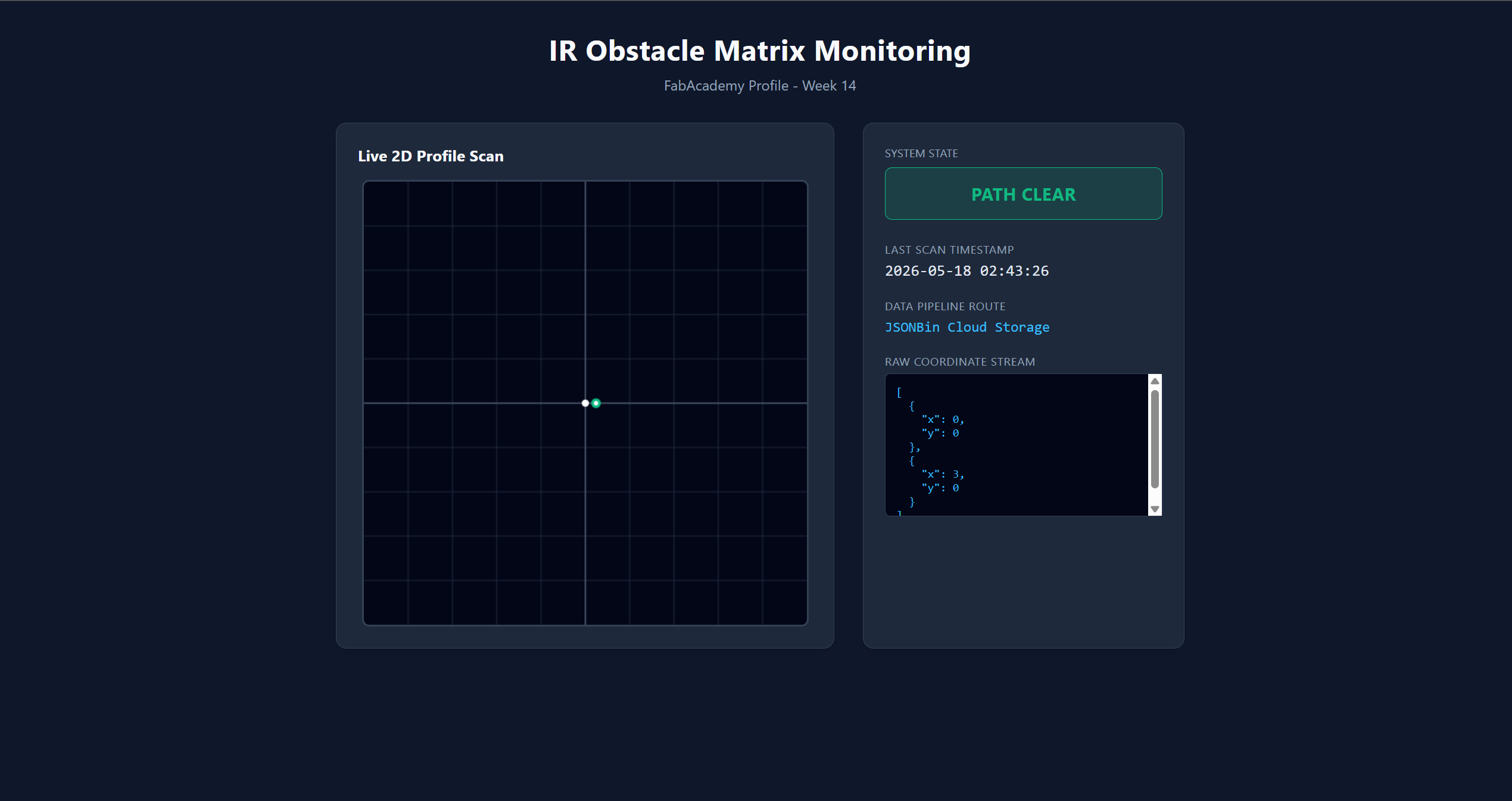
With the assistance of Gemini, I designed and coded the frontend interface
(`index.html`) to serve as a clean, responsive visualization command center.
The system uses a split dark-theme dashboard layout engineered via CSS Grid.
The left side features a dynamic **HTML5 Canvas** viewport designed to map the
coordinate array payloads visually, scaling mathematical hardware points relative
to a centralized 2D grid plane. The right panel displays the system state, a
localized timestamp of the last scan, and a scrollable raw JSON package window for logging.
The background execution logic relies entirely on clean, modern JavaScript.
It uses an asynchronous `fetch()` network engine acting as a continuous cloud poller,
pulling records from the JSONBin API every 4 seconds using securely injected header authorization tokens.
Once the data structure is verified, the interface automatically re-renders:
it checks the system state to dynamically toggle CSS styling blocks (
changing indicators seamlessly between a green `PATH CLEAR` mode and a red flashing `OBSTACLE DETECTED` layout),
prints the raw incoming packets to the debug viewport, and draws a clean line vector across the dynamic vertex 4
coordinate arrays mapped straight from the physical sensor array.
## Setting up the Data Storage point and APIs
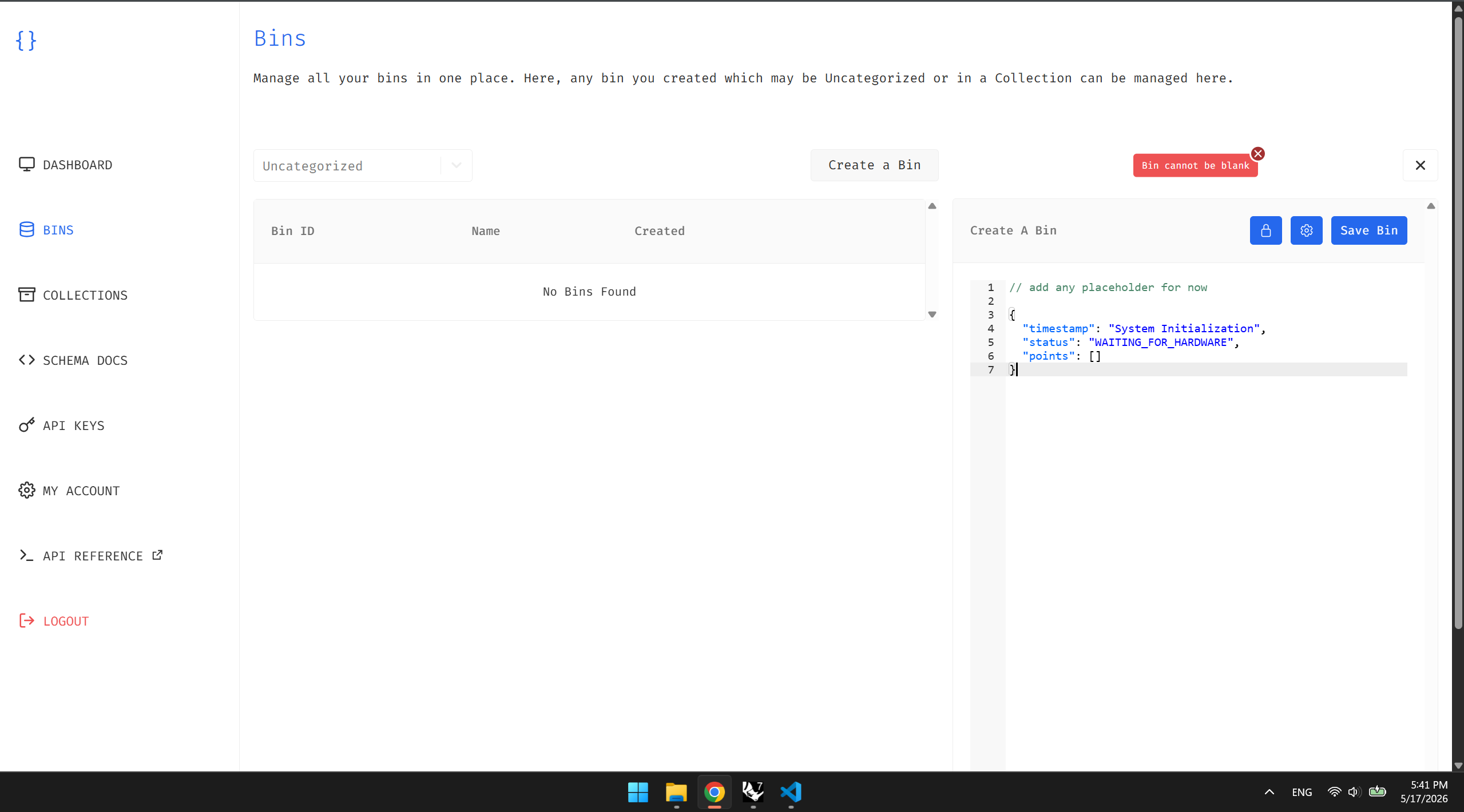
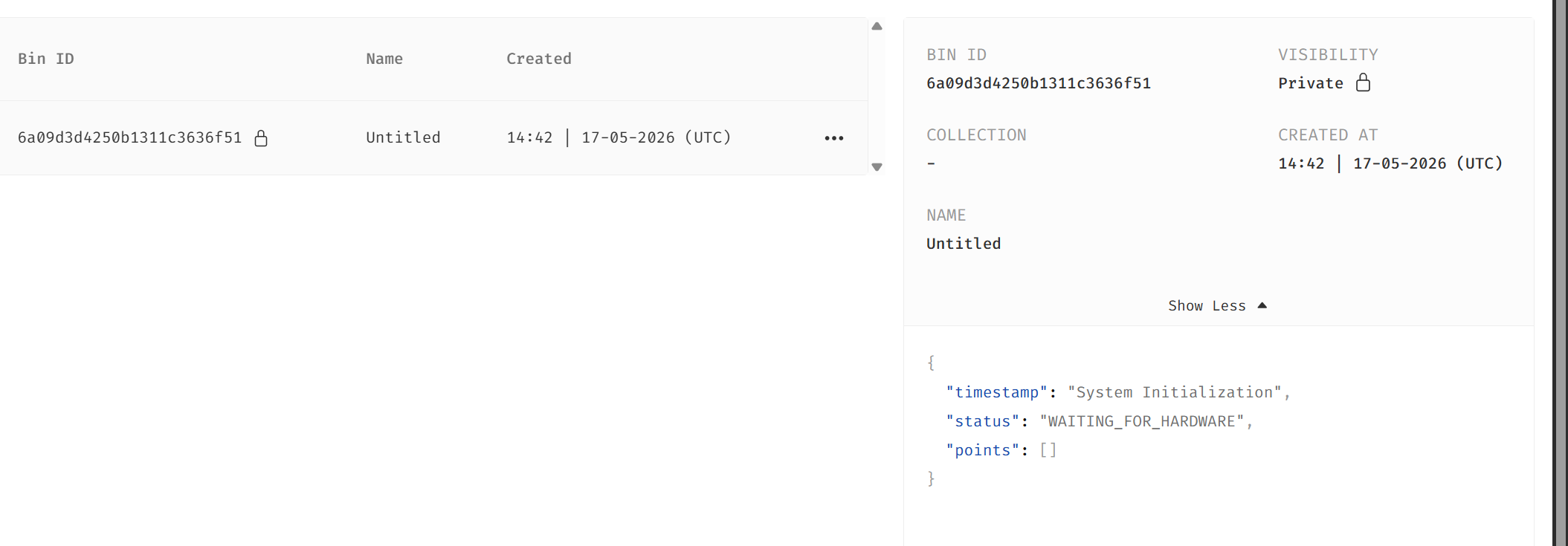
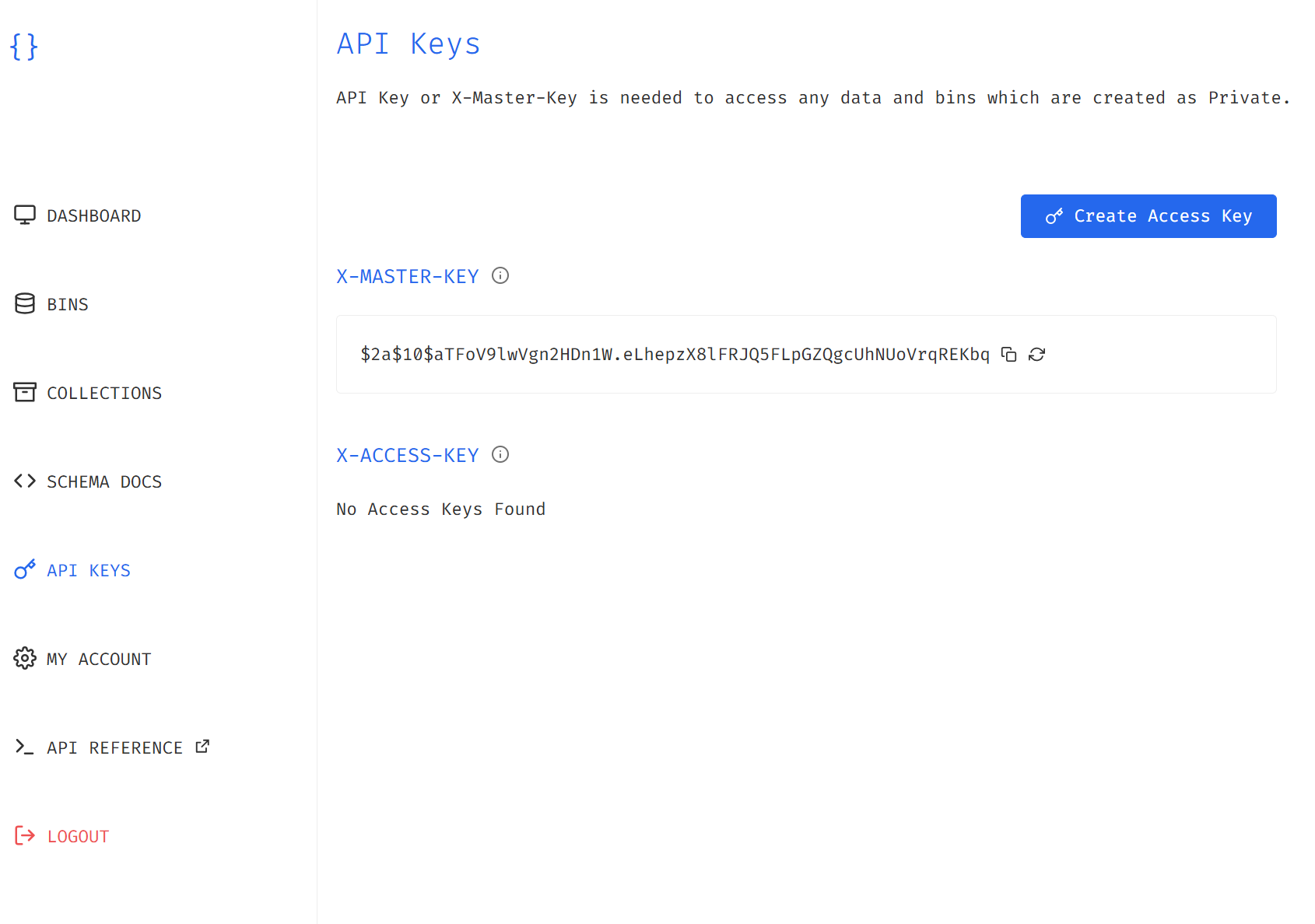
First, I created an account at jsonbin.io to establish an online repository for the project's data stream. Then, I created a data storage container, known as a "Bin," which serves as the remote holding zone for the coordinate payloads generated by the hardware. After that, I extracted the API keys and Bin ID from the developer dashboard.
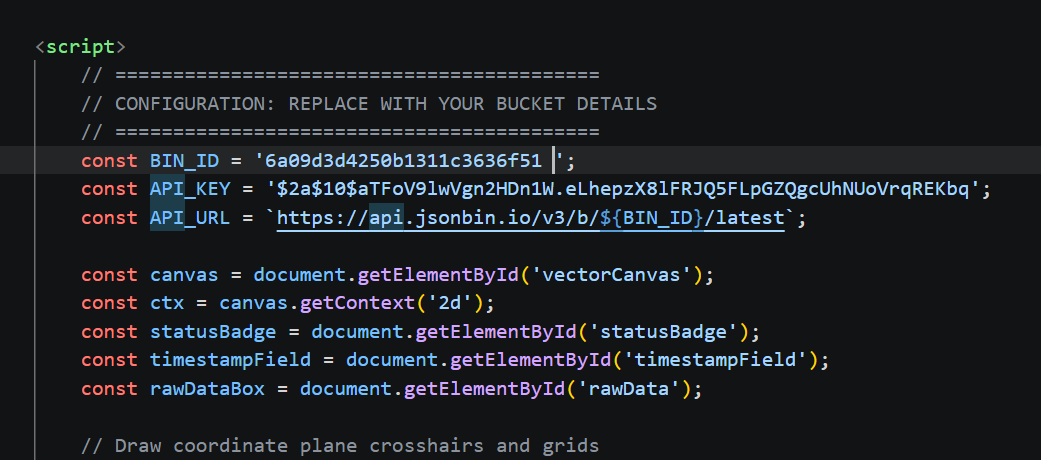
A Bin ID simply means the unique web address or directory identifier for that specific dataset, while the X-Master-Key is the secret authorization token that permits external scripts to read or modify the data. I learned that in jsonbin, the API access control falls under this X-Master-Key, meaning no data can be pushed to a private bin without it. I then took those values and plugged them directly into the configuration block of the `index.html` file to point the website's background fetching loop to the correct cloud destination.
Creating a Bin on jsonbin
Bin ID extraction
API key extraction
Placing the keys in index.html
## Setting up the Python side and doing the first test run
Similarly to what I used in [Week 11](week-eleven-code-2.html) and my new pcb created [link](https://fabacademy.org/2026/labs/techworks/students/mohammed-azizi/assignments/week-eleven-pcb.html) for my digital contour gauge mockup file, I initialized my Python script by importing the required libraries. The only new addition here was importing the **requests** library. The requests library is the web utility that ensures my script can talk to the internet.
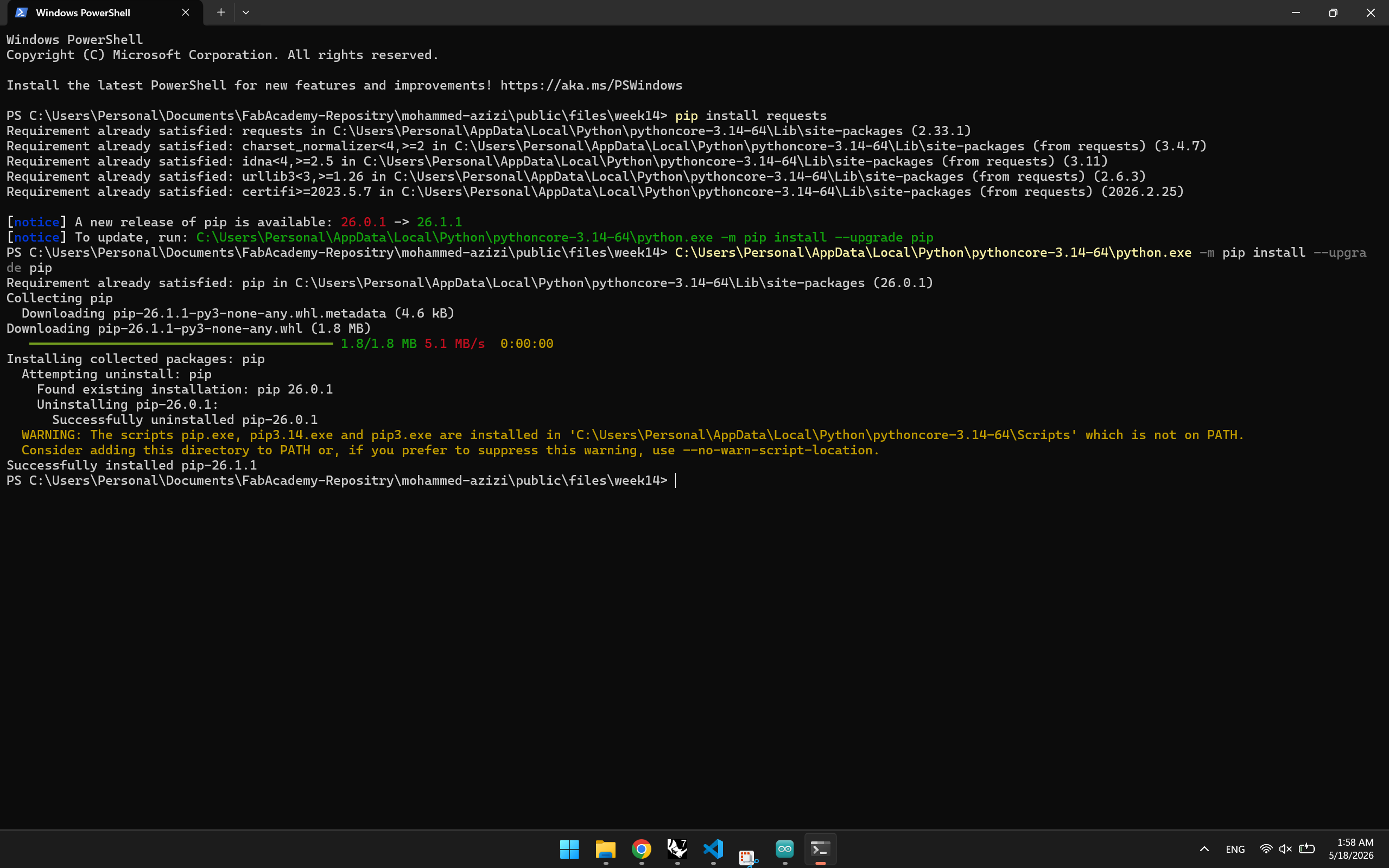
In order to include this, I ran:
```bash
pip install requests
```
I had it previously installed, but I upgraded pip to the latest version.
The second step was to include the Bin ID and API keys in the Python script configuration variables as well.
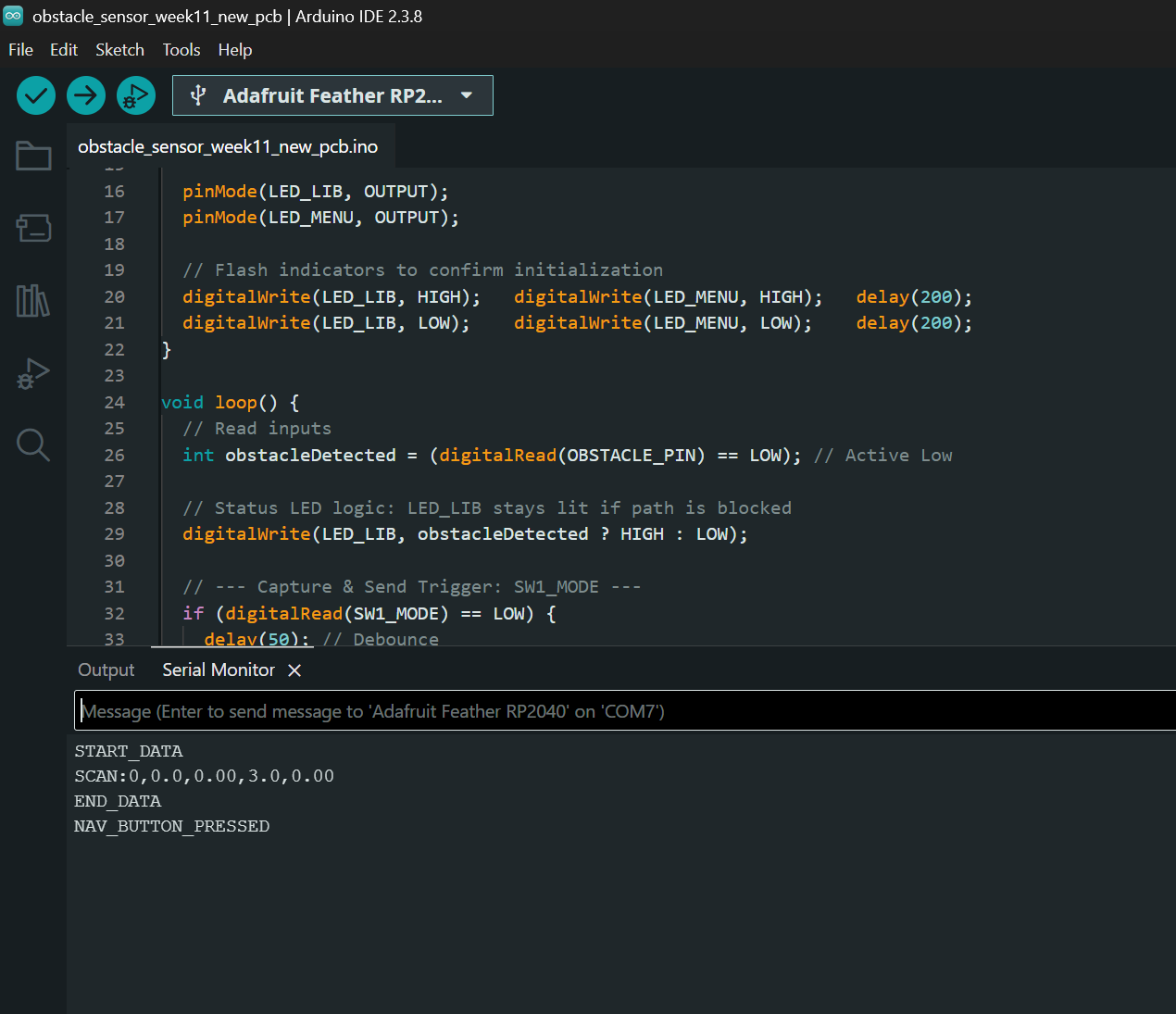
Finally, I connected my PCB and deployed the code to ensure it runs on the RP2040 without any issues, while monitoring the output through the Serial Monitor.
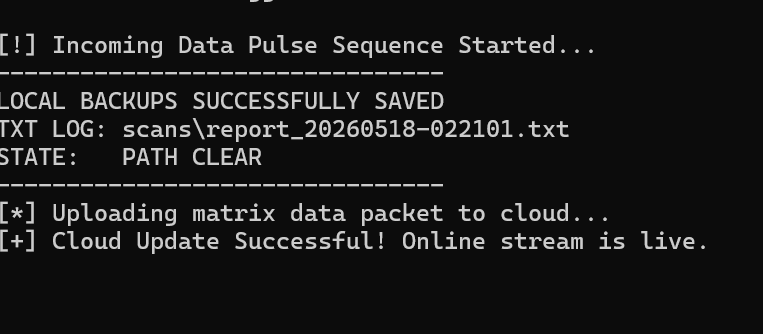
Then I executed the Python script, and it successfully established connection.
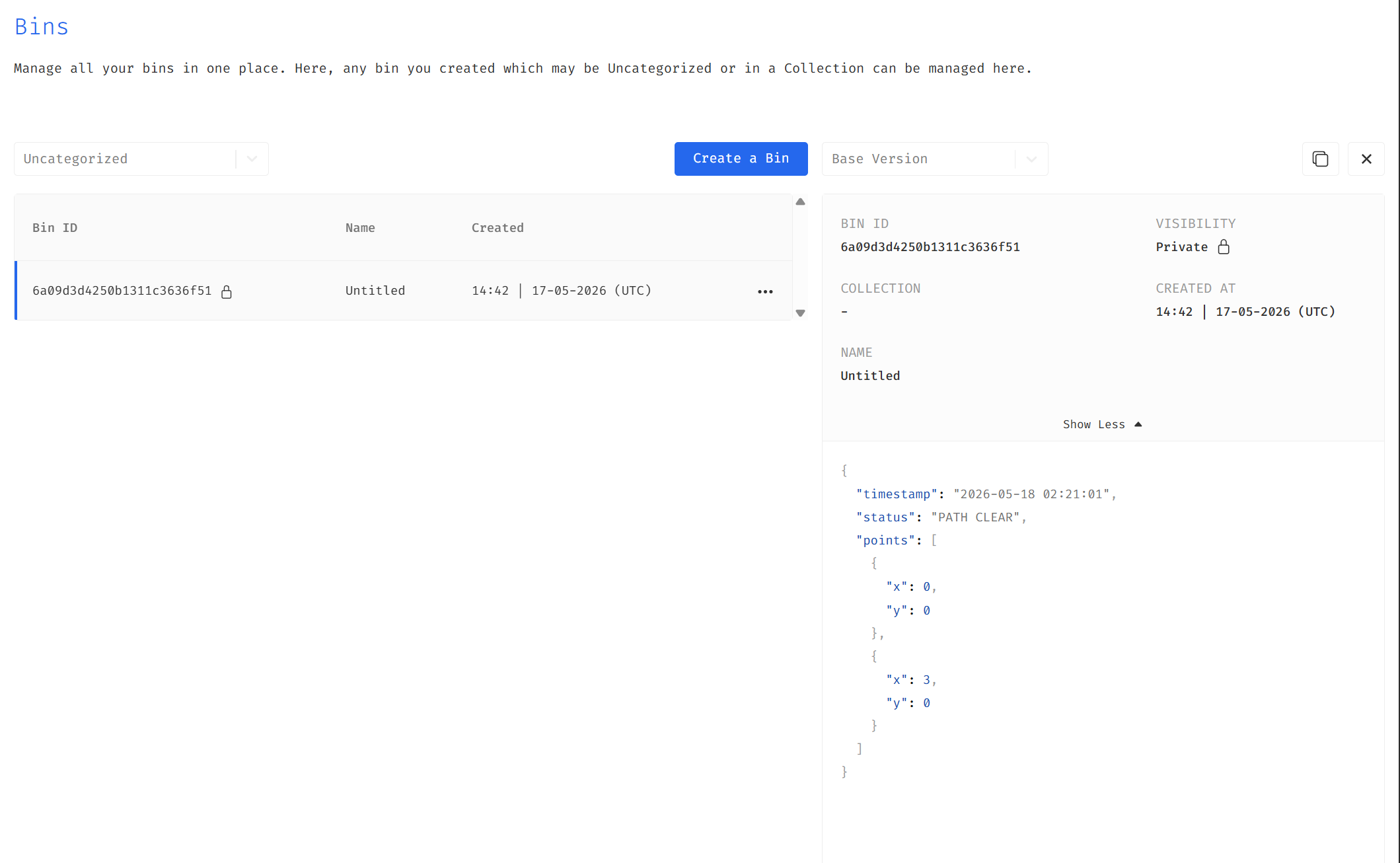
The only problem I faced initially was that `index.html` was not updating with cloud changes. I later realized the bin was set to be private by default. I resolved this by creating a public bin and updating the configuration IDs accordingly.
This video demonstrates the code I uploaded to my new PCB working. On the left,
it shows how the PCB communicates via UART and the Python code, which displays
a message confirming data sent from the obstacle sensor. On the right, it shows
the obstacle sensor on the serial monitor to confirm the sensor is in fact working
and to verify.
Installing requests web library
Verifying the code on RP2040
First Python Run
Data Log Success
Bin stores JSON successfully (Switched from private to public)
This video shows the interface working with the pcb, when I press the button the result is updated and the jsonbin repositry is also updated to the latest reading sent.