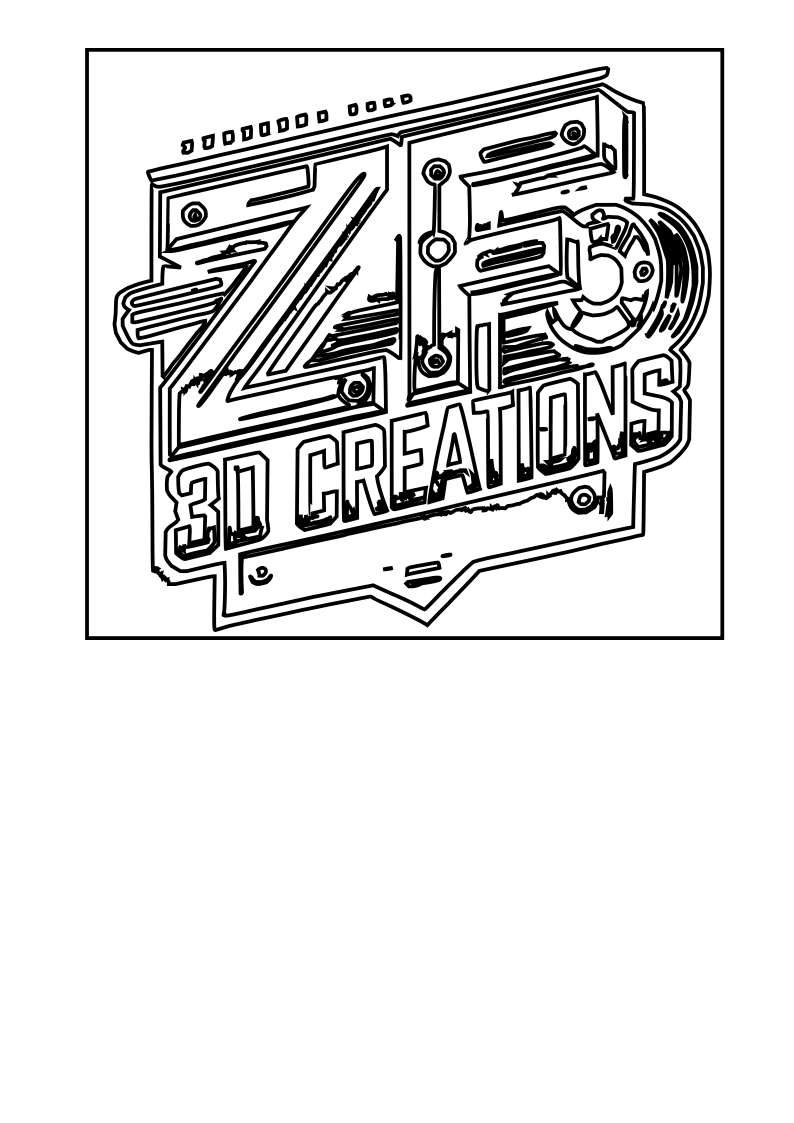
Inkscape vs Affinity Designer
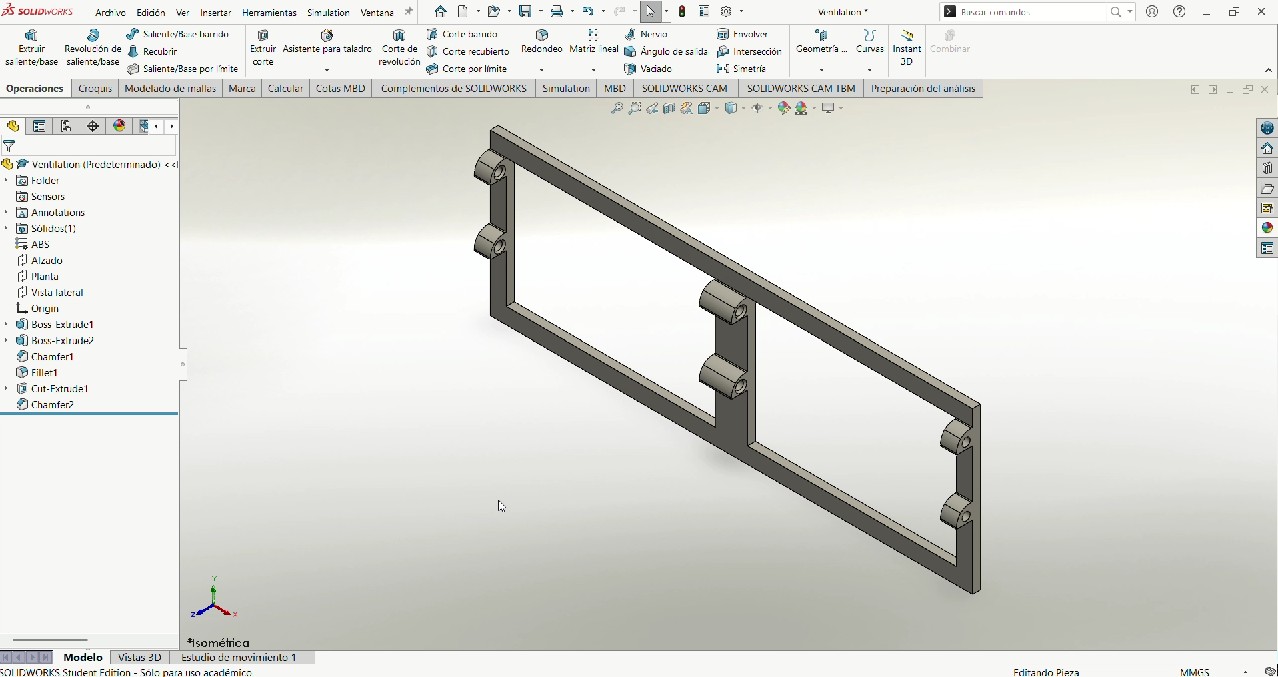
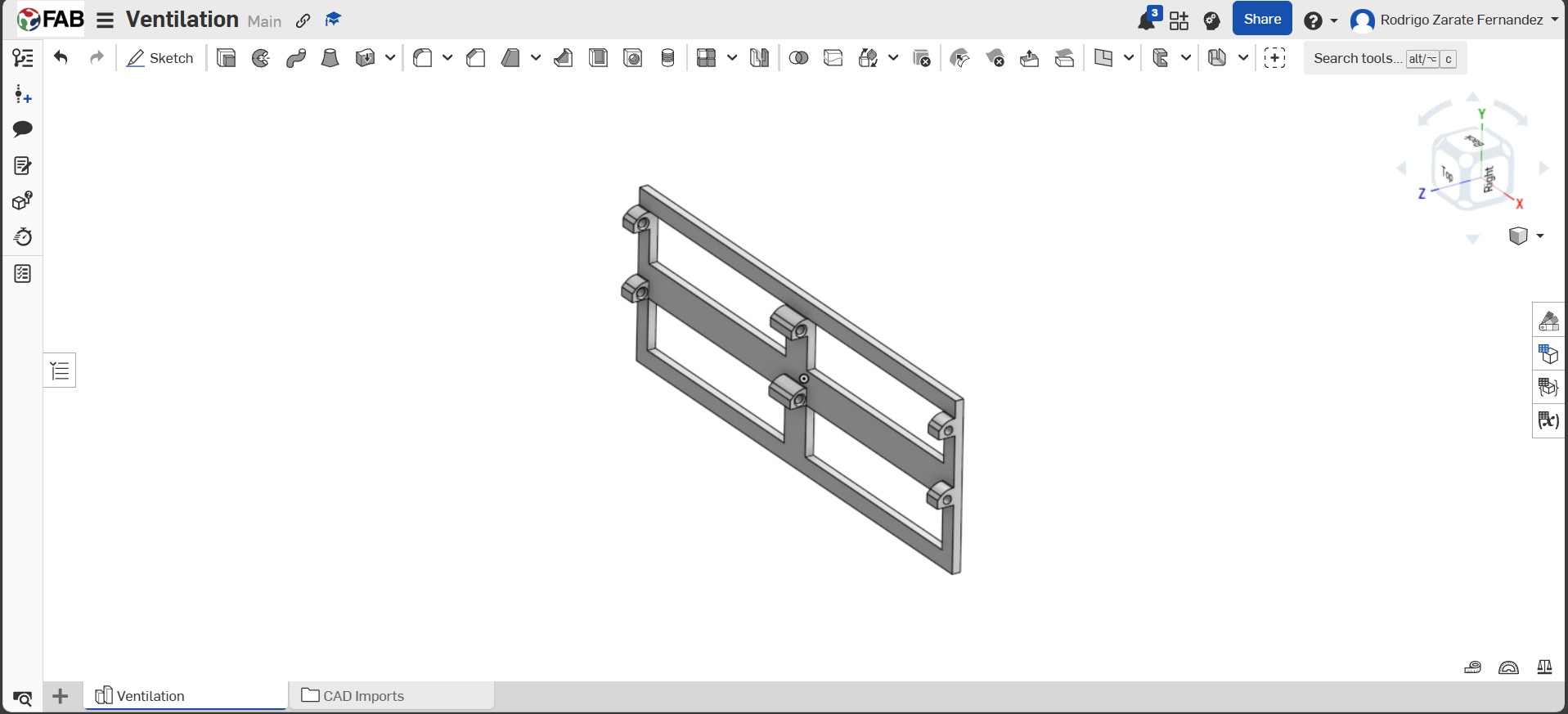
I used the same raster image (bitmap) and converted it into a vector file using two different tools. The goal was to compare automatic vectorization (Inkscape) versus manual tracing (Affinity Designer).
Inkscape (Automatic workflow)
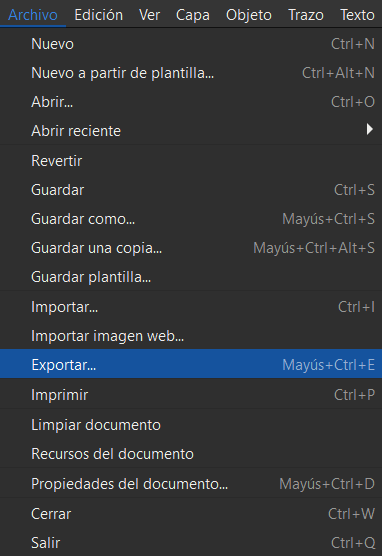
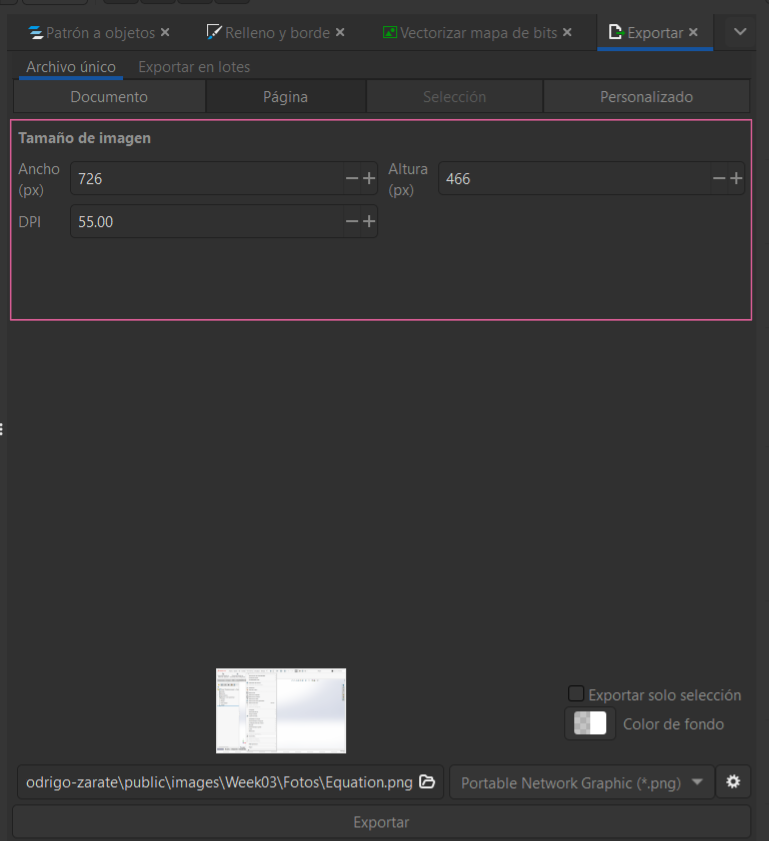
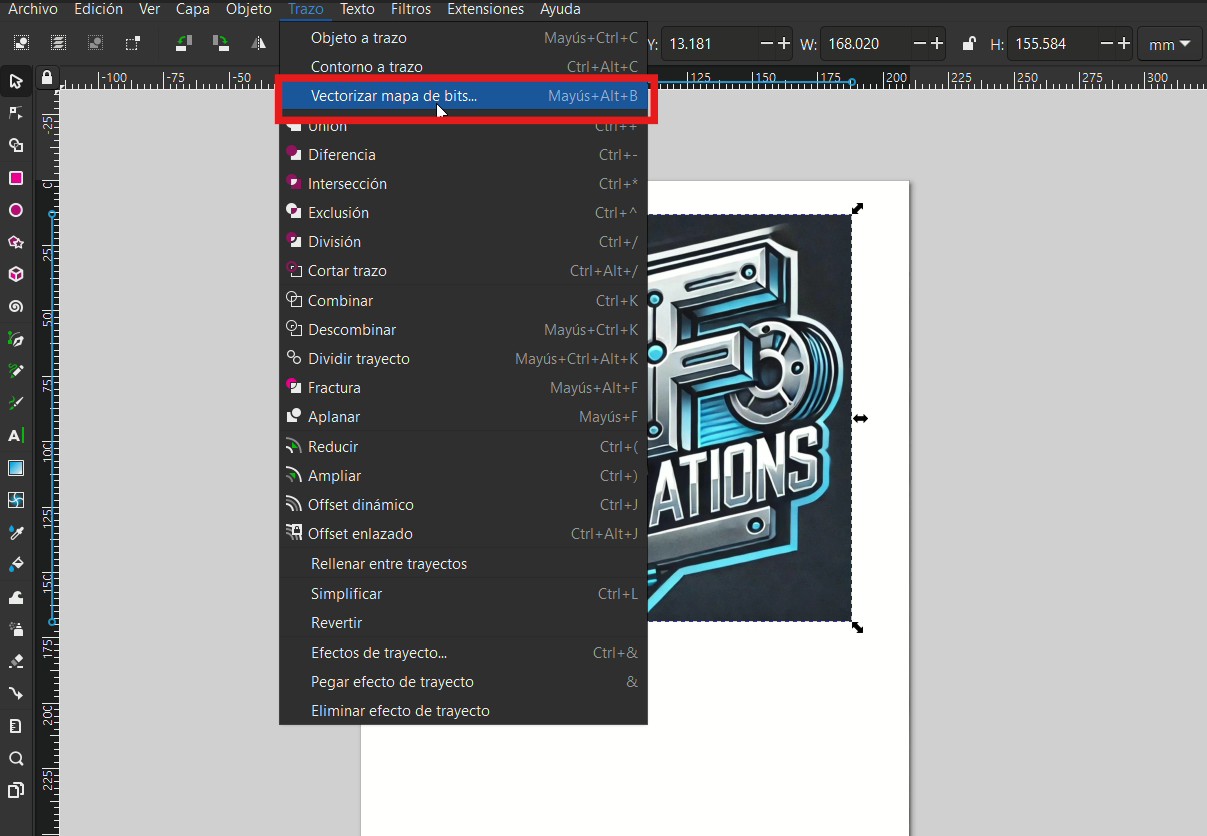
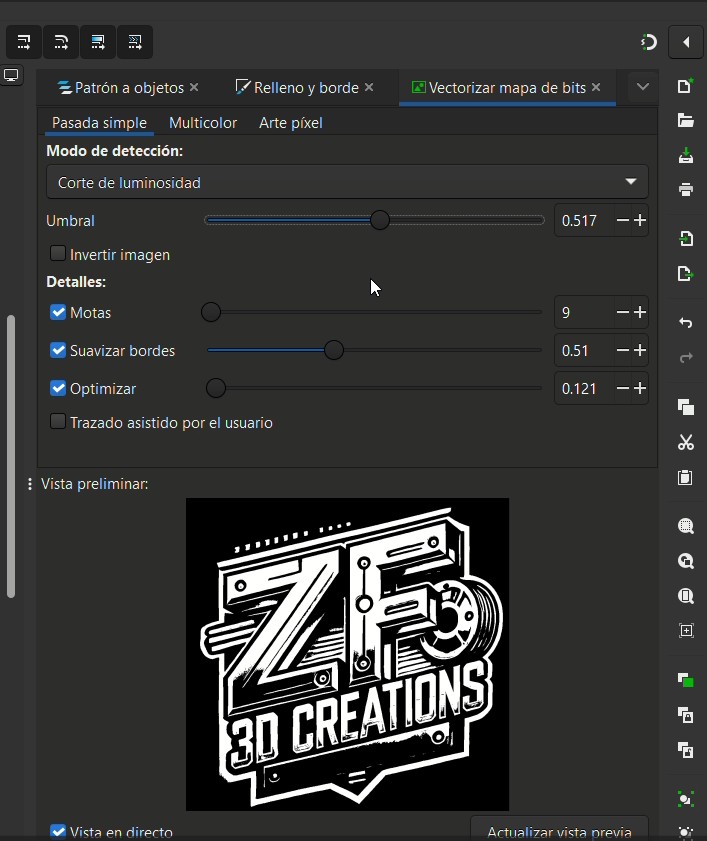
In Inkscape, the process is mostly automated using Path → Trace Bitmap. The software analyzes the bitmap and generates vector paths based on a threshold (brightness cutoff).
Step-by-step
- Select the image on the canvas.
- Go to Path → Trace Bitmap.
- Use Brightness cutoff and adjust the threshold until the preview looks clean.
- Click Apply to generate the vector.
- Remove fill / set stroke if needed to verify the outline.
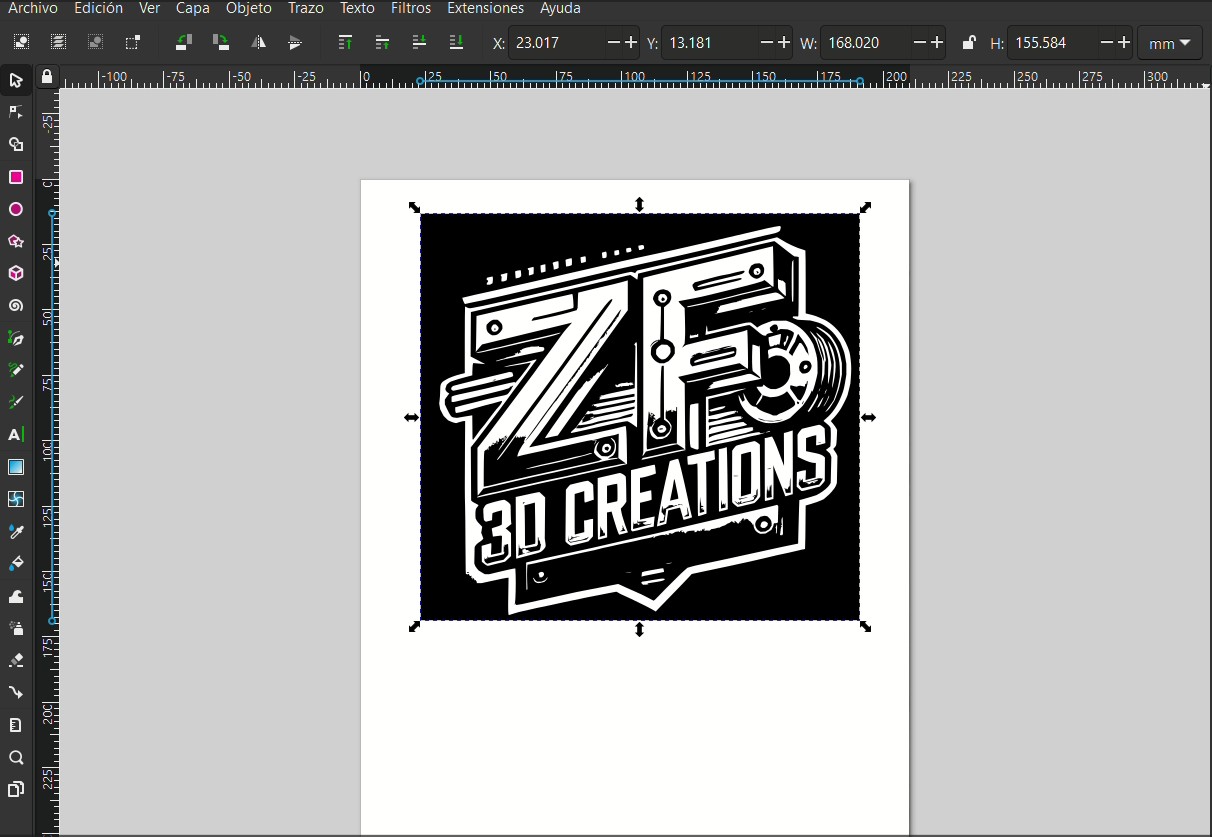
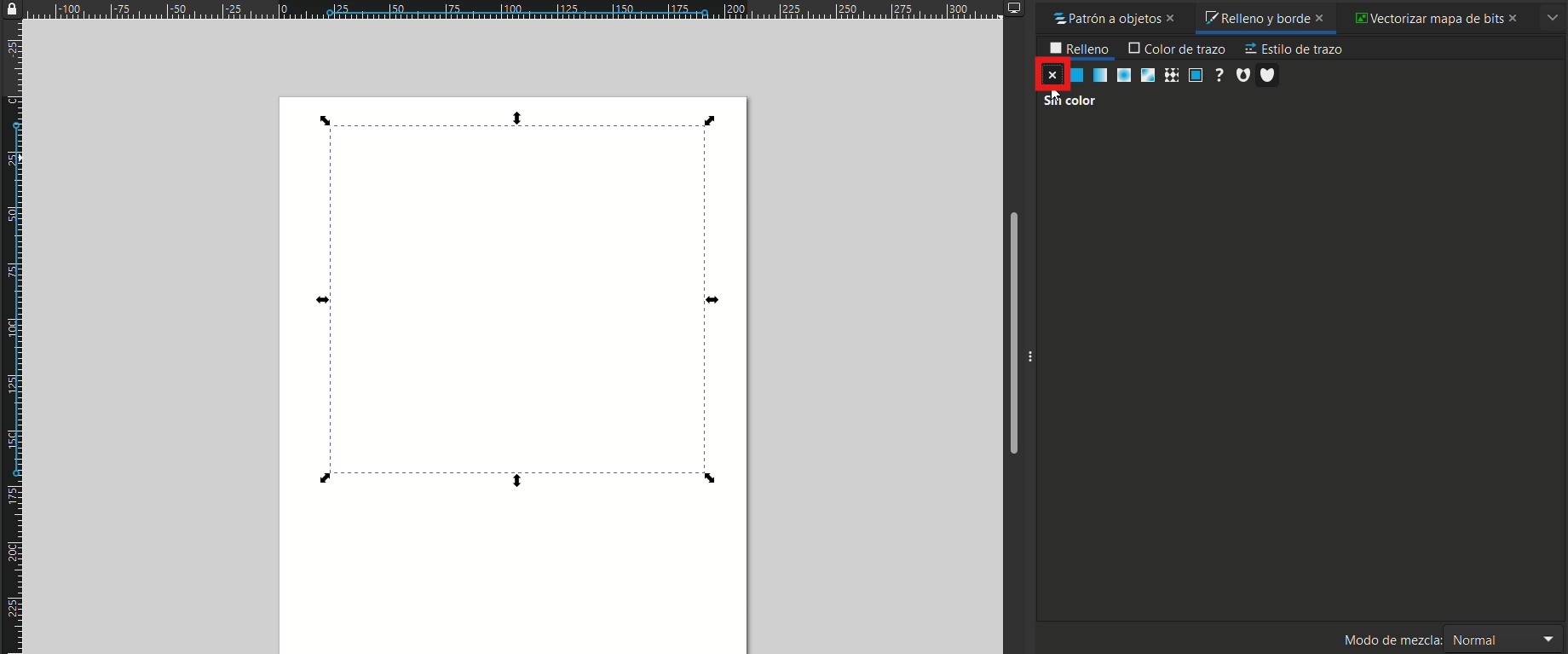
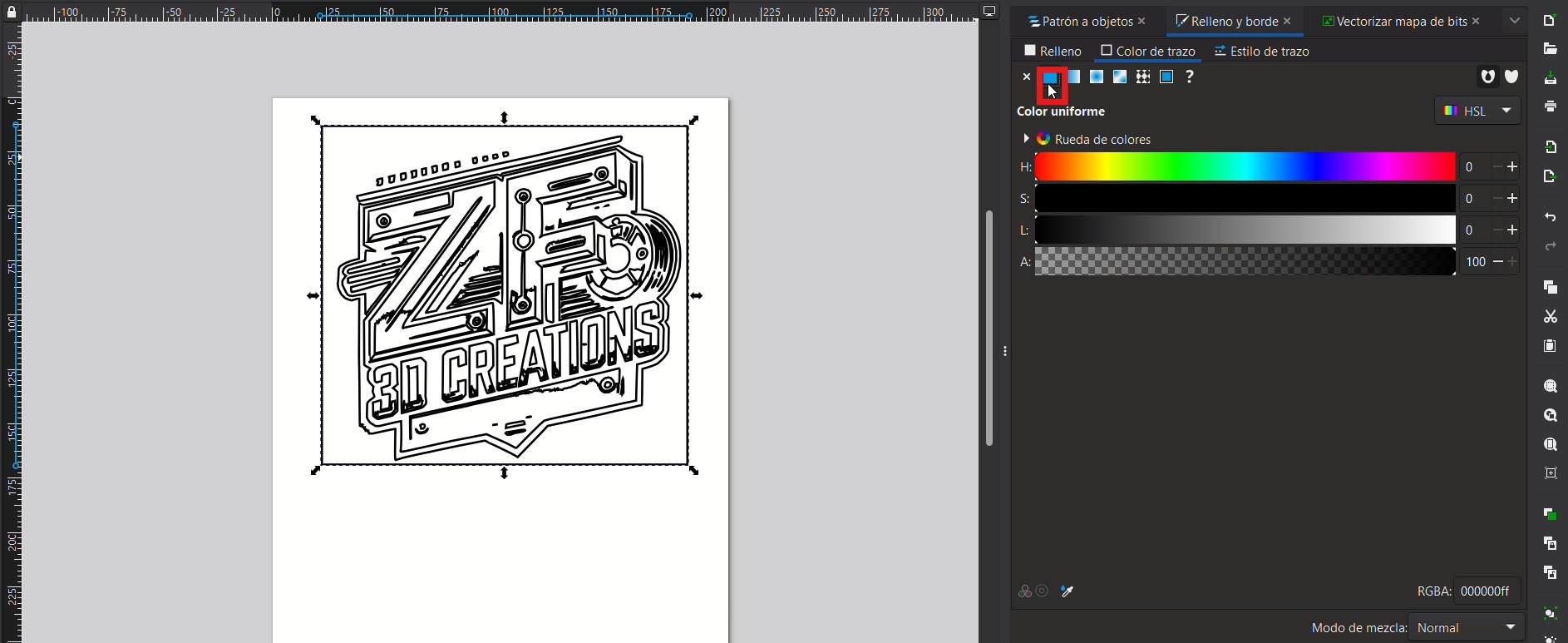
Conclusion (Inkscape): Fast and efficient for high-contrast images and fabrication-ready vectors. The main tradeoff is less control over fine details compared to a fully manual workflow.
Download .SVGAffinity Designer (Manual workflow)
In Affinity Designer, the vectorization was done manually. Instead of a one-click bitmap trace, I placed the image and recreated the contours using vector tools (Pen/Node). This takes more time, but gives full control over geometry.
Step-by-step
- Use the Place Tool to import the bitmap image.
- Work in Vector mode (not Pixel mode).
- Trace the main contours using the Pen Tool.
- Refine curves and corners with the Node Tool.
- Adjust stroke/fill to verify clean outlines and remove unnecessary nodes.
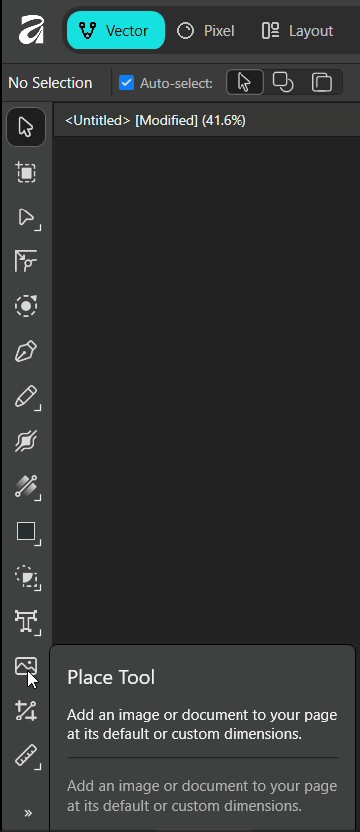
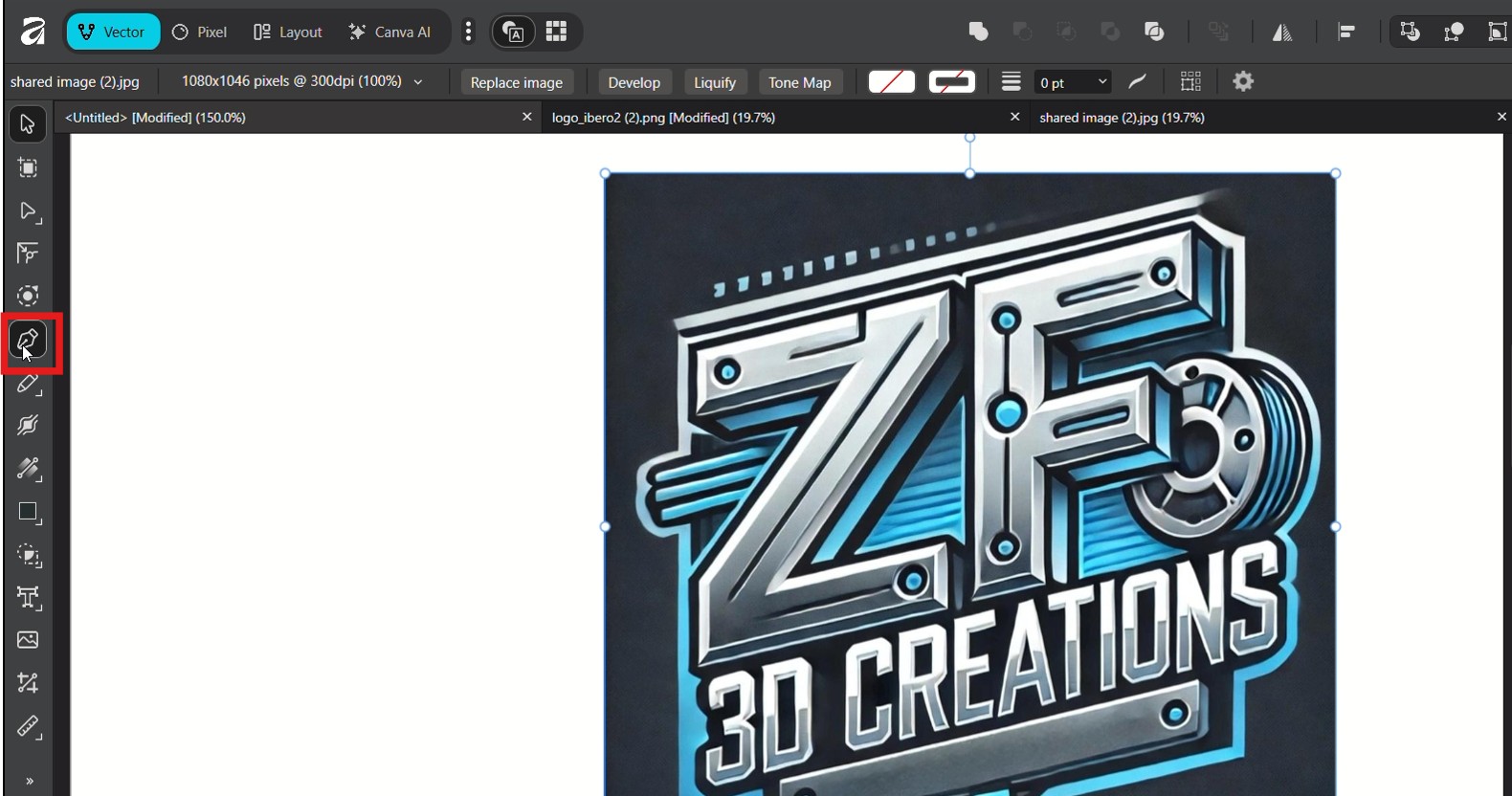
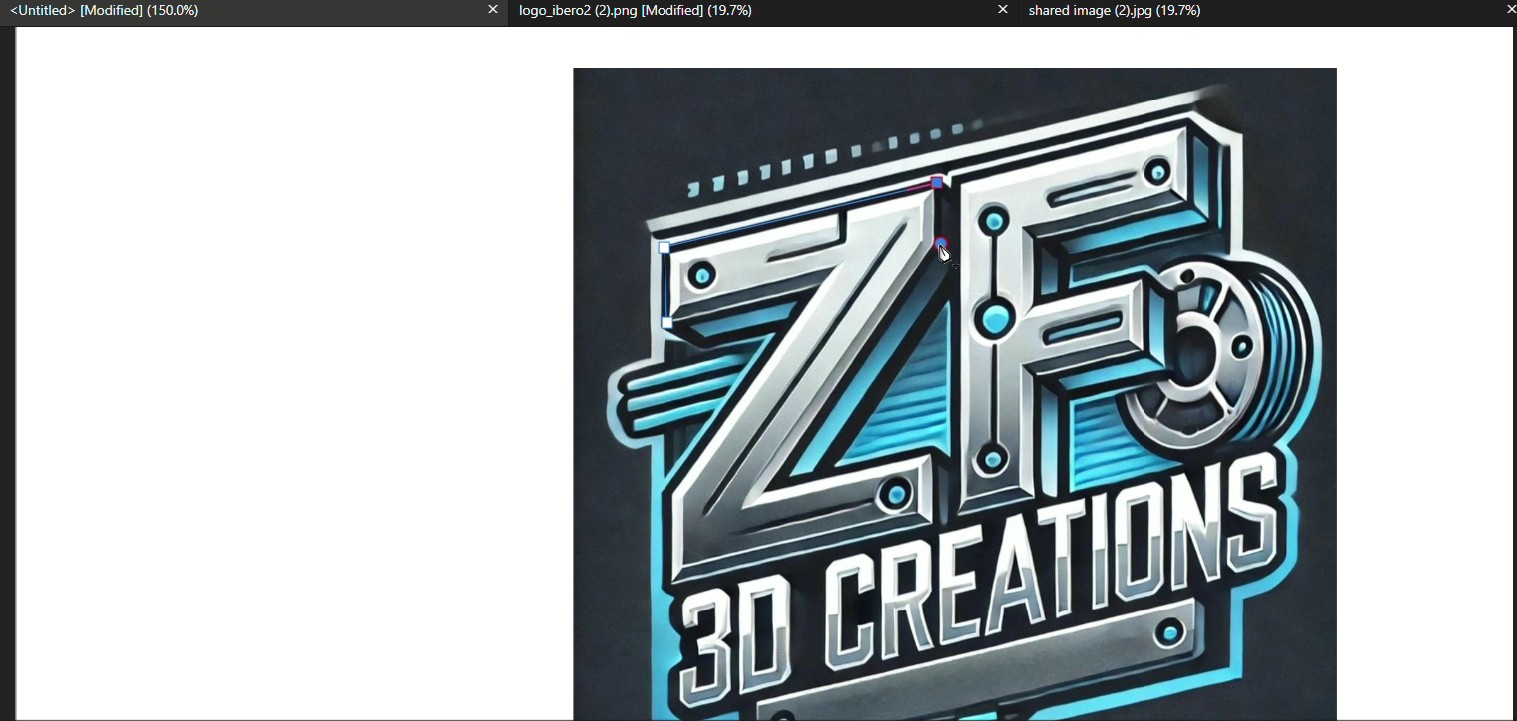
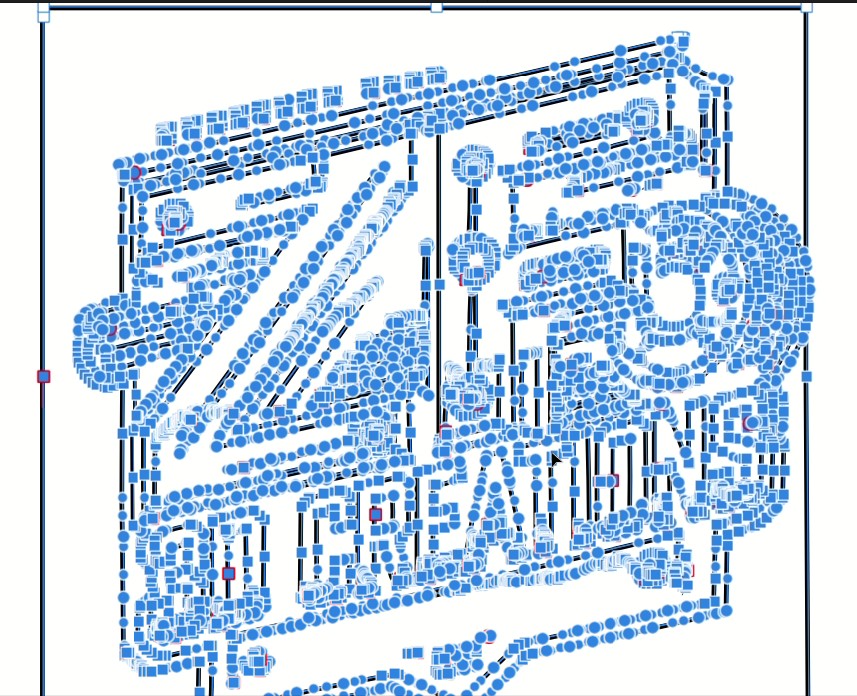
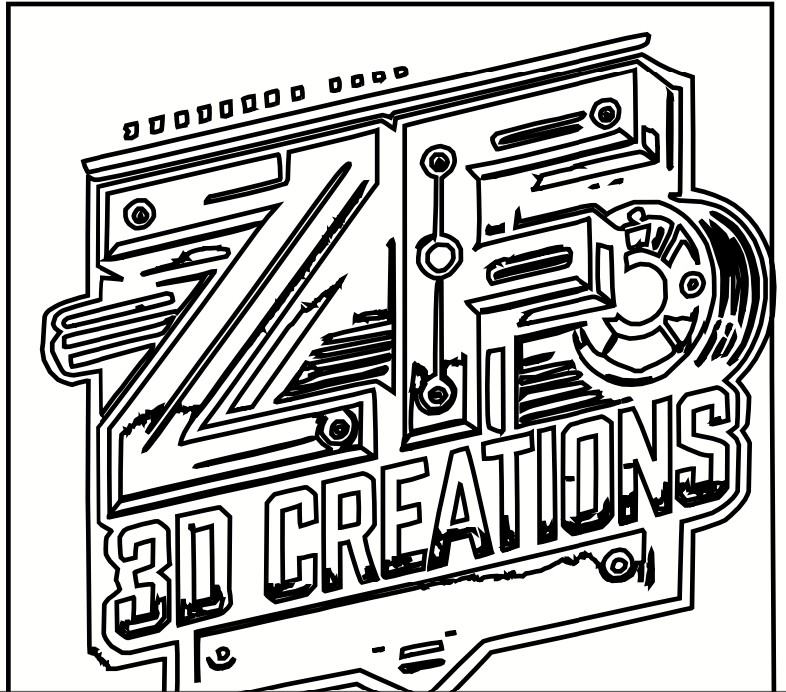
Conclusion (Affinity): Slower than Inkscape but offers higher precision and cleaner geometry, especially for complex shapes or when you need full control over the final vector.
Download .af“Inkscape prioritizes speed (automatic trace), while Affinity prioritizes precision (manual control).”