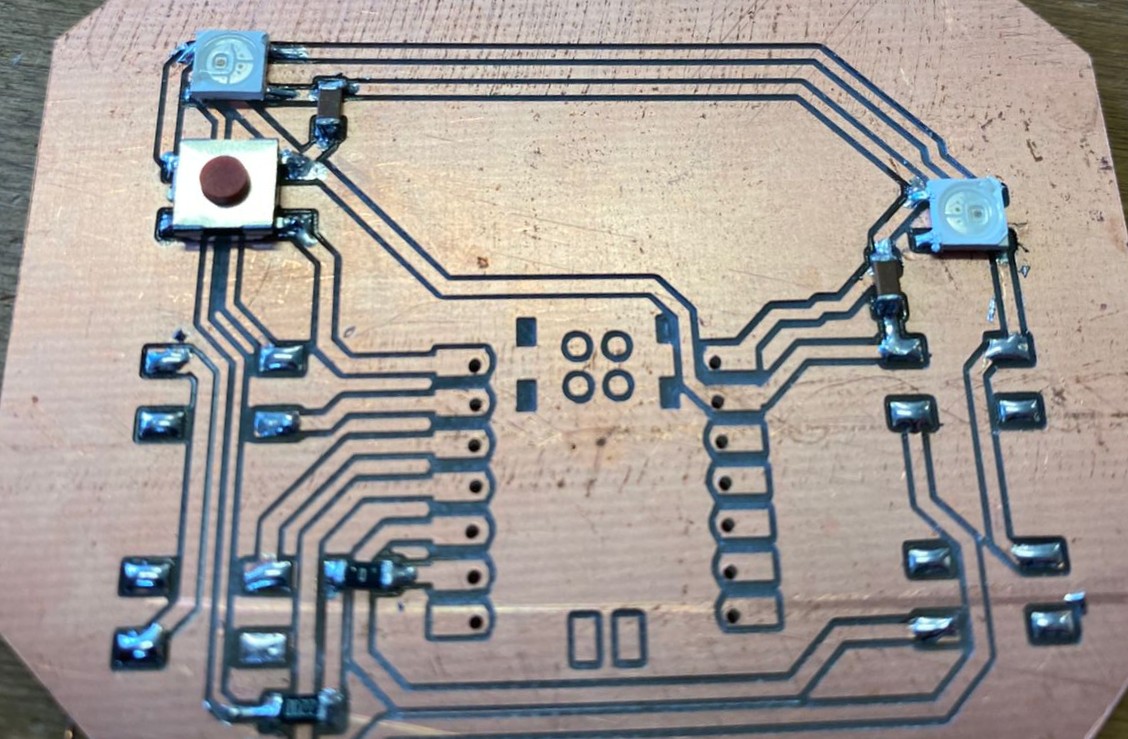
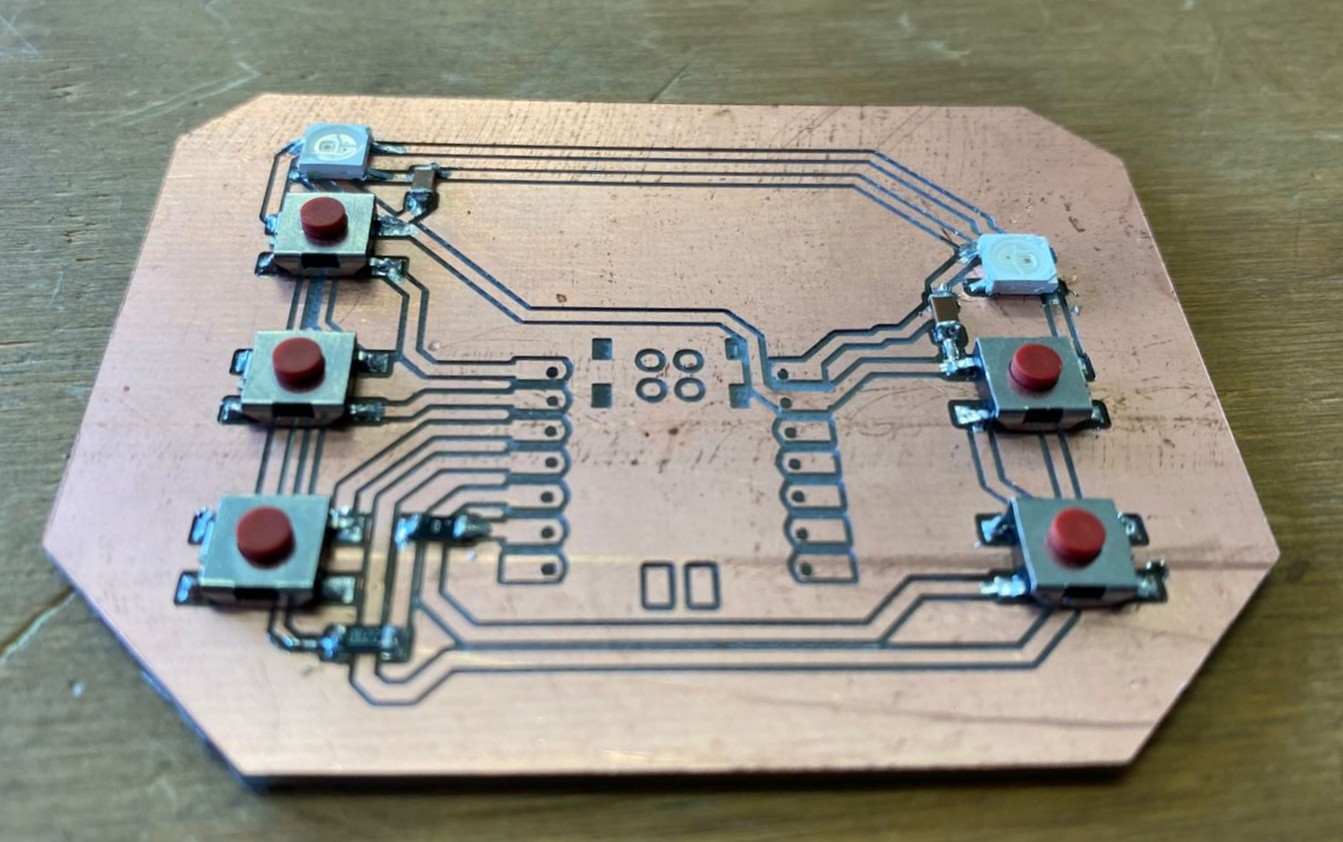
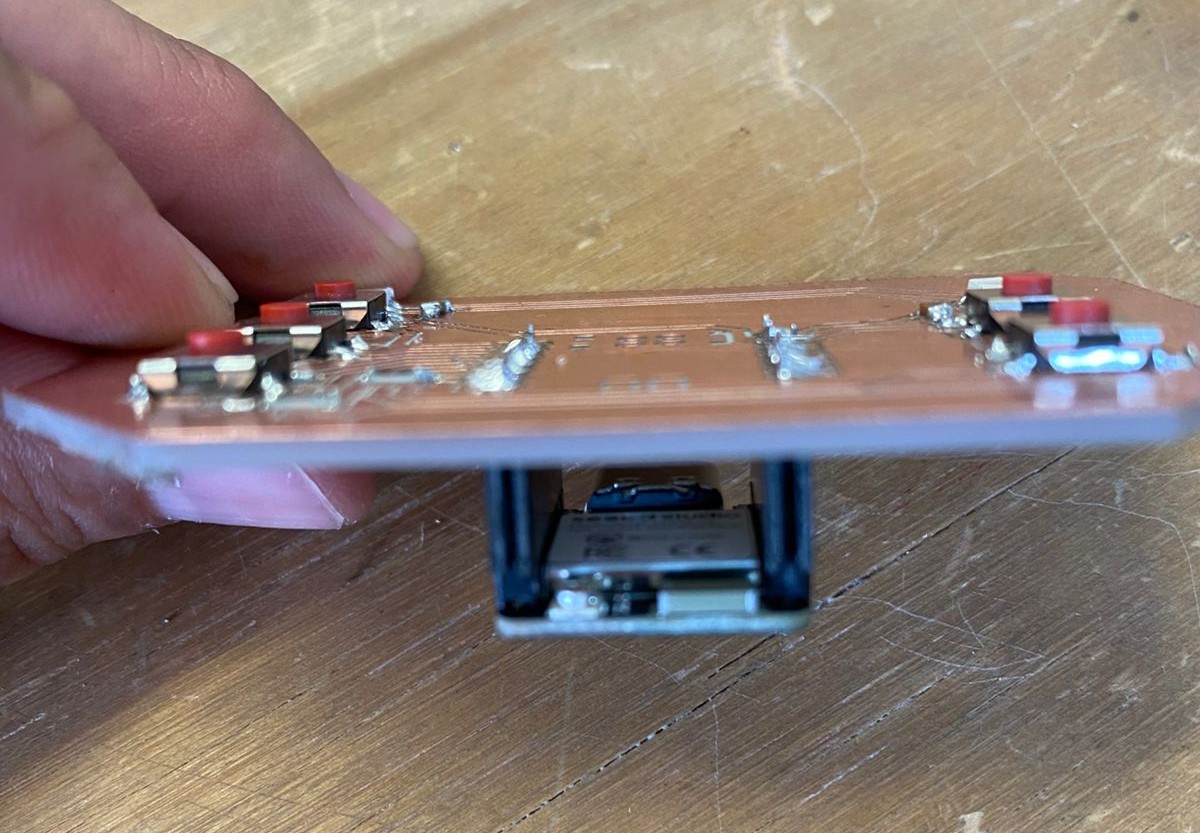
Week 11: Networking and Communications

This week focused on networking and power-aware system design, implementing MQTT communication between microcontrollers for real-time data exchange.

Before starting

In embedded systems, communication methods define how devices exchange information, either within a circuit (local communication) or across networks (remote communication). These methods can be classified into low-level signal-based communication and protocol-based communication, both of which enable structured interaction between a main device and one or more peripheral devices.

Low-Level Communication Methods

These methods are based on electrical signals and are typically used for direct control or simple data transfer between devices:
GPIO (Digital Communication)

Uses HIGH/LOW signals. While simple, it can still represent control logic between a main controller and peripheral devices.

PWM (Pulse Width Modulation)

Encodes information in the duty cycle of a signal. Although commonly used for control (like LED brightness or motor speed), it can also be interpreted as a communication method where the peripheral device decodes signal timing.

DAC (Digital-to-Analog Conversion)

Produces variable voltage levels. This can act as a form of analog communication where continuous signals represent data between devices.

Protocol-Based Communication

These methods define rules for data exchange and are designed for reliable communication between multiple devices:
I²C (Inter-Integrated Circuit)

Two-wire protocol (SDA, SCL) that allows multiple devices using addressing.

  • One main device + multiple peripherals
SPI (Serial Peripheral Interface)

High-speed communication with dedicated lines (MOSI, MISO, SCK, CS).

  • One main device + multiple peripherals (each with select line)
UART (Serial Communication)

Asynchronous communication using TX/RX.

  • Point-to-point (main ↔ peripheral)

Networking Communication (IoT & Wireless)

Beyond local communication, embedded systems can connect through networking technologies, enabling distributed systems:
WiFi

Enables devices to connect to local networks or the internet. Ideal for IoT systems with cloud integration.

Bluetooth / BLE

Short-range communication, commonly used for direct interaction with smartphones.

MQTT (Message Queuing Telemetry Transport)

Lightweight publish/subscribe protocol. Devices communicate through a broker, allowing scalable and decoupled systems.

HTTP/HTTPS

Request-response model used for web services and APIs.

WebSockets (WS/WSS)

Enables real-time bidirectional communication between clients and devices.

Example

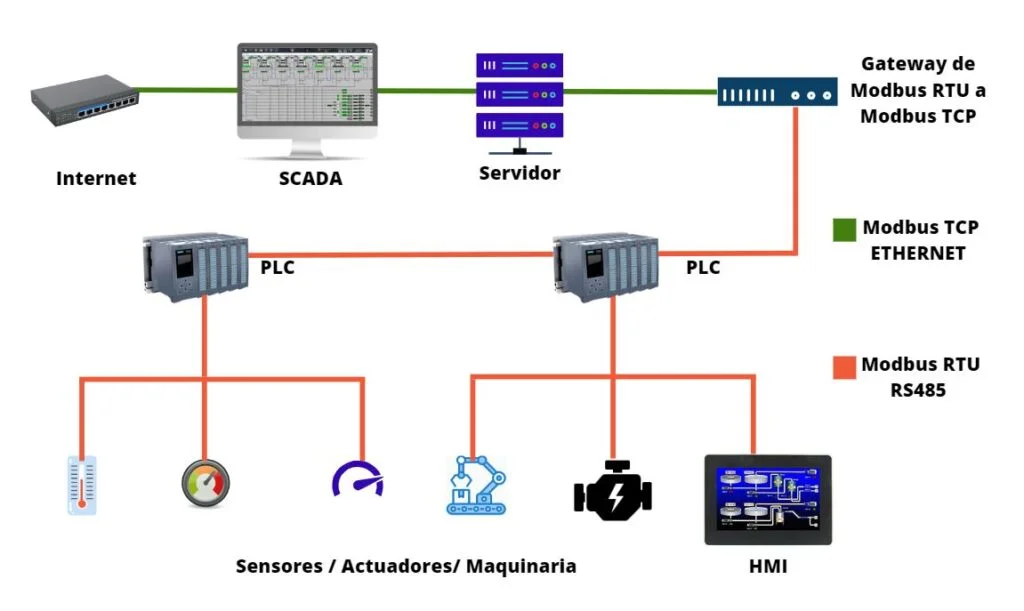
An example of how communications work can be seen in automation processes, where there is a server that hosts several systems such as SCADA. This system connects to the internet, then communicates through a gateway that distributes the data to different controllers (such as PLCs), which are responsible for executing routines based on inputs and outputs.
Fab termi

For further information about this topic, please consult this week’s group page.

Board
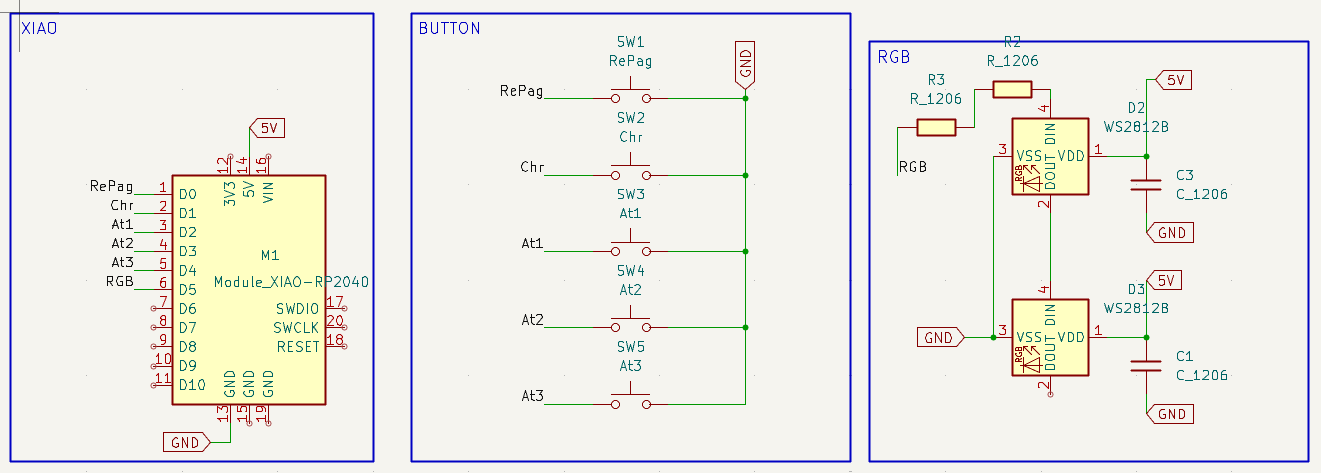
Using the PCB design from Week 6 as a base, a few adjustments need to be made before manufacturing.
Since the objective has changed, we can eliminate the motor output. This not only saves space on the board but also removes a major issue encountered with the MonoFab during fabrication, where cutting the microUSB pins was problematic due to their very small size. Additionally, this modification allows us to implement a direct 5V connection from the XIAO to the NeoPixel LEDs, simplifying the power distribution.
Fab termi

On the PCB design side, as mentioned before, this change makes it possible to reduce the overall board size and eliminates the need for a jumper wire to connect the external 5V line to the XIAO’s 5V pin, which was required in the previous prototype. This results in a cleaner and more reliable layout.
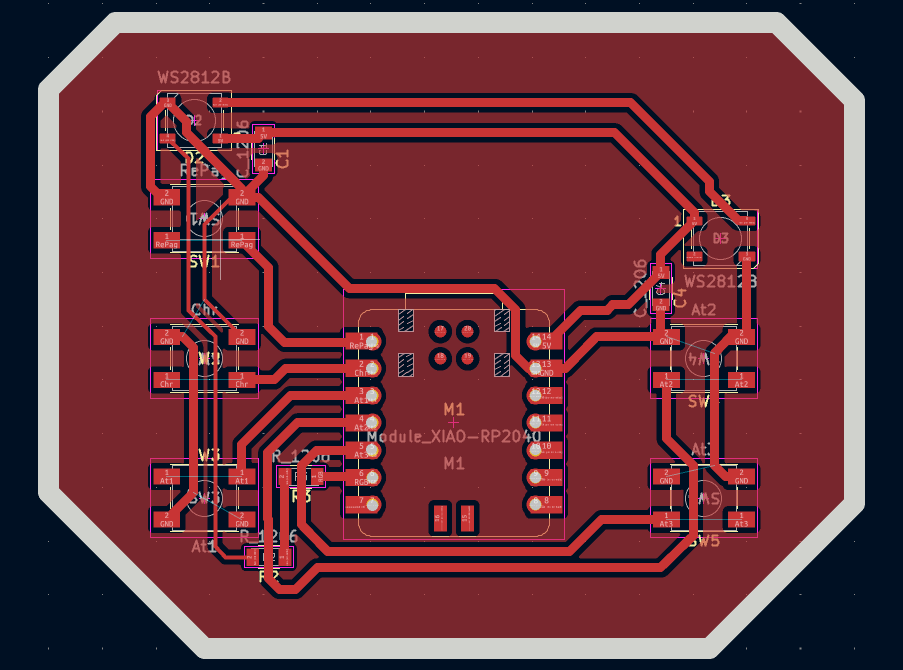
Another aspect to improve is the routing on the left side of the board. In the previous version, the traces were too close to each other, causing the milling tool to leave unintended connections (shorts) between pins and traces. To prevent this issue, the trace width and spacing will be increased to 0.4 mm, ensuring proper isolation and manufacturability.
Fab termi
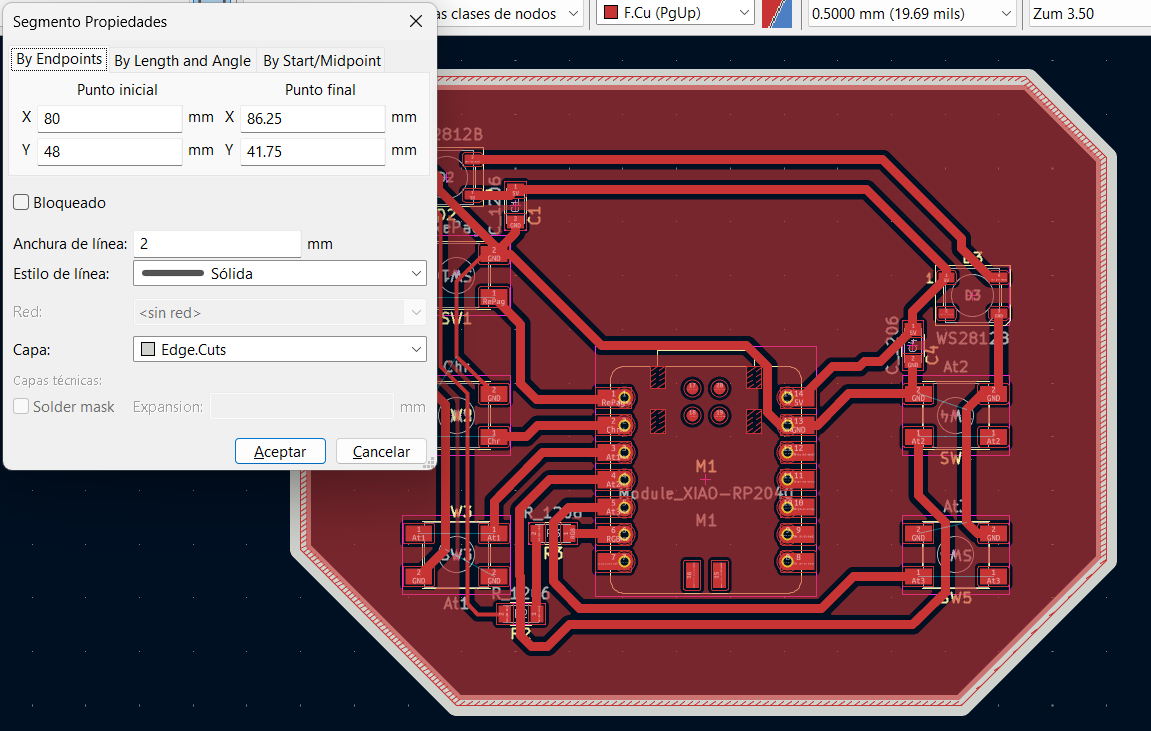
The board outline must be placed on the Edge.Cuts layer, as this defines the physical shape of the PCB. Since the milling tool that will be used has a diameter of 2 mm, the outline must be designed with a line width equal to or greater than this value to ensure proper cutting and avoid inaccuracies during fabrication.
Fab termi
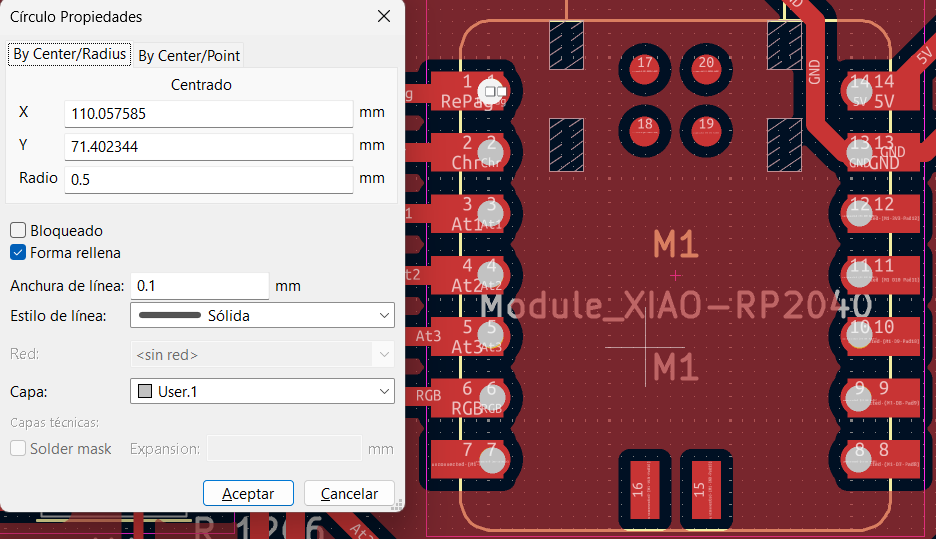
For the holes required to place or mount components on the board, these will be drawn on the User.1 layer for convenience. This can be done by creating circles with the required diameter, making sure they are adjusted according to the tool size that will be used. It is important to set these shapes as filled so they are properly interpreted during the manufacturing process.
Fab termi
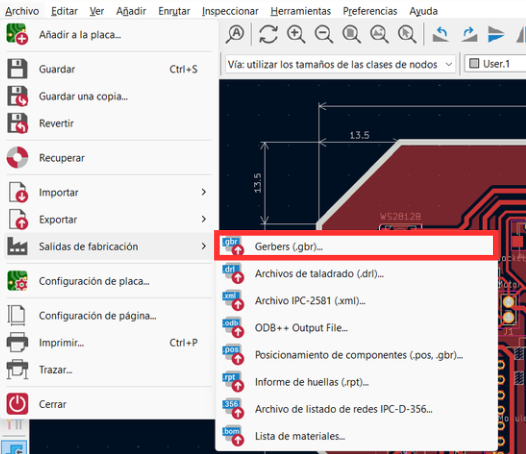
Once this setup is complete, the next step is to generate the fabrication files by navigating to:
File -> Fabrication Outputs -> Gerbers (.gbr).
Fab termi
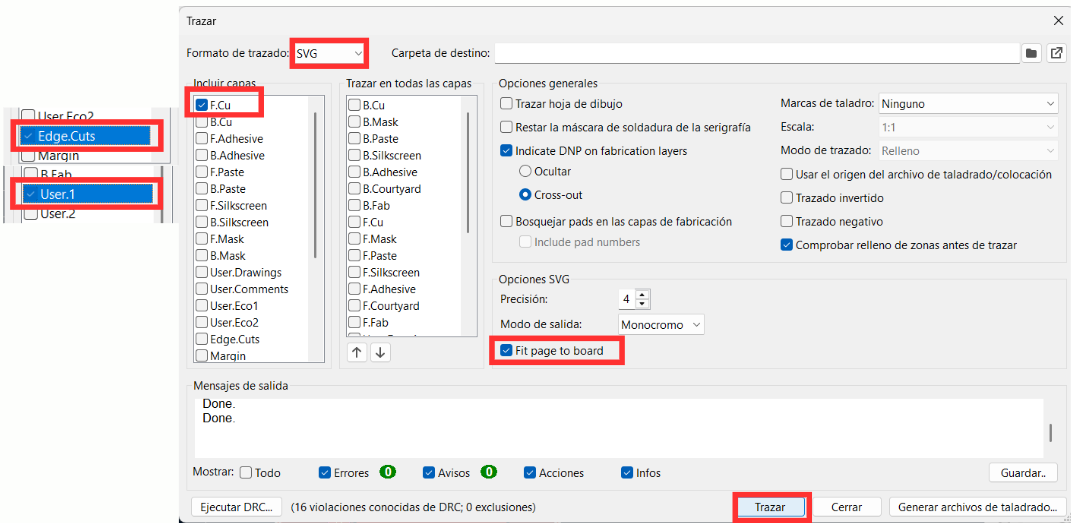
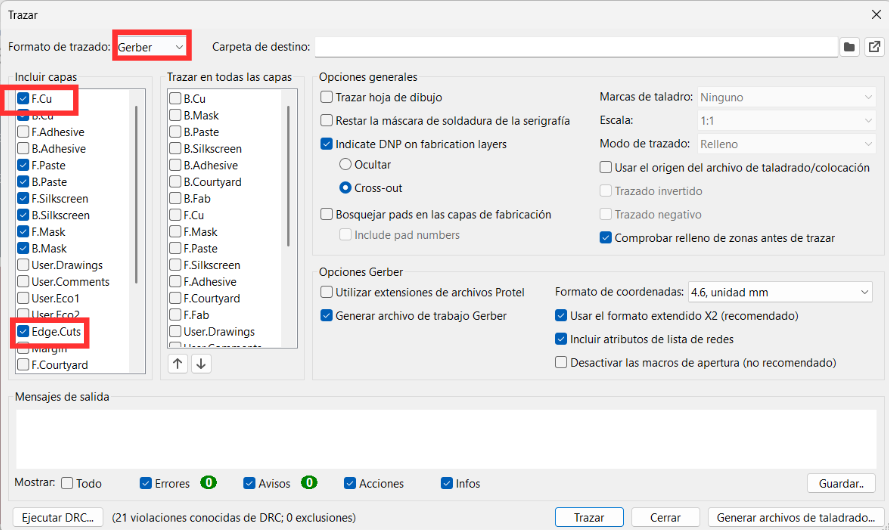
In the pop-up menu, some changes are required:
  • Change the output format to SVG, since this format is compatible with the MonoFab workflow.
  • Select each of the previously defined layers individually (such as traces, Edge.Cuts, and User layers).
  • Enable the option “Fit page to board” to ensure the design scales correctly.
  • Finally, click on “Plot” to generate the files.
Fab termi
Fab termi
With the SVG files generated, the design is now ready to move on to the next stage of the manufacturing process.
Fab termi
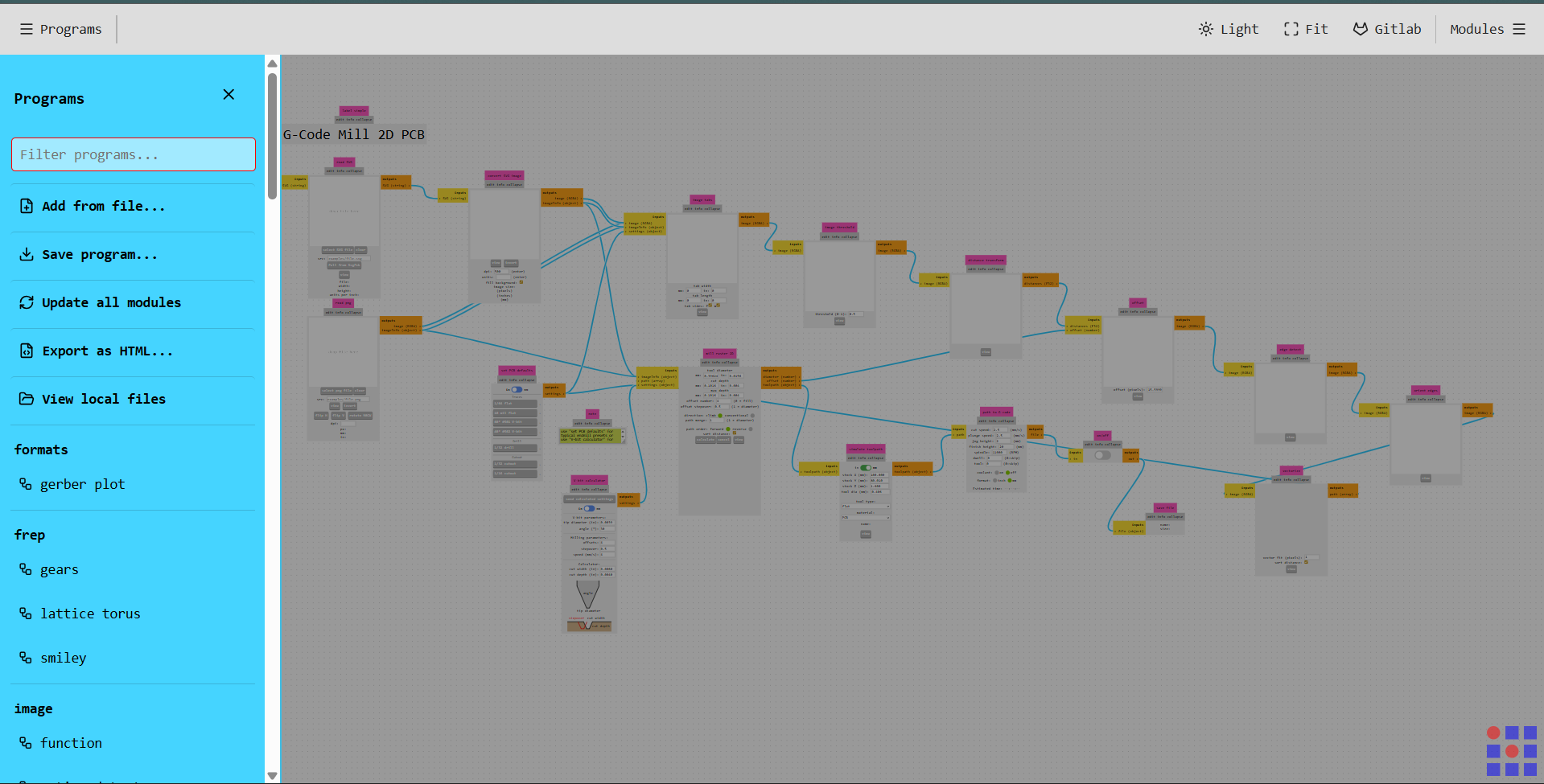
There are several ways to generate files suitable for Manufacturing Readiness Levels (MRL), which ensure that a design is properly prepared for fabrication. One practical approach is using a web-based tool developed by the Fab Lab community called MODS CE.
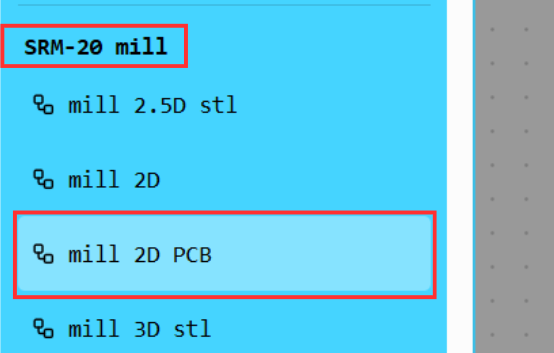
Within this platform, a wide variety of machines can be selected from the left-hand menu. In this case, the Roland SRM-20 milling machine was chosen under the “mill 2D PCB” option.
Fab termi
Fab termi
Fab termi
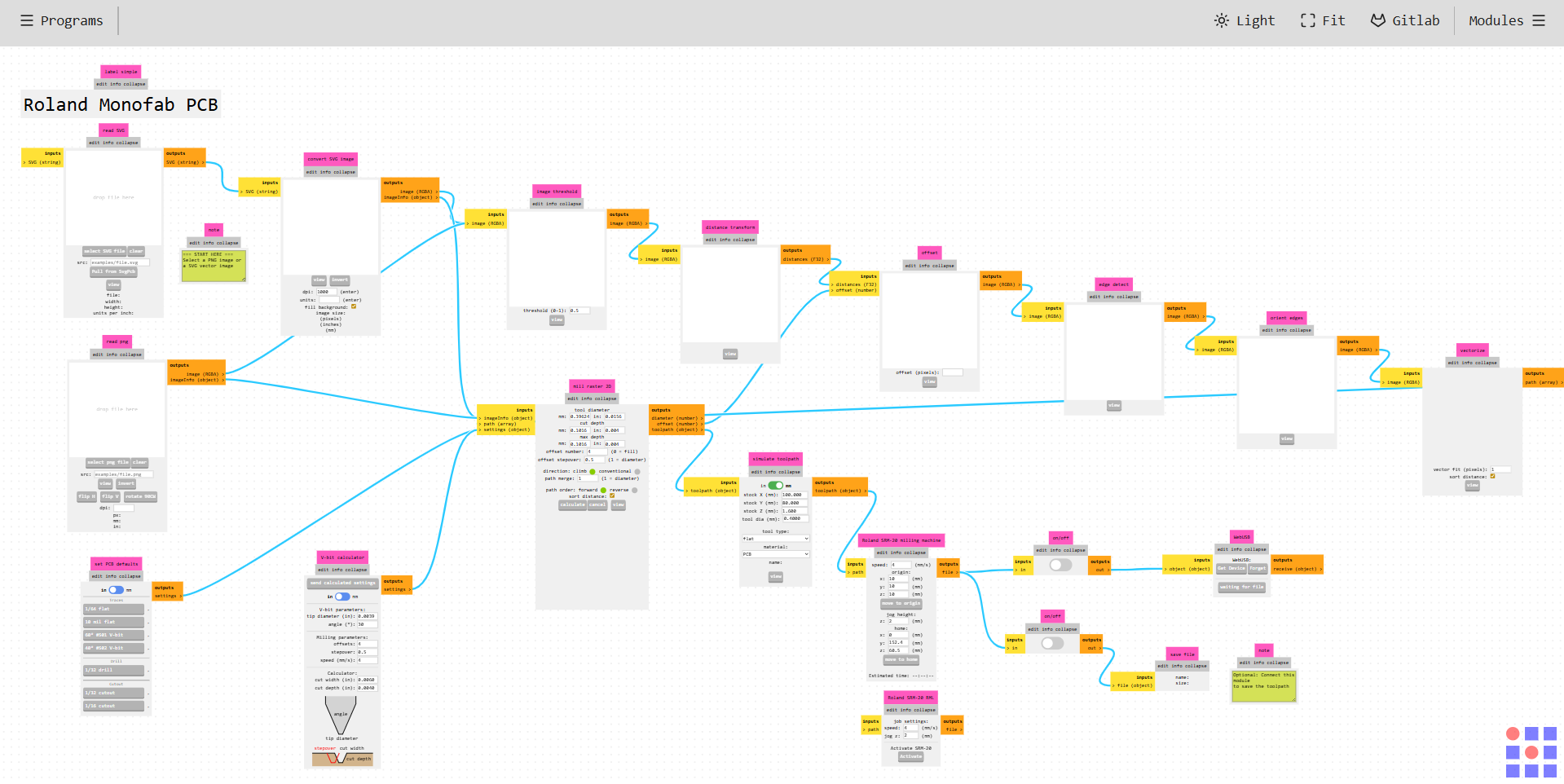
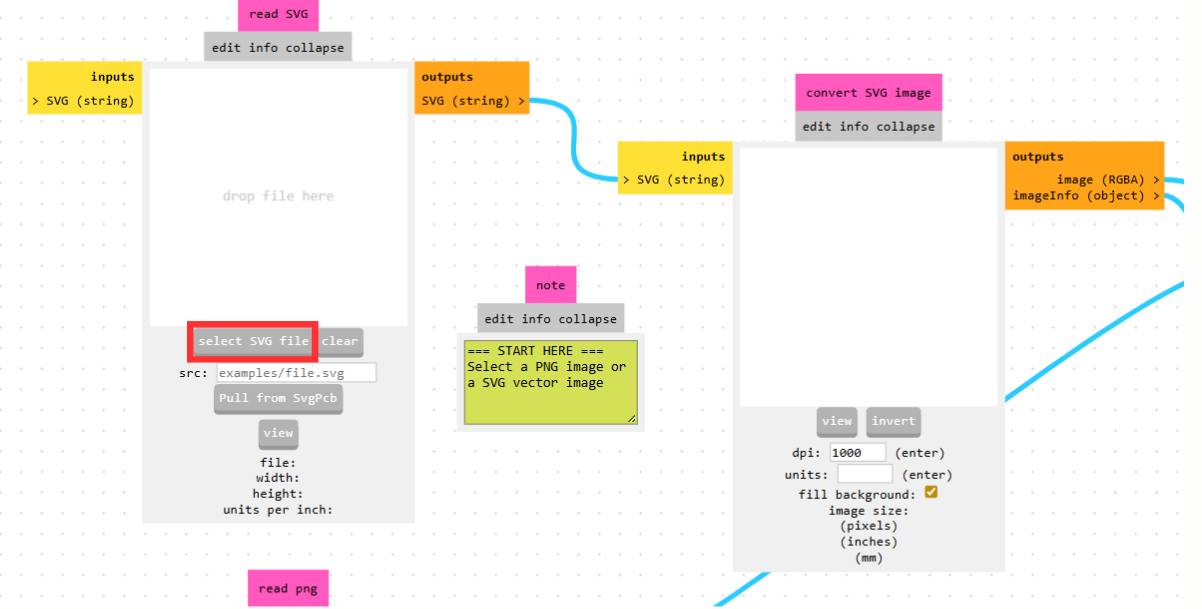
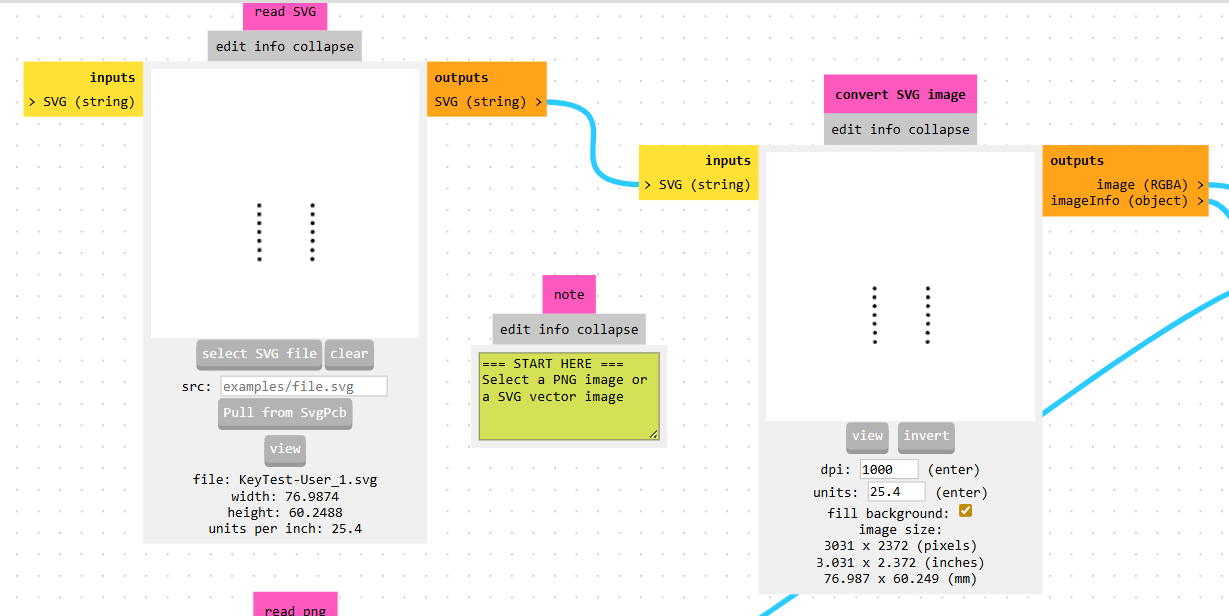
The interface provides a modular workflow, where each step corresponds to a stage in preparing the machining process. The first step is to import an .svg file, which contains the PCB design.
The modules “Read SVG” and “Convert SVG Image” are used to visualize and manipulate the working area of the PCB. These allow the user to define dimensions and identify cutting regions, which are typically shown in black (indicating where the tool will remove material). Another important module is “Set PCB Defaults”, which works in conjunction with “mill raster 2D”, as it defines the tool parameters such as cutting depth, speed, and offsets.
Fab termi

Drilling Process

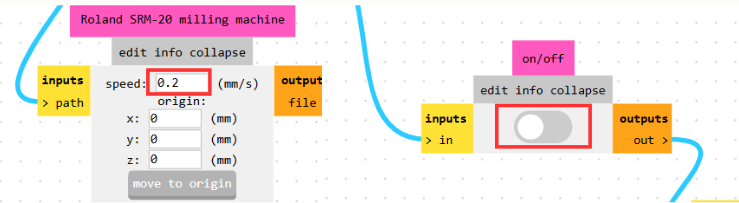
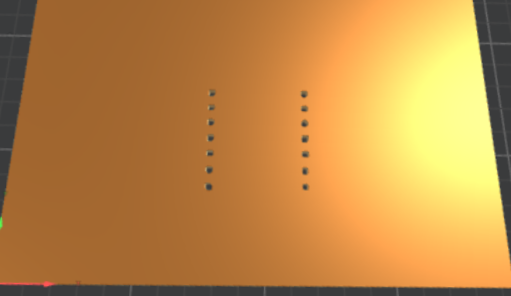
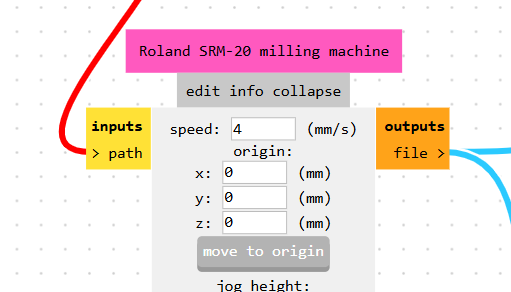
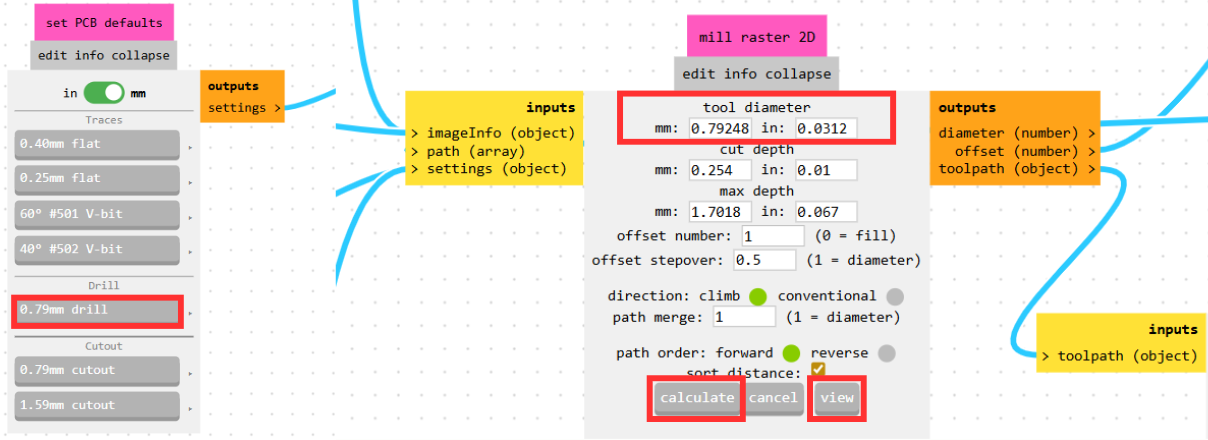
For drilling operations, a 0.79 mm drill bit is used. Before exporting the toolpath, it is necessary to adjust the feed rate in the Roland SRM-20 milling machine module to 0.2 mm/s, which helps prevent tool breakage due to excessive stress.
Fab termi
Fab termi
Additionally, the origin must be set to (0,0,0) in both the XY plane and Z axis to ensure proper alignment during machining. To export the file, the on/off button must be set to “true”, after which clicking “calculate” generates the toolpath. A preview of the PCB can be displayed by clicking “view”, or it may appear automatically after calculation.
Fab termi
Fab termi
An important detail

is that some holes, such as those for the transistor, may not appear. This occurs because the drill bit diameter is larger than the hole size defined in the design, making it impossible for the tool to reproduce those features accurately.

Traces Milling

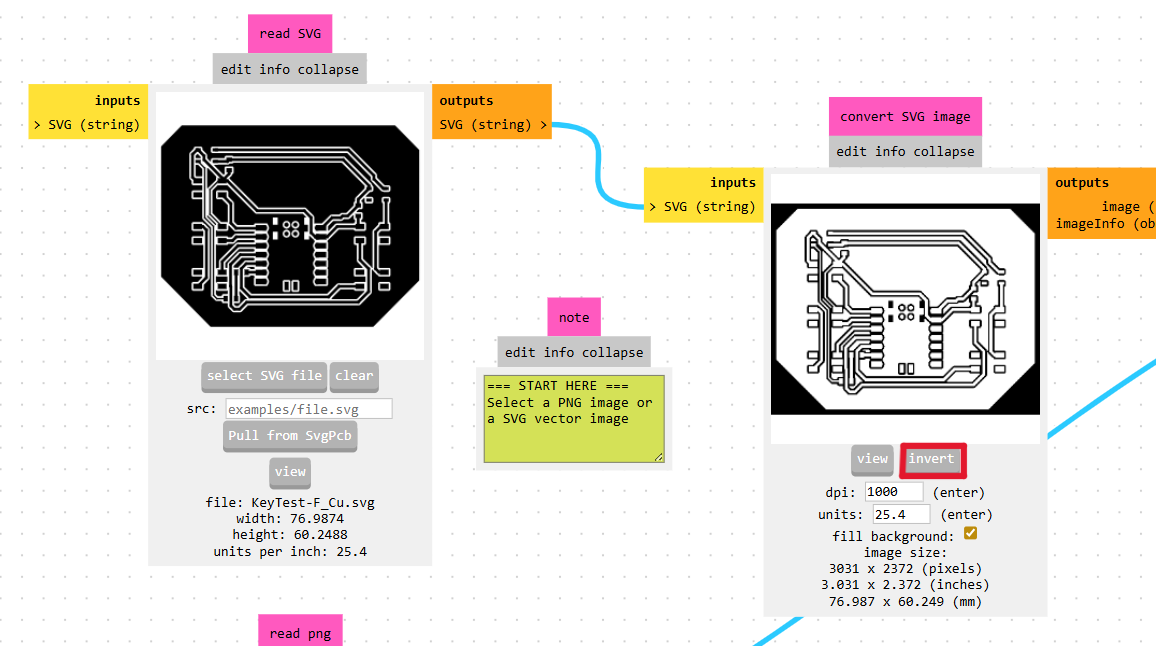
The process for milling traces is similar, but with a key difference. When importing the SVG, the traces may appear in black, which indicates that they will be removed this is incorrect for PCB traces.
Fab termi
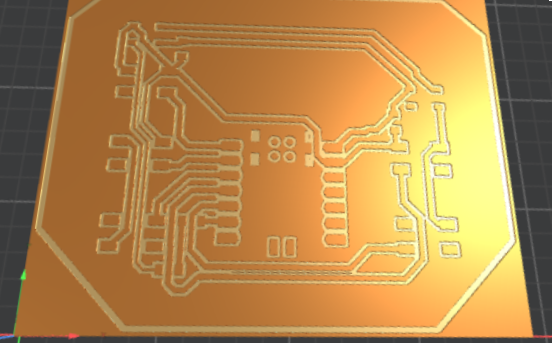
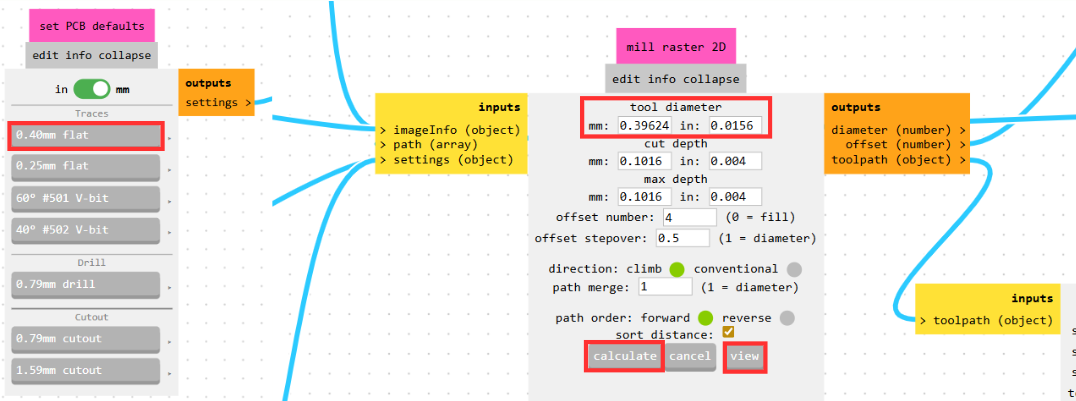
To fix this, the image must be inverted in the “Convert SVG Image” module, so that the tool removes only the surrounding copper and preserves the traces.
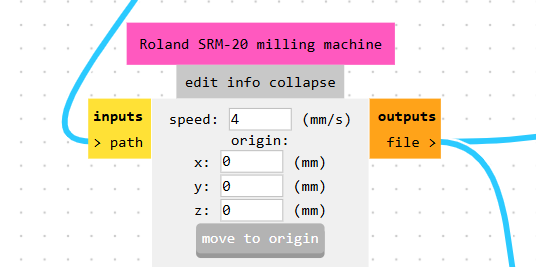
For this step, a 0.40 mm flat end mill is used with a feed rate of 4 mm/s, and the origin is again set to (0,0,0).
Fab termi
Fab termi
Fab termi

Board Outline

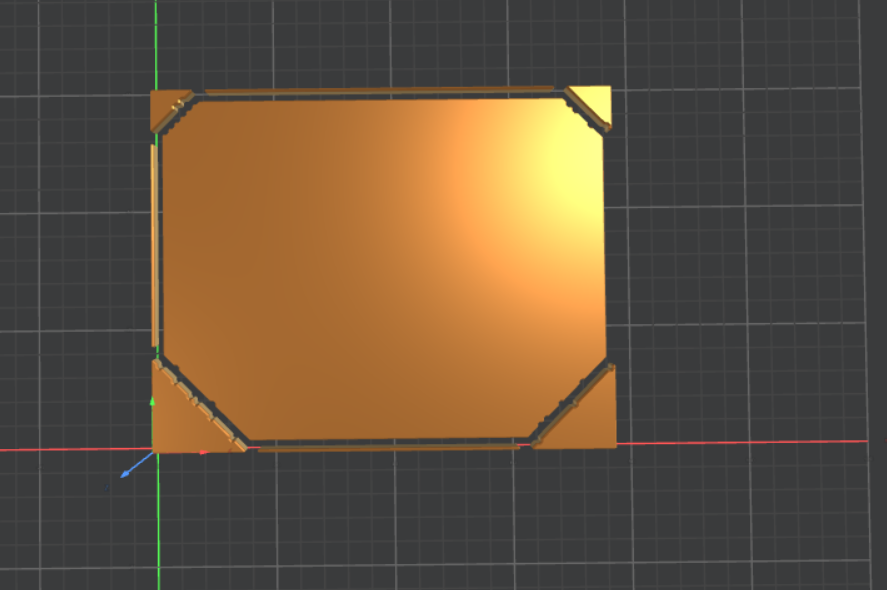
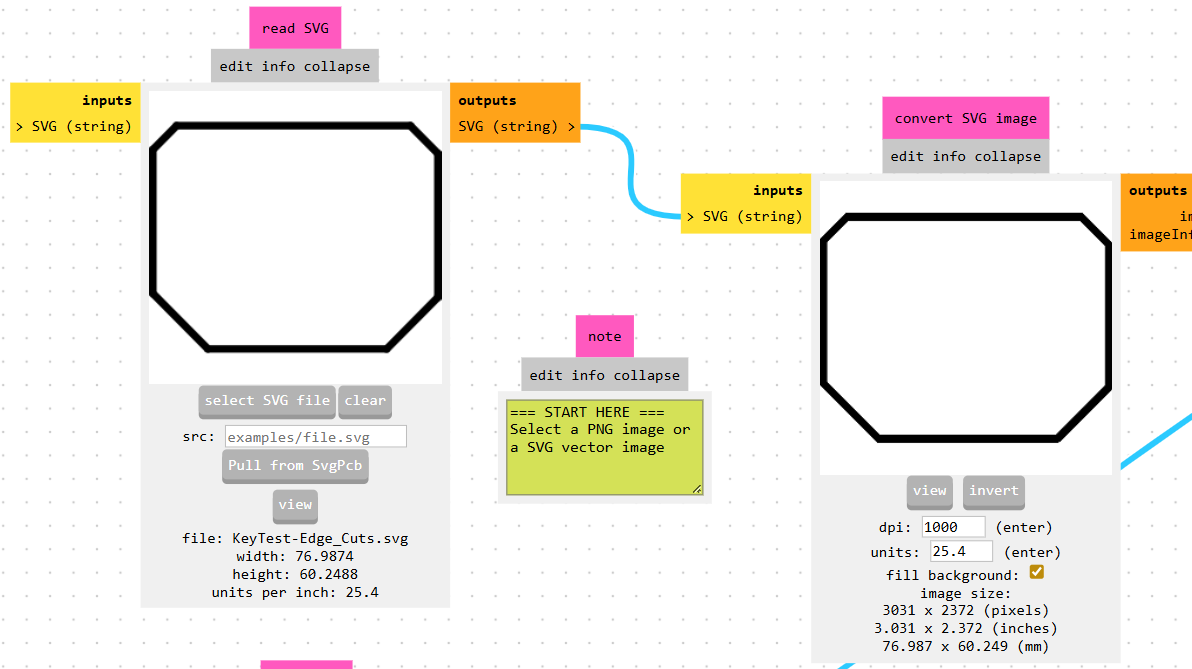
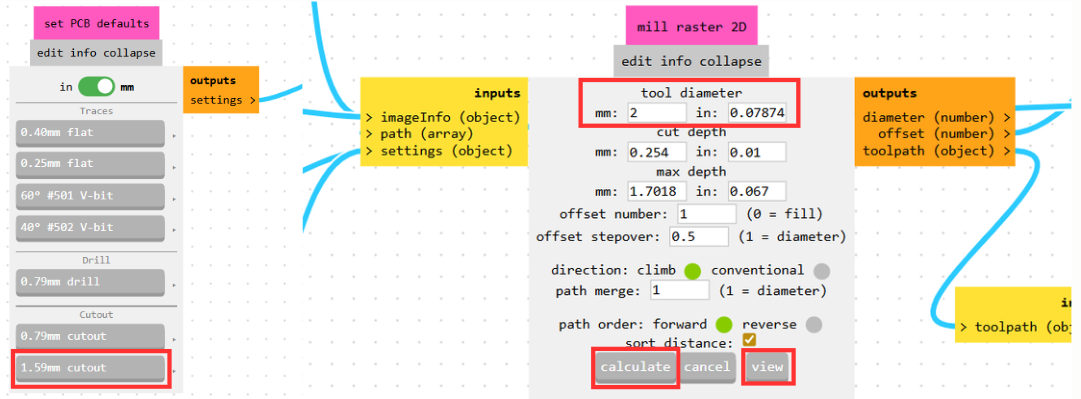
Finally, for cutting the board outline, a 1.59 mm cutout tool is used with a feed rate of 4 mm/s, maintaining the origin at (0,0,0).
Fab termi
Fab termi
In this case, the outline is correctly represented, and the toolpath accurately follows the intended board shape.
Fab termi
Fab termi

SRM-20 by DGSHAPE

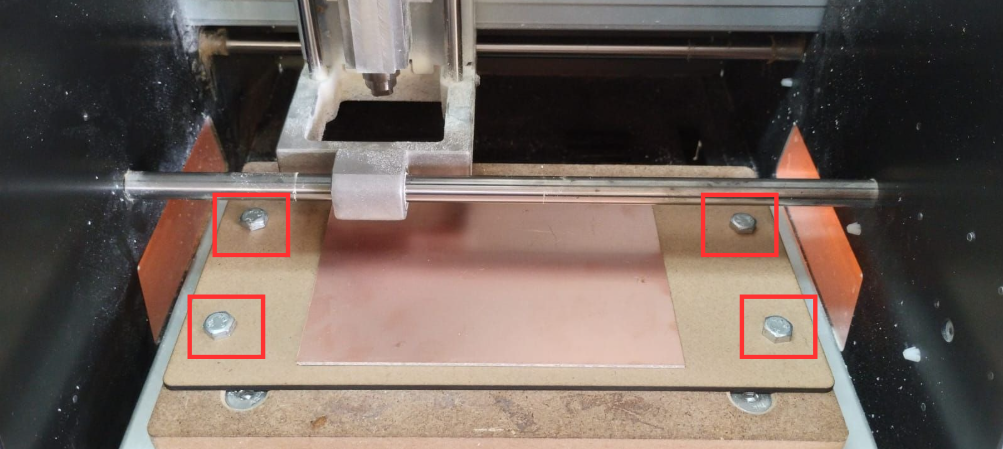
Moving on to the SRM-20 by DGSHAPE, the first step is to properly secure the PCB material onto the sacrificial bed. This is done using double-sided tape, ensuring the board is firmly attached. The sacrificial bed itself must be fixed to the MonoFab base using the provided screws or bolts to prevent any problem during machining.
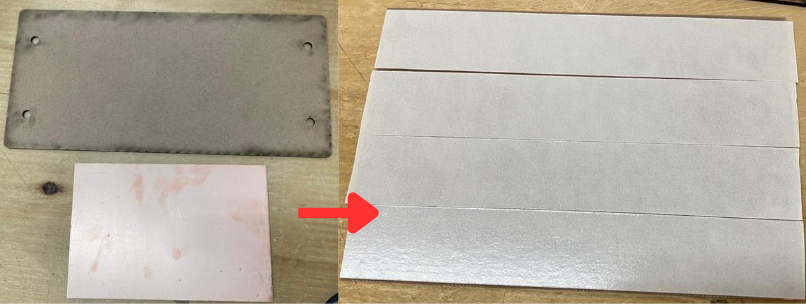
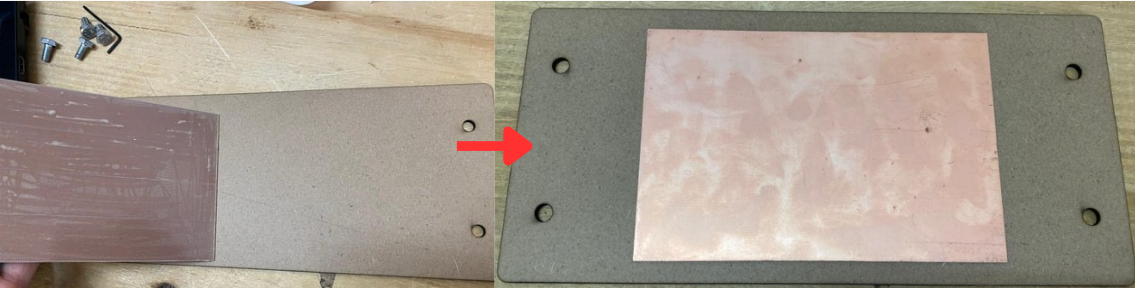
Fab termi
Fab termi
Fab termi
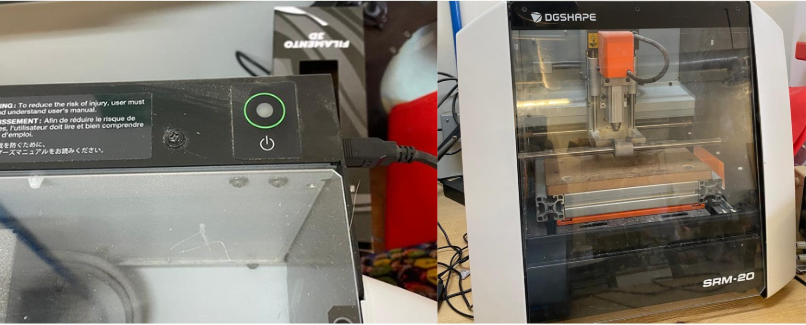
To power on the machine, press the power button located at the back of the SRM-20.
Fab termi
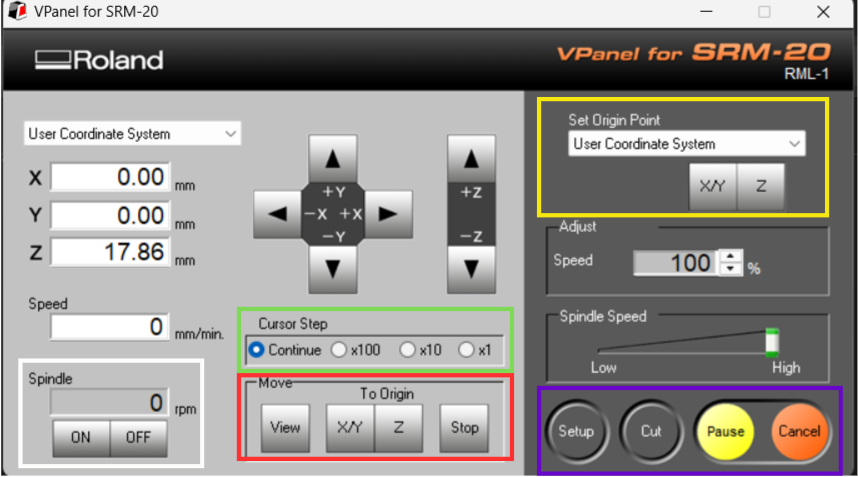
Once the machine is on, open the control software VPanel, which allows manual and automated control of the milling process. The interface contains several important menus:
Fab termi
Set Origin Point:

This is used to define the reference position of the machine. The X/Y axes are set to establish the horizontal origin, and the Z axis is set separately to define the vertical starting point.

Move:

This option allows manual positioning of the toolhead to locate the origin or move to a specific point on the board.

Cursor Step:

Adjusts the step size or speed of manual movements, enabling fine or coarse positioning depending on the need.

Spindle:

Controls the rotation of the milling spindle. It is especially useful when setting the Z axis, as the tool can be carefully lowered without applying excessive force that could damage it.

Process Controls

These manage the execution of the machining jobs.

To load machining files, click on the “Cut” button. A new window will appear:
  1. Click “Delete All” to remove any previously loaded jobs.
  2. Click “Add” and select the .rml files generated earlier in MODS.
It is critical to follow the correct processing order:
Drilling -> Traces -> Outline
This order is essential because:
  • If drilling is done after milling traces, it may damage or lift the copper tracks.
  • If the outline is cut first, the board may move, ruining the remaining processes.
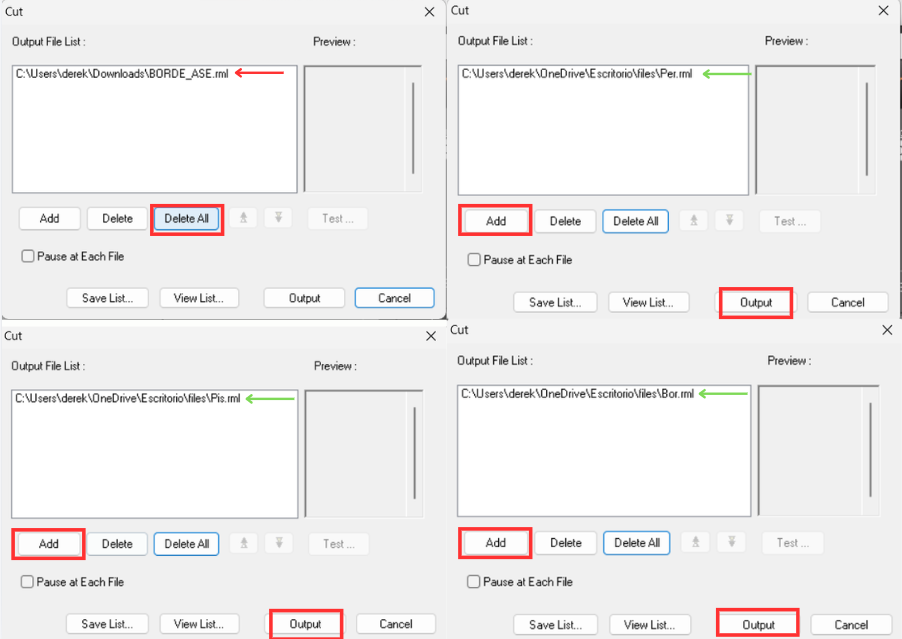
Fab termi
After loading the files in the correct order, press “Output” to start the machining process.

Tooling and Setup Considerations

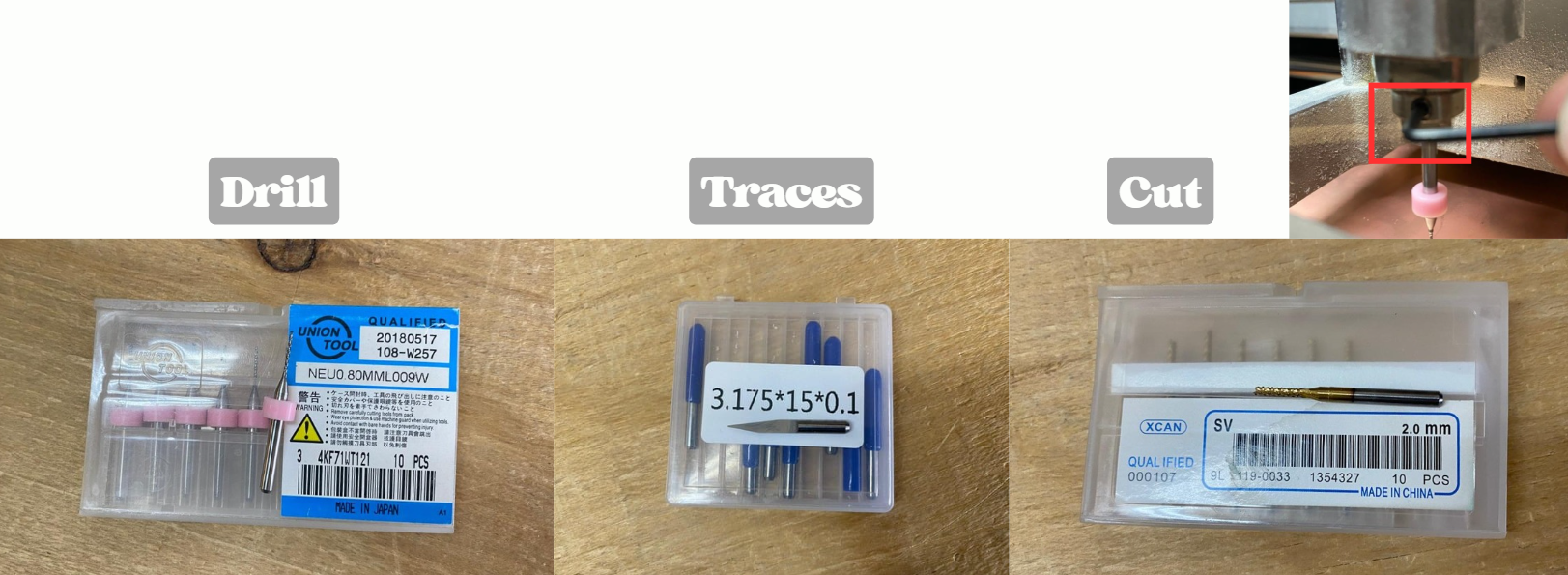
The tool dimensions used in MODS correspond to real milling bits:
Process Tool Diameter
Drilling 0.8 mm
Traces rounded to 0.4 mm
Cutout 2 mm
Fab termi
Each tool must be manually installed by inserting the bit into the spindle and tightening it using an Allen key on the set screw.
Since each tool serves a different purpose, they must be changed between operations. This is why the files are executed separately and in a specific order.
Important:

Every time the tool is changed, the Z axis must be recalibrated, since the tool length may vary. Failing to do this can result in improper cutting depth or tool breakage.

The complete workflow consists of:
  1. Securing the PCB material to the bed.
  2. Setting the X, Y, and Z origin points.
  3. Loading the .rml files in the correct order.
  4. Running each process sequentially (drilling, traces, cutout).
  5. Changing tools and recalibrating Z between each step.
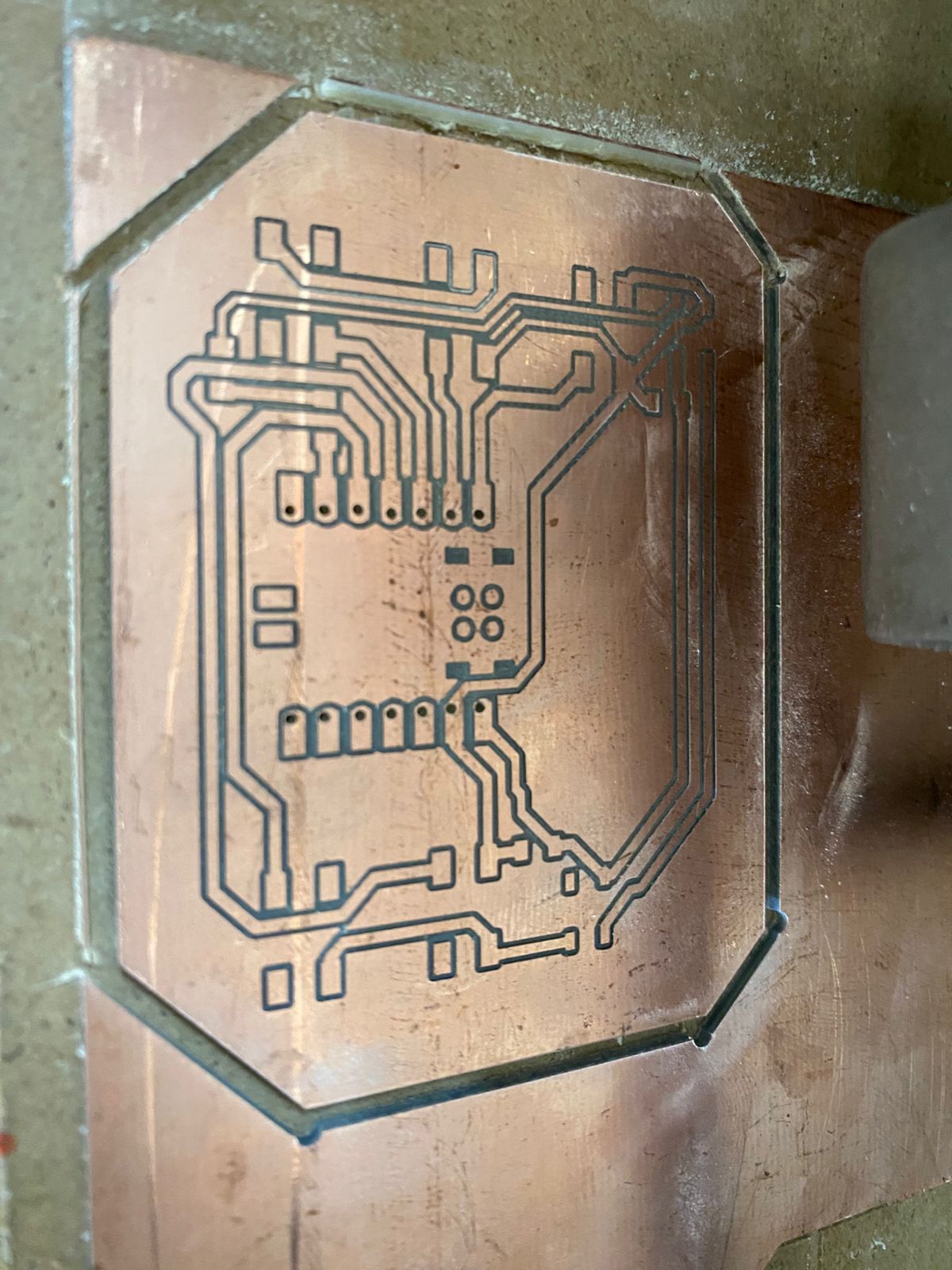
Fab termi

Solder

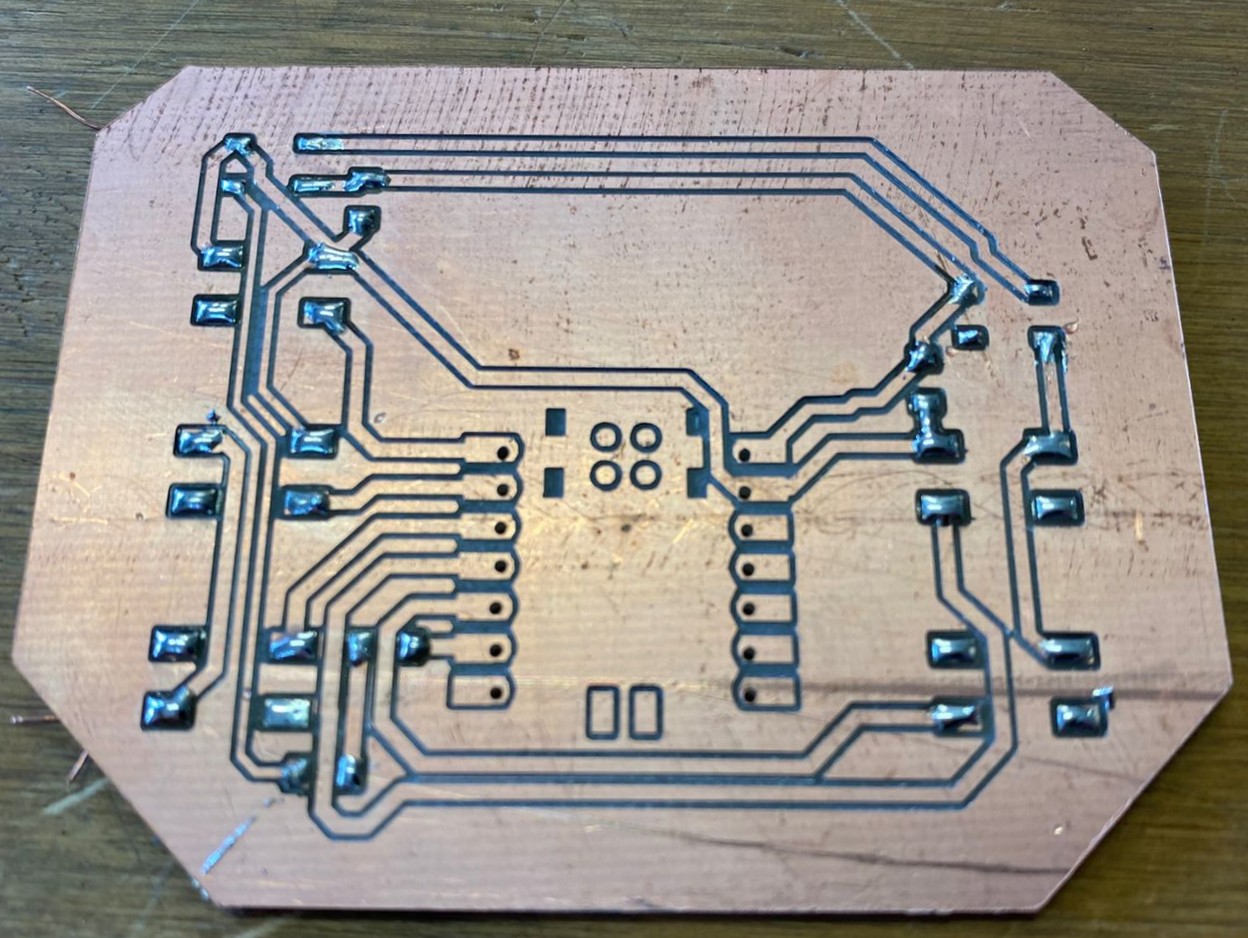
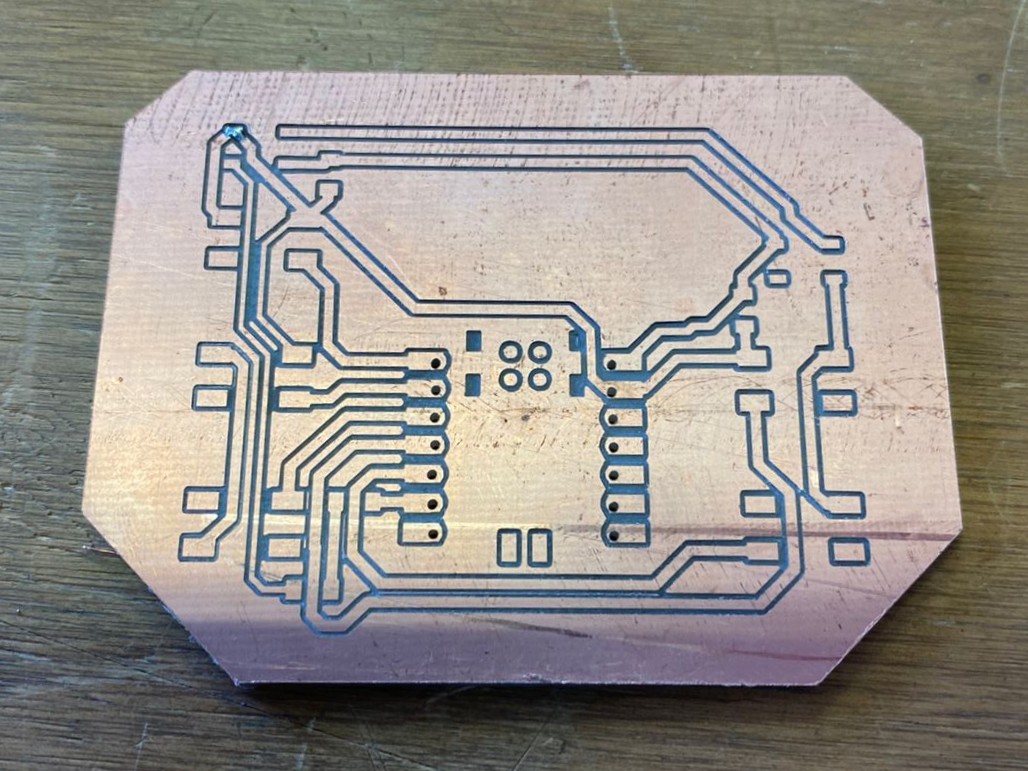
With the PCB already milled and cut, the next step is soldering. Since most of the components are SMD, it is necessary to pretin the pads before placing the components. This process consists of applying a small amount of solder to the pad by heating it with the soldering iron for a few seconds, and then feeding solder from the opposite side until it melts and forms a thin, even layer.
Once the pad is pretinned, the component can be positioned and soldered by reheating the pad and allowing the solder to secure it in place.
Fab termi
Fab termi
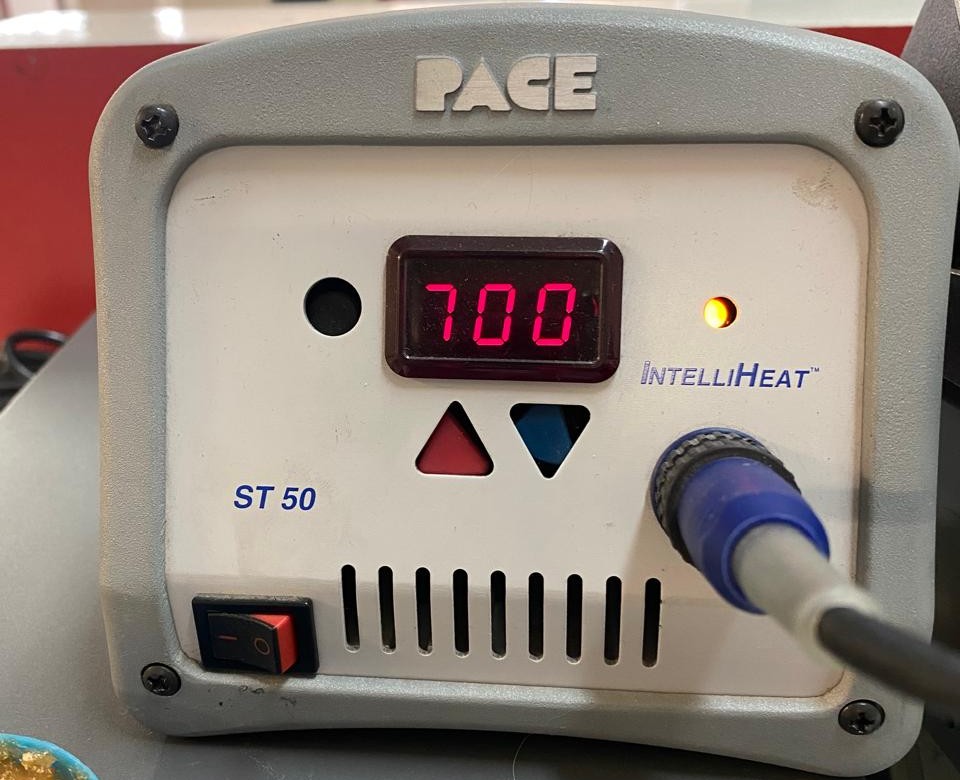
The soldering temperature used is 700°F (~370°C), which provides a good balance between efficient heat transfer and control. If the temperature is too low, the solder may not flow properly, resulting in weak or “cold” joints. On the other hand, excessively high temperatures can damage components, lift PCB pads, or degrade the board material.
Fab termi

Soldering Temperatures

Temperature (°F) Application
600–650°F Delicate components, low thermal mass
650–700°F General SMD soldering (recommended range)
700–750°F Through-hole components or larger pads
750°F+ Heavy ground planes (use with caution)
Fab termi
For a more efficient assembly process, it is recommended to solder components in the following order:
  1. Capacitors and resistors (smallest components)
  2. LEDs (SMD)
  3. Buttons and connectors
  4. Microcontroller (XIAO RP2040)
This approach, going from smallest to largest, improves accessibility and reduces the risk of interfering with already soldered components.
Fab termi
Fab termi


MQTT protocol

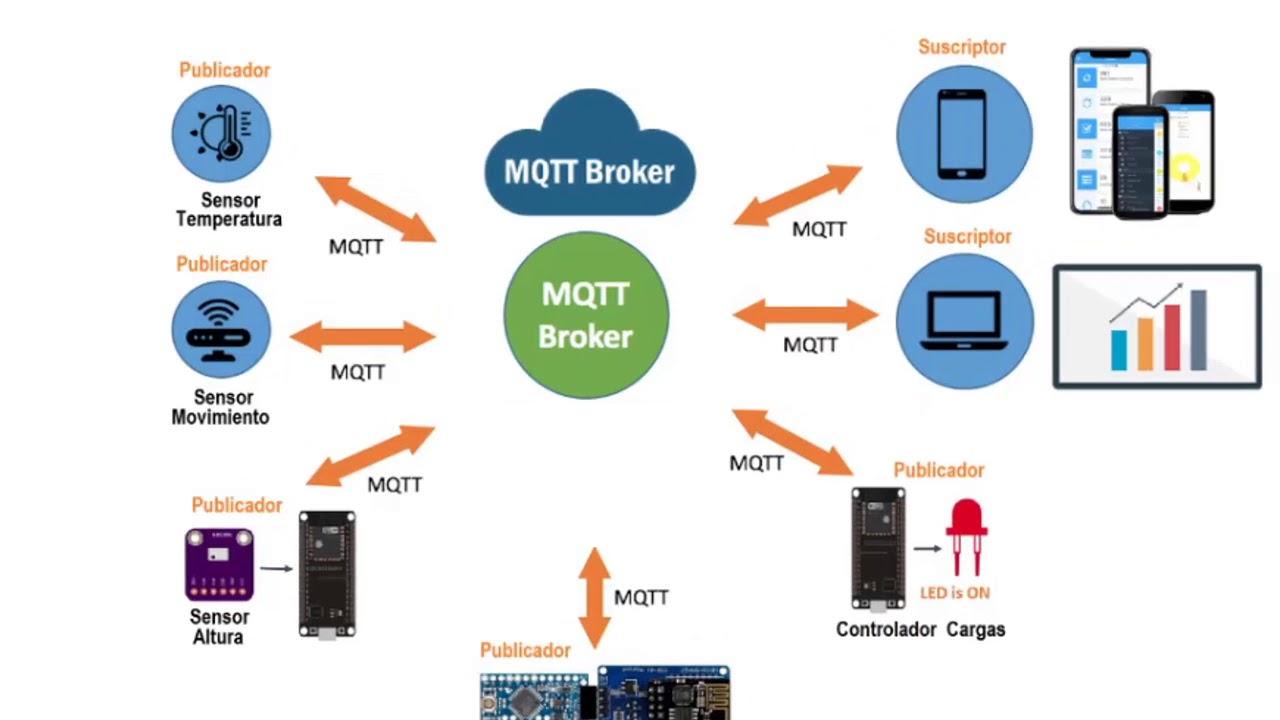
For communication, the MQTT protocol will be used, as it is lightweight, efficient, and ideal for systems with multiple devices connected to the same broker. One of its main advantages is the publish/subscribe model, which allows three or more devices to communicate without needing direct connections between them. This reduces complexity, improves scalability, and enables real-time bidirectional communication.
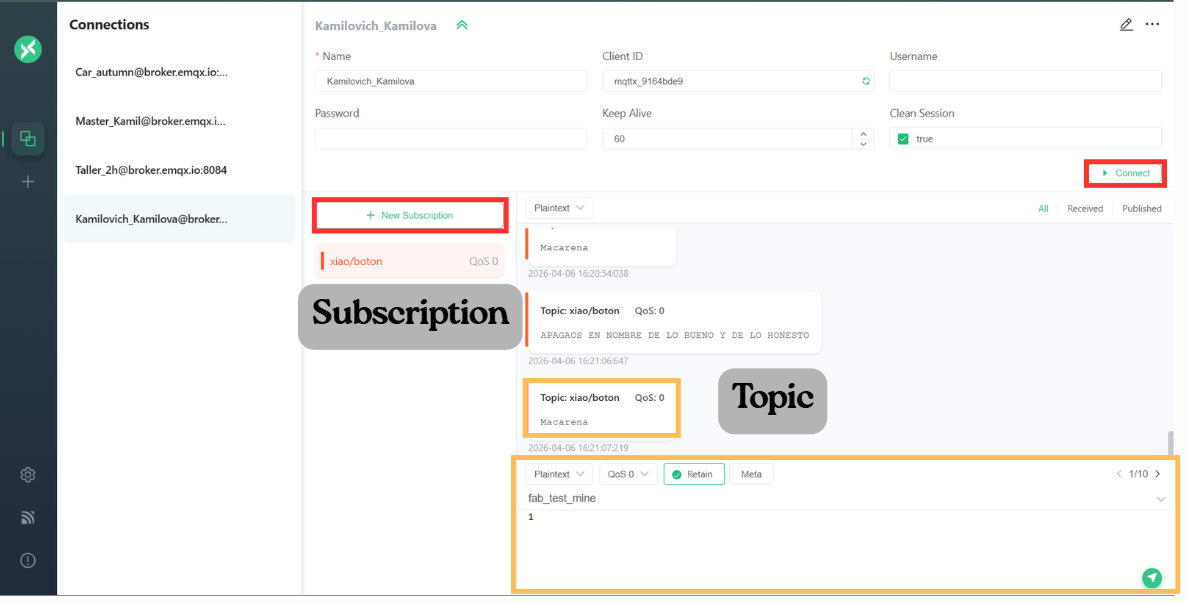
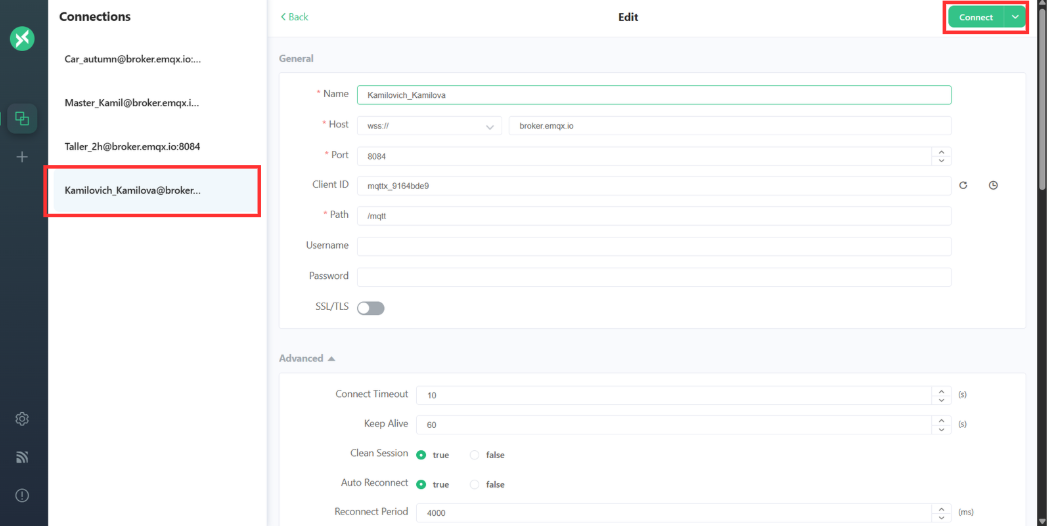
The broker used will be MQTTX, as it provides an online client that simplifies testing and debugging connections without requiring local installation. This makes it easier to visualize topics, messages, and device interactions in real time.

MQTT Configuration (MQTTX)


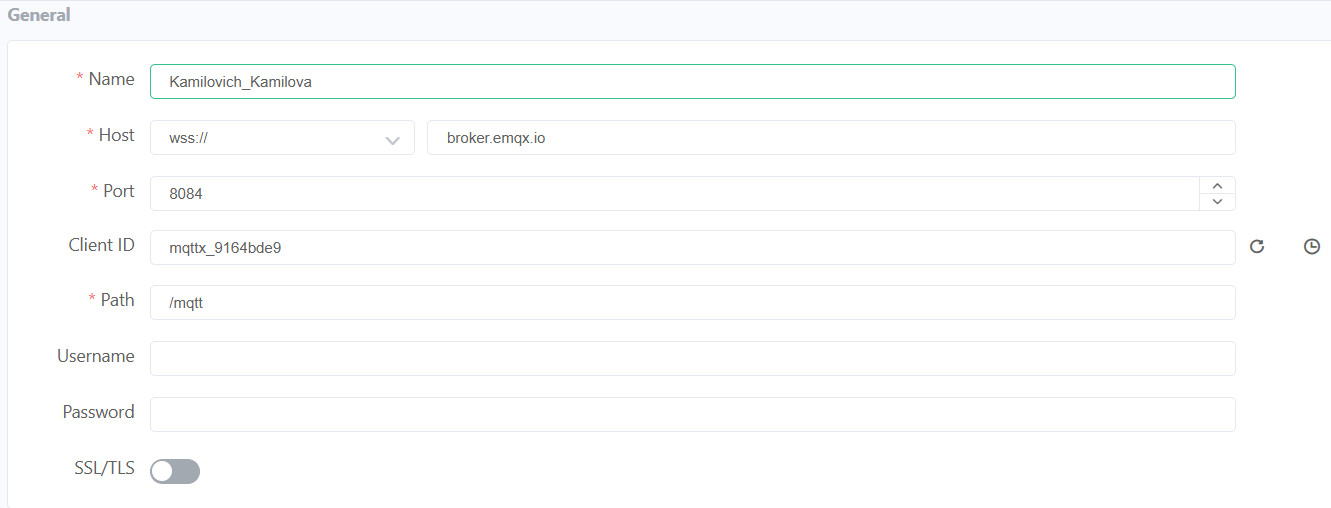
General Settings
Fab termi
Name

Identifier of the device within the MQTT client. It helps distinguish between multiple connected devices.
In this case: Kamilovich_Kamilova

Host

Address of the MQTT broker. In this case, it uses a secure WebSocket connection (WSS) to communicate over the internet.
wss://broker.emqx.io

Port

Communication port used for secure WebSocket connections.
Port 8084 is commonly used for MQTT over WSS.

Client ID

Unique identifier for each device connecting to the broker. It must be different for every client to avoid conflicts.
In this case: mqttx_9164bde9

Path

Endpoint used for WebSocket communication with the broker.
/mqtt

SSL/TLS

Enables encrypted communication, improving security when sending data over the internet.

MQTT Configuration (MQTTX)


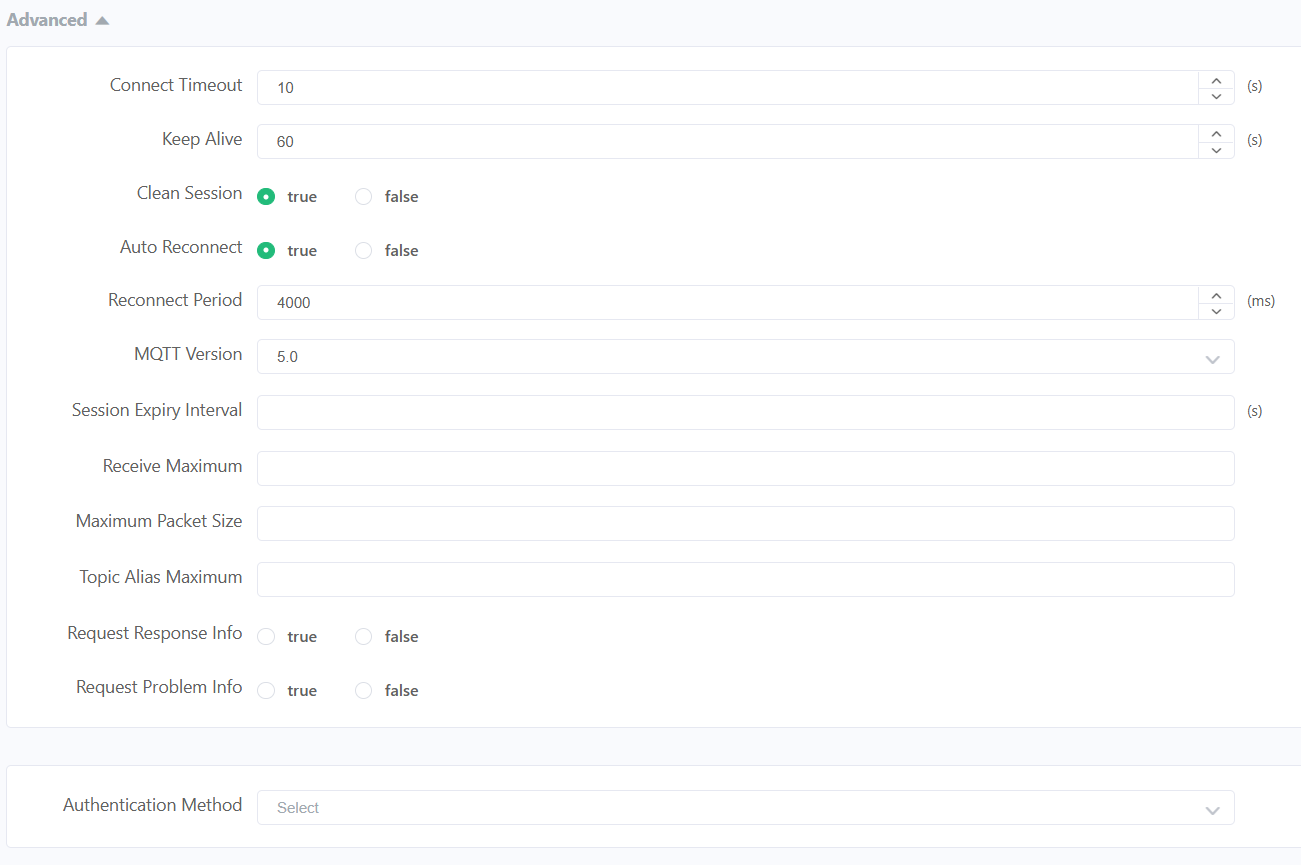
Advanced Settings
Fab termi
Connect Timeout

Maximum time the client waits to establish a connection before failing.
10 s

Keep Alive

Time interval in which the client sends a signal to maintain the connection active.
60 s

Clean Session

If enabled, the broker does not store previous session data when the client reconnects.

Auto Reconnect

Allows the client to automatically reconnect if the connection is lost.

Reconnect Period

Time between reconnection attempts.
4000 ms

MQTT Version

Protocol version used. Version 5.0 includes improved features like properties and better error handling.
5.0

MQTT Configuration (MQTTX)


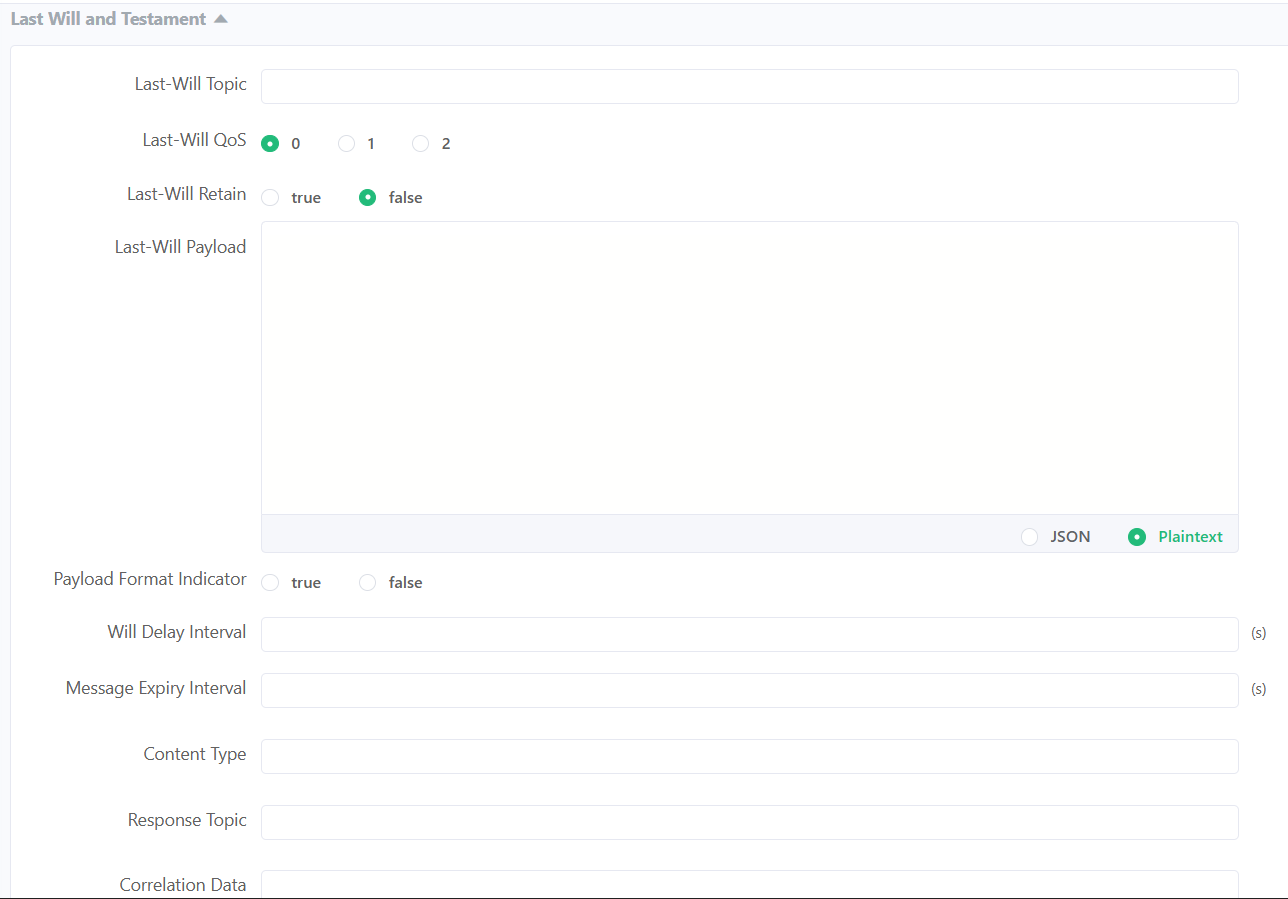
Last Will and Testament
Fab termi
QoS (Quality of Service)

Defines the reliability level of message delivery between sender and receiver in MQTT. It determines how many times a message is sent and if confirmation is required.

  • QoS 0

    "At most once" delivery. The message is sent only one time with no confirmation. It is the fastest method but messages can be lost.

  • QoS 1

    "At least once" delivery. The message is guaranteed to arrive, but it may be received more than once due to retransmissions.

  • QoS 2

    "Exactly once" delivery. Ensures the message arrives only one time using a handshake process. It is the most reliable but also the slowest.

MQTTX Connection and Subscriptions


Once the client information is configured, you can click the “Connect” button to create the connection.
Fab termi
The first time you click it, the client will not connect immediately. Instead, a configuration window will appear to finalize the setup. After completing this step and clicking Connect again, the client will successfully connect to the broker and start receiving and reading topics.
Fab termi

Subscriptions

A subscription is the process by which a client tells the broker that it wants to receive messages from a specific topic.
In MQTT, communication works using a publish/subscribe model, meaning:
  • Devices do not talk directly to each other
  • They communicate through topics managed by the broker
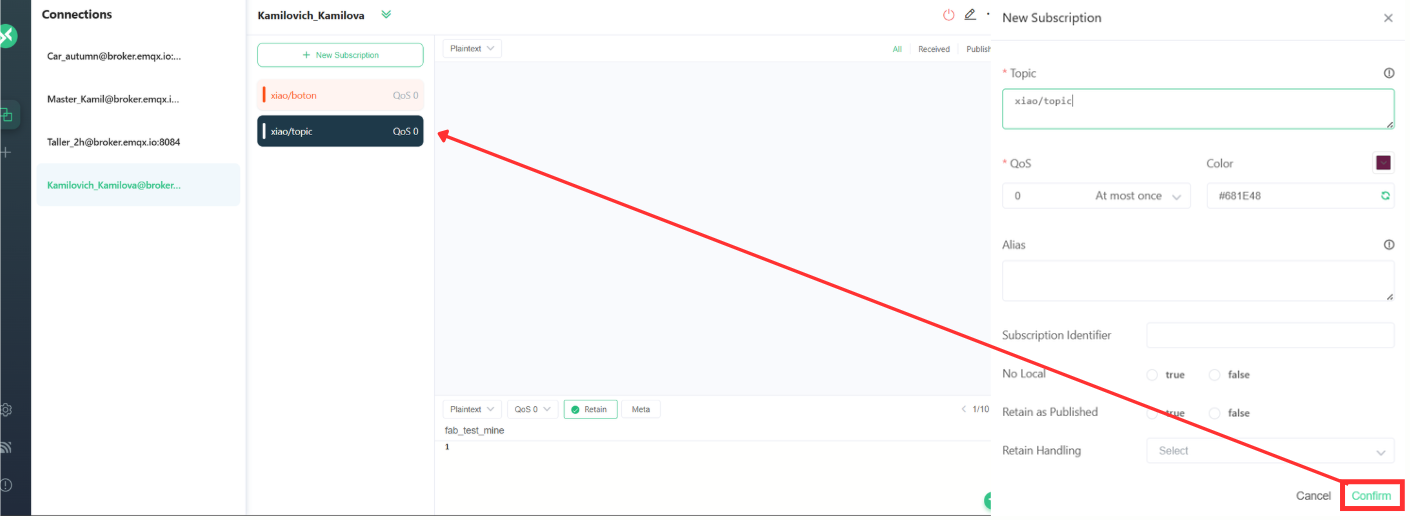
To create a subscription in MQTTX:
  1. Make sure the client is connected to the broker
  2. Click on “New Subscription”
  3. Assign a topic and customize the preferences
  4. Click on confirm.
Once this is done, the configuration should appear as a list in the broker.
Fab termi


Code and connections

The connection diagram is divided into three boards: the one developed previously, which acts as the main controller, and two additional boards that function as peripherals, designed by another Fab Lab teammate.
Fab termi
The code was developed using Arduino and designed so that the microcontrollers operate in a bidirectional manner, meaning they can both receive and transmit information. This enables synchronized communication between devices, allowing them to exchange data in real time and respond dynamically to changes in the system.
Additionally, this approach improves system flexibility and scalability, since multiple nodes can interact with each other through the same communication protocol, making it suitable for distributed systems such as IoT or MQTT-based networks.

MAIN
Fab termi
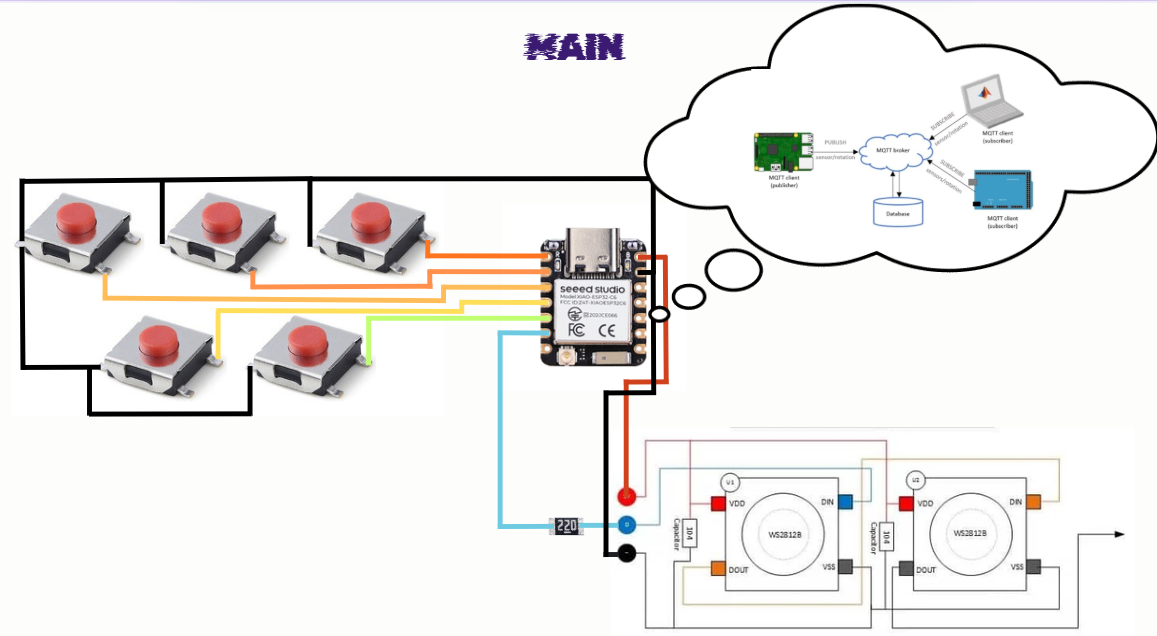
The diagram shows the wiring of the system powered by the 5V output of the XIAO ESP32-C6. This voltage rail supplies power to the NeoPixels, while all GND connections are tied directly to the XIAO’s GND, creating a common ground that ensures stable operation and proper signal reference across the system.
Additionally, the system includes five push buttons used for input commands. These buttons are connected directly to the XIAO pins from D0 to D4 and use the internal pull-up resistor configuration, meaning each pin reads HIGH by default and switches to LOW when the button is pressed.
From pin D5, a 220 Ω resistor is placed in series with the data line that connects to the input (DIN) of the NeoPixels. This resistor helps protect the data line from voltage spikes and improves signal integrity. The NeoPixels are connected in series, where the data flows from the first LED to the next (DOUT to DIN), allowing the microcontroller to control all LEDs through a single data pin.

XIAO ESP32-C6 Board
Fab termi
1.

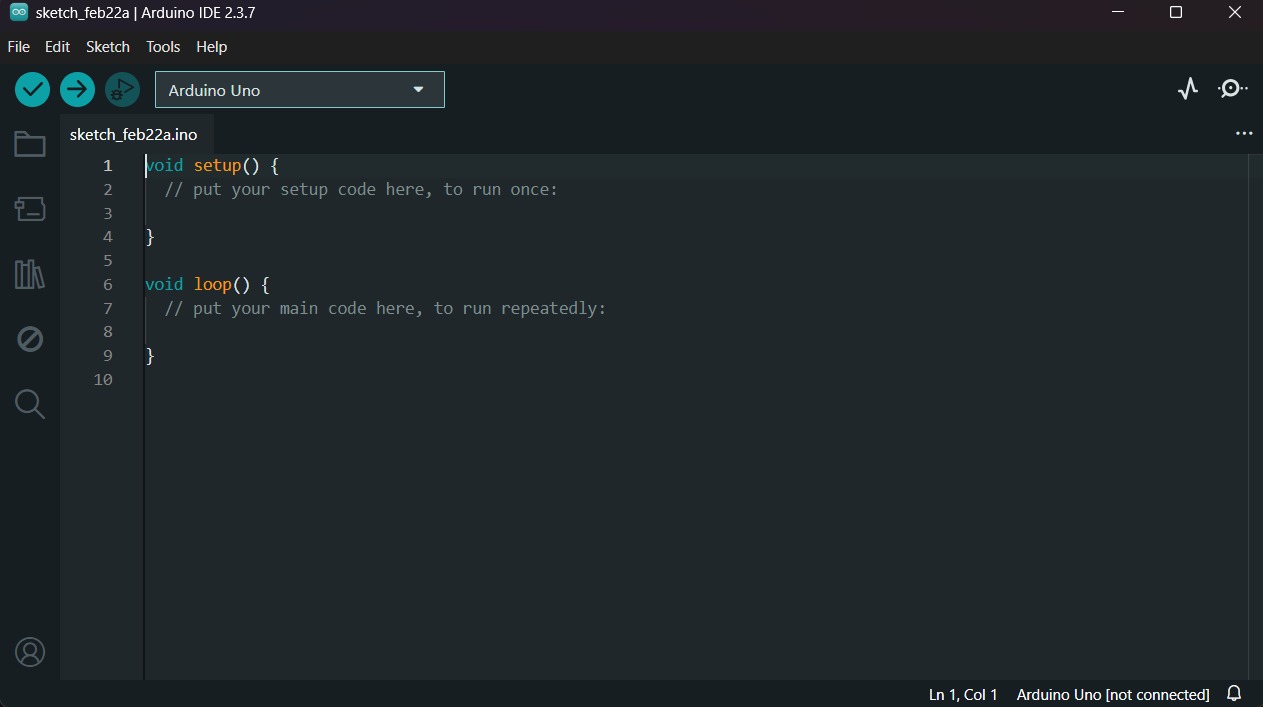
First, we have to create a sketch in Arduino IDE.

XIAO ESP32-C6 Board
Fab termi
2.

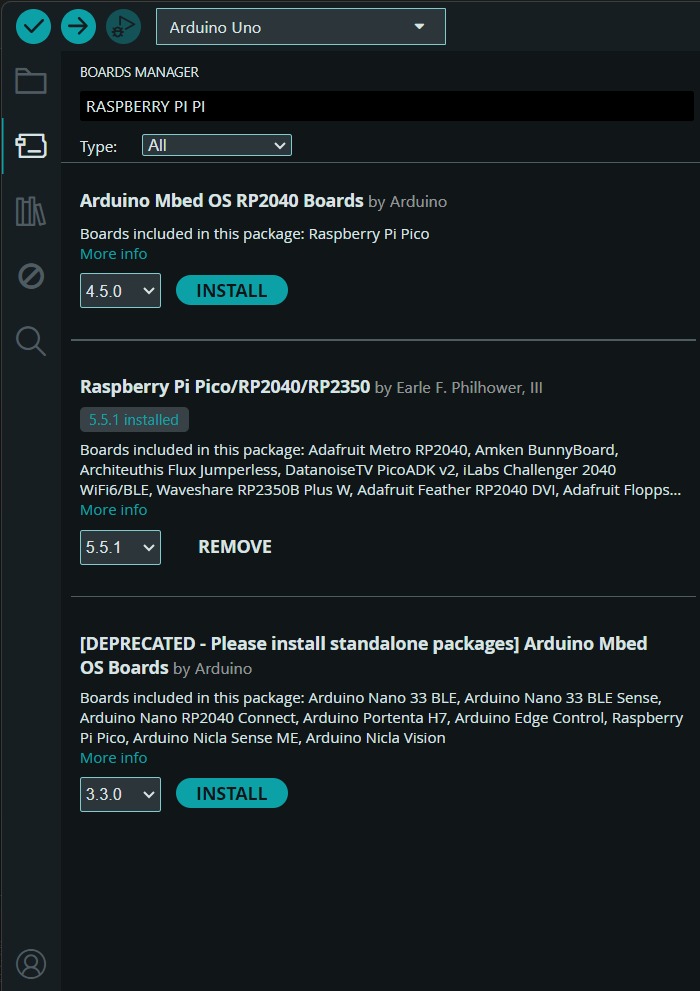
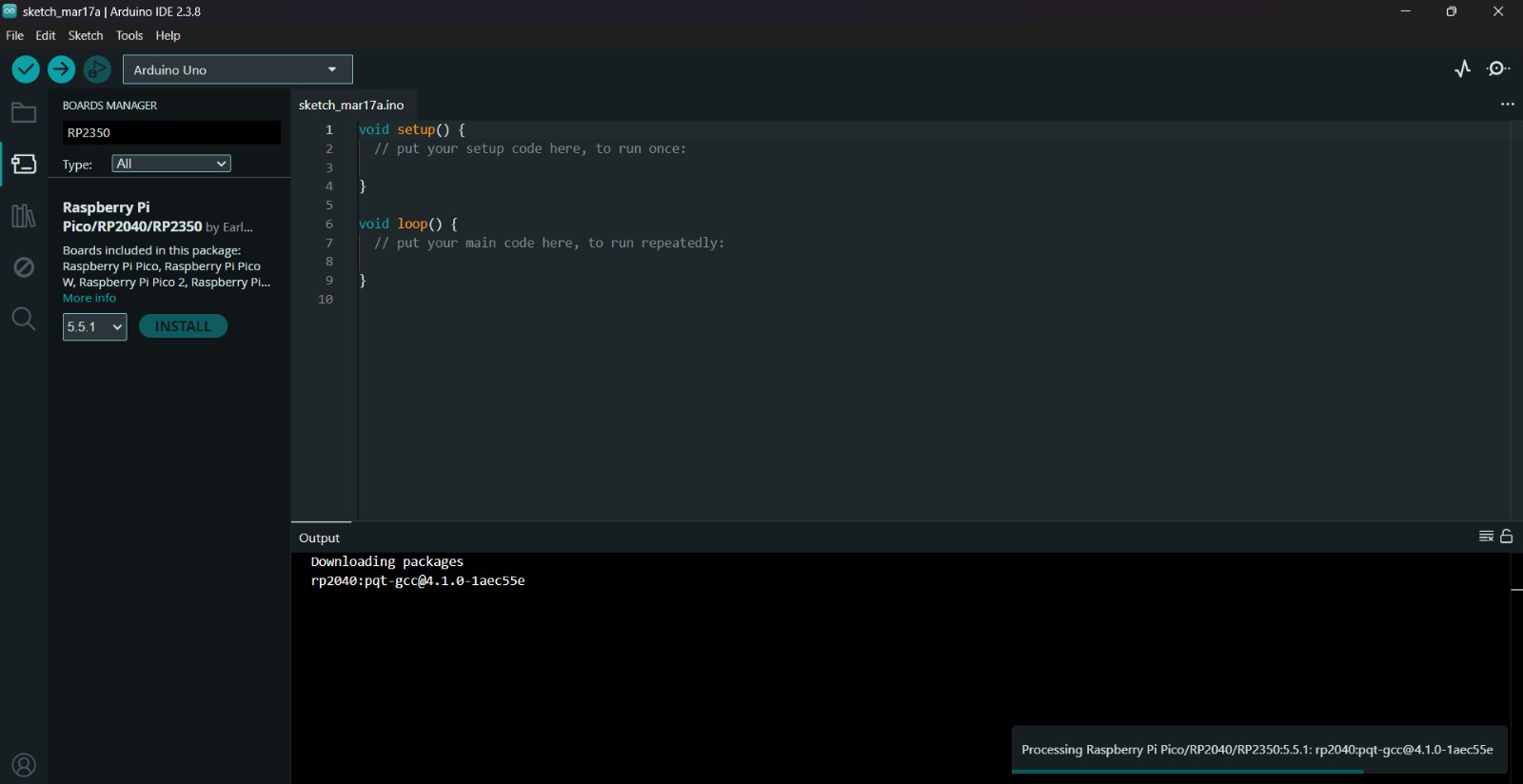
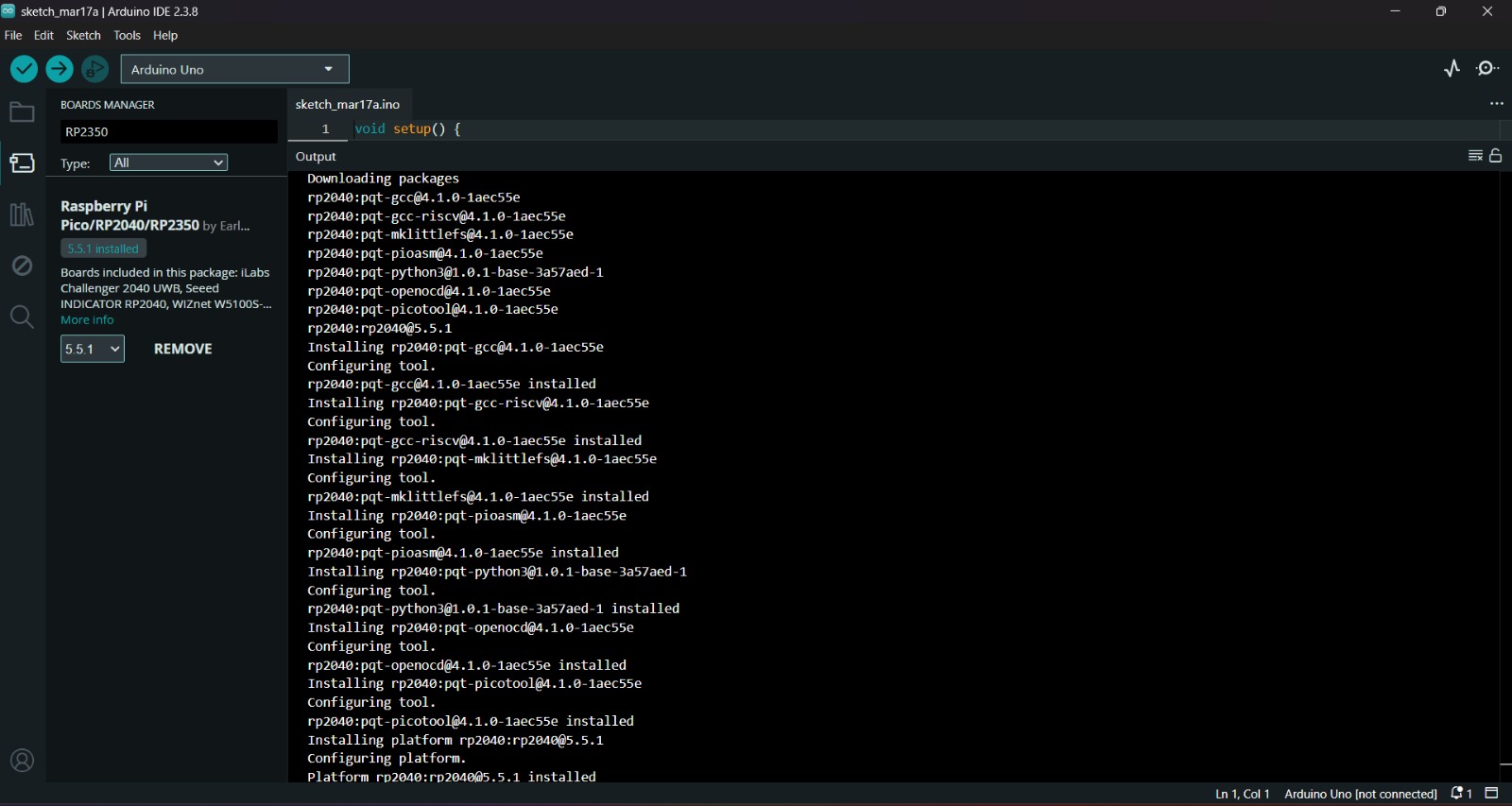
Then, we have go to the board manager and write XIAO. After doing that, a library will appear, its name is Raspberry Pi Pico/RP2040/RP2350 by Earle F. Philhower, III, we must install it.
Fab termi
Fab termi

Uploading

Fab termi
Fab termi
3.

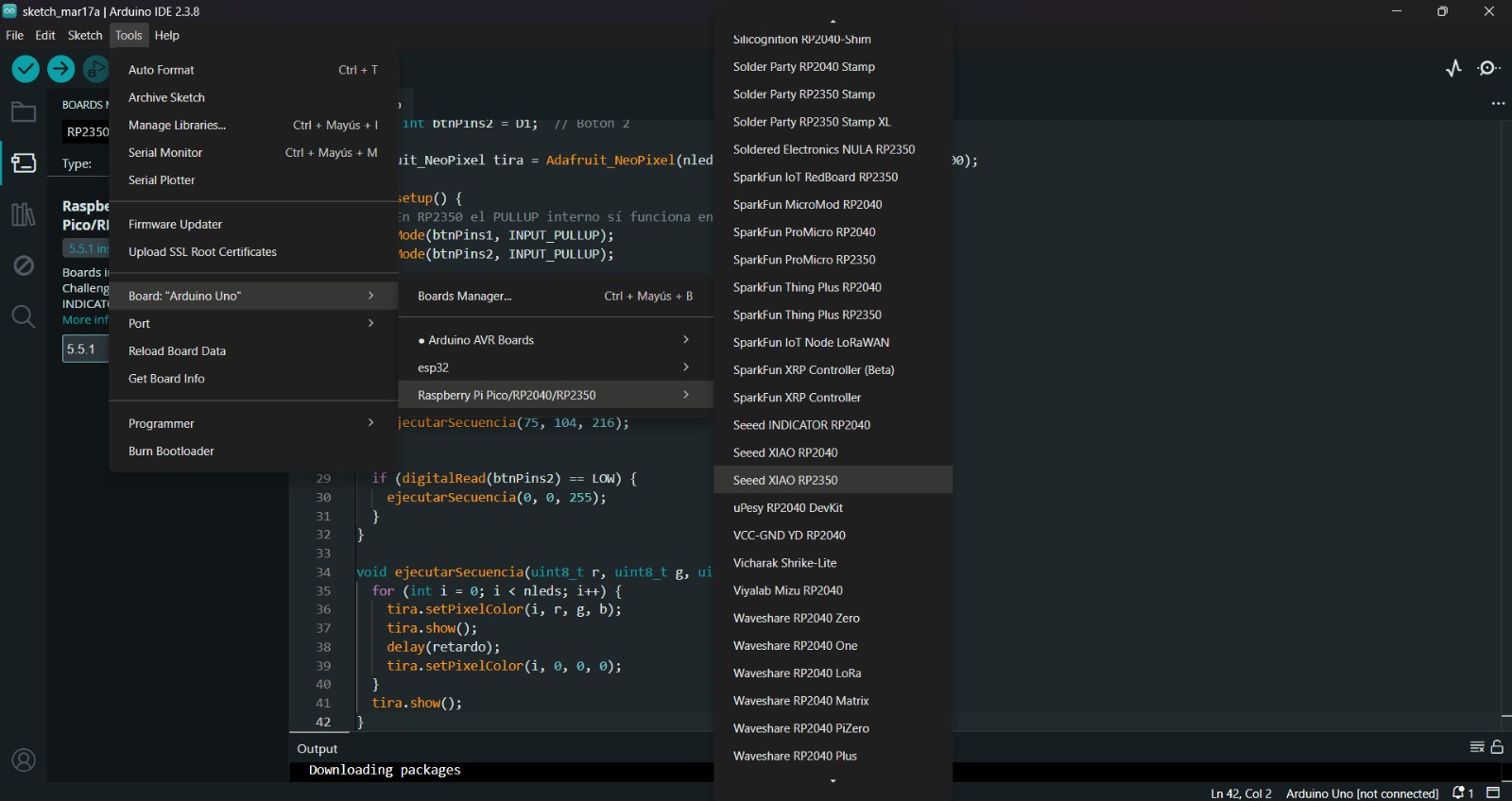
After installing the XIAO ESP32-C6 Board, we must click on the tab that says select board and write Seeed XIAO ESP32-C6, then select the PORT where our microcontroller is connected and upload the information. We can also click Tools, then Board and then the library Raspberry Pi Pico/RP2040/RP2350 by Earle F. Philhower, III and there look for the XIAO. Both ways will let us set our board as a XIAO.

4.

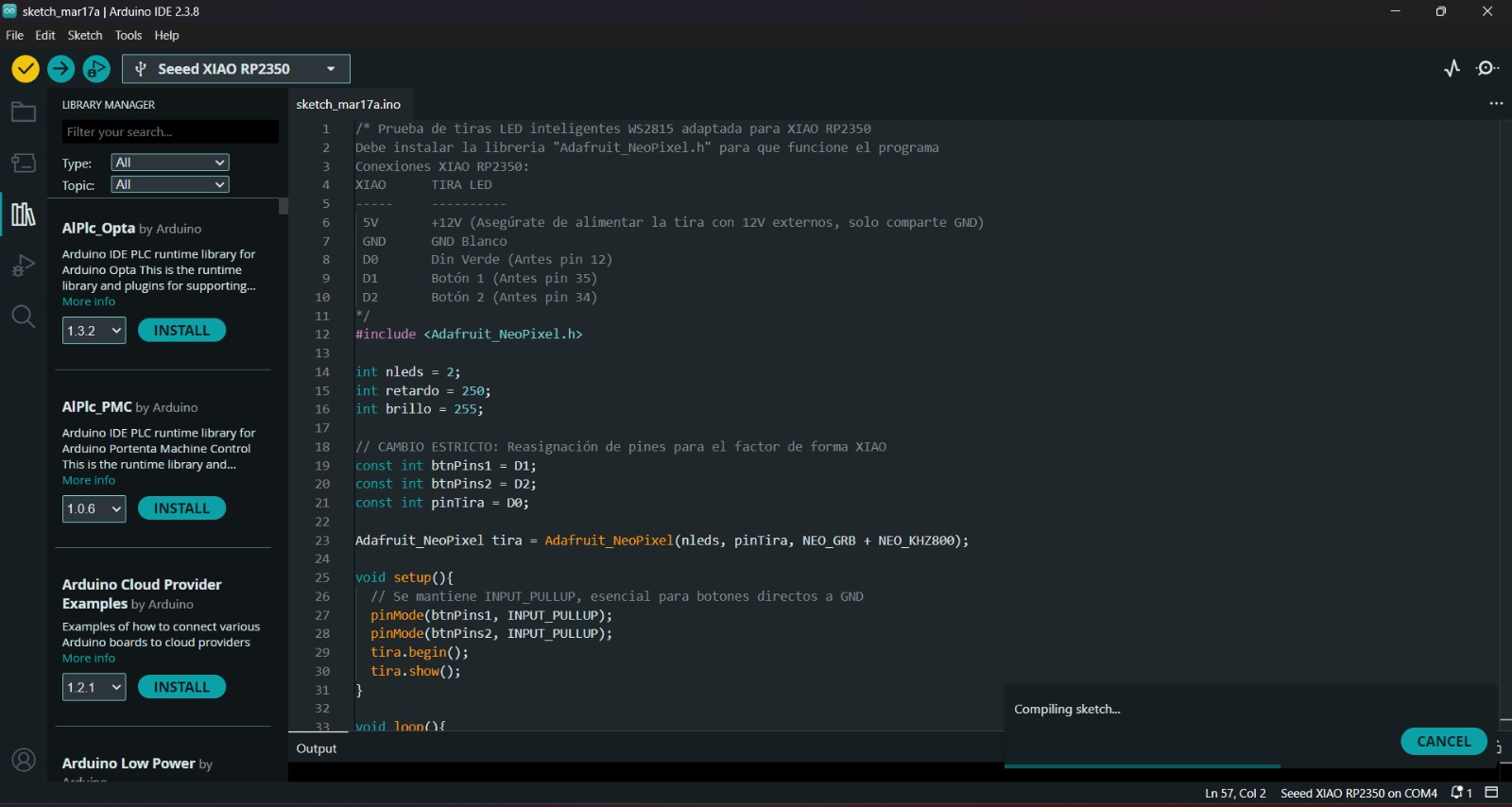
Before uploading our code to the microcontroller we should use the verify tool, that compiles the code before uploading it in order to detect mistakes or problems. The verify tool is the one in the top with the check.

5.

Finally, to upload our code we must click the upload tool, that is the one with the arrow pointing to the right. If our code is right, it shall compile. To get the , we must click on Tools in the top menu and select Serial Monitor.

My Code

Network:

WiFi connection to MQTT Broker (EMQX).

System:

MQTT publish "Macarena" in the topic xiao/boton


#include <WiFi.h>
#include <PubSubClient.h>
#include <Adafruit_NeoPixel.h>

// -------- WIFI --------
const char* ssid = "iPhone de Derek";
const char* password = "password";

// -------- MQTT --------
const char* mqttServer = "broker.emqx.io";
const int mqttPort = 1883;

// -------- PINES --------
#define PIN_BOTON D0
#define PIN_KAM D1
#define PIN_RGB D5
#define NUM_LEDS 10
#define LED 23

// -------- OBJETOS --------
WiFiClient esp32Client;
PubSubClient mqttClient(esp32Client);
Adafruit_NeoPixel pixels(NUM_LEDS, PIN_RGB, NEO_GRB + NEO_KHZ800);

// -------- VARIABLES --------
int var = 0;
String resultS = "";
uint32_t pixelHue = 0;
bool lastState = HIGH;
bool before = HIGH;

// -------- WIFI --------
void wifiInit() {
  Serial.print("Conectándose a ");
  Serial.println(ssid);

  WiFi.begin(ssid, password);

  while (WiFi.status() != WL_CONNECTED) {
    Serial.print(".");
    delay(500);
  }

  Serial.println("\nConectado a WiFi");
  Serial.println(WiFi.localIP());
}

// -------- CALLBACK MQTT --------
void callback(char* topic, byte* payload, unsigned int length) {
  Serial.print("Mensaje recibido [");
  Serial.print(topic);
  Serial.print("] ");

  char payload_string[length + 1];
  memcpy(payload_string, payload, length);
  payload_string[length] = '\0';

  int resultI = atoi(payload_string);
  var = resultI;

  resultS = "";
  for (int i = 0; i < length; i++) {
    resultS += (char)payload[i];
  }

  Serial.println(resultS);
}

// -------- RECONEXIÓN MQTT --------
void reconnect() {
  while (!mqttClient.connected()) {
    Serial.print("Intentando MQTT...");

    String clientId = "Kamilovich-" + String(random(0xffff), HEX);

    if (mqttClient.connect(clientId.c_str())) {
      Serial.println("Conectado");
      mqttClient.subscribe("fab_test_mine");
    } else {
      Serial.println(" fallo, reintentando...");
      delay(3000);
    }
  }
}

// -------- SETUP --------
void setup() {
  Serial.begin(115200);

  pinMode(PIN_BOTON, INPUT_PULLUP);
  pinMode(PIN_KAM, INPUT_PULLUP);
  pinMode(LED, OUTPUT);

  pixels.begin();
  pixels.setBrightness(50);
  pixels.show();

  wifiInit();

  mqttClient.setServer(mqttServer, mqttPort);
  mqttClient.setCallback(callback);
}

// -------- LOOP --------
void loop() {
  if (!mqttClient.connected()) {
    reconnect();
  }

  mqttClient.loop();

  apagarkamil();
  leerBoton();

  if (var == 0) {
    efectoGamer();
  } 
  else if (var == 1) {
    efectoRespiracion();
  }
}

// -------- BOTÓN --------
void leerBoton() {
  bool estado = digitalRead(PIN_BOTON);

  if (estado == LOW && lastState == HIGH) {
    mqttClient.publish("xiao/boton", "Macarena");
    Serial.println("Enviado: Macarena");
    delay(50);
  }

  lastState = estado;
}

// -------- BOTÓN 2 --------
void apagarkamil() {
  bool como = digitalRead(PIN_KAM);

  if (como == LOW && before == HIGH) {
    mqttClient.publish("xiao/boton", "APAGAOS EN NOMBRE DE LO BUENO Y DE LO HONESTO");
    Serial.println("Enviado: APAGAOS EN NOMBRE DE LO BUENO Y DE LO HONESTO");
    delay(50);
  }

  before = como;
}

// -------- EFECTO GAMER --------
void efectoGamer() {
  static unsigned long lastUpdate = 0;

  if (millis() - lastUpdate < 15) return;

  for (int i = 0; i < pixels.numPixels(); i++) {
    int hueOffset = i * (65536 / pixels.numPixels());

    pixels.setPixelColor(i, pixels.gamma32(
      pixels.ColorHSV(pixelHue + hueOffset)
    ));
  }

  pixels.show();
  pixelHue += 256;
  lastUpdate = millis();
}

// -------- EFECTO RESPIRACIÓN --------
void efectoRespiracion() {
  static int brillo = 0;
  static int direccion = 5;

  brillo += direccion;

  if (brillo <= 0 || brillo >= 255) {
    direccion *= -1;
  }

  for (int i = 0; i < pixels.numPixels(); i++) {
    pixels.setPixelColor(i, pixels.Color(0, 0, brillo));
  }

  pixels.show();
  delay(20);
}

Libraries

These libraries enable WiFi connectivity, MQTT communication, and control of NeoPixel LEDs. Together, they allow the system to connect to a network, exchange data, and provide visual feedback through lighting effects.


#include <WiFi.h>
#include <PubSubClient.h>
#include <Adafruit_NeoPixel.h>

Network Configuration

This section defines the WiFi credentials and MQTT broker settings. It allows the device to connect to the internet and communicate with other devices using a publish/subscribe model.


// -------- WIFI --------
const char* ssid = "iPhone de Derek";
const char* password = "password";

// -------- MQTT --------
const char* mqttServer = "broker.emqx.io";
const int mqttPort = 1883;

Pin Definition

This section assigns the physical pins of the microcontroller to specific components such as buttons, LEDs, and the NeoPixel strip.


// -------- PINES --------
#define PIN_BOTON D0
#define PIN_KAM D1
#define PIN_RGB D5
#define NUM_LEDS 10
#define LED 23

Objects Initialization

These objects manage network communication and LED control. They act as interfaces between the hardware and the software logic.


// -------- OBJETOS --------
WiFiClient esp32Client;
PubSubClient mqttClient(esp32Client);
Adafruit_NeoPixel pixels(NUM_LEDS, PIN_RGB, NEO_GRB + NEO_KHZ800);

Global Variables

These variables store incoming data, system states, and control parameters for animations and button detection.


// -------- VARIABLES --------
int var = 0;
String resultS = "";
uint32_t pixelHue = 0;
bool lastState = HIGH;
bool before = HIGH;

WiFi Connection

This function connects the device to the WiFi network and blocks execution until the connection is established.


void wifiInit() {
  WiFi.begin(ssid, password);

  while (WiFi.status() != WL_CONNECTED) {
    delay(500);
  }
}

MQTT Callback

This function processes incoming MQTT messages and converts them into a usable format that controls system behavior.


void callback(char* topic, byte* payload, unsigned int length) {
  char payload_string[length + 1];
  memcpy(payload_string, payload, length);
  payload_string[length] = '\0';

  int resultI = atoi(payload_string);
  var = resultI;
}

Main Loop

This loop maintains communication, reads inputs, and updates outputs in real time, making the system interactive and responsive.


void loop() {

  if (!mqttClient.connected()) {
    reconnect();
  }

  mqttClient.loop();

  apagarkamil();
  leerBoton();

  if (var == 0) {
    efectoGamer();
  } 
  else if (var == 1) {
    efectoRespiracion();
  }
}

Peripheral

Fab termi
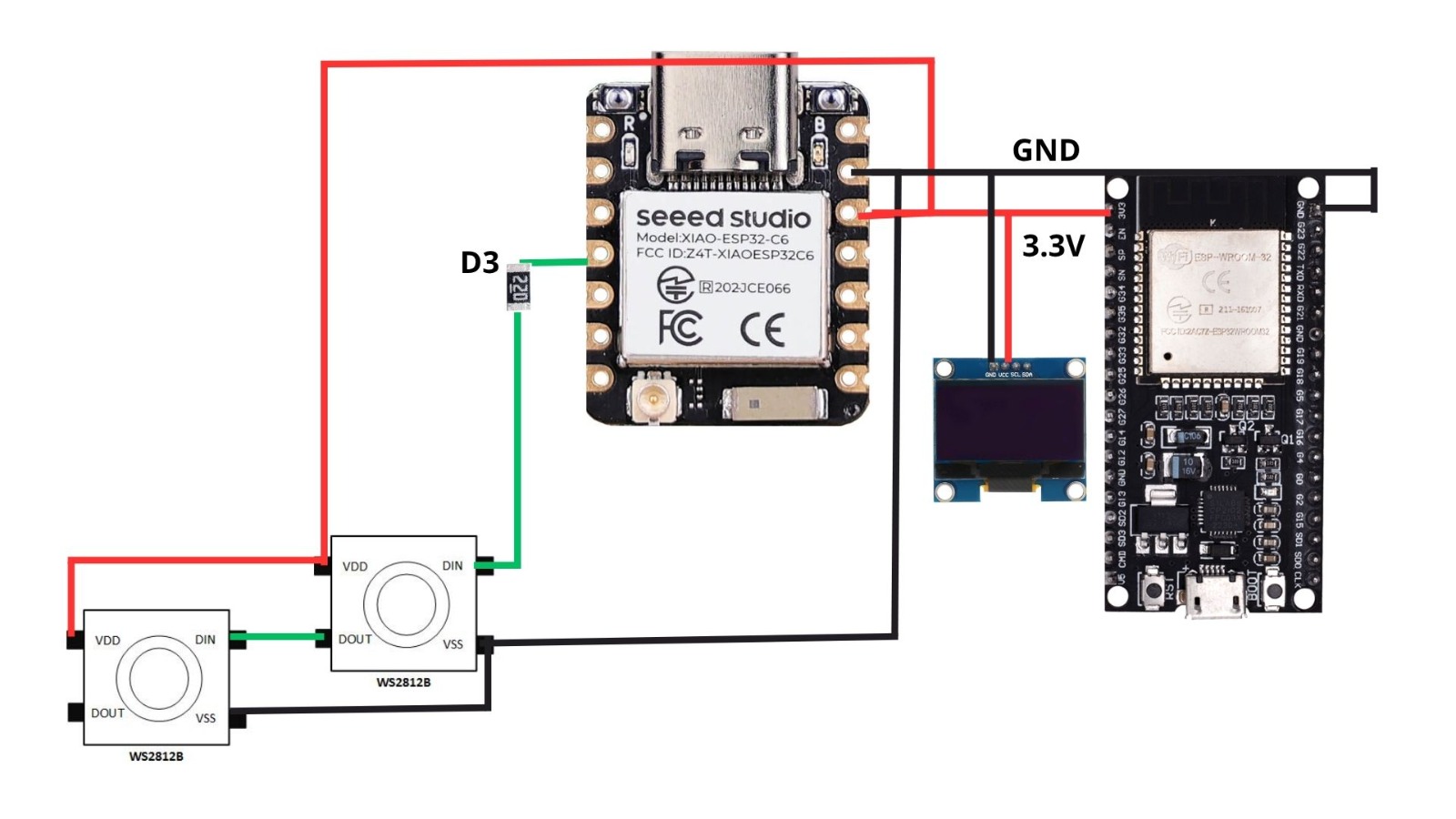
This diagram represents the wiring of the system powered by a Seeed Studio XIAO ESP32-C6. The red 3.3V line and black GND line form a common power rail that distributes energy to two WS2812B NeoPixels, an OLED display, and a ESP32-WROOM-32 dev module. The green signal line originates from pin D3, passing through a 220Ω resistor (used to protect the data pin from voltage spikes) before reaching the DIN port of the first NeoPixel; the signal then chains from DOUT to the next pixel's DIN. This setup allows the XIAO to act as the controller of the ESP32 and the Neopixels, managing both local visual feedback.

XIAO ESP32-C6 Board

Fab termi
1.

First, we have to create a sketch in Arduino IDE.

XIAO ESP32-C6 Board

Fab termi
2.

Then, we have go to the board manager and write XIAO. After doing that, a library will appear, its name is Raspberry Pi Pico/RP2040/RP2350 by Earle F. Philhower, III, we must install it.

Fab termi
Fab termi

Uploading

Fab termi
Fab termi
3.

After installing the XIAO ESP32-C6 Board, we must click on the tab that says select board and write Seeed XIAO ESP32-C6, then select the PORT where our microcontroller is connected and upload the information. We can also click Tools, then Board and then the library Raspberry Pi Pico/RP2040/RP2350 by Earle F. Philhower, III and there look for the XIAO. Both ways will let us set our board as a XIAO.

4.

Before uploading our code to the microcontroller we should use the verify tool, that compiles the code before uploading it in order to detect mistakes or problems. The verify tool is the one in the top with the check.

5.

Finally, to upload our code we must click the upload tool, that is the one with the arrow pointing to the right. If our code is right, it shall compile. To get the , we must click on Tools in the top menu and select Serial Monitor.

My Code

Network:

WiFi connection to MQTT Broker (EMQX).

System:

MQTT Callback for "Macarena" mode and Gamer effects.

Setup:

PIN_BOTON (D0), PIN_RGB (D3), NUM_LEDS (2).


            #include <WiFi.h>
            #include <PubSubClient.h>
            #include <Adafruit_NeoPixel.h>

            // -------- WIFI --------
            const char* ssid     = "iPhone de Derek";
            const char* password = "9414902012";

            // -------- MQTT --------
            const char* mqttServer = "broker.emqx.io";
            const int mqttPort = 1883;

            // -------- PINES --------
            #define PIN_BOTON  D0
            #define PIN_RGB D3
            #define NUM_LEDS 2
            #define LED  23

            // -------- OBJETOS --------
            WiFiClient esp32Client;
            PubSubClient mqttClient(esp32Client);
            Adafruit_NeoPixel pixels(NUM_LEDS, PIN_RGB, NEO_GRB + NEO_KHZ800);

            // -------- VARIABLES --------
            int var = 0;
            String resultS = "";
            uint32_t pixelHue = 0;
            bool lastState = HIGH;
            bool modoMacarena = false; 

            void wifiInit() {
            WiFi.begin(ssid, password);
            while (WiFi.status() != WL_CONNECTED) {
                delay(500);
            }
            }

            void callback(char* topic, byte* payload, unsigned int length) {
            resultS = "";
            for (int i = 0; i < length; i++) {
                resultS += (char)payload[i];
            }

            if (String(topic) == "xiao/boton") {
                if (resultS == "Macarena") {
                modoMacarena = true; 
                for (int i = 0; i < NUM_LEDS; i++) {
                    pixels.setPixelColor(i, pixels.Color(255, 0, 0));
                }
                pixels.show();
                } else {
                modoMacarena = false;
                }
            }
            var = atoi(resultS.c_str());
            }

            void reconnect() {
            while (!mqttClient.connected()) {
                String clientId = "Kamilovich-" + String(random(0xffff), HEX);
                if (mqttClient.connect(clientId.c_str())) {
                mqttClient.subscribe("xiao/boton");
                } else {
                delay(3000);
                }
            }
            }

            void setup() {
            Serial.begin(115200);
            pinMode(PIN_BOTON, INPUT_PULLUP);
            pinMode(LED, OUTPUT);
            pixels.begin();
            pixels.setBrightness(50);
            wifiInit();
            mqttClient.setServer(mqttServer, mqttPort);
            mqttClient.setCallback(callback);
            }

            void loop() {
            if (!mqttClient.connected()) { reconnect(); }
            mqttClient.loop();
            if (!modoMacarena) { efectoGamer(); }
            leerBoton();
            if (var == 0) { digitalWrite(LED, LOW); } 
            else if (var == 1) { digitalWrite(LED, HIGH); }
            }

            void leerBoton() {
            bool estado = digitalRead(PIN_BOTON);
            if (estado == LOW && lastState == HIGH) {
                mqttClient.publish("xiao/boton", "Macarena");
                delay(200);
            }
            lastState = estado;
            }

            void efectoGamer() {
            static unsigned long lastUpdate = 0;
            if (millis() - lastUpdate < 15) return;
            for (int i = 0; i < pixels.numPixels(); i++) {
                int hueOffset = i * (65536 / pixels.numPixels());
                pixels.setPixelColor(i, pixels.gamma32(pixels.ColorHSV(pixelHue + hueOffset)));
            }
            pixels.show();
            pixelHue += 256;
            lastUpdate = millis();
            }

Neopixels code


                if (String(topic) == "xiao/boton") {
                    if (resultS == "Macarena") {
                    modoMacarena = true; 
                    for (int i = 0; i < NUM_LEDS; i++) {
                        pixels.setPixelColor(i, pixels.Color(255, 0, 0));
                    }
                    pixels.show();
                    } else {
                    modoMacarena = false;
                    }
                }


Macarena.This code processes incoming messages from an MQTT topic to trigger a specific lighting state. When the topic xiao/boton receives the string Macarena, it sets the boolean message modoMacarena to true and executes a for loop that iterates through every Neopixel in the strip, assigning each a solid red color using the pixels.setPixelColor(index, color) function with RGB values of (255, 0, 0). The pixels.show() command is then called to push this data from the microcontroller to the actual hardware, instantly illuminating the strip. If any other message is received, the mode is disabled, and the final line converts the incoming string into an integer using atoi() to maintain compatibility with a secondary Neopixel control on pin 23.

    
                void loop() {
                    if (!mqttClient.connected()) { reconnect(); }
                    mqttClient.loop();
                    if (!modoMacarena) { efectoGamer(); }
                    leerBoton();
                        if (var == 0) { digitalWrite(LED, LOW); } 
                    else if (var == 1) { digitalWrite(LED, HIGH); }
                }                                                         
                                    

!Macarena.The loop() function acts as the central execution hub for the system, continuously ensuring that the connection to the MQTT broker is active by calling reconnect() whenever the client is disconnected. It maintains background MQTT processes through mqttClient.loop() and conditionally executes the efectoGamer() LED sequence only if the modoMacarena flag is false, effectively allowing external commands to override the default visual behavior. Finally, it monitors physical input via leerBoton() and performs real-time hardware control by toggling the state of a specific LED pin based on the value of the var variable received from the network.


                void efectoGamer() {
                static unsigned long lastUpdate = 0;
                if (millis() - lastUpdate < 15) return;
                for (int i = 0; i < pixels.numPixels(); i++) {
                    int hueOffset = i * (65536 / pixels.numPixels());
                    pixels.setPixelColor(i, pixels.gamma32(pixels.ColorHSV(pixelHue + hueOffset)));
                }
                pixels.show();
                pixelHue += 256;
                lastUpdate = millis();
                }
                    
efectoGamer().

function implements a non-blocking rainbow animation by utilizing millis() to track elapsed time, allowing the sequence to update every 15 milliseconds without halting the program. It uses pixels.numPixels() to scale calculations across the hardware, while pixels.setPixelColor() assigns colors generated by pixels.ColorHSV() to each LED. These colors are processed through pixels.gamma32() to correct for human light perception, ensuring a naturally vibrant look. To complete the cycle, pixels.show() pushes the data to the LEDs, pixelHue increments by 256 to shift the spectrum, and lastUpdate resets the timing gate to maintain a consistent animation speed.

Neopixels Library

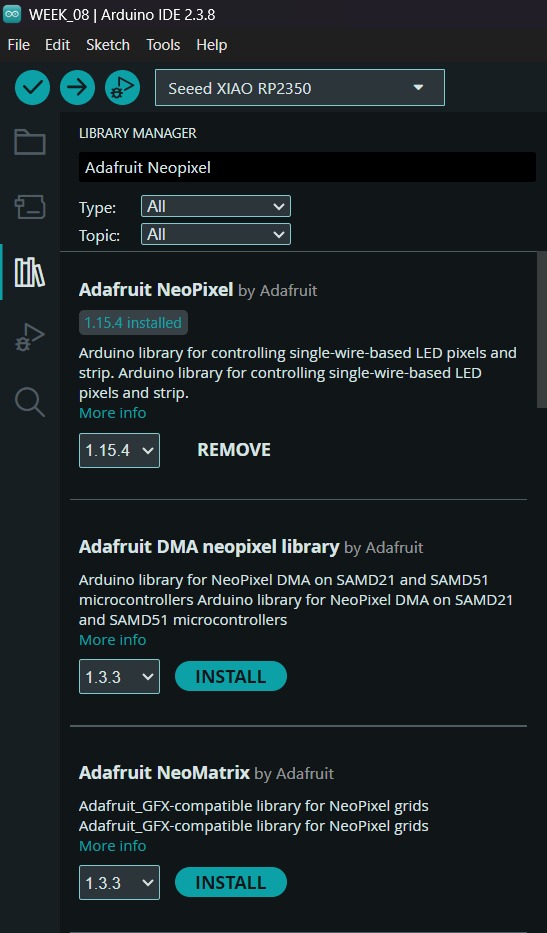
To set the neopixels, we first need to install the library in Arduino. For that we have to go to the Library Manager and write Adafruit Neopixel, then intall the library named like that.
Fab termi

Peripheral

Fab termi
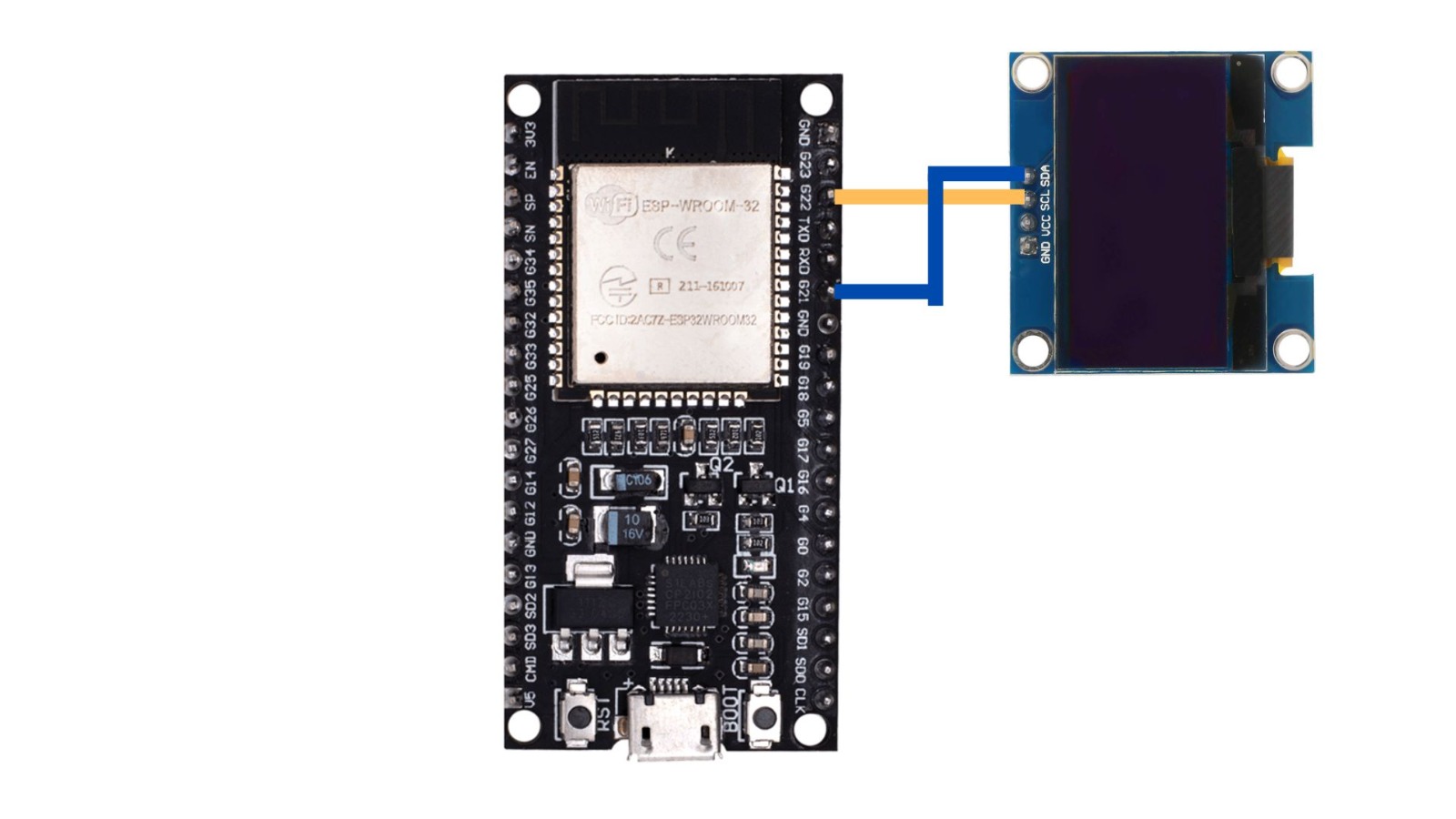
This diagram shows the I2C communication setup between an ESP32-WROOM-32 development board and an OLED display. The blue line connects the SDA (Serial Data) pin of the OLED to GPIO 21 on the ESP32, while the yellow line connects the SCL (Serial Clock) pin to GPIO 22. These two pins are the standard hardware I2C default for the ESP32, allowing the microcontroller to send graphical data and text to the screen using a synchronous serial protocol.

ESP32

Fab termi

1. First, we have to create a sketch in Arduino IDE.

ESP32
Fab termi

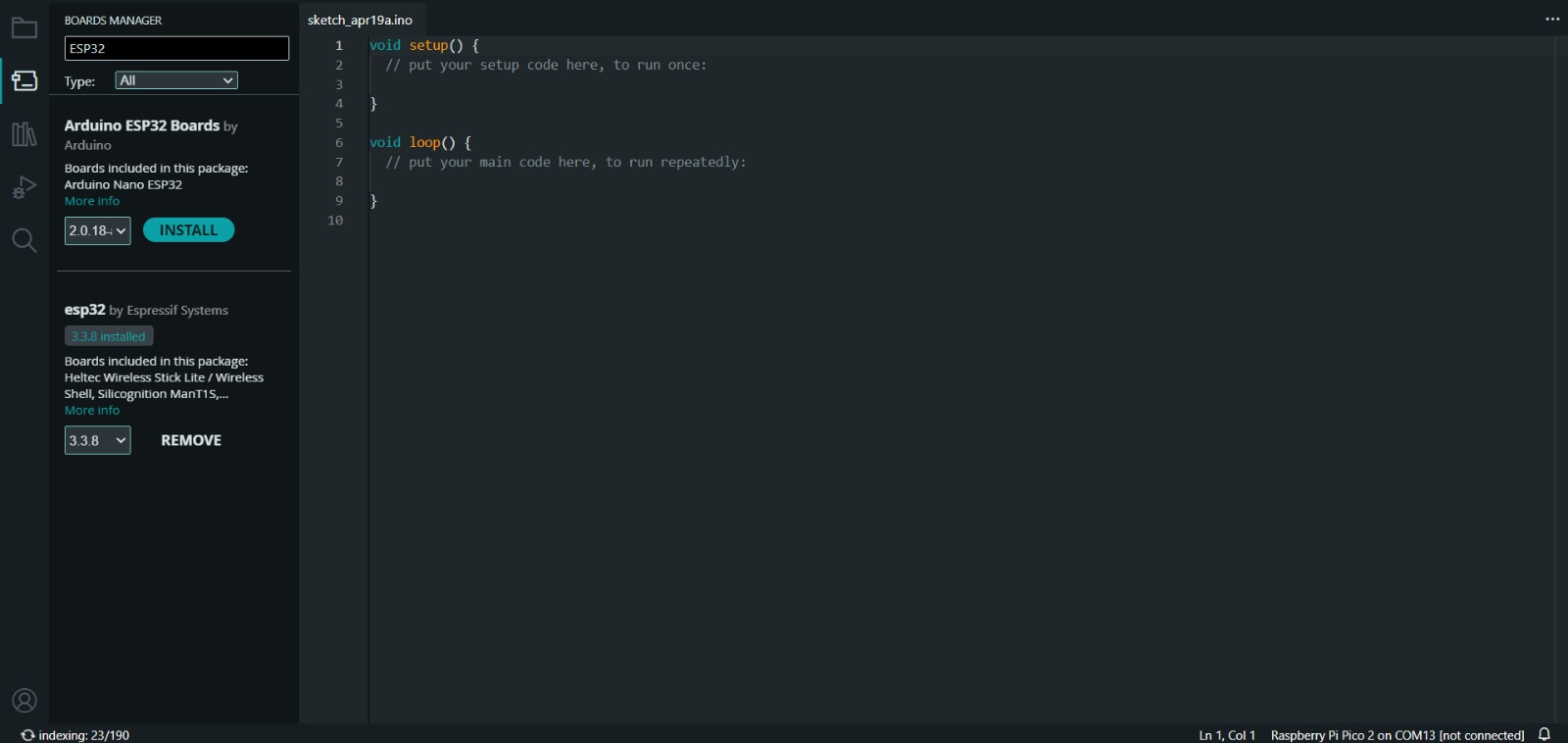
2. Then, we have go to the board manager and write ESP32. After doing that, a library will appear, its name is esp32 by Espressif Systems, we must install it.

Uploading

Fab termi

3. After installing the ESP32 Board, we must click on the tab that says select board and write ESP32 Dev Module, then select the PORT where our microcontroller is connected and upload the information.

4. Before uploading our code to the microcontroller we should use the verify tool, that compiles the code before uploading it in order to detect mistakes or problems. The verify tool is the one in the top with the check.

5. Finally, to upload our code we must click the upload tool, that is the one with the arrow pointing to the right. If our code is right, it shall compile. To get the , we must click on Tools in the top menu and select Serial Monitor.

My Code

~ Device: ESP32-WROOM-32 Receiver.
~ Display: SSD1306 OLED via I2C (SDA: 21, SCL: 22).
~ Action: Real-time visualization of messages from topic xiao/boton.


        #include <WiFi.h>
        #include <PubSubClient.h>
        #include <Wire.h>
        #include <Adafruit_GFX.h>
        #include <Adafruit_SSD1306.h>

        // -------- CONFIGURACIÓN OLED --------
        #define SCREEN_WIDTH 128
        #define SCREEN_HEIGHT 64
        #define OLED_RESET -1
        #define SCREEN_ADDRESS 0x3C
        Adafruit_SSD1306 display(SCREEN_WIDTH, SCREEN_HEIGHT, &Wire, OLED_RESET);

        // -------- WIFI & MQTT --------
        const char* ssid = "iPhone de Derek";
        const char* mqttServer = "broker.emqx.io";

        WiFiClient esp32Client;
        PubSubClient mqttClient(esp32Client);

        void actualizarOLED(String mensaje) {
        display.clearDisplay();
        display.setCursor(0, 0);
        display.setTextSize(1); 
        display.setTextColor(SSD1306_WHITE);
        display.println(mensaje);
        display.display();
        }

        void callback(char* topic, byte* payload, unsigned int length) {
        String mensaje = "";
        for (int i = 0; i < length; i++) { mensaje += (char)payload[i]; }
        actualizarOLED(mensaje);
        }

        void reconnect() {
        while (!mqttClient.connected()) {
            String clientId = "Kamo_Display_" + String(random(0xffff), HEX);
            if (mqttClient.connect(clientId.c_str())) {
            mqttClient.subscribe("xiao/boton");
            } else { delay(3000); }
        }
        }

        void setup() {
        if(!display.begin(SSD1306_SWITCHCAPVCC, SCREEN_ADDRESS)) { for(;;); }
        display.clearDisplay();
        actualizarOLED("Esperando WiFi...");
        wifiInit();
        mqttClient.setServer(mqttServer, 1883);
        mqttClient.setCallback(callback);
        }

        void loop() {
        if (!mqttClient.connected()) { reconnect(); }
        mqttClient.loop();
        }

OLED code


            void actualizarOLED(String mensaje) {
            display.clearDisplay();
            display.setCursor(0, 0);
            display.setTextSize(1); 
            display.setTextColor(SSD1306_WHITE);
            display.println(mensaje);
            display.display();
            }
                        

actualizarOLED(). The actualizarOLED() function manages the physical rendering of data on the display by first executing display. clearDisplay() to wipe the existing buffer, preventing new text from overlapping with old pixels. It then prepares the visual layout by resetting the text "anchor" to the top-left corner with display. setCursor(0, 0), setting the font scale via display. setTextSize(1), and defining the pixel state with display. setTextColor(SSD1306_WHITE). After the string is written to the internal memory buffer using display. println(mensaje), the function calls display.display(), which is the critical final step that pushes the processed data from the ESP32’s RAM to the OLED hardware, making the message visible to the user.

   
            void callback(char* topic, byte* payload, unsigned int length) {
            String mensaje = "";
            for (int i = 0; i < length; i++) { mensaje += (char)payload[i]; }
            actualizarOLED(mensaje);
            } 
                                    

callback().The callback() function serves as the system's message processor, automatically triggering whenever a new message is received from the subscribed MQTT topic. It begins by initializing an empty string and using a for loop to iterate through the incoming payload, casting each byte into a character to reconstruct the full text message. Once the loop finishes and the complete mensaje is assembled, the function immediately passes this string to actualizarOLED(), ensuring that the hardware display is updated in real-time with the data received from the network.

Adafruit Library

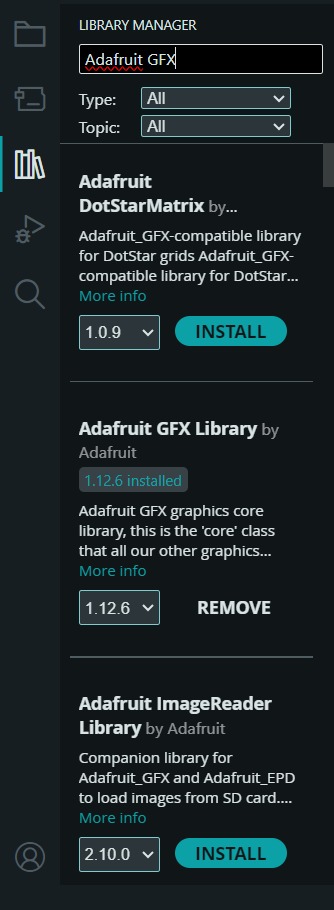
To set the OLED, we first need to install the library in Arduino. For that we have to go to the Library Manager and write Adafruit GFX and the Adafruit SSD1306, then intall the library named like that.
Fab termi
Fab termi

Results

In XIAO

Download files

For download 3D and others files, just click on the dancing shrimp.