This week's assignment focuses on exploring the world of additive manufacturing and 3D scanning technologies.
Unlike subtractive processes (such as CNC milling), where material is removed from a solid block, 3D printing allows us to build objects layer by layer.
This opens the door to complex geometries that were previously impossible to manufacture.
For more details on our printer characterization tests, including clearance scales and 3D scanning benchmarks, visit our
GROUP PAGE.
1. What is 3D printing?
3D printing is an additive manufacturing technology. The process begins with designing a model using Computer-Aided Design (CAD) software. Once the design is complete, the file is converted into a compatible format and processed through a "slicer" program.
This software divides the model into horizontal layers and generates the instructions (G-code) for the printer to follow. Finally, the printer deposits the material layer by layer to form the physical object.
Common Types of 3D Printing:
FDM (Fused Deposition Modeling): This method uses a plastic filament (such as PLA or ABS) that is melted through a heated nozzle and deposited onto a build platform.
SLA (Stereolithography): This technique uses a photosensitive liquid resin that is cured (hardened) by a laser beam or UV light. It is ideal for high-detail parts and smooth surface finishes.
SLS (Selective Laser Sintering): This process uses a high-power laser to sinter (fuse) powdered material—typically plastics or metals—into a solid structure.
2. My model
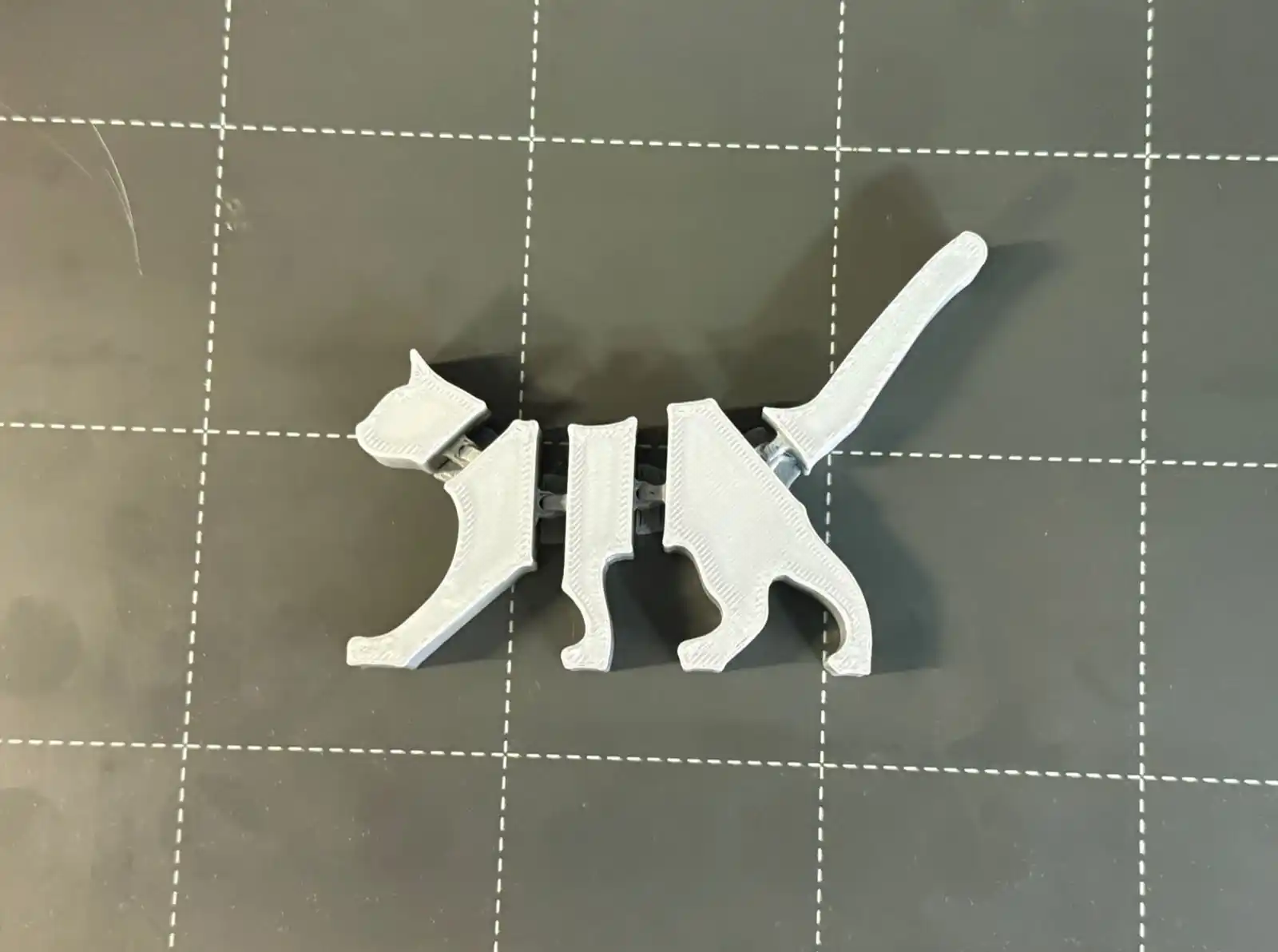
For this week, I decided to create a small cat-shaped toy with several joints to allow movement,
inspired by a design I found on 3D TROOP profile on Cults3D.
This part must be manufactured using an additive process because it features a Print-in-Place
integrated assembly geometry with interlocking links, which are impossible to achieve
through subtractive or formative methods. In a CNC milling machine,
the cutting tools would lack access to the internal gaps to clear material without damaging the external structure.
On the other hand, in injection molding processes, the part would remain trapped in the mold due to its captive joints,
which do not allow for a viable parting line.
My cat
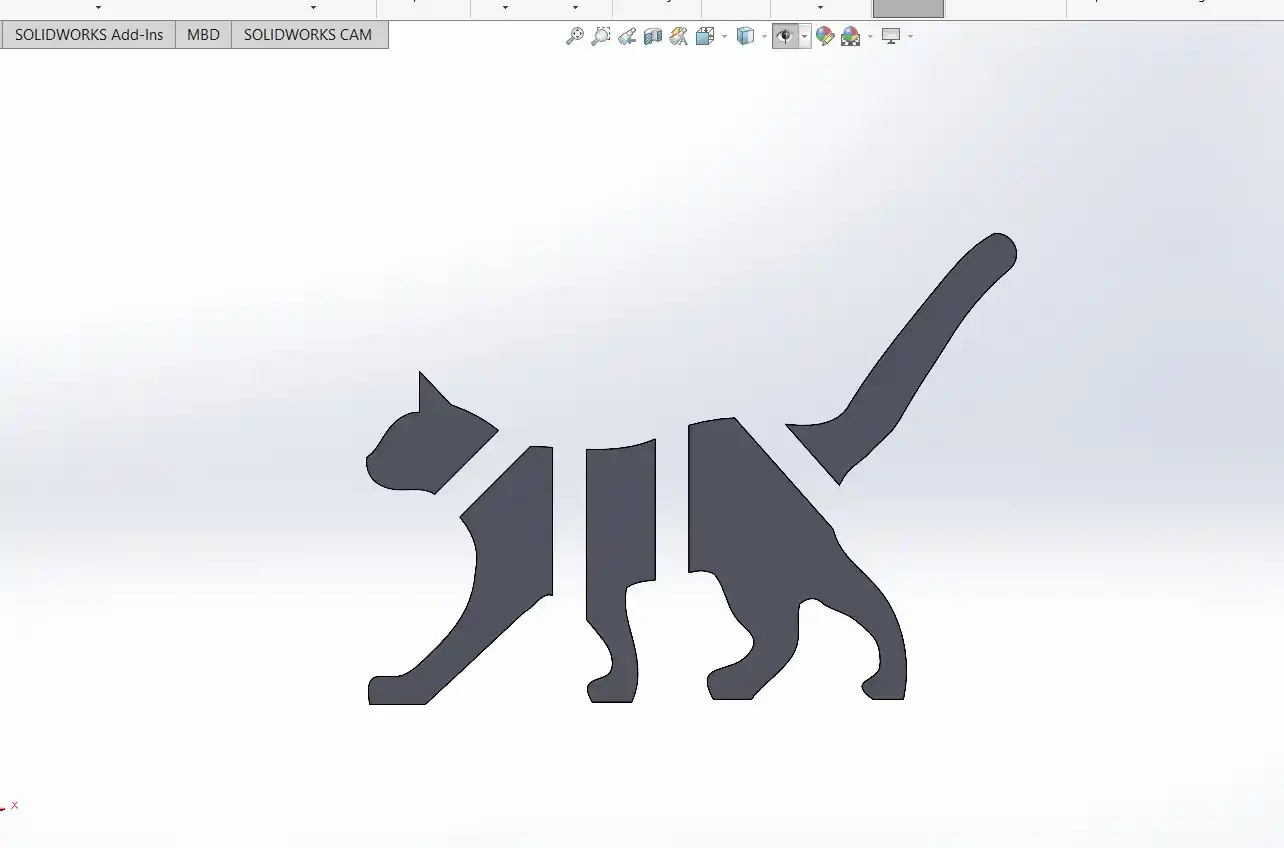
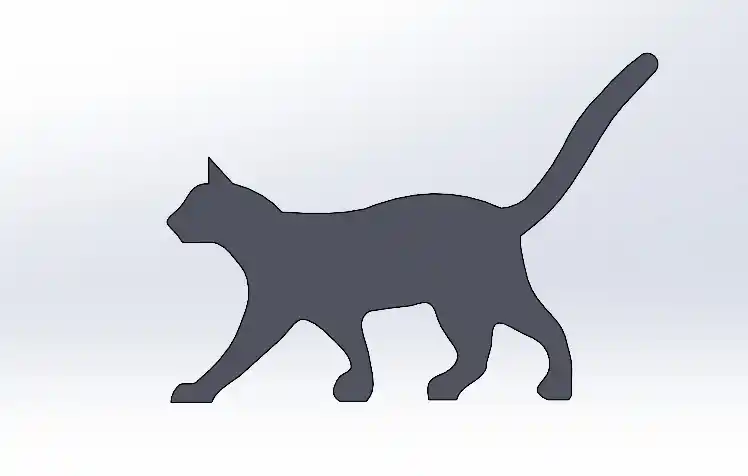
First, I used a silhouette image of a cat as a reference in SolidWorks to serve as the base for my design.
Next, I created 5 mm cutouts along the piece to serve as slots for the joints.
The joints themselves were designed with a 3 mm diameter and a 5 mm length.
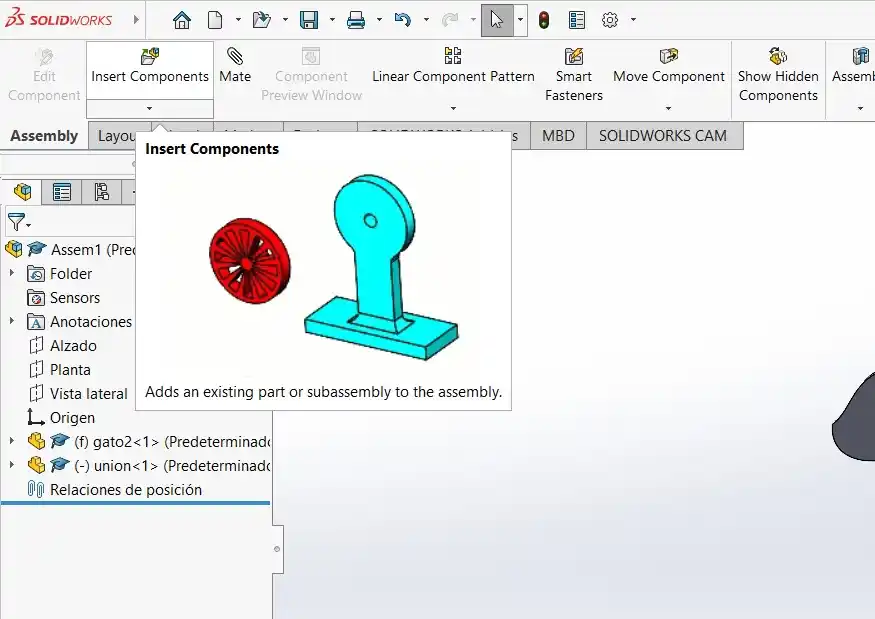
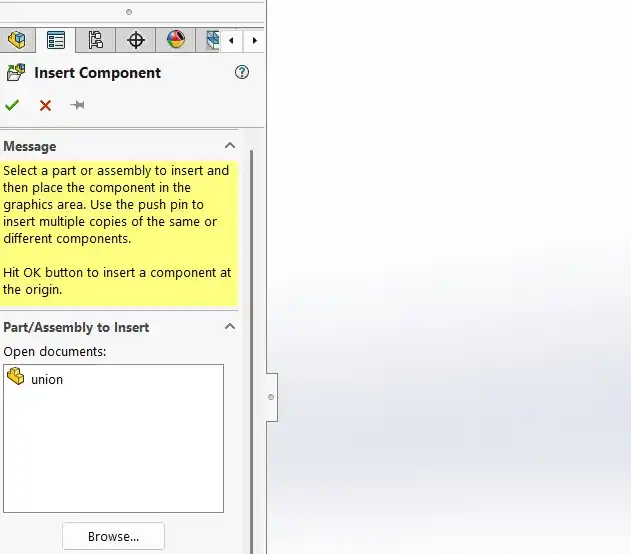
I then created an Assembly and brought in the cat part using the Insert Components tool.
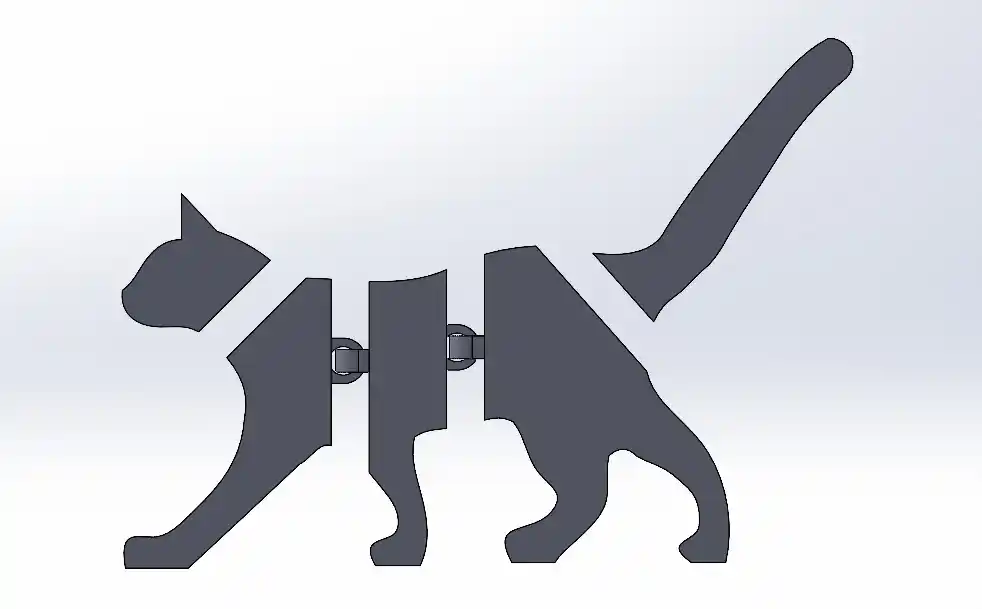
I also inserted the joint file into the assembly.
I positioned the joints at various points, such as the head and the tail, which required adjusting their inclination (angles).
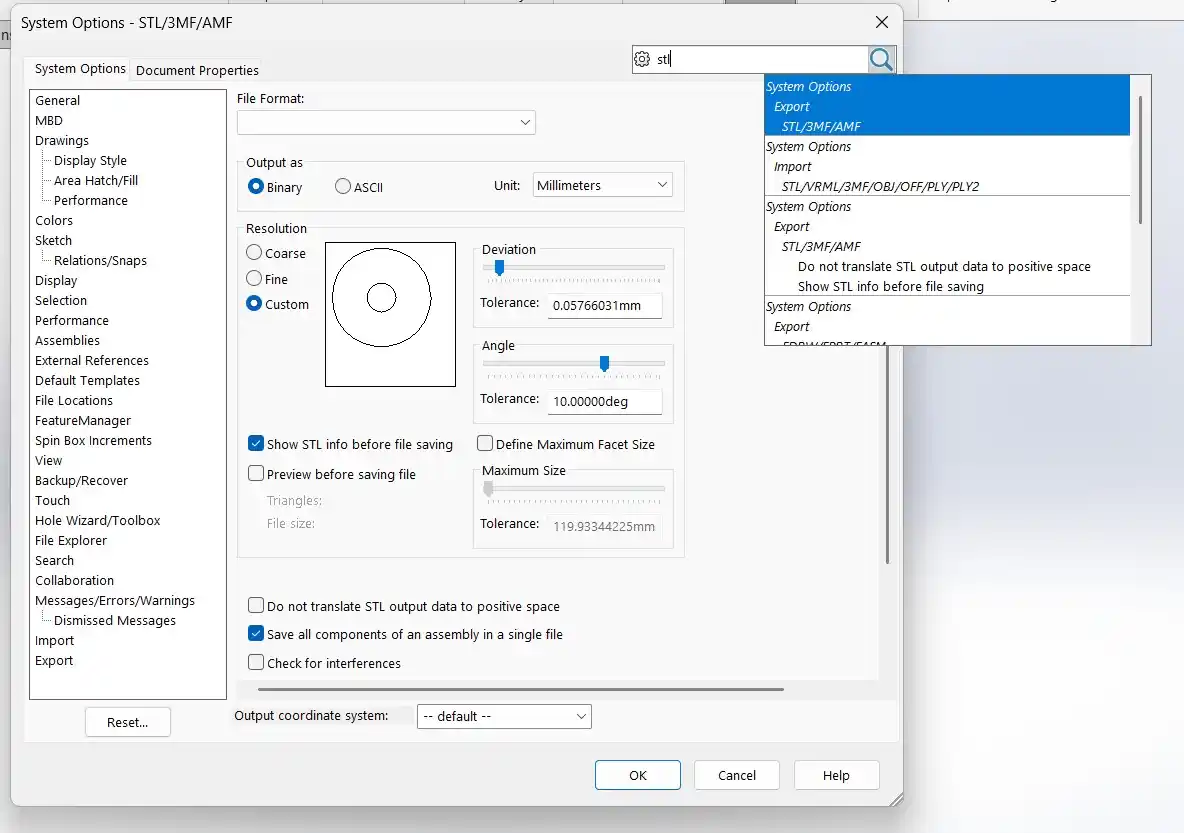
Finally, I went into Settings and navigated to the STL export options. Within that menu, I enabled the option to "Save all components of an assembly in a single file."
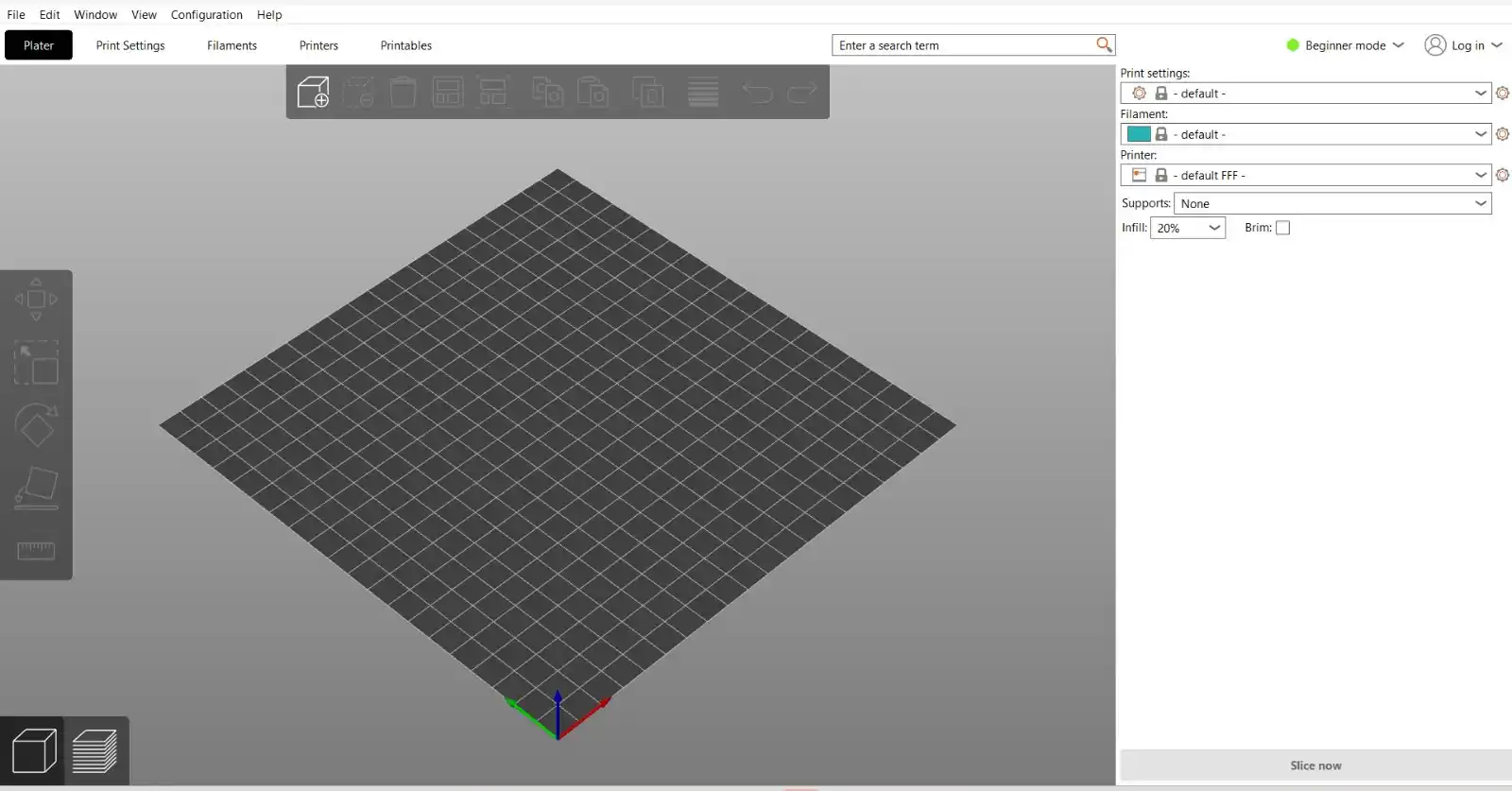
I used PrusaSlicer, the software required to generate the file for 3D printing. This is the main interface.
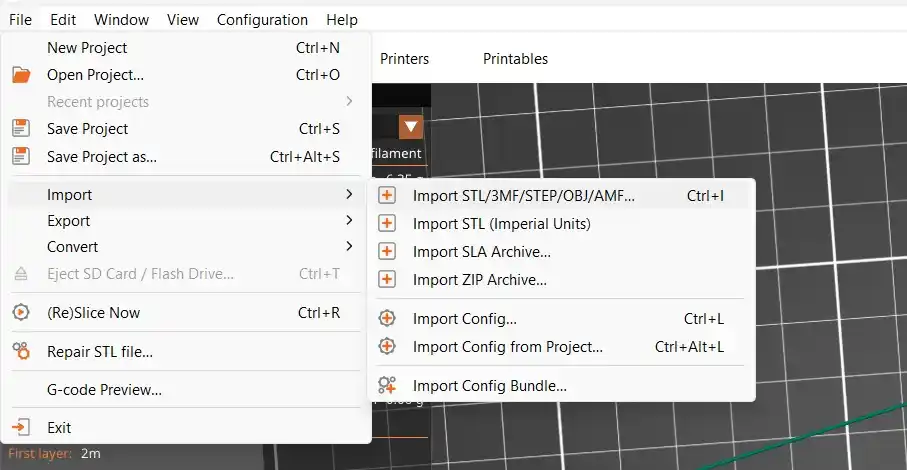
In the top menu, I clicked File > Import > Import STL/3MF/STEP.
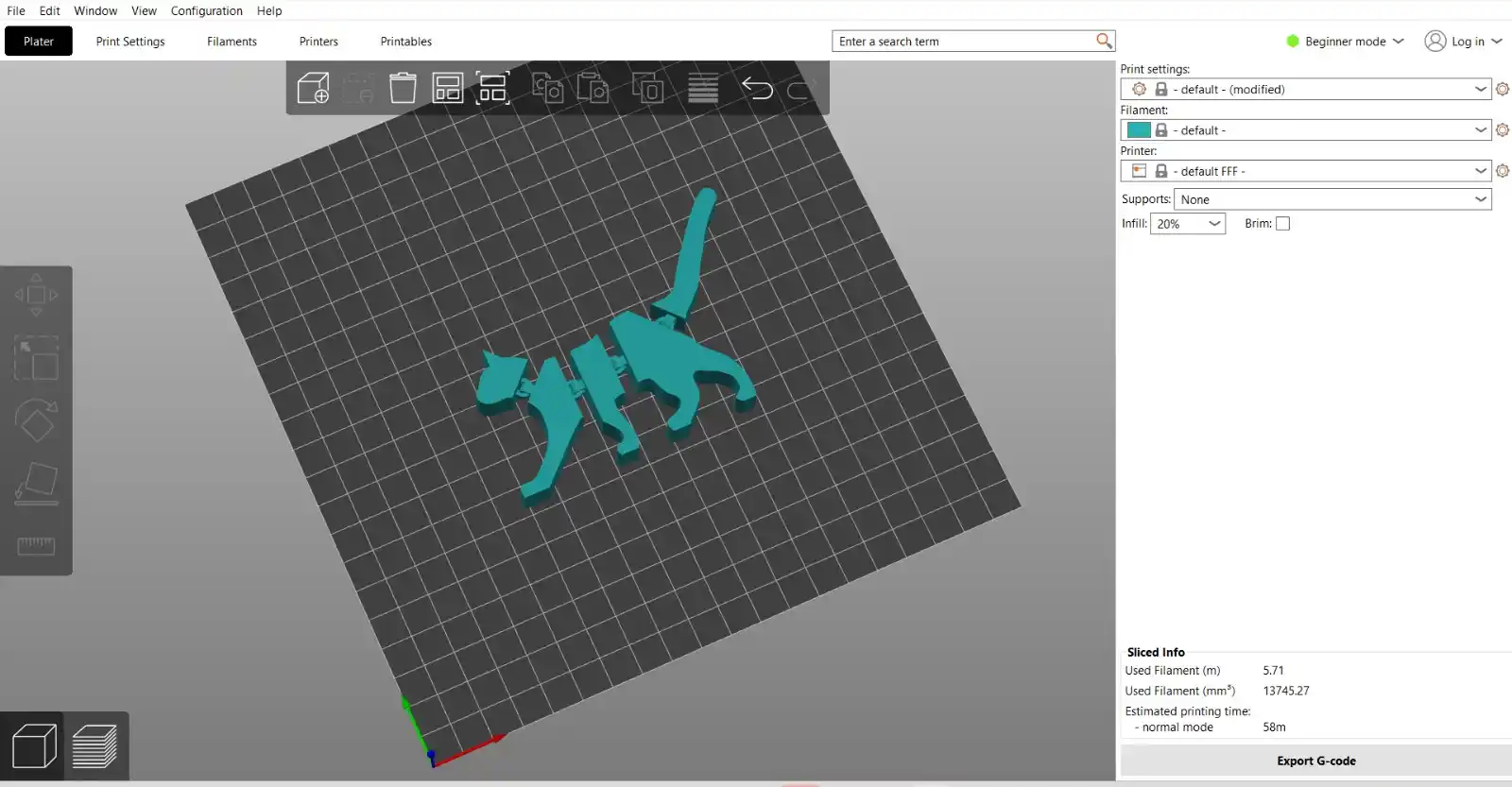
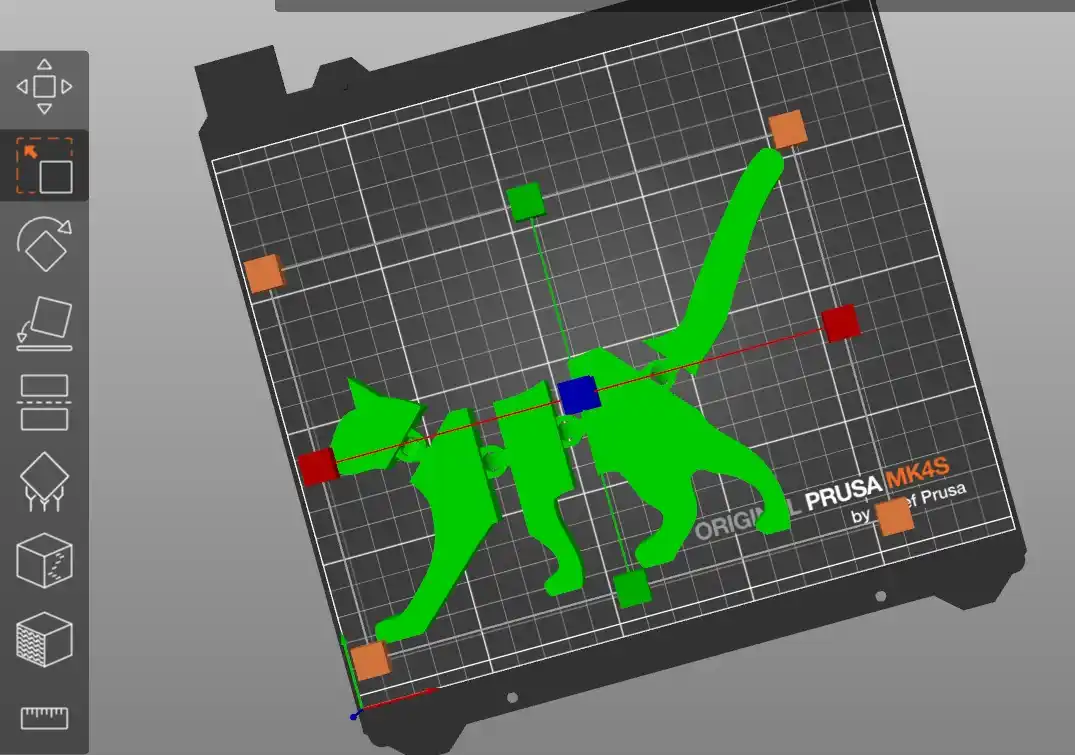
This is how the model appears once imported.
Crab-man
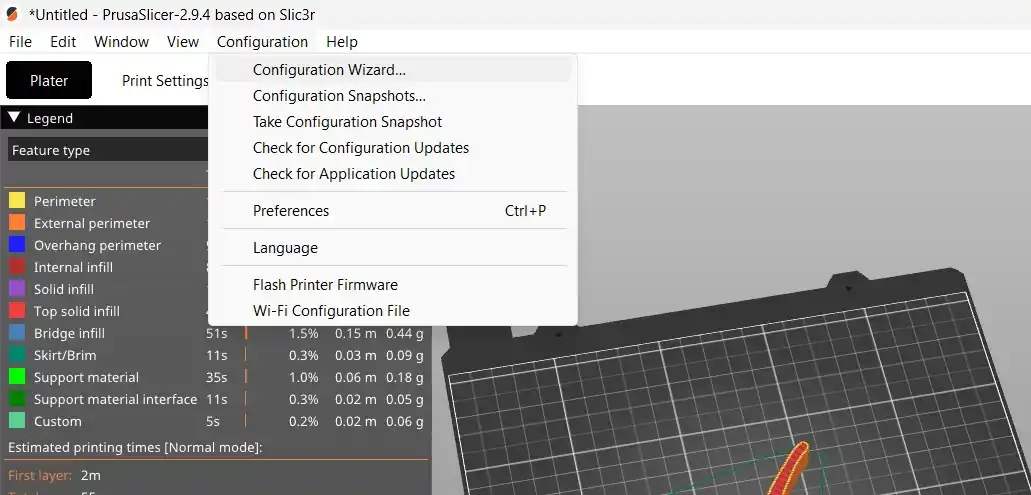
Next, I went to Configuration > Configuration Wizard.
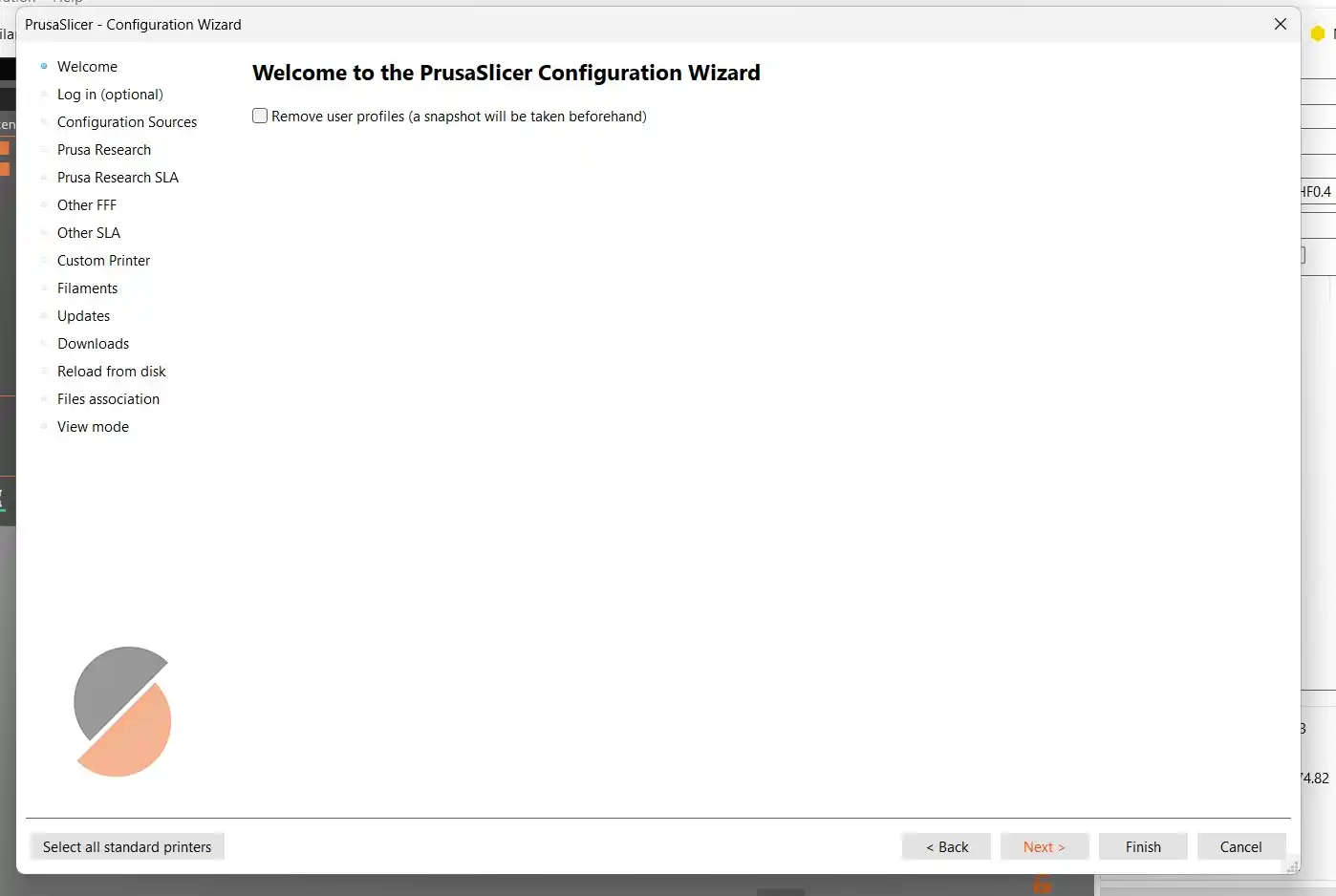
I clicked "Next" through the menu until reaching the printer selection
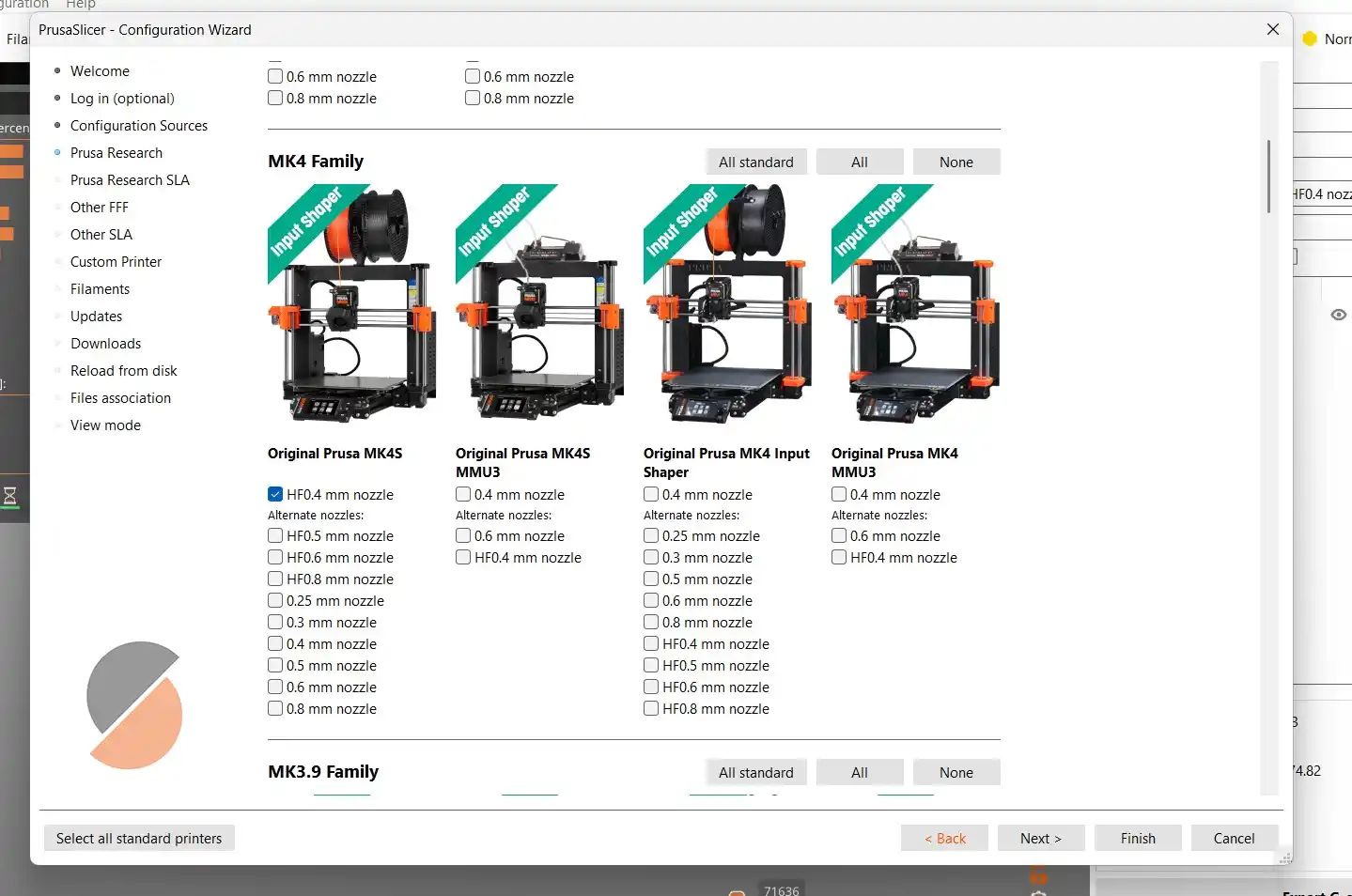
Where I chose the model available in my Fab Lab: the Original Prusa MK4S with a 0.4 mm HF nozzle.
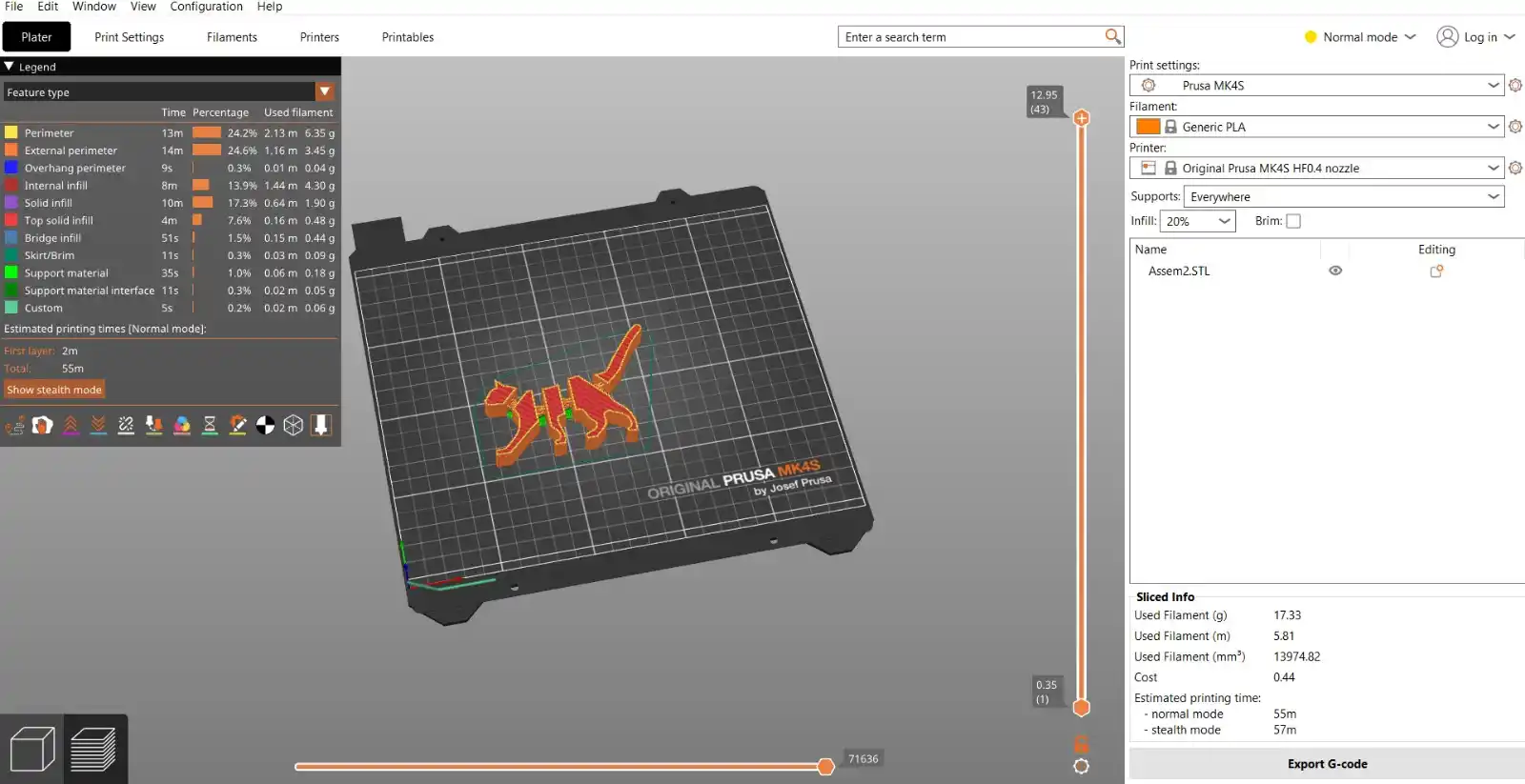
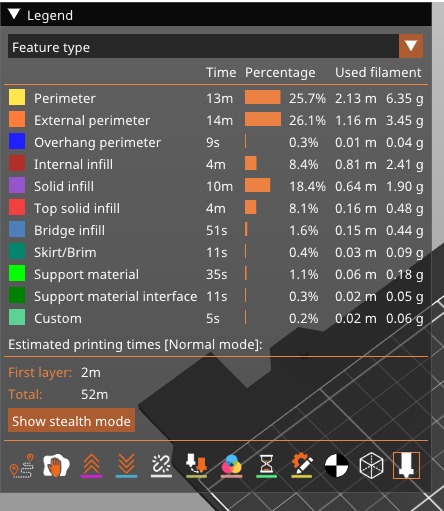
The right-hand panel updates based on the selected printer. At the bottom, I clicked Slice Now, which calculates the estimated print time. The button then changes to Export G-code, which must be saved to a USB drive.
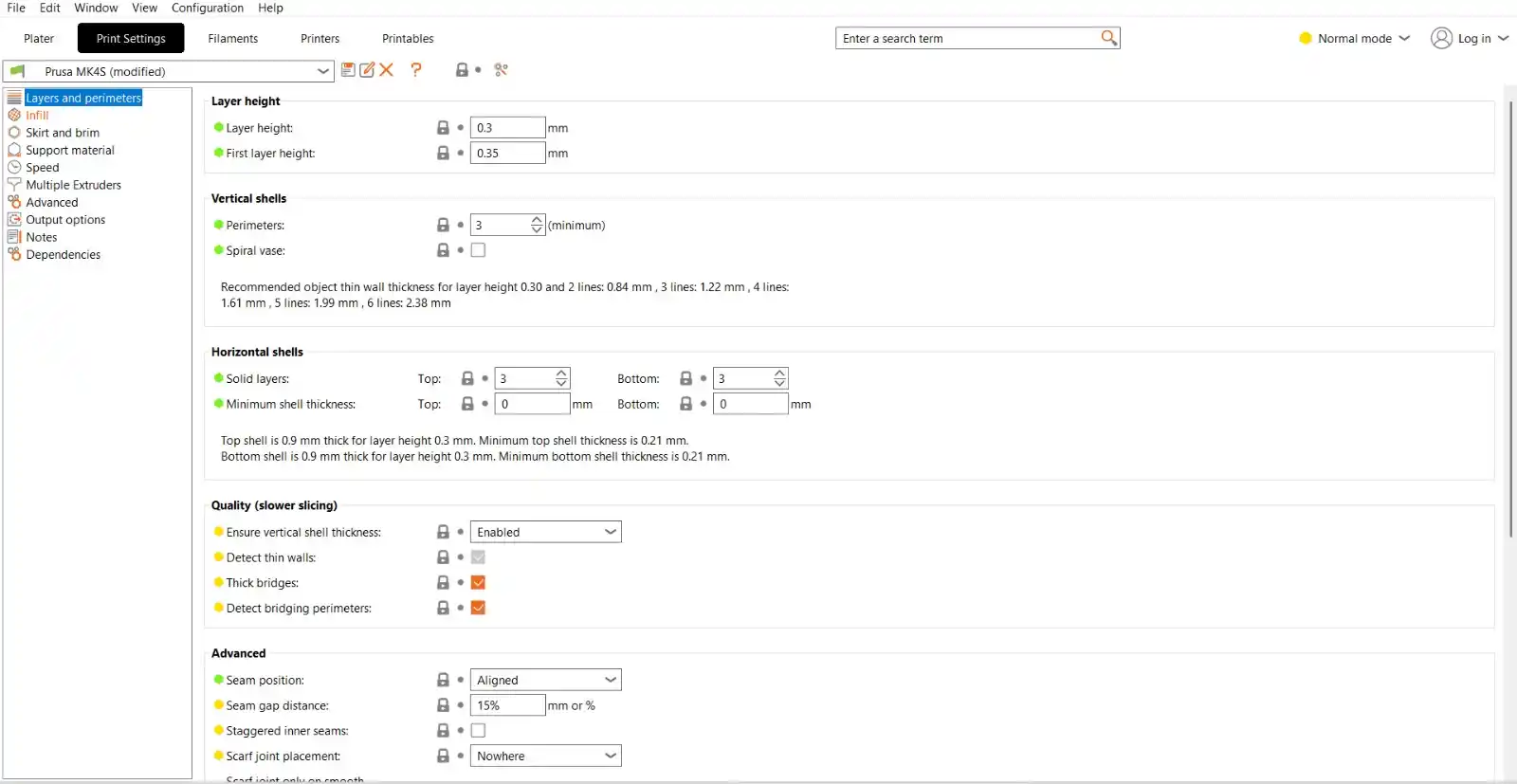
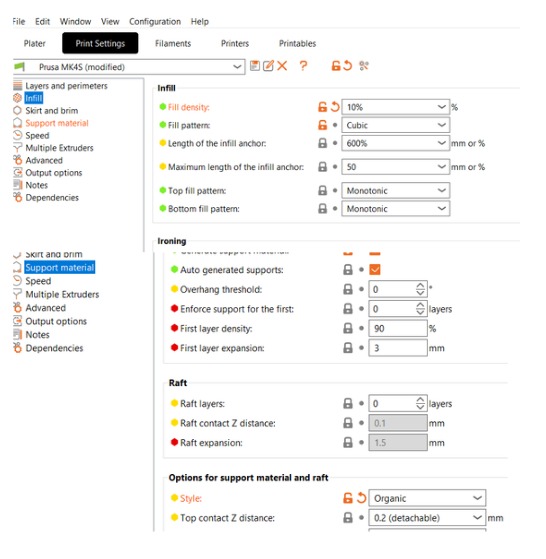
Under the Print Settings menu, I configured the following parameters:
Infill: The internal structure of the part, expressed as a percentage (e.g., 10%, 20%, 100%).
Skirt and Brim: Extra lines printed around the part to improve bed adhesion and prime the nozzle.
Speed: Controls how fast the printer moves.
Higher speed: Faster printing but lower quality.
Lower speed: Better detail and higher precision.
Support Material: Temporary structures that support "overhanging" parts of the model.
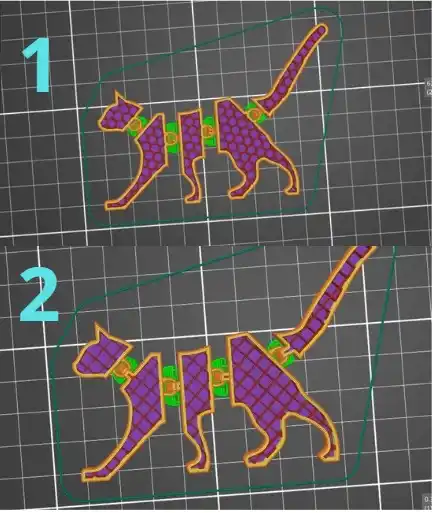
Infill Examples
Here is an example of different patterns: (1) is Honeycomb and (2) is Cubic. The mechanical strength of the print changes depending on the pattern used.
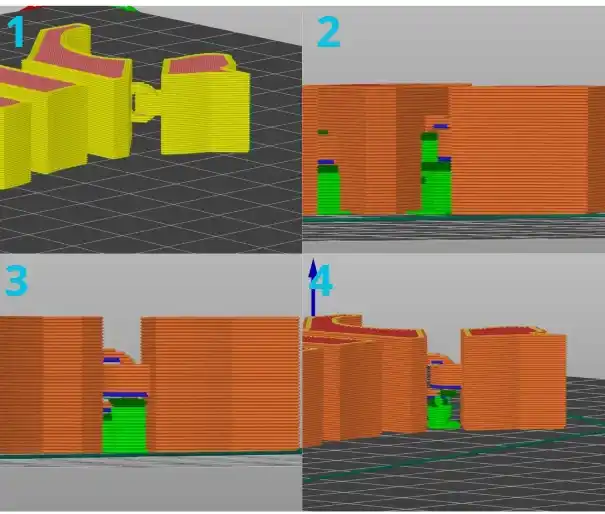
Support Examples
Here is how supports vary: (1) no supports, (2) Grid supports, (3) Snug supports, and (4) Organic (tree) supports. To make the supports easier to remove from my joints, I chose Option 4 (Organic).
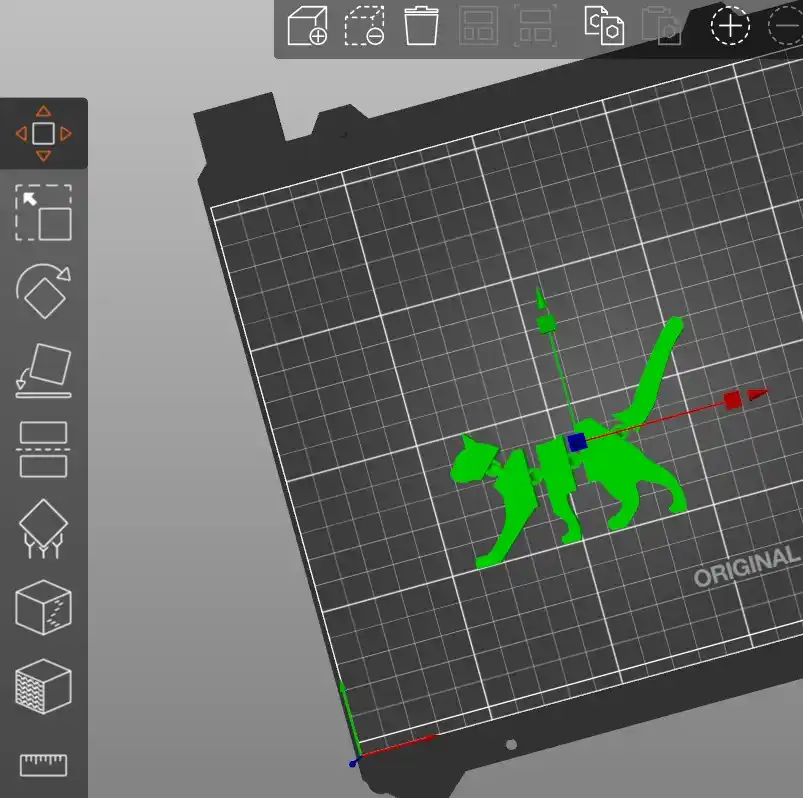
Transformation Tools
The left-hand toolbar provides the following options:
1. Move: To change the part's position on the heatbed.
Transformation Tools
The left-hand toolbar provides the following options:
2. Scale: To resize the 3D model.
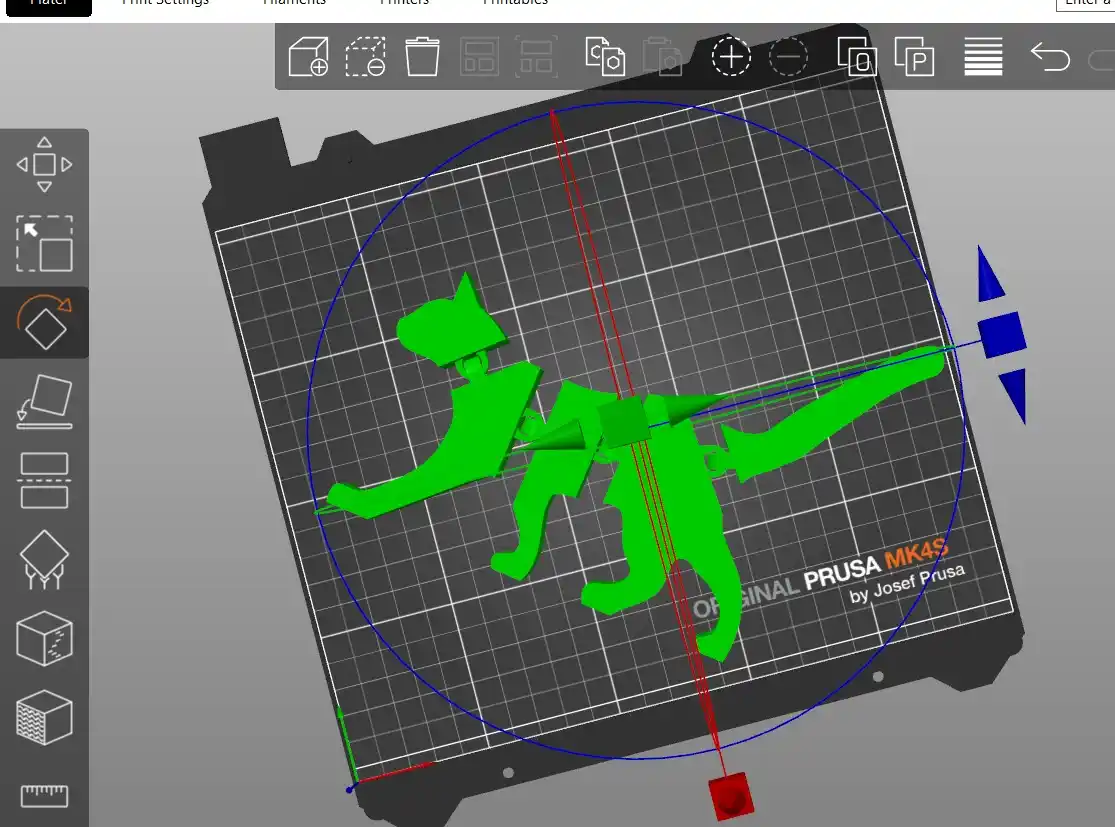
Transformation Tools
The left-hand toolbar provides the following options:
3. Rotate: To change the orientation of the print.
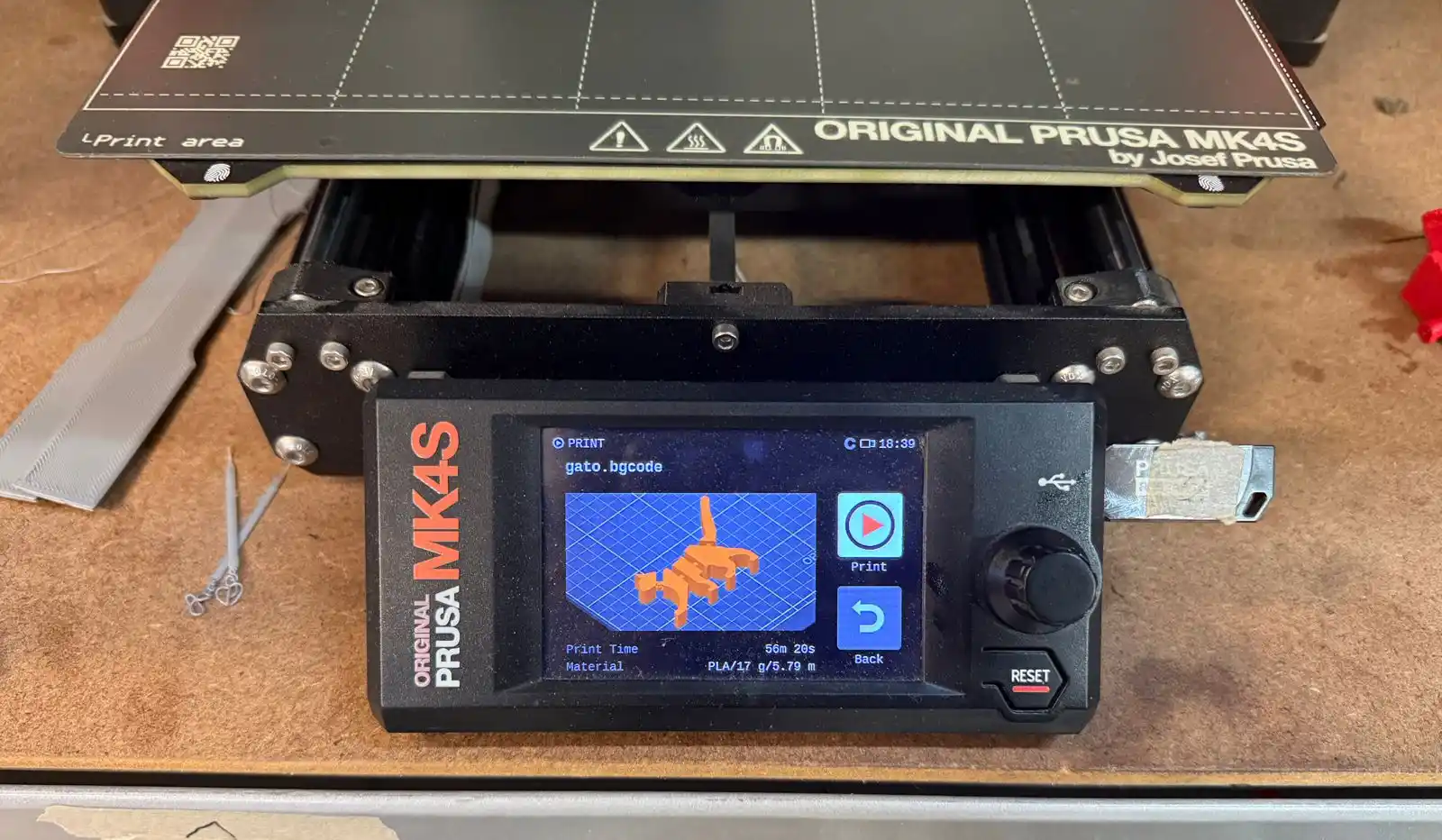
To start the printing process, I inserted the USB drive into the printer. The most recent file saved is the one that automatically appears on the screen. I selected Print, and the machine began the printing process.
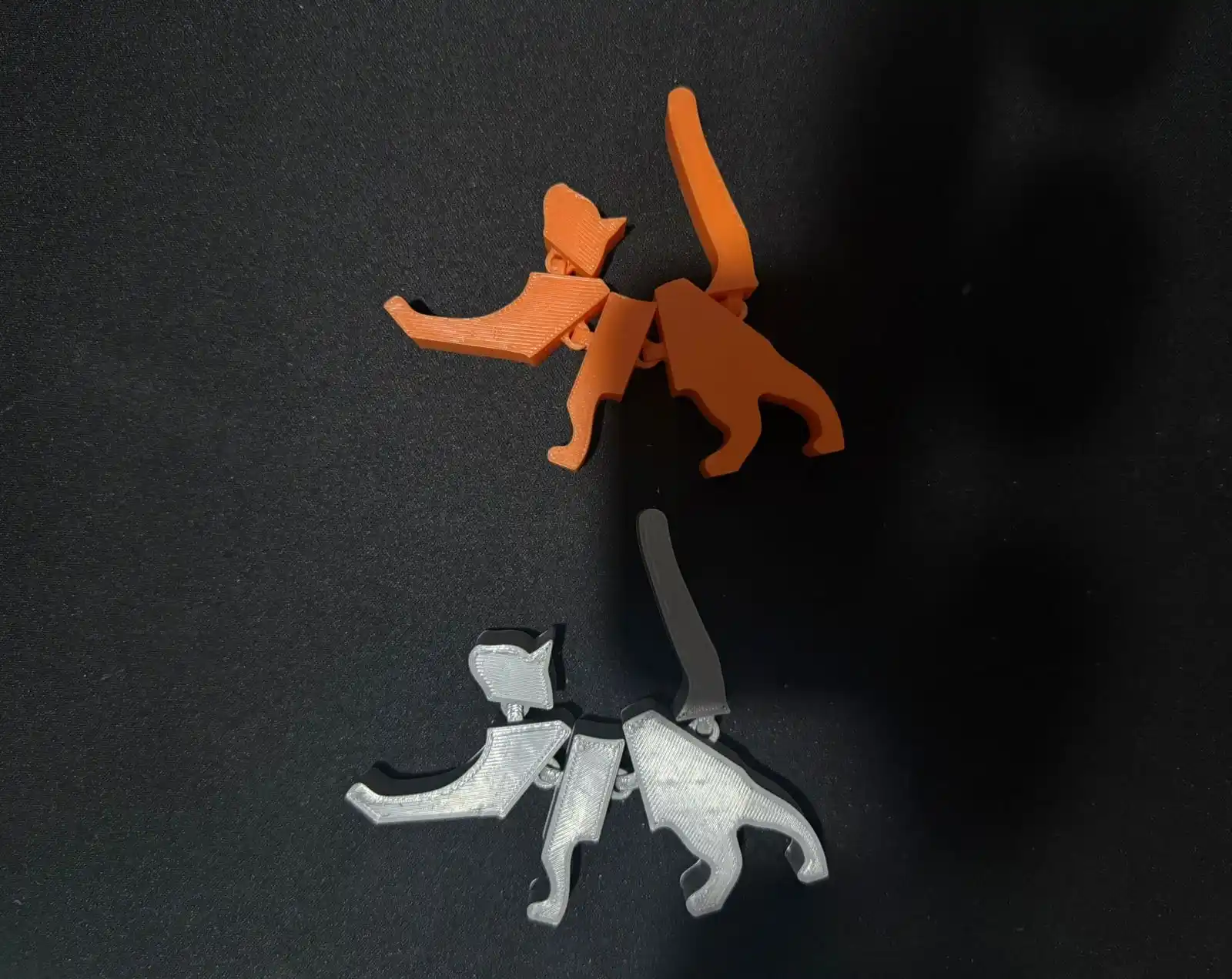
I also 3D printed my cat model in orange so it would remind me more of my cat, Jumper.
5. Scanning
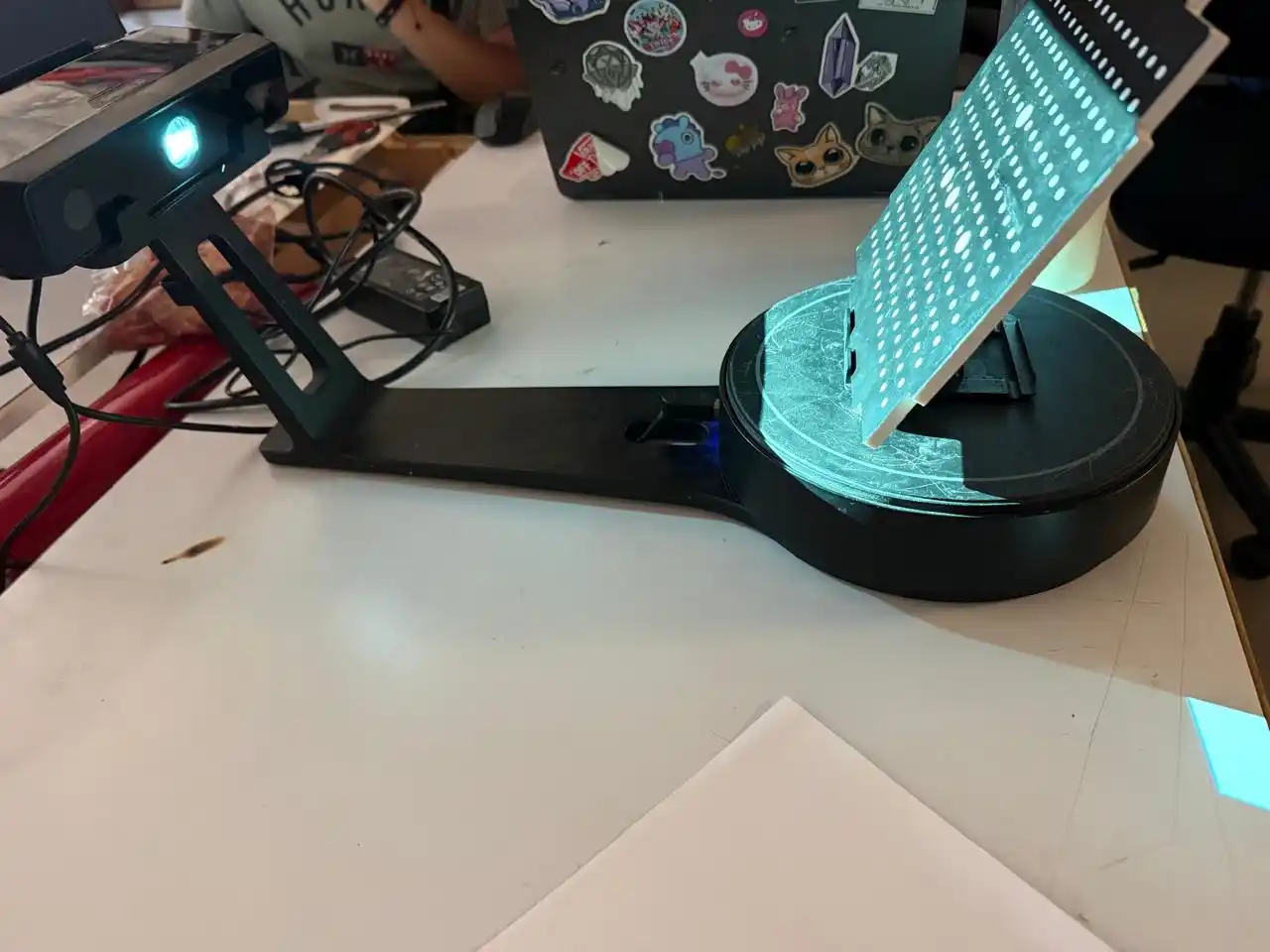
For the scanning assignment, I used the EinScan-SE scanner. To use it, you first need to download the software.
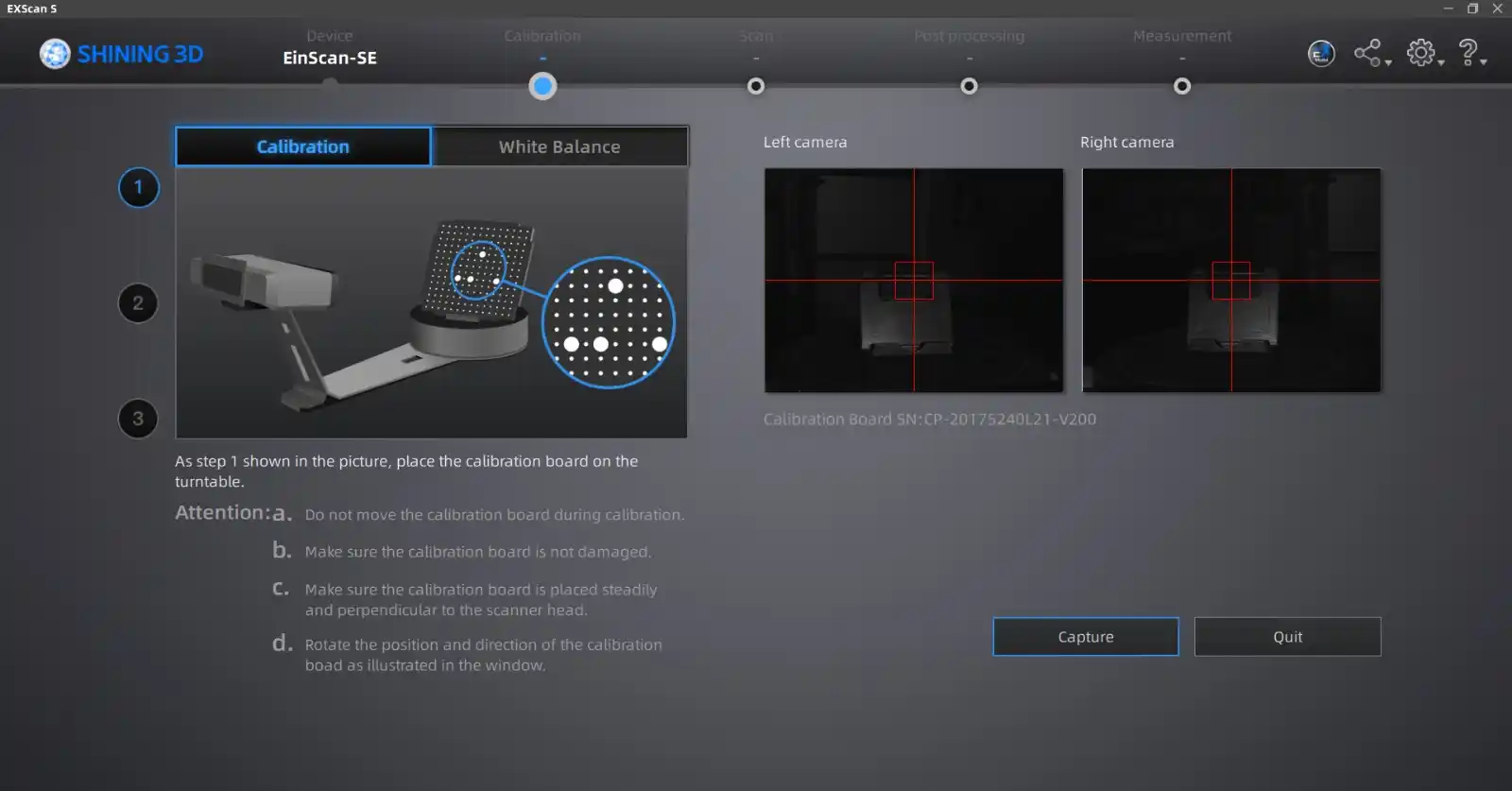
Upon opening the program, the first thing that appears is the scanner calibration section.
The video shows the White Balance calibration process.
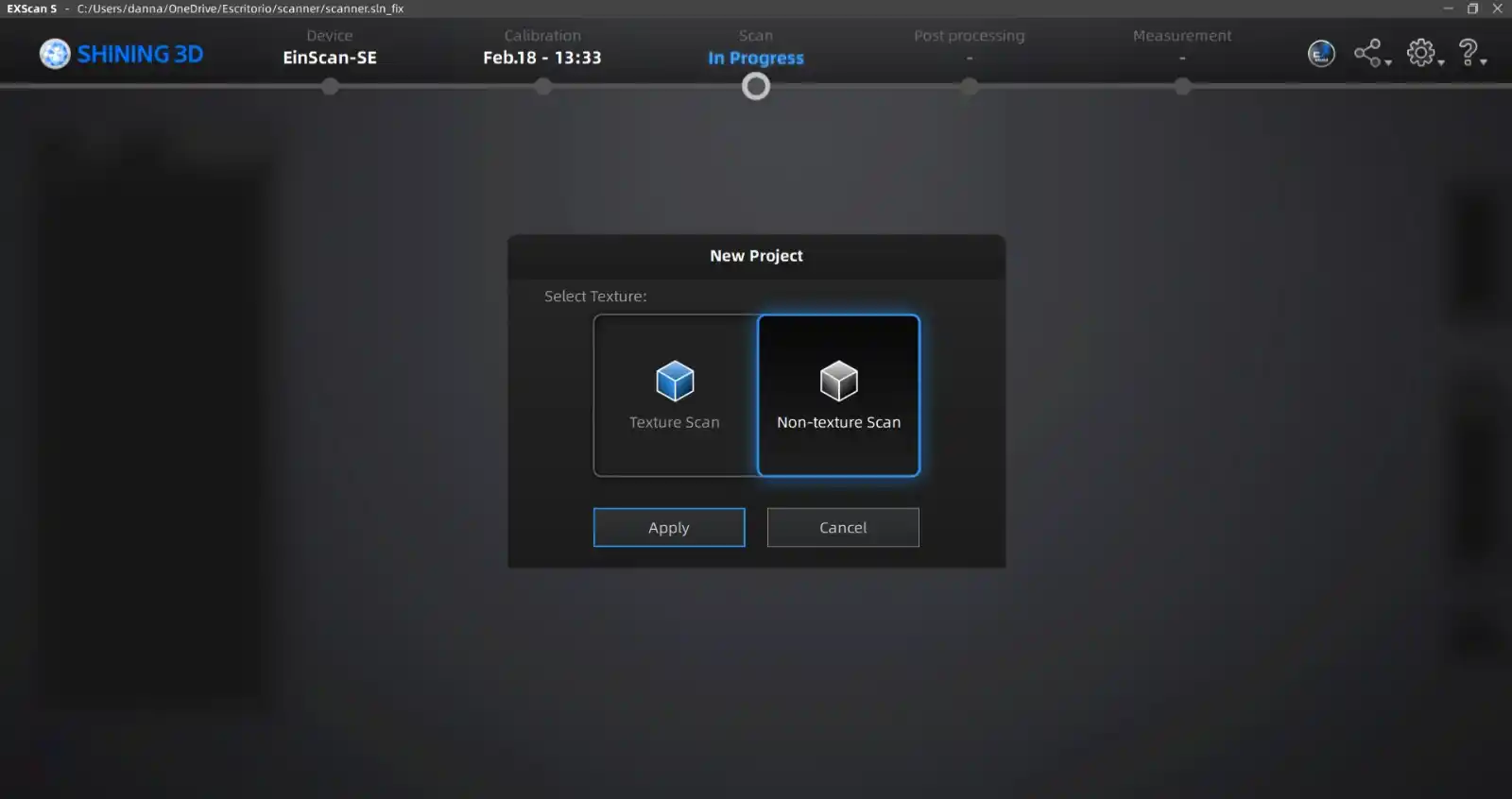
Next, the option to start a new project appears, and I selected Non-Texture Scan.
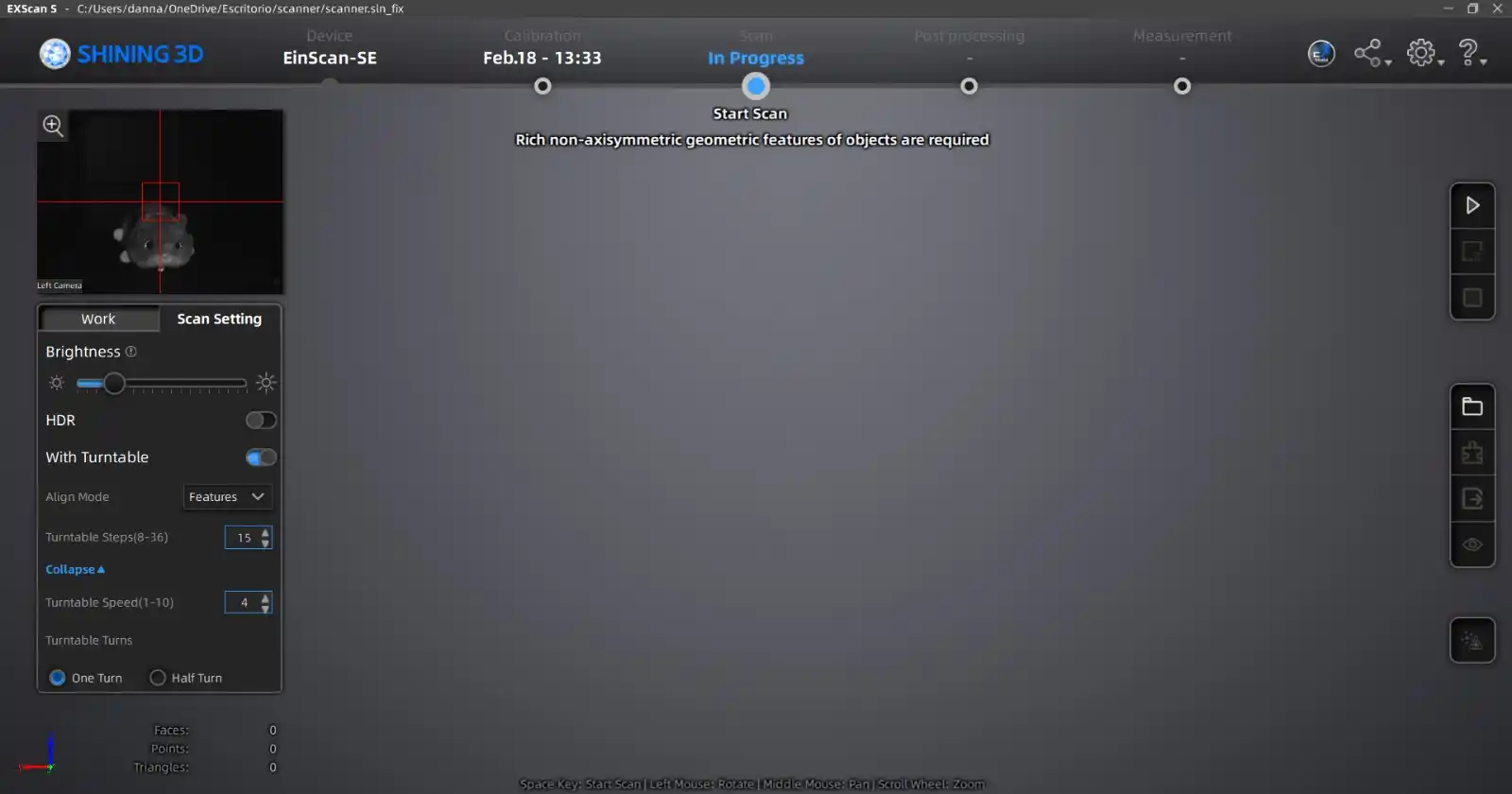
Once the project is created, the main interface is displayed; to begin the process, you must click the triangle button on the right-hand menu to start the scan.
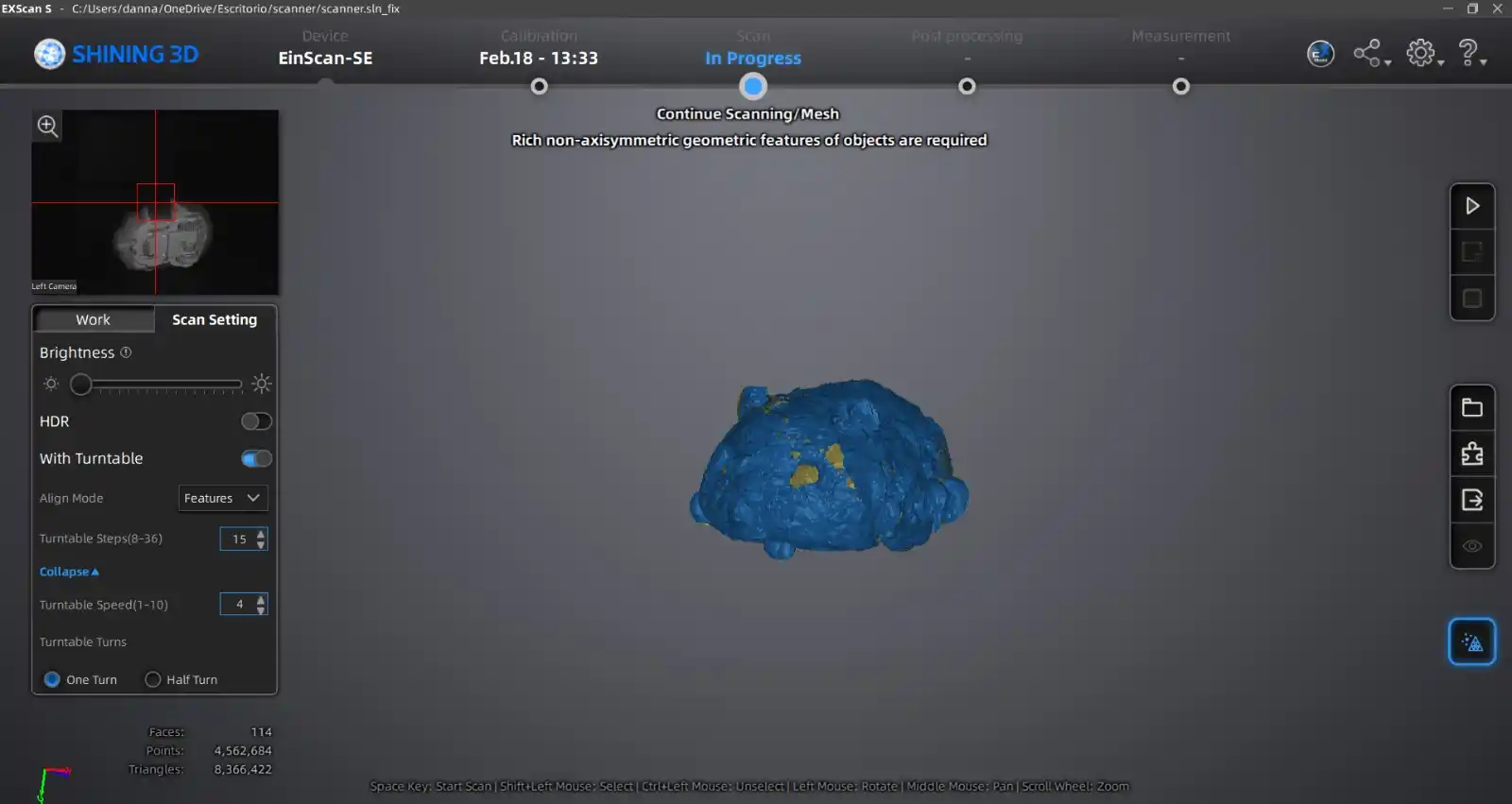
This is what the scanning process looks like.
When the scan is finished, we can press the triangle again to start scanning another part of our figure. On the main screen of our figure, we can see that the blue parts are the ones that have already been scanned correctly and the yellow ones are the ones that have not yet been scanned.
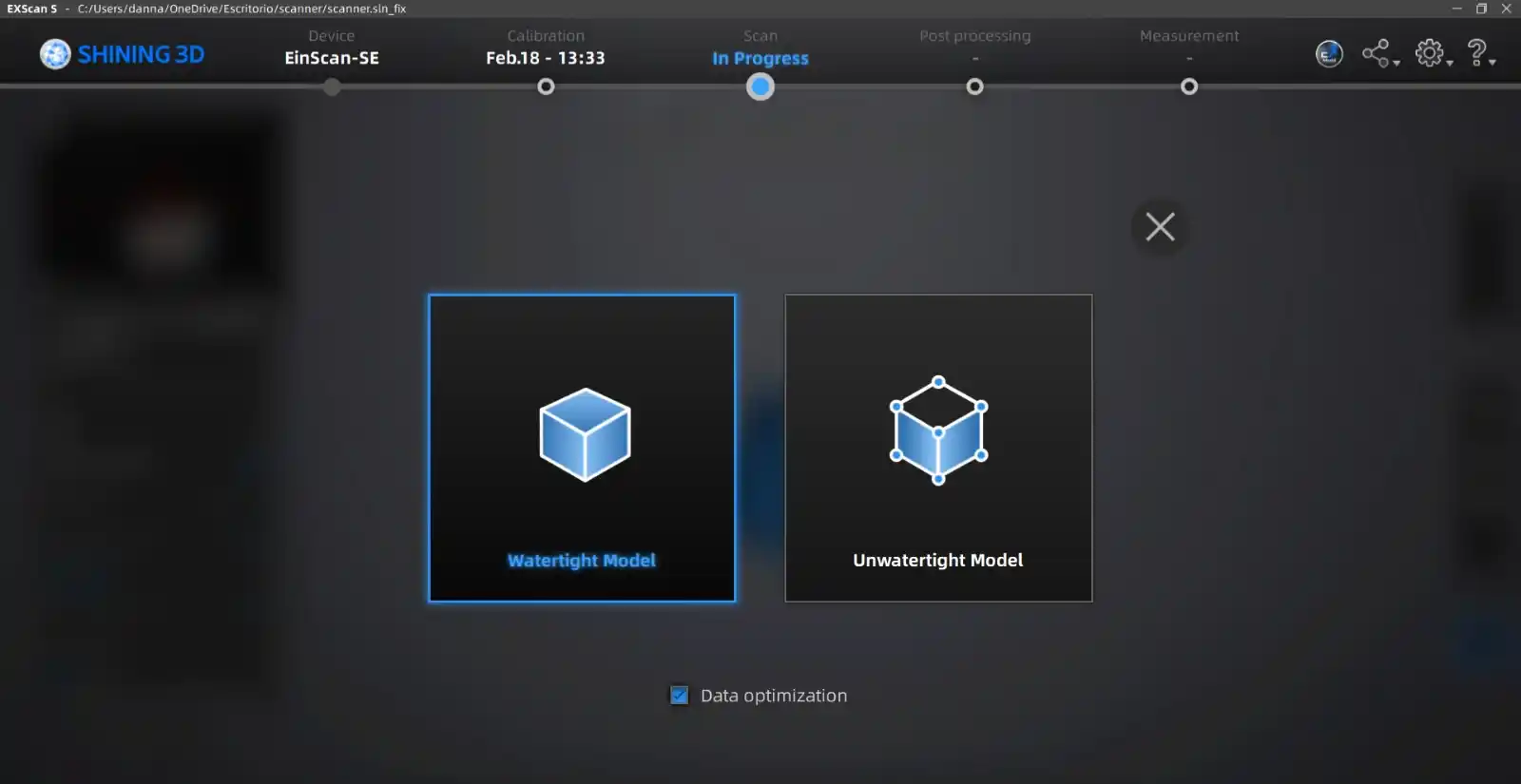
Once the scanning is complete, you must click the last button in the right menu called Mesh to choose how to optimize the model. I chose Watertight because I wanted to print my model, and this option automatically closes all the holes.
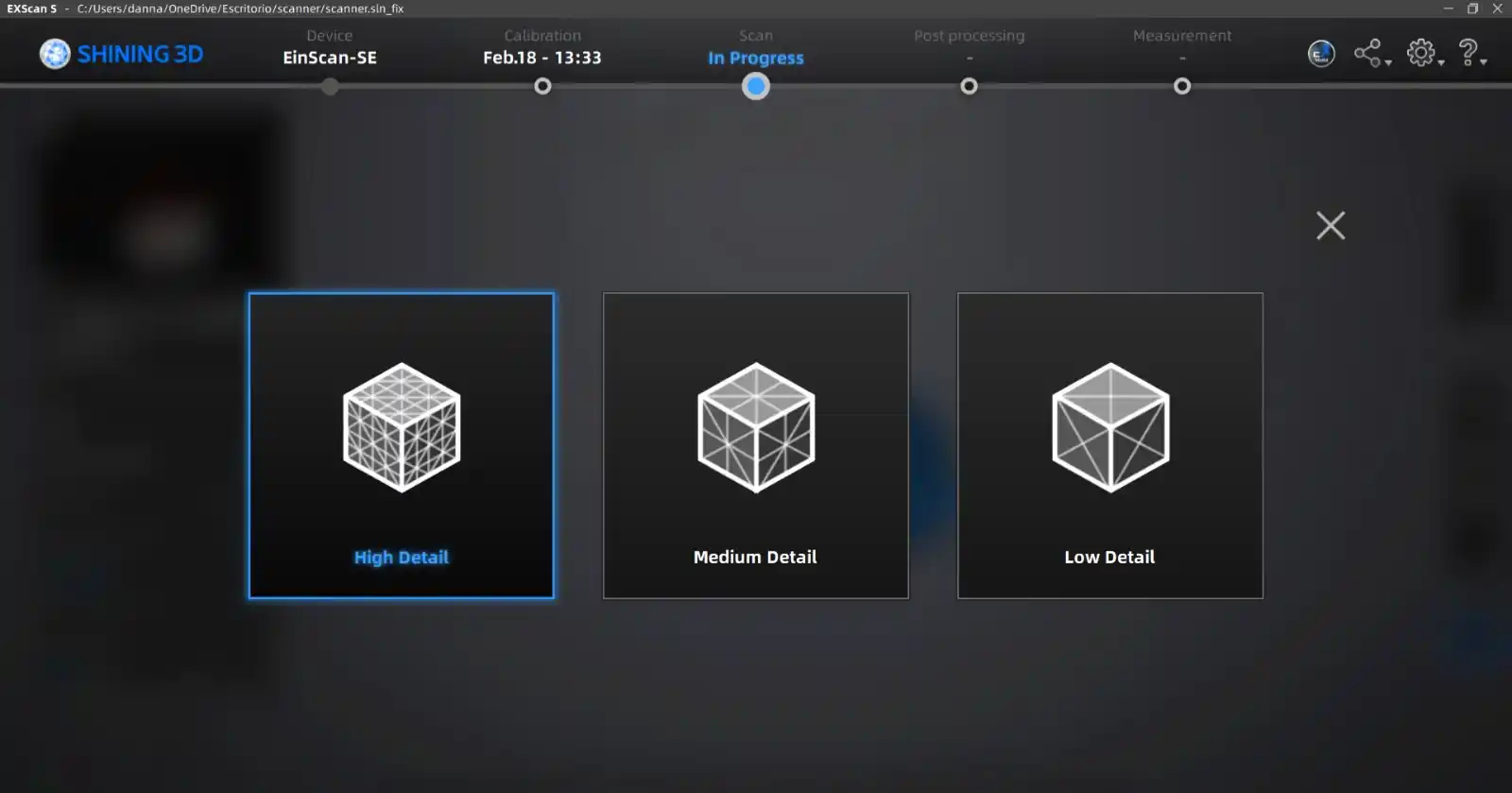
Then, I selected High Detail for the final mesh.
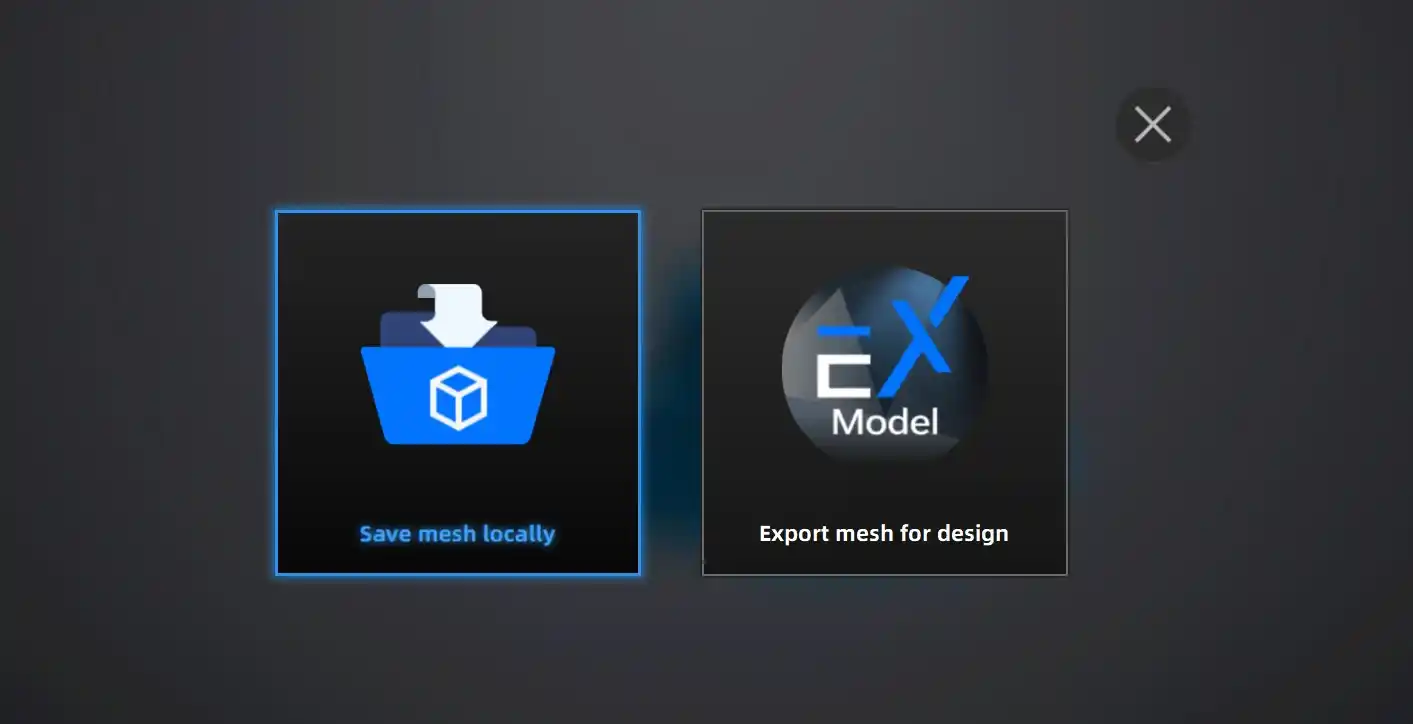
I clicked the export button and chose Save mesh locally to save it as an STL file.
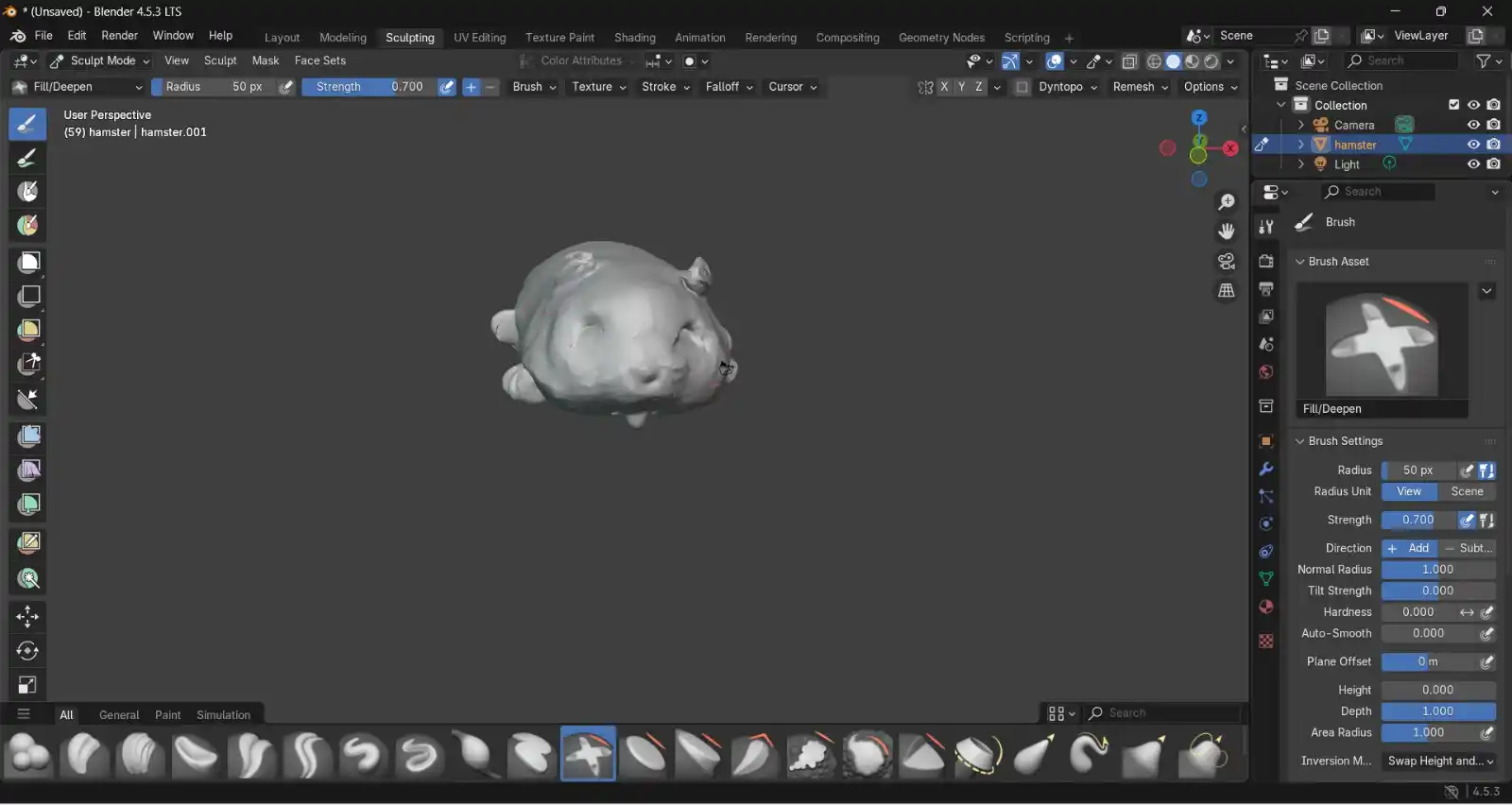
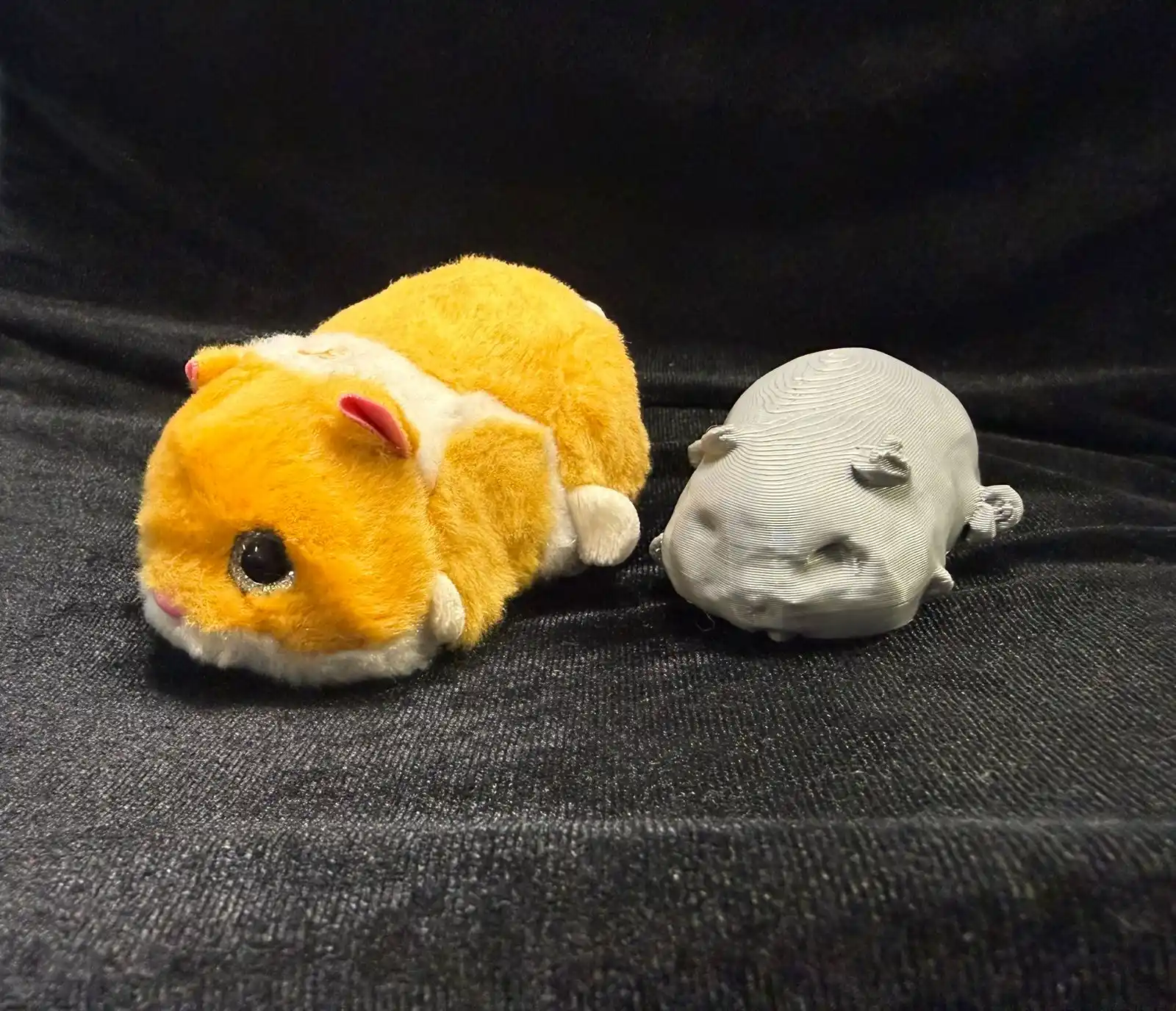
Once I had the file, I opened it in Blender to smooth it out using the Brush Asset tool, since the raw scan was very rough due to my hamster's fur.