Week 8: Electronics Production
Group Assignment
Safety training
There are two main types of PCBs, FR-1 and FR-4.
Machine calibration
At our node, we have Roland SRM-20 milling machine.
I found this video from FabLab Aalto, students at my node from previous years have used to set up


Test 1: milling
Then we downloaded the “traces” file, and cut it on our laser cutter.


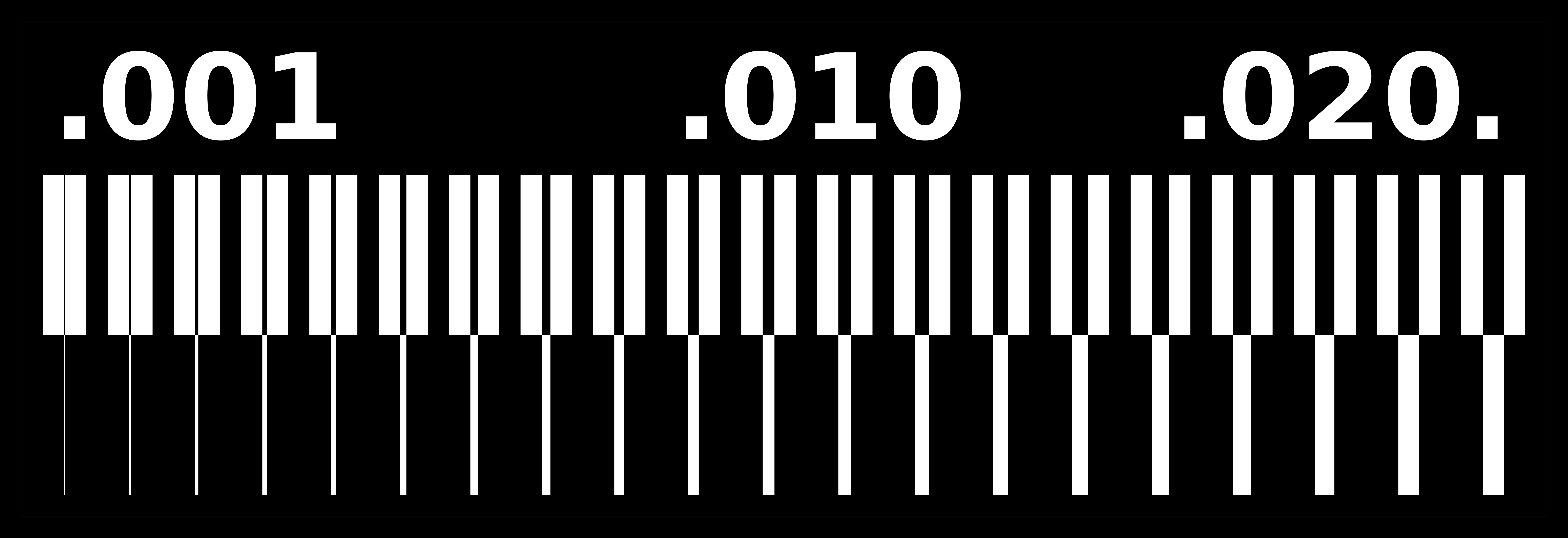
Test 2: etching
For our group assignent, Mariam and I took a scrap piece of FR-1 PCB blank, and cut it into two parts, uisng the DeWALT Scroll Saw.
Again with the “traces” file, and cut it on our laser cutter.
Part 1
Part 2
For our group assignent, Mariam and I took a scrap piece of FR-1 PCB blank, and cut it into two parts, uisng the DeWALT Scroll Saw.
Then we downloaded the “traces” file, and cut it on our laser cutter.
We took a petri dish, and mixed a solution of
Individual Assignment
For my final project I am designing a drone rescue parachute.
• 1x XIAO RP2040 • 1x GY-521 Accelerometer and Gyroscope • 1x Buzzer • 1x 1206 SMD LED • 1x 0Ω Jumper Resistor • 1x 220Ω Resistor
Step 1: designing
Yet againg we return to KiCAD.
First you open the Schematic Editor, and add the predetermined list of components. When adding these onto the sheet you need to make sure the symbols also come with footprints. If not, you either go online and download the footprints corresponding to your pieces, or create them yourself in Symbol/Footprint Editor [depending on your needs].
Once you have layed out a desired schematic, you switch to PCB Editor, and wire the board according to the pieces.
Schematic editor

In my example, I did not have a symbol or a footprints for my buzzer. So I googled the name of it online and found the files through this website.
If I were unable to find them online also, my steps would be to measure the distamce between the anode and the cathode and sketch a simple circle with two holes in it. This would serve as the soldering pinholes for the buzzer.
PCB editor
Step 2: G-code
To generate the toolpath for the milling machine go to mods, a web-based CAM.


Step 3: milling
I began by attaching an FR-1 PCB blank with double-sided tape onto the machine bed. Then I clamp it down with a for about 5 minutes


As it did not go according to plan, I taped a piece of plywood onto the scroll saw table to ensure a straign cut.
Step 4: soldering


After milling the PCB, I fetched the electronics components to begin soldering.


Future developement
Additionally I am considering adding a compressed air canister, but thats for future developemets…