
Week 01: Principles and Practices / Project Management
Assignment
- Work through a Git tutorial
- Create a website and document how I did it
- Plan and sketch a potential final project
Things to Complete This Week
- Create a website and explain how it is built
- Document the steps for setting up the Git repository and adding files
- Add a section about myself on the website
- Add a page with the sketch and description of the final project idea
- Push the work to the class GitLab repository
- Sign and upload the Student Agreement
Creating a Schedule
To organize and manage my time efficiently, I decided to create a schedule.
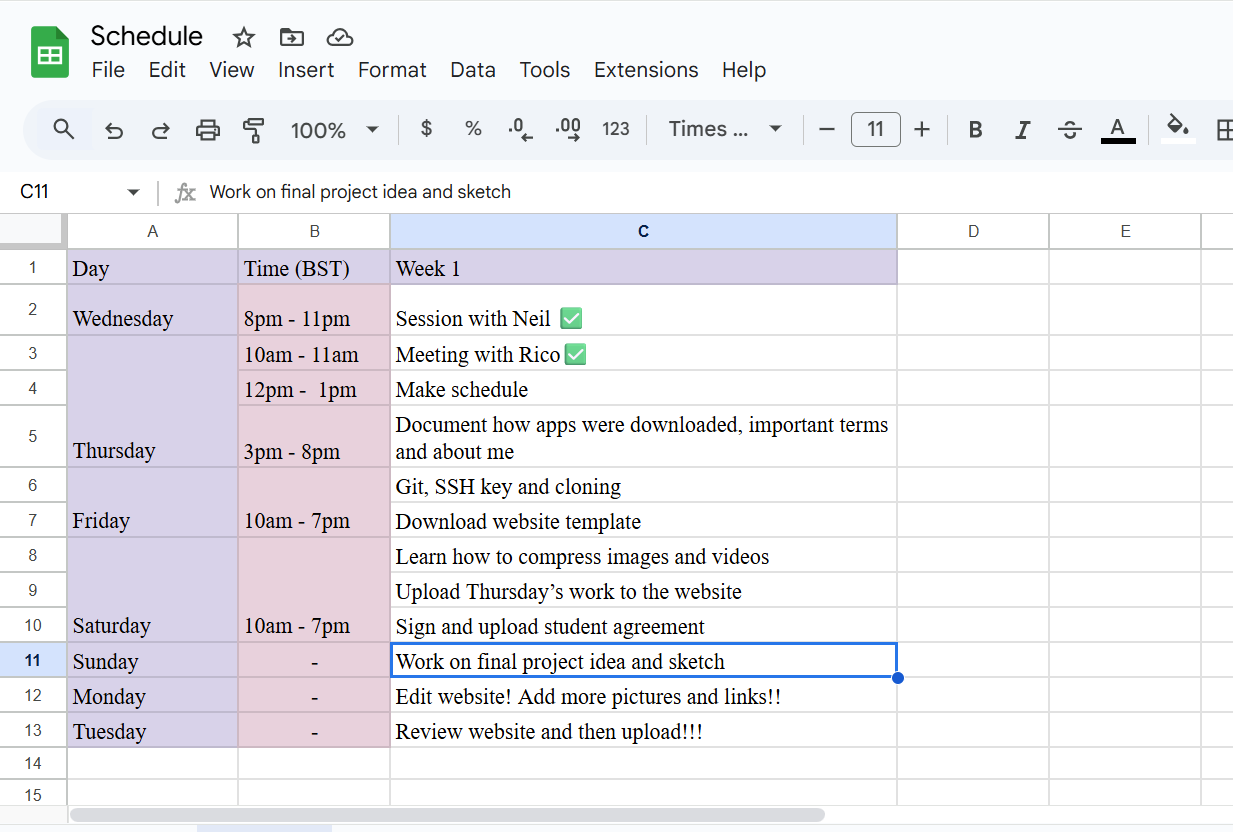
Here is the link to my schedule .
Git and GitLab
Git is a tool that tracks changes in your code and saves different versions of it. GitLab is a platform that hosts Git projects and allows users to store and share code.
Here is the link to download git.
This was the tutorial that I followed.
Git Configuration
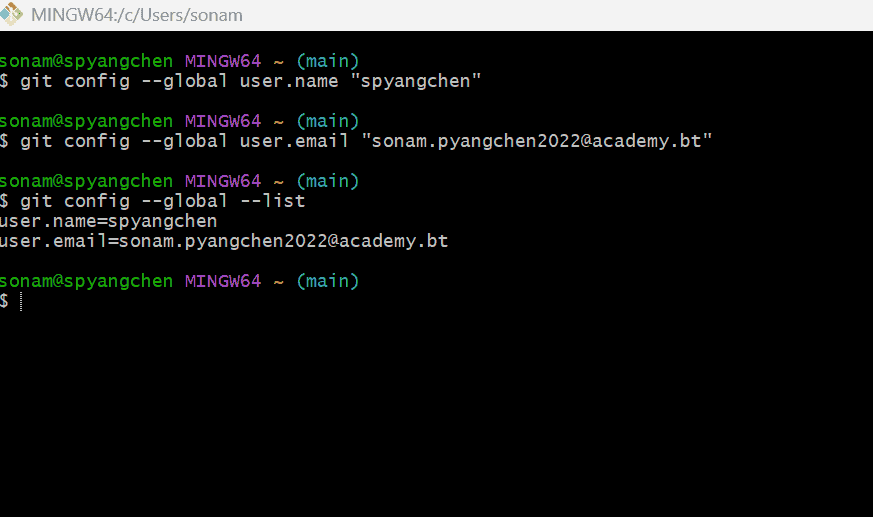
To tell Git who you are, configure it using these commands. You can use either your terminal or Git Bash. I used Git Bash.
git config --global user.name "your_username""
git config --global user.email "your_email""
To verify whether your identity settings are correct, run this command:
git config --global --list"
SSH Key Generation
An SSH key is like the digital version of a lock and key that is used to access computers or servers online. Your private key stays hidden on your server while the public one goes on the server.
Now to generate the SSH key:
ssh-keygen -t rsa -C "your_email"
Keep on pressing enter until you see your key's randomart image.
Then run this command to view your public key.
cat ~/.ssh/id_rsa.pub"
That long string is your public key which you'll use to connect to Gitlab securely.
Now copy the public key and go to: Profile → Preferences → SSH Keys → Add Key → Paste the key.
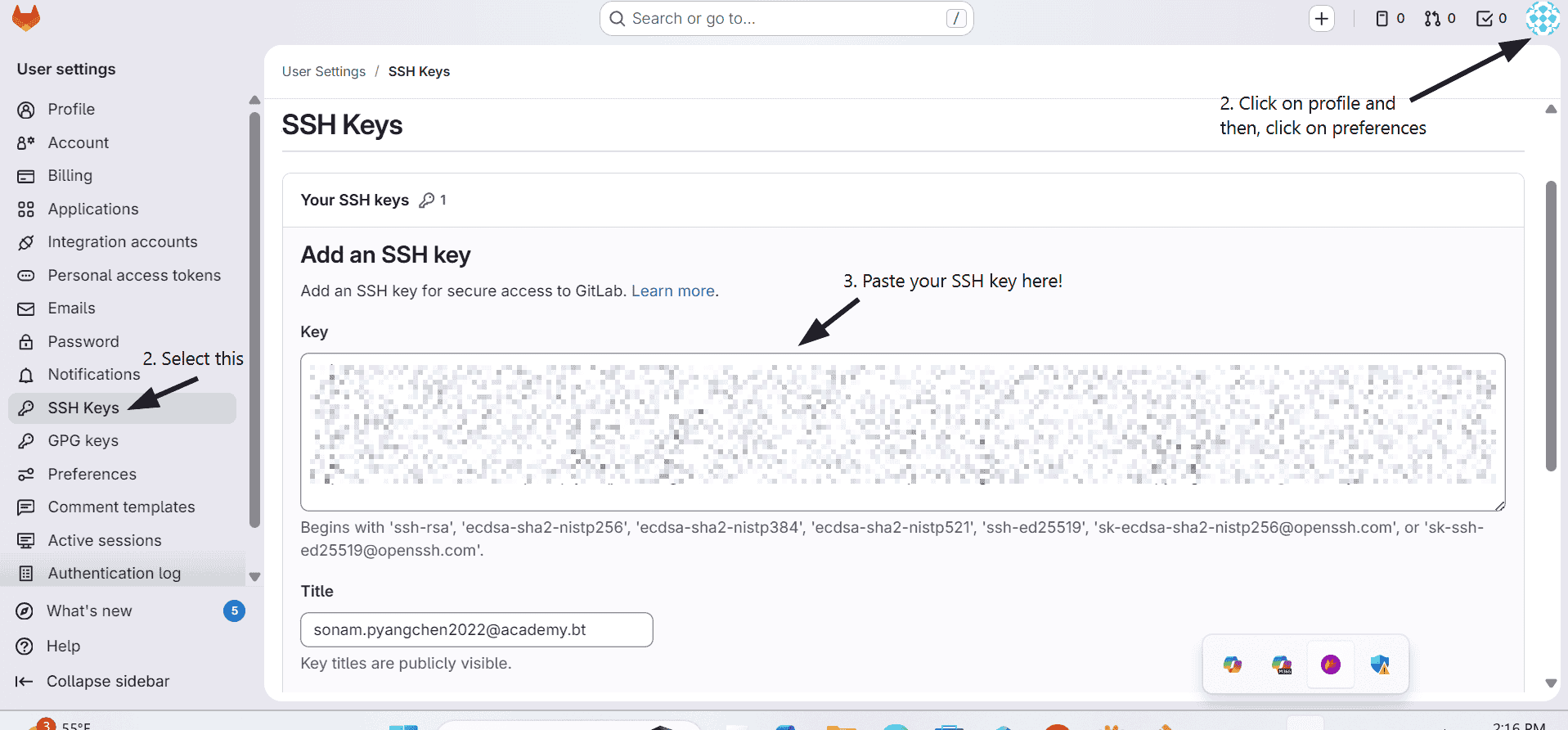
Yayyyyy!!!👏 Now that you have successfully created your SSH key, create a folder to save your repository clone. My folder is called Fabacademy.
To Clone Your Repository
When you clone a repository in Git, you’re basically copying a project from the internet onto your computer so you can work on it yourself.
1. Go to the FabCloud on GitLab and copy the Clone with SSH link.
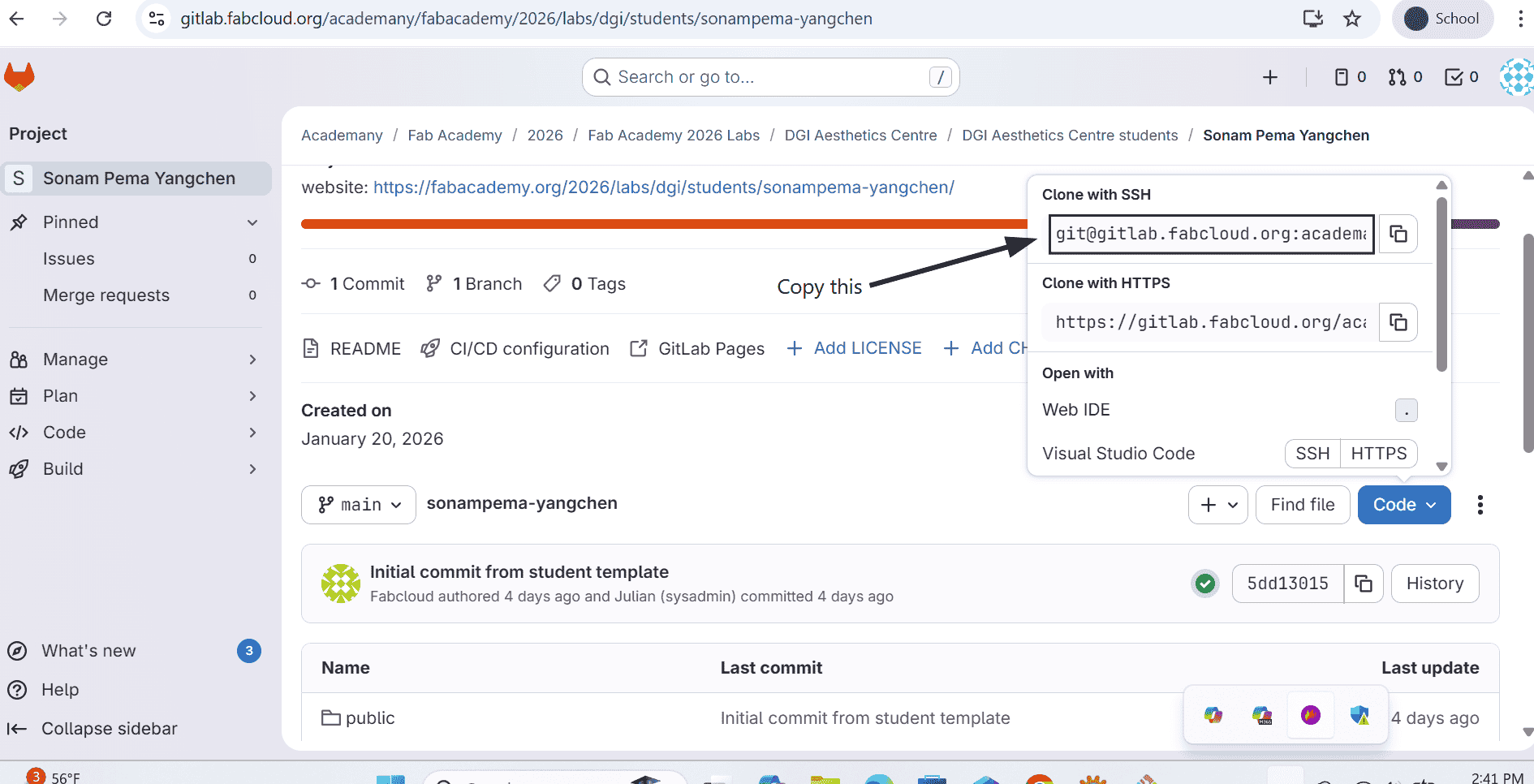
2. Open your terminal or Git Bash.
3. Navigate to the folder where you want to clone your repository.
4. After you have navigated to the right folder, run this command:
git clone "paste your gitlab link here"
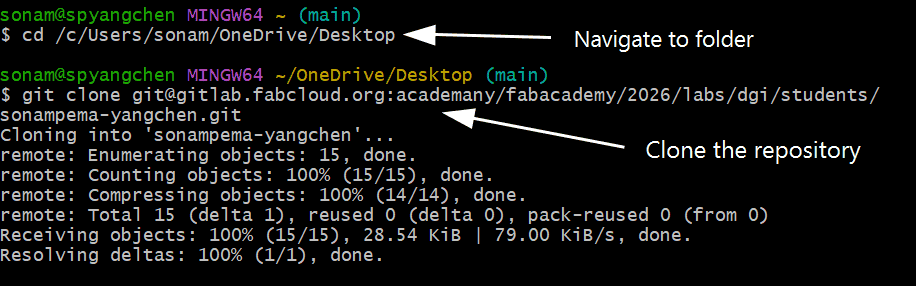
🎉 Your repository has been successfully cloned!
Website Design
I got my website template from this website.
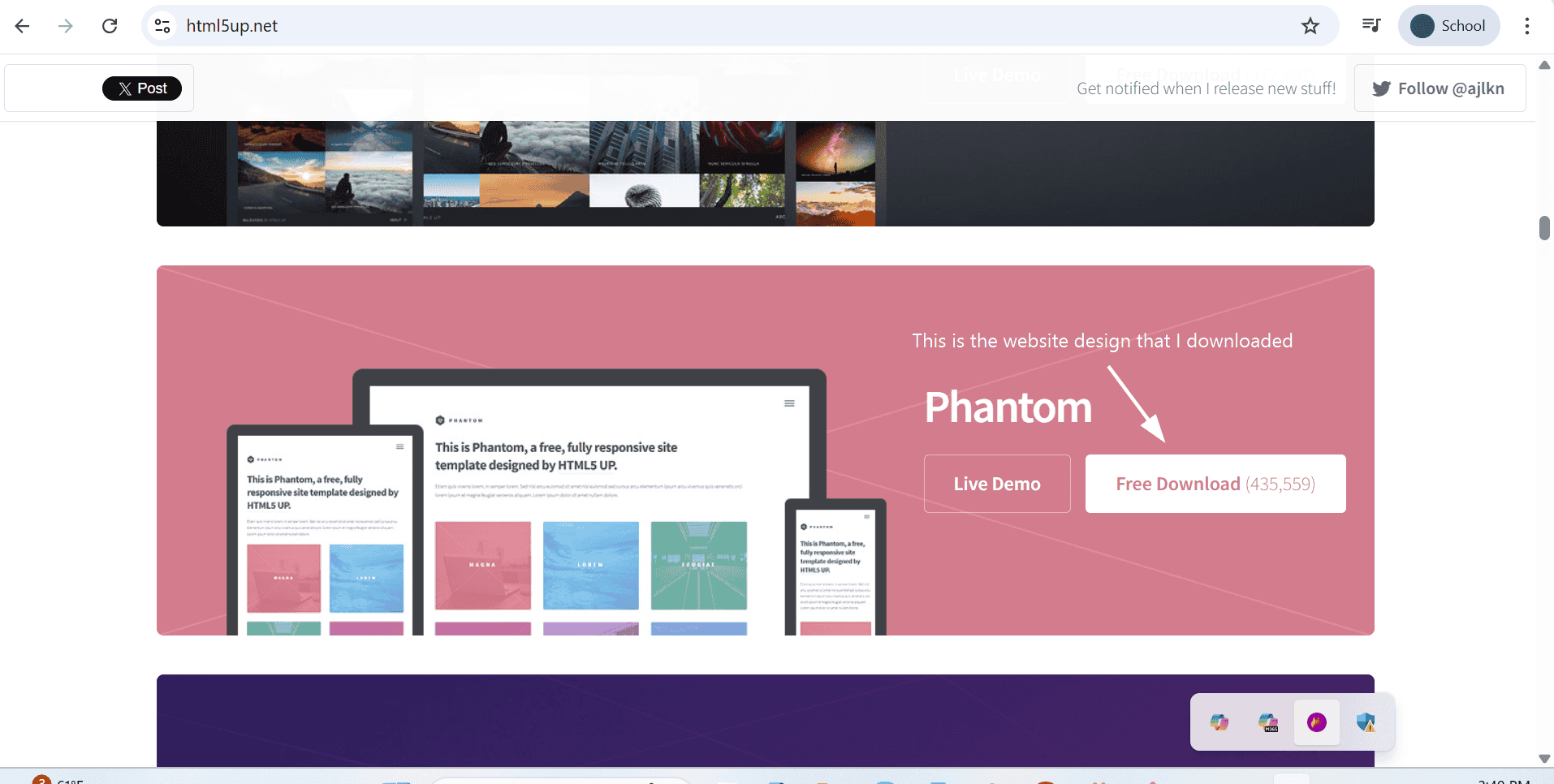
After downloading the template, I extracted the zip file.
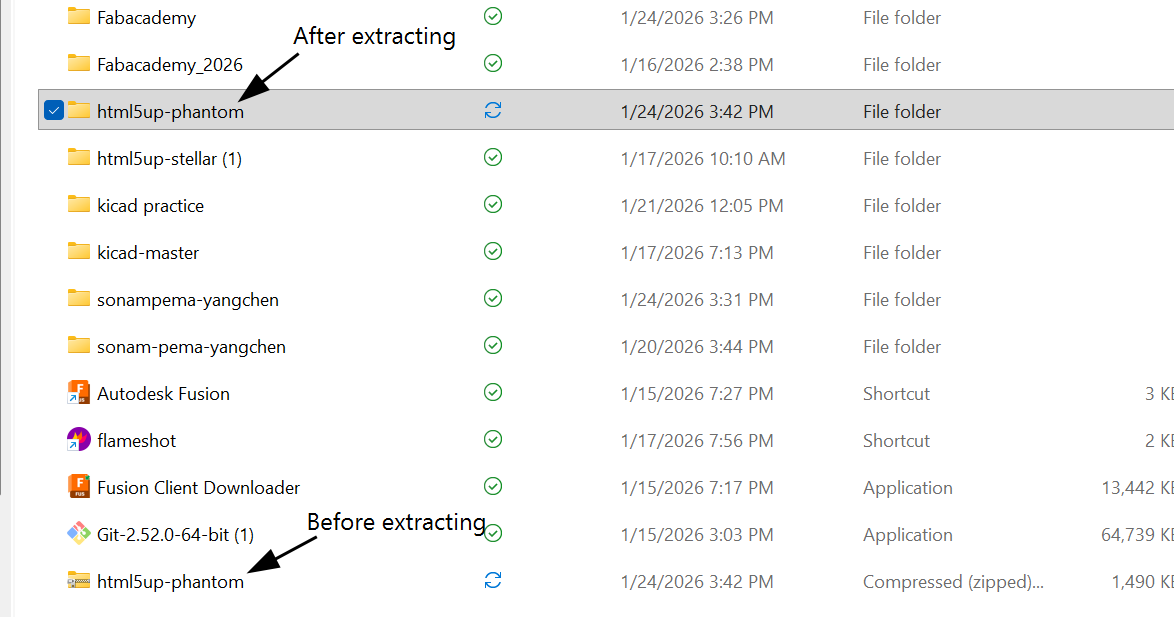
Now that I have downloaded the template, I can edit the website directly on my computer. You can use any editor for this, but I’m sticking to VS code since I’m more familiar with it.
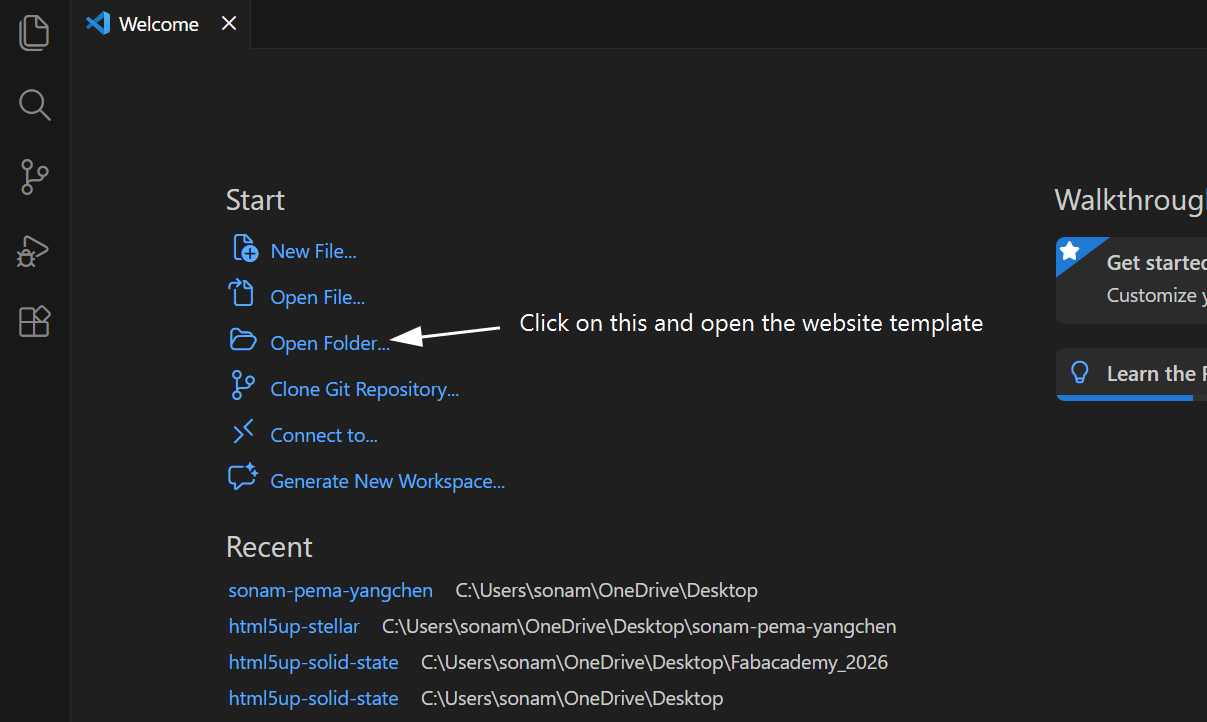
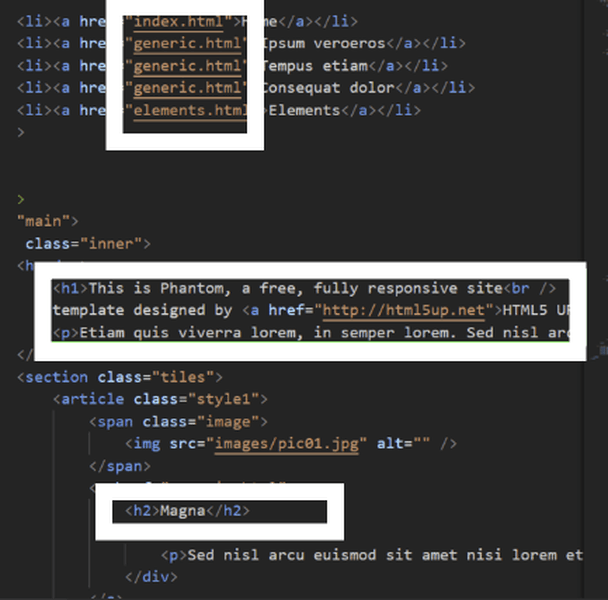
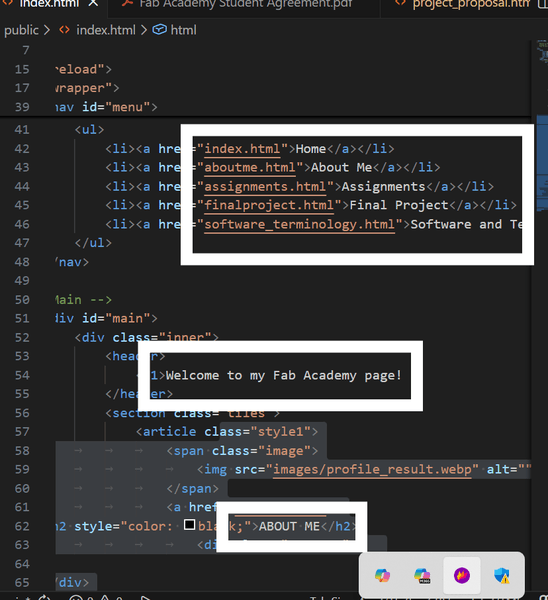
I edited the template based on my own preferences and convenience. Here are some of the changes that I made.
One of the most important parts of working with Git is following the Git mantra. The Git mantra is a sequence of commands that allow you to save your work often by making frequent commits.
git status
 Lets you see what files have been modified, added, or deleted since your last commit.

git add .
 Gets your changed files ready to be saved.

git commit -m "your message here"
 Saves your changes with a short message about what you did.

git push
Uploads your saved changes from your computer to the online repository so that others can see them.
Challenge: I faced some problems while deploying my website because I didn’t realize that all the website files needed to be placed inside the public folder. 😅 As a result, the changes I pushed were not showing up on the live site.
Note: One of the most important lessons I’ve learned this week is to make many small, meaningful saves instead of waiting until everything is perfect to save it all at once. Saving changes more often makes it easier to fix mistakes because you can go back step-by-step.
My Final Project Idea!
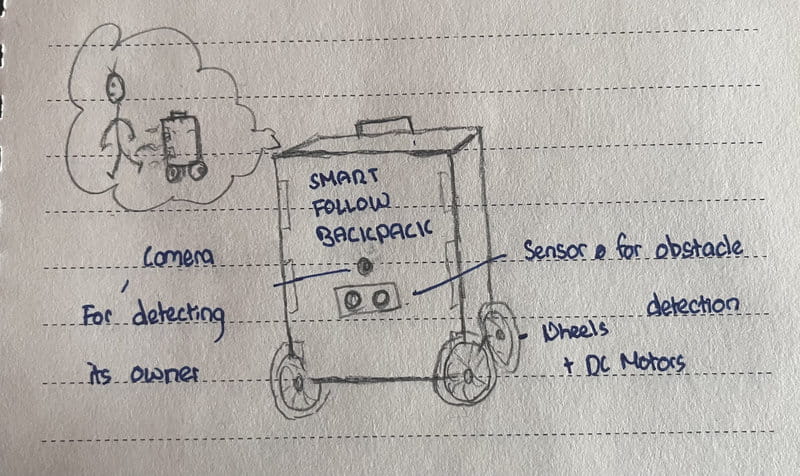
Here is a rough sketch.
Inspiration
Throughout my school years, I have often heard people complain about their bags being heavy. Some even tend to lose their bags, resulting to them having to make public announcements to find it. To address this unsolved problem that affects both students and teachers, I propose a smart follow backpack that automatically follows its owner.
How does it work?
It uses sensors to know where you are.
It will stop if the owner stops.
It will be capable of avoiding obstacles.
It moves on wheels that are powered by DC motors.
It runs on batteries (that can be recharged).
Who will use it?
Students: Helps carry heavy books and supplies easily, allowing them to move around campus comfortably.
Teachers: Allows them to carry materials or equipment without getting tired, making their day easier.
Workers: People whose jobs involve carrying heavy items on a regular basis.
This backpack is an idea that I’ve been wanting to implement for a really long time. The inspiration behind the Smart Follow Backpack comes from a desire to make everyday life easier and more comfortable, especially for those who carry heavy loads and move a lot.
Overall, this week was a great start. Despite facing a few challenges while deploying the website, I found the process exciting. I also had a lot of fun personalizing my website and working on documenting my final project idea.😊
That is all for this week.