Week 7
Check List
This week's project requirements:- Complete your lab's safety training
- Test runout, alignment, fixturing, speeds, feeds, materials and toolpaths for your machine
- Document your work on the group work page
- Reflect on what you learned on your individual page
Individual Assignment:
- Design, mill, and assemble something big
- Document the process
Images/Files:
- Include your original design files
- Properly compress or use a zip folder if needed
- Include hero shots of your results
Extra credit:
- Don't use fasteners or glue
- Include curved surfaces
- Use three-axis toolpaths
Group Assignment:
Resources and Helpful Links
- Aspire
- ShopBot
- Fusion 360
- ShopBot Quick Calculator
- Helpful People:
- Thomas Dubick, Dr Taylor, My Group Partners Camille, Kim, and Dorian
- Thomas Dubick, Dr Taylor, My Group Partners Camille, Kim, and Dorian
Learning Outcomes
- Demonstrate 2D design development for CNC milling production
- Describe workflows and operation for large format CNC machining
Introduction
Creating my puzzle shaped puzzle table was a fun and challenging experience. I have not used a CNC machine before this week. I have been around it since it is in the lab where I work and I had a project earlier this year that was cut on it for me, but I myself haven't personally ran the machine.
Our Labs Safety and Research Material
While looking through the workflow I noticed there were a ton of great links available for additional resources. There is a link to the ShopBot CNC handbook which was filled with valuable information for someone who has never done this before. I skimmed through a lot of the document on my own time, but I really focused on page 16 which was the Safety: A Few Basic Rules page. Also linked in our workflow document was a list of the bits that we have in the auto tool chamber, and I really liked that the document listed the suggested materials for each one. This really helped when I was setting up my tool paths.
Designing my Project
I wasn’t sure what I wanted to make at first, I had made some sketches for some random project ideas like a workshop in a box, a decorative display shelf, and a large storefront decorated doll display. While I do plan to possibly make some of these ideas in the future, I decided I would start a bit similar and do either an end table or bookshelf for my living room. As I looked up pictures of end tables and shelves for some inspiration I got more inspired to make a table as the shelves seemed a lot more plain then I was hoping for.
While looking at my apartment I really needed to visualize what the table would look like, where it would fit, and I really wanted something multipurposeful. I have a puzzle I started recently sitting on the living room table and it will live there until it's finished. Taking up the table isn’t ideal, but it's a good surface to work on and the lighting in the living room is really nice for puzzling.
This helped steer me in the direction of making a puzzle table, but of course I wanted something a bit more fun, so a puzzle shaped, puzzle table!
I designed the file using Fusion 360 and I had a handful of iterations before I was happy with my design. As you can see in my Fusion 360 file, I created 37 different pieces, bodies, while I was designing the table.
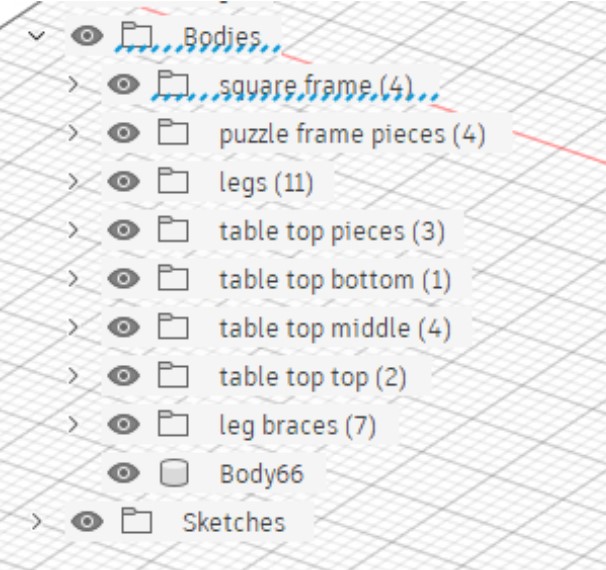
For the table there are two legs, 2 leg braces, the bottom table layer that you puzzle on, a middle rim, and a top piece that sits on the middle rim that covers the puzzle and creates an additional flat surface. The 3 part top allows me to puzzle, store and secure the puzzle, and still have a surface to use as an end table or project space when I'm not puzzling.
The Puzzle Top
Bottom Piece
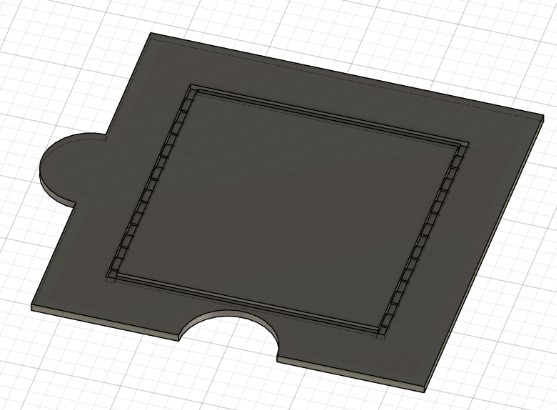
Version 1 (shown): Inset finger joints for leg attachment.
Version 2: The design I cut. I removed the inset channels and cut the finger joints all the way through.
Middle Piece
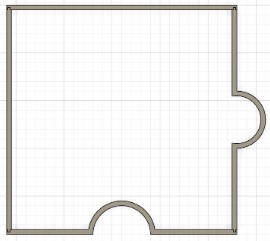
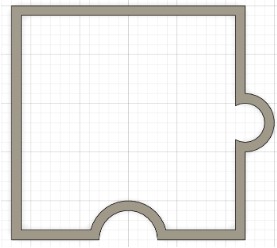
Version 1: Four interlocking pieces that can easily be removed if an additional table is connected.
Version 2: The design I cut. A solid frame piece.
Top Piece
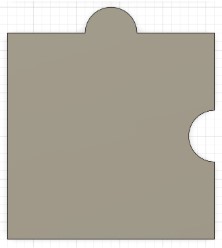
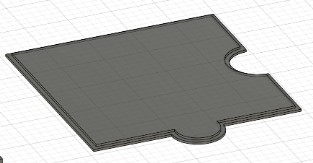
Version 1: A solid puzzle piece shape.
Version 2: A topper piece of a thin edge to allow for sitting on the middle rim.
The Legs
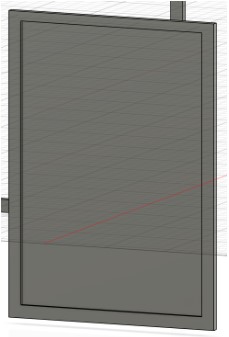
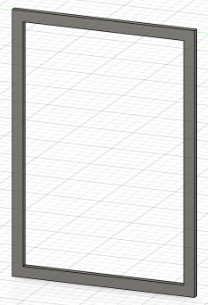
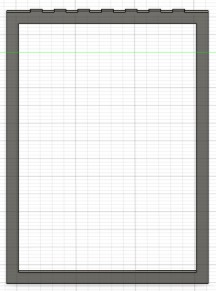
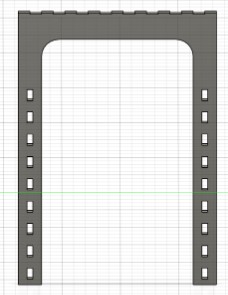
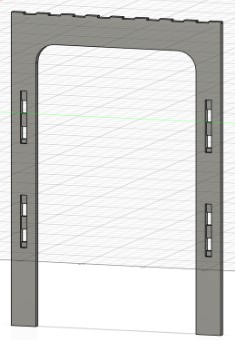
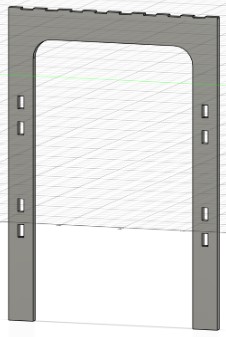
Version 1: A solid frame like design. Meant to slide into the channels on the table top. Could potentially be used as additional puzzle surfaces if disassembled.
Version 2: An open frame design.
Version 3: Open frame design with finger joint connectors.
Version 4: U-shaped leg with finger joint connectors and multiple through holes spaced at 1 inch apart to connect leg braces. I 3D printed this version so I could visualize where I like the leg braces.
Version 5: U-shaped leg with my chosen through hole locations and channels for the brace to sit in
Version 6: This is the one I cut. U-shaped leg with my chosen through hole locations, but I removed the channels. Not pictured, I adjusted the finger joints to be half inch to match the changes I made to the table top, instead of .125in deep.
The Leg Braces

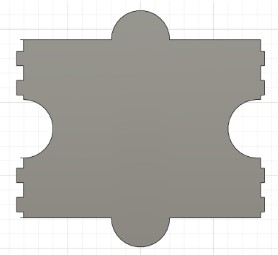
Version 1: A simple straight leg brace
Version 2: The one I cut. A puzzle piece shaped leg brace. Not pictured, I corrected the mismatched finger joint sizes.
Testing my Design before Cutting
3D Printing
Since my design was made in Fusion 360, I decided to export my finished pieces as .obj files and 3D print them. I scaled the design down to 10% from the original size to quickly print my test pieces in about 30 minutes. This allowed me to visualize where I wanted the leg braces, how everything looked together, and see how the top pieces interacted.
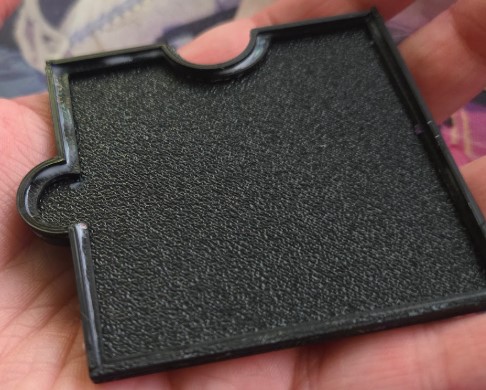
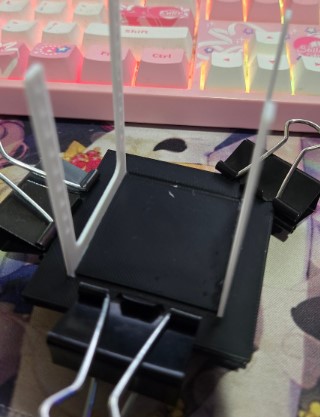
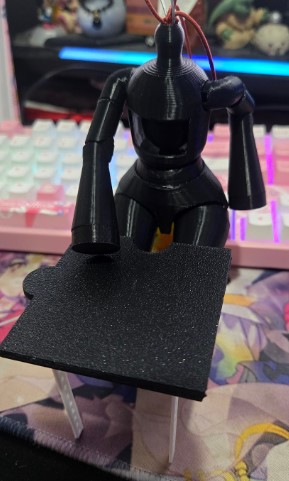
Exporting my Design
To get my 3D model ready for aspire I needed to create a DXF file. I created components from all of the bodies I was using and created a sketch plane the size of my wood. I was suggested to use the arrange feature in the Manufacturing Workspace, but I couldn't actually find the arrange tool, so I went back to the Design Workspace. I used the Arrange tool found in Solids > Modify > Arrange. I selected my shapes and then chose my new sketch plane as my envelope.
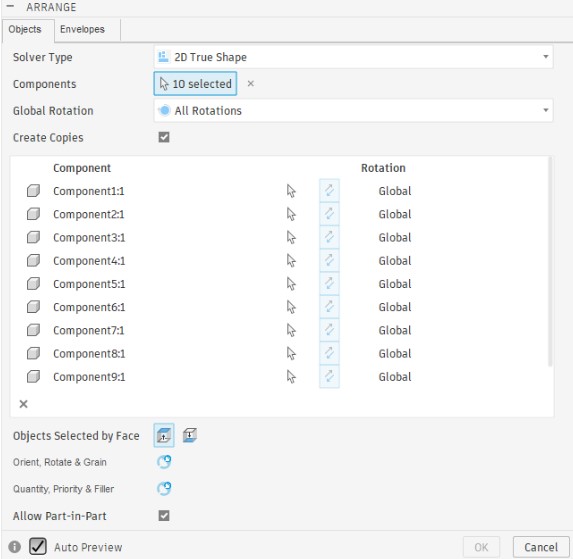
The tool arranged the pieces decently, but it put a bunch of the pieces sideways or upside down. I reoriented the pieces using the Arrange tool and got the pieces arranged how I wanted them. Next I created a new sketch and used the Project tool to create a 2D projection of all of my pieces. From here, I exported my file as a .DXF to bring into Aspire.
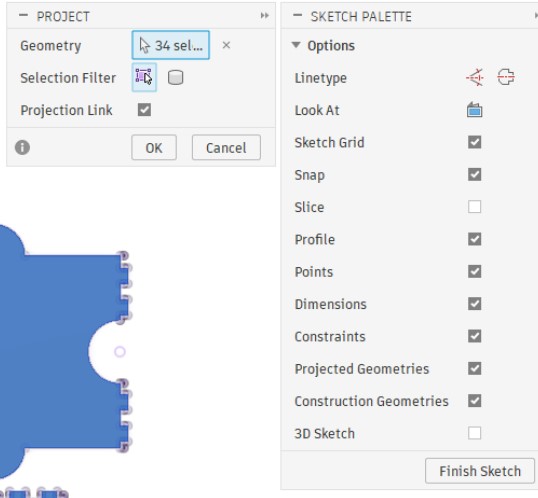
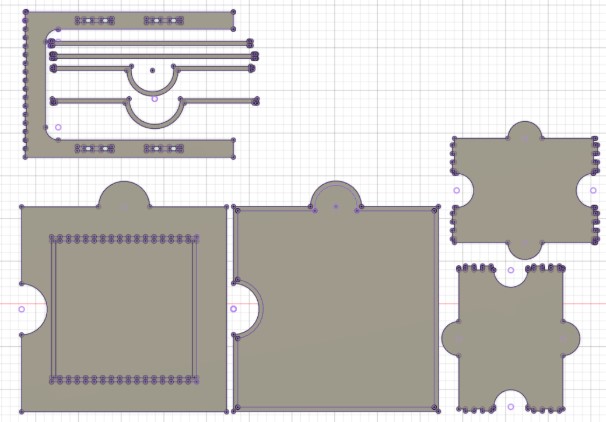
For any files or parts I changed or missed, I was able to quickly right click on the sketch for that part and choose the export as a DXF option. If there were multiple sketch items on that sketch I just deleted what I didn't need when I brought it into Aspire.
Setting Up my Design in Aspire
I started by creating a new project and setting the job size. I set the width and height to 96 x 48 which was the size of the wood I was provided and I set the thickness to 0.475 which was the average I measured from my 0.5in thick wood.
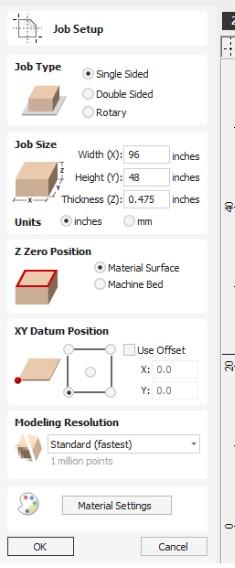
I brought in my DXF file and rearranged any pieces I wanted to add in or remove, such as removing the four interlocking pieces for the middle top part and bringing in the solid middle piece.
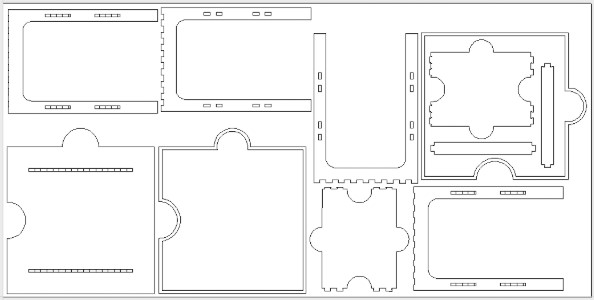
I selected each part individually and used the join tool to create a solid vector. For all my parts that have interconnecting pieces I went into the Fillet menu and added either a dogbone or a T-bone depending on what fit in the small spaces. While I was still in the 2D part of Aspire I also duplicated one of my holes to create a tester hole for fit.
I selected my pocket cut on the table top and set up a Pocket Toolpath using the Drill bit listed below. I then selected all of my outside cuts and set up a Profile Toolpath using the Drill bit listed below. I also created a test cut for my hole using the Profile Toolpath.
- Pocket:
- ATC Tool Location: 6
- ShopBot Description: 1/4 2 Flute Ballnose Bit (13576)
- Manufacturer Link: Onsrud 52-280B
- Outside Cuts:
- ATC Tool Location: 8
- ShopBot Description: 1/8" 1 Flute Straight Bit (13728)
- Manufacturer Link: Onsrud 61-040
Bits used in my project:
Toolpath Settings
Once I had my vectors prepared in Aspire, I needed to set up the toolpaths that would actually be used by the ShopBot. I used two different toolpaths for my project, a Pocket Toolpath to create the recessed area of the puzzle table topper, and a Profile Toolpath for cutting the individual pieces of the table.
For the pocket cut, I used the 1/4" 2 Flute Ballnose bit in ATC Tool Location 6. I chose this bit because it was the bit recommended in our lab's tool list for this type of cut and because the rounded end of the ballnose bit was appropriate for creating the recessed surface.
For the outside profile cuts, I used the 1/8" 1 Flute Straight bit in ATC Tool Location 8. This smaller bit allowed me to cut the detailed puzzle-piece shapes and the finger joints more accurately.
I also added tabs to my outside profile cuts. The tabs leave small sections of material connecting the finished parts to the larger sheet. This keeps the pieces from moving after the majority of the material has been cut away.
- Pocket Toolpath: [insert feed rate]
- Pocket depth: [insert depth]
- Pass depth: [insert pass depth]
- Stepover: [insert stepover]
- Spindle RPM: [insert RPM]
- Tool: 1/4" 2 Flute Ballnose Bit
- Profile Toolpath: [insert feed rate]
- Cut depth: [insert depth]
- Pass depth: [insert pass depth]
- Spindle RPM: [insert RPM]
- Tool: 1/8" 1 Flute Straight Bit
- Tabs: [insert number/size/spacing if available]
My toolpath settings:
Setting Up My Material For Cutting
After setting up my Toolpaths, I was ready to set up my material for cutting. I used a SIZE piece of WOOD TYPE (cabinet grade wood?). With the help of my Fab partner Kim, we moved the large piece of wood onto the bed of the ShopBot CNC machine.
To ensure the wood would not move during cutting, I fastened the wood to the bed using a nail gun with plastic nails. Our lab uses plastic nails for a few reasons. One reason is for safety, and the other is for ease of use.
The plastic nails have a strong tensile strength and are strong in the vertical direction which makes them very good at holding material in place. They can be machined through safely without damaging bits. They are weak in the horizontal direction and easily shear off with the help of a rubber mallet. This makes them very easy to remove. They can also be easily cut and sanded if bits are left behind.
I tucked my braided hair into my shirt and wore a faceshield for safety, and used the nail gun to place several plastic nails around the outside of the board, roughly every 12inches. I also carefully added a couple of nails in the middle of the board for extra security around my pieces.
Preparing for Cutting
With my board all set in place, I was ready to begin the cutting process. I started the process by raising the bit about 3inches above my material to perform an air cut. Due to the size of my project and the layout of my pieces, I had very little wiggle room on my board if I made a mistake. Doing the air cut allowed me to watch the machine follow the toolpath without the bit contacting the wood. I was able to check the accuracy of my cutting locations and verify that the pieces were positioned where I expected them to be before committing to any actual cuts.
Testing the Offset
The first set of cuts I made, after an air cut to test my locations, was one of the straight leg braces and a hole sample. I cut the straight leg brace and the hole using the settings in the Profile Toolpath I set up for my project. This was done to test the fit of my joints. This test was very important because I quickly learned that all of my parts and holes which were designed for 0.5in thick wood (before I had a chance to measure the wood I was given) did not fit well together. There was a lot of wiggle room in the first test.
I was suggested by Mr Dubick to add in an offset to determine the perfect fit for my pieces. I went back to my Toolpath and added in an offset of 0.005. This test still had wiggle room so I cut a new hole at 0.01.
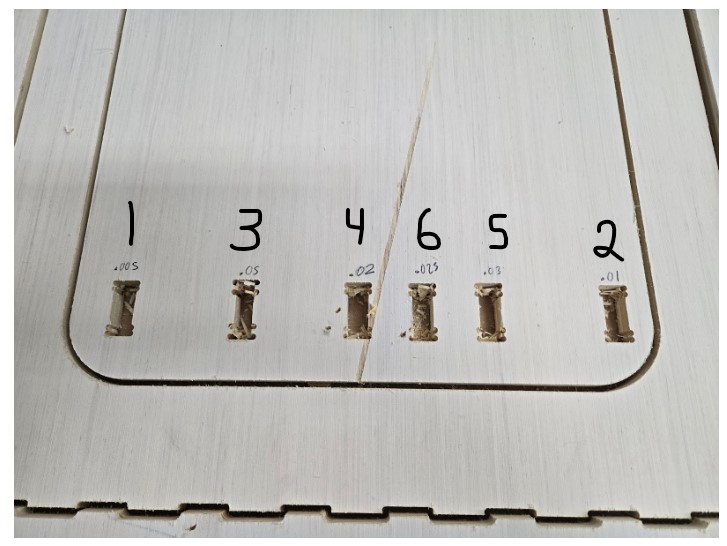
I continued to cut new holes with varying offsets until I found that 0.025 was a perfect fit.
Cutting the Pieces
The pocket cut took about 31minutes and 35 seconds which I was not expecting. This was the longest cut time of any single part in the cutting process.
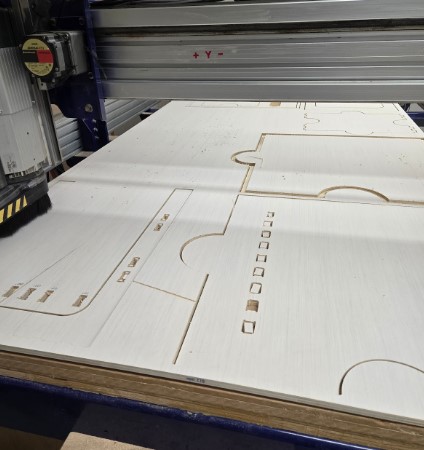
Cutting all of the remaining outside cuts of the remaining pieces took a total cut time of 39minutes and 47seconds. Due to the layout I had set, I decided to cut the two remaining pieces inside the middle puzzle frame and then cut all of the rest of the pieces. I added tabs so I think it would have been fine, but at the time, I was unsure if those pieces would potentially wiggle or move causing an issue with the rest of the cuts.
Finishing the Boards
Once all of the CNC cuts were completed, I needed to remove the individual pieces from the sheet and clean up the areas where the tabs were holding them in place.
As part of the cutting process, I had added tabs to secure my boards in place so they don’t wiggle or move while being cut. So the first step in removing my boards, was to break the tabs holding the pieces to the main piece of wood. I used a Dewalt brand Cordless Brushless Oscillating Multi Tool to cut away the tabs and release each piece from the board one at a time.
With all the pieces removed, the last step was to remove the remaining board from the Shopbot bed. Since I used the plastic nails, this was actually pretty easy. Most spots with a nail just needed a little tap with a rubber mallet to loosen it from the bed. With Kim's help again, we removed what remained of the board.
With the pieces removed, I now needed to clean up the rough rough edges. I used a mouse sander and sanded all edges and faces of my boards. This process wasn’t necessarily hard, but it took a bit of time and there were definitely some struggle points. The shape of the pieces made it harder to get the mouse sander in cleanly, so there were some places that I needed to follow up with sanding by hand. I also needed to be careful when sanding my tabs and insert sections because if I removed too much material from those locations I could have affected the quality of the fit of my pieces.
Assembling my Puzzle Table
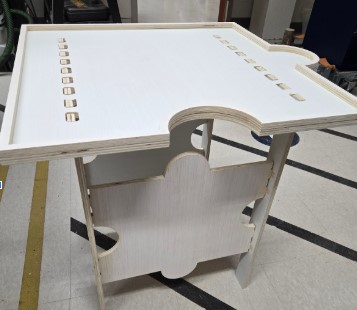
I assembled my table by fitting the finger joints of the side supports on the legs into the slots on the leg pieces. I built both legs with their side pieces and essentially built a box like frame. I was really happy to see that with the side braces in place, the legs were able to support themselves standing unassisted.
With the legs together, I placed the bottom layer of my puzzle table top on the legs. The finger joints on the legs slotted into the holes in the bottom table layer. In a future iteration of my table I want to make the slots on the bottom table layer to be pocket cuts. This would allow the legs to sit in the pocket cuts but I would still have a smooth finished bottom layer for puzzle storage. For this current version though, after assembled I covered the bottom layer with a thin piece of white felt. This covered the open holes and gave a little extra grip for my puzzle pieces to stick to.
The last steps of my assembly were to add in the middle layer and finally the puzzle topper.
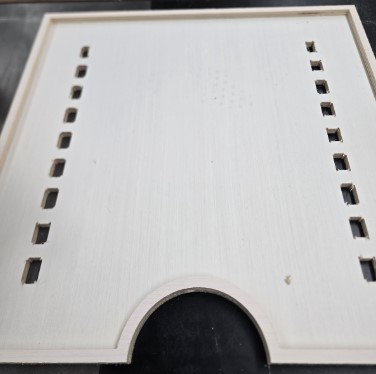
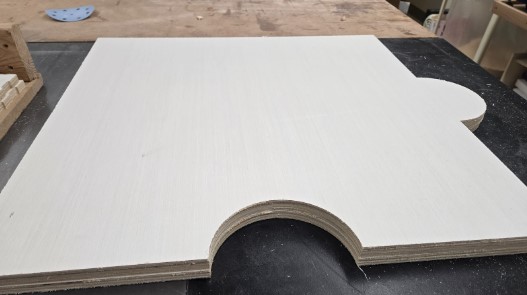
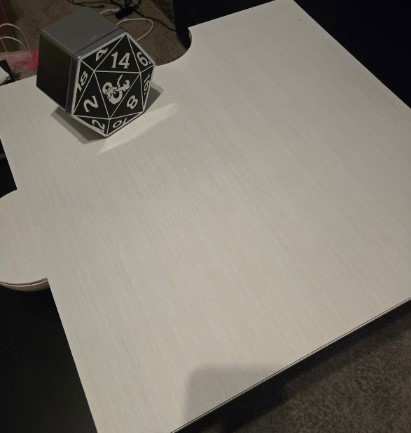
Each piece in this stack has a purpose. The bottom layer provides the puzzle surface, the middle layer creates the rim around the puzzle, and the top layer can be placed over the puzzle when I want to store the puzzle away and still have a usable surface.
Final Thoughts
The biggest challenge of this project was not simply getting the CNC to cut the pieces. It was making sure that the digital design, actual material thickness, toolpath settings, and physical assembly all worked together. My first test showed me that a design that is mathematically correct in Fusion 360 does not necessarily fit correctly when it is produced from real material. The actual thickness of the plywood and the toolpath offset both affected the final fit.
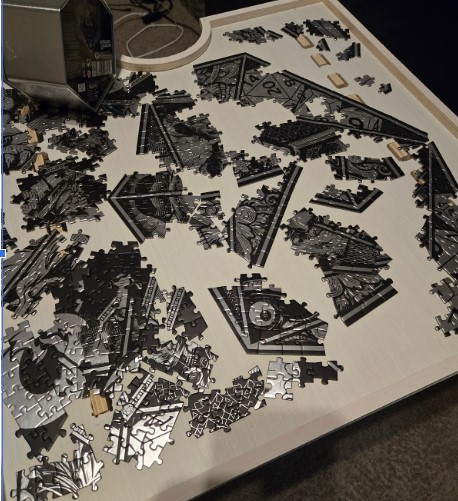
This project taught me that CNC machining is a process of testing and adjustment rather than simply sending a finished CAD file to a machine. Overall though I really enjoyed the process, and my puzzle table has its spot in my living room and gets used frequently for puzzles!
Week 7 Files
In my repo is a zip folder containing files for my week 7.
What files are inside my Folder:
My shopbot file for my Pocket Cut
My shopbot file for my Outside Cuts
My Aspire File for my parts
Download My Week 7 Project Files Zip Folder