assignment
• write and test a program for an embedded system using a microcontroller to interact (with input &/or output devices) and communicate (with wired or wireless connections)
• browse through the data sheet for a microcontroller
extra credit: assemble the system
for this week, I want to display the weather in Barcelona on the e-paper display.
goals
connecting to the barduino
connecting the display to barduino
display the weather information on the e-paper display
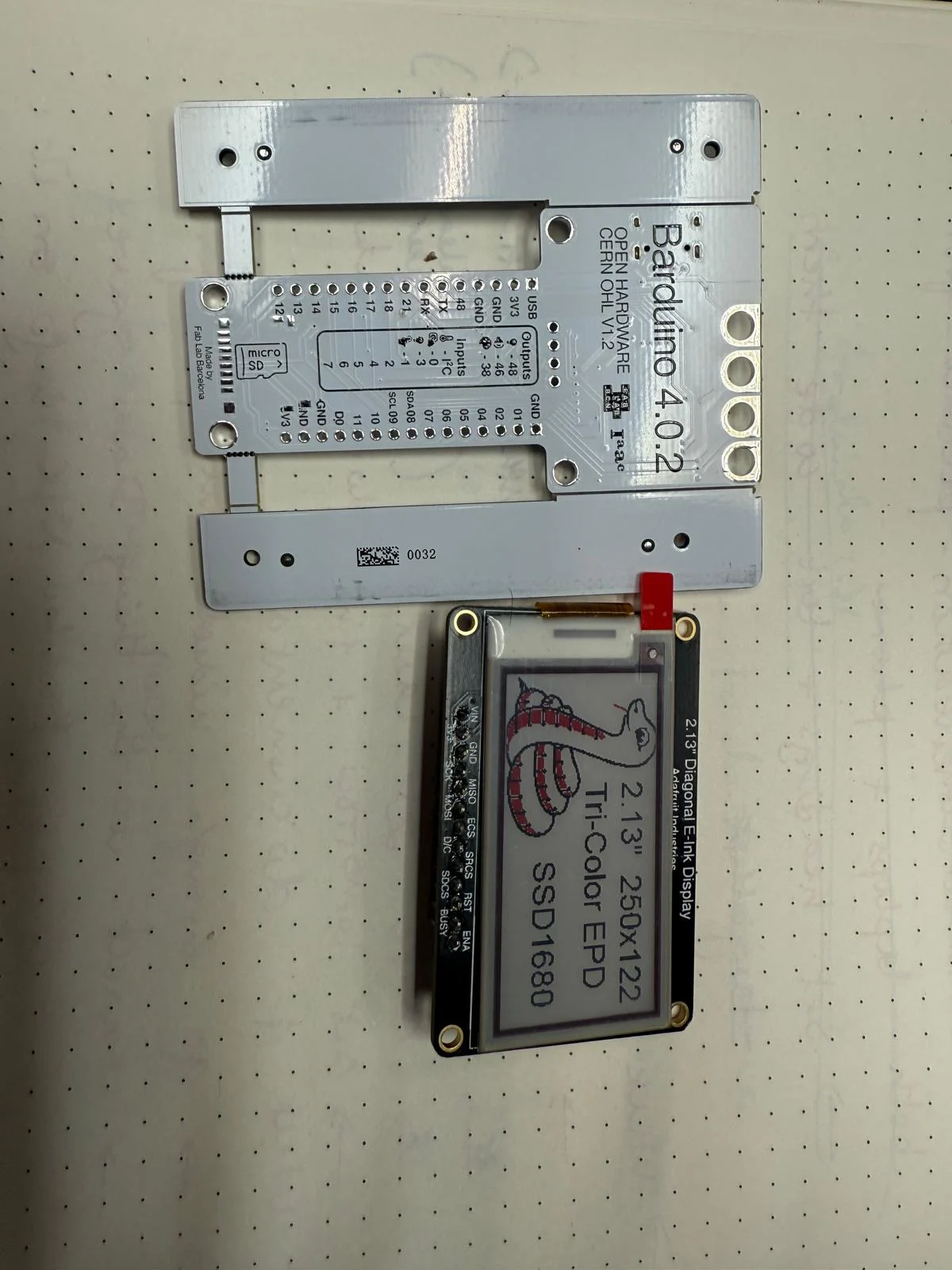
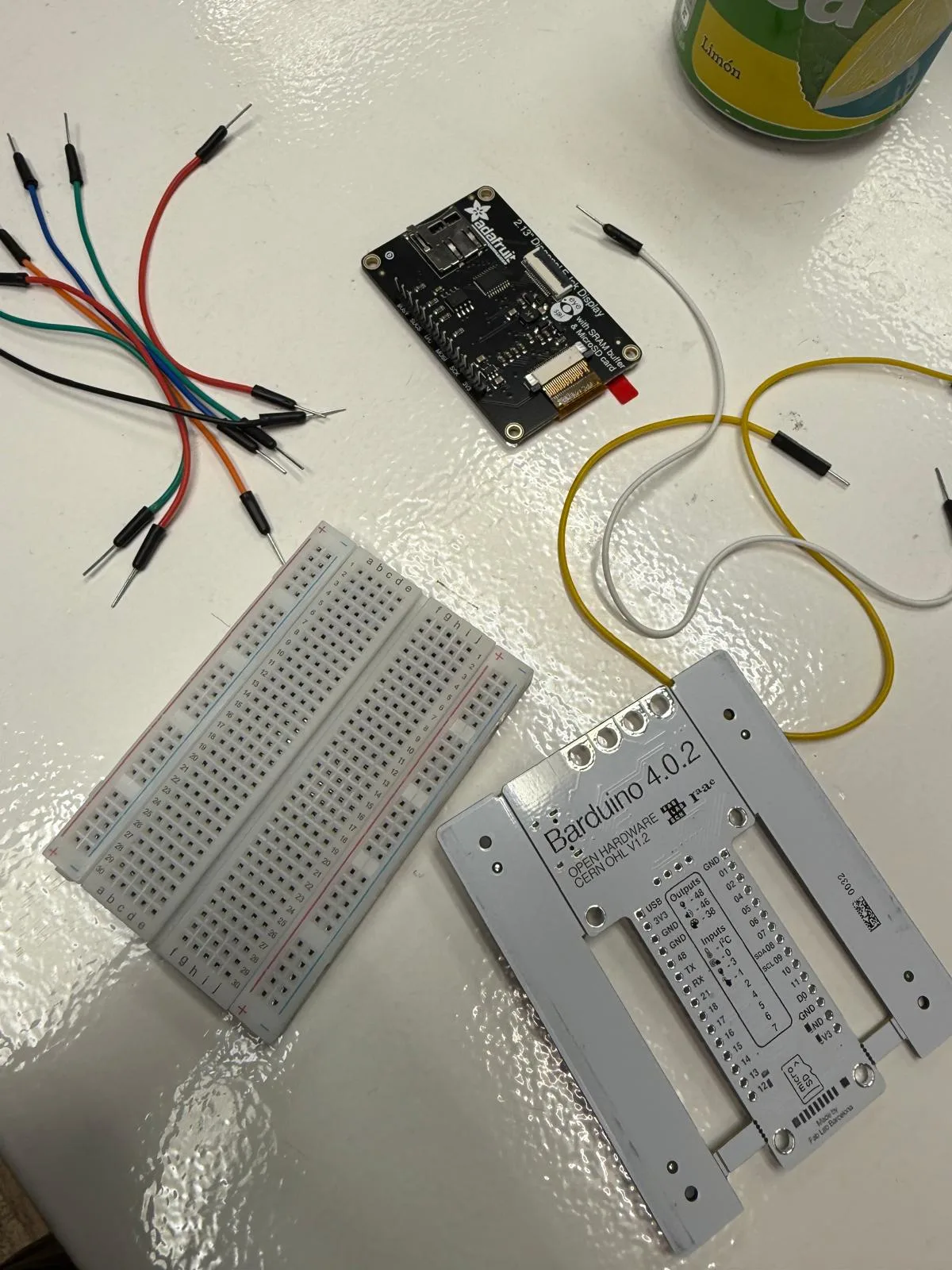
what i need
- e-paper display
- barduino
- weather API
- programming environment (Arduino IDE)
- breadboard and jumper wires
packages
- ESP32 board package
- Adafruit GFX Library
- Adafruit EPD Library
- WiFi Library
- Weather API client library (e.g. OpenWeatherMap)
connecting to the barduino
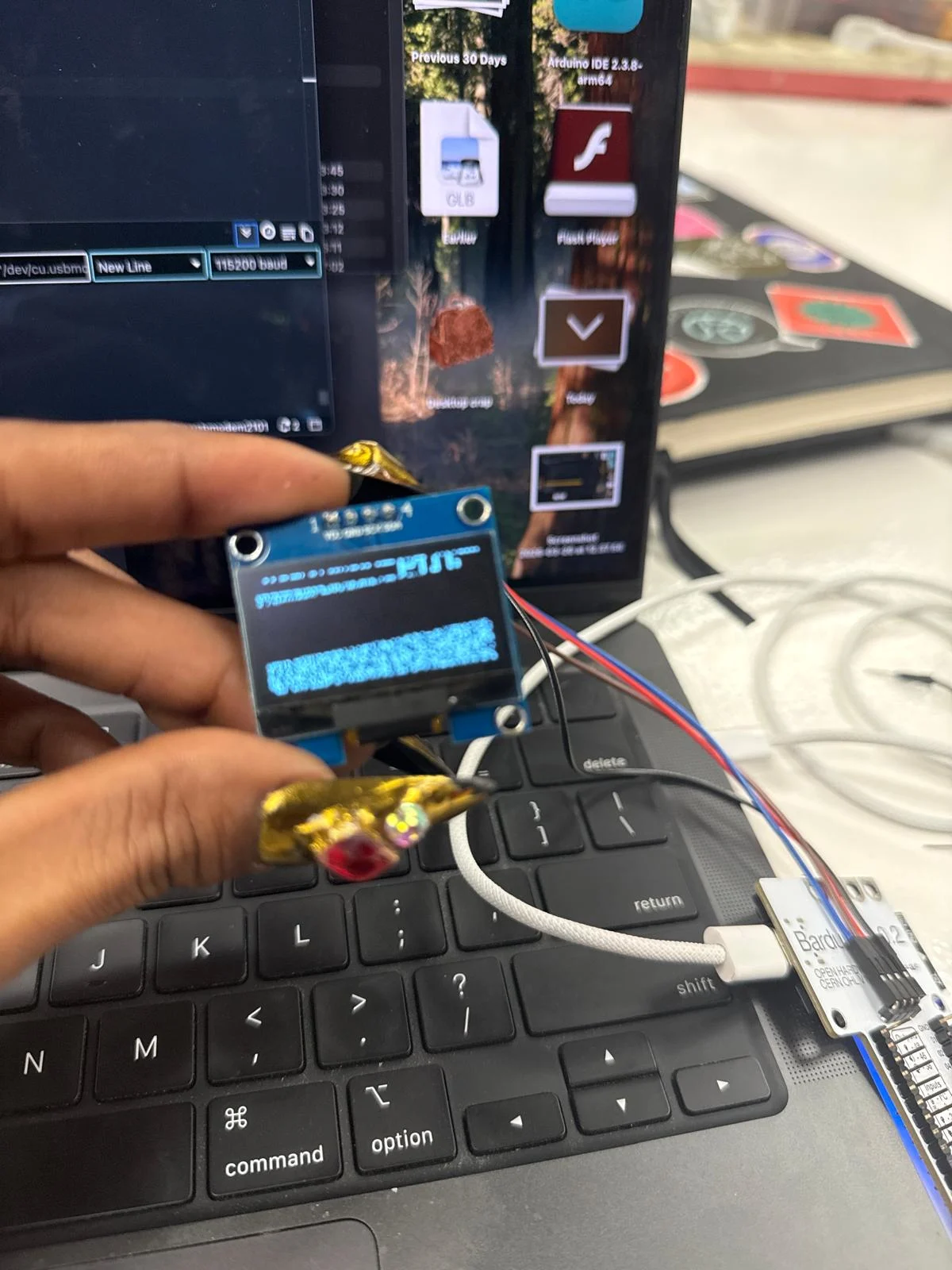
the LED on the Barduino on pin 05 lights up when I connect it to my laptop with USB-C
tried a test code
const int LED_PIN = 48; // built-in Barduino LED
void setup() {
pinMode(LED_PIN, OUTPUT);
}
void loop() {
digitalWrite(LED_PIN, HIGH);
delay(500);
digitalWrite(LED_PIN, LOW);
delay(500);
}
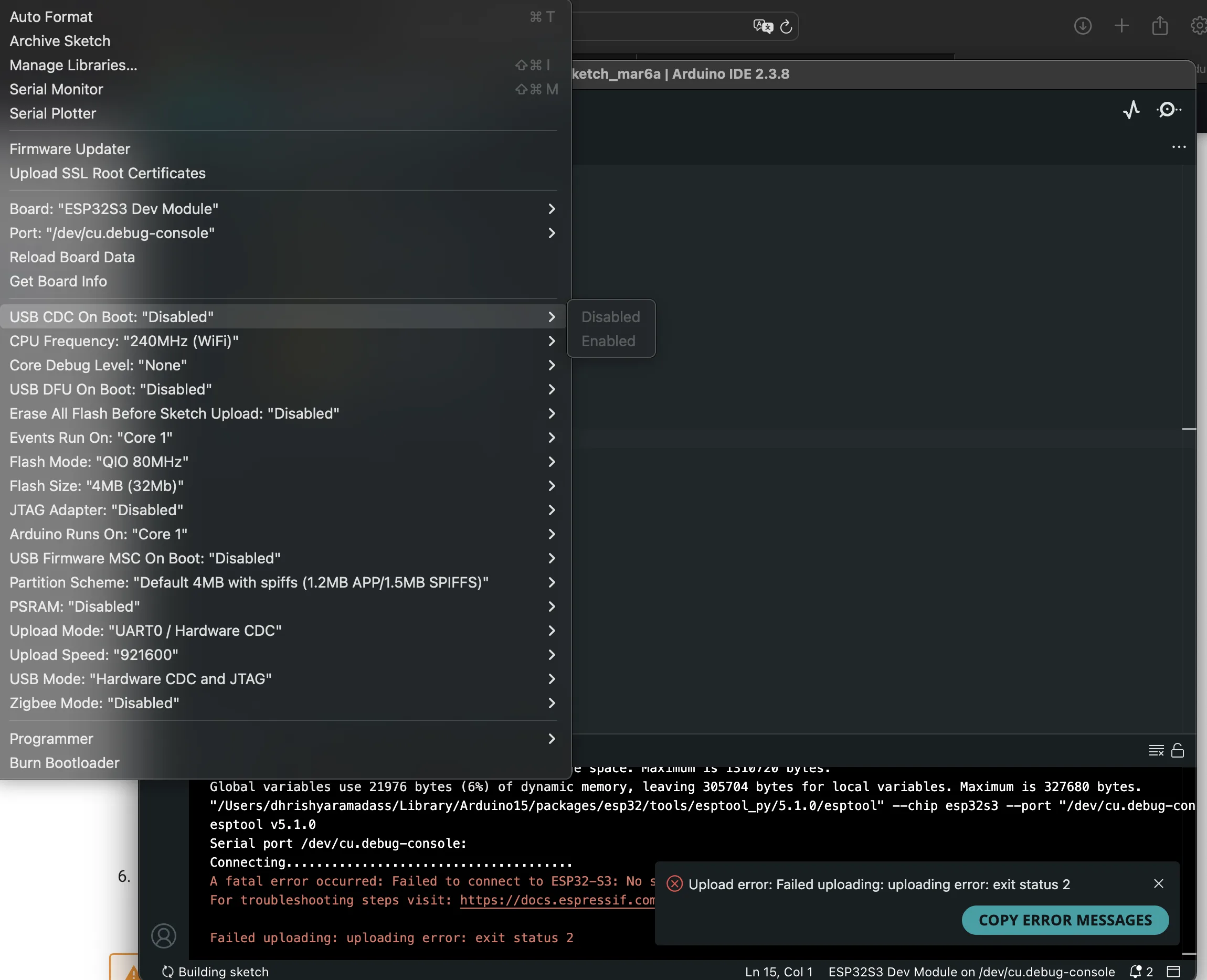
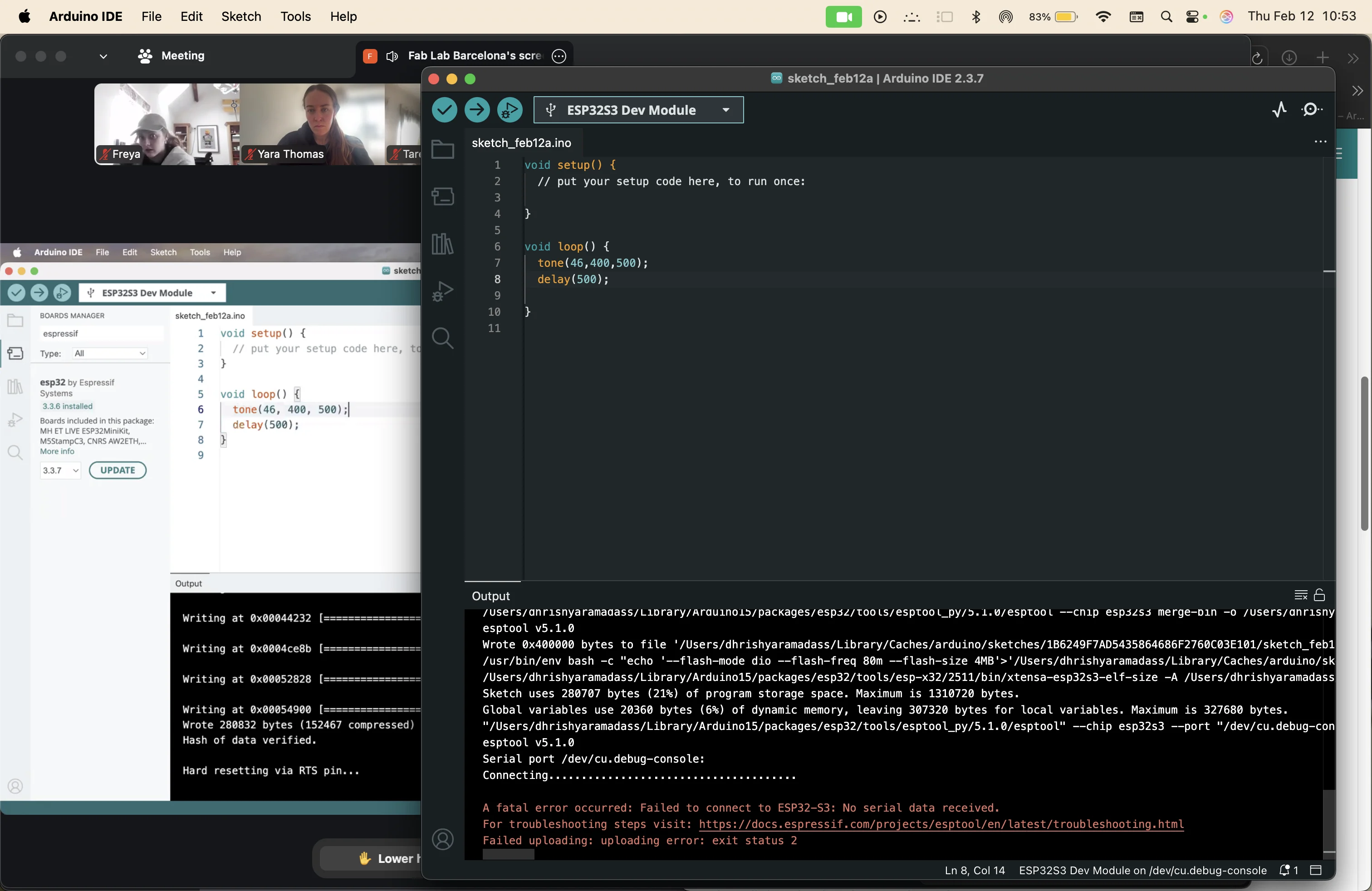
error: could not find a valid board
error: didn't specify pin
error: failed to connect to the board
on the top bar, tools -> port -> select your board
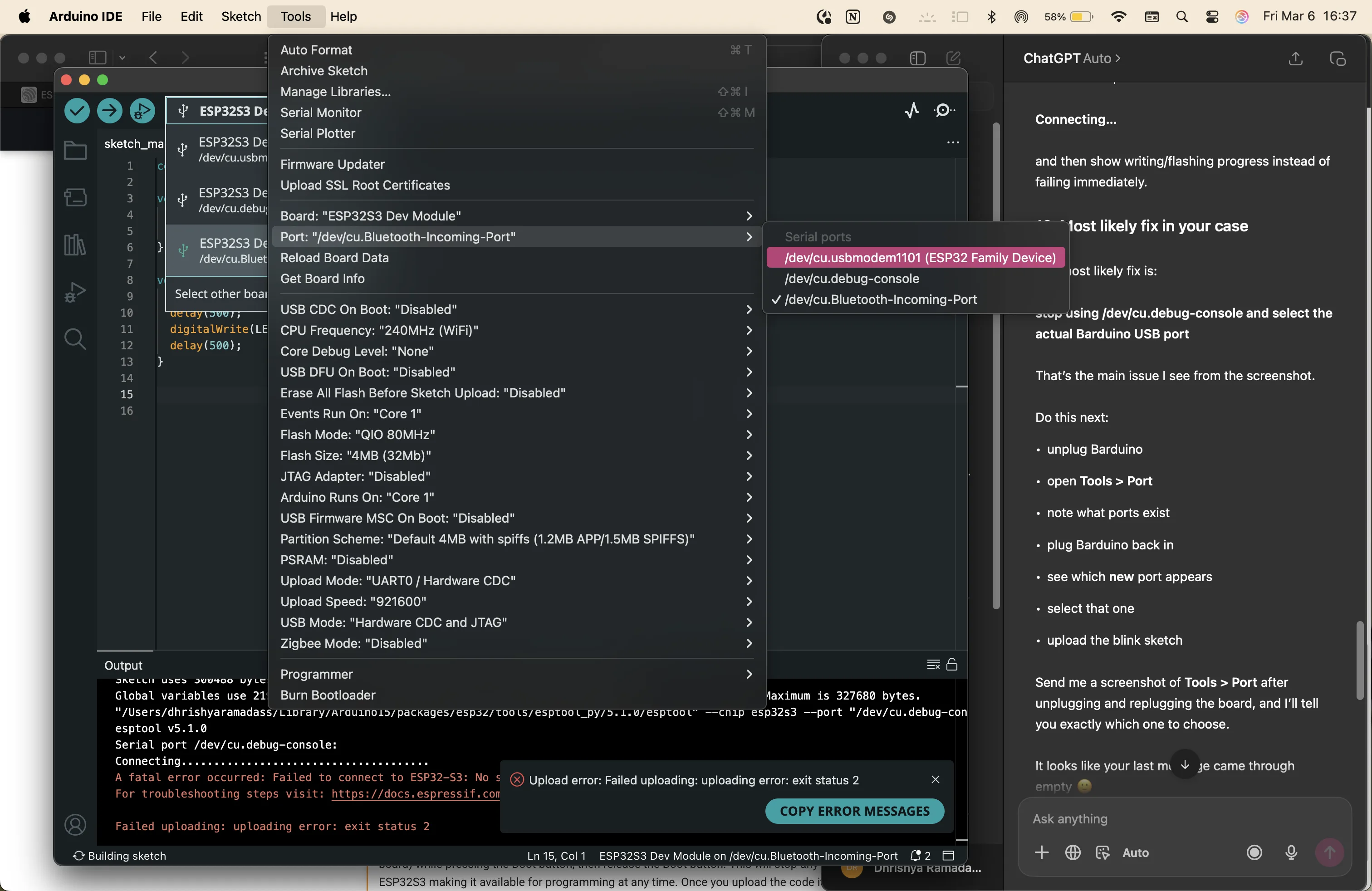
do this by disconnecting and connecting the ardiono to identify the correct port to select
also added pin 48 because i accidentally had deleted that line of code earlier.
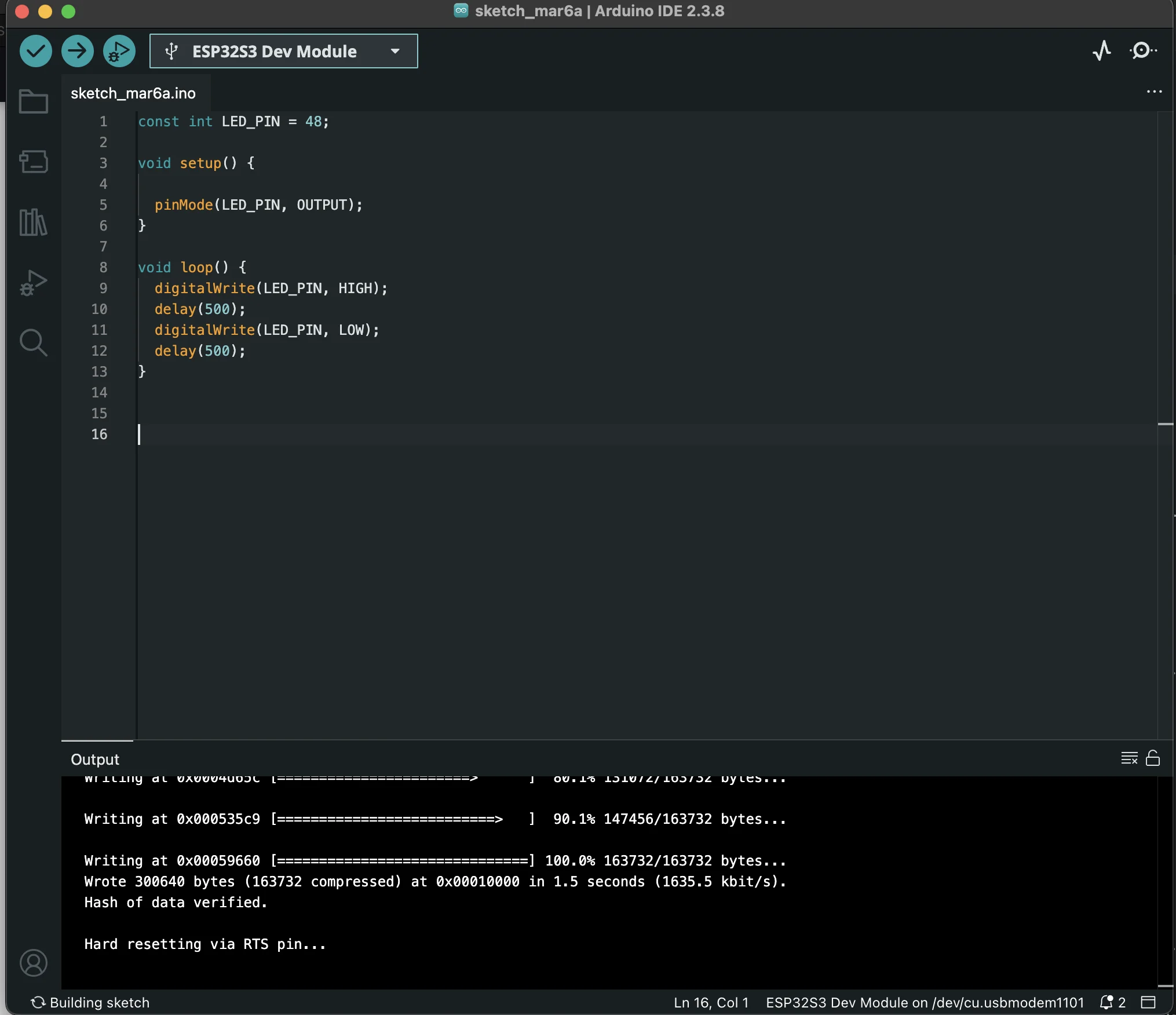
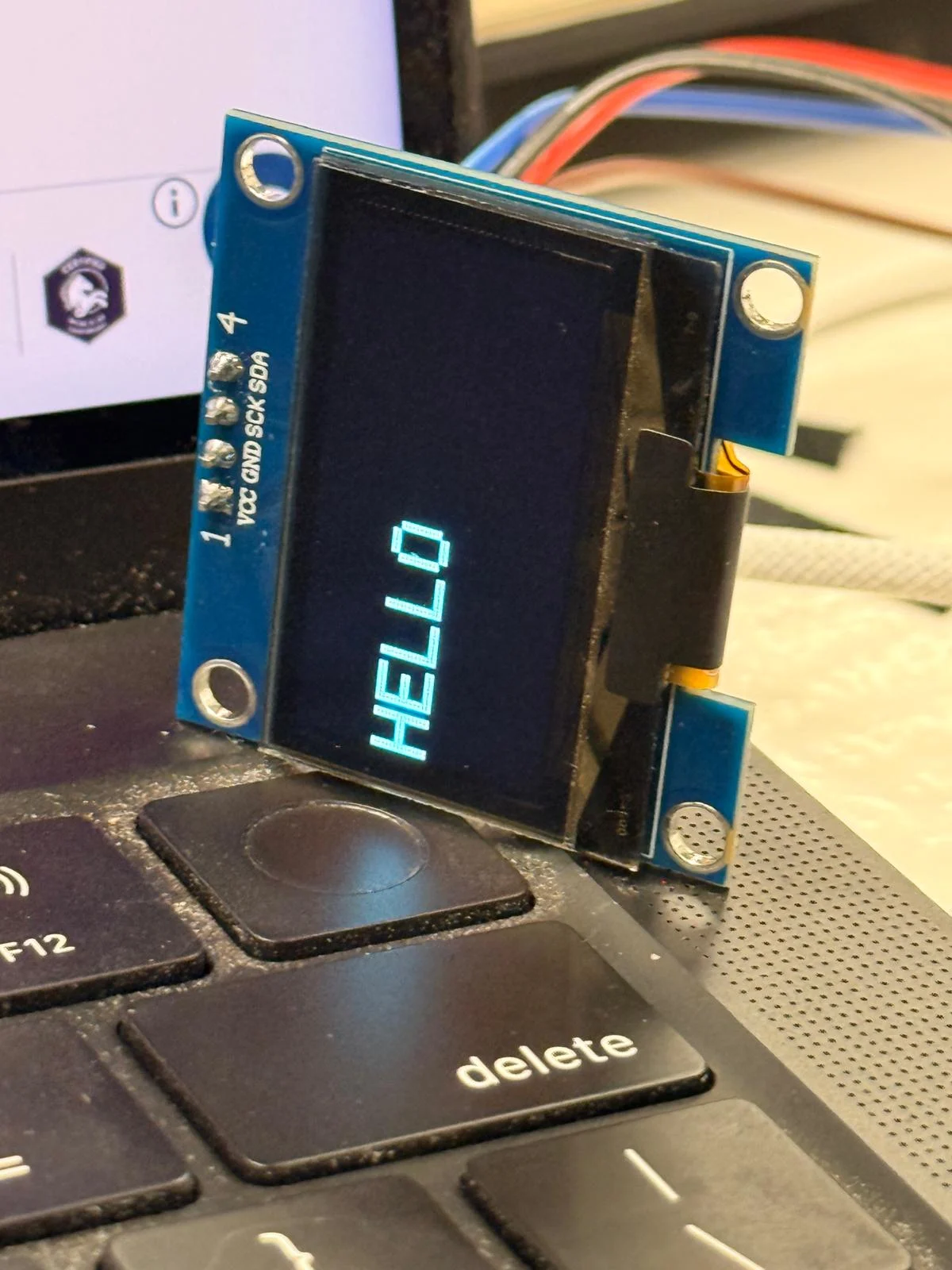
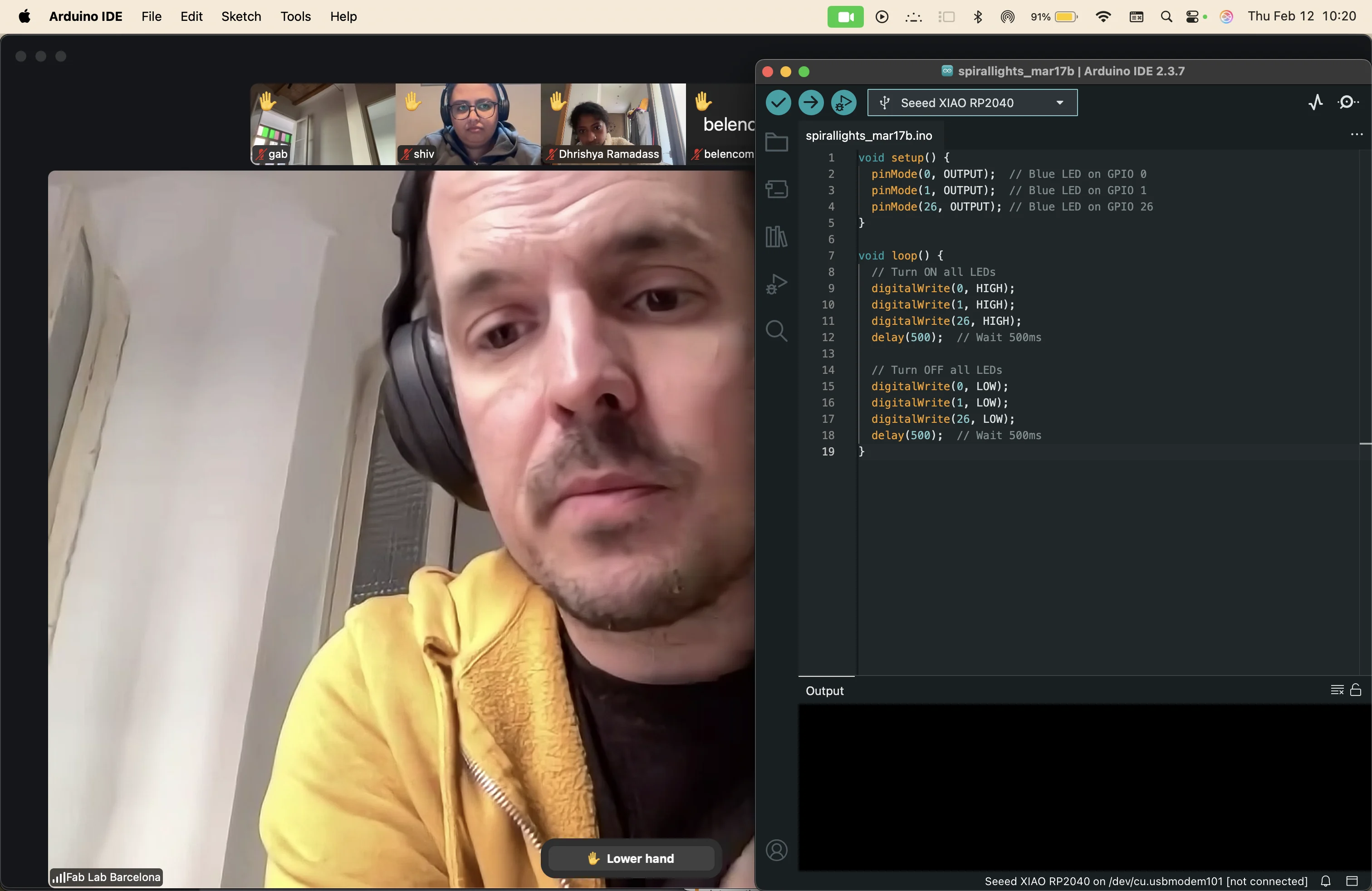
the board is connected and the light is blinking.
drawing the weather icons
steps
- draw 5 weather icons in black and red
- sepatare the black and red layers and ecport them as separate PNGs
- convert png to bitmap using a converter from github
- upload to the Adafruit display
since i live in Barcelona, I am making icons that apply to the weather here
i drew them on procreate on my ipad and exported the black and red PNGs
important: black on white bg, red on white bg, 64x64 pixels (resolution for the display)
converted them to bitmaps with http: javi.github.io/image2ccp/
connecting to the e-paper display
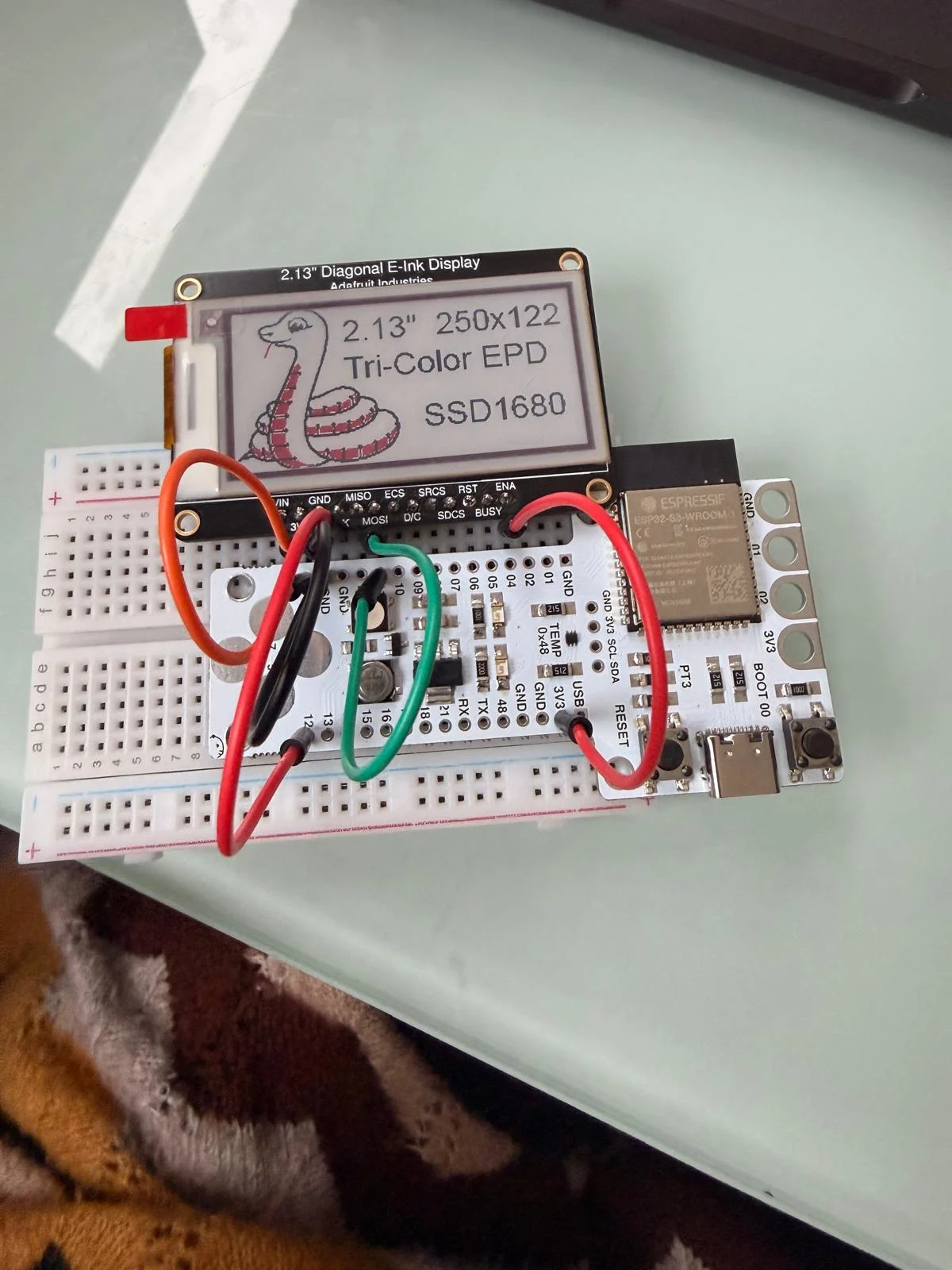
I used a barduino with the Adafruit 2.13 eInk Tricolour Display on a breadboard and connected the following pins
//power connections
Barduino 3V3 → Display 3V3
Barduino GND → Display GND
Barduino 3V3 → Display ENA
//SPI connections
Barduino GPIO12 → Display SCK
Barduino GPIO11 → Display MOSI
Barduino GPIO13 → Display MISO
Barduino GPIO10 → Display ECS
Barduino GPIO14 → Display D/C
Barduino GPIO15 → Display RST
Barduino GPIO16 → Display BUSY
I wanted to read the datasheets of the microcontroller I am using, and the one commonly used for other projects in the fablab. And because I was in such a reading mood, I also read the datasheet of the e-paper display that I want to connect.
I did this by asking ChatGPT to "explain the document to me in detail like i am new to electronics, summarise the important points and explain the acronyms"
1. ESP32 (since it is on the barduino given by the fablab)
2. Adafruit 2.13 eInk Tricolour Display (since I want to connect it to the ESP32)
3. RP2040
I uploaded the pdf of each data sheet. These datasheets are heavy with information. Like an encyclopaedia. I will have to keep referring to them based on the projects that I work on.
ESP32
1. What this device actually is
The ESP32-S3-WROOM-1 is a microcontroller module with WiFi and Bluetooth.
Think of it like:
Tiny computer for electronics projects
It contains:
- CPU (processor)
- memory
- WiFi
- Bluetooth
- input/output pins
- hardware for sensors, motors, screens
All in one chip.
You can program it using:
- Arduino IDE
- ESP-IDF
- MicroPython
Your Barduino board basically has this chip on it.
2. Big picture of what is inside
The module contains several major systems:
Power
↓
CPU (brain)
↓
Memory
↓
Peripherals (interfaces)
↓
GPIO pins
↓
External devices
Inside the ESP32 module there are also:
- antenna
- crystal oscillator
- flash memory
The block diagram on page 9 shows this architecture.
Main blocks:
3.3V power
↓
ESP32-S3 processor
↓
Flash memory
↓
PSRAM (optional)
↓
WiFi + Bluetooth radio
↓
GPIO pins
3. Key specs you should remember
These are the important numbers.
CPU
Xtensa LX7 dual core processor
Meaning:
- 2 processors
- each runs up to 240 MHz
Think:
Arduino Uno → 16 MHz
ESP32 → 240 MHz
So ESP32 is ~15x faster.
Memory
From the datasheet:
| Memory type | Size |
|---|---|
| ROM | 384 KB |
| SRAM | 512 KB |
| RTC memory | 16 KB |
| Flash | up to 16 MB |
| PSRAM | up to 16 MB |
Explanation:
ROM
→ permanent system code
SRAM
→ working memory while running
Flash
→ where your program is stored
PSRAM
→ extra memory for big tasks (images, AI)
4. Important acronyms explained
This is where most beginners get lost.
Here are the key ones.
MCU
Microcontroller Unit
Small computer that runs embedded programs.
Examples:
- Arduino
- ESP32
- Raspberry Pi Pico
SoC
System on Chip
A chip that contains many components together.
- CPU
- WiFi
- Bluetooth
- memory
- peripherals
All integrated.
GPIO
General Purpose Input Output
Pins you control with code.
Example:
digitalWrite(LED, HIGH)
Pins can be:
- input
- output
- analog
- communication
The ESP32-S3 has 36 GPIO pins.
ADC
Analog to Digital Converter
Converts voltage to numbers.
Example:
sensor voltage → number
Example:
0V → 0
3.3V → 4095
Used for:
- sensors
- potentiometers
- temperature
PWM
Pulse Width Modulation
Fake analog output using digital pulses.
Example:
- LED brightness
- motor speed
- servo control
SPI
Serial Peripheral Interface
High-speed communication protocol.
Used for:
- displays
- SD cards
- flash memory
- sensors
Pins:
MOSI
MISO
SCK
CS
I2C
Inter-Integrated Circuit
Two-wire communication protocol.
Pins:
SDA → data
SCL → clock
Used for:
- sensors
- RTC modules
- OLED displays
UART
Universal Asynchronous Receiver Transmitter
Serial communication.
Example:
USB serial monitor
GPS module
Bluetooth module
I2S
Inter-IC Sound
Audio communication.
Used for:
- microphones
- audio DACs
- speakers
USB OTG
USB On The Go
Allows device to act as:
- USB host
- USB device
Example:
ESP32 can connect to:
- keyboard
- storage
- computer
PSRAM
Pseudo Static RAM
Extra memory used for:
- images
- video
- AI models
5. Power requirements
The chip runs on:
3.0V – 3.6V
Typical:
3.3V
From the datasheet:
Recommended: 3.3V
Max: 3.6V
Never connect 5V directly to GPIO pins.
6. Important pins
From the pin table in the datasheet.
Important ones:
Power pins
3V3 → power
GND → ground
EN pin
EN = enable
If HIGH → chip runs
If LOW → chip off
UART pins
TXD0 → transmit
RXD0 → receive
Used for:
- programming
- serial monitor
GPIO pins
Example:
IO4
IO5
IO6
IO7
These can be used for:
- sensors
- buttons
- LEDs
7. Boot system (very important)
When ESP32 starts, it decides how to start the program.
Controlled by certain pins.
Main boot modes:
SPI Boot
Normal mode.
The chip loads your program from flash memory.
Download Boot
Used when uploading code.
Controlled by:
GPIO0
GPIO46
From the datasheet boot table.
8. Communication interfaces (very important)
UART
3 UART controllers.
Speed up to:
5 Mbps
Used for:
- debugging
- serial communication
- programming
I2C
2 I2C buses.
Speed:
100 kbit/s (standard)
400 kbit/s (fast)
Used for sensors.
SPI
Multiple SPI controllers.
Used for:
- displays
- flash
- SD cards
SPI can run up to:
120 MHz
Very fast.
USB Serial / JTAG
Allows debugging directly via USB.
No extra chip needed.
9. Sensors inside the chip
The chip has some built-in sensors.
Temperature sensor
Measures chip temperature.
Range:
-40°C to 125°C
Used mainly for internal monitoring.
Touch sensors
14 capacitive touch pins.
Detects finger touch.
Used for:
touch buttons
interactive panels
10. Power modes
This is very important for IoT devices.
ESP32 has several power states.
Active
Everything running.
WiFi can draw up to:
~355 mA
Modem sleep
WiFi off.
Power:
~13–40 mA
Light sleep
Most systems paused.
Power:
~240 µA
Deep sleep
Almost everything off.
Power:
~7–190 µA
Used for battery devices.
11. What you can connect to ESP32
GPIO
connect sensors, LEDs, motors
SPI
connect:
- e-ink displays
- TFT displays
- SD cards
I2C
connect:
- sensors
- OLED screens
- RTC clocks
WiFi
connect to:
- APIs
- weather data
- IoT systems
Bluetooth
connect to:
- phones
- BLE devices
12. Simple mental model
Think of ESP32 as:
Brain → CPU
Memory → RAM + Flash
Nerves → GPIO pins
Language → SPI / I2C / UART
Internet → WiFi
Wireless → Bluetooth
Sensors → ADC / touch
13. What matters for E-ink display
Your weather + display project will use:
WiFi
SPI
GPIO
Flow:
WiFi → download weather
↓
CPU processes data
↓
SPI → send pixels to e-ink display
↓
display refresh
The Adafruit 2.13” e-Ink display
1. What this device actually is
The Adafruit 2.13” e-Ink display is a small electronic paper screen designed to work with microcontrollers like Arduino or ESP32.
The technology is similar to Kindle e-readers.
Important characteristics:
- looks like printed paper
- very high contrast
- readable in sunlight
- image stays even without power
This happens because the screen uses electrically controlled ink particles that stay in position after being moved.
That means:
Power OFF → image stays on screen
This makes it ideal for things like:
- weather displays
- labels
- dashboards
- low-power IoT devices
2. How the display works internally
The microcontroller does not draw directly on the screen.
Instead the process is:
microcontroller
↓
create image buffer in memory
↓
send pixel data through SPI
↓
display controller updates screen
The guide explains that the display needs a frame buffer — basically memory storing the pixel image.
Example calculation from the guide:
212 × 104 pixels ≈ 2.5 KB memory
Many microcontrollers don’t have enough RAM for this.
So the breakout board includes:
an external SRAM chip
This chip temporarily stores the image before sending it to the display.
3. Important acronyms explained
Here are all the important acronyms you will see in the guide, explained simply.
Display acronyms
EPD
Electronic Paper Display
Another name for e-Ink display technology.
e-Ink
Electrophoretic ink technology.
Small charged particles move using electric fields.
Example:
white particle
black particle
Voltage determines which one moves to the surface.
Communication acronyms
SPI
Serial Peripheral Interface
A fast communication protocol between chips.
Used here to send image data from the microcontroller to the display.
MOSI
Master Out Slave In
microcontroller → display data
MISO
Master In Slave Out
display → microcontroller data
The e-ink display itself is write-only, so this pin is mainly used for SRAM or SD card communication.
SCK
Serial Clock
Clock signal controlling data transmission in SPI.
Every clock pulse moves 1 bit of data.
CS
Chip Select
Used to tell which SPI device should listen.
Example:
LOW → active
HIGH → ignore
Memory acronyms
SRAM
Static Random Access Memory
A fast temporary memory chip on the board used to store the display image buffer.
Purpose:
store image before sending to display
SD
Secure Digital
Refers to the MicroSD card slot on the board used to store images or files.
Control pin acronyms
These are extremely important for wiring the display.
ECS
E-Ink Chip Select
Selects the display chip on the SPI bus.
D/C
Data / Command
Tells the display whether the incoming SPI data is:
command instruction
or
pixel data
RST
Reset
Resets the display controller.
Used when starting or re-initializing the display.
BUSY
Busy status pin.
When the display is refreshing it sets:
BUSY = HIGH
Your microcontroller waits until it becomes free.
EN
Enable pin.
Controls power to:
- display
- SRAM
- SD card
Pulling it LOW cuts power for ultra-low power operation.
Connector acronyms
EYESPI
A connector system created by Adafruit to make connecting SPI displays easier.
Instead of wires you can use a flex cable.
Power acronyms
VIN
Voltage input.
The display accepts:
3V – 5V
The onboard regulator converts it to 3.3V.
GND
Ground reference for the circuit.
4. Important pins and what they do
The board contains three types of pins.
Power pins
VIN
→ power input
3.3V
→ regulated output
GND
→ ground
EN
→ power enable
SPI communication pins
These connect to your microcontroller.
SCK
MOSI
MISO
These are the main communication wires.
Display control pins
These control the screen behavior.
ECS
D/C
RST
BUSY
Optional memory pins
Used only if you want extra features.
SRCS
SDCS
These select the SRAM chip or SD card.
5. Important technical limitations
The guide highlights several important limitations of e-Ink displays.
Refresh speed
The display is slow compared to LCD or OLED.
It can take several seconds to refresh.
Tri-color displays can take around 15 seconds.
Refresh frequency
You should not refresh too often.
Recommended minimum:
180 seconds (3 minutes)
to avoid damaging the display.
Memory usage
Even small displays need several KB of memory.
That is why the breakout board includes external SRAM.
6. The full data flow in your project
Here is what will happen in your project:
ESP32
↓
generate image
↓
store image in SRAM
↓
SPI sends commands
↓
display refreshes
↓
image appears on screen
7. The most important ideas (summary)
If you remember only a few things from this document, remember these.
1 — e-Ink displays keep their image without power
Once drawn:
power off → image stays
2 — The display is controlled using SPI
Important SPI pins:
SCK
MOSI
MISO
CS
3 — Extra control pins are required
The display needs additional signals:
D/C
RST
BUSY
These manage commands and refresh timing.
4 — The board includes extra memory
The breakout includes:
SRAM chip
MicroSD slot
to help store images before sending them to the screen.
5 — The display refresh is slow
Expect:
2–15 seconds refresh
depending on the display type.
8. The minimal pins you actually need
For your ESP32 project you usually only connect:
VIN
GND
SCK
MOSI
ECS
D/C
RST
BUSY
You can ignore:
SDCS
SRCS
unless you use SD cards or external SRAM.
RP2040
1. What the RP2040 actually is
The RP2040 is a microcontroller chip designed by Raspberry Pi.
A microcontroller is a tiny computer used to control electronics.
Examples of things it can control:
- robots
- sensors
- displays
- motors
- IoT devices
- smart gadgets
The RP2040 was designed to be cheap, powerful, and easy to program.
2. What is inside the RP2040
The RP2040 contains several important parts.
Main components
CPU cores
RAM memory
GPIO pins
peripherals
communication interfaces
clock system
USB controller
According to the datasheet, the key features include:
- Dual ARM Cortex-M0+ processors
- 264 KB SRAM memory
- 30 GPIO pins
- USB support
- ADC inputs
- Programmable IO (PIO)
3. What the name “RP2040” means
The number actually encodes technical information.
RP 2 0 4 0
Meaning:
| Part | Meaning |
|---|---|
| RP | Raspberry Pi |
| 2 | number of processor cores |
| 0 | processor type (M0+) |
| 4 | RAM size indicator |
| 0 | no internal flash memory |
The chip does not include built-in storage, so code is stored in external flash memory.
4. The most important acronyms explained
These acronyms appear constantly in the datasheet.
CPU acronyms
CPU
Central Processing Unit
The “brain” that runs your program.
ARM
Advanced RISC Machine
A type of processor architecture used in many microcontrollers.
Cortex-M0+
A specific ARM CPU designed for:
- low power
- embedded systems
- microcontrollers
The RP2040 has two of these cores.
Memory acronyms
SRAM
Static Random Access Memory
Fast memory used while the program is running.
RP2040 has:
264 KB SRAM
arranged in 6 banks.
Flash
Permanent storage for your program.
RP2040 does not include internal flash, so it uses external SPI flash.
XIP
Execute In Place
Allows the CPU to run code directly from flash memory without copying it to RAM.
This saves memory.
Communication acronyms
These are protocols for talking to other devices.
SPI
Serial Peripheral Interface
Fast communication with devices like:
- displays
- sensors
- flash memory
I2C
Inter-Integrated Circuit
Two-wire communication used for many sensors.
UART
Universal Asynchronous Receiver Transmitter
Serial communication used for:
- debugging
- sending text data
USB
Universal Serial Bus
Allows connection to computers.
RP2040 can act as:
- USB device
- USB host
IO acronyms
GPIO
General Purpose Input Output
Pins that can be programmed to:
- read sensors
- turn LEDs on/off
- communicate with devices
RP2040 has 30 GPIO pins.
ADC
Analog to Digital Converter
Converts analog voltage into numbers.
Example:
sensor voltage → digital number
RP2040 has:
4 ADC channels
12-bit resolution
and an internal temperature sensor.
Advanced acronyms
These are extremely important for understanding the RP2040 architecture.
DMA
Direct Memory Access
A hardware system that moves data between memory and peripherals without using the CPU.
Example:
sensor → memory
CPU can continue doing other work.
PIO
Programmable IO
One of the most unique features of RP2040.
PIO allows you to create custom hardware interfaces using software.
Example uses:
- VGA video output
- custom communication protocols
- LED drivers
- special sensors
PIO acts like mini processors dedicated to IO tasks.
PWM
Pulse Width Modulation
Used to control:
- motor speed
- LED brightness
- servo motors
PLL
Phase Locked Loop
Generates stable clock signals.
RP2040 uses PLLs to create system clocks up to:
133 MHz
SWD
Serial Wire Debug
A hardware interface used for debugging the microcontroller.
5. The internal architecture
The RP2040 has several internal blocks connected together.
Main blocks:
CPU Core 0
CPU Core 1
DMA
SRAM
USB
PIO
GPIO
Peripherals
These components communicate through something called the bus fabric.
6. What the “bus fabric” is
Inside the chip there are many modules.
They communicate through data highways called buses.
RP2040 uses an AHB crossbar bus.
This allows multiple components to access memory at the same time.
Example:
CPU core 0 → memory
CPU core 1 → SPI
DMA → memory
USB → memory
All simultaneously.
This design allows high performance.
At 125 MHz system clock the chip can move up to:
2 GB per second
of internal data bandwidth.
7. The GPIO system
The GPIO pins are very flexible.
Each pin can connect to different internal peripherals.
Examples:
SPI
I2C
UART
PWM
PIO
SIO
This allows the same pin to serve different purposes depending on software configuration.
8. Important RP2040 pins
These pins appear on the chip.
Power pins
| Pin | Meaning |
|---|---|
| IOVDD | IO voltage supply |
| DVDD | digital core power |
| VREG_VOUT | regulator output |
| GND | ground |
Clock pins
XIN
XOUT
Used for the crystal oscillator.
Debug pins
SWCLK
SWDIO
Used for debugging.
Reset pin
RUN
Driving this pin LOW resets the chip.
9. The RP2040 clock system
The chip uses clocks to control timing.
Key clocks include:
system clock
USB clock
ADC clock
PIO clock
The system clock can run up to:
133 MHz
generated using PLL circuits.
10. How programs run on the RP2040
The program flow looks like this:
external flash memory
↓
RP2040 loads instructions
↓
CPU executes instructions
↓
peripherals control hardware
↓
GPIO interacts with the outside world
Because of XIP, code can run directly from flash memory.
11. The most important concept: PIO
PIO is what makes the RP2040 special.
Instead of fixed hardware protocols, you can program IO behavior yourself.
Example:
You could create a custom protocol like:
sensor timing
special LED driver
video signal
custom communication
This is why RP2040 is popular in FabAcademy projects.
12. The most important concepts to remember
If you remember only these, you understand the RP2040.
1 — It is a dual-core microcontroller
2 Cortex-M0+ CPUs
running up to:
133 MHz
2 — It has no internal flash
Programs run from:
external SPI flash
3 — It has large internal RAM
264 KB SRAM
4 — It includes flexible IO
30 GPIO pins
Each can become:
SPI
I2C
UART
PWM
PIO
5 — PIO makes the chip extremely powerful
You can build custom hardware interfaces entirely in software.
13. The mental model for the RP2040
Think of the chip like this:
RP2040
┌──────────────┐
│ CPU Core 0 │
│ CPU Core 1 │
├──────────────┤
│ SRAM │
│ DMA │
├──────────────┤
│ SPI I2C UART │
│ PWM USB ADC │
├──────────────┤
│ PIO │
├──────────────┤
│ GPIO │
└──────────────┘
“Demonstrate and compare the toolchains and development workflows for available embedded architectures.”
Goals for the assignment
- Show how to program different embedded systems
- Explain the tools used to program them
- Compare how the programming process works for each system
To answer these questions
- How do we program different microcontrollers?
- What software tools are used?
- What steps are needed to upload code?
- Which system is easier or more powerful?
Terminology:
Embedded Architecture
An embedded architecture is the type of microcontroller or processor system you are programming.
Examples:
| Architecture | Example Boards |
|---|---|
| AVR | Arduino Uno, ATtiny |
| ARM Cortex | STM32 boards |
| ESP32 architecture | ESP32, Barduino |
| RP2040 | Raspberry Pi Pico |
In my case:
- Barduino 4.0.2 → ESP32-S3 architecture
Toolchain
A toolchain is the set of software tools used to turn code into a program running on a microcontroller.
Typical toolchain steps:
Code → Compile → Link → Upload → Run
Example toolchain:
| Step | Tool |
|---|---|
| Write code | Arduino IDE / VSCode |
| Compile code | GCC compiler |
| Create firmware | linker |
| Upload firmware | esptool / avrdude |
| Run program | microcontroller |
So toolchain = all the software tools used to build and upload code.
Comparison of Toolchains and Development Workflows for Embedded Architectures
In embedded systems development, different microcontroller architectures require different toolchains and development workflows. A toolchain refers to the set of software tools used to compile, build, and upload firmware to a microcontroller. The development workflow describes the sequence of steps developers follow when programming and testing embedded hardware.
For this comparison, we explored three commonly used embedded architectures:
- AVR architecture (Arduino Uno / ATmega328P)
- ESP32 architecture (ESP32 / Barduino)
- ARM Cortex architecture (STM32 family)
These platforms represent beginner, intermediate, and professional-level embedded systems commonly used in digital fabrication and prototyping.
1. AVR Architecture (Arduino Uno / ATmega328P)
Overview
The AVR architecture is an 8-bit microcontroller platform developed by Atmel (now Microchip). It is widely used in the Arduino ecosystem and is often the first platform beginners use when learning embedded programming.
Example boards:
- Arduino Uno
- Arduino Nano
- ATtiny series
The simplicity of the architecture and its large community make it ideal for rapid prototyping and educational purposes.
Toolchain
The typical AVR toolchain includes:
- Arduino IDE – code editor and development environment
- AVR-GCC Compiler – compiles C/C++ code into machine code
- AVRDUDE – uploads compiled firmware to the microcontroller
The Arduino IDE simplifies the process by integrating compilation and uploading into a single interface.
Development Workflow
Typical workflow:
- Write code using the Arduino IDE
- Compile the code using the AVR-GCC compiler
- The IDE generates firmware from the compiled code
- AVRDUDE uploads the firmware via USB
- The microcontroller executes the program
Advantages
- Very easy to learn
- Large documentation and community support
- Simple development environment
- Reliable for basic electronics projects
Limitations
- Limited processing power (8-bit)
- Small memory capacity
- No built-in wireless connectivity
- Slower clock speed compared to modern microcontrollers
2. ESP32 Architecture (ESP32 / Barduino)
Overview
The ESP32 architecture is a modern 32-bit microcontroller platform developed by Espressif. It is widely used for Internet of Things (IoT) applications due to its built-in wireless capabilities.
Example boards:
- ESP32 DevKit
- Barduino (used at Fab Lab Barcelona)
- ESP32-S3 boards
The ESP32 offers significantly greater performance and functionality than traditional AVR microcontrollers.
Toolchain
Typical ESP32 development uses:
- Arduino IDE or PlatformIO – development environment
- ESP32 Toolchain (Xtensa GCC) – compiles code for ESP32 architecture
- ESPTool – uploads firmware to the ESP32
Before programming ESP32 boards in Arduino IDE, the ESP32 board package must be installed.
Development Workflow
Typical workflow:
- Install ESP32 board support in the Arduino IDE
- Write code in C/C++ using Arduino libraries
- Compile code using the ESP32 GCC toolchain
- Upload firmware using ESPTool
- ESP32 executes the firmware
Advantages
- 32-bit processor
- High clock speeds (up to ~240 MHz)
- Built-in WiFi and Bluetooth
- More RAM and storage
- Suitable for IoT and networked devices
Limitations
- Slightly more complex setup than Arduino
- Higher power consumption
- Debugging can be more complex for beginners
3. ARM Cortex Architecture (STM32)
Overview
The ARM Cortex architecture is widely used in professional embedded systems and industrial electronics. STM32 microcontrollers are based on ARM Cortex-M processors and provide high performance with advanced peripheral support.
Example boards:
- STM32 Nucleo
- STM32 Discovery
- Various industrial embedded systems
These systems are commonly used in robotics, industrial control, and consumer electronics.
Toolchain
Typical STM32 development toolchain includes:
- STM32CubeIDE or Keil MDK – integrated development environment
- ARM GCC Compiler – compiles code for ARM architecture
- ST-Link Programmer – uploads firmware to the microcontroller
These development environments provide advanced debugging and hardware configuration tools.
Development Workflow
Typical workflow:
- Configure the microcontroller using STM32CubeIDE
- Write embedded C code
- Compile code using the ARM GCC toolchain
- Upload firmware using ST-Link programmer
- Run and debug the program on the hardware
Advantages
- High performance 32-bit processors
- Extensive peripheral support
- Professional debugging tools
- Widely used in industry
Limitations
- More complex setup
- Steeper learning curve
- Requires deeper knowledge of embedded systems
Comparison of Architectures
| Feature | AVR (Arduino) | ESP32 | ARM (STM32) |
|---|---|---|---|
| Processor Type | 8-bit | 32-bit | 32-bit |
| Typical Clock Speed | ~16 MHz | Up to 240 MHz | Up to 400 MHz |
| Wireless Connectivity | No | WiFi + Bluetooth | Usually external modules required |
| Development Difficulty | Beginner | Intermediate | Advanced |
| Common Uses | Education, basic electronics | IoT devices, wireless systems | Industrial and professional embedded systems |
Conclusion
Each embedded architecture provides different capabilities depending on the complexity of the project.
The AVR architecture offers simplicity and accessibility for beginners learning embedded systems. The ESP32 architecture introduces more powerful processing capabilities along with integrated wireless communication, making it ideal for IoT and connected devices. The ARM Cortex architecture, such as STM32, provides professional-level performance and advanced debugging tools used in industrial applications.
Understanding the differences in toolchains and development workflows across these architectures helps developers select the appropriate platform for their project requirements.
What are computers? they are calculating machines
they were advanced during the war to make more precise attacks.
they use logic gates to perform operations on binary numbers.
hardware
PCB - printed circuit board, it is a board that connects electronic components together using conductive pathways, tracks or signal traces etched from copper sheets laminated onto a non-conductive substrate. It provides mechanical support and electrical connections for the components mounted on it.
IC - integrated circuit, it is a set of electronic circuits on a small flat piece (or "chip") of semiconductor material, usually silicon. ICs can function as amplifiers, oscillators, timers, microprocessors, and memory devices.
MCU - microcontroller unit, it is a compact integrated circuit designed to govern a specific operation in an embedded system. It typically includes a processor, memory, and input/output peripherals on a single chip.
computer - a device that can be instructed to carry out sequences of arithmetic or logical operations automatically via computer programming.
compiling
the arduino compiles the code written in the Arduino IDE into a binary file that can be uploaded to the microcontroller. micropython interprets the code and executes it on the microcontroller in real-time. it transforms human readable code into machine code that the microcontroller can understand.
arduino makes it really easy to get started with this process. We will be using Arduino IDE. IDE stands for Integrated Development Environment, and it provides a user-friendly interface for writing, testing, and uploading code to the Arduino board.
downloading the software and installing the boards
I had the software downloaded but i needed to update it to the latest version.
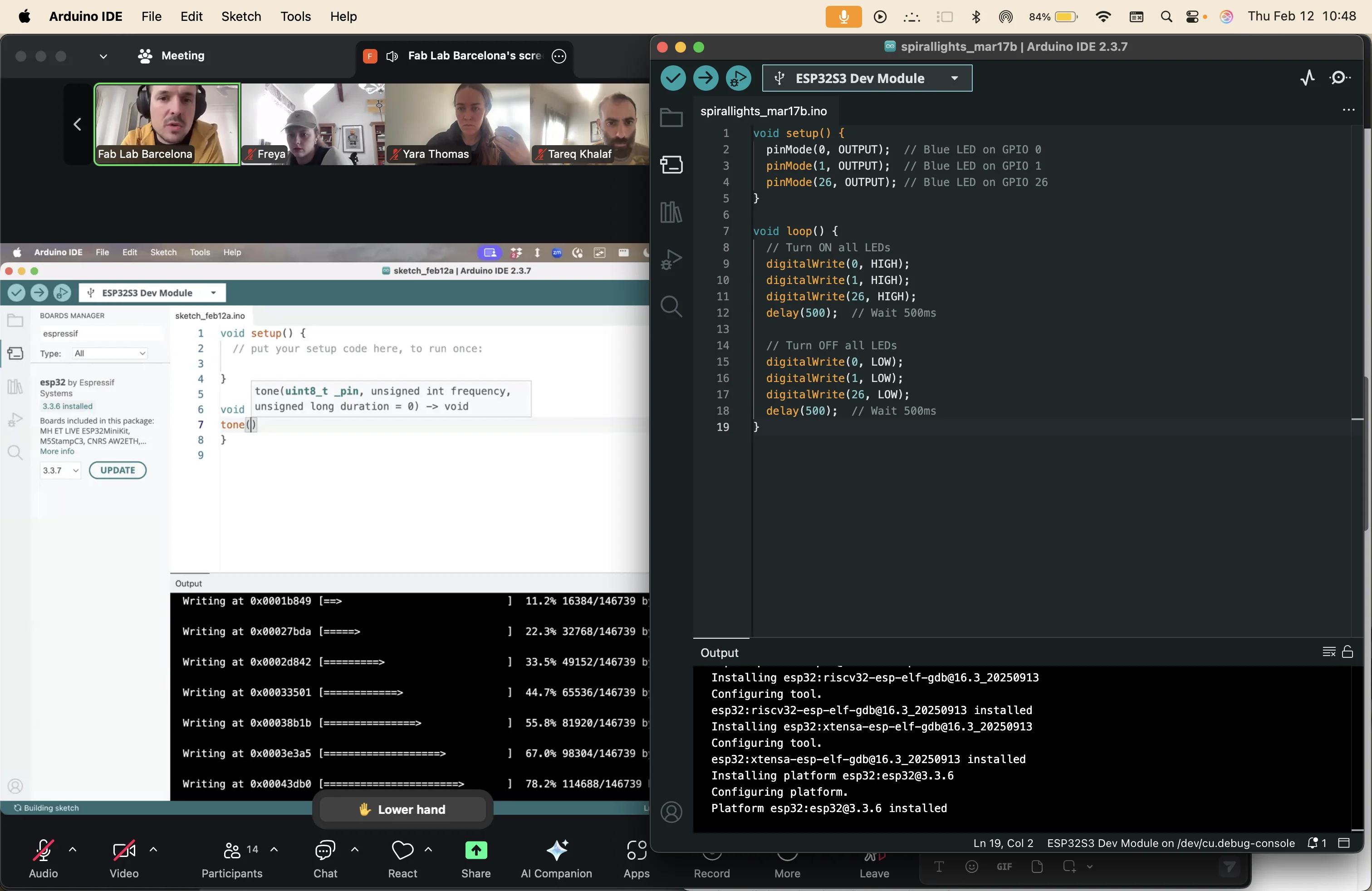
I then installed the ESP32 board package through the Arduino IDE Board Manager by pasting the download link into the "Additional Board Manager URLs" field.
I had to do the links one by one for it to work. boards are installed.
inside arduino
The Arduino IDE is where you write and upload your code to the Arduino board. It uses python. It provides a simple interface for writing code in the Arduino programming language, which is based on C/C++. The IDE also includes a serial monitor for debugging and communication with the board.
void setup - this function is called once when the program starts. It is used to initialize variables, pin modes, start using libraries, etc. It is to do things once.
void loop - this function is called repeatedly in a loop. It is used to actively control the board. It is to do things continuously.
like any code, it is read line by line from top to bottom and executes it in that order.
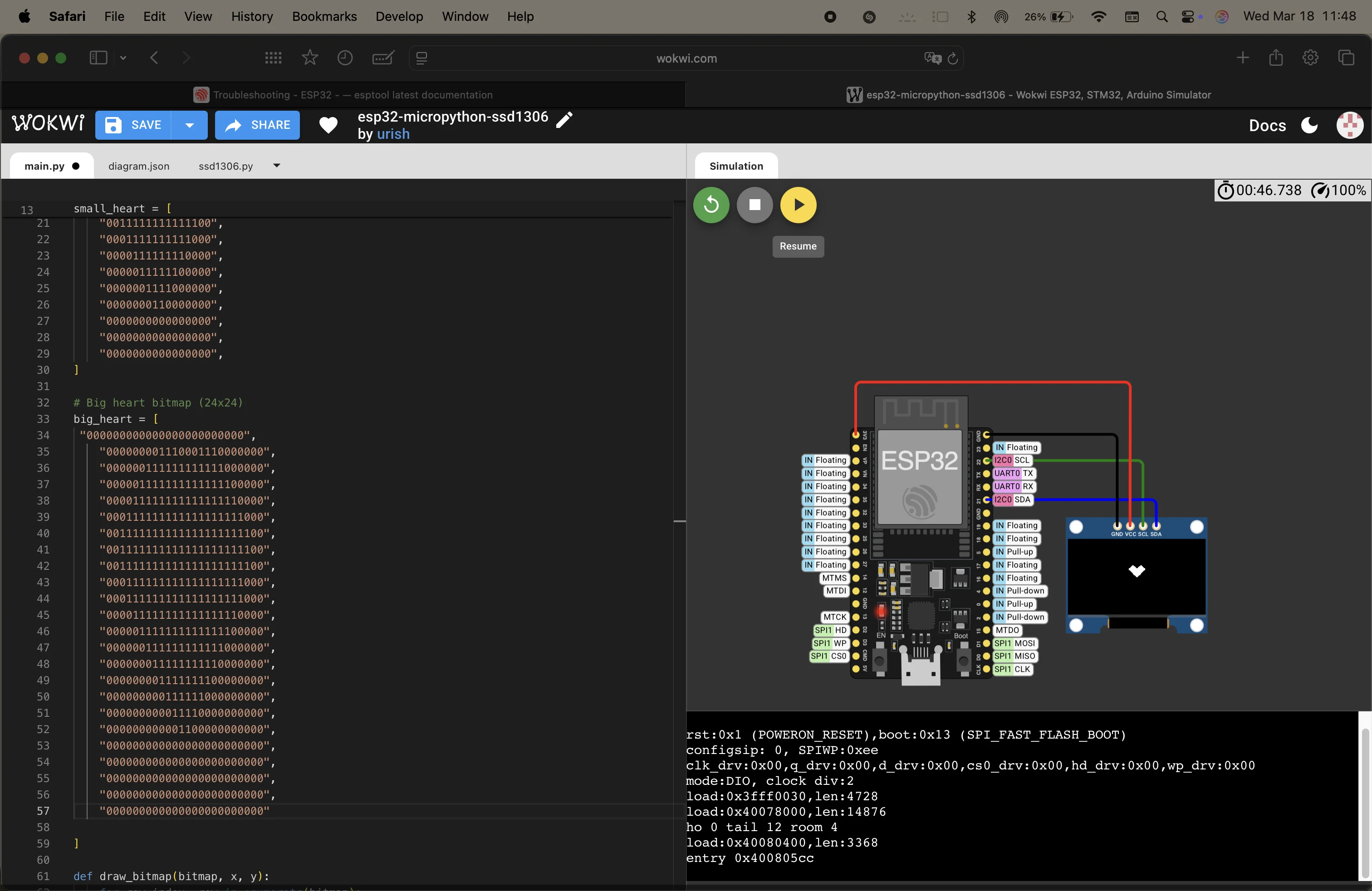
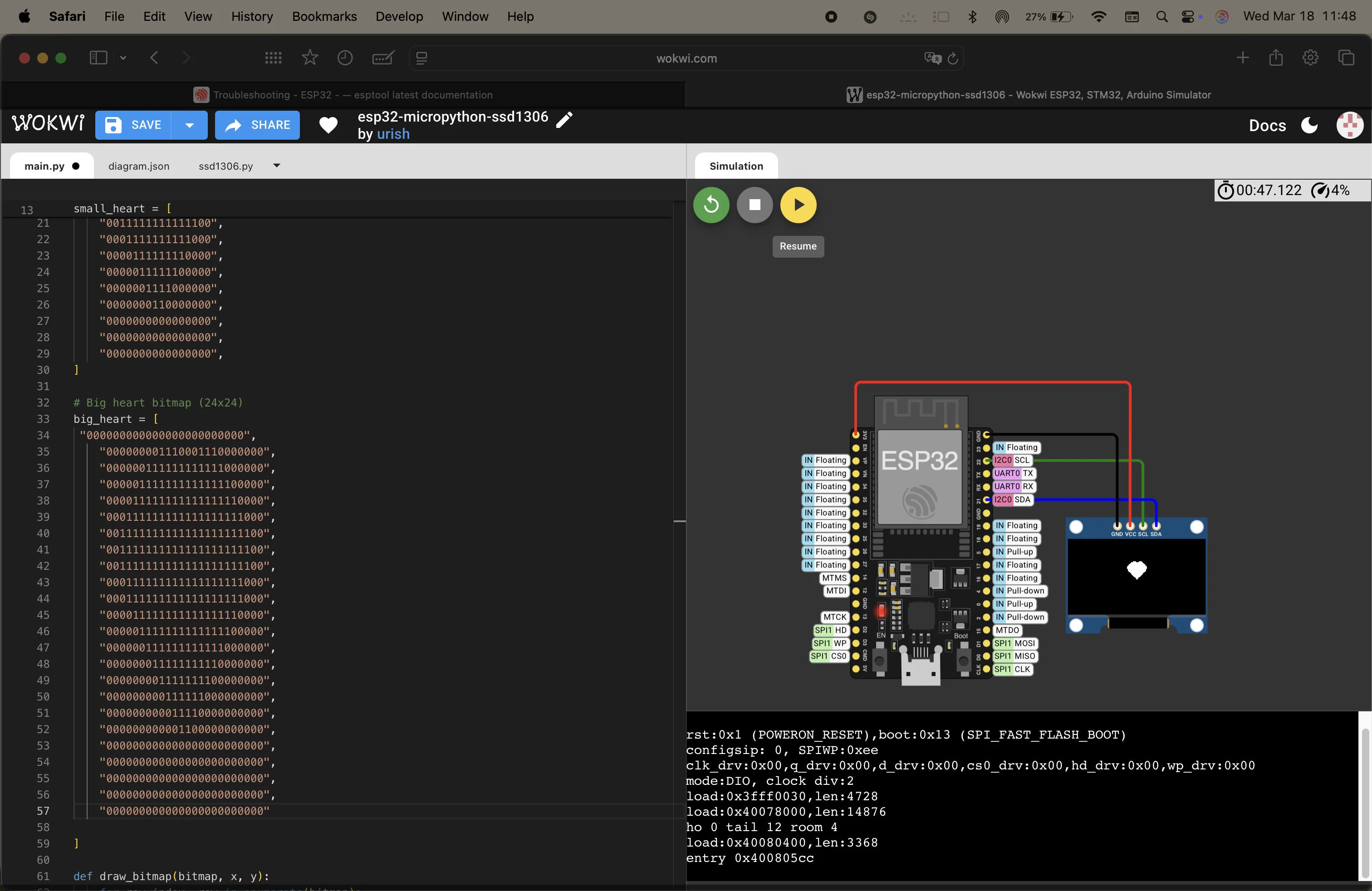
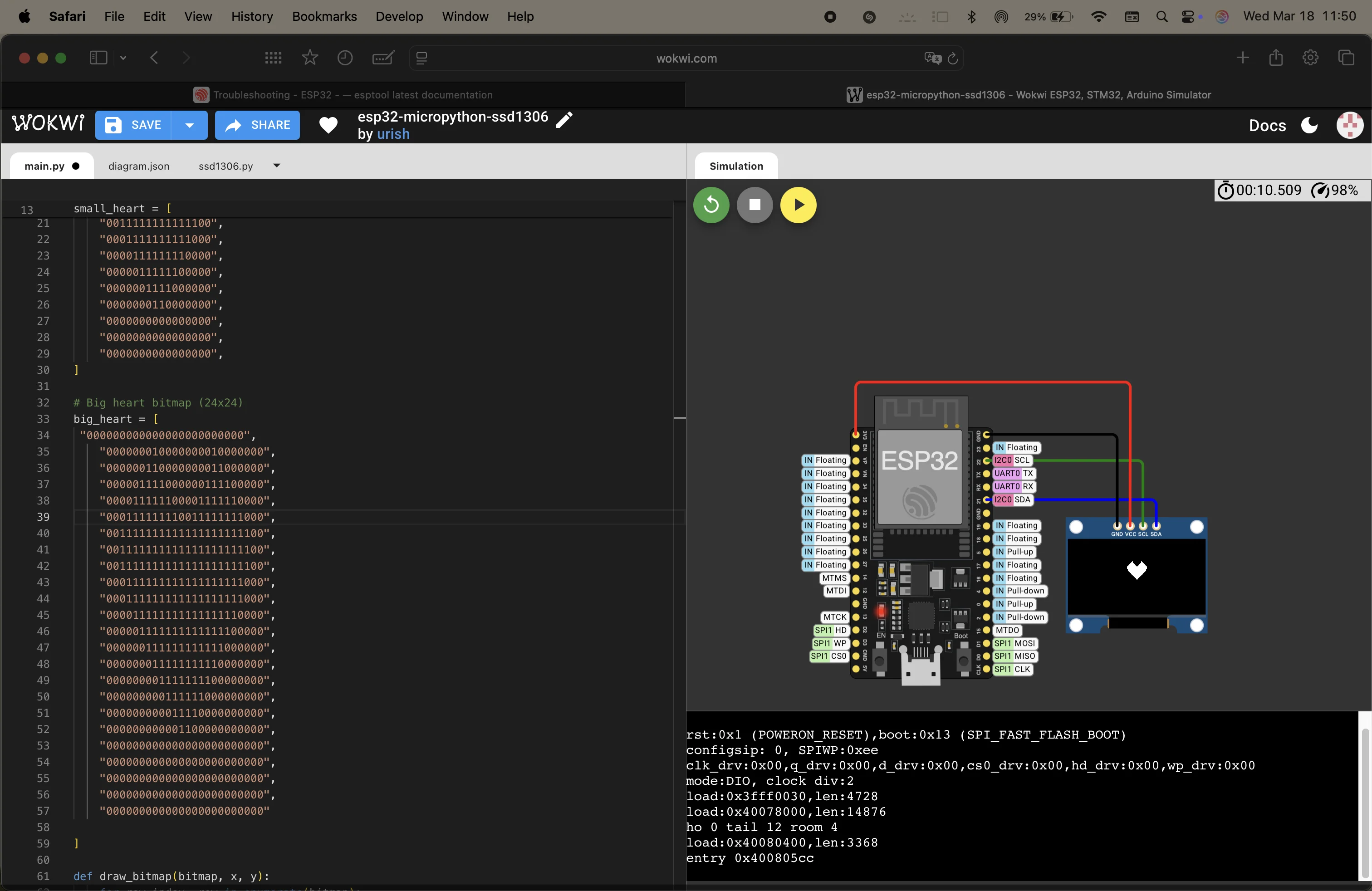
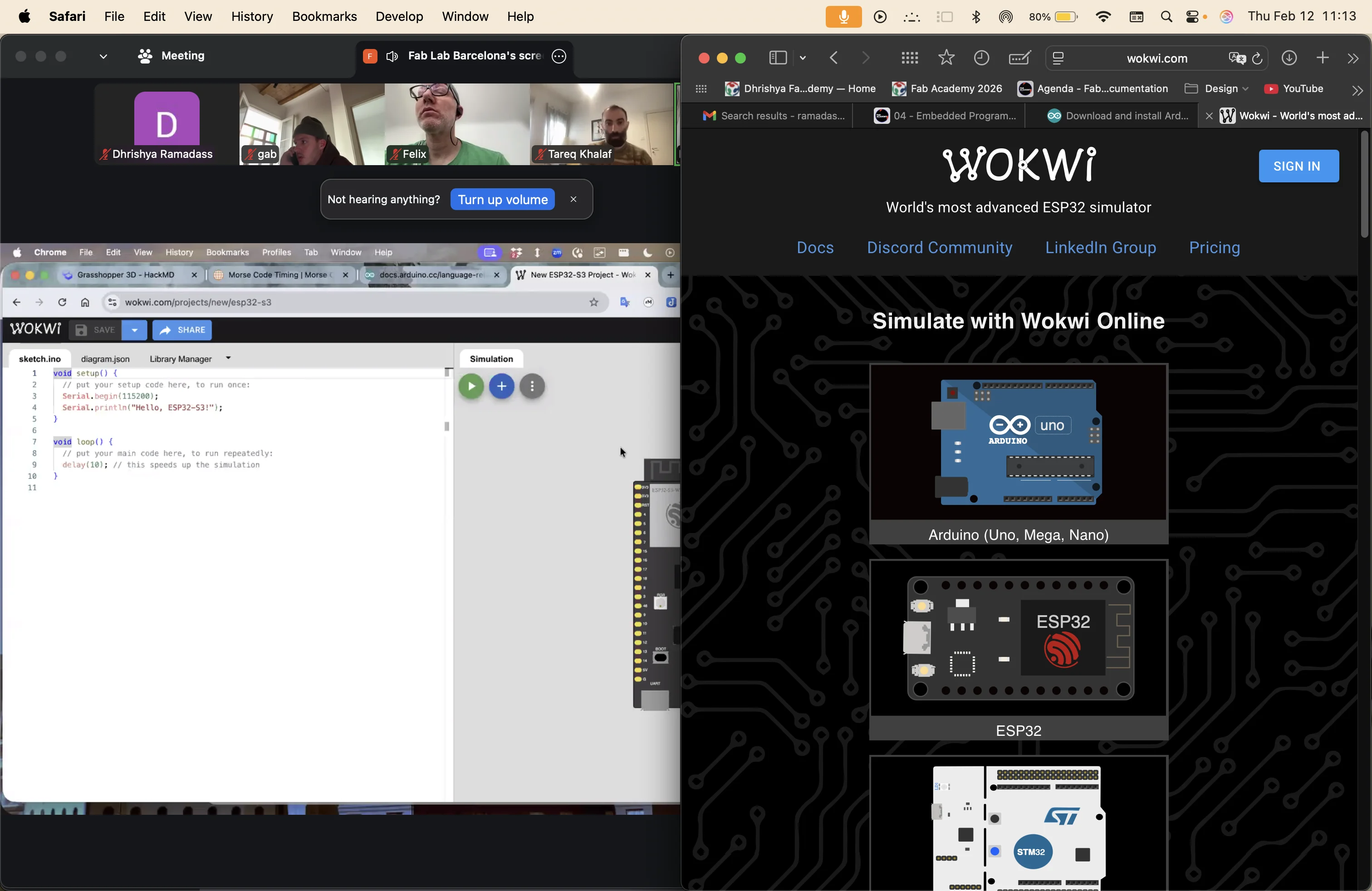
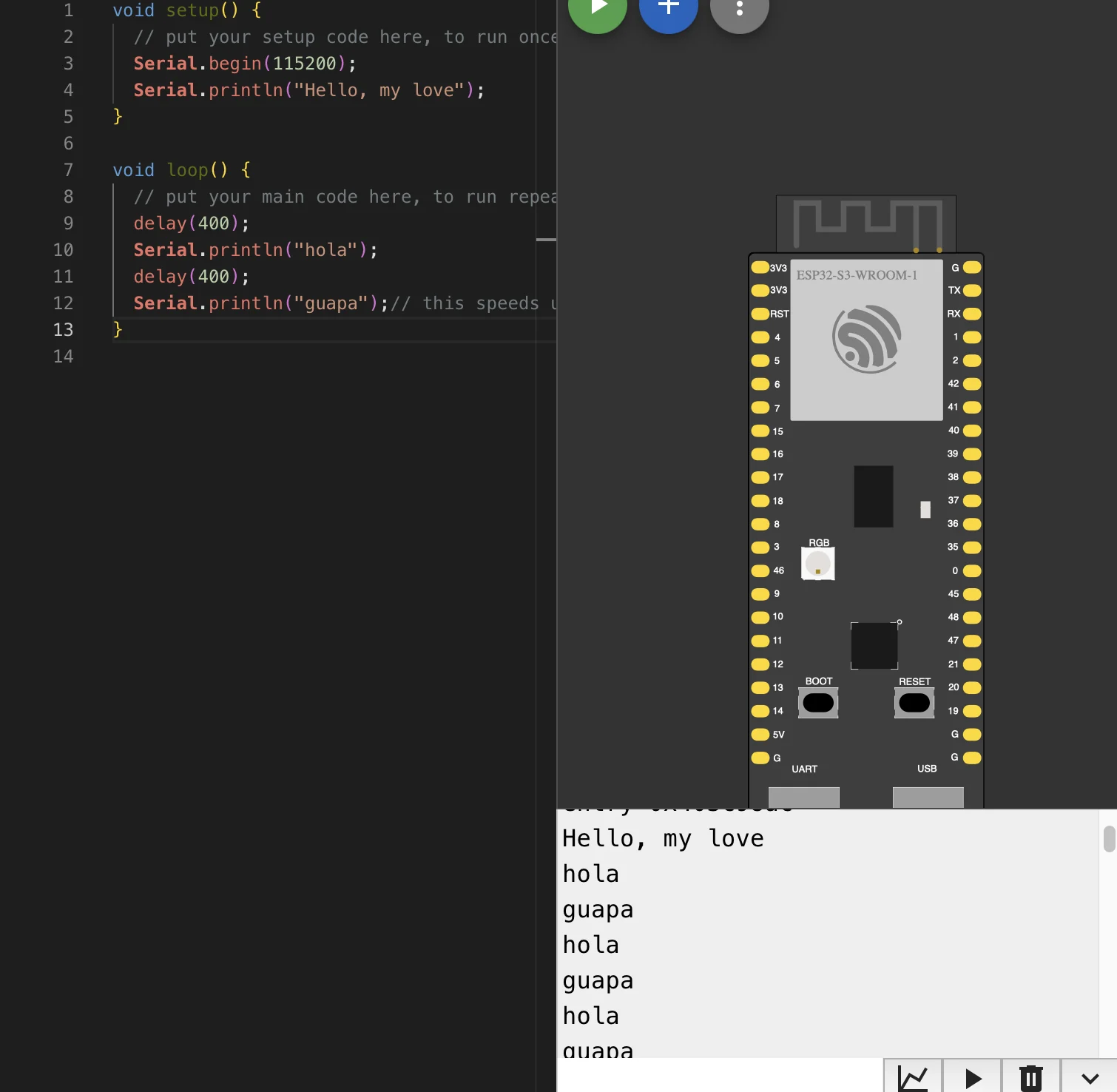
simulated SOS in morse code to test in the class using Wokwi.
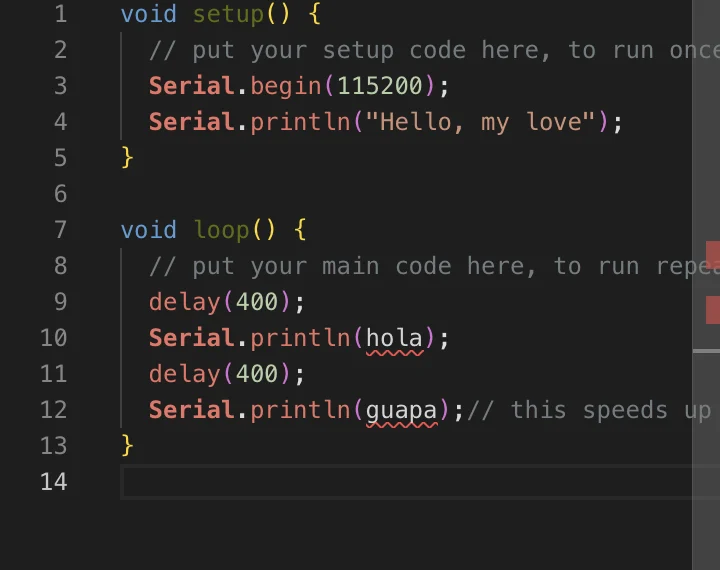
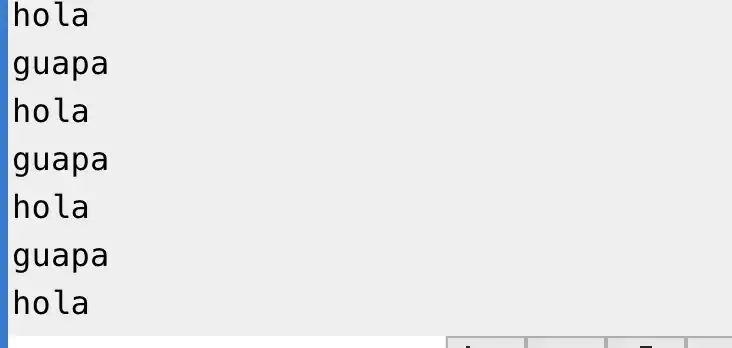
the i simulated it to say 'hola guapa' repeatedly.
uppercase and lowecase is important. Upper case represent the class and lower case represents the function