WEEK 11 — Networking and Communications
Group Assignment — Sending messages between three XIAO ESP32 boards using WiFi, Blynk Cloud, and Serial commands.
Personal Contributions
| Name | University | Activities carried out |
|---|---|---|
| Rodrigo Guamán | Universidad de Cuenca |
|
| Jenny Rojas | Universidad de Cuenca |
|
| Diego Zhindón | Universidad Politécnica Salesiana |
|
Group Assignment Checklist
This section documents the group work for the Networking and Communications assignment. The objective was to send a message between projects and demonstrate the workflow used in the network design.
- ☑ Sent a message between two or more projects.
- ☑ Documented the work on the group assignment page.
- ☑ Demonstrated the workflow used in the network design.
- ☑ Implemented and interpreted networking and communication protocols.
- ☑ Ensured that the boards were addressed correctly using virtual pins and individual device tokens.
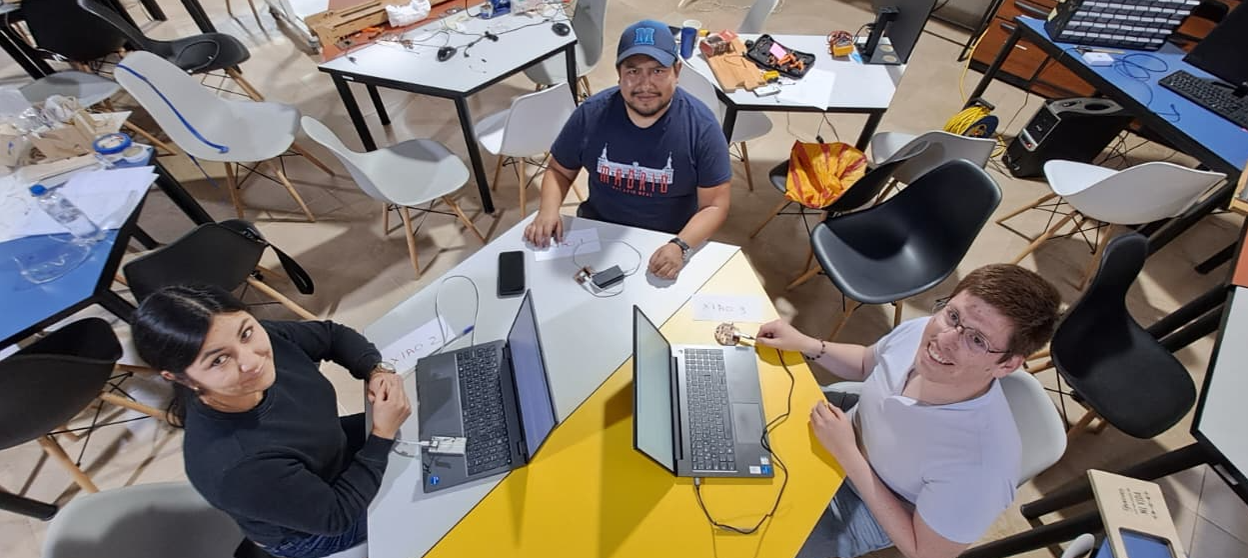
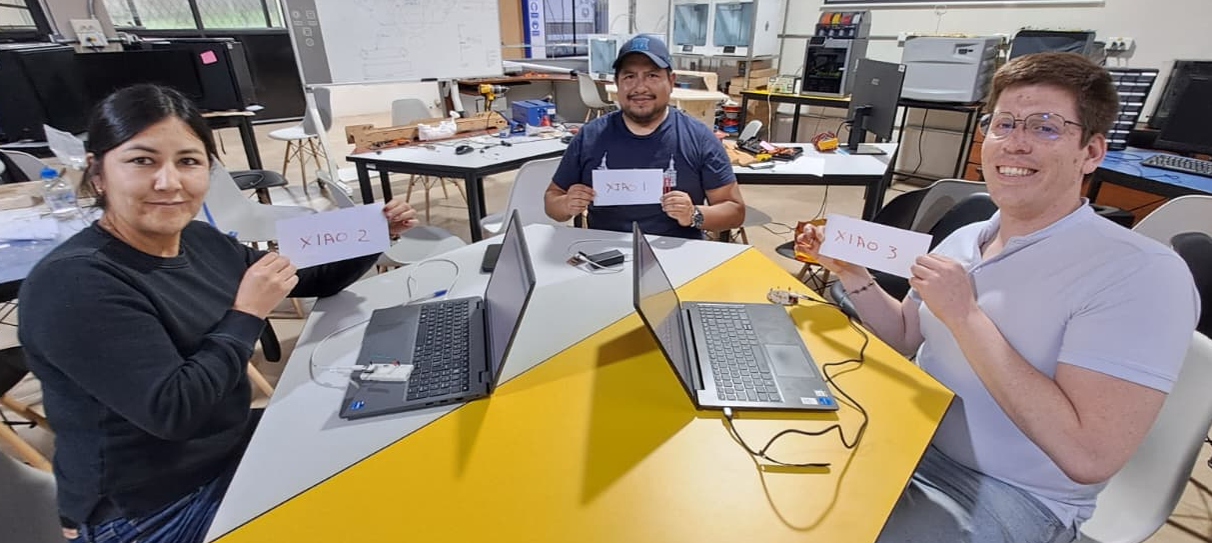
- ☑ Included a hero shot of the networking and communications setup.
Group Assignment – Networking and Communications
For this group assignment, we implemented a wireless communication system between three custom PCB boards. Each board uses a Seeed Studio XIAO ESP32 module and communicates through WiFi using Blynk Cloud as an IoT message broker. The goal was to send commands from one board to another and use those messages to control LEDs connected to each board.
In this experiment, each XIAO ESP32 board was connected to a different computer through USB. The computers were used as local serial terminals. From the Serial Monitor, we sent text commands such as X1_ON, X2_OFF, or X3_ON. The local XIAO ESP32 interpreted the command and sent it through WiFi to Blynk Cloud. Blynk then updated the virtual pin of the target XIAO ESP32, and the receiving board turned its LED on or off.
About the XIAO ESP32 Boards
The XIAO ESP32 family is a compact group of development boards based on Espressif microcontrollers. These boards are useful for embedded systems, IoT applications, wireless sensing, remote actuation, and small custom PCB projects because they include WiFi and Bluetooth communication capabilities in a very small form factor.
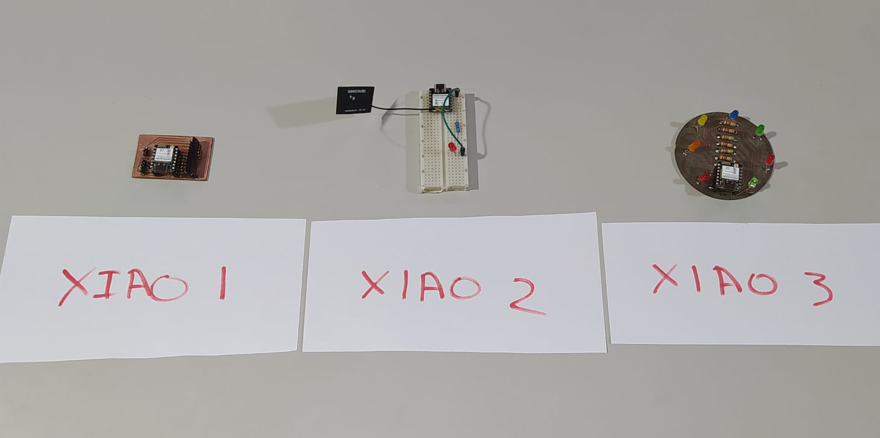
In this group test, we used three XIAO ESP32-based boards:
- Two boards with XIAO ESP32-C6.
- One board with XIAO ESP32-C3.
- Each XIAO was mounted on a custom PCB designed in a previous assignment by Fab Academy students in Ecuador.
- Each board had a local output device: an LED connected to a digital pin.
Communication Type
The communication was wireless and based on WiFi. Instead of creating a direct local connection between boards, we used Blynk Cloud as an intermediary. This means that each board sends or receives data through the internet using HTTPS requests and Blynk virtual pins.
| Layer / Element | Used in this project | Function |
|---|---|---|
| Physical device | XIAO ESP32-C6 / XIAO ESP32-C3 | Microcontroller boards used as network nodes. |
| Wireless connection | WiFi | Allows each XIAO ESP32 to connect to the internet through the local network. |
| Cloud platform | Blynk Cloud | Works as an IoT broker between the three devices. |
| Communication protocol | HTTPS | Used to update Blynk virtual pins from one XIAO ESP32 to another. |
| Local interface | Serial Monitor | Used to type commands from each computer. |
Blynk and IoT
Blynk is an IoT platform that allows hardware devices to connect to the cloud and exchange data with dashboards, apps, and other devices. In this assignment, Blynk was used as the central communication layer between the three XIAO boards.
The Internet of Things, or IoT, refers to physical devices that can connect to a network and exchange data. These XIAO ESP32 boards can be used for IoT because they include WiFi and can send or receive messages through cloud services. In our case, each board became an IoT node capable of receiving commands and controlling an output device.
In this network, the physical LED pin is different from the Blynk virtual pin. The physical pin controls the real LED on the board, while the virtual pin works as a communication channel in Blynk.
Hardware Setup
We used three custom PCBs developed by Fab Academy Ecuador students in a previous assignment. Each board included a XIAO ESP32 module and an LED used as the local output device.
Network Behavior
The three boards were programmed to communicate with each other. Each XIAO ESP32 can send a command to turn on or turn off the LED of another XIAO ESP32. This means that from XIAO ESP32 1 we can control XIAO ESP32 2 and XIAO ESP32 3, from XIAO 2 we can control XIAO ESP32 1 and XIAO ESP32 3, and from XIAO ESP32 3 we can control XIAO ESP32 1 and XIAO ESP32 2.
| Command | Target board | Action |
|---|---|---|
| X1_ON / X1_OFF | XIAO 1 | Turns the LED of XIAO 1 on or off. |
| X2_ON / X2_OFF | XIAO 2 | Turns the LED of XIAO 2 on or off. |
| X3_ON / X3_OFF | XIAO 3 | Turns the LED of XIAO 3 on or off. |
Communication Workflow
The communication workflow starts when a command is typed in the Serial Monitor of one computer. The connected XIAO ESP32 reads the command, identifies the target device, and sends an HTTPS request to Blynk Cloud. Blynk updates the corresponding virtual pin, and the target XIAO ESP32 receives that update through the Blynk library. Finally, the target XIAO ESP32 changes the state of its LED.
Example:
If the user types X2_ON on the computer connected to XIAO 1, the message flow is:
Computer 1 → Serial → XIAO 1 → WiFi / HTTPS → Blynk Cloud → Virtual Pin V20 → XIAO 2 → LED ON
Blynk Configuration
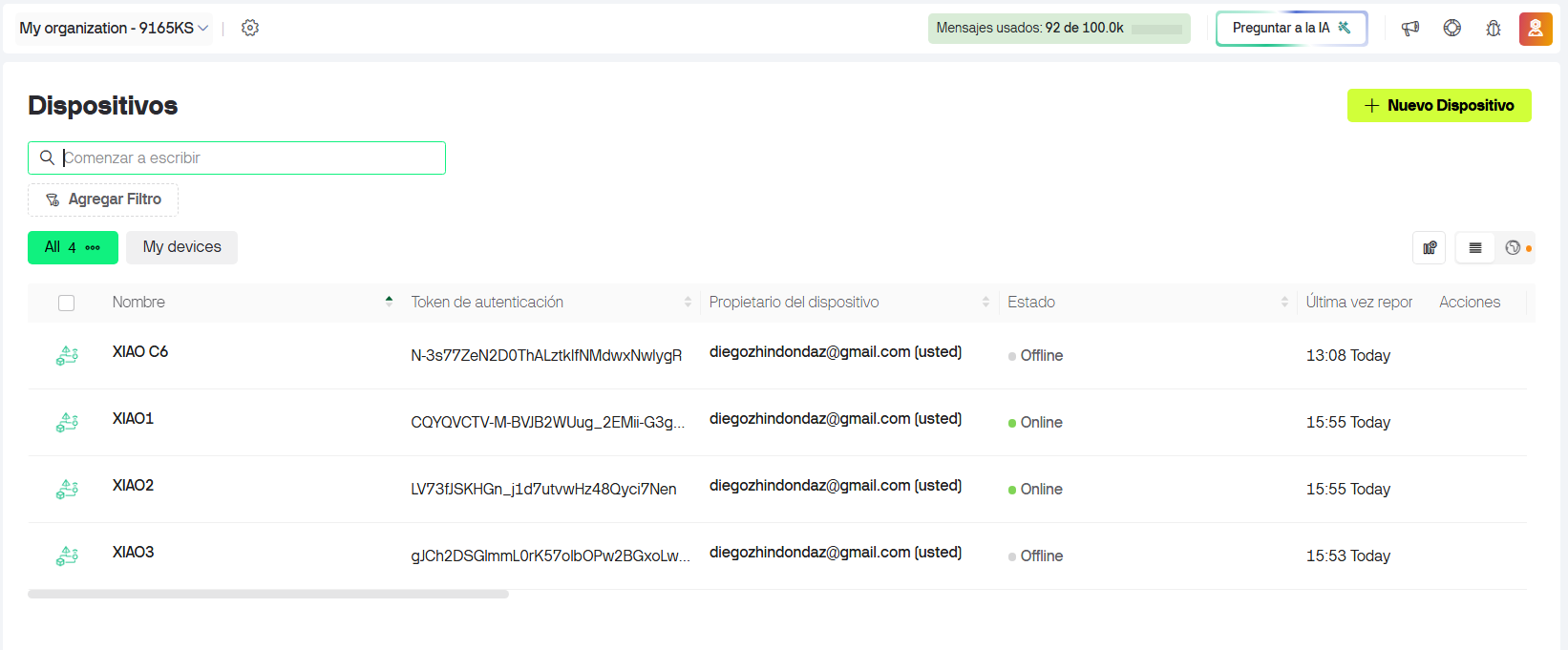
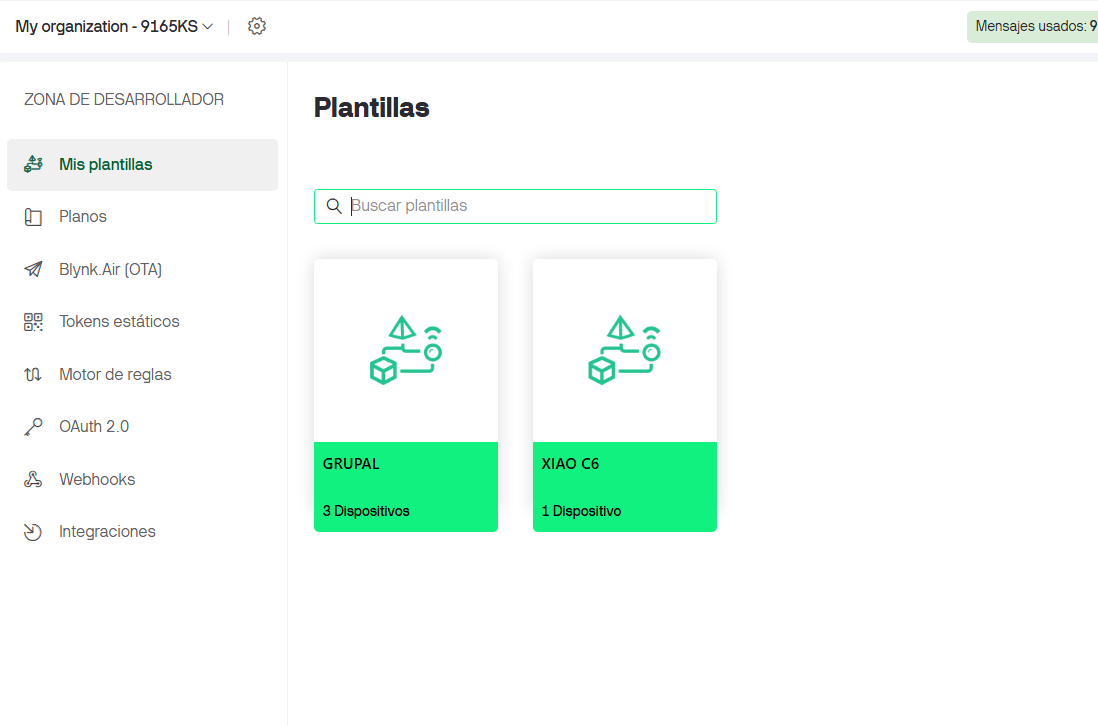
A single Blynk template was created for the group assignment. The template name is GRUPAL. From this template, we created three devices: XIAO1, XIAO2, and XIAO3. Each device has its own authentication token, while all of them share the same template and datastream structure.
Devices Created in Blynk
Blynk Template
Datastreams / Virtual Pins
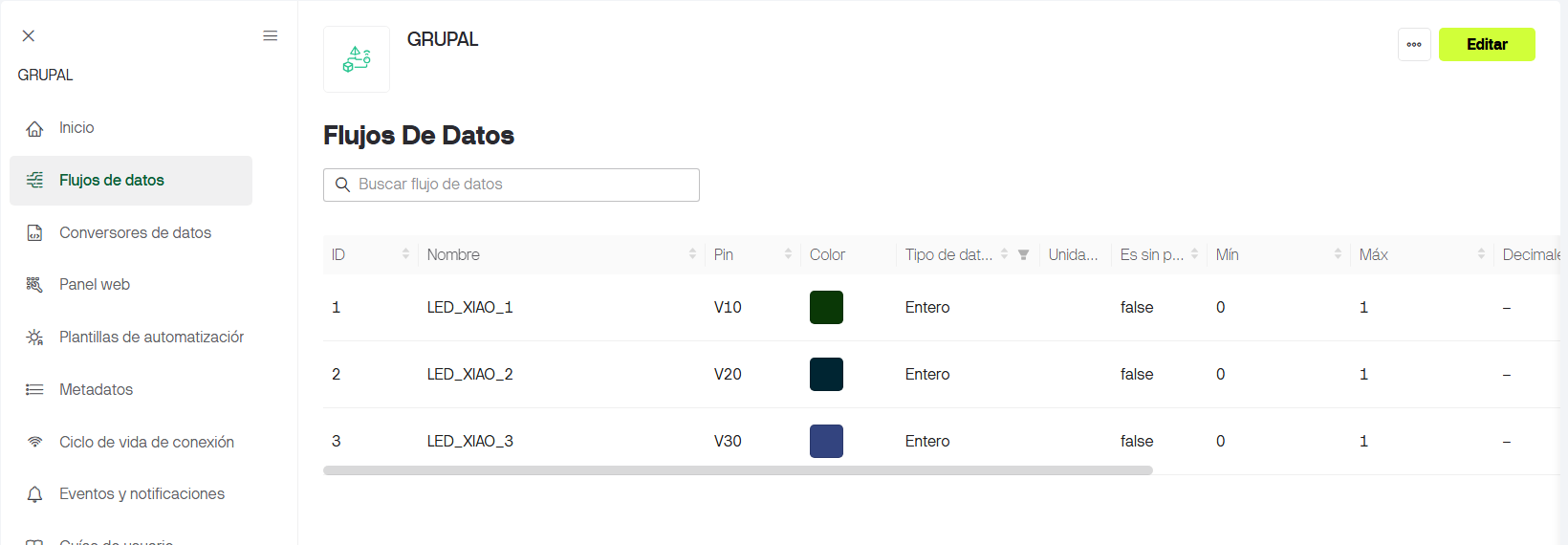
Three virtual pins were created in the template. Each virtual pin represents the LED state of one board. The value 1 turns the LED on, and the value 0 turns the LED off.
| Datastream Name | Virtual Pin | Data Type | Minimum | Maximum | Function |
|---|---|---|---|---|---|
| LED_XIAO_1 | V10 | Integer | 0 | 1 | Controls the LED of XIAO 1. |
| LED_XIAO_2 | V20 | Integer | 0 | 1 | Controls the LED of XIAO 2. |
| LED_XIAO_3 | V30 | Integer | 0 | 1 | Controls the LED of XIAO 3. |
Code Explanation
The three programs are very similar. The main difference between each file is the value of DEVICE_NUMBER. This number identifies whether the program is running on XIAO 1, XIAO 2, or XIAO 3.
Each board also requires the Blynk Template ID, the Blynk Template Name, the authentication token of each device, and the WiFi credentials. The WiFi network name and password must be written correctly for the boards to connect.
For security, the tokens and WiFi password should not be published in the final documentation. In the code shown below, sensitive values are replaced with placeholders.
| Board | DEVICE_NUMBER | Listening Virtual Pin | LED Pin |
|---|---|---|---|
| XIAO 1 | 1 | V10 | D10 |
| XIAO 2 | 2 | V20 | D10 |
| XIAO 3 | 3 | V30 | D5 |
Source Files
The following buttons link to the Arduino files used for each XIAO board.
Code — XIAO 1
This program is configured as XIAO 1. It listens to virtual pin V10 and can send commands to XIAO 2 and XIAO 3.
#define BLYNK_PRINT Serial

/************ CHANGE THIS FOR EACH BOARD ************/
#define DEVICE_NUMBER 1   // XIAO 1 = 1, XIAO 2 = 2, XIAO 3 = 3

/************ BLYNK TEMPLATE INFO ************/
#define BLYNK_TEMPLATE_ID "TMPL2QbL6gsoY"
#define BLYNK_TEMPLATE_NAME "GRUPAL"

/*
   IMPORTANT:
   The BLYNK_AUTH_TOKEN below must match the selected DEVICE_NUMBER.
*/

#if DEVICE_NUMBER == 1
  #define BLYNK_AUTH_TOKEN "TOKEN_XIAO_1"
#elif DEVICE_NUMBER == 2
  #define BLYNK_AUTH_TOKEN "TOKEN_XIAO_2"
#elif DEVICE_NUMBER == 3
  #define BLYNK_AUTH_TOKEN "TOKEN_XIAO_3"
#endif

/************ LIBRARIES ************/
#include <WiFi.h>
#include <BlynkSimpleEsp32.h>
#include <HTTPClient.h>
#include <WiFiClientSecure.h>

/************ WIFI ************/
char ssid[] = "WIFI_NAME";
char pass[] = "WIFI_PASSWORD";

/************ DEVICE TOKENS ************/
const char* TOKEN_XIAO_1 = "TOKEN_XIAO_1";
const char* TOKEN_XIAO_2 = "TOKEN_XIAO_2";
const char* TOKEN_XIAO_3 = "TOKEN_XIAO_3";

/************ HARDWARE ************/
#define LED_PIN D10

/************ SERIAL INPUT ************/
String serialCommand = "";

/************ FUNCTION: SEND MESSAGE THROUGH BLYNK HTTP API ************/
void sendToBlynkDevice(const char* targetToken, const char* virtualPin, int value)
{
  if (WiFi.status() != WL_CONNECTED) {
    Serial.println("ERROR: WiFi is not connected.");
    return;
  }

  WiFiClientSecure client;
  client.setInsecure();

  HTTPClient https;

  String url = "https://blynk.cloud/external/api/update?token=";
  url += targetToken;
  url += "&";
  url += virtualPin;
  url += "=";
  url += value;

  Serial.print("Sending message through WiFi/Blynk: ");
  Serial.println("URL hidden for security.");

  if (https.begin(client, url)) {
    int httpCode = https.GET();

    Serial.print("HTTP response: ");
    Serial.println(httpCode);

    if (httpCode == 200) {
      Serial.println("Message sent successfully.");
    } else {
      Serial.println("Message was not sent correctly. Check token, virtual pin, or Blynk setup.");
    }

    https.end();
  } else {
    Serial.println("ERROR: Could not start HTTPS request.");
  }
}

/************ FUNCTION: PROCESS SERIAL COMMAND ************/
void processCommand(String command)
{
  command.trim();
  command.toUpperCase();

  Serial.print("Command received by XIAO ");
  Serial.print(DEVICE_NUMBER);
  Serial.print(": ");
  Serial.println(command);

  if (command == "X1_ON") {
    sendToBlynkDevice(TOKEN_XIAO_1, "V10", 1);
  }
  else if (command == "X1_OFF") {
    sendToBlynkDevice(TOKEN_XIAO_1, "V10", 0);
  }
  else if (command == "X2_ON") {
    sendToBlynkDevice(TOKEN_XIAO_2, "V20", 1);
  }
  else if (command == "X2_OFF") {
    sendToBlynkDevice(TOKEN_XIAO_2, "V20", 0);
  }
  else if (command == "X3_ON") {
    sendToBlynkDevice(TOKEN_XIAO_3, "V30", 1);
  }
  else if (command == "X3_OFF") {
    sendToBlynkDevice(TOKEN_XIAO_3, "V30", 0);
  }
  else if (command == "HELP") {
    Serial.println("Available commands:");
    Serial.println("X1_ON  | X1_OFF");
    Serial.println("X2_ON  | X2_OFF");
    Serial.println("X3_ON  | X3_OFF");
  }
  else {
    Serial.println("Unknown command. Type HELP.");
  }
}

/************ EACH XIAO RECEIVES ITS OWN VIRTUAL PIN ************/
BLYNK_WRITE(V10)
{
#if DEVICE_NUMBER == 1
  int value = param.asInt();
  digitalWrite(LED_PIN, value);

  Serial.print("XIAO 1 received message on V10: ");
  Serial.println(value);
#endif
}

BLYNK_WRITE(V20)
{
#if DEVICE_NUMBER == 2
  int value = param.asInt();
  digitalWrite(LED_PIN, value);

  Serial.print("XIAO 2 received message on V20: ");
  Serial.println(value);
#endif
}

BLYNK_WRITE(V30)
{
#if DEVICE_NUMBER == 3
  int value = param.asInt();
  digitalWrite(LED_PIN, value);

  Serial.print("XIAO 3 received message on V30: ");
  Serial.println(value);
#endif
}

/************ SETUP ************/
void setup()
{
  Serial.begin(115200);
  delay(1000);

  pinMode(LED_PIN, OUTPUT);
  digitalWrite(LED_PIN, LOW);

  Serial.println();
  Serial.println("====================================");
  Serial.print("Starting XIAO ");
  Serial.println(DEVICE_NUMBER);
  Serial.println("Fab Academy Networking Test");
  Serial.println("====================================");

  Serial.print("Connecting to WiFi and Blynk...");
  Blynk.begin(BLYNK_AUTH_TOKEN, ssid, pass);

  Serial.println();
  Serial.print("XIAO ");
  Serial.print(DEVICE_NUMBER);
  Serial.println(" is ready.");

  Serial.println("Type HELP to see available commands.");
}

/************ LOOP ************/
void loop()
{
  Blynk.run();

  while (Serial.available() > 0) {
    char incomingChar = Serial.read();

    if (incomingChar == '\n' || incomingChar == '\r') {
      if (serialCommand.length() > 0) {
        processCommand(serialCommand);
        serialCommand = "";
      }
    } else {
      serialCommand += incomingChar;
    }
  }
}
Code — XIAO 2
This program is configured as XIAO 2. It listens to virtual pin V20 and can send commands to XIAO 1 and XIAO 3.
#define BLYNK_PRINT Serial

/************ CHANGE THIS FOR EACH BOARD ************/
#define DEVICE_NUMBER 2   // XIAO 1 = 1, XIAO 2 = 2, XIAO 3 = 3

/************ BLYNK TEMPLATE INFO ************/
#define BLYNK_TEMPLATE_ID "TMPL2QbL6gsoY"
#define BLYNK_TEMPLATE_NAME "GRUPAL"

#if DEVICE_NUMBER == 1
  #define BLYNK_AUTH_TOKEN "TOKEN_XIAO_1"
#elif DEVICE_NUMBER == 2
  #define BLYNK_AUTH_TOKEN "TOKEN_XIAO_2"
#elif DEVICE_NUMBER == 3
  #define BLYNK_AUTH_TOKEN "TOKEN_XIAO_3"
#endif

#include <WiFi.h>
#include <BlynkSimpleEsp32.h>
#include <HTTPClient.h>
#include <WiFiClientSecure.h>

char ssid[] = "WIFI_NAME";
char pass[] = "WIFI_PASSWORD";

const char* TOKEN_XIAO_1 = "TOKEN_XIAO_1";
const char* TOKEN_XIAO_2 = "TOKEN_XIAO_2";
const char* TOKEN_XIAO_3 = "TOKEN_XIAO_3";

#define LED_PIN D10

String serialCommand = "";

void sendToBlynkDevice(const char* targetToken, const char* virtualPin, int value)
{
  if (WiFi.status() != WL_CONNECTED) {
    Serial.println("ERROR: WiFi is not connected.");
    return;
  }

  WiFiClientSecure client;
  client.setInsecure();

  HTTPClient https;

  String url = "https://blynk.cloud/external/api/update?token=";
  url += targetToken;
  url += "&";
  url += virtualPin;
  url += "=";
  url += value;

  Serial.print("Sending message through WiFi/Blynk: ");
  Serial.println("URL hidden for security.");

  if (https.begin(client, url)) {
    int httpCode = https.GET();

    Serial.print("HTTP response: ");
    Serial.println(httpCode);

    if (httpCode == 200) {
      Serial.println("Message sent successfully.");
    } else {
      Serial.println("Message was not sent correctly. Check token, virtual pin, or Blynk setup.");
    }

    https.end();
  } else {
    Serial.println("ERROR: Could not start HTTPS request.");
  }
}

void processCommand(String command)
{
  command.trim();
  command.toUpperCase();

  Serial.print("Command received by XIAO ");
  Serial.print(DEVICE_NUMBER);
  Serial.print(": ");
  Serial.println(command);

  if (command == "X1_ON") {
    sendToBlynkDevice(TOKEN_XIAO_1, "V10", 1);
  }
  else if (command == "X1_OFF") {
    sendToBlynkDevice(TOKEN_XIAO_1, "V10", 0);
  }
  else if (command == "X2_ON") {
    sendToBlynkDevice(TOKEN_XIAO_2, "V20", 1);
  }
  else if (command == "X2_OFF") {
    sendToBlynkDevice(TOKEN_XIAO_2, "V20", 0);
  }
  else if (command == "X3_ON") {
    sendToBlynkDevice(TOKEN_XIAO_3, "V30", 1);
  }
  else if (command == "X3_OFF") {
    sendToBlynkDevice(TOKEN_XIAO_3, "V30", 0);
  }
  else if (command == "HELP") {
    Serial.println("Available commands:");
    Serial.println("X1_ON  | X1_OFF");
    Serial.println("X2_ON  | X2_OFF");
    Serial.println("X3_ON  | X3_OFF");
  }
  else {
    Serial.println("Unknown command. Type HELP.");
  }
}

BLYNK_WRITE(V10)
{
#if DEVICE_NUMBER == 1
  int value = param.asInt();
  digitalWrite(LED_PIN, value);
  Serial.print("XIAO 1 received message on V10: ");
  Serial.println(value);
#endif
}

BLYNK_WRITE(V20)
{
#if DEVICE_NUMBER == 2
  int value = param.asInt();
  digitalWrite(LED_PIN, value);
  Serial.print("XIAO 2 received message on V20: ");
  Serial.println(value);
#endif
}

BLYNK_WRITE(V30)
{
#if DEVICE_NUMBER == 3
  int value = param.asInt();
  digitalWrite(LED_PIN, value);
  Serial.print("XIAO 3 received message on V30: ");
  Serial.println(value);
#endif
}

void setup()
{
  Serial.begin(115200);
  delay(1000);

  pinMode(LED_PIN, OUTPUT);
  digitalWrite(LED_PIN, LOW);

  Serial.println();
  Serial.println("====================================");
  Serial.print("Starting XIAO ");
  Serial.println(DEVICE_NUMBER);
  Serial.println("Fab Academy Networking Test");
  Serial.println("====================================");

  Serial.print("Connecting to WiFi and Blynk...");
  Blynk.begin(BLYNK_AUTH_TOKEN, ssid, pass);

  Serial.println();
  Serial.print("XIAO ");
  Serial.print(DEVICE_NUMBER);
  Serial.println(" is ready.");

  Serial.println("Type HELP to see available commands.");
}

void loop()
{
  Blynk.run();

  while (Serial.available() > 0) {
    char incomingChar = Serial.read();

    if (incomingChar == '\n' || incomingChar == '\r') {
      if (serialCommand.length() > 0) {
        processCommand(serialCommand);
        serialCommand = "";
      }
    } else {
      serialCommand += incomingChar;
    }
  }
}
Code — XIAO 3
This program is configured as XIAO 3. It listens to virtual pin V30 and can send commands to XIAO 1 and XIAO 2. In our final setup, the LED pin for XIAO 3 was changed to D5.
#define BLYNK_PRINT Serial

/************ CHANGE THIS FOR EACH BOARD ************/
#define DEVICE_NUMBER 3   // XIAO 1 = 1, XIAO 2 = 2, XIAO 3 = 3

/************ BLYNK TEMPLATE INFO ************/
#define BLYNK_TEMPLATE_ID "TMPL2QbL6gsoY"
#define BLYNK_TEMPLATE_NAME "GRUPAL"

#if DEVICE_NUMBER == 1
  #define BLYNK_AUTH_TOKEN "TOKEN_XIAO_1"
#elif DEVICE_NUMBER == 2
  #define BLYNK_AUTH_TOKEN "TOKEN_XIAO_2"
#elif DEVICE_NUMBER == 3
  #define BLYNK_AUTH_TOKEN "TOKEN_XIAO_3"
#endif

#include <WiFi.h>
#include <BlynkSimpleEsp32.h>
#include <HTTPClient.h>
#include <WiFiClientSecure.h>

char ssid[] = "WIFI_NAME";
char pass[] = "WIFI_PASSWORD";

const char* TOKEN_XIAO_1 = "TOKEN_XIAO_1";
const char* TOKEN_XIAO_2 = "TOKEN_XIAO_2";
const char* TOKEN_XIAO_3 = "TOKEN_XIAO_3";

#define LED_PIN D5

String serialCommand = "";

void sendToBlynkDevice(const char* targetToken, const char* virtualPin, int value)
{
  if (WiFi.status() != WL_CONNECTED) {
    Serial.println("ERROR: WiFi is not connected.");
    return;
  }

  WiFiClientSecure client;
  client.setInsecure();

  HTTPClient https;

  String url = "https://blynk.cloud/external/api/update?token=";
  url += targetToken;
  url += "&";
  url += virtualPin;
  url += "=";
  url += value;

  Serial.print("Sending message through WiFi/Blynk: ");
  Serial.println("URL hidden for security.");

  if (https.begin(client, url)) {
    int httpCode = https.GET();

    Serial.print("HTTP response: ");
    Serial.println(httpCode);

    if (httpCode == 200) {
      Serial.println("Message sent successfully.");
    } else {
      Serial.println("Message was not sent correctly. Check token, virtual pin, or Blynk setup.");
    }

    https.end();
  } else {
    Serial.println("ERROR: Could not start HTTPS request.");
  }
}

void processCommand(String command)
{
  command.trim();
  command.toUpperCase();

  Serial.print("Command received by XIAO ");
  Serial.print(DEVICE_NUMBER);
  Serial.print(": ");
  Serial.println(command);

  if (command == "X1_ON") {
    sendToBlynkDevice(TOKEN_XIAO_1, "V10", 1);
  }
  else if (command == "X1_OFF") {
    sendToBlynkDevice(TOKEN_XIAO_1, "V10", 0);
  }
  else if (command == "X2_ON") {
    sendToBlynkDevice(TOKEN_XIAO_2, "V20", 1);
  }
  else if (command == "X2_OFF") {
    sendToBlynkDevice(TOKEN_XIAO_2, "V20", 0);
  }
  else if (command == "X3_ON") {
    sendToBlynkDevice(TOKEN_XIAO_3, "V30", 1);
  }
  else if (command == "X3_OFF") {
    sendToBlynkDevice(TOKEN_XIAO_3, "V30", 0);
  }
  else if (command == "HELP") {
    Serial.println("Available commands:");
    Serial.println("X1_ON  | X1_OFF");
    Serial.println("X2_ON  | X2_OFF");
    Serial.println("X3_ON  | X3_OFF");
  }
  else {
    Serial.println("Unknown command. Type HELP.");
  }
}

BLYNK_WRITE(V10)
{
#if DEVICE_NUMBER == 1
  int value = param.asInt();
  digitalWrite(LED_PIN, value);
  Serial.print("XIAO 1 received message on V10: ");
  Serial.println(value);
#endif
}

BLYNK_WRITE(V20)
{
#if DEVICE_NUMBER == 2
  int value = param.asInt();
  digitalWrite(LED_PIN, value);
  Serial.print("XIAO 2 received message on V20: ");
  Serial.println(value);
#endif
}

BLYNK_WRITE(V30)
{
#if DEVICE_NUMBER == 3
  int value = param.asInt();
  digitalWrite(LED_PIN, value);
  Serial.print("XIAO 3 received message on V30: ");
  Serial.println(value);
#endif
}

void setup()
{
  Serial.begin(115200);
  delay(1000);

  pinMode(LED_PIN, OUTPUT);
  digitalWrite(LED_PIN, LOW);

  Serial.println();
  Serial.println("====================================");
  Serial.print("Starting XIAO ");
  Serial.println(DEVICE_NUMBER);
  Serial.println("Fab Academy Networking Test");
  Serial.println("====================================");

  Serial.print("Connecting to WiFi and Blynk...");
  Blynk.begin(BLYNK_AUTH_TOKEN, ssid, pass);

  Serial.println();
  Serial.print("XIAO ");
  Serial.print(DEVICE_NUMBER);
  Serial.println(" is ready.");

  Serial.println("Type HELP to see available commands.");
}

void loop()
{
  Blynk.run();

  while (Serial.available() > 0) {
    char incomingChar = Serial.read();

    if (incomingChar == '\n' || incomingChar == '\r') {
      if (serialCommand.length() > 0) {
        processCommand(serialCommand);
        serialCommand = "";
      }
    } else {
      serialCommand += incomingChar;
    }
  }
}
Serial Monitor Test
After uploading the code, each XIAO ESP32 was connected to Blynk through WiFi. The Serial Monitor was used to verify that each board started correctly and was ready to receive commands.
The baud rate used for the Serial Monitor was 115200. The line ending was set to Newline or Both NL & CR.
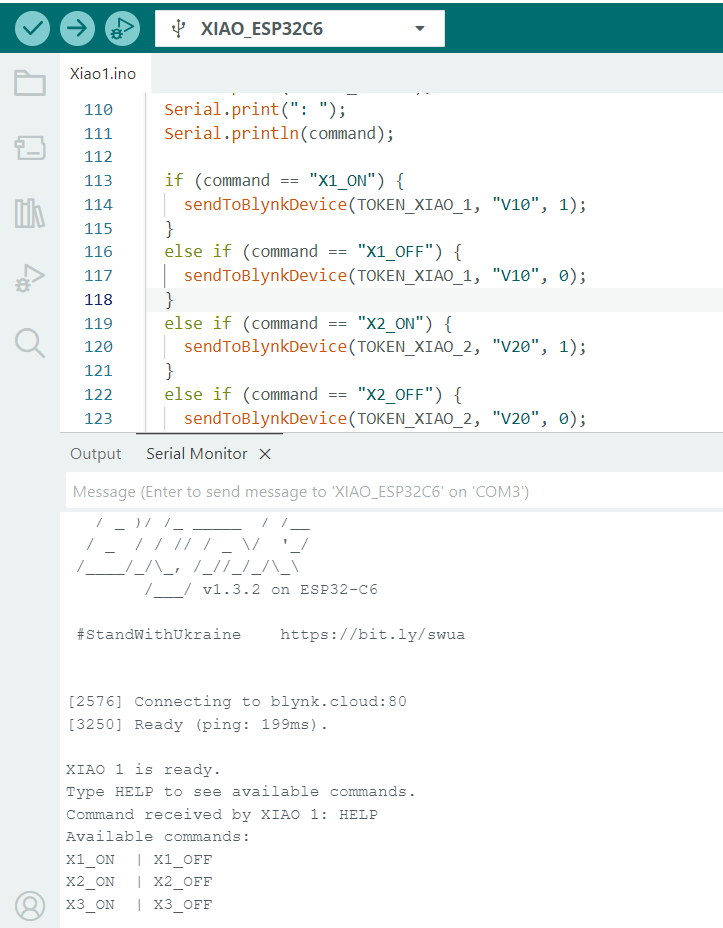
Example commands used during the test:
- X1_ON — turns on the LED of XIAO 1.
- X1_OFF — turns off the LED of XIAO 1.
- X2_ON — turns on the LED of XIAO 2.
- X2_OFF — turns off the LED of XIAO 2.
- X3_ON — turns on the LED of XIAO 3.
- X3_OFF — turns off the LED of XIAO 3.
Final Demonstration
In the final test, the three boards communicated with each other through WiFi. To make the setup more interesting, one of the XIAO ESP32 PCBs was powered using a power bank, while the other two were connected to independent computers. The computers were used to send serial commands, and the boards responded by sending messages through Blynk Cloud.
Video 1. Communication test between the XIAO ESP32 boards.
Video 2. LEDs being controlled remotely through WiFi and Blynk.
Group Work
The group worked together to configure the Blynk template, upload the code to each XIAO, test the communication between boards, and document the final networking workflow.