Introduction
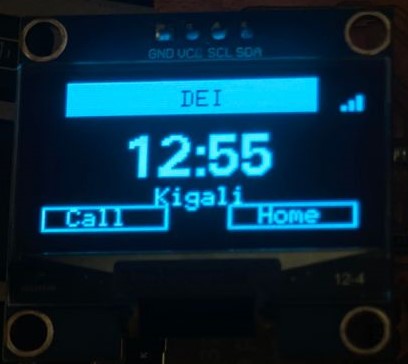
Output Devices week shifts the focus from reading the world to acting on it. A microcontroller is only as useful as what it can drive, displays, lights, motors. On my custom ESP32-S3 board, I worked with three output devices: a 1.3" OLED display over I²C, an LED on GPIO 2, and a small servo motor driven by PWM.
Each device represents a different output category, visual information, simple digital switching, and physical actuation, and together they demonstrate the range of things an embedded board can do beyond just reading sensors.
| Output device | Connection | Library | Control | Notes |
|---|---|---|---|---|
| 1.3" OLED display | I²C, SDA + SCL | U8g2 | Shows text and readings | 128 × 64 px |
| LED | GPIO 2 | none | digitalWrite, PWM dimming | Status indicator, resistor on board |
| Servo motor | PWM signal | ESP32Servo | 0 to 180 degrees | 3.3 to 5 V, physical actuation |
Assignments
Group Assignment
Measure the power consumption of an output device.
As a group, we used a multimeter in series with an output device to measure current draw under different operating conditions, comparing idle vs active power and understanding what each device actually costs the power supply.
Individual Assignment
Add an output device to a microcontroller board you've designed, and program it to do something.
For my individual work, I connected and programmed all three output devices on the custom ESP32-S3 board, driving the OLED to display sensor readings, blinking the LED as a status indicator, and sweeping the servo in response to input.
The Board I Used
Every output device on this page runs on the same custom board I designed and milled earlier in the term, built around the ESP32-S3. I did not buy a dev board for this week. I went back to my own design, the one I routed in KiCad and produced during Electronics Production, and used its broken out GPIO header to attach the OLED, the LED and the servo. You can read how I designed and made it on my Electronics Design week and Electronics Production week pages.
The reason this board is a good fit for output work is simple. The ESP32-S3 has plenty of PWM channels through its hardware timers, native I²C for the display, and 3.3 V logic that the OLED and servo signal line both accept. I exposed SDA, SCL, GPIO 2 and a spare PWM pin on the header, which is exactly what these three devices need.
Measuring Power Consumption
For the group side of this week we set out to measure how much current an output device actually pulls. The full write up lives on our group assignment page. Here is what we did and what we found together.
To read current you cannot just touch the meter across a device the way you would for voltage. Current has to flow through the meter, so the multimeter goes in series with the device. We set the meter to its mA range, broke the positive supply line going into the device, and put one meter probe on the supply side and the other on the device side so all the current had to pass through the meter to get back to the load.
How to wire the meter in series: set the multimeter to DC current (mA), move the red lead into the current jack, then open the positive line feeding the device and close the gap with the two probes. The meter becomes part of the circuit and reads everything the device draws.
We measured each device in two states. Idle means powered but doing nothing, and active means the device is fully working. The difference between the two is the real cost of switching the device on. These are the numbers we read on our bench at Lab Rwanda:
The servo was the big surprise. Holding still it sips under 20 mA, but the moment it moves under load it spikes to roughly 410 mA, more than thirty times the OLED. At 5 V that peak is around 2 watts for a fraction of a second. That single reading explained every brownout we saw later, and it is why the servo code note tells you to give the motor its own supply. The OLED and LED, by contrast, are gentle loads that the board can run straight off its own regulator.
Step-by-Step
Each output device was set up and tested independently before being combined into a single unified sketch that drives all three simultaneously.
0x3C.Tip: If the display doesn't initialize, try swapping the constructor between SH1106 and SSD1306, both are common on 1.3" modules and look identical from the outside.
drawStr() and setCursor() to lay out the information cleanly across the 128×64 pixel canvas.// OLED Display, Show sensor readings
#include <Arduino.h>
#include <U8g2lib.h>
#include <Wire.h>
#include <DHT.h>
//, Match constructor to your OLED controller ,
U8G2_SH1106_128X64_NONAME_F_HW_I2C u8g2(U8G2_R0, U8X8_PIN_NONE);
#define DHT_PIN 4
#define DHT_TYPE DHT11
#define POT_PIN 34
DHT dht(DHT_PIN, DHT_TYPE);
void setup() {
u8g2.begin();
dht.begin();
}
void loop() {
float temp = dht.readTemperature();
float hum = dht.readHumidity();
int pot = analogRead(POT_PIN);
u8g2.clearBuffer();
u8g2.setFont(u8g2_font_6x10_tf);
u8g2.drawStr(0, 12, "ESP32-S3 Board");
u8g2.drawHLine(0, 15, 128);
char line[32];
u8g2.setFont(u8g2_font_5x8_tf);
snprintf(line, sizeof(line), "Temp: %.1f C", temp);
u8g2.drawStr(0, 30, line);
snprintf(line, sizeof(line), "Hum: %.1f %%", hum);
u8g2.drawStr(0, 42, line);
snprintf(line, sizeof(line), "Pot: %d", pot);
u8g2.drawStr(0, 54, line);
u8g2.sendBuffer();
delay(2000);
}
// LED on GPIO 2, status indicator
#define LED_PIN 2

void setup() {
  pinMode(LED_PIN, OUTPUT);
}

void loop() {
  // Basic blink, board alive indicator
  digitalWrite(LED_PIN, HIGH);
  delay(500);
  digitalWrite(LED_PIN, LOW);
  delay(500);

  //, In combined sketch: tie to sensor threshold ,
  // if (temperature > 30.0) digitalWrite(LED_PIN, HIGH);
  // else                     digitalWrite(LED_PIN, LOW);
}
Servo.h library doesn't work correctly on ESP32 boards. Installed ESP32Servo by Kevin Harrington from the Library Manager, it uses the ESP32's hardware timer channels to generate accurate PWM signals for servo control.
Power note: Servos can draw significant current on movement. If the board resets when the servo moves, power the servo from an external 5V supply and share only the GND with the ESP32-S3.
// Servo Motor, mapped to potentiometer
#include <ESP32Servo.h>

#define SERVO_PIN 13   // PWM-capable GPIO
#define POT_PIN   34

Servo myServo;

void setup() {
  myServo.attach(SERVO_PIN, 500, 2400); // min/max pulse µs
  Serial.begin(115200);
}

void loop() {
  int raw    = analogRead(POT_PIN);           // 0 – 4095
  int angle  = map(raw, 0, 4095, 0, 180);    // map to degrees
  myServo.write(angle);

  Serial.print("Pot: "); Serial.print(raw);
  Serial.print("  Servo: "); Serial.print(angle);
  Serial.println("°");

  delay(20); // servo update rate ~50Hz
}
Result: All three outputs respond in real time, the display updates with fresh readings every 2 seconds, the LED reacts to temperature, and the servo follows the potentiometer, confirming the board can drive multiple output types simultaneously.
// Output Devices, combined firmware for the ESP32-S3 board
// OLED over I2C + LED on GPIO 2 + servo on PWM
#include <Arduino.h>
#include <U8g2lib.h>
#include <Wire.h>
#include <DHT.h>
#include <ESP32Servo.h>

U8G2_SH1106_128X64_NONAME_F_HW_I2C oled(U8G2_R0, U8X8_PIN_NONE);

#define DHT_PIN    4
#define DHT_TYPE   DHT11
#define POT_PIN    34
#define LED_PIN    2
#define SERVO_PIN  13

#define TEMP_THRESHOLD_C 30.0

DHT dht(DHT_PIN, DHT_TYPE);
Servo armServo;

unsigned long lastDisplayUpdate = 0;
const unsigned long displayInterval = 2000;

void setup() {
  Serial.begin(115200);
  oled.begin();
  dht.begin();
  pinMode(LED_PIN, OUTPUT);
  armServo.attach(SERVO_PIN, 500, 2400);
}

void loop() {
  float temperatureC = dht.readTemperature();
  float humidity     = dht.readHumidity();
  int   potRaw       = analogRead(POT_PIN);

  int servoAngle = map(potRaw, 0, 4095, 0, 180);
  armServo.write(servoAngle);

  bool isHot = temperatureC > TEMP_THRESHOLD_C;
  digitalWrite(LED_PIN, isHot ? HIGH : LOW);

  if (millis() - lastDisplayUpdate >= displayInterval) {
    lastDisplayUpdate = millis();
    oled.clearBuffer();
    oled.setFont(u8g2_font_6x10_tf);
    oled.drawStr(0, 12, "ESP32-S3 Outputs");
    oled.drawHLine(0, 15, 128);

    char line[32];
    oled.setFont(u8g2_font_5x8_tf);
    snprintf(line, sizeof(line), "Temp: %.1f C", temperatureC);
    oled.drawStr(0, 30, line);
    snprintf(line, sizeof(line), "Hum:  %.1f %%", humidity);
    oled.drawStr(0, 42, line);
    snprintf(line, sizeof(line), "Servo: %d deg", servoAngle);
    oled.drawStr(0, 54, line);
    oled.sendBuffer();
  }

  delay(20);
}
How the Firmware Works
The combined sketch reads one sensor and feeds three outputs from it on every pass of the loop. Walking through it in order makes the structure clear.
Setup. In setup() I start serial for debugging, call oled.begin() to bring up the display over I²C, start the DHT sensor, set GPIO 2 as an output for the LED, and attach the servo with armServo.attach(SERVO_PIN, 500, 2400). The two numbers are the minimum and maximum pulse width in microseconds, which tells ESP32Servo how to map an angle to a real pulse so 0° and 180° land where I expect.
Reading once, driving three. At the top of the loop I read temperature, humidity and the potentiometer one time and store them. Every output then works from those stored values, so the whole board reacts to one consistent snapshot of the world instead of re reading the sensor for each device.
Servo. The raw ADC value runs from 0 to 4095. I use map(potRaw, 0, 4095, 0, 180) to scale it into a 0 to 180 degree angle and pass that straight to armServo.write(). Turning the knob moves the arm in lock step.
LED. The LED is a status light. A boolean isHot is true when temperature crosses the threshold, and digitalWrite(LED_PIN, isHot ? HIGH : LOW) lights it. The output is a direct readout of one condition, which is exactly what a status LED is for.
OLED, on a timer. Redrawing the screen is slow, so I gate it with millis() instead of a delay(). The display only refreshes when 2 seconds have passed, while the servo and LED keep updating every loop. This is why the arm feels instant even though the text changes slowly. Inside the update I clear the buffer, draw each line with drawStr(), and push the whole frame at once with sendBuffer(), so the screen never flickers mid draw.
The small delay(20) at the end keeps the servo refresh near 50 Hz, the rate hobby servos expect, without slowing the rest of the loop in any way you can see.
Problems and Solutions
U8G2_SSD1306 for U8G2_SH1106 in the constructor line fixed it instantly.delay() between frames. That made the screen flicker and, worse, it stalled the servo because nothing else ran during the delay. Moving the display refresh behind a millis() timer and drawing into a buffer before one sendBuffer() call removed both problems at once.attach() gave the servo its true mechanical range back.Lessons on Interfacing Outputs
Driving three different output devices in one week taught me more about interfacing than any single device would have, because each one needs the microcontroller to talk to it in a different way.
Different outputs, different control styles. The LED is a single pin I set high or low. The servo is a timed pulse where the width carries the meaning, so I never write a voltage, I write an angle and let PWM do the rest. The OLED is a full protocol where I send commands and pixel data over two shared wires. One board, three completely different mental models, and learning to hold all three at once was the real skill this week.
Power is part of the interface. I used to think wiring a signal was the whole job. The servo brownout taught me that what a device draws matters as much as what it is told. Measuring current in series before trusting a device on the main rail is now a habit, not an afterthought.
Do not block the loop. Slow outputs like a display must not hold up fast outputs like a servo. Using millis() timing instead of delay() let every device run at the rate it needs. This was the single most useful pattern I took from the week.
Match the library to the hardware. Both the OLED controller and the servo timing needed the right library and the right constructor. Generic Arduino libraries did not all work on the ESP32-S3. Knowing that ESP32Servo exists because the standard Servo library fails on this chip saved me a lot of guessing.
Summary
Conclusion
Working with three different output types in the same week made the variety of ways a microcontroller can interact with the physical world very concrete. The OLED communicates structured information over I²C, the LED gives instant binary feedback via a single GPIO, and the servo converts a PWM signal into physical rotation, three completely different mechanisms, all driven from the same board.
Tying the servo position and LED trigger to live sensor readings rather than hardcoded values was the most valuable part, it shows how input and output devices work together as a system, which is the foundation for any real embedded application.