Hero Shot
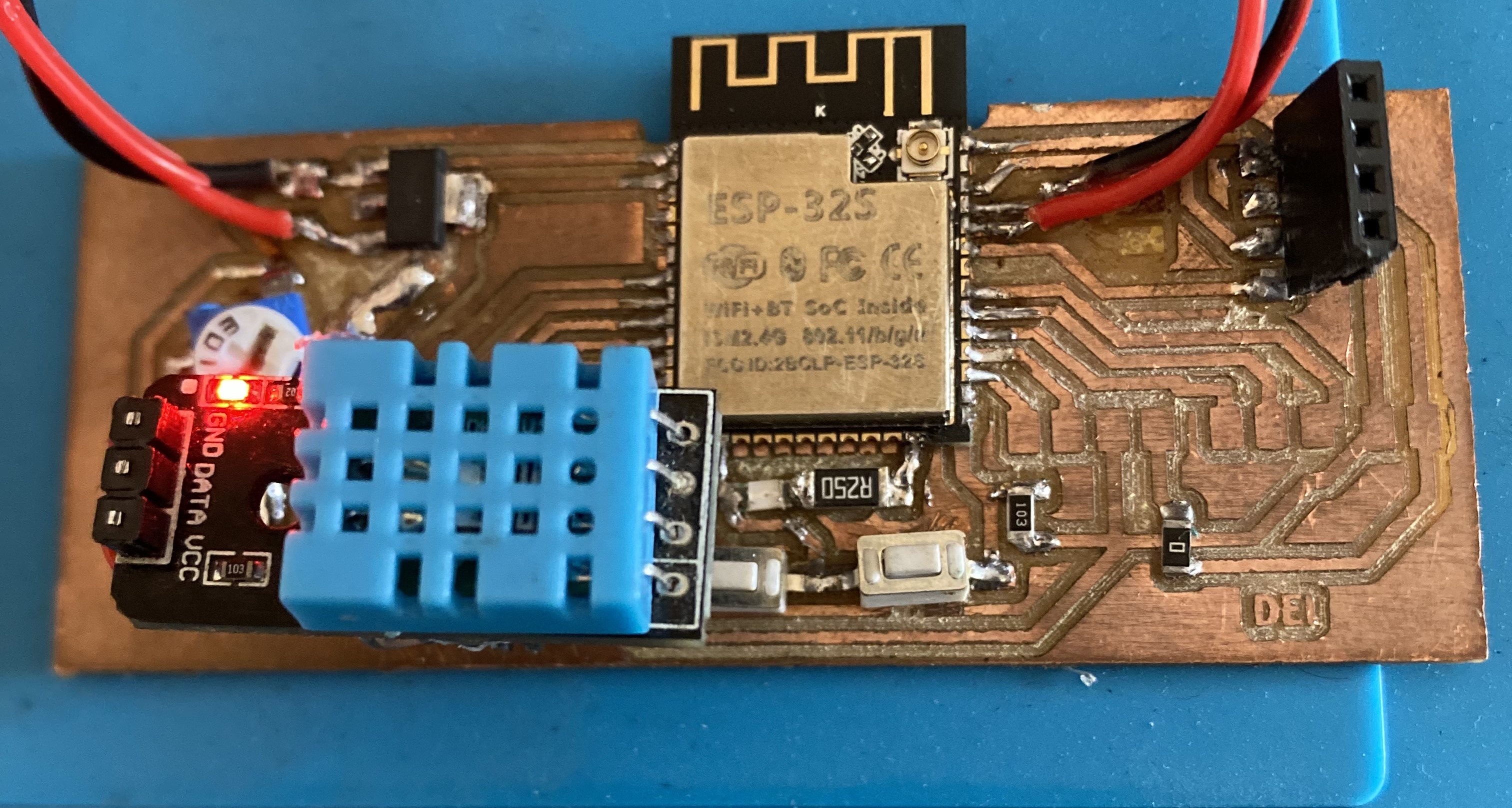
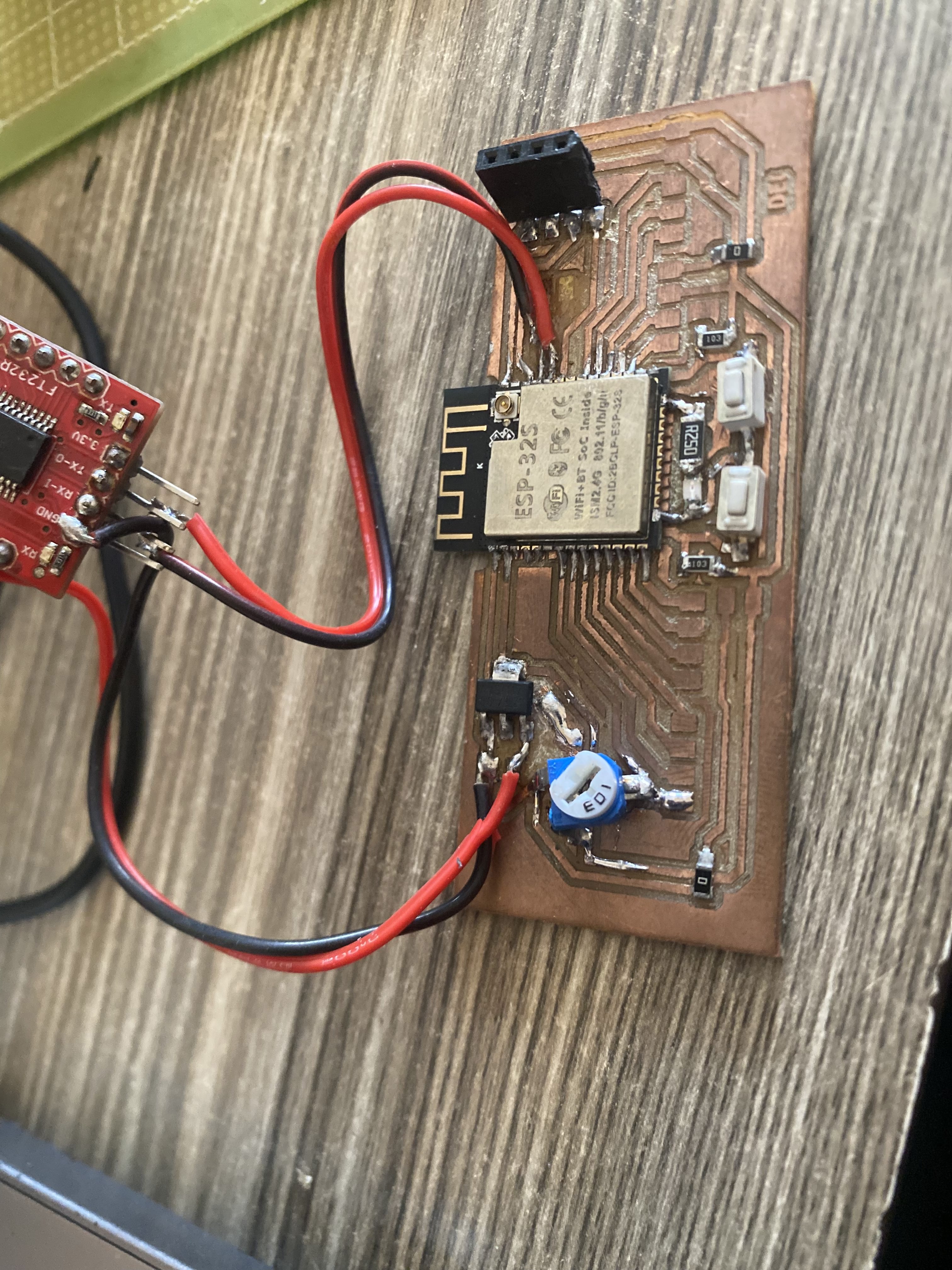
This is the finished ESP32-S3 board I made this week: milled, stuffed, soldered, and tested working.
Introduction
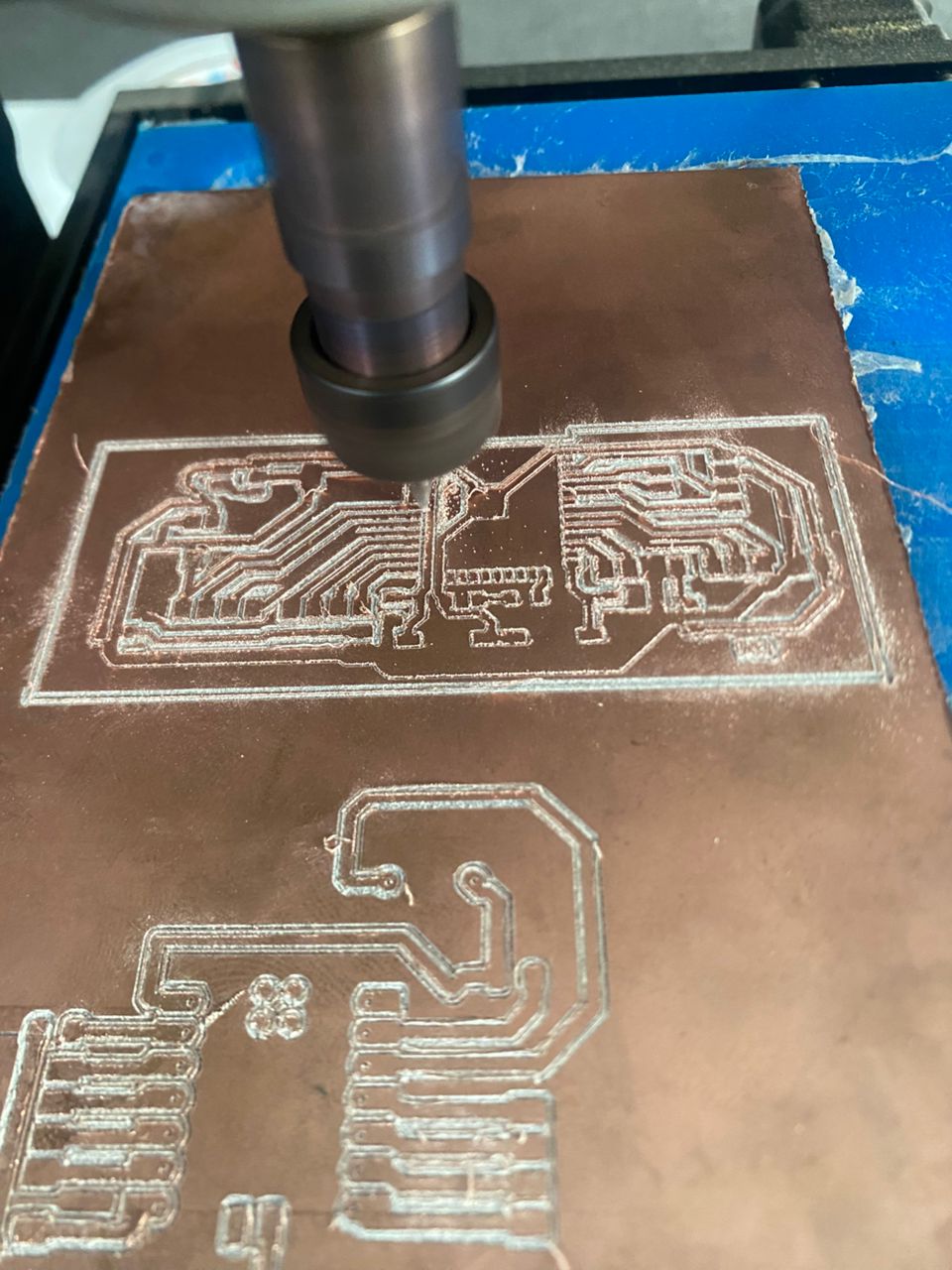
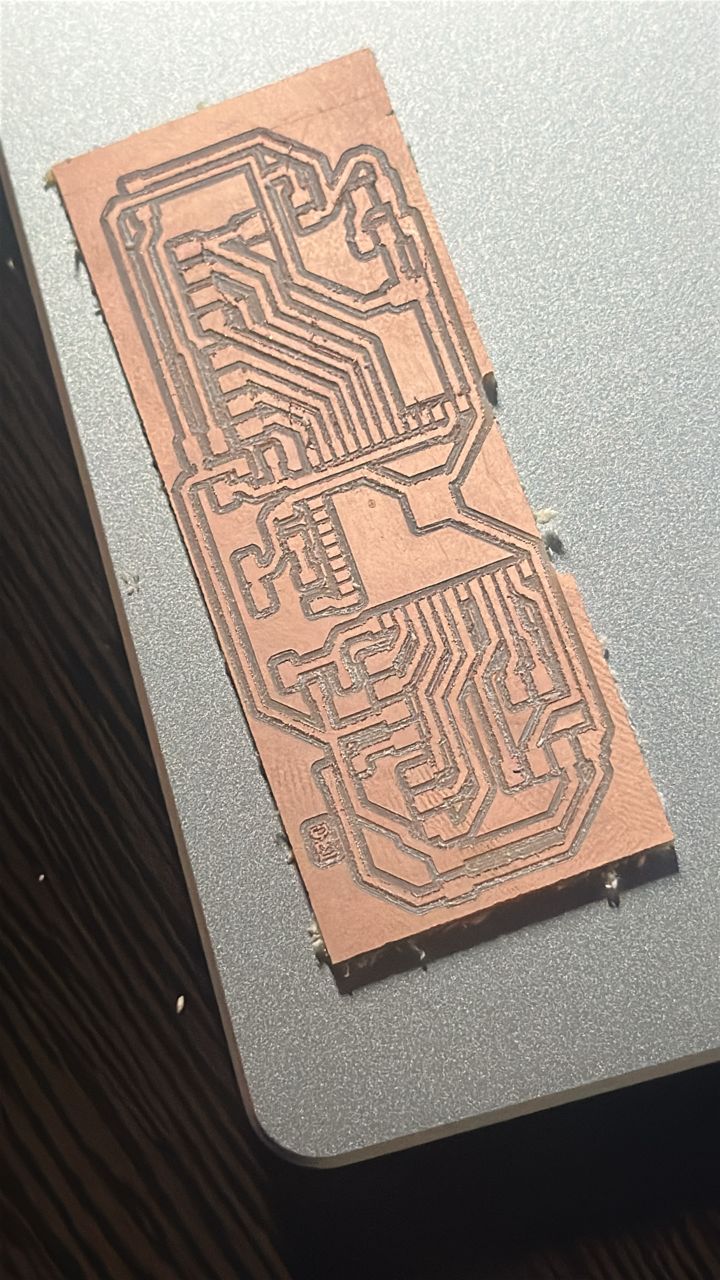
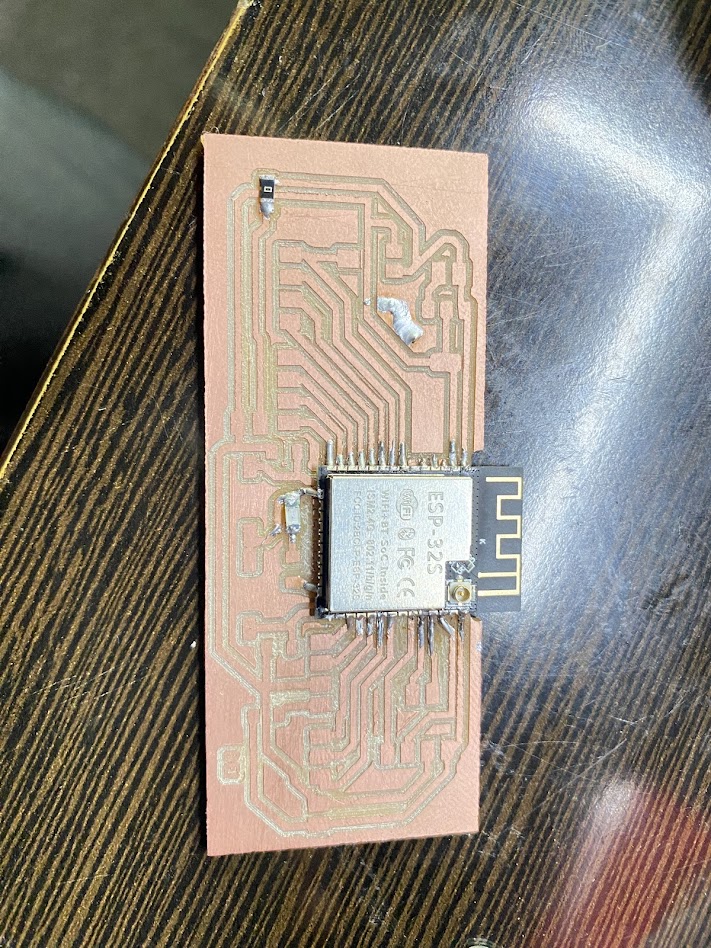
During Electronics Production week I brought the ESP32-S3 board I designed in Electronics Design Week into the real world. This week was all hands on. I used CNC milling software, a milling machine, and steady hands to go from a digital PCB file to a real, assembled board.
I split the work into two main stages: preparing and milling the PCB, then assembling components onto the finished board. Each stage needed care, from setting up the tool path in Mods to probing the CNC bed and mounting small SMD components.
Assignments
Group Assignment
Characterize the design rules for your in-house PCB production process. Submit a PCB design to a board house. See our full group assignment page.
Working as a group, we ran test cuts on our CNC milling setup to find the smallest trace width, clearance, drill size, and tool size it can reliably produce. The full write up lives on our group assignment page. These are the machine settings we settled on for in house boards.
| Design rule | Value | Notes |
|---|---|---|
| Tool size (isolation) | 0.2 mm V bit | 30 degree engraving bit for trace isolation |
| Min trace width | 0.4 mm | Thinner traces lifted or broke during milling |
| Min clearance | 0.4 mm | Gap between copper that the bit can clear in one pass |
| Drill size | 0.8 mm to 1.0 mm | Through hole pads and mounting holes |
| Cut tool | 1.0 mm flat end mill | Used for the board outline cut out |
| Mill depth | 0.1 mm to 0.15 mm | Isolation depth into the copper, set per height map |
Sending a board to a board house. We also documented the workflow for ordering a PCB from an outside board house instead of milling it. The steps are: export the Gerber and drill files from KiCad, zip them together, open the board house website (for example JLCPCB or PCBWay), upload the zip, and the site shows a preview of every copper, silkscreen and drill layer. Then you choose the board size, number of copper layers, thickness, colour and quantity, check the price, and place the order. The main difference from milling is that the design rules are tighter and set by the board house, so you read their capability sheet before exporting.
Individual Assignment
Make and test an embedded microcontroller system that you designed. Extra credit: make it with another process.
For my individual work I fabricated the custom ESP32-S3 board I designed in Electronics Design Week. I milled it on the CNC machine, assembled all the components, and verified the board works correctly.
Tools Used
The production workflow relied on a small, focused set of tools. Each one handled a specific stage, from file preparation through physical milling and assembly.
| Tool | Role | Notes |
|---|---|---|
| KiCad | PCB design source | SVG exported from the PCB Editor for milling input |
| Mods Project | Tool path generation | modsproject.org inverts the PCB, sets tool size, calculates paths |
| Candle CNC | Machine control + probing | Imports G-code, runs height probing and surface compensation |
| CNC Milling Machine | Physical fabrication | Engraving bit used for copper trace isolation |
| Soldering Iron | Component assembly | Fine tip for SMD components, flux applied throughout |
| Solder Wick + Multimeter | Rework and testing | Clearing solder bridges and checking continuity |
Production Workflow
The full process split cleanly into two phases. Phase 1 covers everything needed to go from KiCad file to a freshly milled copper board. Phase 2 covers component assembly and testing.
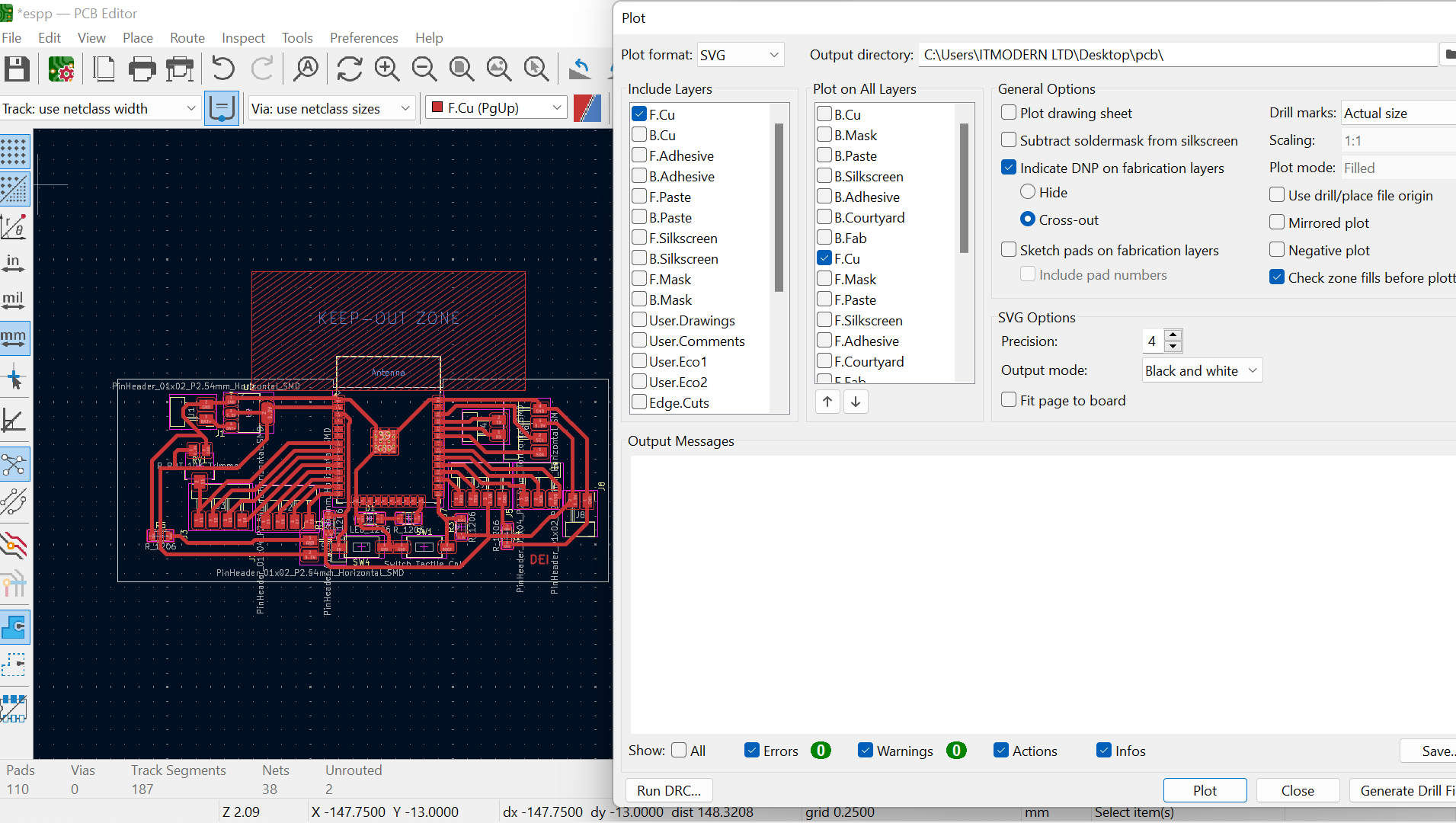
- 01 Invert the PCB. This flips the image so the milling paths remove copper around the traces instead of the traces themselves.
- 02 Set tool size. I entered the diameter of the milling bit so Mods calculates accurate clearances around each trace.
- 03 Calculate. Mods generates the isolation routing paths from the SVG geometry and the tool size, then I exported the G-code.
Why invert? The SVG from KiCad shows copper as filled areas. Mods needs to know what to remove, so inverting the image tells the milling bit to cut around the traces and leave them standing on the board.
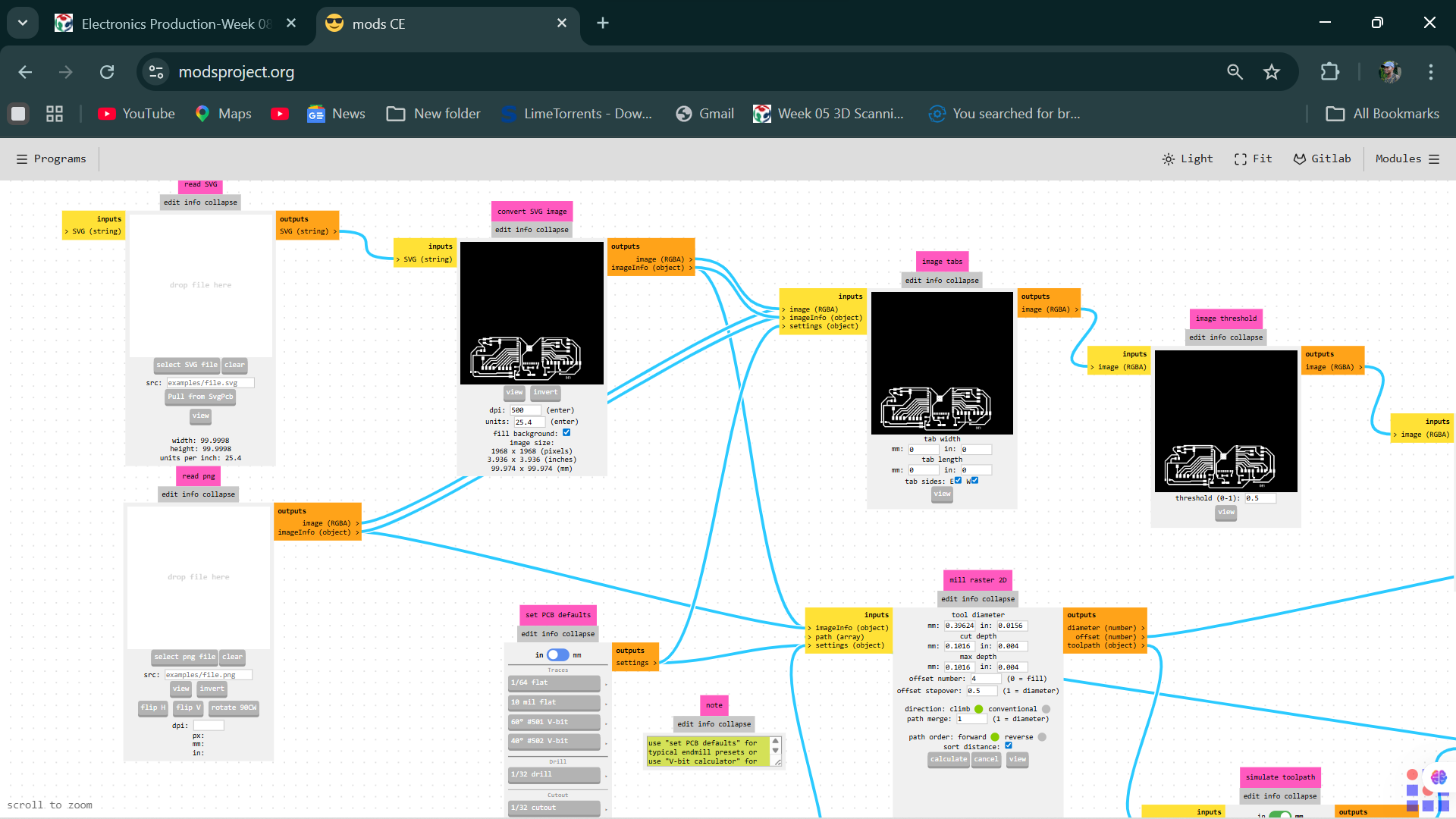
Why height map? FR4 blanks are rarely perfectly flat. Without probing, a warped blank causes the bit to cut too deep on one side and barely scratch the other. The height map fixes this automatically.
- 01 Hold BOOT. I pressed and held the BOOT button to put the ESP32-S3 into programming mode.
- 02 Upload sketch. I clicked Upload in the Arduino IDE, which compiles and flashes the firmware over UART.
- 03 Press EN. I tapped the EN reset button to leave programming mode and run the new firmware.
- 04 Verify output. I confirmed the LED blinks at the expected interval and watched the Serial Monitor for the boot messages.
This is the exact test sketch I uploaded to check the board was alive. You can copy it and try it on yours.
int ledPin = 2;

void setup() {
  Serial.begin(115200);
  pinMode(ledPin, OUTPUT);
  Serial.println("Board is alive");
}

void loop() {
  digitalWrite(ledPin, HIGH);
  delay(500);
  digitalWrite(ledPin, LOW);
  delay(500);
  Serial.println("blink");
}
Result: The board accepted the firmware upload, the LED blinked as expected, and the Serial Monitor printed clean boot output. That confirmed the power section, the MCU, and the programming interface all work. The board is functional.
Problems and Fixes
Nothing went perfectly the first time. Here are the real problems I hit and exactly how I solved each one.
Outcome
By the end of the week the custom ESP32-S3 board was milled, fully stuffed, and tested. It accepted firmware, blinked its LED, and printed over Serial, so the board is functional.
Conclusion
This week bridged the gap between digital design and physical hardware. Taking a KiCad file all the way through tool path generation, CNC milling, and hand soldering gave me a full picture of how PCBs are actually made in a digital fabrication lab.
The biggest lessons came from the milling stage. I learned why probing and height mapping are not optional if you want even trace depth, and how a small fixturing mistake turns straight into a dead board. The assembly stage taught me to solder small components slowly and methodically, and the rework taught me to trust the multimeter when a board will not enumerate.