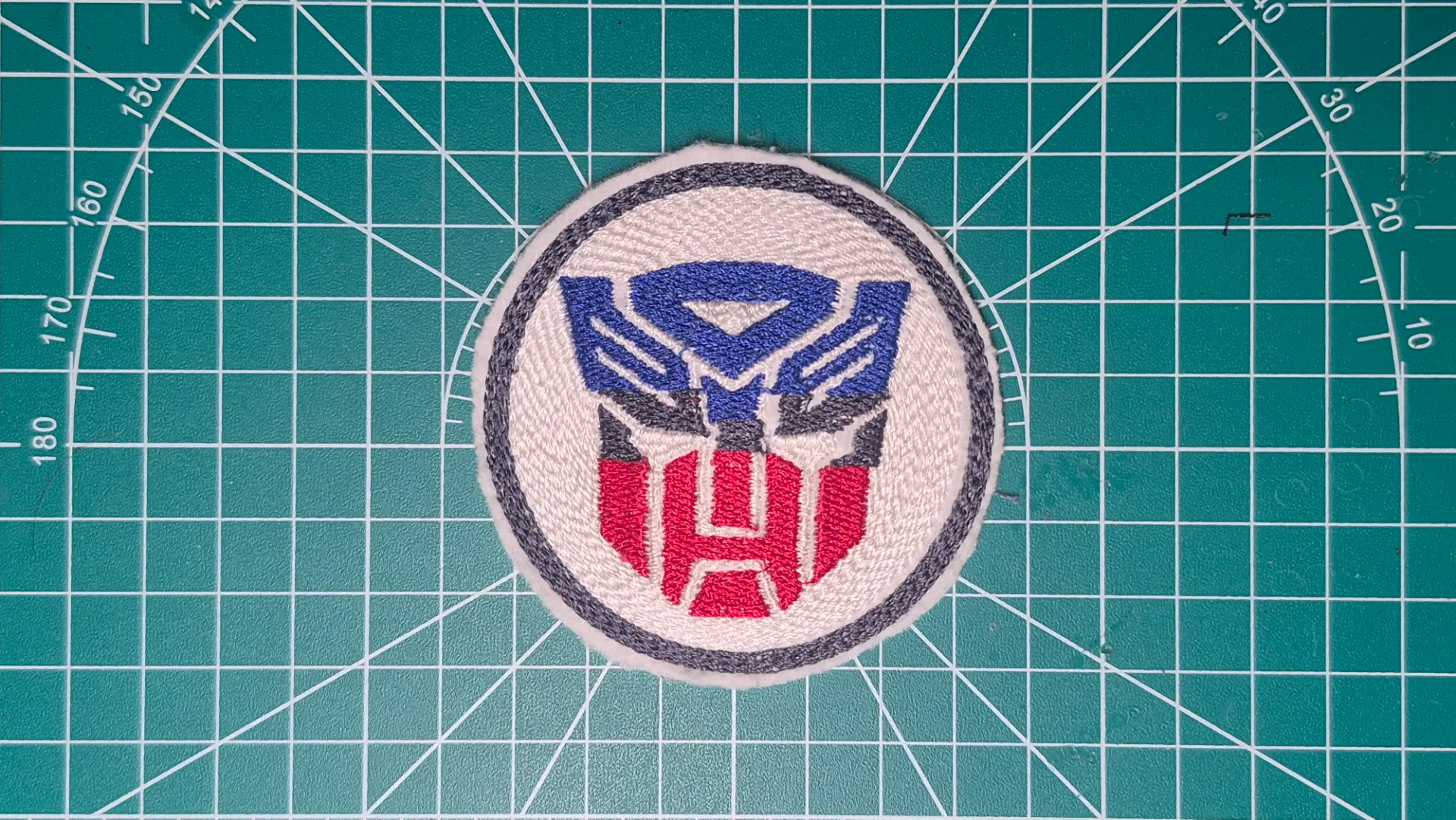
This week was free to explore a digital design process and its production. I decided to explore the patch embroidery process.
I used Inkscape to design the patch, then exported it as a .pes file and embroidered it using the Brother NS1850L machine.
Patch Design
To start the patch design, I needed to install the Ink/Stitch embroidery extension for Inkscape, which added the tools
needed to create embroidery designs.
For the patch, I decided to download the monochromatic Autobot symbol to start the design.
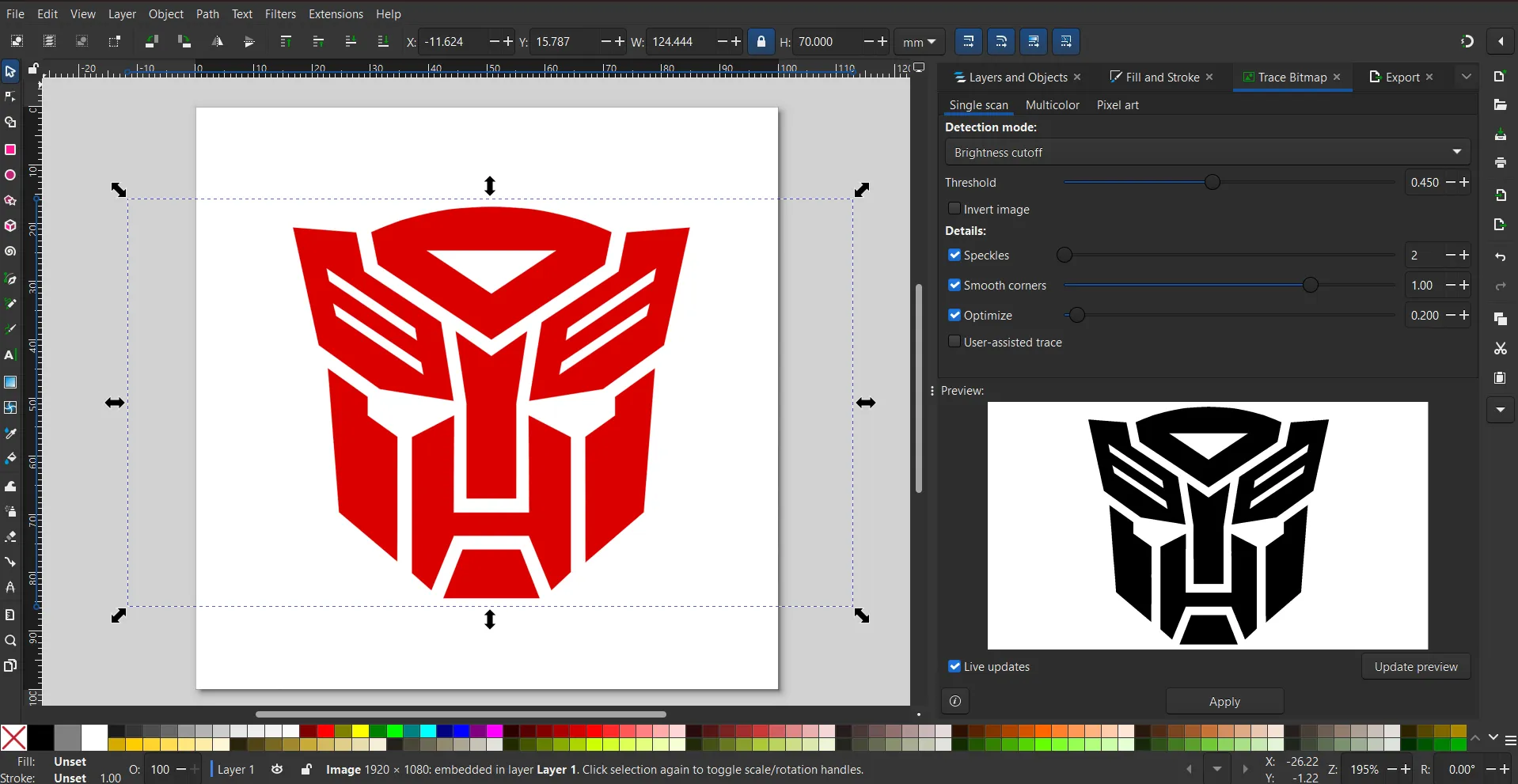
Vectorize with Trace Bitmap
For the embroidery extension to work with the design, I needed to vectorize the image using the
Trace Bitmap function in Inkscape. This converted the image into a format that could be
interpreted by the embroidery software.
Break Apart the Design
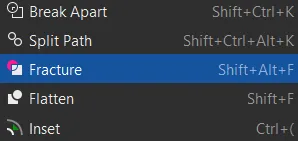
To be able to modify the design in individual parts, I needed to break it apart using the
Break Apart function in Inkscape. This separated the design into different sections that
could be edited individually.
Difference
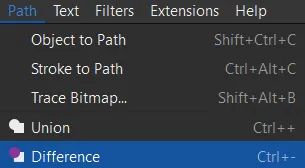
Once I assigned a color to each section, it was important to cut the overlapping sections.
Ink/Stitch embroiders each section separately, so if sections overlapped, the embroidery
would also overlap and could cause the needle to break or the colors to mix. To fix this
I used the Difference tool, which cut the top section from the bottom section, leaving only
the visible part of the design. This ensured the embroidery was done cleanly and without issues.
Jump Stitch to Trim Command
This command was very important to avoid frequent thread color changes. Without it, the
embroidery would stop every time a color change was needed after finishing a section, which
was tedious and time-consuming. Using this command, the sewing machine automatically cut the
thread and started embroidering the next section of the same color without stopping, which
saved time and made the embroidery process more efficient. When I applied this command,
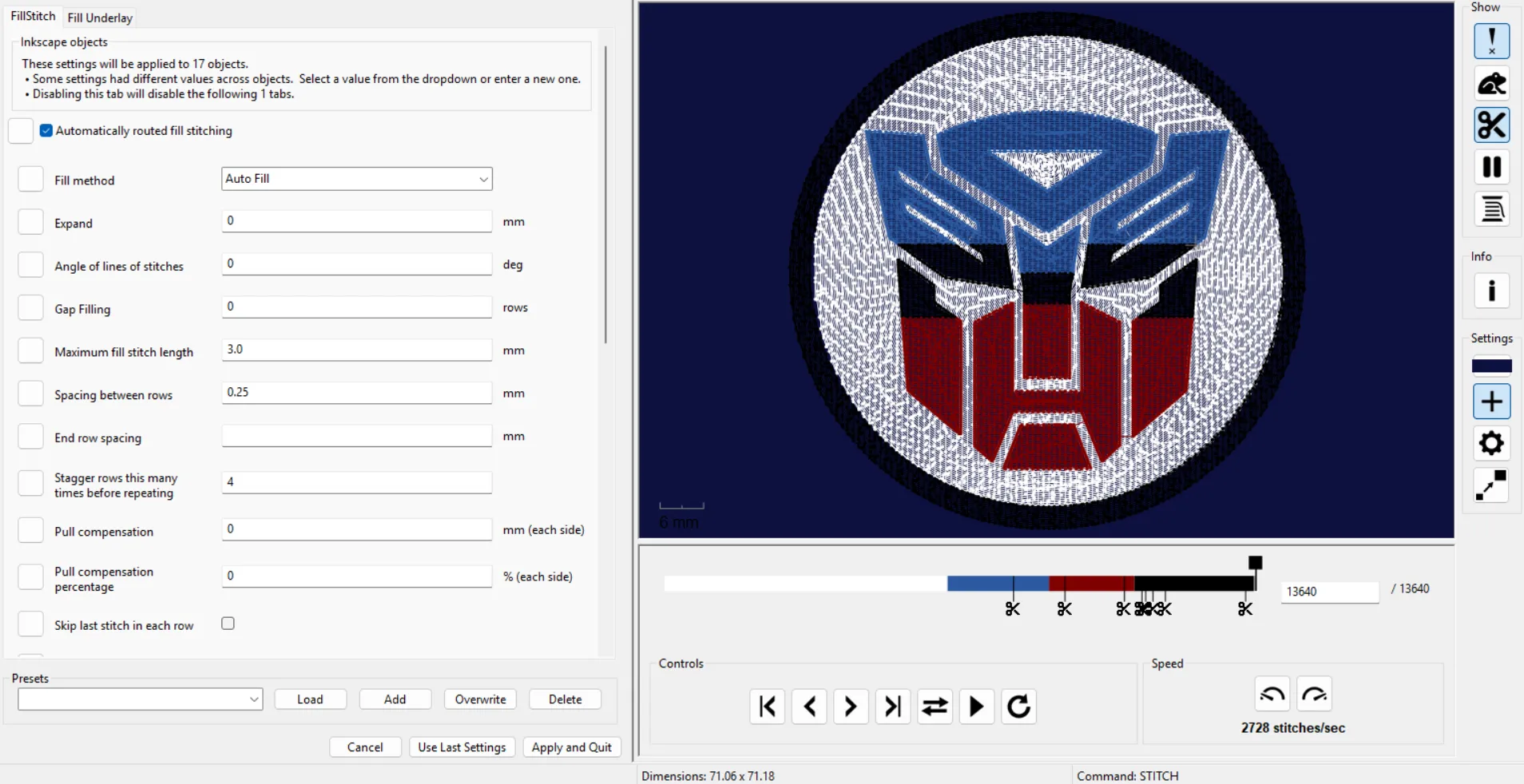
scissors appeared linked to each section, representing the thread cut.
Embroidery Parameters
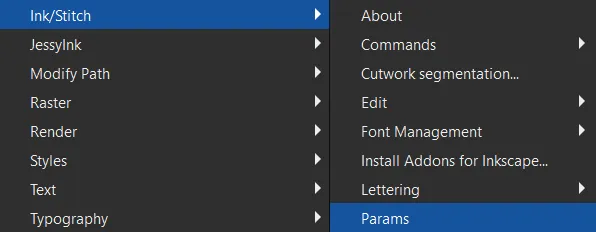
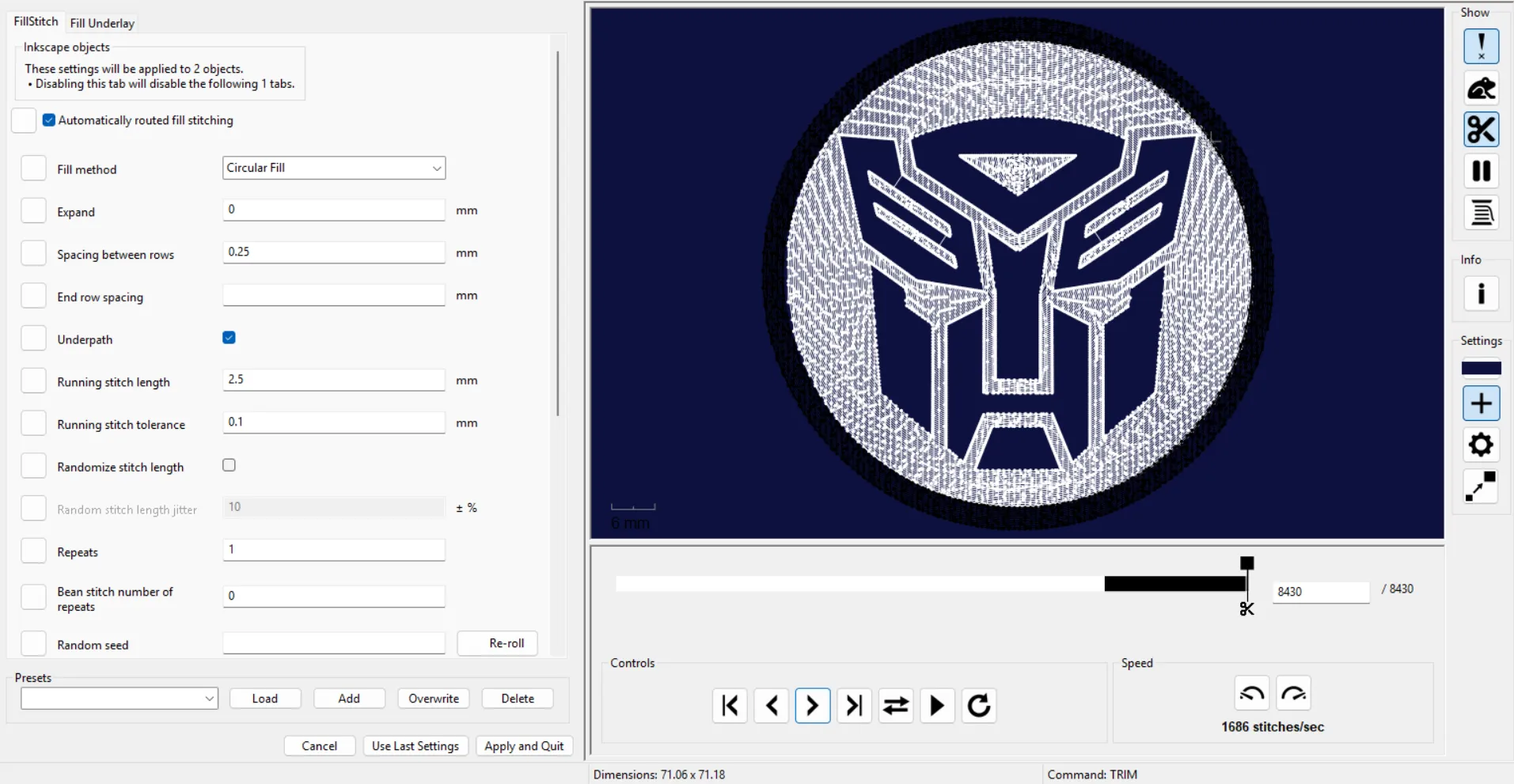
In the Param window of Ink/Stitch I was able to adjust several key parameters. The Fill method
defined the fill algorithm. The Angle of lines of stitches controlled the direction of the
stitches in degrees, which was useful for giving different visual textures to each section.
The Maximum fill stitch length defined how long the individual stitches were. The Spacing
between rows controlled how close or far apart the thread rows were, affecting the embroidery
density. The Pull compensation corrected the deformation caused by thread tension on the fabric.
In the simulation on the right I could see the result in real time with 13,640 total stitch
points in the design.
I used the default parameters and changed the fill to a circular fill on the outer circumference and the white space around the design because it looks better.

Design Result
Once all the previous steps were completed, the design was ready to be exported as a
.pes file, which is the format used by the Brother NS1850L embroidery machine. Exporting
the design generated a file that contained all the necessary information for the machine
to embroider the patch precisely and efficiently.
Using the Embroidery Machine
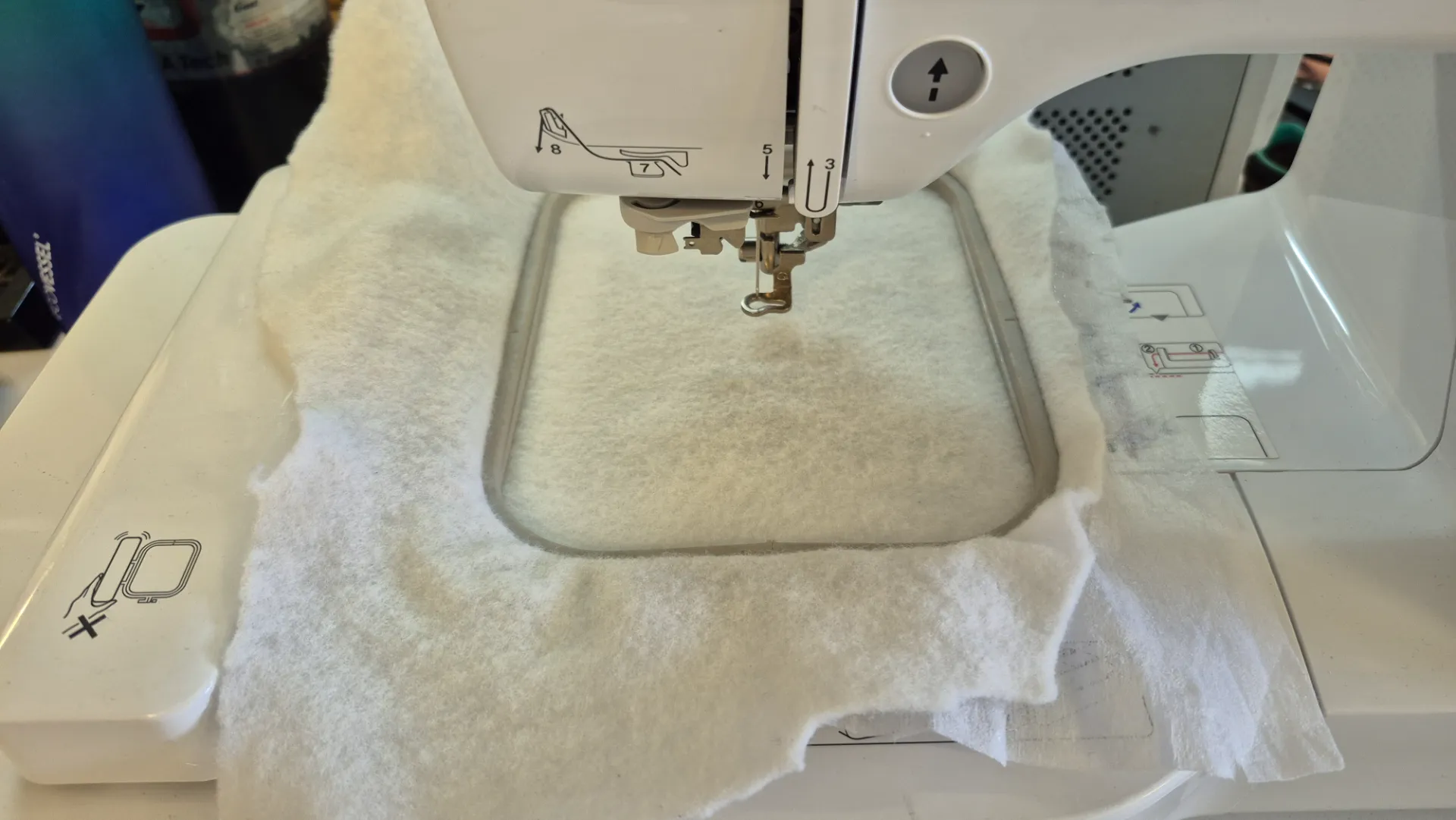
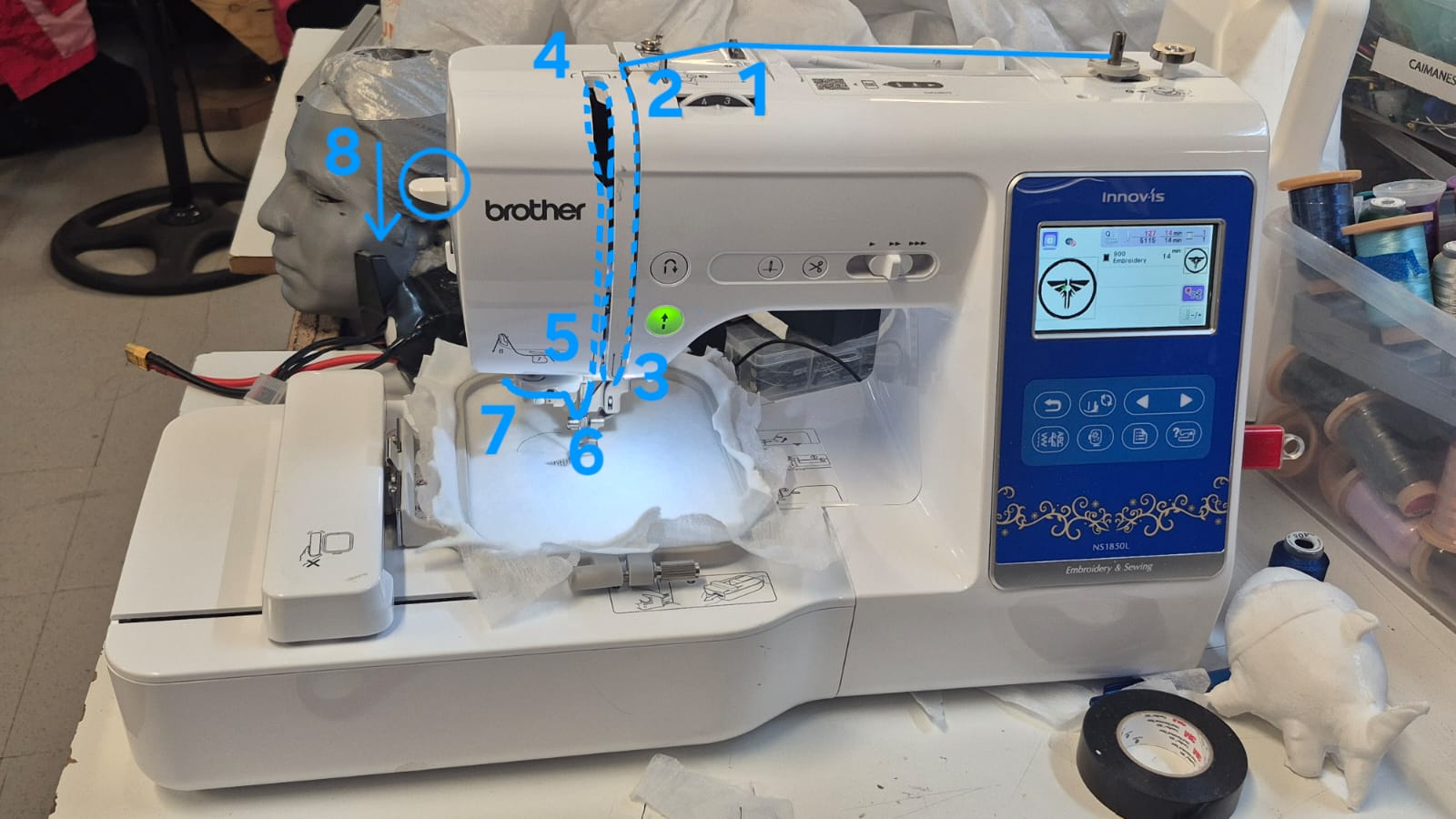
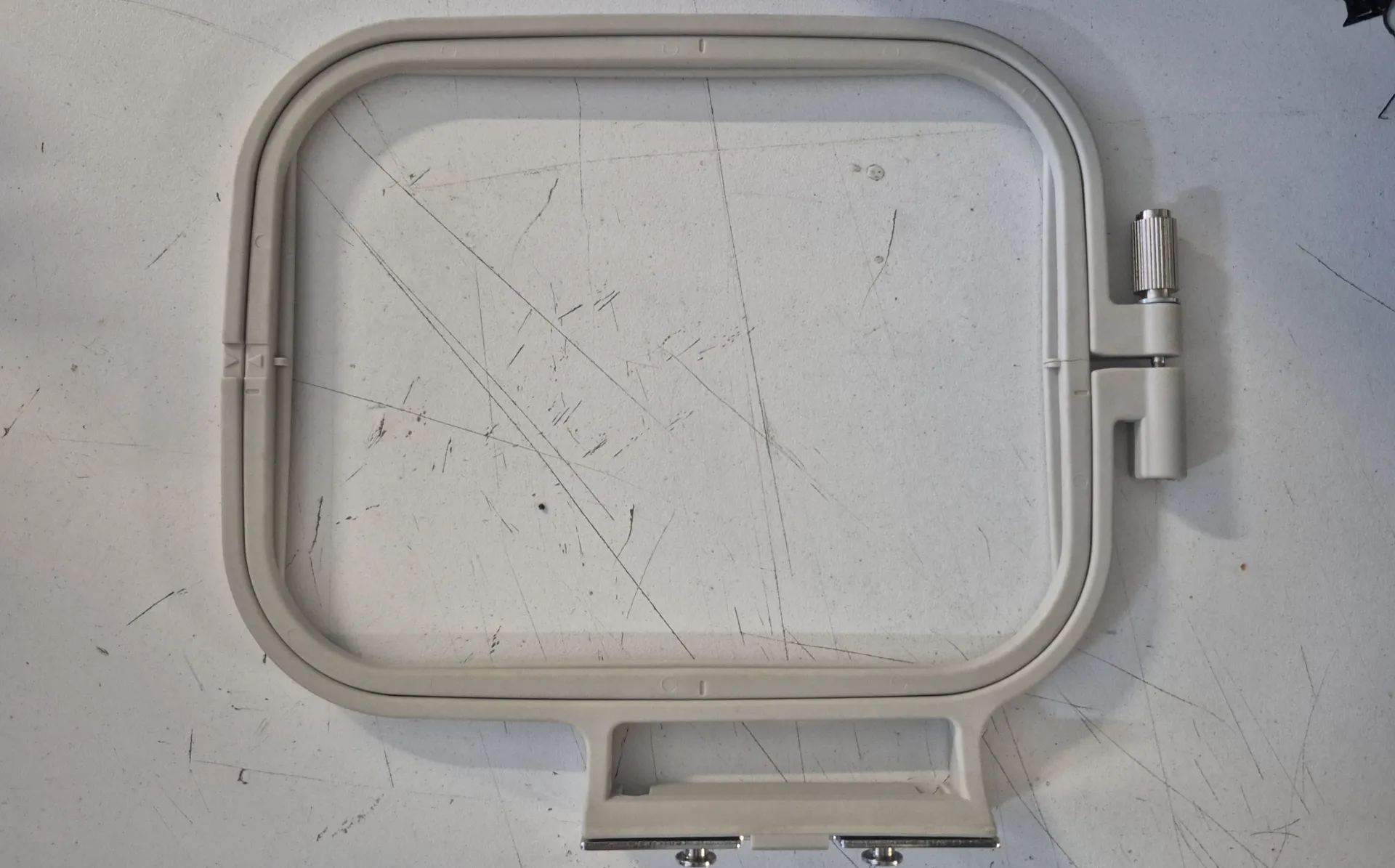
The first step was to place the fabric on the hoop and make sure it was well tensioned. I used a thick fabric
and to reinforce the back of the patch I used pellon. Then I placed the hoop on the machine.
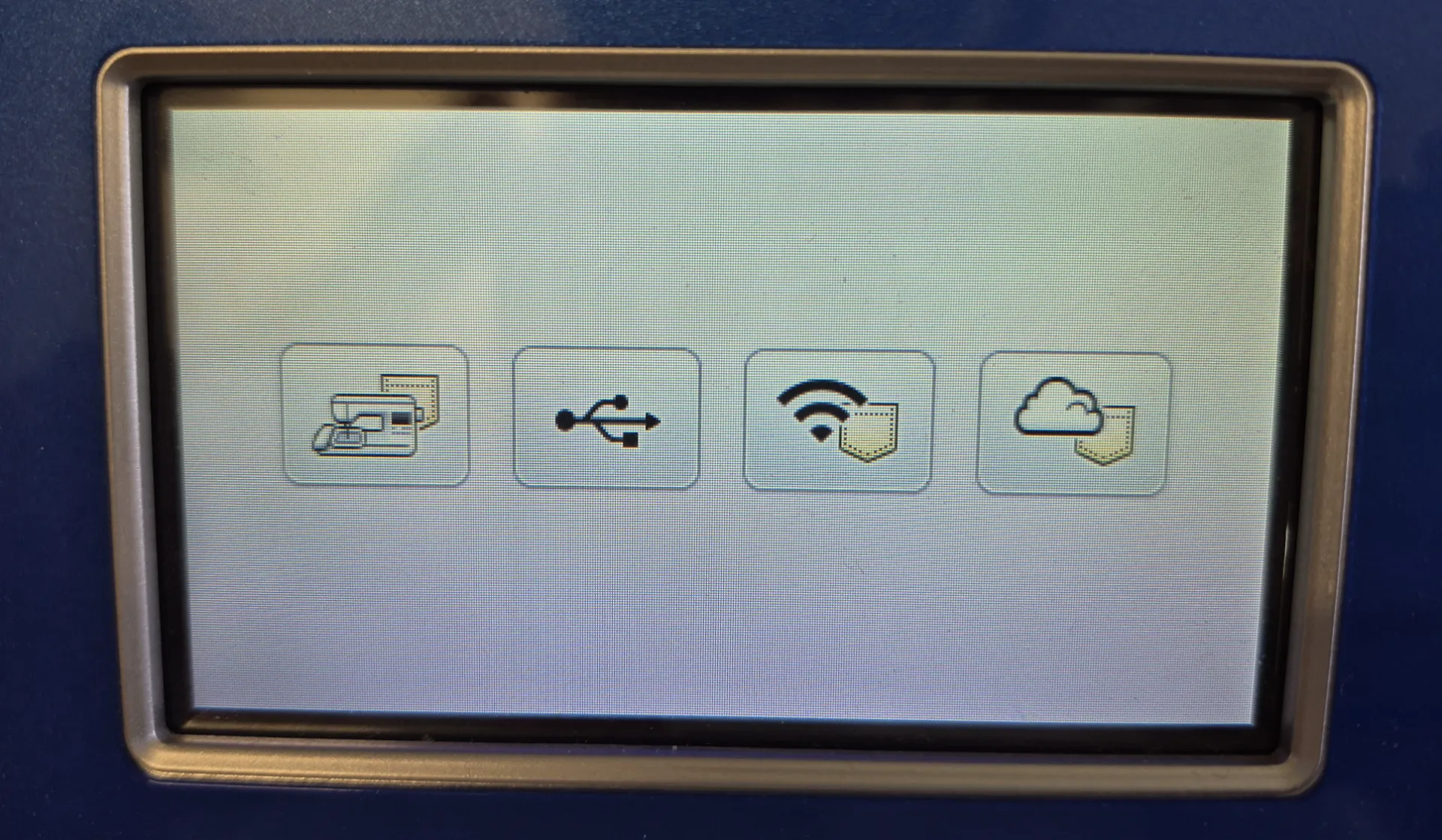
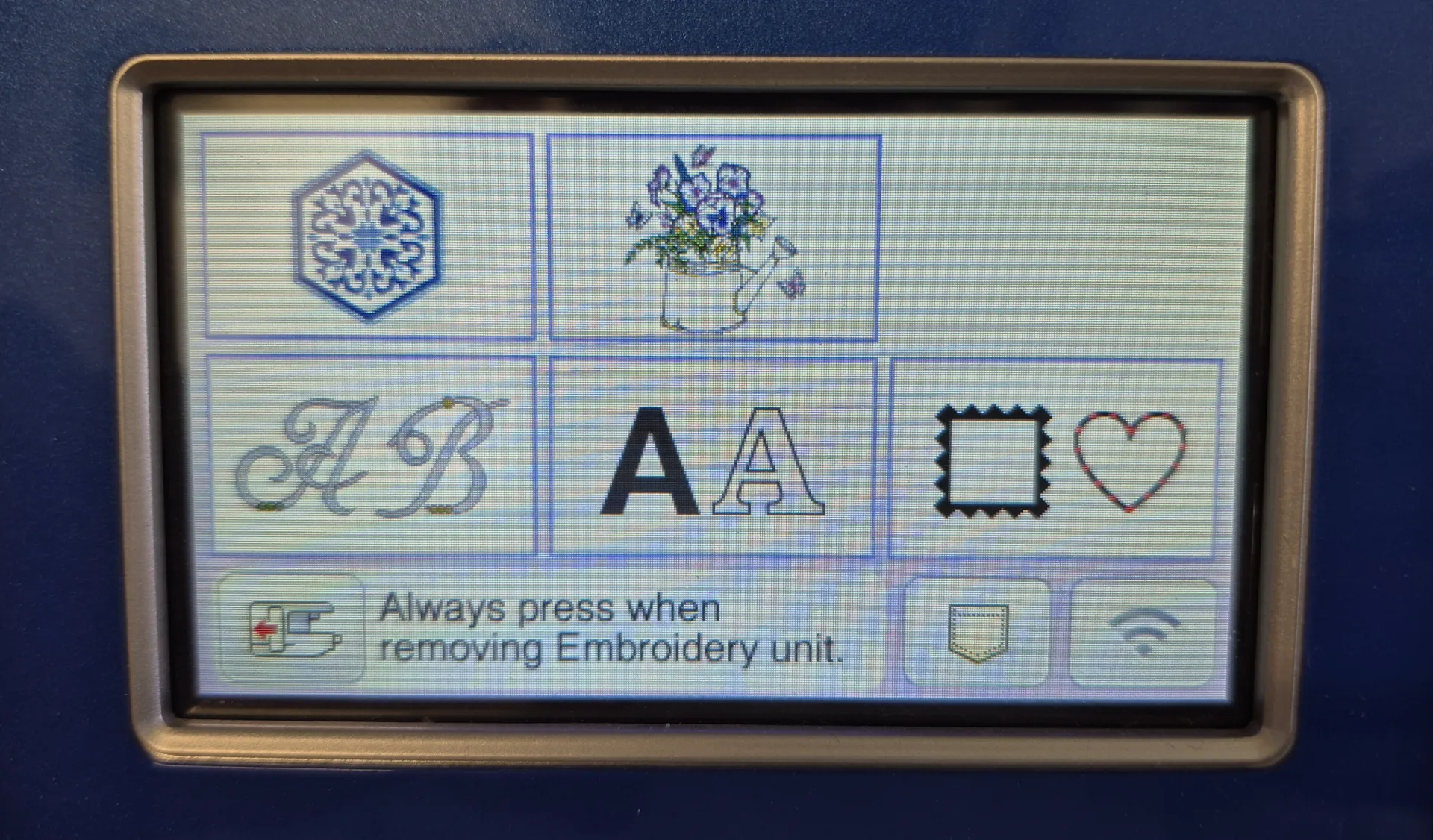
To load the file into the machine, I selected the pocket icon in the lower right corner of the home screen,
then chose the USB memory option, selected the .pes file from the USB drive and loaded it into the machine.
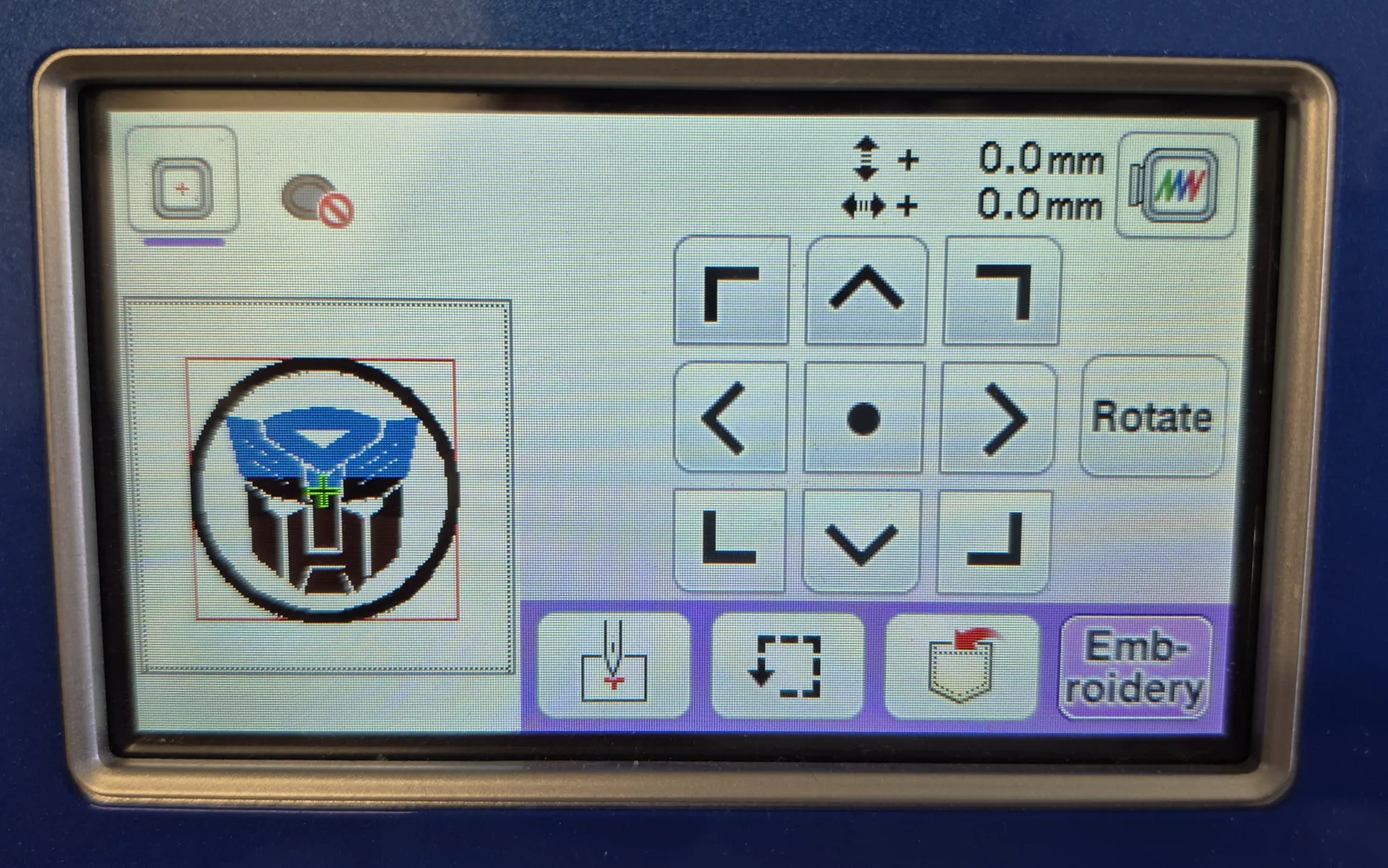
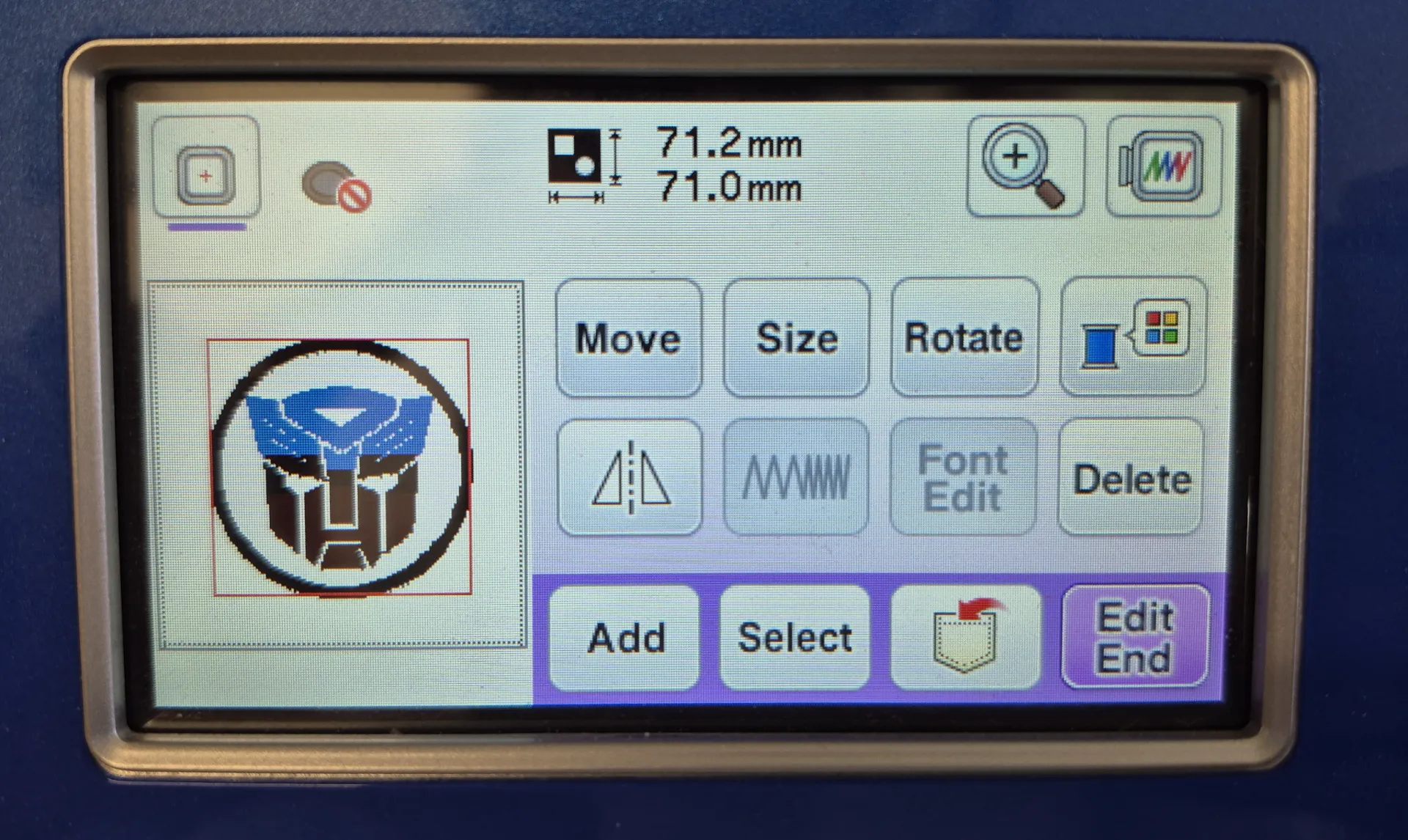
The file modification options opened, where I could change the size, embroidery position, rotation and other
settings. I did not change anything and simply selected Edit End. Then a preview of the design was shown with
arrows to move the needle and set the origin, and I did not move anything either.
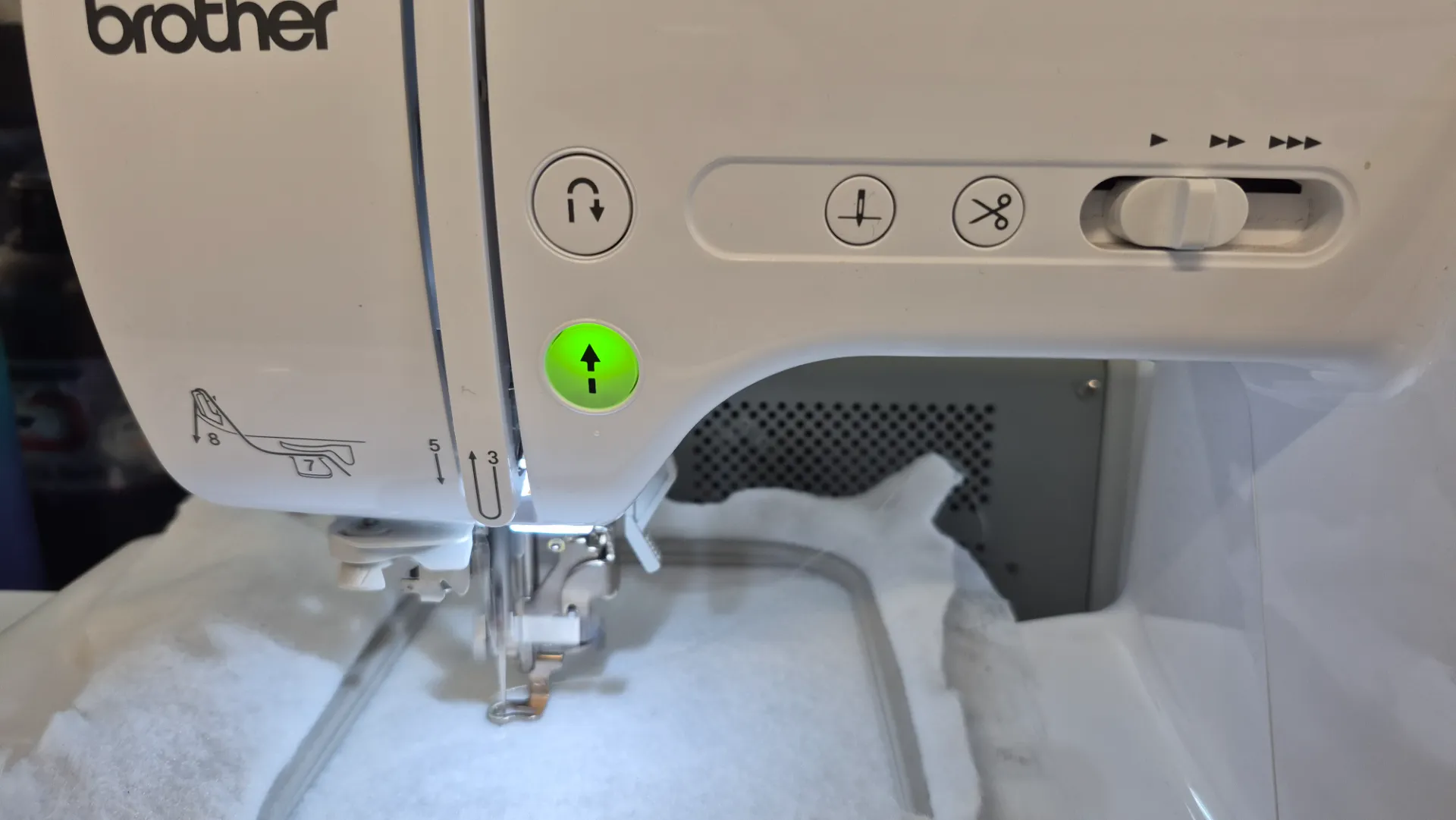
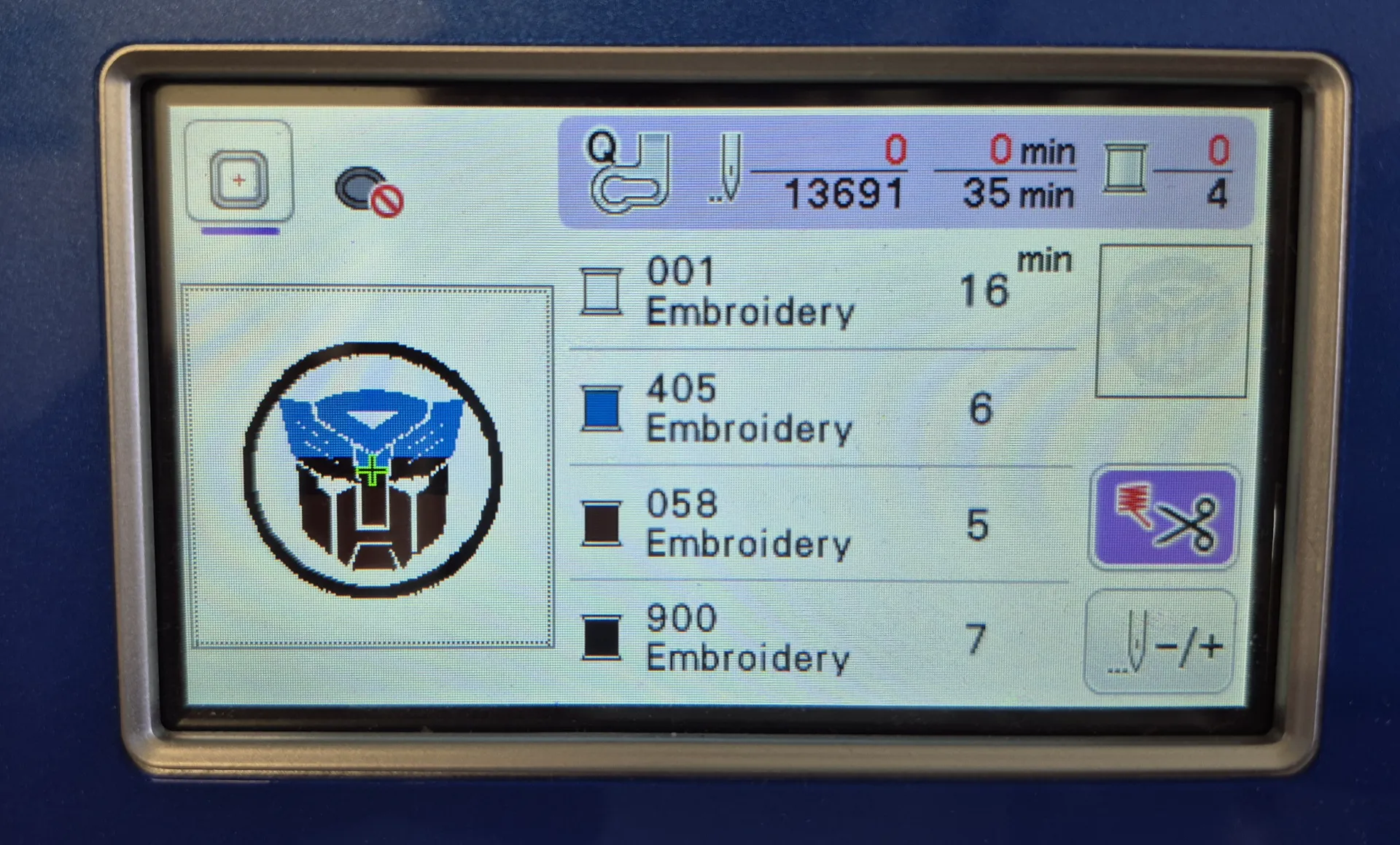
Finally, the machine showed the stitch count, thread colors and estimated time. To start the embroidery I pressed
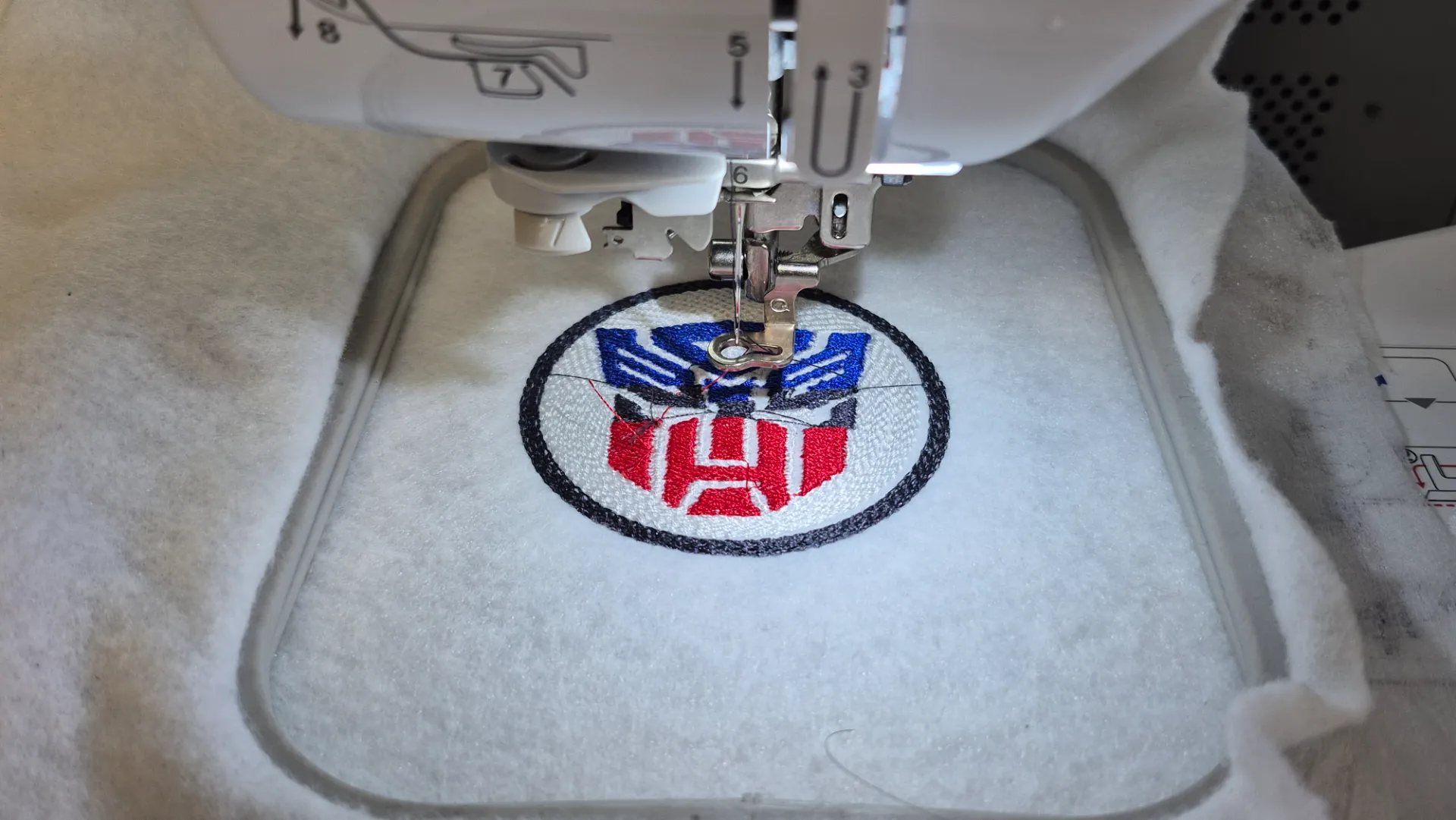
the start button, and the machine began embroidering the patch following the loaded design.
Production Process
During the production process I noticed the machine was not cutting the threads, so I had to do it manually
before the next stitch passed over the residual thread. Outside of that situation, the result was as expected.