Week-01: Documentation develop website

Introduction

To develop my documentation website, I watched a video tutorial on how to install and use Git. I also watched a video on how to use Bootstrap 5 to implement it on my website.

Links

Feedback links that helped me understand Git and Bootstrap

# URL
1 Video tutorial de GIT
2 Video tutorial de Boostrap 5

Tools

# URL Description
1 GIT

Git was designed to manage repositories with tens of millions of lines of code. According to the 2022 Stack Overflow Developer Survey, 96% of professional developers use Git. It also has a vast ecosystem of tools such as GitLab, GitHub, and others. In addition, it is released under the GNU General Public License version 2.0.

2 Boostrap 5

Bootstrap is a powerful, feature-packed frontend toolkit. Build anything—from prototype to production—in minutes.

3 HTML

HTML is the standard markup language for web pages. With HTML, you can create your own website.

4 Visual Studio Code

Visual Studio Code an is IDE of develop software.

develop process

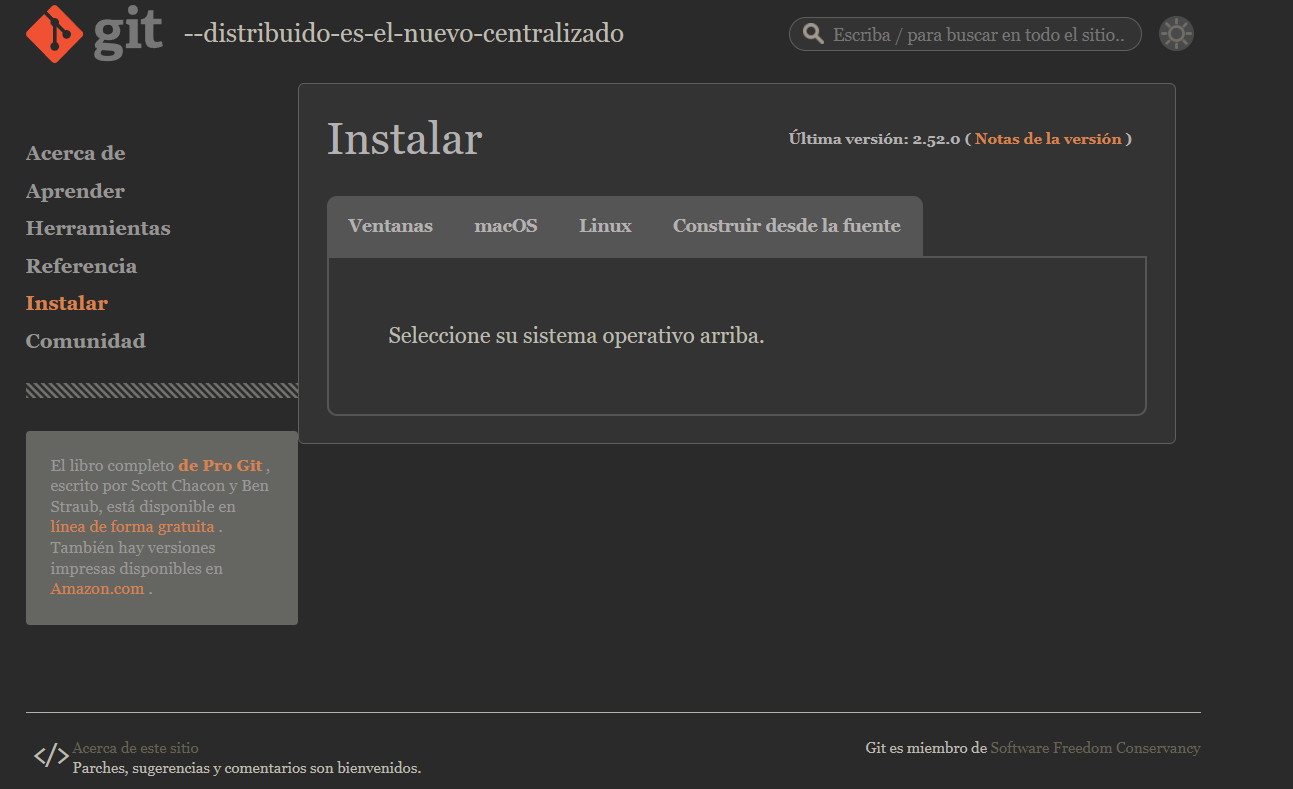
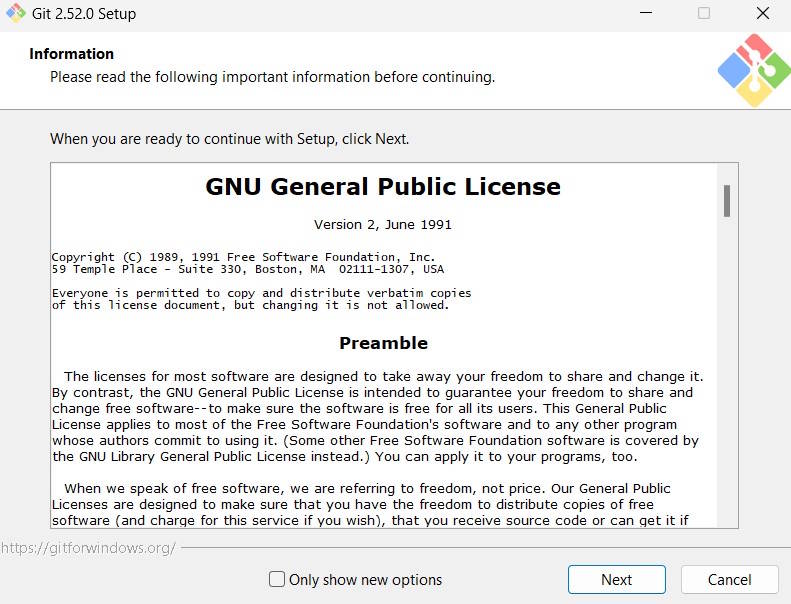
step 1: dowload and install GIT

  1. To download Git, go to this URL: Git – Install. Remember to select your operating system; in my case, it is Windows.

  2. Once the program is downloaded, we run the installer and perform the typical Windows installation.
step 2: dowload and install Visual Studio Code

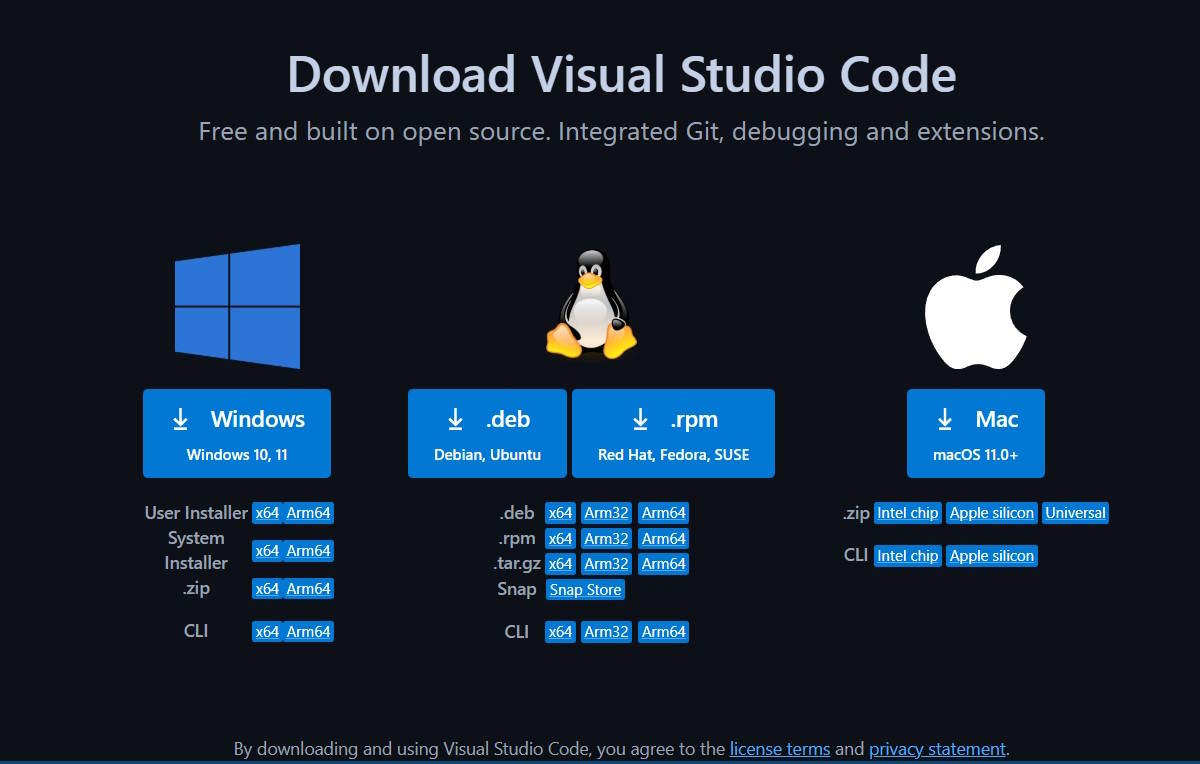
  1. Once Git is installed, we need another tool known as an IDE. In this case, we will use Visual Studio Code to edit HTML and Bootstrap 5 code. To download this tool, go to this download link here .

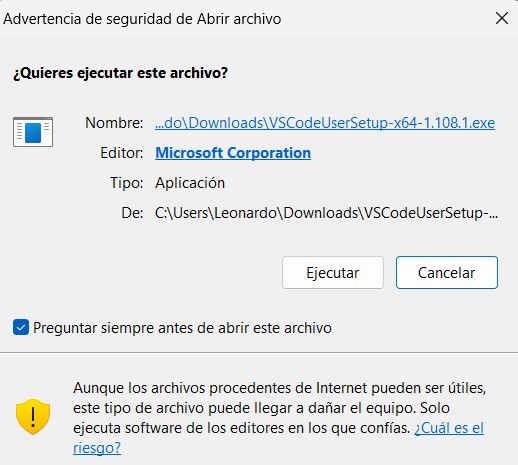
  2. Once the program is downloaded, we run the installer and perform the typical Windows installation.
step 3: Clone the project repository using Git

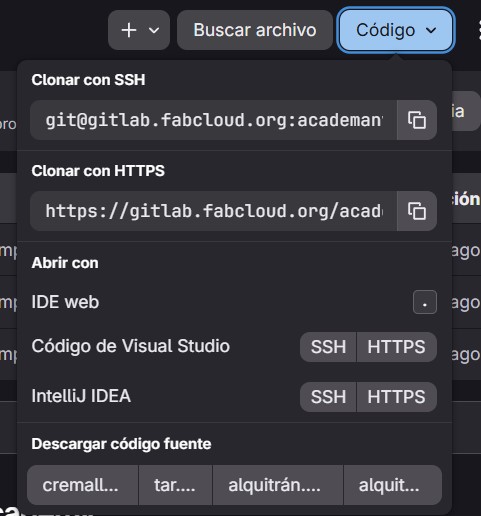
  1. Once Git and Visual Studio Code are installed, I proceed to open the Command Prompt (CMD) and clone my GitLab repository via HTTPS into a folder on my computer using the git clone URL command. For this, I go to my GitLab repository..

  2. Once in the GitLab repository, I selected the "Code" button and copied the URL: https://gitlab.fabcloud.org/academany/fabacademy/2026/labs/puebla/students/leonardo-batista.git

  3. Next, I return to the Windows terminal and execute the following commands:

                                            
                                            cd Documents/FabAcademy-Leonardo-Batista
                                            git clone https://gitlab.fabcloud.org/academany/fabacademy/2026/labs/puebla/students/leonardo-batista.git


step 4: develop website

  1. For the development of the website, HTML and Bootstrap 5 were implemented. Throughout the implementation process, the official Bootstrap 5 documentation was primarily used as a technical reference. Since I already had prior knowledge of HTML, its documentation was consulted only occasionally; however, the corresponding link is also included as a supporting reference.

    While working with Bootstrap, various components and utility classes were implemented to enhance the visual design of the webpage. Below are some of the Bootstrap classes and component used, along with several HTML tags.

    ´
    # class Description
    1
    container-fluid
    Contenedor que toma el 100% el ancho de la pantalla.
    2
    container
    Container that spans 100% of the viewport width.
    3
    text-center
    Centers text.
    3
    font-monospace
    Font applied to paragraph text.
    3
    fw-bolder
    Text formatted in bold.
    3
    bg-info
    Cyan background color.
    3
    bg-dark
    black background color.
    3
    navbar
    Main Bootstrap component used to create responsive navigation bars.


    Tag Description
    <div> The <div> tag is a generic block-level container used to group HTML elements and structure webpage content. It has no inherent semantic meaning but is essential for organizing sections, applying CSS styles, and controlling layout using frameworks like Bootstrap.
    <body> Web page body
    <head> Contains meta information about the HTML document. Its main function is to provide data to the browser and search engines, such as page title, character encoding, links to stylesheets, scripts, and other resources.
    <nav> A semantic HTML5 element used to define a navigation section within a website.
    <article> Used to represent independent, self-contained content within a webpage.
    <p> HTML5 tag used to write text within a webpage.
    <a> HTML5 tag used to add links within a webpage.
    <img> HTML5 tag used to add images within a webpage.
    <h2> HTML5 tag used to add a heading within a webpage.
    <h1> HTML5 tag used to add a heading within a webpage.
    <footer> HTML5 tag with semantic meaning that contains the website footer.

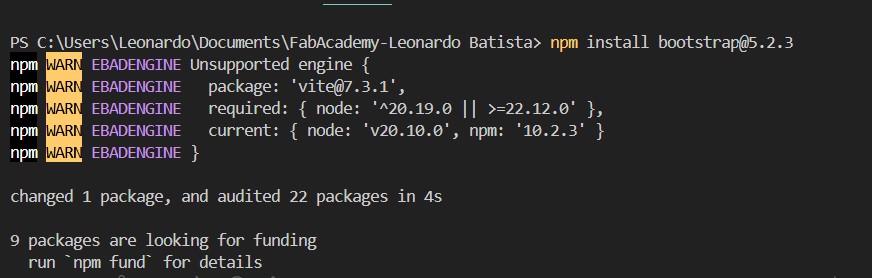
    To begin using Bootstrap in my web page project, it was necessary to install its dependencies and include them within the tag of my HTML file. To complete this installation, I consulted Bootstrap’s official documentation, which explains the required steps to properly integrate this tool into the project.

    install Boostrap 5

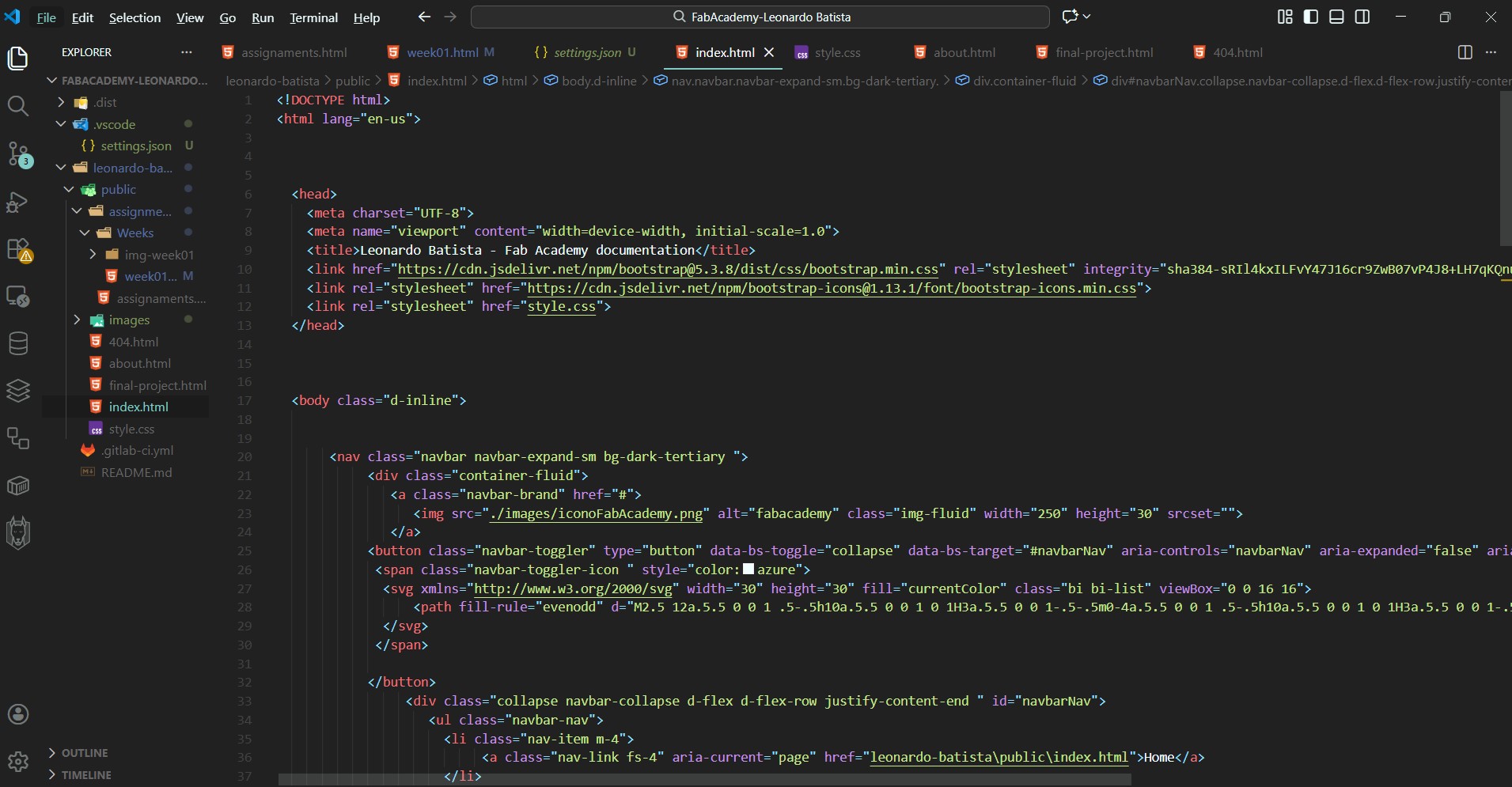
  2. Once the tools were installed, I began editing the page using Visual Studio Code, applying a trial-and-error process that allowed me to gradually shape the project. I started with the main page, index.html, where I added an image of an atom along with binary numbers, with the goal of representing how, through digital fabrication, it is possible to transform bits into atoms. Next, I show an image of the index.html code.

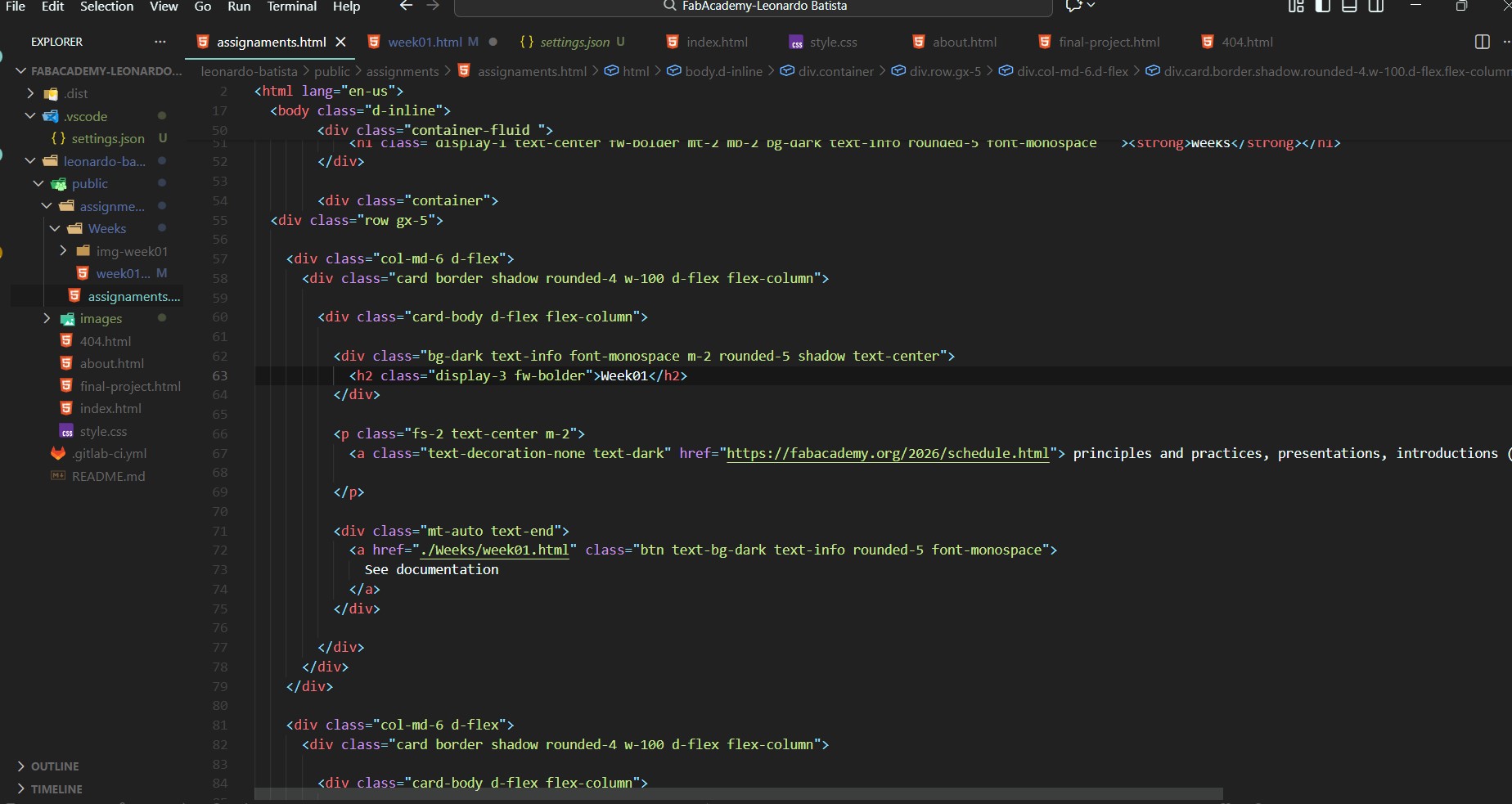
    Subsequently, I modified the Assignments, About Me, and Final Project pages. In the assignments section, I organized the weeks into separate subpages to achieve a better structure and improve navigation. Below, I present an image of the Assignments page code.

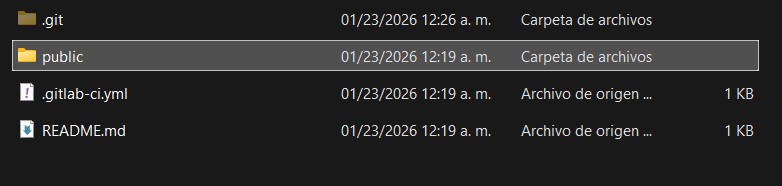
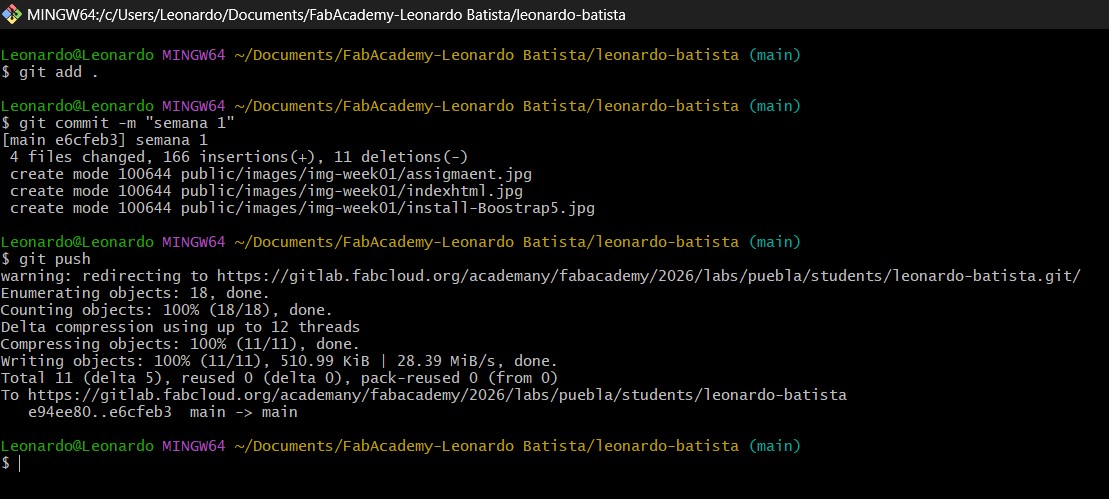
  3. Once my page was ready, I proceeded to upload it to the GitLab repository. To do this, I used the git add . command, which adds all modified files to the staging area; then git commit -m "message", which saves the changes along with a descriptive message; and finally git push, which sends the project to the remote repository. These commands allowed me to record each update and keep an online synchronized copy of my website.

  4. step 5: problem and solutions

    Initially, I was unable to clone my Git repository due to an authentication error. To solve this issue, I had to change my repository password and reconfigure Git global credentials. Once this was done, I was able to resolve the problem.


    Another issue I encountered involved relative paths. While working locally, links and images functioned correctly, but after uploading the project to the repository, the page links stopped working and the images did not appear. I consulted my instructor, who suggested a possible solution that initially seemed to work; however, the error persisted. Finally, I asked ChatGPT about relative paths and realized that instead of using ../, I needed to use ..\..\ to exit a child folder and return to the parent folder, which ultimately solved the problem.