Week 2

Computer-Aided design

Learning outcomes

  • Evaluate and select 2D and 3D software
  • Demonstrate and describe processes used in modelling with 2D and 3D softwares
  • Demonstrate image and video compression
Week 2 cover

Assignment requirements

Assignment

  • Model (raster, vector, 2D, 3D, render, animate, simulate, ...) a possible final project
  • Compress your images and videos
  • Post a description with your design files on your class page
Evaluate and select Done

2d and 3D software

Process in 2D and 3D Done

Part of the final model in 2D and 3D

Image compression Done

Upload .zip with source files.

1) Introduction

The goal is sketch the final project using 2D and 3D software and compress images and videos

2) 2D Software

For more details visit Fab Lab Peru
Step left image

1. Manufacturing & Engineering

  • AutoCAD / AutoCAD LT: product design, 2D precision
  • SolidEdge (2D Drafting): professional-grade 2D drafting tool for free. Mechanical parts and product schematics
  • DraftSight: Works with .dwg files. Engineering teams
  • LibreCAD: Open-source. Simple 2D technical drawings

2. Visual Mockups & Concept Design

  • Vector Graphics: packaging, labels, or flat icons
  • Affinity Designer 2: isometric grids (which make 2D look 3D)
  • Adobe Illustrator: branding and packaging. Wrap 2D designs onto photos of 3D products
  • Figma: websites, flat products

3) 3D Software
Step left image

1. Manufacturing & Engineering

  • SolidWorks:for mechanical engineering and has a robust simulation tools for professional engineers
  • Autodesk Fusion (formerly Fusion 360): versatile tool: cloud, CAD (Design) with CAM (Manufacturing) and CAE (Testing)
  • Shapr3d: intuitive tool and produces professional-grade files
  • Onshape: CAD platform, works remotely across different operating systems

2. Visual Mockups & Concept Design

  • Rhino 8 + Grasshopper: complex products, organic shapes. Grasshopper allows parametric design, creating patterns.
  • Blender: CAD model, realistic shot
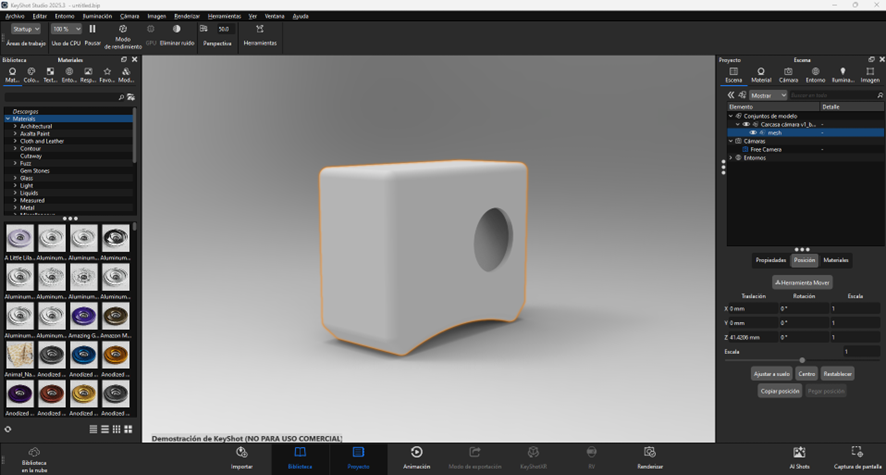
  • KeyShot: industrial designers, materials (metal, plastic, glass) and render

4) Software experiences

Softwares

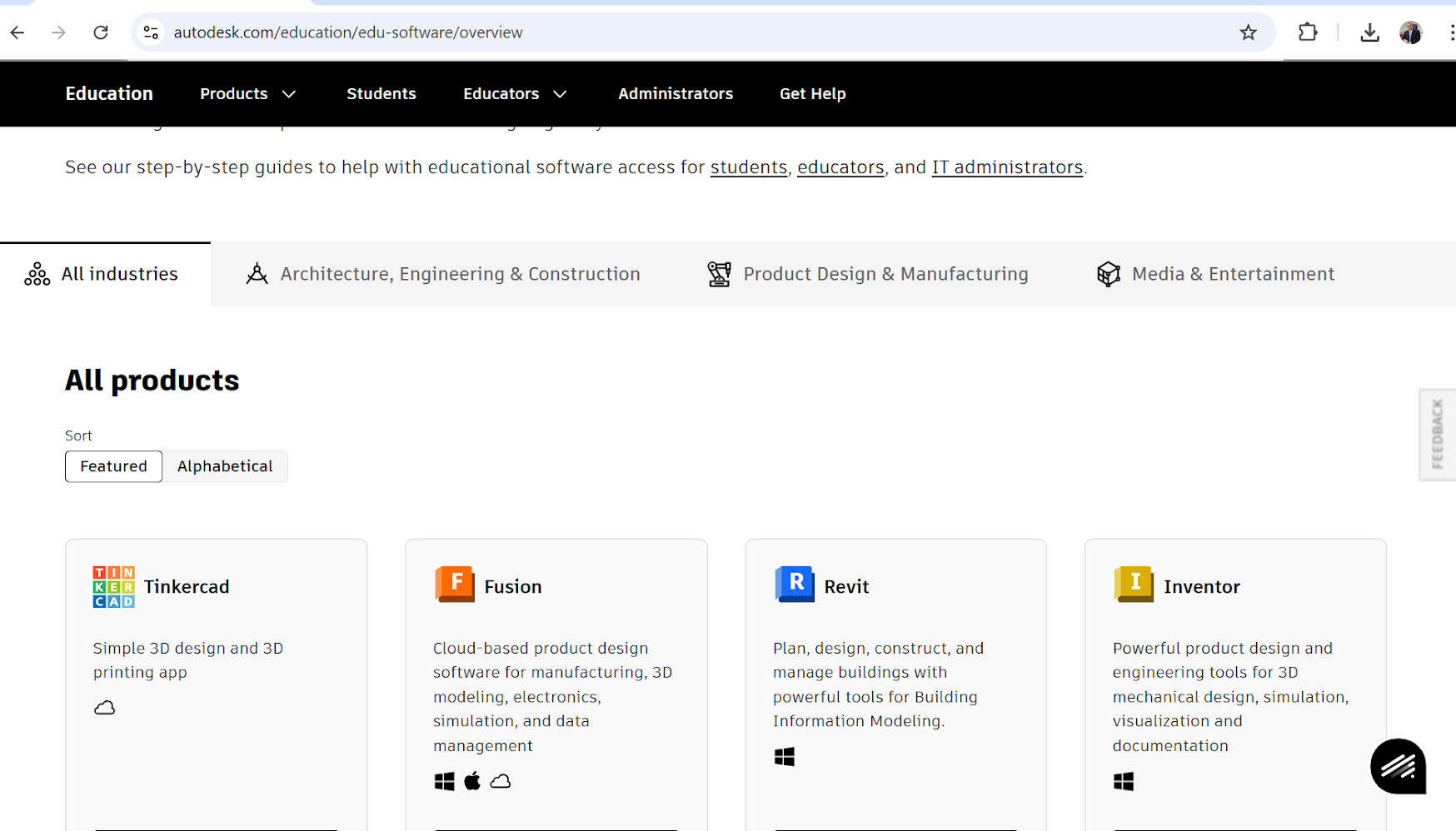
- Autodesk suites

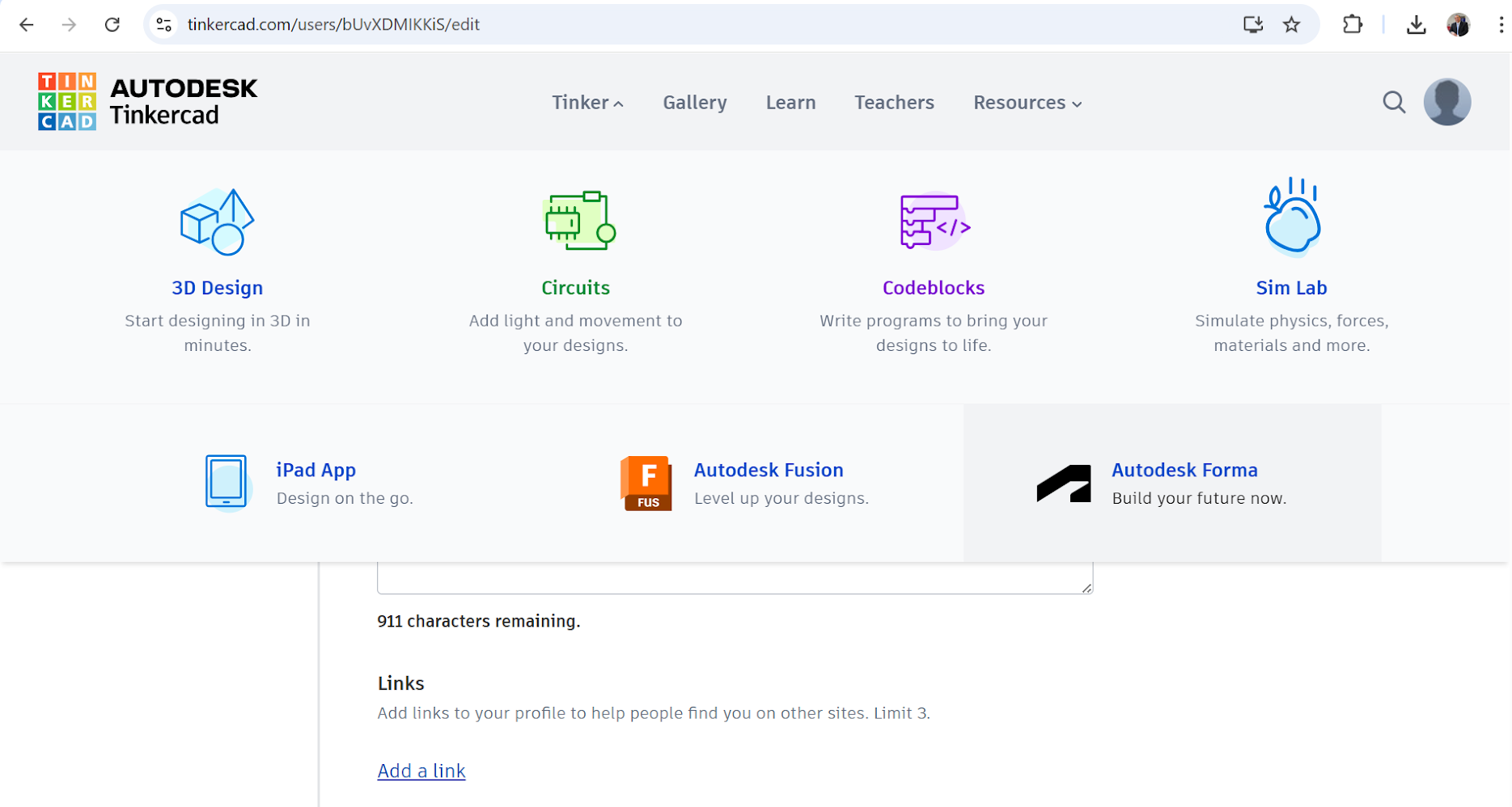
- Thinkercad

- Fusion

- Blended
Camera 1
The latest graphical softwares that I used were Corel Draw 4-5, Photoshop 5, Autocad 8 and similars. Long time ago
Camera 1
Everything is different now. For example, Autodesk has a suite for specific purposes. I am currently learning to use these tools
Camera 1
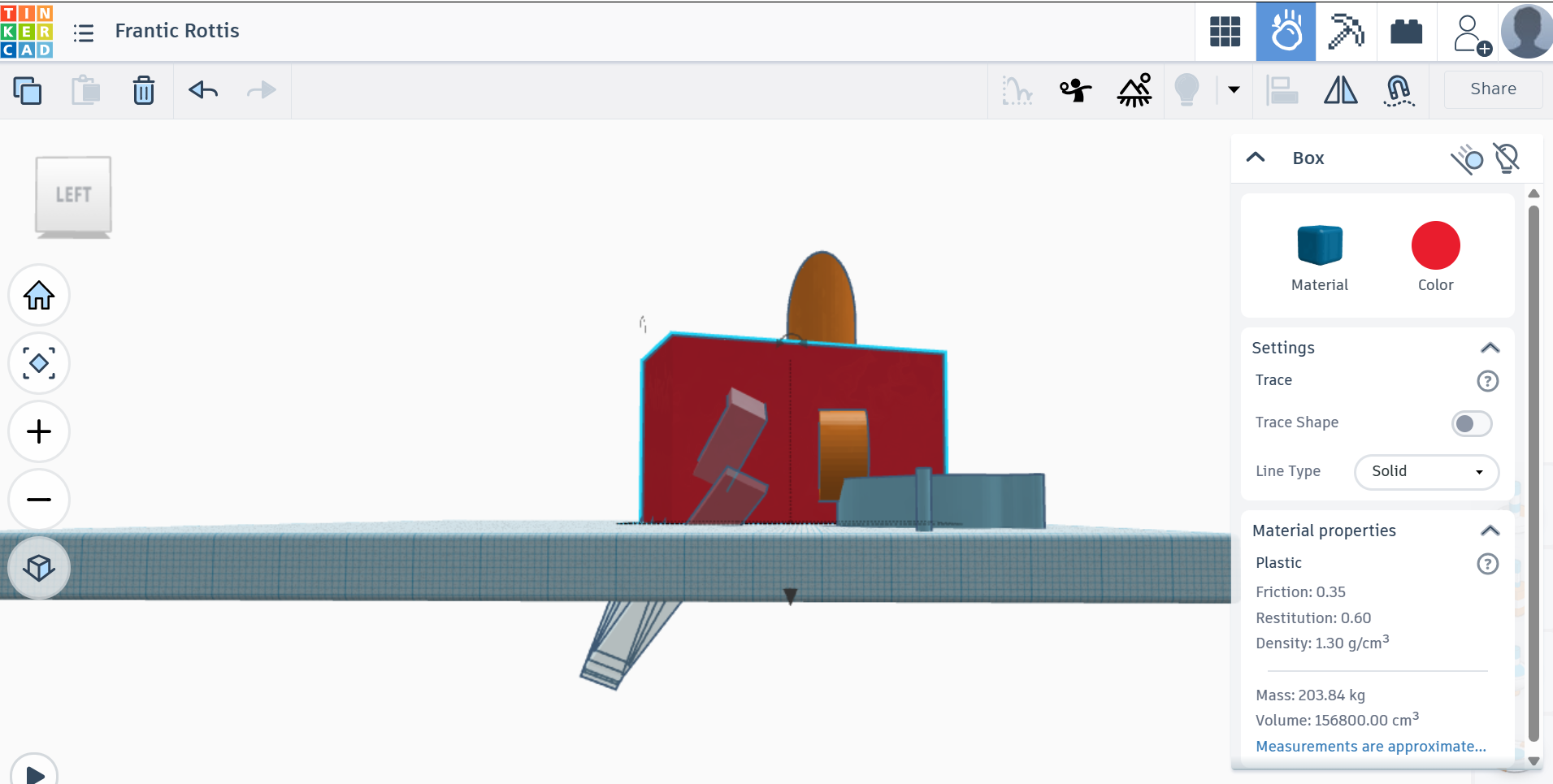
I started with the first one. Thinkercad. Suprise me, a lot of internal tools. First versions focus on 3D modeling
Camera 1
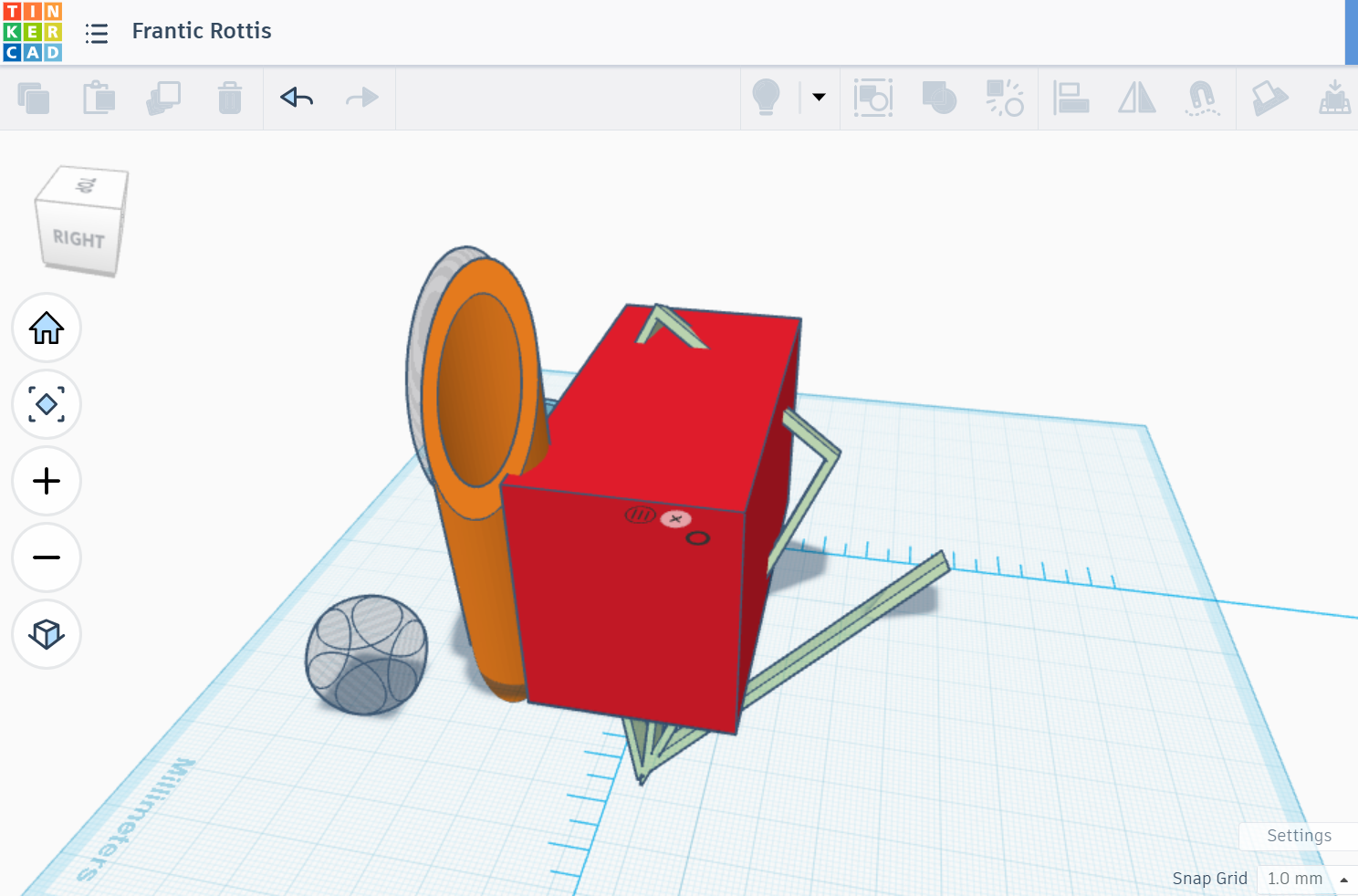
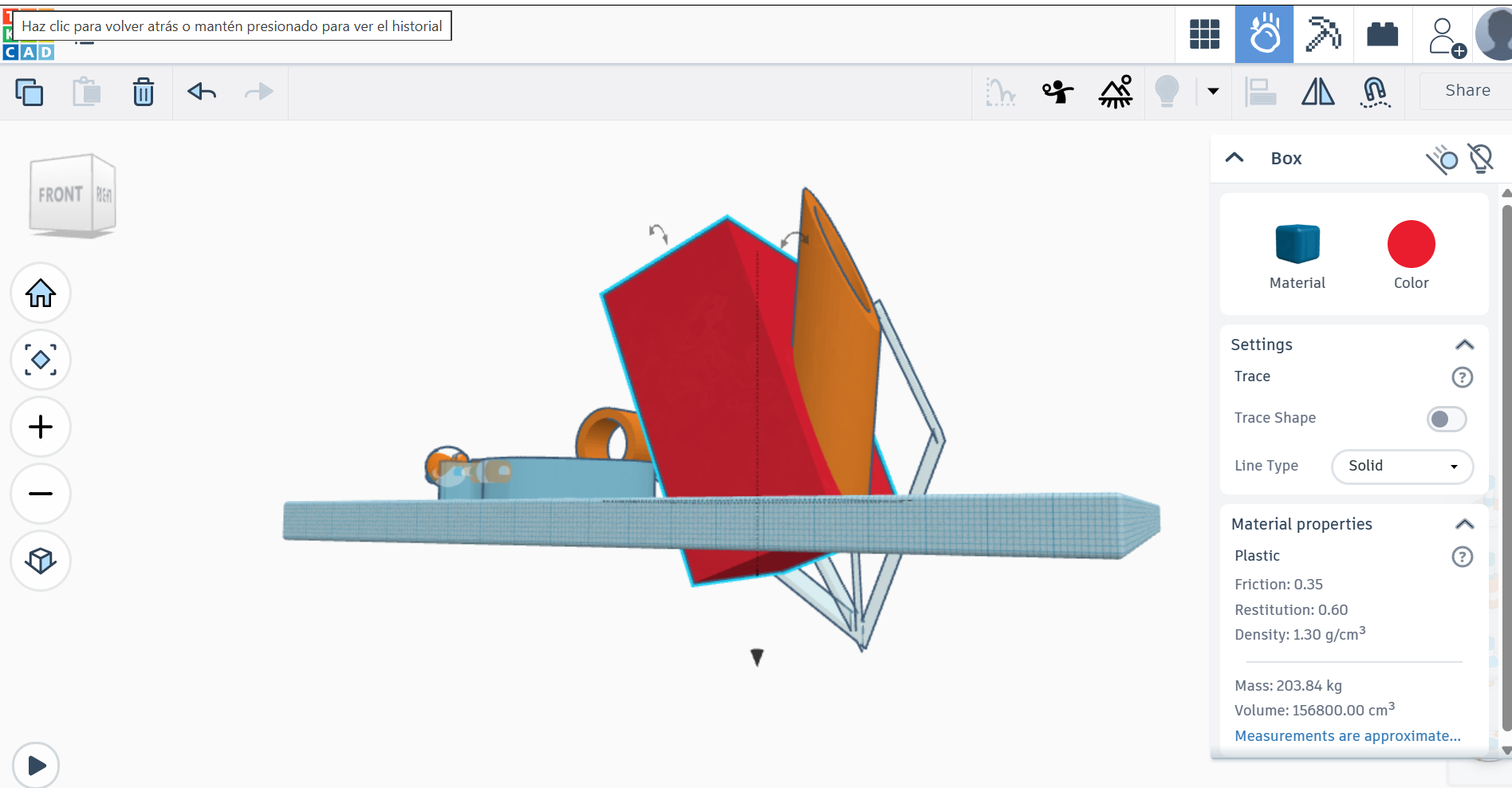
I created a 3D model using Autodesk Thinkercad
Camera 1
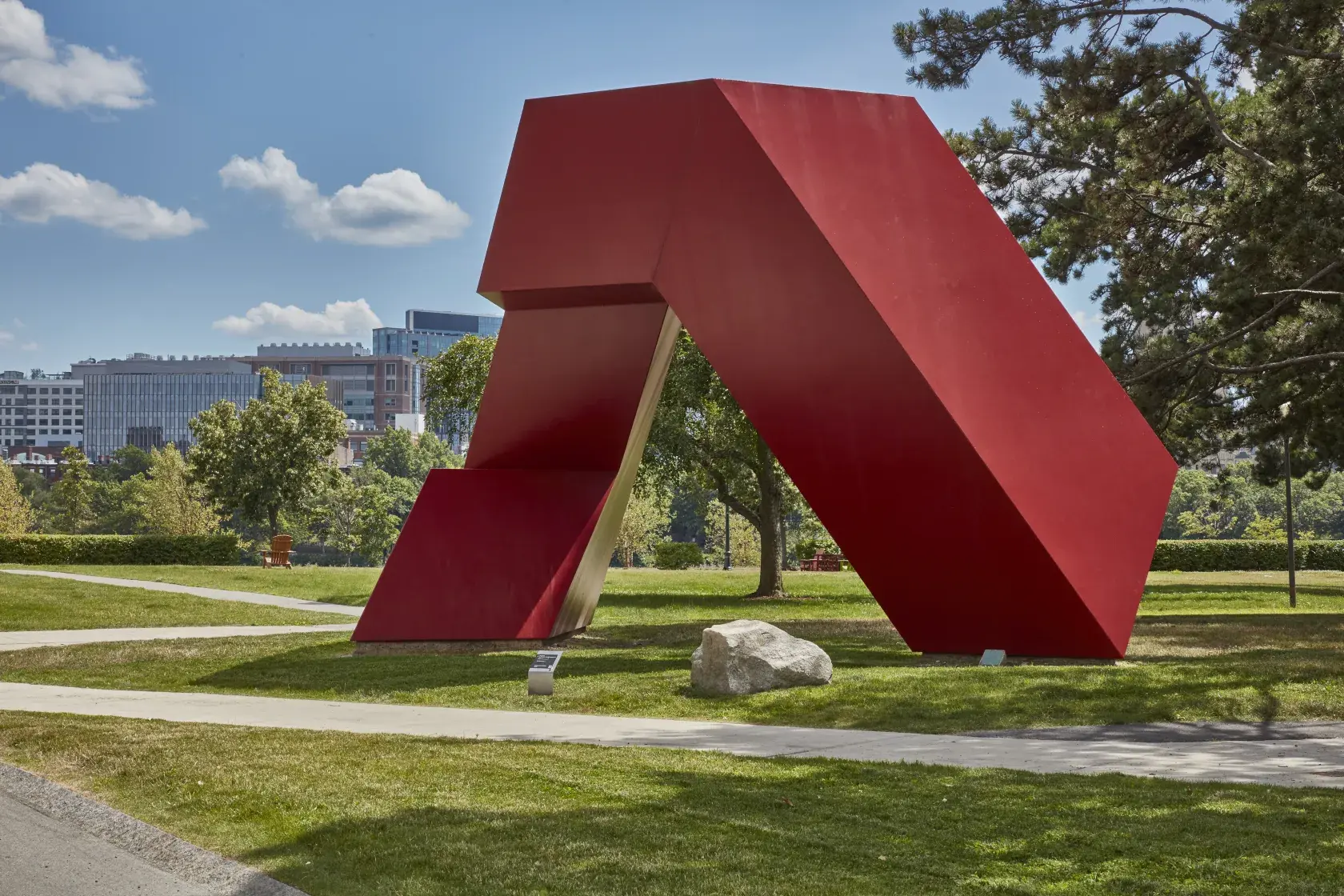
Mentally focused on MIT Tony Smith Estate/Artistis Rights Society (ARS)
Camera 1
I created a 3D model using Autodesk Thinkercad
Camera 1
Different views of the 3D model created using Autodesk Thinkercad
Camera 1
Different views of the 3D model created using Autodesk Thinkercad
Camera 1
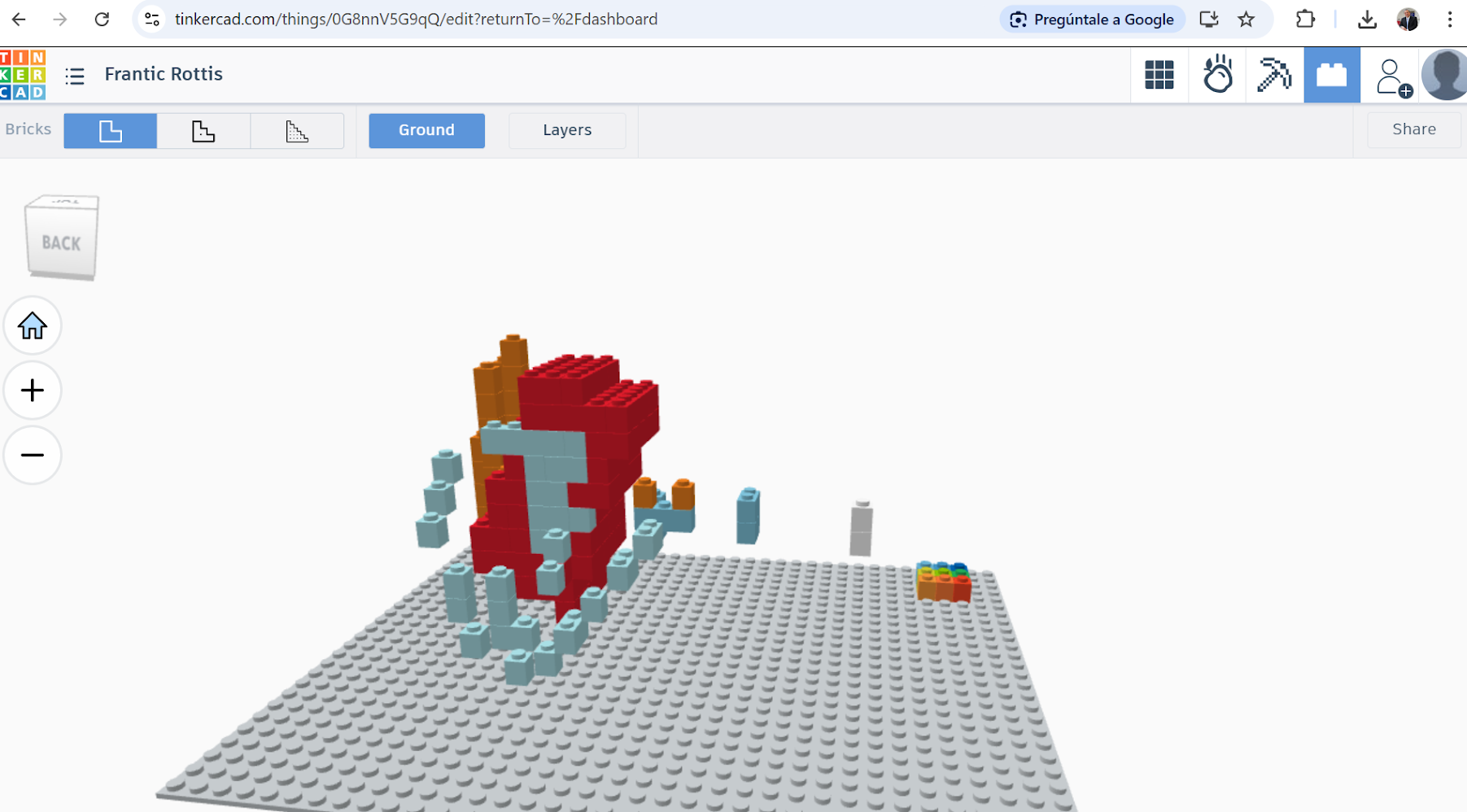
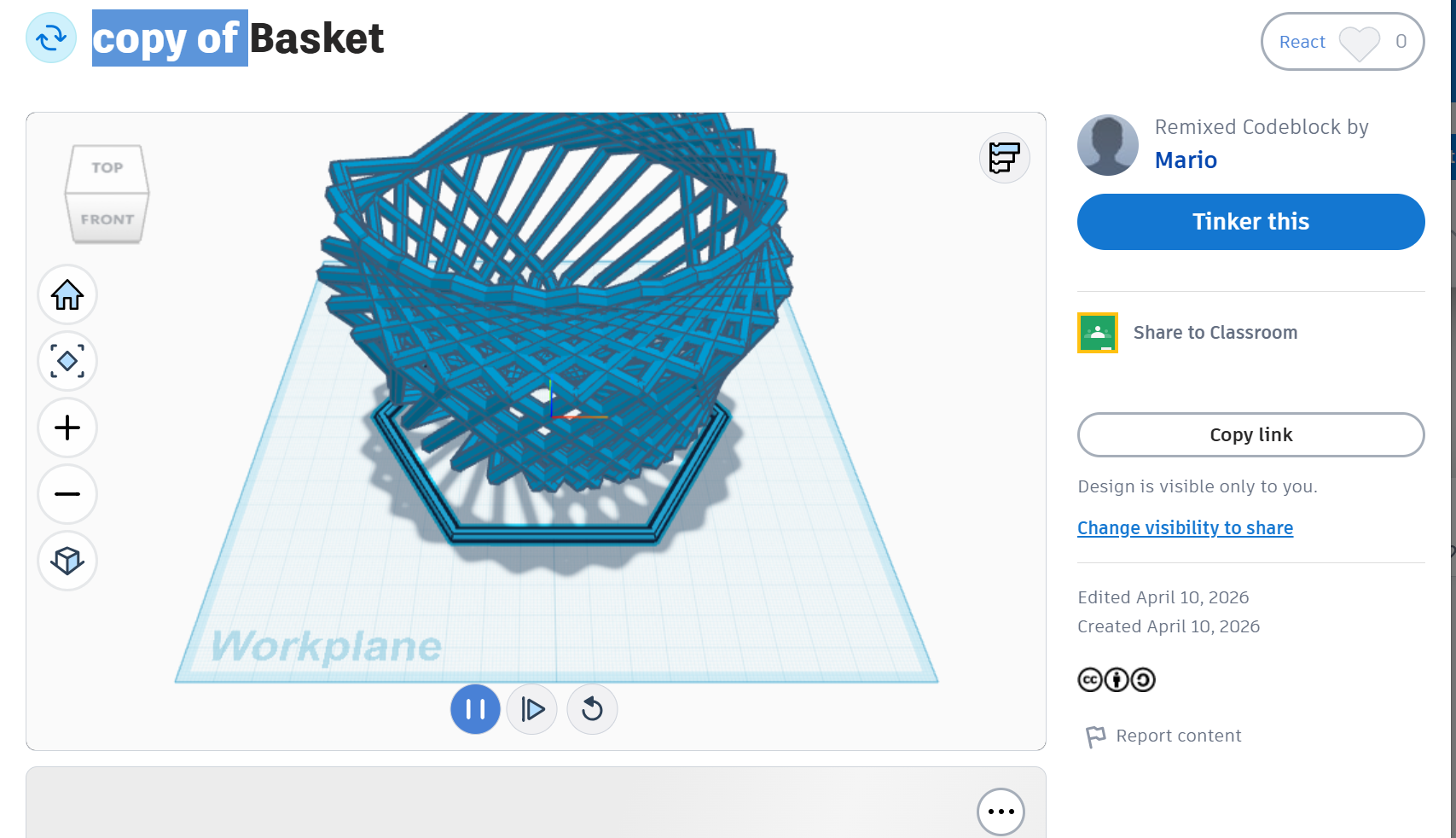
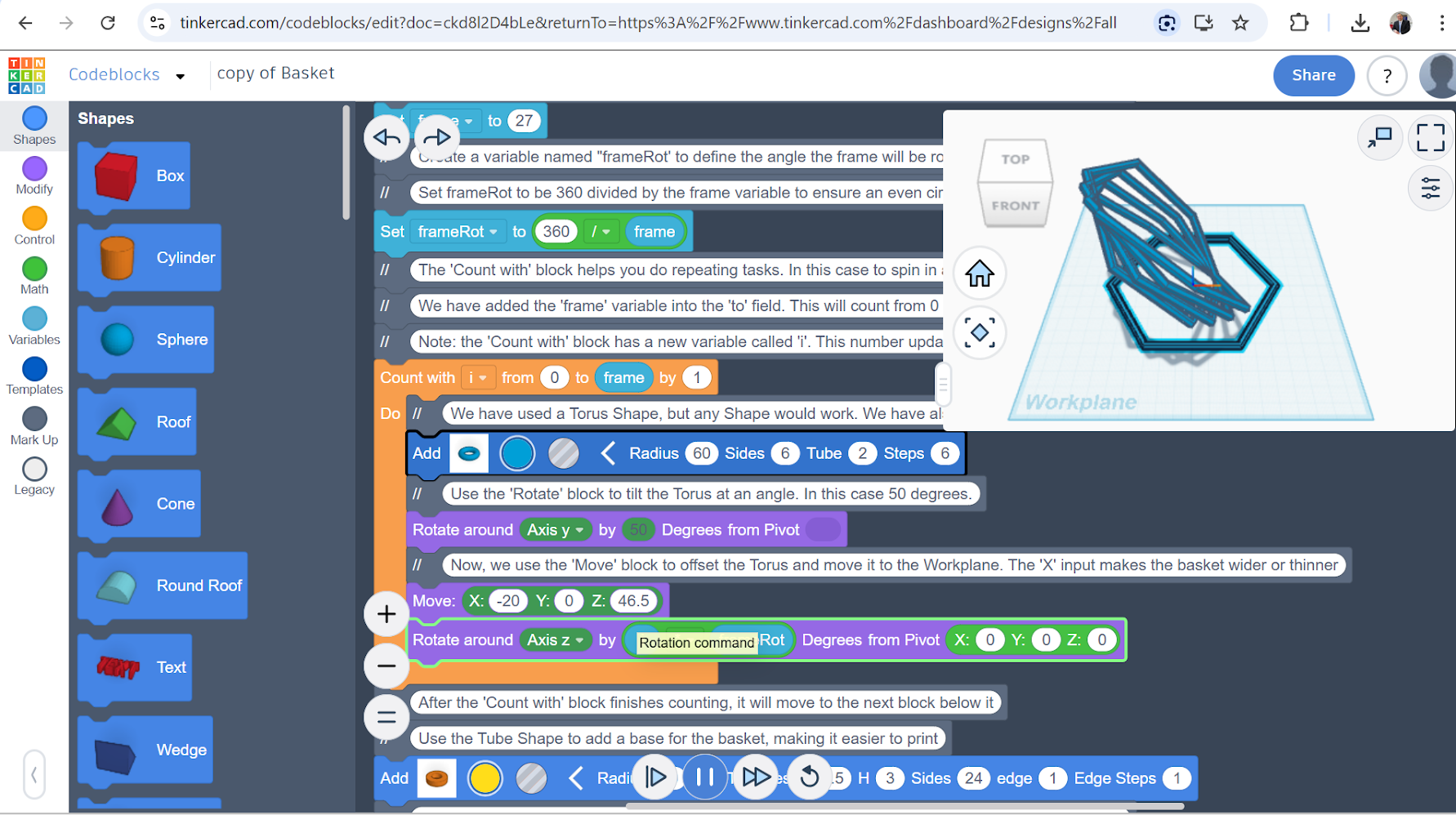
Blocks at Thinkercad. It is crazy!
Camera 1
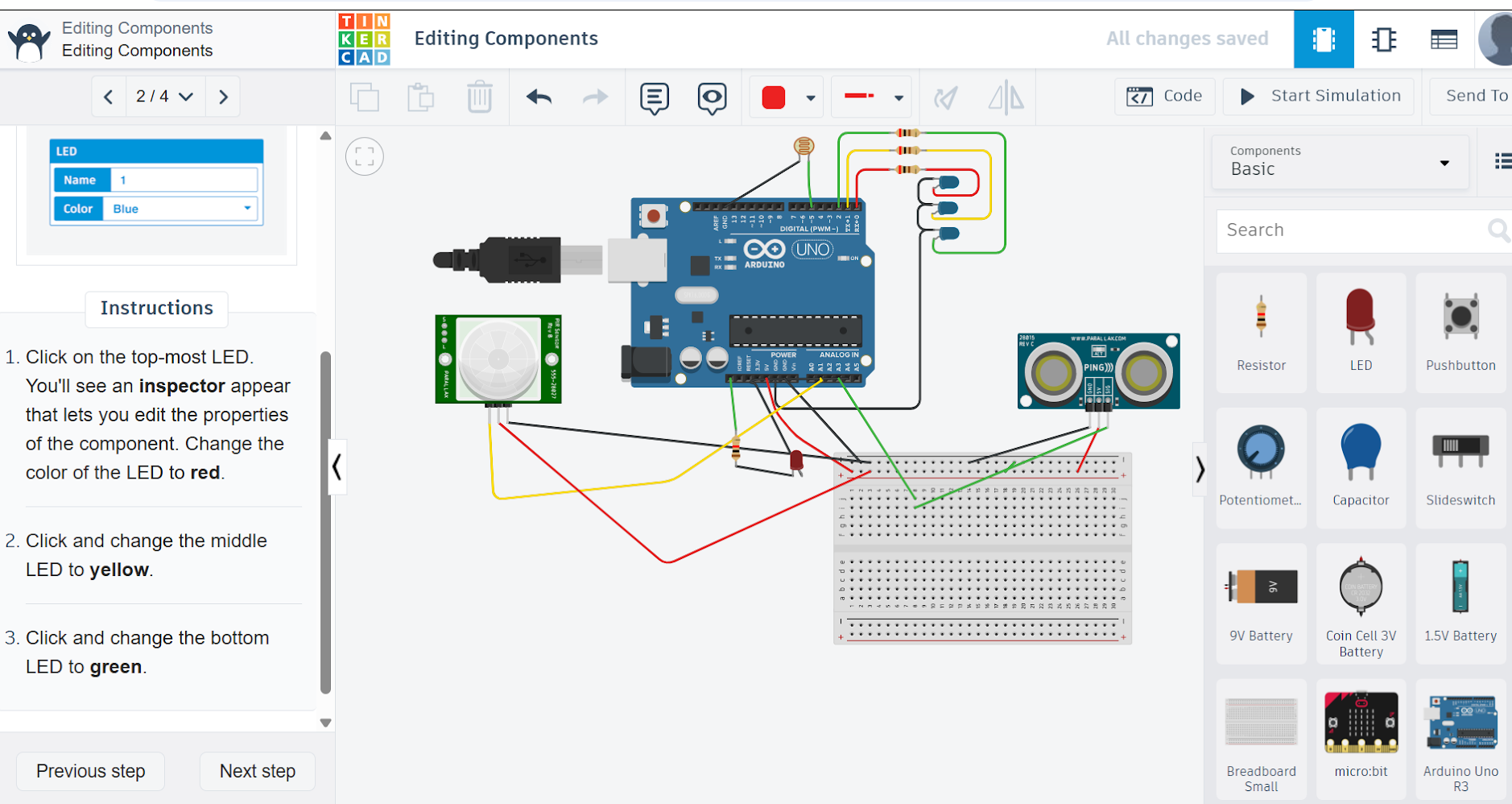
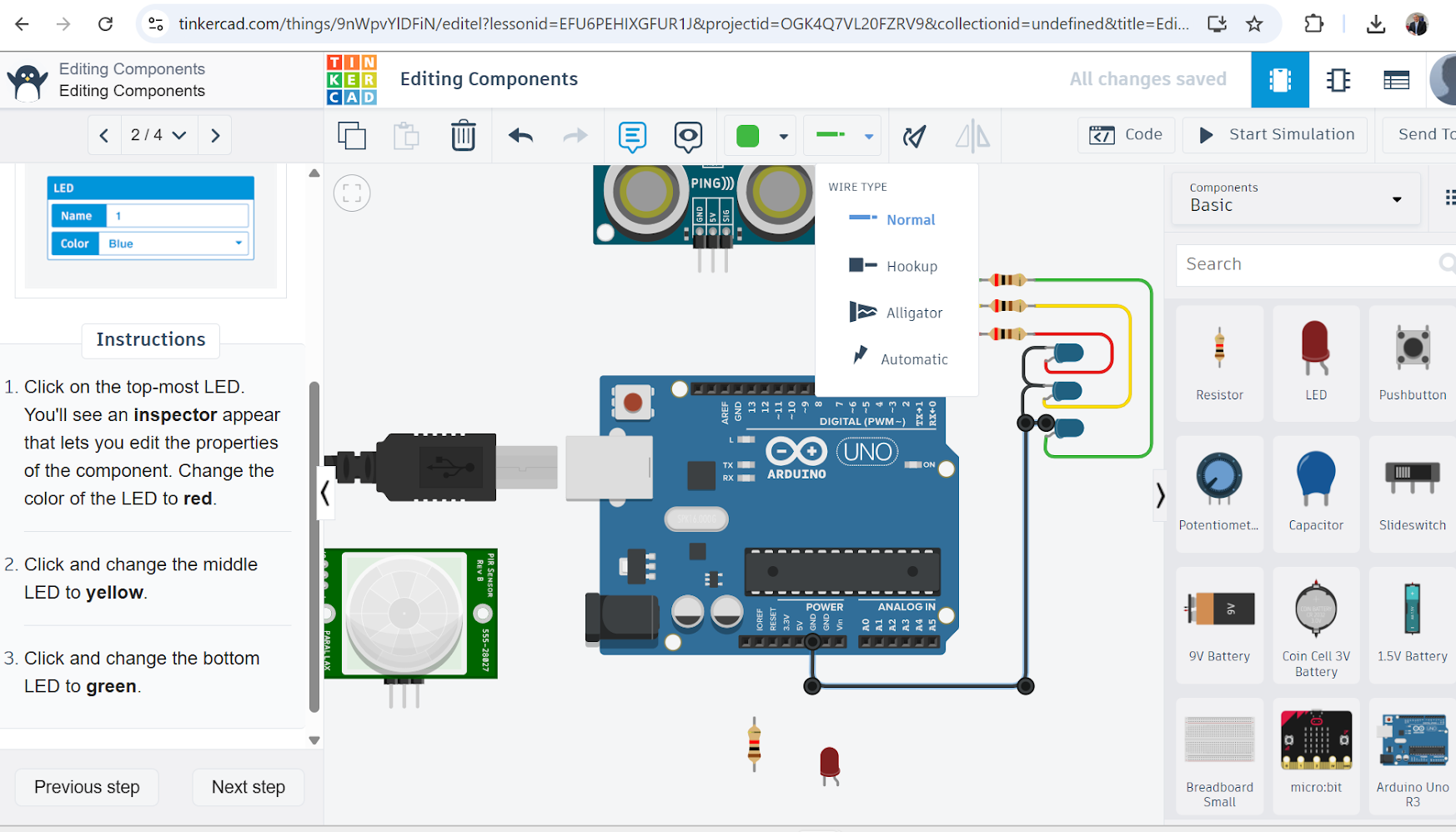
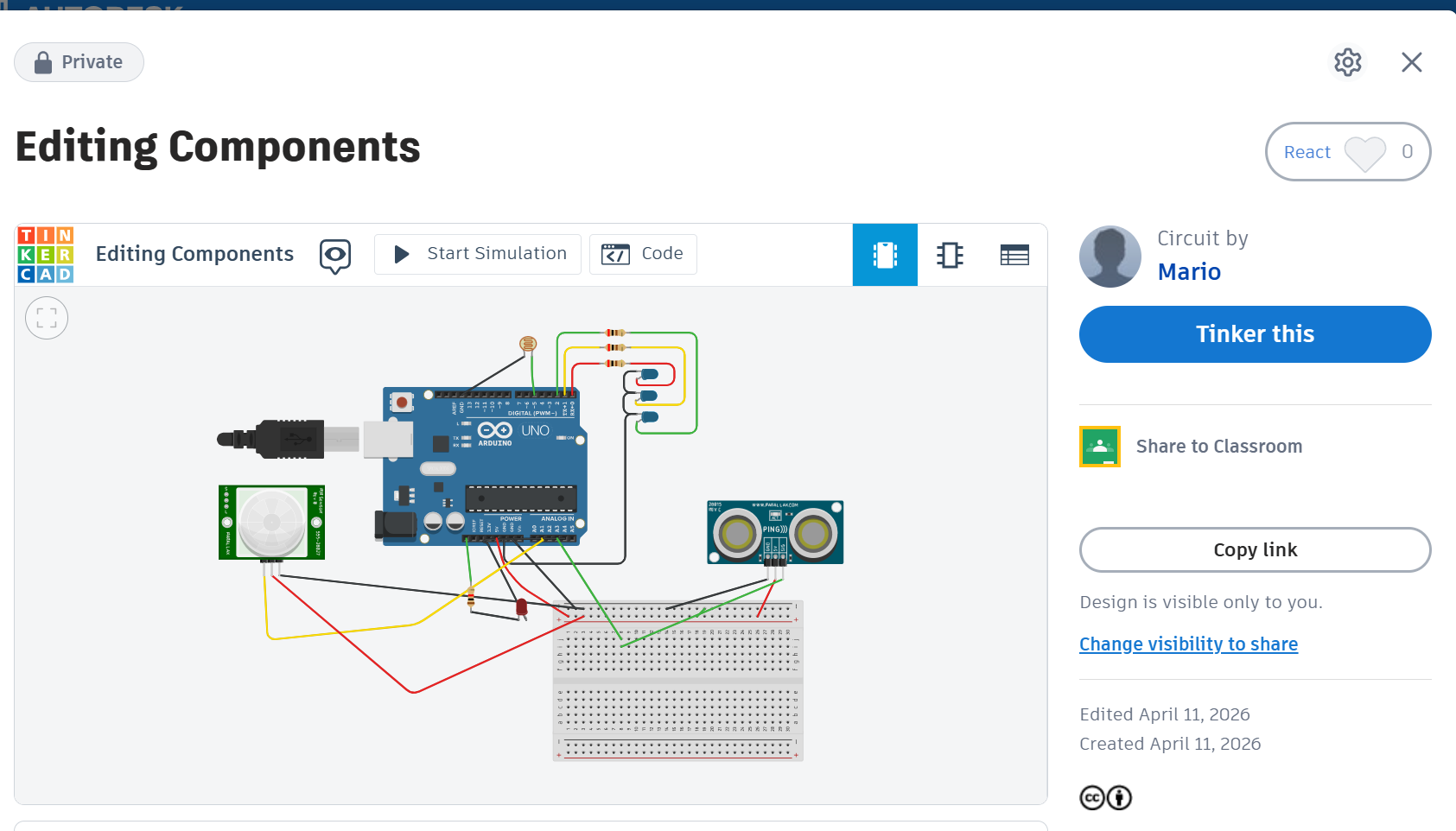
Circuits at Autodesk Thinkercad
Camera 1
Then, we explored circuits at Thinker Cad. This is amazing!
Camera 1
We connecting wires, components and others
Camera 1
We used a form at Thinkercad and review the simulation
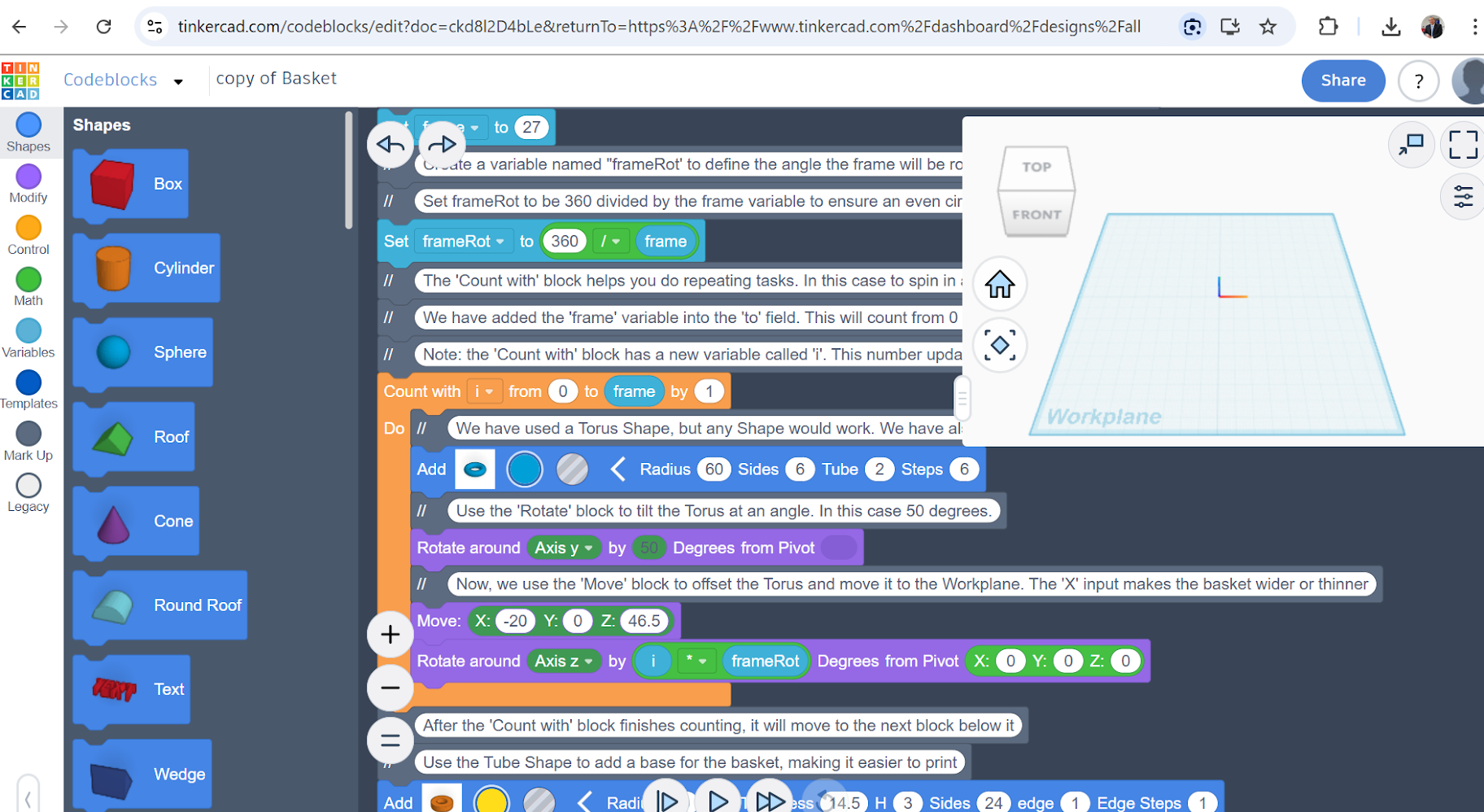
Camera 1
Blockcode for the 3D model
Camera 1
Blockcode for the 3D model
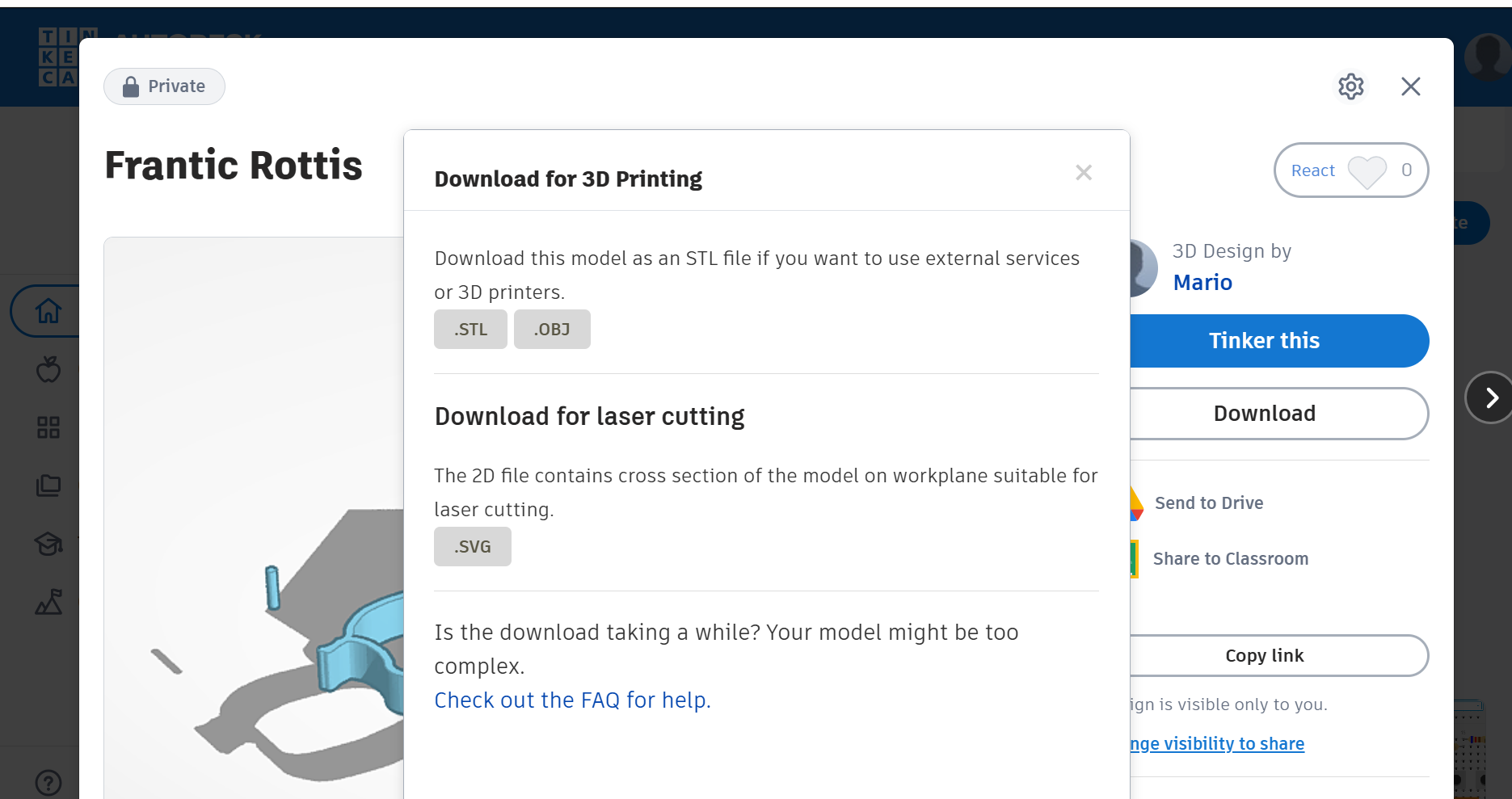
Camera 1
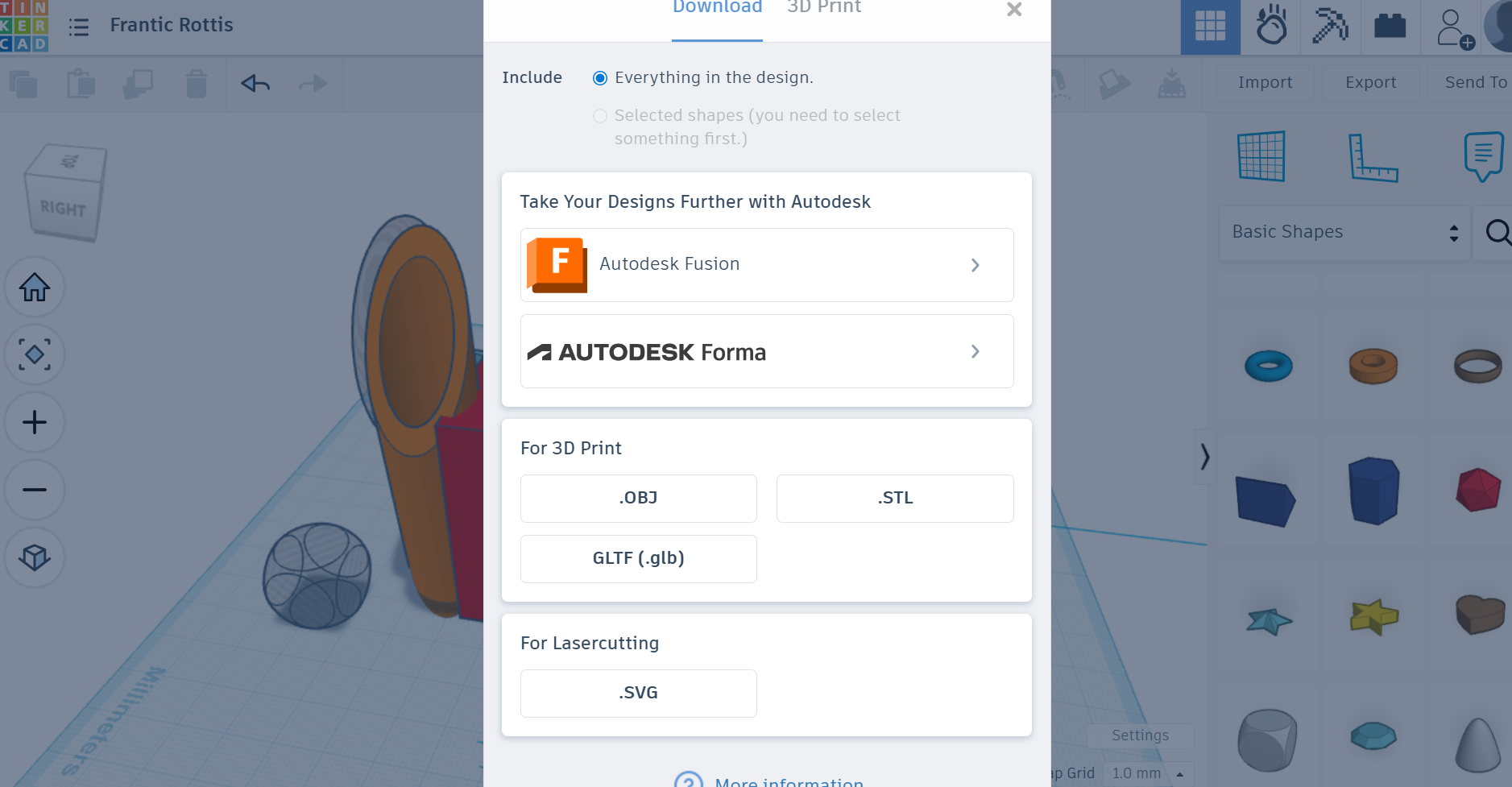
Saving the 3D model with different formats
Camera 1
Everything is integrated
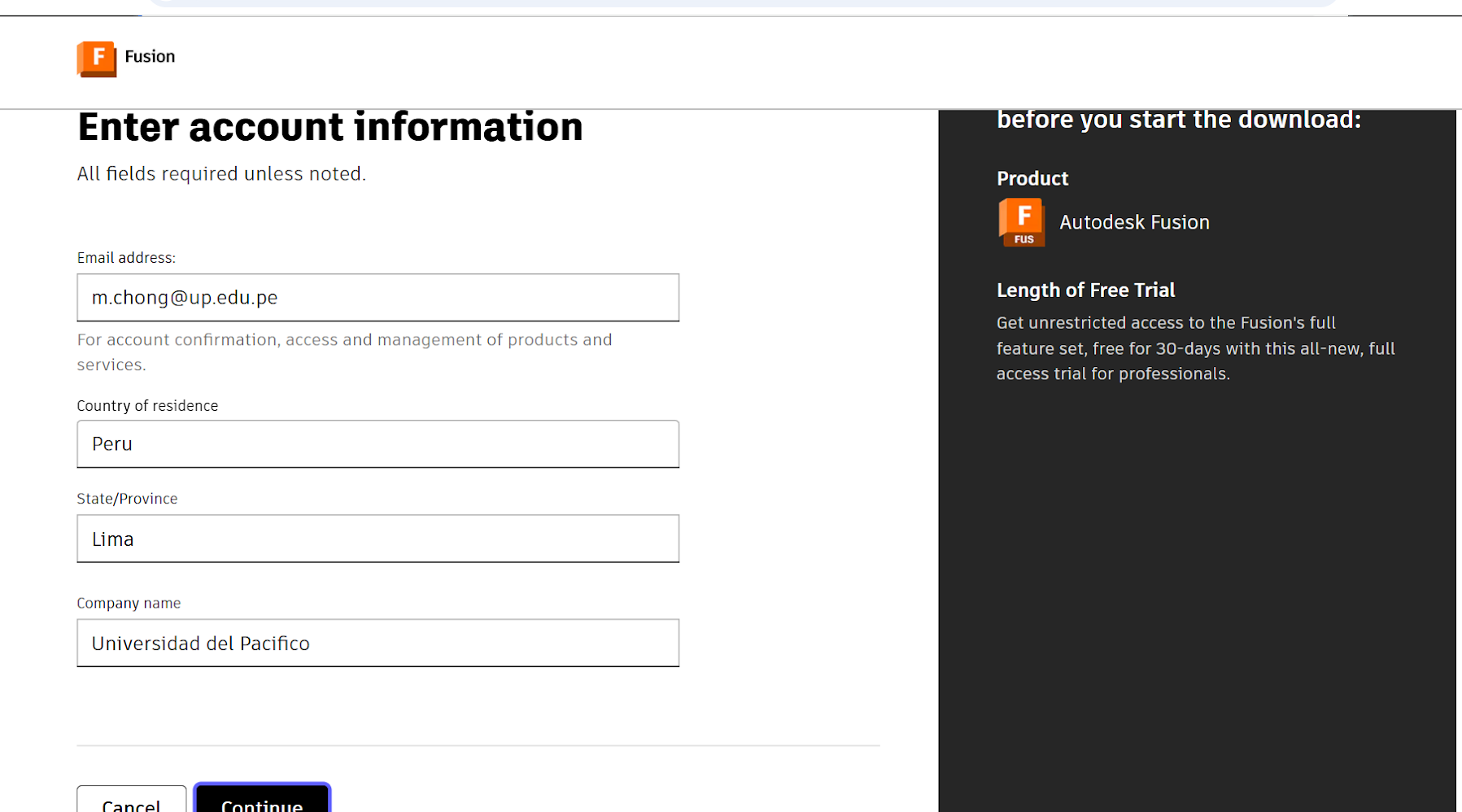
Camera 1
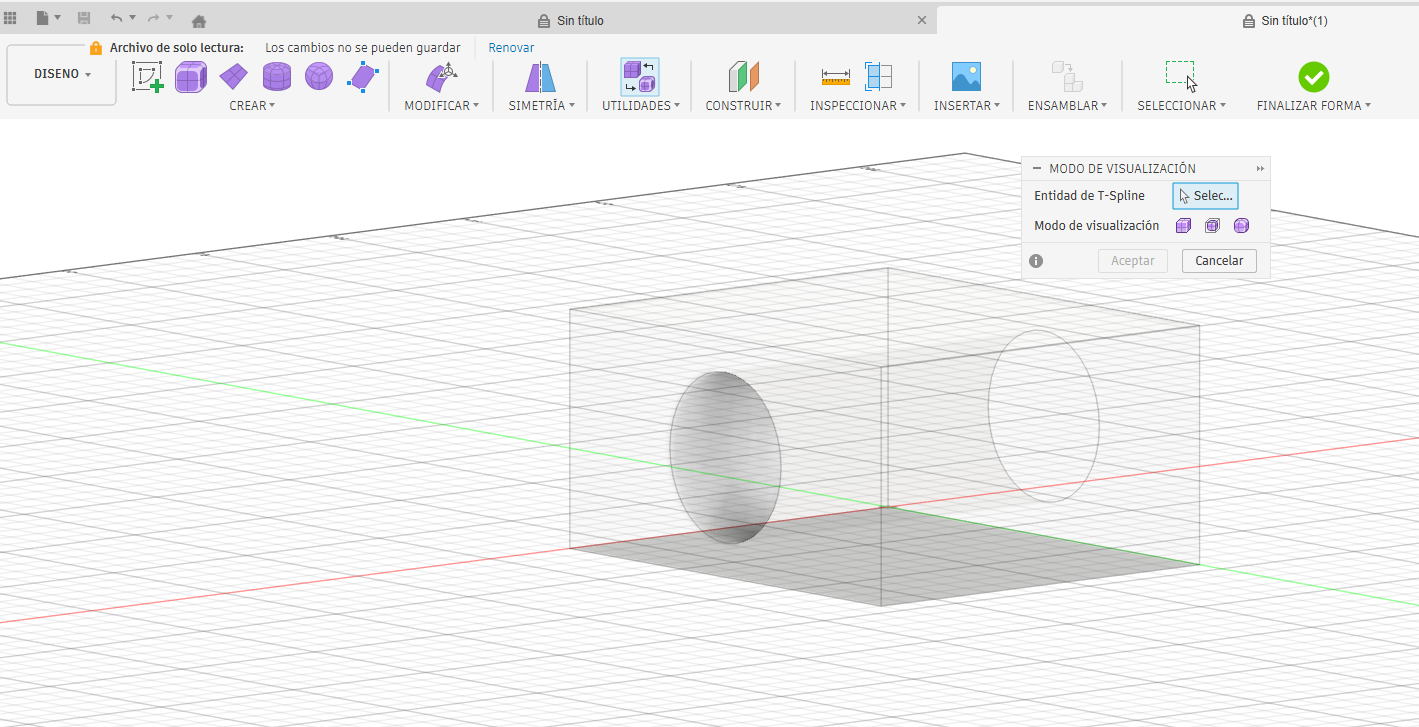
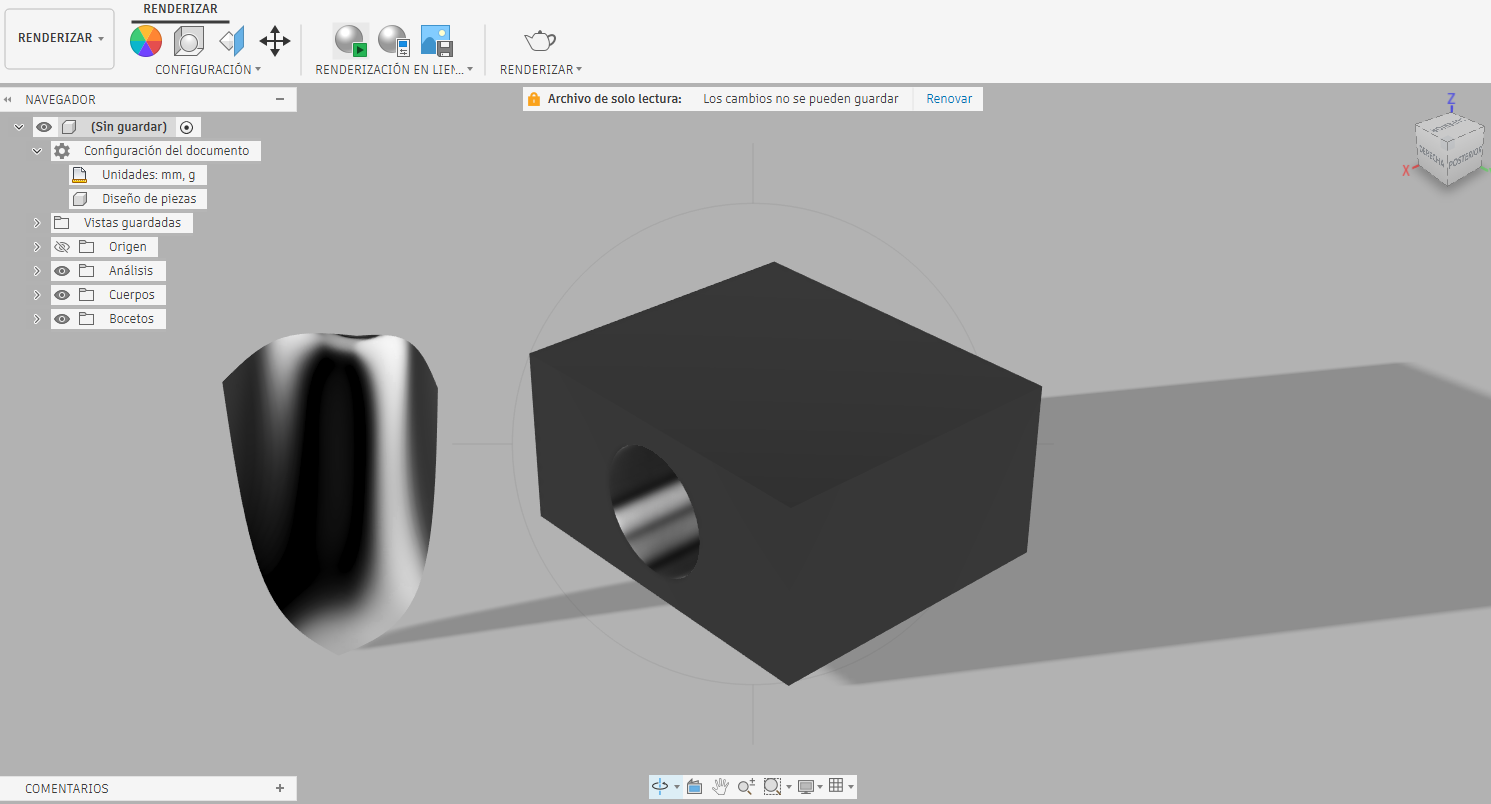
Installing Fusion
Camera 1
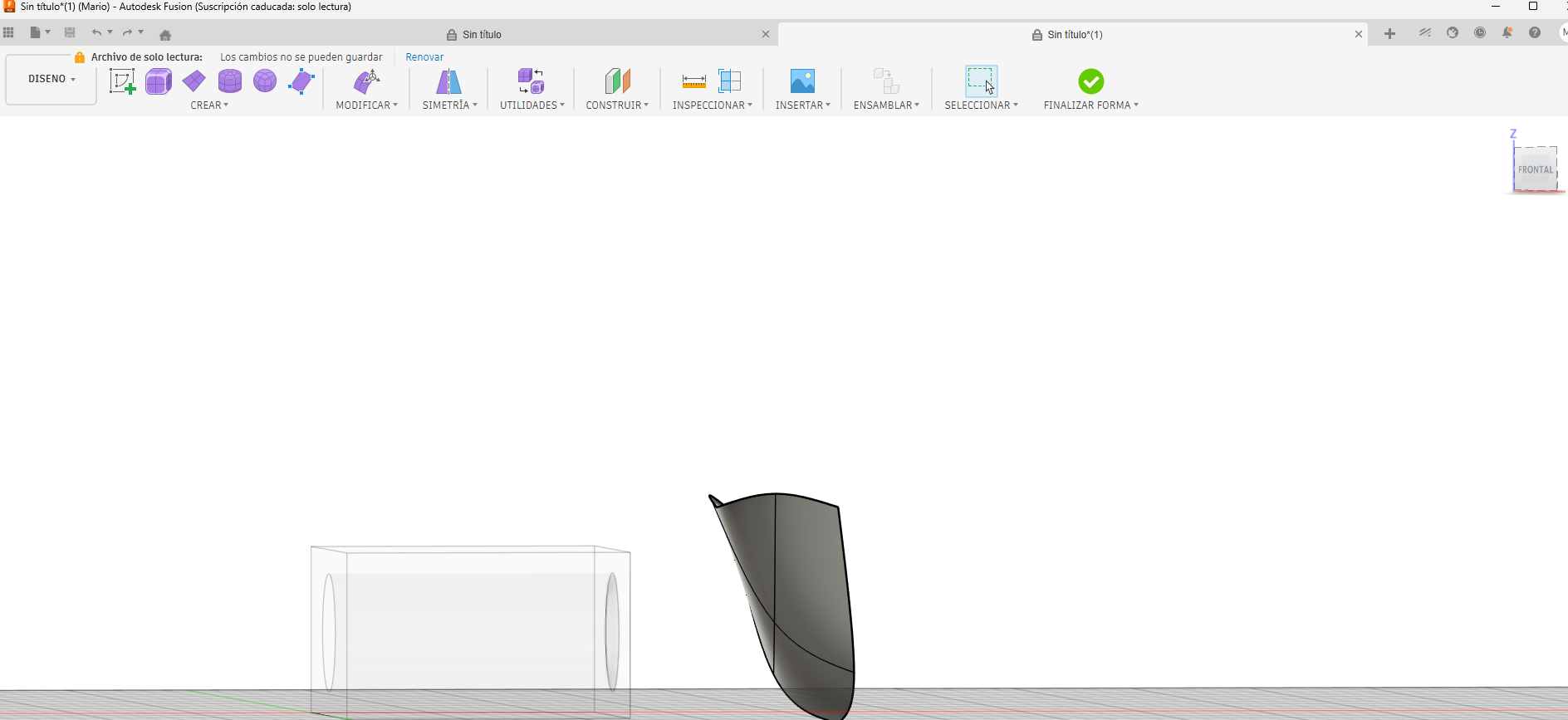
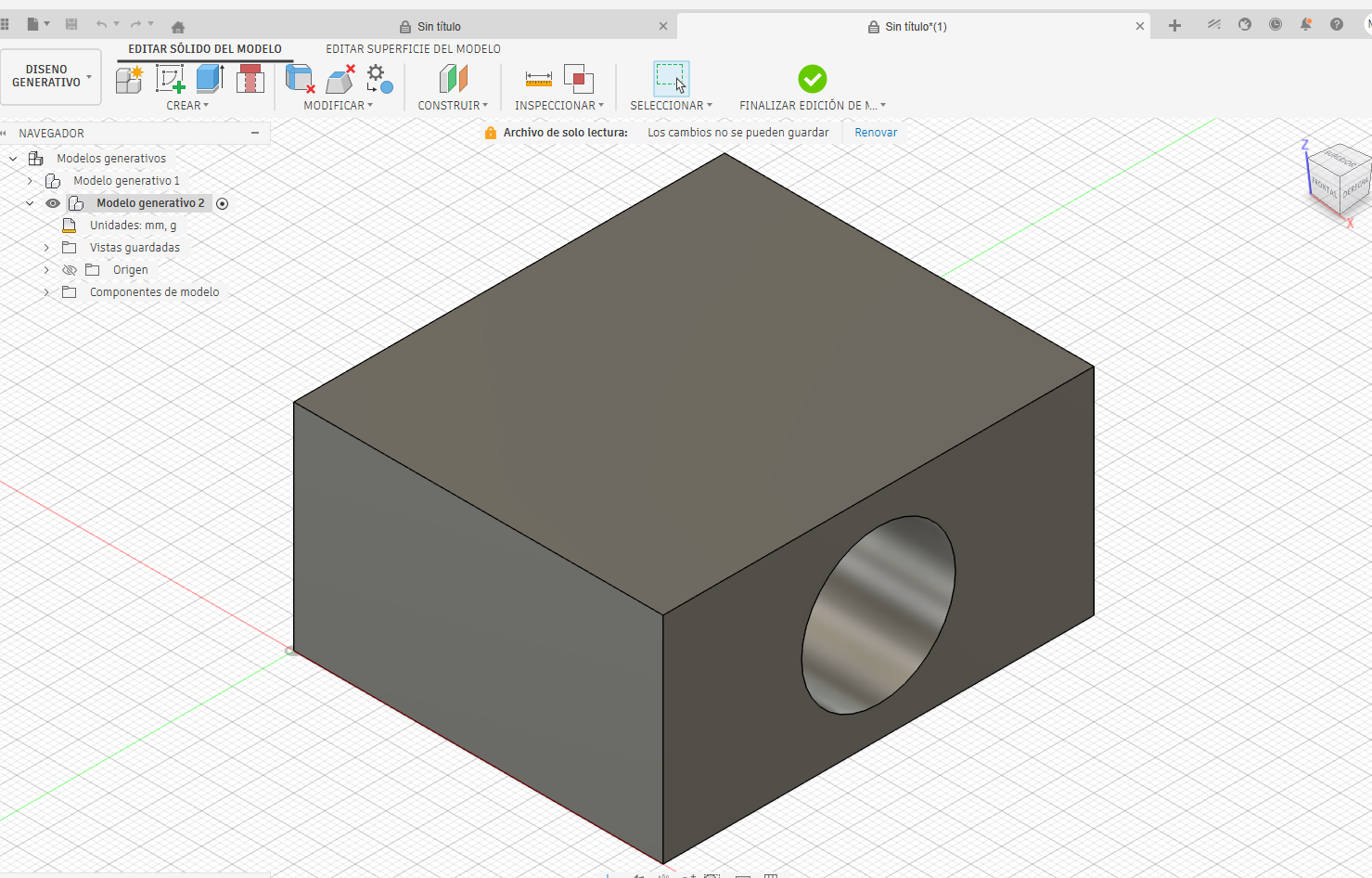
First solid image on Fusion
Camera 1
Adding a solid to the 3D model
Camera 1
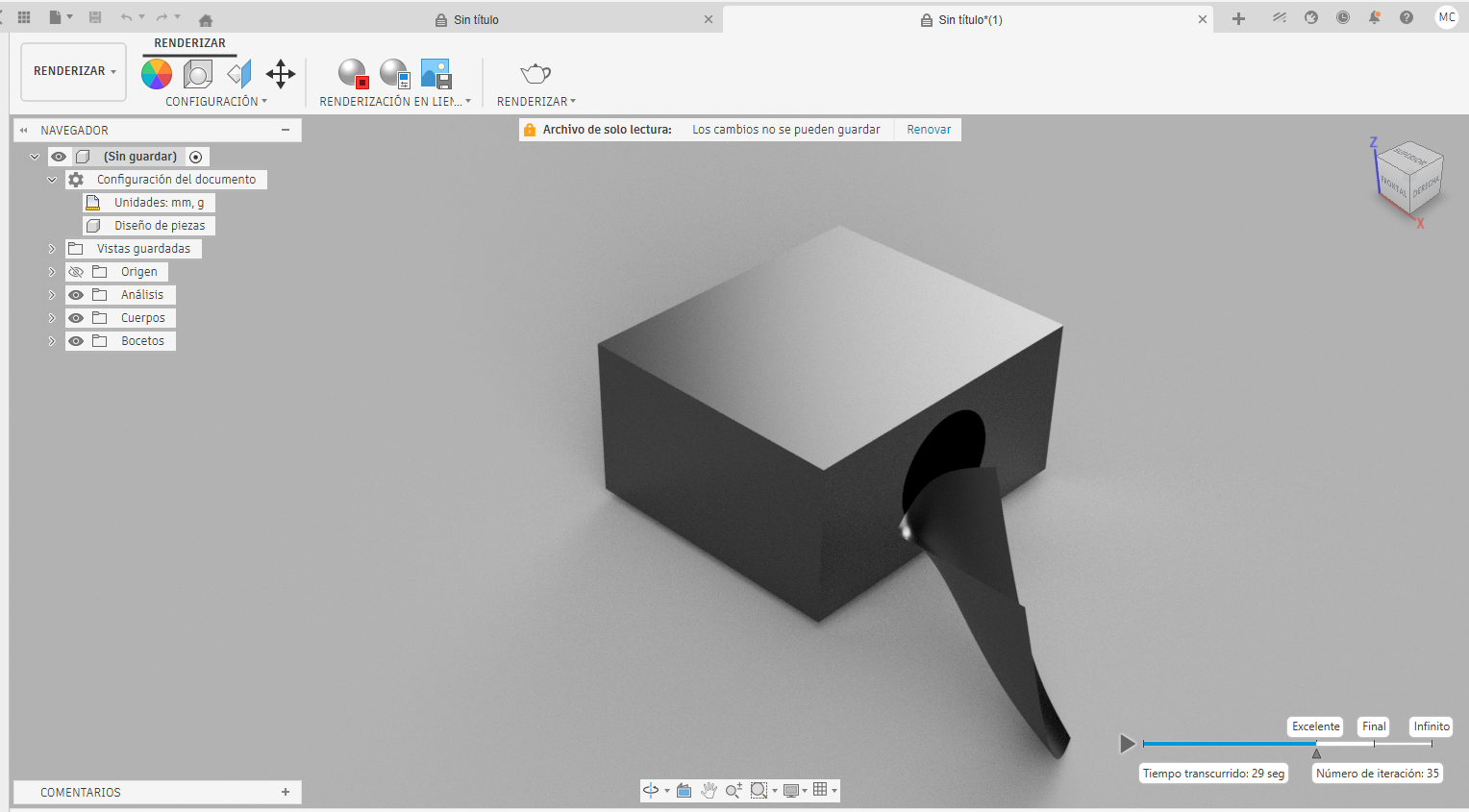
Material, components, textures and views on Fusion
Camera 1
Material, components, textures and views on Fusion
Camera 1
Material, components, textures and views on Fusion
Camera 1
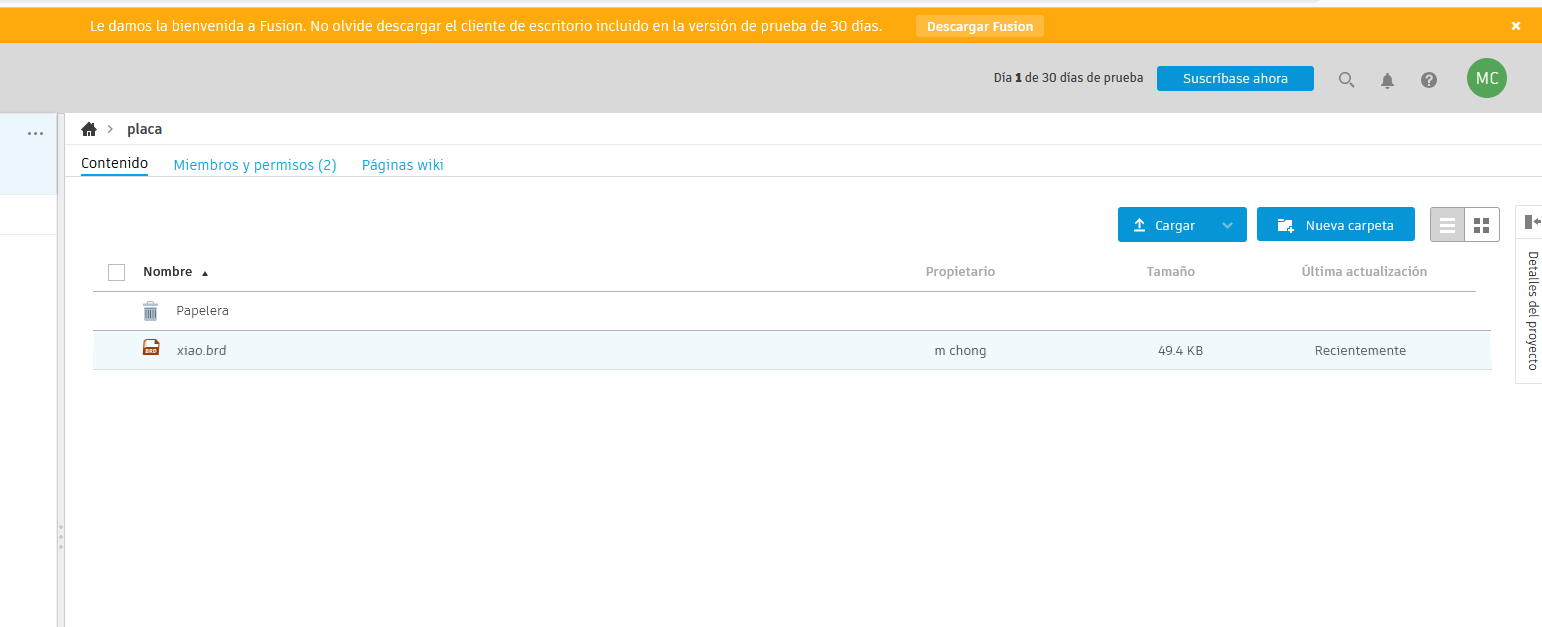
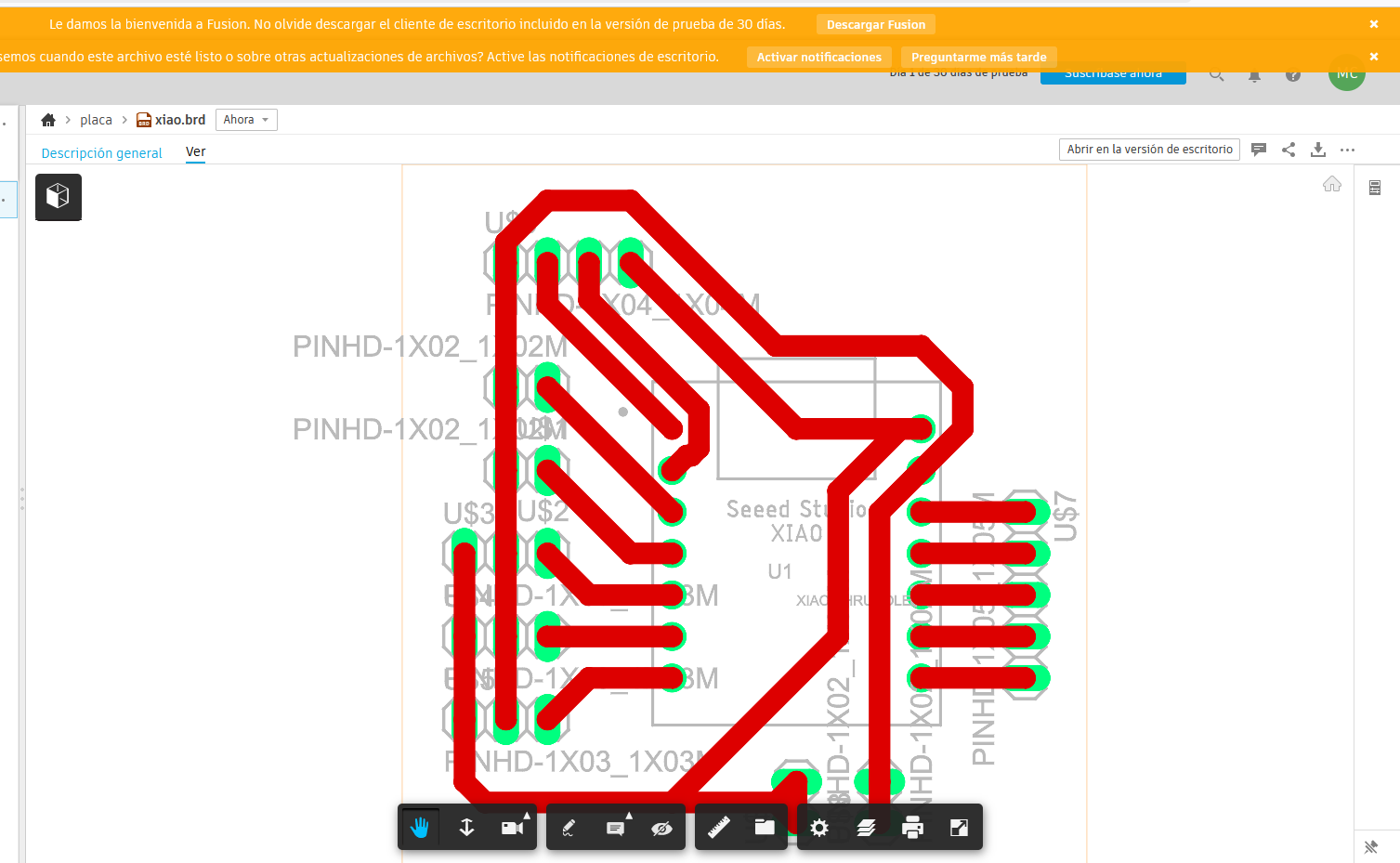
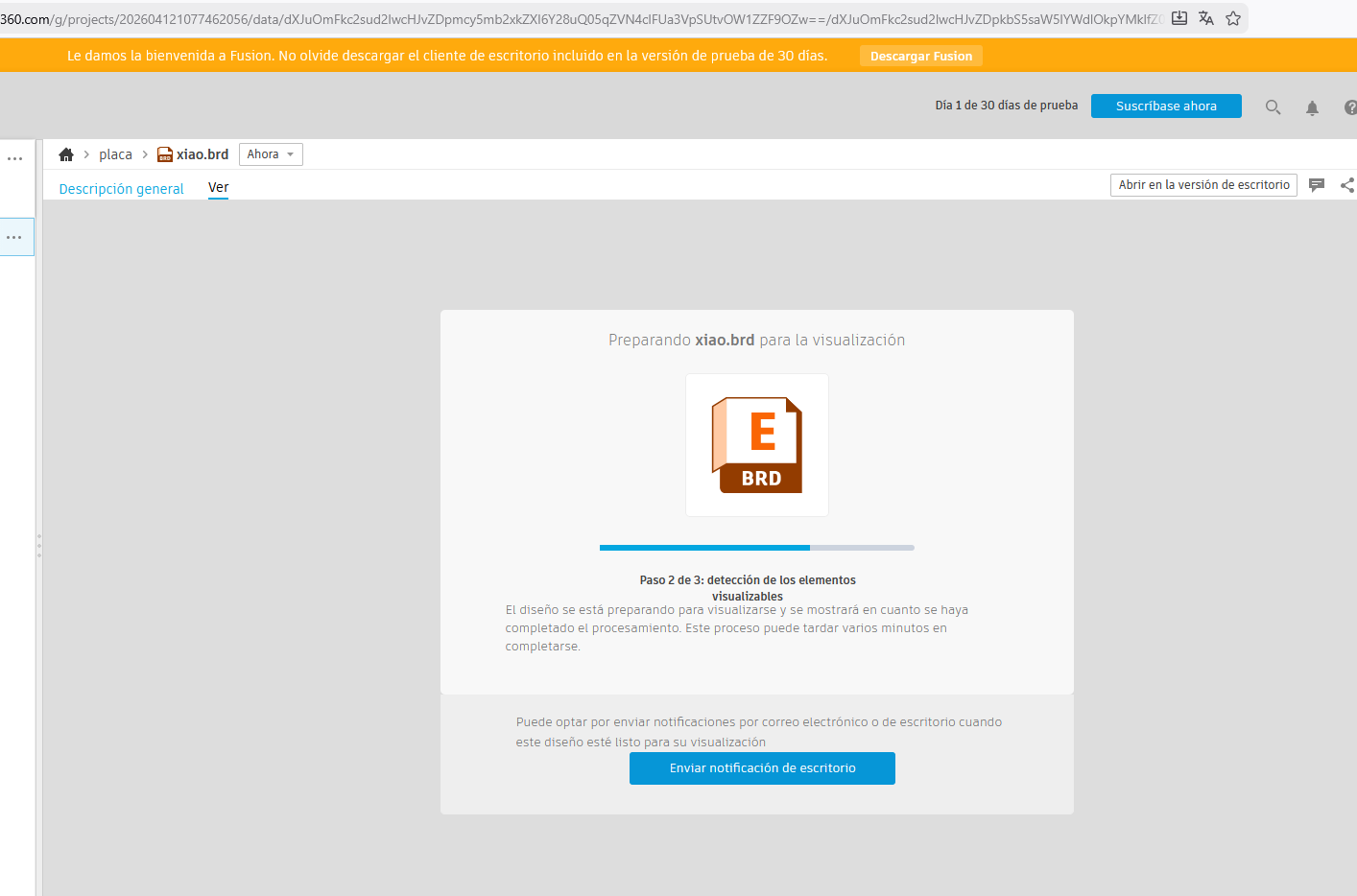
Individual project PCB
Camera 1
Individual project PCB
Camera 1
Individual project PCB
Camera 1
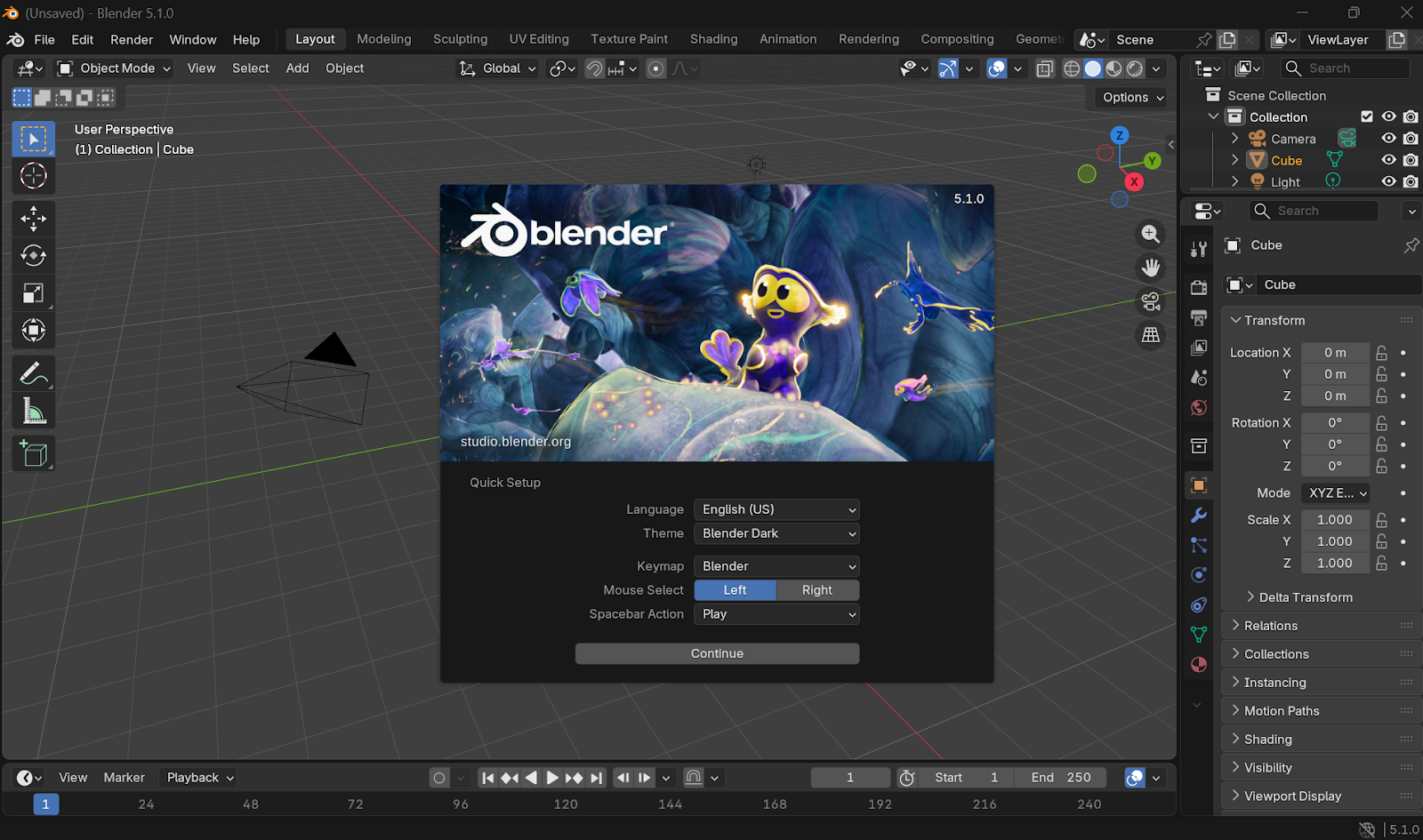
Installing Blender
Camera 1
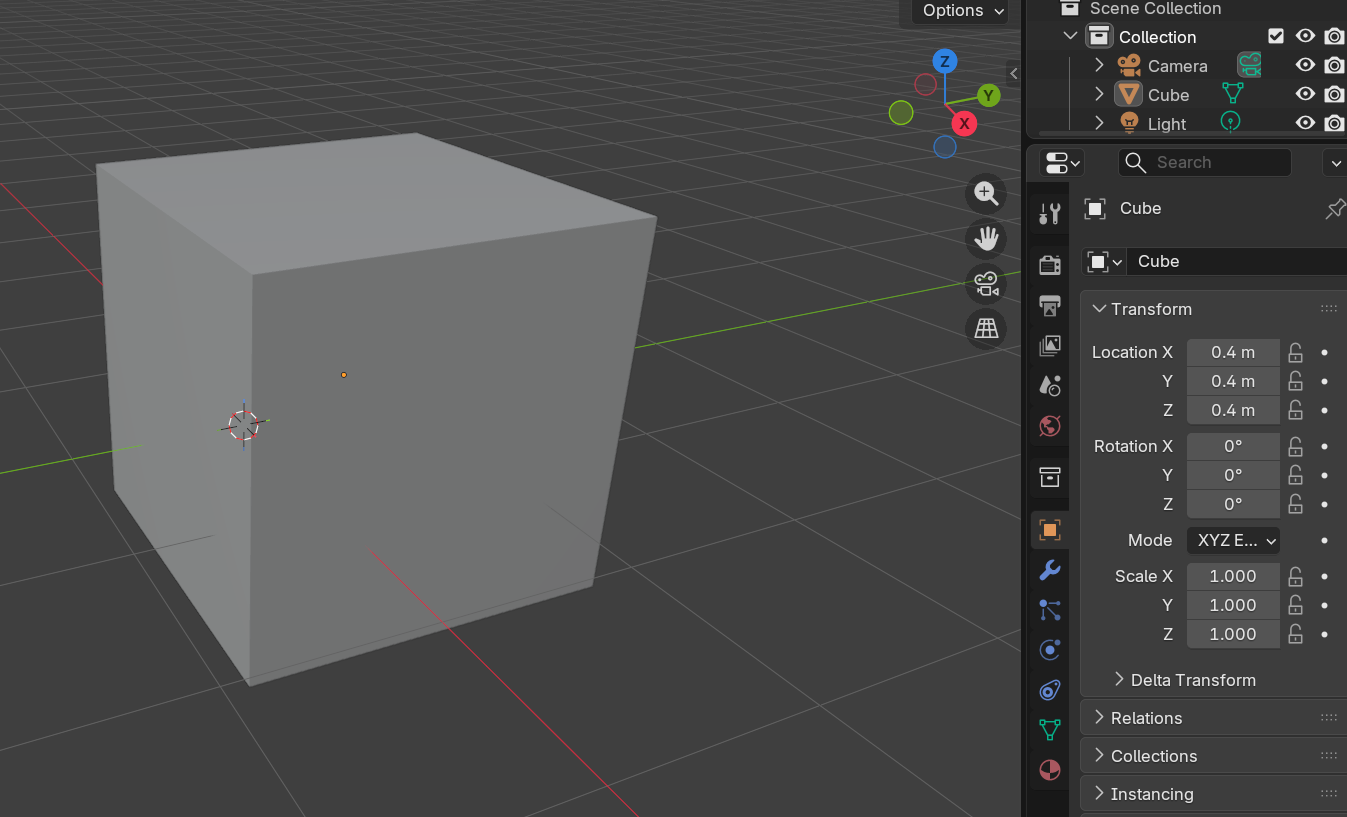
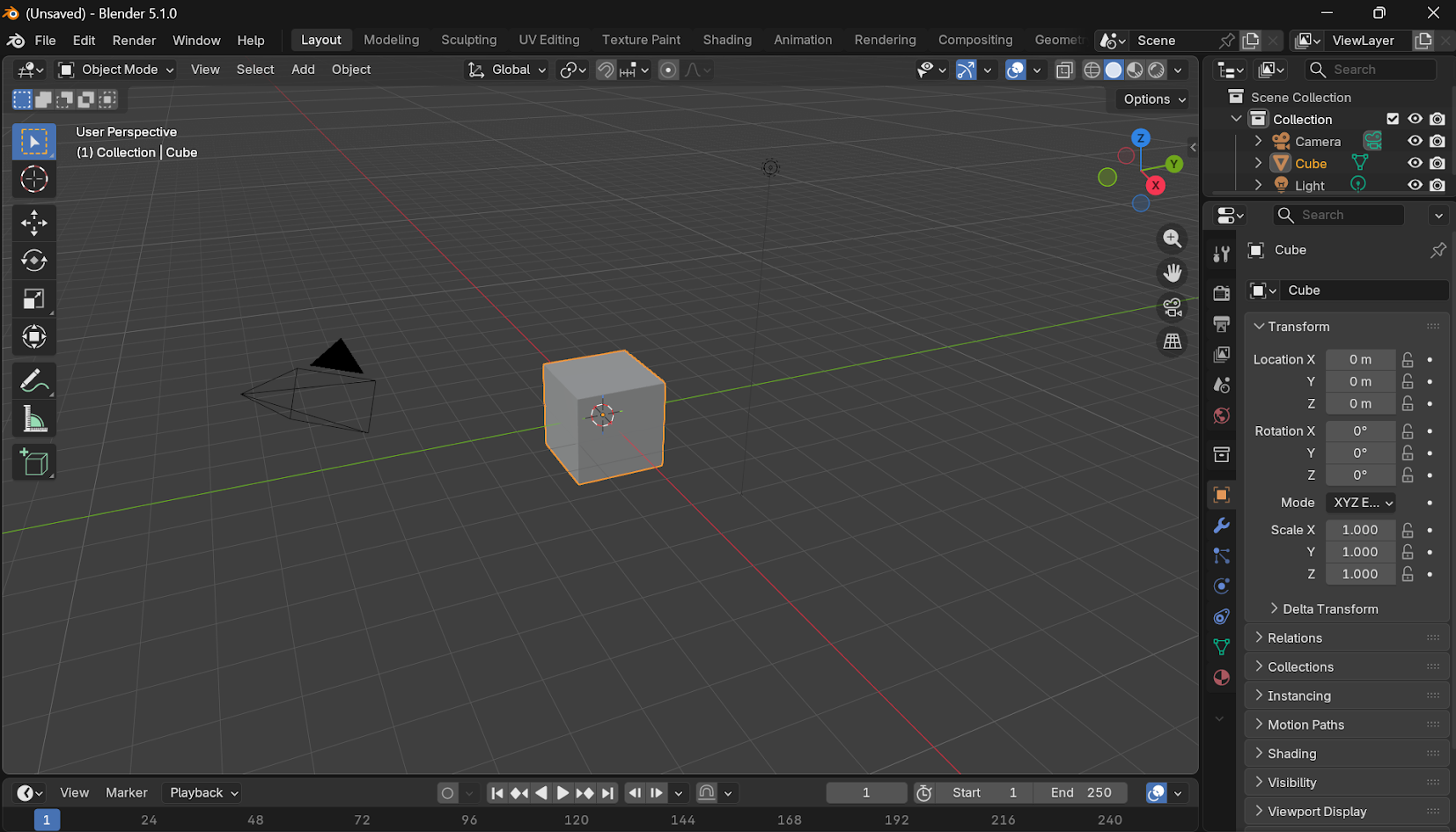
Creating a cube
Camera 1
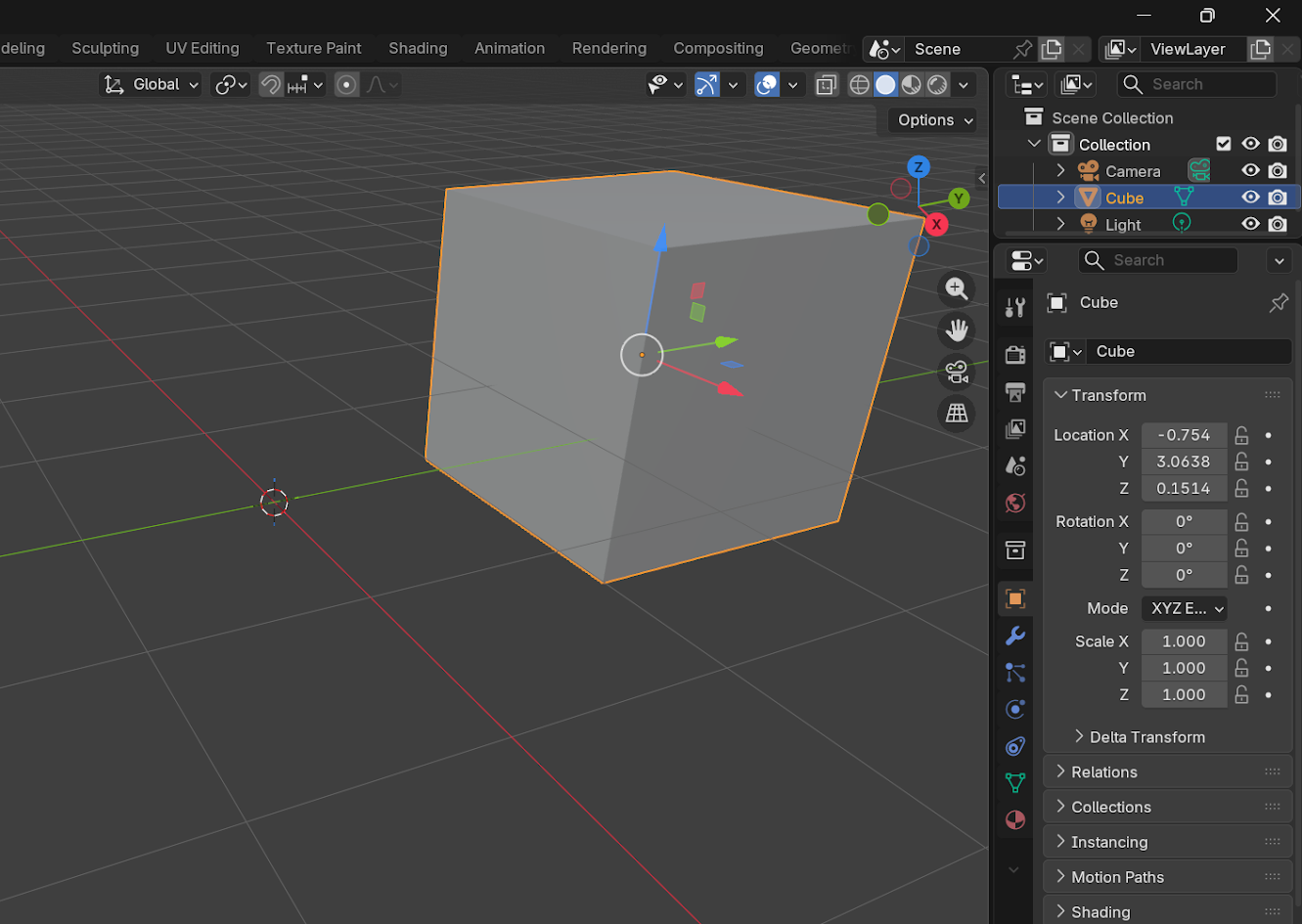
Cube location
Camera 1
Cube position
Camera 1
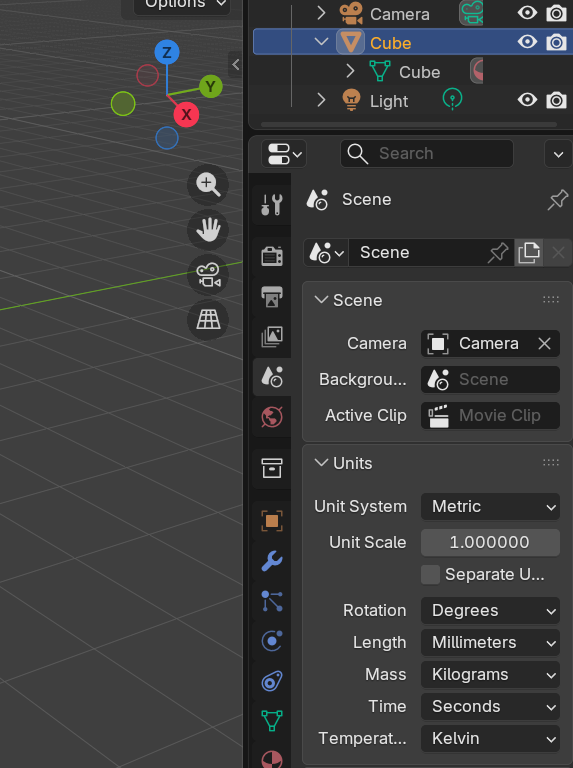
Cube scale
Camera 1
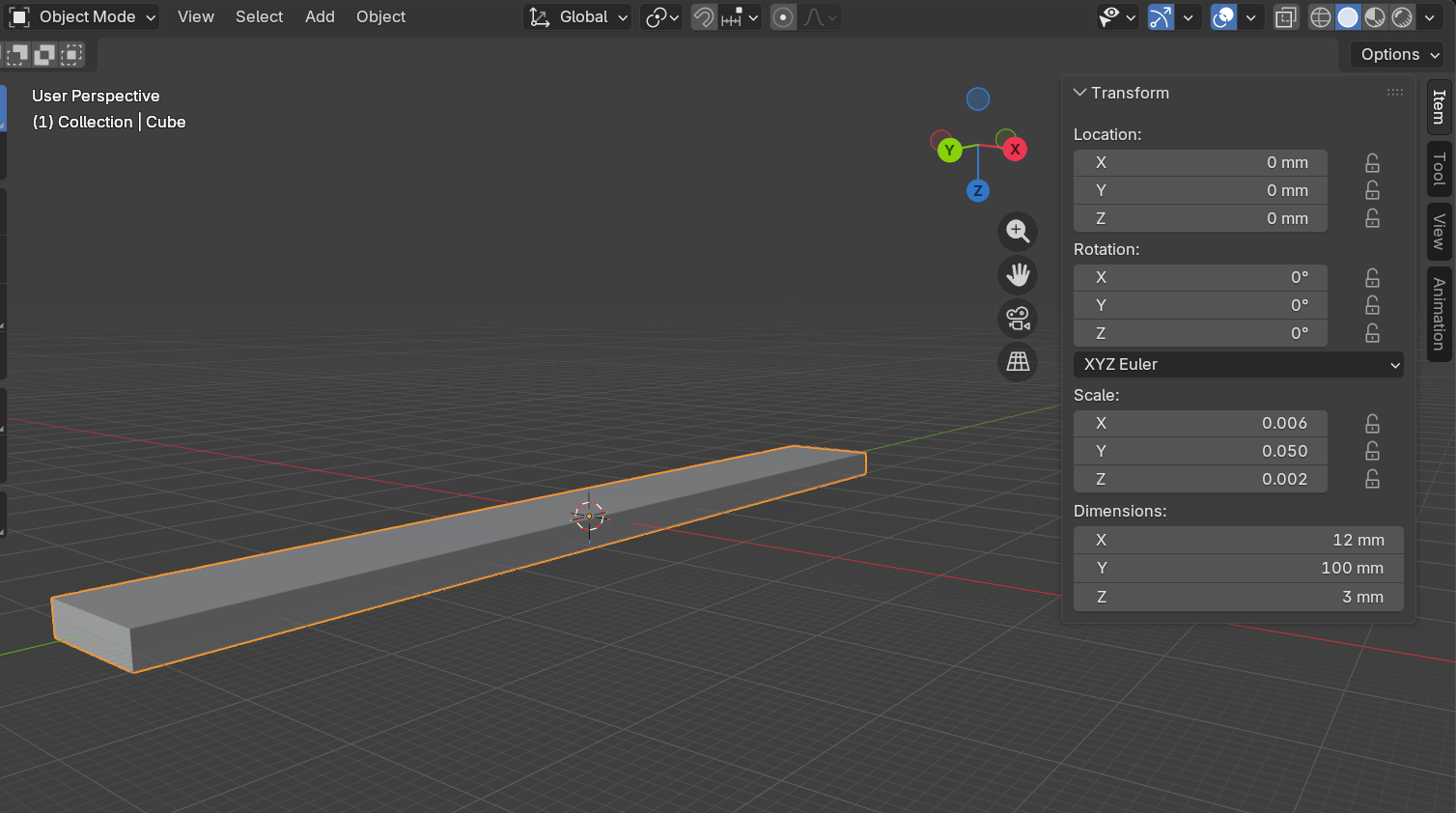
Changing dimensions
Camera 1
Changing dimensions
Camera 1
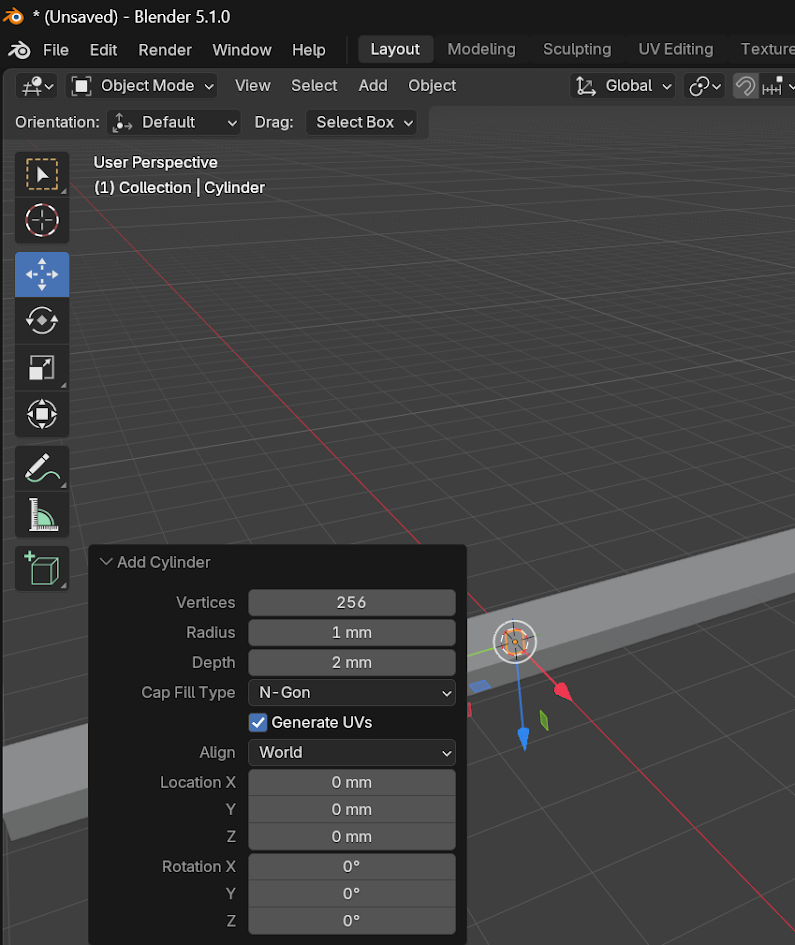
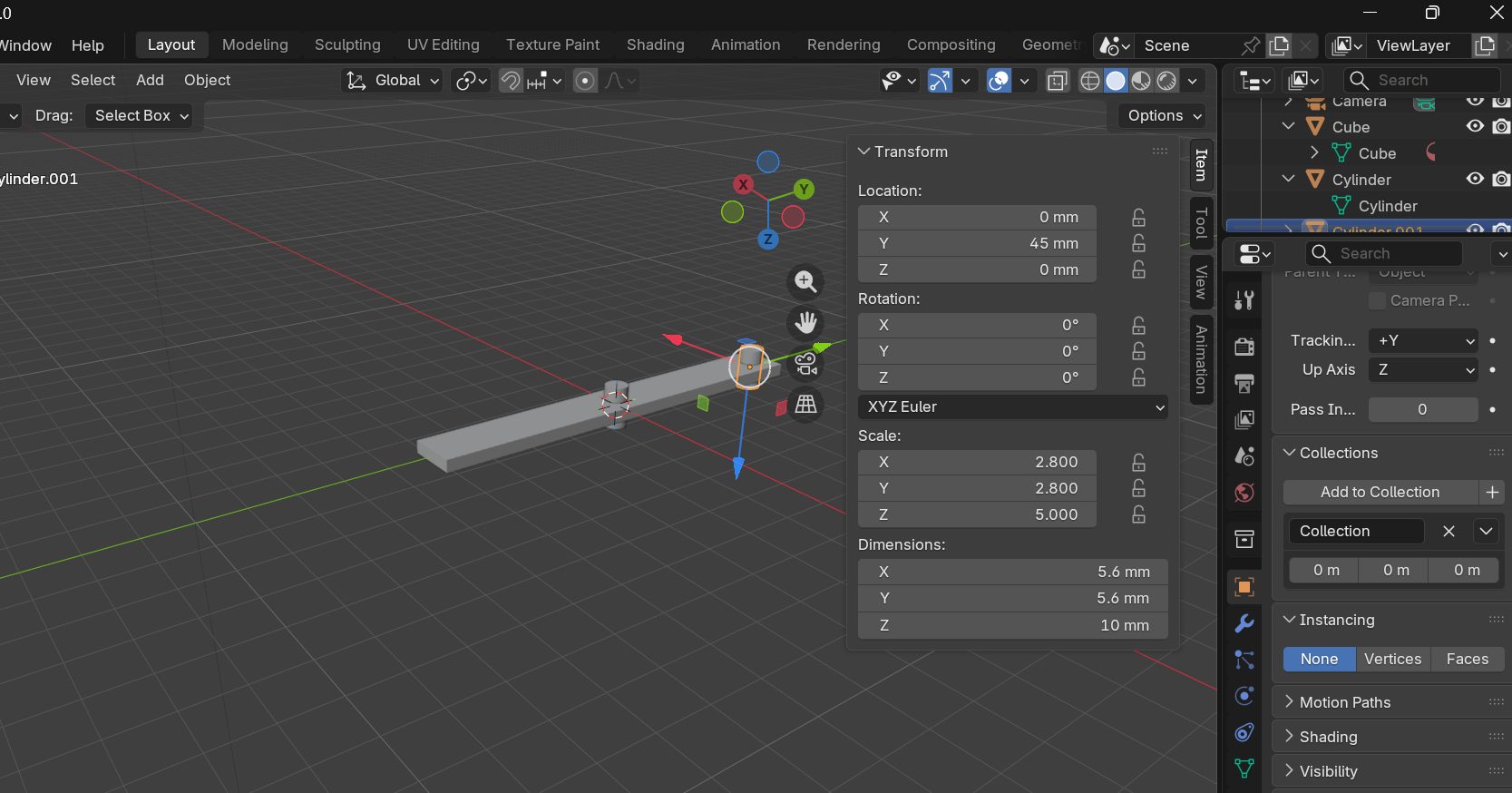
Adding cylinder
Camera 1
Setting cylinder properties
Camera 1
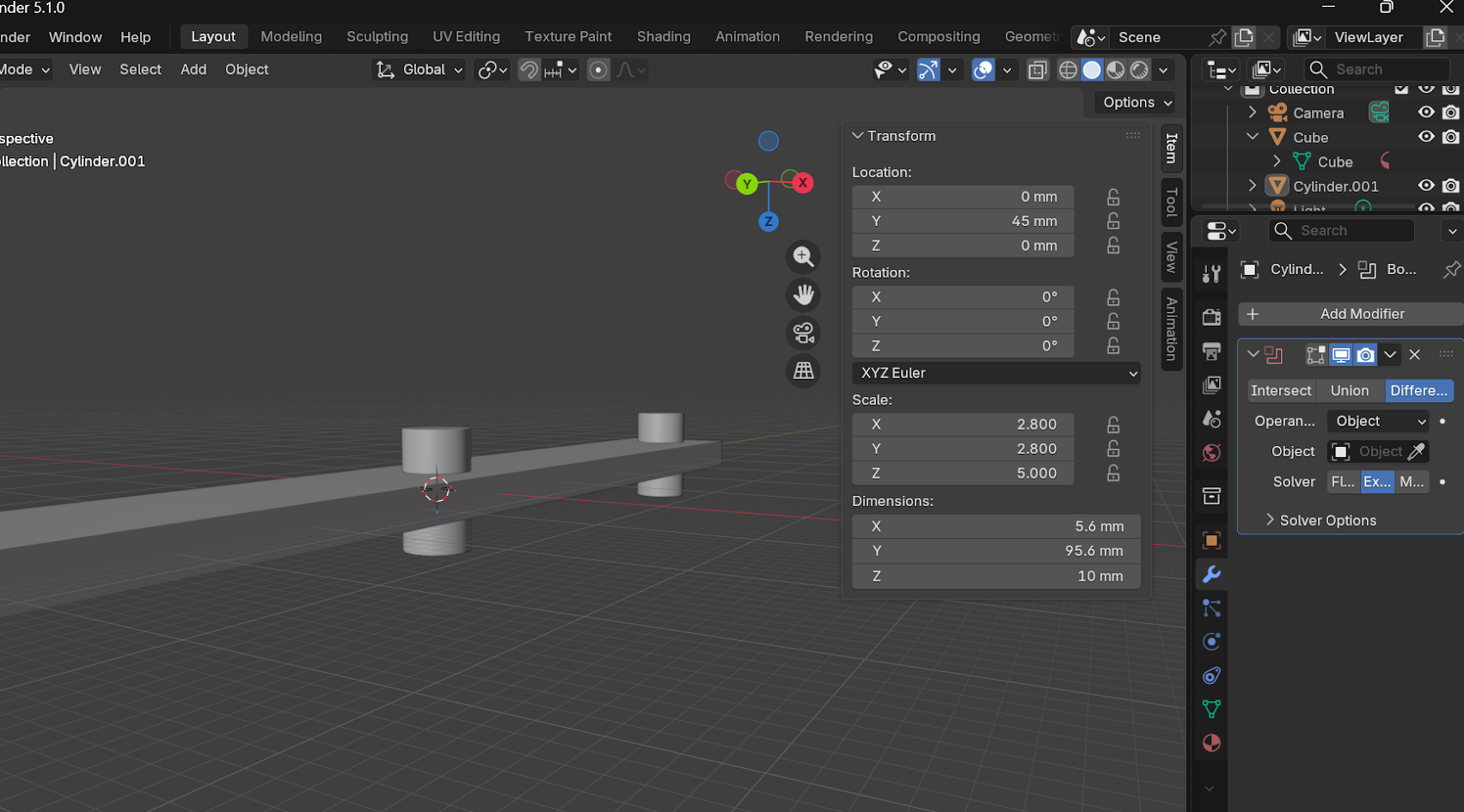
Duplicating cylinders
Camera 1
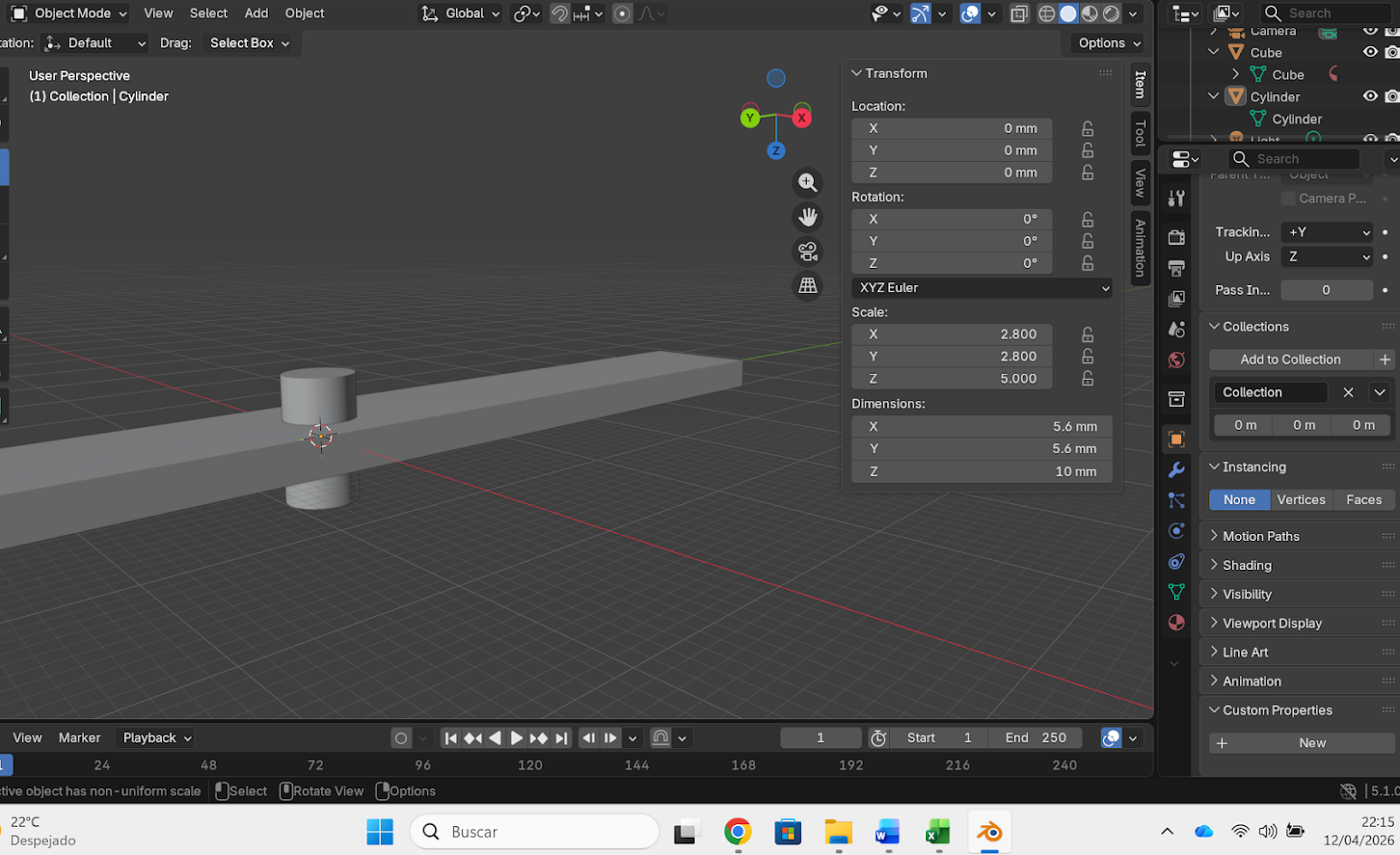
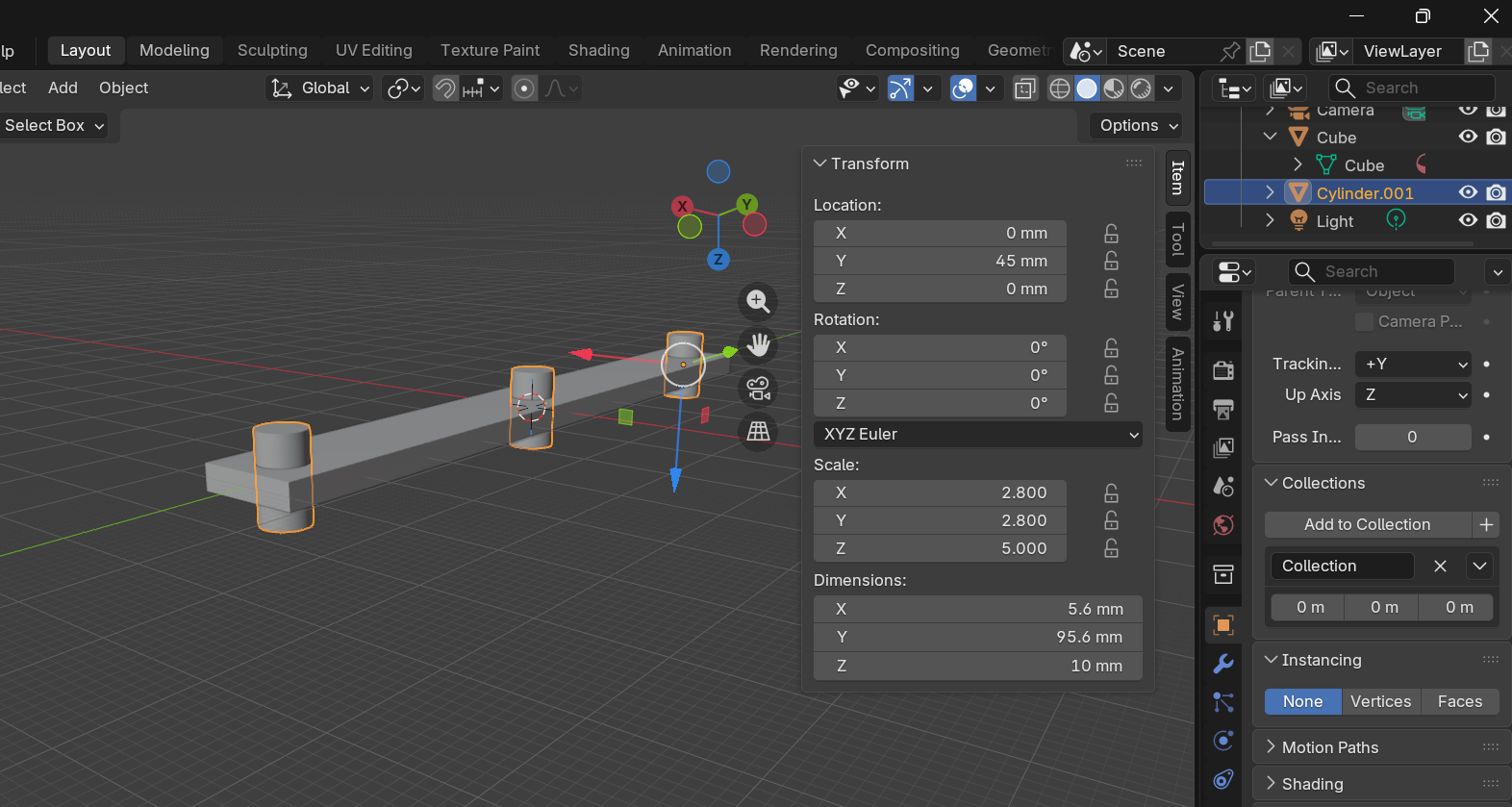
Cylinder dimensions
Camera 1
Cylinders scale
Camera 1
Cylinders location
Camera 1
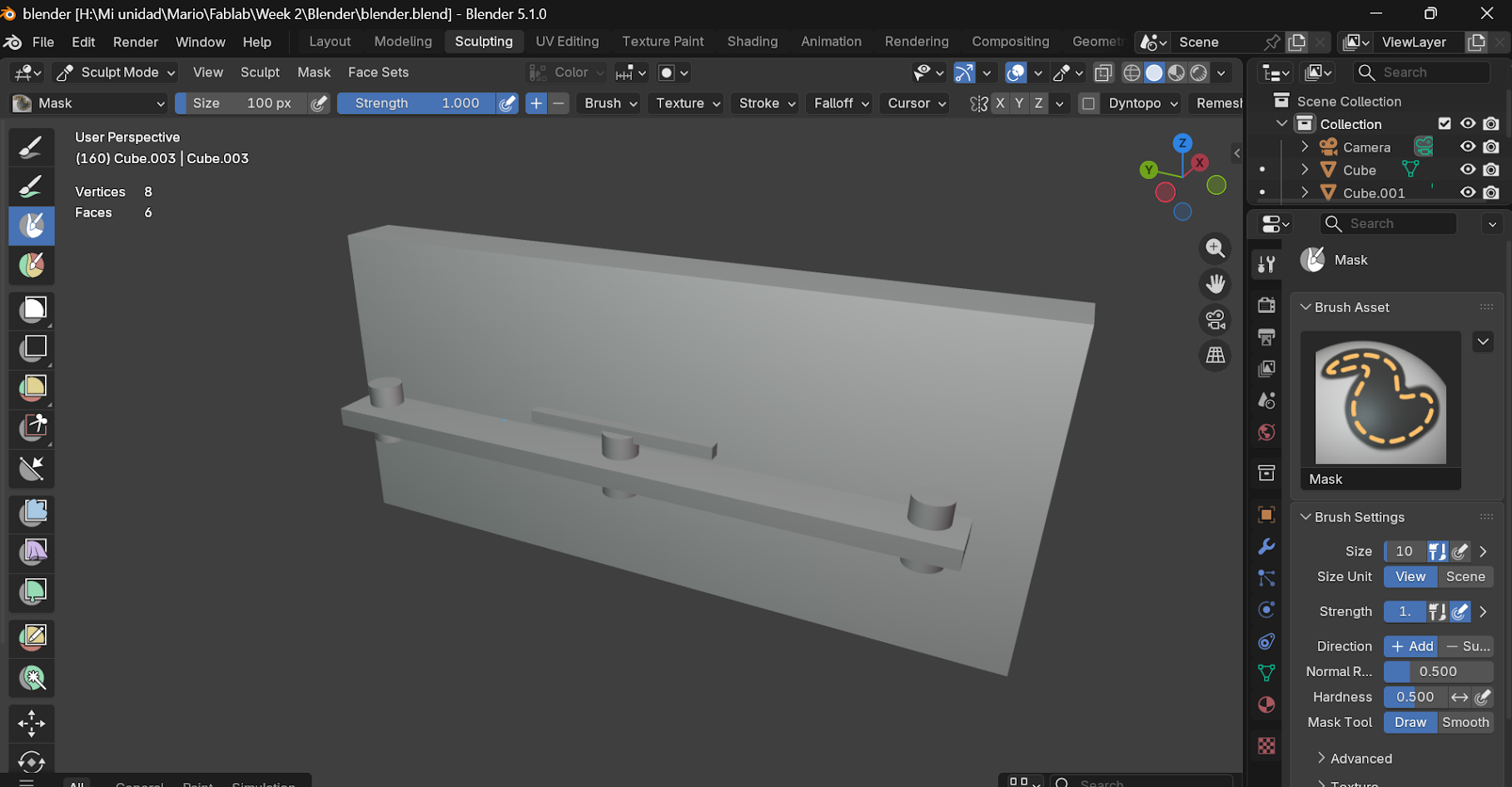
Adding objects

5) A parametric design explanation

What is a parametric design

- Design approach using parameters (variables) and rules, instead of drawing a fixed shape

- When you change parameters, the design automatically update

- Useful for fast iterations, easy customization, and control complex geometries

- We used Blended in this example
Camera 1
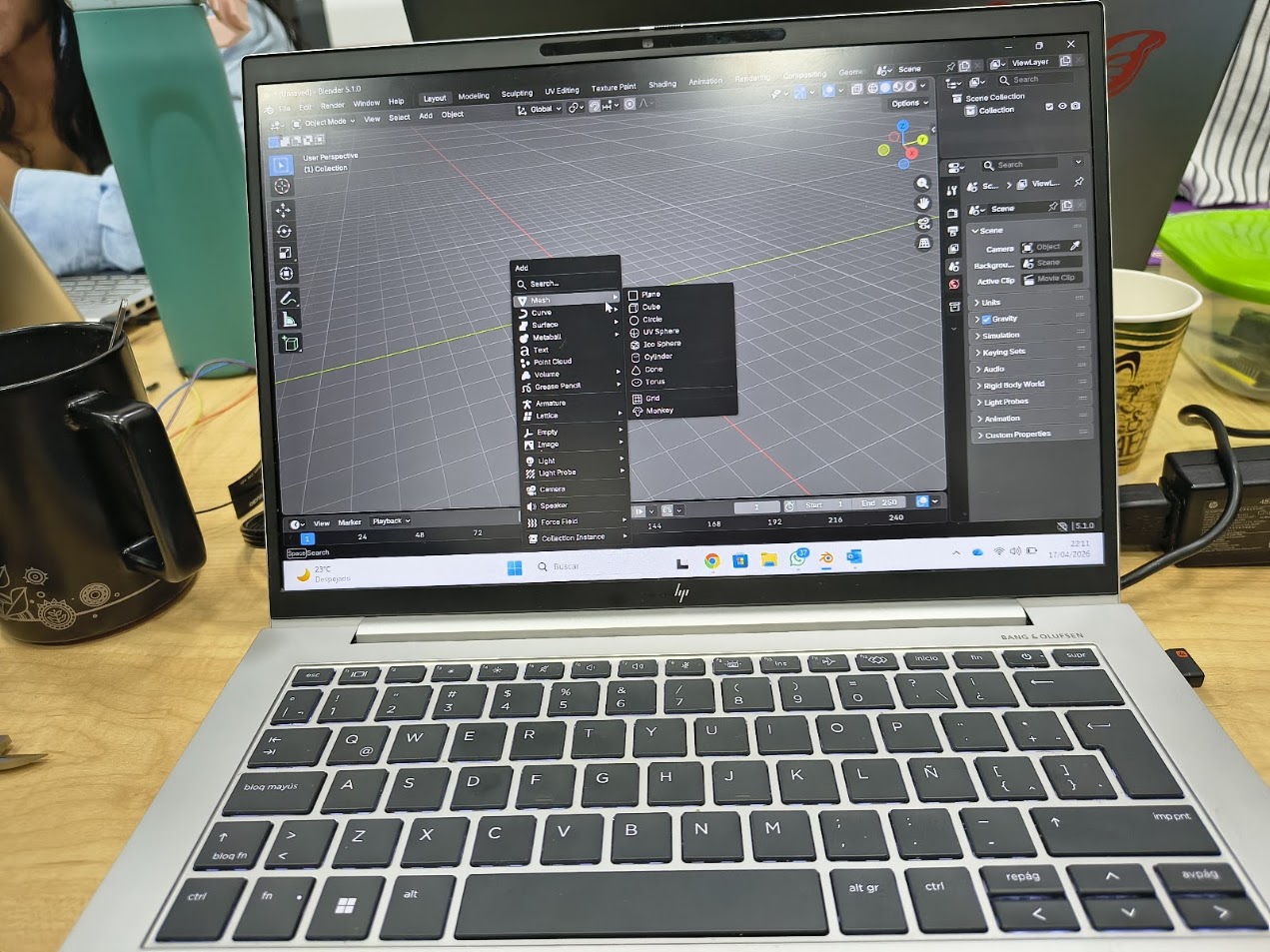
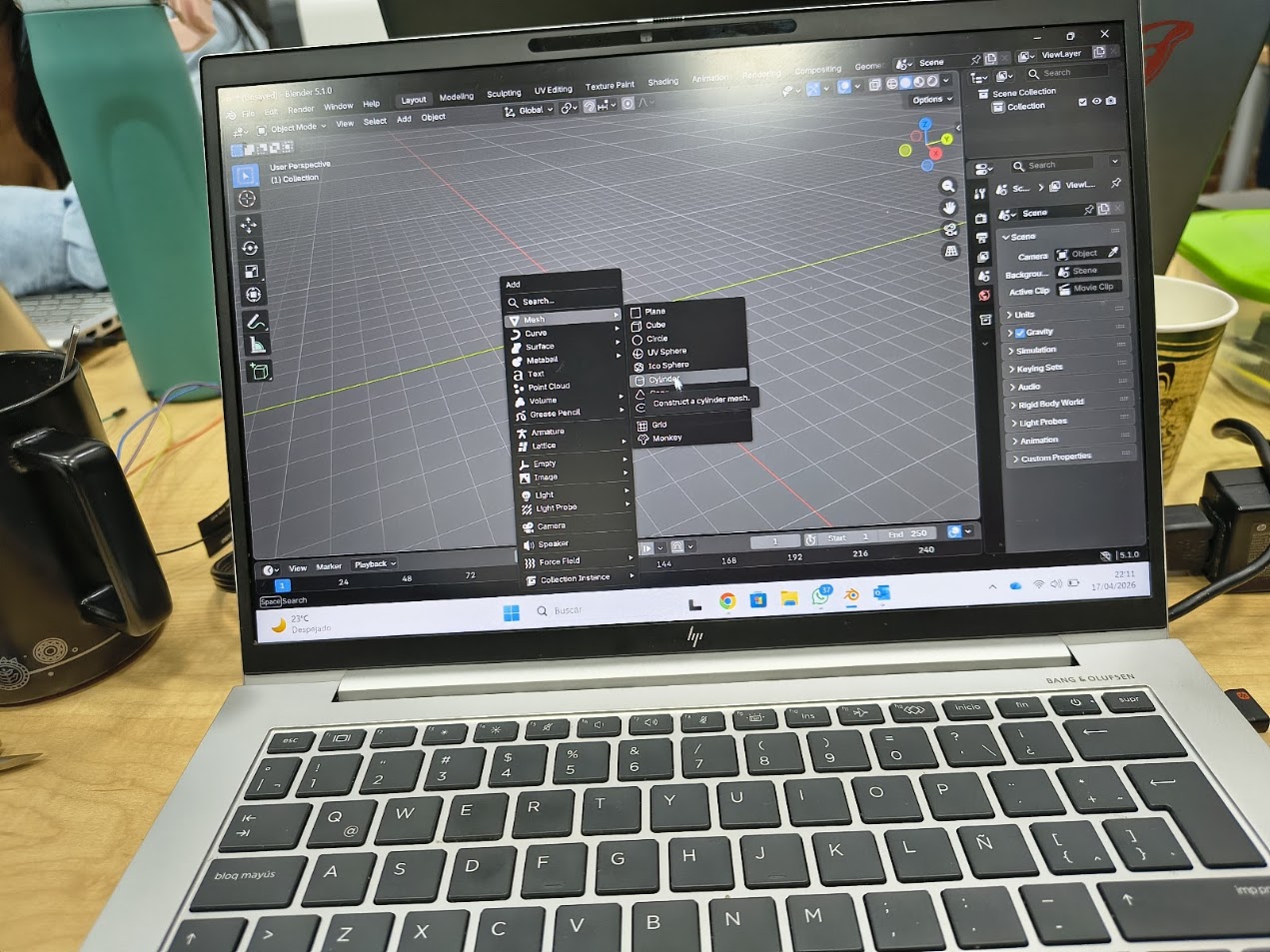
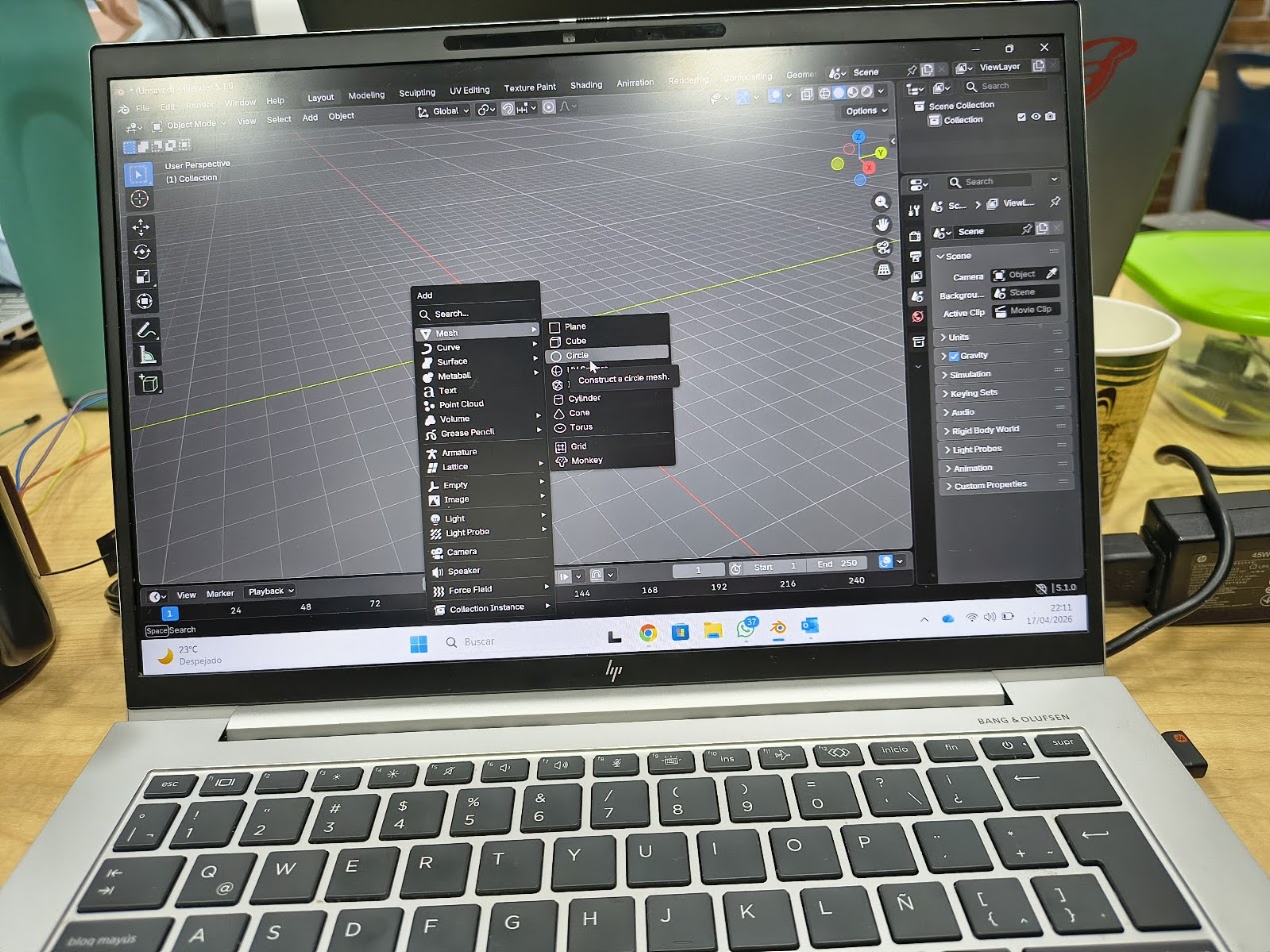
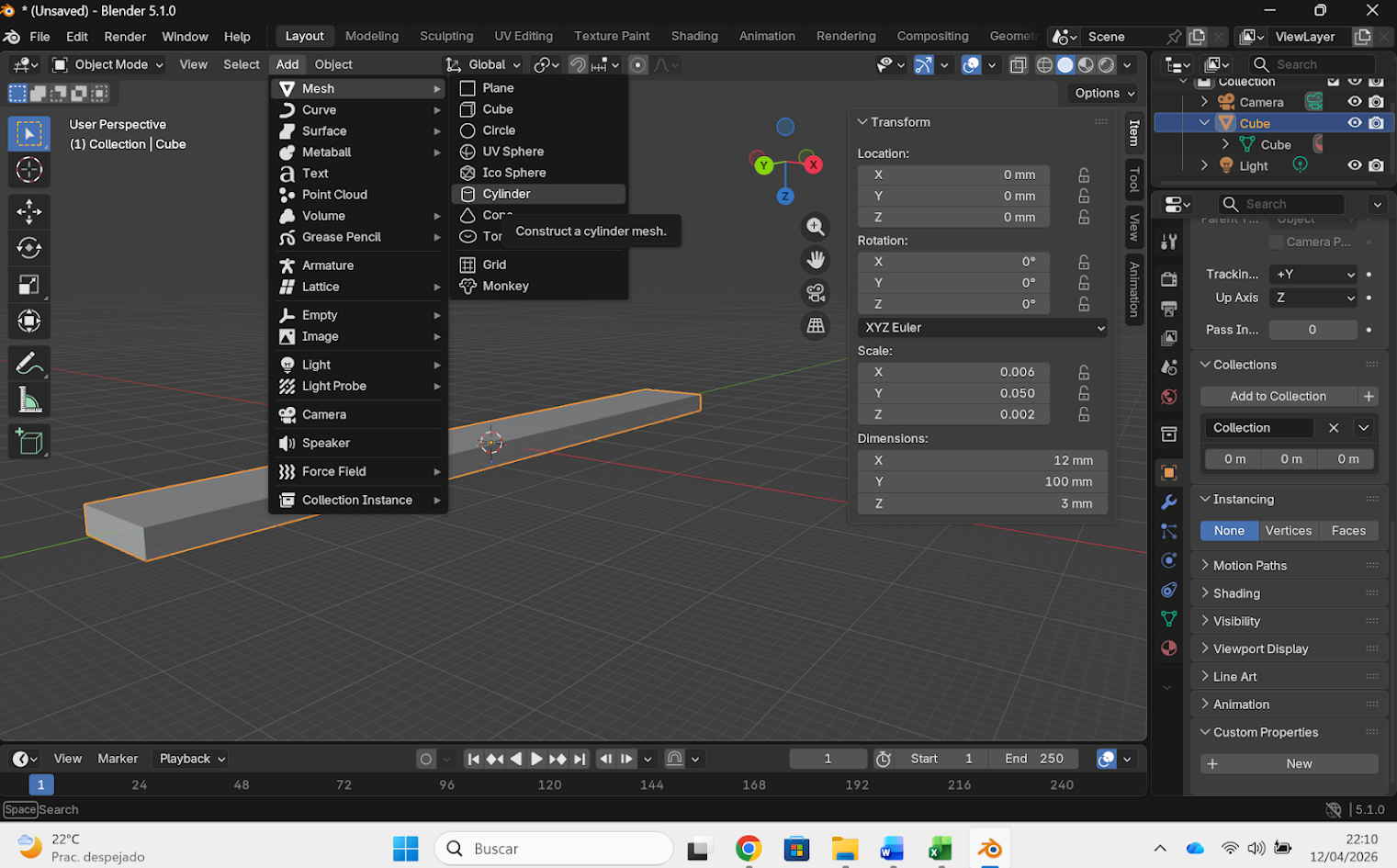
We used Blender 5 - Object mode - Add Mesh - For this project, we evaluated two possibilities: circle or cylinder
Camera 1
Mesh -construct a cylinder mesh option
Camera 1
We decided construct a circle and use parametric design to contruct the cylinder
Camera 1
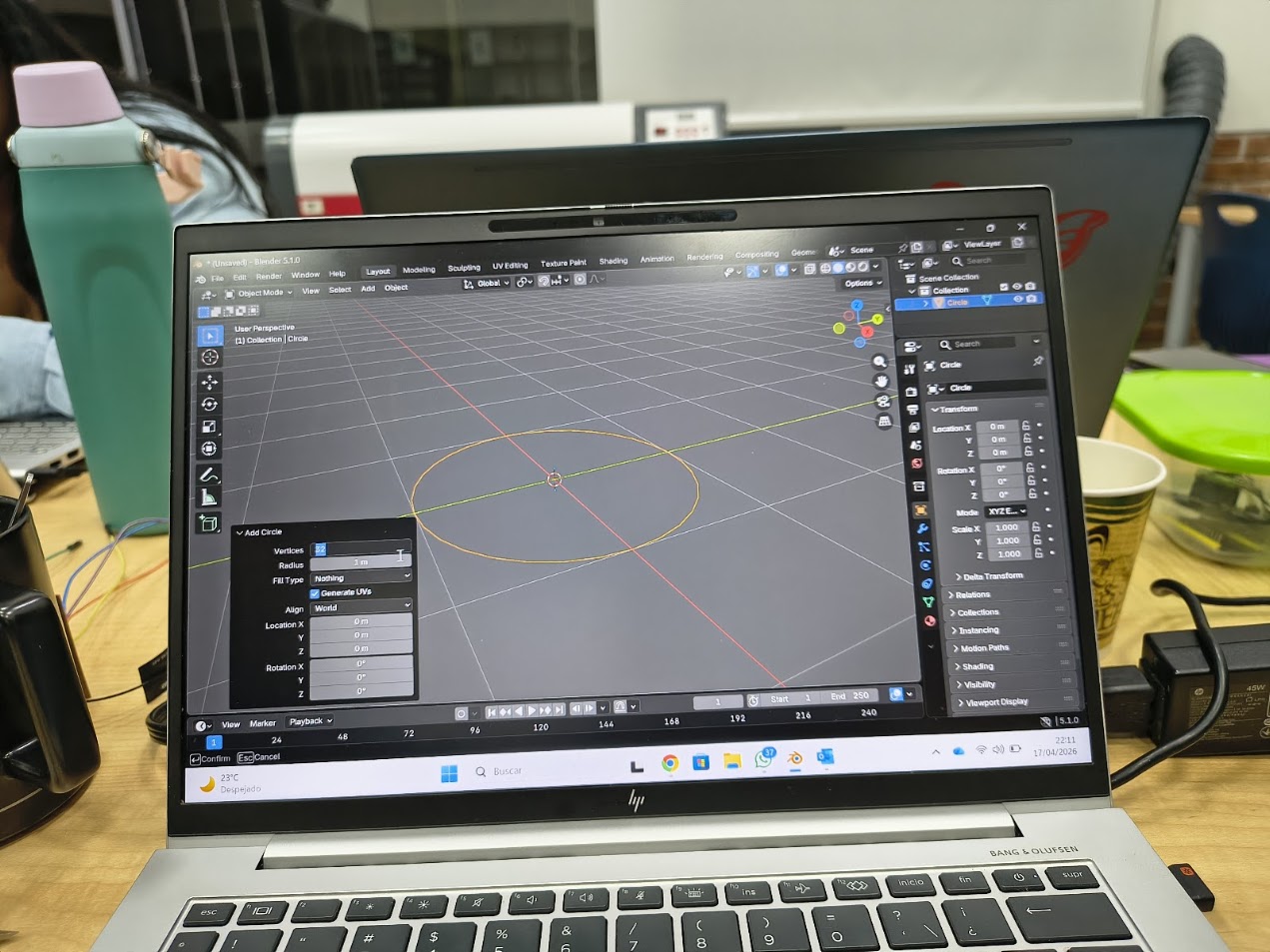
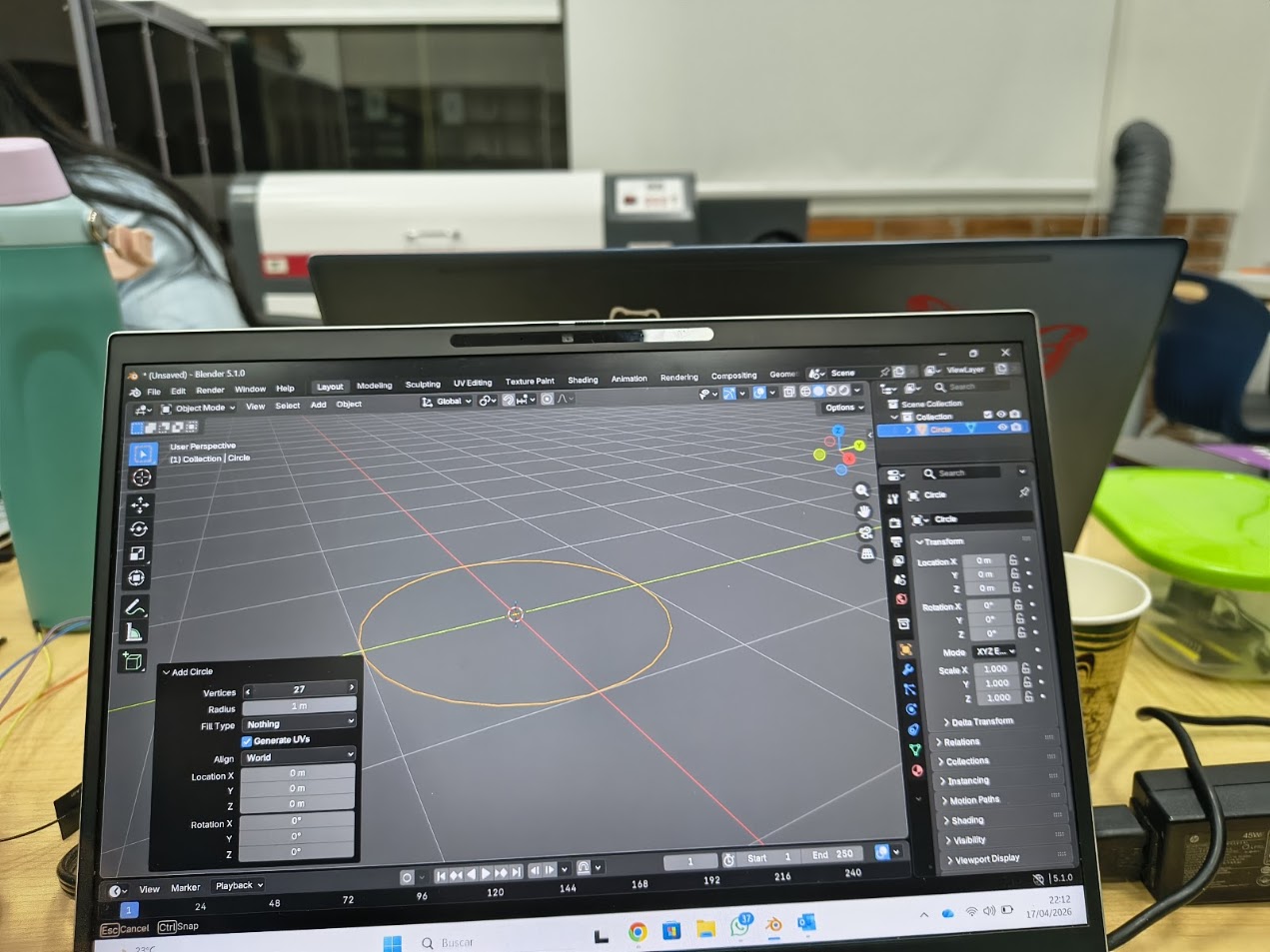
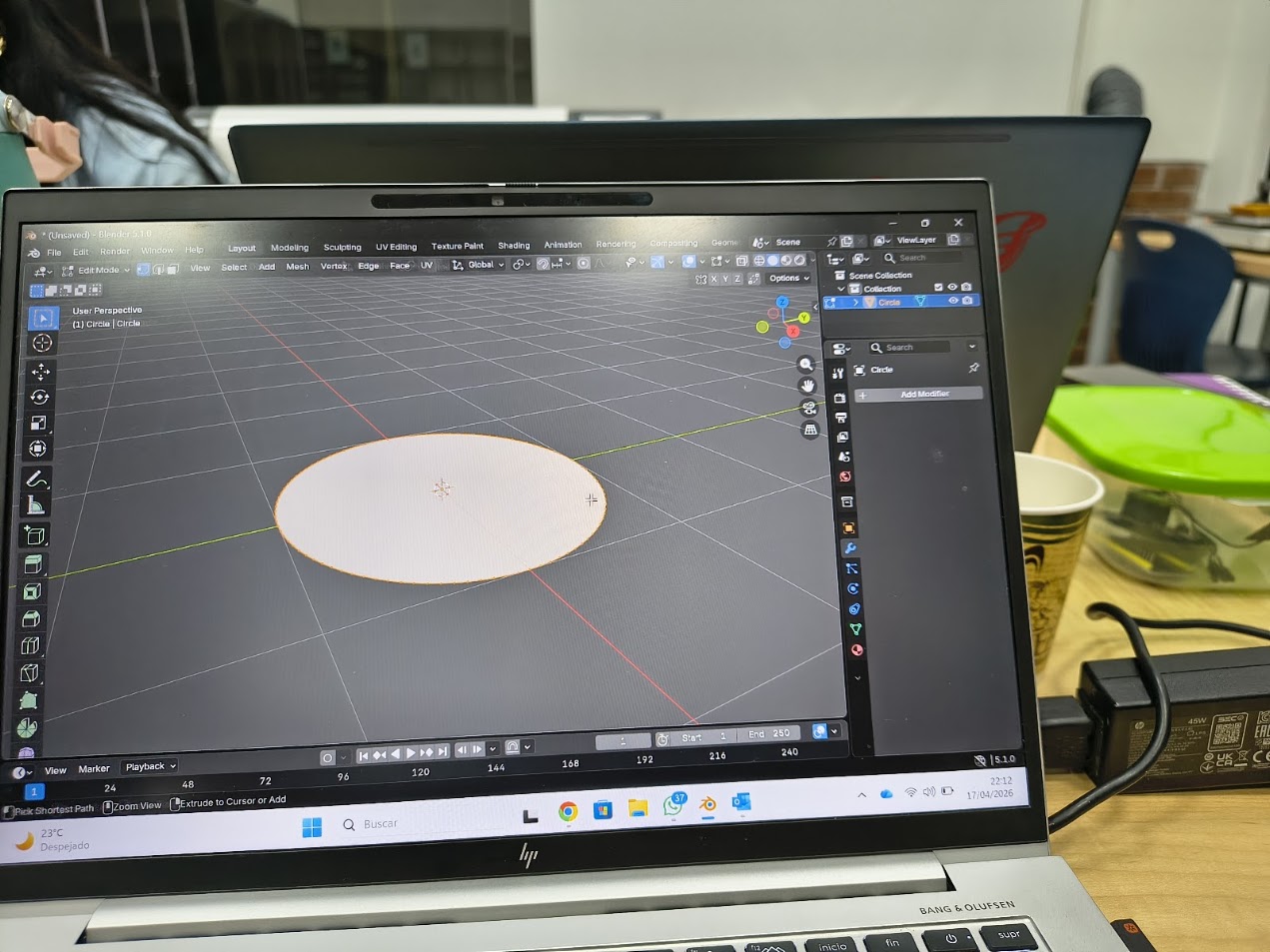
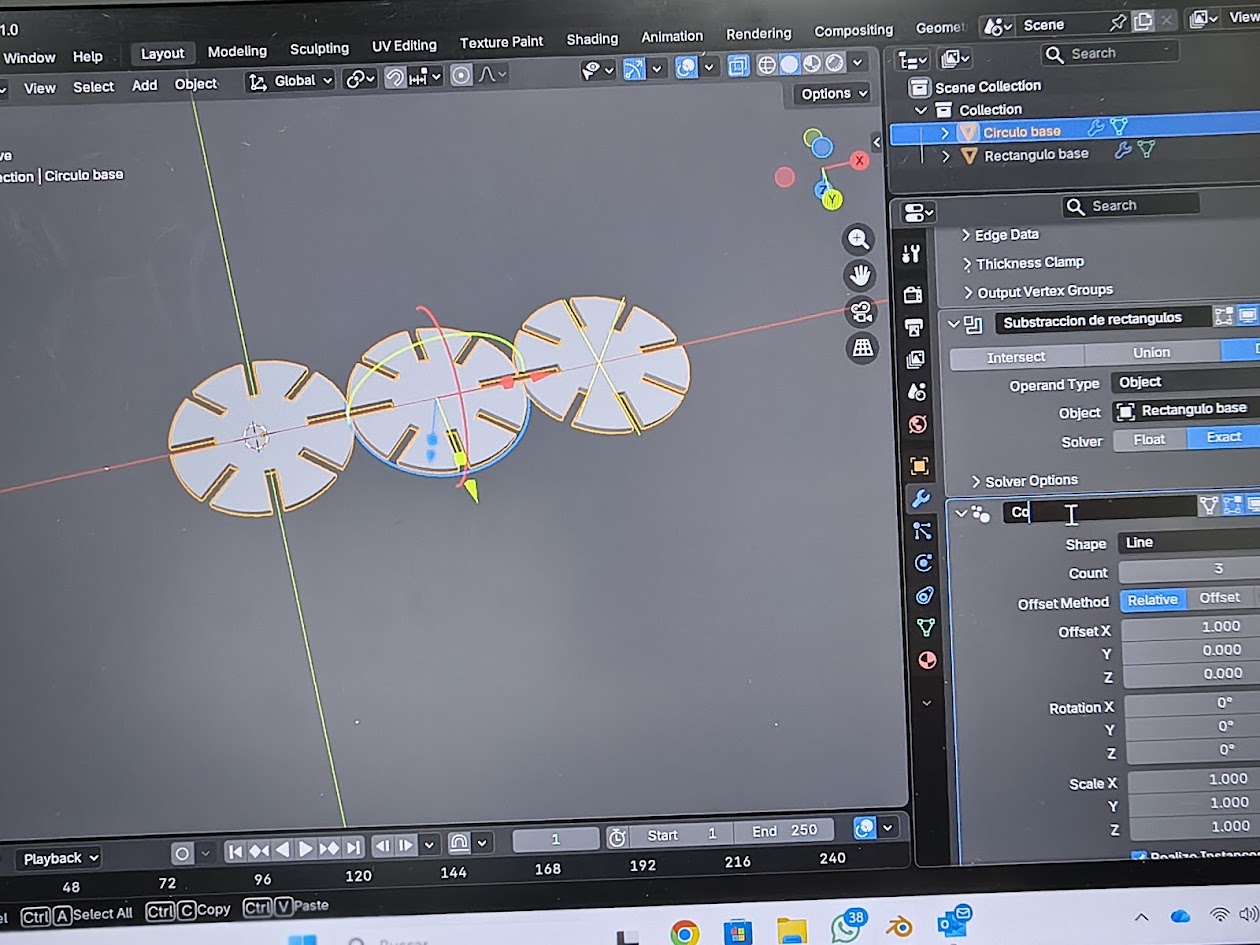
We added a circle, and setup radius, location, rotations
Camera 1
We reviewed vertices, we used 80
Camera 1
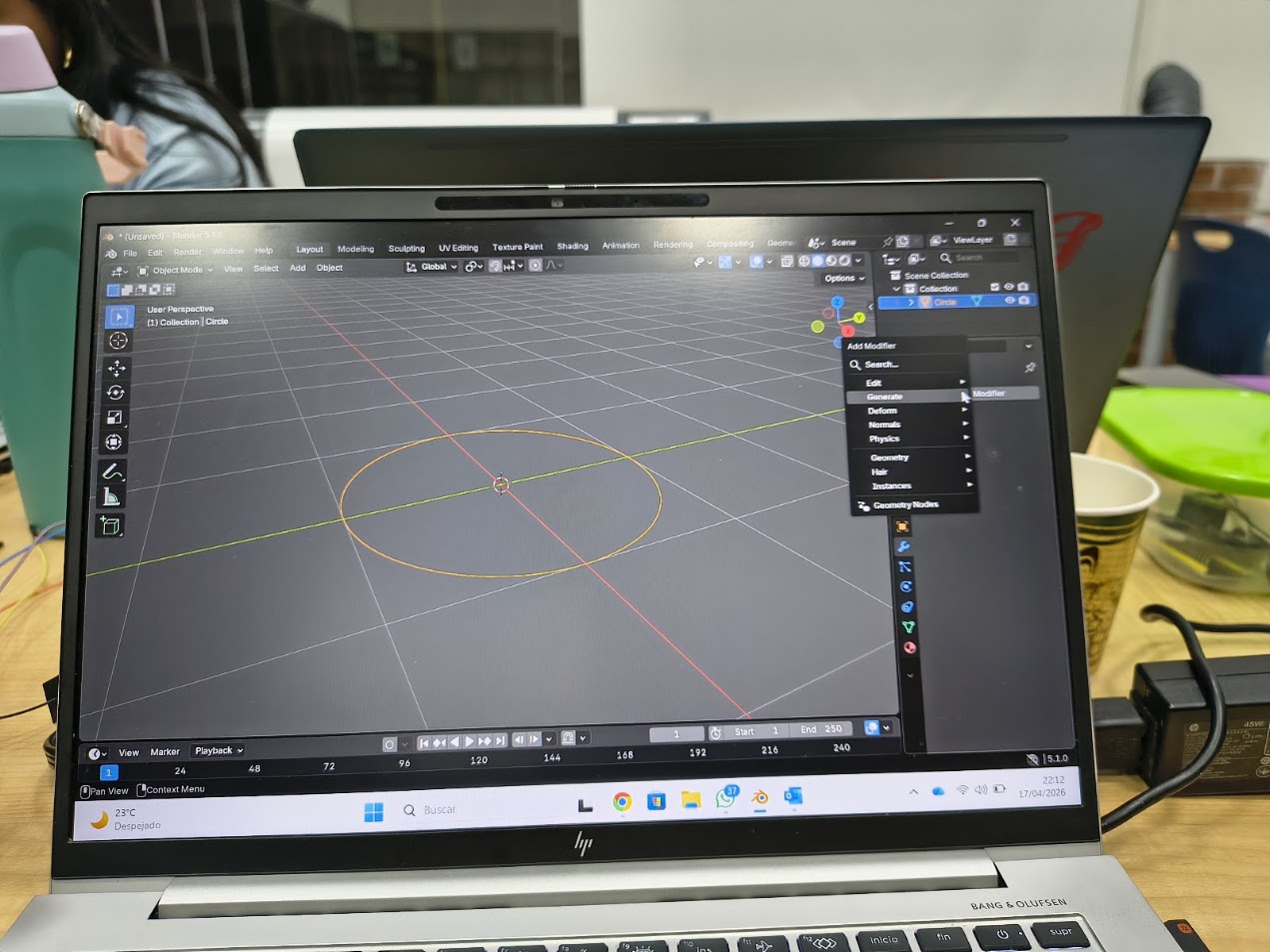
We added a modifier for generate one face
Camera 1
We added a modifier for generate one face
Camera 1
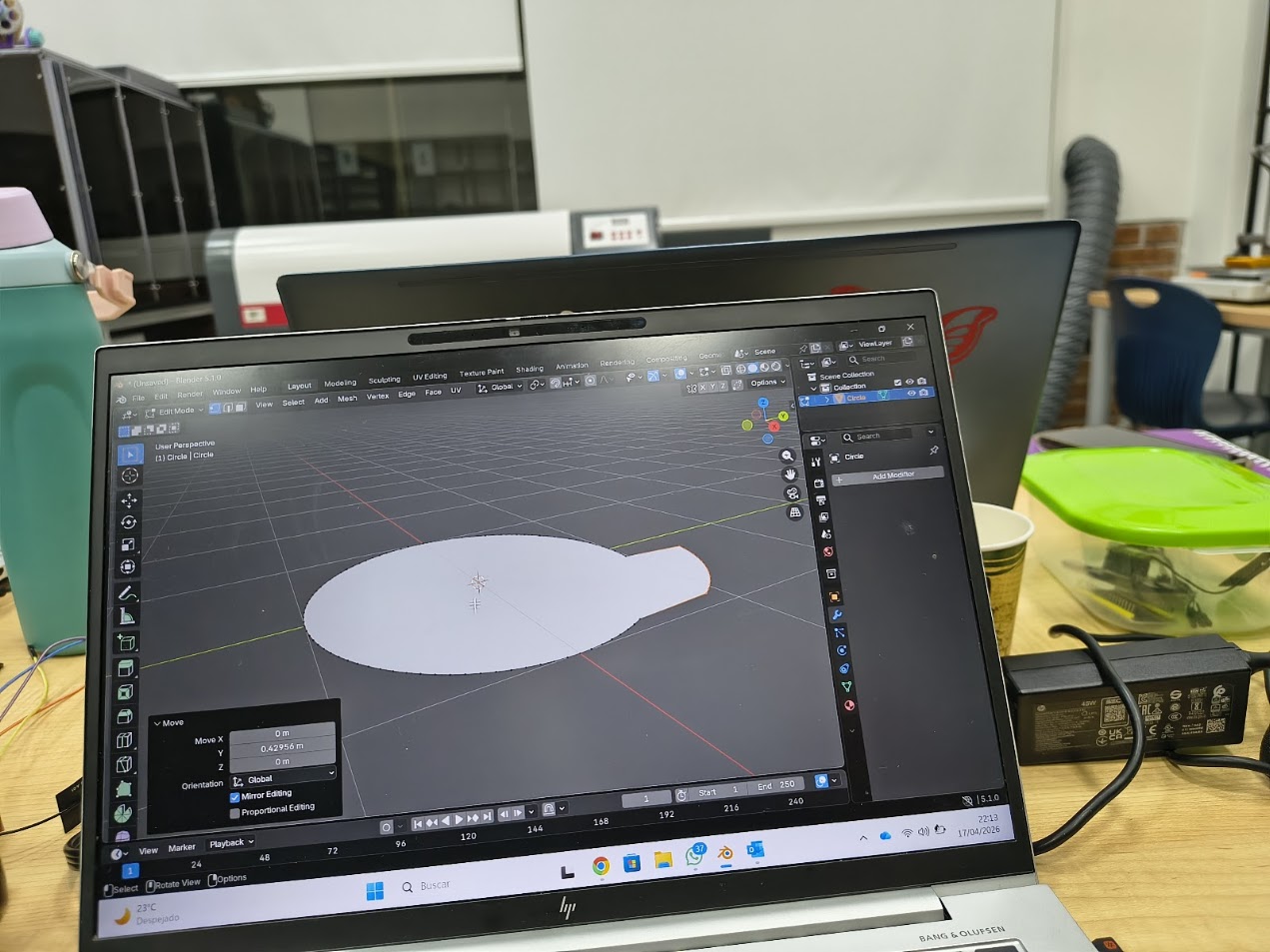
We moved the object and change position and other parameters
Camera 1
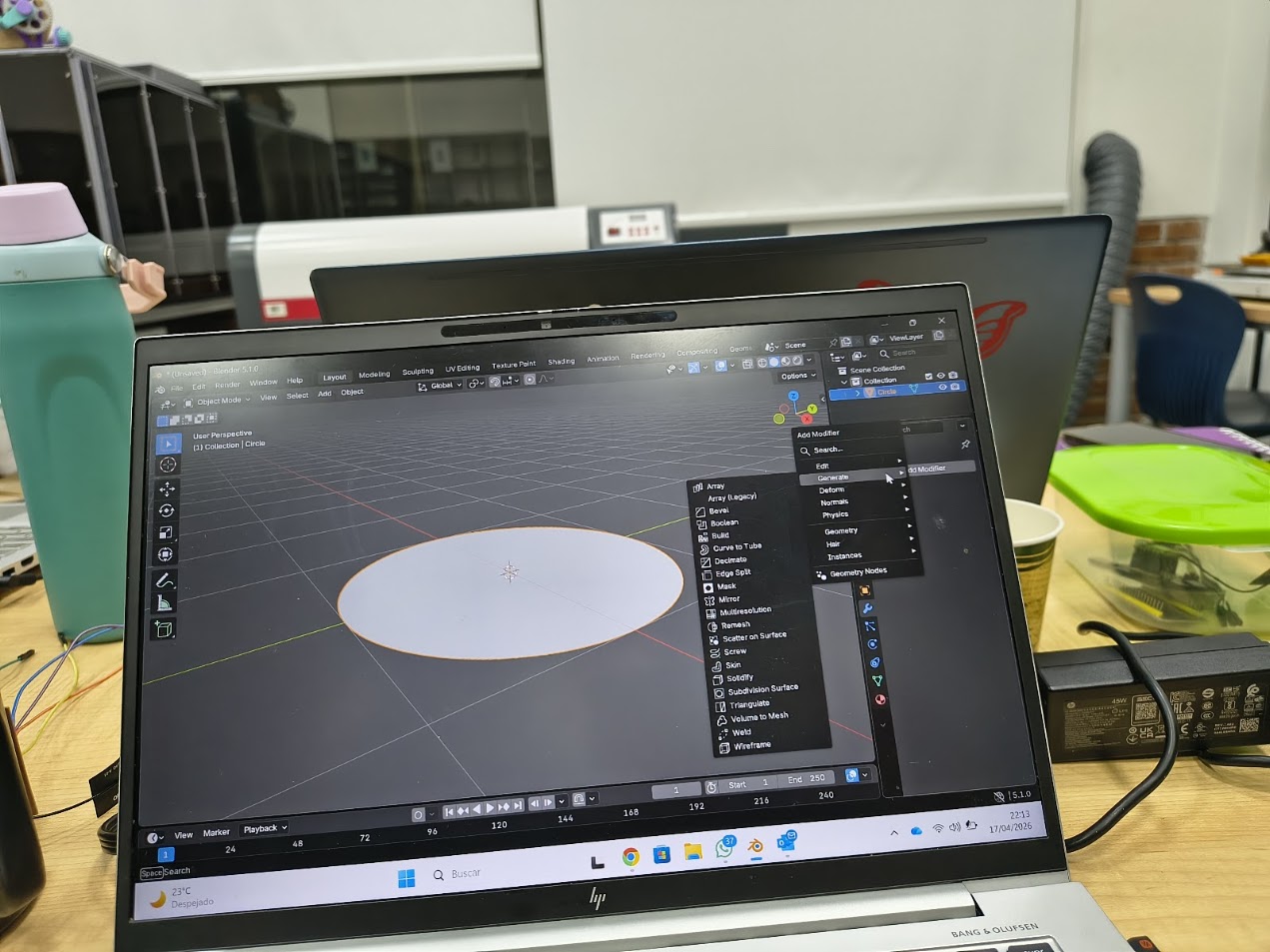
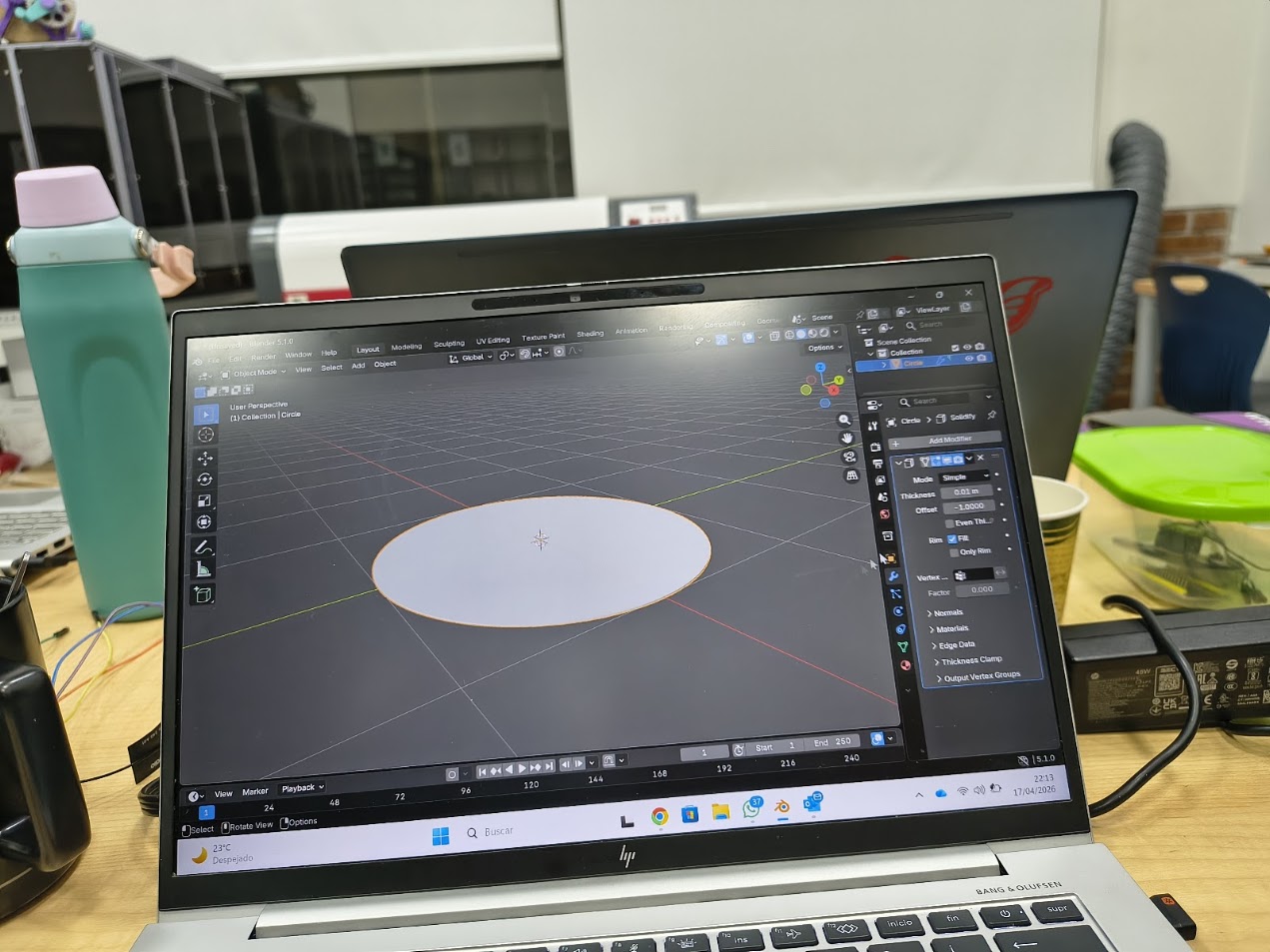
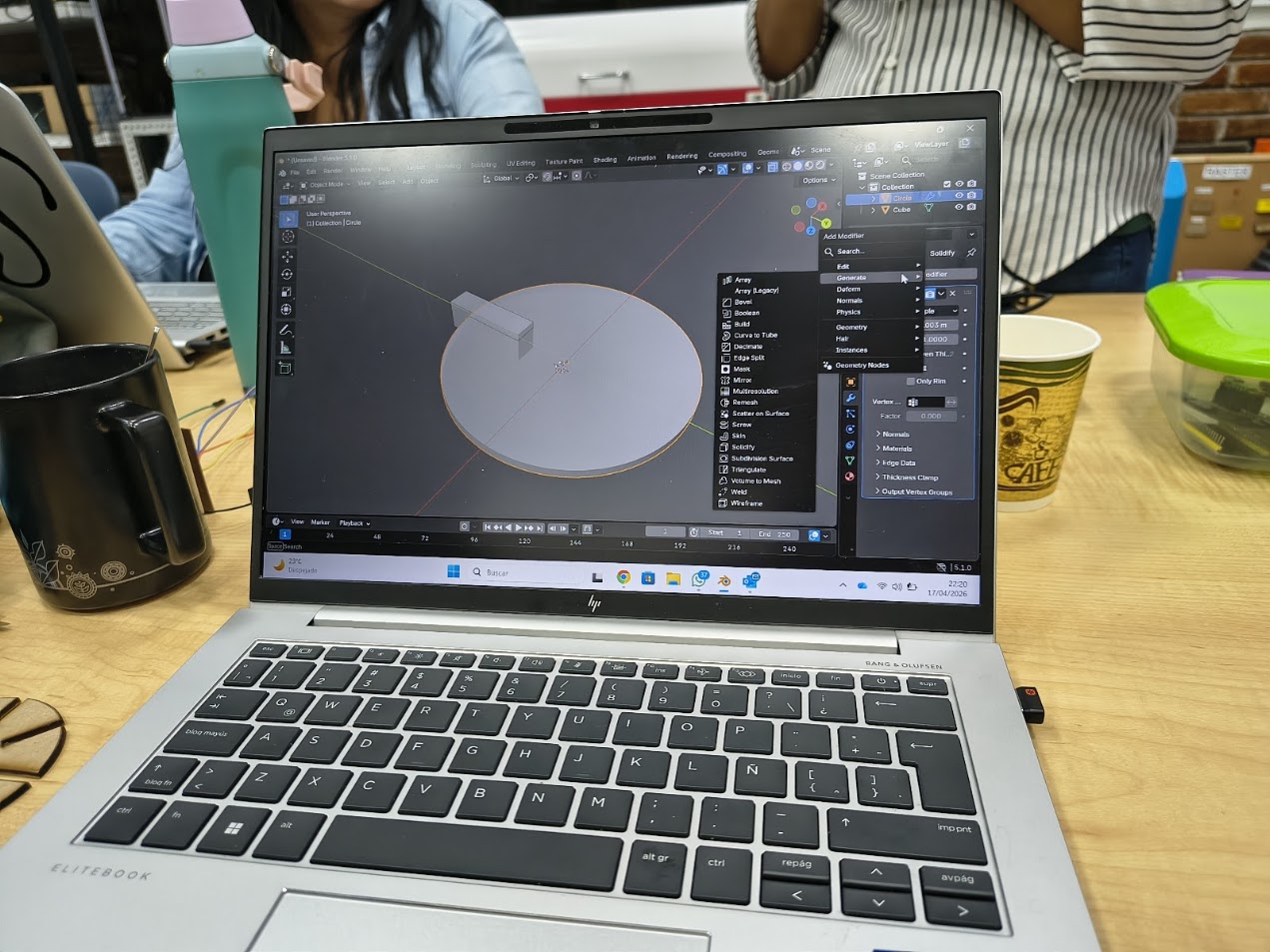
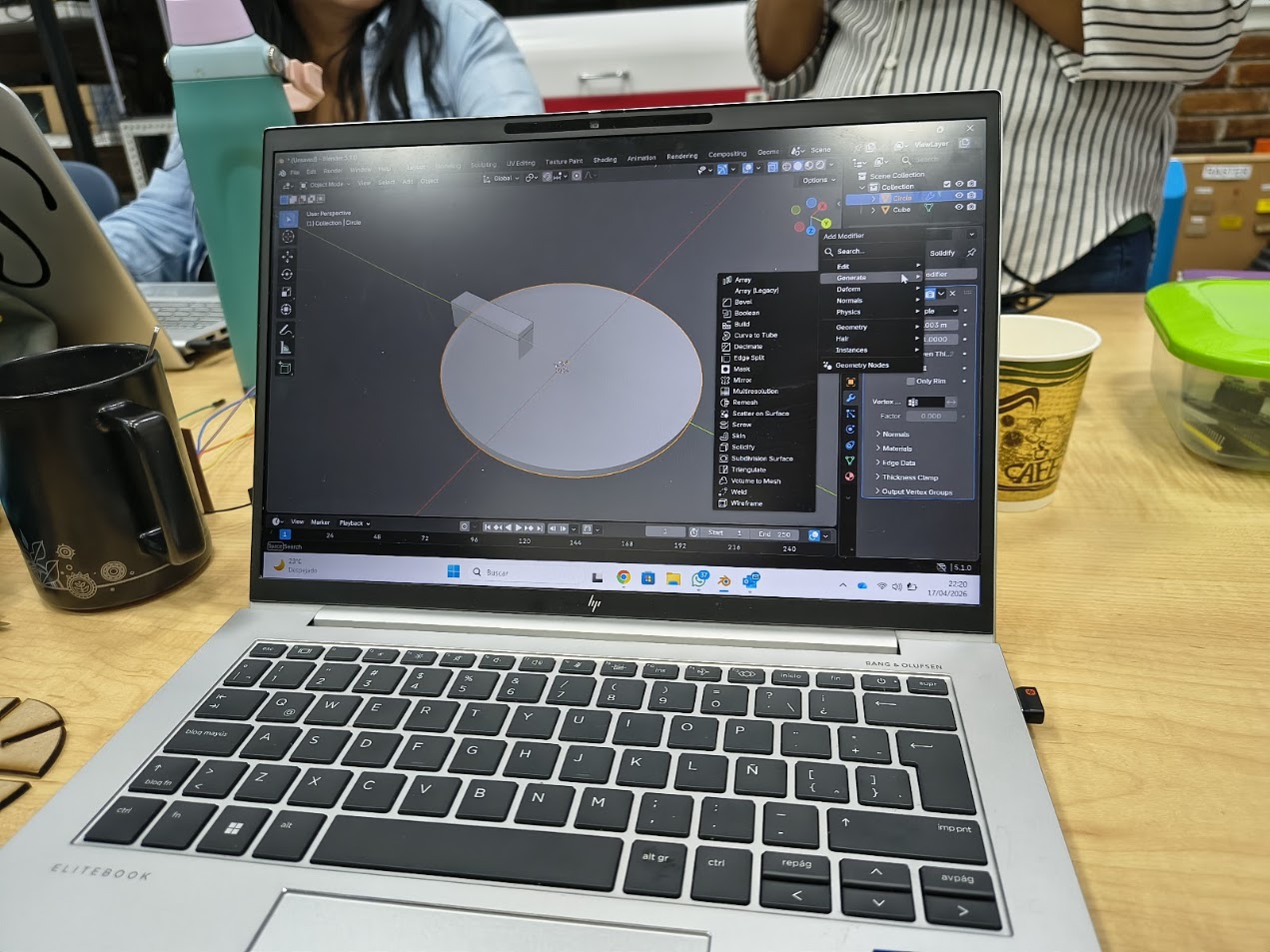
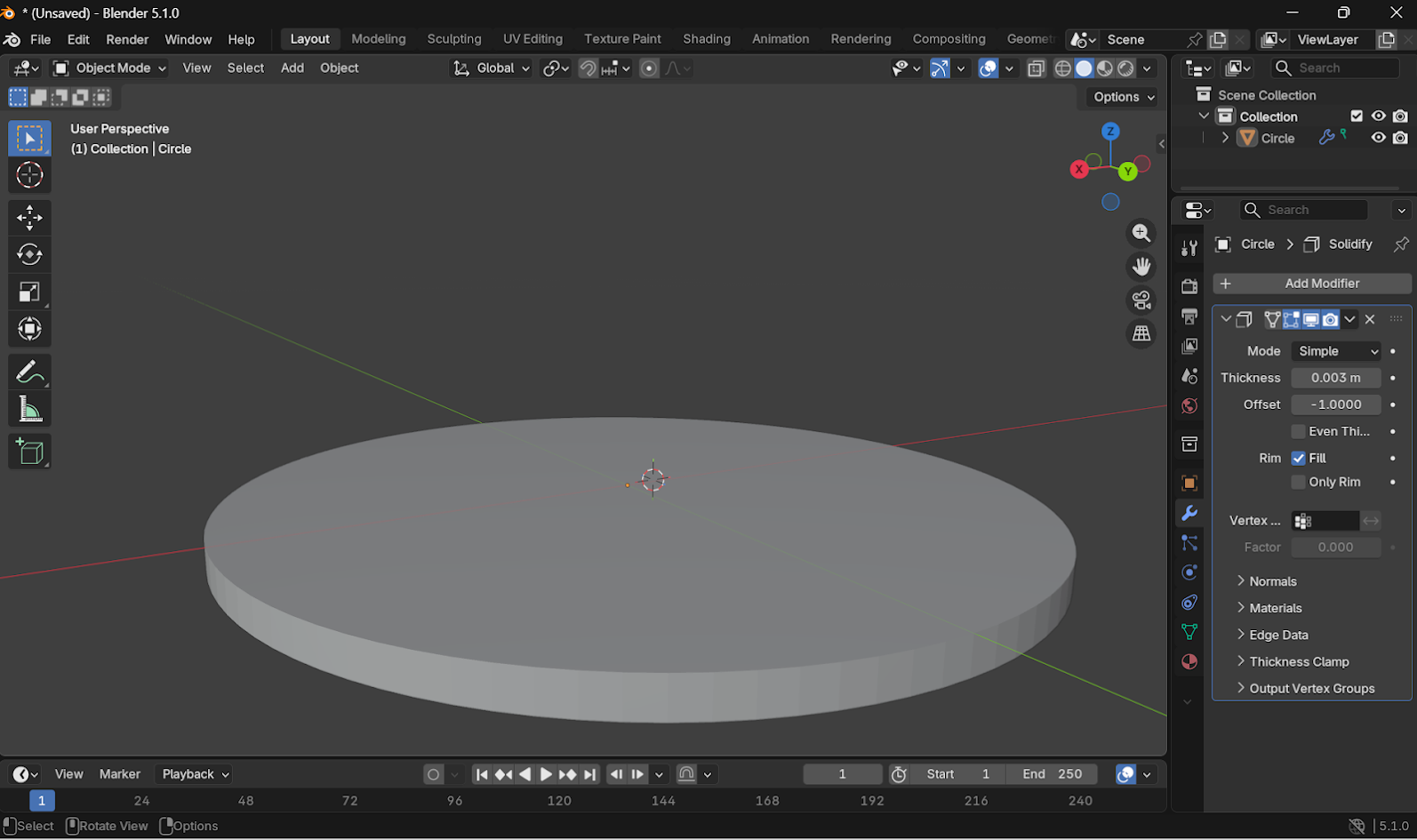
Add modifier - generate - solidfy
Camera 1
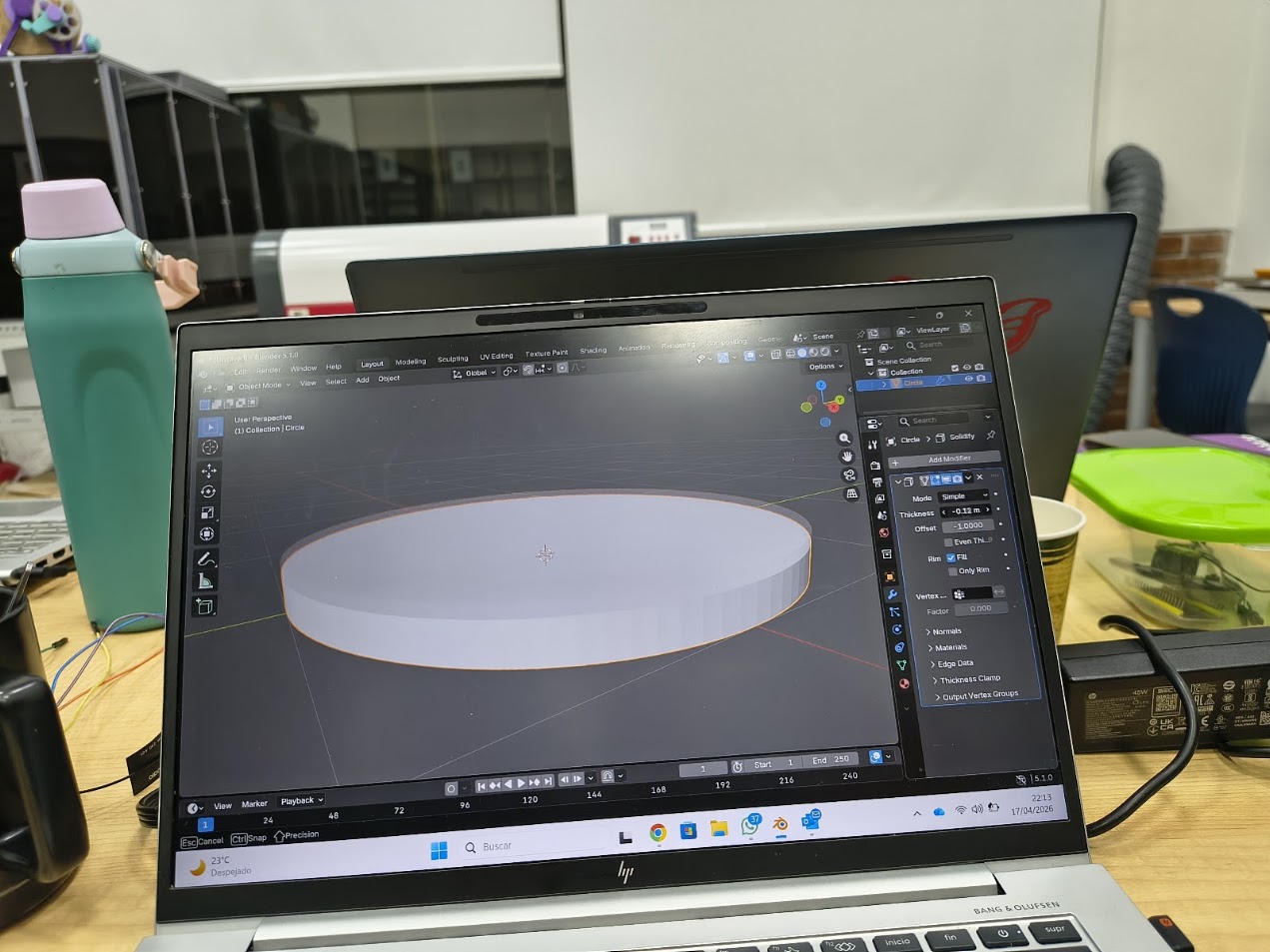
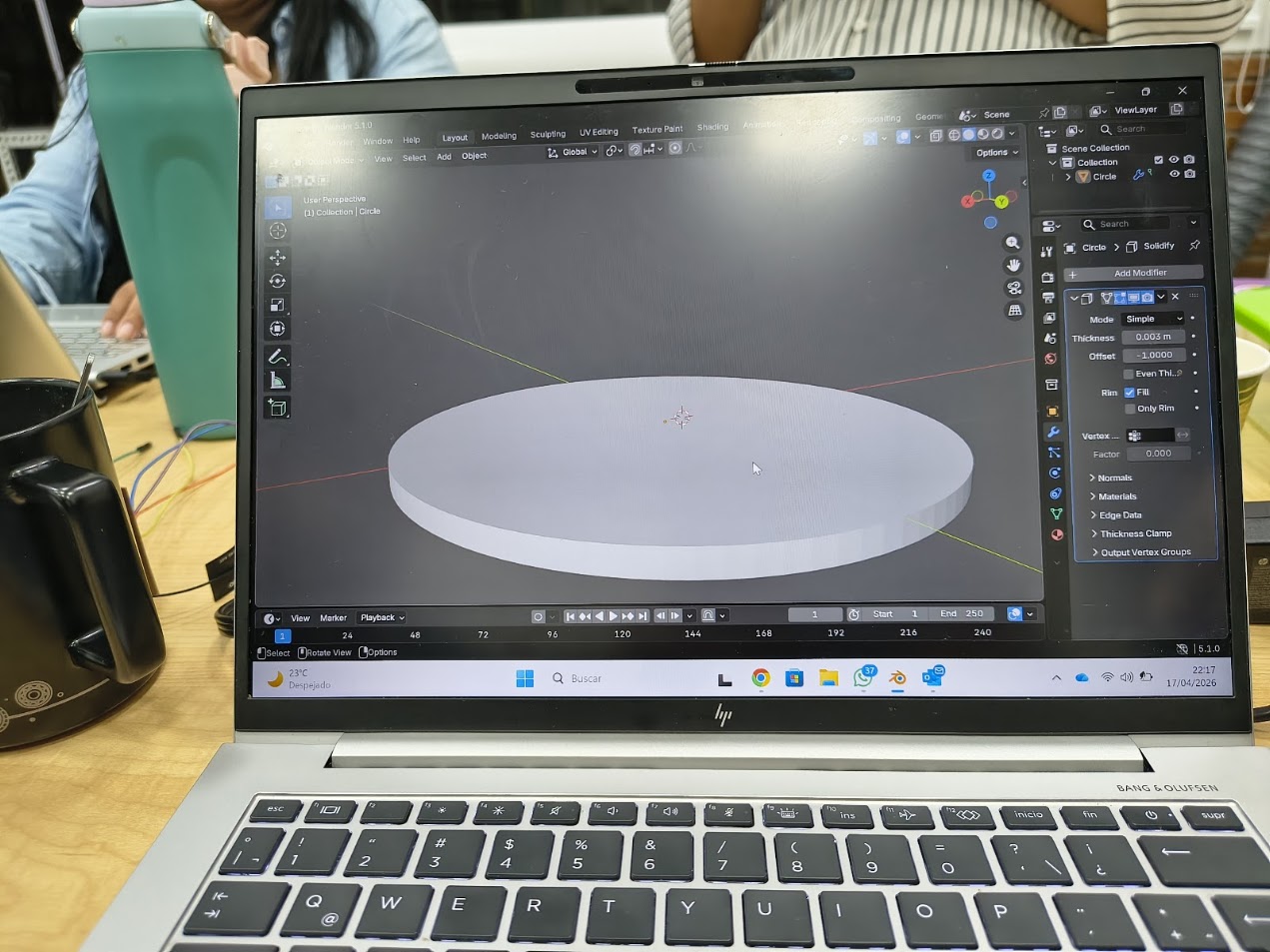
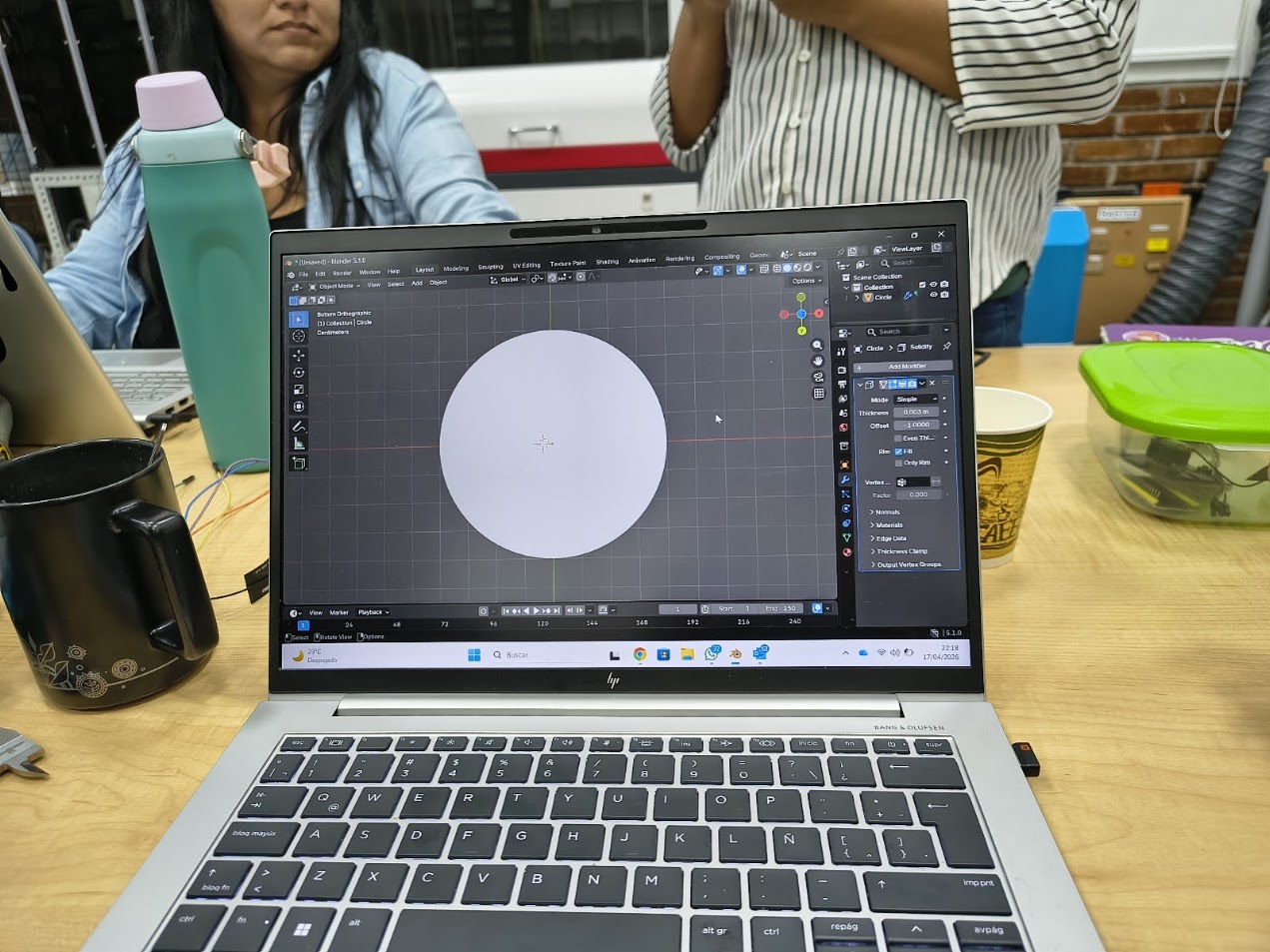
Thickness from 0.01 m to 0.0003 offset -1 Rim Fill
Camera 1
Changing thickness
Camera 1
Cylinder
Camera 1
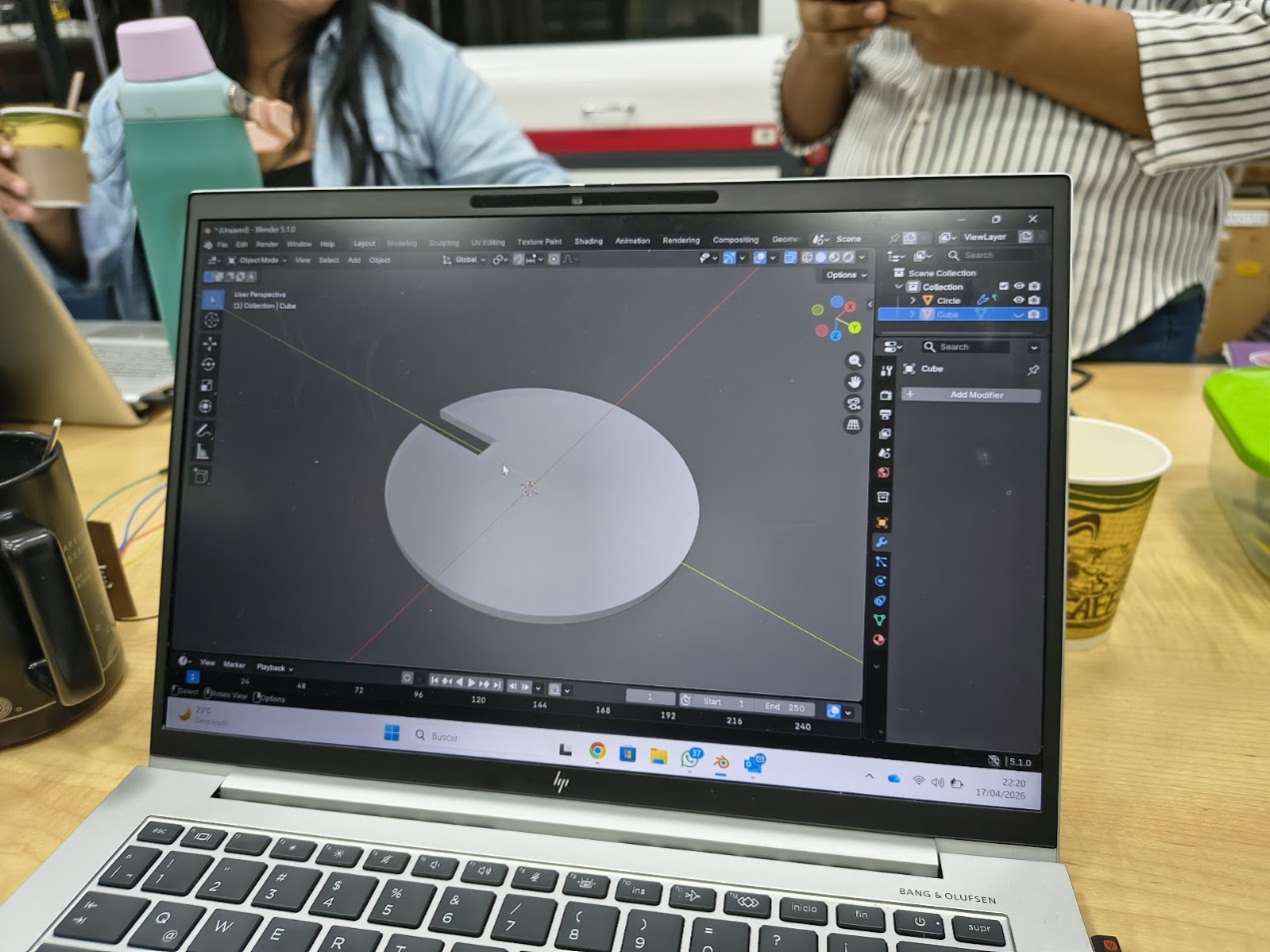
XY plane to generate holes
Camera 1
Generate a cube
Camera 1
Change the cube a solid
Camera 1
Solid in the cylinder
Camera 1
Turn off the solid
Camera 1
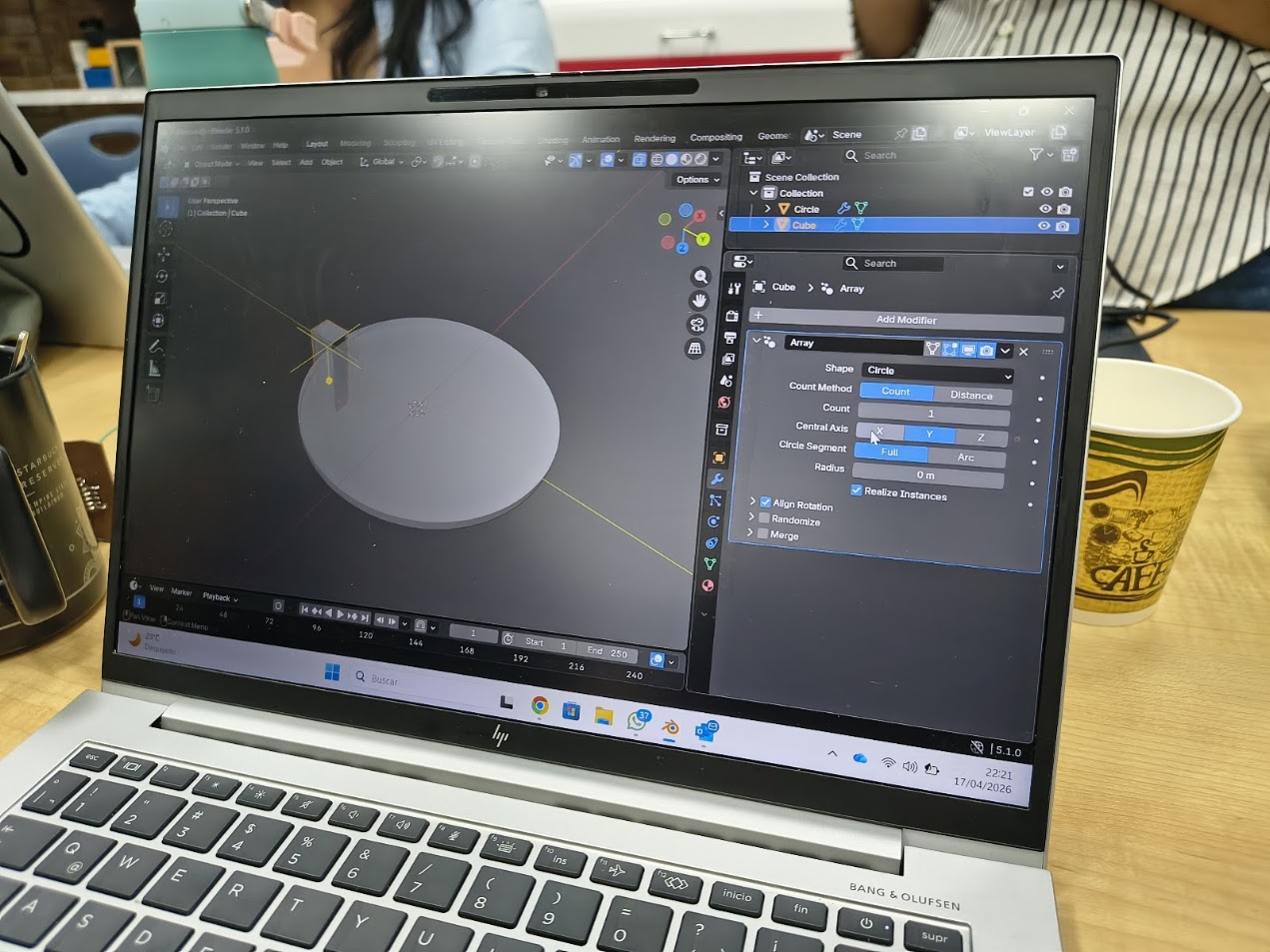
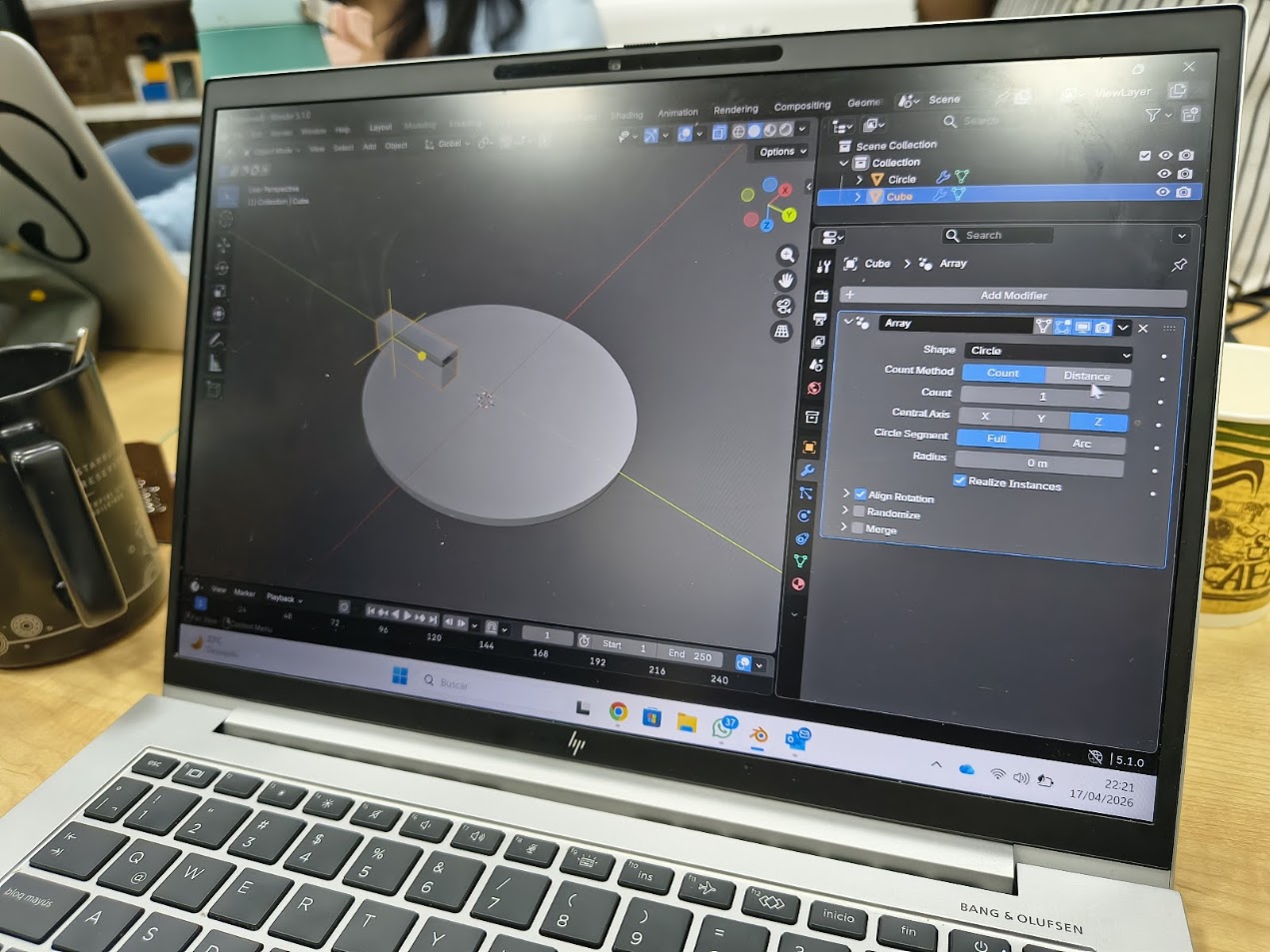
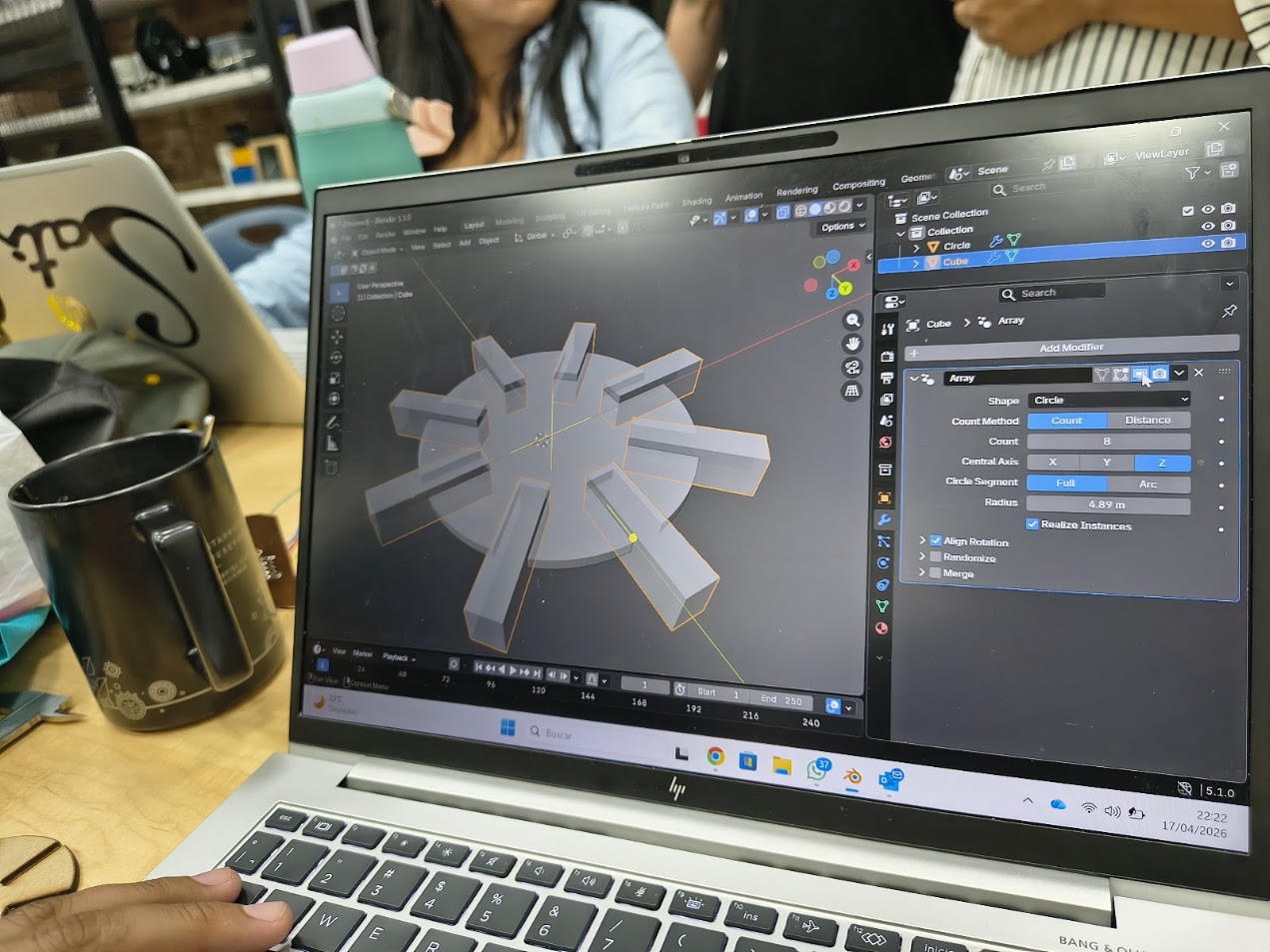
Add modifier -circle - array 1
Camera 1
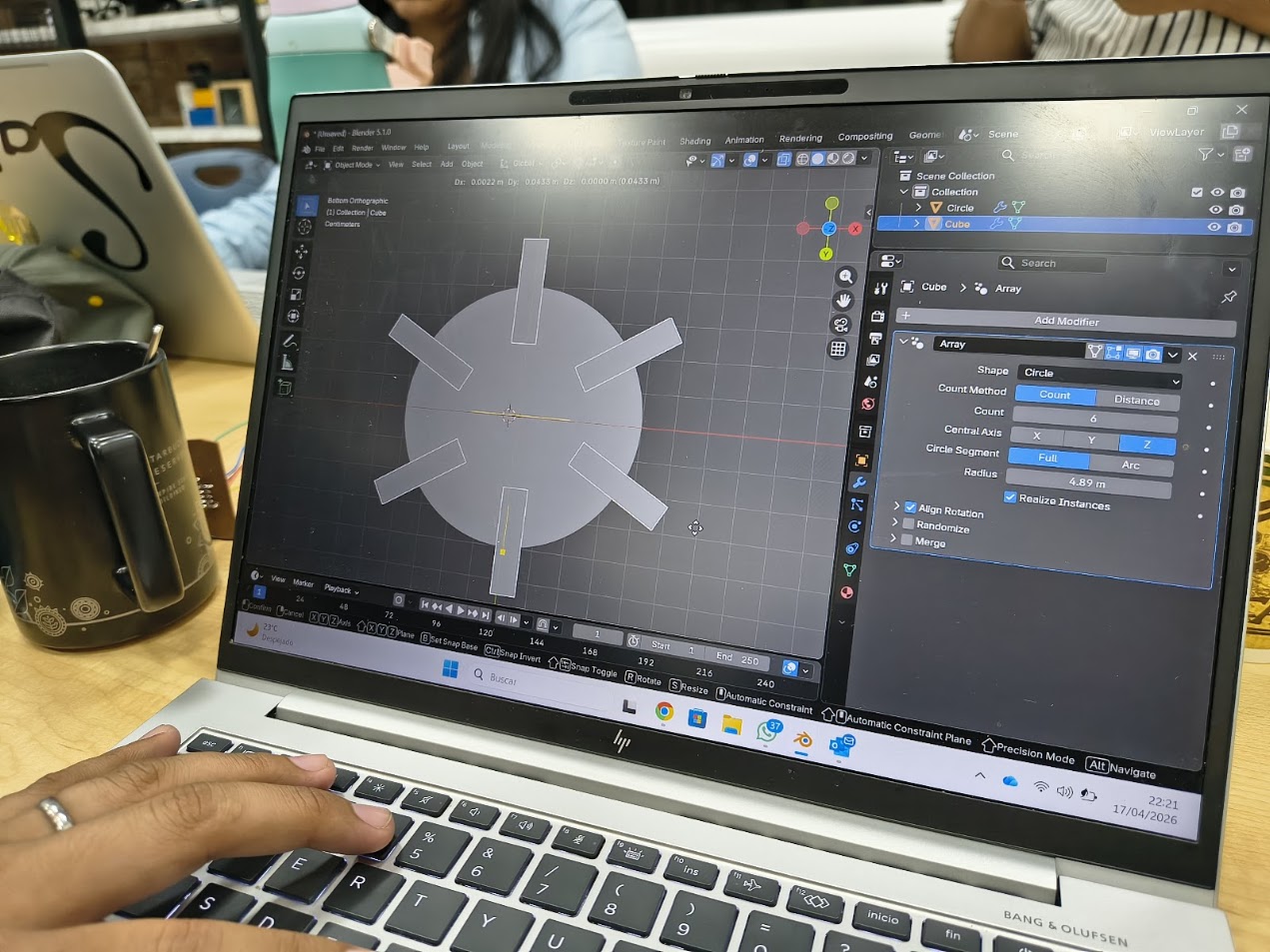
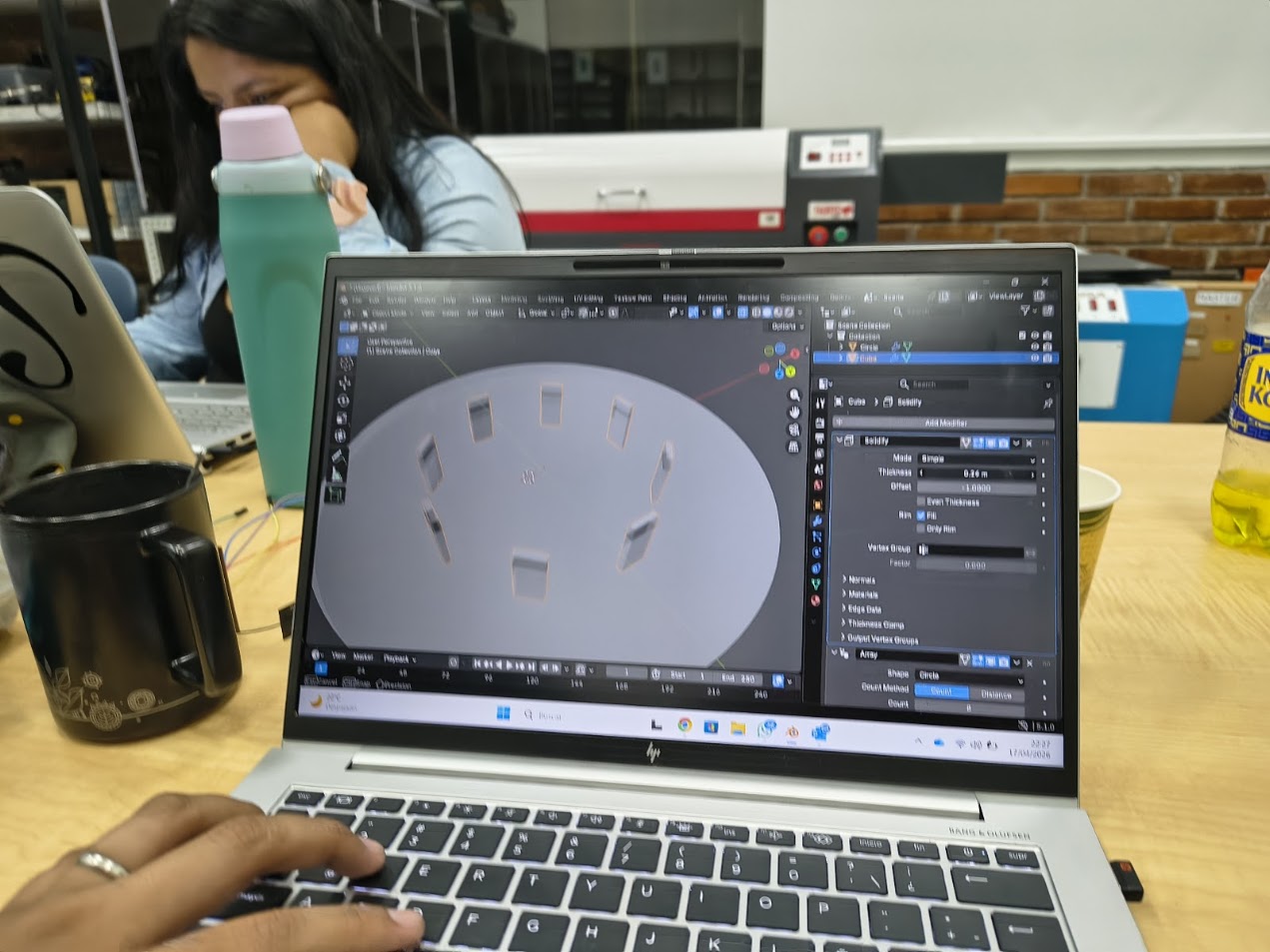
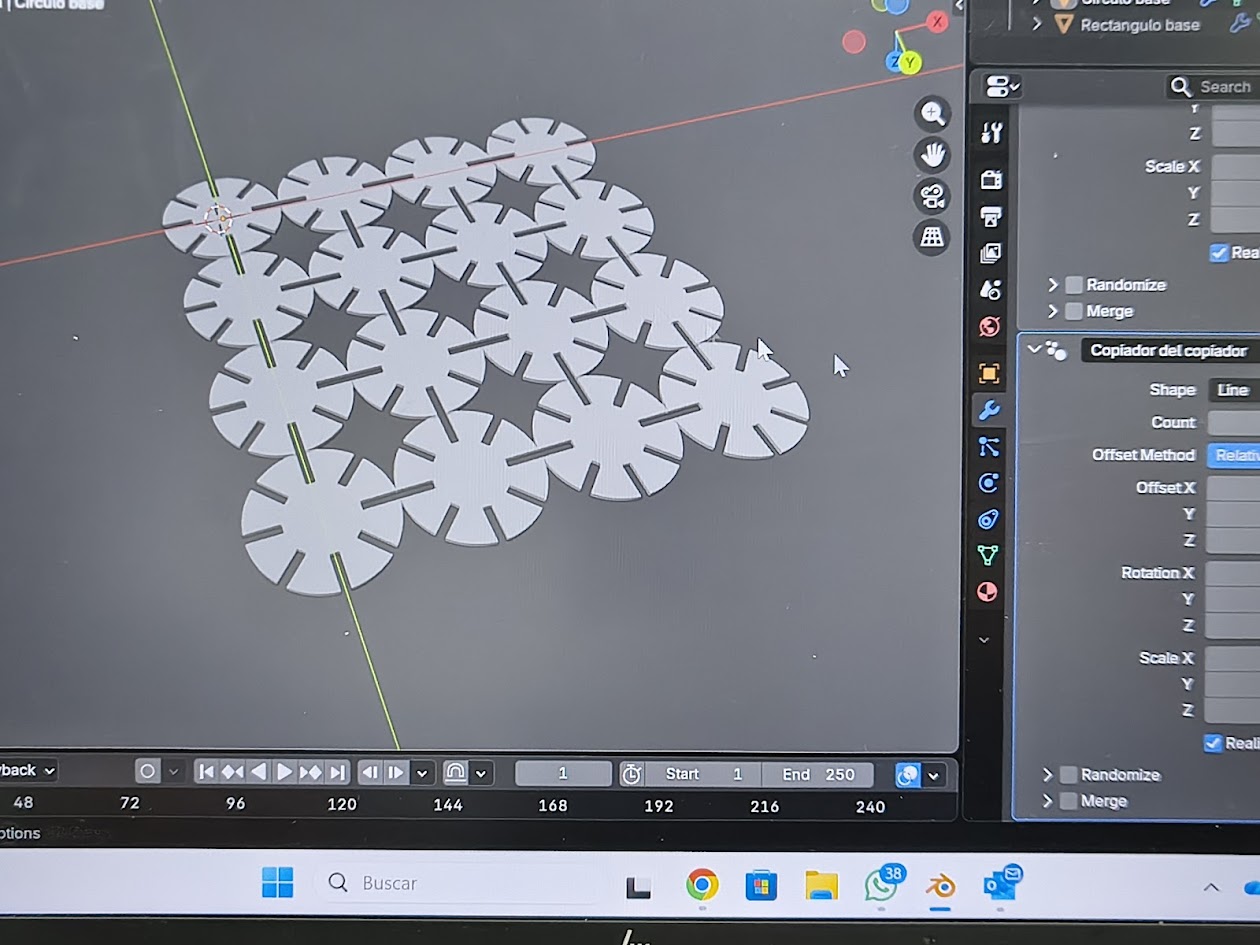
Add modifier -circle - array 6
Camera 1
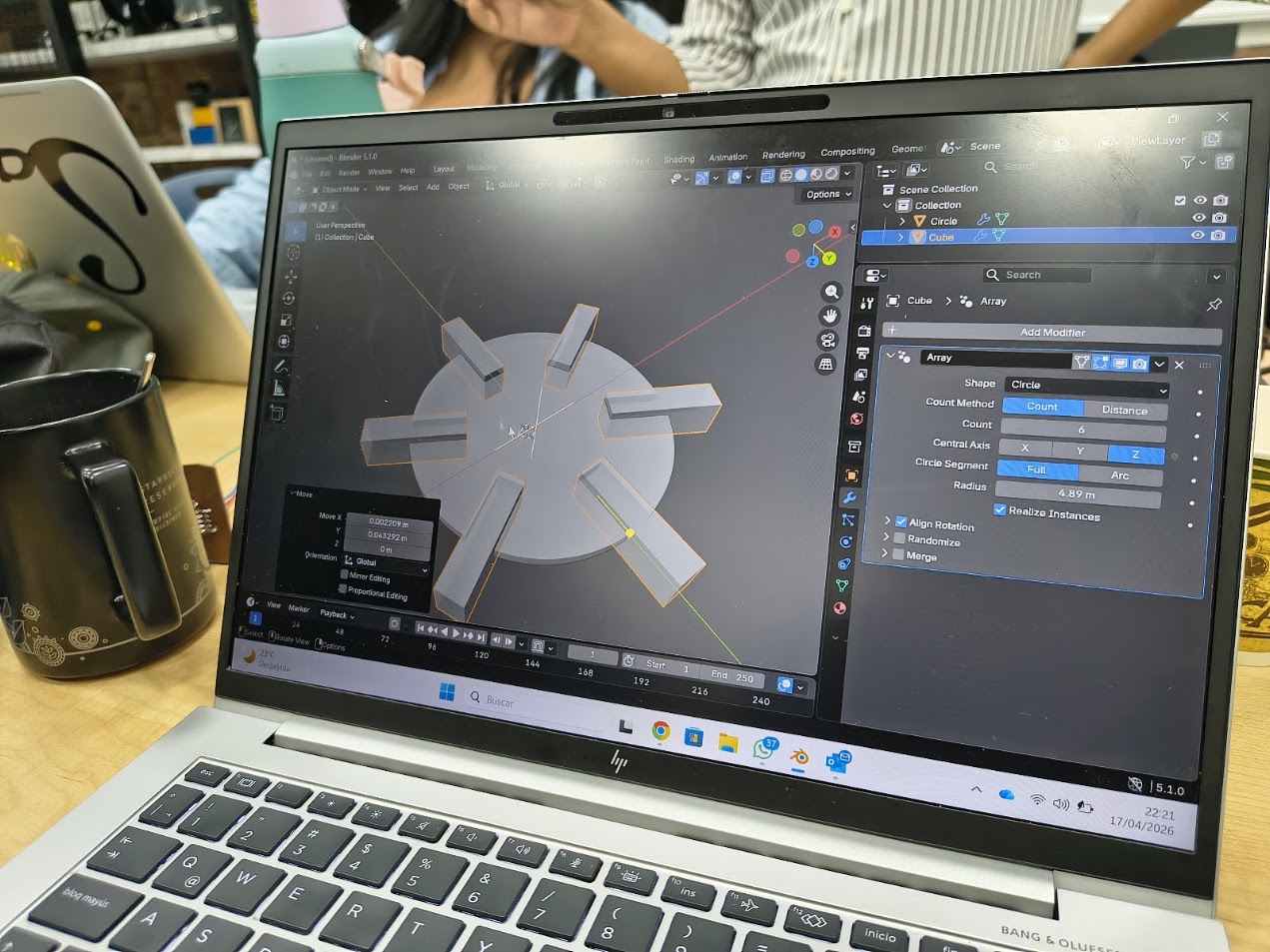
Add modifier - changing radius
Camera 1
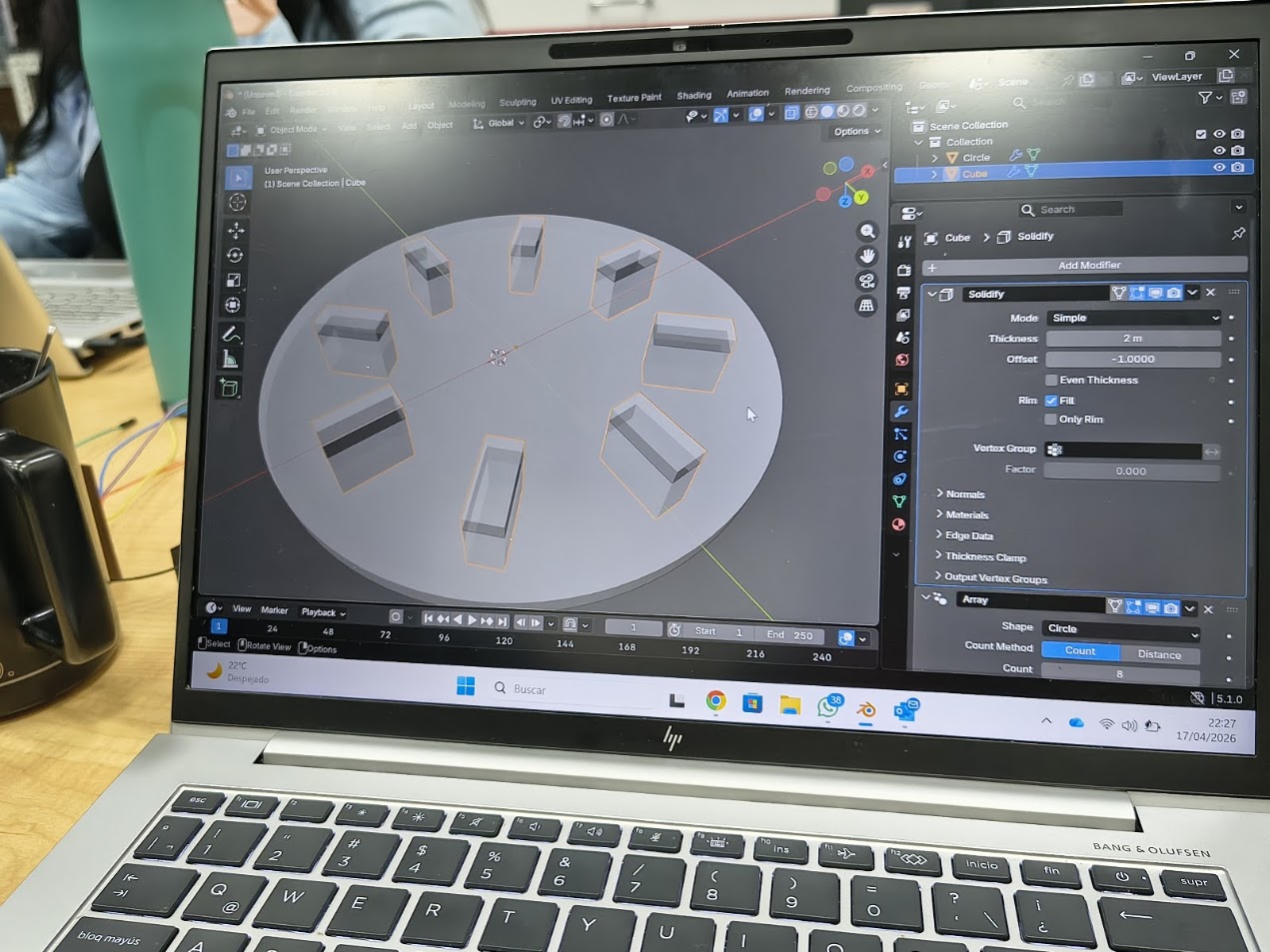
Add modifier - changing thickness
Camera 1
final 0.018 m lenght
Camera 1
Option 2 - Generate the cylinder
Camera 1
Generate only plane and change thickness
Camera 1
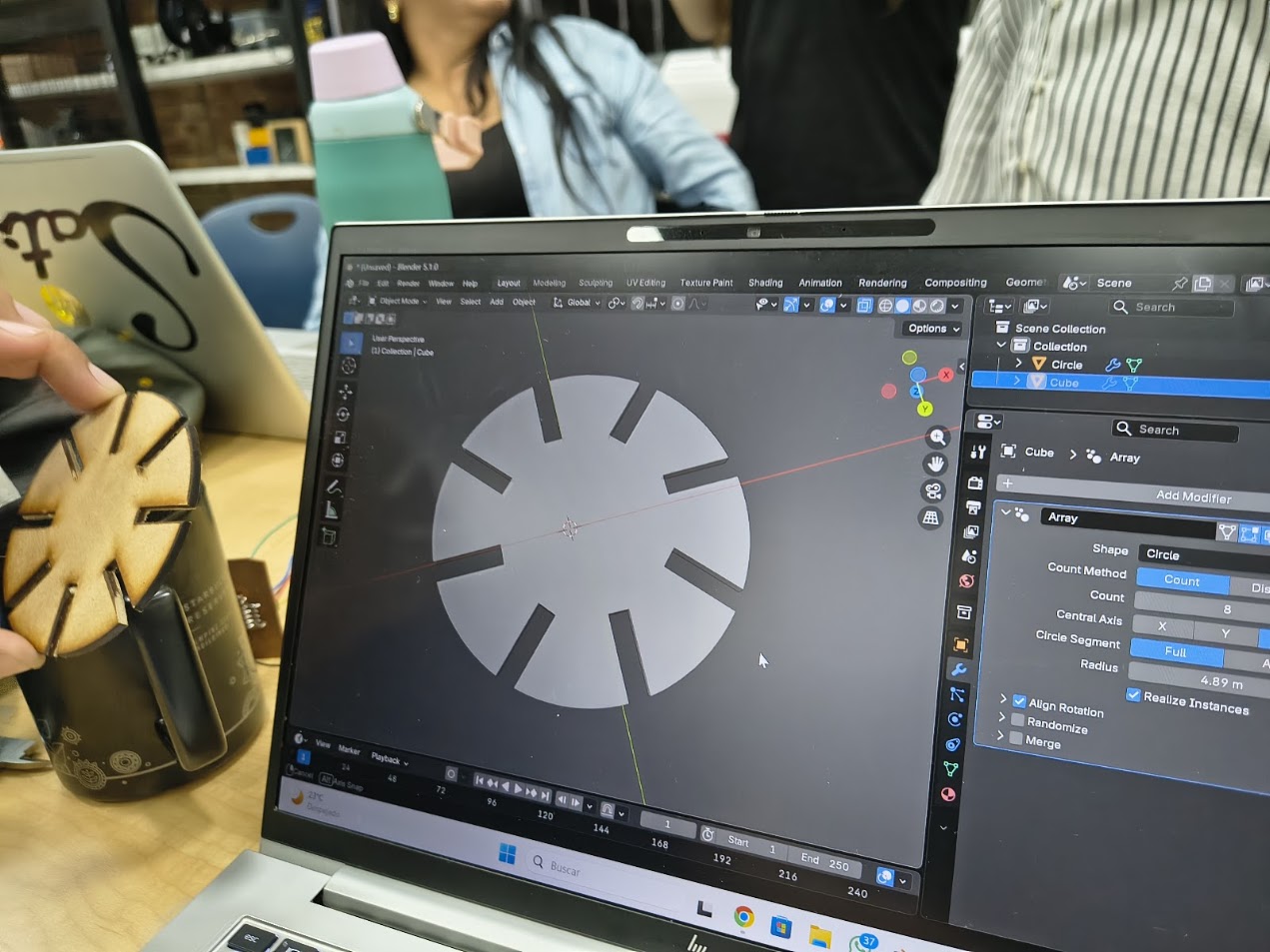
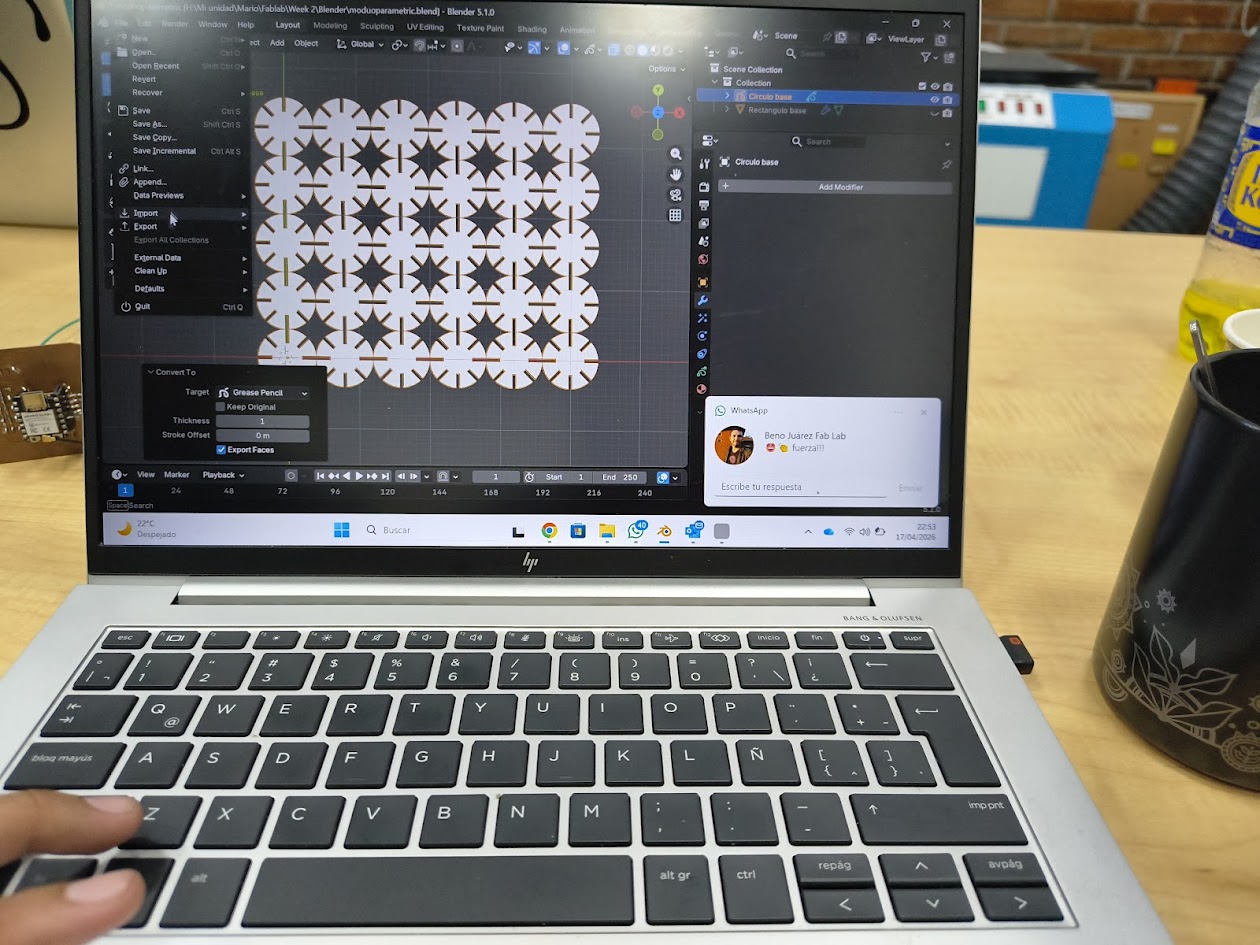
Final design
Camera 1
Parametric design objects X-axis
Camera 1
Parametric design objects Y-axis
Camera 1
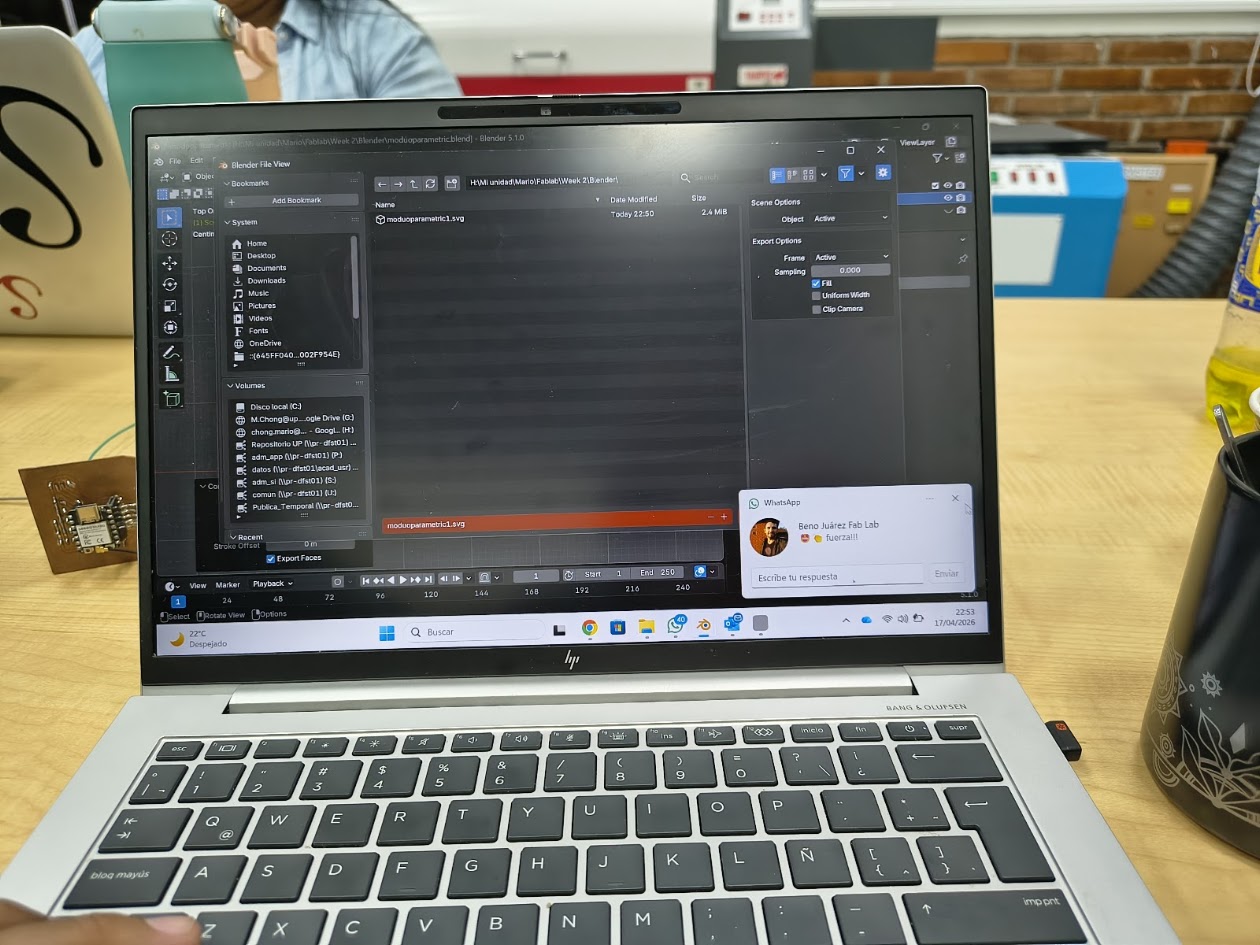
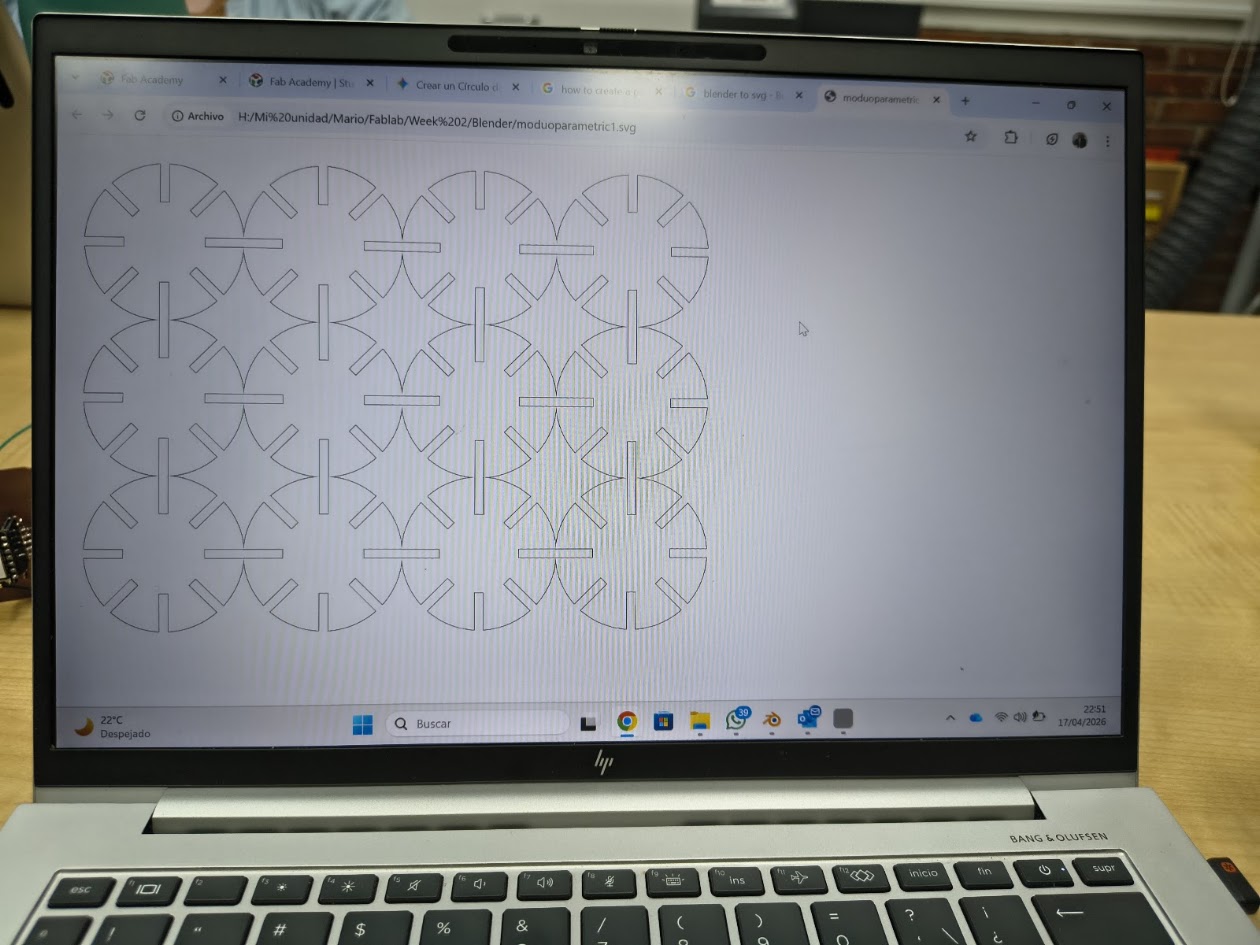
Generate and save *.svg file
Camera 1
Generate and save *.svg file
Camera 1
SVG file
CAD Software Comparison

CAD / 3D Software Comparison

Feature Tinkercad Fusion 360 Blender Rhino
Type Basic CAD Advanced CAD/CAM/CAE 3D Modeling & Animation NURBS CAD
Best For Beginners Engineering Design Art & Animation Industrial Design
Ease of Use Very Easy Moderate Difficult Moderate
Modeling Drag & Drop Parametric Mesh / Sculpting NURBS
Precision Low Very High Low Very High
Rendering ✅ Advanced
Simulation ⚠️ Limited
Animation ⚠️ Basic ✅ Advanced ⚠️ Limited
Manufacturing ✅ Integrated ⚠️ Plugins
Key Difference Simple & beginner-friendly All-in-one engineering platform Creative & visual focus Precision surface modeling
When to Choose Learning, simple 3D prints Functional parts, CNC workflows Rendering, animation, assets Complex shapes, architecture

6) Project sketch

Define the 3D software

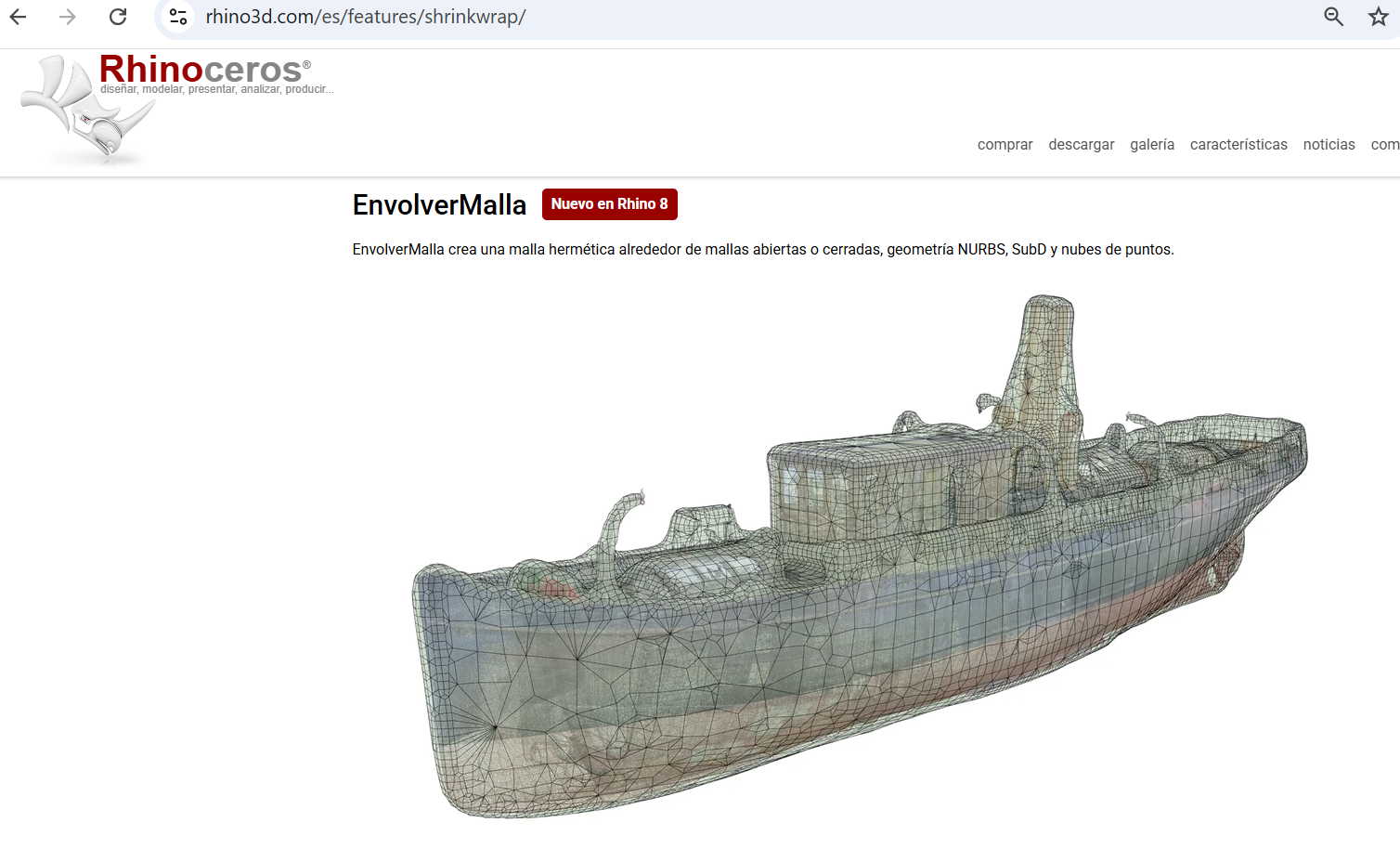
  • Download and install Rhinoceros
  • Step right image

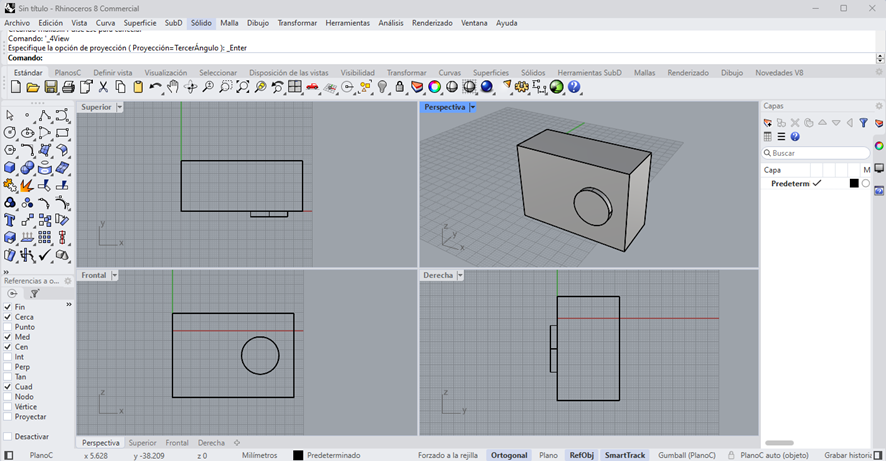
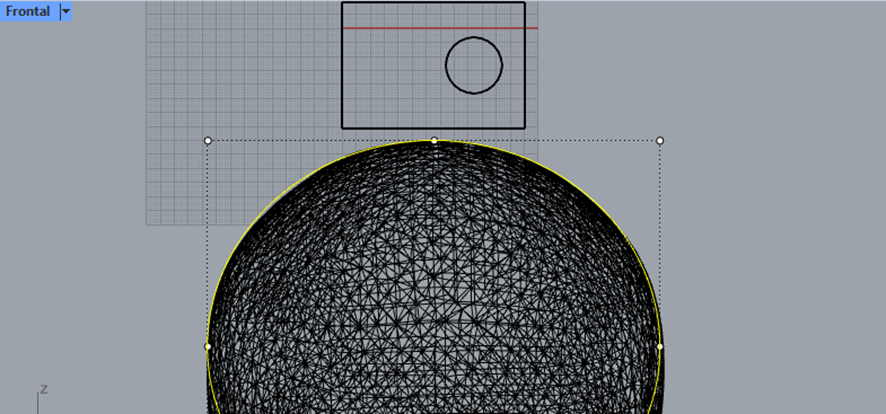
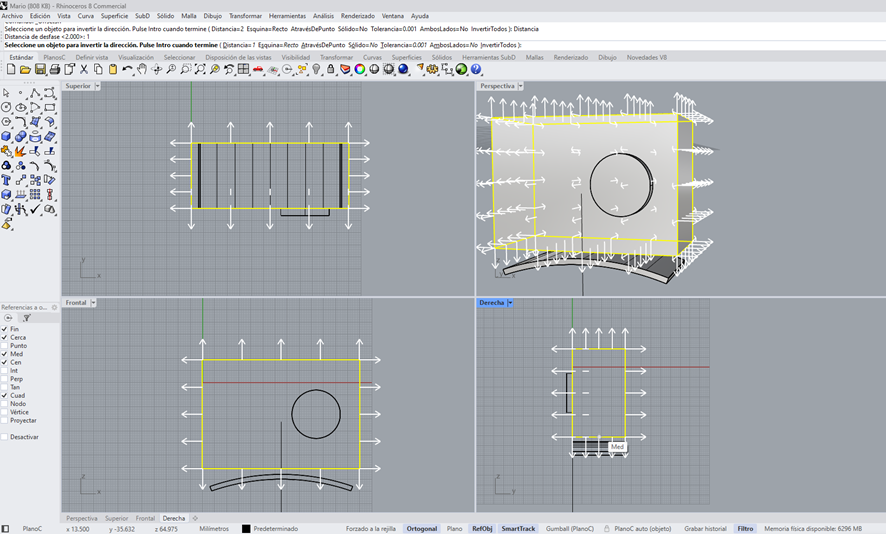
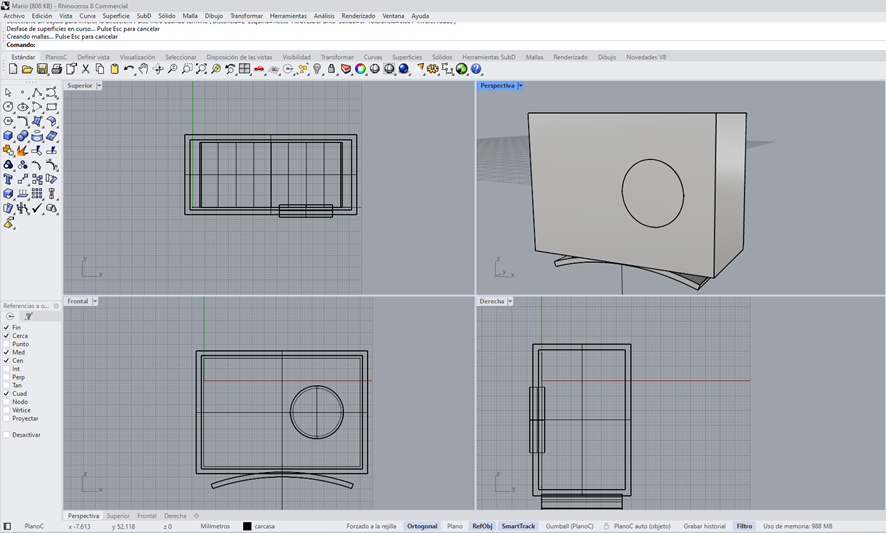
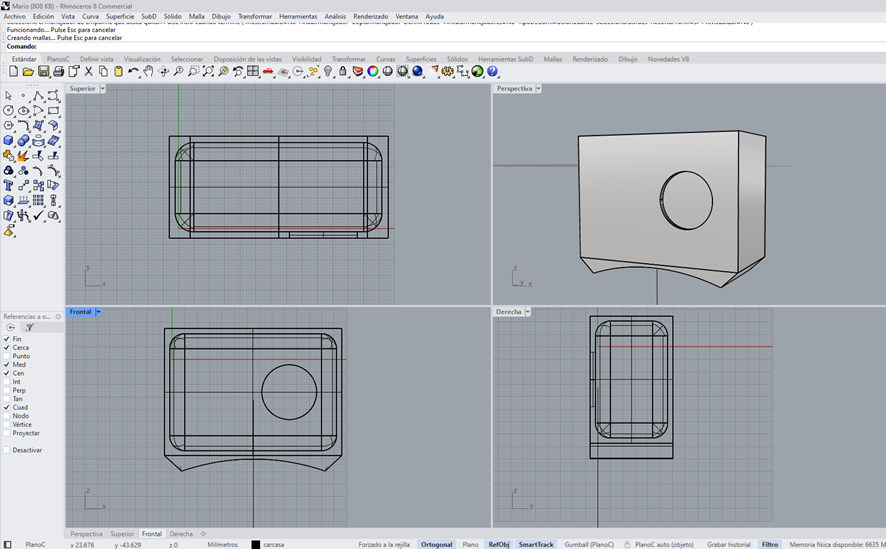
    Modelling the camera

  • 3D Camera modelling
  • Views: front, superior, right, perspective
  • Step right image

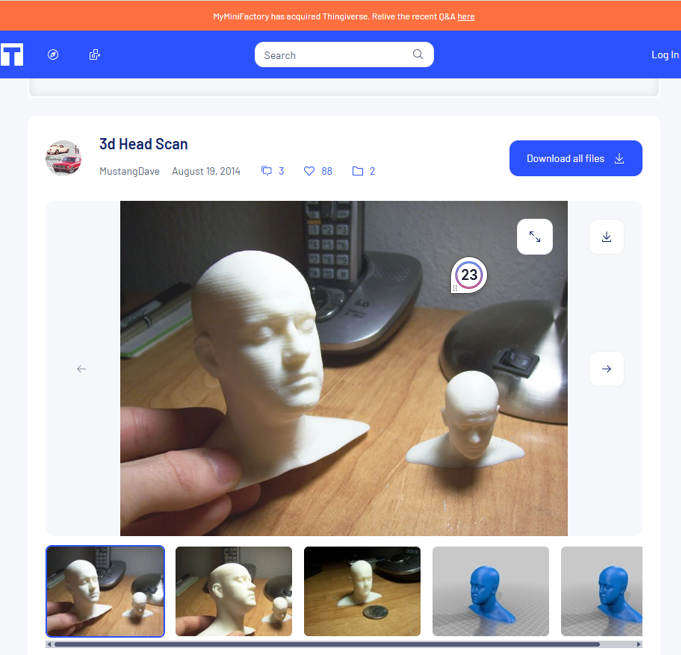
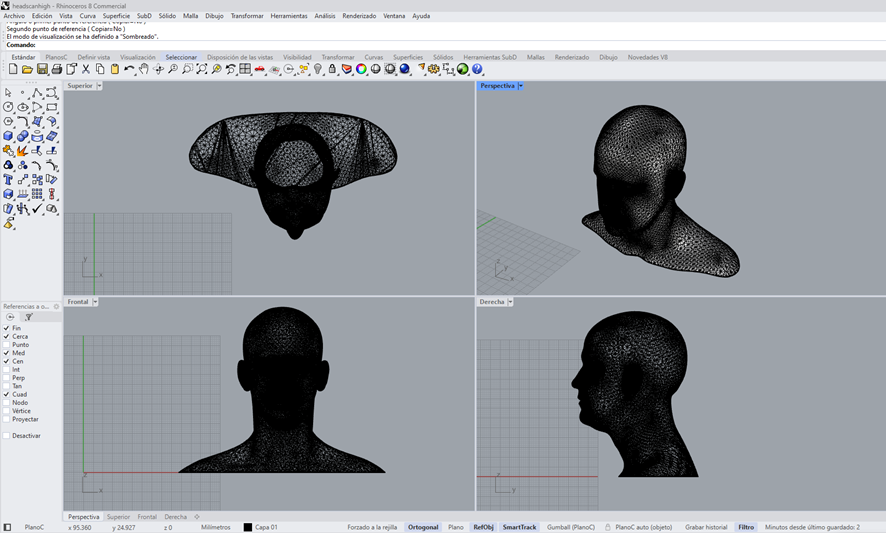
    Define a head anthropometry

  • Define a Thingiverse 3D model
  • Delineate head anthropometrics measurement
  • Step right image

    Export model to Rhinoceros

  • Head height - from 22 to 24 centimeters
  • Views: front, superior, right, perspective
  • Step right image

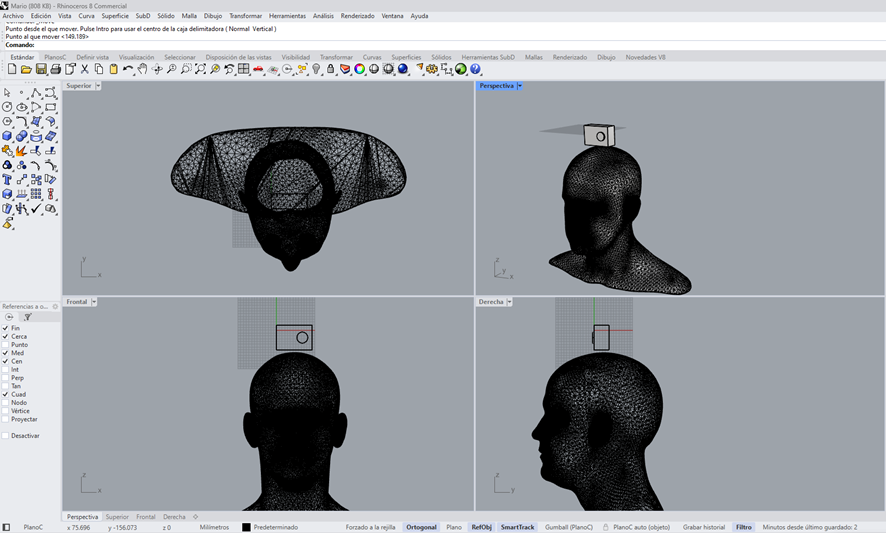
    Sketching the project

  • Head and camera view
  • Views: front, superior, right, perspective
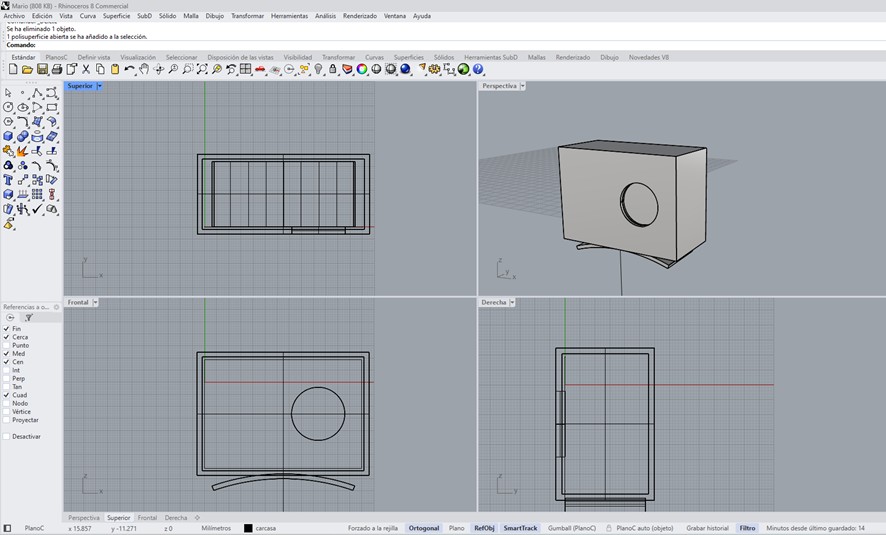
  • Defining the camera - 1 mm tolerance
  • Step right image
    Step right image
    Step right image

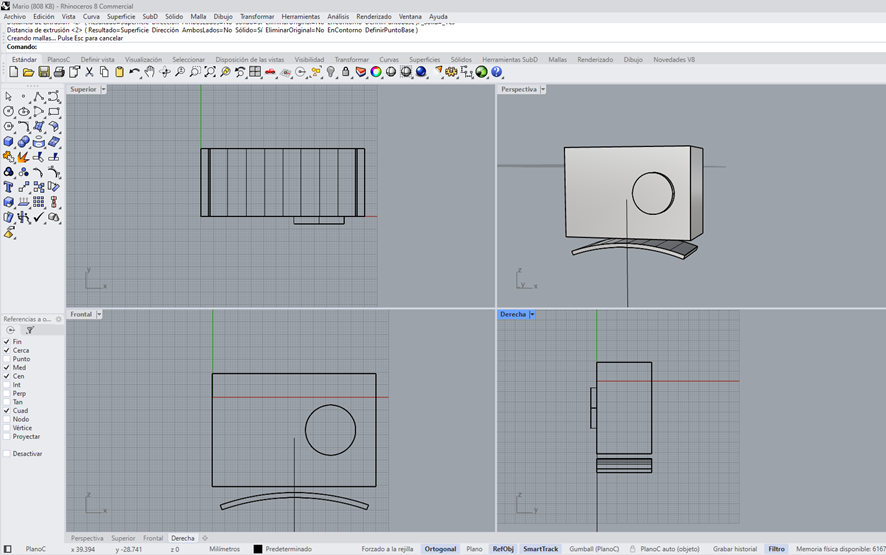
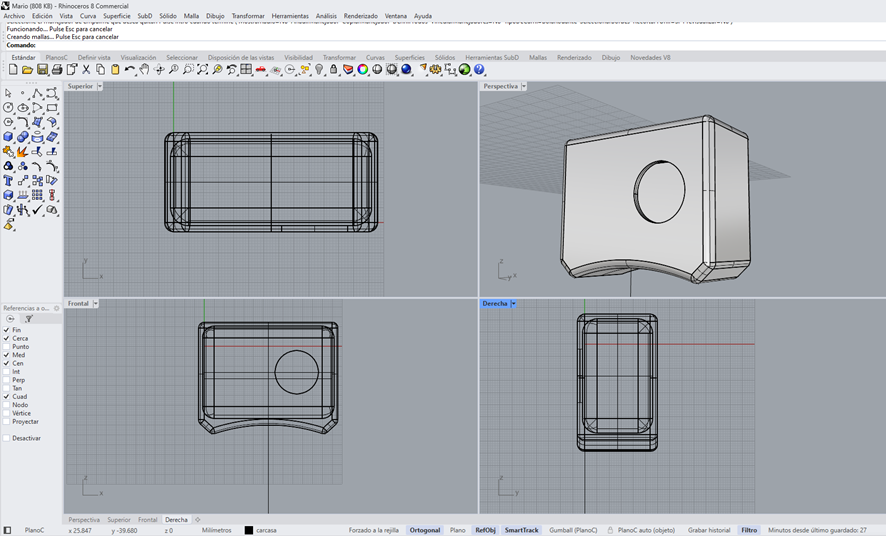
    Defining the camera

  • Base offset with 2 mm tolerance
  • Len hole
  • Base integration
  • Step right image
    Step right image
    Step right image

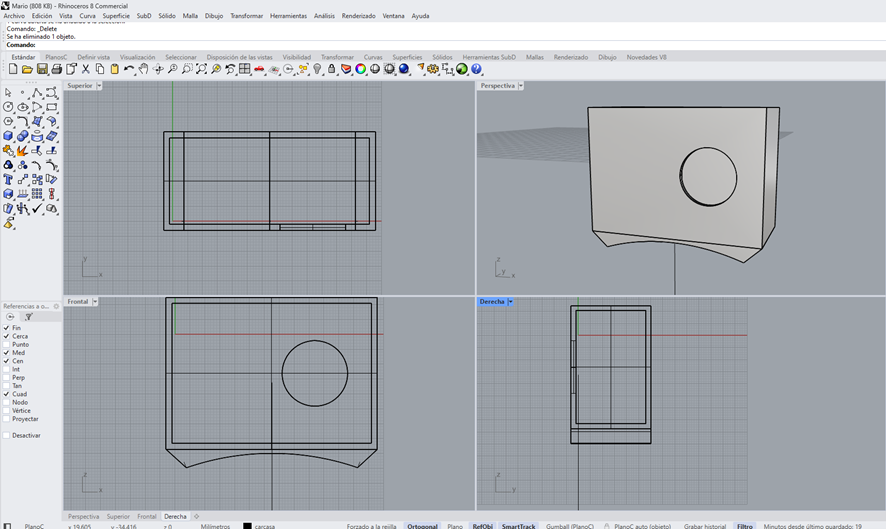
    Defining the camera

  • Internal radios 6 mm
  • Rounded borders
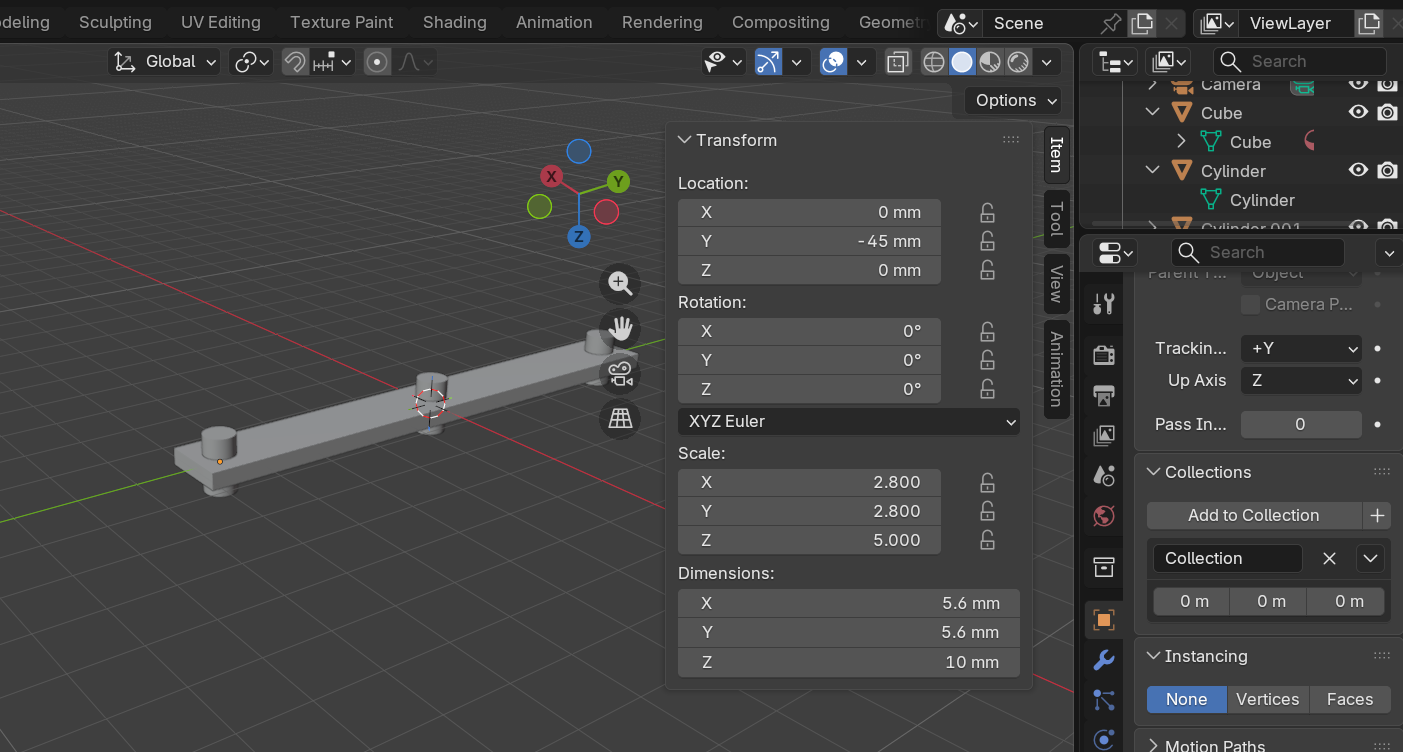
  • Lid with 0.2 mm tolerance
  • Step right image
    Step right image
    Step right image

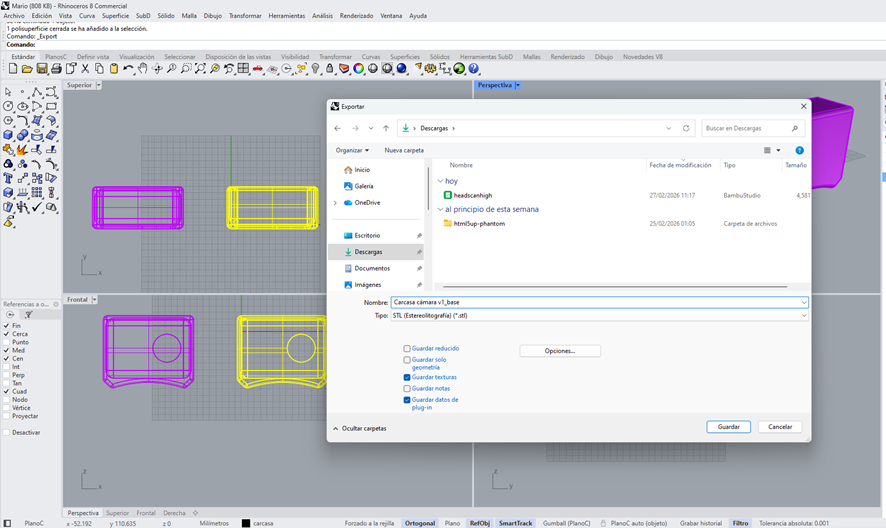
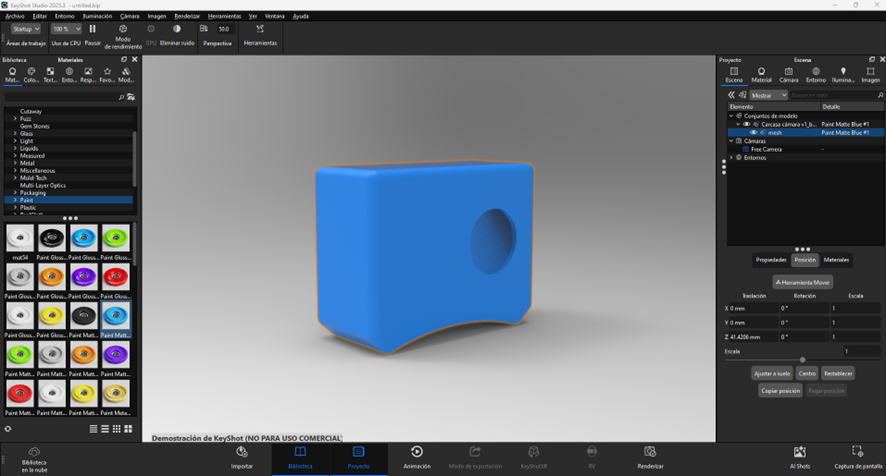
    Defining the camera

  • Rhinoceros - Export STL
  • Keyshot - Render
  • Model tests: material, color, perspective
  • Step right image
    Step right image
    Step right image
    Final project page

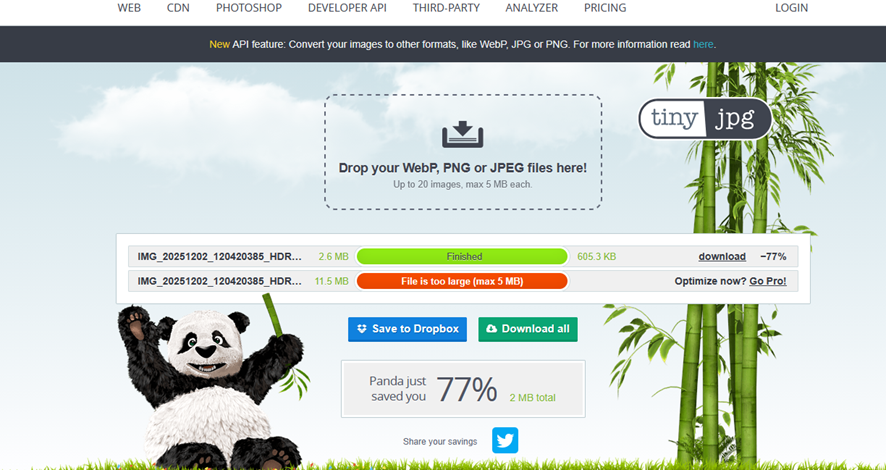
    7) Image and video compression

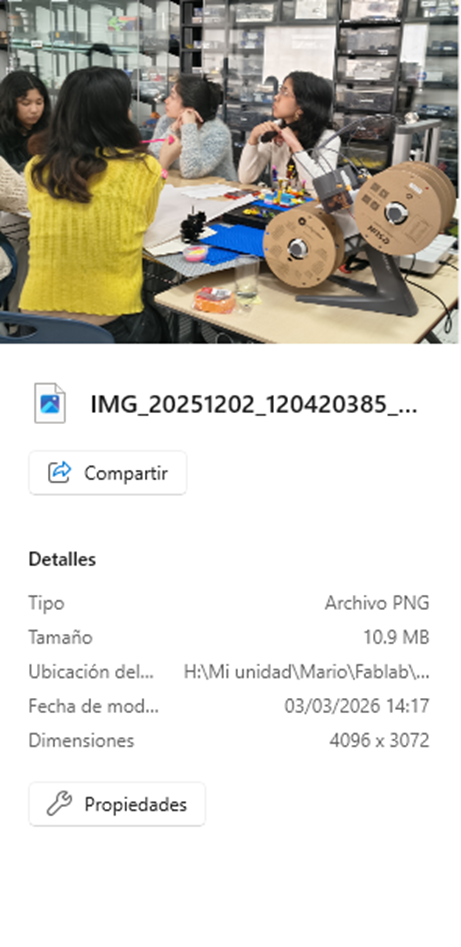
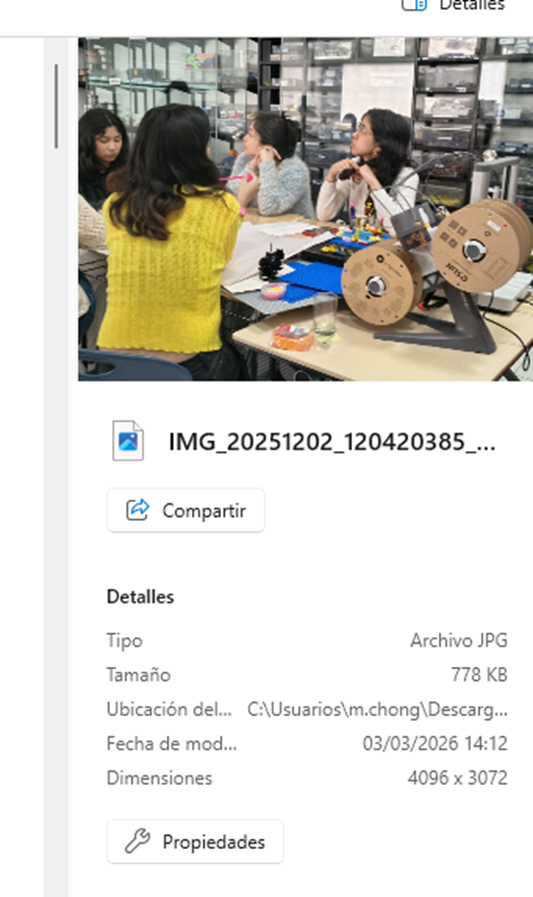
    a) Image


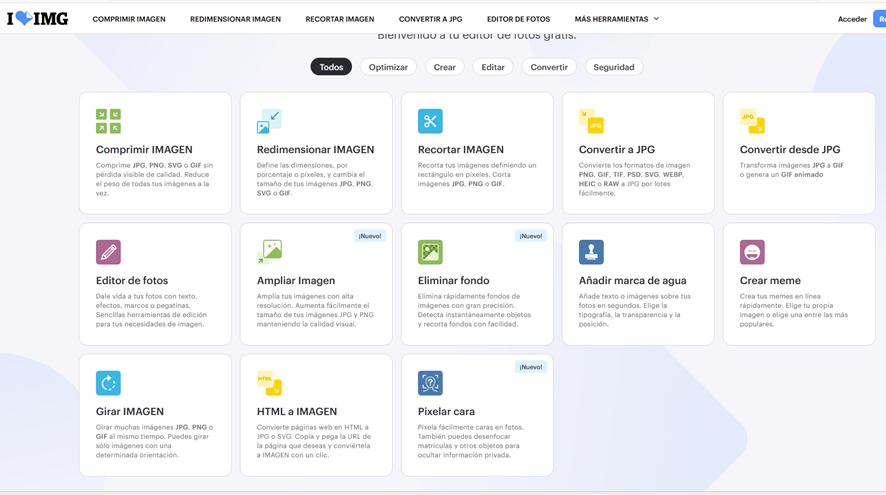
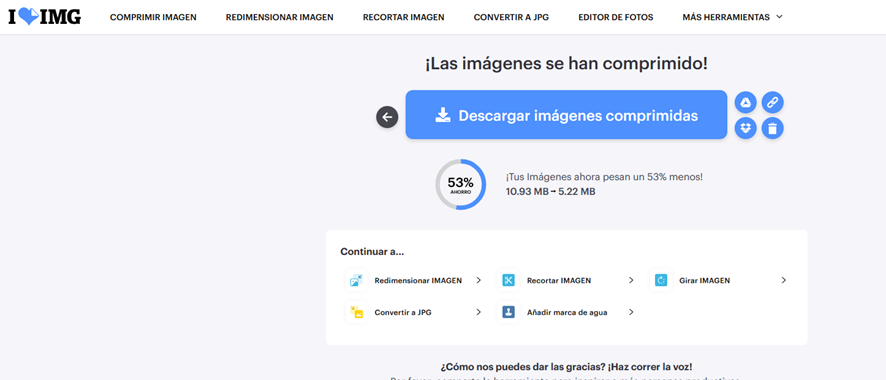
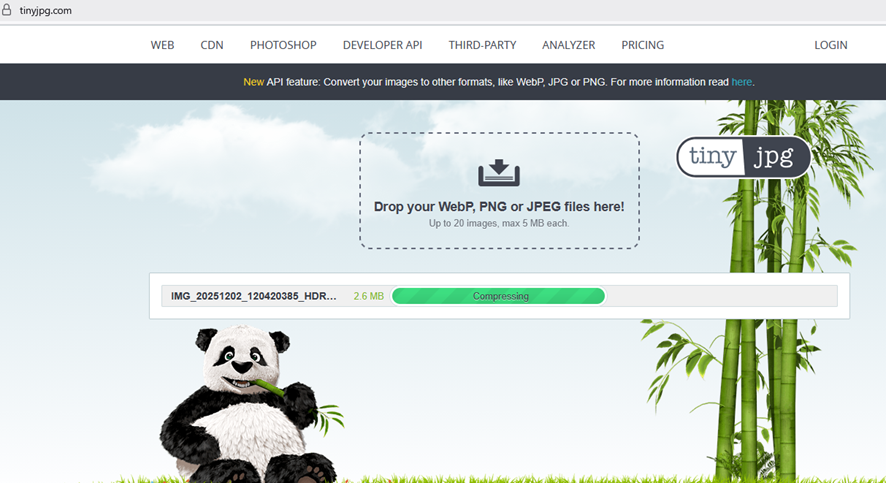
    • A lot of tools
    • We used ILoveIMG, TinyJPG
    • One option is save with other format
    Step right image
    Step right image
    Step right image
    Step right image
    Step right image
    Step right image
    Step right image

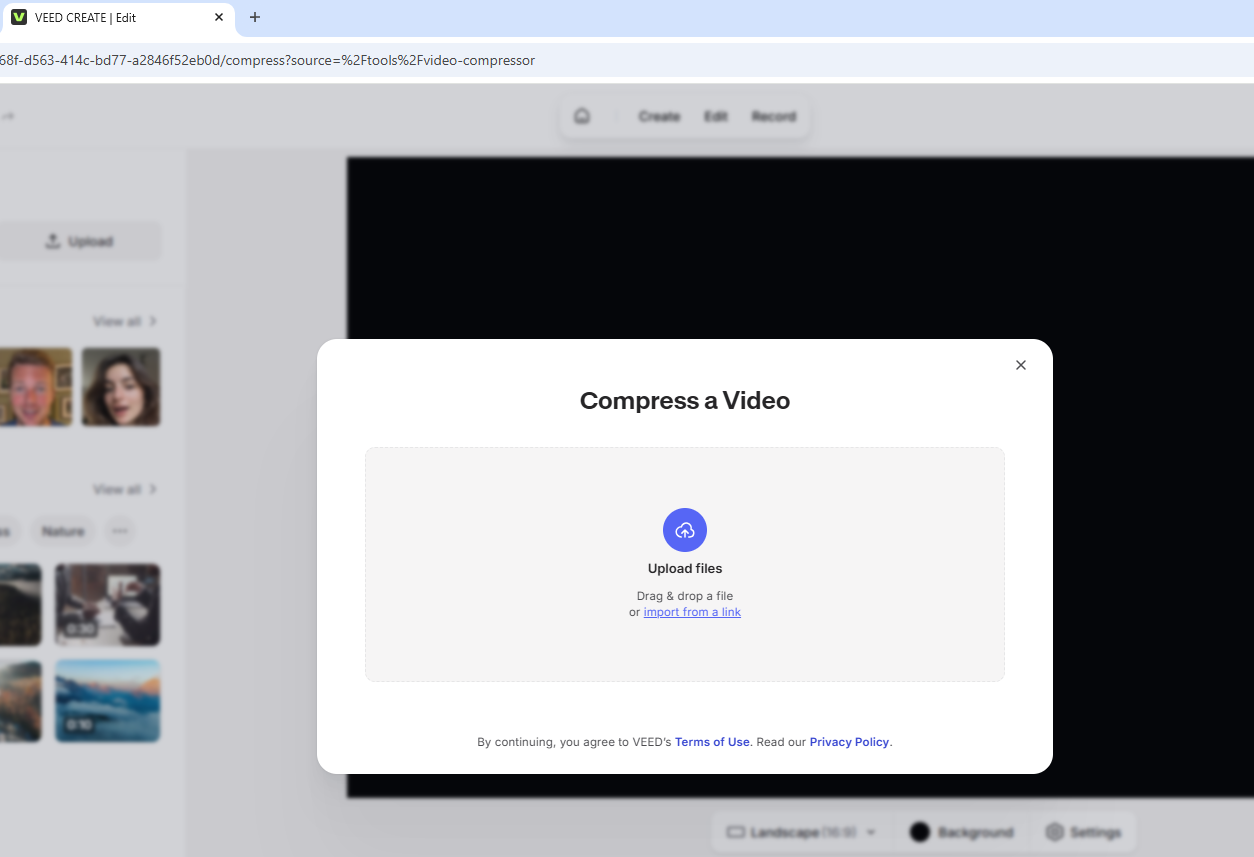
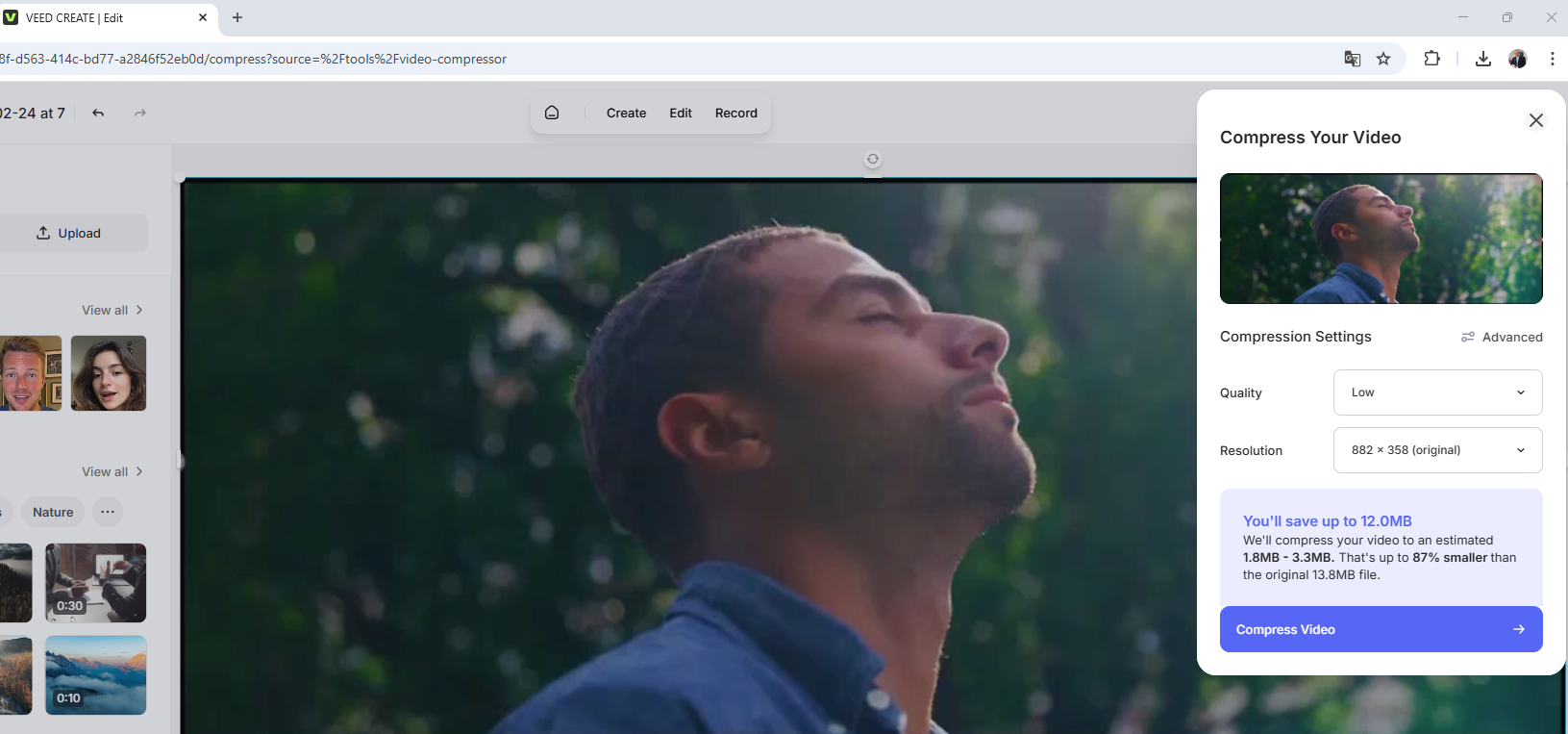
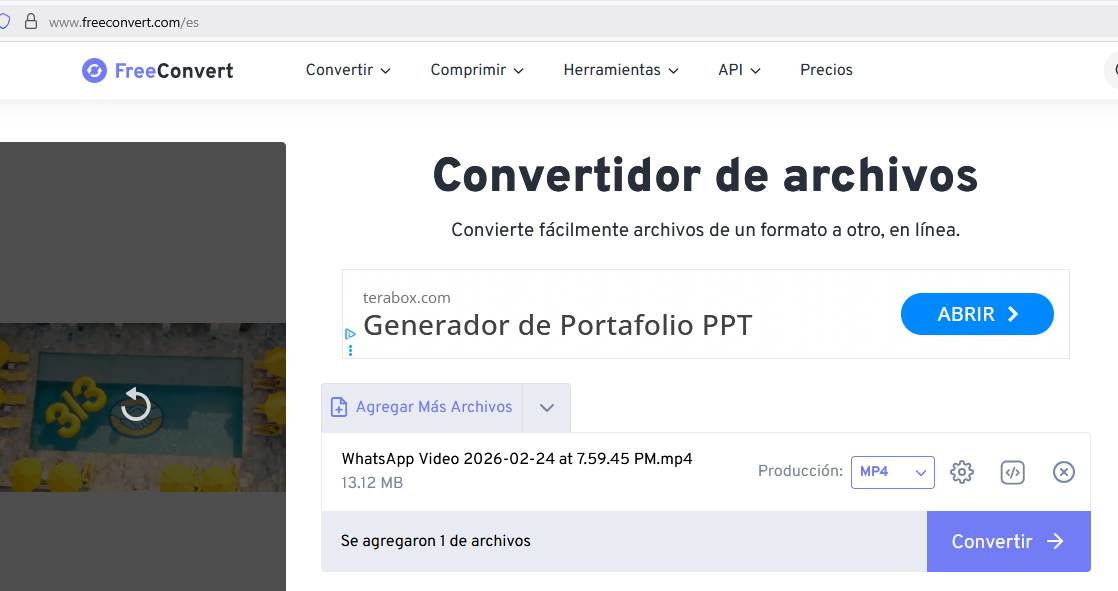
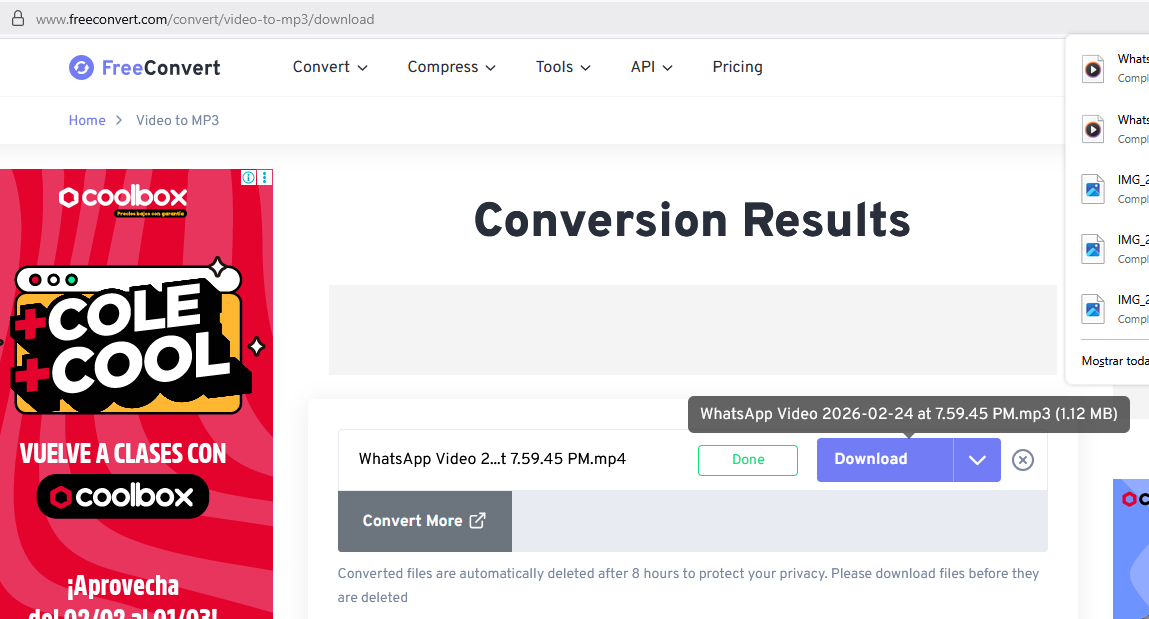
    b) Video


    • A lot of tools
    • We used Veed and Free Convert
    • One option is save with other format
    Step right image
    Step right image
    Step right image
    Step right image
    Step right image

    8) Final results

    • Modelled experimental objetcts/parts of a final project in a 2D and 3D software
    • Shown how you do it with words, images and screenshots
    • Documented how you compress your image and videos files
    • Included your original design files
    8) References files

    Sections