Week 05

3D Scanning and Printing

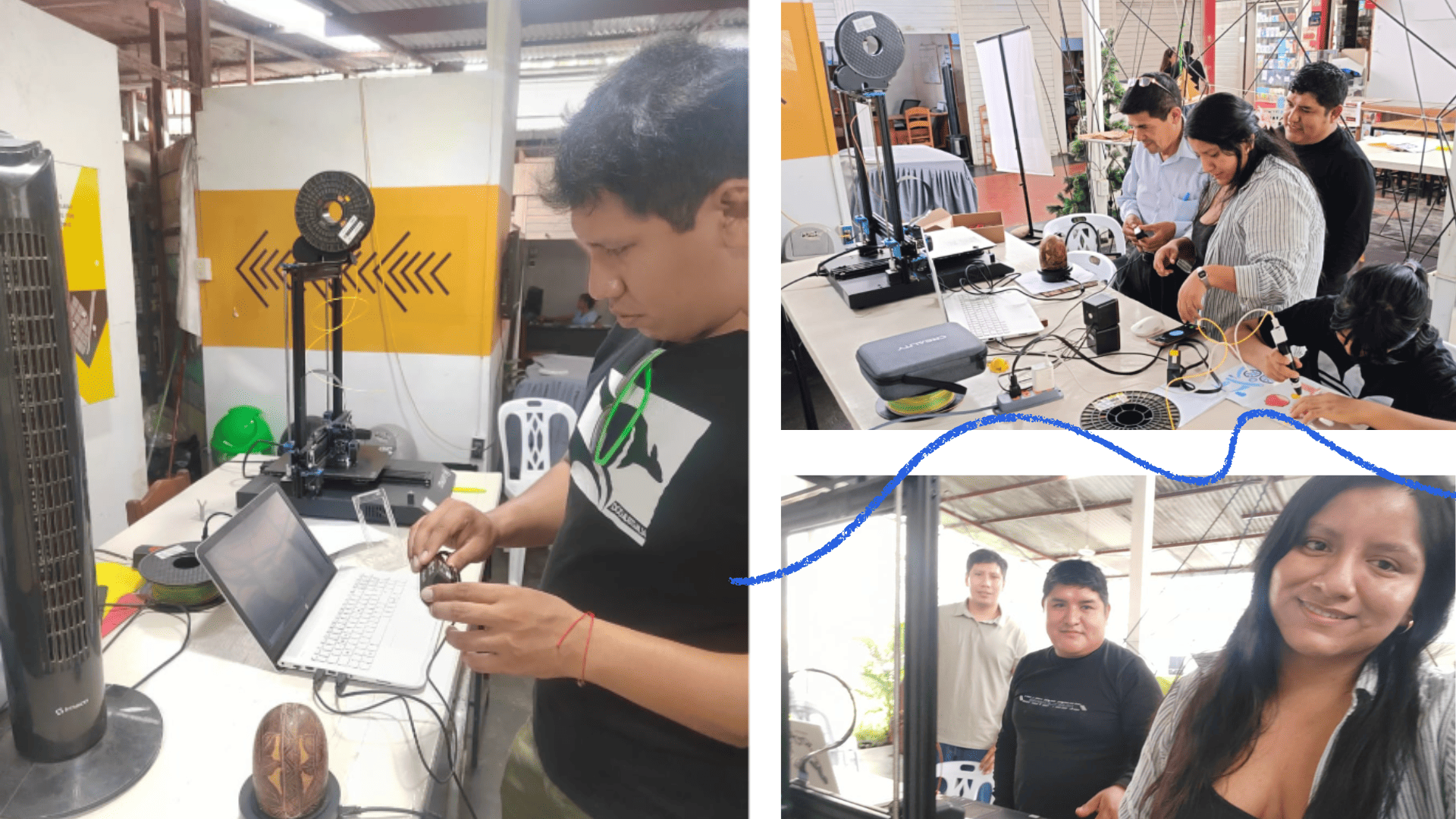
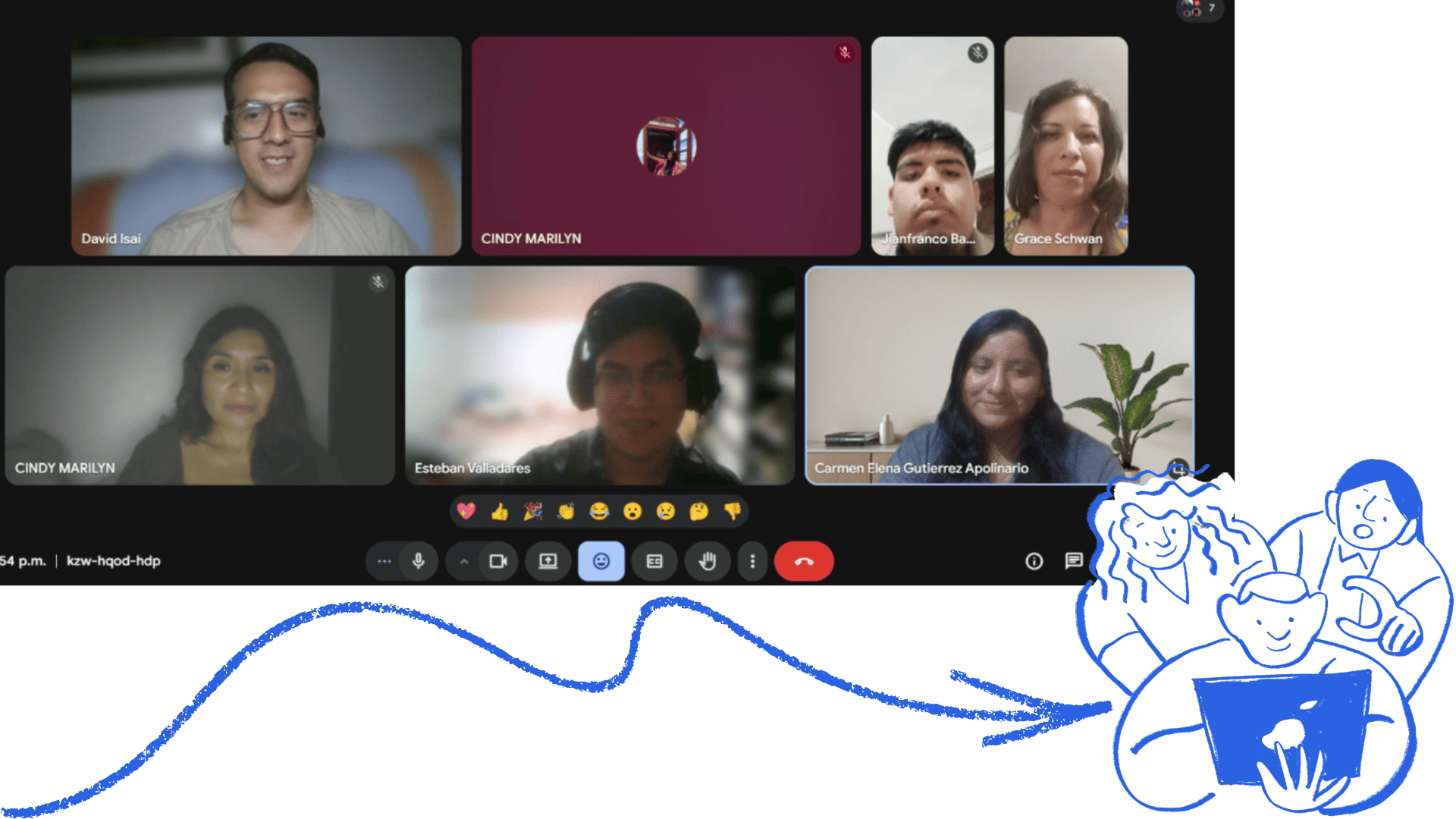
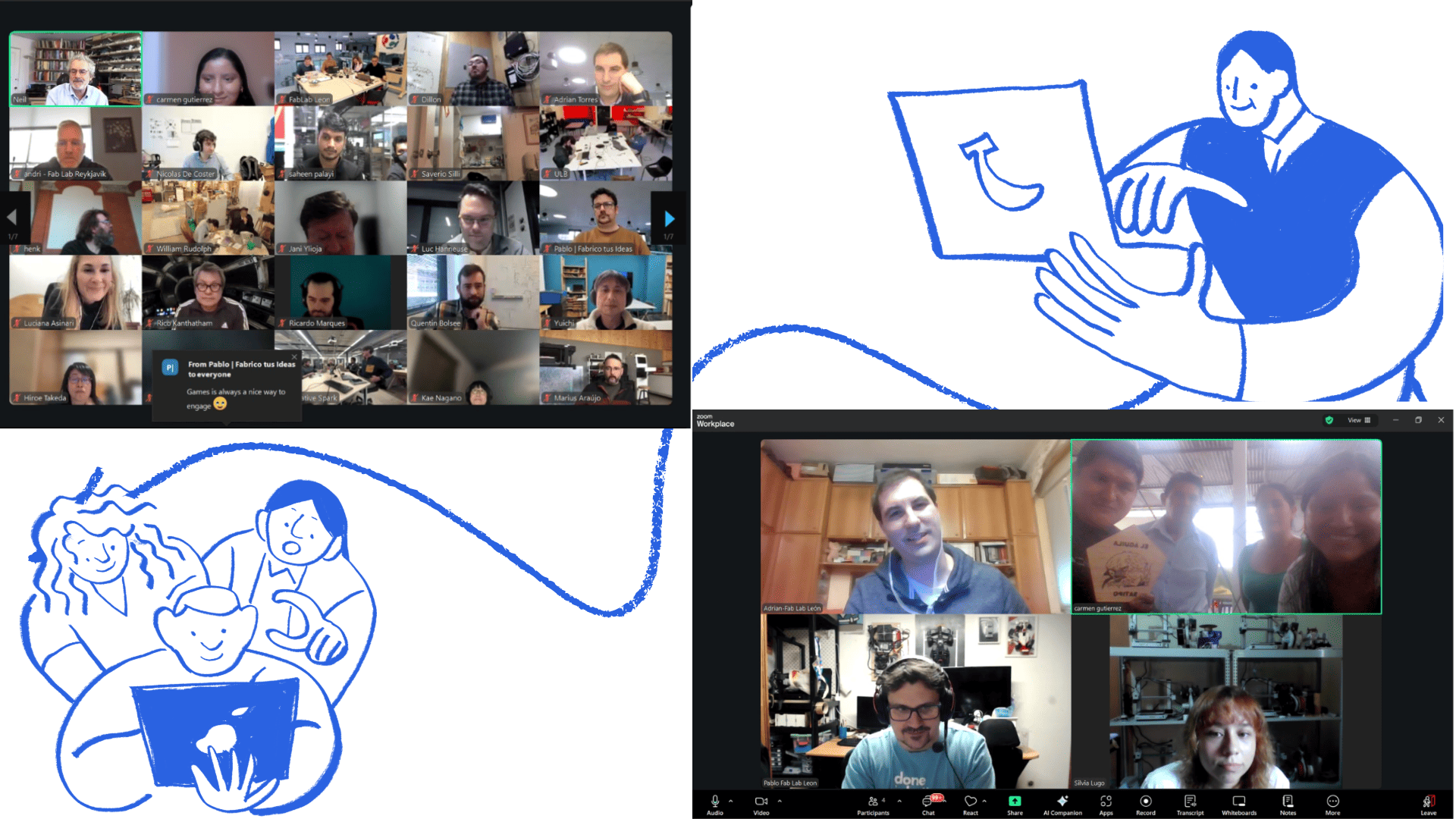
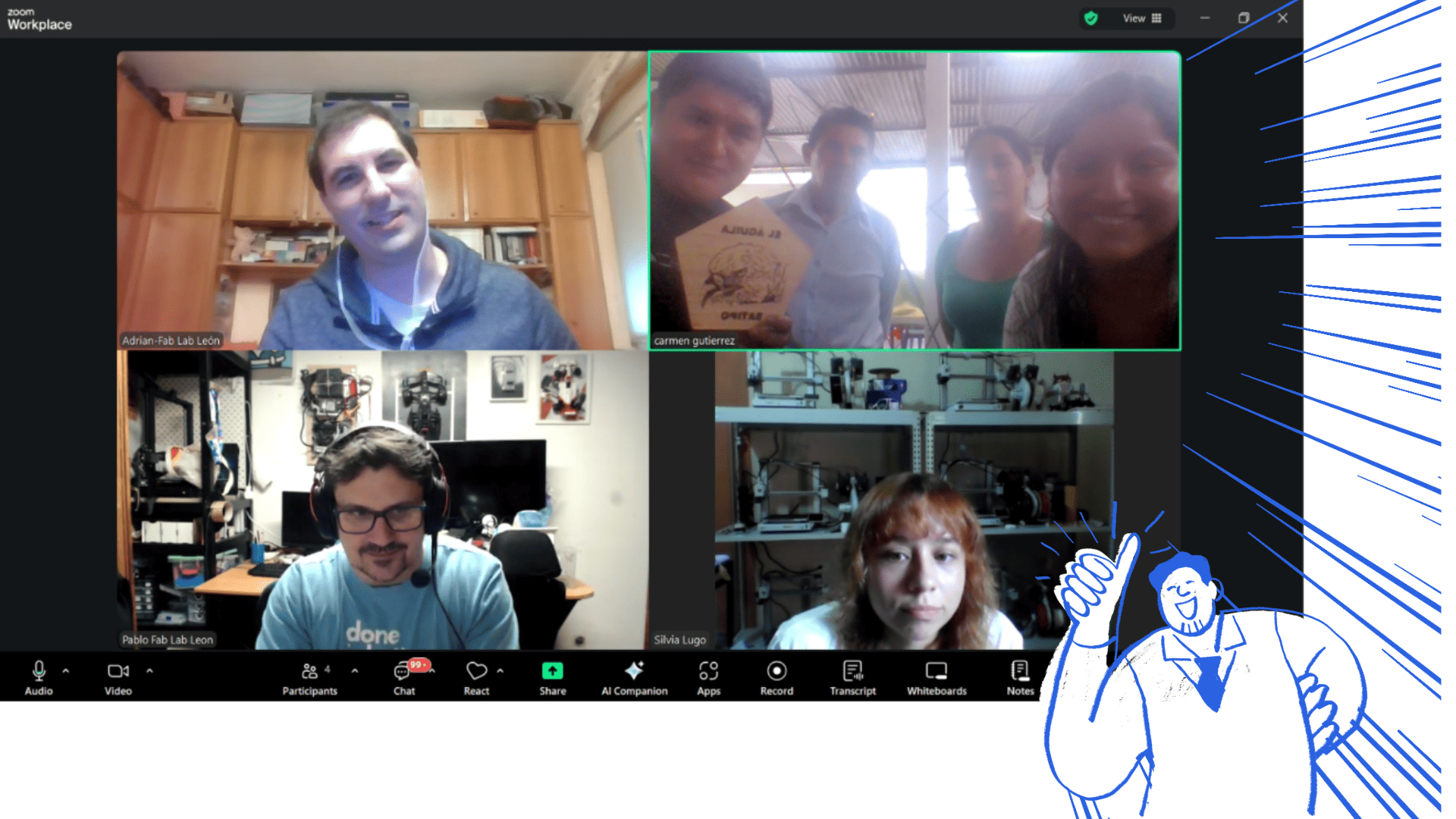
During this week of 3D Scanning and Printing, we met virtually from different labs, which allowed us to work collaboratively with various 3D printers and strengthen our hands-on learning. This dynamic facilitated the exchange of experiences and knowledge among the different nodes, enriching the learning process. We also participated in the Open Lab held in cities like Lima, Satipo, and Iquitos, which allowed us to continue developing the projects we've been working on and apply what we learned in class in practice. We were also present at Open Global, where we shared the progress and experiences of the various nodes nationwide. It was very interesting to be able to share the knowledge I've been gradually acquiring; although much of this learning is new to me, it's motivating and challenging. Furthermore, it has been rewarding to connect with people interested in these topics and contribute to getting more people involved and learning about digital fabrication, thus strengthening a collaborative learning community. The group work took place in the different labs; we first met in person.

Week 3 cover

Assignment Requirements

Group assignment

  • Test the design rules for your 3D printer(s)
  • Document your work on the group work page and reflect on your individual page what you learned about characteristics of your printer(s).

Individual assignment

  • Design, document and 3D print an object (small, few cm3, limited by printer time) that could not be easily made subtractively
  • 3D scan an object (and optionally print it)

Progress Status

This is for reporting progress (not for visitors to click).

Group work Done

Group page link + notes added.

Press-fit kit Donean>

Missing final photos and conclusions.

Downloads Donean>

Upload .zip with source files.

Assignment Requirements

Learning outcomes

  • Identify the advantages and limitations of 3D printing.
  • Apply design methods and production processes to show your understanding of 3D printing.
  • Demonstrate how scanning technology can be used to digitize object(s).

Have you answered these questions?

  • Linked to the group assignment page✅
  • Explained what you learned from testing the 3D printers✅.
  • Documented how you scanned an object.✅.
  • Included your original design files for 3D printing.✅.
  • Included your hero shots.✅.

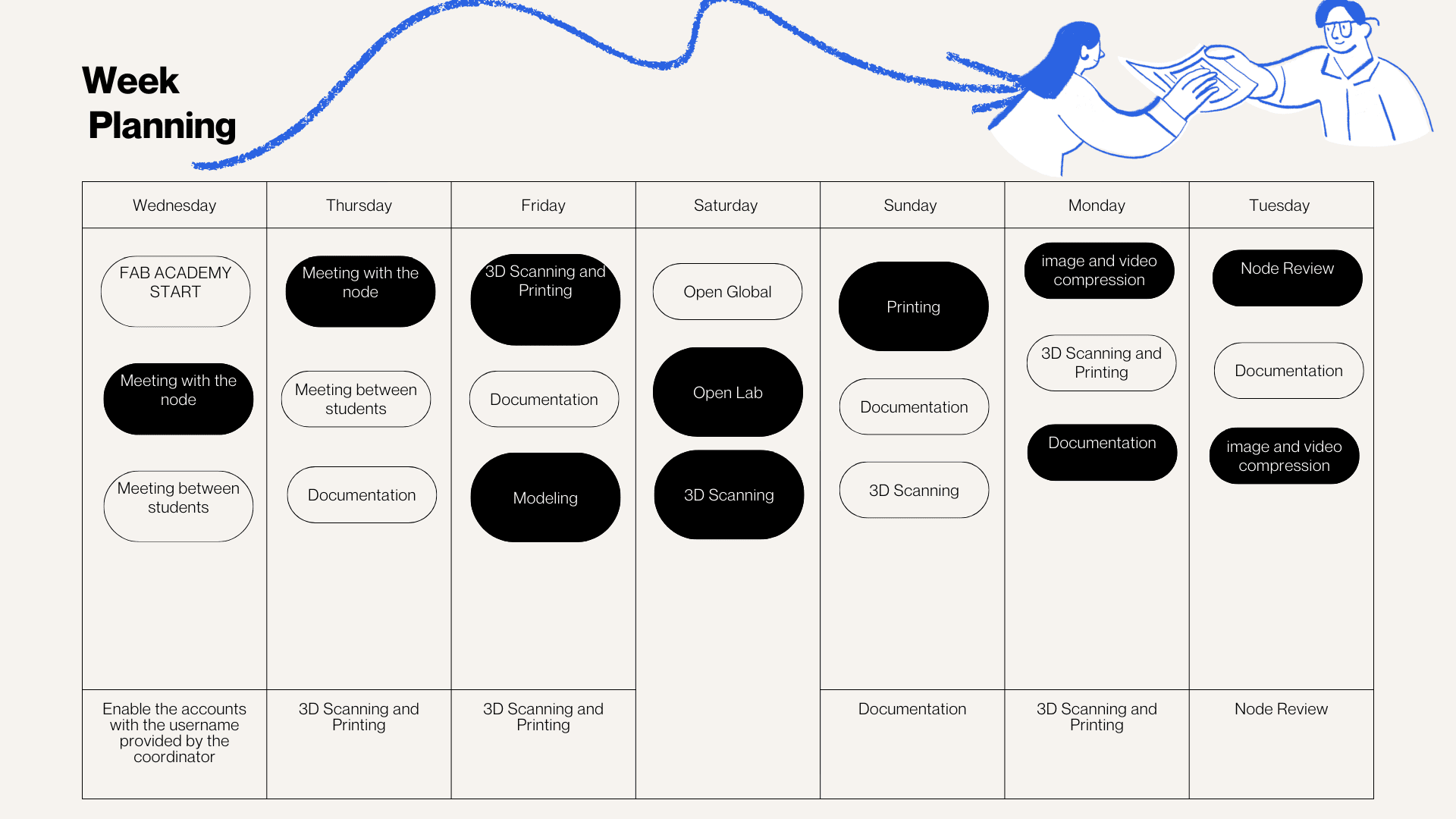
Weekly planning

During the week, we carried out various activities that presented significant challenges but were also very rewarding, especially due to the opportunity to share and learn together. We met virtually with our colleagues in the node and also participated in Open Lab meetings with Iquitos, Satipo, and Lima, which allowed us to organize and conduct open workshops in the different labs. In these sessions, we were able to review the software necessary for the work, as well as the machines, materials, and instruments required for each activity. This experience strengthened coordination between nodes and allowed us to better understand the importance of planning and managing resources effectively in digital fabrication processes.
Single image

Open Lab

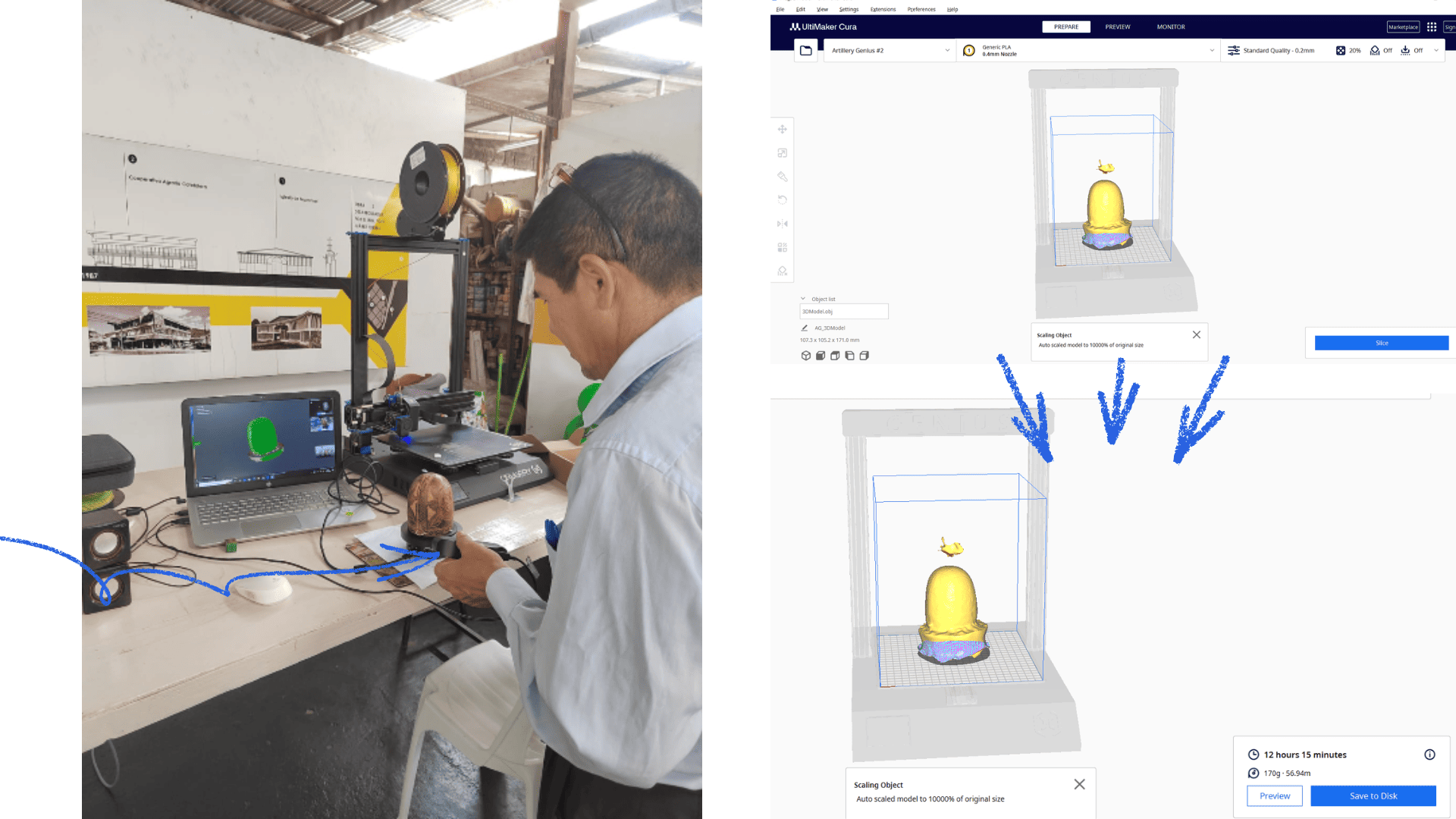
The Open Lab is a node initiative that seeks to share knowledge openly with the public, promoting access to digital fabrication and new technologies. This time, as a node, we were able to develop it in three cities where we have the mobile lab: in Lima at the National Museum of Archaeology, Anthropology and History of Peru, in Satipo at the Koajika Fab Lab, and in Iquitos with the mobile lab. This allowed us to develop training activities in different contexts, adapting to each community. During the sessions, we offered workshops on 3D printing and scanning, as well as spaces for symbiotic creation, aimed at reflecting on the possible uses of technology and how to channel information to generate local opportunities. In Satipo, we received a visit from the association of sacha indigo farmers, master artisans, entrepreneurs, and children, who were able to explore design programs like Tinkercad, an accessible and easy-to-use tool. We also worked with 3D printers, 3D pens, and scanners, even using mobile applications to digitize handicrafts. For many it was a new but very enriching experience, as it allowed them to see how craftsmanship and traditional knowledge can merge with technology to innovate without losing cultural identity..
Single image

Open Lab

Single image

Group Work

The group work was conducted across different labs, beginning with a virtual meeting where we analyzed the week's requirements and organized the activities. During this meeting, we also shared information about the machines available in each lab, allowing us to identify the capabilities of each piece of equipment and define the tests we could perform based on the available resources. It was a very interesting experience, as there is a variety of machines and configurations, which gave us the opportunity to compare results, analyze differences in performance, and better understand how technical characteristics influence digital manufacturing processes.

Single image

Artillery Genius Pro – 3D Printer Overview

Carmen Elena Gutierrez Apolinario

The Artillery Genius Pro is an FDM 3D printer renowned for its stability, precision, and ease of use, making it ideal for both beginners and advanced users. It features a build volume of 220 mm x 220 mm x 250 mm, allowing for the production of medium-sized parts with a good level of detail. Its printing speed can be adjusted between 60 mm/s and 150 mm/s, depending on the print quality and material used.

It is equipped with a direct drive extruder with a 0.4 mm nozzle, which facilitates the printing of flexible materials and improves filament flow control. Its print resolution is 0.05 mm on the X and Y axes, and 0.1 mm on the Z axis, enabling precise and defined finishes. Regarding energy consumption, it can reach a maximum of 500 W when the heated bed is on.

To prepare the models before printing, Ultimaker Cura 5.5.0 slicing software was used, which allows configuring parameters such as temperature, speed, infill, supports, and layer height, thus optimizing the final print quality.

Compatible Materials

  • PLA (Polylactic Acid): An easy-to-print material, ideal for beginners and rapid prototyping.
  • ABS: More resistant and durable, although it requires better temperature control to avoid warping.
  • PETG: Combines mechanical strength and some flexibility, making it suitable for functional parts.
  • TPU (Flexible Filament): Thanks to the direct drive extruder, it can be printed more easily compared to Bowden systems.
  • Wood-Look Filaments (PLA with Wood Particles): Offer a decorative finish similar to natural wood.
  • PVA and HIPS: Special materials mainly used as soluble supports in complex prints.
Single image Complete 3D Printing Guide

Complete 3D Printing Guide

Artillery Genius Pro with Ultimaker Cura

1. Software Installation

1.1 Downloading Ultimaker Cura

  • Go to the official Ultimaker Cura website.
  • Download the version compatible with your operating system (Windows or Mac).
  • Run the installer.
  • Complete the installation and open the program.

2. Printer Configuration

2.1 Adding the Artillery Genius Pro

  • Open Cura and select Add Printer.
  • Choose Add Custom FFF Printer.
  • Name it: Artillery Genius Pro.

2.2 Basic Machine Parameters

  • Print volume: 220 mm (X) x 220 mm (Y) x 250 mm (Z).
  • Nozzle size: 0.4 mm.
  • Filament diameter: 1.75 mm.
  • Save settings.

3. Printer Preparation

3.1 Leveling the Print Bed

  • Turn on the printer.
  • Preheat the bed (for PLA: 50 to 60 °C).
  • Turn off the motors.
  • Place a sheet of paper between the nozzle and the bed.
  • Tighten the screws at the four corners.

Correct Result:

  • The paper should slide with slight friction.
  • It should not be completely free or completely blocked.
  • Repeat the procedure at least twice.

4. Importing the 3D Model

4.1 Loading an STL File

  • Click Open File.
  • Select the .STL file.
  • Verify that the model appears on the virtual platform.

4.2 Model Adjustments

  • Scale the size if necessary.
  • Rotate the part if necessary.
  • Center the model on the build plate.

5. Printing Parameter Settings

Recommended example for PLA:

  • Nozzle temperature: 200 °C
  • Bed temperature: 55 to 60 °C
  • Layer height: 0.2 mm
  • Initial layer height: 0.24 to 0.28 mm
  • Print speed: 50 to 60 mm/s
  • Adhesion: Skirt or Brim as needed

Also check:

  • Initial flow
  • Retraction
  • Fan activated after the first layer

6. Slicing Process

  • Click on Slice.
  • Wait for the file calculation.
  • Check the estimated print time.
  • Check the material consumption.
  • Check the layer preview.
  • Verify that there are no display errors.

7. File Export

  • Insert USB drive.
  • Select Save to removable device.
  • The file will be generated in .gcode format.

8. Printing Process

  • Insert the USB drive into the printer.
  • Select Print from the touchscreen.
  • Choose the G-code file.
  • Wait for automatic heating.
  • Monitor the first layer.

9. First Layer Verification

The first layer should:

  • Appear uniform.
  • Be well adhered.
  • Not be excessively compressed.
  • Not show gaps between lines.

If the part is lifting:

  • Adjust the leveling slightly.
  • Reduce the Z-height.

If it is sticking too much:

  • Increase the initial height slightly.
  • Reduce the bed temperature.

10. Completion

  • Wait for the bed to cool.
  • Carefully remove the part.
  • Clean the print surface.
3D Printing Tests - Artillery Genius Pro Single image

Download and install Artillery Genius Pro with Ultimaker Cura

Single image

Download and install Artillery Genius Pro with Ultimaker Cura

Single image

Artillery Genius Pro with Ultimaker Cura

Single image

Artillery Genius Pro with Ultimaker Cura

Test without Supports

On the Artillery Genius Pro , tests without supports allow you to verify the correct calibration of the equipment and evaluate its performance when printing steep angles and overhangs.

The machine successfully completes most models without the need for support structures, demonstrating good thermal stability and adequate extruder control. Although slight imperfections may appear in demanding areas, the overall result confirms a suitable configuration and stable operation.

Test with Supports

On the Artillery Genius Pro , the test with supports allowed us to verify the printer's correct performance when working with models that have overhangs and complex geometries.

By activating support generation in Ultimaker Cura , greater stability was achieved during printing, and a more precise finish was obtained in critical areas compared to the test without supports.

The supports were generated correctly and could be removed relatively easily after printing, demonstrating good calibration and satisfactory overall performance.

Single image

Impression in Artillery Genius Pro

Creality K1 SE - Technical Specifications

PRINTER: Creality K1 SE

David Ávila Pimentel

Print Volume:
220 x 220 x 250 mm

Maximum Speed:
Up to 600 mm/s (with acceleration up to 20,000 mm/s²).

Extruder:
Dual Gear Direct Drive (direct drive extruder with dual gears for firm filament grip and stable feeding).

Standard Nozzle Diameter:
0.4 mm (interchangeable with other diameters as needed).

Key Features

  • Tri-metal nozzle (copper with steel tip and titanium heat break), wear-resistant, reduces heat creep, and is easy to replace.
  • CoreXY system, which provides greater speed and precision of movement with less vibration.
  • Hands-free auto-leveling for easy bed adjustment.
  • Flexible PEI-coated build plate for easy print removal.
  • Slicing Software: Creality Print

Common Materials You Can Use

  • PLA: Easy-to-print filament, ideal for decorative parts and prototypes without high heat resistance.
  • Hyper PLA: Optimized version of PLA for faster printing without sacrificing quality.
  • PETG: Stronger and more flexible than PLA, ideal for mechanical parts or outdoor use.
  • TPU: Flexible and elastic material, perfect for cases, seals, or parts that need to bend.

Creality K1 SE.

Single image Creality K1 SE - Slicing Software

Slicing Software for Creality K1 SE

The primary slicer for the Creality K1 SE printer is Creality Print , a program optimized for wireless connectivity since it is developed by the same manufacturer.

It is worth noting that the software offers three default print modes for first-time users, making it easier to start printing quickly. Additionally, it includes more advanced parameter settings for experienced users, while maintaining a user-friendly and intuitive interface.

Single image

Creality K1 SE

Single image Support Test Comparison

In the first test, we printed without supports to observe the finish of the part without this option. Before slicing, the software displayed an alert message indicating that the model had overhangs that might require support.

In the second test, we used the "normal" automatic support type, maintaining the same default parameters as the previous test. This allowed us to directly compare the results and evaluate the improvement in stability and finish in critical areas.

In the third test, we used the "tree" automatic support type to analyze the differences in material consumption, ease of removal, and final print quality, thus determining which configuration offers the best balance between efficiency and finish.

In the unsupported test, the piece loses its shape only at the bottom, affecting the finish in that area. With the tree-type support, a more uniform finish is achieved in the critical areas, although small points where the structures rested remain visible upon removal. In contrast, with the standard support, this test shows a better overall finish, as the supports are removed more linearly and their marks tend to be concealed by the straight shape of the model.

Single image

In the clearance test, we used standard automatic supports and a layer height of 0.20 mm. After printing, we observed that this type of support is not highly recommended for this model, as it adhered to the bottom of the part, making it difficult to clean and remove. The results show that the best clearance tolerances with these parameters are between 1 mm and 0.4 mm, while at lower values, the parts are much more difficult to move or rotate due to the increased friction..

Single image

Clearance.

Single image
Bambu Lab A1 / A1 Combo - Technical Specifications

3D PRINTER – Bambu Lab A1 / Bambu Lab A1 Combo

Esteban M. Valladares

Print Volume:
256 x 256 x 256 mm

Maximum Speed:
Up to 500 mm/s (with acceleration up to 10,000 mm/s²).

Extruder:
0.4 mm stainless steel nozzle with Quick Swap system for quick changes.

Key Features

  • Full automatic leveling.
  • Active flow compensation.
  • Vibration calibration for greater accuracy at high speeds.
  • The Combo version includes the AMS Lite system for multi-color printing (up to 4 filaments).
  • Slicing Software: Bambu Studio

Common Materials You Can Use

  • PLA: Ideal for fast prints with high aesthetic quality.
  • PETG: Greater mechanical and thermal resistance, easy to print on the A1.
  • TPU: Excellent performance thanks to the direct drive extruder.
  • PVA / HIPS: Materials for soluble supports (ideally using AMS Lite for interfaces).
Single image Bambu Lab A1 - Printing Setup

To perform a 3D print with the Bambu Lab A1 using Bambu Studio, the first step is to download and install the software from the official Bambu Lab website. Once in the program, select the printer (A1 or A1 Combo) and the 0.4 mm nozzle type from the device list, or it will automatically synchronize if the machine is connected to the network.

Unlike older printers, manual leveling with a sheet of paper is not necessary, as the A1 performs automatic calibration before starting the print. This calibration measures bed leveling, motor resonance, and extruder flow pressure, ensuring a precise first layer without user intervention.

If using the Combo version, you also configure the AMS Lite slots, assigning the corresponding colors for multi-color printing.

Single image Single image Bambu Lab A1 - Printing Process

Next, the test files—in this case, anisotropy.stl, finish.stl, and angle.stl—are imported into Bambu Studio. The orientation of the models is checked to optimize mechanical strength and reduce support requirements, applying adjustments such as scaling or rotation if necessary.

Then, the parameters are configured according to the material (for example, for Bambu Basic PLA: nozzle at 220 °C and bed at 65 °C). Once the settings are defined, "Slice Plate" is clicked to generate the G-code file.

Finally, the file is sent via Wi-Fi directly to the Bambu Lab A1 or saved to the SD card. Printing is then started from the printer's touchscreen or the Bambu Handy app, relying on the integrated sensors to automatically monitor flow quality and proper first-layer adhesion.

Single image Single image Bambu Lab A1 - Overhang Test

With the Bambu Lab A1, the overhang test using the angle.stl file allows verification of the layer cooling fan performance. The machine successfully prints steep angles without supports thanks to its excellent cooling and stability, maintaining dimensional accuracy even at aggressive inclines.

Results: The Bambu Lab A1 demonstrated excellent cooling capacity, successfully printing without supports and without issues up to a 30-degree incline.

Machine Limits: At 20°, 10°, and 0°, overhang becomes evident. At these more extreme angles, the layers lose their ideal alignment, and loose or sagging filaments begin to appear, indicating the precise point where the use of supports becomes mandatory in the design.

Single image Finishing Test - finish.stl

Finishing Test (finish.stl): This model consists of two spheres (one extruded and one subtracted). For this test, I experimented with the adaptive layer height tool in Bambu Studio, creating two versions to compare the final quality shown in the photos.

Option A (Moderate Variation): This configuration maintained a base layer height of 0.28 mm for most of the print to reduce printing time. Thanks to the adaptive feature, in the final areas (the upper curves of the spheres), the layer height was automatically reduced to 0.12 mm to improve resolution and surface detail.

Option B (High Resolution): A more aggressive adaptive setting was applied. Straight or less detailed areas remained at 0.28 mm, while zones with greater curvature and detail were reduced to 0.08 mm. As shown in the photos, this significant adjustment almost completely eliminates the "staircase" effect, achieving a much smoother and superior surface finish on the spheres.

Single image Single image

3D Printer – Prusa XL

Jianfranco Bazán J.

Print Volume:
360 x 360 x 360 mm

Maximum Speed:
Up to 250 mm/s (maximum acceleration approximately 5000 mm/s² in standard usage).

Extruder:
0.4 mm stainless steel nozzle (Quick Swap quick change system).

Key Features:
The Prusa XL (5-toolhead version) stands out for its large build volume, high-precision CoreXY system, and five independent toolheads that enable multi-material and multi-color printing in a single job with automatic tool changing.

Slicing Software:
PrusaSlicer, OrcaSlicer

Common Materials You Can Use:
PLA (Polylactic Acid): Ideal for fast printing with high aesthetic quality.
PETG: Greater mechanical and thermal resistance, easy to print.
TPU (Flexible): Excellent performance thanks to the direct extruder.
PVA / HIPS: Soluble support materials.

Single image

To perform 3D printing with the Prusa XL using OrcaSlicer, an open-source program, the first step is to download the software from its GitHub repository and install it on your PC.

Once installed, the configuration process is very straightforward. You simply select the printer model you will use and choose the printing material. The next step is to import the .STL file.

Unlike single-extruder printers, the Prusa XL does not require extensive purging beyond the purge tower. Thanks to its five independent toolheads, it can print up to five different colors or five different materials within a single print job.

Single image

To import an STL file in OrcaSlicer, first open the software and make sure the correct printer and filament profiles are selected.

Then click on “Open File” or simply drag and drop the STL file into the workspace. Once the model appears on the virtual print bed, adjust its position, scale, or orientation if necessary.

After verifying that everything is correctly placed, click “Slice” to generate the toolpaths, preview the layers, and finally export the G-code to prepare the file for printing.

Single image

Once the STL files are printed, we proceed to review the results in order to evaluate the print quality.

During this analysis, we identify which parameters can be adjusted for the selected material, such as overhang performance, printing temperature, and dimensional tolerances, in order to achieve optimal results in future prints.

Single image

Printing Test – Bestgee T300S Pro

Cindy Crispin

For the printing tests, the Bestgee T300S Pro 3D printer was used with the following configuration:

Printer Settings (With Supports)

  • Profile: 0.2 mm
  • Infill: 20%
  • Supports: Enabled
  • Printing Temperature: 215 °C
  • Bed Adhesion: Brim
  • Printer Profile: Ender 3

The use of supports was necessary for designs with pronounced overhangs and open spaces. Without an auxiliary structure, the molten material tends to sag or shift toward the nearest surface due to gravity, which negatively affects dimensional accuracy and surface finish.

Supports provide additional structural stability during the printing process and help achieve better overall print quality.

Single image

First, go to the Ultimaker Cura website and download the software.

Click "Download Ultimaker Cura" and install the program on your computer.

Once installed, open the software and load the downloaded STL file.

Then, click the "Flatten" command to ensure the object is correctly positioned on the print bed.

Next, select the material to be used, in this case, PLA.

Verify the model's scale, making sure the dimensions are correct:

  • X-axis: 2 cm
  • Y-axis: 1.5 cm
  • Z-axis: 2 cm

After confirming the dimensions, enable supports if necessary.

Next, click "Slice" to generate the toolpaths. The estimated print time is 16 minutes. Finally, save the file in G-code format.

The G-code file is transferred to the 3D printer, and the same process is repeated for the other files.

Single image

When printing our parts, we must ensure that the print bed is heated to approximately 60°C.

The extruder should be heated to approximately 200°C.

It is important to properly level the nozzle, maintaining an approximate 1 mm distance between the extruder and the print bed.

When working with raised geometries, such as a chess knight, supports must be added in the Cura software to ensure proper print quality.

Before starting the print, verify that there is enough PLA filament available to complete the job. You can check the estimated material usage in Ultimaker Cura to confirm the required amount.

Single image
Bambu Lab A1 / A1 Combo - Technical Specifications

3D PRINTER – Bambu Lab A1 / Bambu Lab A1

Rocío Maravi

Print Volume:
256 x 256 x 256 mm

Maximum Speed:
Up to 500 mm/s (with acceleration up to 10,000 mm/s²).

Extruder:
0.4 mm stainless steel nozzle with Quick Swap system for quick changes.

Key Features

  • Full automatic leveling.
  • Active flow compensation.
  • Vibration calibration for greater accuracy at high speeds.
  • The Combo version includes the AMS Lite system for multi-color printing (up to 4 filaments).
  • Slicing Software: Bambu Studio
Single image

After importing the test files into the workspace, I configured the printing parameters according to the selected material.

In this case, for ESUN PLA, the nozzle temperature was set to 220 °C and the heated bed to 65 °C.

Once these values were defined, I used the "Slice Plate" option to generate the G-code file and preview the printing process.

Finally, the file was transferred to the printer using an SD card.

Single image

Overhang Test: The printed parts showed very good overall quality.

Supports were generated correctly and were easy to remove, leaving only minor marks on the contact surfaces.

Overhangs were printed with good definition, and bridges remained stable without excessive sagging.

Layer adhesion was uniform, and dimensional accuracy was acceptable for prototyping purposes.

Single image

Tolerance Test – Clearance Characterization: To evaluate the dimensional accuracy of the Bambu Lab A1 printer, a tolerance test model with varying clearances, ranging from 1.0 mm to 0.1 mm, was printed.

This test helps determine the minimum clearance required between moving or interlocking parts to function properly without jamming.

The results showed that parts with clearances of 0.2 mm or greater moved freely, while those with smaller clearances began to jam or fuse together.

This indicates that, for the current printer and material configuration, a clearance of approximately 0.2 mm is recommended when designing moving parts or mechanical assemblies.

Single image

Tolerance Test: To evaluate the dimensional accuracy of the Bambu Lab A1 printer, a fit tolerance test was performed using a model with numbered grooves of varying thicknesses.

This type of test helps identify the minimum clearance required to achieve a proper fit between 3D-printed parts.

When the parts were pressed into the grooves, some fractured due to insufficient tolerance, while others remained intact.

The parts that did not break indicate an adequate tolerance range for achieving a functional fit with the selected material and printing configuration.

Single image

Infill Test: To evaluate how the infill percentage influences the strength and surface finish of printed parts, tests were conducted using different infill settings in Bambu Studio.

Three samples were printed with infill percentages of 15%, 50%, and 100%, while keeping other printing parameters such as temperature, speed, and layer height constant.

Single image

Artillery Genius Pro – 3D Printer Overview

Grace Schwan Silva

The Artillery Genius Pro is an FDM 3D printer renowned for its stability, precision, and ease of use, making it ideal for both beginners and advanced users. It features a build volume of 220 mm x 220 mm x 250 mm, allowing for the production of medium-sized parts with a good level of detail. Its printing speed can be adjusted between 60 mm/s and 150 mm/s, depending on the print quality and material used.

It is equipped with a direct drive extruder with a 0.4 mm nozzle, which facilitates the printing of flexible materials and improves filament flow control. Its print resolution is 0.05 mm on the X and Y axes, and 0.1 mm on the Z axis, enabling precise and defined finishes. Regarding energy consumption, it can reach a maximum of 500 W when the heated bed is on.

To prepare the models before printing, Ultimaker Cura 5.5.0 slicing software was used, which allows configuring parameters such as temperature, speed, infill, supports, and layer height, thus optimizing the final print quality.

Compatible Materials

  • PLA (Polylactic Acid): An easy-to-print material, ideal for beginners and rapid prototyping.
  • ABS: More resistant and durable, although it requires better temperature control to avoid warping.
  • PETG: Combines mechanical strength and some flexibility, making it suitable for functional parts.
  • TPU (Flexible Filament): Thanks to the direct drive extruder, it can be printed more easily compared to Bowden systems.
  • Wood-Look Filaments (PLA with Wood Particles): Offer a decorative finish similar to natural wood.
  • PVA and HIPS: Special materials mainly used as soluble supports in complex prints.
Single image Complete 3D Printing Guide

Complete 3D Printing Guide

Artillery Genius Pro with Ultimaker Cura

1. Software Installation

1.1 Downloading Ultimaker Cura

  • Go to the official Ultimaker Cura website.
  • Download the version compatible with your operating system (Windows or Mac).
  • Run the installer.
  • Complete the installation and open the program.

2. Printer Configuration

2.1 Adding the Artillery Genius Pro

  • Open Cura and select Add Printer.
  • Choose Add Custom FFF Printer.
  • Name it: Artillery Genius Pro.

2.2 Basic Machine Parameters

  • Print volume: 220 mm (X) x 220 mm (Y) x 250 mm (Z).
  • Nozzle size: 0.4 mm.
  • Filament diameter: 1.75 mm.
  • Save settings.

3. Printer Preparation

3.1 Leveling the Print Bed

  • Turn on the printer.
  • Preheat the bed (for PLA: 50 to 60 °C).
  • Turn off the motors.
  • Place a sheet of paper between the nozzle and the bed.
  • Tighten the screws at the four corners.

Correct Result:

  • The paper should slide with slight friction.
  • It should not be completely free or completely blocked.
  • Repeat the procedure at least twice.

4. Importing the 3D Model

4.1 Loading an STL File

  • Click Open File.
  • Select the .STL file.
  • Verify that the model appears on the virtual platform.

4.2 Model Adjustments

  • Scale the size if necessary.
  • Rotate the part if necessary.
  • Center the model on the build plate.

5. Printing Parameter Settings

Recommended example for PLA:

  • Nozzle temperature: 200 °C
  • Bed temperature: 55 to 60 °C
  • Layer height: 0.2 mm
  • Initial layer height: 0.24 to 0.28 mm
  • Print speed: 50 to 60 mm/s
  • Adhesion: Skirt or Brim as needed

Also check:

  • Initial flow
  • Retraction
  • Fan activated after the first layer

6. Slicing Process

  • Click on Slice.
  • Wait for the file calculation.
  • Check the estimated print time.
  • Check the material consumption.
  • Check the layer preview.
  • Verify that there are no display errors.

7. File Export

  • Insert USB drive.
  • Select Save to removable device.
  • The file will be generated in .gcode format.

8. Printing Process

  • Insert the USB drive into the printer.
  • Select Print from the touchscreen.
  • Choose the G-code file.
  • Wait for automatic heating.
  • Monitor the first layer.

9. First Layer Verification

The first layer should:

  • Appear uniform.
  • Be well adhered.
  • Not be excessively compressed.
  • Not show gaps between lines.

If the part is lifting:

  • Adjust the leveling slightly.
  • Reduce the Z-height.

If it is sticking too much:

  • Increase the initial height slightly.
  • Reduce the bed temperature.

10. Completion

  • Wait for the bed to cool.
  • Carefully remove the part.
  • Clean the print surface.
3D Printing Tests - Artillery Genius Pro

3D Printing Tests - Artillery Genius Pr

3D Printing Tests - Artillery Genius Pr

printer comparison

Feature Artillery Genius Pro Creality K1 SE Bambu Lab A1 / A1 Combo Prusa XL Bestgee T300S Pro
Print Volume 220 x 220 x 250 mm 220 x 220 x 250 mm 256 x 256 x 256 mm 360 x 360 x 360 mm 235 x 235 x 250 mm
Max Speed 60–150 mm/s Up to 600 mm/s (acceleration up to 20,000 mm/s²) Up to 500 mm/s (acceleration up to 10,000 mm/s²) Up to 250 mm/s (max acceleration ~5,000 mm/s²) 150 mm/s
Extruder Direct Drive Dual Gear Direct Drive 0.4 mm stainless steel, Quick Swap 0.4 mm stainless steel, Quick Swap Standard Direct Drive
Nozzle Diameter 0.4 mm 0.4 mm 0.4 mm 0.4 mm 0.4 mm
Leveling Manual Hands-free Auto Leveling Automatic Automatic Manual / Assisted
Special Features Stable direct drive extruder CoreXY system, Tri-metal nozzle, flexible PEI bed Auto leveling, AMS Lite (Combo), vibration calibration 5 independent toolheads, multi-material/color, CoreXY Supports complex geometries, heated bed
Slicer Software Ultimaker Cura Creality Print Bambu Studio PrusaSlicer, OrcaSlicer Standard slicer compatible
Common Materials PLA, ABS, PETG, TPU, PVA/HIPS PLA, Hyper PLA, PETG, TPU, PVA/HIPS PLA, PETG, TPU, PVA/HIPS PLA, PETG, TPU, PVA/HIPS PLA, PETG, TPU

3D printers like the Artillery Genius Pro, Creality K1 SE, Bambu Lab A1 Combo, Prusa XL, and Bestgee T300S Pro demonstrate how additive manufacturing technology adapts to diverse needs. Each model excels in speed, precision, or versatility, enabling work with various materials and complex designs. These machines not only facilitate the creation of prototypes and functional parts but also democratize access to digital manufacturing, fostering innovation, creativity, and hands-on learning in educational and professional settings.

individual task

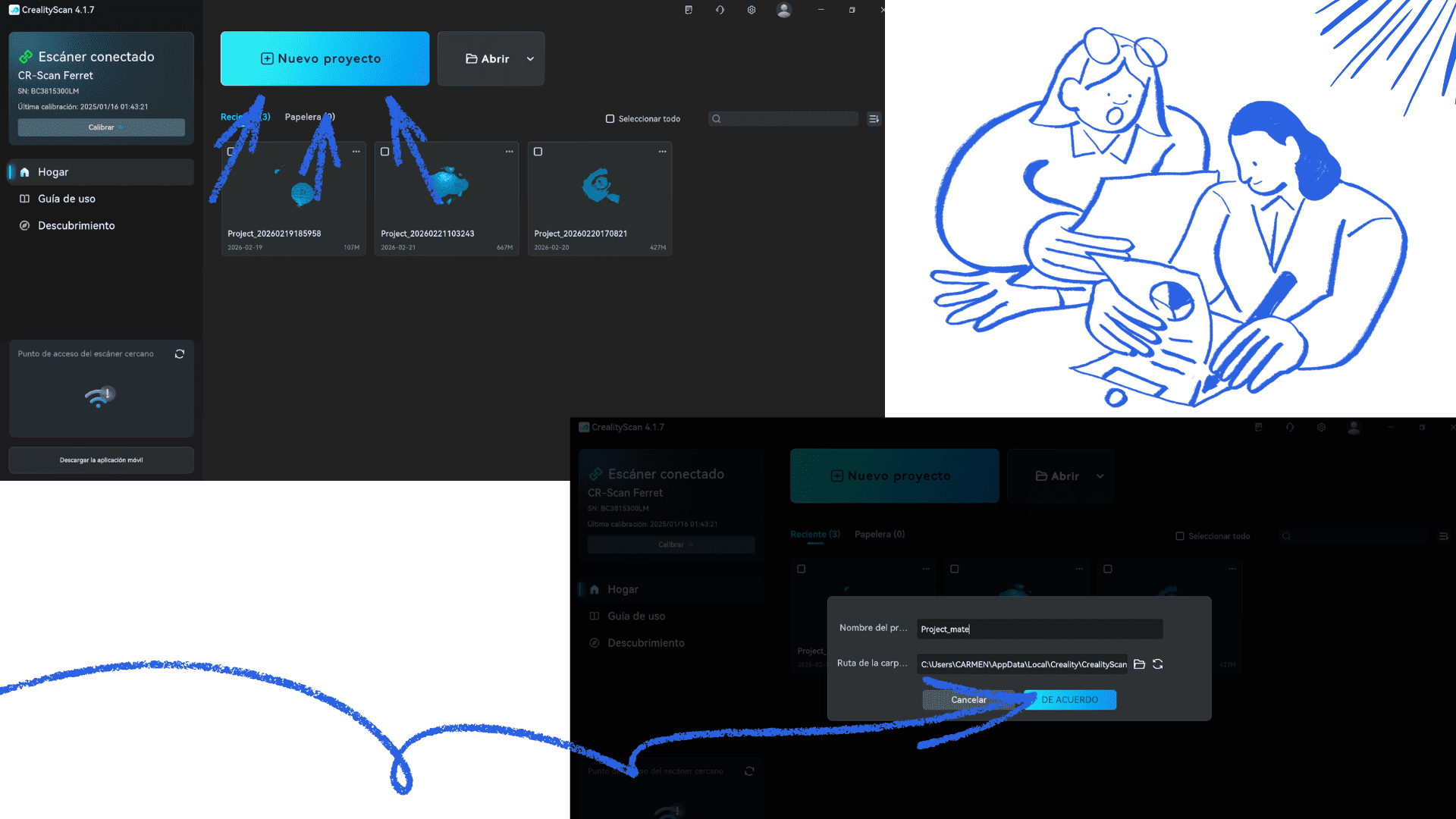
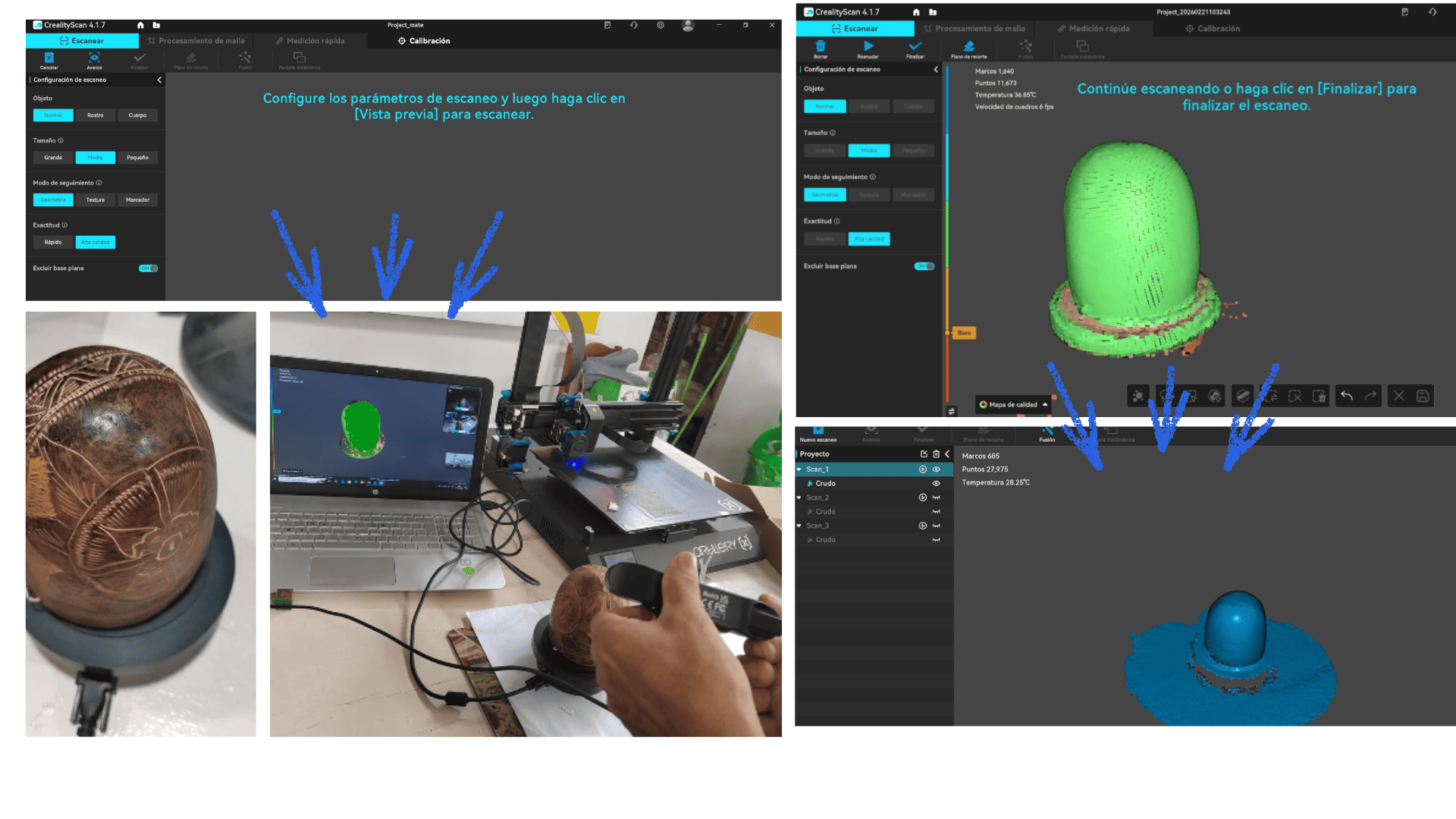
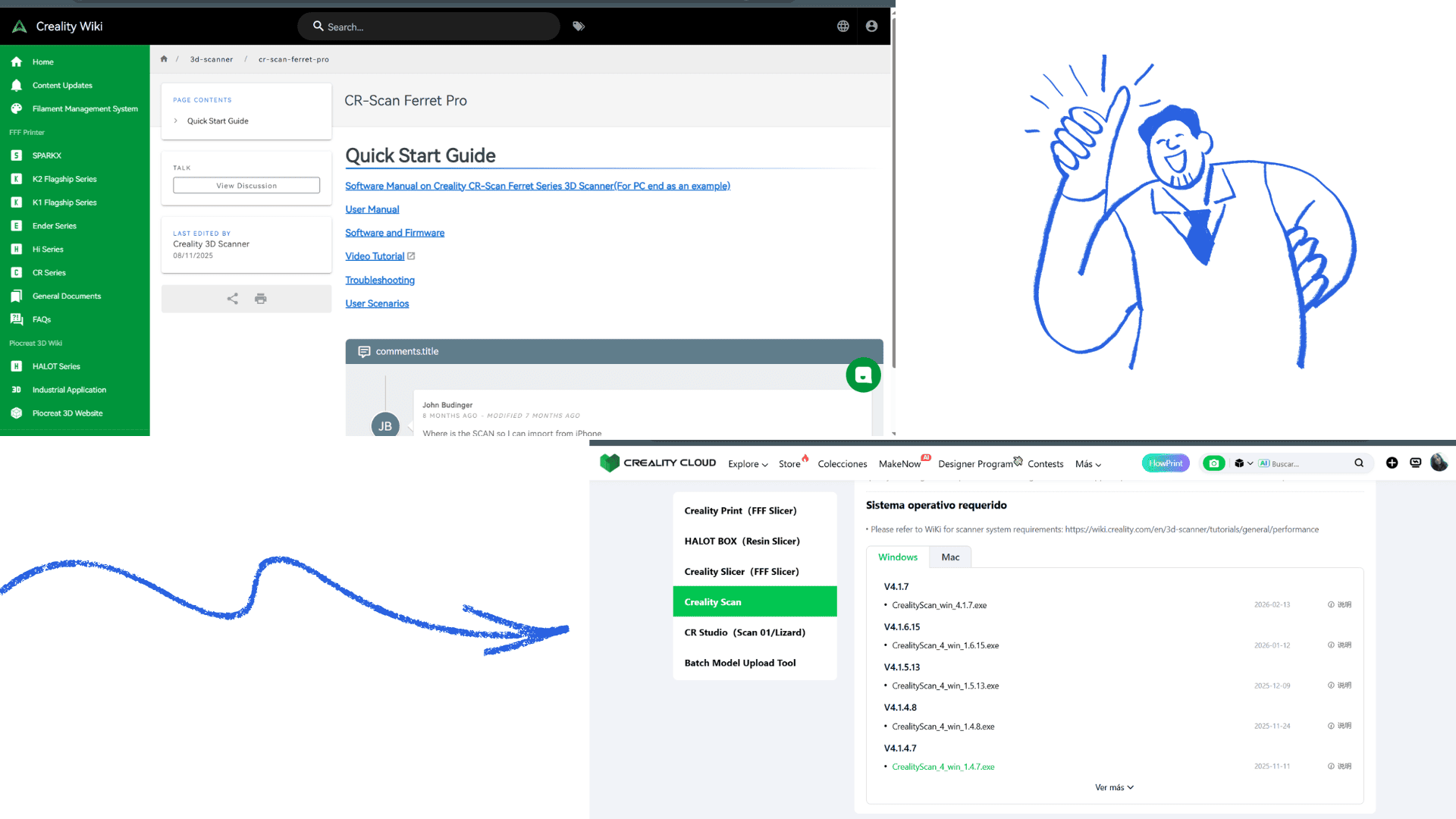
Creality SC 3D Scanner - Step-by-Step Guide

Step-by-Step Guide: Creality SC 3D Scanner

1. Software Download and Installation

  • Go to the official Creality website: Creality 3D
  • Go to the Downloads section or search for Creality Scan (the SC software).
  • Download the version compatible with your operating system (Windows).
  • Run the installer and follow the installation steps.
  • Once finished, open the software.

2. Scanner Preparation

  • Connect the Creality SC to your PC using the included USB cable.
  • Turn on the scanner and verify that the status light is on (usually blue or green).
  • Place the scanner on a stable, well-lit surface.

3. Initial Software Setup

  • Select New Project or New Scan.
  • Choose the scan mode according to the object:
    • Small object (less than 20 cm)
    • Medium/Large object (20–50 cm)
  • Adjust basic parameters:
    • Resolution: High, Medium, or Low (high for fine details)
    • Scan type: Color (if you want textures) or Geometry only
  • Calibrate the scanner if prompted (usually using the included reference object).

4. Preparing the Object to be Scanned

  • Place the object on the turntable, if available.
  • Ensure it is stable and that the ambient light is even (avoid harsh shadows).
  • If the object is reflective or transparent, apply a temporary matte spray (optional).

5. Scanning

  • Select Start Scan.
  • Watch as the software records the object's geometry in real time.
  • If the object is on the turntable, the software usually synchronizes rotation automatically.
  • Once scanning is complete, review the preview.

6. Model Processing

  • The software will generate a 3D mesh model.
  • Clean the model by removing artifacts or unwanted points.
  • Fix holes or incomplete areas using Fill Holes / Smooth tools.
  • Adjust the scale and orientation as needed.

7. Exporting

  • Save the scanned model in compatible formats:
    • STL (for 3D printing)
    • OBJ (for animation or rendering)
    • PLY (to preserve color and textures)
  • Choose the destination folder and confirm.

8. Using the Model

  • Import the exported file into your 3D printing software (e.g., Ultimaker Cura or Creality Print).
  • Adjust printing parameters: layer height, infill, supports.
  • Send the file to the 3D printer to bring your scan to life.
Single image Single image Single image Single image
KIRI ENGINE 3D Scanner - Step by Step Guide

Step-by-Step Guide – 3D Scanner with KIRI ENGINE

1. Download the application

From the App Store (iOS):

  • Open the App Store on your iPhone or iPad.
  • Search for “KIRI ENGINE” in the search bar.
  • Download and install the official application.
  • Open the app once the installation is complete.

From the website (Android or PC):

  • Go to the official KIRI ENGINE website: kiri-engine.com
  • Find the downloads section or direct installation links.
  • Download the version corresponding to your device or platform.
  • Install the app following the operating system's instructions.

2. Account creation and access

  • Open the KIRI ENGINE application.
  • Register with your email address or log in if you already have an account.
  • Verify your email if requested (you will receive a confirmation code or link).
  • Once inside, access the main panel.

3. Preparing the object to scan

  • Place the object on a stable surface.
  • Ensure the object is well-lit without harsh shadows.
  • If the object is shiny or reflective, apply a temporary matte spray (optional).

4. Capturing video or photos for scanning

  • Select “New Scan” or “Start Scan” in the app.
  • Choose the capture mode:
    • Multiple Photo: Take several photos around the object.
    • Video: Record while moving your phone around the object.
  • Follow app instructions for camera movement:
    • Keep the object centered.
    • Slowly rotate around the object to capture all sides.
    • Cover 360° from all angles.

5. Processing in the app

  • After capture, the app will process the scan and generate a 3D mesh.
  • You can preview the model during processing.
  • If unsatisfactory, repeat the scan.

6. Reviewing the 3D Model

  • Rotate the model on screen.
  • Check for large gaps or holes.
  • Verify all important parts are well-defined.
  • Use app tools if needed to:
    • Fill gaps
    • Smooth surfaces
    • Crop unnecessary areas

7. Exporting and Sending the File

  • Select the Export option.
  • Choose the format:
    • STL (for 3D printing)
    • OBJ (for rendering or animation)
    • PLY (for color and texture)
  • Start the export process.

8. Email Delivery

  • Enter your email address.
  • Select download link or attachment.
  • Send the email.
  • Check your email and download the generated 3D file.

Tips for Best Results

  • Keep your hands steady when capturing video or photos.
  • Ensure proper lighting from multiple angles.
  • Avoid backgrounds that match the object color.
  • Practice with simple objects before scanning complex pieces.
Single image Single image Single image Single image
Designing and Printing an Object That Cannot Be Made Subtractively

Designing and Printing an Object That Cannot Be Made Subtractively

To design and print an object that can't be manufactured subtractively, I started by opening SketchUp, a 3D modeling program that allows for the intuitive creation of complex, geometric shapes. First, I set the working units to millimeters to match the actual dimensions of the object I was going to print.

Then, I used SketchUp's basic tools, such as Push/Pull, Follow Me, and Grouping, to model the shape of a bamboo joint. Thanks to SketchUp, I was able to create cavities, curves, and internal connections that would be impossible to machine using a traditional subtractive process. Each component was modeled individually and then grouped to ensure the assembly maintained the correct geometry and was free of interference.

Once the design was complete, I reviewed the model to ensure there were no inverted faces, gaps, or invalid geometries that could cause printing errors. Then I exported the file in .STL format, which is compatible with slicing software like Ultimaker Cura, which I use for the Artillery Genius Pro.

I opened Ultimaker Cura, selected the Artillery Genius Pro printer, and loaded the .STL file. I configured the print parameters according to the PLA material:

  • Nozzle temperature: 200 °C
  • Bed temperature: 55 °C
  • Layer height: 0.2 mm
  • Adhesion: Brim
  • Speed: 50 mm/s

Next, I checked the model's orientation on the virtual build platform to ensure good bed adhesion and minimize the need for supports. For this part, I decided to enable automatic supports in the areas with pronounced overhangs.

After checking all the parameters, I clicked Slice to generate the G-code file and saved it to a USB drive. I connected the memory card to the Artillery Genius Pro, selected the file from the touchscreen, and started printing.

During printing, I monitored the first layer to ensure proper adhesion and leveling. Thanks to the precision of the Artillery Genius Pro's direct drive extruder and its excellent thermal stability, the object printed without warping and with precise details in all curves and internal cavities.

Finally, I removed the part from the print bed once it had cooled and carefully cleaned the supports. The result was a functional object that would not have been possible to manufacture using subtractive methods, demonstrating the advantage of additive manufacturing for complex and custom geometries.

Single image

In SketchUp, I designed a support model for the bamboo structure. The design was created to be repetitive around a central base, allowing the elements to form a uniformly distributed structure. By duplicating and arranging the supports evenly, the overall assembly achieves both stability and balance, ensuring that the load is shared consistently across the base. This approach also simplifies printing and assembly, while maintaining the intended geometric pattern and functional performance of the bamboo framework. Single image

BlendeThe file is imported into Ultimaker Cura to prepare it for printing. The printing parameters, such as nozzle and bed temperature, layer height, print speed, and adhesion type, are configured according to the chosen material. Once all settings are verified, the file is sliced ​​to generate the G-code, which is then ready to be sent to the 3D printer for fabrication. Single image

The bamboo structure module was printed on the Artillery Genius Pro. Using the Cura-prepared file, the printer followed the set parameters, producing a precise and stable model. After printing, supports were removed, resulting in a clean and accurate piece. Single image

The bamboo structure module was printed on the Artillery Genius Pro. Using the Cura-prepared file, the printer followed the set parameters, producing a precise and stable model. After printing, supports were removed, resulting in a clean and accurate piece. Single image Single image

We can see the prototype already printed, simulated with the reed.

Reflection

The workshop held at Open Lab was a very enriching experience, as it allowed participants to explore both 3D printing with printers like the Artillery Genius Pro and 3D scanning using cell phones and the Creality SC. It was gratifying to see how the participants were able to transform digital designs into physical objects and capture real-world models using scanning technology, gaining firsthand understanding of the potential of additive manufacturing and digitization. Teaching this process demonstrated that these tools not only facilitate the creation of complex parts but also foster creativity, innovation, and hands-on learning, bringing the technology closer to all attendees and showcasing its usefulness in educational and professional projects.

Downloads