Week 11 – Networking and Communications
Han Ferik
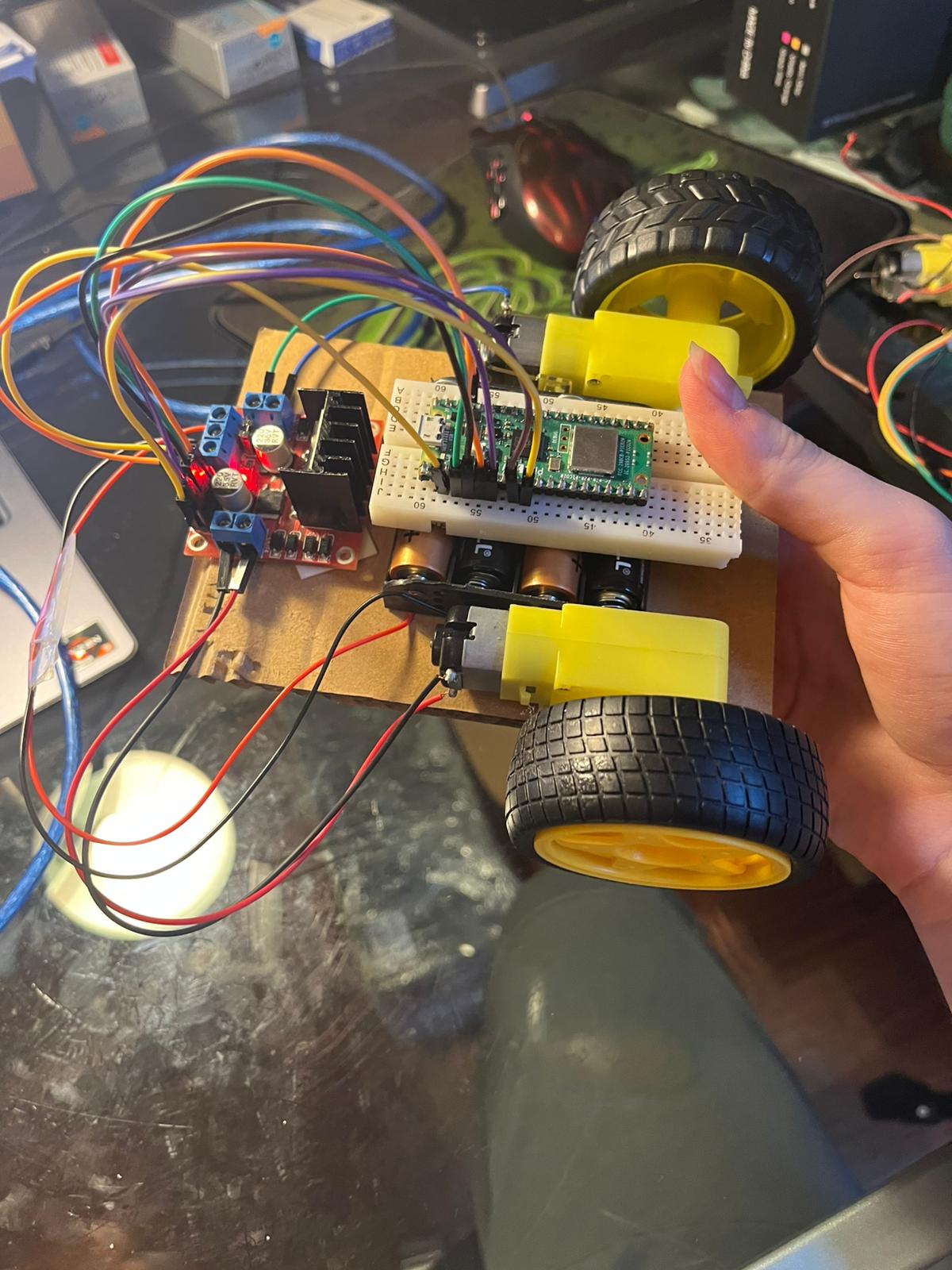
Weekly Assignments:
Check Out Our Group Assignment
Group assignment:
Send a message between two projects
Document your work to the group work page and reflect on your individual page what you learned
Individual assignment:
- Design, build and connect wired or wireless node(s) with network or bus addresses and a local input and/or output device(s)
Reflection on the Group Assignment
Through the group assignment, I learned how devices can exchange information using communication protocols. Seeing messages successfully transmitted between projects helped me better understand how networking concepts can be applied to embedded systems and future IoT projects.
Controlling the Pico Car via Web Page
System Overview
This project builds upon the Pico Car developed during Week 4 by adding wireless networking and browser-based control.
As an initial networking test, I created a simple web interface that allowed the Pico W to control a DC motor over Wi-Fi.
You can control:
- DC Motor (Left / Right)
directly from a browser on your phone or laptop.
The Raspberry Pi Pico W functions as a wireless network node. It receives a network address from the local router through DHCP and communicates with client devices over Wi-Fi using HTTP requests.
How It Works
- Pico connects to Wi-Fi
- It starts a web server (port 80)
- You open the Pico’s IP address in a browser
- A simple HTML page with buttons appears
- Each button sends a request → Pico reacts
Communication Protocol
The project uses Wi-Fi communication through the Raspberry Pi Pico W. The Pico connects to the local wireless network and operates as a web server. Communication between the browser and the Pico is performed using HTTP requests. When a button is pressed on the webpage, an HTTP request is sent to the Pico, which interprets the request and executes the corresponding motor command.
Program Code
import network
import socket
from machine import Pin
import time

# Hardware setup
led = Pin(16, Pin.OUT)
motor_in1 = Pin(14, Pin.OUT)
motor_in2 = Pin(15, Pin.OUT)

# Wi-Fi credentials
wifi_ssid = 'your_wifi_ssid'
wifi_password = 'your_wifi_password'

# Connect to Wi-Fi
wifi = network.WLAN(network.STA_IF)
wifi.active(True)
wifi.connect(wifi_ssid, wifi_password)

while not wifi.isconnected():
    time.sleep(1)

print("Connected!")
print("IP Address:", wifi.ifconfig()[0])

# Simple HTML interface
html = """
<!DOCTYPE html>
<html>
<head>
    <title>Pico Control</title>
</head>
<body>
    <h2>Pico Web Control</h2>
    <button onclick="fetch('/toggle_led')">Toggle LED</button>
    <br><br>
    <button onclick="fetch('/rotate_motor?direction=right')">Motor Right</button>
    <button onclick="fetch('/rotate_motor?direction=left')">Motor Left</button>
</body>
</html>
"""

# Start server
addr = socket.getaddrinfo('0.0.0.0', 80)[0][-1]
server = socket.socket()
server.bind(addr)
server.listen(1)

while True:
    client, addr = server.accept()
    request = client.recv(1024).decode()

    # LED control
    if '/toggle_led' in request:
        led.value(not led.value())

    # Motor control
    if '/rotate_motor' in request:
        if 'direction=right' in request:
            motor_in1.value(1)
            motor_in2.value(0)
        elif 'direction=left' in request:
            motor_in1.value(0)
            motor_in2.value(1)

    # Send response
    client.send("HTTP/1.1 200 OK\r\nContent-Type: text/html\r\n\r\n")
    client.send(html)
    client.close()
Things to Watch Out For Make sure:
- You’re on the same Wi-Fi network
- IP address is correct Motor may keep spinning → no “stop” button yet
Pico Car – Web Controlled (Manual Driving)
This project turns the Pico W into a Wi-Fi controlled robot car.
You can control the car from a browser:
- Forward
- Backward
- Left
- Right
- Stop
The Pico hosts a web page with buttons, and each button directly controls the motors
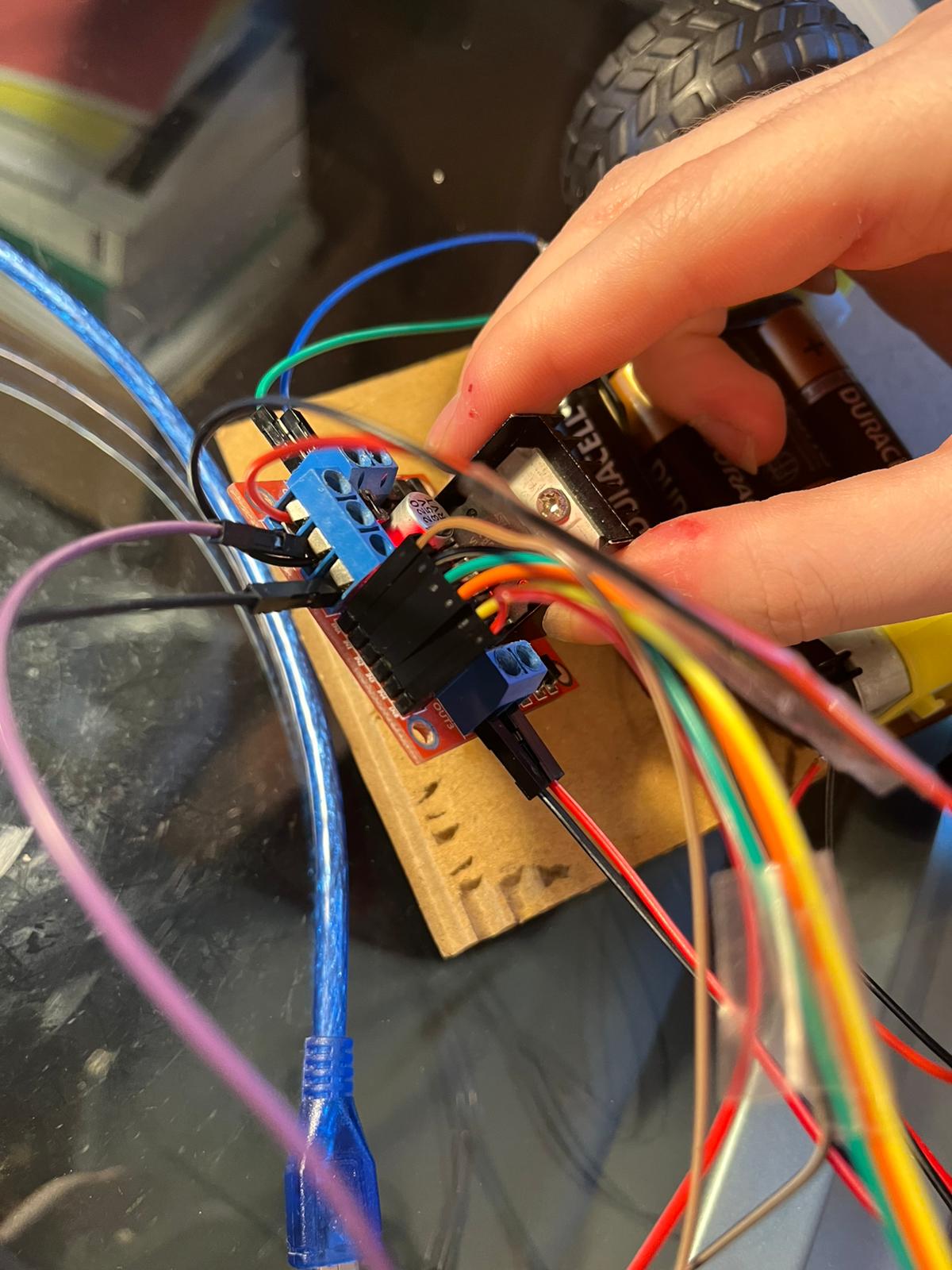
Components Used
| Component | Purpose |
|---|---|
| Raspberry Pi Pico W | Controller + Wi-Fi |
| L298N Motor Driver | Controls motors |
| 2× DC Motors | Movement |
| External Battery | Motor power |
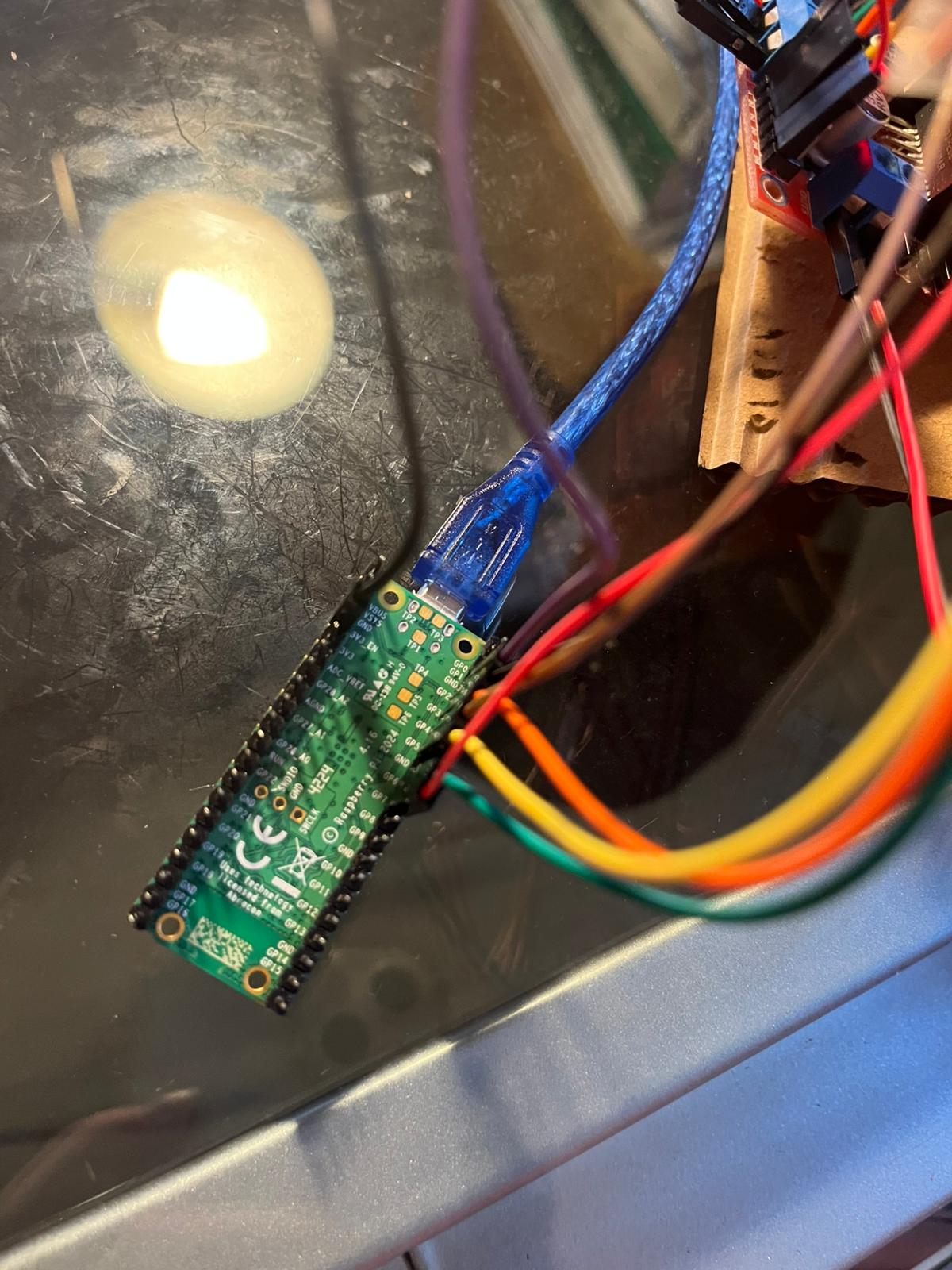
Pin Configuration
| Function | Pin |
|---|---|
| IN1 | GP2 |
| IN2 | GP3 |
| ENA (PWM) | GP4 |
| IN3 | GP5 |
| IN4 | GP6 |
| ENB (PWM) | GP7 |
import network
import socket
from time import sleep
from machine import Pin, PWM, reset

# Wi-Fi credentials
ssid = 'your wifi name'
password = 'your wifi password'

# Motor A
IN1 = Pin(2, Pin.OUT)
IN2 = Pin(3, Pin.OUT)
ENA = PWM(Pin(4))
ENA.freq(1000)

# Motor B
IN3 = Pin(5, Pin.OUT)
IN4 = Pin(6, Pin.OUT)
ENB = PWM(Pin(7))
ENB.freq(1000)

speed = 50000

# Movement functions
def move_forward():
    IN1.value(1); IN2.value(0); ENA.duty_u16(speed)
    IN3.value(1); IN4.value(0); ENB.duty_u16(speed)

def move_backward():
    IN1.value(0); IN2.value(1); ENA.duty_u16(speed)
    IN3.value(0); IN4.value(1); ENB.duty_u16(speed)

def move_left():
    IN3.value(0); IN4.value(0); ENB.duty_u16(0)
    IN1.value(1); IN2.value(0); ENA.duty_u16(speed)

def move_right():
    IN1.value(0); IN2.value(0); ENA.duty_u16(0)
    IN3.value(1); IN4.value(0); ENB.duty_u16(speed)

def move_stop():
    ENA.duty_u16(0)
    ENB.duty_u16(0)

# Wi-Fi connection
def connect():
    wlan = network.WLAN(network.STA_IF)
    wlan.active(True)
    wlan.connect(ssid, password)
    while not wlan.isconnected():
        print("Connecting...")
        sleep(1)
    ip = wlan.ifconfig()[0]
    print("Connected on", ip)
    return ip

# Web page
def webpage():
    return """<!DOCTYPE html>
<html>
<head><title>Pico Car</title></head>
<body style="text-align:center">
<h1>Control Panel</h1>
<form action="/forward"><input type="submit" value="Forward" style="height:100px;width:150px"/></form>
<table style="margin:auto"><tr>
<td><form action="/left"><input type="submit" value="Left" style="height:100px;width:150px"/></form></td>
<td><form action="/stop"><input type="submit" value="Stop" style="height:100px;width:150px"/></form></td>
<td><form action="/right"><input type="submit" value="Right" style="height:100px;width:150px"/></form></td>
</tr></table>
<form action="/backward"><input type="submit" value="Backward" style="height:100px;width:150px"/></form>
</body>
</html>"""

# Server
def serve(socket):
    while True:
        client = socket.accept()[0]
        request = str(client.recv(1024))

        try:
            path = request.split(' ')[1]
        except:
            path = '/'

        # Ignore browser icon requests
        if path.startswith('/favicon'):
            client.close()
            continue

        if path.startswith('/forward'):
            move_forward()
        elif path.startswith('/backward'):
            move_backward()
        elif path.startswith('/left'):
            move_left()
        elif path.startswith('/right'):
            move_right()
        elif path.startswith('/stop'):
            move_stop()

        client.send('HTTP/1.1 200 OK\r\nContent-Type: text/html\r\n\r\n')
        client.sendall(webpage())
        client.close()

# Start system
try:
    move_stop()
    ip = connect()
    s = socket.socket()
    s.bind((ip, 80))
    s.listen(1)
    serve(s)
except KeyboardInterrupt:
    move_stop()
    reset()
Network Addressing Verification
After connecting the Raspberry Pi Pico W to the Wi-Fi network, the board was assigned an IP address by the router using DHCP.
I entered this IP address into a browser on another device connected to the same Wi-Fi network. The control webpage loaded successfully and the robot responded to commands, confirming successful communication.
Example output:
Connected on 192.168.1.108
Challenges & Fixes
1. Wrong Motor Direction
- Motor ran backward when expected forward Fixed by swapping IN1 / IN2 logic
2. Unstable Turning
- Both motors caused weird spinning Solution: use only one motor for turning
3. Browser Noise (favicon)
- Extra requests caused confusion Ignored /favicon requests
4. Wi-Fi Connection Issues Initially the Pico W occasionally failed to connect to the network because the SSID and password were incorrectly configured. I verified the credentials and added connection status messages to the serial monitor to simplify debugging.
Once the correct network settings were used, the Pico consistently obtained an IP address and connected successfully.
Video of the Pico Car Controlled By Website
Pico Car – Web Controlled + Autonomous Mode
System Architecture
Here is Network architecture showing the Pico W acting as a wireless node and web server, while the browser acts as a client sending HTTP commands over Wi-Fi.
Phone / Laptop │ │ Wi-Fi ▼ Raspberry Pi Pico W │ ├── L298N Motor Driver ├── Ultrasonic Sensors └── DC Motors
This is the complete Pico Car system with:
- Web-based remote control
- Full movement (forward, backward, left, right, stop)
- 3× Ultrasonic sensors (front, left, right)
- Autonomous “maze-solving” mode
You can either:
- Control it manually from a browser
- Or let it drive itself
Communication Protocol Used
The system uses IEEE 802.11 Wi-Fi for wireless communication and HTTP requests for command transmission. The Raspberry Pi Pico W operates as a web server while the browser acts as a client.
Components Used
| Component | Purpose |
|---|---|
| Raspberry Pi Pico W | Main controller + Wi-Fi |
| L298N Motor Driver | Controls 2 motors |
| 2× DC Motors | Movement |
| 3× HC-SR04 Sensors | Distance detection |
| External Battery | Motor power |
Pin Configuration
Motors (L298N)
| Function | Pin |
|---|---|
| IN1 | GP2 |
| IN2 | GP3 |
| ENA (PWM) | GP4 |
| IN3 | GP5 |
| IN4 | GP6 |
| ENB (PWM) | GP7 |
Ultrasonic Sensors
| Sensor | TRIG | ECHO |
|---|---|---|
| Front | GP8 | GP9 |
| Left | GP10 | GP11 |
| Right | GP12 | GP13 |
Movement System
Basic Movements
| Action | Behavior |
|---|---|
| Forward | Both motors forward |
| Backward | Both motors backward |
| Left | Right motor only |
| Right | Left motor only |
| Stop | Motors off |
Program Structure (Movement)
move_forward()
move_backward()
move_left()
move_right()
move_stop()
Speed Control
- Uses PWM (ENA / ENB)
- speed = 50000
Adjust this value to control how fast the car moves
Rotation System
The car can rotate in place:
- rotate_left()
- rotate_right()
Timing-based rotation:
- ~0.62 seconds ≈ ~180° (needs calibration)
Distance Sensing Each ultrasonic sensor:
- Sends a pulse (TRIG)
- Measures return time (ECHO)
- Converts to distance (cm)
Distance Function
get_distance(trig, echo)
Returns distance in centimeters
get_all_distances()
Returns: (front, left, right)
Autonomous Mode (Auto Maze)
How It Thinks
The robot makes decisions based on distance:
| Situation | Action |
|---|---|
| Too close (front < 5 cm) | Backup |
| Left open | Turn left |
| Front clear | Move forward |
| Right open | Turn right |
| Dead end | Backup |
Key Parameters
MIN_DIST = 15
TOO_CLOSE = 5
You can tune these for better behavior
Main Logic
auto_maze()
Runs continuously
Stops only when manual control is triggered
Web Control System
How It Works
- Pico connects to Wi-Fi
- Starts a web server (port 80)
- You open the IP in a browser
- Buttons send commands
Web Interface
Controls:
- Forward
- Backward
- Left / Right
- Stop
- Auto Maze mode
Routes
| URL | Action |
|---|---|
| /forward | Move forward |
| /backward | Move backward |
| /left | Turn left |
| /right | Turn right |
| /stop | Stop |
| /auto_maze | Start autonomous mode |
Server Logic
serve(socket)
- Listens for requests
- Parses URL
- Executes movement
Wi-Fi Connection
connect()
Connects to your network
Prints IP address
Open that IP in your browser
What’s Happening
- Browser → sends HTTP request
- Pico → reads request
- Pico → controls motors
- Sensors → feed data for auto mode
This makes a full IoT robotic system
The Code
import network
import socket
from time import sleep
from machine import Pin, PWM, time_pulse_us, reset

# ---------------- WIFI SETTINGS ----------------
ssid = 'your_wifi_name'
password = 'your_wifi_password'

# ---------------- MOTOR SETUP ----------------
# Motor A
IN1 = Pin(2, Pin.OUT)
IN2 = Pin(3, Pin.OUT)
ENA = PWM(Pin(4))
ENA.freq(1000)

# Motor B
IN3 = Pin(5, Pin.OUT)
IN4 = Pin(6, Pin.OUT)
ENB = PWM(Pin(7))
ENB.freq(1000)

speed = 50000  # Adjust for speed

# ---------------- ULTRASONIC SETUP ----------------
# Front
TRIG_FRONT = Pin(8, Pin.OUT)
ECHO_FRONT = Pin(9, Pin.IN)

# Left
TRIG_LEFT = Pin(10, Pin.OUT)
ECHO_LEFT = Pin(11, Pin.IN)

# Right
TRIG_RIGHT = Pin(12, Pin.OUT)
ECHO_RIGHT = Pin(13, Pin.IN)

# ---------------- MOVEMENT FUNCTIONS ----------------
def move_forward():
    IN1.value(1)
    IN2.value(0)
    IN3.value(1)
    IN4.value(0)
    ENA.duty_u16(speed)
    ENB.duty_u16(speed)

def move_backward():
    IN1.value(0)
    IN2.value(1)
    IN3.value(0)
    IN4.value(1)
    ENA.duty_u16(speed)
    ENB.duty_u16(speed)

def move_left():
    IN1.value(0)
    IN2.value(0)
    ENA.duty_u16(0)
    IN3.value(1)
    IN4.value(0)
    ENB.duty_u16(speed)

def move_right():
    IN3.value(0)
    IN4.value(0)
    ENB.duty_u16(0)
    IN1.value(1)
    IN2.value(0)
    ENA.duty_u16(speed)

def move_stop():
    ENA.duty_u16(0)
    ENB.duty_u16(0)

# ---------------- ROTATION ----------------
def rotate_left():
    IN1.value(1)
    IN2.value(0)
    IN3.value(0)
    IN4.value(1)
    ENA.duty_u16(speed)
    ENB.duty_u16(speed)
    sleep(0.62)
    move_stop()
    sleep(0.2)

def rotate_right():
    IN1.value(0)
    IN2.value(1)
    IN3.value(1)
    IN4.value(0)
    ENA.duty_u16(speed)
    ENB.duty_u16(speed)
    sleep(0.62)
    move_stop()
    sleep(0.2)

def backup():
    move_backward()
    sleep(0.4)
    move_stop()
    sleep(0.2)

# ---------------- DISTANCE READING ----------------
def get_distance(trig, echo):
    trig.value(0)
    sleep(0.000002)
    trig.value(1)
    sleep(0.00001)
    trig.value(0)
    duration = time_pulse_us(echo, 1, 30000)
    if duration <= 0:
        return 1000
    return (duration * 0.0343) / 2  # in cm

def get_all_distances():
    return (
        get_distance(TRIG_FRONT, ECHO_FRONT),
        get_distance(TRIG_LEFT, ECHO_LEFT),
        get_distance(TRIG_RIGHT, ECHO_RIGHT)
    )

# ---------------- AUTO MODE ----------------
auto_mode = False
MIN_DIST = 15
TOO_CLOSE = 5

def auto_maze():
    global auto_mode
    auto_mode = True
    print("Auto Maze Mode ON")

    while auto_mode:
        front, left, right = get_all_distances()
        print(f"F: {front:.1f} cm | L: {left:.1f} cm | R: {right:.1f} cm")

        if front < TOO_CLOSE:
            print("Too close! Backing up.")
            backup()

        elif left > MIN_DIST and front > MIN_DIST:
            print("Left is open. Turning left.")
            rotate_left()
            move_forward()

        elif front > MIN_DIST:
            print("Front is clear. Moving forward.")
            move_forward()

        elif right > MIN_DIST:
            print("Right is open. Turning right.")
            rotate_right()
            move_forward()

        else:
            print("Dead end. Backing up.")
            backup()

        sleep(0.1)

    move_stop()
    print("Auto Maze Mode OFF")

# ---------------- WIFI CONNECTION ----------------
def connect():
    wlan = network.WLAN(network.STA_IF)
    wlan.active(True)
    wlan.connect(ssid, password)
    while not wlan.isconnected():
        print("Connecting to Wi-Fi...")
        sleep(1)
    ip = wlan.ifconfig()[0]
    print("Connected on", ip)
    return ip

def open_socket(ip):
    addr = (ip, 80)
    s = socket.socket()
    s.bind(addr)
    s.listen(1)
    return s

def webpage():
    return """<!DOCTYPE html>
<html>
<head><title>Pico Robot</title></head>
<body style="text-align:center;">
<h1>Robot Control Panel</h1>
<form action="/forward"><input type="submit" value="Forward" style="height:100px;width:150px"/></form>
<table style="margin:auto;"><tr>
<td><form action="/left"><input type="submit" value="Left" style="height:100px;width:150px"/></form></td>
<td><form action="/stop"><input type="submit" value="Stop" style="height:100px;width:150px"/></form></td>
<td><form action="/right"><input type="submit" value="Right" style="height:100px;width:150px"/></form></td>
</tr></table>
<form action="/backward"><input type="submit" value="Backward" style="height:100px;width:150px"/></form>
<form action="/auto_maze"><input type="submit" value="Auto Maze" style="height:100px;width:150px"/></form>
</body></html>
"""

def serve(socket):
    global auto_mode
    while True:
        client = socket.accept()[0]
        request = client.recv(1024)
        request = str(request)
        print("Request:", request)

        try:
            path = request.split(' ')[1]
        except IndexError:
            path = '/'

        if path.startswith('/forward'):
            auto_mode = False
            move_forward()
        elif path.startswith('/backward'):
            auto_mode = False
            move_backward()
        elif path.startswith('/left'):
            auto_mode = False
            move_left()
        elif path.startswith('/right'):
            auto_mode = False
            move_right()
        elif path.startswith('/stop'):
            auto_mode = False
            move_stop()
        elif path.startswith('/auto_maze'):
            auto_maze()

        client.send('HTTP/1.1 200 OK\r\n')
        client.send('Content-Type: text/html\r\n')
        client.send('Connection: close\r\n\r\n')
        client.sendall(webpage())
        client.close()

# ---------------- START ----------------
try:
    move_stop()
    ip = connect()
    s = open_socket(ip)
    serve(s)
except KeyboardInterrupt:
    move_stop()
    reset()
Video Of The Pico Car WebControlled Automaze
Network Addressing Verification
After connecting to the Wi-Fi network, the Pico W was assigned an IP address through DHCP. The assigned IP address was displayed in the serial monitor and then entered into a web browser on another device connected to the same network. Successfully loading the control webpage verified that the board was correctly addressed and reachable through the network.
Programming Process
The software was developed incrementally. First, Wi-Fi connectivity was established and tested. Next, a simple web server was created to receive browser requests. Motor control functions were then developed and linked to webpage buttons through URL routes. After validating manual control, ultrasonic sensors were integrated and used to implement an autonomous navigation algorithm. Finally, both manual and autonomous control modes were combined into a single program.
What I Learned
This project helped me understand how embedded devices communicate over wireless networks. I learned how HTTP requests can be used to control physical hardware remotely, how network addressing enables devices to locate each other, and how socket-based communication works on a microcontroller. I also gained experience combining networking with robotics and sensor-based autonomous behavior.
Summary
This project fulfills the Week 11 assignment by implementing a wireless network node using a Raspberry Pi Pico W. The Pico W receives a network address through DHCP and communicates with client devices using Wi-Fi and HTTP requests. Local output devices are provided by the DC motors, while local input devices are provided by the ultrasonic distance sensors. The system supports both manual remote control and autonomous operation through network communication.
Files
You can access to the files of this week from the link below.
The networking project extends the Week 4 Pico Car project, therefore the same archive is reused.