Week 3: Computer Controlled Cutting
In this section you will find:
> Week 03 Group Assignment
> Individual Assignment
> About laser and Vinyl Cutter
> Designs for both Laser and vinyl cutter
Assignment
Group Assignment:
  • Do your lab's safety training
  • Characterize your laser cutter's focus, power, speed, rate,
    kerf, joint clearance and types

Individual Assignment:
  • Cut something on the vinyl cutter
  • Design, laser cut, and document a parametric construction kit,
    accounting for the laser cutter kerf
  • Extra credit: Design it to be assembled in multiple ways
  • Extra credit: Include elements that aren't flat
  • Extra credit: Engrave as well as cut
Timetable for the week

Link to my schedule
Group Assignment
This week, we did our first group assignment where we had to learn about our laser cutter. We spent a lot of time figuring out how the machine works and testing different settings like focus, power, speed, rate, kerf, and joint clearance.
We also decided as a group that we'll take turns writing up our assignments each week so everyone gets practice.
Here is the link to our group assignment website.
This is the laser cutter we have in our lab.

Machine Specifications
Work Area: 24" × 12" (maximum material placement size)

Max Material Thickness: Up to 7 inches

Camera: Overhead camera for design positioning

Connectivity: Wired connection

Resolution: Adjustable from 75 to 1200 DPI (dots per inch)

Engraving Speed: Up to 120 inches per second (IPS)

Settings Control: Customizable speed, power, frequency and cutting modes via color mapping

Internal Storage: Saves multiple files (up to 1 GB)

Cutting Modes: Raster (engraving), Vector (cutting), or combined

Auto Focus: Automatically adjusts for material thickness

Ventilation: External exhaust system for smoke and fume removal
We started by trying out different power and speed values to see what happens when we engrave stuff.
Power: This is basically how strong the laser beam is or how much energy it's putting out.
Why does it matter?
If the power is too high, the laser can burn or melt your material.
If it's too low, it won't cut or engrave deep enough.
Speed: This is how fast the laser moves across the material.
Why does this matter?
If it's too slow, the laser stays in one spot too long and burns the material.
If it's too fast, the laser doesn't have enough time to cut or mark properly.
Here's what we did:
We made a test design in Inkscape where we wrote down different power and speed settings on each shape so we could test them.

To cut, we used the pink frame to do one shape at a time with its own power and speed settings.
Here's what we got! 😉

In the first row, we kept the speed the same but lowered the power each time. We noticed that when the power got lower, the cuts got lighter and lighter too.
This happens because when power decreases, the laser beam isn't as strong, so it doesn't cut as deep.
In the second row, we kept the power the same but made the speed slower each time. We saw that when the speed went down, the cuts got darker and darker.
This is because when the laser moves slower, it stays on the material longer, so it cuts deeper and looks darker.
Measuring Kerf
Kerf is how much material the laser actually removes when it cuts.
The reason kerf is important is for press-fit designs. If you don't account for kerf, the slots end up being too big and the pieces don't fit tightly - they just fall out. So if you want things to fit properly, you need to know the kerf.
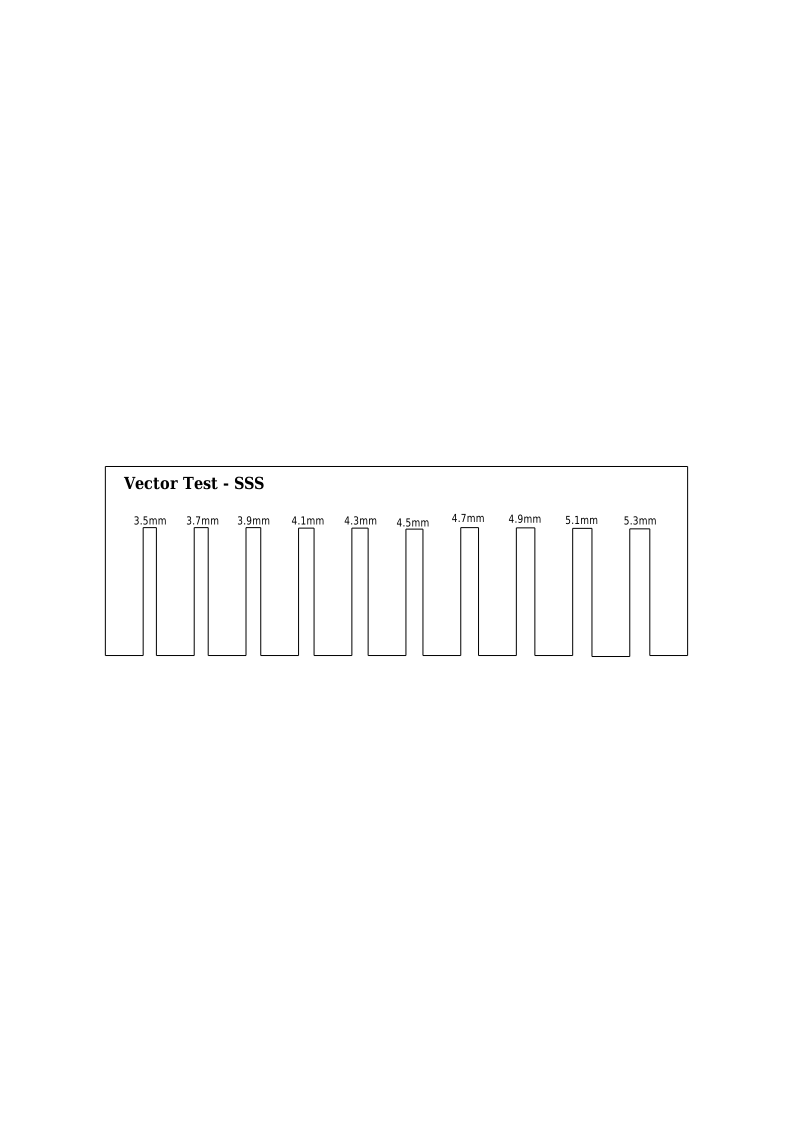
- To find out the kerf of our laser cutter, we first made a comb design in Onshape (we knew the exact measurements) and then brought it into Inkscape.

- Then we actually cut it out and measured it again using a caliper to see what the real dimensions were.

- After that we calculated the kerf using this formula:
Kerf = (Actual cut - Intended cut) / 2
And this is what we got!

Our local instructor Mr. Anith helped us a lot with this experiment.

Safety Protocols for Laser Cutter Operation
Hazards
Fire: The laser literally burns the material to cut it, so there's always a chance of fire. If we mess up the settings or leave sawdust inside, it can catch fire pretty easily.

Toxic Fumes: Some plastics release really bad fumes when you cut them, and breathing that stuff is dangerous. That's why the ventilation system is really important.

Physical Safety: The laser beam can hurt your eyes or skin badly, and the pieces you cut can have sharp edges.
Safety Rules
NEVER LEAVE THE MACHINE ALONE: You have to watch it the whole time because fires can start really fast.
Keep it Clean: You need to clean out the machine and get rid of old scraps because they can catch fire.
Turn on the Fan: The exhaust fan has to be on before you start cutting to suck out all the smoke.
Maintenance & Protection
Cleaning: Clean the inside of the machine after you use it.
Safety Features: Don't try to trick the safety sensors or anything. The laser should stop automatically if you open the lid.
Eye Safety: Never look directly at the laser beam.
Materials: Only use materials that our instructor says are okay because some plastics make toxic gas when you cut them.
Individual Assignment
Vinyl Cutting
This week we got to use the vinyl cutting machines. We could cut whatever we wanted, so I thought it would be cool to make some stickers for my laptop.
What is a Vinyl Cutter? A vinyl cutter is basically a computer-controlled machine. It does CAD cutting, which means it can cut graphics, letters, and other designs really precisely from material. The cutter has a small blade that moves around and cuts shapes and letters from thin sheets of plastic (vinyl).
This is the Vinyl Cutter I used:

Model: Roland CAMM-1 GS-24
Software: Roland CutStudio and Adobe Illustrator
Cutting Area: Maximum 584 mm × 25000 mm
Maximum Material Thickness: Around 2.5 mm (0.1 inches)
Cutting Speed: 10 to 500 mm/s (all directions)
Usable Tools: Roland CAMM-1 series blade
Settings:
Textile Vinyl: Speed: 15 cm/s / Force: 90gf
Copper Vinyl: Speed: 1 cm/s / Force: 40gf
Material Setup
To load the vinyl into the Roland GS-24, I put the lever down to "release" and fed the vinyl from the back, making sure it lined up with the blue guides. Then I adjusted the pinch rollers so they sat under the white markers and locked the lever. After that I picked the feed mode (like "Sheet") on the screen. The machine measured the width by itself, and I just had to check it on the display before starting.
How to Cut Stickers?
I started by importing my image into CutStudio using the import tool in the file tab. You can download the files if you want.


Then I had to set up the working space size to match my PVC sticker sheet.


After that I started cutting my stickers.


Yay! The sticker came out really nice!

Then I had to do something called weeding! Weeding is basically when you remove all the extra vinyl material from around your design after the machine cuts it.
I used a weeding tool (basically like a tweezer) to carefully pick out all the excess vinyl around my design's outline and get rid of the parts I didn't want, so only the actual sticker shape was left.

Then I used transfer paper to stick the vinyl designs onto my laptop.
First, I put the tape on the vinyl and pressed down hard to pick up the design. Then I placed it where I wanted it on my laptop, pressed down again, and slowly peeled the tape off, leaving just the sticker stuck on.

Finally! I made stickers for my laptop!

Here are the settings and steps I used to make the stickers.
Vinyl Cutting Process and Settings To send the cut to the machine, I just pressed Ctrl + P. This started everything using the settings I set up before.
There are three main settings that matter for how well it cuts: Speed, Force, and Blade Depth.
-
Speed: Speed is really important for safety and getting a good cut. If the machine goes too fast, your design can look messy, or the blade might even break. Since I was using a 45-degree blade, I set the speed to 20 cm/s.
-
Force: This controls how hard the blade pushes down on the material. If the force is too high, it'll cut through the backing paper and mess everything up. If it's too low, it won't cut through the vinyl all the way. For the 3mm vinyl I was using, 50 gf was the right force.
-
Blade Depth: I had to adjust this manually by rotating the holder. To test if it was right, I did a quick test by dragging the blade lightly across some scrap vinyl.
What you want is for the blade to cut through the colored vinyl layer but NOT cut through the backing paper underneath.
Parametric Designs
This week we had to make a Parametric Construction Kit. It's basically a bunch of pieces that fit together tightly without needing glue or screws. "Parametric" just means the design is flexible - if you change one number (parameter), everything else adjusts automatically.
I wanted to make some random fun shapes. I decided to use Fusion 360 because I'm more comfortable with it.
We actually had a really cool session with Mr. Rico about Geometry Nodes in Blender before this. It was super helpful, but honestly I'm still pretty new to all this and I found Blender a bit too complicated for this project. So I went with Fusion 360 instead. Thanks to Mr. Rico though - I'll definitely learn Blender properly someday!

So, let's start making parametric designs with Fusion 360. Yay! Good Luck To Me!!
First, I went to Modify > Change parameters

I used the plus button to set up my parameters.

Then to keep everything organized and not messy, I made a New Component for each shape I wanted to make.

After that I started making sketches for the shapes using the parameters I set up.


To make the slots so the shapes could fit together, I made rectangles using the parameters. Then I used the circular pattern tool to copy that design around the shape.


Then I used the extrude feature to make the shapes 3D so I could see what they'd actually look like.

I did the same thing for the other shapes too.


At the end I used the join function in Fusion 360 to try and see what the final thing would look like when I put everything together.

To get everything ready for the laser cutter, I exported my sketches from Fusion 360 as DXF files and imported them into Inkscape.
I organized the shapes by copying and pasting what I needed, then adjusted the specific settings for cutting:
Fill: None
Stroke Paint: Flat color
Stroke Style: Hairline

Then I went to the laser room and got the machine ready. I carefully cleaned the lens, checked all the safety stuff, and placed the cardboard inside the machine.

After that I sent my file to the Epilog Fusion laser cutter Job Manager to set up the settings.

Then I started laser cutting my designs. Yay!


These are the pieces I laser cut.

I then started putting together the structure I wanted. Wait for the final result!

And now I present to you Quebec Bridge(My Version😁)! Carefully engineered by me!


With the same pieces I made a tower too! Yay!


Wait! You thought I only cut stuff with the laser? Nope! I also engraved a small stick with my motivational text.

Files
Click the download button to download all the files

Here is the link to Fusion files
Reflection
*This week was honestly so much fun, but I learned that laser cutting is way more than just pressing a button, especially when it comes to kerf, because if you don't calculate that right, nothing fits together! I decided to stick with Fusion 360 instead of struggling with Blender right now (sorry Mr. Rico!), which was definitely the right choice because I could focus on making my parametric design actually work. Seeing my flat cardboard pieces turn into my "Quebec Bridge" without using any glue was such a cool moment, and making my own laptop stickers on the vinyl cutter was the cherry on top. I feel way more confident with the machines now ---Yay!
*With that, week 03 ends! I had a lot of fun this week!