Week 2: Computer-aided Design
In this section you will find:
> About software I used for Documentation
> About Software I used for 2D and 3D Designing
> Draft Model for my Final Project.
Assignment
- model (raster, vector, 2D, 3D, render, animate, simulate, ...) a possible final project
  compress your images and videos,
- and post a description with your design files on your class page
Timetable for the week

Link to my schedule
2D Design
Raster VS Vector
First, Sophia Brueckner talked about two types of images: Raster images and Vector images. The main difference is that raster images (like photos) are made up of pixels. When you enlarge these images, the pixels stretch, which makes the image look pixelated or blurry. On the other hand, vector images (like logos) are defined by mathematical equations. This allows them to be resized without losing quality, and they stay sharp and clear at any scale.
 This is the difference between Raster and Vector Images.
Inkscape
Inkscape is a free, open-source vector graphics editor. It's used to create and edit scalable illustrations, logos, diagrams, and complex art.
To download Inkscape click here
To install it correctly, follow this tutorial to download Inkscape.
Designing with Inkscape
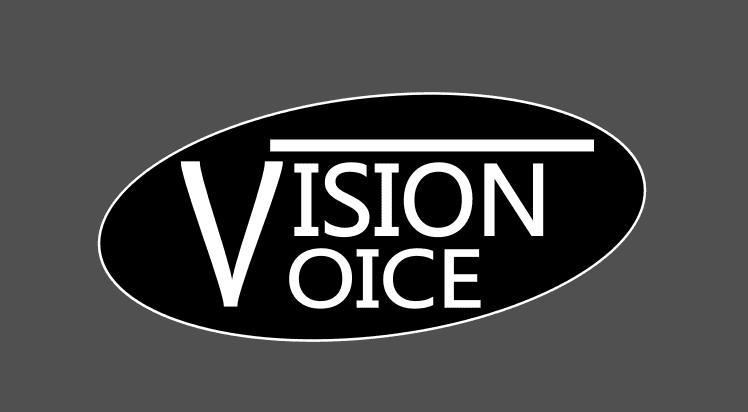
I will be using Inkscape to design the logo for my final project.
I first made a rough sketch for my logo.

To start designing, open Inkscape. This is the Inkscape user interface - it's very user-friendly and simple to learn.

To write the text I used the text tool and adjusted it according to my needs.

Then I added some designs like the rectangle.

After that I added a circle as the base for the logo.
 To make my text visible I used the Layers and Object tool. Right-click on the circle to open the Layers and Object tab.

Yay, we now have our logo!

GIMP
GIMP is a free raster graphics editor used for photo retouching and editing. It works with pixels, which is different from Inkscape.
To download GIMP click here


This is what the GIMP interface looks like.

After that, import your images to the interface.

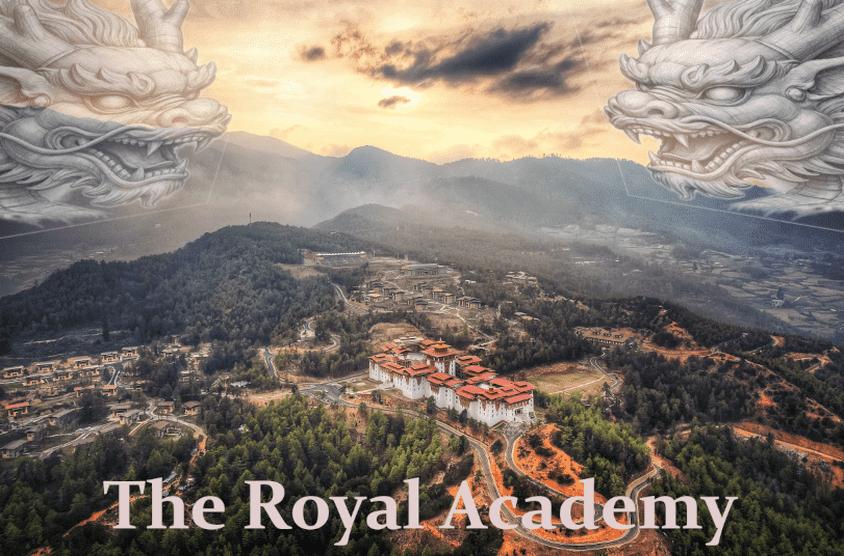
I wanted to add two dragons in the photo of the Dzong. To do that I first had to scale the image to my needs.

Then I removed the background of the dragon image.

After that, I copied the image and flipped it. Then I placed it where I wanted. I also added some text to make it look nice.

This is the final image.

AI Tools
I tried some AI tools and compared three AI programs. Below are the results. To be fair, I used the same prompt to generate the images: - Generate an aesthetic, cozy room that looks like it's taken with a vintage camera.
1. Leonardo AI
To generate images you need to create an account where you get limited tokens for free to generate images. This is the result from Leonardo AI:

2. Meta AI
To generate images with Meta AI you need to create an account and you can generate 15-25 images per day. This is the result from Meta AI:

3. Gemini
To generate images with Google Gemini you need to create an account and you can generate 15-35 images per day for free.
This is the result from Google Gemini:

3D Design
For 3D designing I tried learning Fusion 360, Blender, and Onshape. I will be using Fusion 360 to design a prototype for my final project. Before I started designing in Fusion 360, I first made a draft sketch.

Fusion 360
During class, people shared their expertise in different tools, and one of them was Fusion 360. I went online and explored Fusion 360 and found a very helpful YouTube playlist to learn Fusion 360 from the basics.
I also learned that Fusion 360 is basically a digital workshop that lives on your computer and in the cloud. It's a single piece of software where you can design an object, test if it will break, and then figure out how to actually build it.
Prototype_01
After I had the draft sketch, I started with the design in Fusion 360, but as always I failed on the first attempt. I couldn't get the right hole size for the screws and I tried troubleshooting with different things, like using AI, YouTube, Google, and Fab Academy search, but the problem kept getting bigger and bigger.

Prototype_02
From prototype_01 I learned that I have to be careful with dimensions. I started prototype_02 with a clear beginning.

Then I created the sketch with the help of my draft sketch.

After creating my sketch I extruded the box with a height of 15 mm. I also extruded the base of the box by 2mm.


After that I used the hole tool to make the holes for my screws.

Next, I moved on to the lid where I used the box's sketches as the reference, which was very helpful.

I also made holes on the lid for the screws.

Then I used the Join tool to join the lid to the box.


After that I used the McMaster-Carr components to get the 3D design of the screws I will be using.


I then made 4 screws for the lid and box.

Later on, I again used the join (J) tool to perfectly join the screws to the case.


After that I realized that I forgot to add the OLED display model and the speaker model to the project. I used the insert button to add the models.


Then I arranged the components as needed.

Now, we have our model ready. Yay!

I then switched the workspace mode to Animation from Design and I made a short animation displaying prototype_02.

After I was happy with my animation I exported it to my computer.

Here's the simulation video of Vision Voice:
Blender
I had never used Blender before, and it was quite hard for me to learn. I spent some time exploring it on my own. Then, Mr. Rico gave me a very good tutorial video that covered all the basics. This tutorial really helped me a lot.

I downloaded Blender using this link.


I used Blender to remake the iconic Megabot from Big Hero 6. I tried my best to add all the details.
Hero shot

After downloading and installing it, I opened Blender on my computer. At first, it was quite overwhelming because I hadn't used the software before. But after some time, I got used to it.

First, I started by adding spheres to my design. After that, I copy-pasted the spheres and placed them where they needed to be.


Then to make the cone-shaped body, I used a circle and extruded it to the desired size. Then I scaled the top part to make it smaller.


I then copy-pasted the sphere and scaled down the size to fit the cone.

After that I applied the same steps to all the other parts and I was happy with my results.

Then I wanted to make a single Megabot. So, I joined all the parts for the middle one using the modify tool.


Lastly, I wanted to make it look realistic, so I used the material tool to make the required changes. Then to view my model, I used the material view option.
I wanted to render it, but my computer couldn't handle it, so I didn't do it.


Onshape
Onshape is a cloud-native 3D CAD platform that runs directly in the browser. It's used for product design, engineering, and manufacturing.
I had never used Onshape before, but the interface was quite user-friendly. In Onshape, I tried making a water bottle.
Here is the link to Onshape
First, I created an account using my email. Then, I set up the interface using the instructions on the screen.

Then I created a folder. Inside the folder, I created a new file.


I started by creating a new sketch on the Front Plane. Using the Line tool, I created a rough sketch for my bottle.


After that I added dimensions for my bottle using the dimension tool and saved the sketch.


Then, using the Revolve tool, I selected my sketch and the axis I wanted to revolve around.


After that I refined my bottle using the fillet tool.

Then, to add colors to my model, I selected the parts where I wanted the color, right-clicked, and used the appearance feature.


Lastly, I exported my file to my computer.


Files
You can access the above files from the link below.
2D Designs
Inkscape Download Image
GIMP Download Image
3D Designs
Fusion
Blender
Onshape
Software Used for Documentation
Flameshot
Flameshot is a free and open-source screen-capture tool. It's designed to work on Linux, Windows, and macOS.
Mr. Anith Ghalley recommended we use Flameshot for documentation. One thing I noticed is that it's very user-friendly and has many built-in features. So, it instantly became one of my favorite programs.
Snipping Tool
To take screenshots and screen recordings, I used the Windows Snipping Tool.
The Snipping Tool is a built-in Microsoft Windows utility. It's used to capture, annotate, and share screenshots or screen recordings.
Image Compressor
For image compression, I tried using XnConvert, but I didn't like the quality it provided. So, I went online and used Manus AI to create my own image compressor. It runs directly in the browser without limitations, so I didn't need to download anything.
Click here to view all the prompts that I used to make the Image Compressor.
To use the image compressor click here
FFmpeg
FFmpeg is a free and open-source command-line framework used to handle almost any video or audio format. It's widely used for tasks like converting files, resizing videos, and adding watermarks.
To learn how to download FFmpeg use this link
I used FFmpeg to compress my video made from Fusion 360. To compress my video I used Claude. To see all the prompts I used click here
I used the following command:
- cd "C:\Users\sonam\Desktop\fab_academy\Videos Uncompressed"
- ffmpeg -i "Vision_Voice_prototype02 v2.avi" -c:v libx264 -crf 26 -preset medium -vf "scale=1280:-2" -an "Vision_Voice_prototype02_v2_small.mp4"
I reduced my video's size from 26.4MB to 569 KB which is amazing.

Here's the video:
3D Design with AI
Fast 3D
This AI tool requires you to make an account. It gives you 1000 credits which you can use to generate 3D models. I used it to generate the iconic Megabot from Big Hero 6 from a reference image. To be honest, it actually did a pretty good job.


Reflection
This week was full of learning for me. I explored various software for 2D and 3D design. For documentation, I really enjoyed using Flameshot - it instantly became a favorite because of its features. The most challenging part of the week was learning Blender. At first, it was quite overwhelming, but with the help of tutorials, I managed to create the Megabot from Big Hero 6. I also explored AI tools, and I even created my own image compressor using Manus AI when XnConvert didn't work well for me. Overall, I learned that with enough practice, I can get used to even the most difficult software.
Thank you!