FabLab Seville
Research stay at the School of Architecture of the University of Seville

Robotic Hot-Wire Cutting Arm
At Fab Lab Sevilla, an ABB IRB 4600 robotic arm is installed on a linear track with an impressive length of 8 meters. So far, it has been mainly used for clay 3D printing, achieving very interesting results. At Fab Lab ETSAC Coruña, we have an ABB IRB 6620 robotic arm equipped with a spindle, which we primarily use for milling tasks. Some time ago, I built a hot wire cutting bow, which I documented during Wildcard Week.
 My objective is to design a second version of this bow to be mounted on the Fab Lab Sevilla robot, documenting the entire process, with special focus on the control of the additional track axis.
Robot Arm Technical Specifications
Model: ABB 4600-60/2.05
Reach: 2.05 m
Load Capacity: 60 kg
- Workspace with floor-mounted installation
Pos. A Pos. B Pos. C Pos. D Pos. E Pos. F 2371 mm 1260 mm 1028 mm 593 mm 1701 mm 2051 mm

Axis Specifications
Axis Name Working Area Maximum Axis Speed 1 Rotation +180° to -180° 175 °/s 2 Shoulder +150° to -90° 175 °/s 3 Arm +75° to -180° 175 °/s 4 Wrist +400° to -400° 250 °/s 5 Inclination +120° to -125° 250 °/s 6 Swivel +400° to -400° 360 °/s Original Axis Calibration
Axis Resolver values 1 0.4203 2 1.4859 3 0.6596 4 0.5093 5 1.9657 6 3.6478 Maximum torque due to payload
Max wrist torque axes 4 & 5 Max wrist torque axis 6 Max payload 200 Nm 105 Nm 60 kg Maximum Cartesian design acceleration for nominal loads
E-stop m/s2 Controlled Motion m/s2 69 35 Dimensions IRB 4600-60/2.05
It is important to verify these geometric dimensions in order to configure the rotation points of each axis in the Robots plugin for Grasshopper.
Tool Flange Geometry

Synchronization marks and synchronization position for axes
Due to a failure in the 7.2V battery, which allows the robot to retain its position data, the robot lost its resolver/count configuration when powered off. After restarting, it was necessary to move each axis to its synchronization marks in order to update the counters.ℹ️It is important that each axis is moved to its mark always in the positive direction, in order to avoid loss of accuracy caused by gear backlash when rotating in opposite directions.
Label Description A Synchronization mark, axis 1 B Synchronization mark, axis 2 C Synchronization mark, axis 3 D Synchronization mark, axis 4 E Synchronization mark, axis 5 F Synchronization mark, axis 6 Note The two tips of the arrows should be inside the corresponding groove on the tilt housing when in synchronization position.
We replaced the battery with a new one, but for some reason it drained within a few days. The robot continues to lose its counters every time we power off the IRC5 controller. To make it easier to recover the position for calibration, I have prepared a program called homecalibration that moves all robot axes and the track to the calibration position.

Menu → Production → Load Program → Confirm →
Go toHome → Up → FabLabSevilla → HomeCalibration →
SelectHomeCalibration_t_ROB1.pgf → OK →
Press and hold the enabling device in the middle position.
Make sure the robot, track and the tool can move freely andPress **Play**
Until we resolve the issue with the backup battery, we must update the revolution counters every time we power down the IRC5. The steps to follow are specified in the dropdown below:
Calibration Steps (FlexPendant)
If you ran the program that moves the axes to their reference marks before shutting down the IRC5, you can skip step 1.
Move robot to calibration marks
- Use manual movement mode
- Start from axis 6 down to axis 1 (avoids using a ladder)
Update counters
- Go to:
Menu → Calibration → Update Counters - Click on a mechanical unit → Click on a mechanical unit and select Manual Mode (Advanced).
- Select Update revolution counters and confirm to continue.
- Select ROB_1 and Track_1 (rail)
- Tap OK
- Tap Update and confirm twice to continue.
- Click Close twice and tap X to return to the menu.
- Go to:
Restart the system
- Go to:
Menu → Restart
- Go to:
Step 4 is optional. If you haven’t made a backup in a while, I recommend updating it.
- Create a backup
- Go to:
Menu → Backup/Restore - Insert a USB stick into the FlexPendant
- Select Backup current system
- Go to:
Track Technical Specifications
Model: ABB IRBT 2005
Lenght: 8,00 m
- Setting upper and lower software limits for the track
The upper and lower software limits of the track are software limits that prevent the track from being jogged beyond the mechanical limit of the track. They are the physical displacement distance from the zero position to the limit position in meters. This depends on the length of the track, and the location of the calibration pin (also referred to as the zero position of the track).⚠️A minimum distance of 50 mm should be used between where the software limit is set and the actual mechanical stop.
Example of correct values for the software limits
Track L (mm) Modules Travel L (m) Upper Joint Bound (m) Lower Joint Bound (m) 8230 8 6.85 6.35 -0.5
Changing the tracks limits
Open Control Panel
- Go to:
ABB Menu → Control Panel
- Go to:
Access Configuration
- Tap:
Configuration
- Tap:
Navigate to Motion settings
- Under Topics, select:
Motion
- Under Topics, select:
Select mechanical unit
- Tap:
Arm - Choose the corresponding mechanical unit (track)
- Tap:
Set joint limits
- Modify:
- Upper Joint Bound
- Lower Joint Bound
- Modify:
Save and restart
- Tap OK to save changes
- Restart the controller
Create a backup
- Go to:
Menu → Backup/Restore - Insert a USB stick into the FlexPendant
- Select Backup current system
- Go to:

Robots
To control the tool’s positioning and operate the robot in space, I will use Robots, a plugin for Rhino’s Grasshopper visual programming interface under the MIT Free License.
github visose Robots
From the PackManager in Rhinoceros you can install Robots and Robots Extended.

The workflow in Robots starts by loading the libraries that define the robot’s specifications. At the School of Architecture in A Coruña, our robot is the IRB 6620, available from the Aarhus School of Architecture in Denmark. In the case of the Seville robot, I found the IRB 4600-60/2.05 at the University of Pennsylvania; however, its geometric definition contains a small positioning error on axis 6, which causes the tool flange simulation to be offset.

The IRBT 2005 track could not be found in the robots libraries, so I need to create both the geometry and the XML file to define the robotic system and the robot cells.
In ABB RobotStudio, I created a station and checked the robot’s position on the track. I also exported the geometry of both the robot and the track in STL format.

Next, I imported the STL meshes into Rhinoceros and positioned each element in its correct location. This will be useful later for simulating the movements of the entire system.
It is also important to organize the layers of the different elements so they can be correctly interpreted by the Robots plugin in Grasshopper. The robot and track meshes must be arranged into sublayers, and each sublayer can contain only a single mesh.
In the case of the track, for example, the fixed rail I downloaded from RobotStudio was made up of multiple modules, so I had to join them in Rhinoceros to form a single element.

The same thing happened with the ABB logo on axis 3. It took me a while to realize this, which was quite frustrating, since Robots would only load the first element in each sublayer. As soon as I realized it, everything became much easier.
The instructions for correctly defining the robot and the track in the Robots plugin are available at this GitHub link. Here are a series of tips to help with defining the XML file:
- The robot meshes must be placed in sublayers 0, 1, 2, 3, 4, 5, 6, each corresponding to a rotation axis; layer 0 contains the graphical definition of the base.
- I positioned the base of the IRB4600-60/2.05 robot at point 0,0,0; its final position
x,y,zon the track will be defined later in the XML file. - The track meshes must be placed in layers 0 and 1. I positioned the lower-left corner of the IRBT 2005 at point
0,0,0. The position of the robot carriage table along the track will be defined later in the XML file. - The parent layer names that define the robot and the track, Track.ABB.IRBT2005 and RobotArm.ABB.IRB4600-205, must match the names defined in the XML file. Otherwise, you may encounter issues and the geometric definition of the robot cell may not load.
I encountered some issues synchronizing the robot’s position on the track in Robots with its real position at FabLab Sevilla. To solve this, I chose to shift the track by z = -460 mm in order to place the origin of the XY reference plane at point 0,0,0, matching the base plane on which the robot is installed.
I marked the track origin with a sticker and updated the robot counters so that all movements are consistently measured from that point.
Robots XML
<RobotSystems>

<!-- ROBOT IRB4600-60/2.05 -->
  <RobotCell name="Seville MXZUS02 IRB4600" manufacturer="ABB">
    <Mechanisms>
<!-- ROBOT FIJO COLOCADO SOBRE EL TRACK. no incluye movimiento sobre el track -->
      <RobotArm model="IRB4600-205" manufacturer="ABB" payload="60">
        <!-- Plano de referencia sobre IRBT 2005 z= 460 mm -->
        <Base x="0.00" y="0.000" z="0.000" q1="1.000" q2="0.000" q3="0.000" q4="0.000" />
        <Joints>
          <Revolute number="1" a="175" d="495" minrange="-180" maxrange="180" maxspeed="175" />
          <Revolute number="2" a="900" d="0" minrange="-90" maxrange="150" maxspeed="175" />
          <Revolute number="3" a="175" d="0" minrange="-180" maxrange="75" maxspeed="175" />
          <Revolute number="4" a="0" d="960" minrange="-400" maxrange="400" maxspeed="250" />
          <Revolute number="5" a="0" d="0" minrange="-125" maxrange="120" maxspeed="250" />
          <Revolute number="6" a="0" d="135" minrange="-400" maxrange="400" maxspeed="360" />
        </Joints>
      </RobotArm>
     </Mechanisms>
    <IO>
      <DO names="1,2,3,4,5,6,7,8,9,10,11,12,13,14,15,16" />
      <DI names="1,2,3,4,5,6,7,8,9,10,11,12,13,14,15,16" />
      <AO names="1,2,3,4" />
      <AI names="1,2,3,4" />
    </IO>
  </RobotCell>

<!-- ROBOT + TRACK -->
  <RobotCell name="Seville MXZUS02 IRB4600 IRBT2005" manufacturer="ABB">
    <Mechanisms group="0">
<!-- ROBOT MONTADO SOBRE EL TRACK -->
      <RobotArm model="IRB4600-205" manufacturer="ABB" payload="60">
        <!-- Plano de referencia sobre IRBT 2005 z= 460 mm -->
        <Base x="0.00" y="0.000" z="0.000" q1="1.000" q2="0.000" q3="0.000" q4="0.000" />
        <Joints>
          <Revolute number="1" a="175" d="495" minrange="-180" maxrange="180" maxspeed="175" />
          <Revolute number="2" a="900" d="0" minrange="-90" maxrange="150" maxspeed="175" />
          <Revolute number="3" a="175" d="0" minrange="-180" maxrange="75" maxspeed="175" />
          <Revolute number="4" a="0" d="960" minrange="-400" maxrange="400" maxspeed="250" />
          <Revolute number="5" a="0" d="0" minrange="-125" maxrange="120" maxspeed="250" />
          <Revolute number="6" a="0" d="135" minrange="-400" maxrange="400" maxspeed="360" />
        </Joints>
      </RobotArm>
      <!-- TRACK las alturas x, y, z posicionan el track en el espacio con respecto al World
      En el archivo 3dm he preferido colocar el track en su posición real en el fablab y dejar valores x,y,z en 0 -->
      <Track model="IRBT2005" manufacturer="ABB" payload="1000" movesRobot="true">
        <Base x="0" y="0" z="0" q1="1.000" q2="0.000" q3="0.000" q4="0.000" />
      <!-- TRACK Joints a y d definen los puntos de conexión. a en el eje X y d en el eje Z
      Después de varias pruebas he preferido colocar robot y track en el 3dm y dejar aquí los valores de a y d en 0  -->
        <Joints>
          <Prismatic number="7" a="0" d="0" minrange="0" maxrange="6500" maxspeed="1890" />
        </Joints>
      </Track>
    </Mechanisms>
    <IO>
      <DO names="1,2,3,4,5,6,7,8,9,10,11,12,13,14,15,16" />
      <DI names="1,2,3,4,5,6,7,8,9,10,11,12,13,14,15,16" />
      <AO names="1,2,3,4" />
      <AI names="1,2,3,4" />
    </IO>
  </RobotCell>

</RobotSystems>
In the images showing the robot’s geometric description, you can verify the values of x, y, and z, as well as all the a and d parameters for each axis. In the case of the track, you can additionally control the quaternion values q1, q2, q3, and q4 to adjust the robot’s rotation relative to the track. The minrange and maxrange values should match the software configuration set on the FlexPendant, as described above.
After several tests, I decided to position the robot and track meshes relative to the XY plane, located at the origin of the coordinate system in the Rhinoceros file that contains the geometric definition of both components of the robotic system. You can download the
.3dmand.xmlfiles from the files section.
Hot wire cutting tool
The next step is to further develop the design of the bow I used during Fab Academy. The objectives I have set are the following:
- The connections between the robot flange and the different elements of the bow will be made using 3D-printed parts.
- The wiring that supplies electricity to the nichrome wire will be arranged in the least intrusive way possible.
- The tensioning system from the first version will be replaced by a more logical solution, using a spring aligned with the nichrome wire.
- A head will be designed to accommodate an LED strip indicating whether the wire is on or off.
- A custom PCB will be designed to control the activation and deactivation of the bow directly from the RAPID code.
- The activation and deactivation of the wire will be controlled by inserting the necessary instructions into the RAPID code generated by Robots.
Tool definition To form the bows that will support the wire, a series of plywood strips with a cross-section of 20×30 mm will be used. There are a good number of leftover bars available from previous projects at Fab Lab Sevilla.

 The connection piece to the robot flange, as well as the joints that ensure the rigidity of the connections between the side bars, have been designed in Rhinoceros and Grasshopper.
On March 24, the hot wire arch structure was mounted on the robot flange. Now it is time to start working on the synchronization between the .3dm file, which contains the geometry of the robot and the track, and the .xml file, which defines the relationship between their axes in order to configure the coordinated movement of the robotic cell.
Next, I defined the tool to simulate the robot’s positioning accurately,
After mounting the tool on the robot’s flange, the maximum cutting dimensions of the hot wire cutter are approximately 1150 mm in width and 750 mm in height. However, a safe margin should be maintained from these maximum limits during operation.

After the initial tests, I made a few minor adjustments; the usable dimensions of the bow are 1120 mm in width and 775 mm in height.
FabLab Seville has an excellent workspace that allows the robot to move freely and reach its geometric limits.
Initial Setup
After spending some time achieving proper synchronization between the robot and the track, I was able to carry out the first configuration tests on Friday, March 27. The goal was to verify that the TCP was correctly positioned at the center of the wire.
For now, the wire is simulated using wooden slats. It was also necessary to reinforce the main arch structure to prevent torsional twisting. This was done by filling the intermediate space between the bars. With the essential help of José Sánchez, we assembled the arch, reinforced the structure, and installed the simulated wire.

Later on, we will replace the wooden structure with a metal one. This will provide greater rigidity to the system. For now, however, the setup we have prepared is sufficient for our current objectives.
The steps to follow are:
Select the robotic system
In this case the one namedSeville MXZUS02 IRB4600 IRB2005. In a local folder, which I use as a repository for the component definitions, I have placed the fileSeville_MXZUS02.3dmand the corresponding file with the same name,Seville_MXZUS02.xml. For now, I am working in a local folder. Once the system is fully defined, I will upload it to the visose GitHub so it can be available to everyone.
Tool definition.
In Robots I need to define the position and orientation of the X, Y, and Z axes of the Tool Center Point (TCP) concerning the robot’s flange.
I positioned the origin at the midpoint of the wire. Two of the axes are defined by the plane that contains the wire and the arc, while the third coordinate axis is perpendicular to that plane, all passing through the midpoint of the wire. The position and orientation of the arc follow the planes located at each waypoint, defining the target in Robots.
Definition of a Test Path
After some initial tests, I decided to prepare a sinusoidal path to evaluate how the robotic cell behaves.A * sin((2 * pi / L) * x + phi)
In Grasshopper, I used the Rotate3D node along with sliders to conveniently orient the positions of each point and create the targets that will define the trajectory. I set the starting position with axis 1 rotated 90 degrees relative to the main direction of the track.

Target parameters

Parameter Description Plane Target plane M (Text) Type of motion: Joint or Linear T (Tool) Tool or end effector (Hot Wire) S (Speed) Speed of the robot in mm/s Z (Zone) Approximation zone in mm (defines the accuracy level for the wire’s waypoint proximity) E (External Axis) Controls the movement of the track in mm Speed and Power Configuration
The speed depends on the material and the current, ensuring the material melts just before the wire reaches it. It is crucial to guarantee smooth movement. If the speed is too high, the wire might lag behind the arc, causing incorrect cuts. In this case, trial and error is essential. For the expanded polystyrene used in these initial tests, I defined the following parameters:
The power supplyVelleman DCLABPS3005Nprovides 30 V and a maximum of 5 A. This current creates a Joule effect, where electrical energy is converted into heat. I will use a 0.4 mm diameter nichrome wire. Nichrome is an alloy of nickel and chromium, capable of reaching high temperatures without oxidizing or melting.
Check collision
Robots allows configuring the environment to detect collisions between meshes by grouping them into two sets. The track and the support on which the robot is mounted are assigned indices 0 and 1.
To optimize resources and computation time, I have organized the sets as follows. It is always possible to add the remaining meshes to either set if necessary.
First set: mesh 9 - Hot wire tool
Second set: meshes 3, 4 and 5 - Robot parts
 The displayed message is false/true, shown in a panel connected to the Collision found output.

Program Upload
Manual Control Mode (USB Dongle)
It is possible to place the RAPID file on a USB drive and connect it to the FlexPendant. In fact, this has been the method I have always used in Coruña.
You just need to enable the Save Program component to generate, in the specified path, a folder containing two files: name.mod and name.pgf. Copy this folder to the USB drive, and you will be able to load the program from the FlexPendant.

However, Robots, the software developed by Visose, allows direct communication between Grasshopper and the robot. The process is very well documented in the Visose wiki.
Direct Control Mode (Ethernet)
On my laptop, I have the latest version of RobotStudio installed. Otherwise, you should install the Robot Communication Runtime from the ABB download page.
In RobotStudio, go to Controller > Add Controller > One Click Connect. The IRC5 is at IP
192.168.125.1. In my case, I manually configured my laptop’s IP to192.168.125.2with subnet mask255.255.255.0. It is not necessary to define a gateway.In Grasshopper, place the Robots Remote Connection component as shown in the image below.
 To ensure proper operation, the controller must be set to automatic mode and no program should be running.
It is essential to preview the trajectory in the simulator and enable collision detection.
Monitor the environment closely and take special care to avoid any unintended contact.
A fun challenge as a first test
The first motion tests, still without installing the nichrome wire, turned into a small experiment in which I was asked to simulate the trajectory of the cape used by the master Morante by placing a reddish cloth in the plane of the bow.

Click to view it and smile
My relationship with the world of “tauromaquia”" is very limited, if not nonexistent, so I looked for support by asking Claude the following question:
I want to create a slightly quirky path for the hot wire bow mounted on the robot to follow. Imagine that the plane of the hot wire bow is a cape; my intention is to simulate the movement of the cape in the art of bullfighting. The idea is for it to follow a curve as the bull passes, and as a master like Morante positions the cape, he moves it to draw the bull in and then guides it as the bull goes by, rotating his waist while keeping his feet still. If you can provide a curve that simulates this movement, I will take care of the rest. The goal is to generate the trajectory in Grasshopper and then produce the RAPID code from Robots.
*I love the idea, Morante’s cape as the trajectory of the bow. I’m going to build you an interactive visualization of the movement, and then I’ll give you the key points to bring it into Grasshopper. The movement of the cape in a verónica/chicuelina has three phases:
- Cite — extension toward the bull, with the cape forward and low
- Carga — the bullfighter rotates on his feet as the bull passes, and the cape sweeps an arc
- Remate — the cape is gathered back toward the center of the body *
The curve has three chromatic phases that map directly to the bullfighting sequence:
Earth (orange) — Cite: the arc extends toward the bull, low, with the TCP leading. Maximum radius.
Red — Charge: the moment of the charge, the bullfighter pivots on their feet while the arc sweeps along a sinusoidal path. This is where the Z-curve takes on its characteristic candela/cape shape — rising at the midpoint of the turn and descending at the ends.
Blue — Finish: the cape is brought back toward the body; the TCP rises and recenters.
The trajectory is defined by creating a series of points that can be interpolated to form the curve. With the help of Claude, I developed a Python script that allows control over the curve’s shape by adjusting parameter values.
Simulating Morante de la Puebla’s movements
import Rhino.Geometry as rg
import math

datos = [
(-56,-315,-135),(0,-302,-106),(50,-281,-76),(92,-253,-46),
(127,-220,-16),(155,-184,12),(176,-147,40),(191,-110,65),
(201,-73,86),(206,-36,105),(208,0,119),(206,36,130),
(201,73,136),(191,110,140),(176,147,140),(155,184,137),
(127,220,134),(92,253,129),(50,281,124),(0,302,119),(-56,315,115)
]

pts = [rg.Point3d(x,y,z) for x,y,z in datos]
curva = rg.Curve.CreateInterpolatedCurve(pts, 3)

# Cast seguro del input P
origen = rg.Point3d(0, 0, 0)
if P is not None:
    if hasattr(P, 'Location'):
        origen = P.Location
    elif hasattr(P, 'X'):
        origen = P
    else:
        origen = rg.Point3d(P)

# Trasladar al punto de inicio
primer_punto = curva.PointAtStart
vector_traslacion = rg.Vector3d(
    origen.X - primer_punto.X,
    origen.Y - primer_punto.Y,
    origen.Z - primer_punto.Z
)
curva.Transform(rg.Transform.Translation(vector_traslacion))

# Pivote de rotación Z = punto medio horizontal entre inicio y fin
p_inicio = curva.PointAtStart
p_fin    = curva.PointAtEnd
pivote   = rg.Point3d(
    (p_inicio.X + p_fin.X) / 2,
    (p_inicio.Y + p_fin.Y) / 2,
    p_inicio.Z
)

# Rotación alrededor del eje Z en el pivote (input A en grados)
if A is not None:
    angulo_z    = math.radians(float(A))
    eje_z_mundo = rg.Vector3d(0, 0, 1)
    xform_rot   = rg.Transform.Rotation(angulo_z, eje_z_mundo, pivote)
    curva.Transform(xform_rot)

# Inclinaciones progresivas: I = cite, F = remate (en grados)
ang_inicio = math.radians(float(I)) if I is not None else math.radians(80)
ang_fin    = math.radians(float(F)) if F is not None else math.radians(10)

n = 20
params = [curva.Domain.ParameterAt(i/(n-1)) for i in range(n)]
angulo_tcp = math.radians(0)

# Vector X del mundo = dirección del track = dirección del hilo
# El arco arranca en el plano YZ, el hilo es paralelo al track
x_mundo = rg.Vector3d(1, 0, 0)
z_mundo = rg.Vector3d(0, 0, 1)

planos = []
for idx, t in enumerate(params):
    punto    = curva.PointAt(t)
    tangente = curva.TangentAt(t)
    tangente.Unitize()

    # Eje X del plano = dirección del track (X mundo), fijo
    # Así el hilo siempre es paralelo al track = toro viene en X
    eje_x = rg.Vector3d(x_mundo)

    # Eje Z del plano = X x tangente, recalculado ortogonal
    # Si la tangente tiene componente X, corregimos para mantener ortogonalidad
    eje_z = rg.Vector3d.CrossProduct(eje_x, tangente)
    eje_z.Unitize()

    # Si eje_z es casi nulo (tangente paralela a X mundo),
    # usamos Z mundo como fallback
    if eje_z.Length < 0.001:
        eje_z = rg.Vector3d(z_mundo)

    # Recalcular eje_x para garantizar ortogonalidad perfecta
    eje_x = rg.Vector3d.CrossProduct(tangente, eje_z)
    eje_x.Unitize()

    plano = rg.Plane(punto, eje_x, eje_z)

    # Rotación TCP fija por montaje físico del arco en el flange
    if angulo_tcp != 0:
        xform_tcp = rg.Transform.Rotation(angulo_tcp, tangente, punto)
        plano.Transform(xform_tcp)

    # Inclinación progresiva sobre el eje del hilo (X del plano)
    factor     = idx / (n - 1)
    ang_actual = ang_inicio + factor * (ang_fin - ang_inicio)
    eje_hilo   = plano.XAxis
    xform_incl = rg.Transform.Rotation(ang_actual, eje_hilo, punto)
    plano.Transform(xform_incl)

    planos.append(plano)

pts_out = [curva.PointAt(curva.Domain.ParameterAt(i/(n-1))) for i in range(n)]

a = pts_out
b = planos
c = curva
d = rg.Point3d(pivote)
Workflow Summary
Export Points
Paste panel data into Grasshopper and convert it into pointsConstruct Point.Generate the Curve
Create an Interpolated Curve (degree 3) as the main path.Transform the Curve
Apply scaling in X/Y and rotation to adjust proportions and orientation.Control Entry/Exit Angles
Adjust the entry and exit angles of the cape at the start and end of the trajectory.Define Planes
Generate a Plane at each point, perpendicular to the arc.Create Targets
Convert planes into robot targets with the calibrated speed.Track Compensation
Use the IRBT 2005 to compensate movement in X if needed.Adjust Shape (Z)
Control the Z amplitude to refine the motion profile.
The tests have helped to control the positioning of the different planes along the trajectory. With the help of Miguel Bujía, I prepared this video.
And with the help of ChatGPT, FabLab Seville is now full of bullfighting enthusiasts. 😜

A complete practical example
To clearly outline all the steps required to control the movement of the hot wire bow mounted on the robot flange, I prepared this small exercise while we all José, Juan Carlos, José Antonio, Enrique, and Adriano, discussed the possibilities of the track and the robotic arm once configured with the Robots plugin.

On the last morning of my stay in Seville, we carried out the cutting tests with good results. After refining the Grasshopper strategy a bit, I am sharing it below so it can be helpful to anyone interested.
We define the base curve of the trajectory

We set the starting position of the curve to match the foam block placed in the fablab

We define the tool, creating a cluster to visually simplify the canvas

We evaluate the curve’s directrix to obtain the rotation angle of the vectors used to define the mathematical expression

In Grasshopper, we determine the perpendicular vector to position the hot wire bow.Thanks to the Robots plugin, we can preview the process and detect possible interferences

Collision detection consumes significant computing resources, so I usually keep it disabled until the final check.The image shows the different stages of the process, as well as the positioning of the track, which—when moving in a synchronized way—allows the robot to reach the entire ruled surface


At the suggestion of José Sánchez, we prepared the cutting of a small armchair, ideal for fabrication with the hot wire bow, although with a certain complexity in the definition of its planes. Even so, we were able to carry out an initial test. Back in A Coruña, in the coming days I will adapt the Grasshopper strategy to manufacture it at a 1:1 scale using the ETSAC robot.

Final thoughts
I am writing these words fifteen days after my return from Seville, they have been fantastic weeks, I could not have felt more comfortable or more appreciated by all my colleagues at the School of Architecture of Seville, thank you very much from the bottom of my heart.
On the last day they had prepared a very, very special gift for me, Juan Carlos created a photograph of a moment of work at Fablab Sevilla and they wanted to place it on the wall where life experiences in this wonderful space are shared, I feel very honored by this gesture. I am increasingly convinced that a Fablab is not defined by its machines but by the incredible people who bring it to life.
 Thank you very much.
Files
IRB 4600-60/2.05 & Track IRBT 2005 3dm definition. zip
IRB 4600-60/2.05 & Track IRBT 2005 3xml definition. xml
Robots CREFAD XYZ
Ruled Surface. A complete practical example v02. 07.26 gh zip
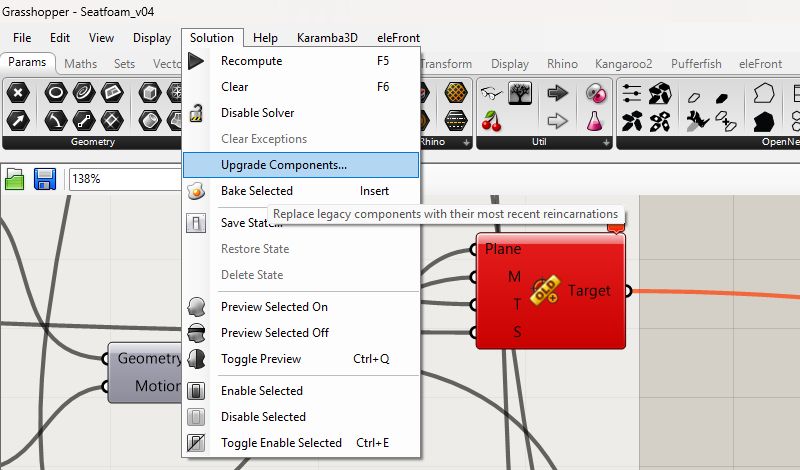
Important: The Visose Robots version has recently been updated. This is a major update that introduces new features and workflows. To ensure that all your Grasshopper definitions continue to work correctly, you need to update the legacy components. You can do this either manually or by using the assisted upgrade process, as shown in the image below.